Internet Message Access Protocol
The entity, Internet Message Access Protocol (IMAP) is configured and mapped when you are dealing with emails. IMAP is a standard internet protocol used by clients to retrieve emails from a mail server over a TCP/IP connection.
To retrieve emails, you need to specify a registered email ID, which is used for reading the emails that are received. When an email is sent to an ID that is configured in the IMAP, the system reads all the incoming messages of that ID. Whenever the subject line of that email ID matches the Subject of the Email Trigger property of the Start activity in the process flow, the corresponding process flow is triggered automatically.
IMAPs are created and managed in the Management > Configuration Management module. For configuring IMAP, you need to understand the concept of IMAP.
Creating New IMAP
Follow the steps below to create a new IMAP.
-
Go to Main Menu > Management > Configuration Management > IMAP
-
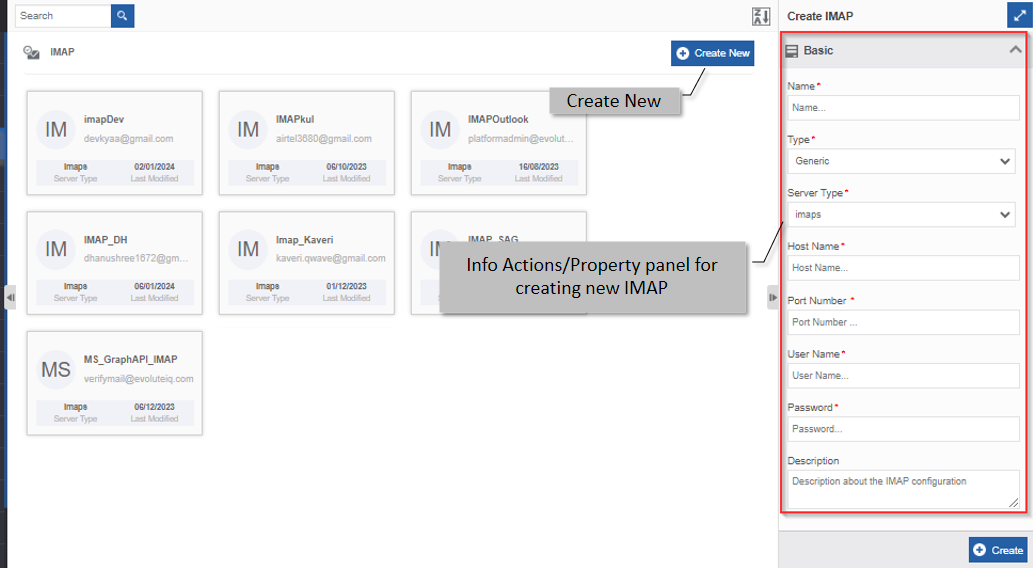
Click +Create New.
-
Enter the Basic details in the Create IMAP panel as explained below. Scroll down the Create IMAP section to view the configuration details.
Field Description Name* Enter the name of the IMAP.
Character limit: 50.
Data type: Alphanumeric and underscore.Server Type Select the server type. 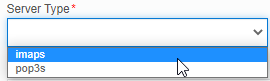
IMAP and POP3 are the two commonly used Internet mail protocols for retrieving emails.
- Imaps: IMAP is the better option when you need to check your emails from multiple devices, such as a work laptop, a home computer, or a tablet, smartphone, or other mobile device. IMAP saves all your e-mail on the server.
- Pop3s: POP3 access mean e-mail is delivered and stored on your personal computer, tablet, or phone. When you check e-mail and download it to your computer the e-mail is immediately deleted from the server.Type Select the required type. 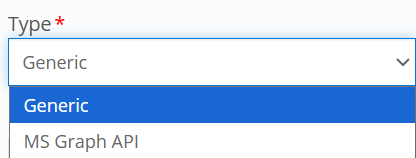
The configurations appear as per the selected type.
Generic : To connect to generic IMAP server.
Refer to IMAP Generic Configurations.
MS Graph API : To read email from Microsoft Outlook in the Platform through Azure portal configurations. You can access Outlook emails using the Graph API.
Refer to MS Graph API Configurations.Description Write a brief description of the IMAP.
Character limit: 1000 characters
Data type: Alphanumeric and symbols. -
Click Create on the bottom right of the page and the IMAP gets created with the details entered.
IMAP Generic Configurations
Based on the Type selected in the creation of IMAP Configuration, the applicable configurations appear.
Type = Generic
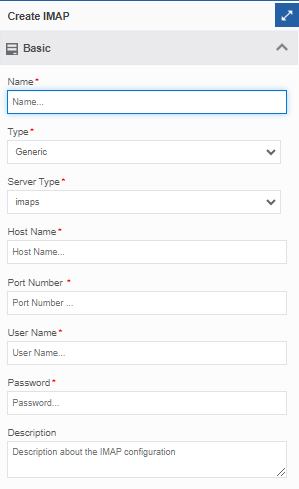
| Field | Description |
|---|---|
| Host Name* | Host configuration appears when you select Type = Generic. Enter the hostname in the textbox. Host name is the server address of the IMAP. E.g., imap.gmail.com is the hostname for gmail IMAP. |
| Port Number* | IMAP Port configuration appears when you select Type = Generic. Enter the IMAP port number. An IMAP server typically listens on port number 143. IMAP over SSL/TLS (IMAPS) is assigned the port number 993. |
| User Name* | Enter username. The username should be the user's email address. This email address is mapped as the email of the IMAP. |
| Password* | Enter password. Enter the 2-step authentication password that is generated. For more details on how to generate 2-step authentication app password refer here. |
MS Graph API Generic Configurations
Based on the Type selected in the creation of IMAP Configuration, the applicable configurations appear.
Type = MS Graph API
You should register and setup Azure App and then provide the necessary permissions to specific mailboxes for getting the required configuration details.
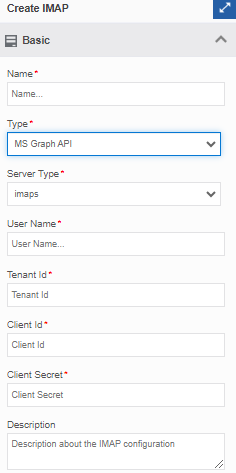
| Field | Description |
|---|---|
| User Name* | Enter username. The username should be the user's email address. |
| Tenant Id* | Tenant Id from the Azure App. |
| Client Id* | Client ID or the Application ID from the Azure App. |
| Client Secret* | Client Secret from the Azure App. |
Viewing and Editing IMAP
- Go to Main Menu > Management > Configuration Management > IMAP.
-
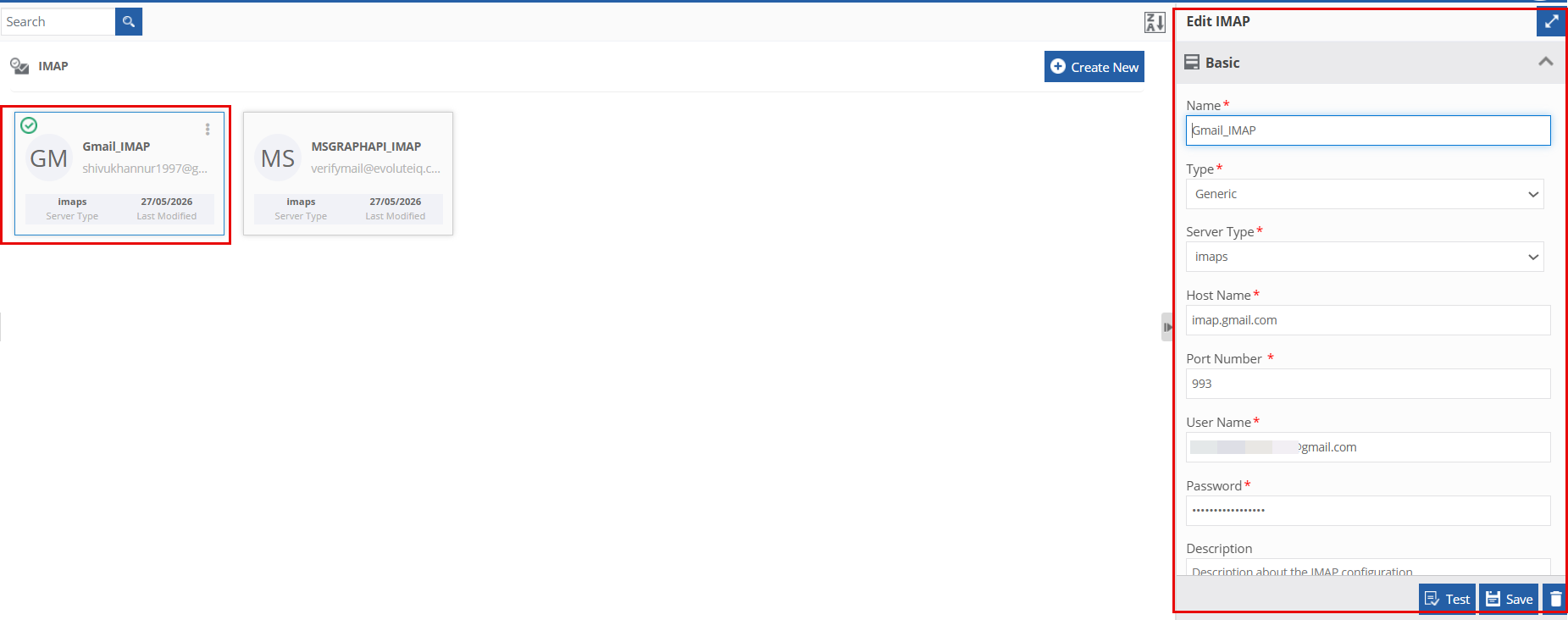
Click the IMAP card for viewing the details of the selected IMAP. The details of the IMAP appear in the Info Actions panel (Edit IMAP).
-
Edit the IMAP details as needed.
- Click Save.
Duplicating IMAP
When an IMAP is duplicated all the properties of the IMAP get copied except the “Password”. Hence while duplicating the IMAP, the user is prompted to enter the password for the duplicate IMAP. Unless the user enters the password value, the data source cannot be duplicated.
Follow the below steps for duplicating an existing IMAP.
- Go to Main Menu > Management > Configuration Management > IMAP. The list of all IMAPs appears.
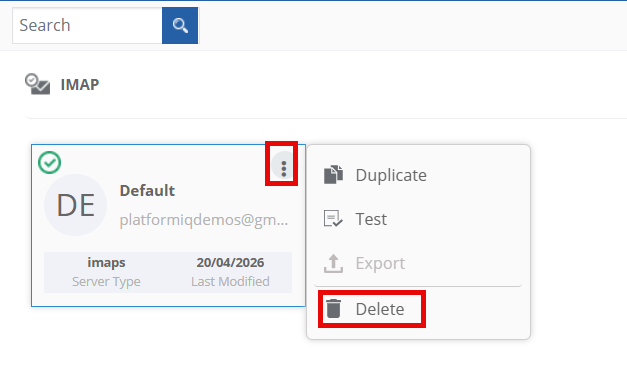
- Hover over any IMAP card. Three dots appear on the upper right side of the card.
-
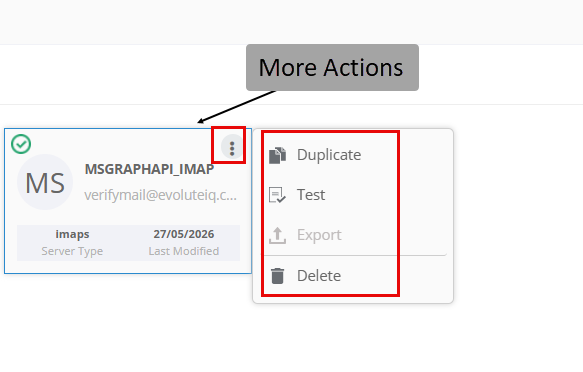
Click the three dots. More Actions appear.
-
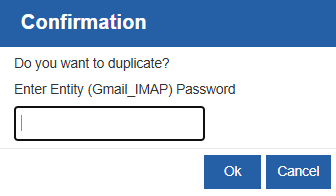
Click Duplicate. A confirmation pop-up appears along with the password confirmation textbox.
-
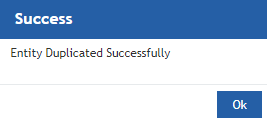
Enter the Entity Password (email account password) and click Ok to duplicate the IMAP (or you can click Cancel to cancel the duplicate action). Password does not get copied during duplication and hence you need to provide a valid password for the IMAP that is copied. A Success message appears on successful duplication of the IMAP.
-
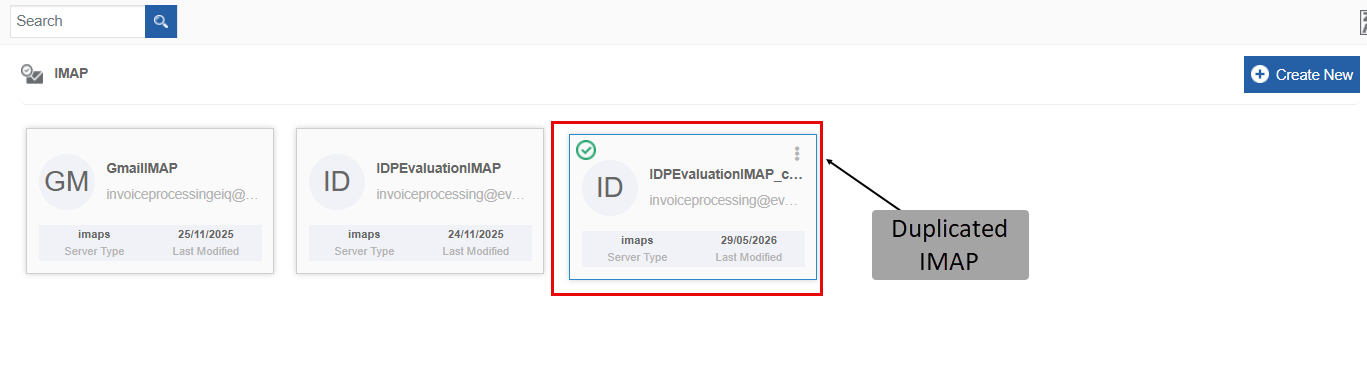
Click Ok. A duplicate copy of IMAP appears on the IMAP page with the same IMAP name suffixed with “_copied”.
Deleting IMAP
- Go to Main Menu > Management > Configuration Management > IMAP. The list of all IMAPs appears.
-
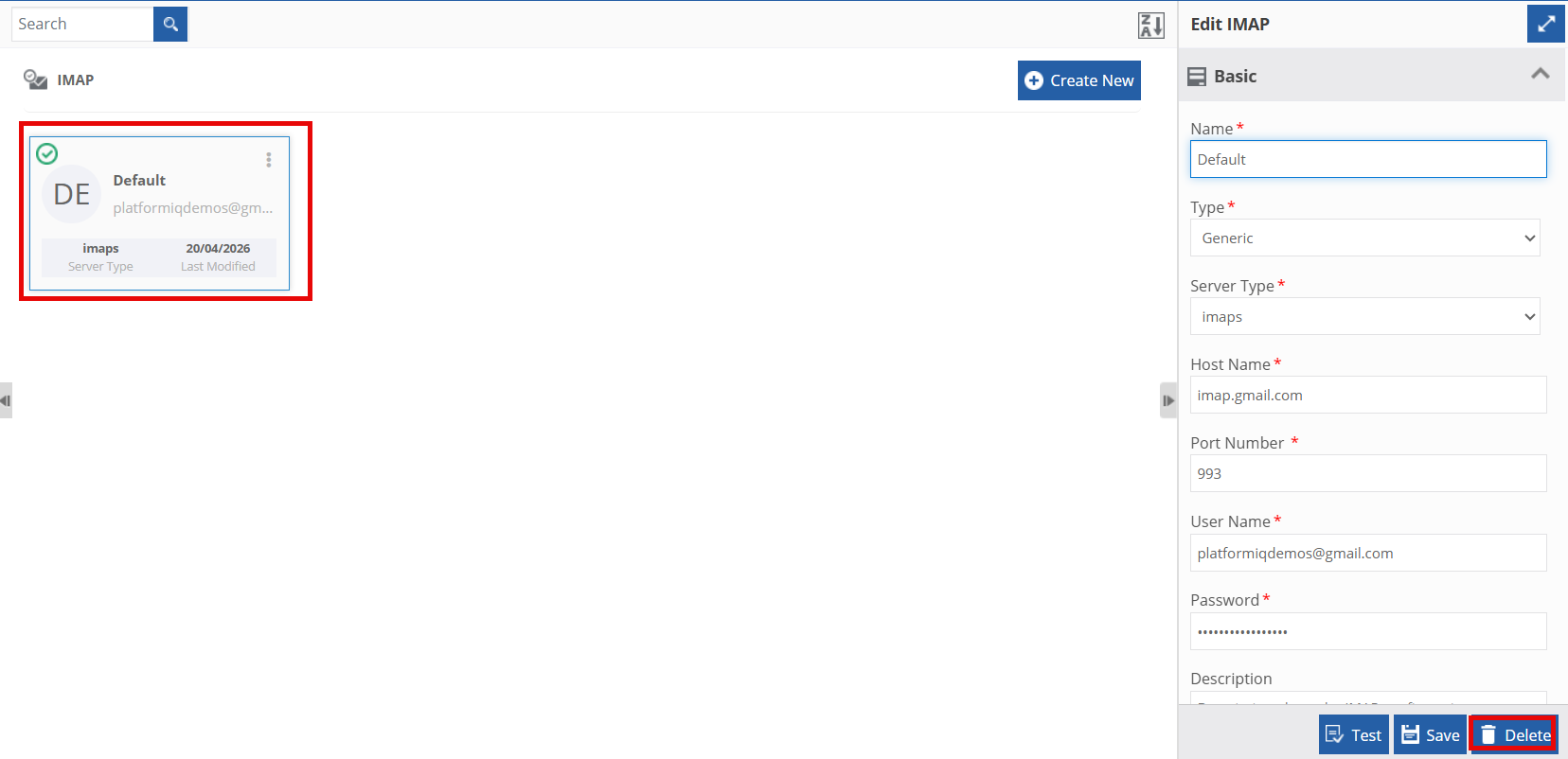
Click the IMAP name card that is to be deleted. The lower-right of the page displays the Delete button.
-
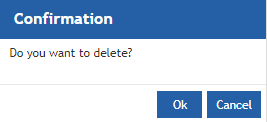
Click Delete. A Confirmation pop-up for delete appears.
-
Click Ok for deleting the IMAP.
Or
Click Cancel to cancel the action.
Alternatively, you can follow the below steps to delete the IMAP:
- Go to Main Menu > Management > Configuration Management > IMAP.
- Hover over the IMAP card. Three dots appear on the upper right side of the card.
- Click the three dots. More Actions appear.
-
Click Delete and follow step 4 in the above procedure.