Organization Calendar
The entity, Organization Calendar, is a mandatory requirement for the process flows to follow a particular calendar and time for executing the process. Organization Calendar is configured and mapped to an activity (task activity) in a process flow when you need to achieve special requirements based on calendar or time zone. Organization Calendar allows you to customize, configure, and create different calendars as per the requirement.
The organization calendar is used at the Activity level (Task activity), Process level, and Organization level.
Creating New Organization Calendar
Follow the steps below to create a new Organization Calendar.
-
Go to Main Menu > Management > Configuration Management > Organization Calendar.
-
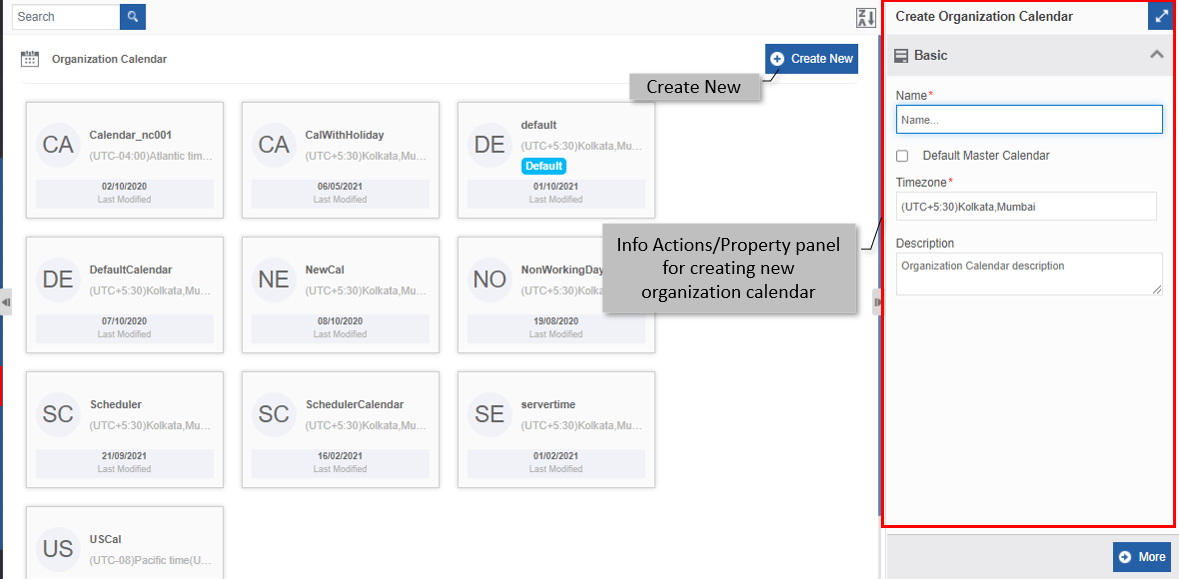
Click +Create New.
-
Enter the Basic details in the Create Organization Calendar panel as explained below.
Field Description Name* Enter the name of the Organization calendar.
Character limit: 50.
Data type: Alphanumeric and underscore.Default Master Calendar Check the checkbox adjacent to Default Master Calendar , if you need to set the calendar as a Default master calendar. If there is any other default calendar, it will be set back as non-default.
Note: You can configure only one calendar as the default master calendar. If you set a calendar as default, the previously existing default calendar will change to non-default automatically.
Uncheck the checkbox if you do not need the calendar as default.Timezone* Select the required time zone from the drop-down list. 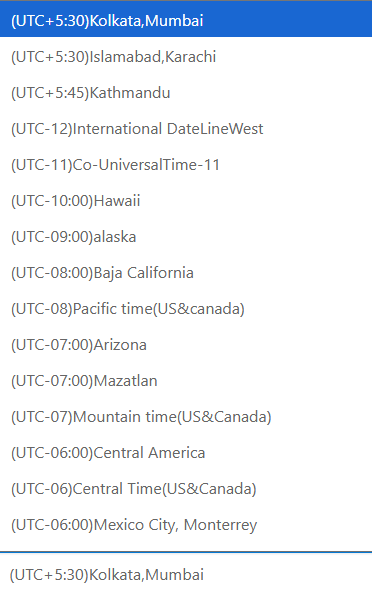
Description Write a brief description of the calendar.
Character limit: 1000 characters
Data type: Alphanumeric and symbols. -
Click More. More details for the calendar page appear.
-
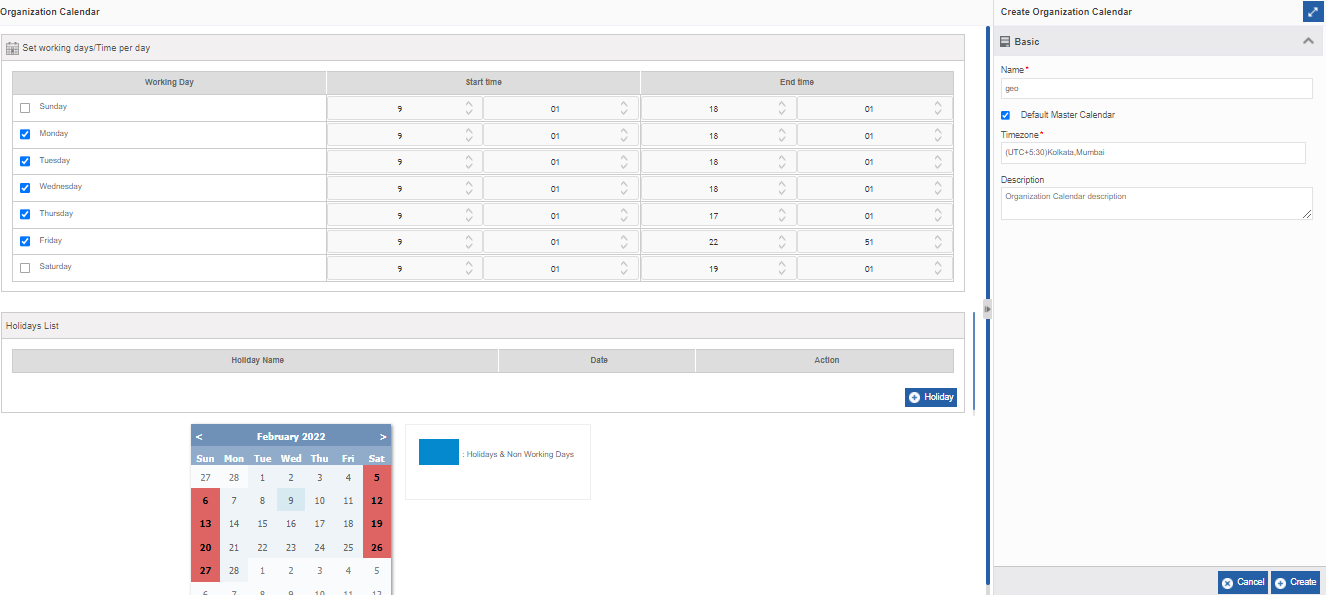
Enter calendar details as explained below.
Field Description Set Working days/Time per day Select the weekday checkbox for the working days below Working Day and select the Start time and End time. You can enter the time directly or use the spin buttons. The first column in the time indicates hours and the second column indicates the minutes. 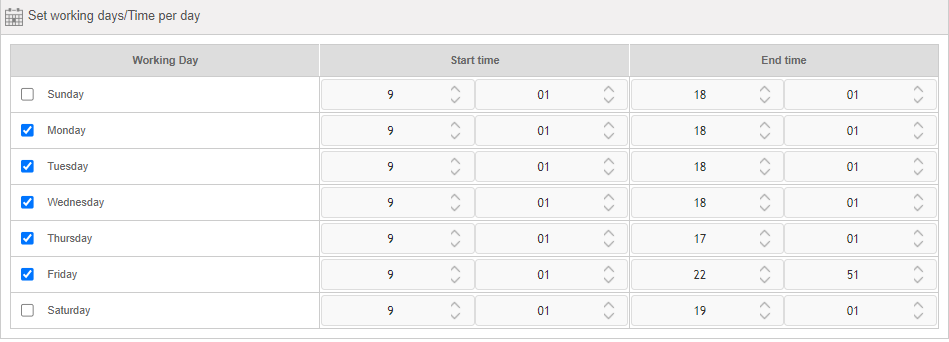
Holiday List The list of holidays created for the calendar appears in the Holiday list.
To add a holiday, click Holiday at the bottom right of the Holiday List panel.
- Enter Holiday Name.
- Select Date from the date control.
Action column displays the delete icon for deleting the holiday created. You cannot edit the holiday created. You need to delete the holiday and create another one.
- Click the delete icon to delete the Holiday.
The calendar below the Holiday List displays the Holidays and non-working days in a different color as indicated in the legend. -
Click Create on the bottom right of the page and the organization calendar gets created with the details entered.
Viewing and Editing Organization Calendar
- Go to Main Menu > Management > Configuration Management > Organization Calendar.
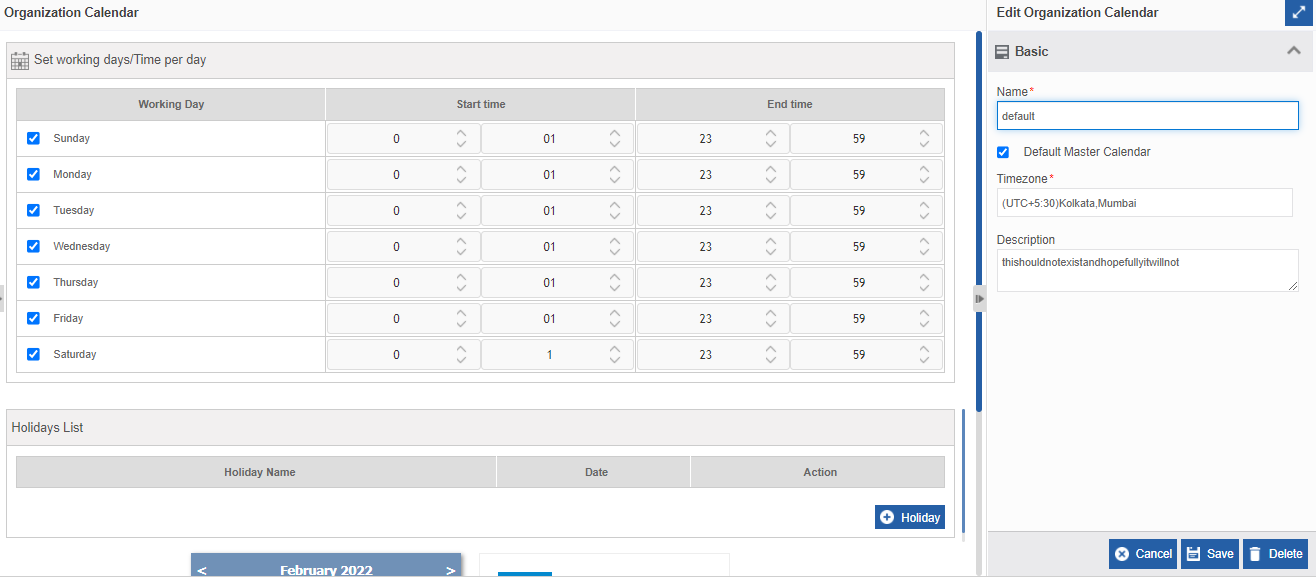
- Click the Organization Calendar card to view the details of the selected calendar. The details of the calendar appear in the Info Actions panel (Edit Organization Calendar).
-
Click More.
-
Edit the calendar details as needed.
- Click Save.
Duplicating Organization Calendar
Follow the below steps to duplicate an existing organization calendar.
- Go to Main Menu > Management > Configuration Management > Organization Calendar. The list of all organization calendar cards appears.
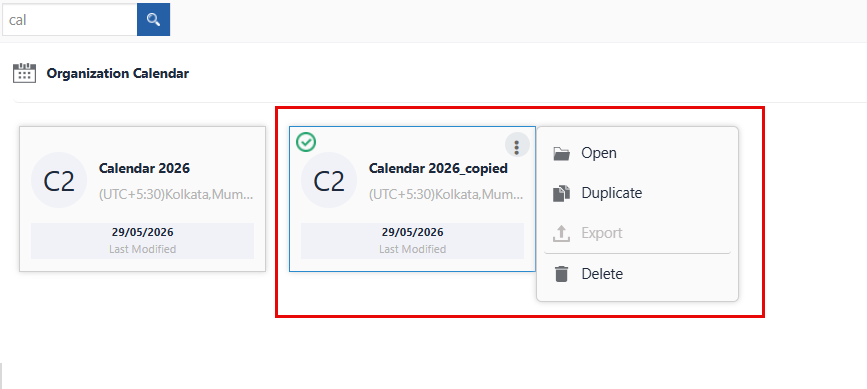
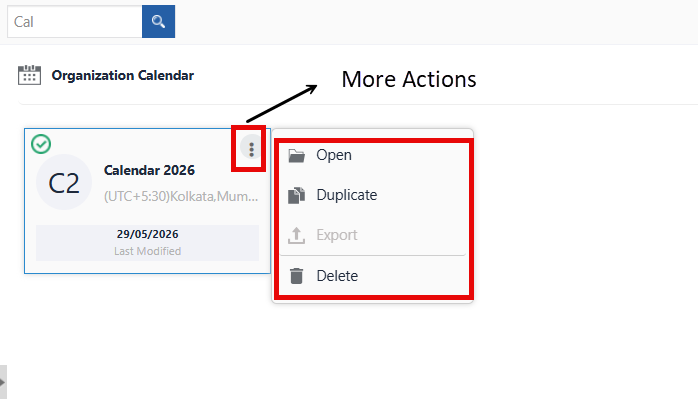
- Hover over any calendar card. Three dots appear on the upper right side of the card.
-
Click the three dots. More Actions appear.
-
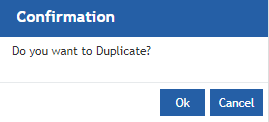
Click Duplicate. Confirmation pop-up appears.
-
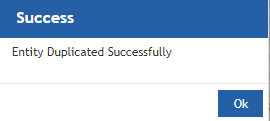
Click Ok for duplicating the calendar (or you can click Cancel to cancel the duplicate action). A Success message appears on the successful duplication of the calendar.
-
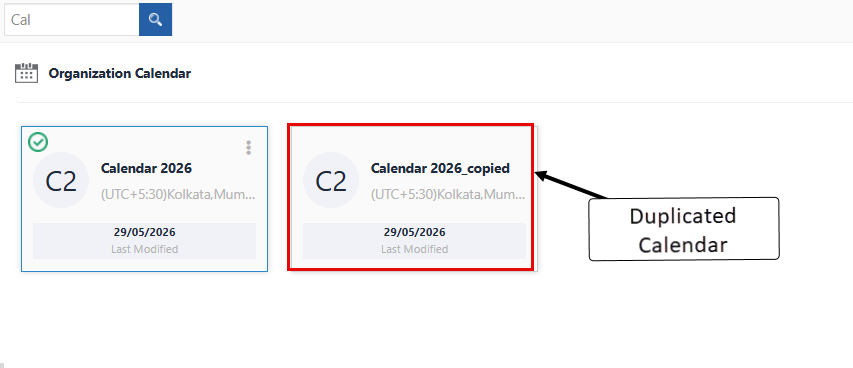
Click Ok. A duplicate copy of the calendar appears on the calendar page with the same calendar name suffixed with “_copied”.
Deleting Organization Calendar
You can delete the default calendar and other calendars. When you delete a default calendar, you need to configure another calendar as the default calendar. You cannot retrieve the deleted calendar.
- Go to Main Menu > Management > Configuration Management > Organization Calendar. The list of all calendars appears.
-
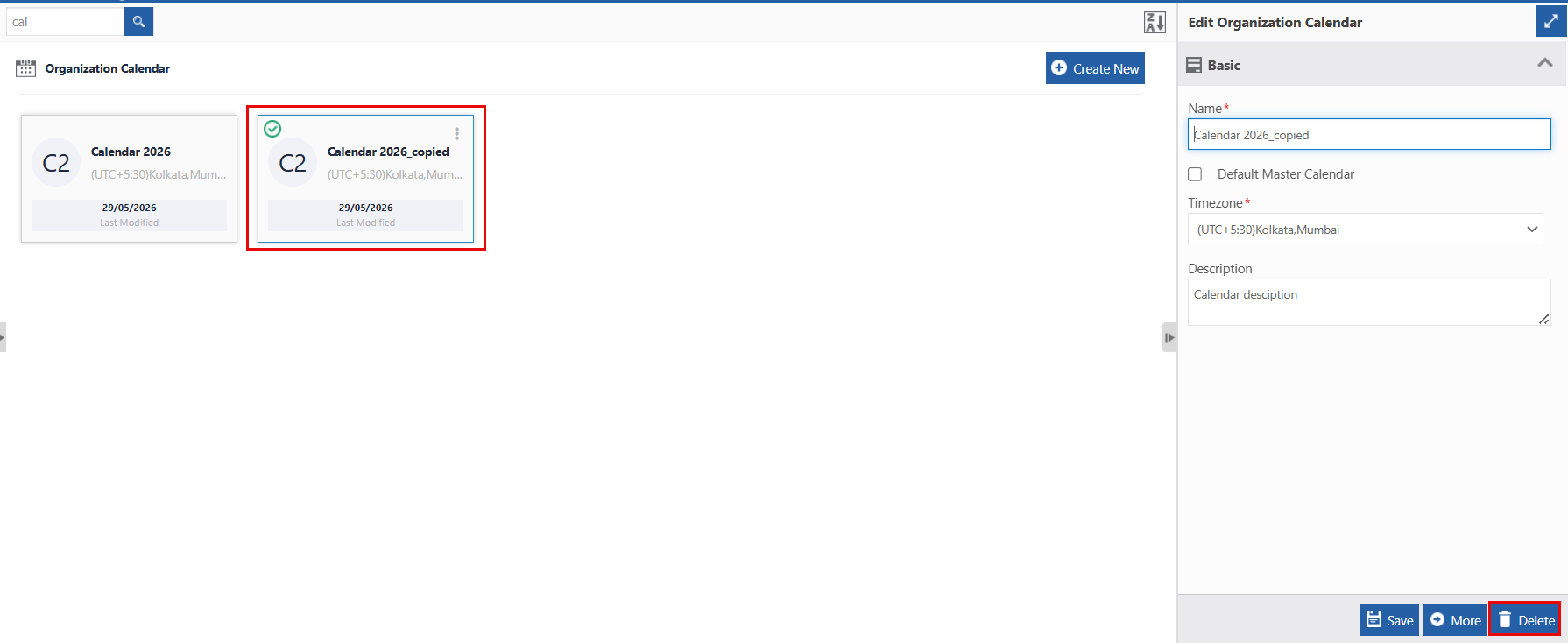
Click the calendar name card that is to be deleted. The lower-right of the page displays the Delete button.
-
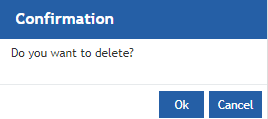
Click Delete. A Confirmation pop-up for delete appears.
-
Click Ok for deleting the calendar.
Or
Click Cancel to cancel the action.
Alternatively, you can follow the below steps to delete the calendar:
- Go to Main Menu > Management > Configuration Management > Organization Calendar.
- Hover over the organization calendar card. Three dots appear on the upper right side of the card.
- Click the three dots. More Actions appear.
-
Click Delete and follow step 4 in the above procedure.