Utilizing Datamodels
Accessing Datamodel in Queries
For creating the business entity, Queries, you need to map a Datamodel in the Queries configuration.
- Go to Main Menu > App Studio > Applications > open [Application_Name] > Data Flow > open [Data_Flow_Name]> Datamodel
or
Go to Main Menu > App Studio > Datamodel - Click Create New and create the required Datamodel that is to be mapped to the Queries.
- Navigate to the entity, Queries.
-
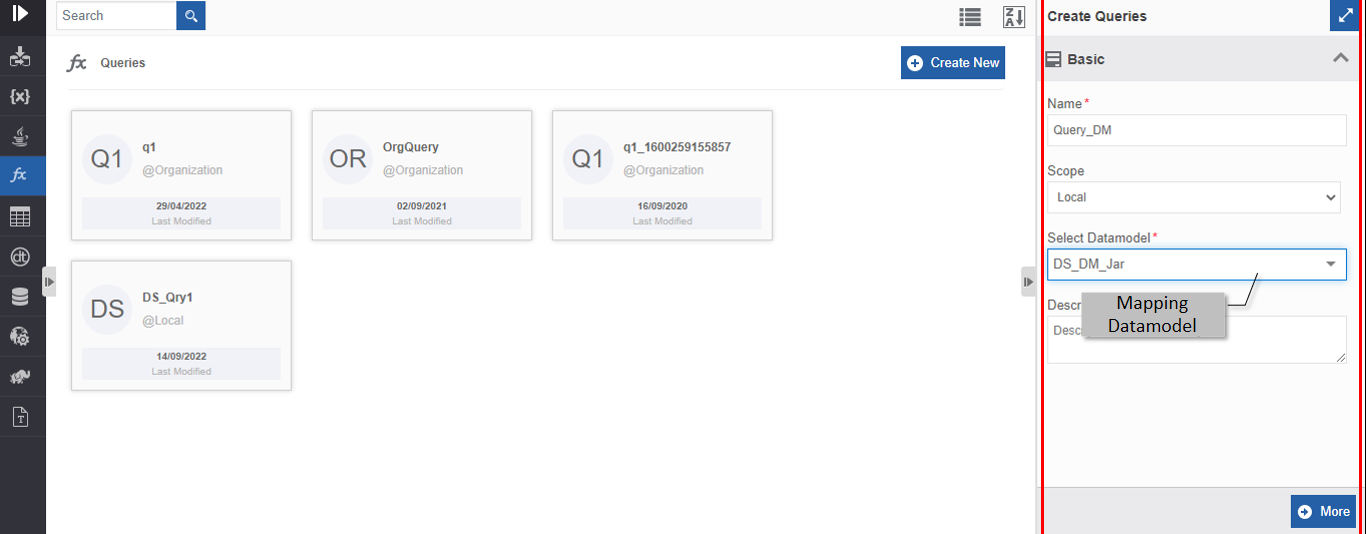
Click Create New to create new Queries.
-
Select the required Datamodel for configuring the Queries.
-
Click More. Rules for Queries appear.
The Select field displays the fields (attributes ) as per the configured Datamodel.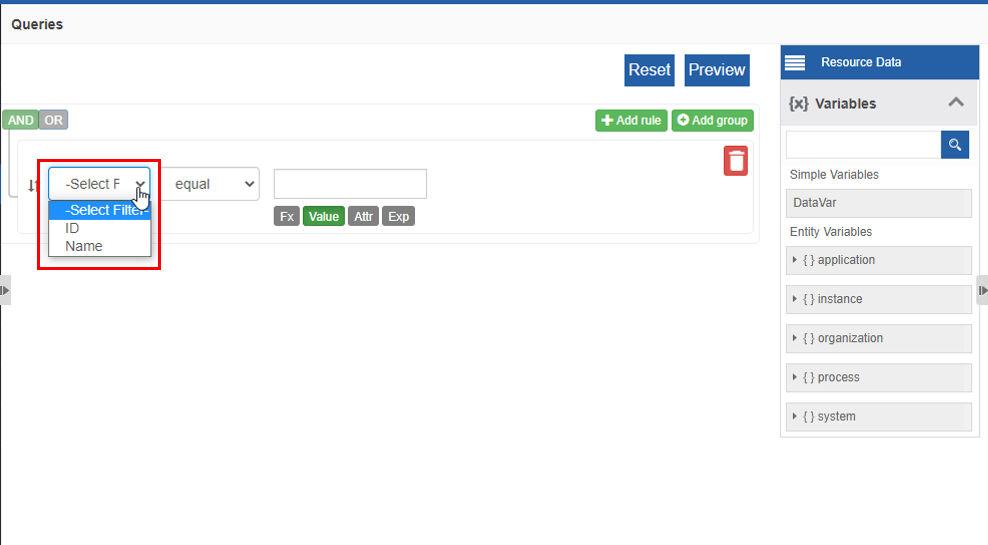
-
Provide the rules as needed.
- Click Create to create the new Queries entity.
Accessing Datamodels through Activity
Data flow activities need a Datamodel as the input configuration element.
-
Go to Main Menu > App Studio > Applications > open [Application_Name] > Data Flow > open [Data_Flow_Name] or create a data flow with the activity “Reader”. The reader is a mandatory activity for a data flow. Only the Reader activity takes the Datamodel entity as the input.
-
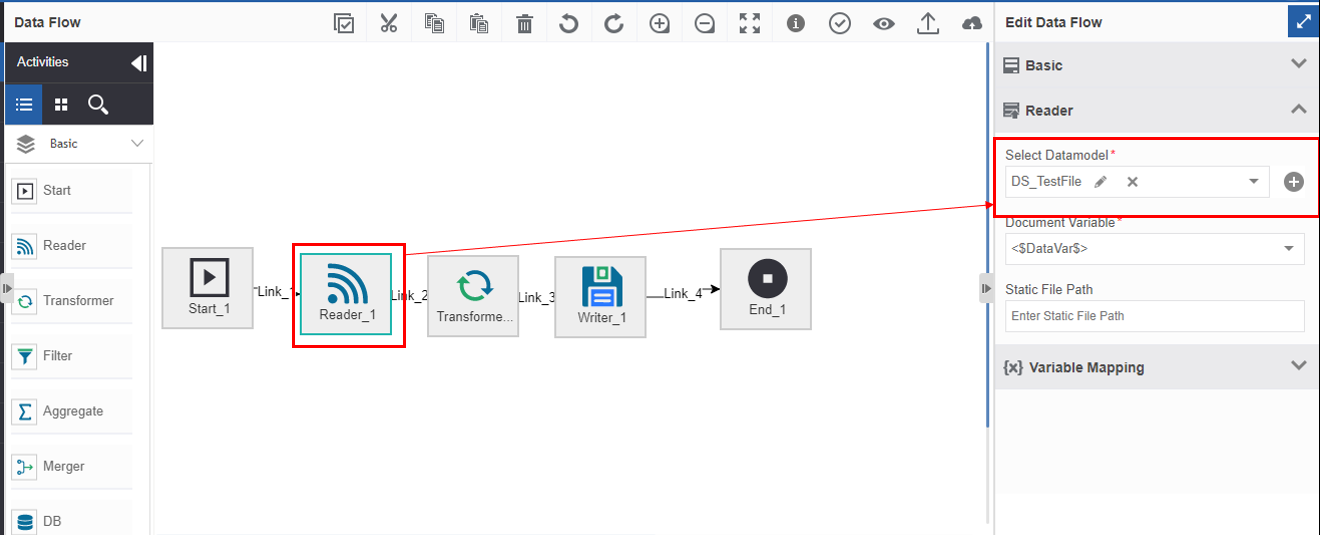
Click the Reader activity and the Info Actions panel displays the configuration and properties.
-
Click Reader accordion. Datamodel mapping details appear.
-
Click the Select Datamodel box for viewing the list of local and organization-level Datamodels.
- Select a Datamodel for mapping the Datamodel to the Reader activity.