RPA File Activities
Append Line
Append Line activity appends line in the text file.
If the file does not exist on the specified path, it creates a file and adds the specified text.
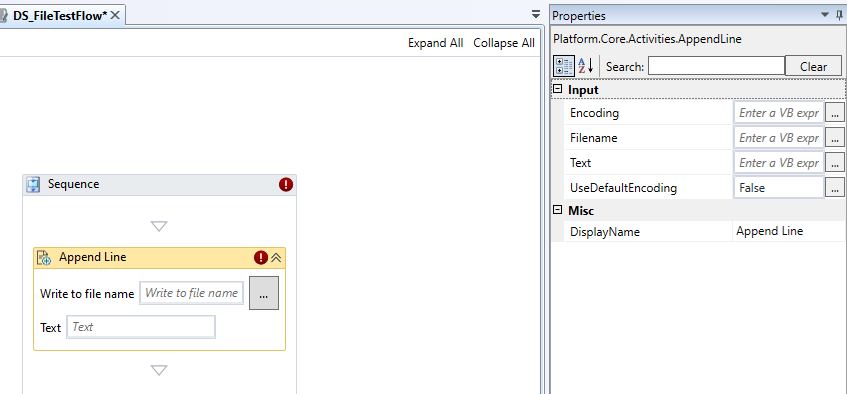
Properties of Append Line
| Properties | Description |
|---|---|
| Encoding | Enter the encoding type to be used. This field support string values. Enter the encoding within double quotes. Refer to Encoding Types. If no encoding type is specified, the activity will search for the file's Byte Order Marks to detect the encoding. If no Byte Order Marks are detected and Use default encoding is not selected, UTF-8 is selected by default. |
| File Name | Enter the path and file name to which the string or text line need to be appended. Enter the details within double quotes as it supports only string. If the path is not full, the file is created in the project folder. Use local path or a variable. In the designer the same value appears in the Write to file name field. You can enter the value in the designer or click the button adjacent to Write to file name field to select the file from the required path. |
| Text | Enter the text to be appended to the file. Enter the details within double quotes as it supports only string. You can add a variable and then resolve the variable in runtime. In the designer the same value appears in the Text field. You can enter the value in the designer also. |
| UseDefaultEncoding | Enter True if you want to use the default operating system encoding when text is added or when the encoding cannot be detected else enter False and then UTF-8 encoding is used. |
| DisplayName | Title of the activity inside the sequence. |
Browse for File
At the run time, the Browse for File activity opens a dialog box to browse for a file and the user can select the required file.
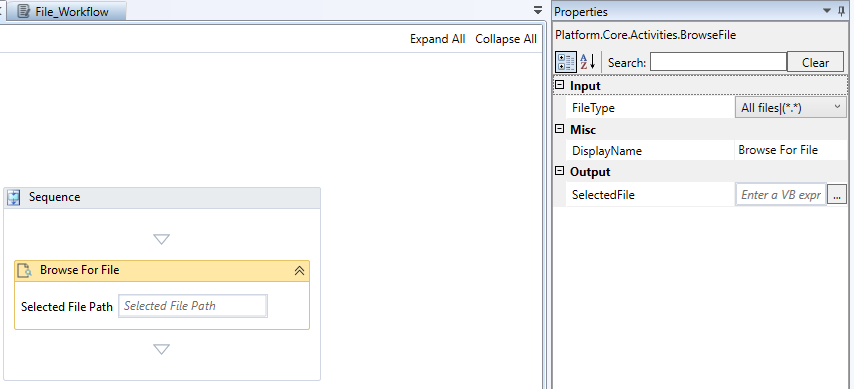
Properties of Browse for File
| Properties | Description |
|---|---|
| File Type | Select the required file type that you want to select from the browser.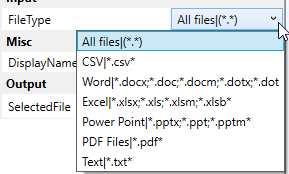 The File Type drop-down lists all the possible file types that you can browse. |
| DisplayName | Title of the activity inside the sequence. |
| Selected File | Enter a variable for storing the output. The output stores the full path where the selected file is stored. Selected File Path in the designer displays the selected variable or entered file path |
Browse for Folder
At the run time, the Browse for Folder activity opens a dialog box to browse for a folder and the user can select the required folder.
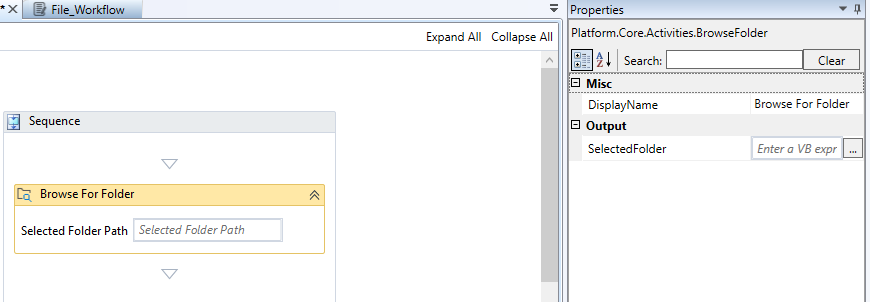
Properties of Browse for Folder
| Properties | Description |
|---|---|
| DisplayName | Title of the activity inside the sequence. |
| Selected Folder | Enter a variable for storing the output. The output stores the full path where the selected folder is stored. Selected Folder Path in the designer displays the selected variable or entered Folder path |
Compress Archive
Compress Archive activity is used to create compressed folder (zip) of files.
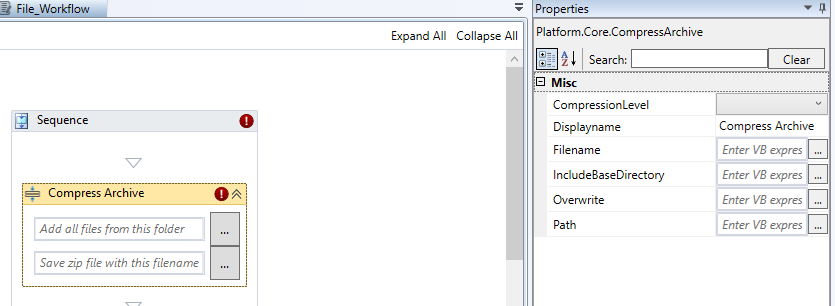
Properties of Compress Archive
| Properties | Description |
|---|---|
| CompressionLevel |  Select the compression level that you need. |
| Displayname | Title of the Activity inside the sequence. |
| Filename | The file name of the compressed file. Click “…” next to Add all files from this folder box in the activity to add the file path and file name. |
| IncludeBaseDirectory | Enter True or False as per your need to include the base folder. If True, it includes the base folder also while compressing the files. If False, it does not include the base folder. |
| Overwrite | Enter True or False as per your need to overwrite the existing file. If True, it overwrites the already existing compressed file. If False. It creates duplicates with suffix 1, 2, etc. |
| Path | The path where you want to save the compressed file. Click “…” next to Save zip file with this file name box in the activity in the designer to add the file path and file name of the zip file. |
Copy File
Copy File activity is used to Copy a file from a specified location to another location.
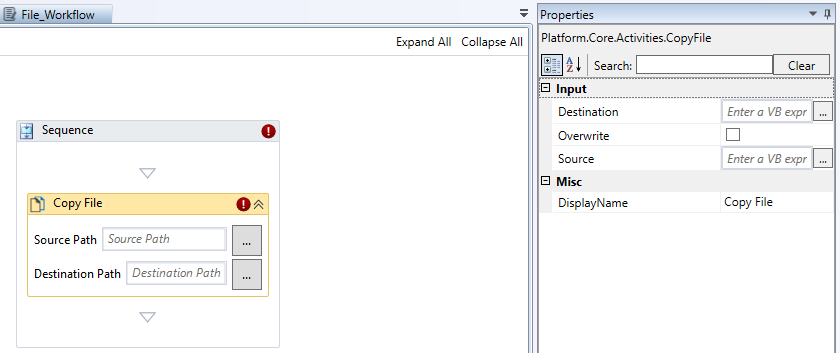
Properties of Copy File
| Properties | Description |
|---|---|
| Destination | Enter the path where you want to paste the copied files. If you provide a path along with the fil name, the file content is copied to the provided file name. If you provide a folder path, the file is copied with its original name into that folder. |
| Overwrite | Select Overwrite to overwrite the file in the destination if it already exists and creates a new file if it does not exist. Clear Overwrite, to create a new file in the destination irrespective of whether the file exists or not |
| Source | Enter the path from where you want to copy the file. |
| Displayname | Title of the Activity inside the sequence. |
Copy Folder
Copy Folder activity is used to Copy a folder from a specified location to another location. You can configure this activity to copy the sub folder or to overwrite the folder in the destination with the new folder.
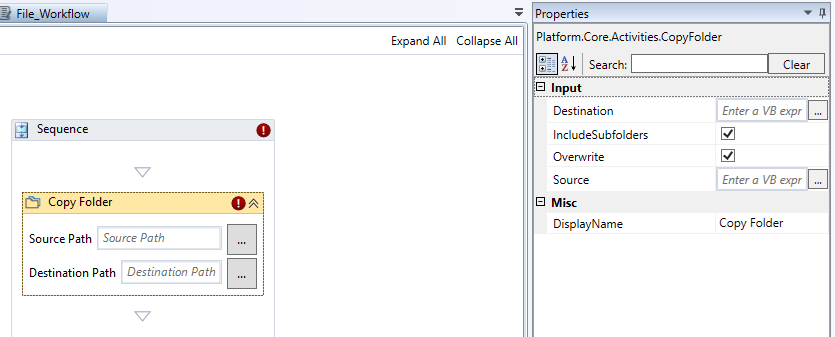
Properties of Copy Folders
| Properties | Description |
|---|---|
| Destination | Enter the path where you want to paste the copied folder. |
| Include Subfolders | Select Include subfolders if you want to copy the subfolders. |
| Overwrite | Select Overwrite to overwrite the folder in the destination if it already exists and creates a new file if it does not exist. Clear Overwrite, to create a new folder in the destination irrespective of whether the file exists or not. |
| Source | Enter the path from where you want to copy the file. |
| Displayname | Title of the Activity inside the sequence. |
Create File
Create File activity is used create an empty file in the specified location. If a file already exists in that location, the new file will replace the existing file. If you want to create a new file in which you want to write some content, it is better to use the Append Line activity.
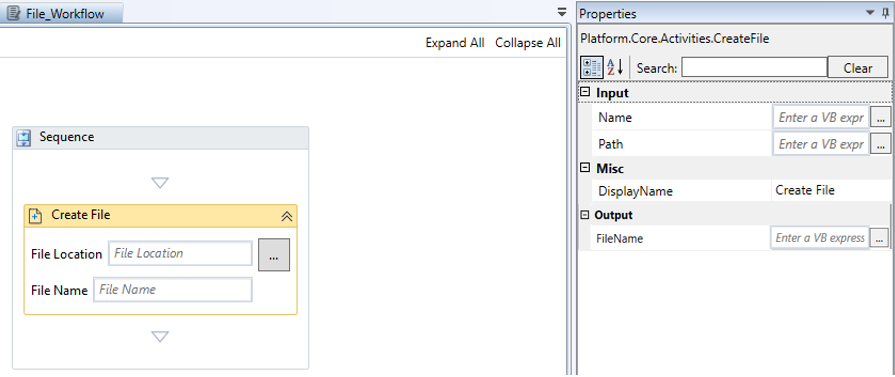
Properties of Create File
| Properties | Description |
|---|---|
| Name | Enter the file name. |
| Path | Enter the path of the file. The file will get created in this path with the specified file name. |
| Displayname | Title of the Activity inside the sequence. |
| File Name | Enter the variable for storing the output. File path is stored in the output |
Create Folder
Create Folder activity is used create an empty folder in the specified location. If a folder already exists in that location, the activity will not replace any existing folder.
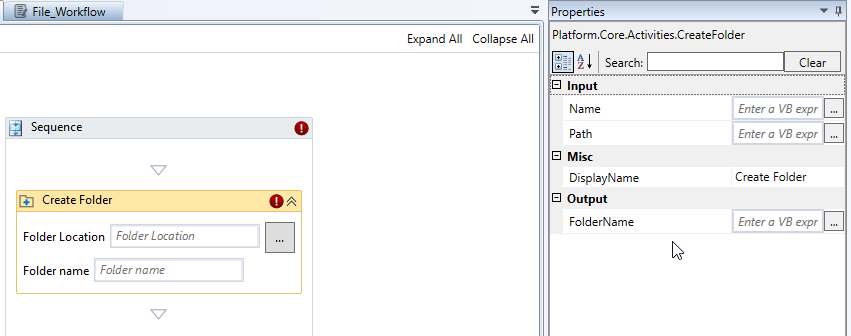
Properties of Create Folder
| Properties | Description |
|---|---|
| Name | Enter the folder name. |
| Path | Enter the path of the folder. The folder will get created in this path with the specified file name. |
| Displayname | Title of the activity inside the sequence. |
| Folder Name | Enter the variable for storing the output. The folder path is stored in the output. |
Delete
Deletes activity deletes the files and folders in the specified location. If a folder in the specified path contains multiple files or sub folders, they all get deleted.
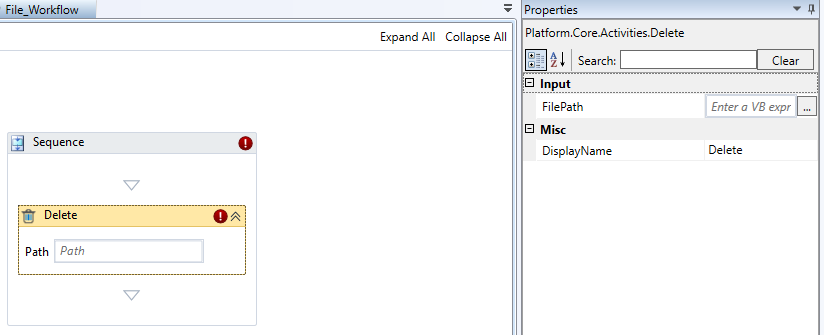
Properties of Delete
| Properties | Description |
|---|---|
| Path | Enter the path of the file or folder to be deleted. The folder will get deleted with all its subfolders and files. Alternatively, enter the variable to capture the path at the run time |
| Displayname | Title of the activity inside the sequence. |
Delete File
Deletes activity deletes the specified file in the specified location.
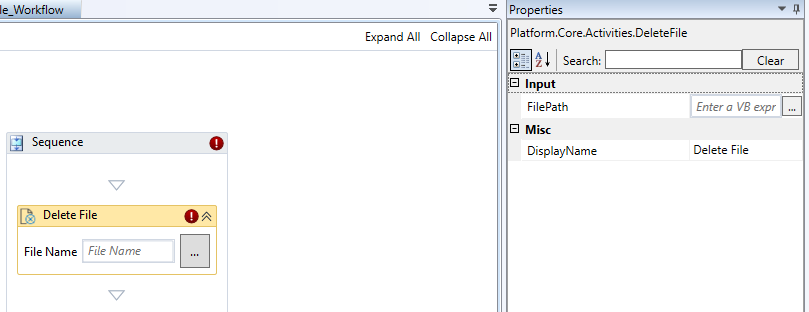
Properties of Delete File
| Properties | Description |
|---|---|
| File Path | Enter the path of the file to be deleted along with the file name. Or Click the button adjacent to the File Name to select the file to be deleted. Alternatively, enter the variable to capture the file path at the run time. |
| Displayname | Title of the activity inside the sequence. |
Delete Folder
Deletes activity deletes the specified Folder in the specified path. The contents of the folder including the subfolders get deleted.
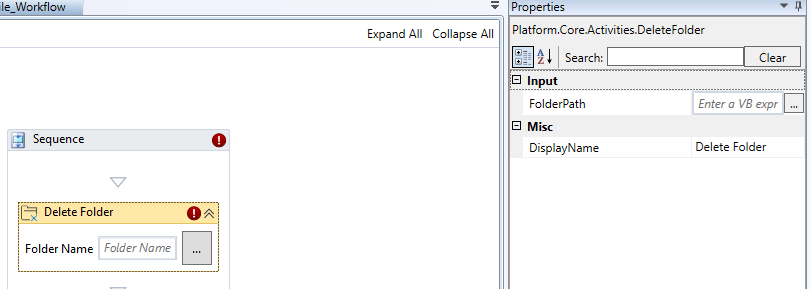
Properties of Delete Folder
| Properties | Description |
|---|---|
| File Path | Enter the path of the file to be deleted. Or Click the button adjacent to the Folder Name to select the folder to be deleted. Alternatively, enter the variable to capture the folder path at the run time. |
| Displayname | Title of the activity inside the sequence. |
Expand Archive
Expand Archive activity is used to expand the zip files.
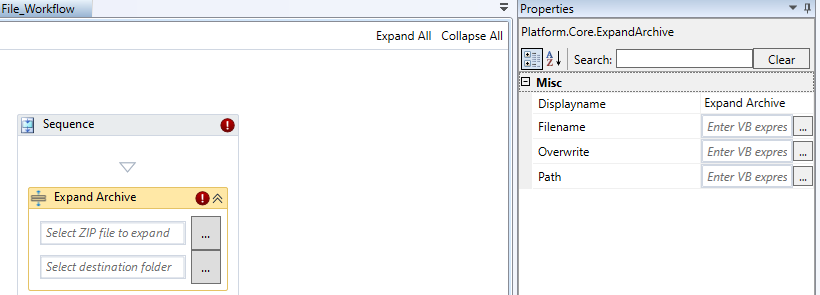
Properties of Expand Archive
| Properties | Description |
|---|---|
| Displayname | Title of the activity inside the sequence. |
| Filename | Enter the zip file name. |
| Overwrite | Enter True if you want to overwrite the file with the same name. Enter False if you want to create a new file without overwriting the existing. |
| Path | Enter the path of the file. |
File Exists
File Exists activity checks if the specified file path exists.
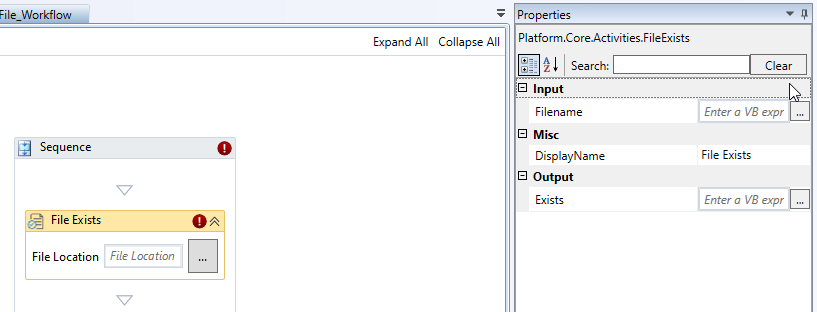
Properties of File Exists
| Properties | Description |
|---|---|
| Filename | Enter the file path along with the file name. The activity checks this path for checking if the file exists. |
| Displayname | Title of the activity. |
| Exists | Stores the output. If the output is True, the file exists. If the output is False, the file does not exist. |
Folder Exists
Folder Exists activity checks if the specified folder exists in the path.
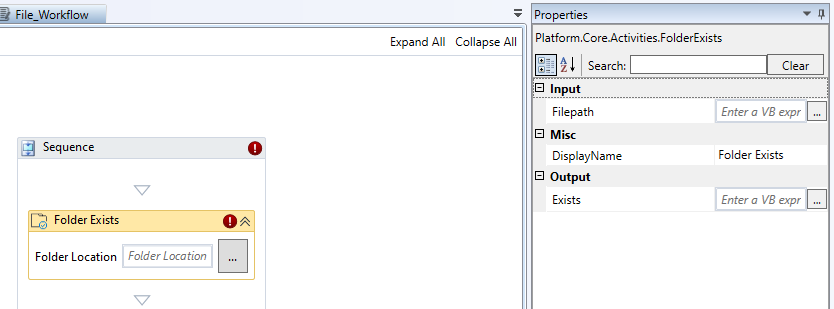
Properties of Folder Exists
| Properties | Description |
|---|---|
| Folder Location | Enter the folder path. The activity checks this path for checking if the folder exists. |
| DisplayName | Title of the activity. |
| Exists | Enter a variable to hold the output. This variable stores the output. If the output is True , the file exists. If the output is False , the file does not exist. |
For Each File In Folder
For Each File In Folder activity executes an activity or a series of activities for each file in a specified folder. Use this activity when you are working with the files in a folder and you want to repeat one or more activities for each individual file.
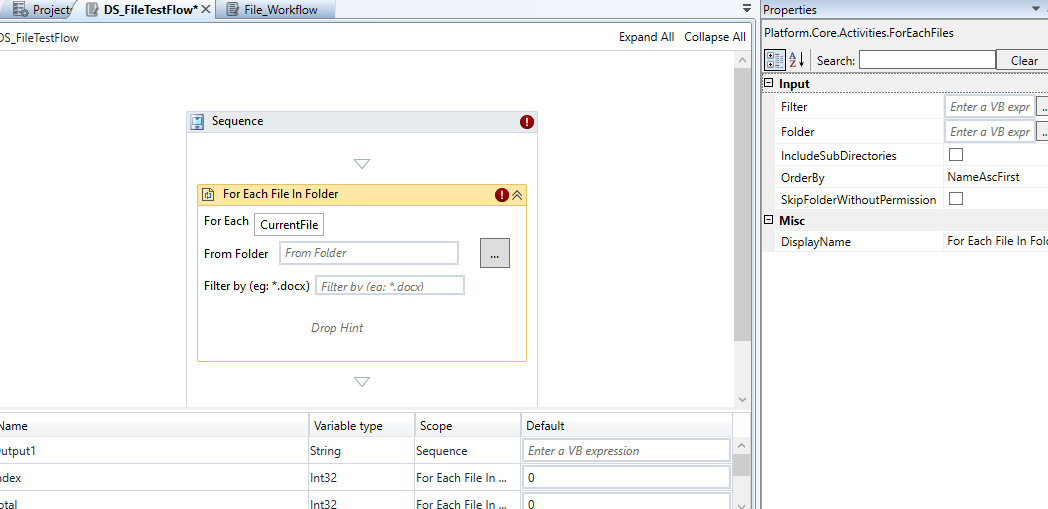
Properties of For Each File In Folder
| Properties | Description |
|---|---|
| For Each (in the designer) | Enter the name to refer in the iteration. For example, for a folder that contains reports, you can enter "Report". The default value is CurrentFile. |
| Folder | This is same as the From Folder used to select the folder path. Click the button adjacent to the Folder, browse and select the folder that contains the required file. |
| Filter | This is same as the Filter By in the designer which is used to filter the files by type. * docx filters all the .docx files in which you can apply the actions. |
| Include SubDirectories | Select the checkbox, if you want to include all the content within the sub directories else clear the checkbox. |
| OrderBy | Click Order By and select criteria for the ordering.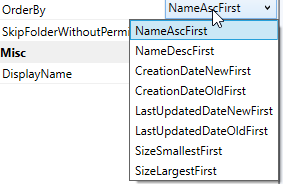 |
| Skip Folder Without Permission | If selected, folders where the access is denied are automatically skipped. This option is not selected by default |
| Displayname | Title of the activity. |
Tip
In the Drop Hint area within the activity (in the designer), drop the required activities and configure the same for execution.
For Each Folder In Folder
For Each Folder In Folder activity executes an activity or a series of activities for each child folder in a specified folder. Use this activity when you are working with the child folders in a parent folder and you want to repeat one or more activities for each individual child folder.
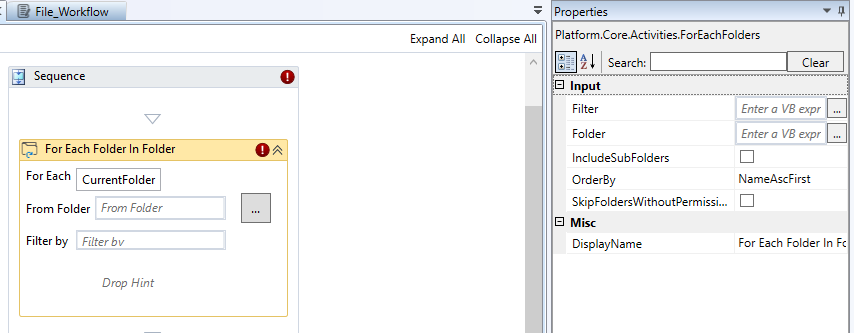
Properties of For Each Folder In Folder
| Properties | Description |
|---|---|
| For Each (in the designer) |
Enter the name to refer to the current folder in the iteration. For example, for a folder that contains multiple child folders with reports, you can enter Report. The default value is CurrentFolder. |
| Folder | This is same as the From Folder used to select the folder path. Click the button adjacent to the Folder, browse and select the folder. |
| Filter | This is same as the Filter By in the designer which is used to filter the child folders by name. |
| Include SubDirectories | Select the checkbox, if you want to execute the activities on the folders found in the child folders of the specified location else clear the checkbox. |
| OrderBy | Click Order By and select in what order the folders should be iterated through. |
| Skip Folder Without Permission | If selected, folders where the access is denied are automatically skipped. This option is not selected by default. |
| Displayname | Title of the activity. |
In the Drop Hint area within the activity (in the designer), drop the required activities and configure the same for execution.
Get File Info
Get File Info activity gets the file information (properties of the file) from the specified file path.
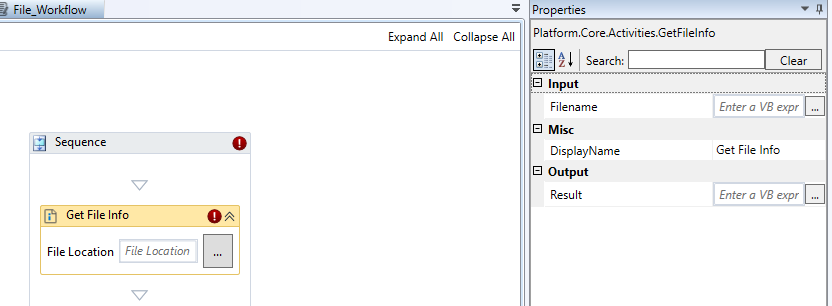
Properties of Get File Info
| Properties | Description |
|---|---|
| Filename | Enter the file path along with the file name. The activity checks this path for checking if the file exists. |
| Displayname | Title of the activity. |
| Result | Stores the output. The file info is stored in the output variable. |
Get Folder Info
Get Folder Info activity gets the folder information (properties of the folder) from the specified file path.
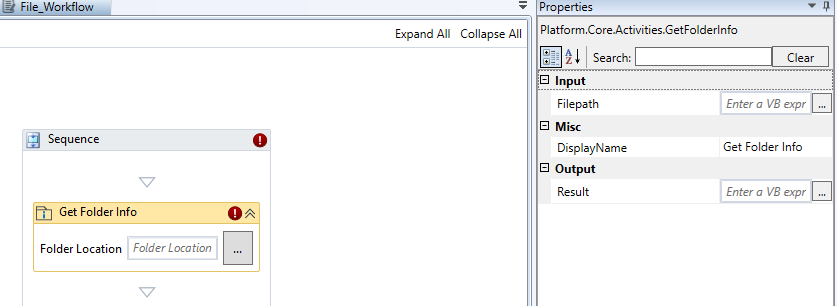
Properties of Get Folder Info.
| Properties | Description |
|---|---|
| Filepath | Enter the folder location or the path. |
| Displayname | Title of the activity. |
| Result | Stores the output. The folder info is stored in the output variable. |
Move File
Move File activity moves the file from one location to another. The file from the source folder will get removed.
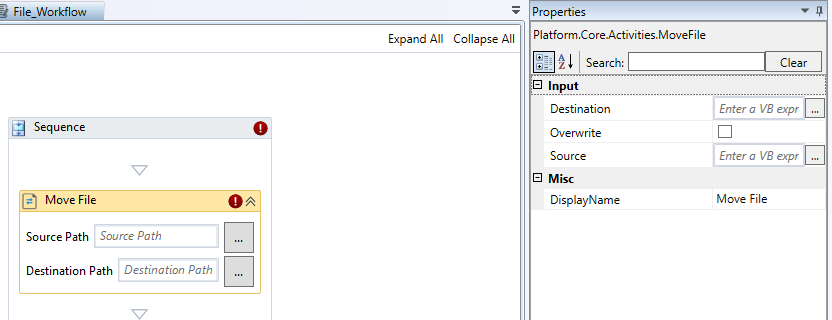
Properties of Move File
| Properties | Description |
|---|---|
| Destination | Enter the path of the Destination folder where you have to move the file. |
| Overwrite | Select Overwrite to overwrite the file in the destination if it already exists. It creates a new file if the file does not exist. Clear Overwrite, to create a new file in the destination irrespective of whether the file exists or not. |
| Source | Enter the path of the source of the file that is to be moved. |
| Displayname | Title of the activity |
Move Folder
Move Folder activity moves the folder from location to another. The folder from the source folder will get removed.
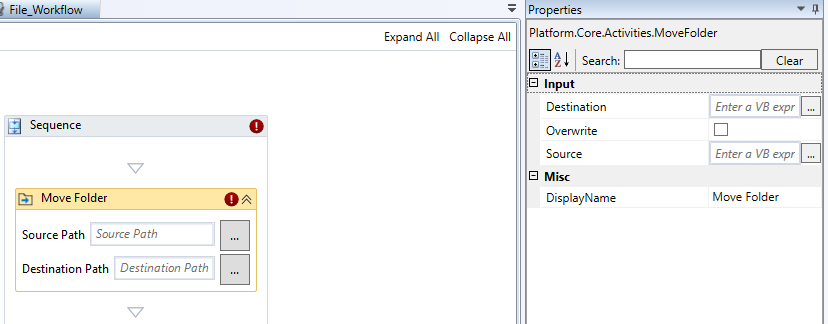
Properties of Move Folder
| Properties | Description |
|---|---|
| Destination | Enter the path of the Destination folder where you have to move the folder. |
| Overwrite | Select Overwrite to overwrite the folder in the destination if it already exists. It creates a new folder if the folder does not exist. Clear Overwrite, to create a new folder in the destination irrespective of whether the folder exists or not. |
| Source | Enter the path of the source of the folder that is to be moved. |
| Displayname | Title of the activity. |
Path Exists
Path Exists activity checks if the specified path exists.
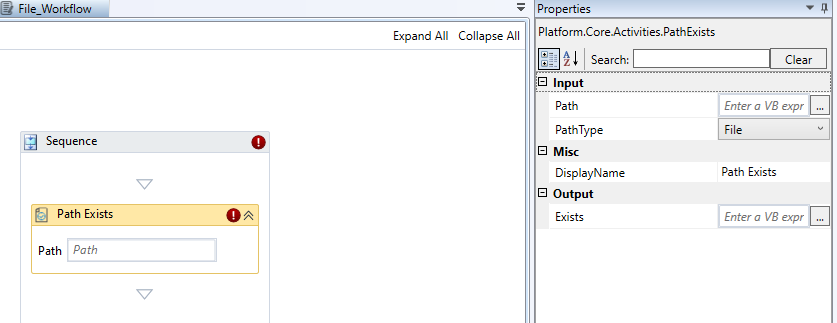
Properties of Path Exists
| Properties | Description |
|---|---|
| Path | Enter the path. |
| Path Type | Select the Path Type.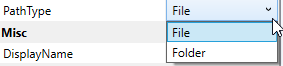 |
| Displayname | Title of the activity. |
| Exists | Stores the output. If the output is True, the path exists. If the output is False, the path does not exist. |
Read Text File
Read Text File activity reads all characters from a specified file and stores it in a String variable.
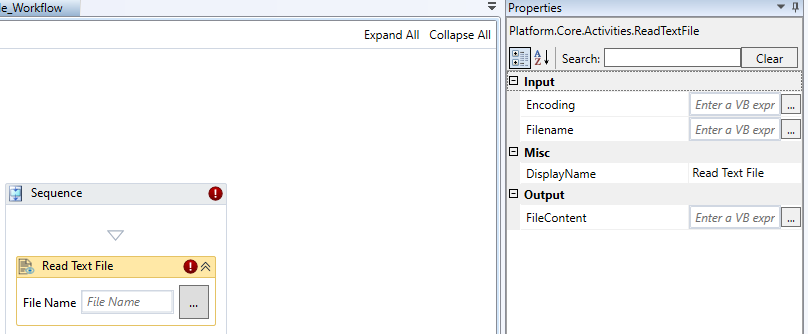
Properties of Read Text File
| Properties | Description |
|---|---|
| Encoding | Enter the encoding type to be used. This field support string values. Enter the encoding within double quotes. Refer to Encoding Types. If no encoding type is specified, the activity will search for the file's Byte Order Marks to detect the encoding. If no Byte Order Marks are detected and Use default encoding is not selected, UTF-8 is selected by default. |
| File Name | Enter the path and file name from which the string or text line need to be read. Enter the details within double quotes as it supports only string. If the path is not full, the file is created in the project folder. Use local path or a variable. In the designer the same value appears in the File Name field. You can enter the value in the designer or click the button adjacent to Write to file name field to select the file from the required path. |
| DisplayName | Title of the activity inside the sequence. |
| File Content | Enter an output variable that stores the file content that is read. |
Rename File
Rename File activity is used rename a file in the specified location or path.
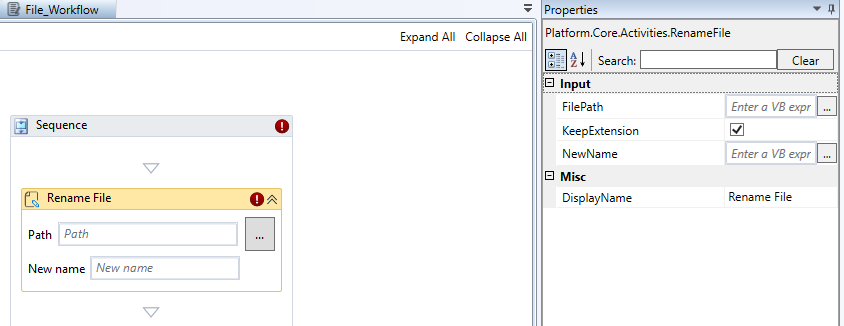
Properties of Rename File
| Properties | Description |
|---|---|
| File Path | Enter the path of the file along with the filename. The activity will rename the specified file in this path. |
| Keep Extension | Select Keep Extension to keep the extension of the file without any change. Clear Keep Extension, if you do not want to keep the extension of the existing file for the new file name. |
| File Name | Enter the new file name. |
| Displayname | Title of the Activity inside the sequence. |
Rename Folder
Rename Folder activity is used rename a folder in a specified location or path.
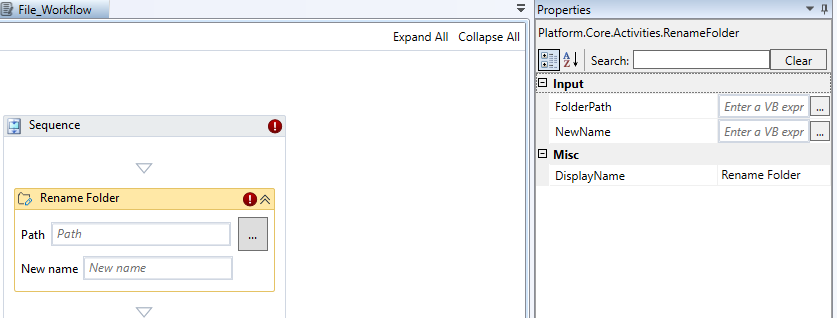
Properties of Rename Folder
| Properties | Description |
|---|---|
| Folder Path | Enter the path of the folder along with the folder name that is to be renamed. The activity will rename the specified folder name. |
| New Name | Enter the new folder name. |
| Displayname | Title of the Activity inside the sequence. |
Write Text File
Write Text File activity writes the text to a file in the specified location.
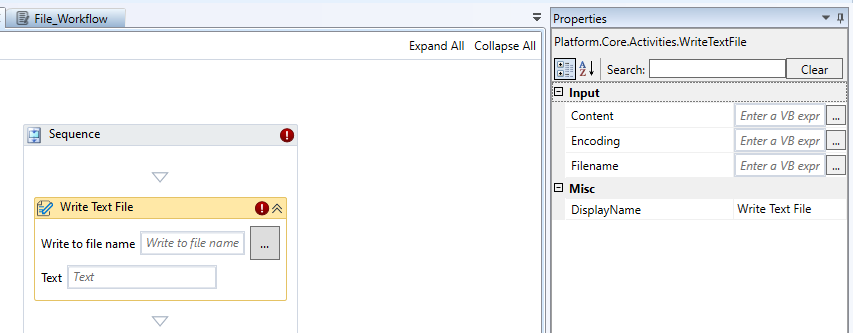
Properties of Write Text File
| Properties | Description |
|---|---|
| Content | Enter the content that is to be written to the file. |
| Encoding | Enter the encoding type to be used. This field support string values. Enter the encoding within double quotes. Refer to Encoding Types. If no encoding type is specified, the activity will search for the file's Byte Order Marks to detect the encoding. If no Byte Order Marks are detected and Use default encoding is not selected, UTF-8 is selected by default. |
| File Name | Enter the path and file name to which the string or text line need to be written. Enter the details within double quotes as it supports only string. If the path is not full, the file is created in the project folder. Use local path or a variable. In the designer the same value appears in the Write to File Name field. You can enter the value in the designer or click the button adjacent to Write to file name field to select the file from the required path. |
| DisplayName | Title of the activity inside the sequence. |
References
Encoding Types
The following are the encoding names that can be used for the Encoding property.
- System.Text.ASCIIEncoding
- System.Text.UnicodeEncoding
- System.Text.UTF32Encoding
- System.Text.UTF7Encoding
- System.Text.UTF8Encoding