Data Flows - Introduction
What is a Data Flow?
A data flow is a collection of activities that define a process design in which regular data or big data is involved.
Data flows can be connected to the Process Flows for achieving specific business requirements.
Prerequisites for creating a Data Flow
- Datasource
- Datamodel
Where to create datasource?
- Go to Main Menu > Management > Configuration Management > Datasource.
Where to create a data model?
- Local (Recommented) - Go to Main Menu > App Studio > Applications > open [Application_Name] > Data Flow > open [Data_Flow_Name] > Datamodel
This applies only to the selected data flow. - Organization level - Go to Main Menu > App Studio > Datamodel.
This applies to all the data flows in the organization.
Basic Data Flow Creation Process
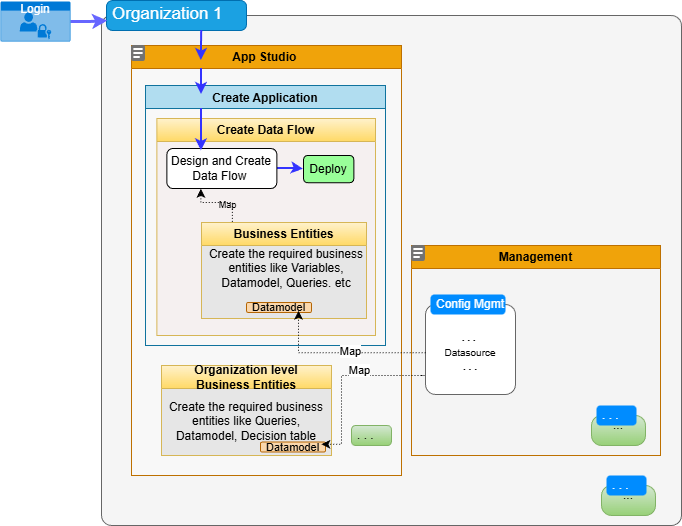
Data model and Data Source in Data Flows
Data model is the actual data on which the user define the actions to be performed.
Data model fetches the required data from a datasoure.
Before designing a data flow, it is mandatory to configure a datasource and map this datasource to the datamodel .
Activities in Data Flows
Data flow module has specific activities that are designed to manipulate the data. You must create a data flow using the appropriate activities and configure it to achieve data flow process specific requirements.
- A data flow starts with a Start activity and ends with an End activity.
- After the Start activity, it is mandatory to configure a Reader activity in the data flow.
- Reader activity is configured to fetch the datamodel.
- You can configure only one input model for each data flow specific activity.
- Each activity has specific set of properties and configurations. Asterisk (*) symbol in the configuraton field labels indicates a mandatory (required) configuration.
In the Data flow proecess design, the output of each activity can be accessed as the data model input for the succeeding activities. In other words, each activity in the data flow can take the input from any of its preceding activities.
Note
All the dataflow activities except for Start, Fork, Join, and End have a datamodel input.
Business Entities in Data Flows
Data flow process has business entities that are specific to data flows and other business entities that are generic.
Business entities and configurations are mapped to the activities as applicable.
There are local level and organization level business entities.
Local business entities - These business entity configurations are available within a particular data flow and they apply to that specific data flow process. To create local business entities go to Main Menu > App Studio > Applcation > open [Application_Name] > Data Flow > open [Data_Flow_Name]. The local entities appear on the left side menu. Create the entities needed for your data flow.
Organization business entities - These business entity configurations are available outside the flow module and they apply to all flow modules. To create local business entities go to Main Menu > App Studio. The organization level entities are listed on the App Studio sub menu.
Mapping a Business Entity
The activities display various configurations depending on the behavior of the activity. The business entities gets listed in the drop-down for selection in the Property panel (Info Action section) as applicable to the activities.
-
Click an activity. If an activity can be associate with a business entity, the configuration section will display user interface where you can select that buisiness entity.
When you select the entity, edit (🖉) and remove (x) icons appear.
- Click "🖉" to edit the entity.
- Click "x" to remove the selected entity.
If the entity drop-down does not list any entity name, it means there are no entities of that type configured for that flow. If entities are not defined follow either of the steps below.
-
Click "+" (add symbol) next to the entity drop-down for navigating to the corresponding entity section to create the entity. After creating the entity, it will be available on the selection list.
Or - Navigate to the specific Business entity creation page and create the entity by providing the required details. The created entity will be available in the drop-down list.