Template
Templates allow you to create a structure or framework of the page that can be utilized for creating a web app view page. Map a template to the web app view configurations.
There are two types of templates in the platform:
- Internal: Internal templates allow you to design the template structure.
- External: External templates are those templates that are created using JS files and uploaded.
Viewing Templates List
- Go to Main Menu > Management > Theme And Template Management.
- Click the expand arrow of the left side menu to expand the left menu panel and view the categories within.
-
Click Template. The list of Templates available for the organization appears on the center panel.
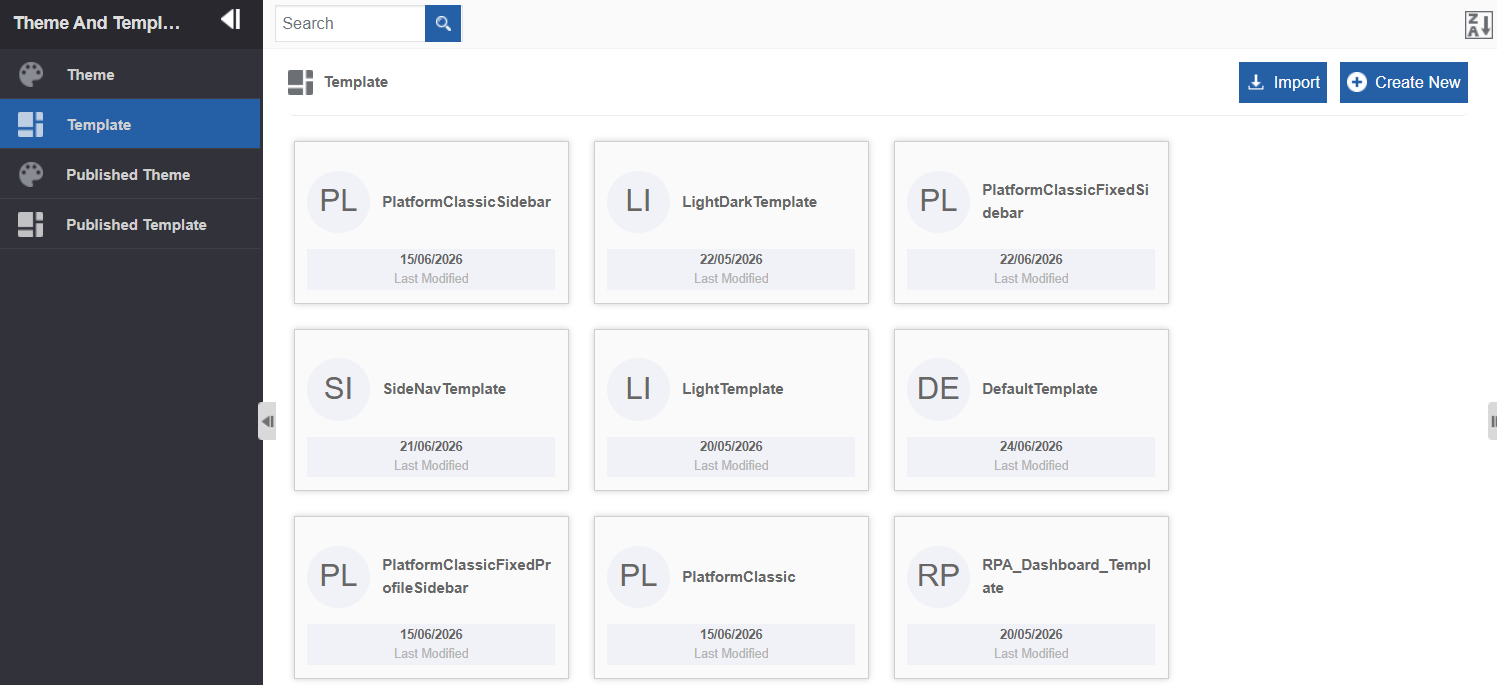
Creating a New Template
- Go to Main Menu > Management > Theme And Template Management > Template. The list of all Templates appears.
-
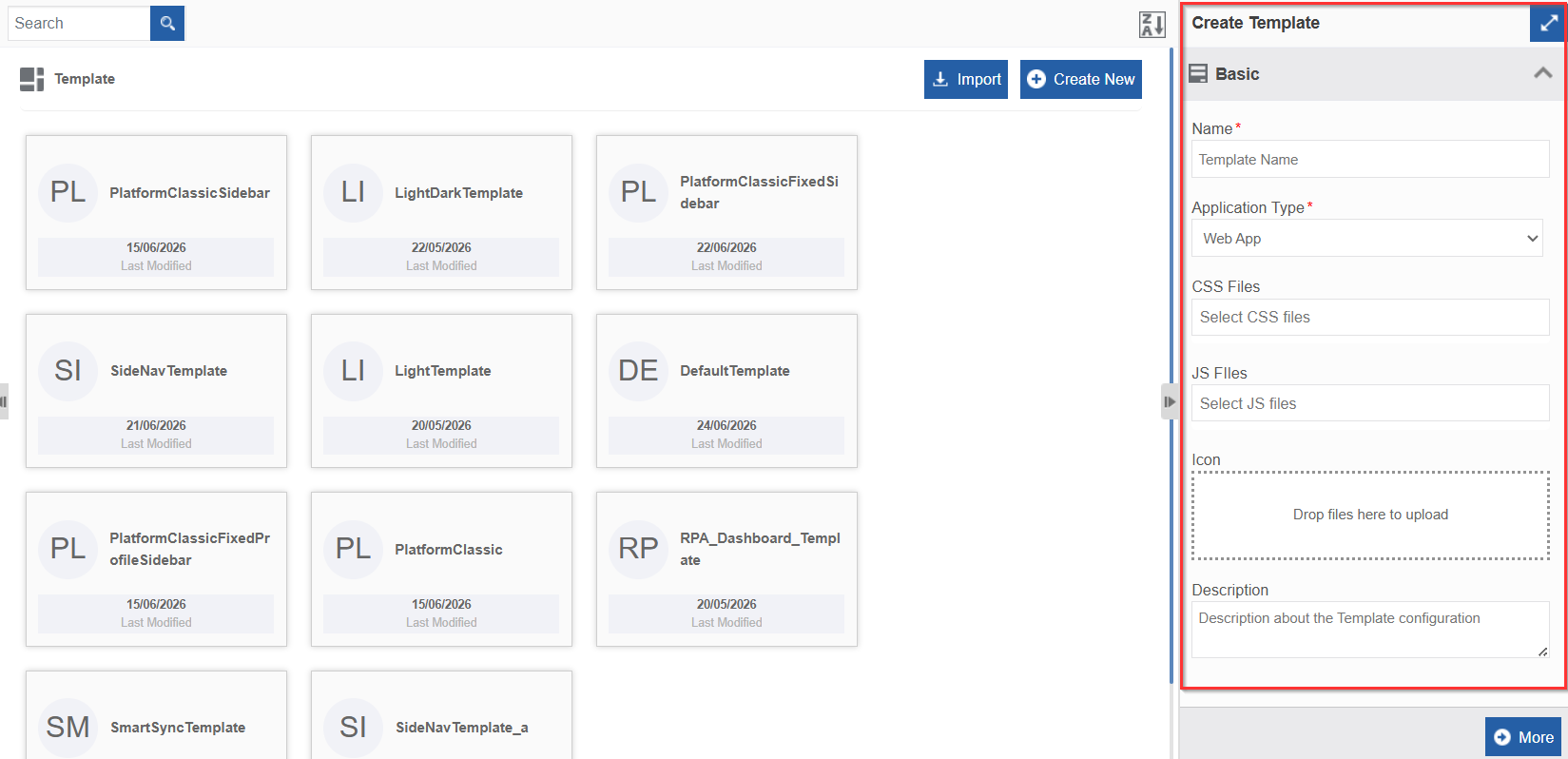
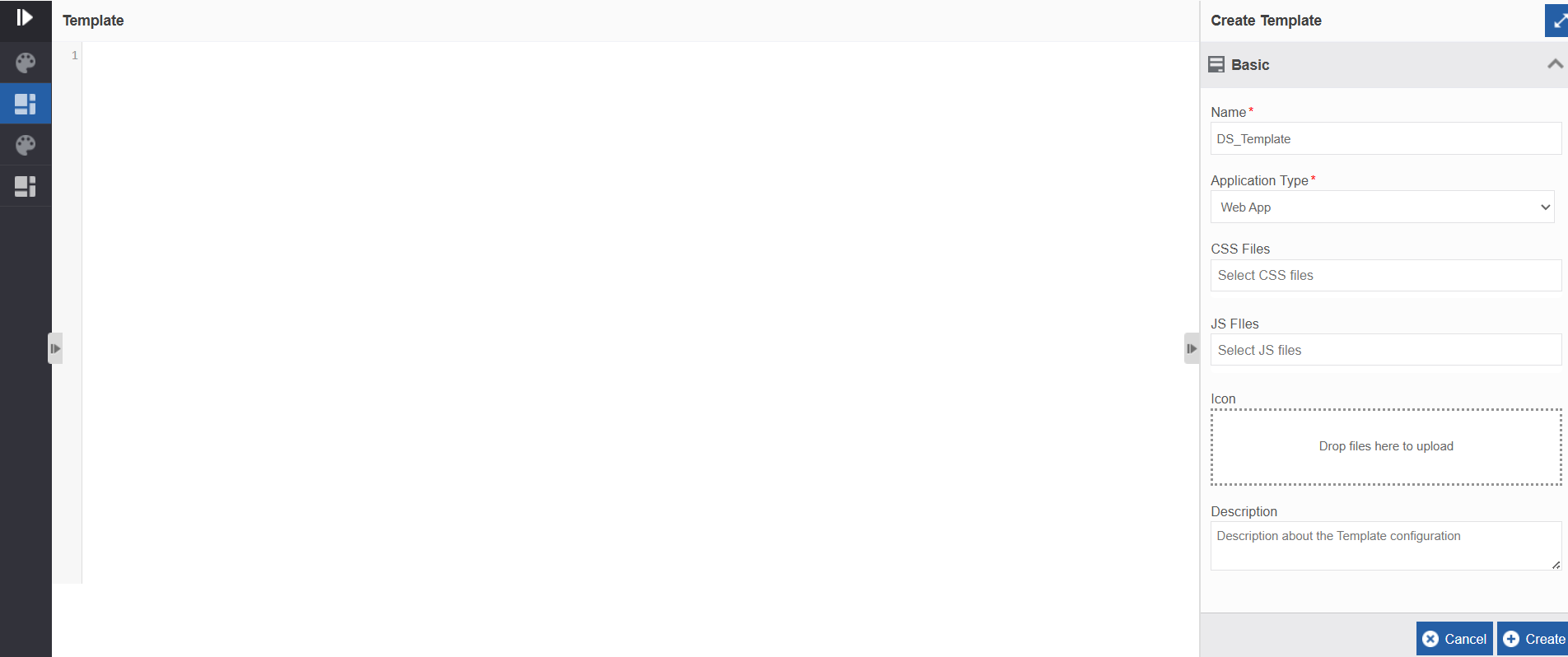
Click Create New (top-right). Create Template appears on the right panel.
-
Enter details as explained below.
Field Description Name* Enter a name for the Template. Application Type* Select the required application type. Web App is default. 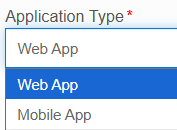
CSS Files Type the name of the CSS file and select the appropriate file. Select multiple CSS files and it will be listed in the field. JS Files Type the name of the JS file and select the appropriate file. Select multiple JS files and it will be listed in the field. Icon - Click inside the dotted area below the icon . The Explorer window opens. Select the required icon file from any folder. 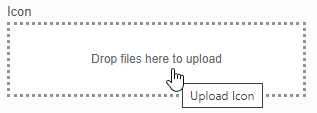
Or
- Drag an icon - from any location/folder - into the marked area.
- Image file formats supported are PNG, JPEG, and JPG.
After uploading the icon, Download and Remove are displayed along with the icon file name (file name of the uploaded image).
- Click Download to download the icon.
- Click Remove to remove the icon
To update a new icon, remove the icon and repeat the steps mentioned above.Description Enter description about the Template configuration. -
Click More.
-
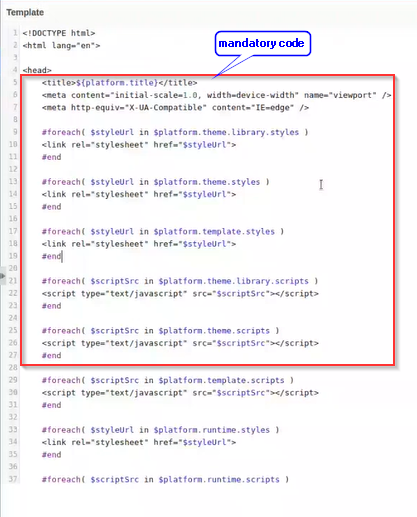
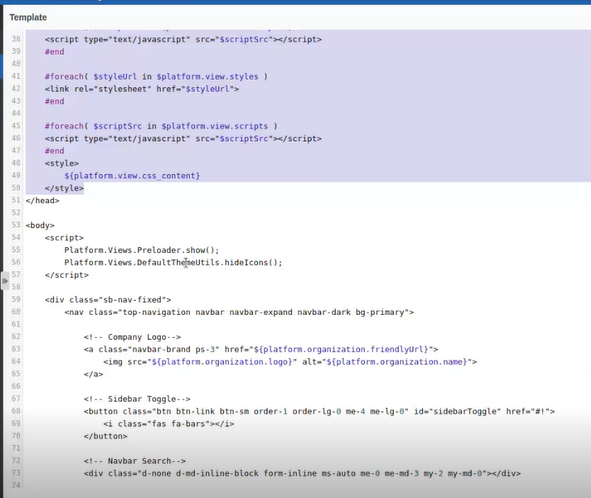
Enter your code for the template in the editor. The code should be in the HTML format. Copy and paste your custom HTML code into the editor.
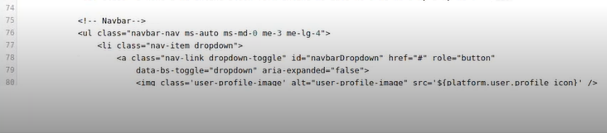
Note
There are some mandatory codes from the platform side that are to be included in the template file as indicated in the above images. These are default CSS that is loaded when you drag and drop a component to the designer.
-
Click Create. The Template gets created and it gets listed in the Template section.
Viewing and Editing Template
- Go to Main Menu > Management > Theme And Template Management > Template. A list of all Templates appears.
-
Click a Template name card. The properties appear on the Property panel on the right side.
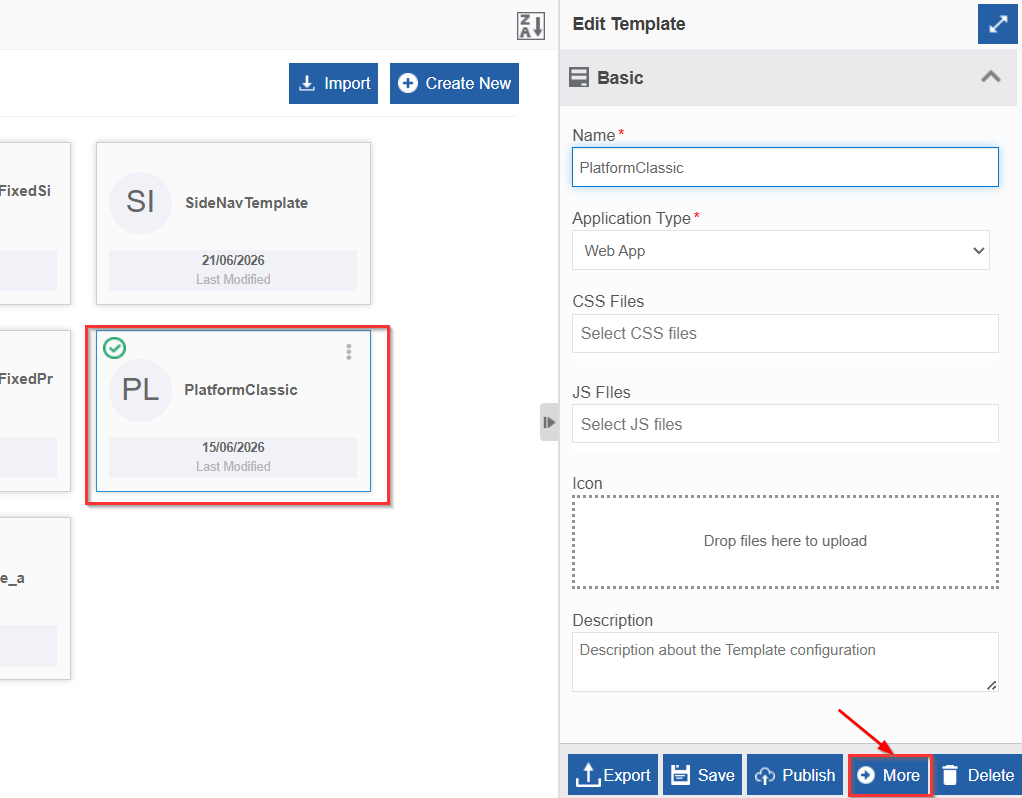
-
Click More on the bottom right to view the template design details.
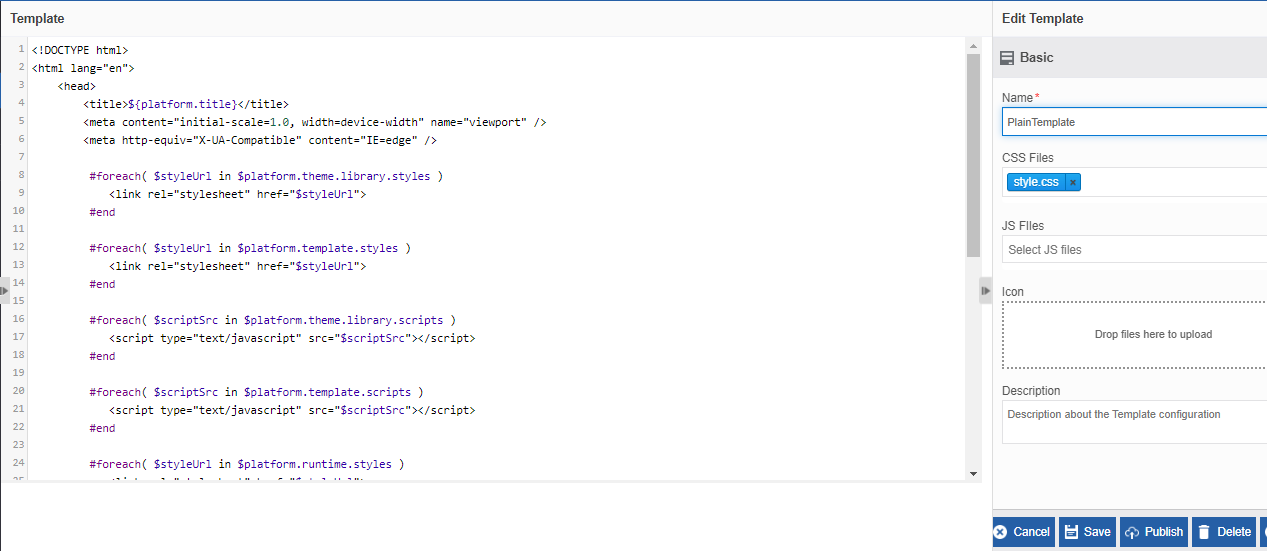
-
Edit the details in the code (in HTML) as needed. Write template code details using the predefined system variables.
- Click Save to save the details (or click Cancel to discard the changes and return to the previous page)
Importing a Template
Import a Template package into the Template section.
-
Go to Main Menu > Management > Theme And Template Management > Template. The list of all Templates appears.
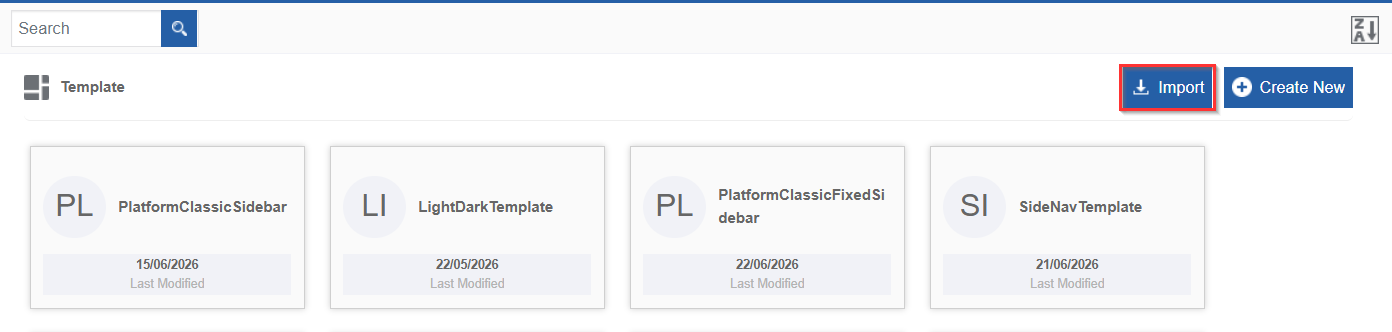
-
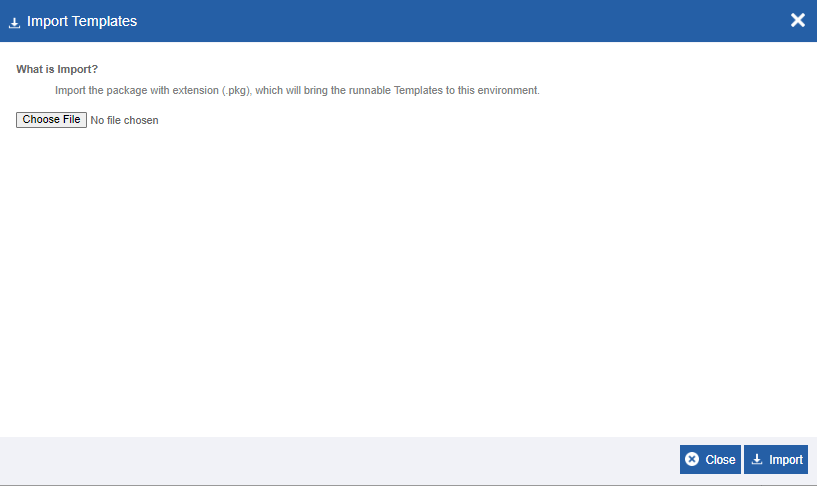
On the upper right click Import.
-
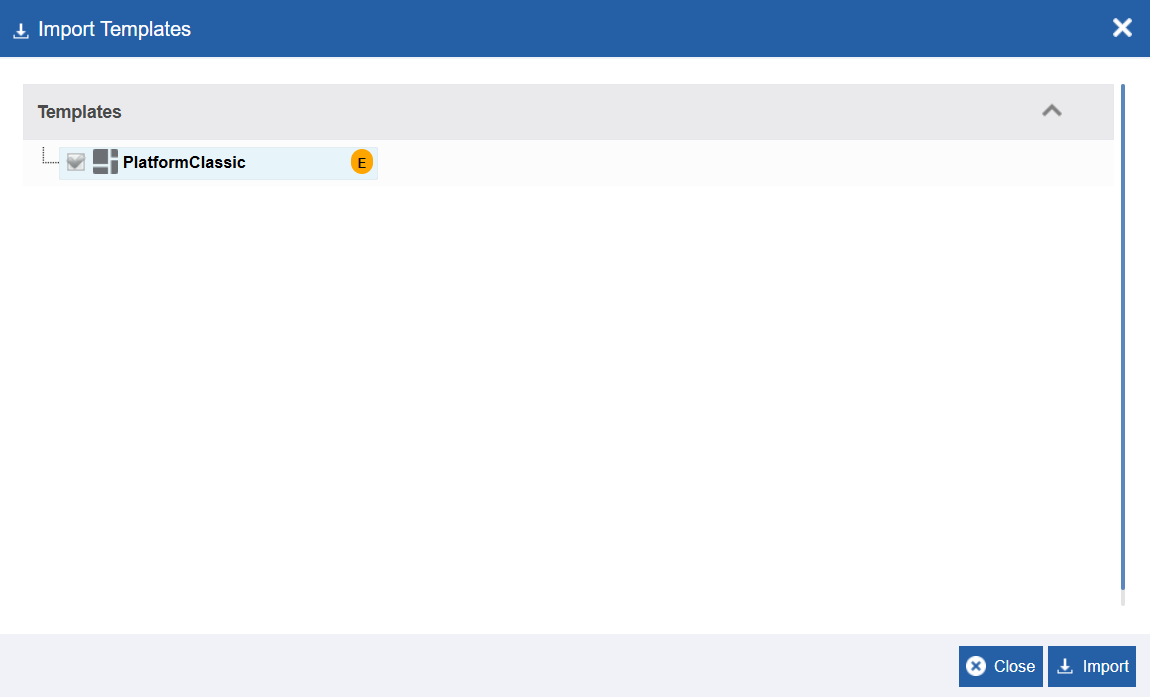
Click Choose File and select the file (in .pkg format) that you want to import. The selected template details appear.
Note
When you import a template all the associated files also get imported to the platform.
-
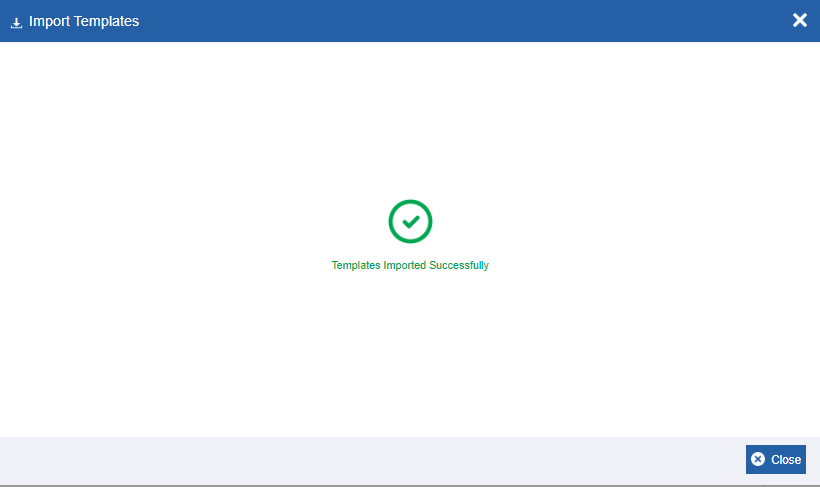
Click Import. A Success message appears on successful import of the file.
-
Click Close. The file is imported to the platform.
Exporting a Template
-
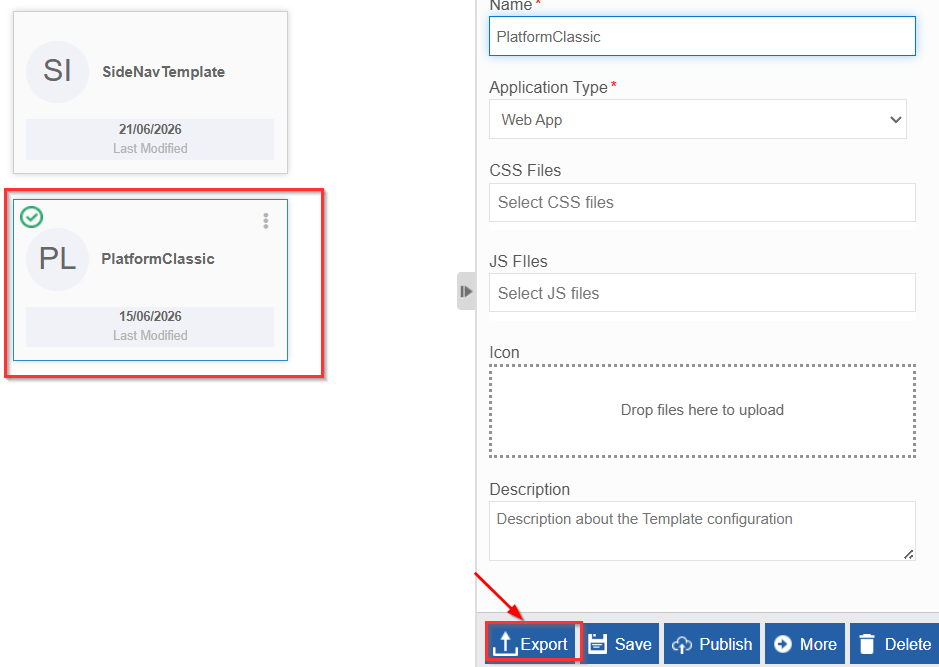
Go to Main Menu > Management > Theme And Template Management > Template. The list of all Templates appears.
-
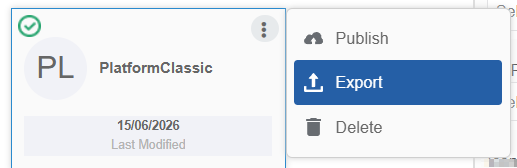
Click Export. The template file is exported (downloaded) to your local system.
Or hover over the template name card and click three dots (More Actions) to click Export.
Deleting a Template
- Go to Main Menu > Management > Theme And Template Management > Template. The list of all templates appears.
-
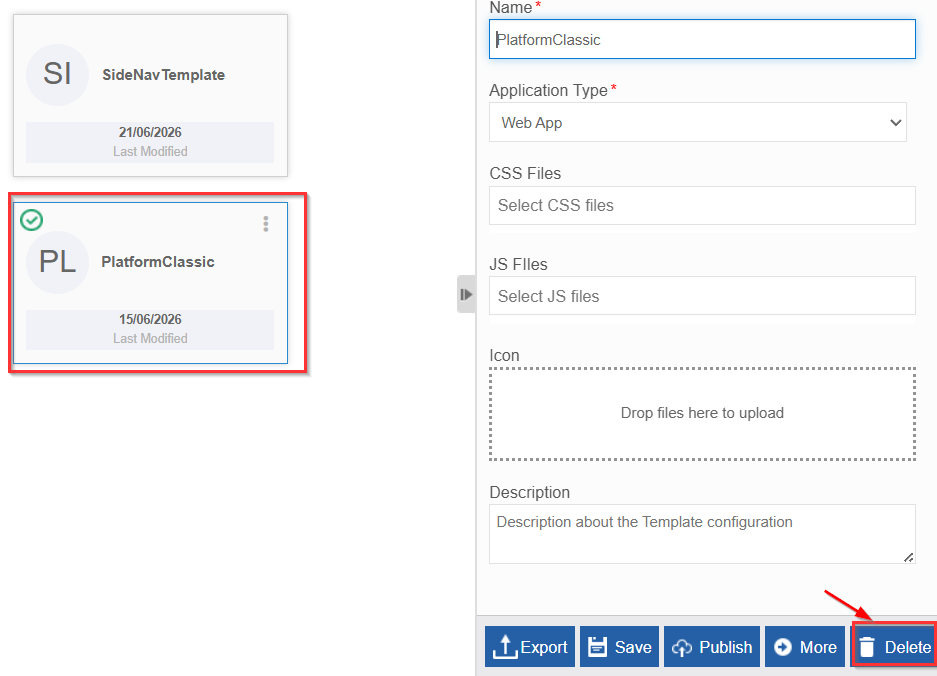
Click the Template name that you want to delete. Delete appears on the bottom right.
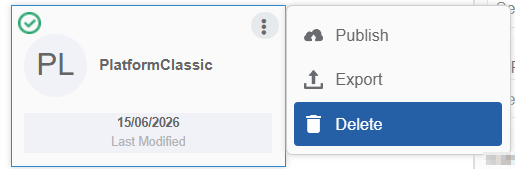
Or hover over the template name card and click three dots (More Actions) to click Delete.
-
Click Delete. The template gets deleted.
Publishing the Template
Publish a template for utilizing that template. You cannot edit a template in the Published Template section.
- Go to Main Menu > Management > Theme And Template Management > Template. A list of all Templates appears.
-
Click the Template name that you want to publish. Publish appears on the bottom right.
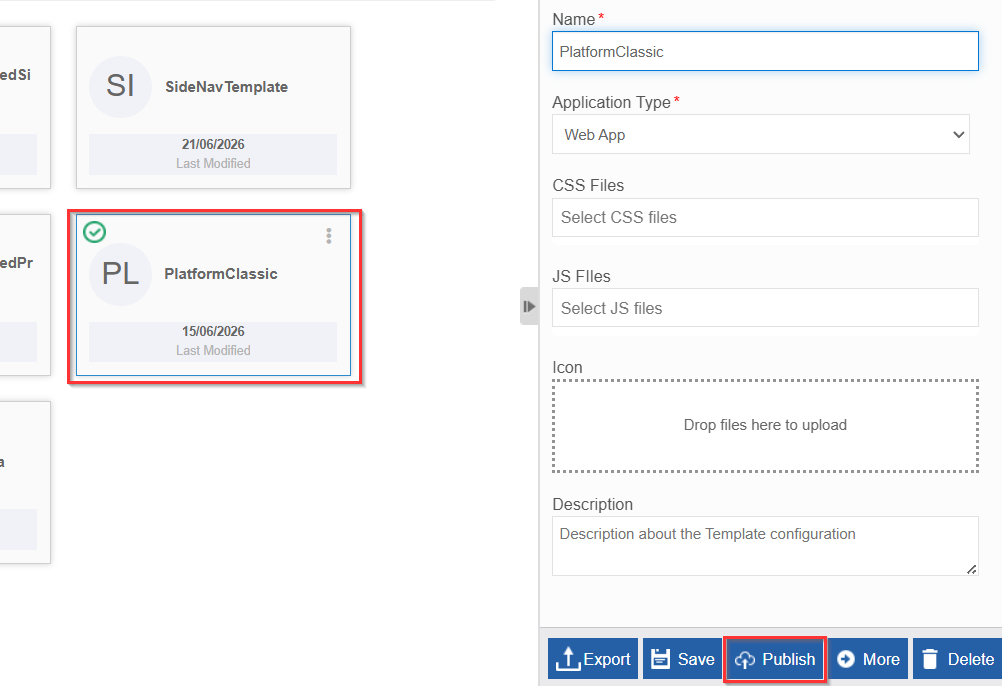
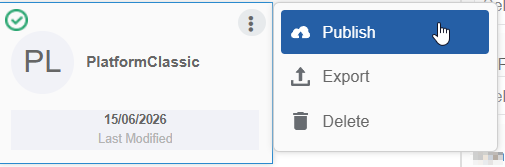
Or hover over the template name card and click three dots (More Actions) to click Publish.
-
Click Publish. The Template gets published. When you publish a Template, the published Template appears on the Template > Published Templates section with the same name.
Warning
If you publish a Template that is already published, it will overwrite the already existing published Template. The Published Templates will be available in the platform for utilization.
Viewing Published Template List
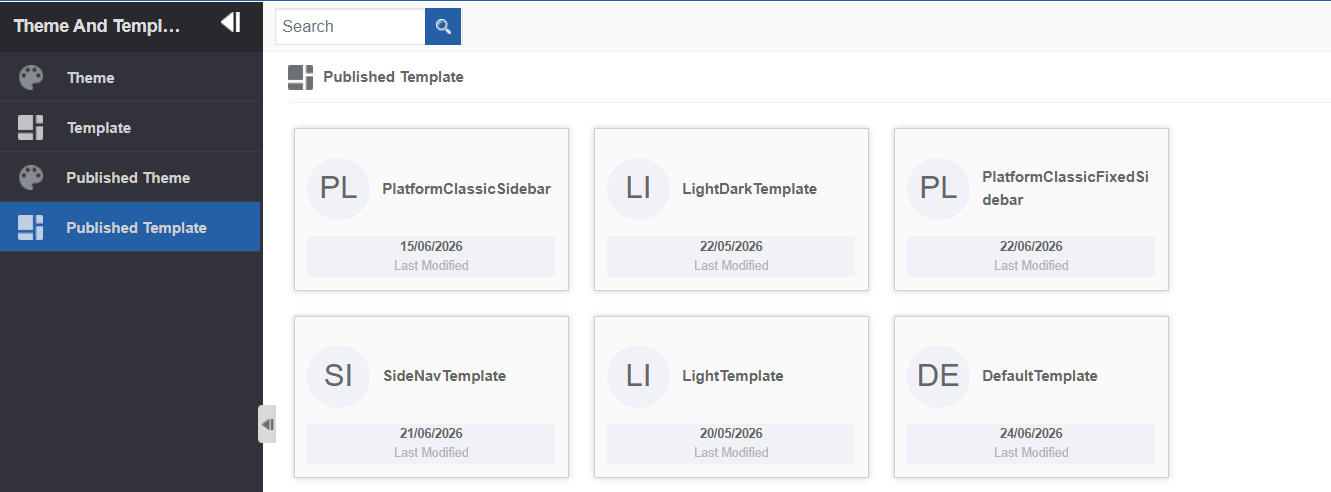
- Go to Main Menu > Management > Theme And Template Management > Published Template. A list of all published Templates appears.
Viewing Details About Published Template
- Go to Main Menu > Management > Theme And Template Management > Published Template. A list of all published Templates appears.
- Click a Template name. The details of the published Template appear on the About Published Template on the right side.
-
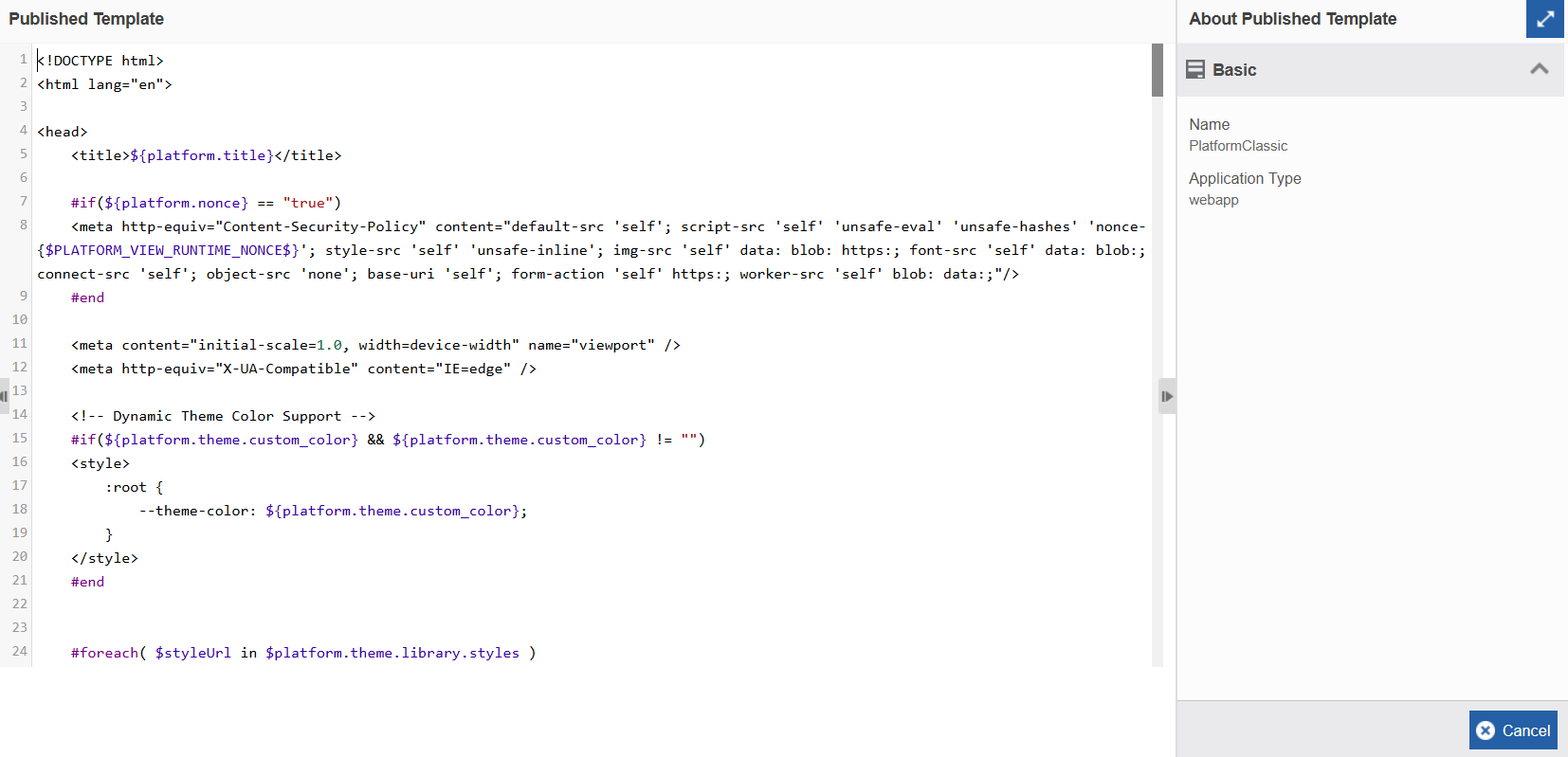
Double-click the Template name card (or click More). The code details of the template appear.
-
Click Cancel to close the template details.
Using Templates in Web Apps
Templates can be utilized in Web App Views. You need to publish the templates for accessing it in the web apps.
-
Go to Main Menu > App Studio > Create App > Web App – Create Web App.
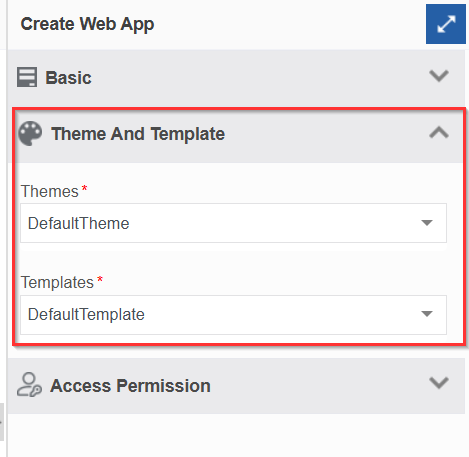
In the Create Web App configurations, the Theme And Template section lists all the themes and templates created in the Management > Theme And Template Management > Published Template.
-
Select the required template for creating the web app. The selected template gets applied to the view.