RPA Azure Cloud Activities
About RPA Azure Cloud Category Activities
Azure Cloud category activities allow you to automate the Azure Cloud actions.
To use Azure Cloud activities, you must have an active Azure subscription. You must have valid configuration details for authentication.
The Client ID, Client Secret, and Tenant ID are used for authenticating your application with Azure Active Directory, granting it an identity. Refer to Azure Cloud References for more details. The Subscription ID then scopes the application's access to specific resources within that authenticated environment.
Prerequisites
All the Azure Cloud activities must me placed within the Azure Scope activity.
Azure Scope
Azure Scope activity allows you to connect to Azure cloud computing service and it provides a scope or instance for other Azure activities.
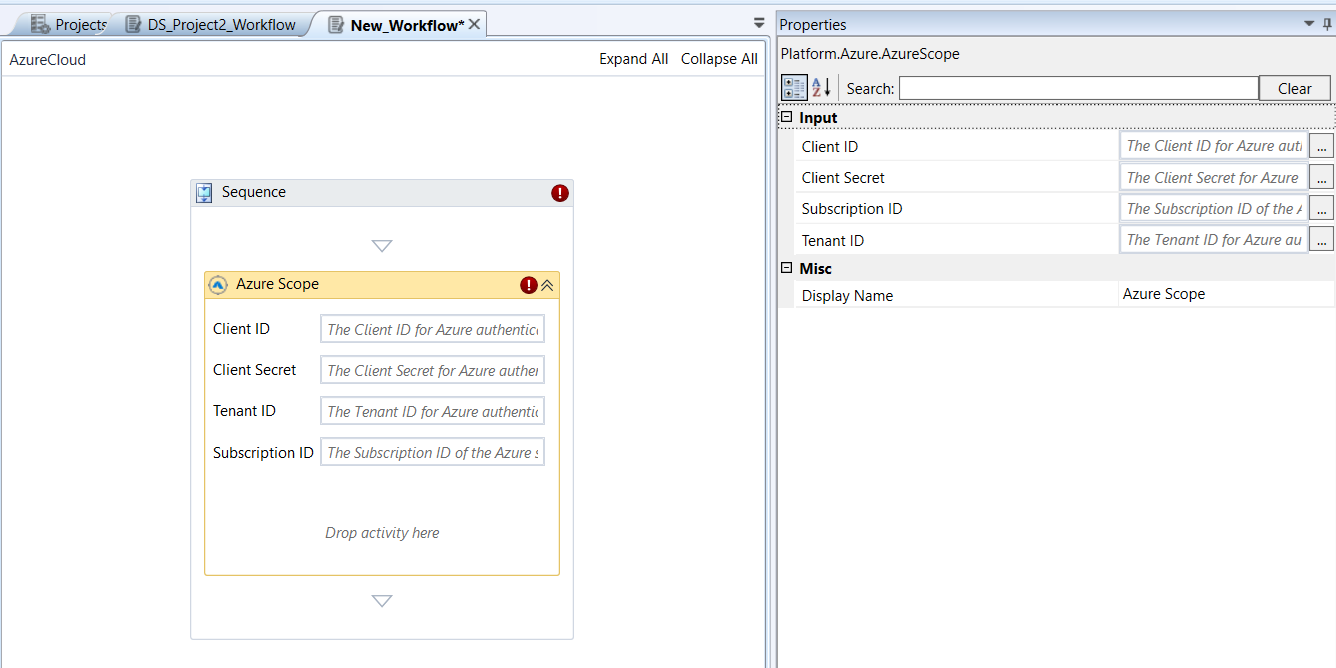
Properties of Azure Scope
| Properties | Description |
|---|---|
| Client ID | Enter the client ID for your application or service for Azure AD authorization. |
| Client Secret | Enter the client secret for your application for Azure AD authorization. |
| Tenant ID | Enter the Tenant ID to identify your Azure AD tenant. |
| Subscription ID | Enter the Subscription ID to identify your Azure Subscription. |
| Display Name | Title of the activity inside the sequence. |
Copy Blob
Copy Blob activity allows you to copy a blob to another blob container within the storage account.
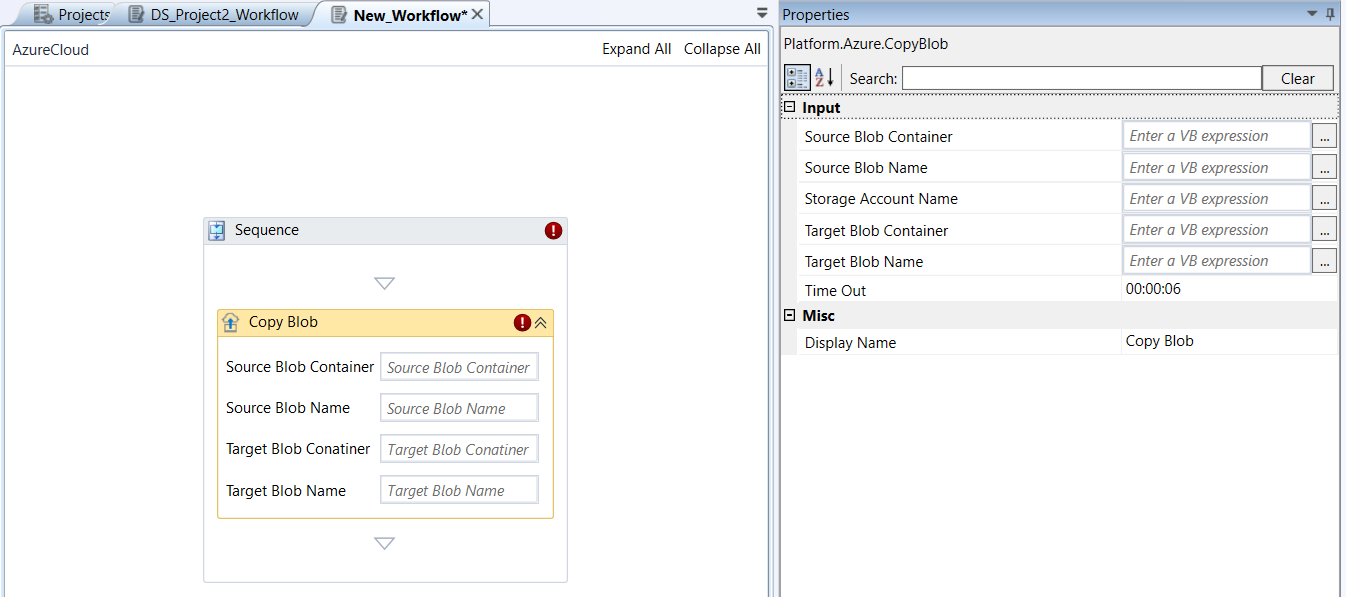
Properties of Copy Blob
| Properties | Description |
|---|---|
| Source Blob Container | Name of the blob container. |
| Source Blob Name | Name of the source blob that needs to be copied. |
| Storage Account Name | Name of the storage account. |
| Target Blob Container | Name of the target blob container. |
| Target Blob Name | Name of the Blob that is set as the target or destination. |
| Time Out | The time (in seconds) needed for the activity to wait to run before an error is thrown. The default value is 600 seconds. If the source blob is not copied within the specified time, an error is thrown, |
| Display Name | Title of the activity inside the sequence. |
Create Blob Container
Create Blob Container activity allows you to create a new blob container under a specified storage account or updates an existing storage account.
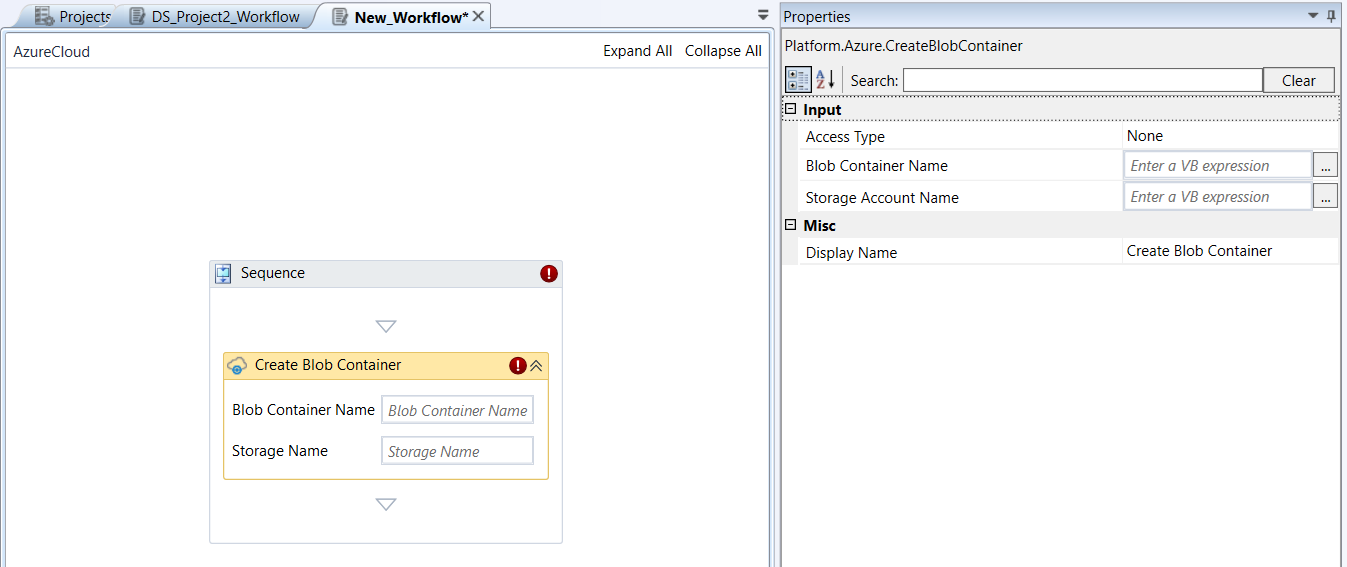
Properties of Create Blob Container
| Properties | Description |
|---|---|
| Access Type | Select the required access type.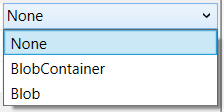 None: Data in the container cannot be accessed publically (default). BlobContainer: Data in the container can be accessed internally. Blob: Data in the container can be accessed. |
| Blob Container Name | Name of the Blob container that needs to be created or updated. |
| Storage Name | Name of the storage account. |
| Display Name | Title of the activity inside the sequence. |
Mandatory requirements apply for the following situations:
- If this activity is used within an Azure Scope activity:
ContainerName, StorageAccount, and StorageAccountKey parameters are mandatory. - If this activity is used independently: ContainerName, StorageAccountKey, StorageAccountName, and ResourceGroupName parameters are mandatory. StorageAccount parameter must be set.
Create Resource Group
Create Resource Group activity allows you to create a new resource group or updates an existing resource group.
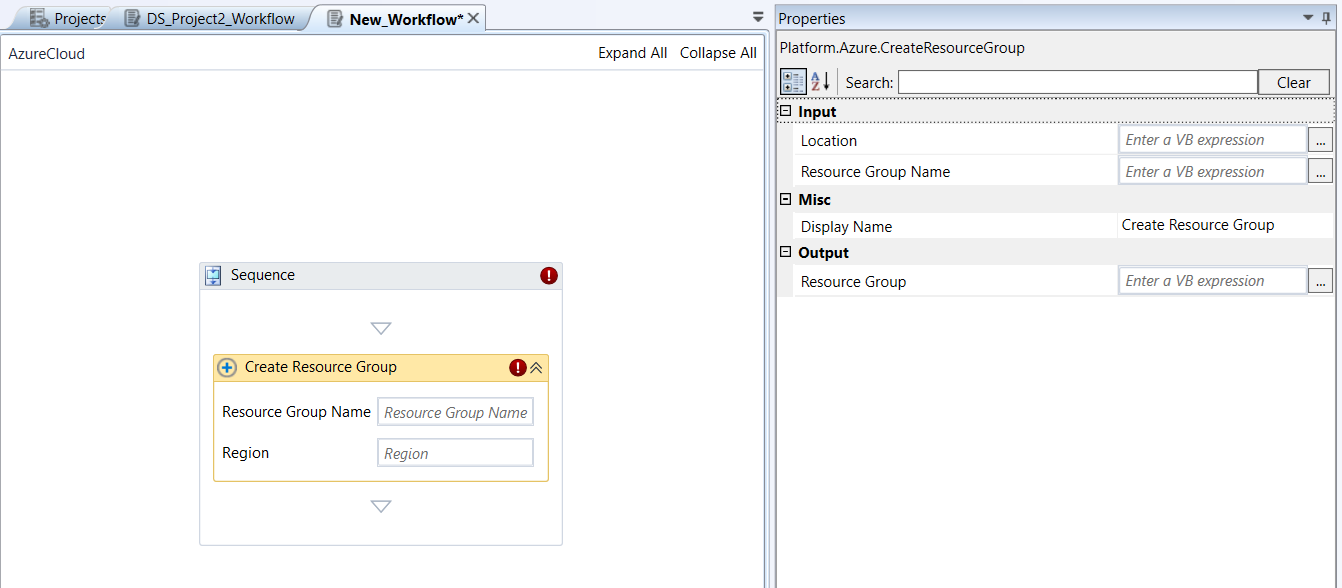
Properties of Create Resource Group
| Properties | Description |
|---|---|
| Location / Region | Name of the Azure region which is an area within a geographical place, containing one or more data centers. |
| Resource Group Name | Name of the resource group. |
| Display Name | Title of the activity inside the sequence. |
| Resource Group | Enter a string variable. The variable holds the details about the newly created resource group. |
Create Storage Account
Create Storage Account activity allows you to create a new storage account or updates an existing one.
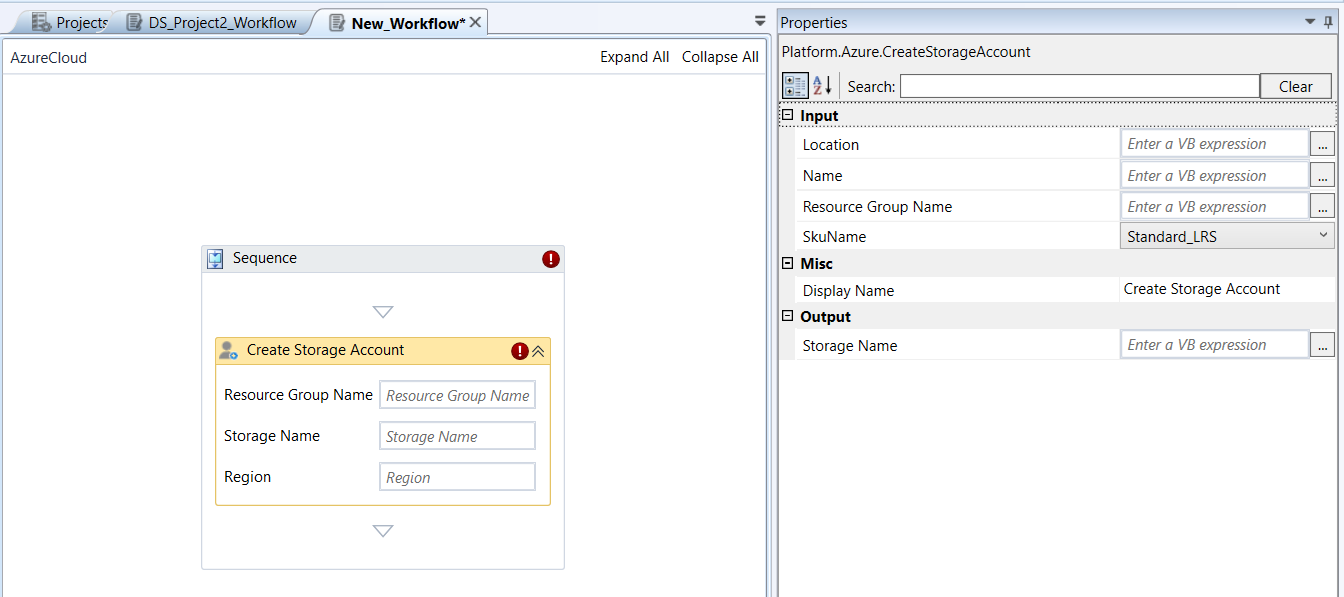
Properties of Create Storage Account
| Properties | Description |
|---|---|
| Resource Group Name | Name of the resource group. |
| Storage Name (input) | Name of the input storage unit. |
| Region / Location | Name of the Azure region which is an area within a geographical place, containing one or more data centers. |
| Sku Name | Select the Sku name required.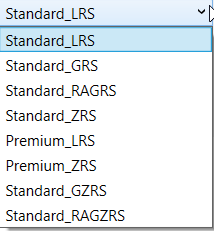 |
| Display Name | Title of the activity inside the sequence. |
| Output Storage Name | Enter a string variable. The variable holds the output storage name. |
Create Table
Create Table activity allows you to create a new table under the specified storage account.
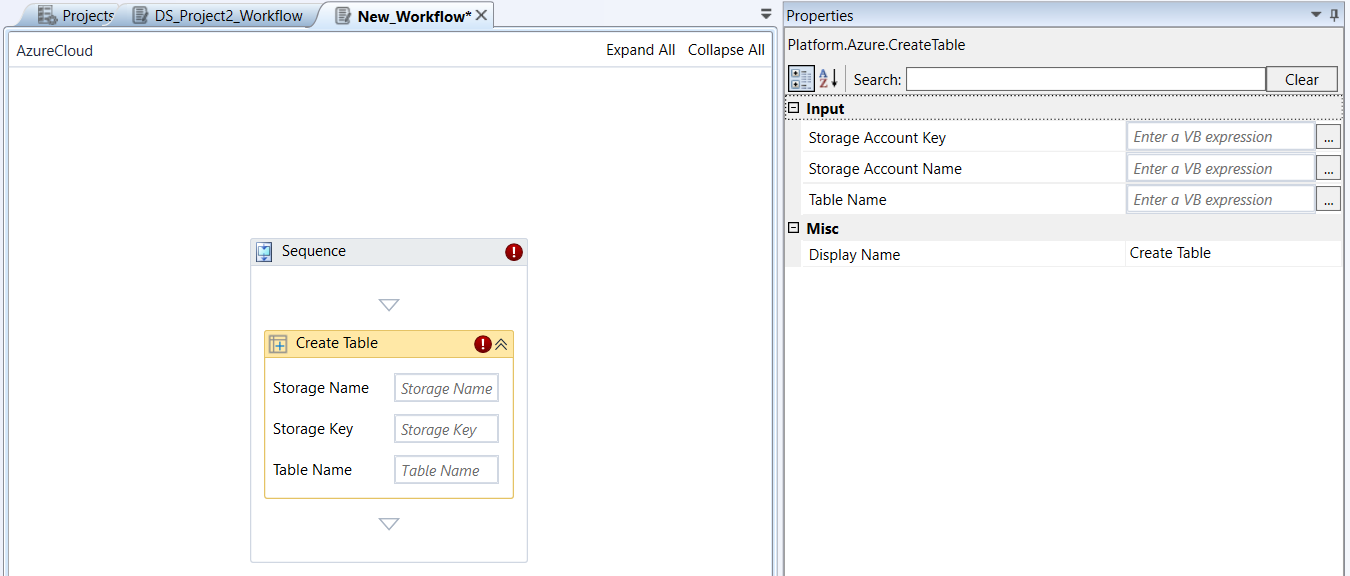
Properties of Create Table
| Properties | Description |
|---|---|
| Storage Account Name | Name of the storage account where the table should be created. |
| Storage Account Key | The key of the storage account. |
| Table Name | Name of the table to be created. |
| Display Name | Title of the activity inside the sequence. |
Create VM
Create VM activity allows you to create a new virtual machine from a disk or image.
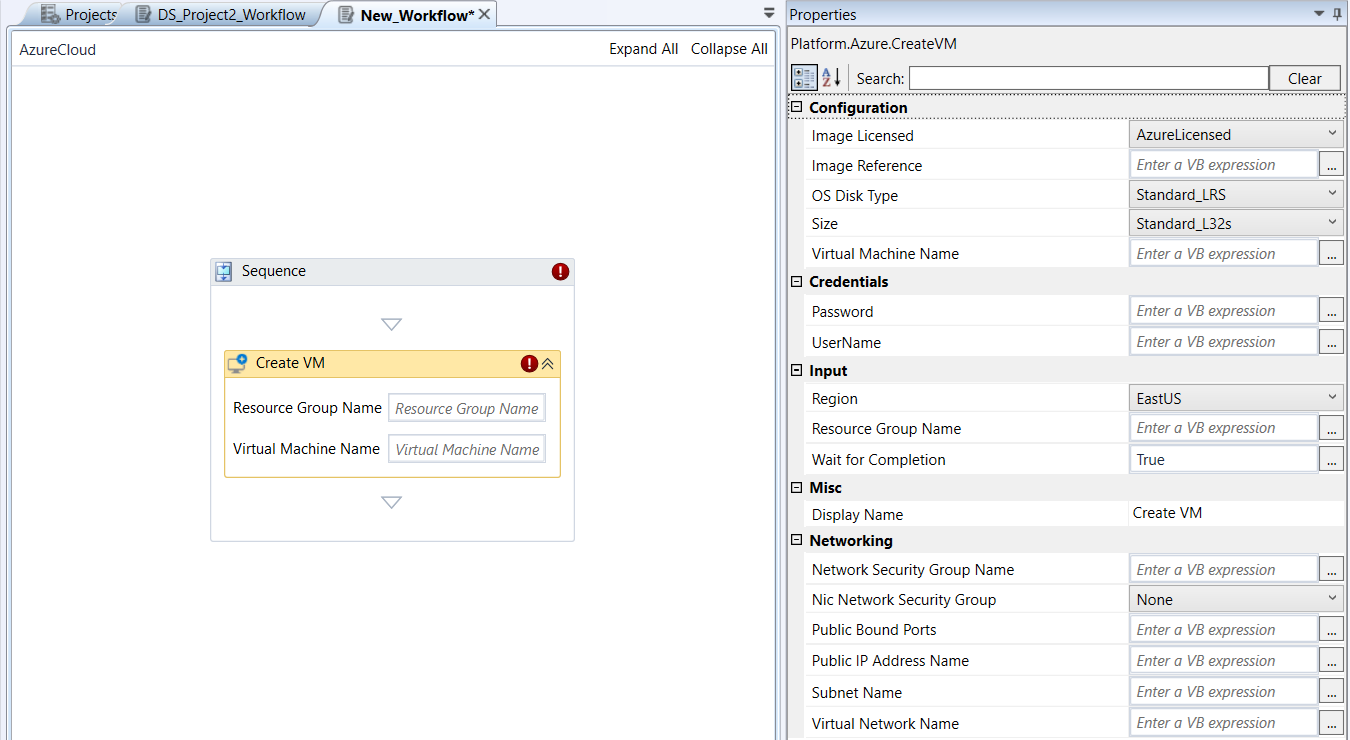
Properties of Create VM
| Properties | Description |
|---|---|
| Image Licensed | Specifies the use of an Azure or on-premise license.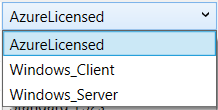 Azure Licensed: Default license. |
| Image Reference | This is the standard way to reference a public image from the Azure Marketplace Sample Image Reference JSON: "imageReference": { "publisher": "MicrosoftWindowsServer", "offer": "WindowsServer", "sku": "2022-datacenter-g2", "version": "latest" } |
| OS Disk Type | Select the OS disk type. This value is ignored if the virtual machine is created from disk.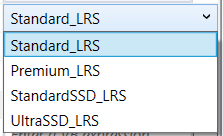 |
| Size | Select the size of the virtual machine from the list.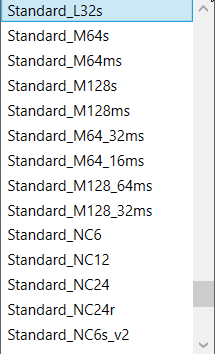 |
| Virtual Machine Name | Enter name for the virtual machine. |
| Password | Password associated with the provided username. |
| Username | The administrator's username for the virtual machine. |
| Region | Select an Azure region (which is an area within a geographical place, containing one or more data centers) of the virtual machine.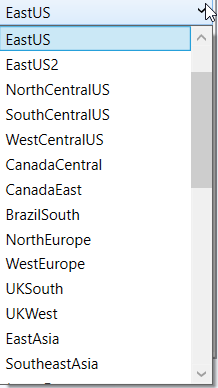 If not selected, the region from the resource group is considered. |
| Resource Group Name | Name of the resource group. |
| Wait for completion | Enter “True”, if you want the execution to wait for the activity execution completion before moving to the next activity. Enter “False”, if you do not want the execution to wait and so the activity ends immediately after the API call is made. The default value is “True” . |
| Display Name | Title of the activity inside the sequence. |
| Network Security Group Name | The name of the network security group. This name is taken into consideration only when the NIC Network Security Group value is Advanced . |
| Nic Network Security Group | Select the type of NIC network security group. This dictates whether and how an NSG is automatically created and applied to the Network Interface Card (NIC)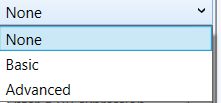 None: No Network Security Group will be explicitly created or associated with the NIC of the VM. This means your VM's NIC will not have any built-in firewall rules applied at the NSG level. Basic : A basic Network Security Group will be automatically created and associated with the NIC. This NSG will typically have a predefined set of fundamental security rules. Advanced : Provides more specific or secure network access immediately upon VM creation without manual post-creation steps (that is with controlled/customizable firewall). |
| Public Bound Ports | The list of public inbound ports. If a value is not set, all internet traffic is blocked. This parameter is used only when the NIC Network Security Group parameter has the value Basic. |
| Public IP Address Name | The name of a public IP address. If you do not provide value for public IP Address, Azure will create an IP address name. |
| Subnet Name | The name of the subnet. If no value is added, then the default subnet name is used |
| Virtual Network Name | Enter name for your virtual network. If not provided, Azure will create a name for the virtual network. |
Delete Blob
Delete Blob activity allows you to delete a specific blob.
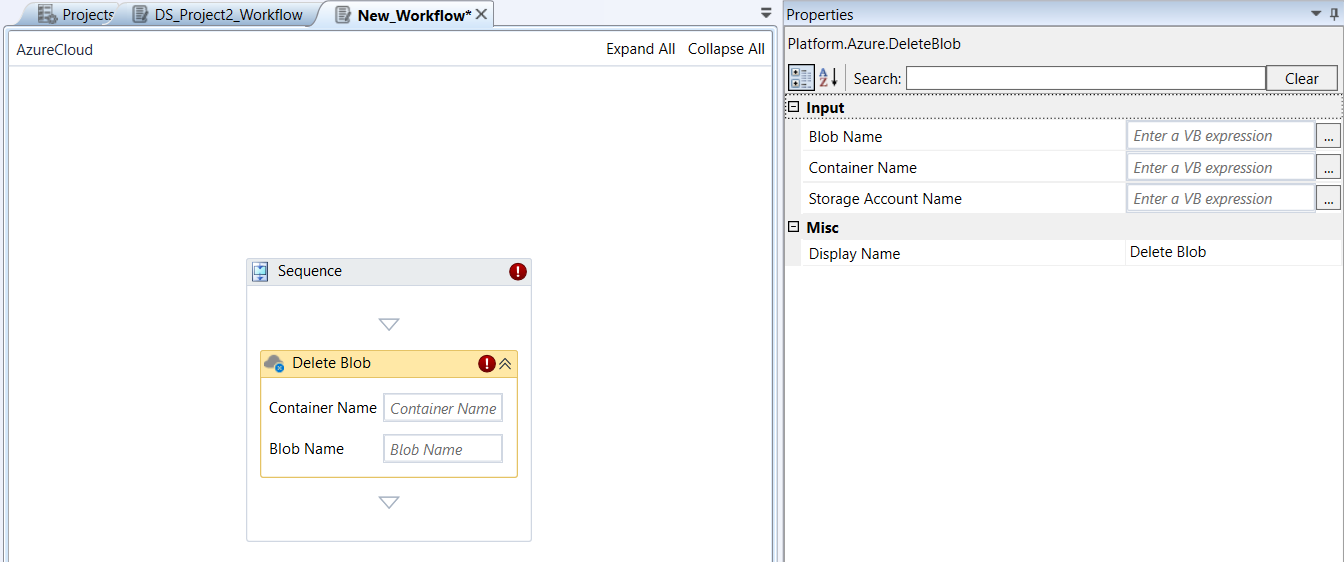
Properties of Delete Blob
| Properties | Description |
|---|---|
| Blob Name | Name of the Blob that you need to delete. |
| Container Name | Name of the container that holds the Blob to be deleted. |
| Storage Account Name | Name of the storage account in which the blob storage exists. |
| Display Name | Title of the activity inside the sequence. |
Delete Blob Container
Delete Blob Container activity allows you to delete a specific blob container.
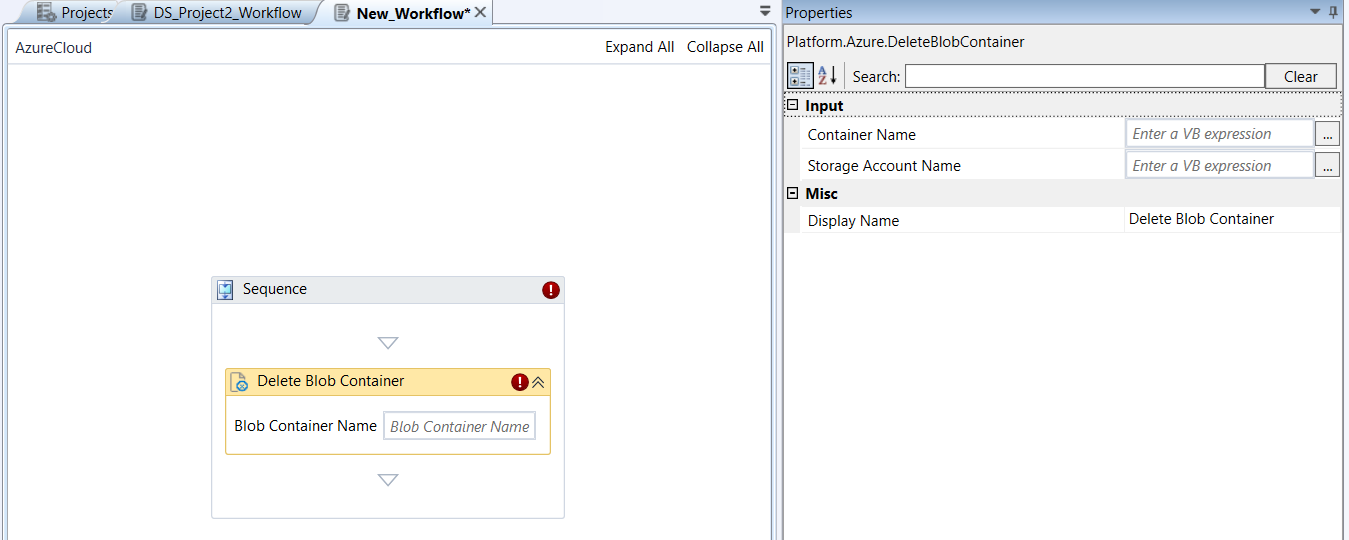
Properties of Delete Blob Container
| Properties | Description |
|---|---|
| Blob Container Name | Name of the blob container to be deleted. |
| Storage Account Name | Name of the storage account in which the blob storage exists. |
| Display Name | Title of the activity inside the sequence. |
Delete Secret
Delete Secret activity allows you to delete a secret in a key vault.
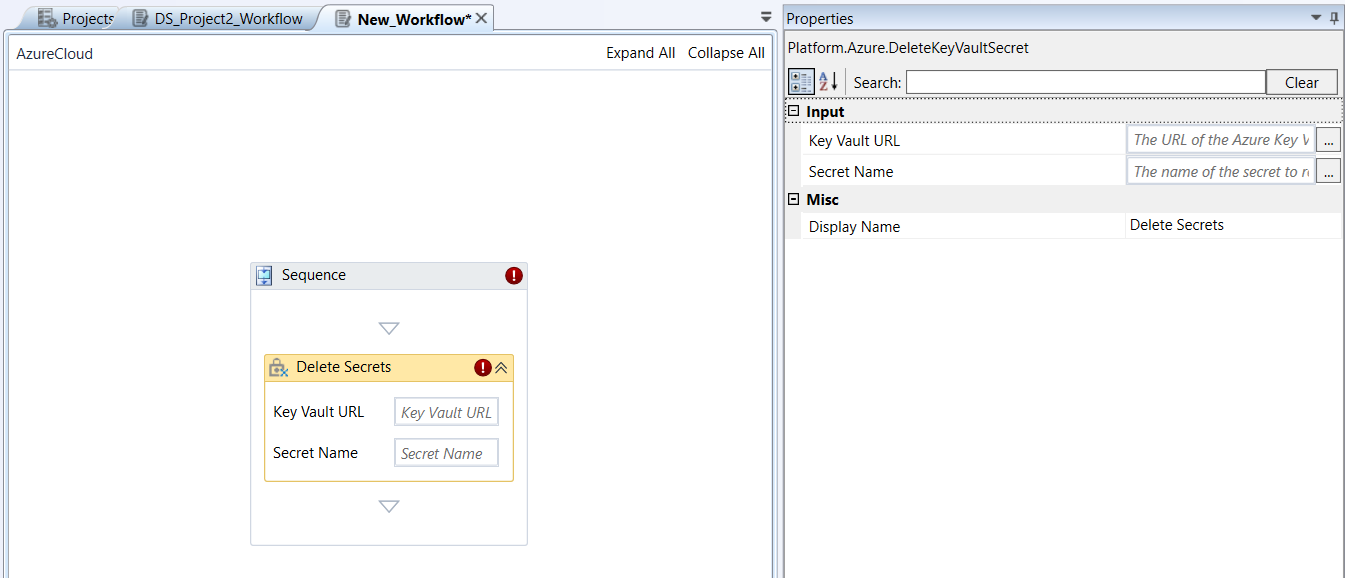
Properties of Delete Secret
| Properties | Description |
|---|---|
| Key Vault URL | The name of the key vault to which the secret belongs. |
| Secret Name | Name of the secret for the specified key vault. |
| Display Name | Title of the activity inside the sequence. |
Delete Resource Group
Delete Resource Group activity allows you to permanently delete a specified resource group and all its resources.
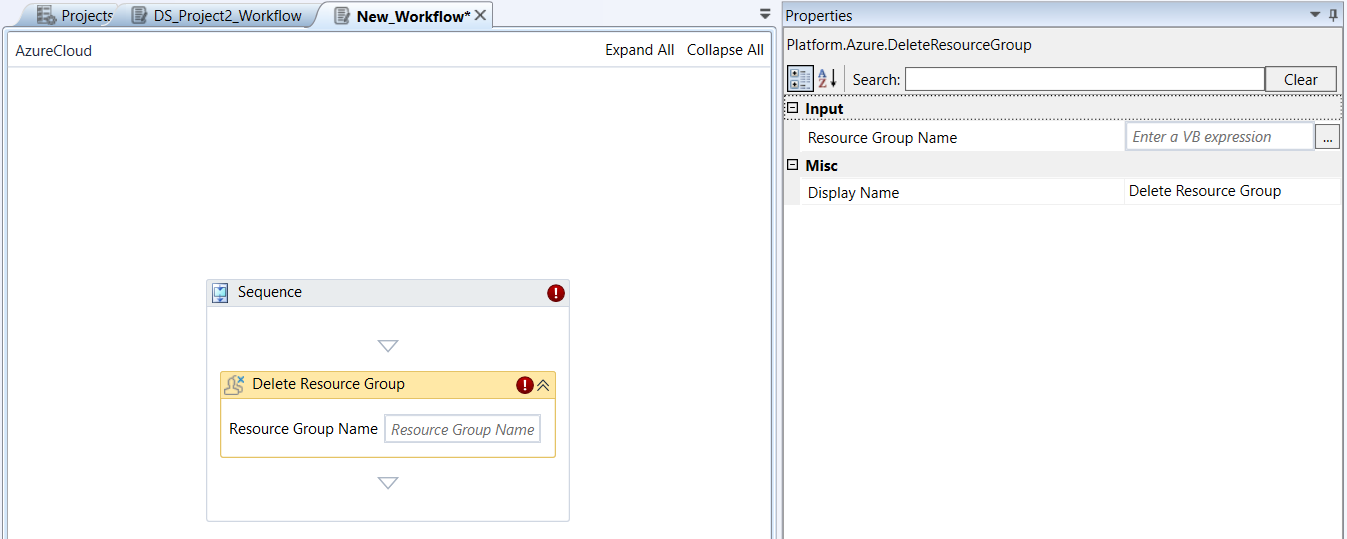
Properties of Delete Resource Group
| Properties | Description |
|---|---|
| Resource Group Name | Name of the resource group to be deleted. |
| Display Name | Title of the activity inside the sequence. |
Delete Storage Account
Delete Storage Account activity allows you to delete a specified storage account.
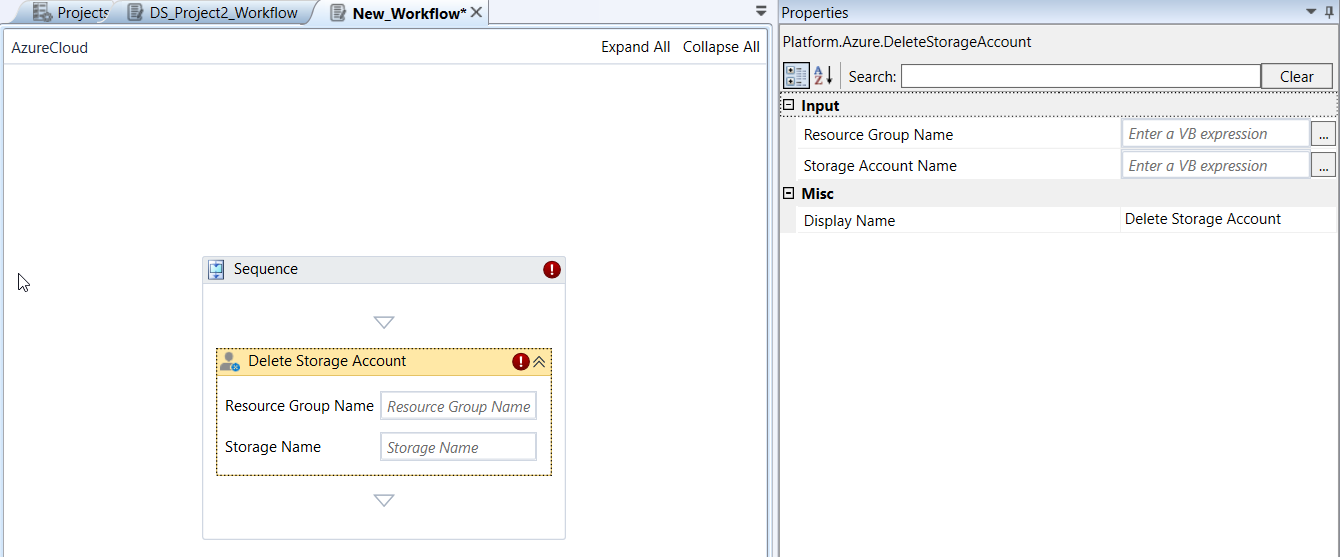
Properties of Delete Storage Account
| Properties | Description |
|---|---|
| Resource Group Name | Name of the resource group in which the storage account resides. |
| Storage Account Name | The storage account that needs to be deleted. |
| Display Name | Title of the activity inside the sequence. |
Delete Table
Delete Table activity allows you to delete a specific table.
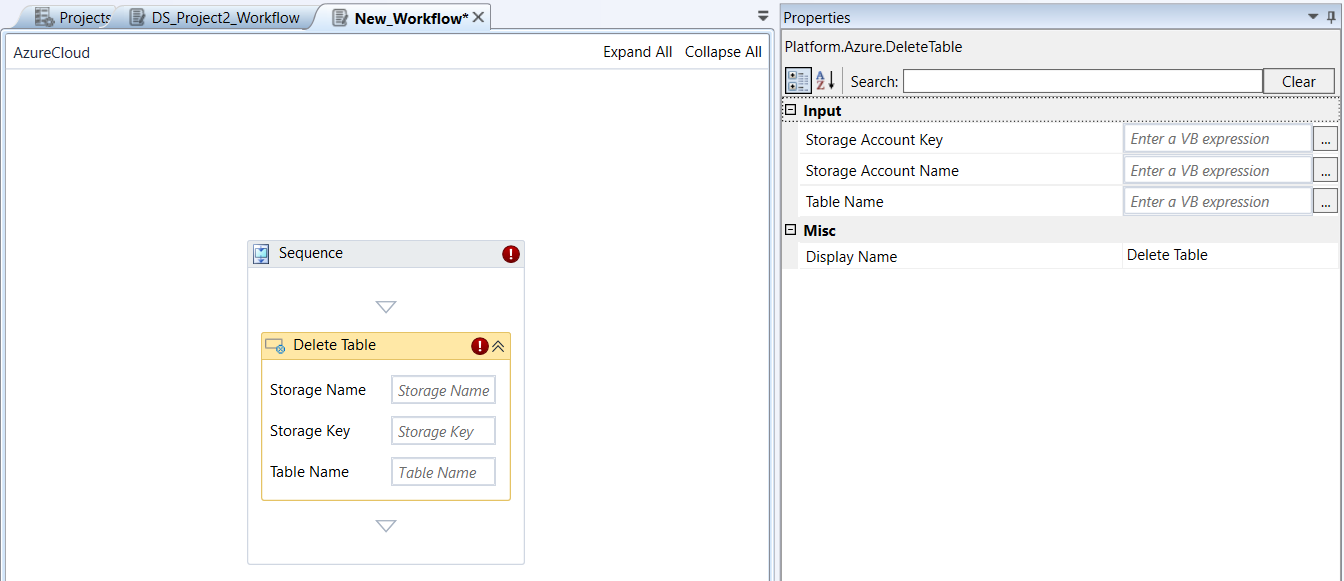
Properties of Delete Table
| Properties | Description |
|---|---|
| Storage Account Name | Name of the storage account. |
| Storage Account Key | Key name of the storage account. |
| Table Name | Name of the table within the storage account that is to be deleted. |
| Display Name | Title of the activity inside the sequence. |
Delete VM
Delete VM activity allows you to delete a specified virtual machine.
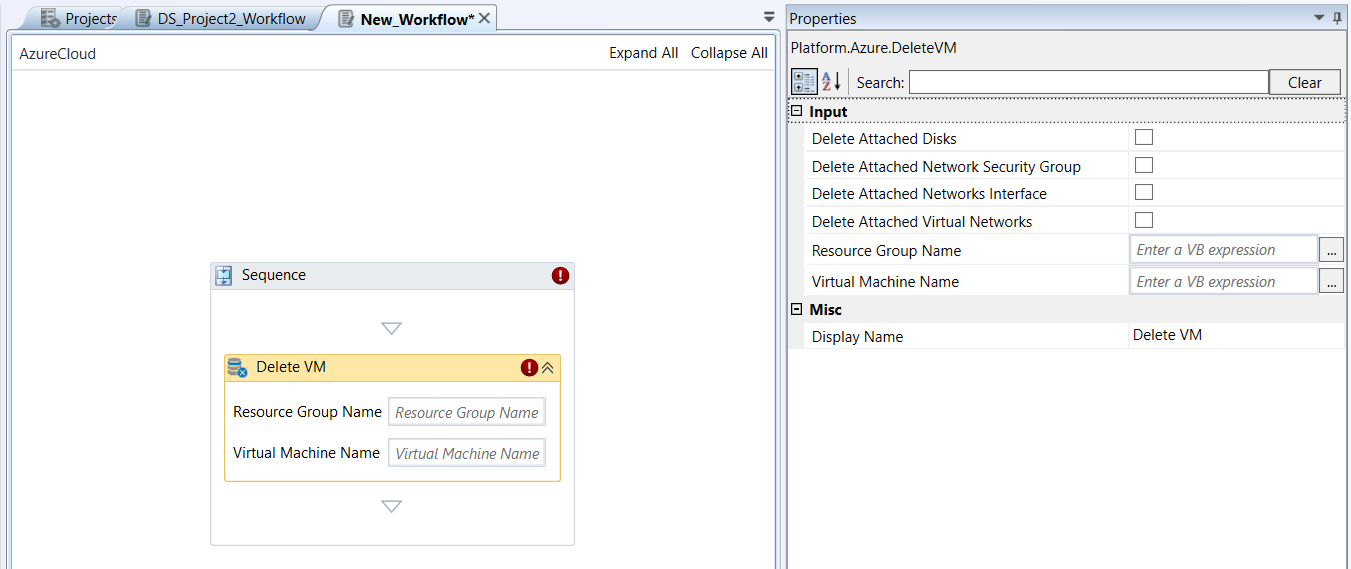
Properties of Delete VM
| Properties | Description |
|---|---|
| Resource Group Name | Name of the resource group. |
| Virtual Machine Name | Name of the virtual machine. |
| Delete Attached Disks | Select this if you want to delete the virtual machine and all its attached disks. |
| Delete Attached Network Security Group | Select this if you want to delete all network security groups attached to the machine's network interfaces or virtual networks, if they have no other associated network interfaces or virtual networks. |
| Delete Attached Network Interface | Select this if you want to delete all public IP addresses attached to the machine's network interfaces after deleting the virtual machine and its network interfaces. |
| Delete Attached Virtual Networks | Select this if you want to delete the virtual machine and its virtual networks as long as they are not connected devices left after deleting the virtual machine and its network interfaces. |
| Display Name | Title of the activity inside the sequence. |
Download Blob to File
Download Blob to File activity allows you to download a blob to a specific file.
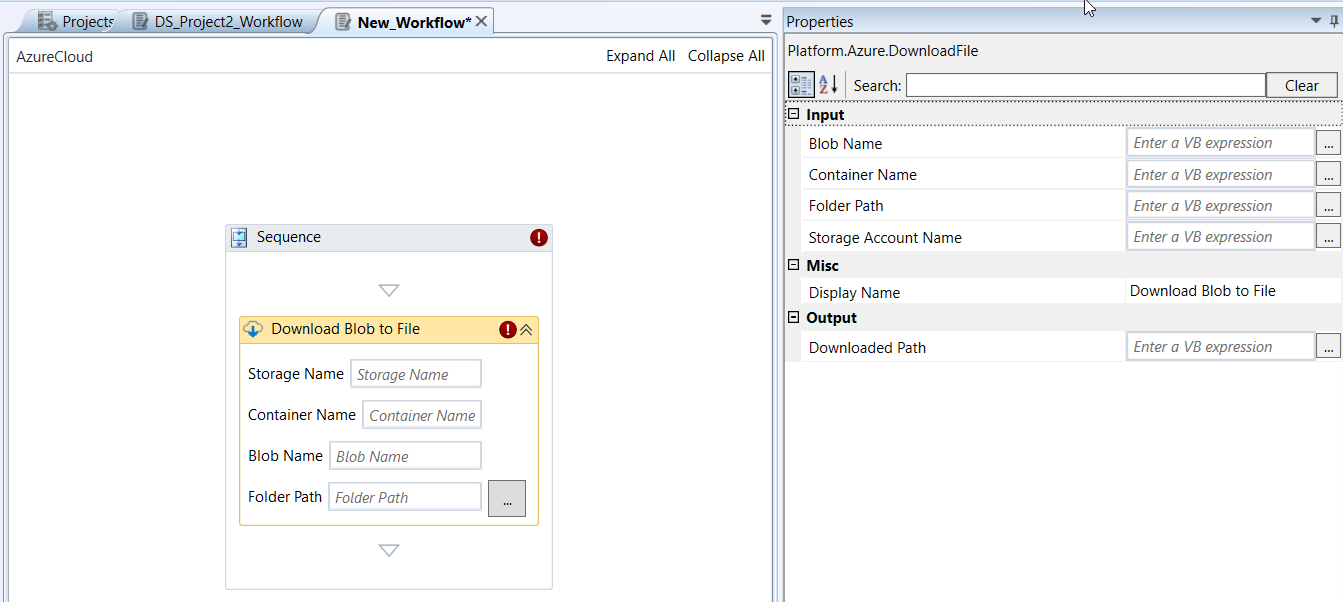
Properties of Download Blob to File
| Properties | Description |
|---|---|
| Storage Account Name | Name of the storage account in which the Blob resides. |
| Container Name | Name of the Blob container. |
| Blob Name | Name of the Blob that is to be downloaded. |
| Folder Path | Full path to the folder where the downloaded blob can be saved. |
| Display Name | Title of the activity inside the sequence. |
| Downloaded Path | Enter a string variable. The variable holds the full path of the resulted file. |
Get Blob
Get Blob activity allows you to retrieve details about a specific blob.
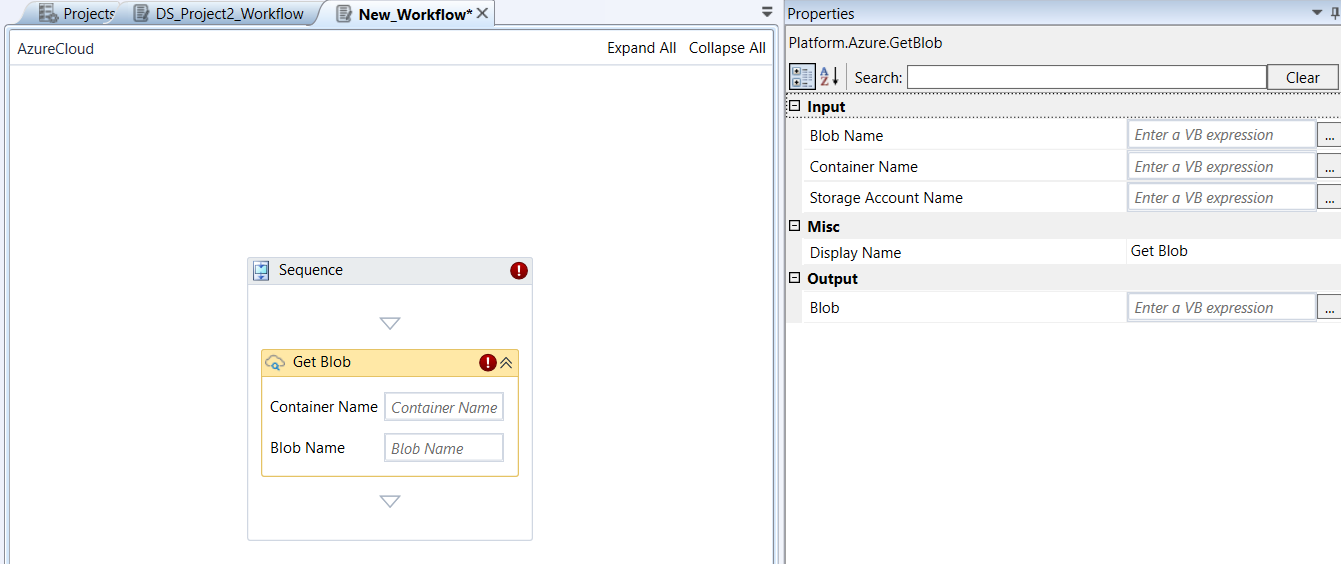
Properties of Get Blob
| Properties | Description |
|---|---|
| Storage Account Name | Name of the Storage Account. |
| Container Name | Name of the Blob container. |
| Blob Name | Name of the Blob. |
| Display Name | Title of the activity inside the sequence. |
| Blob | Enter a string variable. The variable holds the details of the specified Blob. |
Get Blob Container
Get Blob Container activity allows you to retrieve the details for a specified blob container.
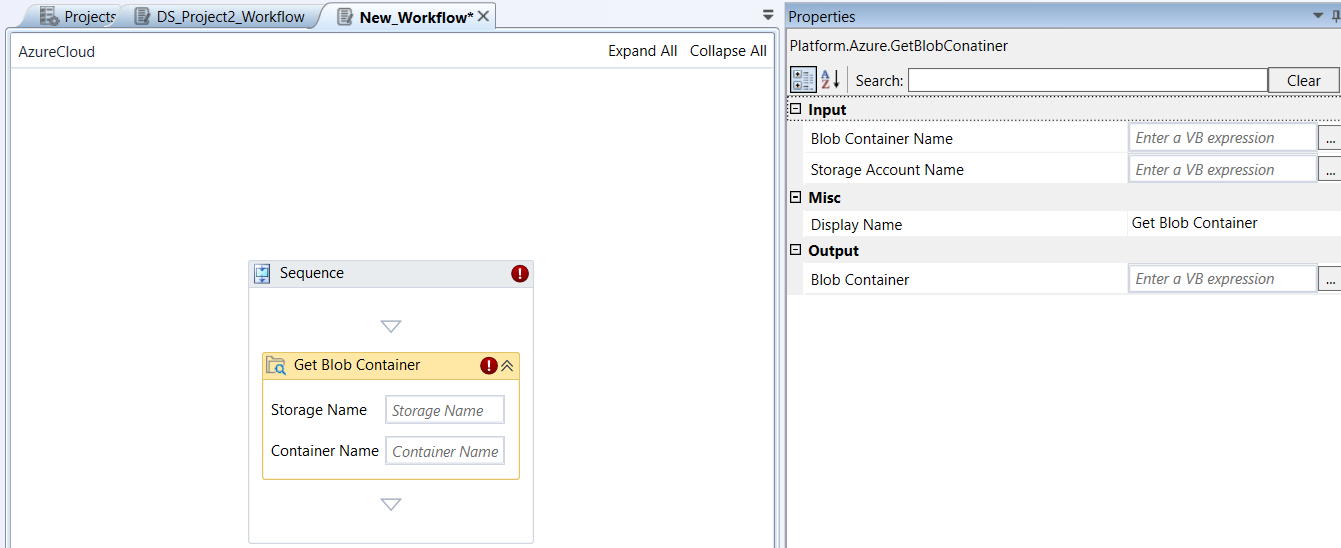
Properties of Get Blob Container
| Properties | Description |
|---|---|
| Storage Account Name | Name of the Storage account. |
| Blob Container Name | Name of the blob container. |
| Display Name | Title of the activity inside the sequence. |
| Blob Container | Enter a string variable. The variable holds the details of the specified Blob container. |
Get Blob Container List
Get Blob Container List activity allows you to retrieve the blob containers from a specific storage account.
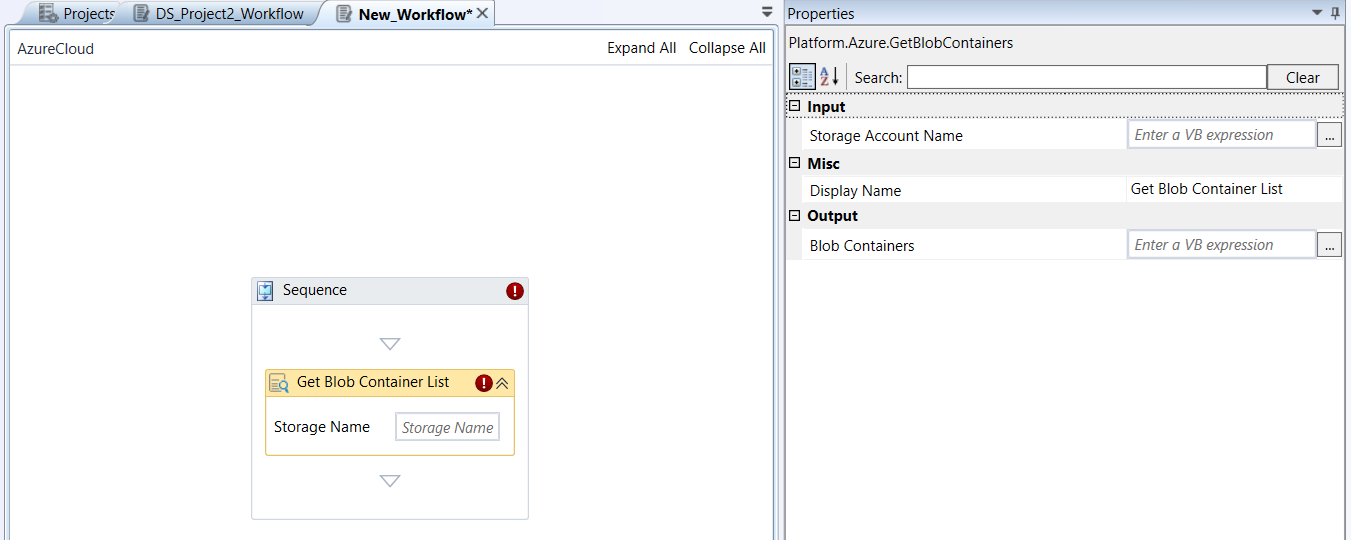
Properties of Get Blob Container List
| Properties | Description |
|---|---|
| Storage Account Name | Name of the storage account. |
| Display Name | Title of the activity inside the sequence. |
| Blob Containers | Enter a string variable. The variable holds the blob container names from a specific storage account. |
Get Blob List
Get Blob List activity allows you to retrieve the list of blobs from a specific Blob container.
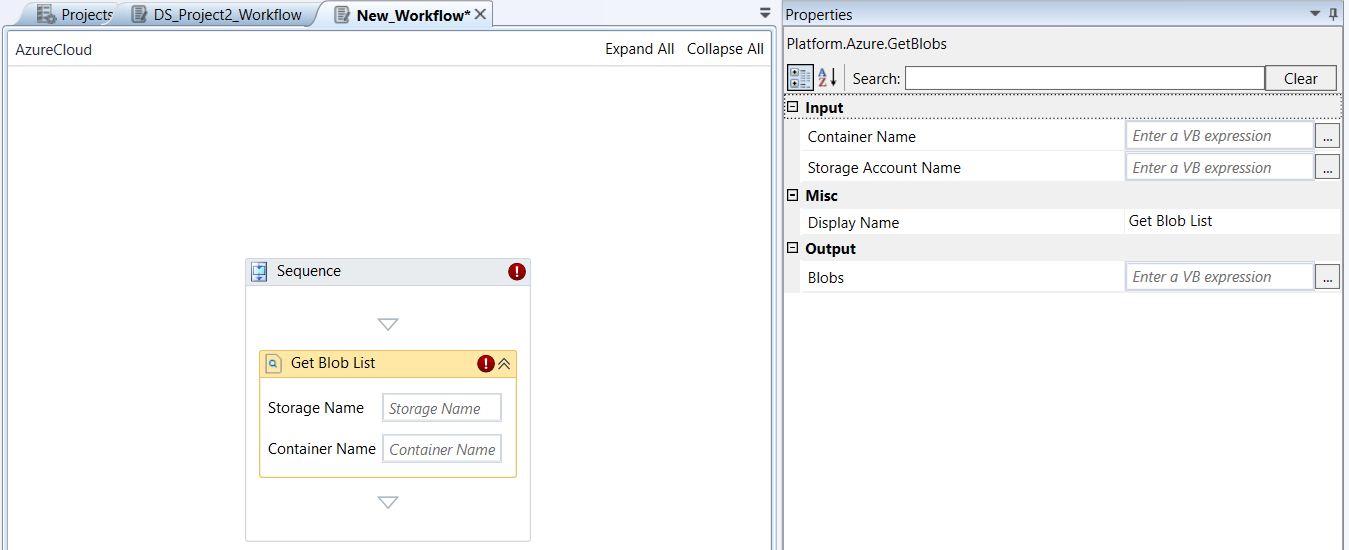
Properties of Get Blob List
| Properties | Description |
|---|---|
| Storage Account Name | Name of the Storage account. |
| Blob Container Name | Name of the Blob Container. |
| Display Name | Title of the activity inside the sequence. |
| Blobs | Enter a string variable. The variable holds the list of blob names from a specific blob container. |
Get Key Vault Secret
Azure Key Vault is a cloud service that provides a secure store for secrets, keys, and certificates.
Get Key Vault Secret activity allows you to retrieve the secret details from the specified key vault.
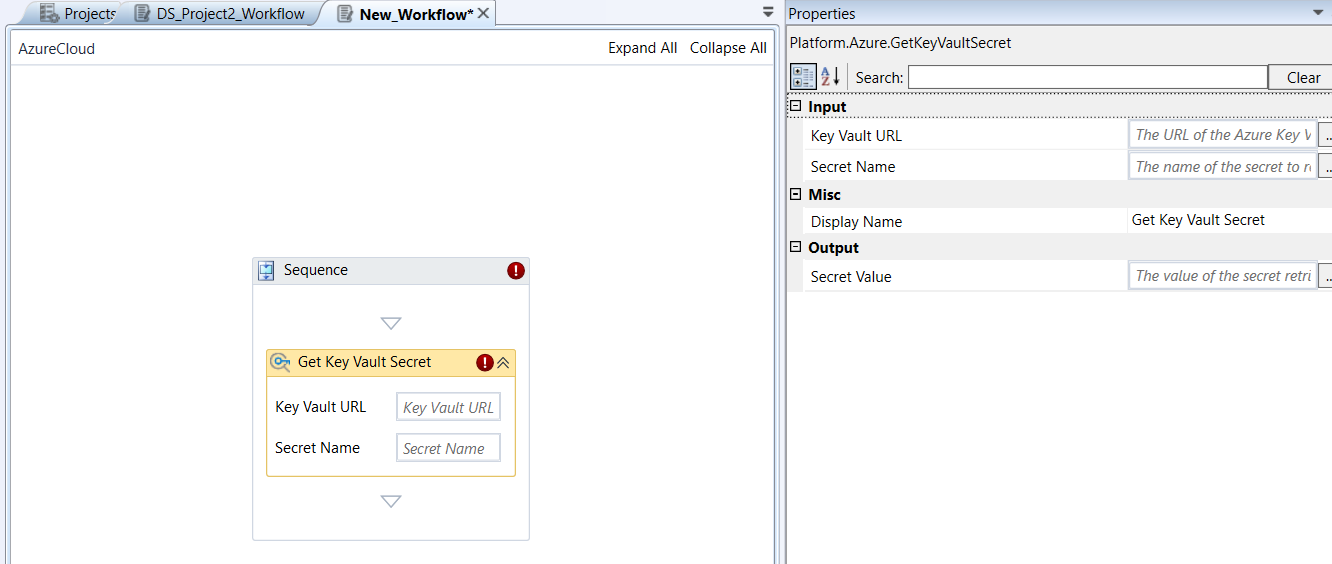
Properties of Get Key Vault Secret
| Properties | Description |
|---|---|
| Key Vault URL | URL to the Key vault from where you need to retrieve the secret. |
| Secret Name | Name (or key) of the secret for which you need to get the value. |
| Display Name | Title of the activity inside the sequence. |
| Secret Value | Enter a string variable. The variable holds value of the key vault secret. |
Get Key Vault Secrets
Get Key Vault Secrets activity allows you to retrieve secrets from the specified key vault.
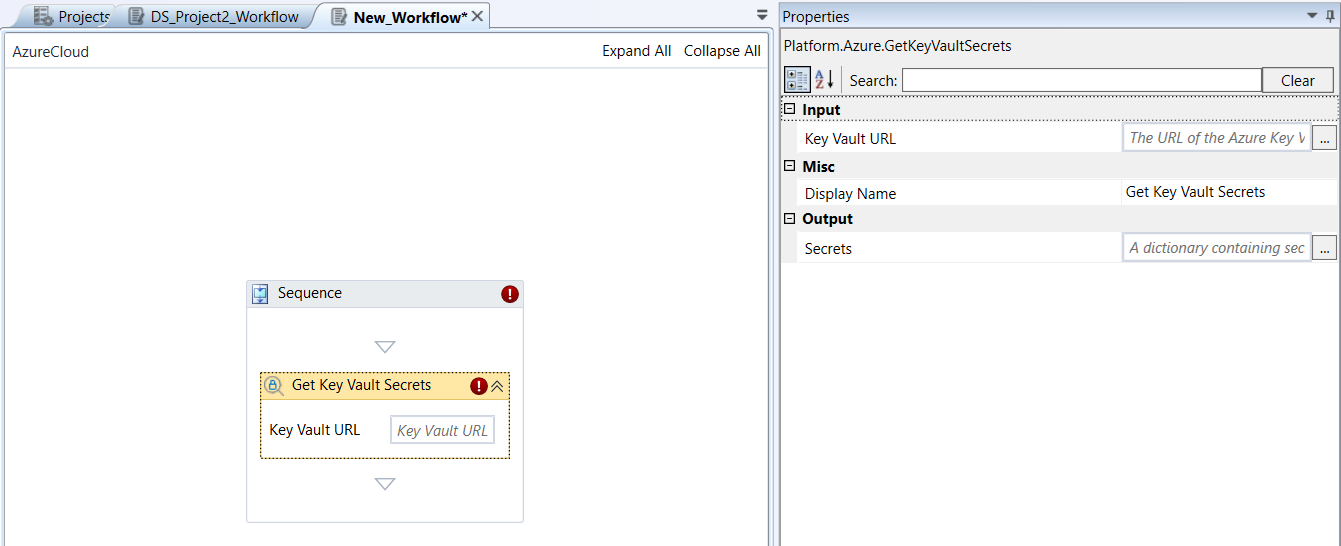
Properties of Get Key Vault Secrets
| Properties | Description |
|---|---|
| Key Vault URL | URL to the Key vault from where you need to retrieve the secret. |
| Display Name | Title of the activity inside the sequence. |
| Secrets | Enter a string variable. The variable holds secret name and values in a Key-Value pair format. |
Get Resource Group
Get Resource Group activity allows you to get or retrieve details from a resource group included in the current Azure subscription.
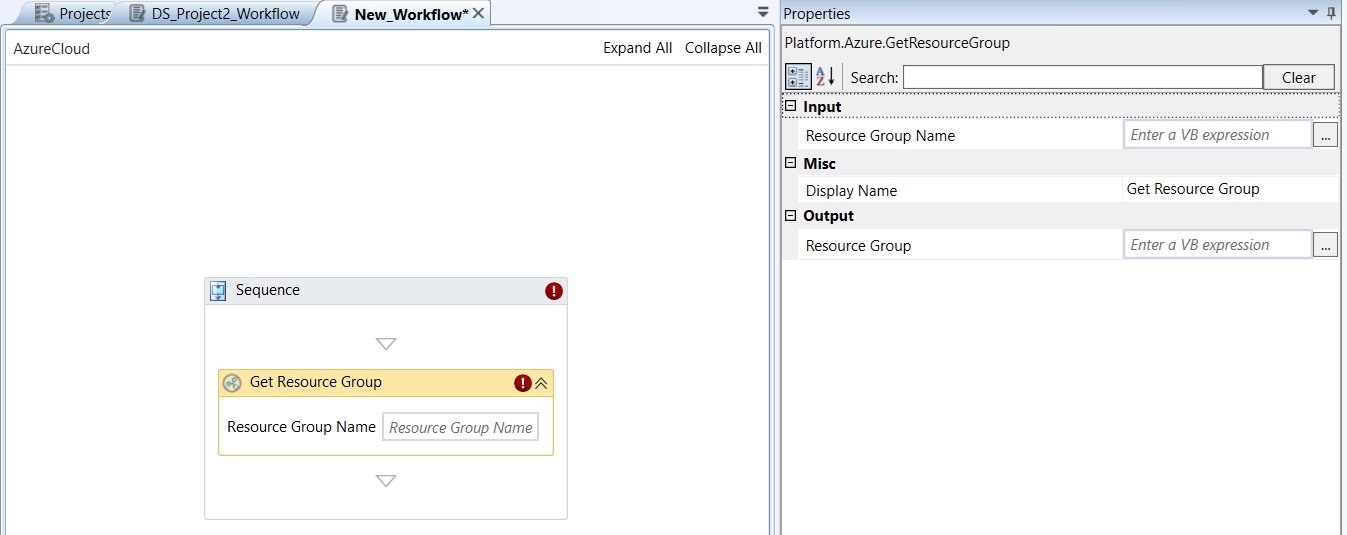
Properties of Get Resource Group
| Properties | Description |
|---|---|
| Resource Group Name | Name of the resource group for which you need the details. |
| Display Name | Title of the activity inside the sequence. |
| Resource Group | Enter a string variable. The variable holds details of the specified resource group. |
Get Resource Group List
Get Resource Group List activity allows you to get or retrieve details about the list of resource groups included in the current Azure subscription.
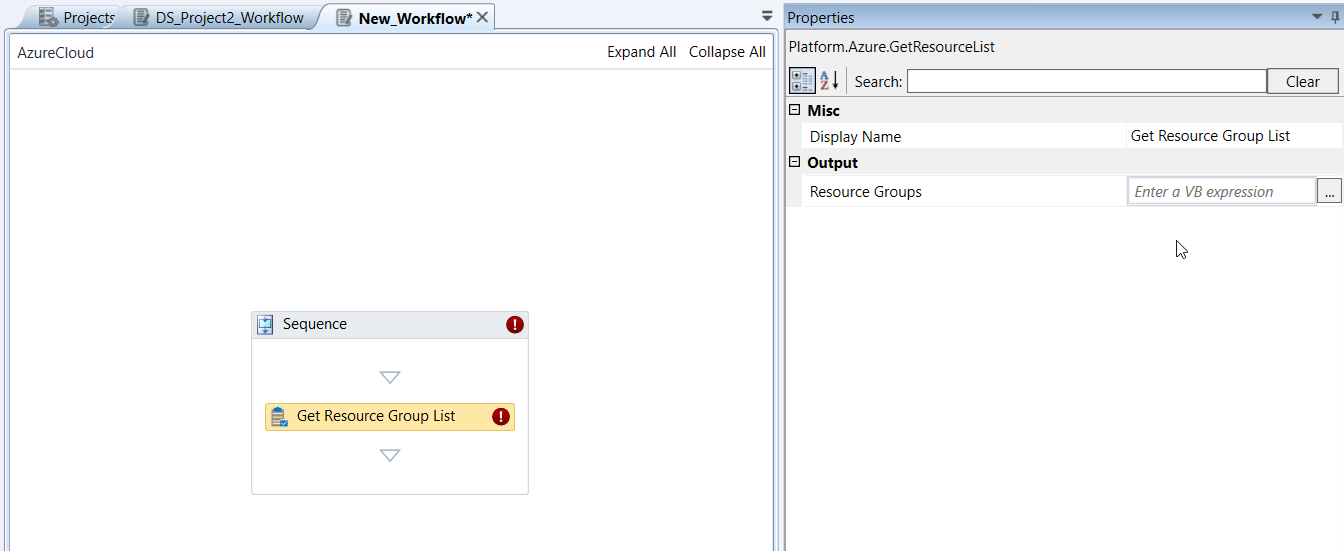
Properties of Get Resource Group List
| Properties | Description |
|---|---|
| Display Name | Title of the activity inside the sequence. |
| Resource Groups | Enter a string variable. The variable holds list of resource groups included in the Azure subscription. |
Get Storage Account
Get Storage Account activity allows you to get or retrieve details (storage account metadata) from a specific Storage Account.
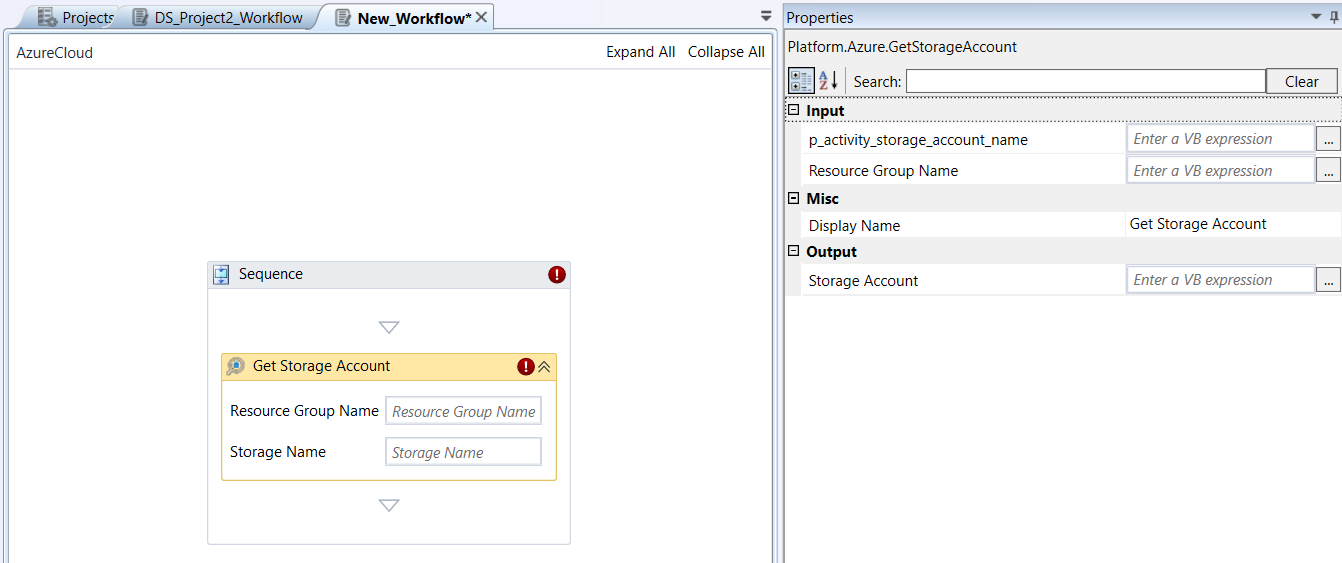
Properties of Get Storage Account
| Properties | Description |
|---|---|
| Resource Group Name | Name of the Resource group in which the storage group resides. |
| Storage Account Name | Name of the storage account. |
| Display Name | Title of the activity inside the sequence. |
| Storage Account | Enter a string variable. The variable holds the details of the storage account. |
Get Storage Accounts
Get Storage Accounts activity allows you to get or retrieve list of Storage Accounts in the specified resource group.
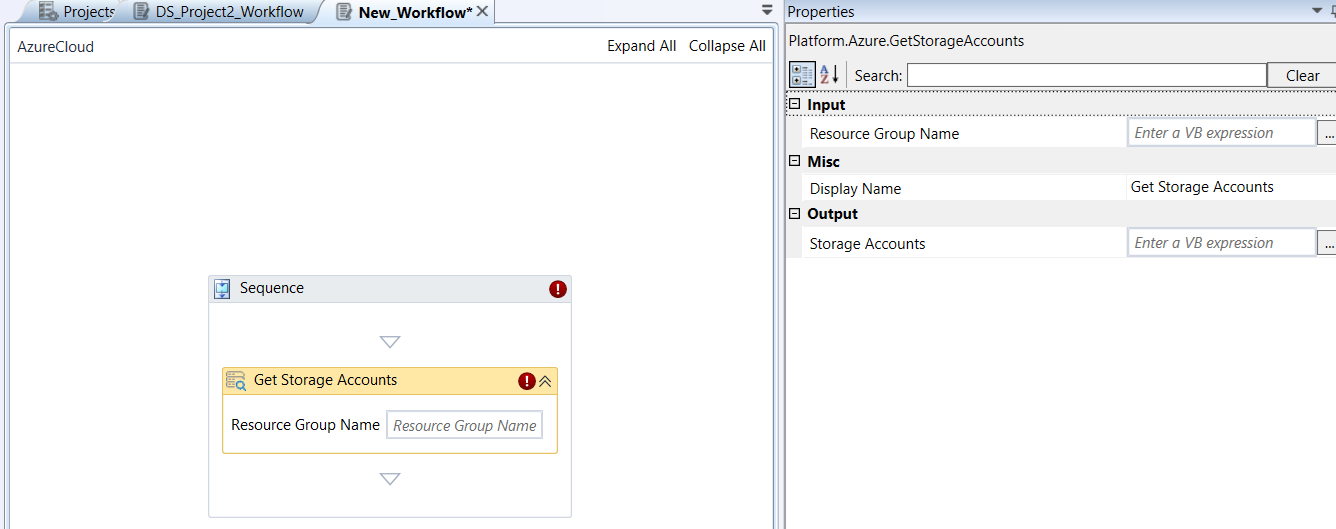
Properties of Get Storage Accounts
| Properties | Description |
|---|---|
| Resource Group Name | Name of the resource group. |
| Display Name | Title of the activity inside the sequence. |
| Storage Accounts | Enter a string variable. The variable holds the list of storage account names in the specified resource group. |
Get Table
Get Table activity allows you to get or retrieve the details of a specific table.
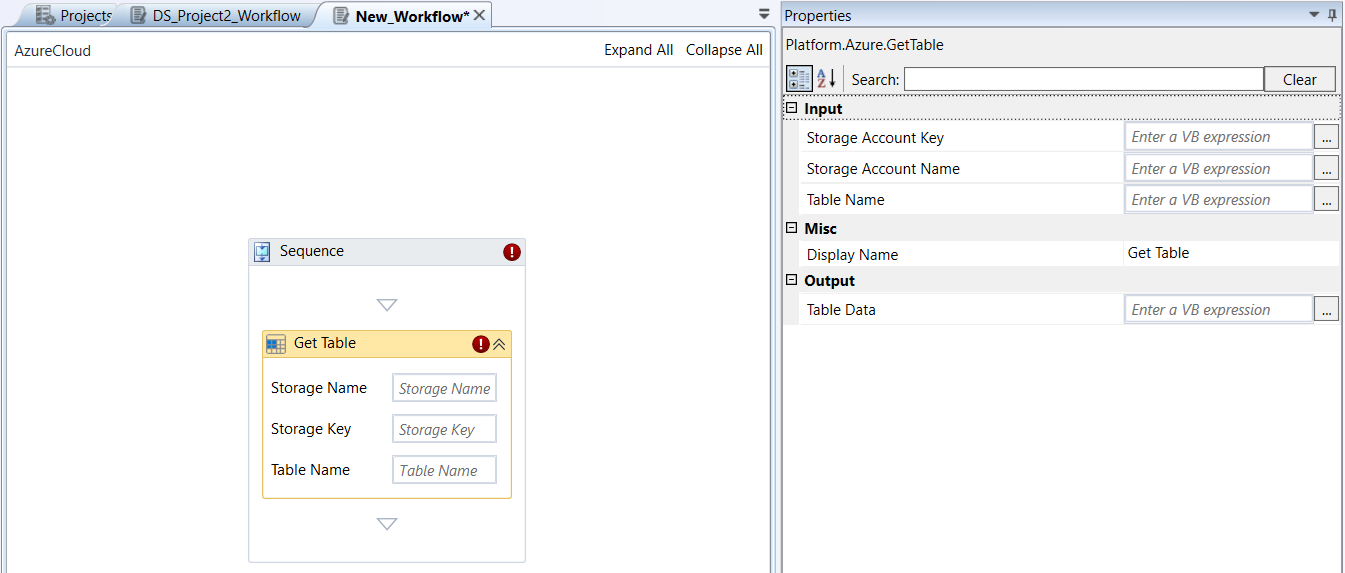
Properties of Get Table
| Properties | Description |
|---|---|
| Storage Account Name | Name of the storage account. |
| Storage Account Key | Storage Account Keys (access keys or shared keys) are master passwords for your storage account. If you have this key, you can access complete control over the data in the storage account even if you don’t know the resource group detail. Enter the Storage account key. These keys grant full, unrestricted access to all data within that storage account (blobs, files, queues, and tables). |
| Table Name | Name of the table for which you need the details. |
| Display Name | Title of the activity inside the sequence. |
| Table Data | Enter a string variable. The variable holds details of the specified table. |
Get Table List
Get Table List activity allows you to get or retrieve all tables from a specified storage account.
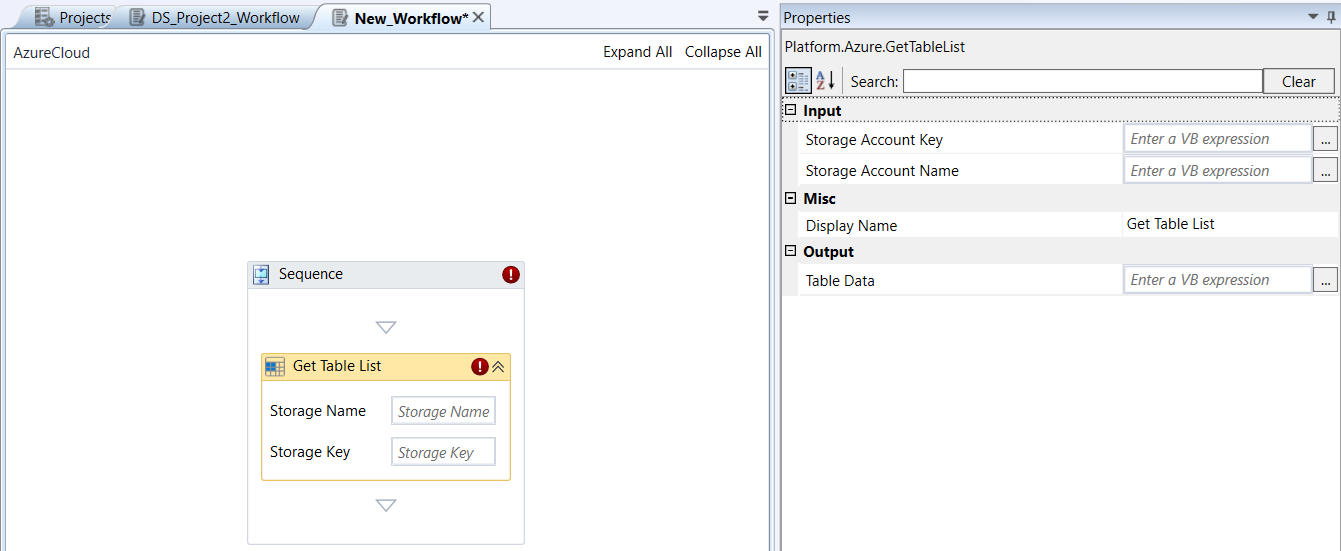
Properties of Get Table List
| Properties | Description |
|---|---|
| Storage Account Name | Name of the Storage account. |
| Storage Account Key | Storage Account Keys (access keys or shared keys) are master passwords for your storage account. If you have this key, you can access complete control over the data in the storage account even if you don’t know the resource group detail. Enter the Storage account key. These keys grant full, unrestricted access to all data within that storage account (blobs, files, queues, and tables). |
| Display Name | Title of the activity inside the sequence. |
| Table Data | Enter a string variable. The variable holds list of all tables in the storage account. |
Insert Rows
Insert Rows activity allows you to insert new rows in a specific table or replaces the rows if they already exist.
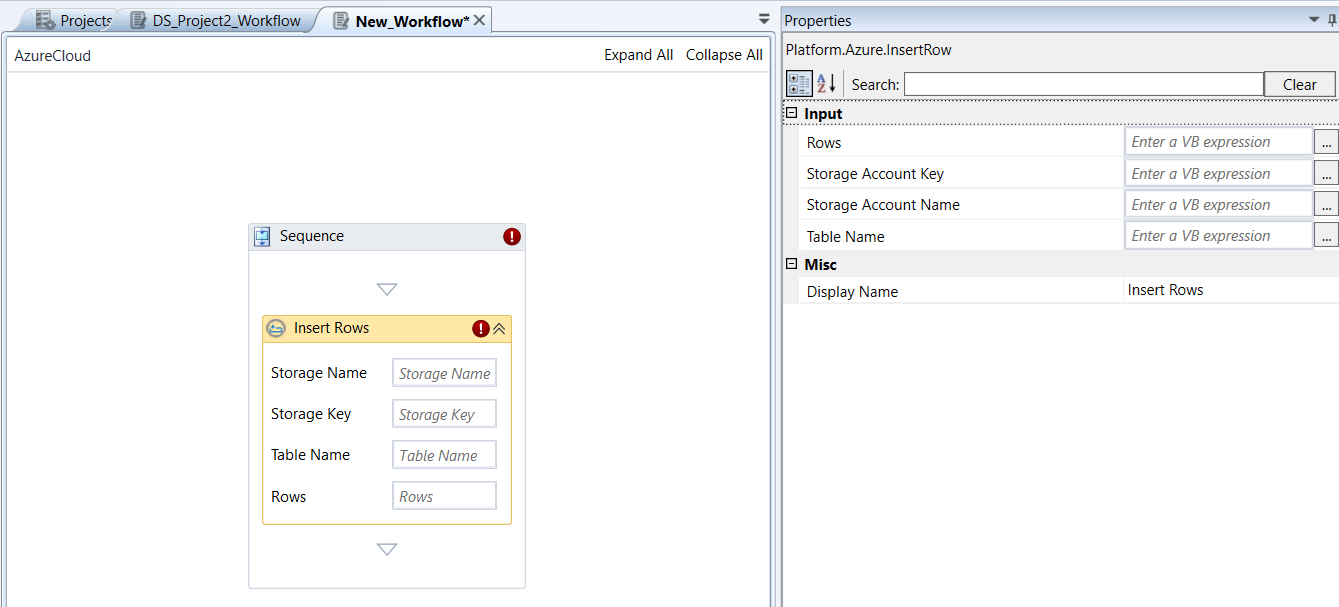
Properties of Insert Rows
| Properties | Description |
|---|---|
| Storage Account Name | Name of the storage account. |
| Storage Account Key | Storage Account Keys (access keys or shared keys) are master passwords for your storage account. If you have this key, you can access complete control over the data in the storage account even if you don’t know the resource group detail. Enter the Storage account key. These keys grant full, unrestricted access to all data within that storage account (blobs, files, queues, and tables). |
| Rows | The rows that need to be inserted to the table. |
| Table Name | Name of the table to which the rows should be inserted |
| Display Name | Title of the activity inside the sequence. |
Restart VM
Restart VM activity allows you to restart a virtual machine.
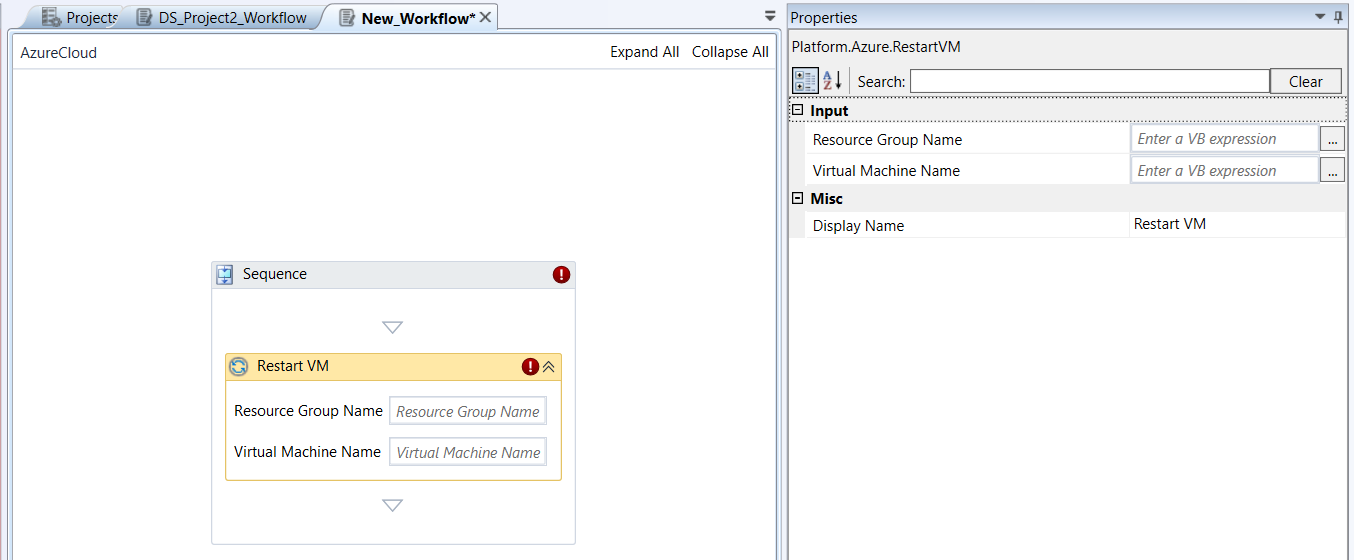
Properties of Restart VM
| Properties | Description |
|---|---|
| Resource Group Name | Name of the resource group. |
| Virtual Machine Name | Name of the virtual machine that you need to restart. |
| Display Name | Title of the activity inside the sequence. |
Shutdown VM
Shutdown VM activity allows you to shutdown the Operating System of the specified virtual machine.
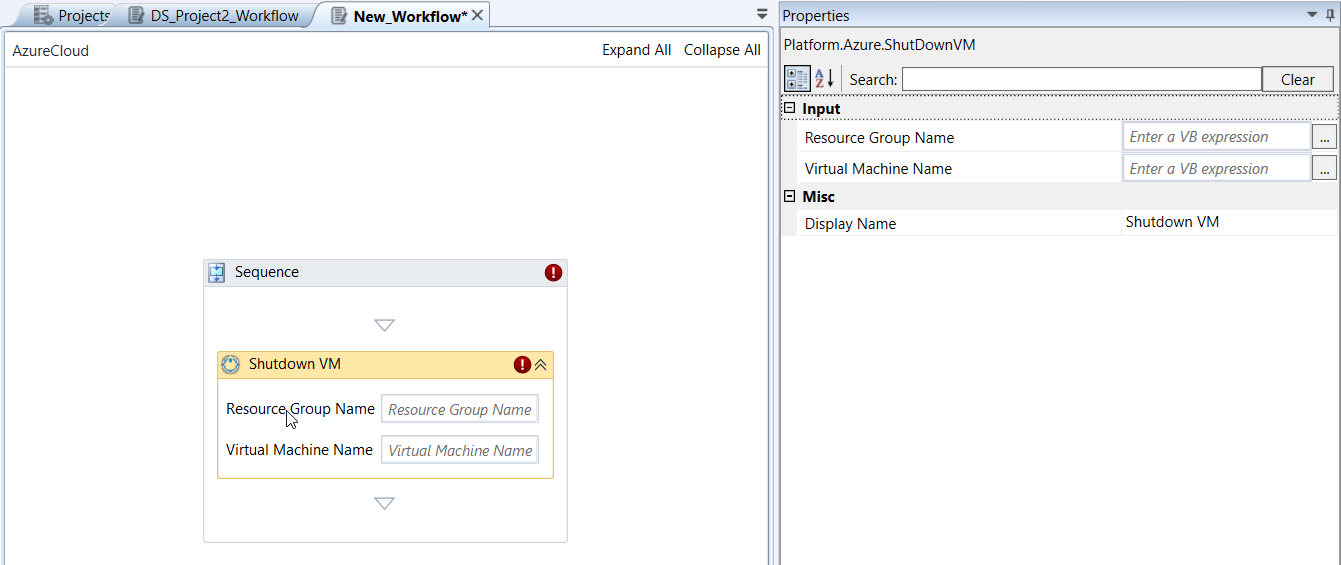
Properties of Shutdown VM
| Properties | Description |
|---|---|
| Resource Group Name | Name of the resource group. |
| Virtual Machine Name | Name of the virtual machine that you need to shutdown. |
| Display Name | Title of the activity inside the sequence. |
Start VM
Start VM activity allows you to start a specific virtual machine.
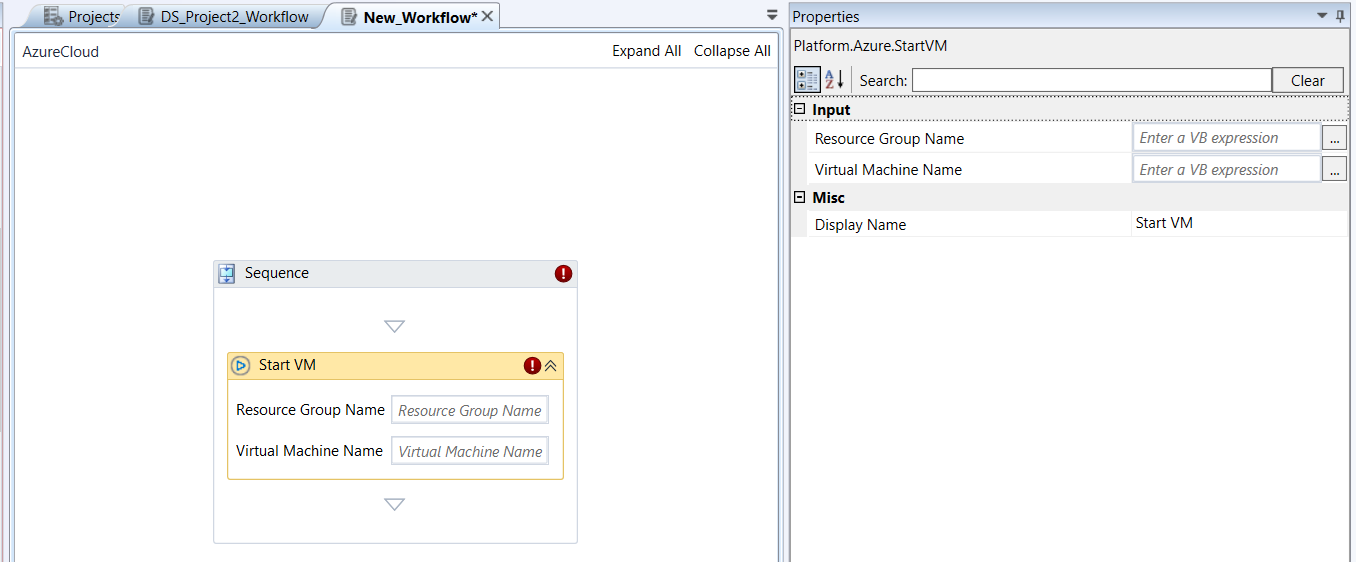
Properties of Start VM
| Properties | Description |
|---|---|
| Resource Group Name | Name of the resource group. |
| Virtual Machine Name | Name of the virtual machine that you need to start. |
| Display Name | Title of the activity inside the sequence. |
Stop VM
Stop VM activity allows you to stop a virtual machine by deallocating the hardware and network resources that Azure previously provisioned for it.
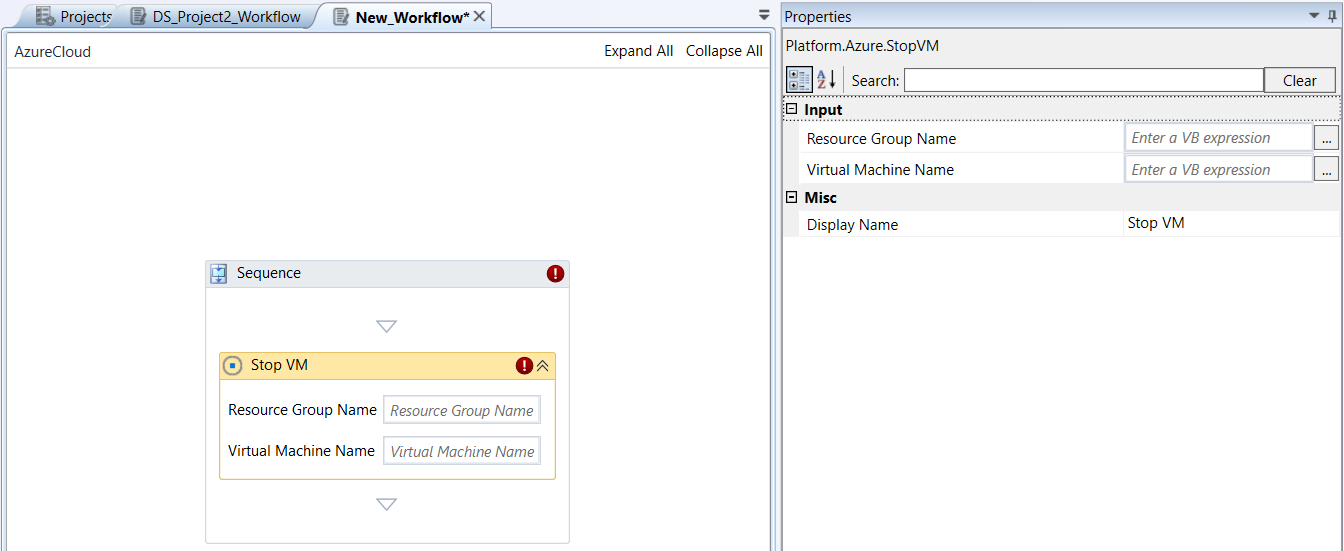
Properties of Stop VM
| Properties | Description |
|---|---|
| Resource Group Name | Name of the resource group. |
| Virtual Machine Name | Name of the virtual machine that you need to stop. |
| Display Name | Title of the activity inside the sequence. |
Upload Blob From File
Upload Blob From File activity allows you to create a new blob or updates an existing one from a specific file.
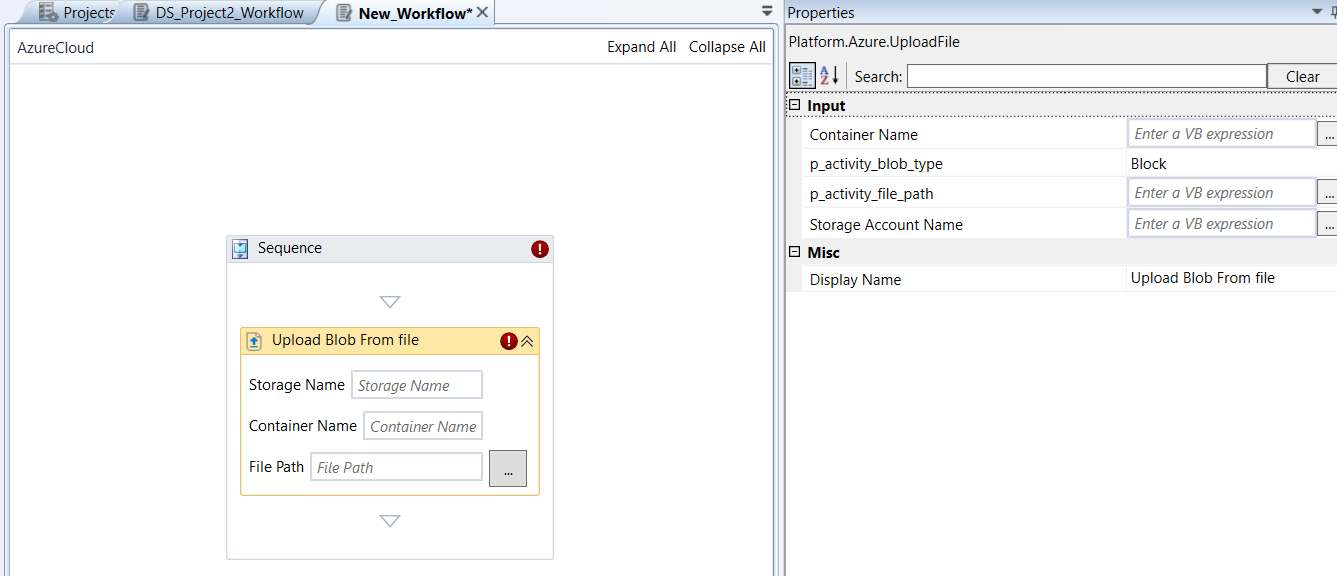
Properties of Upload Blob From File
| Properties | Description |
|---|---|
| Storage Account Name | Name of the storage account. |
| Blob Container Name | Name of the Blob container. |
| Blob Type | Select the Blob type.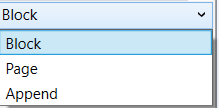 Block : Designed for storing text and binary files . These are the most common and versatile type of blobs. They are optimized for uploading large amounts of data efficiently. Page : Designed for storing random access files . This type of blob is optimized for random read/write operations , making it suitable for Virtual Hard Drive (VHD) files that back Azure Virtual Machines (VMs). Append : Designed for append operations , meaning you can only add new blocks of data to the end of the blob. You cannot modify or delete existing blocks once they are committed. |
| File Path | Enter the file path. Or Click the button adjacent to the textbox to select the path. Alternatively, enter a variable to capture the file path at the run time. |
| Display Name | Title of the activity inside the sequence. |
Azure Cloud References
Getting Azure Cloud Details
Log in to the Azure Portal
Go to portal.azure.com and sign in with your Azure account.
Access Azure Active Directory
- In the Azure portal, search for "Azure Active Directory" in the search bar at the top and select it.
Alternatively, from the left-hand navigation pane, select "Azure Active Directory".
Register Application
Register an application to get Client ID, Client Secret, and Tenant ID.
- In the Azure Active Directory blade, under "Manage", click on "App registrations".
-
Click on "+ New registration".
Register an application page:
- Name: Give your application a meaningful name (e.g., "AutomationTool-AzureAccess", "MyUipathBot").
- Supported account types: Choose the option that best suits your needs. For most scenarios involving a single organization, "Accounts in this organizational directory only (Default Directory only - Single tenant)" is sufficient.
- Redirect URI (optional): For this type of machine-to-machine authentication (client credentials flow), you typically don't need a Redirect URI, so you can leave it blank.
-
Click "Register".
- After registration: You will be taken to the overview page of your newly registered application.
- Application (client) ID: This is your Client ID. Copy this value.
- Directory (tenant) ID: This is your Tenant ID. Copy this value.
Create a New Client Secret
- On your application's overview page, under "Manage" in the left-hand menu, click on "Certificates & secrets".
-
Under the "Client secrets" tab, click on "+ New client secret".
Add a client secret:
Description: Provide a description for your secret (e.g., "Automation Tool Secret").
Expires: Choose an expiration period. For production environments, it's best practice to set an expiration and have a plan to rotate secrets before they expire. Note the warning about "Never" expiring secrets for security reasons.
-
Click "Add".
Immediately after adding: The Value of the client secret appears only once. Copy this value immediately as it will be masked or unavailable to retrieve after you leave this page. This is your Client Secret.
Get the Subscription ID
-
In the Azure portal, search for "Subscriptions" in the search bar at the top and select it.
You will see a list of your Azure subscriptions. Copy the Subscription ID of the subscription you want your application to access.
-
Assign Permissions (Role-Based Access Control - RBAC):
Now you need to grant your registered application (service principal) the necessary permissions to resources within your subscription.
-
Go to the Subscription you want to grant access to (or a specific Resource Group, or even a specific resource, depending on the scope of access needed).
- In the subscription's blade (or Resource Group/Resource blade), click on "Access control (IAM)" (Identity and Access Management) in the left-hand menu.
- Click on "+ Add" -> "Add role assignment".
-
Add role assignment page:
Role: Choose the appropriate role based on the principle of least privilege. For example:
- Reader: If your application only needs to view resources.
- Contributor: If your application needs to create, manage, and delete resources (a common choice for automation but use with caution).
- Storage Blob Data Contributor/Reader: If it only needs to interact with Blob Storage.
- Custom roles: For fine-grained control.
Assign access to: Leave as "User, group, or service principal".
Members: Click on "+ Select members", then search for the name of the application registration you created earlier (e.g., "AutomationTool-AzureAccess"). Select it and click "Select". -
Click "Review + assign" and then "Review + assign" again.
Glossary
Append Blob: A type of Azure Blob Storage optimized for append operations, where new blocks of data can only be added to the end of the blob. Ideal for logging, auditing, and sequential data streams where existing data must remain immutable.
Azure Active Directory (Azure AD): Microsoft's cloud-based identity and access management service. It provides single sign-on, multifactor authentication, and conditional access to protect users from cybersecurity attacks. Your Tenant ID is associated with an Azure AD instance.
Blob: A Binary Large Object. An individual file or object stored in Azure Blob Storage. This is the most common type of data stored in Azure Storage Accounts, typically for unstructured data like images, videos, documents, or backups.
Blob Container: A logical grouping or directory for blobs within an Azure Storage Account. All blobs must reside within a container.
Block Blob: The most common type of Azure Blob Storage, optimized for storing text and binary files. Data is uploaded in blocks, making it efficient for large file transfers and streaming.
Client ID (Application ID): A unique identifier for an application registration in Azure Active Directory. It identifies your application to Azure AD when it requests access to resources. Used in conjunction with a Client Secret or certificate for authentication.
Client Secret (Application Secret/Password): A secret key generated for an application registration in Azure Active Directory. It acts as a password for your application, proving its identity during authentication with Azure AD. This secret value appears only once when created in Azure Portal, so it must be copied immediately.
Key Vault: A cloud service that provides a secure store for secrets, cryptographic keys, and certificates. It helps manage and protect sensitive information used by applications and services.
Management Group: An optional, top-level container for Azure subscriptions. Used by large organizations to manage access, policy, and compliance across multiple subscriptions efficiently. Policies and roles applied here are inherited by all contained subscriptions and resources.
Network Interface Card (NIC): A virtual network adapter that enables an Azure Virtual Machine (VM) to communicate with other resources in an Azure Virtual Network (VNet), the internet, and on-premises networks.
Network Security Group (NSG): A virtual firewall that filters network traffic to and from Azure resources in an Azure Virtual Network. NSGs contain security rules that allow or deny inbound and outbound traffic based on source/destination IP, port, and protocol.
Page Blob: A type of Azure Blob Storage optimized for random read/write operations, making it suitable for storing Virtual Hard Drive (VHD) files that back Azure Virtual Machines (VMs).
Region (Location): A geographical area in the world where Azure data centers are clustered. When you create an Azure resource, you must specify the region where it will be deployed (e.g., "East US," "West Europe," "Southeast Asia"). This impacts latency, data residency, and available services.
Resource: Any individual, manageable item that is available through Azure. Examples include Virtual Machines, Storage Accounts, Web Apps, Databases, Virtual Networks, etc. All resources must belong to a Resource Group.
Resource Group: A logical container that holds related resources for an Azure solution. It allows you to manage the lifecycle (deployment, updates, deletion), access control, and organization of resources as a single unit.
Secret (Key Vault): A small, arbitrary string of sensitive data (e.g., password, API key, connection string) stored securely within Azure Key Vault. Secrets are versioned and can have expiration dates.
Storage Account Key (Access Key): A 512-bit string that provides full, unrestricted access to all data within an Azure Storage Account (blobs, files, queues, and tables). It acts as a master password for the storage account's data plane.
Storage Account Name: The globally unique name given to an Azure Storage Account. This name forms part of the URL used to access the storage services within the account (e.g., youraccountname.blob.core.windows.net).
Subscription: A billing unit and a logical container for your Azure resources. All resources you provision are associated with a subscription, which defines billing, access boundaries, and service quotas.
Subscription ID: A unique identifier (GUID) for an Azure Subscription. It's used programmatically to specify which subscription your operations should target.
Table (Azure Table Storage): A NoSQL datastore within an Azure Storage Account designed for storing structured, non-relational data. It's cost-effective and provides fast access for large datasets. Data is stored as entities (rows) with properties (columns).
Tenant ID (Directory ID): A unique identifier (GUID) for your Azure Active Directory (Azure AD) instance. It specifies which Azure AD directory your application is trying to authenticate against. This ID identifies your organization's specific instance of Azure AD.
Virtual Machine (VM): An on-demand, scalable computing resource that provides a virtualized operating system (Windows or Linux) and compute power in the cloud, acting as the cloud equivalent of a physical server.