Managing Datamodels
Viewing and Editing Datamodels
Make sure to unlock the application before editing an entity that is not created by you.
- Go to Main Menu > App Studio > Applications > open [Application_Name] > Data Flow > Datamodel
or
Go to Main Menu > App Studio > Datamodel
The Datamodel list appears. -
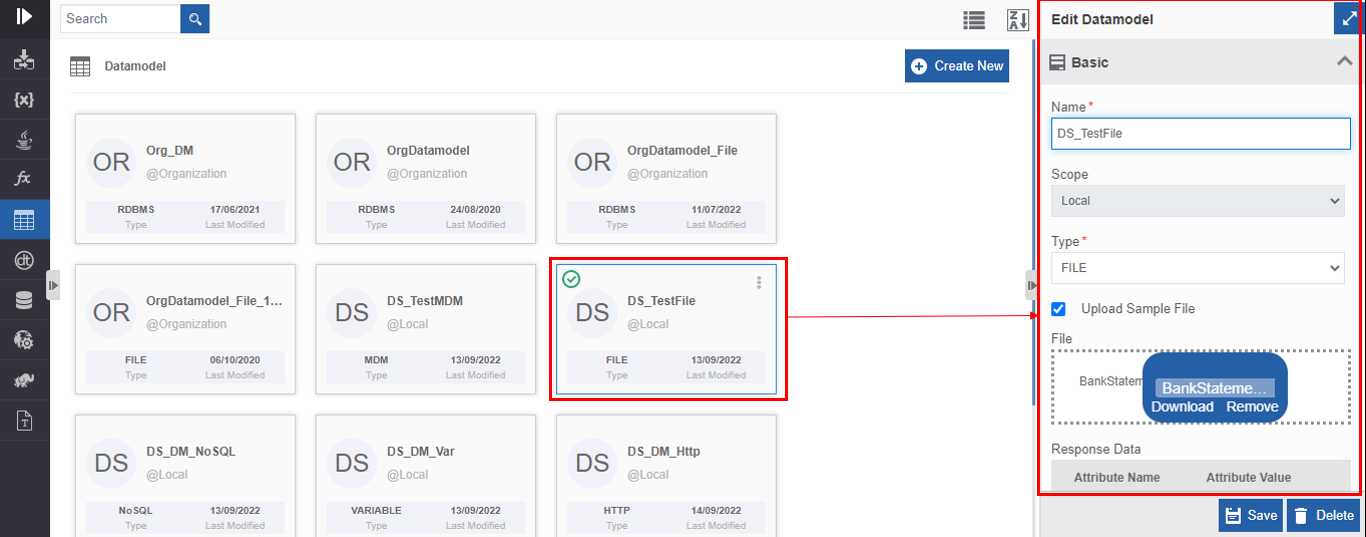
Click the Datamodel card to view the details of the selected Datamodel. The details of the Datamodel appear in the Info Actions panel (Edit Datamodel).
-
Edit the Datamodel details as needed.
- Click Save.
Viewing Datamodel Associations
Datamodel can be mapped other entities like Queries and data flows. The association feature allows you to view where all the datamodel is associated.
- Go to Main Menu > App Studio > Applications > open [Application_Name] > Data Flow > Datamodel
or
Go to Main Menu > App Studio > Datamodel
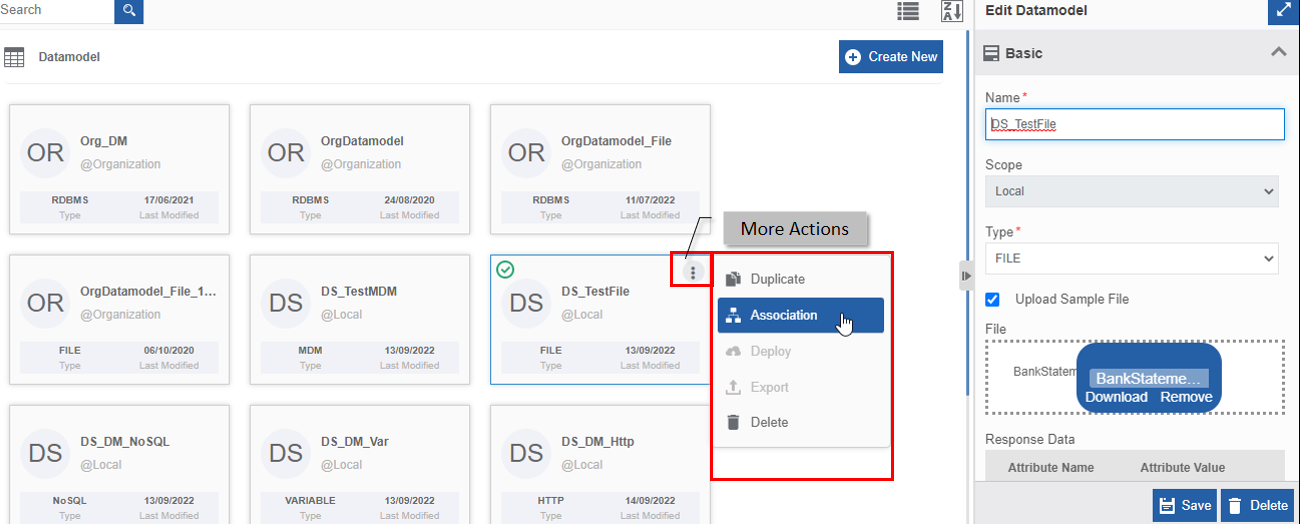
The Datamodel list appears. - Hover over any Datamodel card. Three dots appear on the upper right side of the card.
-
Click the three dots. More Actions appear.
-
Click Associations. The association of the Datamodel with the application, flow modules, and activities appear in a pop-up.
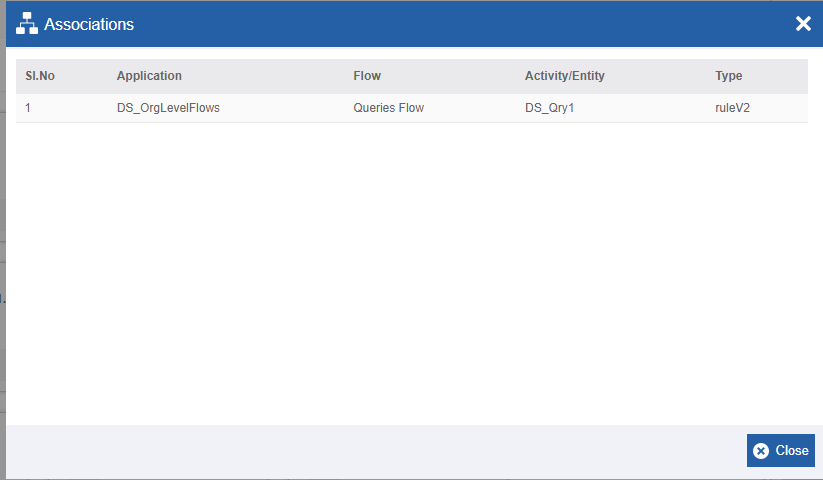
- Application – The application in which the Datamodel is utilized.
- Flow - The flow in which the Datamodel is utilized.
- Activity/Entity - The entity or activity name in which the Datamodel is utilized.
- Type - The type of entity or activity.
Duplicating Datamodel
Make sure to unlock the application before duplicating an entity that is not created by you. When you duplicate a Datamodel, the associations will not be duplicated.
- Go to Main Menu > App Studio > Applications > open [Application_Name] > Data Flow > Datamodel
or
Go to Main Menu > App Studio > Datamodel
The Datamodel list appears. - Hover over the Datamodel card that you want to duplicate. Three dots appear on the upper right side of the card.
-
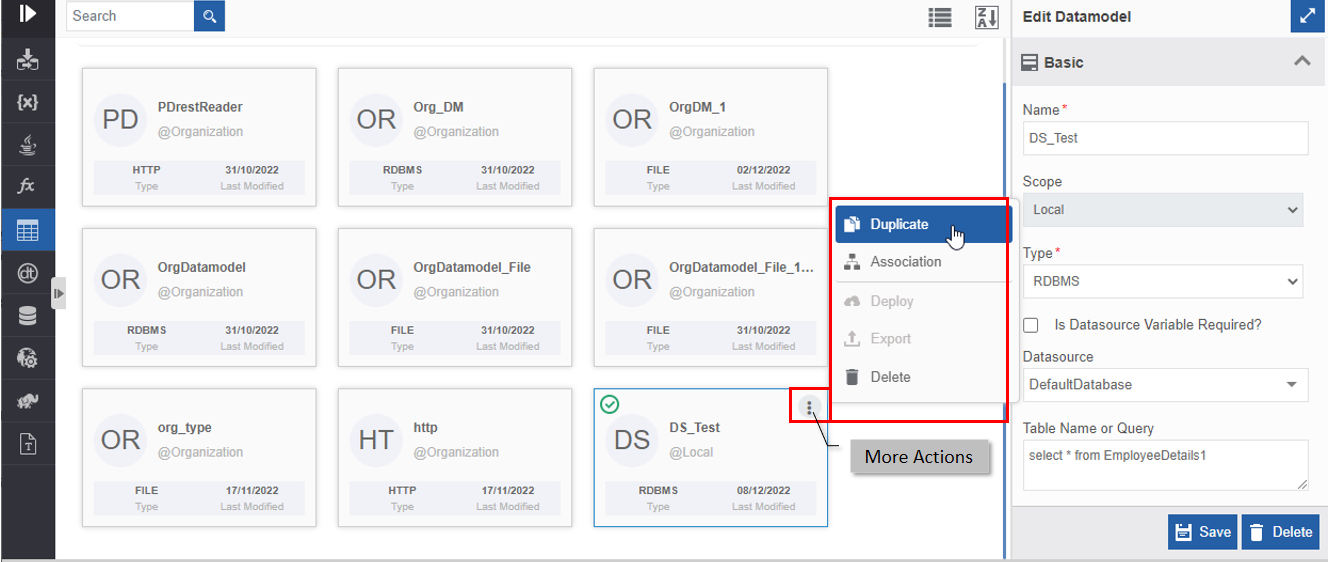
Click the three dots. More Actions appear.
-
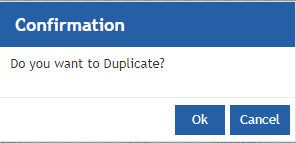
Click Duplicate. A confirmation pop-up appears.
-
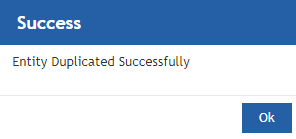
Click Ok to duplicate the Datamodel (or you can click Cancel to cancel the duplicate action). A Success message appears on the successful duplication of the Datamodel.
-
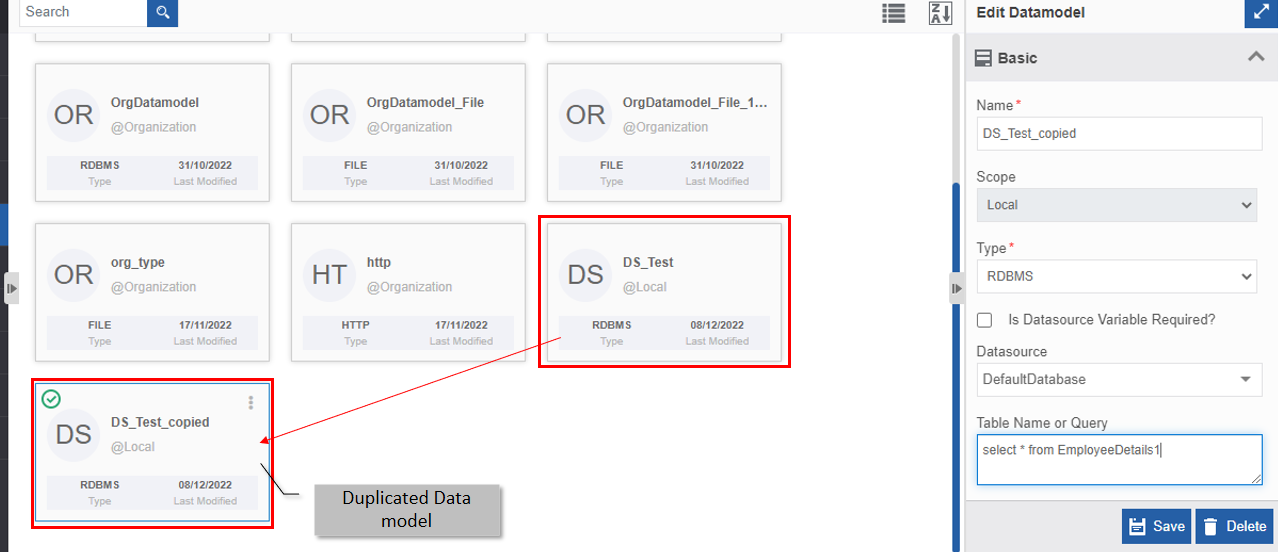
Click Ok. A duplicate copy of the Datamodel appears on the Datamodel page with the same name suffixed with “_copied”.
Deleting Datamodel
Make sure to unlock the application before deleting an entity that is not created by you. Also, you cannot delete the entity if it is associated with any activity or entity.
- Go to Main Menu > App Studio > Applications > open [Application_Name] > Data Flow > Datamodel
or
Go to Main Menu > App Studio > Datamodel
The Datamodel list appears. -
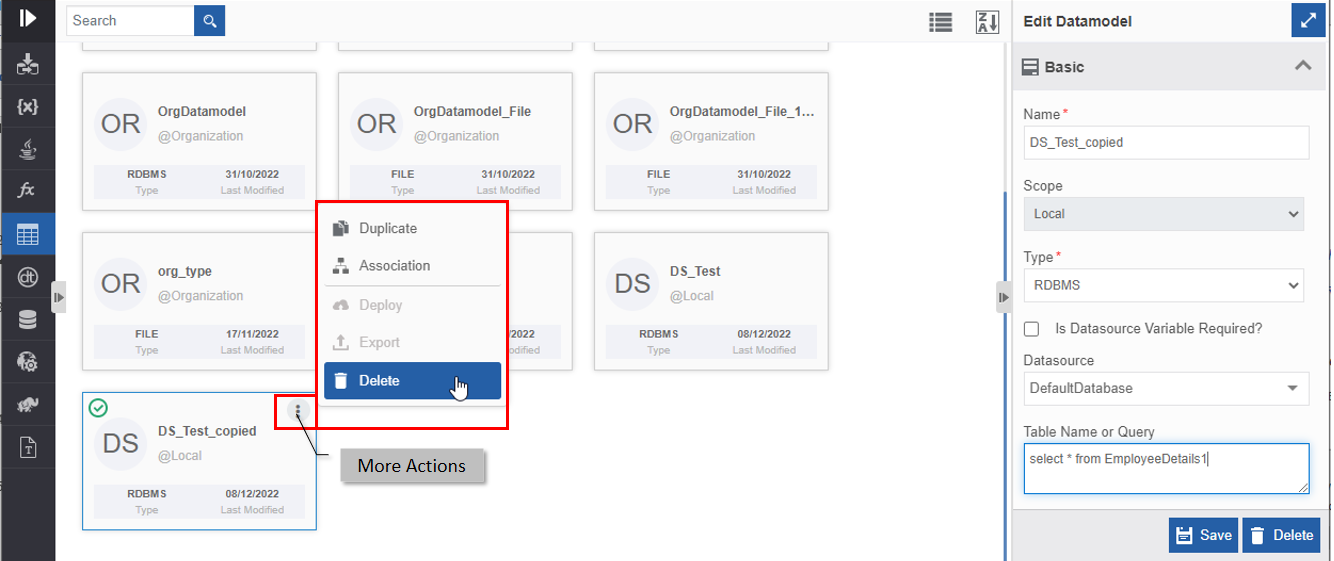
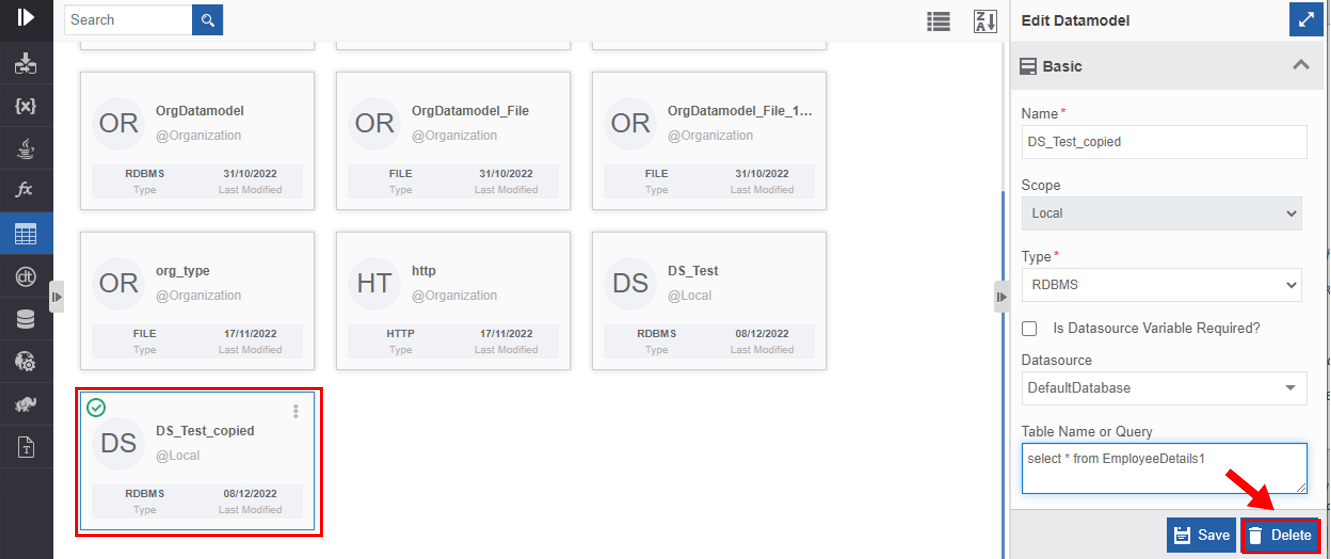
Click the Datamodel name card that is to be deleted. The lower-right of the page displays Delete.
-
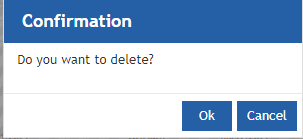
Click Delete. A Confirmation pop-up for delete appears.
-
Click Ok for deleting the Datamodel. Or
Click Cancel to cancel the action.
Alternatively, you can follow the below steps to delete the Datamodel:
- Go to Main Menu > App Studio > Applications > open [Application_Name] > Data Flow > Datamodel.
- Hover over the Datamodel card. Three dots appear on the upper right side of the card.
- Click the three dots. More Actions appear.
-
Click Delete and follow step 6 in the above procedure.