Business Entities
Business entities in the Platform are independent entities defined and utilized in the flow modules. Business entities are created and configured as per the required scope and are mapped to the activities in the workflow for achieving particular goals.
Intended User
The user who is creating the application and designing the flow(s) is the intended user of this user guide.
In the Platform, Organization Admin, and Process Admin level users can create applications and design flows; hence, those users can access the business entities module for performing the CRUD operations with the business entities.
Understanding Business Entity Layout
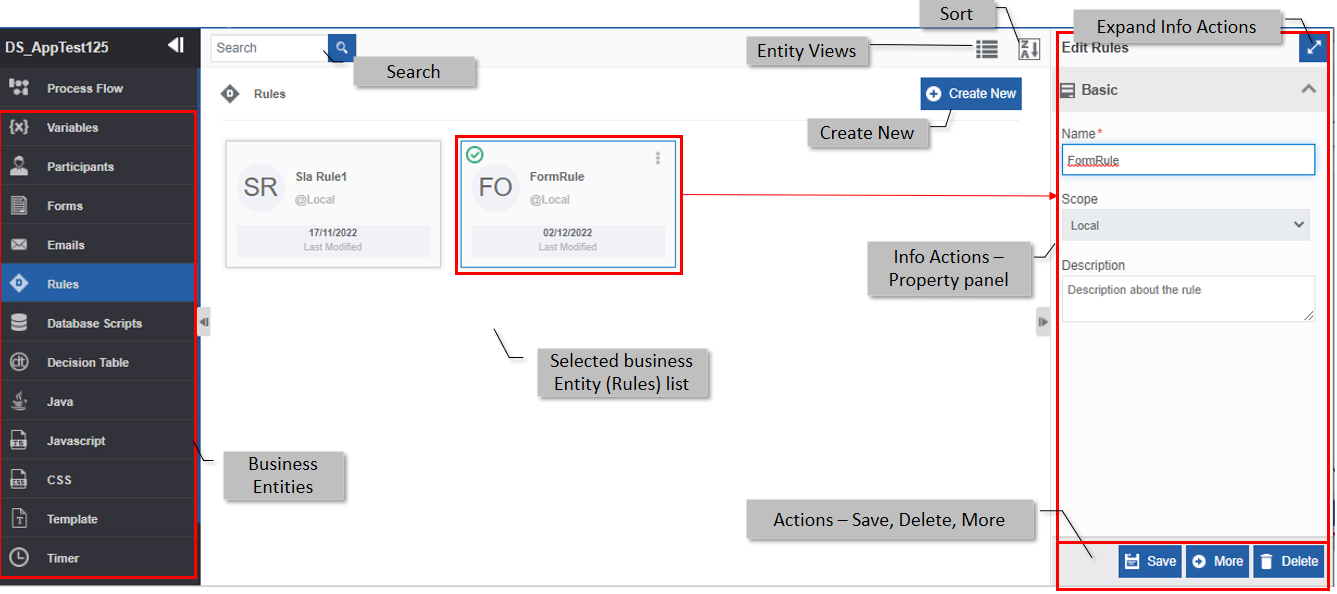
| Component | Description |
|---|---|
| Business Entities | Entities are listed on the left side panel. The selected entity list is displayed on the entity list page. |
| Search | Searching for an entity. |
| Info Actions | The Info Actions display the properties of the selected entity. |
| Create New | Creating a new business entity of the selected type. |
| Sort | Sorting the entities in alphabetical ascending and descending order. |
| Entity Views | Toggle the view of entities in card view and grid view. |
| Actions | Actions for the selected entity. |
Usage Summary
You need to create and configure the required business entity as per your requirement before utilizing the entity in your flow modules.
For flow module specific utilization, it is recommended to create local entities within your flow module.
The business entities in the Platform with their usage and associated flow modules are provided in the following table.
| Business Entities | Description | Applicable Flows |
|---|---|---|
| Variables | You can create and use variables for holding data. The system also creates variables automatically based on the flows (that can be viewed in the variable list) | Process flow, Event flow, Data flow, Mobile Flow |
| Participants | Participants are user(s) or role(s) who are part of the flow. You can assign tasks to the participants. | Process flow |
| Forms | You can create forms that are utilized by the end-user during the runtime. | Process flow, Mobile Flow |
| Emails | You can create email templates that are used for triggering emails based on rules. | Process flow |
| Rules | You can create rules with complex business / IT decisions and use the rules for making transition decisions in the flows. | Process flow |
| Queries | You can define rules for the data model using the Query entity. | Data flow |
| Database Scripts | You can create a DB script using SQL procedures and DB look-up that are used in variables, forms and databases. | Process flow, Event flow, Data flow, Mobile Flow |
| Java | Java is used to create and manage Java jar files. You can map the java jar file to the java entity. | Process flow, Data flow |
| Java Script | You can create javascript files using the javascript entity. | Process flow |
| CSS | You can create a CSS file that is used for designing aspects. | Process flow |
| Timer | You can create a Timer and map the timer to entities for achieving timing-related goals. | Process flow |
| Template | You can create templates for the OCR source data. | Process flow |
| Meeting Request | You can create a meeting request template using the meeting request entity. | Process flow |
| Data Model | You can create a data model from a data source as per your need. | Dataflow |
| Decision Table | You can create a Decision table when you need to perform certain actions based on the output of rules. | Process flow, Dataflow |
| Webservice | You can create a web service for integrating web communication. | Process flow, Data flow |
| Hadoop Entity | You can create a Hadoop Entity for reading and writing the CSV file from Hadoop Distributed File System (HDFS). | Data flow |
| Event Stream | You can create an Event Stream for tracking and analyzing streams of data, events involved in it, and deriving a conclusion from the incoming data (event source). A specific entity within the Event flow module | Event Flow |
Business Entities and Activities
After creating and configuring the business entities, you can map the entities to specific activity nodes in the flow modules. You can map a business entity only to a corresponding activity that accepts the entity.
The following table provides summary on which all activities the business entity can be mapped and the flow module to which the activity is related.
| Business Entity | Activity | Flow module |
|---|---|---|
| Variables | All Activities | Process flow |
| Transformer, Filter, Event Publisher, Trigger workflow | Event flow | |
| Webservice, Transformer, Filter, Aggregate, Update Attribute, Custom Query, Trigger workflow | Data flow | |
| All Activities | Mobile flow | |
| Participants | Start, Task, Approve-Reject, Email, End | Process flow |
| Forms | Task, Approve-Reject | Process flow |
| Task | Mobile flow | |
| Emails | All Activities | Process flow |
| Rules | All activities | Process flow |
| All activities | Mobile flow | |
| Queries | Rule Executor, Update Attributes | Data flow |
| Database Scripts | Task, Approve-Reject, DB | Process flow |
| DB | Data flow | |
| Task, Approve-Reject, DB | Mobile Flow | |
| Java | Java | Process flow |
| Reader | Data flow | |
| Java Script | Task, Approve-Reject | Process flow |
| CSS | Task, Approve-Reject | Process flow |
| Timer | Start, Task, Approve-Reject, End | Process flow |
| Template | PDF Generator, Document Parser | Process flow, Data flow |
| Meeting Request | Meeting Request | Process flow |
| Data Model | Reader, Transformer, Filter, Aggregate, Merger, DB, Rule Extractor, Azure IoT Publish Event, Update Attributes, Set Variable, Writer, Hadoop Writer, Insert Data Entity, Decision Table, Execute Data Flow, ML Predictor, Trigger Workflow | Data Flow |
| Decision Table | Decision Table | Process flow |
| Decision Table Executor | Data flow | |
| Webservice | Webservice | Process flow |
| Webservice | Data flow | |
| Hadoop Entity | Hadoop Writer | Data flow |
| Event Stream | All activities | Event flow |
Scope of Business Entities
The scope of the business entity indicates at what level the business entities are applicable.
The Platform provides two levels of scope for business entities: Organization level, and Local level.
Each business entity has different behavior at runtime. For each flow module, there are separate set of applicable business entities
Organization Entities
The Organization scope indicates that the entity can be utilized in any of the application or flow modules. However, organization scope applies only for selected entities based on their behavior.
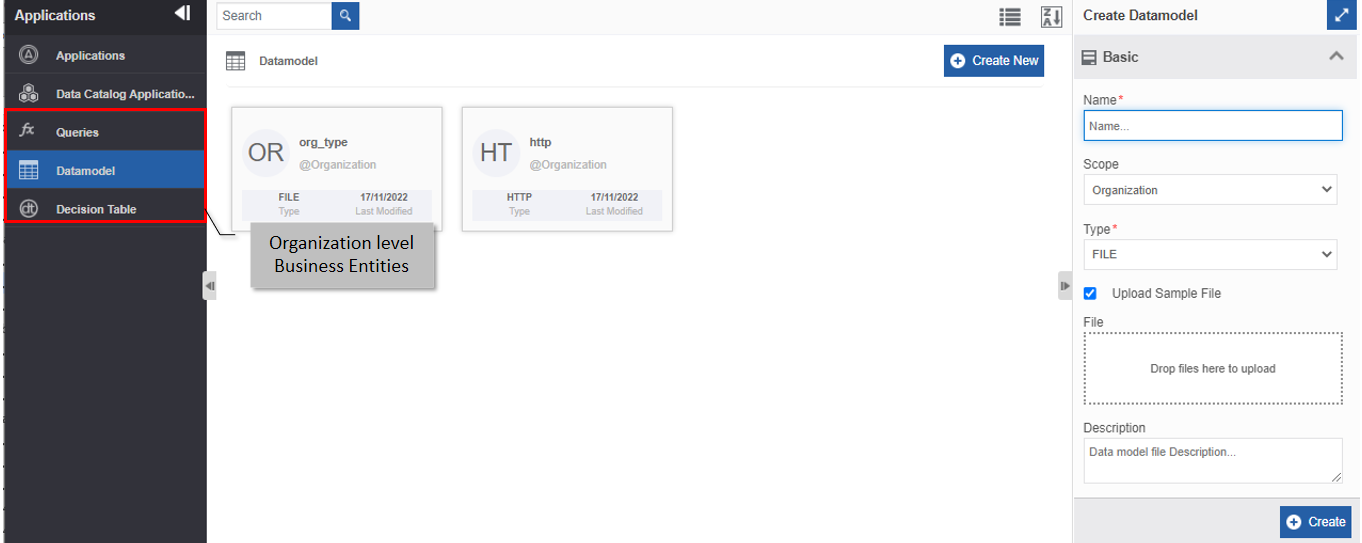
The organization-level entities in the Platform are Queries, Datamodel, and Decision table.
Viewing Organization Entities
Organization entities are displayed in App Studio below the Data Catalog applications.
- Navigate to App Studio.
-
Click the left side panel for viewing the organization-level Entities. Organization entities appear below the Data Catalog Application.
-
Click an entity type from the organization-level business entity list. The entity page displays all the organization-level entities of the selected type.
Organization Entities and Applicable Flow Modules
Organization-level entities appear in App Studio below the Data Catalog Applications.
Each of the organization entities applies to only specific flow modules. The organization entities and the flow modules to which the entities are applicable are given below.
| Organization Entities | Applicable Flow Modules |
|---|---|
| Queries | Dataflow |
| Decision Table | Process flow, Dataflow |
| Data Model | Dataflow |
Local Business Entities
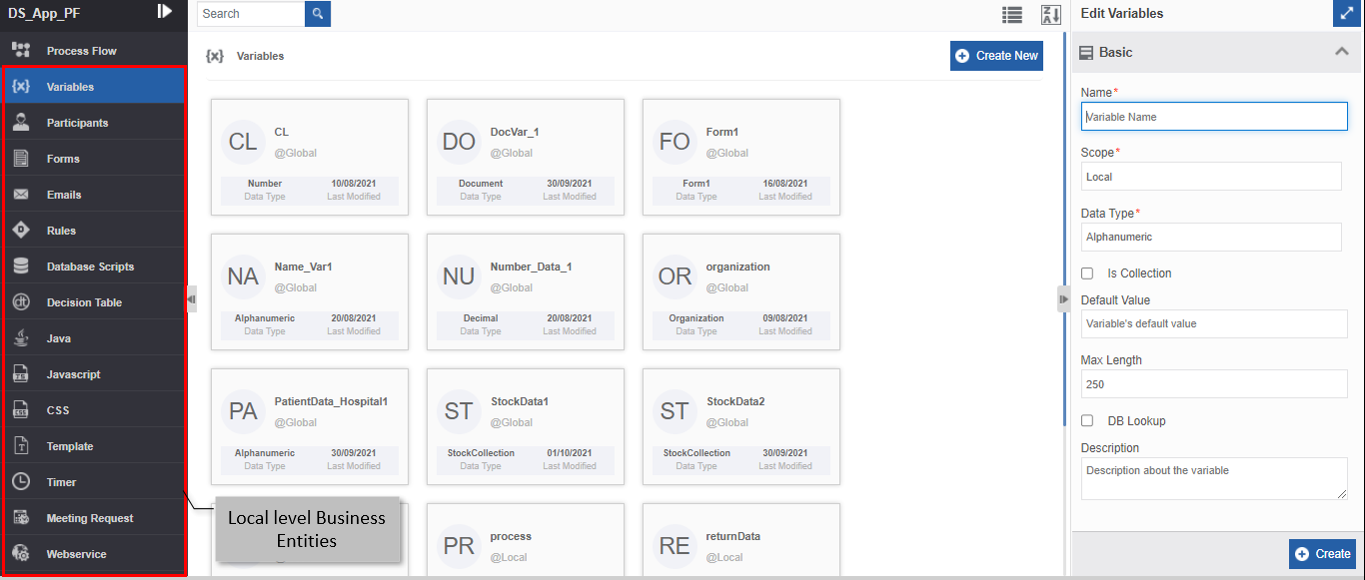
Local-level entities are created within the flow modules and can be utilized only for those flows within which it is created. Flow-level entities are also known as local entities.
Within the flow modules, local entities are displayed in each business entity category within the selected flow module.
Viewing Local Business Entities
- Navigate to App Studio.
- Click Applications and double-click the application name for opening that application.
- Click any flow module (say Process Flow) and then double-click a flow name for opening the flow.
-
Click the left side panel for viewing the local entities. Local entities for the selected flow module appear below the selected flow module.
-
Click an entity type from the business entity list. The entity page displays all the local and organization-level entities of the selected type.
Viewing Business Entities within Process Flow
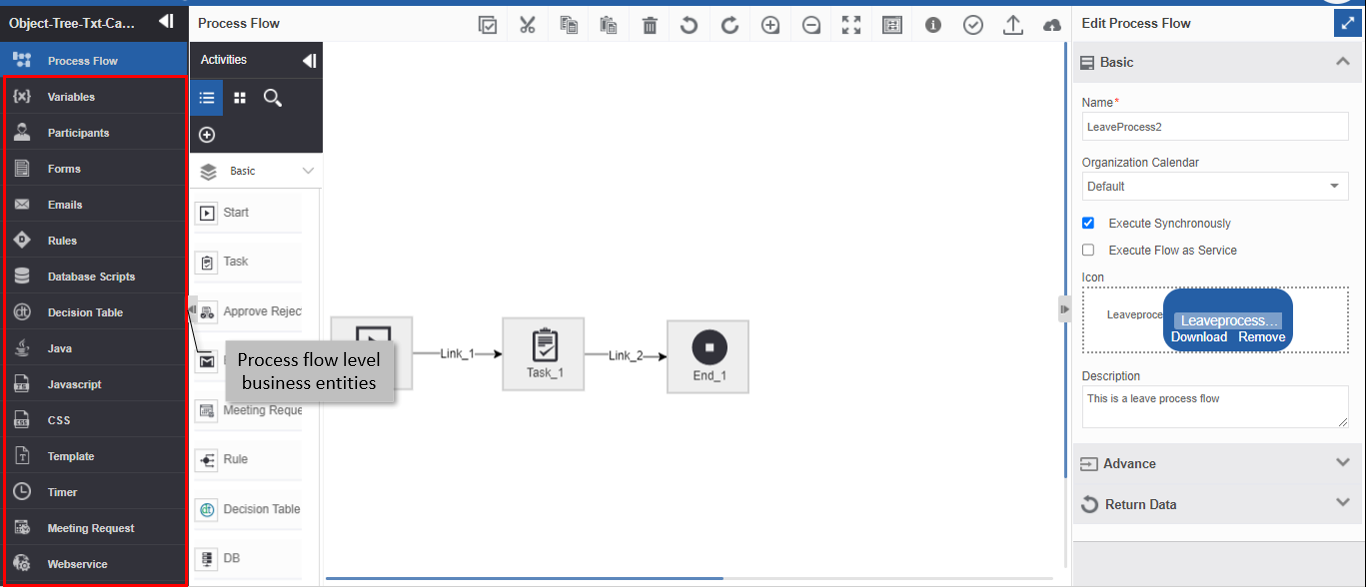
All the business entities applicable to the process flow appear within the process flow module.
- Navigate to App Studio.
- Click Applications and double-click the application name for opening that application.
- Click Process Flow and then double-click a process flow name for opening the flow.
-
Click the left side panel for viewing the local business entities for process flows.
Viewing Business Entities within Event Flow
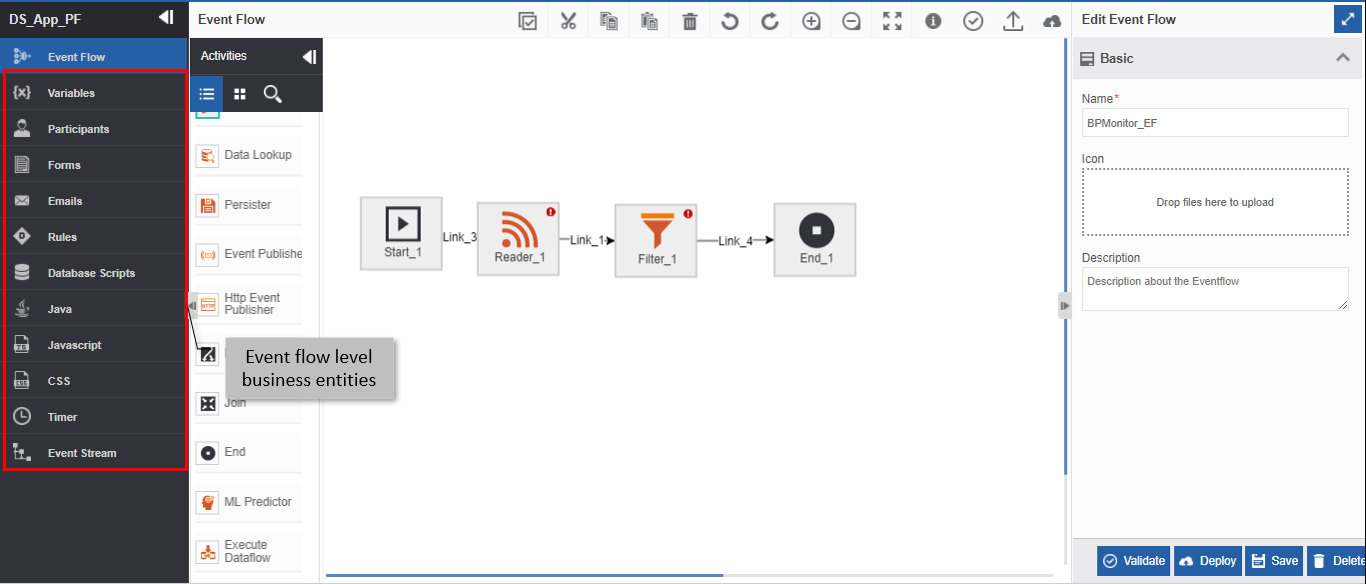
All the business entities applicable to the event flow appear within the event flow module.
- Navigate to App Studio.
- Click Applications and double-click the application name for opening that application.
- Click Event Flow and then double-click an event flow name for opening the flow.
-
Click the left side panel for viewing the local business entities for event flows.
Viewing Business Entities in Data Flow
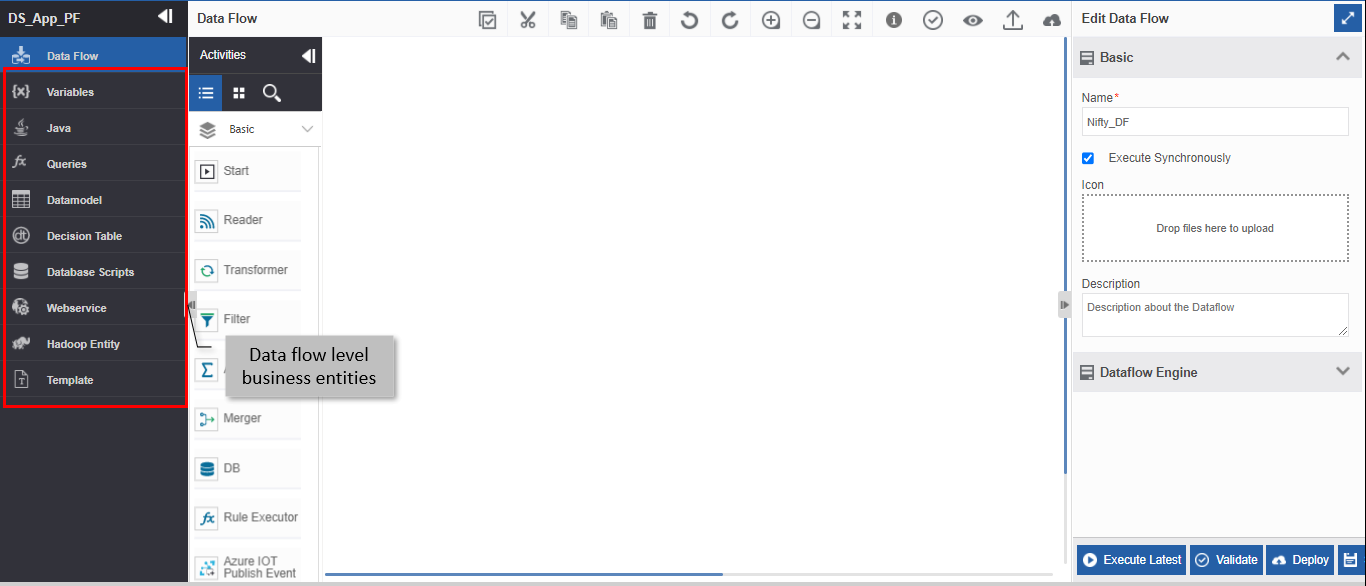
All the business entities applicable to the data flow appear within the data flow module.
- Navigate to App Studio.
- Click Applications and double-click the application name for opening that application.
- Click Data Flow and then double-click a data flow name for opening the flow.
-
Click the left side panel for viewing the local business entities for data flows.
Managing Business Entities
Business Entity and Info Actions
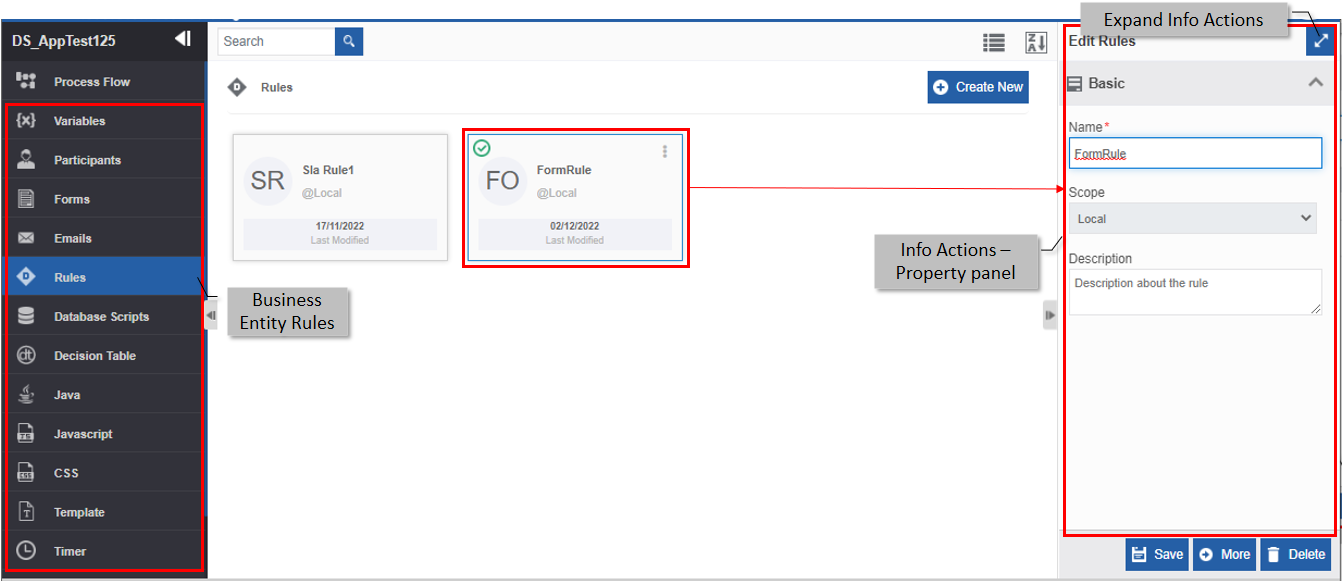
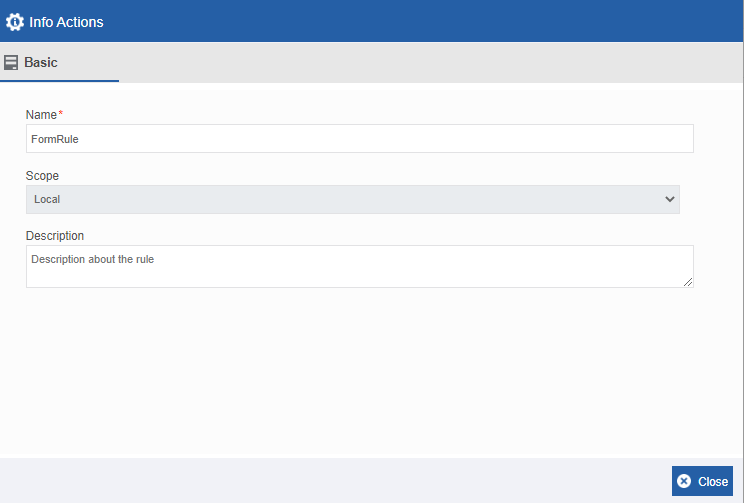
The Info Actions panel on the right side of the page displays the properties of the selected business entity. The properties and configurations are different for different entities.
-
Click an entity for viewing details.
-
Click the expand icon on the top-right of the Info Actions panel for expanding the Info Actions in a pop-up.
Business Entities and Features
You can perform all the CRUD operations on a business entity. A brief note on the actions that can be performed for managing a business entity is tabulated below.
Note
Locking and unlocking of the Business entities are at the application level. You should unlock an application for editing, updating, or deleting any business entity created by other users.
| Operation | Description |
|---|---|
| Create | You can create and configure the business entity using the entity-specific features using the Create New functionality. |
| Edit | You can edit and update the details of the entity as applicable. |
| Delete | You can delete a business entity using the Delete action. |
| Duplicate | You can duplicate a business entity using the duplicate action. |
| View Associations | You can view the association of the business entity with the application, flow, or activity through the Association actions. |
| Search | You can search for an entity by providing the name or first few letters of the entity in the search box |
| Sort | You can sort the list of business entities in ascending or descending order. |
| Toggle View | You can view the list of entities in card view or list view. |
Toggling Business Entity Views
- Navigate to App Studio.
-
Navigate to Organization level or local-level business entity page.
The business entity page displays the entities in card view (default view). The toolbar displays the Show List view icon.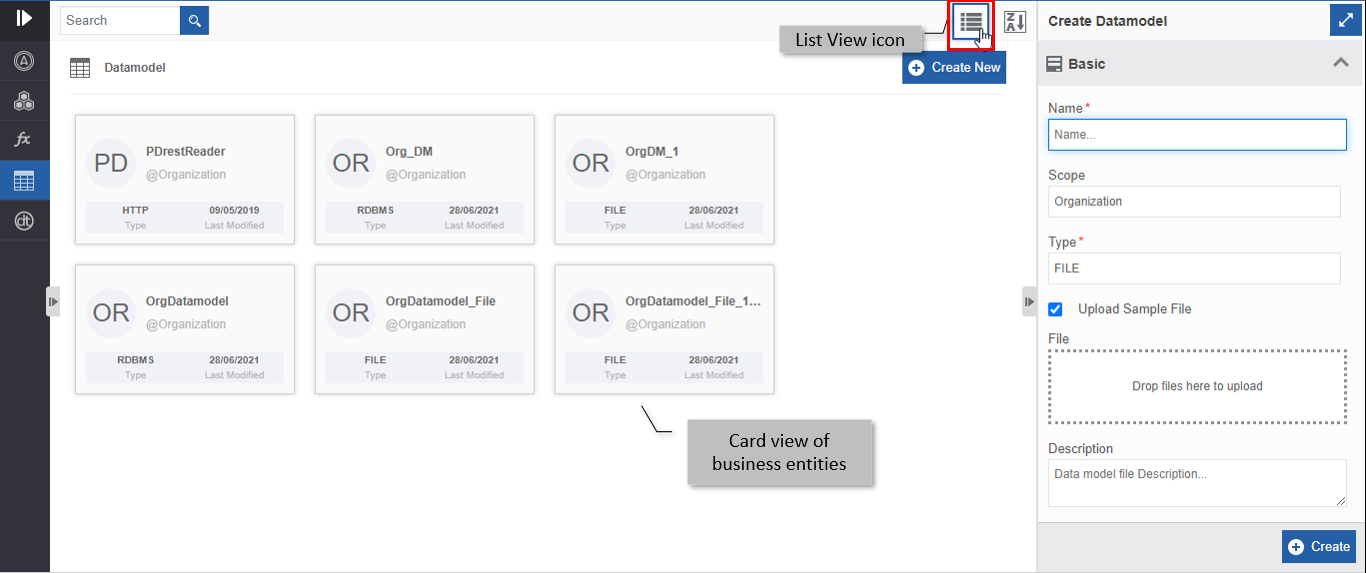
-
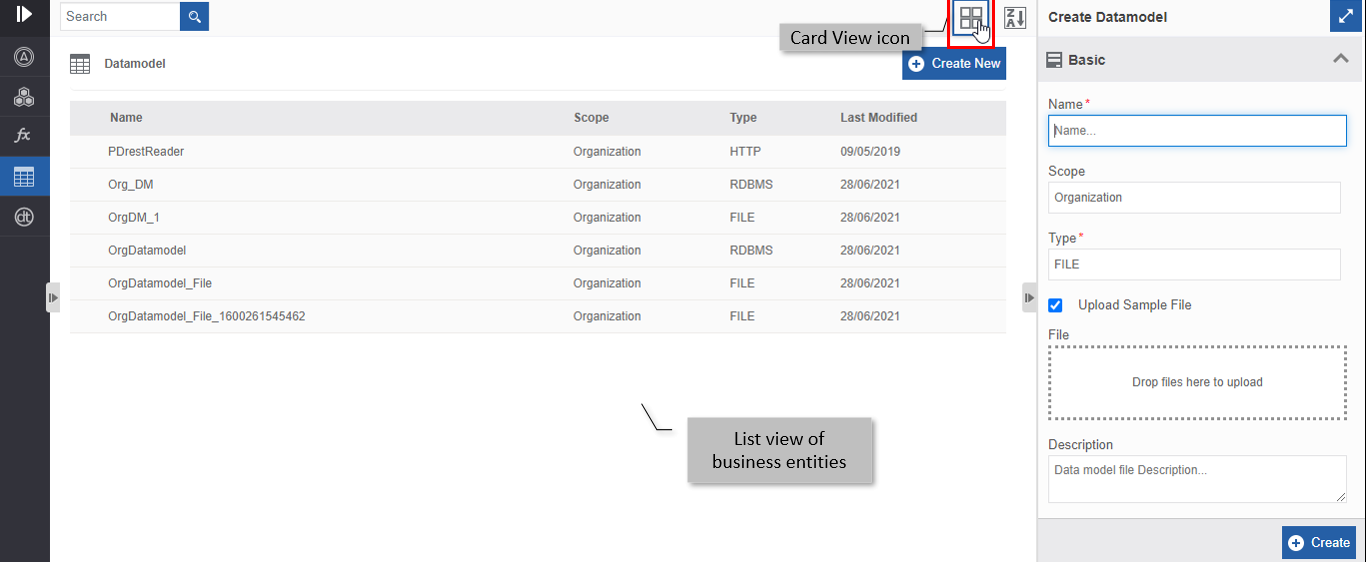
Click the Show list view icon. The view is changed to a list view.
Searching for a Business Entity
- Navigate to App Studio.
- Navigate to Organization level or local-level business entity page.
-
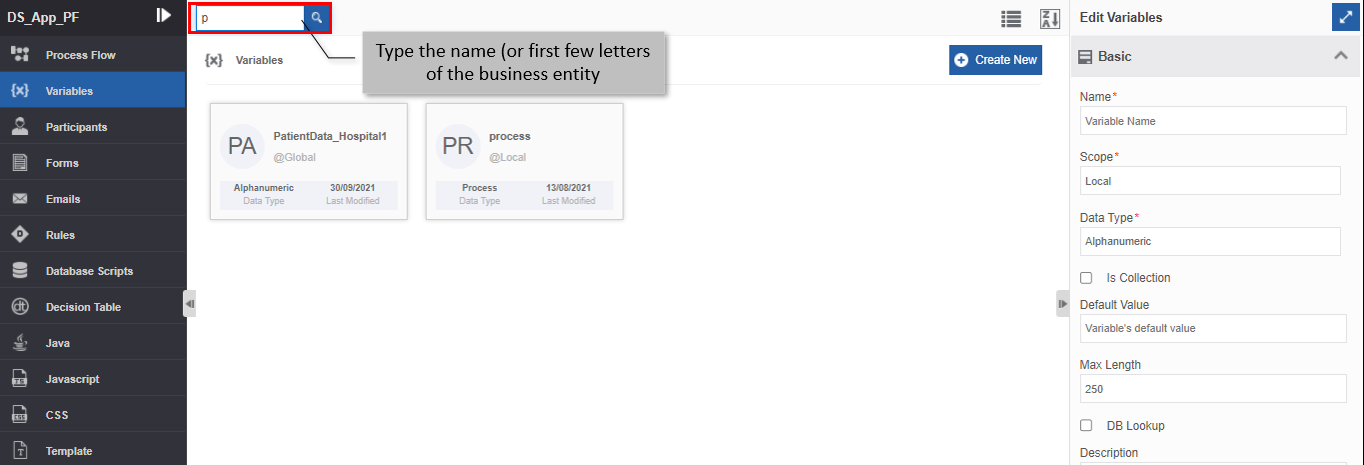
Type the name (or first few letters) of the business entity name in the search box on the upper-left of the page. The filtered results are displayed.
Sorting Business Entities
- Navigate to App Studio.
- Navigate to Organization level or local-level business entity page.
-
Click any business entity from the business entity list displayed on the left side (say, Emails). Business entity name cards are displayed in ascending order by default and the sort icon is descending (Z🡪A).
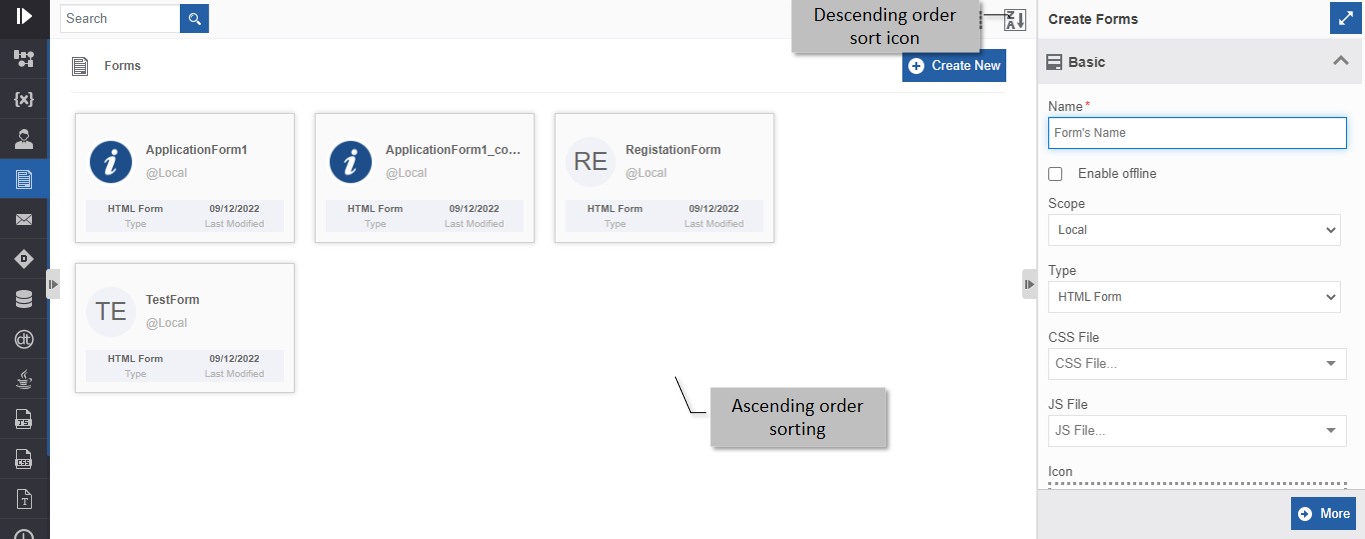
-
Click the Descending order sort icon (Z🡪A). The business entity cards get sorted in descending order (A🡪Z) of the names. The Sort icon is now changed to ascending order (A🡪Z).
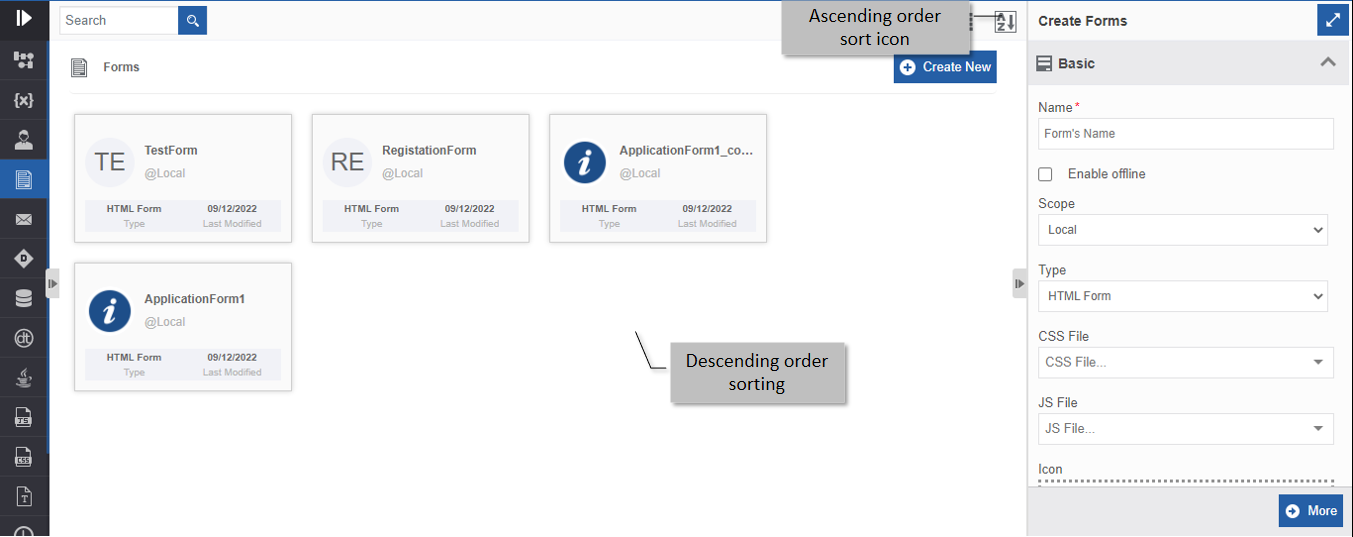
-
Click the Ascending order sort icon (A🡪Z) for sorting in the ascending order (A🡪Z). The sort icon changes to descending order (Z🡪A).