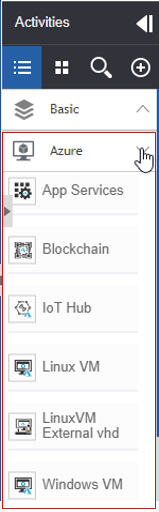
Activity Panel
Activities are pre-defined nodes used to create workflows for performing complex IT operations. The Activities panel lists the activities required for the creation. Drag an activity from the Activity panel to the design canvas to configure that activity. Each activity has specific attributes and properties.
The property panel or the Info Actions panel displays the attributes and properties of the activities.
Different types of activities are available in the design canvas based on the nature of the workflow.
The generic aspects and features of the activity panel are explained in this documentation.
About Basic Process Flow Activities
Basic Process Flow Activities include all the activities that are commonly used across the process flows. By default activities appear on Basic category in the Activity panel
The basic activities have few common properties that have similar mapping and configuration procedures. Also, each activity will have a specific configuration that applies only to it which makes it different from other activities. These activity-specific properties applicable to particular activity are based on the function of the activity.
You can map a business entity to the activity as per the behavior of the activity and the workflow requirement.
- Asterisk (*) symbol in the fields or marked in the text indicates a mandatory (required) field/entity/configuration.
- Click the Basic accordion in the Activities panel for displaying the basic activities.
Understanding Activity Panel
The Activities panel lists the activities required for the creation of the flow. Basic Activities section displays the most commonly used basic activities. The panel allows you to add Advanced activities for the process flows as per your business needs.
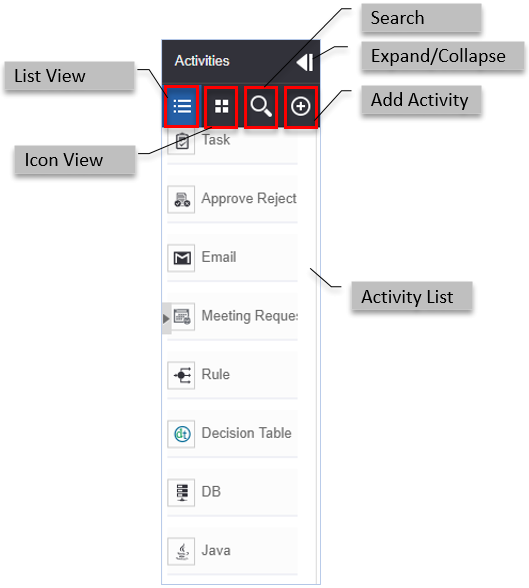
| UI Elements | Description |
|---|---|
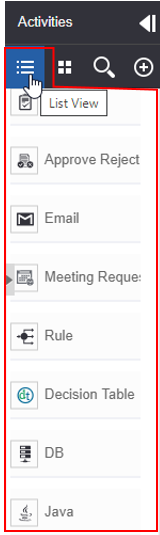
| List View | Click to display the icons and names of the activity. |
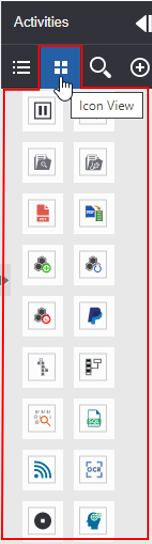
| Grid View | Click to display only the icons of the activity. |
| Activity List | Displays all the process activities. |
| Expand/Collapse | To expand activities to list view and collapse activities to icon view in a single column. |
| Search | To search for an activity. |
| Add Activity | To add an activity to the activity list. Add Activity is specific only to the Process Flows. |
Activity Panel Views
The activity panel has two views: List View and Icon View.
- Click the list view icon in the Activity.
- Click the icon view icon in the Activity.
Searching for an Activity
-
In the Activities panel, click (the search icon).
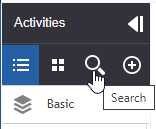
-
Type the activity name in the search field. The filtered activities appear.
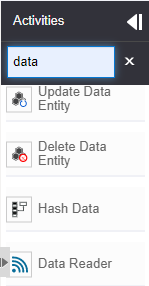
- Click the cross-mark on the right of the search field to clear the search.
Adding Advance Activities
Adding advanced activities applies only to the process flows. The process flow activity panel has an add activity icon (+) that allows you to add advanced activities and custom activities.
-
Click “+” (add symbol) on the right side of the Activity panel. The advanced activity list appears. This displays the connectors and custom activity categories.
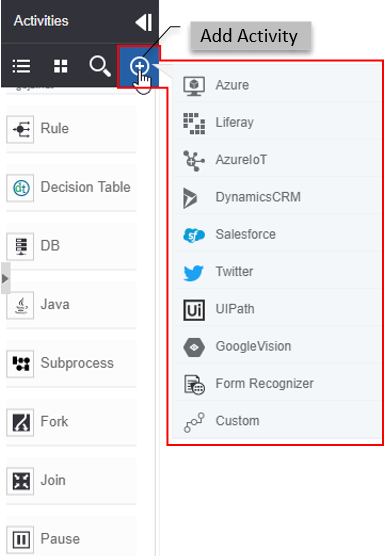
The activity panel displays the Connectors-based activities based on the connectors purchased by the user organization during the purchase of the product.
-
Click and select the activity group to add it to the activity list. The activity type gets added below the Basic activity list with an accordion.
-
Click the added item to view the activities in that activity type.