Database Scripts
Database Script is a core business entity used for creating and managing queries using SQL, Stored Procedures, and DB Lookup operations. It serves as the foundational layer for data retrieval and manipulation within the platform, enabling dynamic, data-driven workflows and business logic.
Imp
It is mandatory to define and create Datasource before working with the entity, Database scripts. Datasource is created in the Management > Configuration Management > Datasource section.
Database script entity is applicable for Process Flows, Data flows, and Event flows.
Viewing Database Scripts
The Database Scripts associated with each flow will appear within that flow.
- Navigate to App Studio > Applications - open application name > Process Flow / Data Flow - flow name > Open.
-
Click Database Scripts on the left side panel for viewing the database scripts for the flow module.
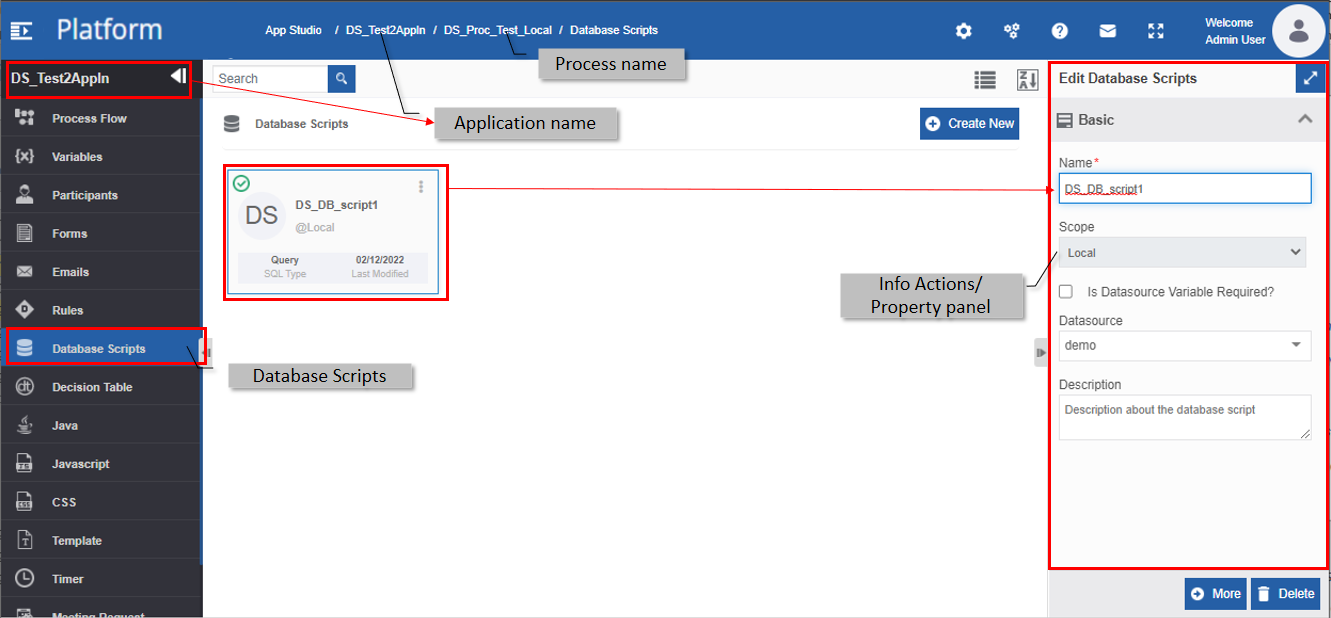
Creating New Database Script
You can create database scripts for the tables in the selected datasource. You can create a database query, database lookup, or procedure as per your requirement.
Prerequisites:
Create the required Datasource in the Management > Configuration Management > Datasource before creating the database script.
- Navigate to App Studio > Applications - open application name > Process Flow / Data Flow - flow name > Open.
-
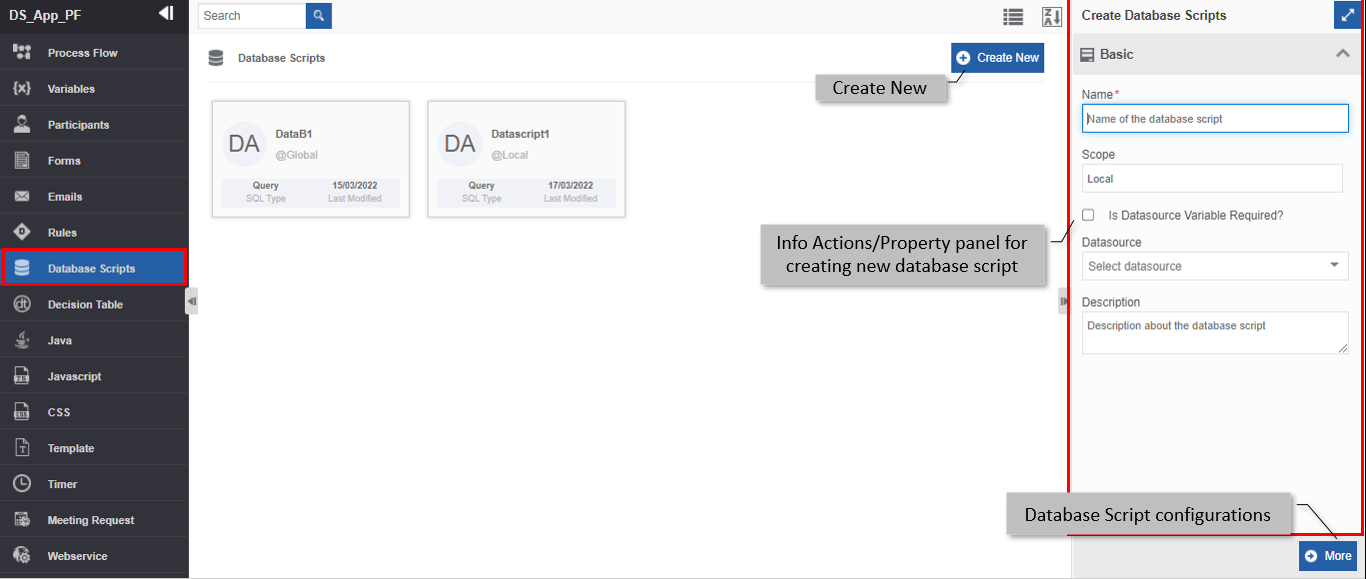
Click Database Scripts. The database script list appears.
-
Click +Create New. The Info Actions panel appears as Create Database Script.
-
Enter the Basic details in the Create Database Script panel as explained below.
Field Description Name* Enter the name of the database script.
Character limit: 50.
Data type: Alphanumeric and underscore.Scope* The scope of an entity is always local as the entities are created at the flow level. Is Datasource Variable Required? If you need a data source variable, select the “Is Datasource Variable Require?” checkbox. Refer to Configuring Datasource Variable.
Else deselect the checkbox if you don’t require the data source variable.Datasource The Datasource dropdown appears if Is Datasource Variable Required? is unchecked.
Select a datasource from the drop-down. The database script is created for the selected data source.Description Enter a description for the database script. -
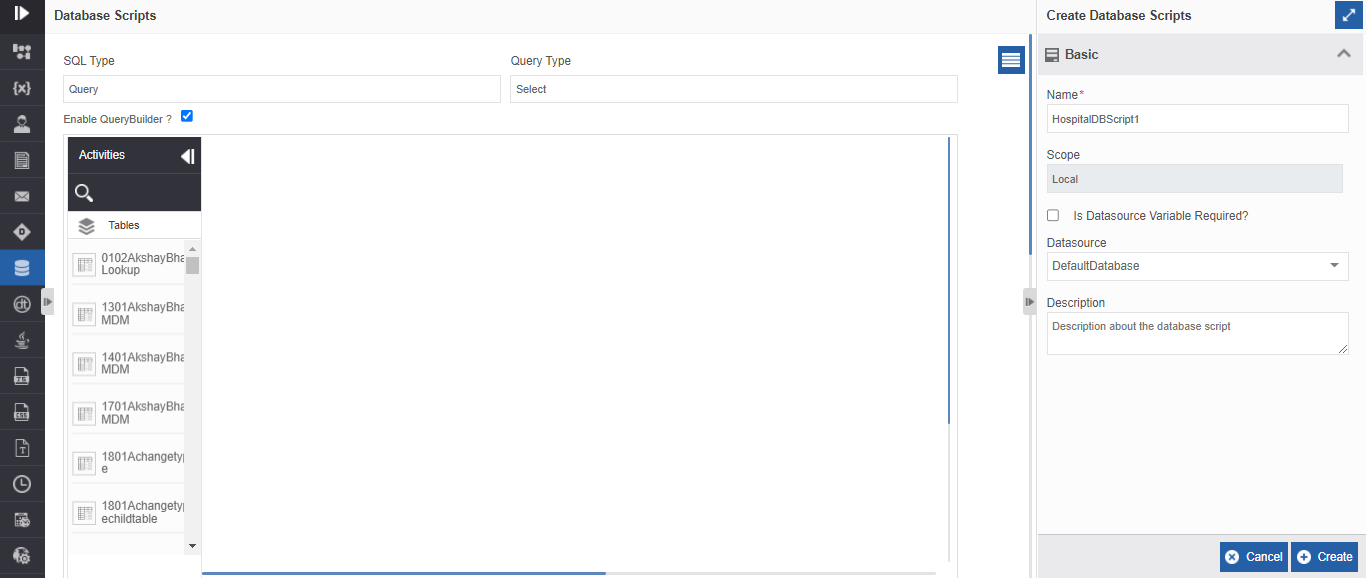
Click More. Configuration details of the database script appear.
-
Select the SQL Type from the dropdown. Based on the SQL type selected, the details are rendered on the page.
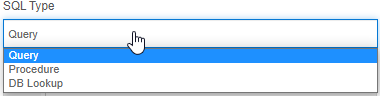
- Query: A Query is a request for data or information from a database table or combination of tables. You can write query strings directly by disabling the Query Builder (uncheck Enable query Builder check box).
- Procedure: A Procedure is a subprogram that performs a specific action.
- DB Lookup: DB Lookup reads data from the specified database.
- If you select SQL Type = Query, refer to Configuring Query.
- Else if you select SQL Type = Procedure, refer to Configuring Procedure.
- Else if you select SQL Type = DB Lookup, refer to Configuring DB Lookup.
-
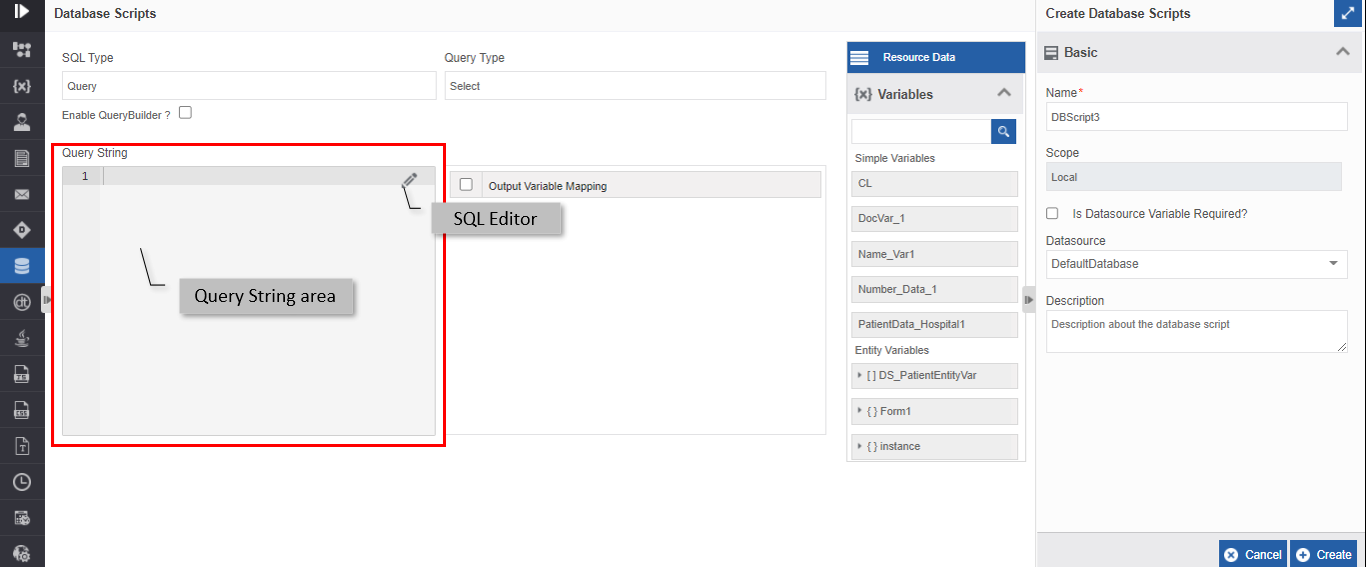
Based on the SQL query type selected, provide a query or procedure below Query String.
-
Click SQL Editor icon for opening the SQL Editor where you can provide your query details.
You can drag the Resource Data variable to Query String area for framing the query. - Drag the appropriate variable(s) from the Resource Data to the Output Variable Mapping.
You can drag multiple variables into the Output variable Mapping based on the number of outputs.
Refer to Mapping Output Variables for more details. - Click Create after providing the details as needed.
(or click Cancel to cancel the actions done. When you click cancel, you are navigated to the listing page without saving the modifications.)
Configuring Datasource Variable
You can configure a variable for datasource instead of configuring a datasource for the database script entity. The datasource variable receives the input value during the runtime. The purpose of data source variable is to handle the datasource name that is dynamically received during runtime.
For creating a datasource variable follow the below steps.
- Navigate to App Studio > Applications - open application name > Process Flow / Data Flow - flow name > Open.
- In Basic, provide Name and Scope for the database script.
-
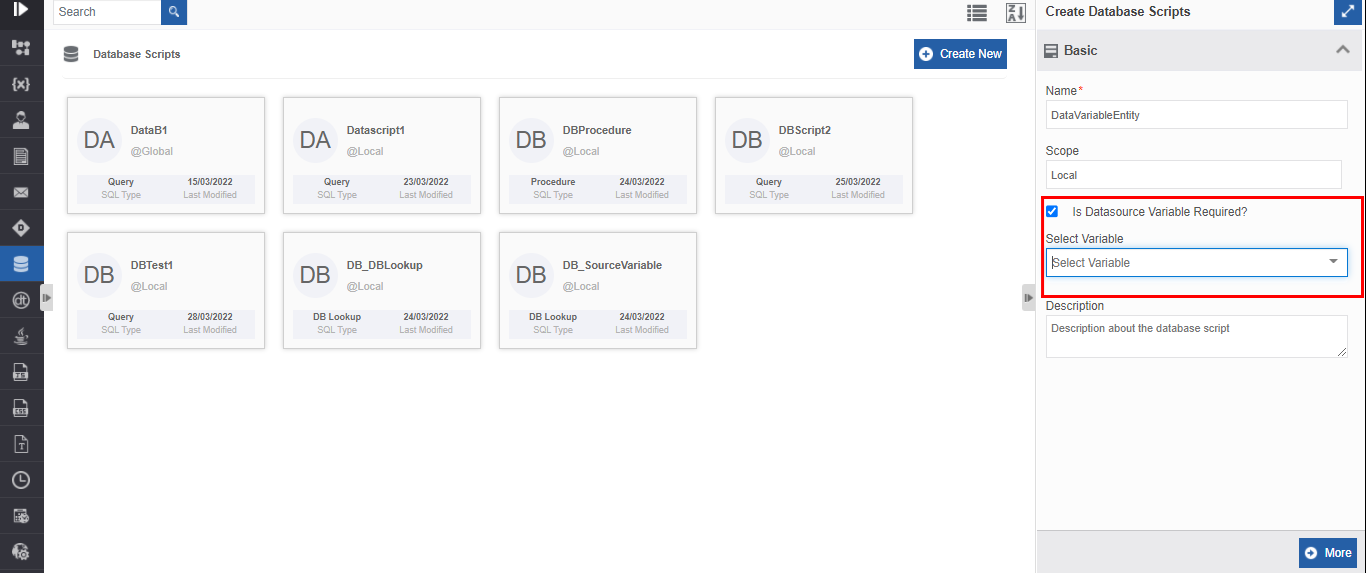
Select “Is Datasource Variable Required?” checkbox. Select Variable list appears.
-
Click Select Variable drop-down and select the required variable from the Variable list. This variable value is resolved and executed during the runtime.
Tip
You can also type the variable name and append the variable name to it. For example, type
Data_<$Stock.Id$>in the Select Variable dropdown. Now the first half of the variable name is a constant (ie.,Data_is constant) and the second part of the variable (ie.,<$Stock.Id$>) dynamically changes as the value for the variable is resolved during the runtime. -
Click More. Database configuration page appears.
The Query builder that is applicable for the select Query type automatically displays the default datasource tables. You can configure the tables in the default datasource (by enabling Query Builder).
Refer to Configuring Query (if you want to create a query or write query string based on your requirements for the default datasource.)
Or
You can write query strings directly by disabling the Query Builder (uncheck Enable query Builder check box).
Or
You can write procedures.
Refer to Configuring Procedure.
Or
configure DBlookup for different datasources (default datasource or other datasources) per your requirement.
Refer to Configuring DB Lookup. -
Configure the output variable mapping as per requirement.
Refer to Mapping Output Variable. - Provide the required configuration details and click Create.
Configuring Query
A Query is a request for data or information from a database table or combination of tables. The available Query Types are Select, Insert, Update and Delete.
You can write query for any BLOB / CLOB / JSON type data when you are referring to different types of databases.
- Navigate to the business entity, Database Scripts > More for displaying configuration details on database scripts.
-
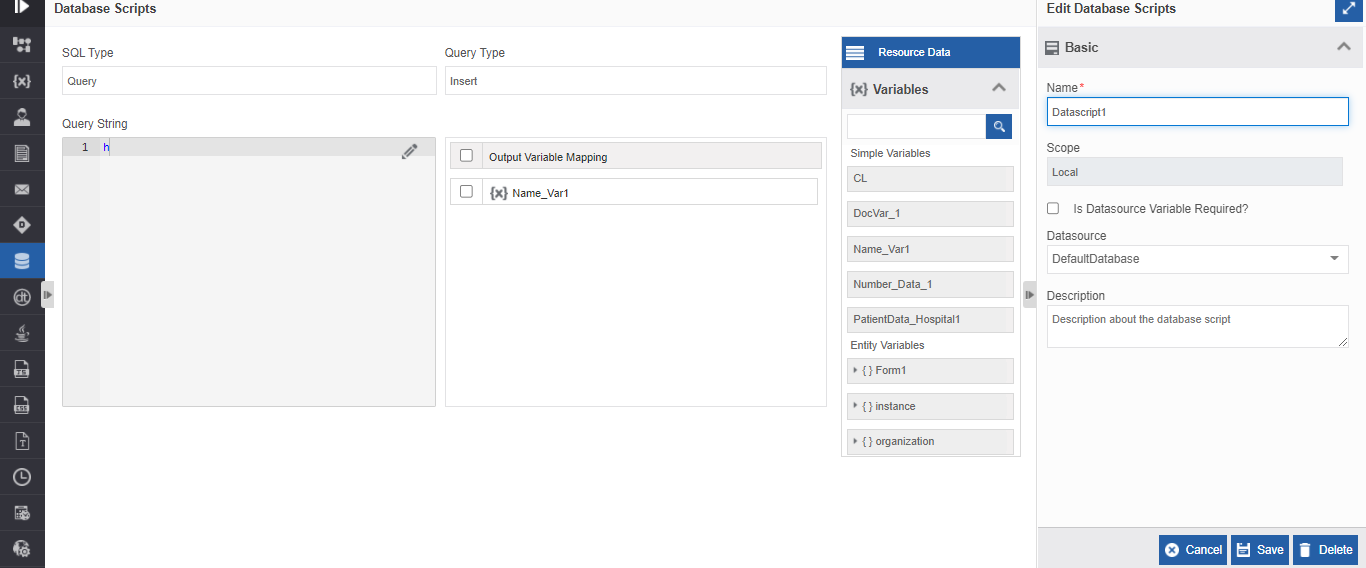
Select SQL Type = Query.
-
Select a Query Type from the drop-down.
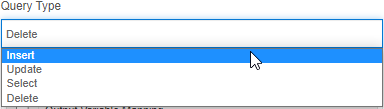
- Insert: Used to insert record(s) to the database based on the script using database activity.
- Update: Used to update record(s) in the database based on the script using database activity.
- Select: Used to select and display record(s) based on the script. Selecting the “Select” query type displays the Enable query Builder option.
- Delete: Used to delete record(s) from the database based on the script.
- Below the Query String, enter the script. The query should be based on the query type selected.
Or click the edit icon to open the SQL Editor for writing the required query for the selected query type.
Match query string with query type
The Query String should match with the Query Type selected or it will throw an error during the execution.
Note
Drag the Resource Data Variables into the Query String or SQL Editor for utilizing the variables needed in the scripts.
-
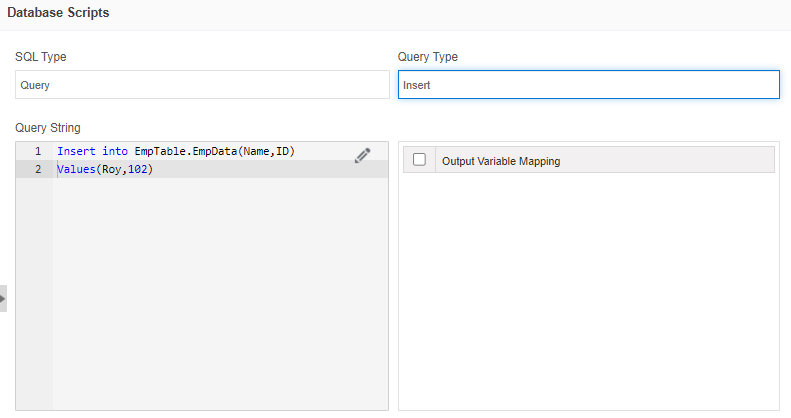
For Query Type = Insert, enter the SQL query for inserting a record into the database table(s) as per your requirement.
-
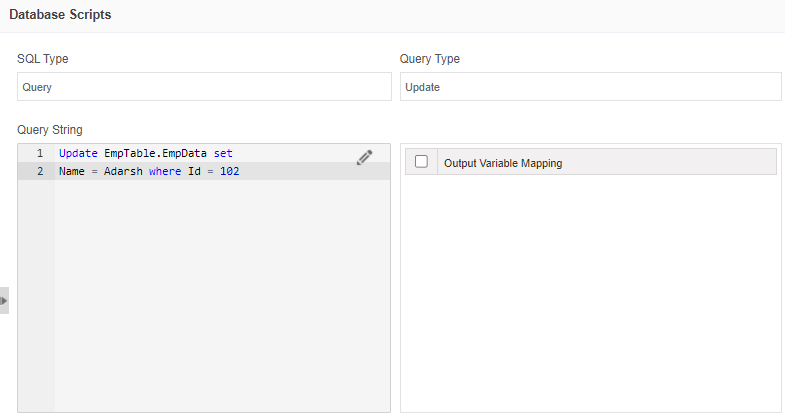
For Query Type = Update, enter the SQL query for updating a record in the database table(s) as per your requirement.
-
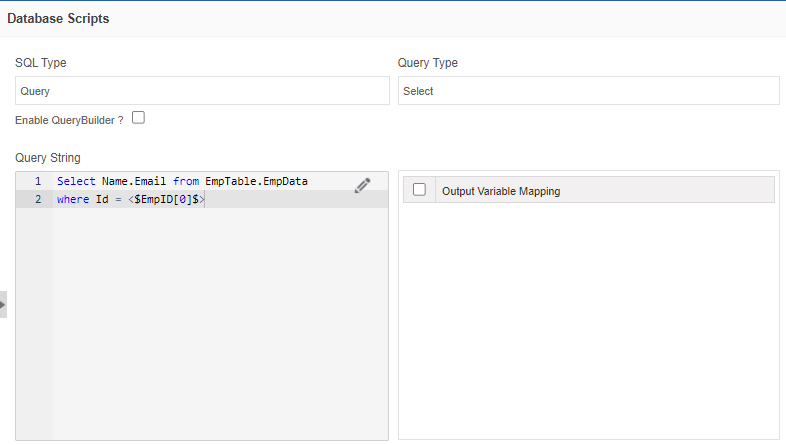
For Query Type = Select, enter the SQL query for selecting record(s) from the database table(s) as per your requirement.
Tip
For the Select type query, you can enable the query builder for framing the query using the query builder. Refer to Using Query Builder.
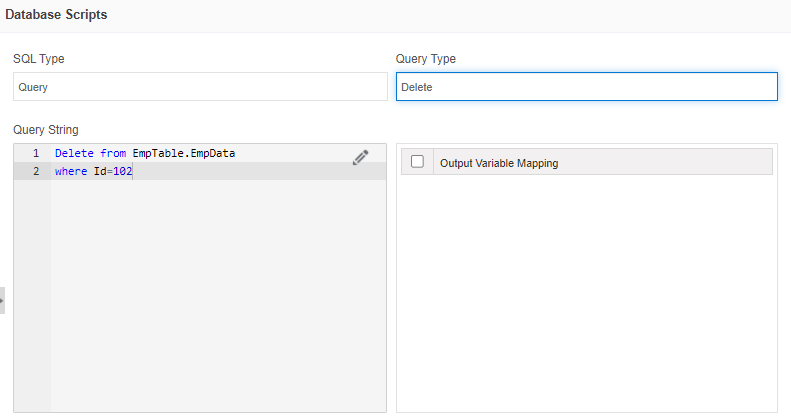
- For Query Type = Delete, enter the SQL query for deleting the record(s) from the database table(s) as per your requirement.
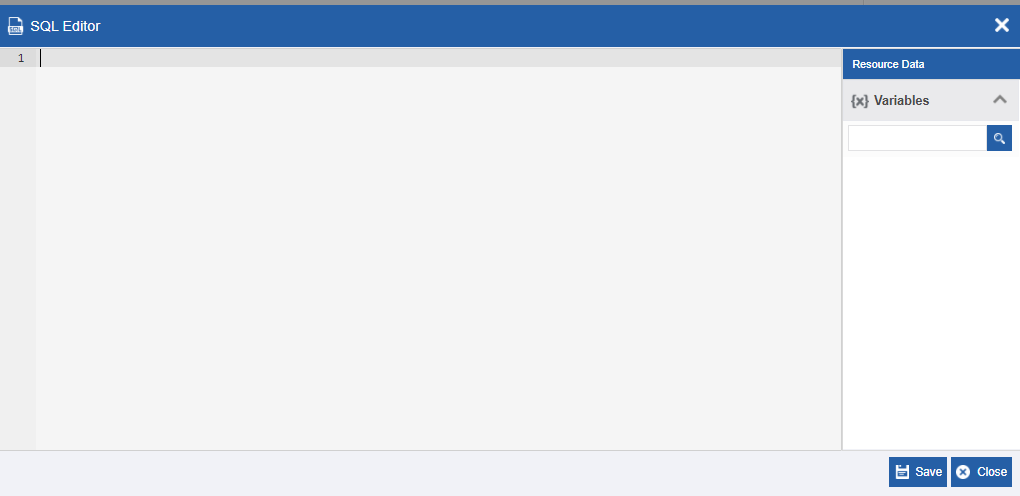
-
If you have entered a query in the SQL Editor, click Save in the SQL Editor for saving and closing the Editor (or click Close to discard the changes in the SQL editor).
- On the configuration page, click Create (or Save in Edit mode) after configuring the Query.
Using Query Builder
The Query Builder option appears as enabled when you select the Query Type as “Select”.
The query builder helps you to build the query by configuring the tables and adding custom functions to the table attributes. The Query String area below the query builder displays the query that you create using the query builder.
Imp
You are not allowed to edit the details directly through Query String/SQL Editor if you have enabled the query builder. All the details need to be provided through the query builder. For editing directly in the SQL Editor or the Query String, you have to deselect the “Enable query builder”.
Warning
If you deselect the “Enable Query builder, all the details that are created using the query builder get removed. If you select “Enable Query Builder” again, you need to create the query again as all the previous details are removed.
- Navigate to the business entity, Database Scripts > More for displaying configuration details on database scripts.
- Select SQL Type = Query (selected by default) and Query Type = Select (selected by default).
-
Select the Enable Query Builder checkbox (by default query builder is checked). The Query Builder appears.
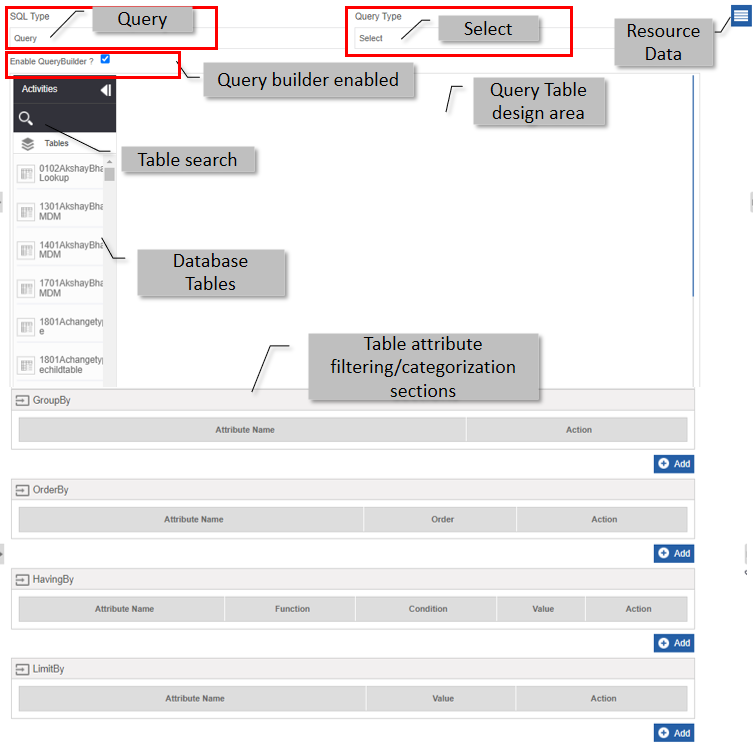
-
Provide details as explained below.
Component Description Enable Query Builder? Select Enable Query Builder? checkbox for viewing the query builder. Database Tables Lists the tables in the selected datasource that you can use for building queries. Query Table design area The tables used for the query are dragged into the query table design area from Database table list.
- Drag a table from the database table list. The table appears with the list of attributes.
- Refer to Working with Query Tables for more details.Table Search Allows you to filter the tables based on the search text.
- Click the search icon and enter the search text.Rules Allows you to create rules for the table attribute based on criteria.
- Refer to Adding Rules and Group Rules.Table attribute filtering/categorization Based on the categories available you can filter or categorize the table details.
You can use the Resource Data variables as applicable in the textboxes.Group By The GroupBy feature groups the result set by the values in the selected attribute. (E. g., Groupby "Department" where "Department" is an attribute in the table "EmployeeList").
- Refer to Adding GroupBy Condition.Order By The OrderBy feature is used to sort the result set in ascending or descending order based on the selected attribute.
- Refer to Adding OrderBy Condition.Having By The HavingBy feature is used to select the result set based on a condition for the selected attribute.
- Refer to Adding HavingBy Condition.Limit By The LimitBy feature is used to limit the number of records that is to be displayed based on the selected conditions.
- Refer to Adding LimitBy Condition. -
Click Create if you are creating or Save if you are editing a database script for updating the configured details.
Working with Query Tables
The Database tables list on the left side of the query builder displays all the tables available in the selected data source.
Note
You can view the query that you are creating in the Query builder below the Query String. As you create a query using the query builder. The queries are updated parallelly in the Query String area as you configure the tables in the Query table design area or select the result set conditions.
Adding Table and Selecting Table Attribute
- Navigate to the business entity, Database Scripts > More for displaying configuration details on database scripts. Make sure Datasource is selected.
-
Drag a table from the Table list to the query table design area. The table in the query table design area appears with all its attributes. When you drag a table into the query table design area, AND or OR criteria appear below the query table design area.
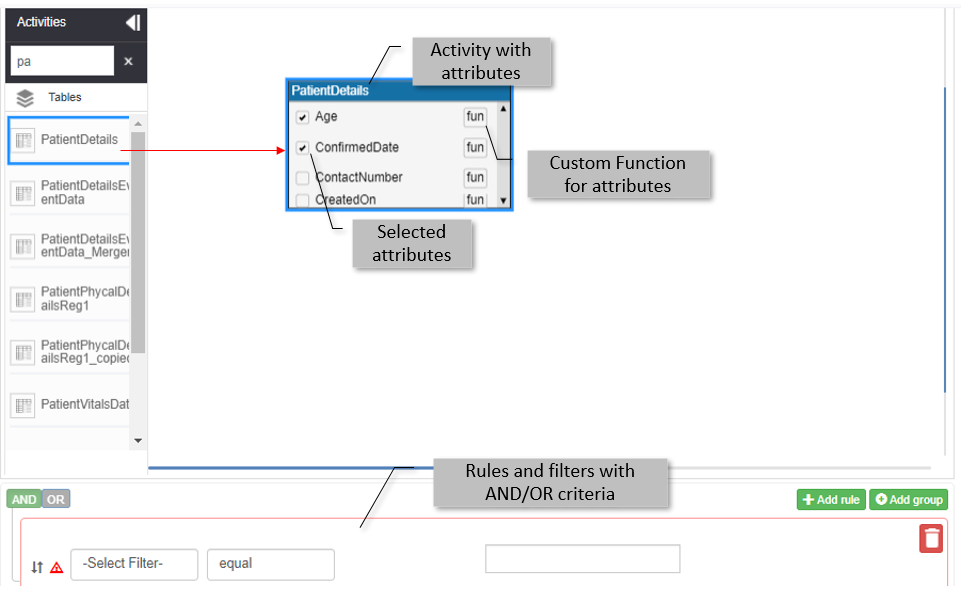
-
In the table that appears in the query table design area, scroll through the attributes and select or deselect the checkboxes as per your selected criteria of the query. (Say, e.g., select “Age”, “ConfirmedDate” from PatientDetails.)
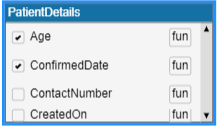
Note
You can add a table only once to the Query table design area. If you add the same table again, an error message appears.
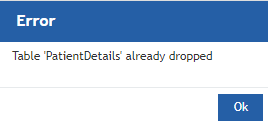
Deleting Table from Query Table Design Area
- Navigate to the business entity, Database Scripts > More for displaying configuration details on database scripts. Make sure Datasource is selected.
-
Click a table in the query table design area and press DEL for deleting the table.
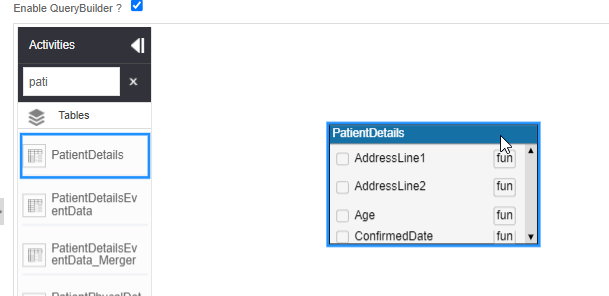
Adding Custom Functions for Query Table Attribute
You can define custom functions to the table attributes. Custom Functions help you to rename the attribute with an alias name and define a function for the attribute.
- Navigate to the business entity, Database Scripts > More for displaying configuration details on database scripts. Make sure Datasource is selected.
- Drag a table from the list of tables to the query table design area. Table attributes are listed with fun adjacent to each attribute on the table.
-
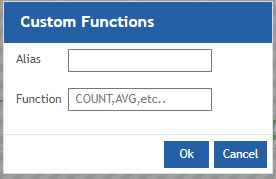
Select the checkbox in front of the attribute name and then click fun adjacent to the attribute. Custom Functions pop-up appears.
-
Enter a name for the attribute in the Alias box. The attribute gets renamed as the Alias name. This Alias name appears in the Query String.
-
Enter the required function in the Function box (say, Count).
Note
You can enter the SQL functions on columns as applicable for the attribute data type in the Function box (E. g., COUNT, AVG, SUM for number data type, COUNT for VarChar, etc.). The function gets executed for the selected attribute (column).
-
Click Ok.
Defining SQL Joins in Tables
You can create JOINS in tables in the Query table design area. A JOIN clause is used to combine rows from two or more tables, based on a related column between them.
The types of Joins supported are INNER, LEFT, RIGHT, FULL.
- The INNER join selects records that have matching values in both tables.
- The LEFT join returns all records from the left table (table1), and the matching records from the right table (table2). The result is 0 records from the right side if there is no match.
- The RIGHT join returns all records from the right table (table2), and the matching records from the left table (table1). The result is 0 records from the left side if there is no match.
- The FULL OUTER join returns all records when there is a match in the left (table1) or right (table2) table records. FULL OUTER JOIN and FULL JOIN are the same.
- A SELF-join is a regular join, but the table is joined with itself.
To select an SQL Join:
- Navigate to the business entity, Database Scripts > More for displaying configuration details on database scripts. Make sure datasource is selected.
- Drag the required tables from the list of tables to the query table design area.
-
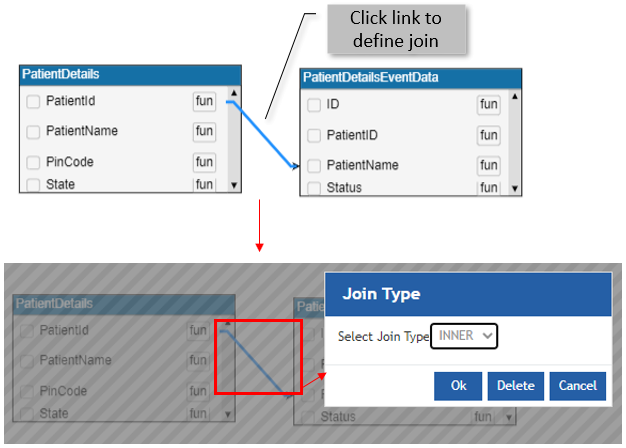
Drag from the selected left side table attribute to the selected right side attribute. A link is established and displayed as an arrow from the first table to the second table.
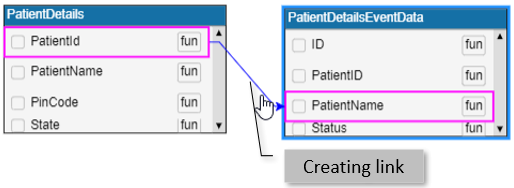
-
Click the arrow. Join Type pop-up appears for selecting the Join Type.
-
Select a Join Type from the dropdown as per your requirement. If you do not select a join type, it is selected as INNER join by default.
-
On the Join Type pop-up, click Ok (or click Cancel to discard the action). A link with the selected Join type is established between the tables.
- Click the link for viewing the Join Type defined for the tables.
- Click the link and then click Delete in the Join Type pop-up for deleting the link/join.
Adding Rules and Group Rules
You can add rule(s) for the selected records. You can use AND / OR criteria or group the rules as per your requirement.
- Navigate to the business entity, Database Scripts > More for displaying configuration details on database scripts. Make sure Datasource is selected.
-
Add a table into the query table design area. The AND / OR rule grid appears. The table below gives a brief description of the UI elements that are part of the rule grid.
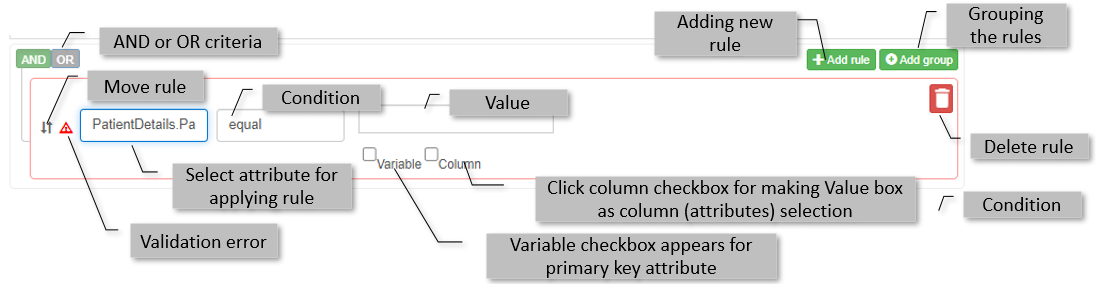
Field Description AND / OR This is applicable when you add multiple rules using the +Add Rule.
You can add a AND or OR criteria for multiple rules. Default is AND criteria.Add Rule Allows you to add multiple rules. You should add AND or OR criteria for multiple rules. Add Group Allows you to add multiple groups. Move Rule When there are multiple rules, up and down, you can click the move symbol and drag up or down for rearranging the order of the rules. Validation error The validation error symbol appears if your rule is incomplete or if there is an error in the rule defined. Hover over for viewing the error details. Select Filter Allows you to select the required attribute for which you want to apply the rule. Condition Rule conditions can be selected from the drop-down. Rule conditions appear based on the data type of the selected attribute. Value Value for the selected attribute. Delete Allows you to delete the rule/group as applicable -
In the Select Filter, select the attribute from the list.
-
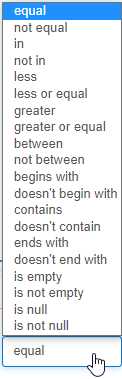
Select the condition for the rule.
-
When you select a certain condition(s) (say, e.g, not equal to) Select Function field appears. The select Function feature applies only to applicable conditions.

-
Select a function from the list as per your requirement.
-
Enter the value in the Value textbox on the right side of the Function field.
Or select the column checkbox. Select Filter appears for selecting another column as the value.
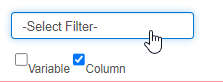
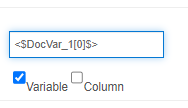
Or select the Variable checkbox and drag a variable into the value textbox. The variable checkbox appears only for the primary key attribute.
-
For adding multiple rules, click Add Rule (new rule grid appears), click AND or OR criteria and then define a new rule.
-
Click Add Group and then click the Add Rule within that group for adding multiple rules within that group.
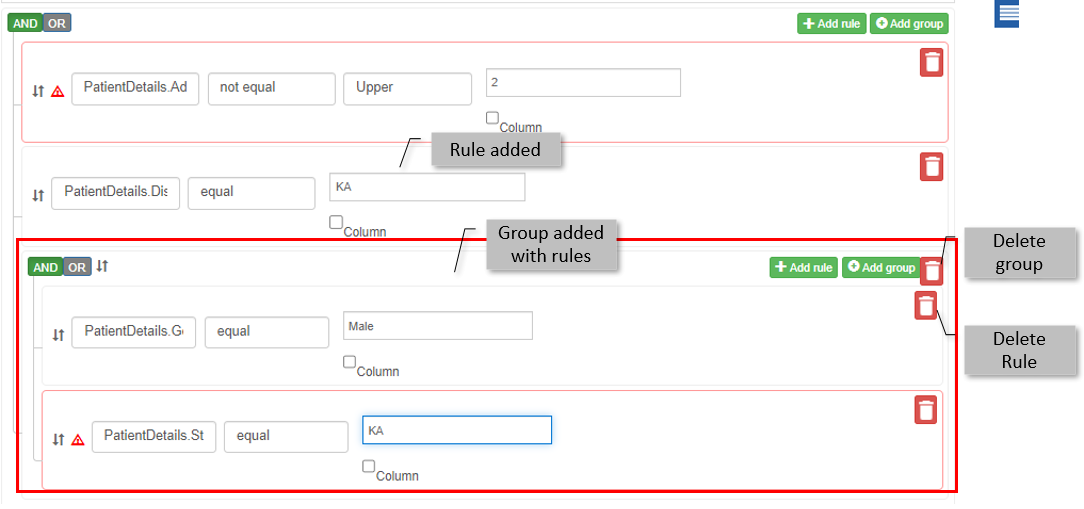
- Click the delete icon adjacent to a rule for deleting that rule.
- Click the delete icon adjacent to Add Group for deleting the group.
- Click the up/down arrows (in front of the rule) and drag for moving the rules.
- The validation error indication appears as a red triangle warning in front of the rule. Hover over the warning symbol and the error appears as a tooltip.
Adding GroupBy Condition
The GroupBy feature groups the selected records by the selected attribute. (E.g., Groupby "Department" where "Department" is an attribute in the table "EmployeeList".)
- Navigate to the business entity, Database Scripts > More for displaying configuration details on database scripts. Make sure Datasource is selected.
- In the Table query area, drag the tables and define the selection criteria as per requirement.
-
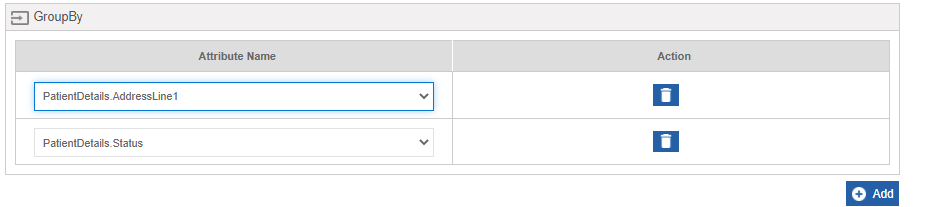
Click Add under Group By for adding a group by criteria.
-
Select the Attribute Name by which the grouping is to be done.
- Click Add again for adding more criteria.
- Below Action, click the delete icon for deleting the corresponding condition in the GroupBy.
Adding OrderBy Condition
The OrderBy feature is used to sort the result set in ascending or descending order based on the selected attribute.
- Navigate to the business entity, Database Scripts > More for displaying configuration details on database scripts. Make sure Datasource is selected.
- In the Table query area, drag the tables and define the selection criteria as per requirement.
-
Click Add under Order By for adding an order by criteria.

-
Select the Attribute Name for which the ordering is to be done.
- Below Order, select the order in which sorting is to be done (Ascending or Descending order).
- Click Add again for adding ordering for another column.
- Below Action, click the delete icon for deleting the corresponding condition in the OrderBy.
Adding HavingBy Condition
The HavingBy feature is used to display records based on a condition. A Having clause in SQL specifies that an SQL Select statement must only return rows where aggregate values meet the specified condition.
- Navigate to the business entity, Database Scripts > More for displaying configuration details on database scripts. Make sure Datasource is selected.
- In the Table query area, drag the tables and define the selection criteria as per requirement.
-
Click Add under Having By for adding a having by criteria.

-
Select the Attribute Name, Function, Condition, and Value by which the having by is to be done.
- Click Add again for adding more HavingBy criteria.
- Below Action, click the delete icon for deleting the corresponding condition in the HavingBy.
Adding LimitBy Condition
The LimitBy feature is used to limit the number of records that is to be displayed. That is, only the first limit by value number of records that satisfy the conditions are captured as output.
- Navigate to the business entity, Database Scripts > More for displaying configuration details on database scripts. Make sure Datasource is selected.
- In the Table query area, drag the tables and define the selection criteria as per requirement.
-
Click Add under Limit By for adding a limit by condition.

-
Provide the Limit Value by which the limiting is to be done for the records. You can add only one LimitBy condition.
- Below Action, click the delete icon for deleting the corresponding condition in the LimitBy.
Configuring Procedure
A Procedure is a subprogram that performs a specific action. You can call a procedure using the database script entity.
- Navigate to the business entity, Database Scripts > More for displaying configuration details on database scripts.
-
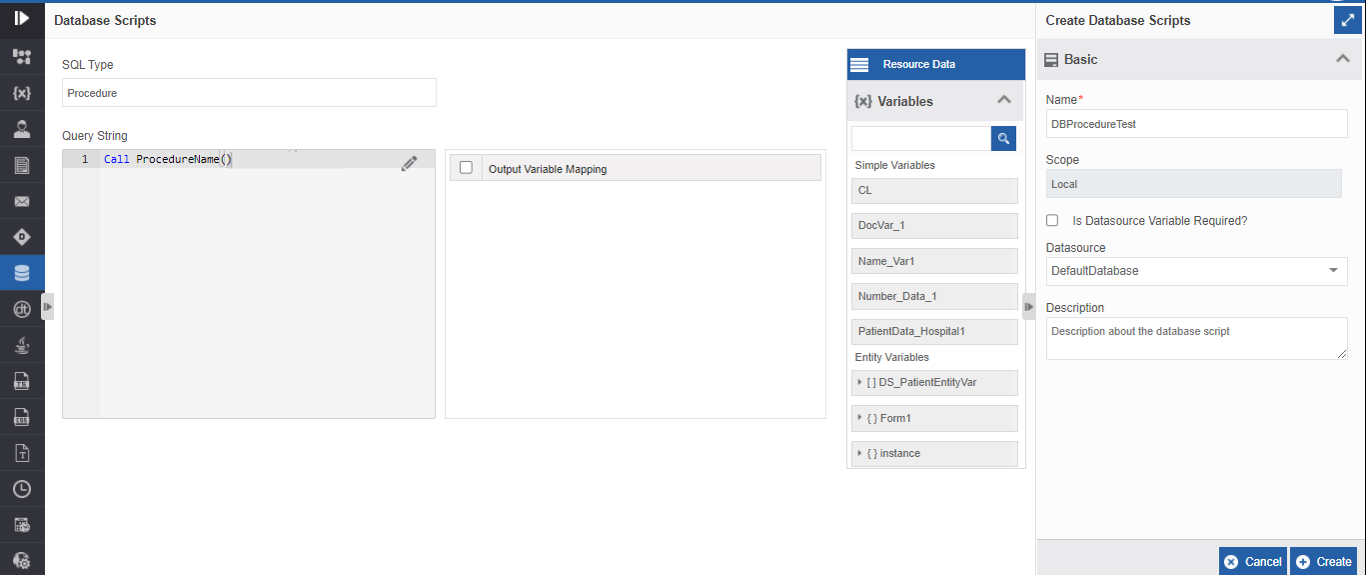
Select SQL Type = Procedure.
-
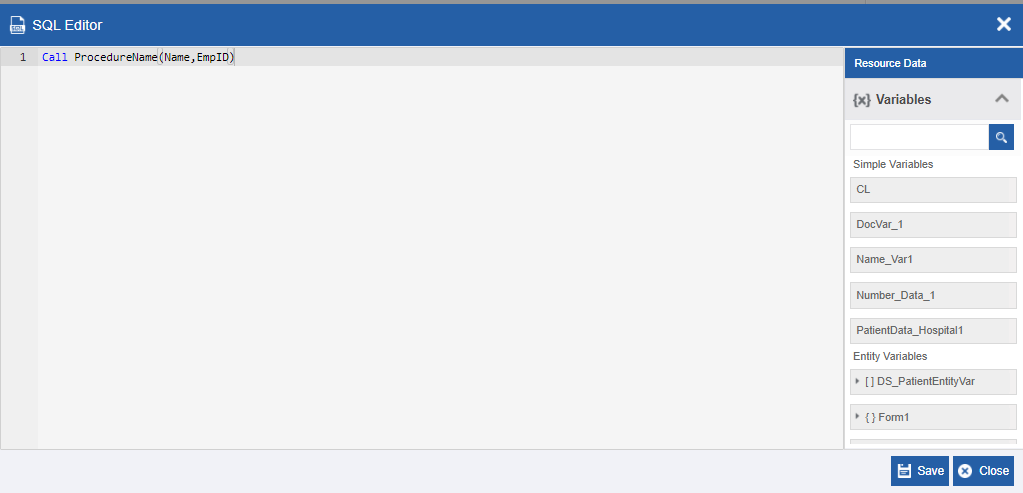
Below the Query String, enter the procedure name and the parameters to call the procedure.
or click the edit icon to open the SQL Editor for writing the required procedure.Example
For example,
Call ProcedureName();. If more than one parameter is used, then comma-separated values are used (parameterA,ParameterB);. The parameters are not mandatory and are dependent on the procedure called.Tip
The procedure to be used in the Query String field must be created in the selected database. You can call an existing procedure to execute it in the database.
-
After entering the query in the SQL Editor, click Save in the SQL Editor (or click Close to discard the changes).
Drag the appropriate variable from the Resource Data to the Output Variable Mapping. Refer to Mapping Output Variable for more details.
-
Click Create.
Configuring DB Lookup
DB Lookup reads data from the specified database.
- Navigate to the business entity, Database Scripts > More for displaying configuration details on database scripts.
-
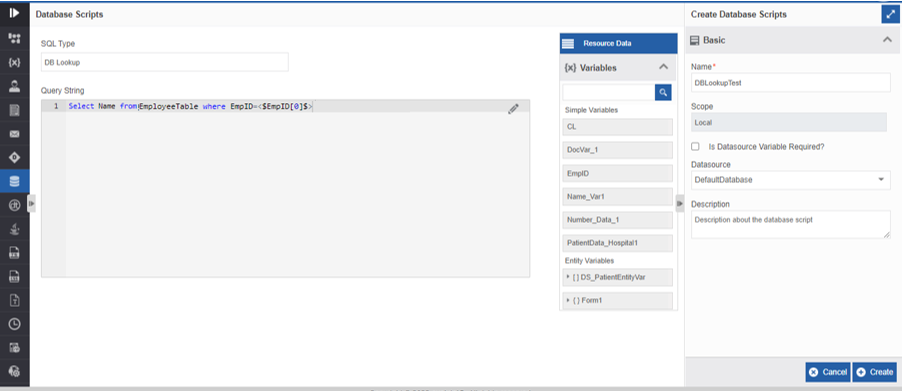
Select SQL Type = DB Lookup.
-
Below the Query String, enter the DB Lookup query.
or click the edit icon to open the SQL Editor for writing the DB Lookup query.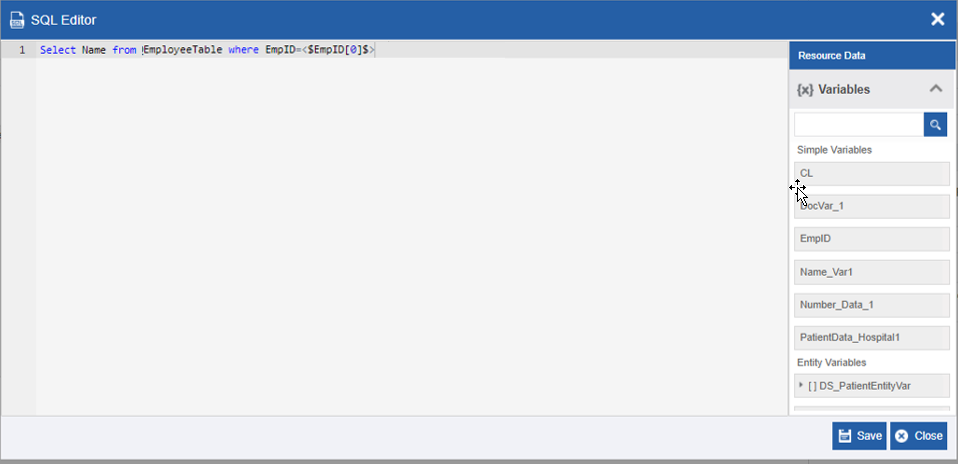
-
After entering the query in the SQL Editor, click Save in the SQL Editor (or click Close to discard the changes).
Drag the appropriate variable from the Resource Data to the Output Variable Mapping. Refer to Mapping Output Variable for more details. -
Click Create.
Mapping Output Variables
It is mandatory to map an output variable when you select Query Type as Select.
The output variable stores the output data for each “select” criteria defined for the table(s).
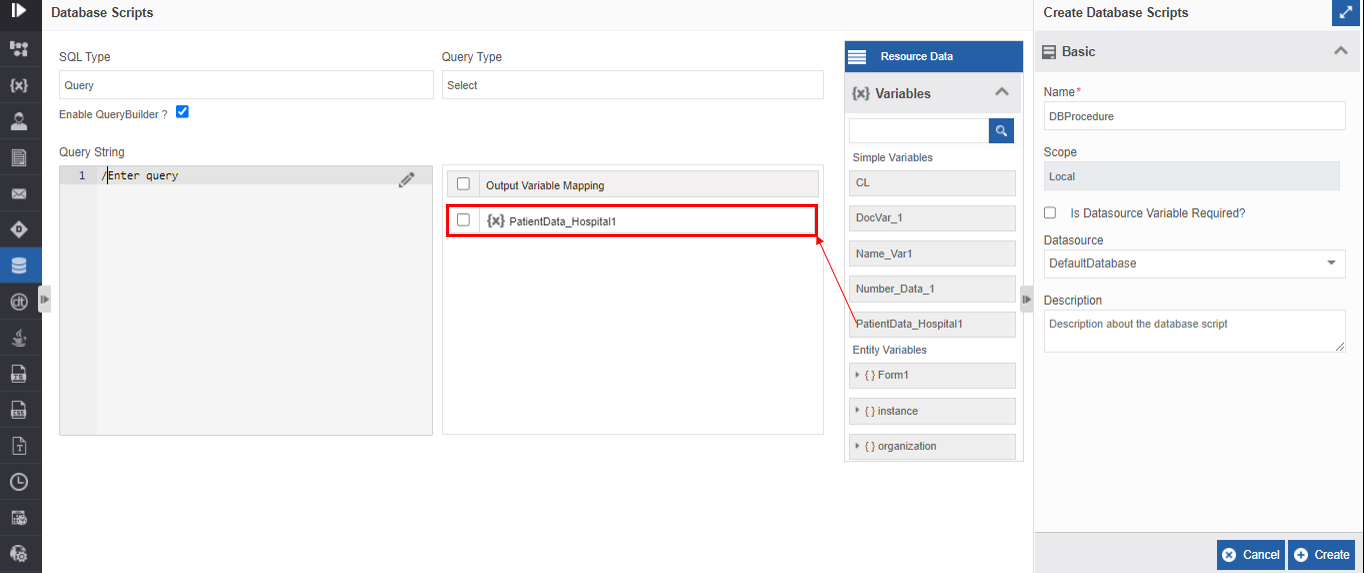
The output of each “select” criterion is stored in the output variable in the order of appearance below the Output Variable Mapping section. That is, the output of the first select criteria output is stored in the first output variable (as appears in the Output Variable Mapping). The output of the second select criteria is stored in the second output variable and so on.
You should add an output variable as applicable or as needed as per the requirement in the output mapping.
If there are two “select” criteria and three output variables, only the first two output variables are utilized and the third one gets ignored.
- Navigate to the business entity, Database Scripts > More for displaying configuration details on database scripts.
-
Drag the matching data type variable created for the output of select criteria from the Resource Data to the Output Variable Mapping. The variable data type should match the data type of the “select” criteria.
-
Map output variable for each “select” criterion in a similar way.
-
Drag the variables added below the Output Variable Mapping for rearranging the order of appearance. You can use the collection variable also in the output variable mapping.
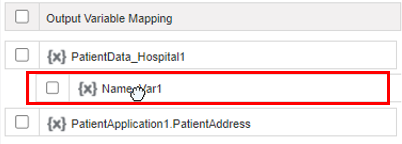
Deleting Output Variable Mapping
-
Select the checkbox in front of the output variable. Select multiple checkboxes if you want to delete multiple variables or select the checkbox in the output mapping header for selecting all output variables. The delete button appears at the bottom of the Output Mapping.
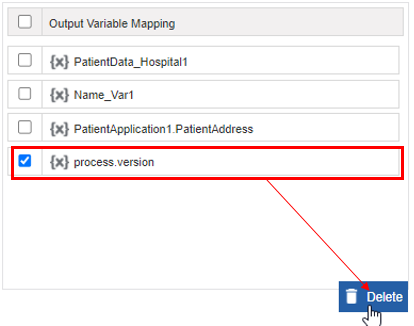
-
Click Delete. The selected variables are deleted.
Mapping Index Variable to Output Variable Mapping
An index variable is used to store an array of values.
If you map an index variable to a “select” criteria for which the output value is single, the value gets stored in the zeroth index of the index variable. If you store an array of data in a normal output variable, the first result value is stored in the output variable. If you store an array of output data in an index variable, all the output values are stored in the indexed output variable.
-
Drag an index variable from the Resource Data to the Output Variable Mapping section.
The index variables appear with index[0]amended to the variable name. The edit index icon appears on the right side of the variable.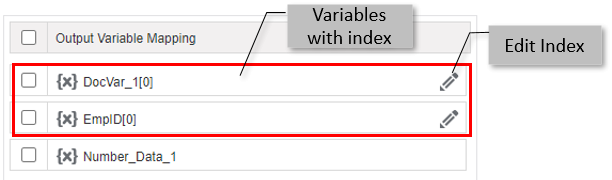
-
Click the edit icon. Edit Entity Index Value popup appears. You can edit the index of the variable. If you want to consider this variable as a normal variable (not a collection variable, you can remove the index –
[0]. - Click Ok.
Viewing and Editing Database Scripts
Make sure to unlock the application before editing if you want to edit the details of an entity that is not created by you.
- Navigate to App Studio > Applications - open application name > Process Flow / Data Flow - flow name > Open.
- Click Database Scripts. The database script list appears.
- Click the Database Script card for viewing the details of the selected database script. The details of the database script appear in the Info Actions panel.
-
Click More for viewing the configuration details of the database script.
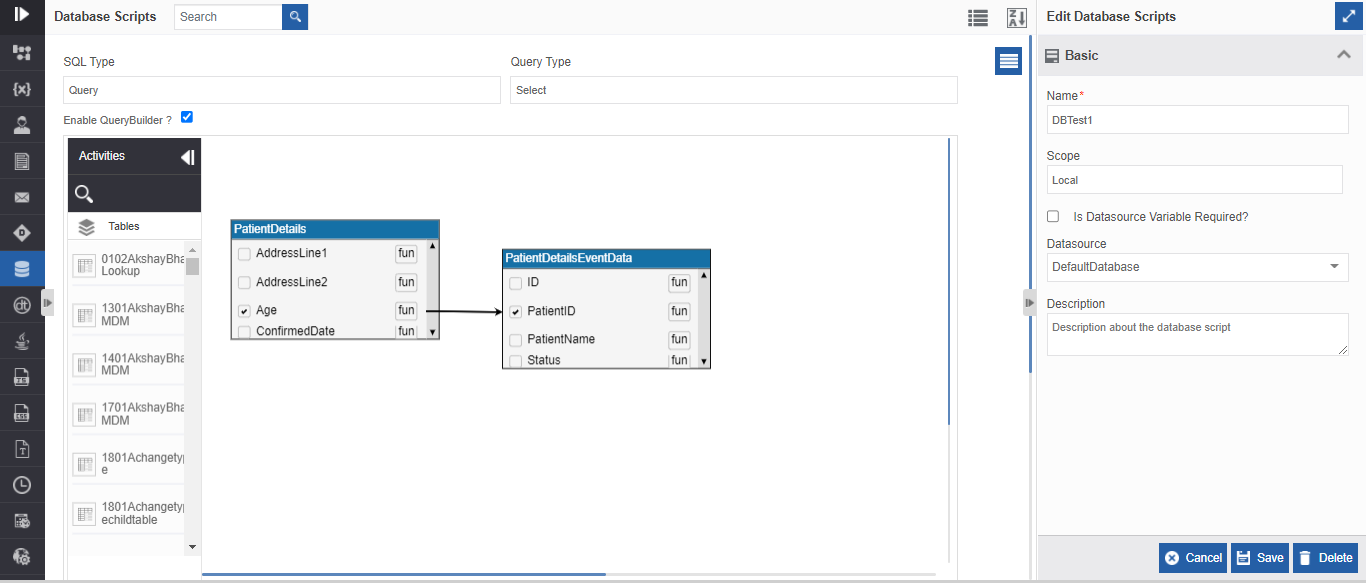
-
Edit the database script details as needed.
- Click Save.
Viewing database Script Associations
- Navigate to App Studio > Applications - open application name > Process Flow / Data Flow - flow name > Open.
- Click Database Scripts. The database script list appears.
- Hover over any database script card. Three dots appear on the upper right side of the card.
-
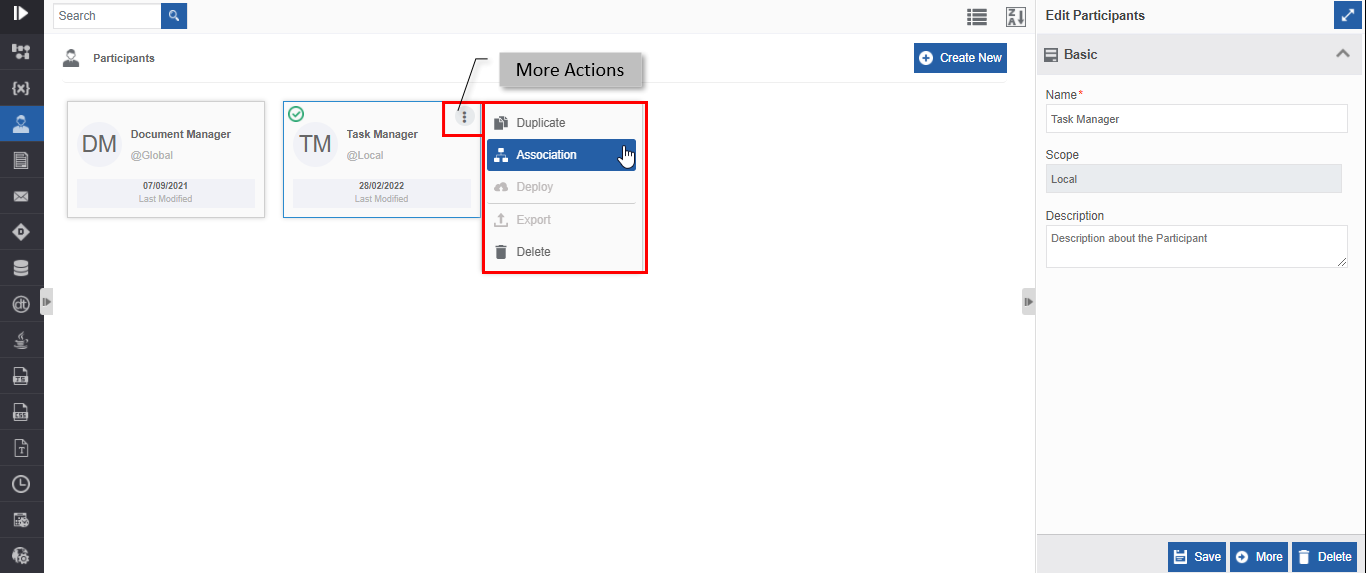
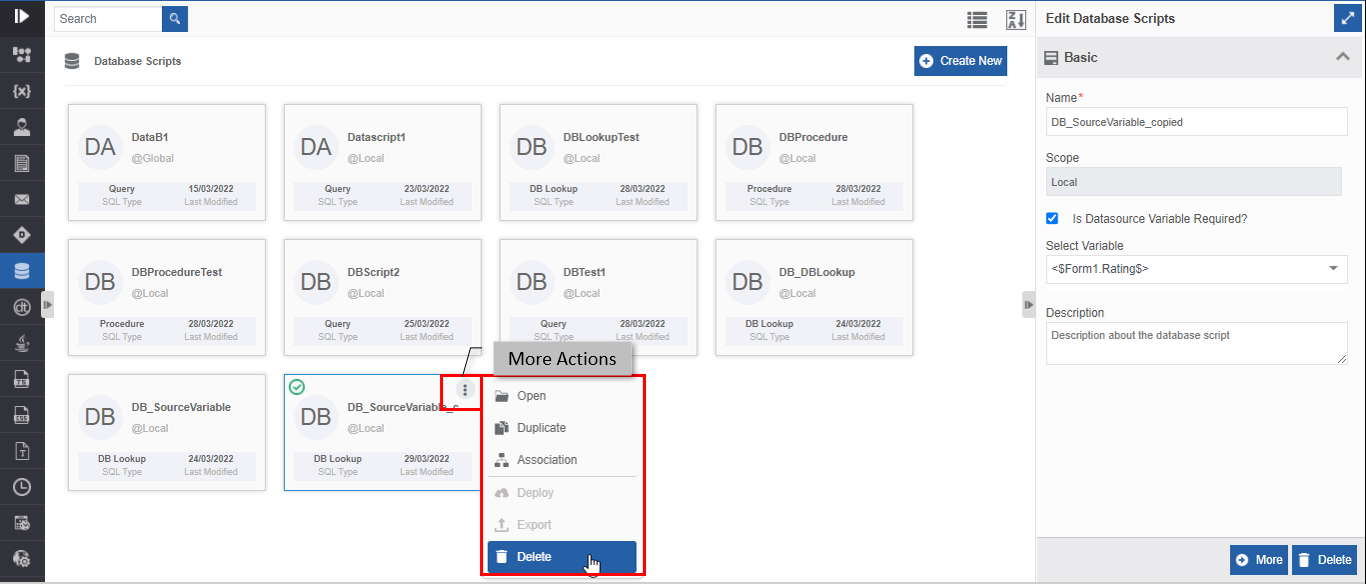
Click the three dots. More Actions appear.
-
Click Associations. The association of the database script with the application, flow modules and activities are displayed in a pop-up.
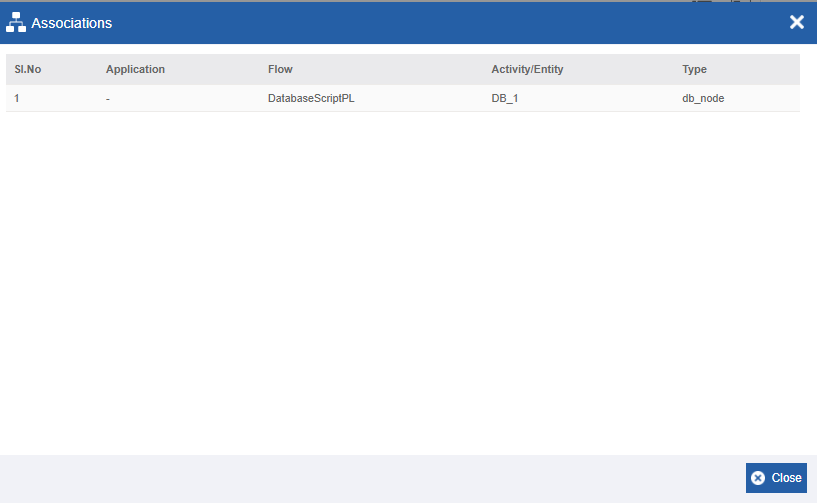
- Application – The application in which the database script is utilized.
- Flow - The flow in which the database script is utilized.
- Activity/Entity - The activity or entity name in which the database script is utilized.
- Type - The type of activity or entity.
Duplicating Database Script
Make sure to unlock the application before duplicating an entity that is not created by you. When you duplicate a participant, the associations are not duplicated.
- Navigate to App Studio > Applications - open application name > Process Flow / Data Flow - flow name > Open.
- Click Database Scripts.
- Click a database script. The database script list appears.
- Hover over any database script card. Three dots appear on the upper right side of the card.
-
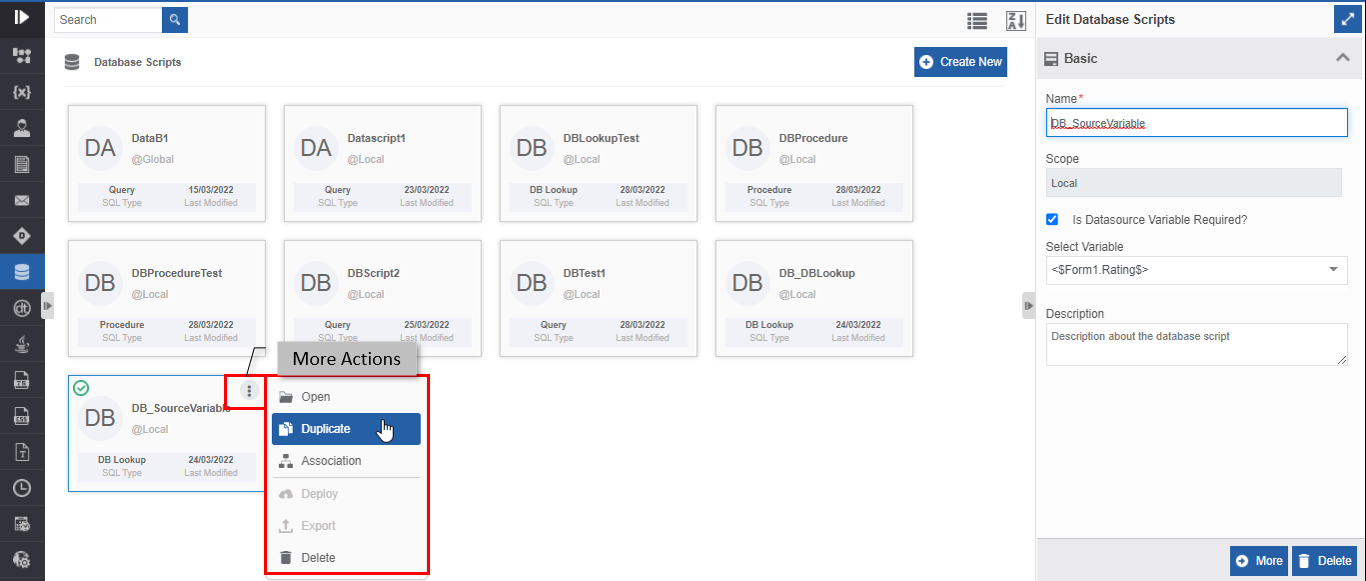
Click the three dots. More Actions appear.
-
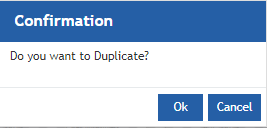
Click Duplicate. A confirmation pop-up appears.
-
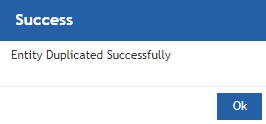
Click Ok for duplicating the database script (or you can click Cancel to cancel the duplicate action). A Success message appears on the successful duplication of the database script.
-
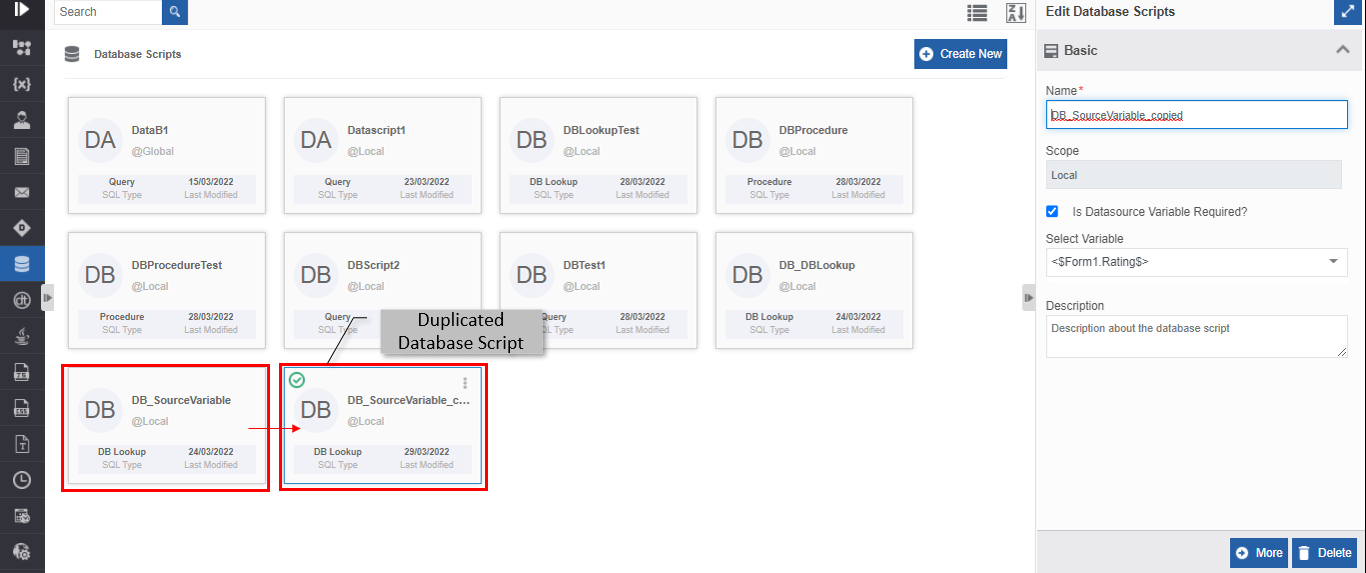
Click Ok. A duplicate copy of the database script appears on the Database Script page with the same name suffixed with “_copied”.
Deleting Database Script
Make sure to unlock the application before deleting a Database Script that is not created by you. Also, you cannot delete the Database Script if it is associated with any activity or Database Script.
- Navigate to App Studio > Applications - open application name > Process Flow / Data Flow - flow name > Open.
- Click Database Scripts. The database script list appears.
-
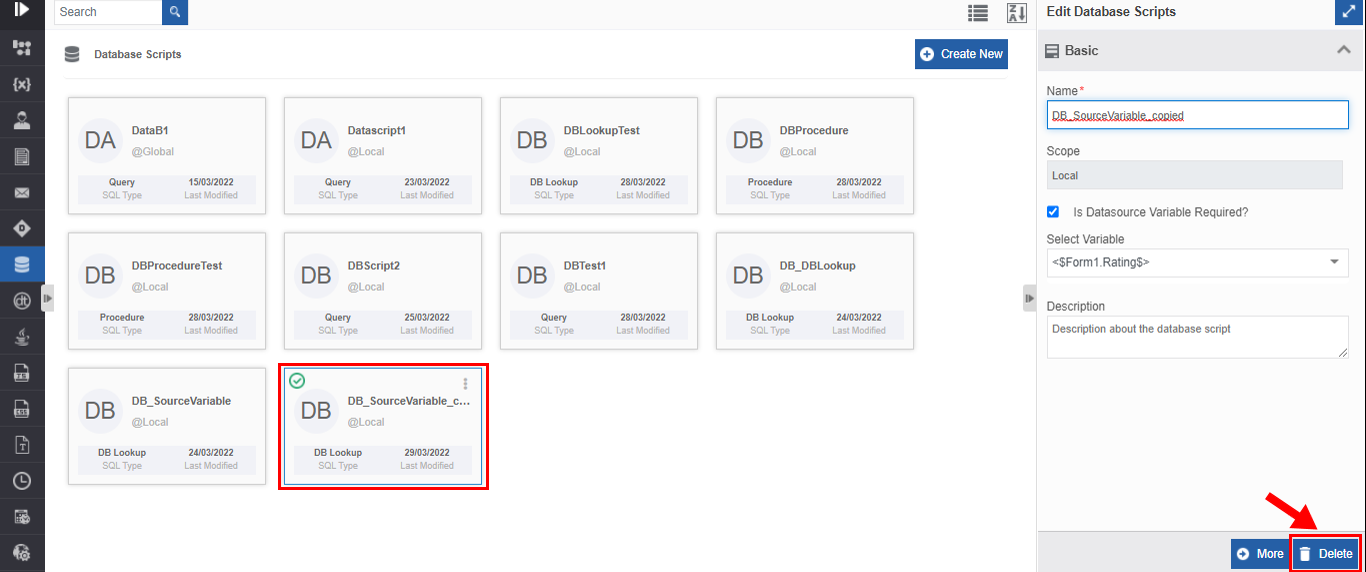
Click the database script name card that is to be deleted. The lower-right of the page displays Delete.
-
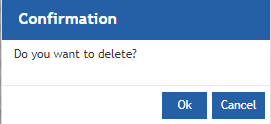
Click Delete. A Confirmation pop-up for delete appears.
-
Click Ok for deleting the database script.
Or
Click Cancel to cancel the action.
Alternatively, you can follow the below steps to delete the database script:
- Click the Burger menu and navigate to App Studio > Application > {Flow module} > Database Scripts.
- Hover over the database script card. Three dots appear on the upper right side of the card.
- Click the three dots. More Actions appear.
-
Click Delete and follow step 6 in the above procedure.
Utilizing Database Script Entity
Mapping Database Script in Activity
You can map the database script to the activity, DB in the process flows. When the process flow is executed and encounters the DB activity, the database script associated with the DB activity is executed. The database script contains the query or procedure mapped to a data source table. That is, the DB activity points to a database table with a query or procedure required for the input data.
-
Navigate to App Studio > Applications - open application name > Process Flow / Data Flow - flow name > Open.
Info
Open or create a process flow with DB activity in the flow.
-
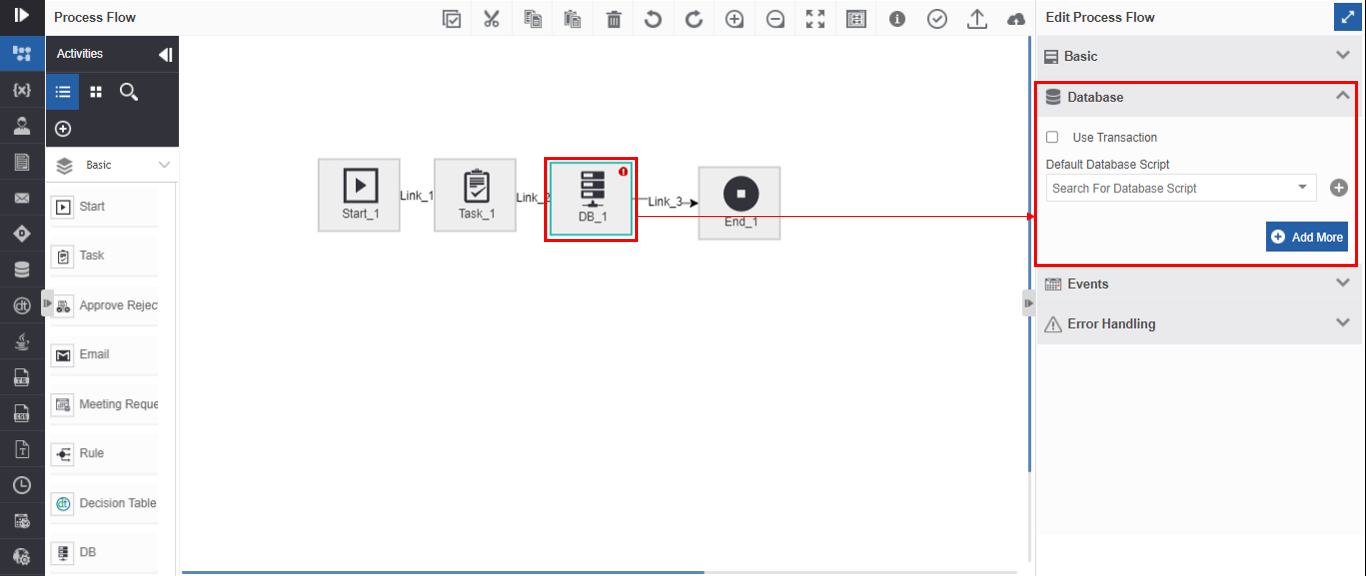
Click the DB activity and the Info Actions panel displays the configuration and properties.
-
Click Database accordion. Database Script mapping details appear.
-
Click Use Transaction checkbox if you want to roll back the actions (scripts executed) in case there is an error in any of the multiple scripts mapped to the DB.
Else uncheck Use Transaction. - Below the Default Database script, select a default database script from the drop-down. The drop-down lists all the database scripts. Only one database script can be added as a default database script.
-
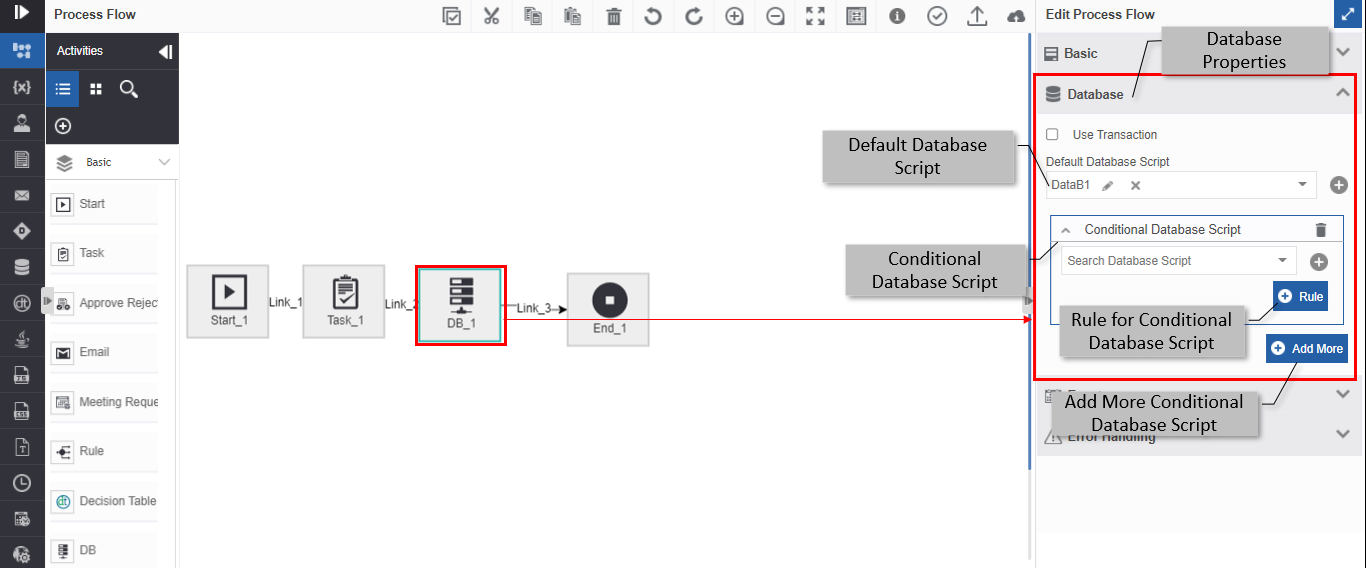
Click Add More. Conditional Database Script details appear for adding conditional database scripts based on the rules.
-
Under Conditional Database Script, Select a database script.
- Click Rule and select a rule for the selected conditional database script.
-
Click Add More again for adding more conditional database scripts. You can add multiple conditional database scripts based on different rules.
Note
During runtime, if a rule is satisfied, the Database Script mapped for that rule appears for the user in the interface. If none of the rules are satisfied, the default Database Script appears as an interface.
Accessing Database Scripts in Form Lookup
You can create Database scripts (with SQL Type = DB Lookup) in the business entity section and utilize the Database script for getting look-up details of the entity through Form UI.
To create a lookup of the data entity table (in runtime Form) through the database script, you need to create the required database script in the business entity section.
- Navigate to App Studio > Applications - open application name > Process Flow / Data Flow - flow name > Open.
- Click Database Scripts and create the required database script with SQL Type = DB Lookup. Refer to Configuring DB Lookup.
- Click Forms.
- Double-click and open a form.
-
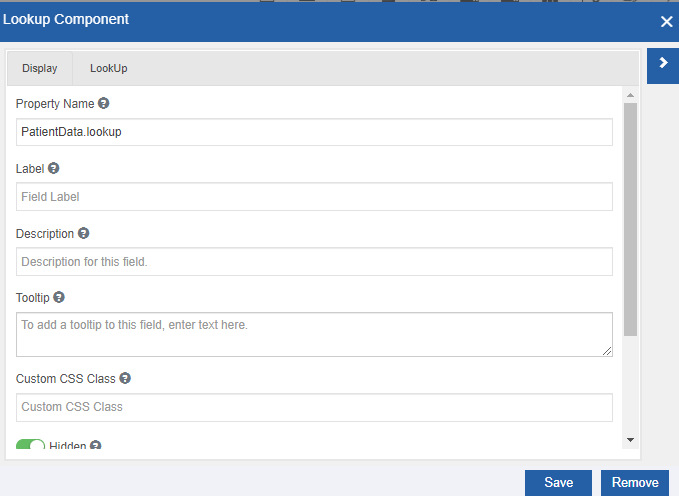
Drag a Lookup component from the Component list. Lookup Component pop-up appears.
-
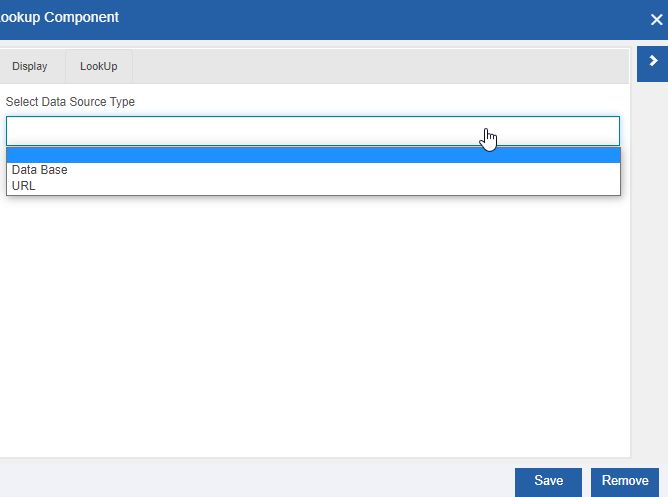
In the Lookup component pop-up, click the LookUp tab.
-
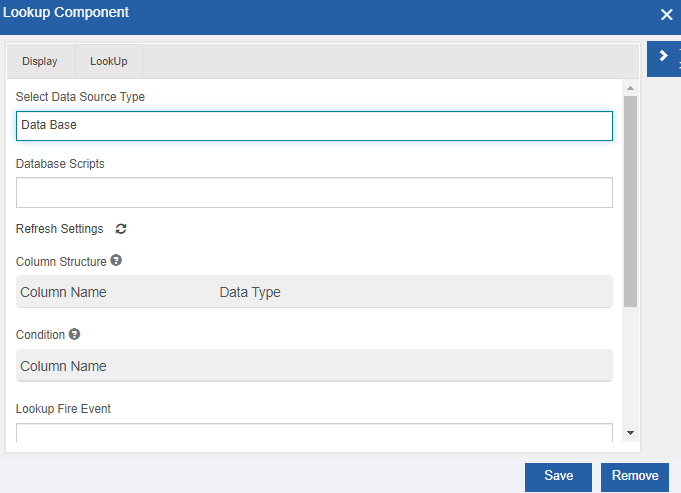
In the LookUp tab, click Select Data Source Type and select Data Base as datasource. Details based on the data source type= Database appear.
-
Select the required database script name from the Database Scripts drop-down and configure other details.
Info
When you map a database script to the lookup control in the form, during the runtime, it fetches the records from the selected data source table and renders them on the form by executing the database script.
Accessing Database Script in Variable Lookup
You can map a database script to a variable through DB Lookup if you want to define a database query for the variable. When the flow initiates, the DB Lookup executes and assigns the result set to the variable to which you mapped the script.
- Navigate to App Studio > Applications - open application name > Process Flow / Data Flow - flow name > Open.
- Click Database Scripts and create the required database script with SQL Type = DB Lookup.
Refer to Configuring DB Lookup. - Click Variables.
-
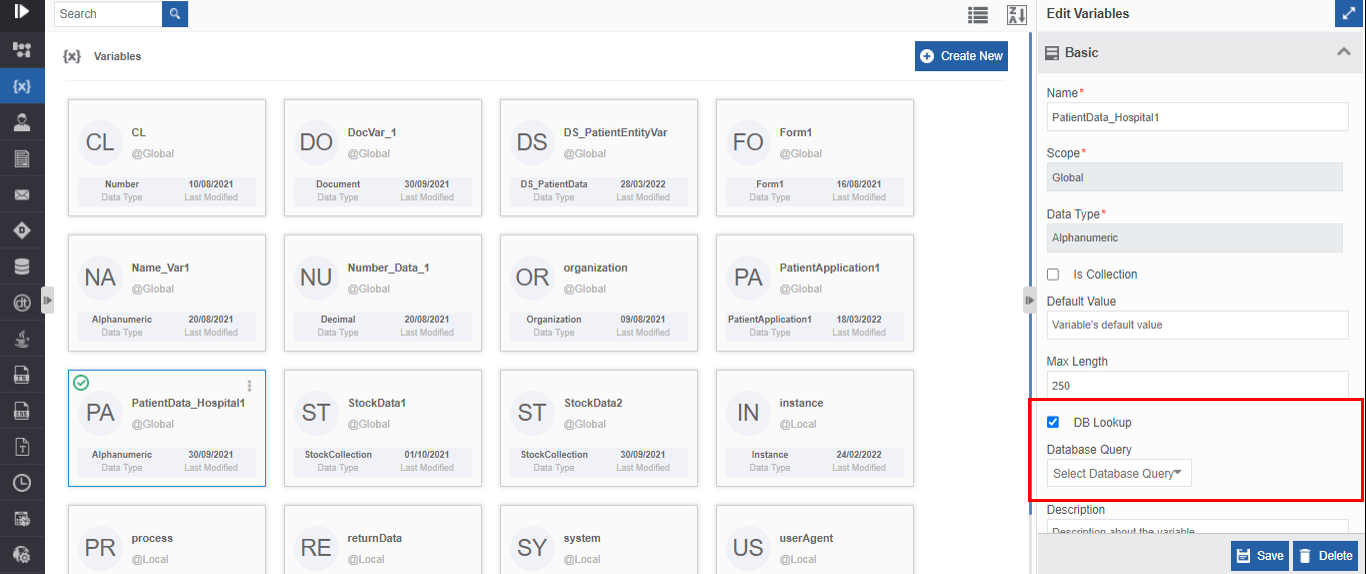
Double-click and open any variable except the variable of data type = Document. DB lookup is applicable for all the data types except the “Document” type.
-
Select the DB Lookup checkbox and select a database script. Now the database script is mapped to the variable through the DB Lookup.
Note
When the corresponding process flow initiates, the database lookup executes and the result set of the execution is stored in the variable.