Dashboard
Introduction to the Platform Dashboard
The dashboard is the home page of the Platform. Components in the dashboard view are designed based on the organization and the access permission of the logged in user. There are dashlets and widgets in the dashboard that provides an overview of the organization.
The organization administrator has all the dashlets and widgets access except for what is displayed only for the general user.
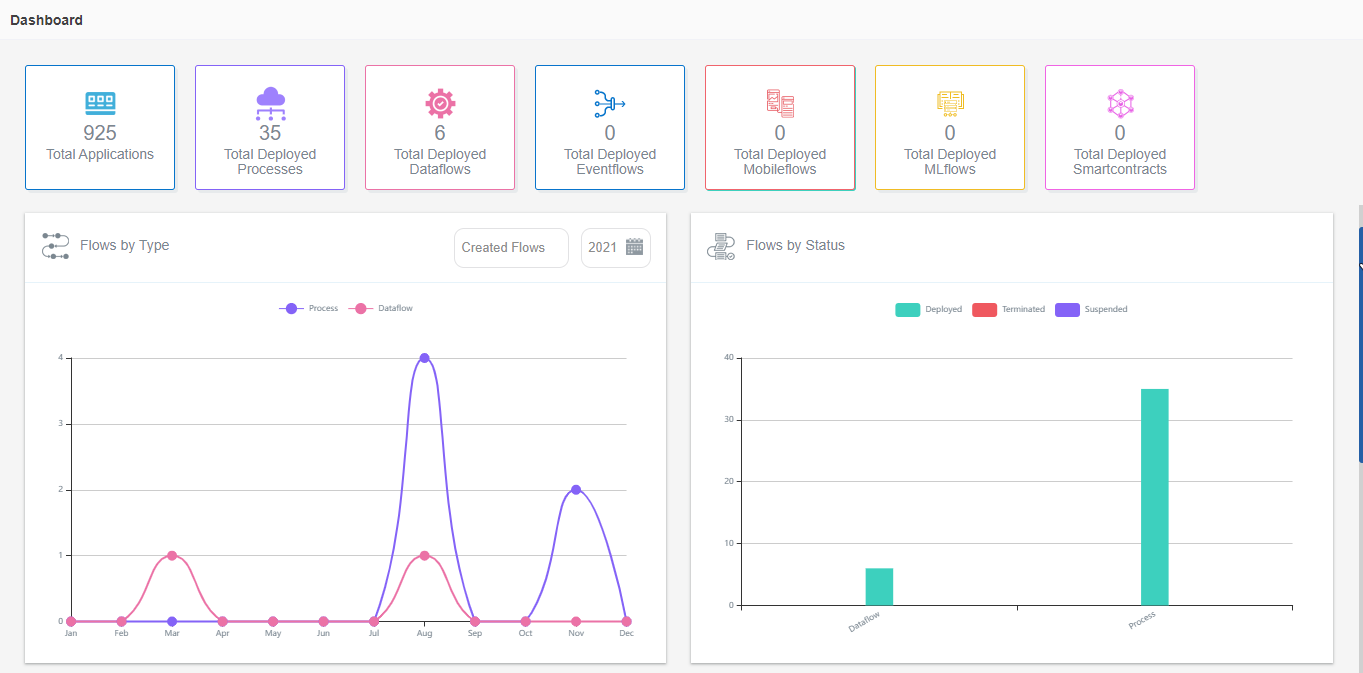
Dashboard components for different types of users are provided in the following figures and the relevant components are explained.
Organization Administrator Dashboard Home page
Process Administrator Dashboard Home page
General User Dashboard Home page
Dashboard Dashlets
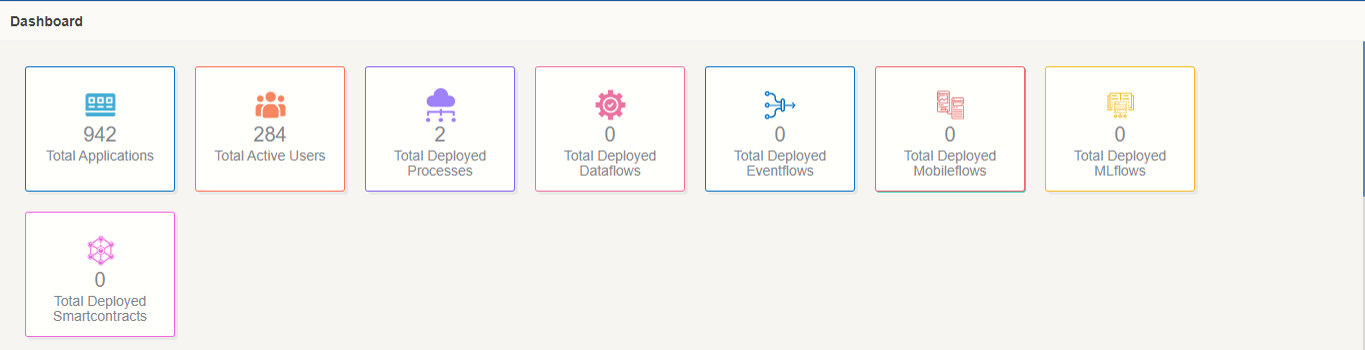
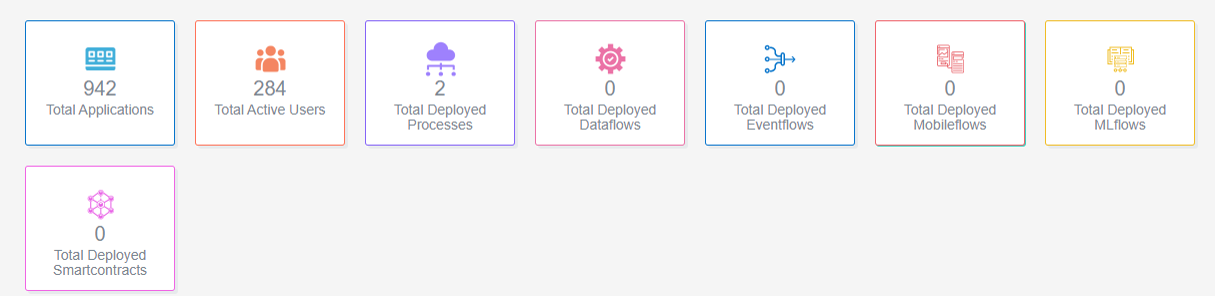
Dashlets provide an overview of the count of applications and various flows in the organization.
-
Total Applications - Total applications in the organization. Click the widget for navigating to Manage > Application Management > Applications.
-
Total Active Users – Total active users in the organization. Click the widget for navigating to Manage > Organization Management > User.
-
Total Deployed Processes – Total deployed Processes in the organization. Click the widget for navigating to Manage > Application Management > Process Flow. When the logged-in user is a General user, the count of deployed flows is specific to the logged-in user in that organization.
-
Total Deployed Dataflows – Total deployed Dataflows in the organization. Click the widget for navigating to Manage > Application Management > Dataflow.
-
Total Deployed Eventflows – Total deployed Eventflows in the organization. Click the widget for navigating to Manage > Application Management > Eventflow.
-
Total Deployed Mobileflows – Total deployed Mobileflows in the organization. Click the widget for navigating to Manage > Application Management > MobileFlow.
-
Total Deployed ML flows – Total deployed ML flows in the organization. Click the widget for navigating to Manage > Application Management > Process Flow.
-
Total Deployed Smartcontracts – Total deployed Smartcontracts in the organization. Click the widget for navigating to Manage > Application Management > Smart Contract.
The following dashlets apply only to the General User.
-
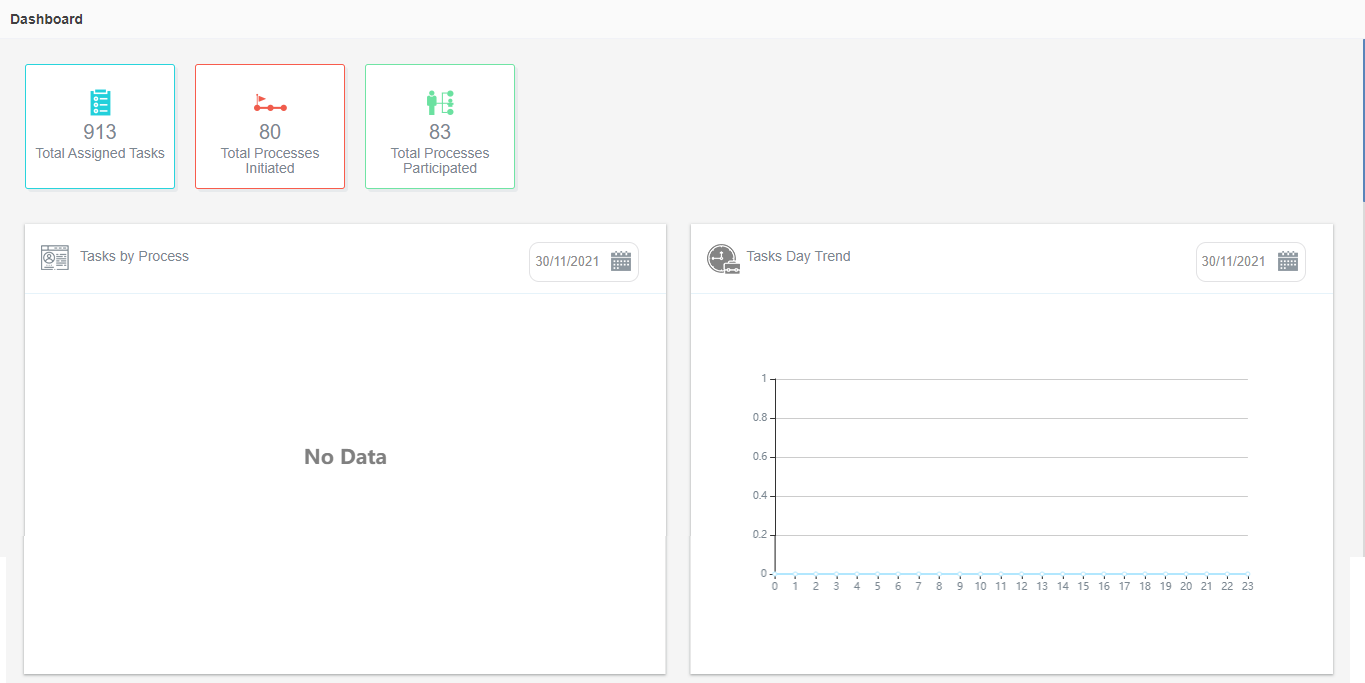
Total Assigned Tasks – Total tasks assigned for the user. This includes tasks in all the flows of the organization.
-
Total Processes Initiated – Total processes initiated in which the logged user has participated.
-
Total Processes Participated – Total processes in which the logged-in user has participated.
Users by Status
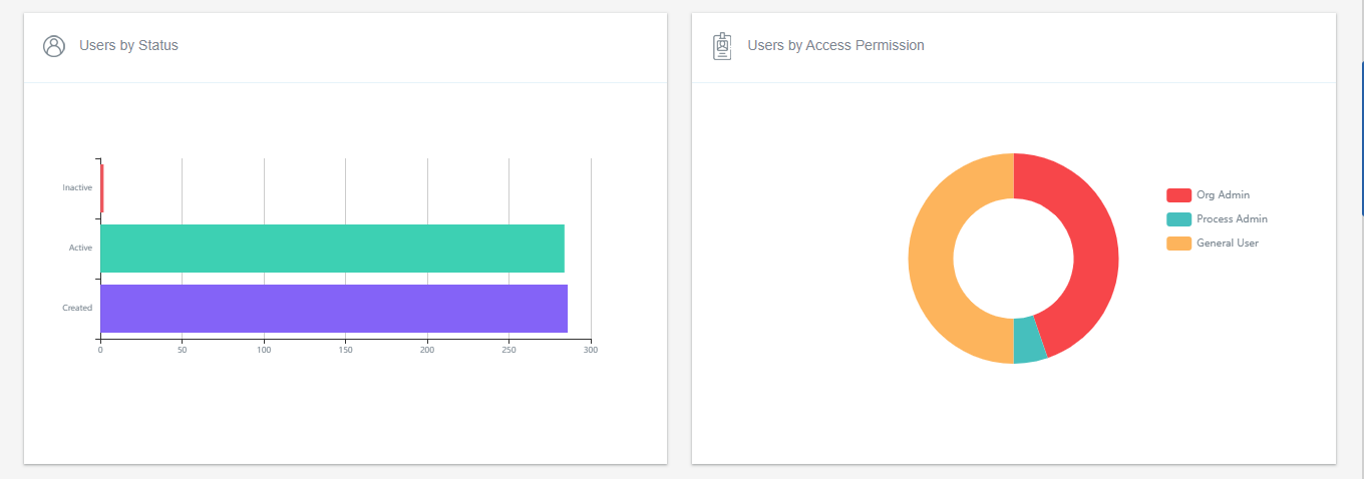
Users by status widget display a bar graph for the active, inactive and canceled users in the organization.
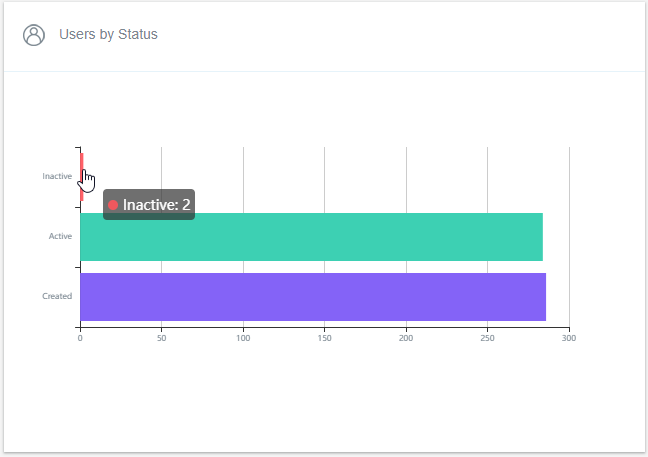
- X-axis is the number of users and Y-axis is the status (Active/Inactive/Canceled).
- Hover over the bar in the chart to view the actual number of users.
- Click the bar in the chart for navigating to the Configuration Management section.
Users by Access Permission
Users by access permission display a doughnut chart of users with different access permission.
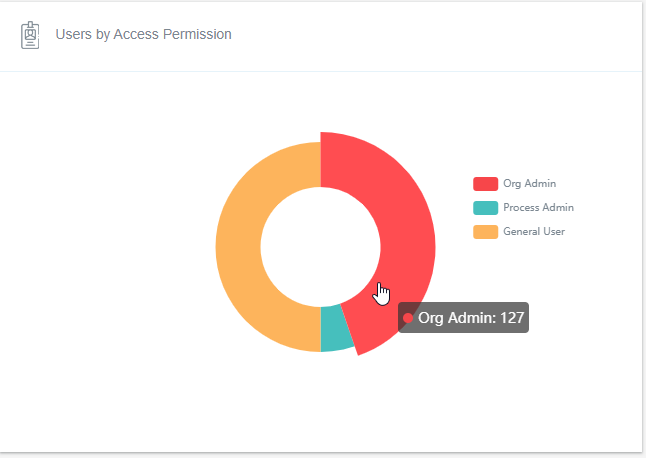
- Hover over a particular part of the chart to view the number of users having that particular access permission.
- Click access permission (one colour in the chart) in the chart to navigate to Organization Management section.
- Click a legend on the right side of the chart to exclude that attribute from displaying in the chart. Click again to view the same.
Flows by Type
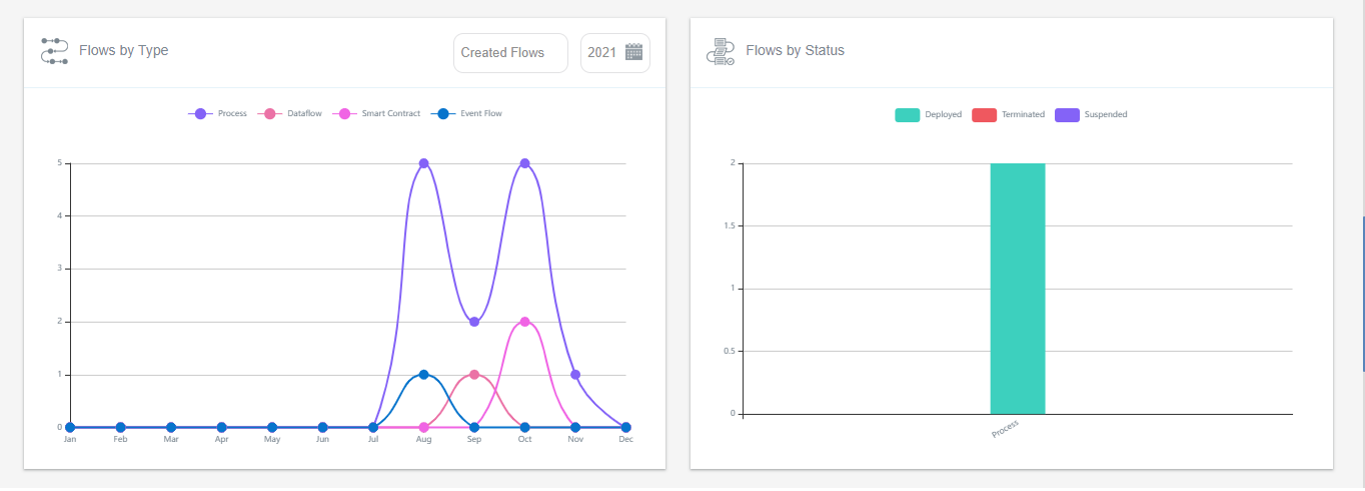
This widget displays a smooth line chart with different colors for different flow types.
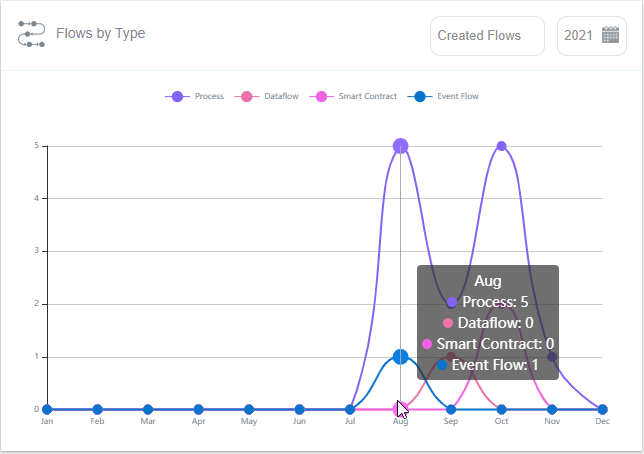
- X-axis represents the months in the current year and Y-axis is the number of flows.
- Select the year from the year calendar on the top right to filter the details for the selected year.
- Hover over the smooth graph to view the number of flows.
- Hover over each legend to have a highlighted view of that particular flow in the graph.
- Click the top-right drop-down and select Created flows, Deployed
flows, or process instance and you can view the line chart of the
selected item.
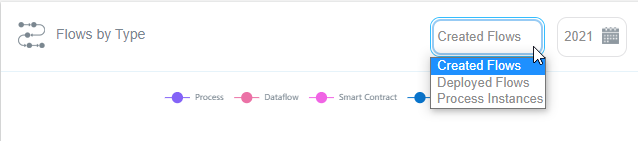
- Click a legend on the top of the chart to exclude that attribute line from displaying in the chart. Click again to view the same.
Flows by Status
Flows by Status displays a bar diagram of the Deployed, Terminated, and Suspended flows in different colors.
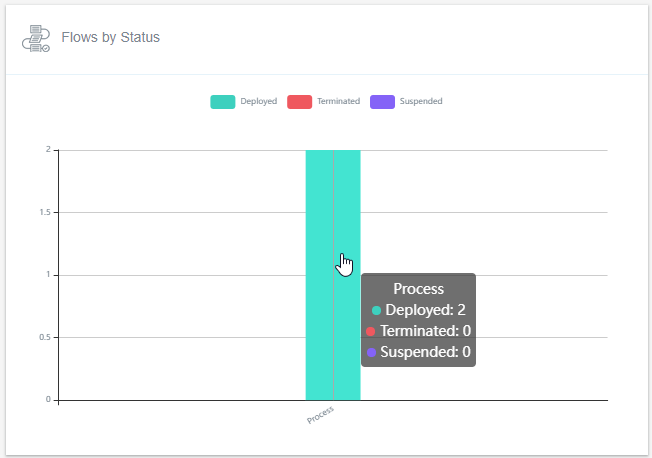
- X-axis is the flow type for the current year and Y-axis is the number of flows.
- Hover over the bar graph to view the number of deployed, terminated, and suspended flows.
- Hover over each legend to have a highlighted view of that particular flow.
- Click a legend on the top of the chart to exclude that attribute from displaying in the chart. Click again to view the same.
Flow Details
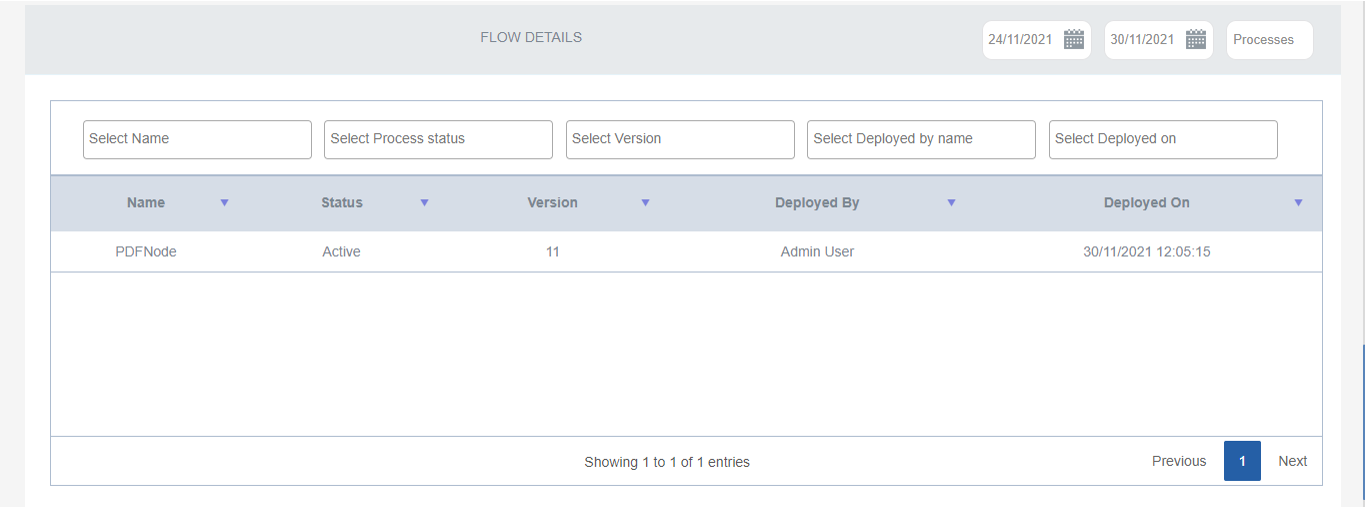
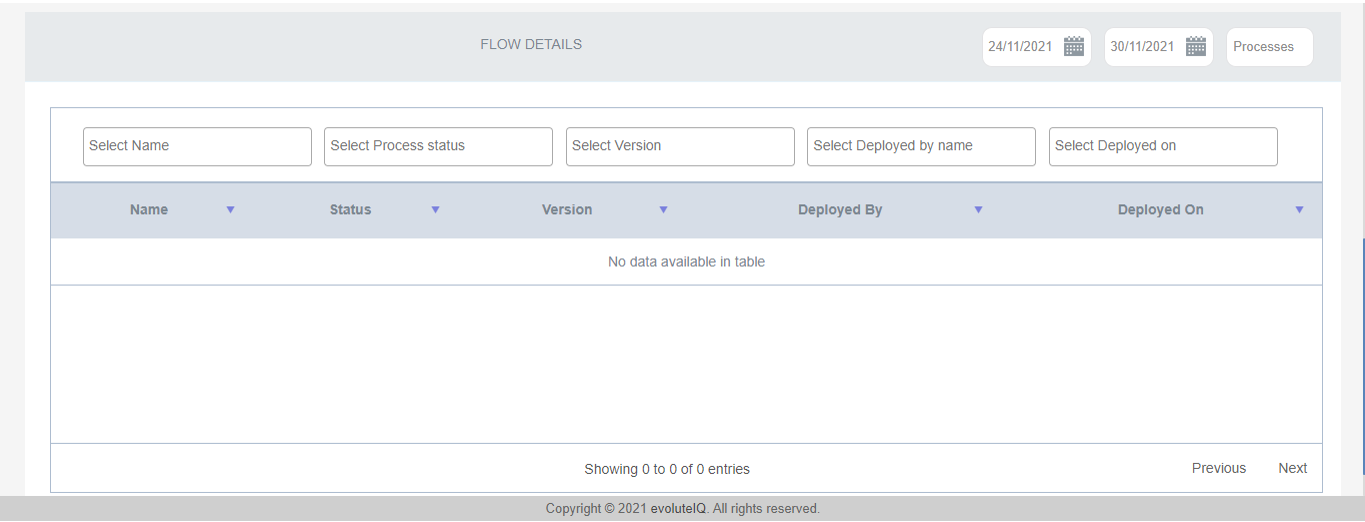
The flow details grid displays a table with the flow details of the assigned user.
- Select the From Date, To Date, and the Type of flow from the top-right to filter data as per your requirement.
- The advanced filter allows you to filter details by Name, Process status, Version, Deployed by, and Deployed on (date and time).
- The Previous and Next on the bottom-right allow you to navigate the table pages.
Task by Process
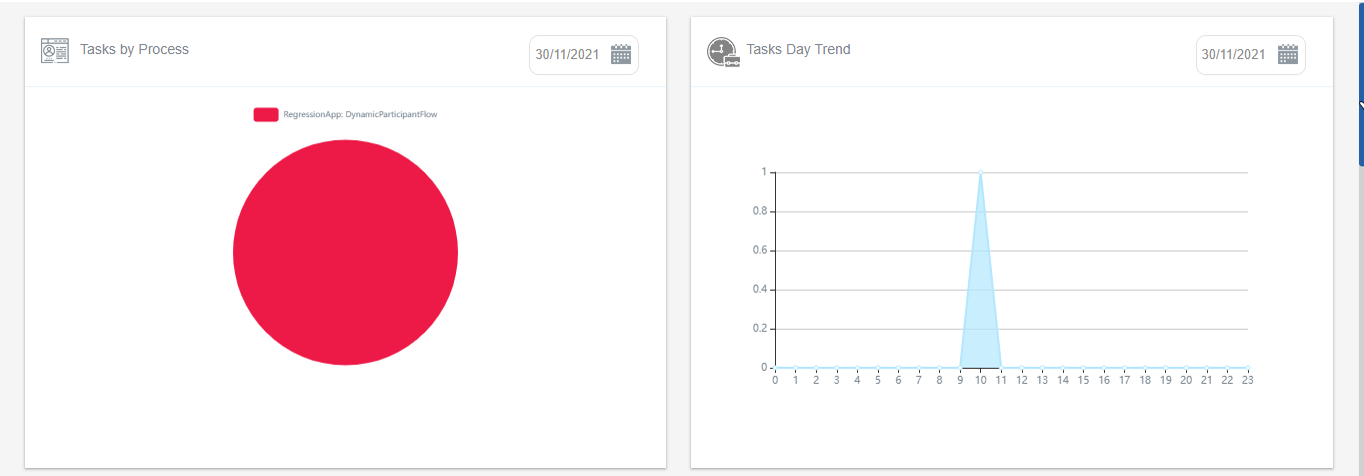
Task by Process is displayed only for the General user.
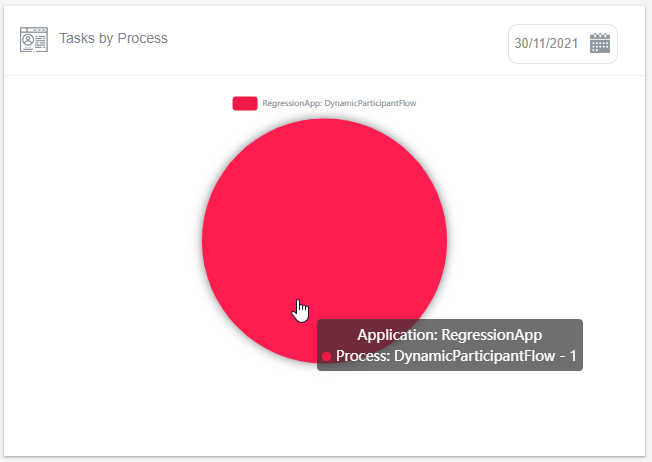
- Select the Date from the top-right to filter data as per your requirement.
- Hover over the chart for viewing the Application name, process name, and the number of flows.
- Click a legend on the top of the chart to exclude that attribute from displaying in the chart. Click again to view the same.
Task Day Trend
Task by Trend is displayed only for the General user.
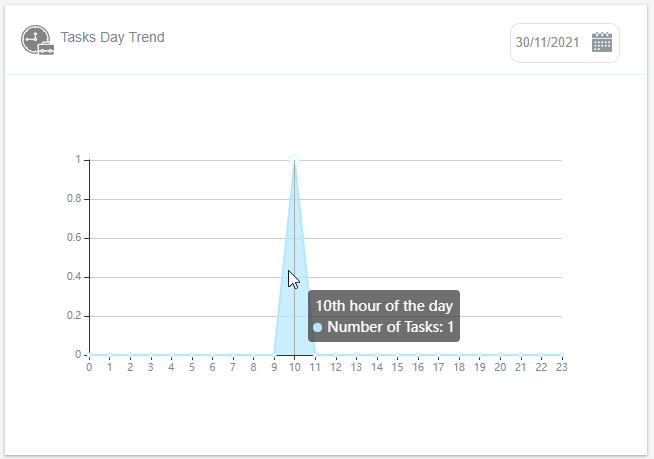
- X-axis is the hour of the day and Y-axis is the tasks.
- Select the Date from the top-right to filter data as per your requirement.
- Hover over the graph to display the number of tasks.
Task Details
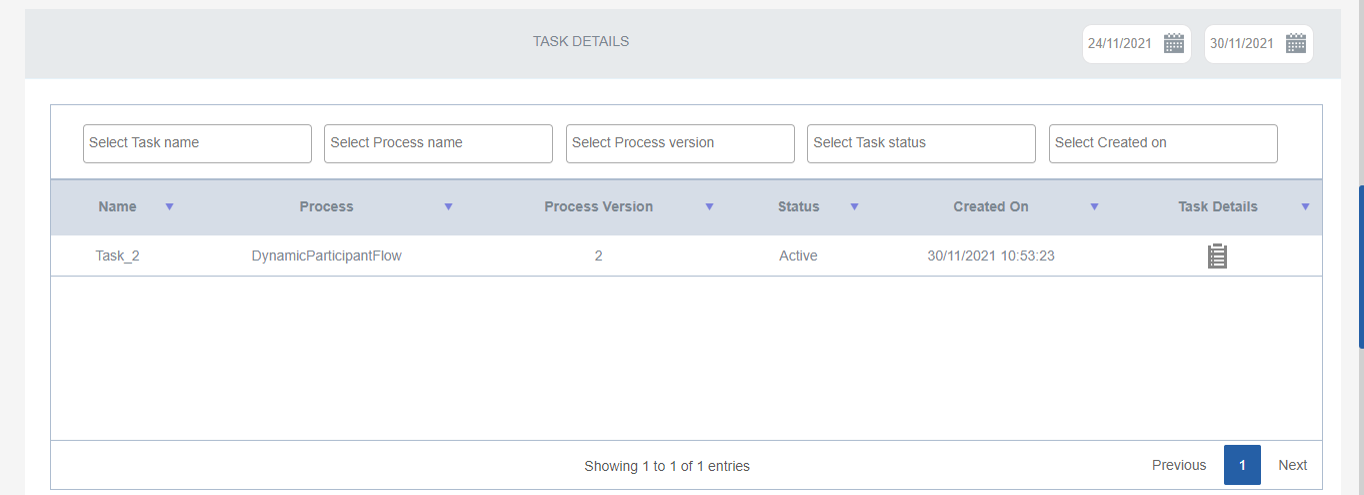
The task Details grid is displayed only for the General user. If a task is assigned to the user, the Task Details grid lists the tasks assigned to the logged-in user with appropriate details.
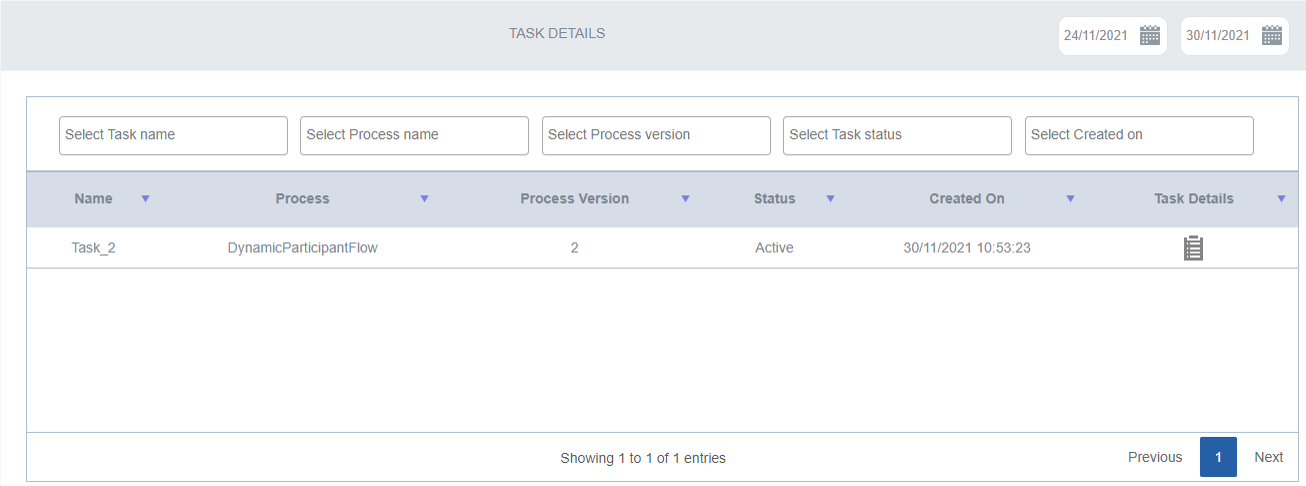
- Click the task icon under the Task Details for navigating to the page where the Form for executing that task is displayed.
- Select the From Date and To Date from the top-right to filter data as per your requirement.
- The advanced filter allows you to filter details by Task Name, Process name, Process version, Task Status, and Created on (date and time).
- Click the arrows next to the column heads in the grid for sorting the data by that column.
- The Previous and Next on the bottom-right allow you to navigate the table pages.
My Process Details
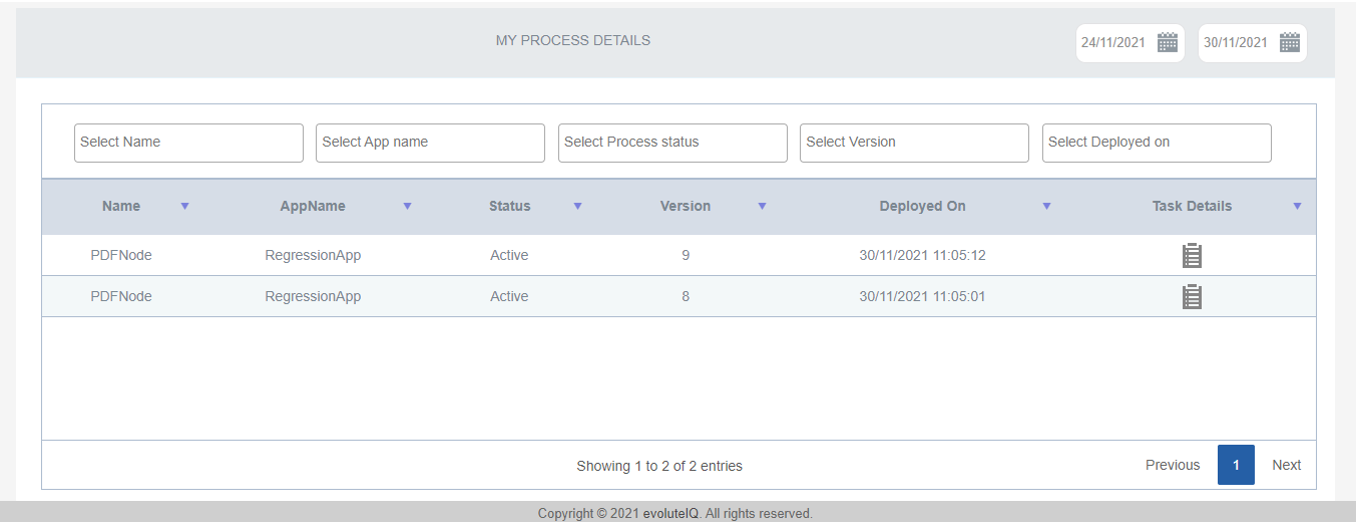
My Process Details grid is displayed only for the General user. If tasks are assigned for the user, the My Process Details grid lists the processes assigned to the logged-in user with task details.
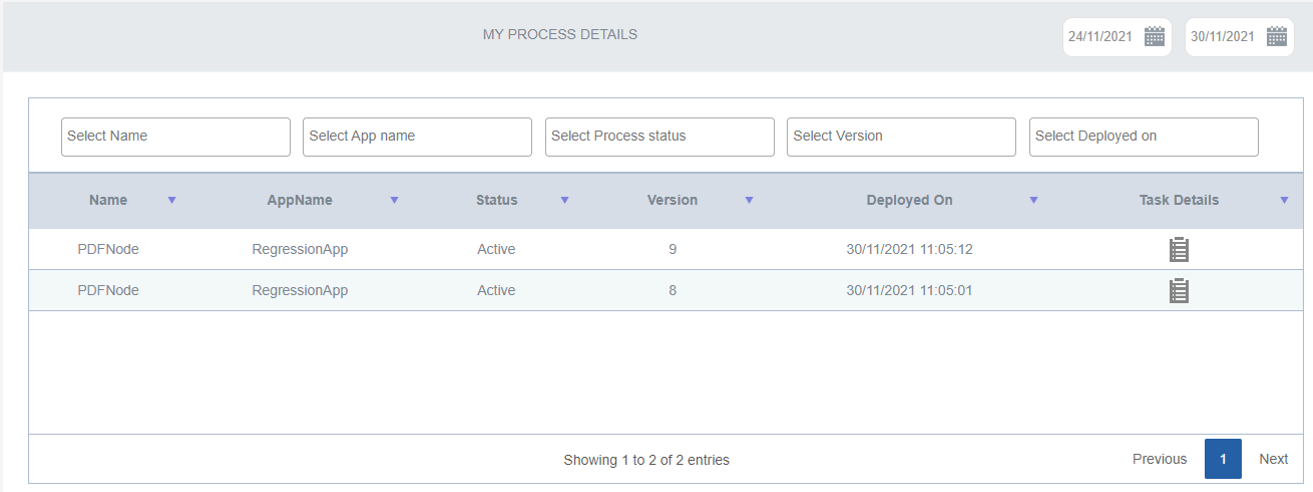
- Select the From Date and To Date from the top-right to filter data as per your requirement.
- The advanced filter allows you to filter details by Process Name, App name, Process Status, Version, and Deployed on (date and time).
- Click the task icon under the Task Details name for navigating to the page where the Form for executing that task is displayed.
- Click the arrows next to the column heads in the grid for sorting the data by that column.
- The Previous and Next on the bottom-right allow you to navigate the table pages.