View HTML Controls
About View HTML Controls
View HTML controls are specific web layout controls. The HTML view controls are based on the HTML elements. HTML controls are display controls or elements that are mainly used to display the content. As such they do not have any event-based configurations.
HTML controls can be directly placed on the page editor or a runtime form control. They are display elements that are mainly used to display the contents.
- Action based configurations do not apply to the HTML controls.
To be noted that, there are a few HTML controls that appear as part of another control wrapper. For example, Card control. Card control is a layout control with Heading, image, and link controls. You can create variables within these controls and then resolve the variables during the runtime.
Refer to Form View Designer for generic control properties.
The Style configurations for all the controls are the same.
Block Container

Block container (div) is a container that takes the full width irrespective of the content. You can use block Container when you want to style a particular part of your content differently.
Block Container accepts all the Form controls and those controls that are only accepted by the Form Layout control. That is, you can place a textbox or a tab layout control within a Block container.
-
Drag a Block Container (div container) control to the Form designer. The properties panel on the right side displays the configurations.
-
Click the Config tab (Config tab is active by default). The container does not have any specific properties other than Id and Title. The Block Container wrapper contains the Container control.
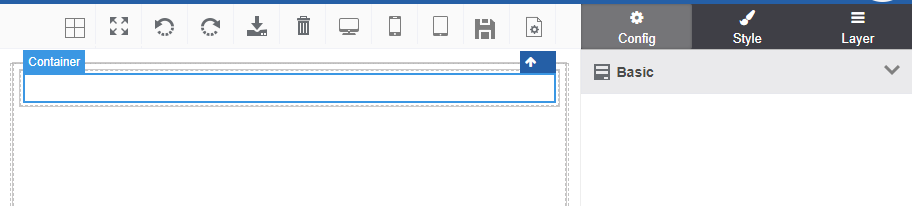
Figure 1: Container control -
Enter the Id and Title for the container as per your requirements.
-
Drag any other control (Form category controls, controls that are accepted by the Form Layout, or any other controls). The Block container acts as a container for other controls.
Heading
The Heading control is used for displaying the headings in the view. Headings are used hierarchically starting from the first level heading usually termed as H1 level heading.
-
Drag a Heading control to the Form designer. The properties panel on the right side displays the configurations.
-
Click the Config tab (Config tab is active by default).
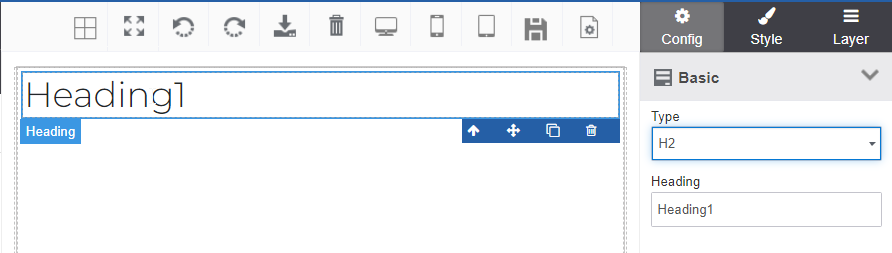
Figure 2: Heading control configuration -
Click Basic accordion. (By default Basic is active).
-
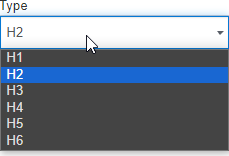
In the Type drop-down, select the required heading level.
- In the Heading box, enter the heading text or directly type in the control in the form designer.
Inline Container
You can use Inline Container (span) control when you want to style a particular part of your content differently. The inline container takes the width of the content. Inline container control has the span container and text.
-
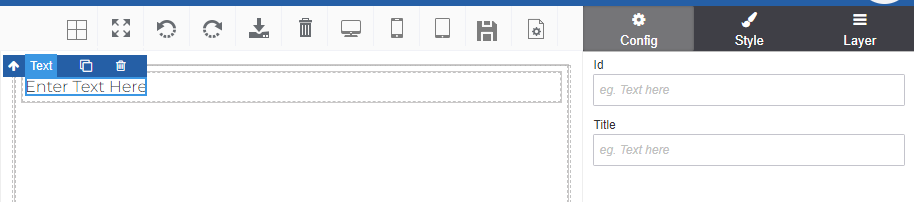
Drag an Inline Container (span container) control to the Form designer. The properties panel on the right side displays the configurations.
-
Click the Config tab (Config tab is active by default).
-
Id: Enter the Id for the control.
-
Title: Enter title for the control. This appears as tooltip.
-
-
Click the Text control within the container to enter text in the container.
-
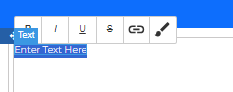
In the designer, double-click the text control. Text edit options appear along with highlighting the Link text.
-
Select “Enter Text Here” and enter the required text.
-
Select the required text and then click the option icons in the editor to apply that style to the text (B-bold, I–italic, U–underline,
S–strike-through, hyperlink-to hyperlink the text, brush icon-wrap for style)
Label
The Label control is used to enter a text as a label on the page. Label Wrapper contains a Label Container and Label controls.
-
Drag a Label control to the Form designer. The properties panel on the right side displays the configurations.
-
Click the label control and then click the Config tab (Config tab is active by default).
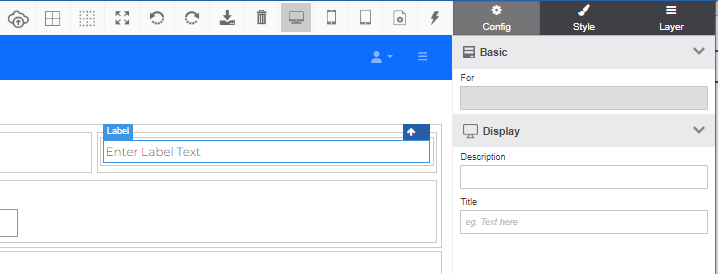
Figure 3: Label control configuration -
In the Basic section, For field appears with the name of the control for which this label is applied. The For field is disabled as it is auto-captured.
-
In the Display section provide the following details:
-
Description: Description of the label control.
-
Title: Enter the title of the label.
-
-
Enter the label text in the label control in the form designer. The Label container accepts multiple lines.
Label Container: The Label Container has Id and Title as the configurations.
Link
The Link control is used to give a hyperlink effect to the hyperlinked text.
-
Drag a Link control to the designer. The properties panel on the right side displays the configurations.
-
Click within the Link control in the designer and enter the text that is to be hyperlinked.
-
Click the Link control frame.
-
Click the Config tab (Config tab is active by default).
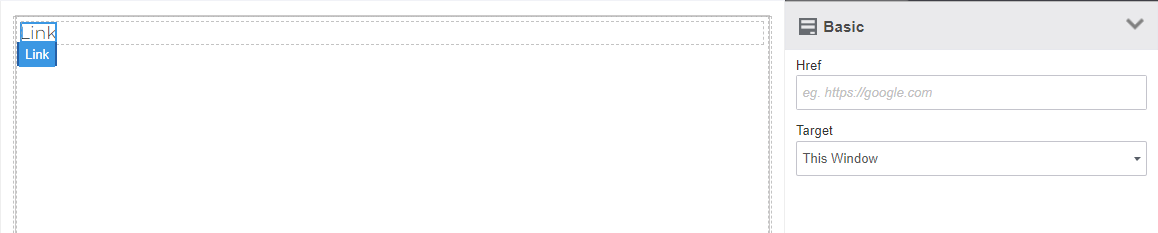
Figure 4: Link control configuration-
Href: Enter the complete URL to which the text has to be linked.
-
Target: Select the required target.
-
Same Window: The target URL opens in the same window.
-
New Window: The target URL opens in a new window.
-
Link Container: The Link Container has Id and Title as the configurations.
-
Paragraph
The Paragraph control is used to contain paragraph content.
-
Drag a Paragraph control to the Form designer. The properties panel on the right side displays the configurations.
-
Click the Config tab (Config tab is active by default).

-
Click the Paragraph control in the designer to enter the required content.
Small Text
The Text control is used to contain texts that are not full-length paragraphs.
-
Drag a Text control to the Form designer. The properties panel on the right side displays the configurations.
-
Click the Config tab (Config tab is active by default).
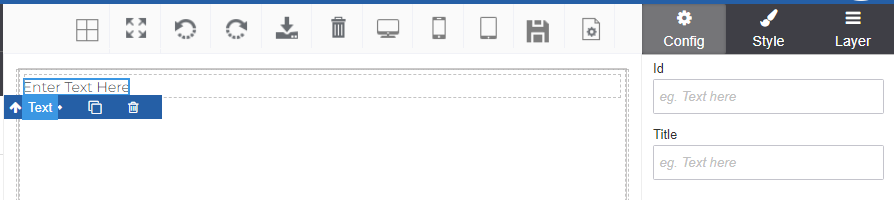
Figure 5: Text control configurations-
Id: Enter the Id for the control.
-
Title: Enter title for the control. This appears as tooltip.
-
-
Click the Text control within the container to enter text in the container
-
In the designer, double-click the text control. Text edit options appear along with highlighting the Link text.
-
Select “Enter Text Here” and enter the required text.
-
Select the required text and then click the option icons in the editor to apply that style to the text (B-bold, I–italic, U–underline,
S–strike-through, hyperlink-to hyperlink the text, brush icon-wrap for style)