eiq360 Workspace Setup
When you login to the platform for the first time, you must setup the instance.
The instance administrator has the permission to setup the instance. This includes setting up of workspace, branding, integrations, and communication settings.
One instance is for one organization. The estimated time for workspace setup is 5-7 minutes.
Starting the Instance Setup
-
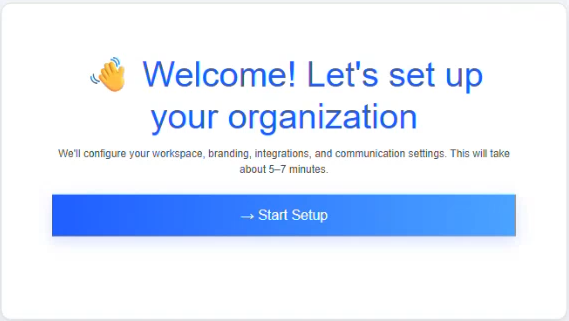
Once you successfully login to the platform as instance admin, welcome screen appears.
-
Click Start Setup.
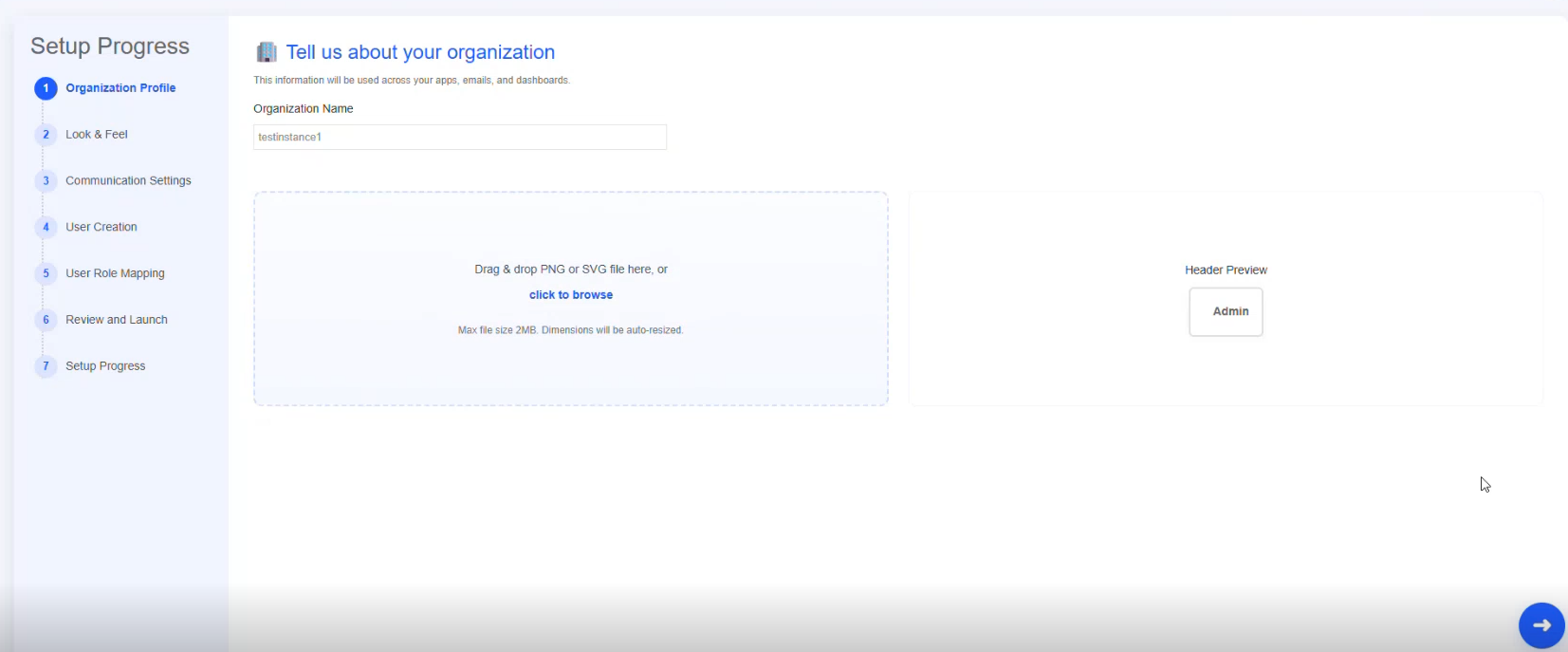
Setup Progress is a sequence of 7-steps that includes configuration of all the basic details needed for your organization. - Navigate through the configuration steps using the next arrow at the bottom right of all configuration pages.
- Configure details and your requirements in each section. Following sections explain the different configuration steps separately.
Step 1: Organization Profile
Organization profile allows you to configure basic organization details. These information is used across your apps, emails, and dashboards.
| Field | Description |
|---|---|
| Organization Name | Enter name for your organization. |
| Org image | Drag an image to the drop-box or click "Click here to browse" to select an image file. Supported file formats: PNG, SVG Max file size: 2MB Image dimension will be auto-resized. |
| Header Preview | This is just a preview of what your have configured. |
Step 2: Look and Feel
Look and Feel section allows you to select a theme for your organization. Your apps and portals will use the selected theme.
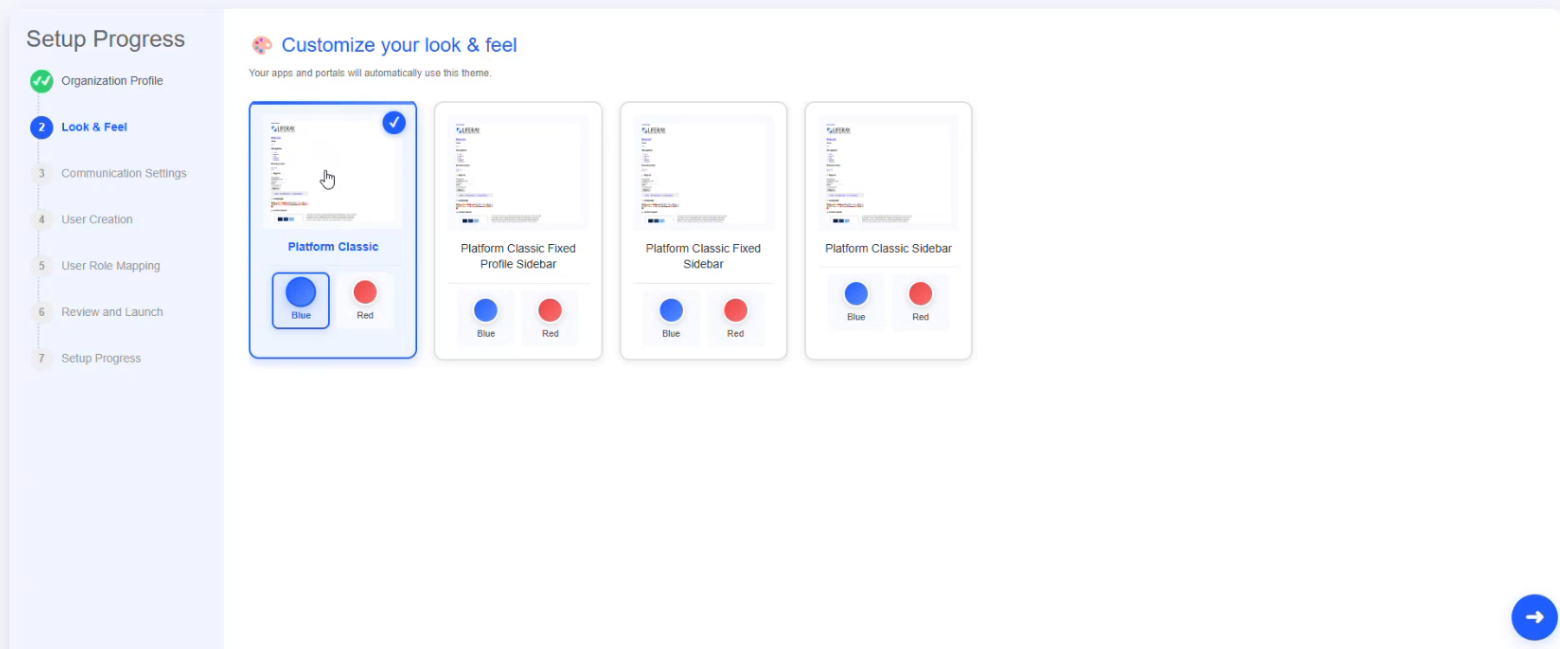
Select a theme from the list and then select the color for the theme.
Step 3: Communication Settings
Communication settings allows you to configure the email communication and notification settings for your organization instance. System email are sent using the selected configuration. This apply for email invites, alerts, and workflows.
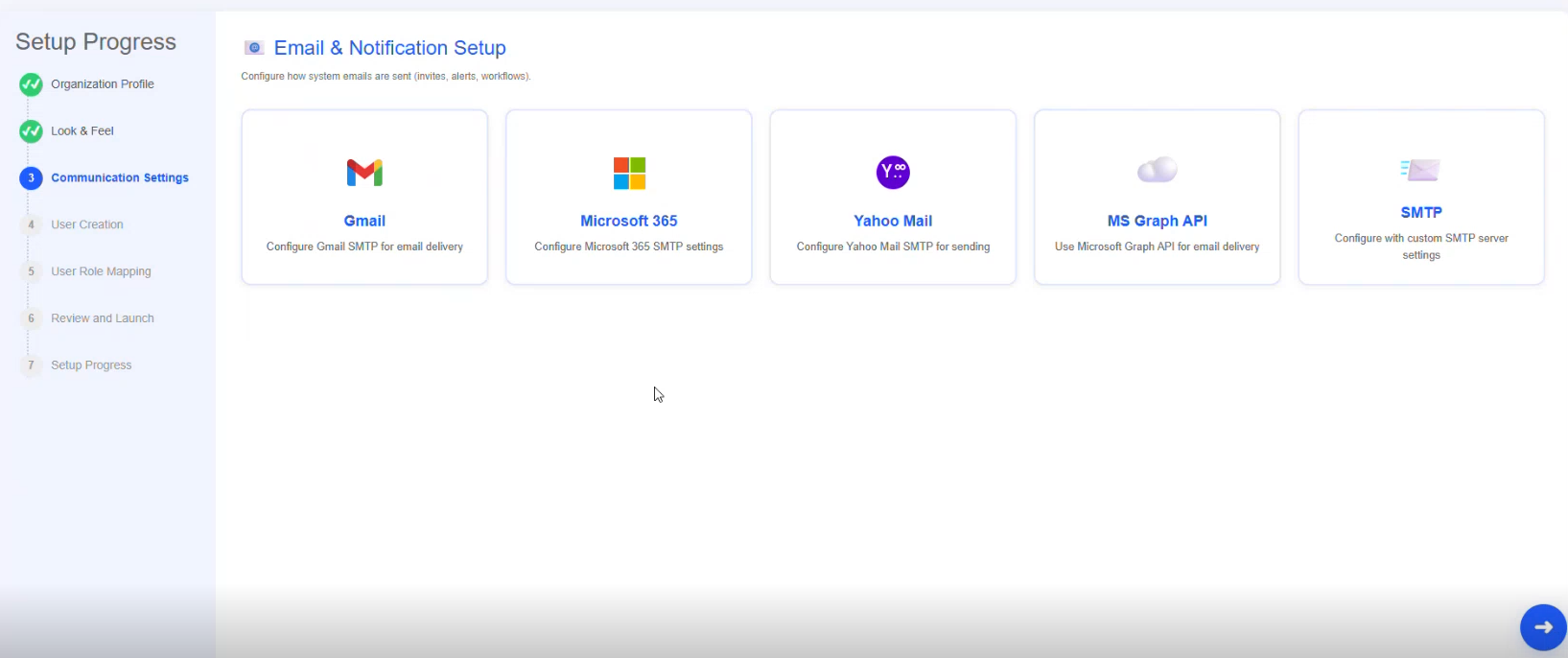
Select a communication type that you prefer for your organization. The corresponding configuration details appear.
Gmail Configuration Setup
When you select GMail as the Email Communication setup, the following GMail SMTP configuration details appear.
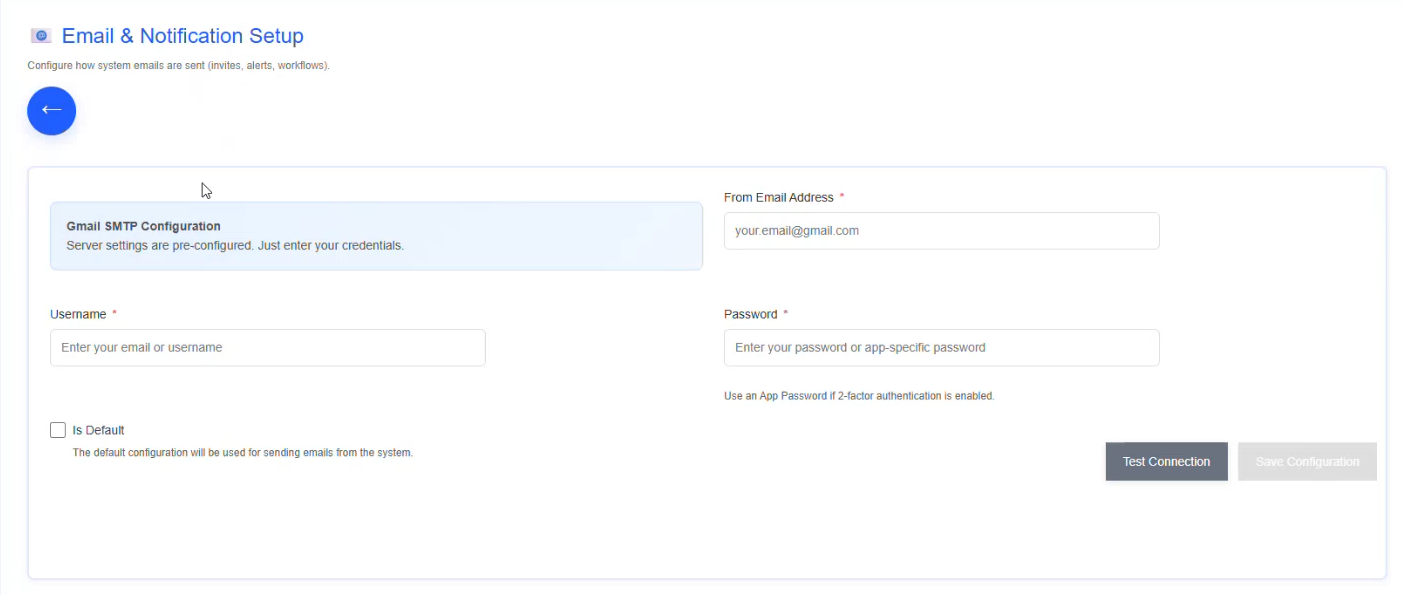
| Field | Description |
|---|---|
| From Email Address* | Enter email adresss. This email address will be used for sending any email alerts or notifications from the platform |
| Username* | Enter username of this email id. |
| Password* | Enter password of this email id. |
| Is Default | Check if you want to make this email id as default email id for sending emails. |
| Test Connection | Click Test Connection to test your email configuration. |
| Save Configuration | Click Save Configuration to save the details configured. |
Step 4: User Creation
User creation allows you to select how you want to create and manage users. As a tenant admin you can create multiple instance admins.
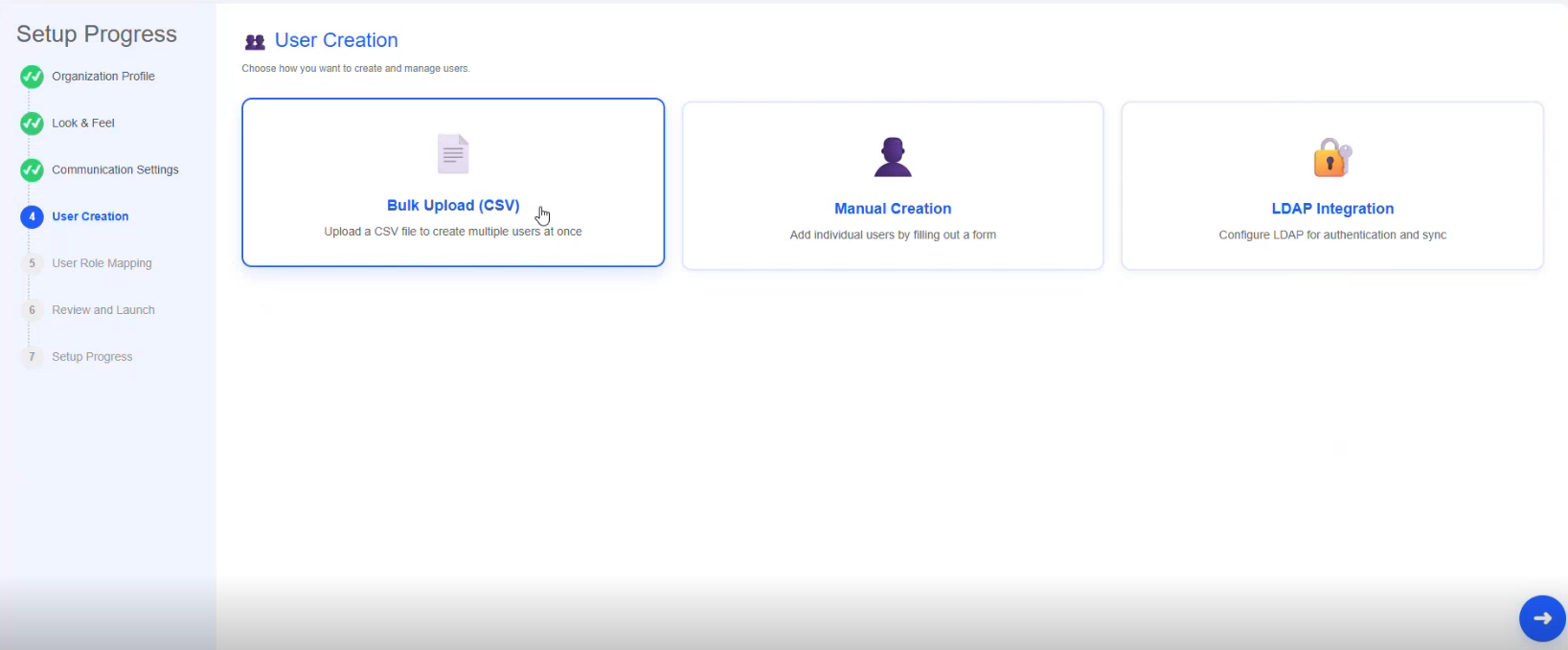
Select a user-creation option.
- Bulk Upload: Select bulk upload to upload multiple users at one instance. Only CSV files are accepted.
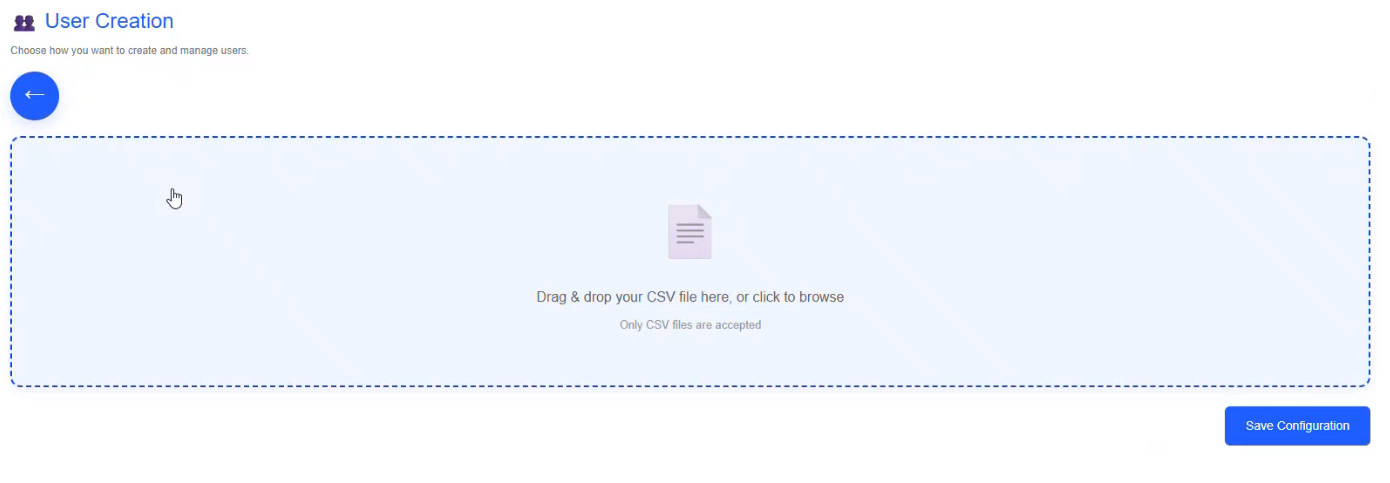
You must drag and drop or browse and select a CSV file having the user details in a specified template. Click Save Configuration after uploading the CSV file. -
Manual Creation: Select manual creation to add individual users one by one by filling up the user details form.
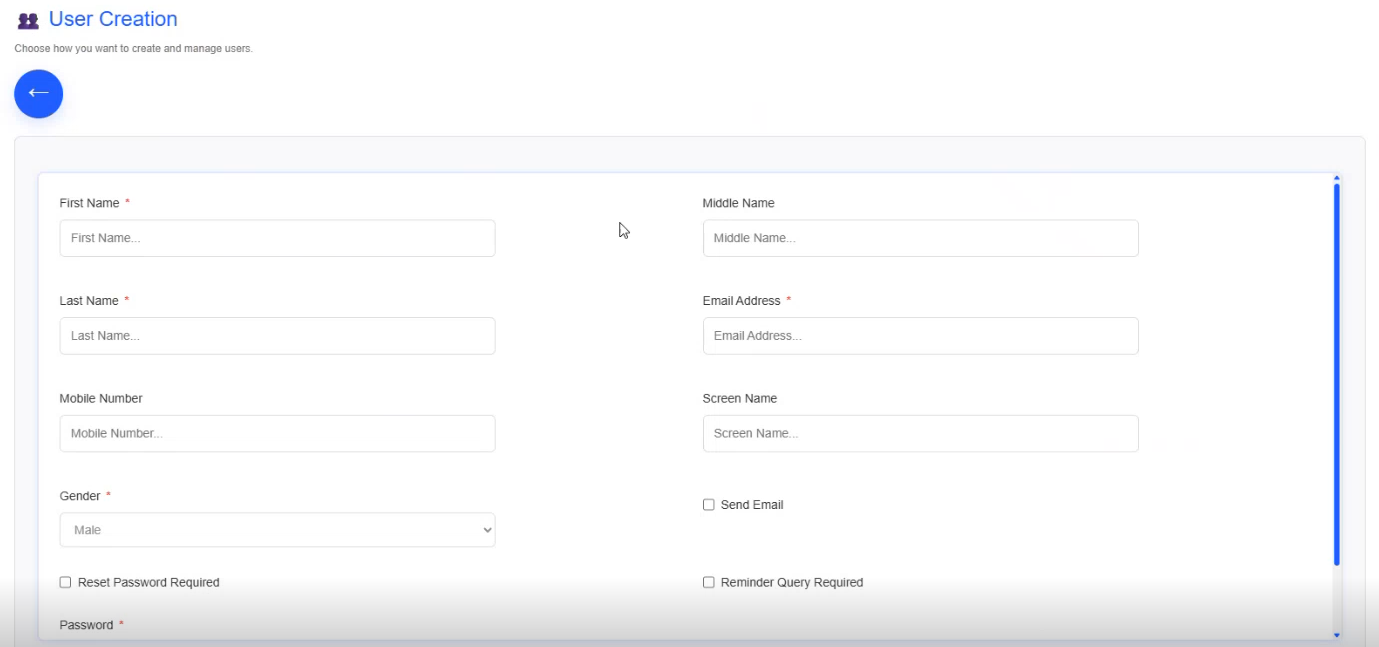
Fill in the User Form with the user details.
Field Description First Name* Enter first name. Middle Name Enter middle name. Last Name* Enter last name. Mobile Number Enter user's mobile number. Email Address* Enter email address of the user. Gender* Enter gender of the user. Screen Name Enter screen name for the user. Reset Password Required Select this if you want the user to get a prompt to reset their password upon first login before accessing the system.
If unchecked, the user can log in and continue using the assigned password without resetting it.Send Email Select this if you want to send an email (default email message indicating instance creation for the user) to the user after user creation. Reminder Query Required Select if the user is required to configure a reminder/security question and answer during account setup.
If unchecked, the user can skip setting up a reminder question.Password* Default password for the user to login for the first time. After completing the form, click Add User and the user gets added to the instance and will be listed in the Added Users list below the form.
Add multiple users in the same way and in the end, click Save Configuration. -
LDAP Integration: Select LDAP integration to configure LDAP for authentication and synchronization with users. You must configure the complete LDAP details to set this up.
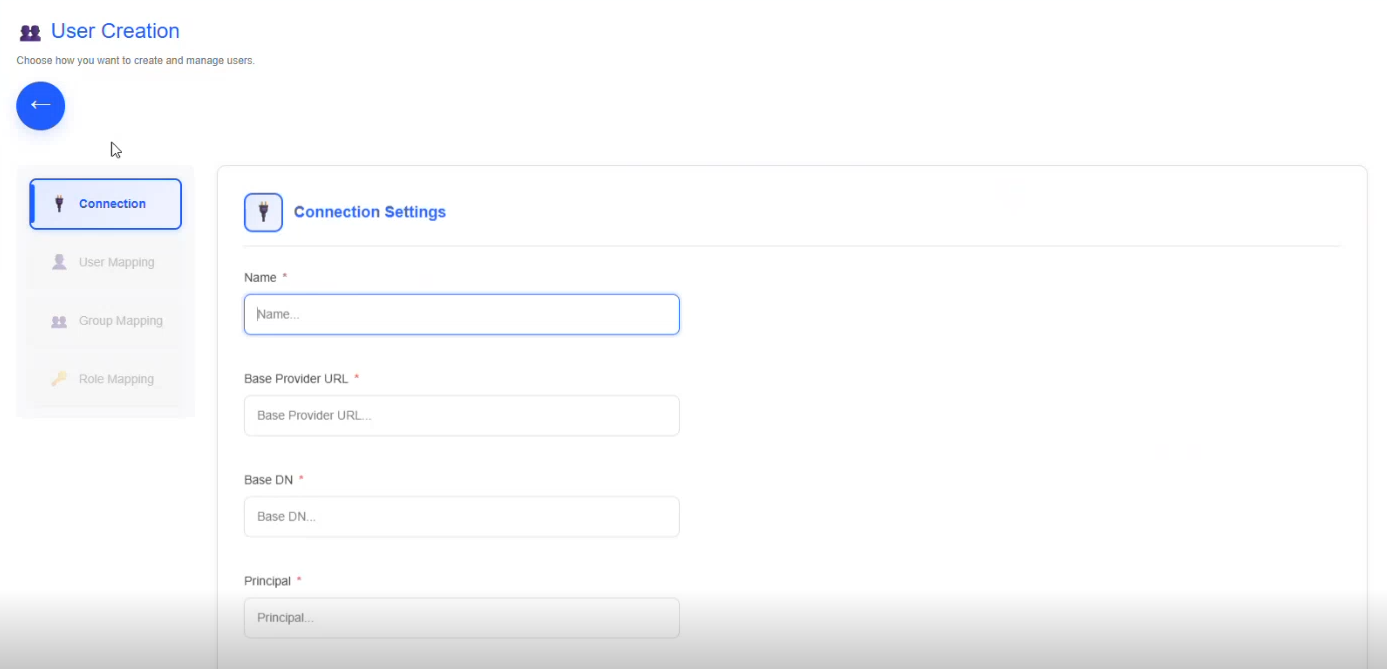
Configure how you want to manage the user details by providing details in the Connection Settings, User Mappings, Group Mapping, Role Mapping.
Step 5: User Role Mapping
User role mapping allows you to assign users as configuration manager and app manager for your workspace.
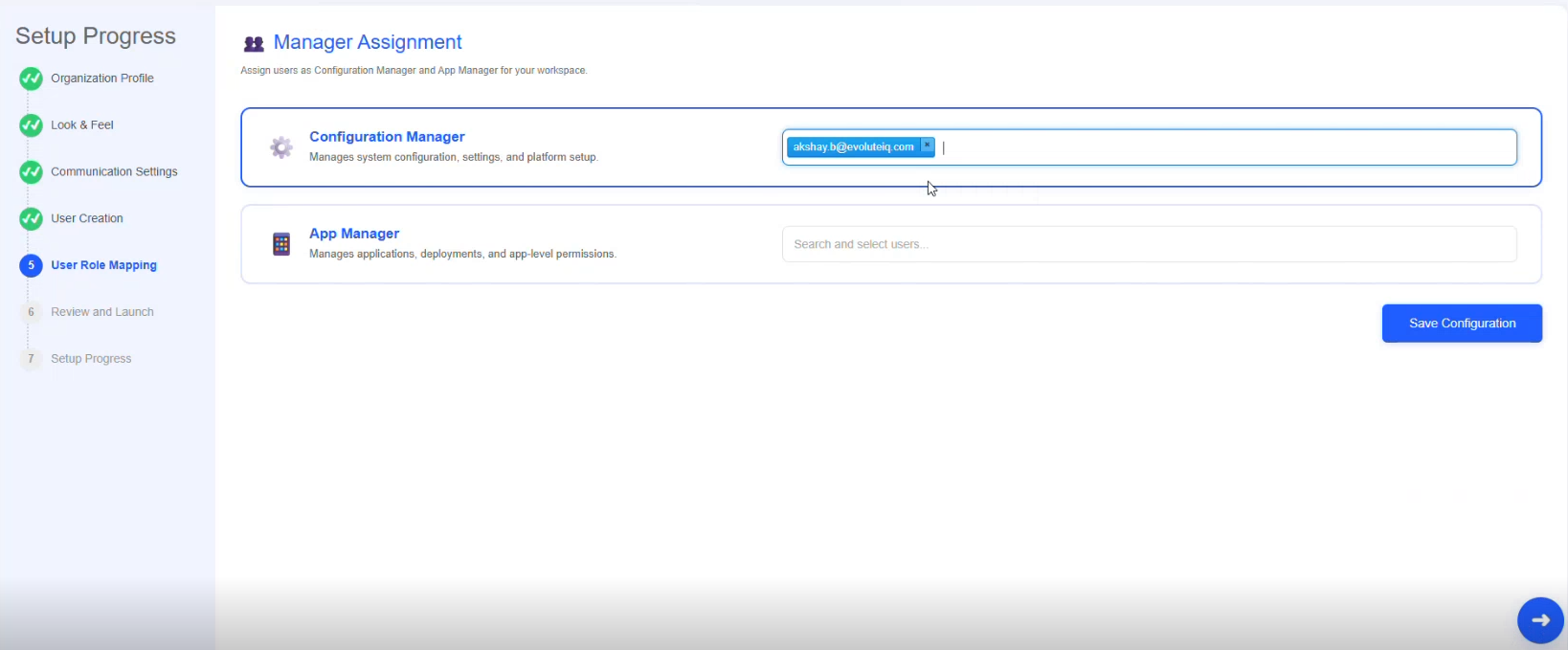
- Configuration Manager: Enter the email id and select the users who should be mapped as configuration managers.
- App Manager: Enter the email id and select the users who should be mapped as app managers.
After selecting, click Save Configuration to save the details. Message appears with the manager assignment numbers.
Step 6: Review and Launch
Review section allows you to review and edit any of the details that you have configured.
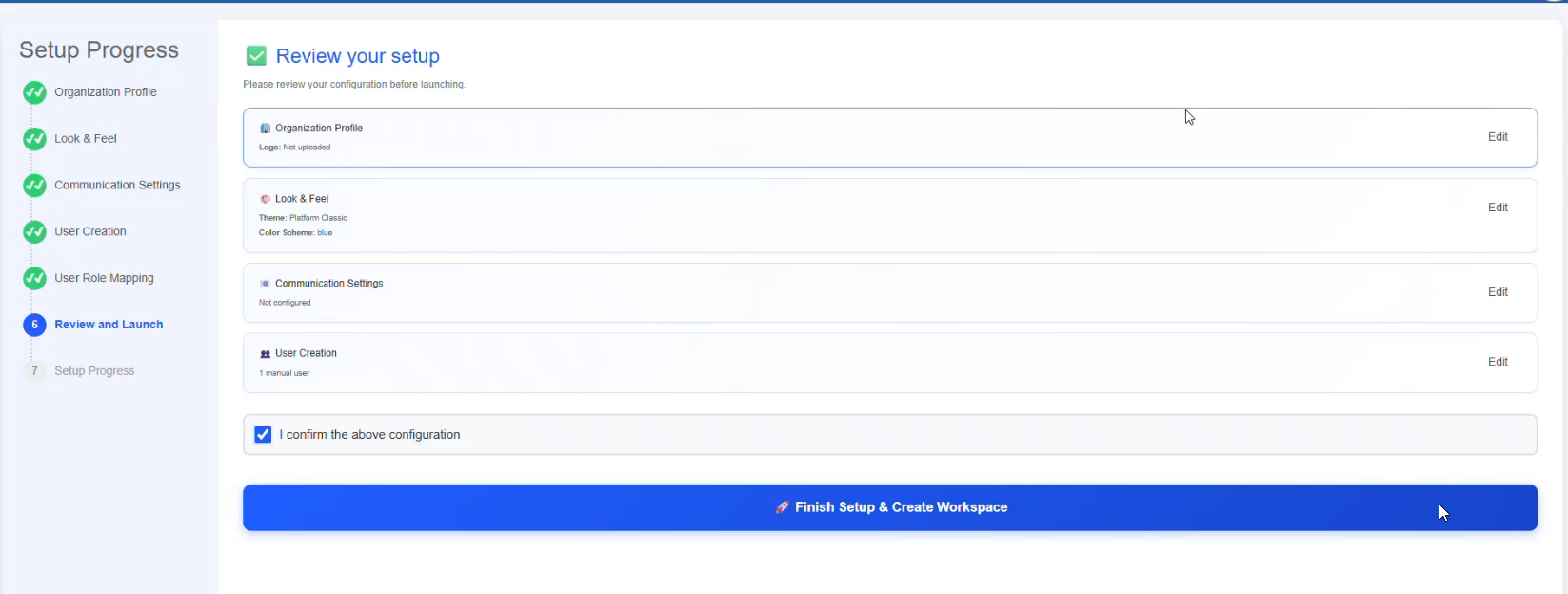
- Click Edit on the right side of the configuration to edit the corresponding configuration details.
- Once you have completely reviewed your configurations, click and check "I confirm the above configuration".
-
Finally, click Finish Setup & Create Workspace. This will trigger the setting up of workspace.
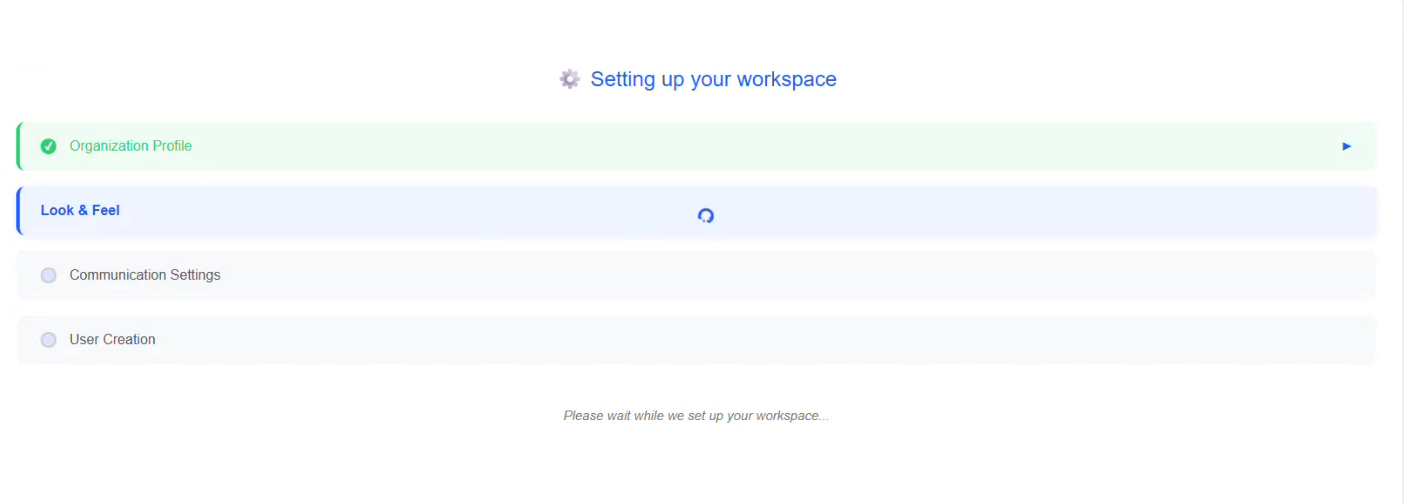
You must wait for 1-5 minutes to complete the setting up process based on your configurations.
For successful completion of the setup, all the configurations points appear in green and Explore Platform button appears.
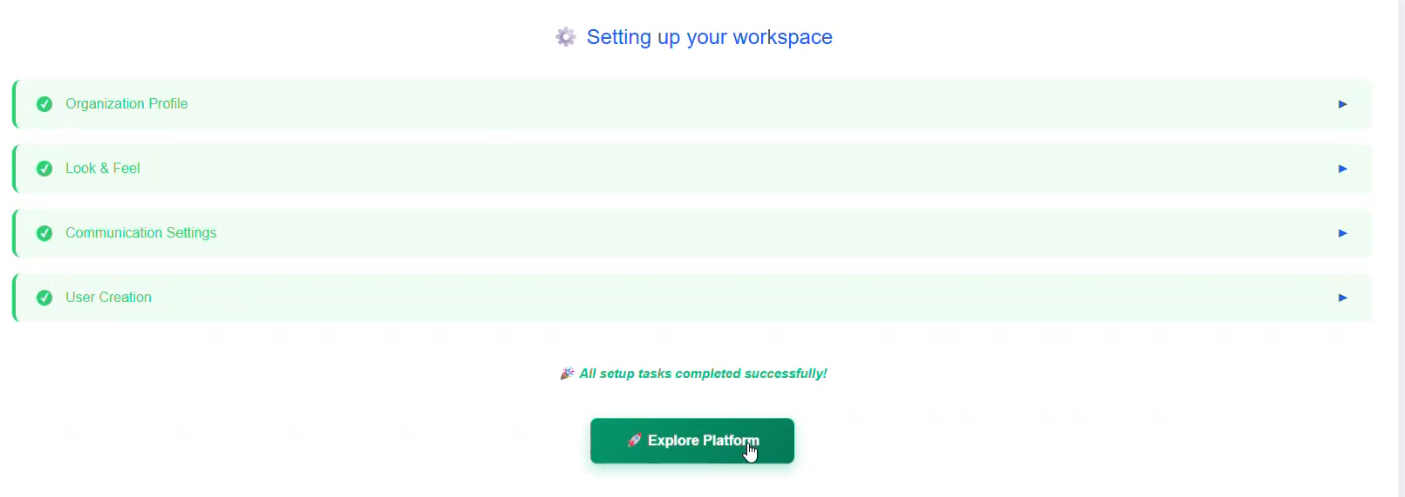
- Click Explore Platform.
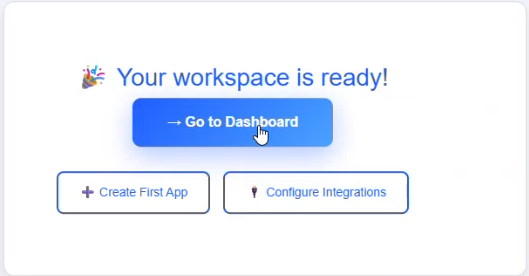
- Click Go to Dashboard. Dashboard page appears. Now you are all set for creating your first application.
Step 7: Setup Progress
Displays the setup progress details.