Understanding RPA Activities
RPA Activities
The Activities section displays all the activities of RPA Bot Studio. Activities are required to design the workflow. The activities are categorized into different categories.
This document explains the features associated with the activities and a few activity categories.
- For details on activities other than those mentioned in this document, refer to the Activity specific documentations.
If you need any additional category of activities other than those available in the Bot Studio Activities list, use the Open Package Manager in the Project feature using which you can install nugets. When you install Nugets based on your requirements, and if the installed Nuget has activities associated with it, those activities are also displayed in the Activities apart from the standard activities available.
- Refer to the RPA Bot Studio Nugets Manager documentation.
Snippets
Code snippets section teaches the user how to use the tools for various purposes.
Drag a snippet to a workflow sequence for viewing and understanding the workflow defined in that snippet.
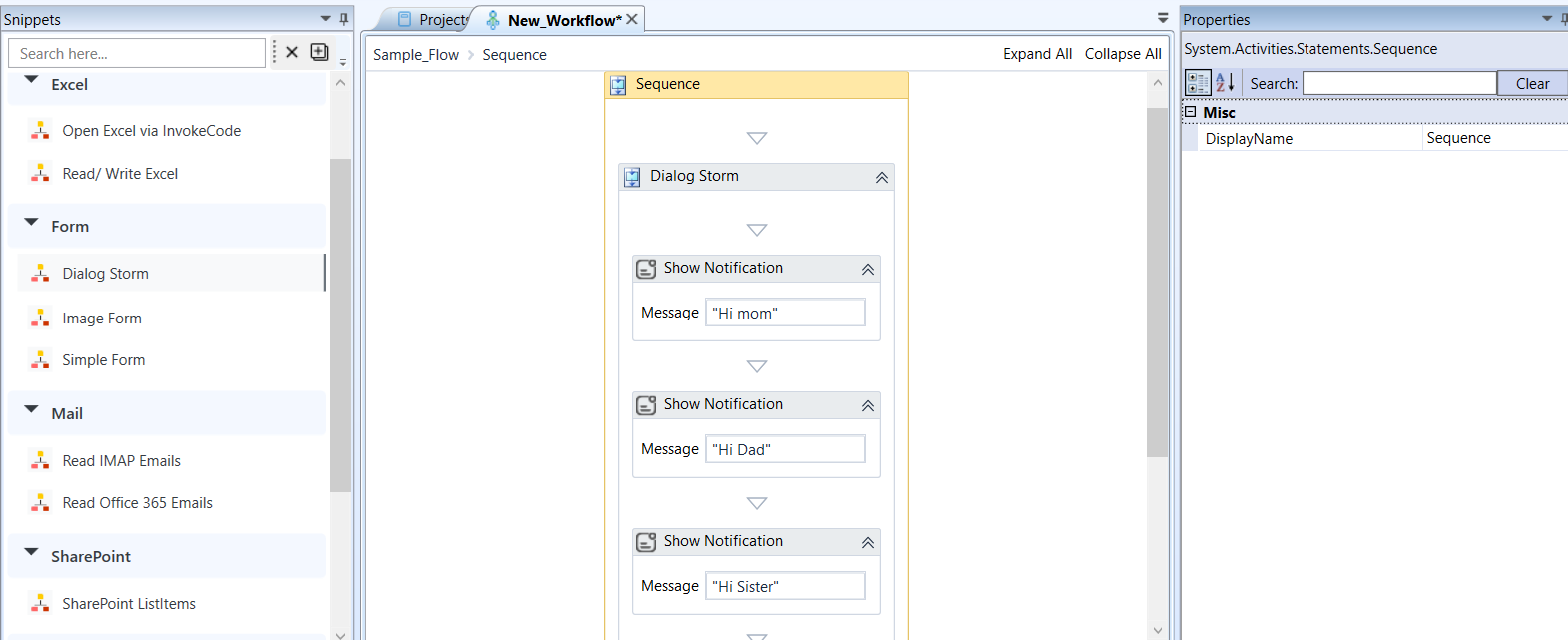
Viewing a snippet (Dialog Storm) in the workspace.
Searching for Activities/Snippets
- In the Activities search box, enter the name of the activity. The list of activities matching the search text is filtered. In the same way, you can filter the required snippets.
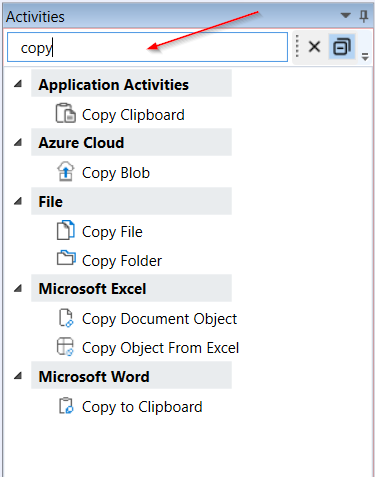
Searching for an item
- Click the close icon adjacent to the textbox to clear the search.
Expand/Collapse Activity Sections
Expand /Collapse icon in the Activity section allows you to collapse or expand the activity categories in a single click.
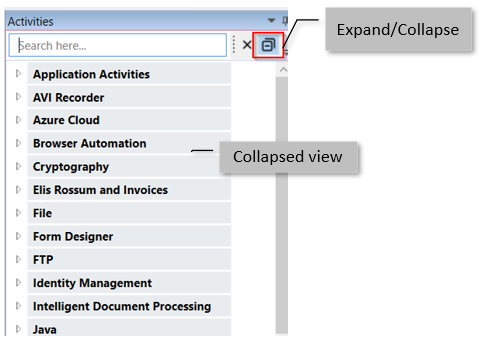
Collapsed view of activities
To expand a single activity category, click the left-side arrow of the activity category.
Adding Activities to Workspace
-
Login to RPA Bot Studio. The RPA Bot Studio with all the UI features appears. The Activities appear on the left-side panel, Activities. By default, the Sequence is displayed on the Workspace.
-
Drag an activity to the workspace. The activity is added within the sequence.
-
Click the activity and the properties of the activity appear on the Properties panel on the right side where you can configure the properties of the activity.
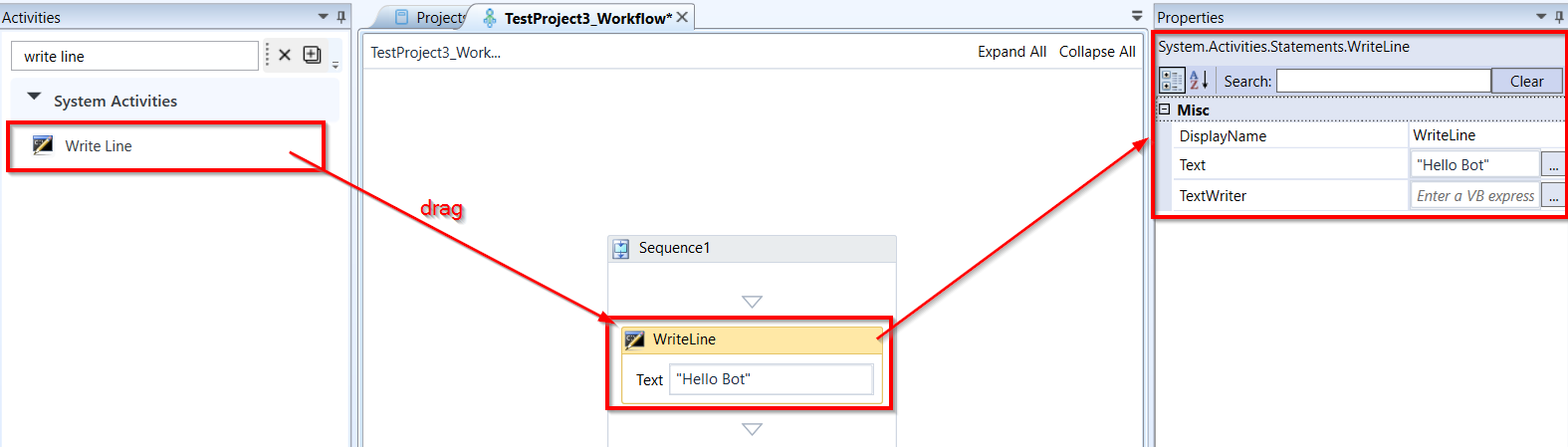
Dragging activities and viewing properties
- Click three dots on the right side of the attribute in the properties, Expression Editor pop-up appears.
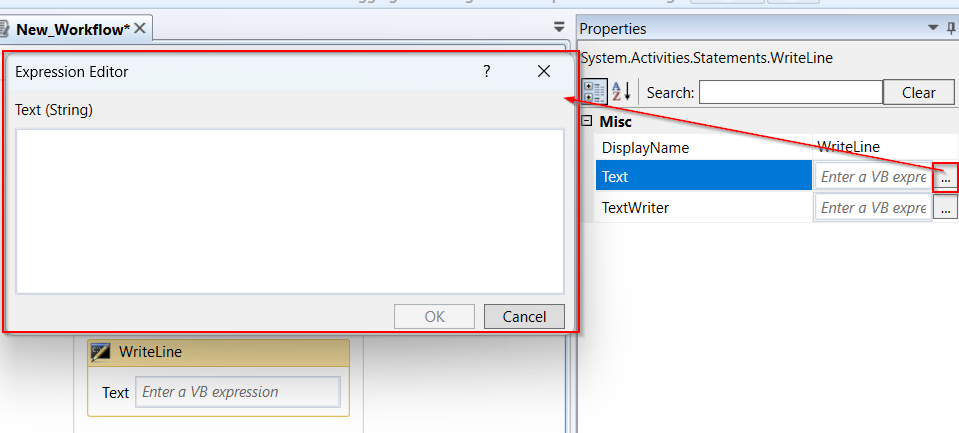
Expression Editor
- Click the expand arrow for expanding the activity within the workflow. Expand arrow appears for activities like a flow chart, if condition etc., where you have further configurations within the activity.
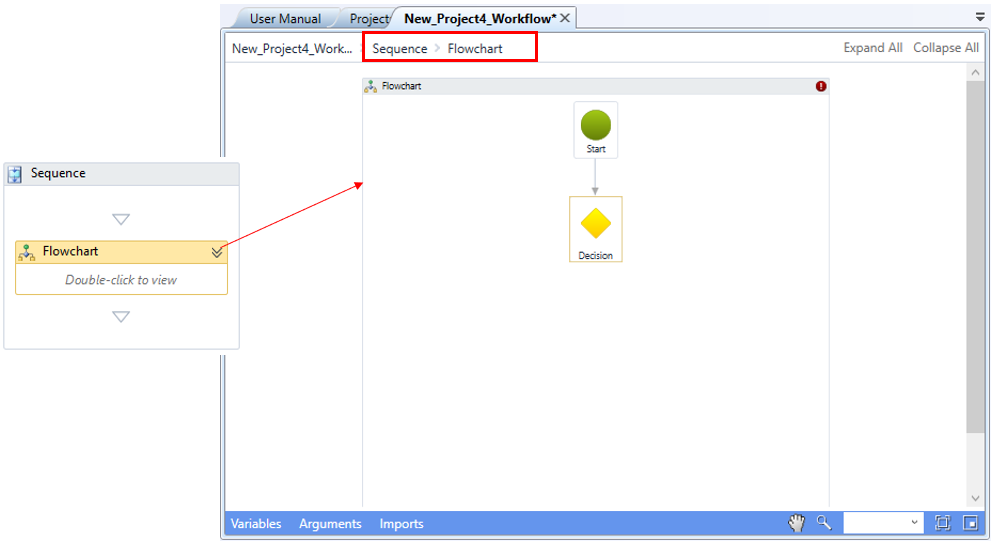
Flow chart expanded view
- In the breadcrumb, click the screen name to which you want to navigate.
The properties specific to each activity are explained in the later sections.
Properties Panel and Features
The Properties panel or the properties bar displays the properties of the selected activity. The properties can be viewed in two different ways: Categorized and Alphabetical.
-
Click the Categorized icon for viewing activities categorized in different sub-categories.
-
Click the Alphabetical icon for viewing properties in alphabetical order.
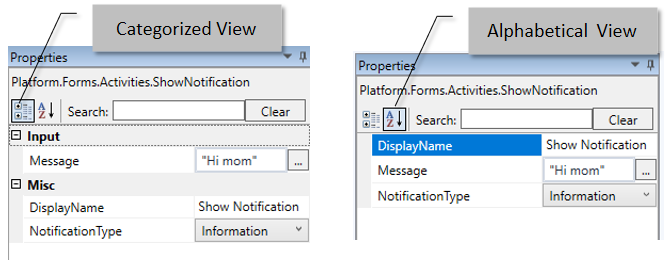
The properties are configured in the Properties panel on the right side of the designer. However, few of the properties are displayed in the designer area for the configuration. For such properties, the properties configured in the right side panel are reflected in the designer area and vice versa.
The Variables, Arguments, and Import features apply for all the Activities.
In the Properties panel, you can use direct values or variables in the fields (as applicable) as per your requirement. If you want to capture the field values at runtime, create a variable and then map that variable to the field. The variable accepts the relevant input during the runtime.
Searching for Properties
- In the property panel, enter the search text in the search box. The list of properties that satisfy the search criteria is filtered and displayed.
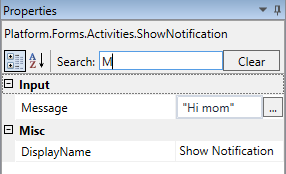
- Click Clear for clearing the filters.
Opening Expression Editor
The properties panel has different activities that behave differently. Some of the activities show a button with three dots on the right side of the textbox.
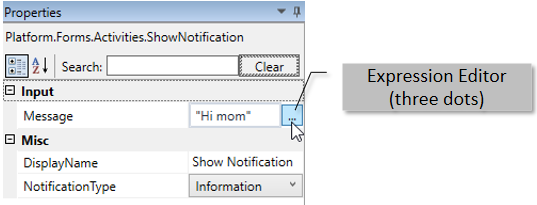
- Click the three dots for opening the Expression Editor. The particular property for which you clicked the three dots opens up as a separate pop-up.
Opening Expression Editor
Activity Node Features
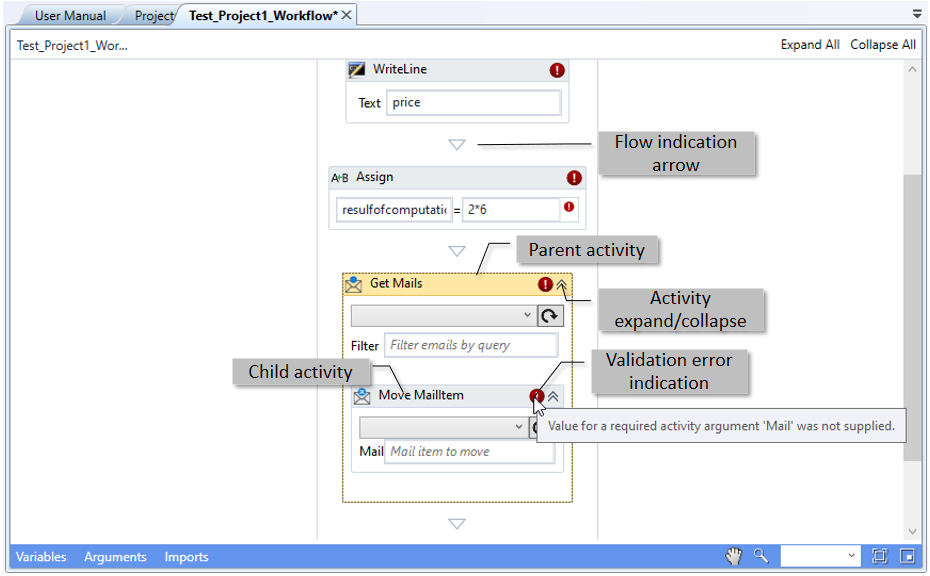
Figure 3.8: Activity UI details
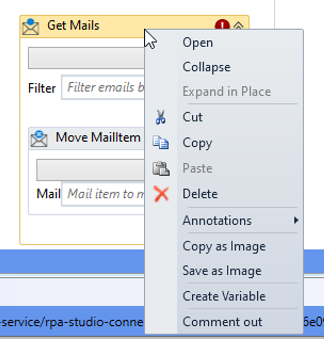
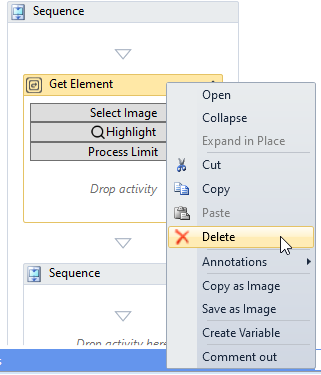
- Right-click the activity title bar in the workspace. The features that apply to activities are listed.
-
Open: Opens the activity separately.
-
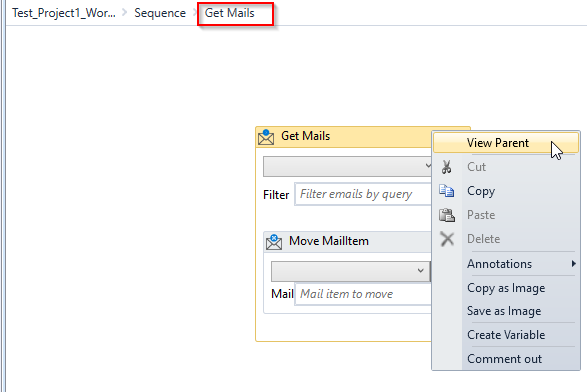
View Parent: When you open an activity, View Parent option appears in the right-click. Click View Parent to view the activity along with its parent activity.
-
Collapse: Collapses the activity details. You can also click

to collapse the activity. -
Expand in Place: When you collapse an activity, Expand in Place option appears in the right-click. You can also click

to expand the activity. -
Cut: Cuts the activity and copies it to the clipboard.
-
Copy: Copies the activity.
-
Paste: Pastes the already copied or cut activity.
-
Delete: Deletes the activity.
-
Annotations: Annotations have multiple options. Refer to Annotations.
-
Copy as Image: Copies the activity as an image.
-
Save as Image: Saves the activity as an image.
-
Create Variable: Create a variable for the activity.
-
Run this activity: Runs the single activity.
-
Run from here: Runs the workflow from the selected activity onwards.
-
Help: Opens help for the selected activity. Shortcut is F1. Refer to Help.
-
Comment Out: Comments out the selected activity. That is, after commenting out, the activity will not be executed. When an activity is marked as comment out, in the right-click options, Annotation > Uncomment appears.
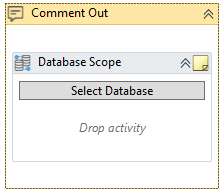
- Uncomment: Click Uncomment to uncomment or remove the comment.
Help
RPA Help is a powerful feature that provides you context aware help and guided documentation.
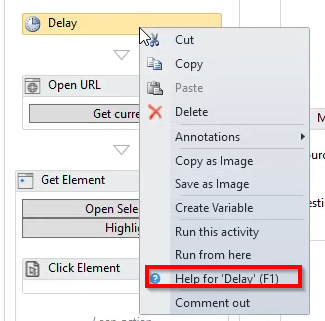
\<to be updated>
Annotations
The annotation feature for the activity allows you add and manage annotation or note for activities.
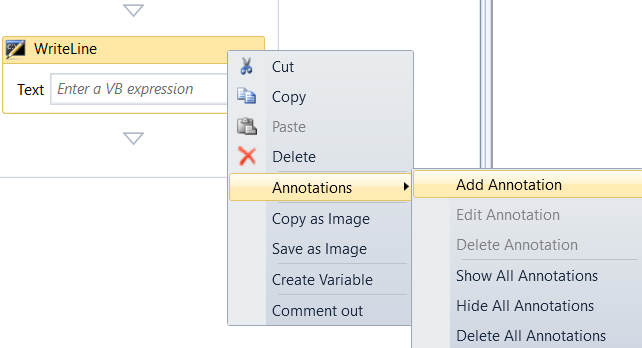
Add Annotation
Adds annotation for the selected activity. Annotation icon appears on the activity title after adding the annotation.
- To add annotation, right-click on an active activity title bar on the designer and click Annotation > Add Annotation. The annotation appears.
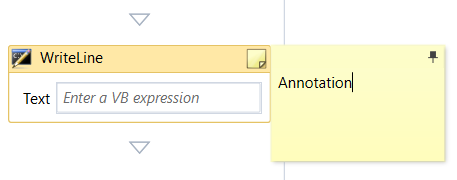
Write your comments for the activity on the annotation space.
The activity title bar displays the annotation icon to indicate that there is an annotation for that activity.
Pin Annotation
Click the pin icon on the annotation to pin or dock the annotation to the activity. The annotation text appears on the activity.
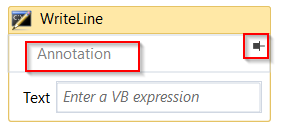
To undock or un pin the annotation, click the pin icon adjacent to annotation text.
Edit Annotation
- To edit any annotation, right-click on an active activity title bar on the designer and click Annotation > Edit Annotation.
Delete Annotation
- To delete an annotation, right-click on an active activity title bar on the designer and click Annotation > Delete Annotation.
Show All Annotations
- To display all annotations in the workflow, right-click on any active activity title bar on the designer and click Annotation > Show All Annotation.
Hide All Annotations
- To hide all annotations in the workflow, right-click on any active activity title bar on the designer and click Annotation > Hide All Annotations.
Delete All Annotations
- To delete all annotations in the workflow, right-click on any active activity title bar on the designer and click Annotation > Delete All Annotation.
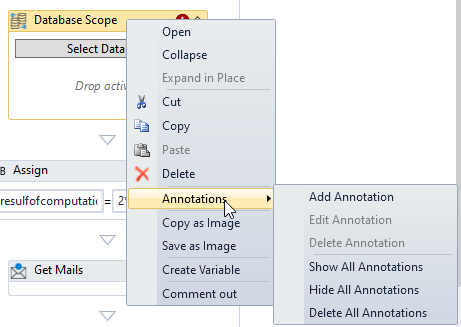
- Add Annotation: .
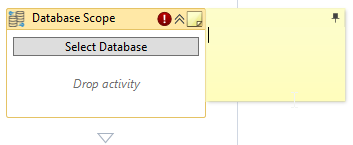
- Edit Annotation: Click the annotation icon for editing the annotation.
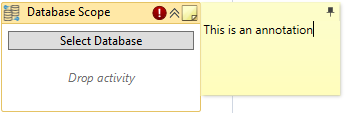
- Dock: Click the dock symbol in the annotation for docking the annotation within the activity.Copy As Image
Deleting Activities
For deleting an activity, you can select the activity and then press the DEL key in the keyboard. The activity gets deleted. Another way to delete is to right-click on the activity title and click the option Delete.
Deleting an activity