Bot Workflows and Process Flows
Mapping Bot Workflow to Process Flows
The RPA Bot workflows created in the RPA Bot Studio can be mapped to the process flow activities. To achieve the above, you need to create a process flow using RPA activities and then map the workflows in configurations. By configuring and mapping RPA workflows to process flows, you can trigger an RPA flow through the process flow.
Adding RPA Activities to the Process Flow Activities
RPA Bot Studio activities are an additional set of activities that can be added to the process flow activity list. You can add those activities to the list for utilizing those in the process flows.
-
Log in to the platform.
-
Navigate through Burger Menu > App Studio > Applications.
-
Open an application and open a process flow.
(You are supposed to create an application and process and navigate within that process flow)
The Activities list that appears on the left side of the process designer displays the list of all activities.
The Activities panel toolbar consists of view, search, and Add tools.
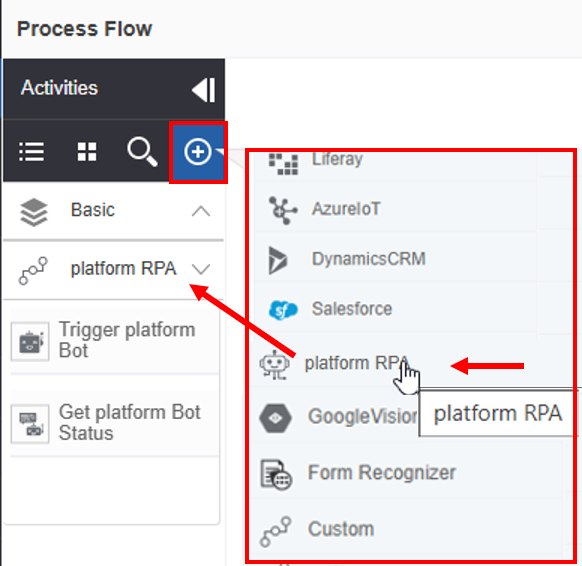
Adding RPA Activities
-
Click the Add Activity () icon. The list of special activities appears.
-
Click RPA. The RPA activities get added to the process flow activity list under the sub-category, RPA.
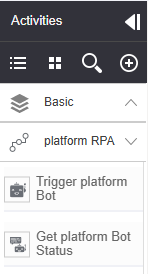
RPA Activities list
Configuring RPA Activities
There are two activities in the RPA activity category:
-
Trigger Bot
-
Get Bot Status
Using these two activities connect to the RPA Bot Agent to execute the workflow and get the status of the bot.
You need to create the required variables for mapping in the business entity variables section. The variables are mapped in the activity configuration as needed.
- Arguments
Usually, there will be some set of parameters that are passed from the process flow to the bot workflow. Hence it is important to match the number of parameters in the process flow and bot workflow as there is exchange of information. If you have a conflict in the parameters, the bot workflow execution will throw error.
When you select “Latest” as the bot workflow version, it should be noted that the old version of the bot workflow and the new version of the workflow should have the same number of arguments (with the same data type).
Configuring Trigger Platform Bot
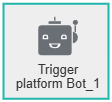
The Trigger Bot activity is used to trigger a workflow. The workflow associated with the activity gets triggered and executed in the RPA Bot Agent module as per the rules applicable.
-
Refer to RPA Bot Agent user guide for more details.
-
Drag a Trigger Platform Bot activity into the process designer. The properties of the activities appear on the property panel.
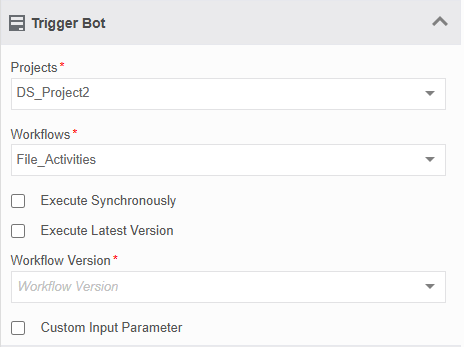
Trigger Bot activity and properties
- Enter the configuration details as explained below.
| Field | Description |
|---|---|
| Basic | |
| Name | Enter the name for the Trigger Bot activity. |
| Description | Enter a description of the activity. |
| Trigger Bot | |
| Projects* | Select the project name. The published RPA projects available for the logged-in user are displayed in the drop-down. Once you select the project, workflow selection appears. |
| Workflows* | Select the workflow to be triggered. The workflows in the selected project are displayed in the drop-down. When you select the workflow, the parameters associated will be listed if you have configured any input argument or output argument for the selected workflow. |
| Execute Synchronously | If checked, the flow is executed synchronously with the RPA bot workflow. |
| Execute Latest Version | Select the “Execute Latest Version” if you want to pick the latest version for execution. If a new bot workflow version is updated, the latest version is picked without any redeployment of the process flow. Clear the “Execute Latest Version” check box, so that you can select a particular bot workflow version for execution. |
| Workflow Version | This field appears when you clear the “Execute Latest Version” check box.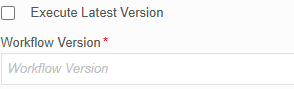 Select the version of the bot workflow that you want to execute. In the Workflow version, you can choose any workflow and it will be static. |
| Custom Input Parameter | Select the “Custom Input Parameter” if you want to provide any custom input parameters.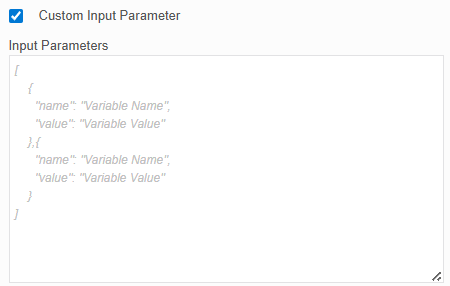 In the Input Parameters box appears. Enter your JSON here. |
| Input / Output Parameters | Input or output parameter details appear only if you have created input or output arguments in the RPA workflow (in the Bot Studio).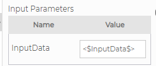 Enter the input parameter variable name in the value field. At runtime, the variable value gets resolved and it is passed as input data for the RPA bot workflow. |
| Instance Mapping | |
| Triggered Instance Id | Enter a variable to hold the instance id. Instance Id of the triggered workflow is captured in this variable. You must create a variable of type alphanumeric to store the instance Id and select it here. |
| Output Mapping | |
| Store Execution Status | Enter an alphanumeric variable to store the execution status of the activity. |
| Error Handling | |
| Continue If Error | If checked, the flow is continued even if it encounters an error. |
| Error Variable | Create a variable of type alphanumeric and map it to the error variable. If there is an error, the error is captured in the error variable. |
Configuring Get Platform Bot Status
The Get Bot Status activity is used to get the status of the bot.
- Drag the Get Platform Bot Status activity into the process designer. The properties of the activities appear on the property panel.
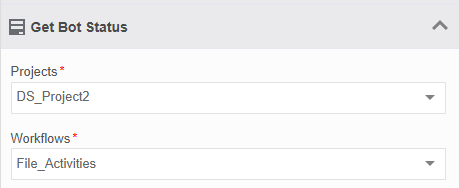
Get Bot Status activity and properties
- Enter the configuration details as explained below.
| Field | Description |
|---|---|
| Basic | |
| Name | Enter a name for the Get Bot Status activity. |
| Description | Enter a description of the activity. |
| Get Bot Status | |
| Project* | Select the Project name. The workflows in that project are displayed in the dropdown. |
| Workflows* | Select the workflow from the drop-down. |
| Instance Mapping | |
| Input Instance Id* | Enter the instance id variable. Instance Id of the triggered workflow is passed to this variable. The instance id variable that you mapped to the Trigger bot status is called here. |
| Output Mapping | |
| Store Execution Status | Enter an alphanumeric variable to store the execution status of the activity. |
| Error Handling | |
| Continue If Error | If checked, the flow is continued even if it encounters an error. |
| Error Variable | Create a variable of type alphanumeric and map it to the error variable. If there is an error, the error is captured in the error variable. |
Triggering the RPA Bot Workflow in the Process Flow
You should be aware of the projects and workflows and the execution scope of the RPA workflows before mapping those in the process flow activities.
-
In the RPA Bot Studio, create an RPA workflow.
-
In the platform, create a process flow in the Platform > App Studio > Applications > Process Flows. Include the activity – Trigger Bot/Get Bot Status as per the requirement.
-
Configure the details of the bot-related activities in the process flow.
-
Validate (correct the validation errors if any) and deploy the process flow.
-
Initiate and execute the process flow.
When the process encounters the RPA activity, the execution of the bot workflow is triggered in the RPA Bot Agent module.
Viewing Instances of the RPA Workflow
View the instance details of the RPA workflow triggered using the process flow in the Manage section
-
In the Platform, navigate to Management > RPA Management > click {Project Name} mapped to the process > click Open > Click {Workflow name} mapped to the process > Click View Instances.
The instances of the RPA workflow get listed in the popup with agent details. -
In the View Instance popup, in the Actions column, click the download arrow to view the details.
-
In the download options, click an option for downloading and viewing the .JSON detail of each action.