RPA Application Activities
Break
Break activity is used to terminate loop and continue execution after the loop.
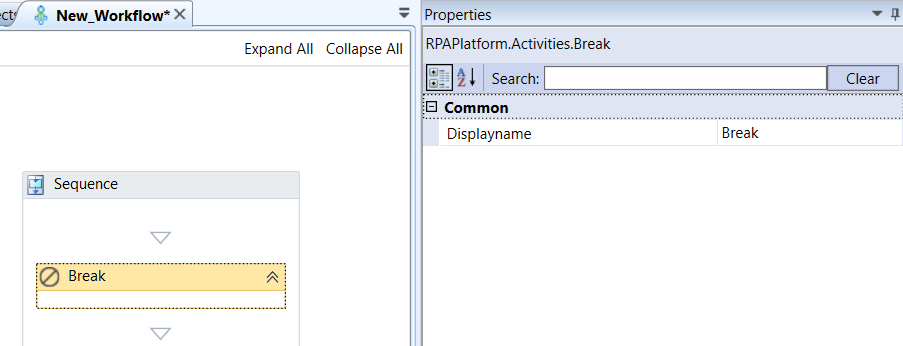
Break activity and properties
Properties of Break.
| Properties | Description |
|---|---|
| DisplayName | Title of the activity inside the sequence. |
Business Rule Exception
Business Rule Exception activity allows you to throw an business rule exception when the workflow fails due to missing, incomplete or invalid data.
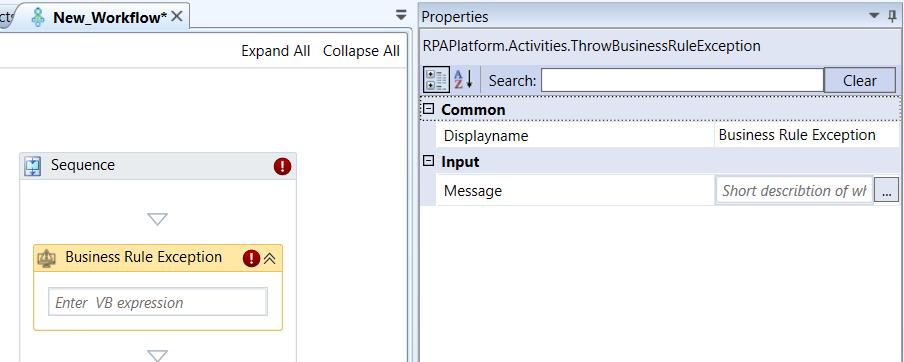
Business Rule Exception activity and properties
Properties of Business Rule Exception.
| Properties | Description |
|---|---|
| DisplayName | Title of the activity inside the sequence. |
| Message | Enter the message to be displayed if an exception occurs. |
Do While
Do-While activity creates a loop that executes other activities dropped in it at least once and repeatedly until the looping condition no longer evaluates to True.
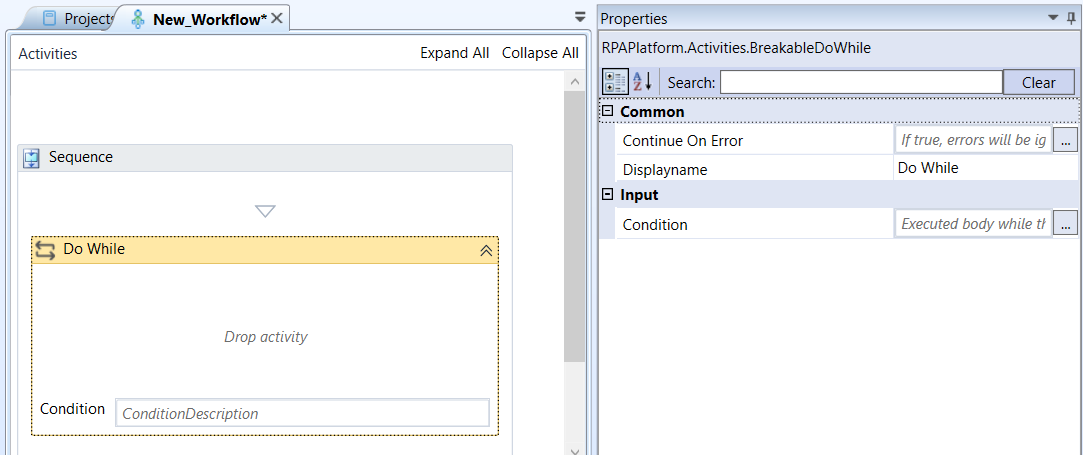
Do While activity and properties
Properties of Do While.
| Properties | Description |
|---|---|
| Continue On Error | Enter True if you need to ignore the errors and continue the workflow. Else enter False . This field accepts only Boolean values (True or False) |
| DisplayName | Title of the activity inside the sequence. |
| Condition | Enter the VB Expression that represents the looping condition. The condition returns Boolean. |
While
While activity creates a loop that executes other activities dropped in it while the condition is False. If the condition is True, the loop ceases and moves to the next activity. It is different from the Do While activity which first checks whether the condition evaluates to True before the looping begins.
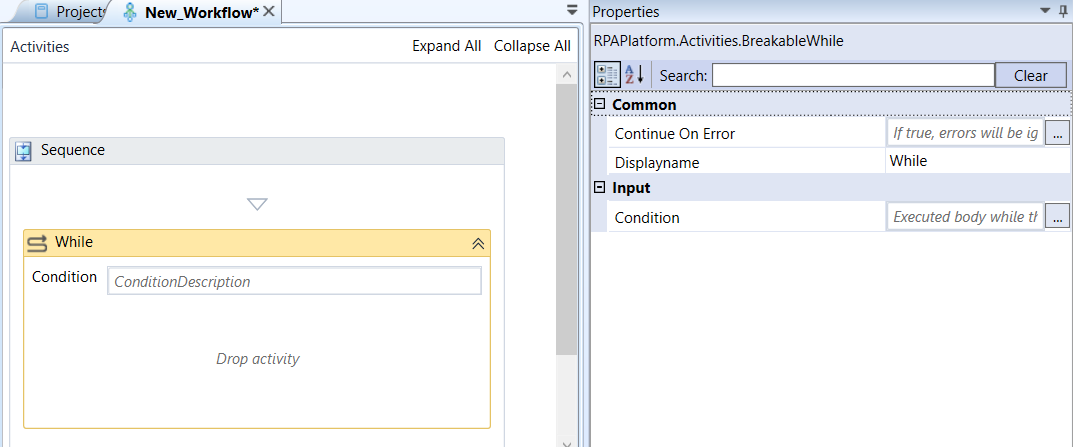
While activity and Properties
Properties of While.
| Properties | Description |
|---|---|
| Continue On Error | Enter True if you need to ignore the errors and continue the workflow. Else enter False . This field accepts only Boolean values (True or False) |
| DisplayName | Title of the activity inside the sequence. |
| Condition | Enter the condition in the VB expression. The condition returns Boolean. |
Click Element
Click on an Element found with GetElement.
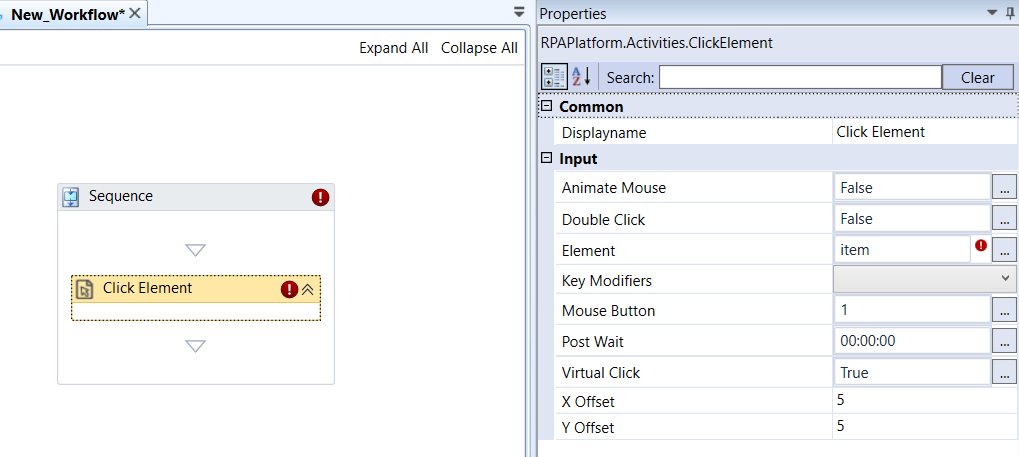
Click Element activity and properties
Properties of Click Element.
| Properties | Description |
|---|---|
| DisplayName | Title of the activity inside the sequence. |
| Animate Mouse | If set to True, the cursor will appear changing its position throughout execution. It only works on Physical Clicks. (Boolean) |
| Double Click | If set to True, the cursor clicks twice inside the window. (Boolean) |
| Element | The application selected with the Get Element activity. |
| Key Modifiers | If set, the corresponding keys act as if pressed during execution.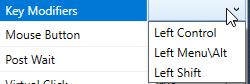 |
| Mouse Button | Set to "1" if the Left Mouse button is to be clicked; "2" if the Middle Mouse button is to be clicked; "3" if the Right Mouse button is to be clicked. |
| Post Wait | Time RPA Bot should wait for this activity to finish after completing its execution. |
| Virtual Click | Set by default as True. RPA Bot tries to do a Virtual Click instead of clicking with the mouse. Visit Appendix B - Virtual Clicking for more information. (Boolean). - A virtual click is different from a physical click in that it simulates a mouse event by using User32.dll. There are several reasons to do this but the main ones are: that it consumes fewer resources and provides a faster way of clicking an element. |
| X Offset | The horizontal offset inside the window that is to be clicked. Units are in pixels. It also allows for negative values. Only works on Physical Click. |
| Y Offset | The vertical offset inside the window that is to be clicked. Units are in pixels. It also allows for negative values. Only works on Physical click. |
Close Application
Closes a given application selected with the Get Element activity.
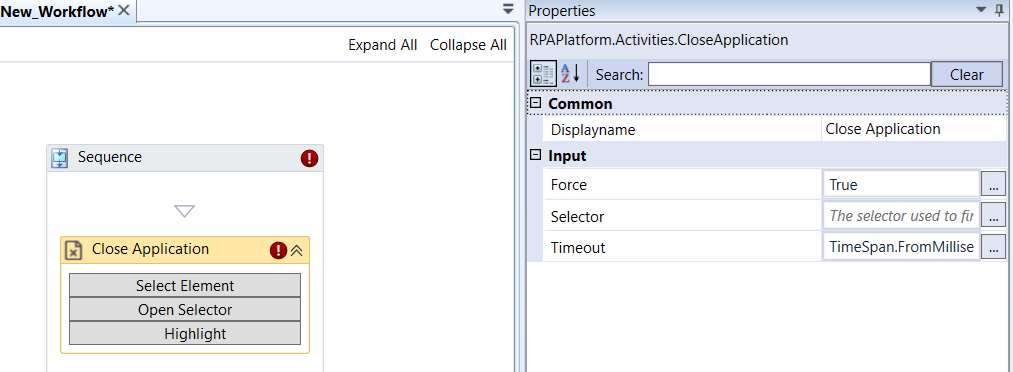
Close Application activity and properties
Properties of Close Application.
| Properties | Description |
|---|---|
| DisplayName | Title of the activity inside the sequence. |
| Force | If set to True, it kills the application. |
| Selector | Contains all the data belonging to the application selected. |
| Timeout | Time interval until the activity ceases if not successfully able to close the application. Can be a simple 00:00:00.00 {hh:min:ss.mili} or an object from the TimeSpan class. |
In the Close Application activity, click the corresponding features in the activity for configuring the details.
-
Click Select Element, to select an element.
-
Click Open Selector to manipulate the HTML content of any of the window that is opened.
-
Click Highlight for highlighting. Clicking Highlight will red-highlight the first Element that matches the criteria on the selector. Useful for checking if the selector is properly set up.
Comment
Comments are provided using XML documentation comments. In the workspace, click the activity area and enter your comments in the activity directly.
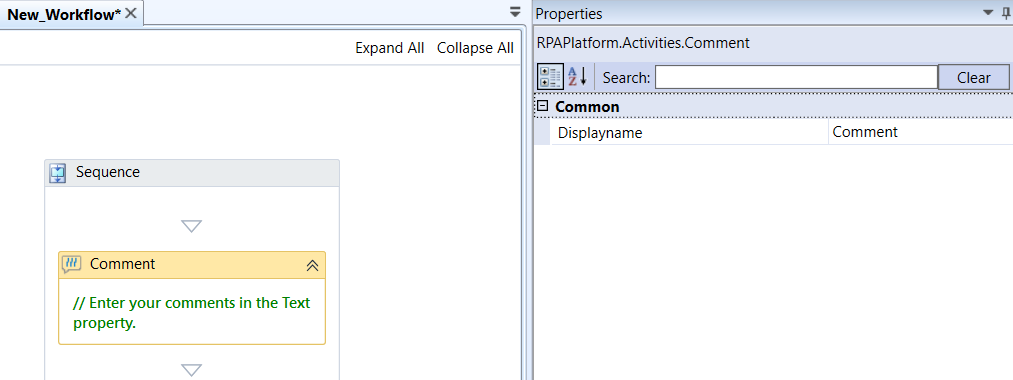
Comment activity and properties
Properties of Comment.
| Properties | Description |
|---|---|
| Displayname | Title of the activity inside the sequence. |
Comment Out
Every activity inside Comment Out is ignored by the execution of the workflow. This activity is useful for remarking something out of the sequence. If more than one activity is dropped inside comment, it appears within a sequence.
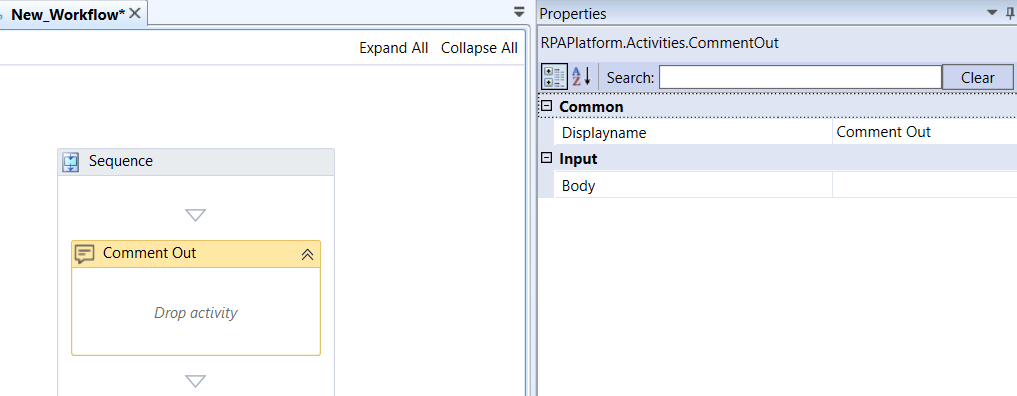
Comment Out activity and properties
Properties of Comment Out.
| Properties | Description |
|---|---|
| Displayname | Title of the activity inside the sequence. |
| Body | Displays the name of the activity within the Comment Out activity. If there are multiple activities, the sequence appears as the body. |
Continue
The continue keyword is used to end the current iteration in a loop, and continues to the next iteration.
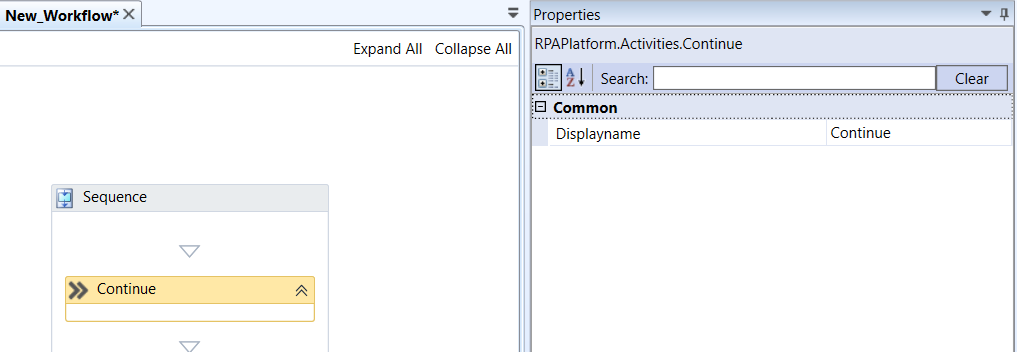
Continue activity and properties
Properties of Continue.
| Properties | Description |
|---|---|
| DisplayName | Title of the activity inside the sequence. |
Copy Clipboard
Copy Clipboard activity copies or saves the content from the Windows clipboard into a variable.
Repetitive sequential usage of this activity, however, is not recommended, as it is unreliable due to buffer issues. As a suggestion/workaround, one can use the Invoke Code Activity and run the following AHK code variable1:= Clipboard. Notice that variable1 is the name of the variable.
If the content of the Windows clipboard that will be copied is a String the user has to specify the variable inside the String Result field in the Properties Box. If it is an image the user has to specify the BitmapSource variable file path the image will be saved inside Image Result.
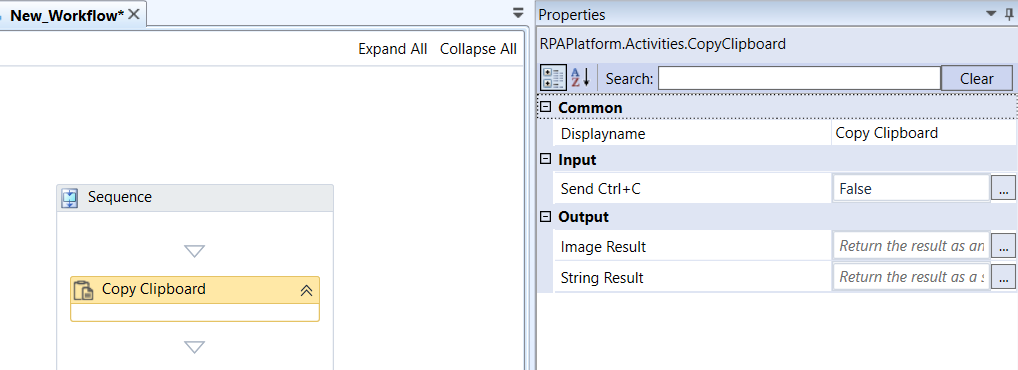
Copy Clipboard activity and properties
Properties of Copy Clipboard.
| Properties | Description |
|---|---|
| DisplayName | Title of the activity inside the sequence. |
| Send Ctrl+C | Sends Ctrl+C before trying to copy the clipboard content. |
| Image Result | Enter a BitmapSource type variable to hold the Image result The activity creates a bitmap from the image copied into the clipboard and returns it as a BitmapSource. |
| String Result | Enter a string variable to hold the result value. The activity stores the string result from clipboard in this variable. |
Detector
Detector turns workflow into idle mode, waiting on selected Detector to trigger. Detectors can also be used to trigger StateMachines.
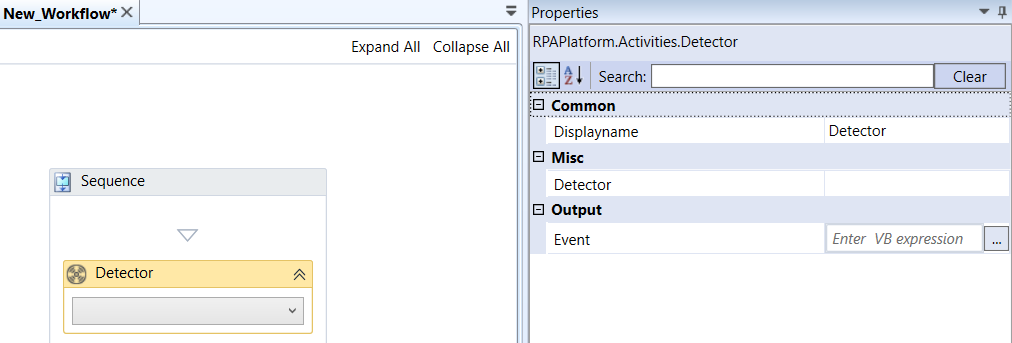
Detector activity and properties
Properties of Detector.
| Properties | Description |
|---|---|
| DisplayName | Title of the activity inside the sequence. |
| Detector | ID of the Detector which will be used to trigger the condition. |
| Event | Enter a event (IDetectorEvent) type variable and the events created within the detectors are stored in this variable. |
Focus Element
Focus Element activity should be placed under Get Element activity. Thi is used to focus and highlight an item during the runtime.
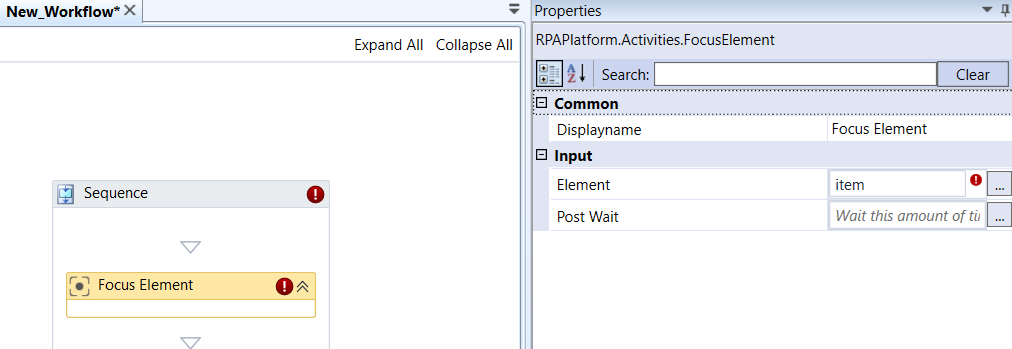
Focus Element activity and properties
Properties of Focus Element
| Properties | Description |
|---|---|
| DisplayName | Title of the activity inside the sequence. |
| Element | The item within the Get element that is to be focused. |
| PostWait | Wait for this time before focusing the element. Time should be entered in hh ss. ss. |
Foreach DataRow
Foreach DataRow activity enumerates through each row inside a DataTable.This activity iterates through a DataTable or DataView. All the activities inside Foreach DataRow will be looped over each row.
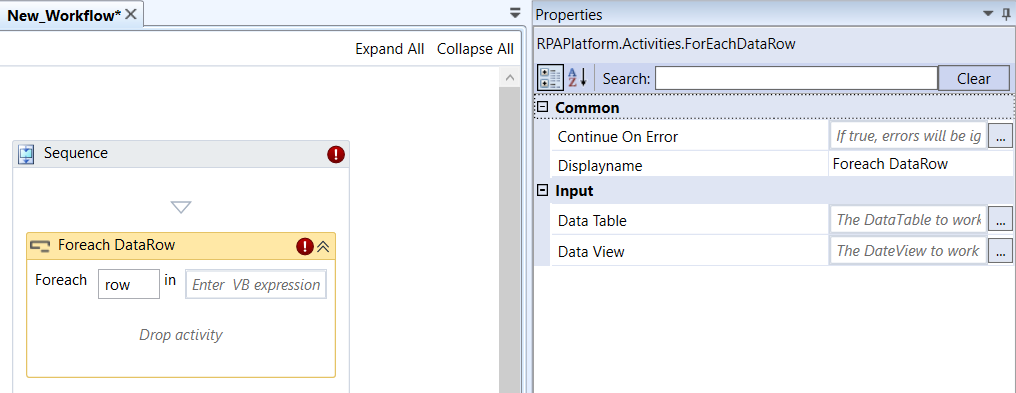
Foreach DataRow activity and properties
Properties of Foreach DataRow.
| Properties | Description |
|---|---|
| Continue On Error | Enter True if you need to ignore the errors and continue the workflow. Else enter False . This field accepts only Boolean values (True or False) |
| DisplayName | Title of the activity inside the sequence. |
| Data Table | The data table that is used to gather the data. |
| Data View | The data view that is used to gather the data. |
- DataView represents a databindable, customized view of a DataTable for sorting, filtering, searching, editing and navigation. It also does not store data, but instead represents a connected view of its corresponding DataTable. Changes made to the DataView’s data will affect the DataTAble. Changes to the DataTable’s data will affect all DataViews associated with it.
Highlight Element
Highlight Element activity highlights an Element found with GetElement activities.
You can define a specific Element to be highlighted when using this activity outside of a GetElement Activity. Besides that, it allows you to specify the duration of the highlighting by inserting a TimeSpan object in the format hhss inside the Duration parameter, such as 00:00:30 to highlight this given element for 30 seconds. It also allows for blocking the execution of the Workflow until the highlighting has finished by setting the Blocking parameter to True.
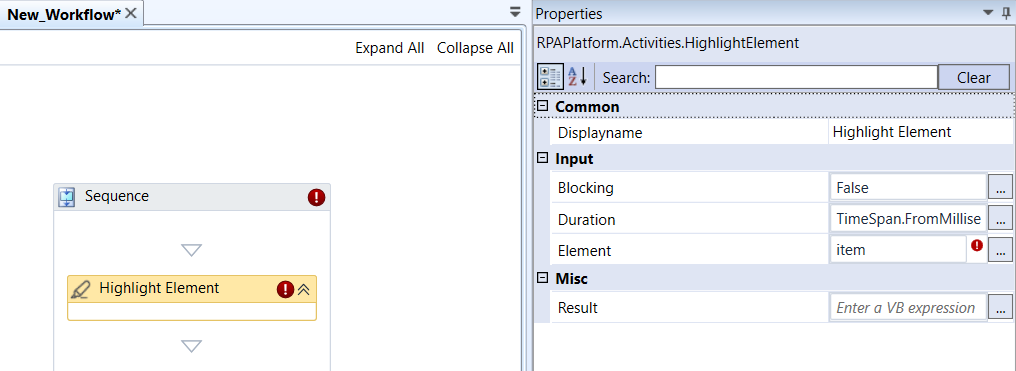
Highlight Element activities and properties
Properties of Highlight Element
| Properties | Description |
|---|---|
| DisplayName | Title of the activity inside the sequence. |
| Blocking | If set to True, it blocks the execution of the Workflow until the highlighting has finished. |
| Duration | Duration of the highlighting. Time is entered in 00:00:00.00 {hh:min:ss.mili} or an object from the TimeSpan class. |
| Element | The Element to be highlighted by GetElement. |
| Result | Enter an integer variable to store the result. [DEPRECATED] Currently unused parameter. |
Insert Clipboard
Copies the content of parameter Text into the Windows clipboard buffer which can be pasted. Repetitive sequential usage of this activity, however, is not recommended, as it is unreliable due to buffer issues.
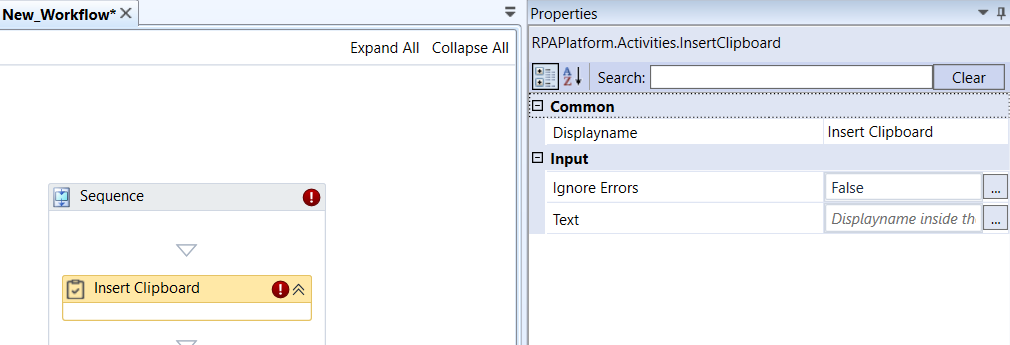
Insert Clipboard activity and properties
Properties of Insert Clipboard
| Properties | Description |
|---|---|
| DisplayName | Title of the activity inside the sequence. |
| Ignore Errors | If an error occurs, it will ignore and continue (if False). Default value is False. If True, it will throw error. |
| Text | Text which will be inserted into the clipboard. |
Invoke Bot Workflow
Invoke Bot Workflow allows the user to invoke Workflows.
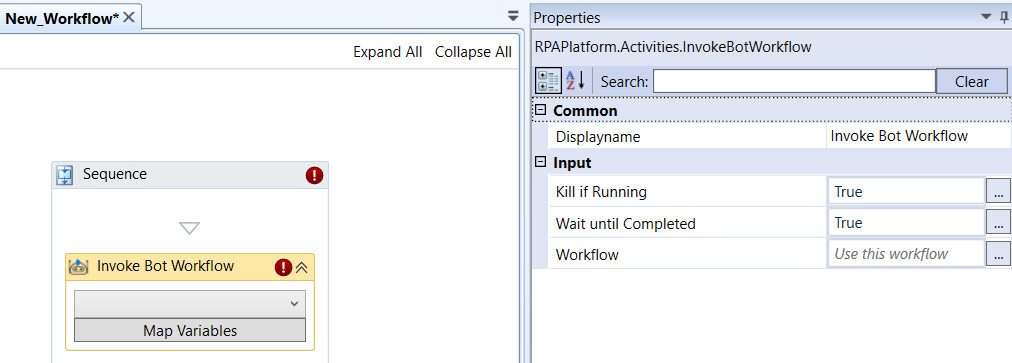
Invoke Bot Workflow activity and properties
Properties of Invoke Bot Workflow
| Properties | Description |
|---|---|
| DisplayName | Title of the activity inside the sequence. |
| Kill if running | If you enter True , it kills the process if running. If you enter False , it will not kill the process. |
| Wait until completed | If set to True , RPA Bot Studio waits until the Workflow invoke call is finished - either success or error. If successful, the message containing the data is returned to the robot. If set to False , however, RPA Bot Studio will no longer have access to the returned message - communication will be one-way. Therefore, all logic that would otherwise depend on it must then be redesigned. Think of it as a try/catch exception block that does not return any exception message. |
| Workflow | The workflow that is to be invoked. In the activity, click “˅” to select the workflow. 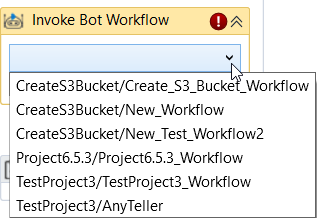 |
In the activity, click the corresponding features in the activity for configuring.
-
Click Map Variables to map the variables.
-
The Workflow is invoked by the user currently logged in RPA Bot Studio. It means that the user must have access to the desired Workflow which is to be invoked, otherwise it won’t even be displayed in the Workflows dropdown.
Log Message
Log message allows you to log specified diagnostic message at different severity level so that it help to monitor and debug workflows. These messages are also sent to platform management and displayed in the Logs.
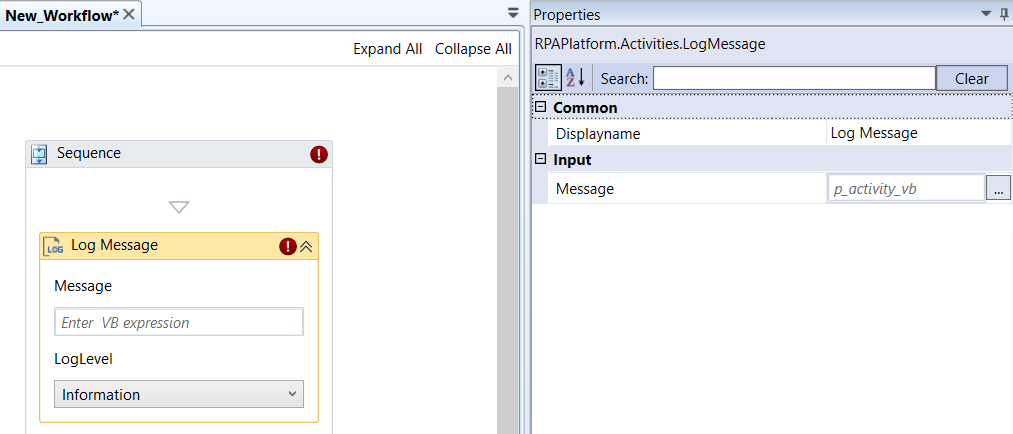
Log Message activity and properties
Properties of Log Message
| Properties | Description |
|---|---|
| DisplayName | Title of the activity inside the sequence. |
| Message | The message you want to log. Depending on the option selected from the Log Level drop-down list, the message is displayed only at that severity level. |
| Log Level | The severity level of the message to be logged. Select a log level. 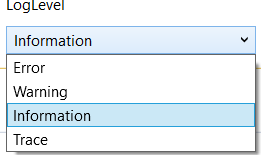 The log level refers to how detailed the generated message should be. You can configure it via the Log Level setting in Assistant . By default, it is set to Information. Trace - These logs contain the most detailed information used for debugging or tracking specific task execution paths within the system. It all logs with the Trace, Information, Warning, Error, and Critical levels. Information - These logs provide general insights about the automation execution, such as start and end of tasks. It displays all logs with the Information, Warning, Error, and Critical levels. Warning - These logs include minor issues or potential problems that do not immediately affect the current operation but might become significant at later point of time. It displays all logs with the Warning, Error, and Critical levels. Error – These logs include details of errors that have occurred during execution, which prevent normal workflow execution but do not halt the entire system. It displays all logs with the Error and Critical levels. |
Maximize Window
Maximize window allows the user to maximize the current window.
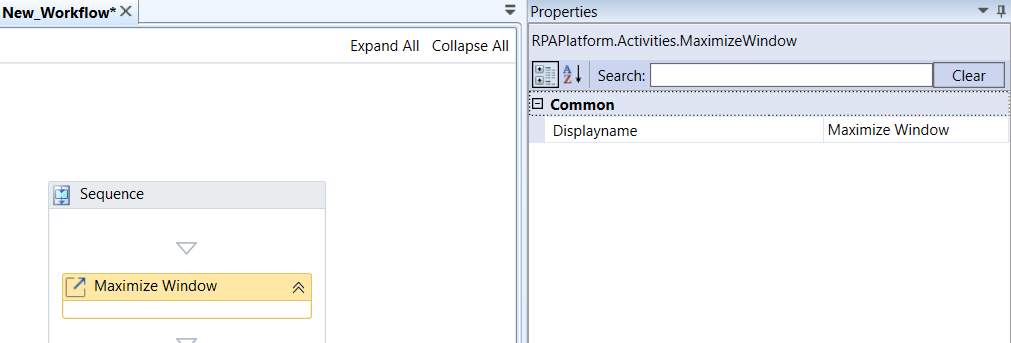
Maximize window activity and properties
Properties of Maximize window
| Properties | Description |
|---|---|
| DisplayName | Title of the activity inside the sequence. |
Move Mouse
Move mouse cursor to a location relative to an element found with GetElement (or desktop if no element is supplied).
This Activity has two modes of usage.
The first mode of usage is Selector-less. In this mode, the Activity will use the absolute values of the screen to find the X and Y offset values. As an example, if the user has a 1366x768 display, the activity will move the mouse according to that resolution inside the screen. To use this mode, all the user needs to do is to delete any value inside the Element property of the activity - its default value is item - and you can define the X and Y offset values.
The second mode of usage is Selector-bound. In this mode, after selecting a Windows element, the activity will use the relative values of the part of the screen which the element occupies to find the X and Y offset values. To use this mode, all the user needs to do is drag the Move Mouse activity into the element selected and define the X and Y offset values.
The application must be selected by using the Get Element Activity.
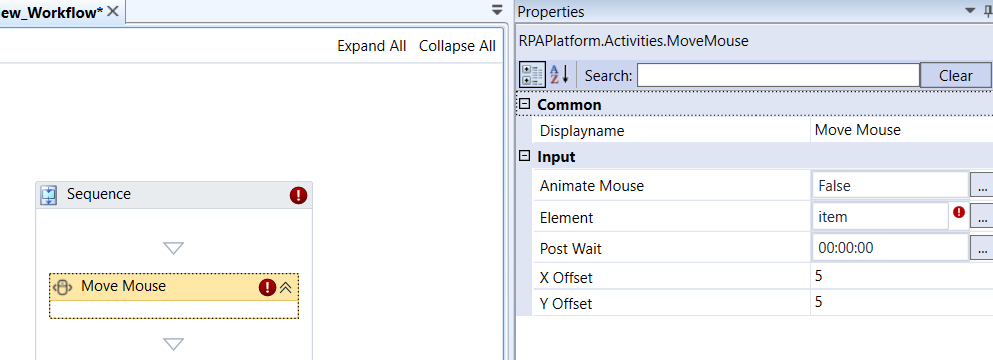
Mouse Move activity and properties
Properties of Mouse Move
| Properties | Description |
|---|---|
| DisplayName | Title of the activity inside the sequence. |
| Animate Mouse | If you enter True , the cursor will appear changing its position throughout execution. This can be used for showing what is happening in a presentation. If you enter False , there will not be cursor movement. |
| Element | The application selected with the Get Element Activity. |
| Post Wait | How long RPA Bot should wait for this activity to finish after completing its execution. |
| X Offset | The horizontal offset inside the window to be clicked. Units are in pixels. It also allows for negative values. |
| Y Offset | The vertical offset inside the window to be clicked. Units are in pixels. It also allows for negative values. |
- This activity requires a Mouse IO. If it fails to find one, it will return the error: Could not send mouse input. Error Code: 5. This may happen if RPA Bot client is launched from inside a Windows Remote Desktop and the session is disconnected. To avoid this, please use HDRobots extension, do not disconnect/close the RDP session or make the session persistent by using other techniques (i.e.: running a VNC server).
Mouse Scroll
Mouse Scroll activity allows you to scroll the page or element using the pixel value or the XPath.
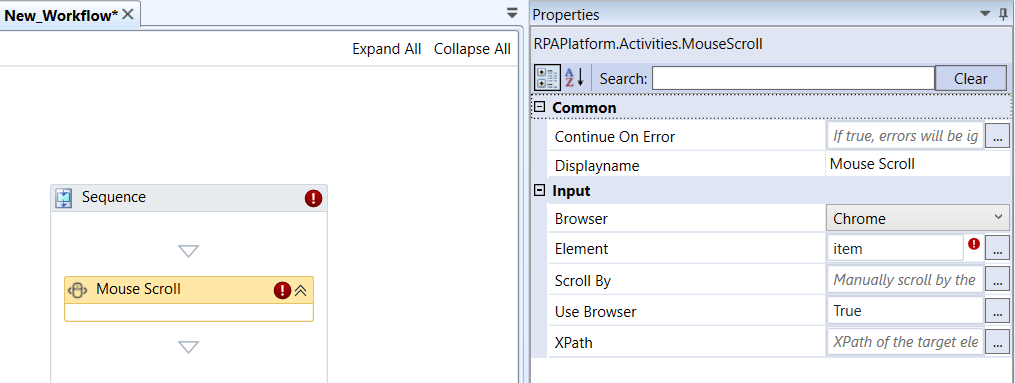
Mouse Scroll activity and properties
Properties of Mouse Scroll
| Properties | Description |
|---|---|
| Continue On Error | Enter True if you need to ignore the errors and continue the workflow. Else enter False . This field accepts only Boolean values (True or False) |
| DisplayName | Title of the activity inside the sequence. |
| Browser | Select the required Browser name.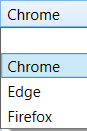 |
| Element | Target desktop element to scroll into view. |
| Scroll By | Enter the pixel number. This allows you to manually scroll by the specified pixels. |
| Use Browser | Select if you want to apply mouse scroll to the browser or not True: Mouse scroll applies to the selected browser. False: Mouse scroll will not get applied to any browser. |
| XPath | XPath of the target element to scroll into view within the browser. |
Multiple Assign
Multiple Assign allows the user to assign multiple variables to single activity, enabling you to assign values to multiple variables.
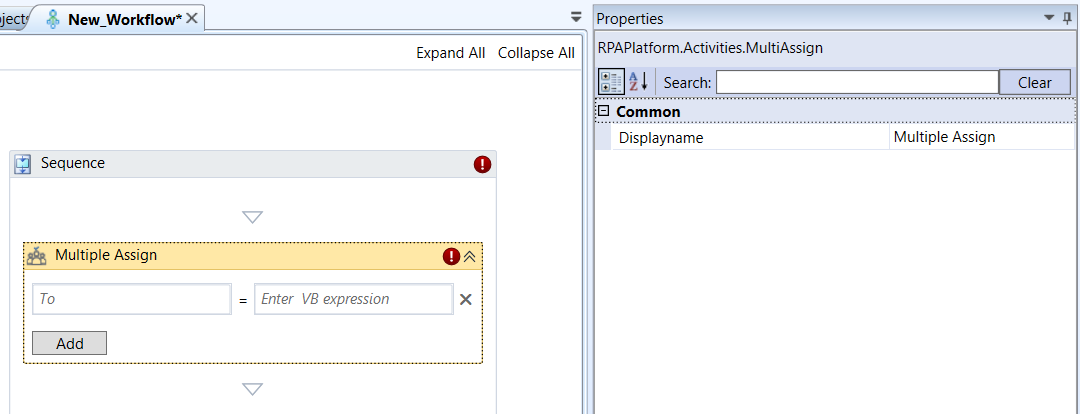
Multiple Assign activity and properties
Properties of Multiple Assign.
| Properties | Description |
|---|---|
| DisplayName | Title of the activity inside the sequence. |
| To | Configure the Multiple Assign activity directly in the body of the activity by assigning values to variables by using the text fields in the body of the activity. To: Enter a variable in the To field (key). The value is assigned to this variable. Value field : Enter a variable to hold the value of the ‘To”field variable. Click Add to add a set of variable and value. Add multiple details as needed. |
Open Application
Open Application searches for Windows element based on a Selector, and focus on it. If the Application was not found, it will start the application.
Clicking Highlight will red-highlight the first element that matches the criteria on the Selector. Useful for checking if the Selector is properly set up.
This Activity also supports working with Selector inside itself. All you need to do is drag a GetElement, or according activity, inside its sequence.
This activity can also be used to work with browsers and other applications such as Java, SAP etc.
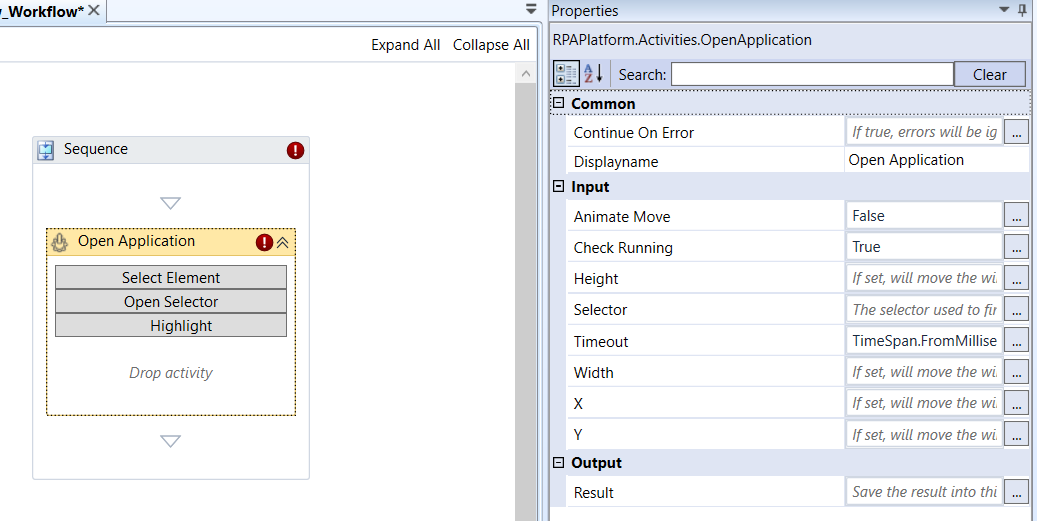
Open Application activity and properties
Properties of Open Application
| Properties | Description |
|---|---|
| Continue On Error | Enter True if you need to ignore the errors and continue the workflow. Else enter False . This field accepts only Boolean values (True or False) |
| DisplayName | Title of the activity inside the sequence. |
| Animate Mouse | Visibly move the window of the application which will be opened, instead of instantly moving it. Useful for presentations. |
| Check Running | Check if application is already running using the Selector. If set to False, it will launch a new application. |
| Height | If height is set, the application opens with this given height. Units are in pixels. |
| Selector | Contains all the data used to identify application. The selector used to find the element(s). Supports mapping workflow variables by using |
| Timeout | Time to check for whether the application was found. Essentially a timeout for the Check Running parameter. Time can be a 00:00:00.00 {hh:min:ss.mili} or an object from the TimeSpan class. |
| Width | If set, the application is opened with this given height. Units are in pixels. |
| X | If set, moves the application to this horizontal offset. Units are in pixels. It also allows for negative values. |
| Y | If set, moves the application to this vertical offset. Units are in pixels. It also allows for negative values. |
| Result | Save the result of the execution to a variable entered here. By default, it saves the application Element itself. |
In the Open Application activity, click the corresponding features in the activity for configuring.
-
Click Select Element, to select an element.
-
Click Open Selector to manipulate the HTML content of any of the window that is opened.
-
Click Highlight for highlighting. Clicking Highlight will red-highlight the first Element that matches the criteria on the selector. Useful for checking if the selector is properly set up.
Show Balloon Tip
Show Balloon Tip shows a message similar to the Show Notification activity near the system tray. It differs from Show Notification only for the fact that it also contains a title and allows for other types of notifications such as Error or Warning.
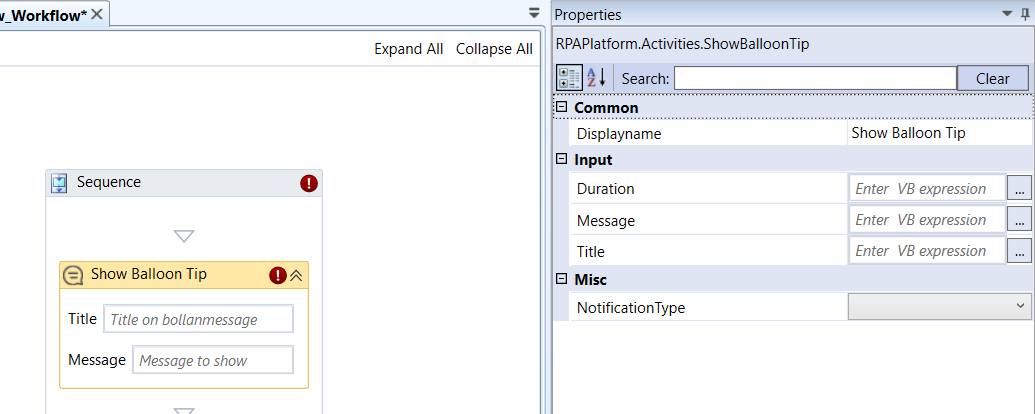
Show Balloon Tip activity and properties
Properties of Show Balloon Tip
| Properties | Description |
|---|---|
| DisplayName | Title of the activity inside the sequence. |
| Duration | Duration indicates how long the message will appear. |
| Message | Message that is displayed. This needs to be included inside quotes |
| Title | Title of the balloon tip. |
| Notification Type | Different notification types: Information, Error or Warning. |
- Refrain from using too many activities that change UI elements (such as Show Balloon Tip, WriteLine or Show Notification). These activities run single-threaded, which means that each time they are executed, they briefly stop Workflow execution.
Stop Bot Workflow
Stops the execution of automation that is that is invoked through Invoke Bot Workflow.
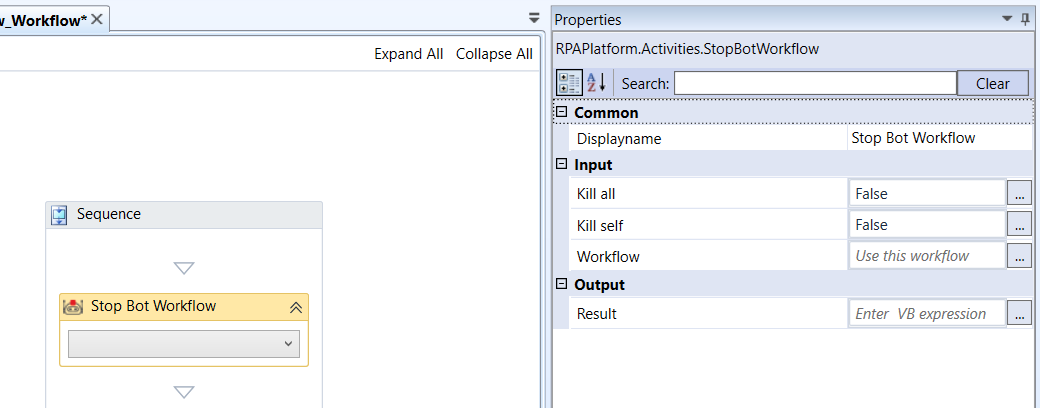
Stop Bot Workflow activity and properties
Properties of Stop Bot Workflow
| Properties | Description |
|---|---|
| DisplayName | Title of the activity inside the sequence. |
| Kill All | If True, aborts the workflow that is invoked. |
| Kill Self | If True, kills the workflow by itself after execution. |
| Workflow | The path of the selected workflow. In the activity, click “˅” to select the workflow. 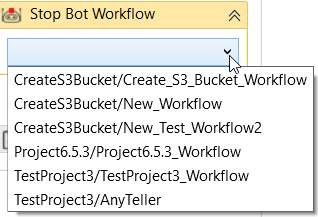 |
| Result | Enter an integer variable to hold the result of the workflow. |
Type Text
Type Text sends keystrokes from the text contained inside Hint to the window currently focused. Instead of memorizing every keystroke, it is recommended to use the Recorder as it will map every keystroke automatically.
The key stroke syntax should be { {Modifier1, Key1} {Modifier2, Key2} {…} {ModifierN, KeyN} }.Keep in mind that Modifiers, which would be auxiliary keys - such as Ctrl, Alt, Shift - are not obligatory.
The user can also send variables or hardcoded text, such as sending { {Modifier1, Key1} SOME TEXT " + desired_variable + "{Enter} }.
- The user is strongly discouraged from using this activity. It is preferable to select an element with the GetElement activity and use the Assign property to assign a string value to it.
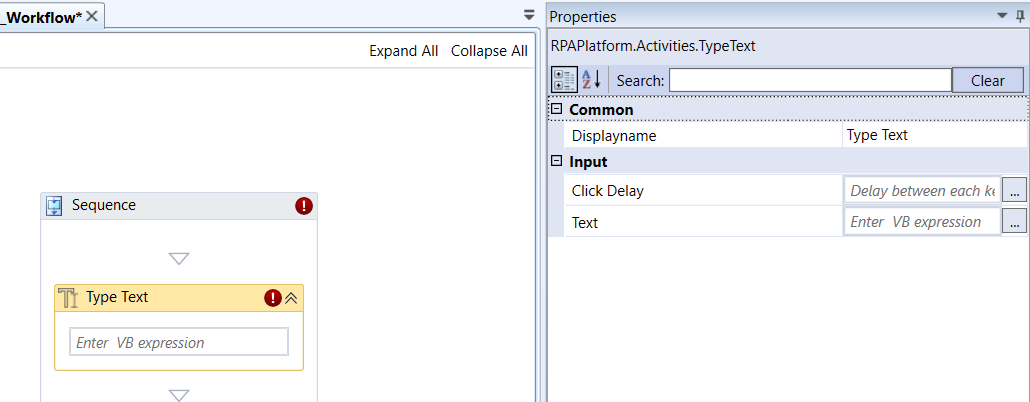
Type Text activity and properties
Properties of the Type Text.
| Properties | Description |
|---|---|
| Display name | Title of the Activity inside the sequence. |
| Click Delay | Delay between each keystroke. |
| Text | Enter the text that need to be typed or printed. |
- This activity requires a Keyboard IO. If it fails to find one, it will return “Could not send keyboard input. Error Code: 5”. This may happen if RPA Bot Client was launched from inside a Windows Remote Desktop Session and the session was disconnected. In order to avoid this, please use the HDRobots extension. Do not disconnect/close the RDP session or persist the session using other techniques (e.g. running VNC).