Creating and Managing RPA Workflow
RPA Workflows
RPA Bot Studio allows you create project and workflows using activities. You can create multiple workflows within a project. One project should have at least one workflow. Permissions applied to a project apply to all the workflows within that project.
A workflow can be utilized only after publishing the workflow or project.
Creating a New Workflow
You need to create a project before creating a workflow. When you create a project for the first time, after providing the Project name, the workflow creation screen opens up automatically.
A project can have multiple workflows within.
To create a new workflow within an existing project, follow the steps:
-
Open RPA Bot Studio.
-
In the Projects, click the project name within which you want to create the workflow.
-
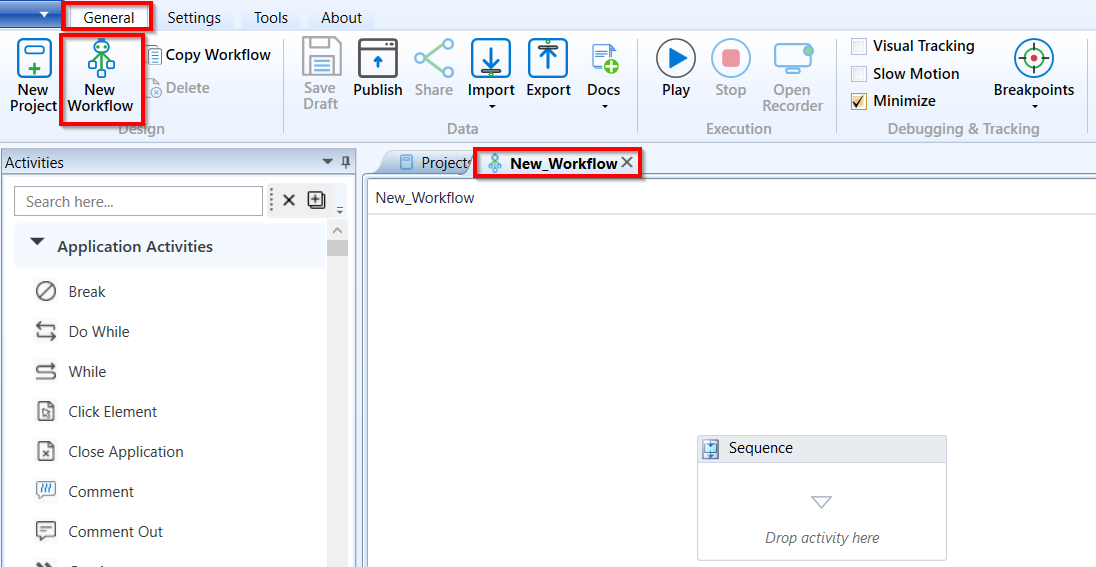
On the ribbon click General tab > New Workflow. A new workflow is created. By default, a sequence activity will be added to the workflow.
-
In the Properties panel, modify the name of the workflow (if needed). By default, the workflow name is “New_Workflow”.
-
Design the workflow as needed. When you modify the details in the workflow, the save icon becomes active.
Refer to RPA Workflow Designer.
-
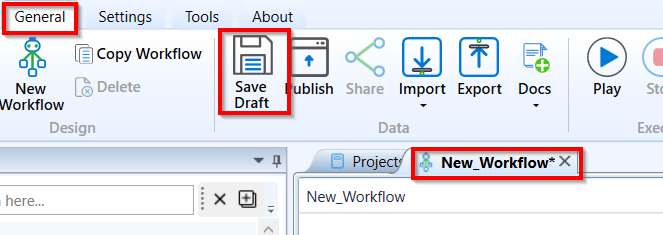
On the ribbon > General tab, click Save Draft for saving a newly created workflow as a draft.
-
An asterisk (*) symbol along with the workflow name indicates that there are modifications done to the workflow and it is not yet saved. On saving the workflow, the asterisk symbol is removed.
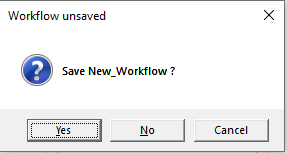
1) If you click the cross button in the workflow tab without saving the modifications, a pop-up is prompted.
2) Click Yes in that pop-up for saving the workflow as draft, click No to discard the modifications, or click Cancel the close action.
Alternatively, you can create a new project, and a new workflow automatically gets created within that project. The name of the new workflow is automatically updated as {project name}_Workflow. You can edit the name of the workflow and then save it.
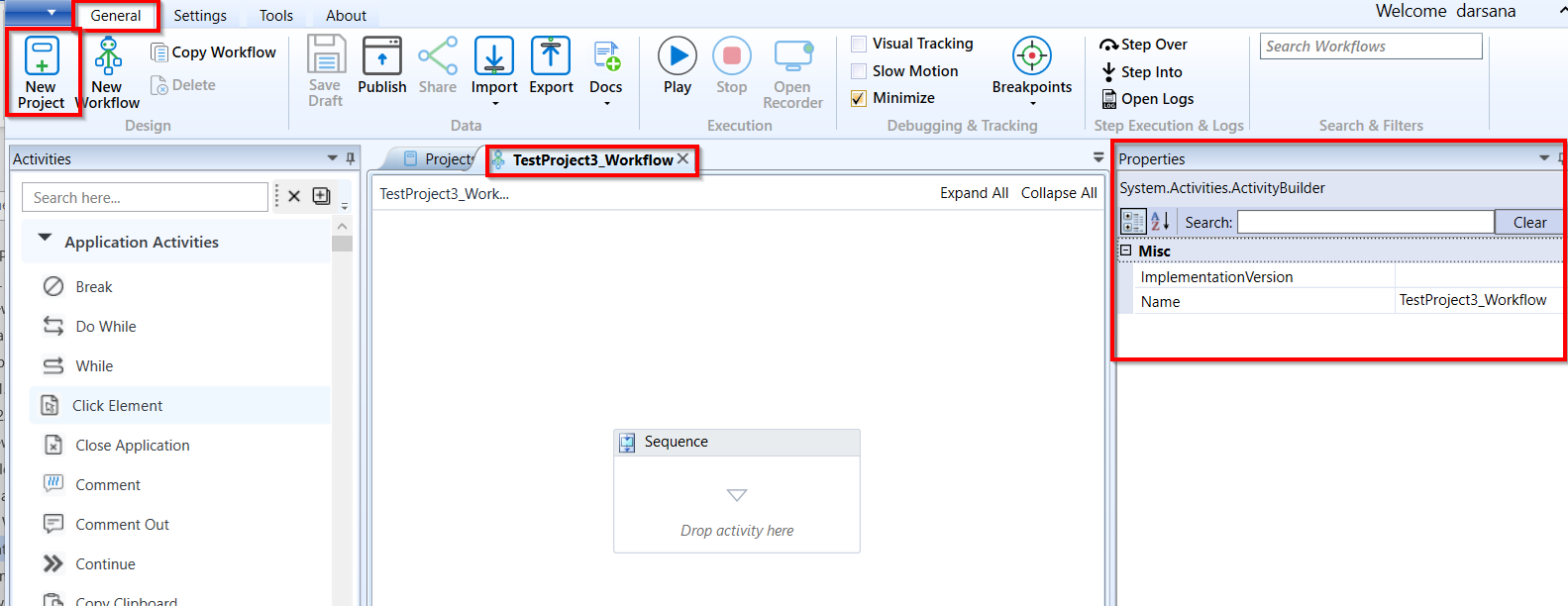
Workflow created during the creation of the project
Saving Workflow as Draft
Save Draft feature allows you to save the bot workflow in draft mode.
When you save the workflow as a draft, it is saved in the server, however, it will not be available in the RPA Agent application for execution. Only after Publishing of the workflow, it is accessible for utilization in the process flow
- Create the required flow and then click General (tab) > Save Draft. (CTRL+S)
You can save a workflow as a draft at any point of time. It can be a valid or invalid or incomplete workflow.
Viewing and Editing Workflow
-
Open RPA Bot Studio.
-
Click Projects tab. Projects and workflows within the projects appear in a tree model.
-
Click a workflow and the details applicable to that workflow appear on the right side.
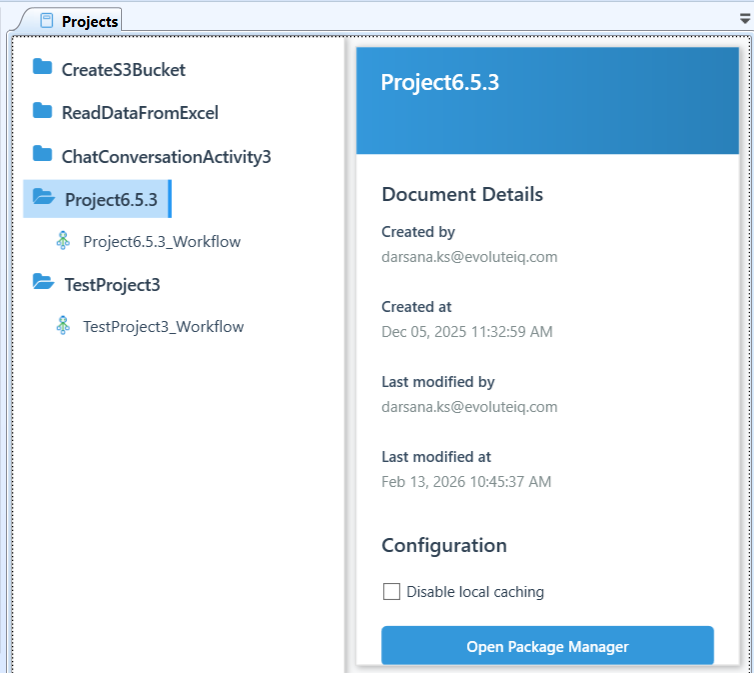
Selected workflow and details
-
Double-click the workflow name that you want to open. The workflow gets opened in a new tab.
-
Edit the workflow or the activity details as per the requirement. The activity details are auto-saved.
-
On the ribbon click General tab > click Save to save the workflow.
-
An asterisk (*) symbol in the workflow tab indicates that the workflow is not yet saved. When the workflow is not saved, the Save icon in the General tab will be active.
If you try to close the workflow or application without saving it, a popup is prompted for saving the workflow.
Click Yes for saving or No to discard the changes.
Renaming Workflow
When a new project is created, a workflow opens with the name “New_Workflow”. When you create a new workflow for the project, it takes the workflow name as “New_Workflow2”, “New_Workflow3”, etc. However, you can change the name of the workflow.
-
You can rename the workflow name, however, you cannot rename a project name.
-
Open RPA Bot Studio.
-
In the Projects tab, double-click the workflow name that you want to edit. The workflow opens in a new tab. The properties panel displays the Name details.
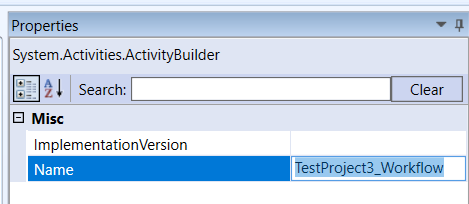
Renaming workflow
-
Edit the name of the workflow as needed.
-
On the ribbon > General tab, click Save or press CRTL+S.
Alternatively, you can follow the below steps for renaming the workflow.
- For renaming the workflow, click the Projects tab where you can view the tree structure of the project.
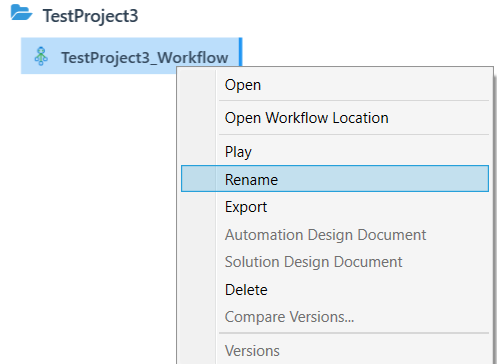
Rename option in the Workflow right-click
- Right-click Workflow name > click Rename.
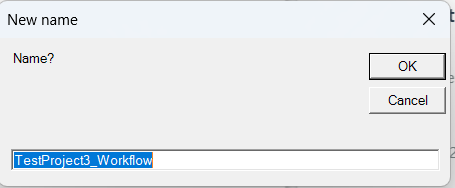
- In the New name pop-up, enter a name for your workflow and click OK.
Nesting Sequences
For nesting a sequence inside the main sequence, drag a Sequence activity inside the main sequence. A new sequence appears with its default display name set as Sequence.
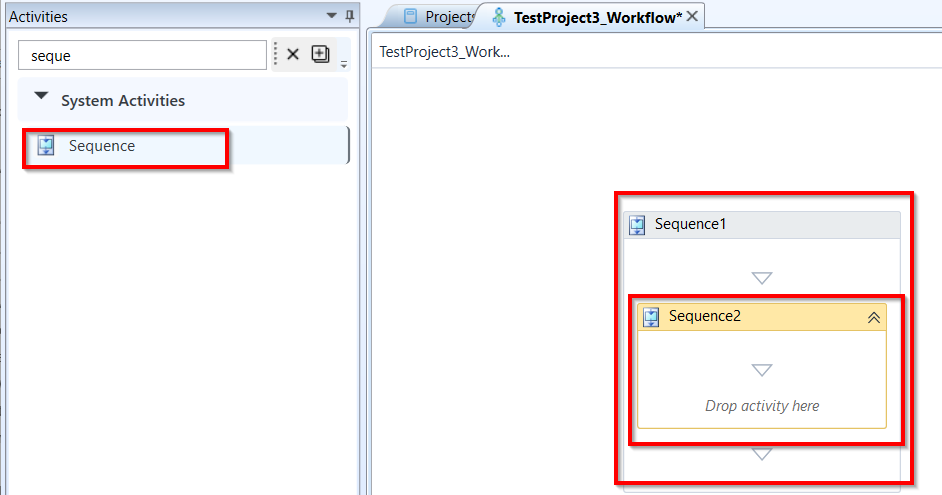
Nested Sequences
- To do the same into already nested sequences or activities containing pseudo sequences, simply drag the Sequence activity into the desired block.
Adding and Configuring Activities
When you create a workflow within a project, the workspace appears with a sequence activity by default. All the activities that you add in the workspace go within the sequence.
-
Open RPA Bot Studio.
-
Create a new project (while creating a new project a new workflow opens) or open an existing workflow. By default, the new workflow will have a sequence activity in it.
-
From the Activities, drag the required activity into the workspace. The activity appears within the sequence activity.
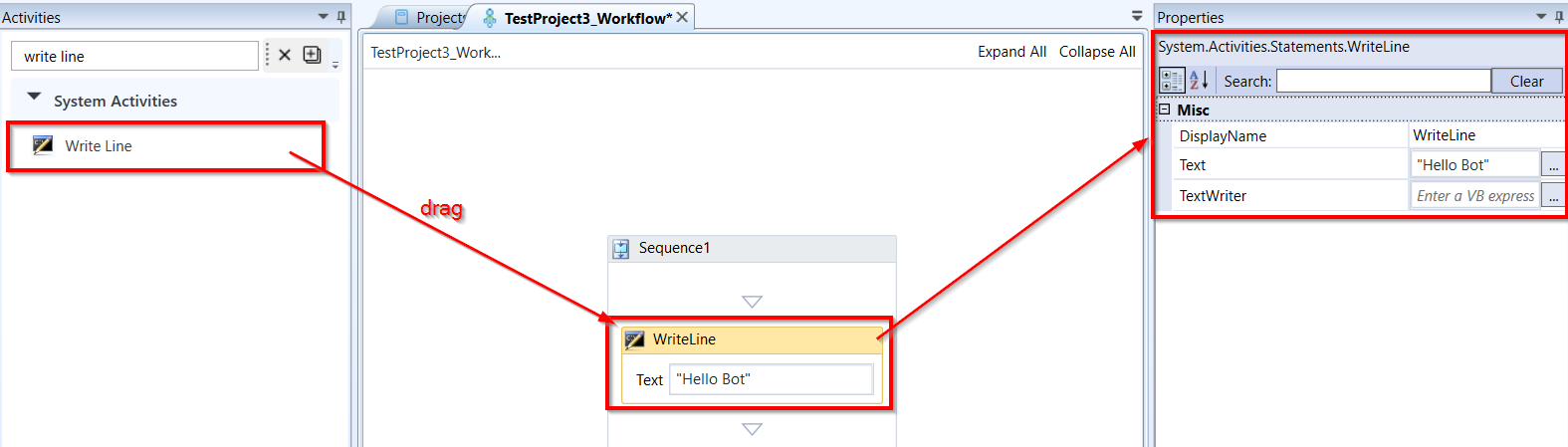
Dragging activity to work area
-
Click the activity. The properties panel on the right side displays the properties of the selected activity. The activity in the workspace appears with arrows above and below the activity.
-
Provide the property details for the activity.
-
Refer to the Activities document for activity-specific configuration details.
-
You can drag another activity above or below the already existing activity and design the workflow.
Playing Workflow
After creating the workflow, you can execute the workflow by running or playing it without actually publishing. RPA Bot Studio is a playground to test the execution of workflows. The play icon on the ribbon becomes active when your cursor is in the workspace area.
-
Open RPA Bot Studio.
-
Open a workflow.
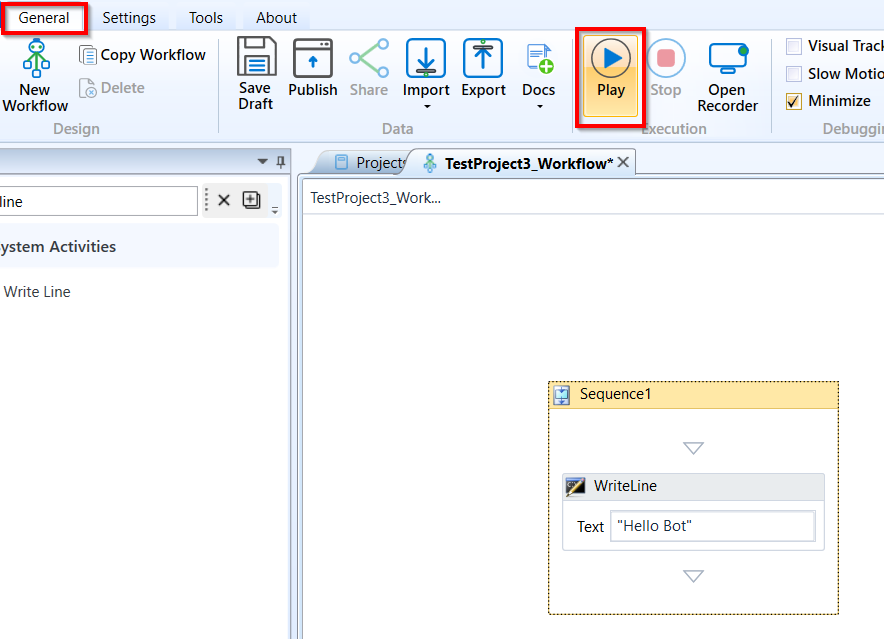
- On the ribbon > General tab, click Play icon (or press F5). Make sure your cursor is within the workspace area. The workflow will run and its output (if any) can be seen in the Output section of the Output bar.
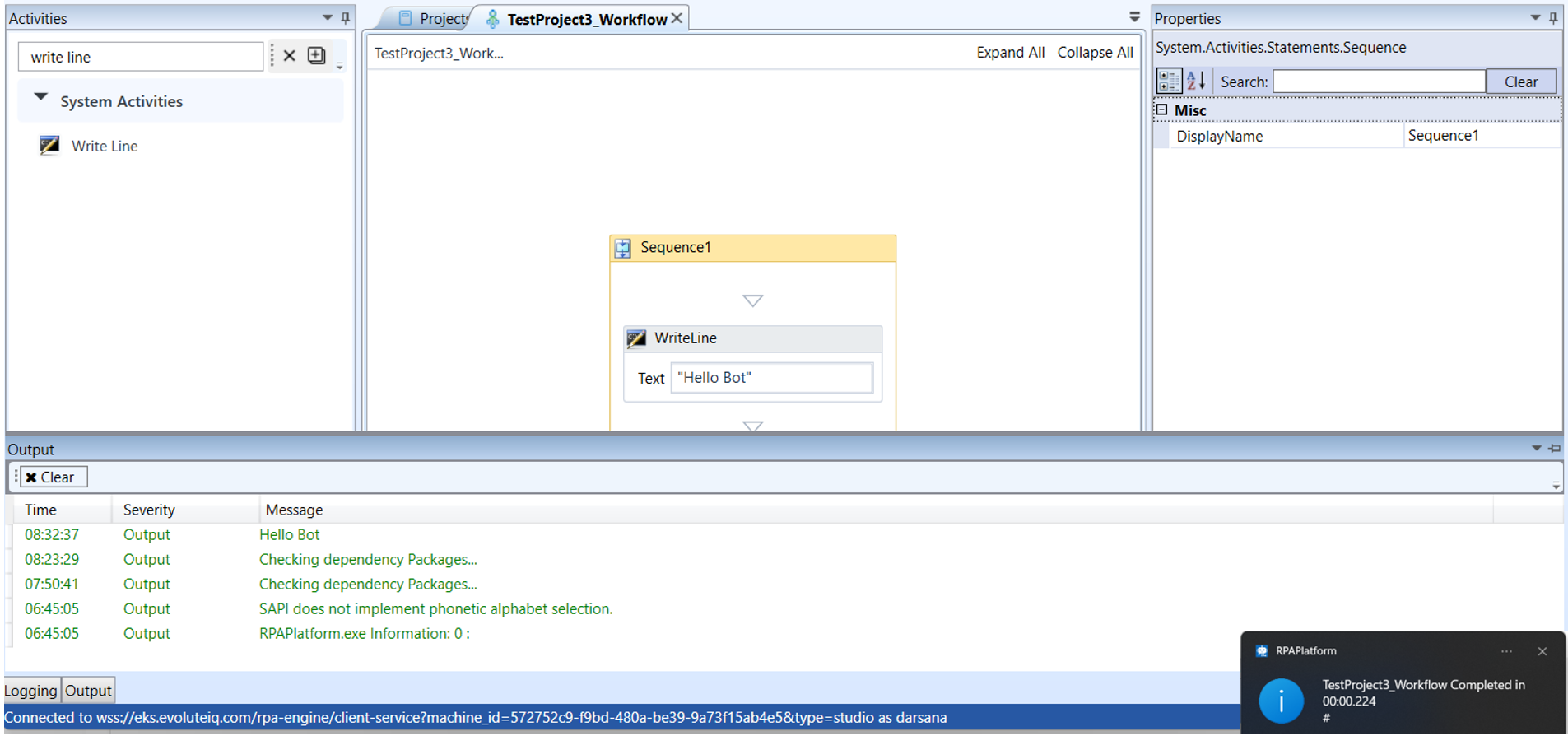
The Workflow execution with output.
- Once the user drags activities into the sequence, upon pressing the Play button inside the ribbon or pressing the F5 key, they will be executed in a cascading manner - each one after the previous one. And if there are any errors - untreated by TryCatch or Throw activities - the workflow execution will stop and the error message will appear in the Output box.
After playing the workflow, navigate to the Projects tab and click the workflow name. The details of the workflow appear on the right side. The State attribute displays the state of the workflow.
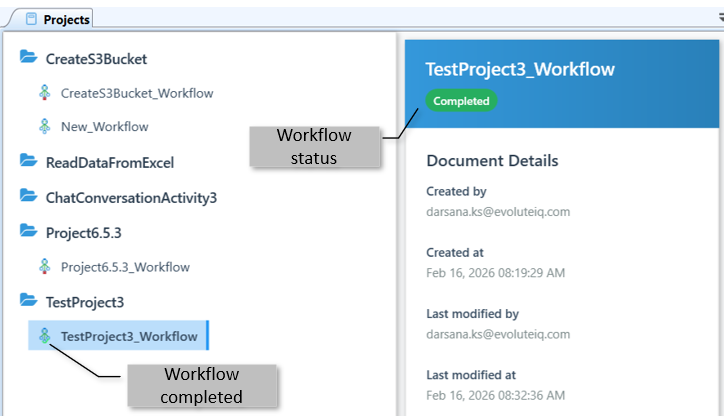
Successfully completed workflow
States for the Workflow
States for the workflow indicate the current state of workflow execution.
-
Completed:

- The workflow execution is completed. The flow icon shows a green color. -
Aborted:

- If the workflow gets aborted due to any error or forcefully stopped, the state is aborted. The flow icon shows an yellow color. -
Running:

- Running state indicates that the flow is still running. The flow shows a blue color. -
Unloaded:

- Unloaded state indicates that the workflow is not yet executed or played. The flow icon shows no color. -
Failed:

- Failed state indicates that the workflow failed. The flow icon shows a red color.
Viewing and Executing Workflow Versions
-
Open RPA Bot Studio.
-
Click the Projects tab, click the project name and select the workflow name for which you need to view the versions.
-
Right-click the bot workflow name and click Versions (Versions is enabled only if you have published the workflow at least once). The list of all the published versions of the selected workflow appears.
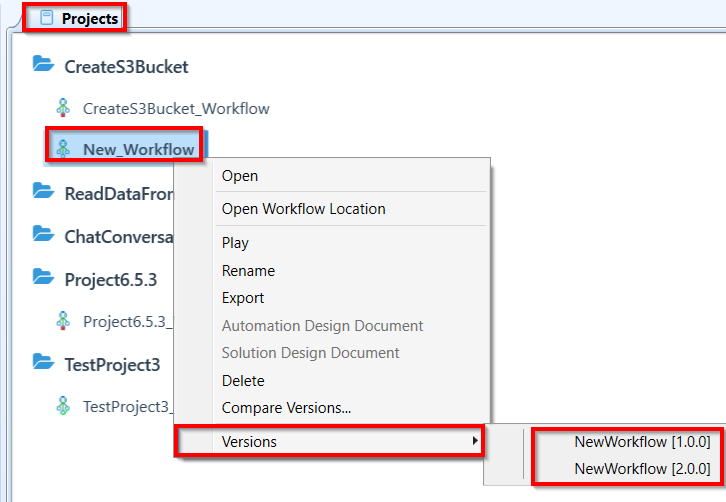
-
Click the required workflow name and version to be executed.
The workflow opens in the designer. Workflow name appears with version number amended to it.
For example:
-
Click Play icon on the Ribbon to execute the specified version of the workflow.
Stopping Workflow Execution
You can stop the workflow execution forcefully when it is running. In such cases the workflow execution gets aborted. When a workflow is running, the stop icon in the General tab of the ribbon becomes active.
-
Click a Workflow in the Project tree and click Play button (on the General tab of the ribbon). During the workflow execution, the stop icon is enabled.
-
Click Stop icon to stop the execution of the workflow.

Stopping the workflow execution
Forceful stop notification appears and the state of the workflow becomes “Aborted”.
Sample Abort notification for force Stop:
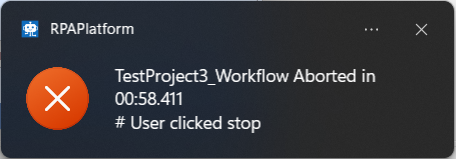
Recording Workflow
You can design and configure a workflow and also record a workflow. When you do the actions, the workflow is automatically generated by capturing the actions performed.
-
Open RPA Bot Studio.
-
Open a workflow.
-
Create a Project and workflow. When you create a workflow, the workspace opens with sequence activity.
-
Click Sequence activity. The record icon in the General tab becomes active now.

- On the ribbon > click General tab > Open Recorder. Recorder opens.
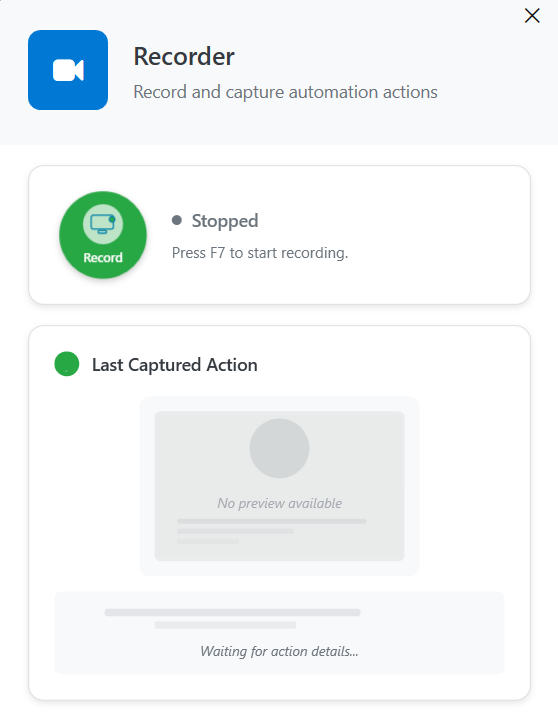
- Click Record icon in the recorder pop-up or Press F7 to start recording. The recording gets started.
1) Navigate to the page or area that you need to record.
3) Do the actions that you need to record. All the actions are recorded.
4) For recording an insertion of text, click the text field and the Enter Text pop-up appears for entering the text.
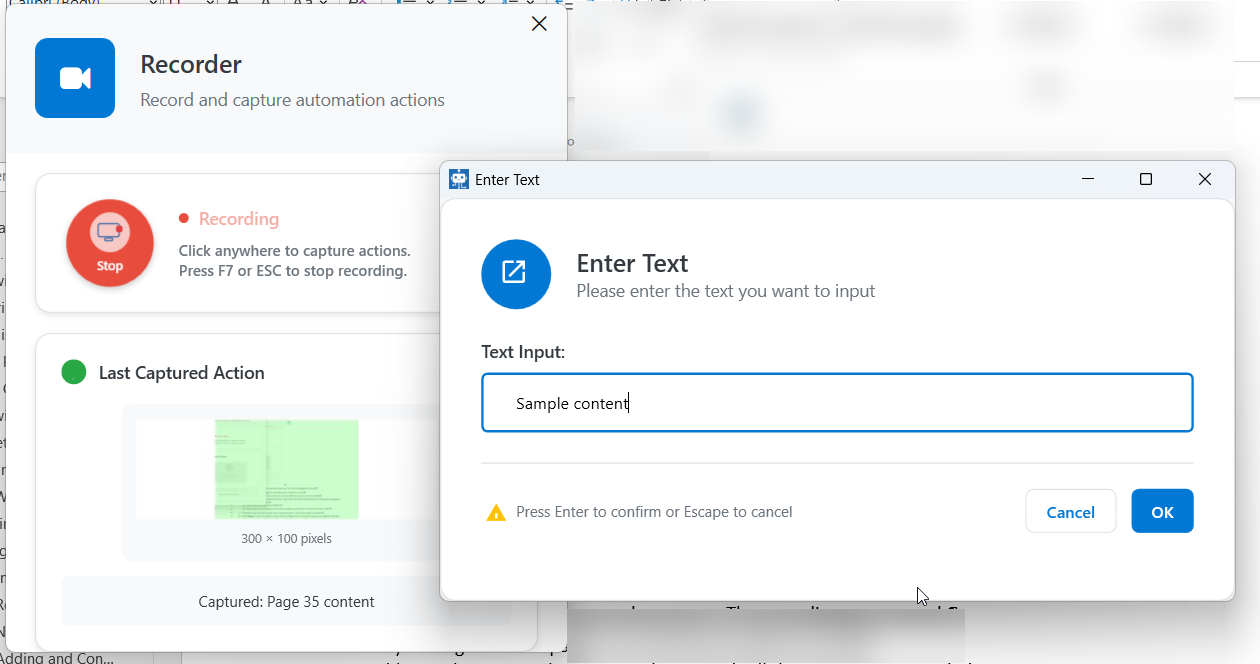
5) Enter the text and click OK.
6) If you are not writing any text then simply press enter to close the Enter Text dialog box.
- Continue your actions as per your requirements. The actions get recorded.
-
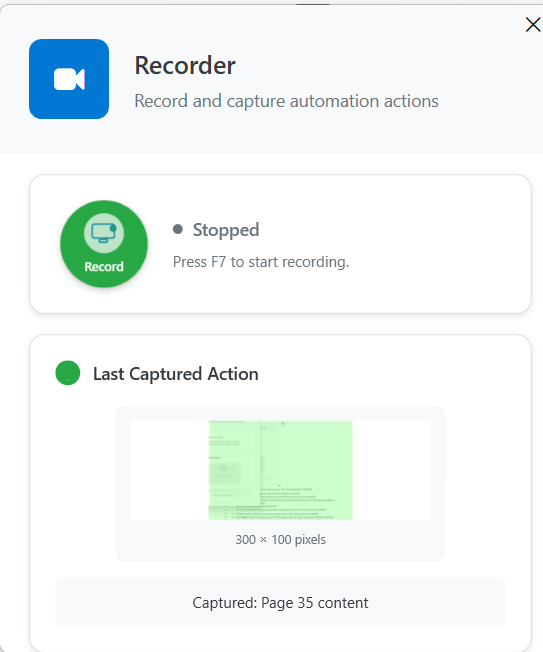
Click Stop on the recorder or press F7/Esc key on the keyboard to stop the recording. The recorder creates a workflow with the relevant activities and displays them within the sequence. The capture result appears as icon on the recorder.
-
To cease recording, simply press the ESC button.
It is reminded here that ending the recording is obligatory else, it will record all activities you execute endlessly. -
Close the recorder. The recorded result appears in the workflow.
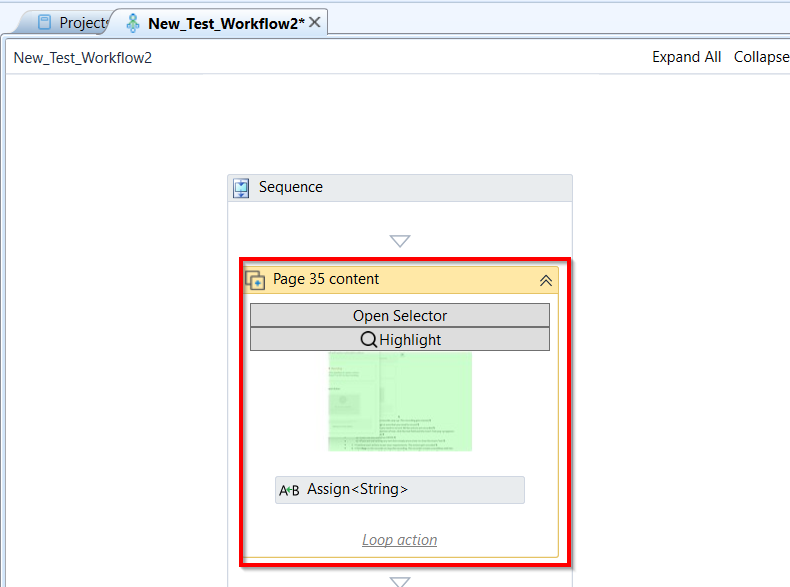
The sample recorded workflow
-
Modify the workflow details as needed.
-
It is desirable that the user change the name of each activity to the corresponding input field. To change the name, or DisplayName - set inside the activity’s parameters, the user can either click twice on the name of the activity, type the desired name and press ENTER or set the parameter DisplayName inside the Properties box.
-
When a WebElement is clicked using the Recorder and RPA Bot Studio determines that the WebElement is capable of receiving input values. A prompt will appear automatically where the user can type string texts and the Recorder will generate the activities as if it were wanted to fill these WebElements with the respective string texts provided. For now, the user may ignore these and fill the prompt with any text, these assigned values will be replaced so they get their values from the DataTable ds. The WebElements are automatically assigned to the item variable.
Refer to Recorder and Selectors for more details.
Copying a Workflow
-
Open RPA Bot Studio.
-
Open a workflow.
-
On the ribbon > General tab, click the Copy icon. A copy of the opened workflow is created in a new tab.
Sample content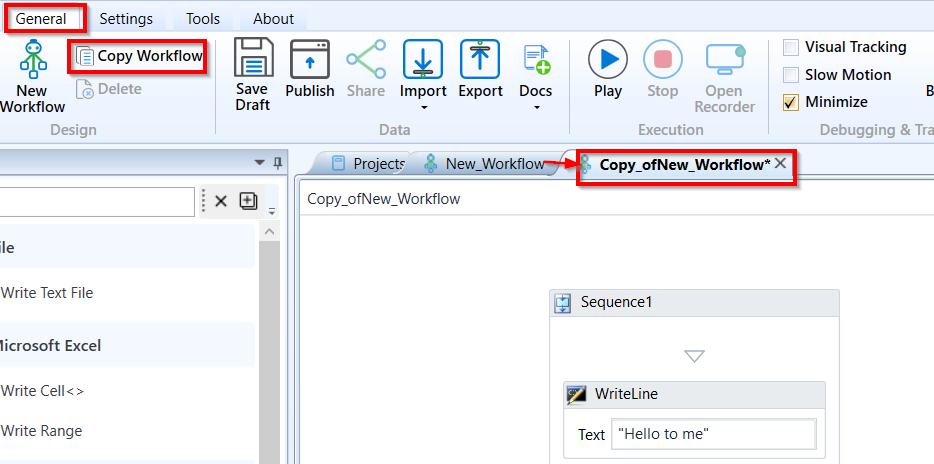
The copied workflow
Publishing the Workflow
When you publish a workflow, a new version of that workflow will be created. The version is at the workflow level.
-
Create the required workflow flow and then click the workflow name in Projects tab or open the workflow by double clicking the workflow name.
-
In General tab > Publish.
Folder for the publishing the workflow is already selected if the Project publishing folder is already selected.
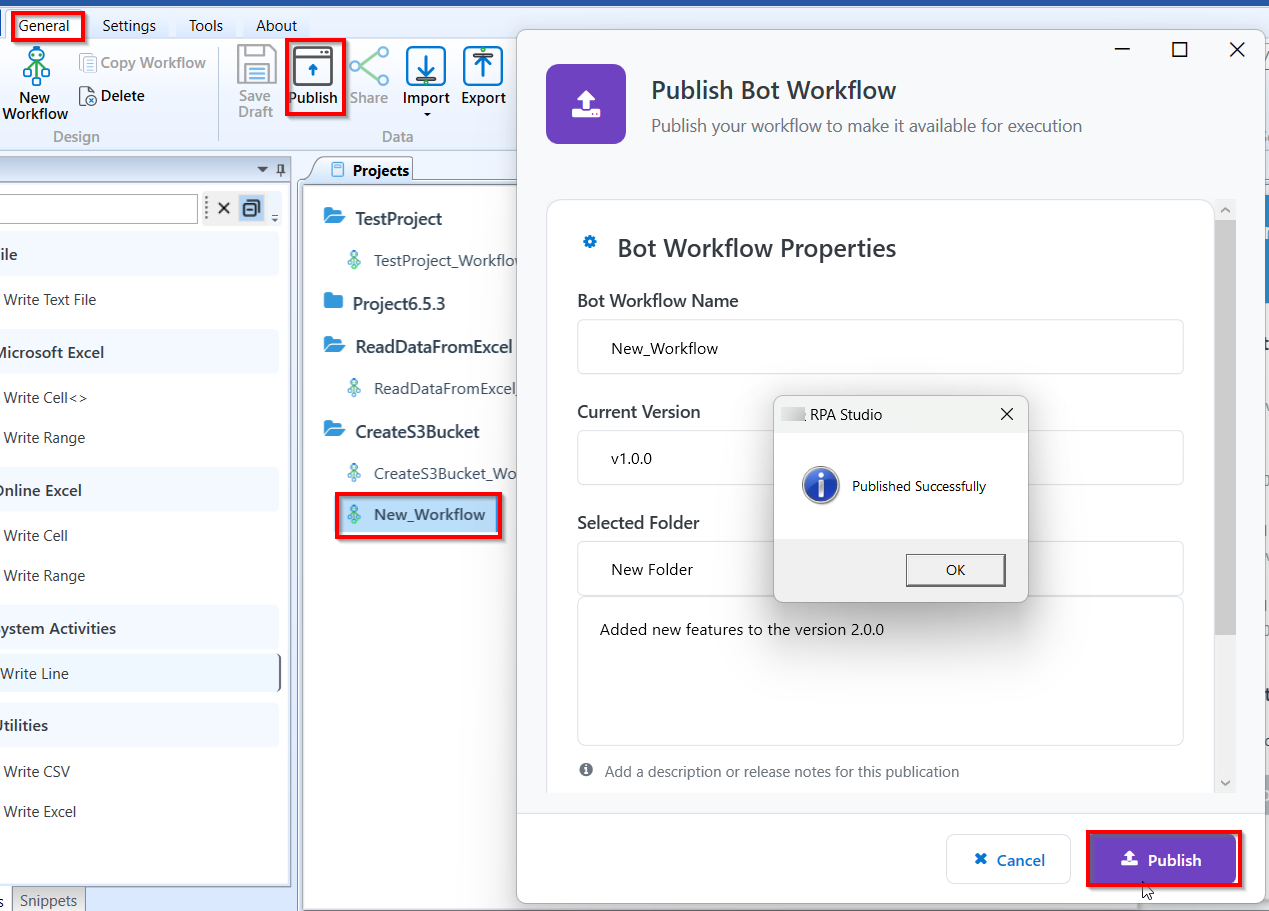
Publishing the workflow
-
In the Description box below the selected folder, enter description or release notes and comments.
-
Click Publish (or click Cancel to cancel the publish action). A success message appears on successful publishing of the bot workflow.
-
Click Ok. Your workflow is published and available for execution on RPA Bot Agent, RPA Bot Assistant and in Platform Bot flows. You can even select this workflow in process flow.
Workflow Versioning
When you publish a workflow, it takes a new version number automatically in the format 0.0.0.
For an unpublished workflow the Current version is 0.0.0 indicating that it is not even published once.
When you publish a workflow for the first time, its current version appears as “0.0.0” and it takes new version number as 1.0.0.
Each time you publish the workflow, the version number increments. If you have versions, 1.0.0, 2.0.0, for a workflow and if you republish it after making the changes or not making any changes, it will take version number 3.0.0.
The last published version is the latest version or current version of that workflow.
When you have multiple versions of a workflow, you can utilize any of the versions in the process flow.
To view versions available for a workflow, in the Projects tab > right-click the workflow name > click versions. Versions option is enabled only if you have published the workflow.
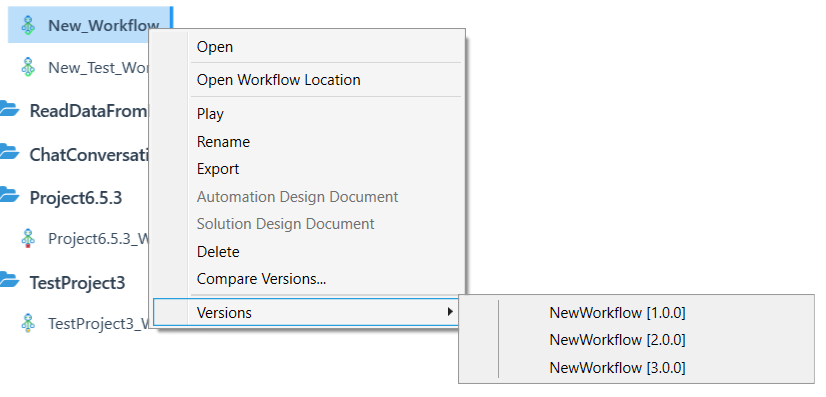
A list of available versions appears.
Syncing Published Details
Published workflows will be appear for execution on the RPA Bot Agent and RPA Bot Assistant, and Manage > RPA Management > RPA Automation > Bot Flows.
The Agent and Assistant executes only the latest version of the workflow.
In the Manage > RPA Management > RPA Automation > Bot flows section, you have options to execute the selected version of the workflow.
The platform process flow configuration for triggering the bot flow allows you to select the version of the workflow to be triggered.
Version Selection in Process Flow
When you associate a bot workflow with the process flow, you have an option in the platform to select the version of the bot workflow. You can either select the “Latest” for picking the latest workflow for execution or else you can select a particular version.
If you associate a particular bot workflow version to a process flow and if the bot workflow version is updated with a newer version, you need to change the version in the process flow configuration and then deploy the flow for execution so that the newer bot workflow version gets reflected in the execution.
If you select a bot workflow version as “Latest” and associate it with the process flow, every time the latest bot workflow will get picked up for execution. If a newer version is published, you need not change any configuration or redeploy the process flow.
Comparing Workflow Versions
The Compare Versions feature allow you to compare two different versions of the workflows.
- On the project tab, right-click the workflow name.
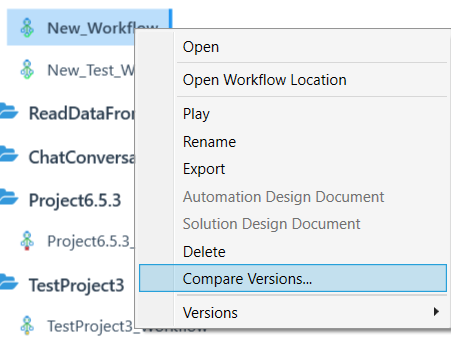
- Click Compare Versions. Workflow Compare Viewer pop-up appears. The Workflow Comparison viewer appears with the latest version selected on the left side.
Note that the Compare Versions option is enabled only if you have multiple versions of the selected workflow.
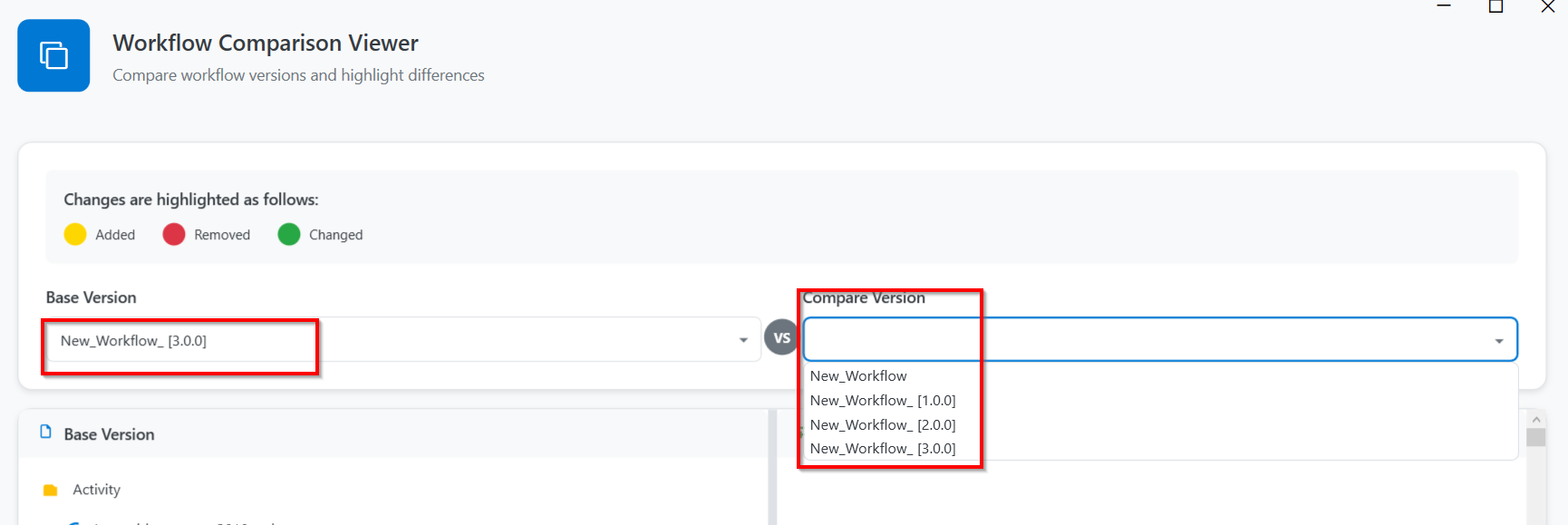
- Select one workflow version in on the right side. All the published versions and draft version is available for comparison. You can select any workflow from both sides.
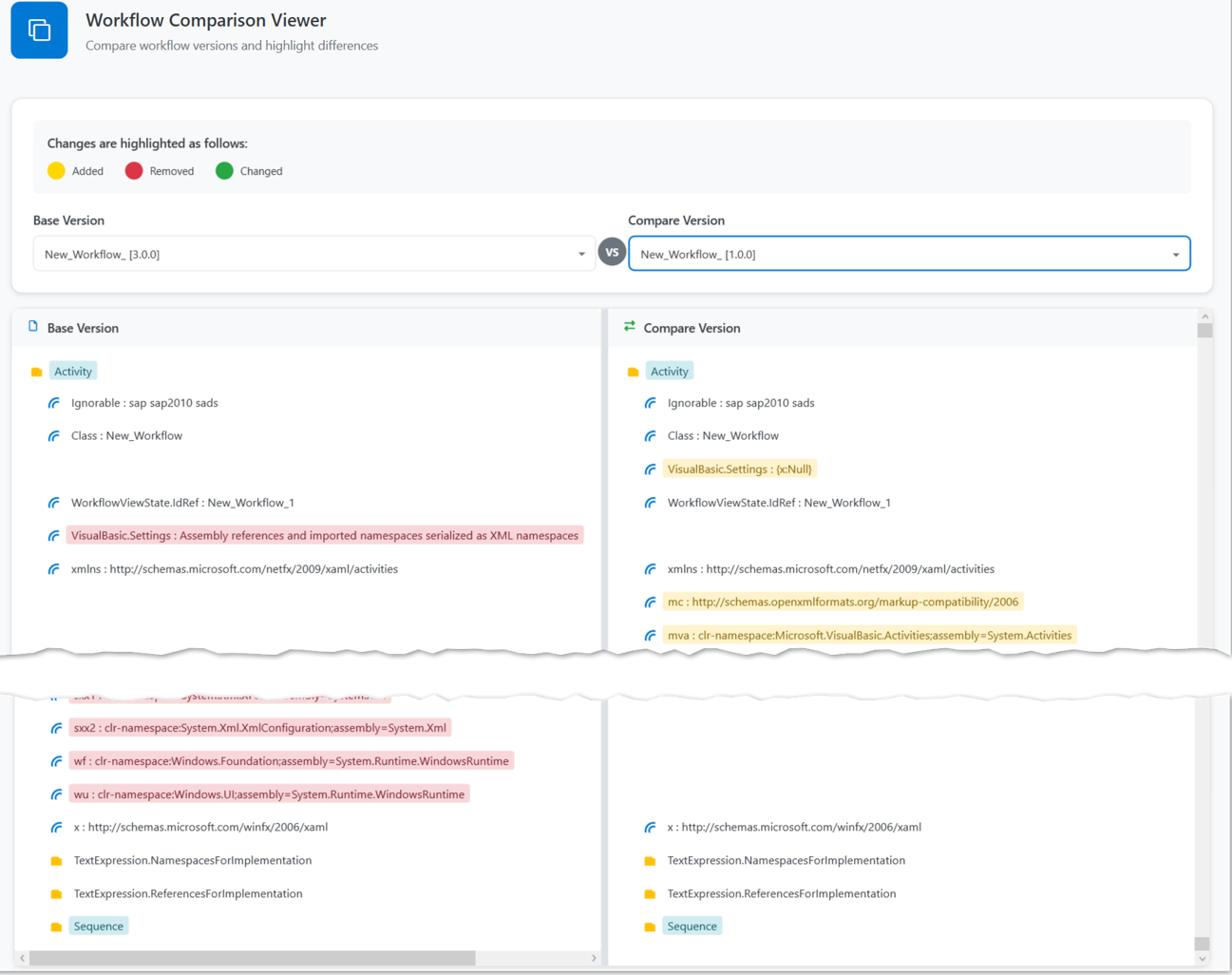
The differences in the details are highlighted in different colors.
Green: Indicates there is a change.
Red: Indicates that details are removed.
Yellow: Indicates that the details are added.
- Click the accordion on the left for the activity or any detail with an accordion to view modifications within that section. The nested details appear for each activity.
Exporting Bot Workflow
When you export a workflow, the workflow file (XAML file) is exported to the selected location. You can export only a single workflow at a time.
-
Open RPA Bot Studio.
-
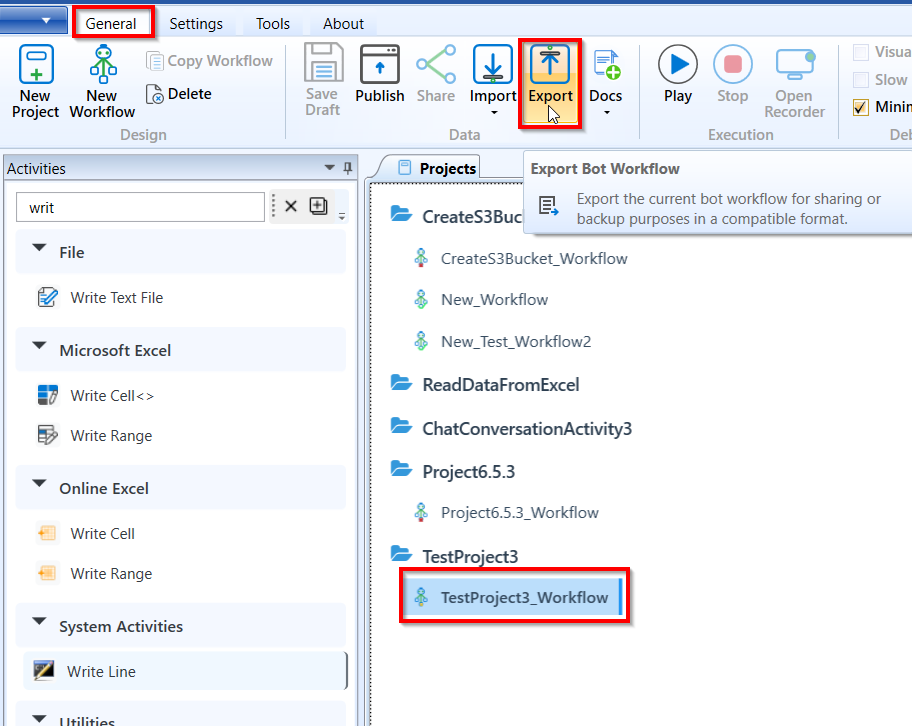
Click the Projects tab, click the project name and select the workflow name that you want to export.
-
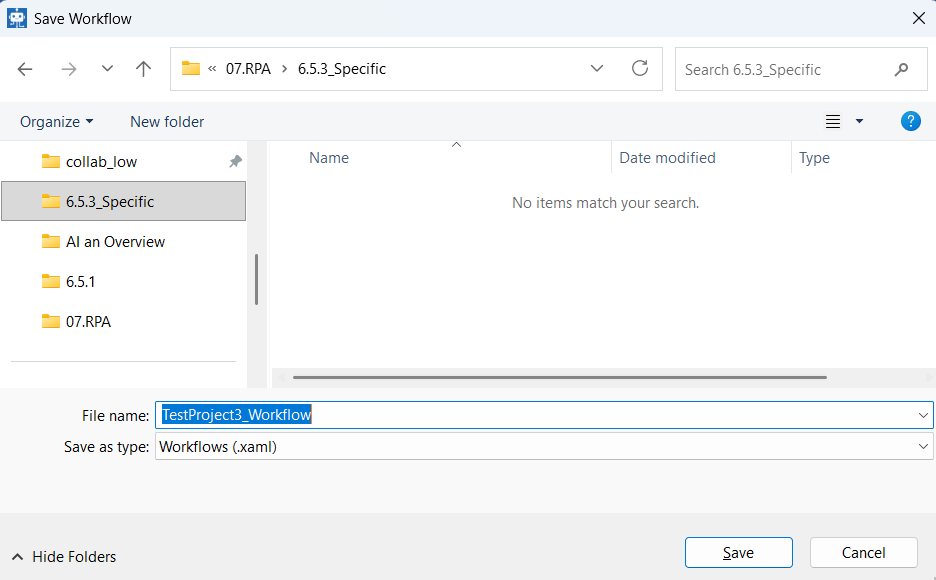
On the ribbon, click General Tab > Export icon. Browse for Folder appears.
-
Select a path/folder to which you want to export the workflow.
-
Click OK for exporting the selected workflow to the selected destination folder. The workflow gets exported as a .XAML file.
Alternatively, right-click the workflow name in the project tab and then click Export.
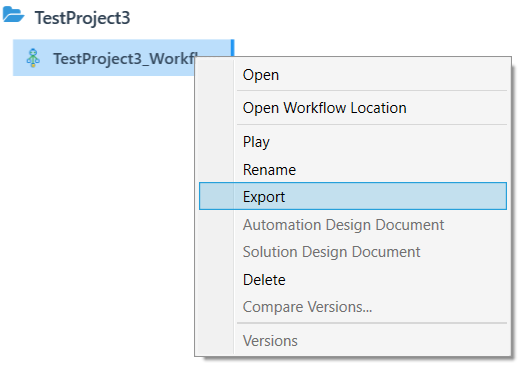
Also, you can double click and open workflow > stay in this opened workflow tab > click Export.
- If you export a workflow, only that particular workflow file (XAML file) is downloaded to the selected location.
Importing Workflows
The import feature allows you to import a workflow to an existing project.
Multiple workflows can be selected and imported.
Additionally, the import feature facilitates to import workflows from other applications (Automation Anywhere workflows, or UIPath workflows) also. This is currently applicable with limited accuracy and hence manual changes may be needed.
-
Open RPA Bot Studio.
-
In the Projects tab, click the {project name} to which you need to import the workflow(s).
-
On the ribbon > General Tab, click Import > Import Workflow.
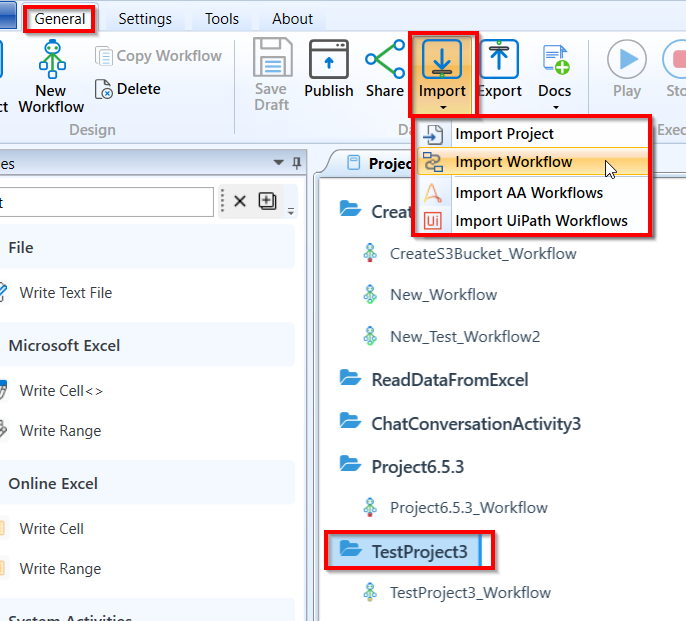
Importing workflow
Import Workflow: Imports Platform RPA workflows.
Import AA Workflows: Imports Automation Anywhere workflows
Import UiPath Workflows: Imports Uipath workflows.
- Navigate to the desired folder. Only the files with .XAML extension are filtered and displayed.
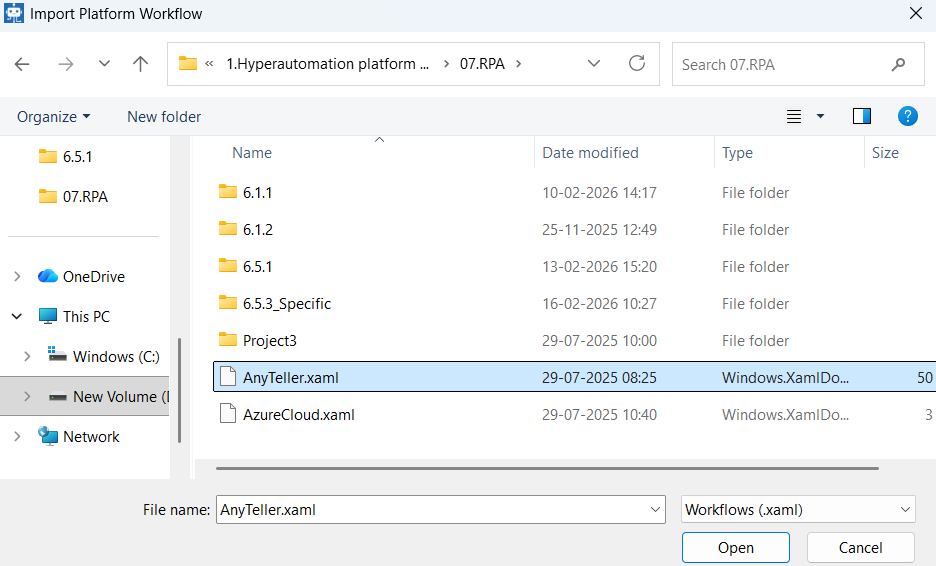
-
Select the required Workflow file (.xaml). You are allowed to import only the XAML files. Select multiple workflows (CTRL+click) as per your need. All the workflows are imported to the selected project.
-
Click Open. The selected workflow gets imported within the selected project name. The workflow imported opens up soon after the import.
Deleting Workflow
The delete feature allows you to delete the selected workflow.
-
Open RPA Bot Studio.
-
In the Projects tab, click the Project name and then the workflow name that you want to delete. Also, you can open the workflow designer to view the workflow before deleting it.
-
On the ribbon > General Tab, click Delete (you can click delete even when you are on the workflow designer page). A delete confirmation pop-up appears.
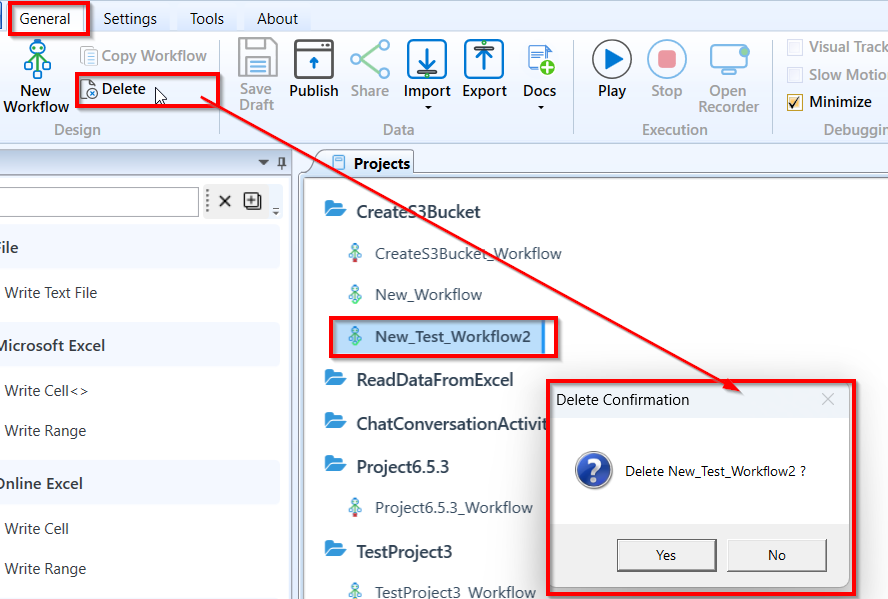
Deleting workflow
- Click Yes to delete the workflow (or click No to cancel the action).
Alternatively, you can right-click the workflow name and then click Delete for deleting the workflow.
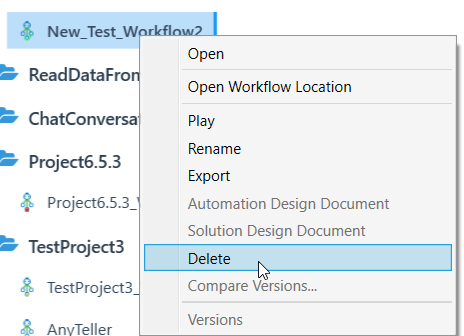
Also, you can select the desired workflow and press DEL on the keyboard for deleting the workflow.