Template
The business entity, Template allows you to provide a particular document format as template input. The template file can contain the variables to be resolved during the runtime.
The template can be mapped to appropriate activities for resolving the variables or it can be utilized via code to achieve specific rules.
Viewing Templates
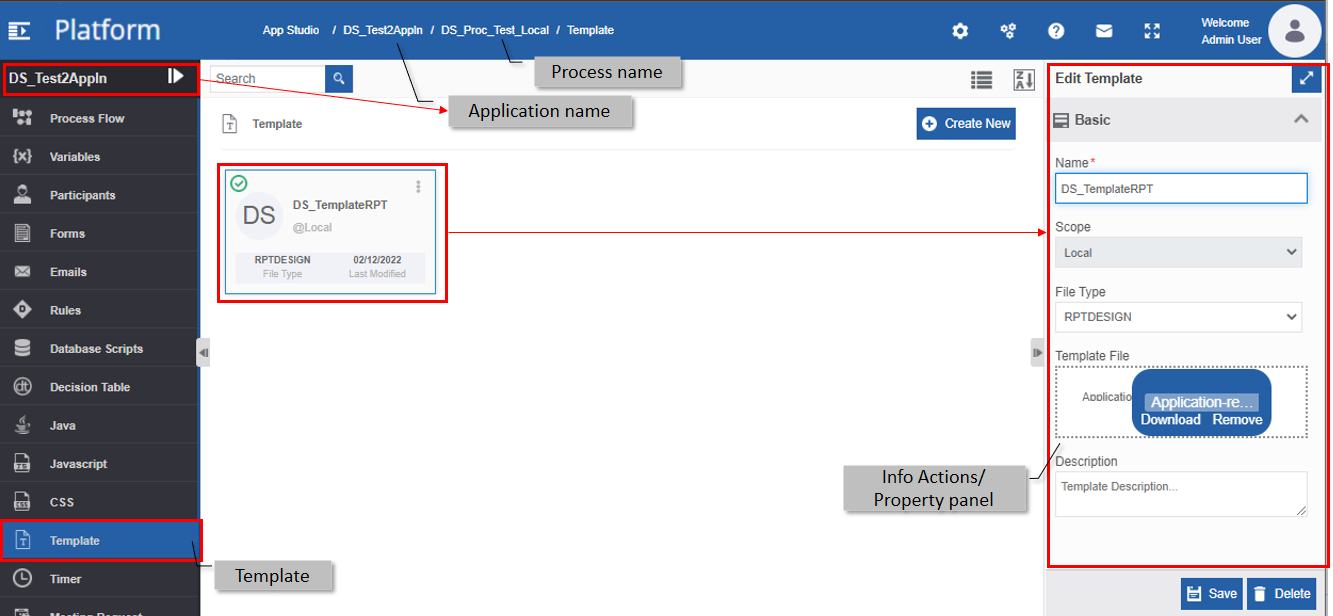
The Template entity associated with each flow will appear within that flow.
- Navigate to App Studio > Applications - open application name > Process Flow - process flow name > Open.
-
Click Templates on the left side panel for viewing the templates for the flow module.
Creating a New Template
You can create a template of a specified file type as per the requirement.
- Navigate to App Studio > Applications - open application name > Process Flow - process flow name > Open.
-
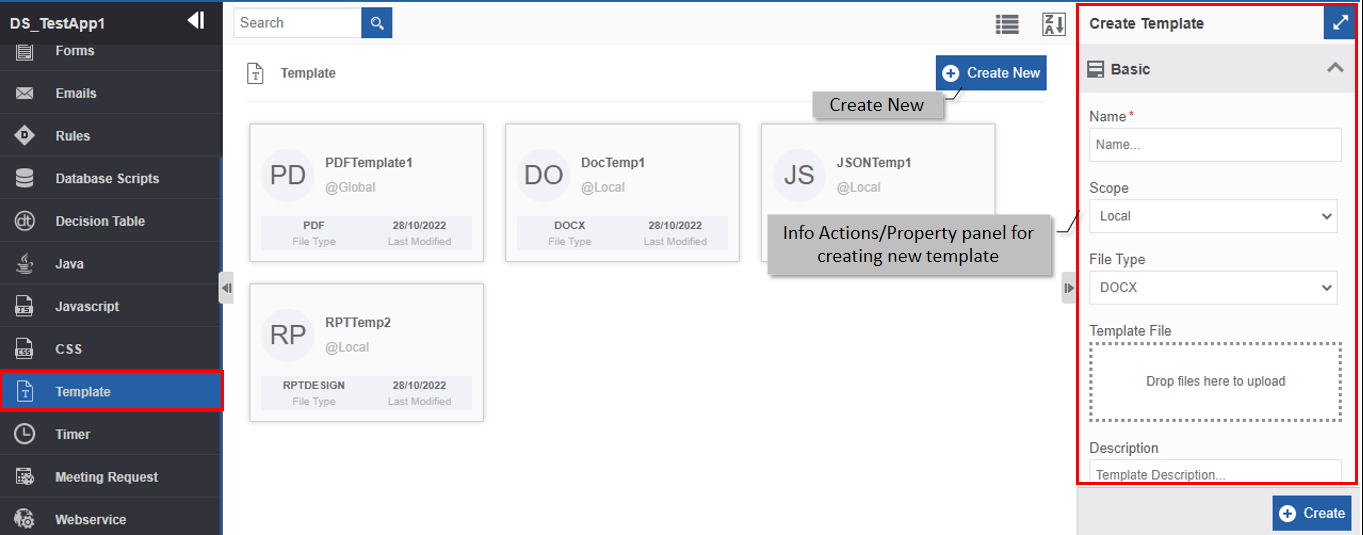
Click Template. The template list appears.
-
Click +Create New. The Info Actions panel appears as Create Template.
-
Enter the Basic details in the Create Template panel as explained below.
Field Description Name* Enter the name of the template.
Character limit: 50.
Data type: Alphanumeric and underscore. Whitespace is not allowed.Scope* The scope of an entity is always local as the entities are created at the flow level. File Type Select the required File Type from the drop-down list. 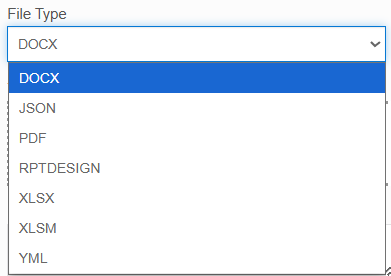
- DOCX : File type, DOCX allows you to upload a docx file as the template file. The file can have variables that are to be resolved at runtime.
- JSON : The file type, JSON allows you to upload a JSON file as a template.
- PDF : The file type, PDF allows you to upload a PDF file as a template.
- RPTDESIGN: Deprecated feature.
- XLSX : File type, XLSX allows you to upload an XLSX file as the template file. The file can have variables that are to be resolved at runtime.
- XLSM: File type, XLSM allows you to upload an XLSM file that contains macros as the template file. The file can have variables that are to be resolved at runtime.
- YML : The file type, YML allows you to upload .yml file as a template.Template file Click and upload the template file. The file should be the type that you selected in File Type. Description Enter a description for the template. -
Click Create. A template with the provided details is created.
Viewing and Editing Template
Make sure to unlock the application before editing if you want to edit the details of an entity that is not created by you.
- Navigate to App Studio > Applications - open application name > Process Flow - process flow name > Open.
- Click Template. The Template list appears.
-
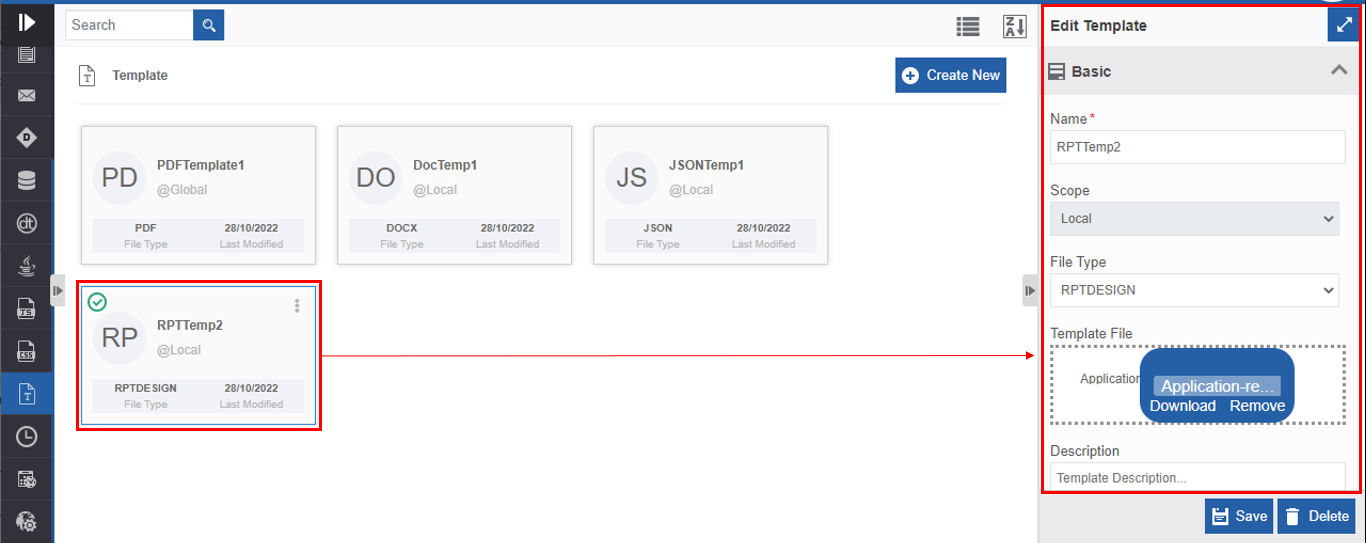
Click the Template card for viewing the details of the selected template. The details of the template appear in the Info Actions panel (Edit Template).
-
Edit the template details as needed.
- Click Save.
Viewing Template Associations
- Navigate to App Studio > Applications - open application name > Process Flow - process flow name > Open.
- Click Template. The template list appears.
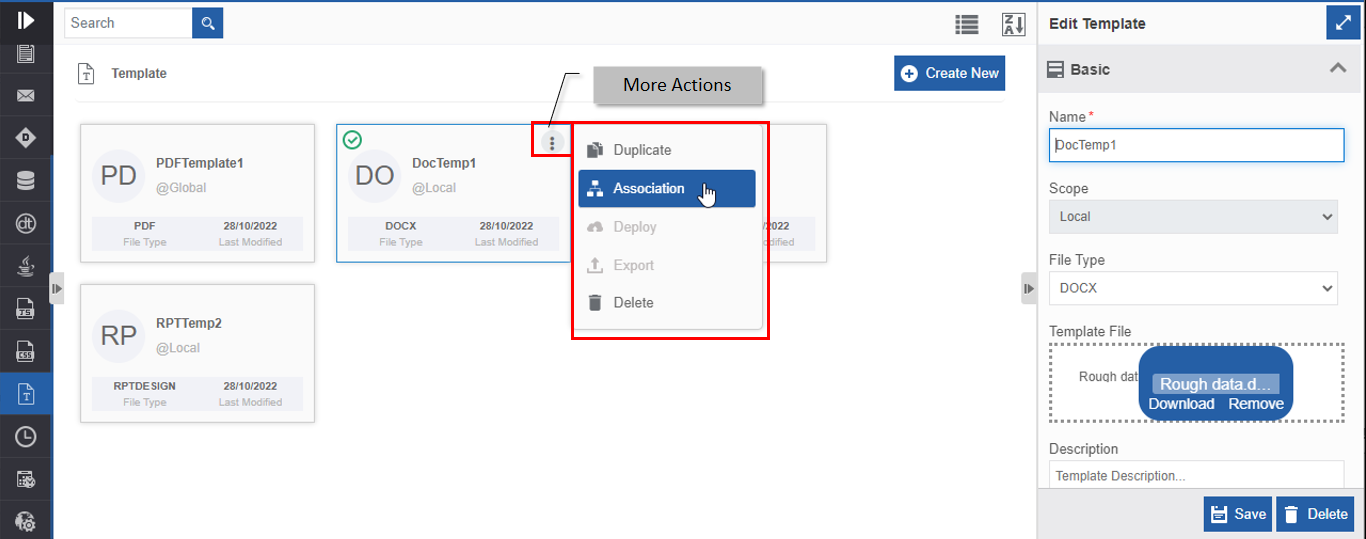
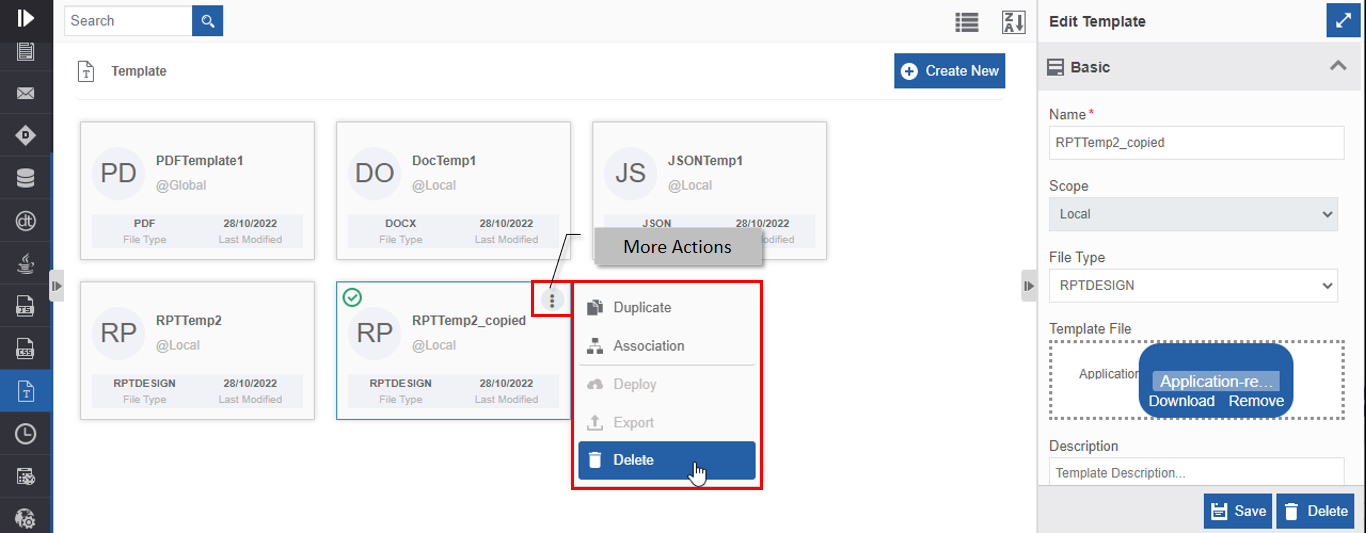
- Hover over any template card. Three dots appear on the upper right side of the card.
-
Click the three dots. More Actions appear.
-
Click Associations. The association of the template with the application, flow modules and activities are displayed in a pop-up.
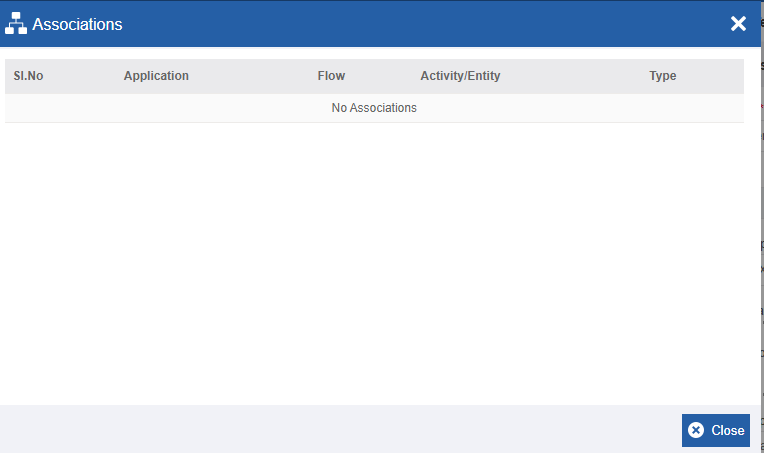
- Application – The application in which the template is utilized.
- Flow - The flow in which the template is utilized.
- Activity / Entity - The entity or activity name.
- Type - The type of entity or activity in which the template is utilized.
Duplicating Template
Make sure to unlock the application before duplicating an entity that is not created by you. When you duplicate a template, the associations are not duplicated.
- Navigate to App Studio > Applications - open application name > Process Flow - process flow name > Open.
- Click Template. The template list appears.
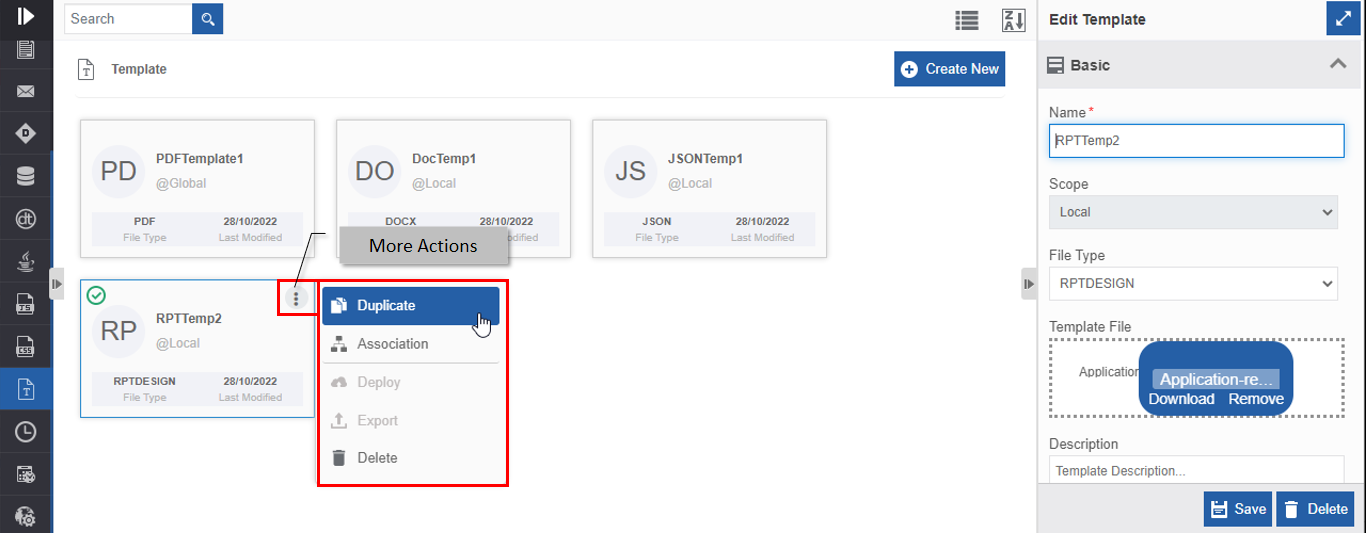
- Hover over any template card. Three dots appear on the upper right side of the card.
-
Click the three dots. More Actions appear.
-
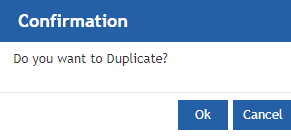
Click Duplicate. A confirmation pop-up appears.
-
Click Ok for duplicating the template (or you can click Cancel to cancel the duplicate action). A Success message appears on the successful duplication of the template.
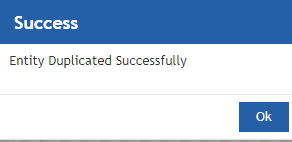
-
Click Ok. A duplicate copy of the template appears on the Templates page with the same name suffixed with “_copied”.
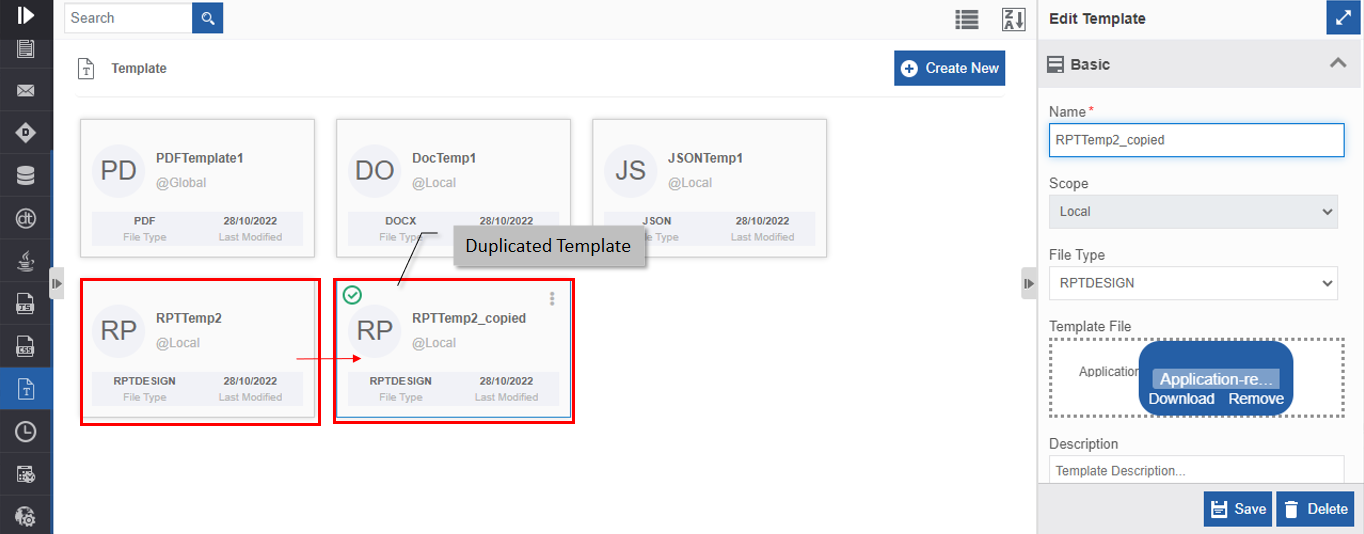
Deleting Template
Make sure to unlock the application before deleting an entity that is not created by you. Also, you cannot delete the entity if it is associated with any activity.
- Navigate to App Studio > Applications - open application name > Process Flow - process flow name > Open.
- Click Templates. The template list appears.
-
Click the template name card that is to be deleted. The lower-right of the page displays Delete.
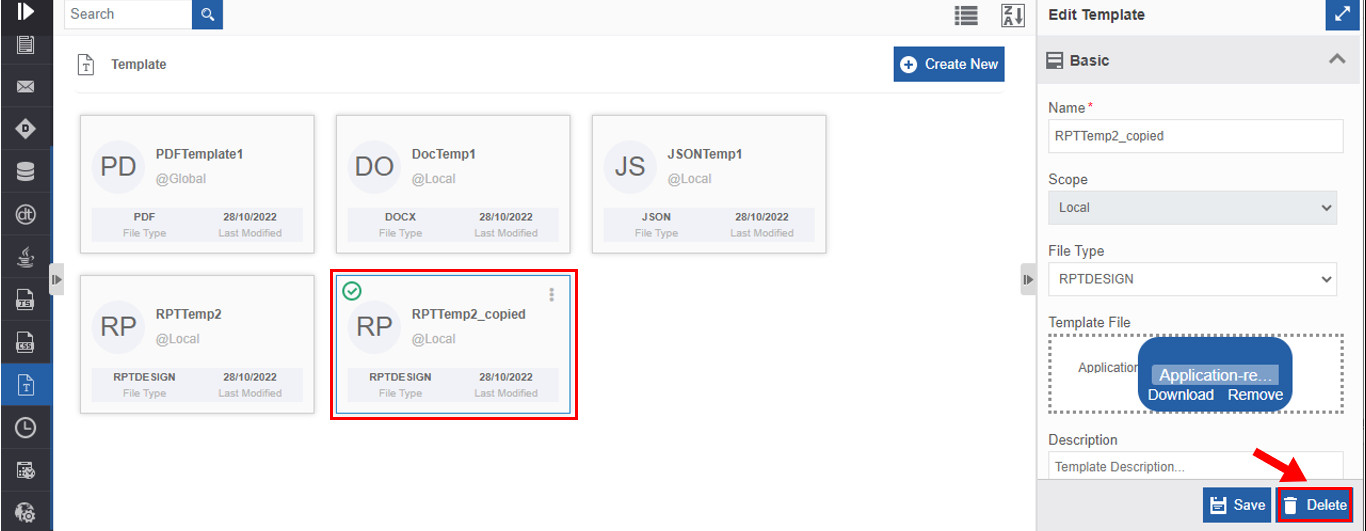
-
Click Delete. A Confirmation pop-up for delete appears.
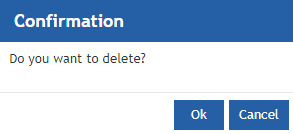
-
Click Ok for deleting the template.
Or
Click Cancel to cancel the action.
Alternatively, you can follow the below steps to delete the template:
- Click the Burger menu and navigate to App Studio > Application > {Flow module} > Template.
- Hover over the template card. Three dots appear on the upper right side of the card.
- Click the three dots. More Actions appear.
-
Click Delete and follow step 6 in the above procedure.
Utilizing Templates
Accessing Template through Activities
You can map a template of File type, DOCX, and XLSX to the PDF Generator activity.
Mapping Template to PDF Generator Activity
You can map the template to the activity, PDF Generator in the process flow for converting a docx file to a pdf file and xlsx file to xlsx file by resolving the variables in the template.
-
Navigate to App Studio > Applications - open application name > Process Flow - process flow name > Open.
Info
Open or create a process flow with PDF Generator activity in the flow.
-
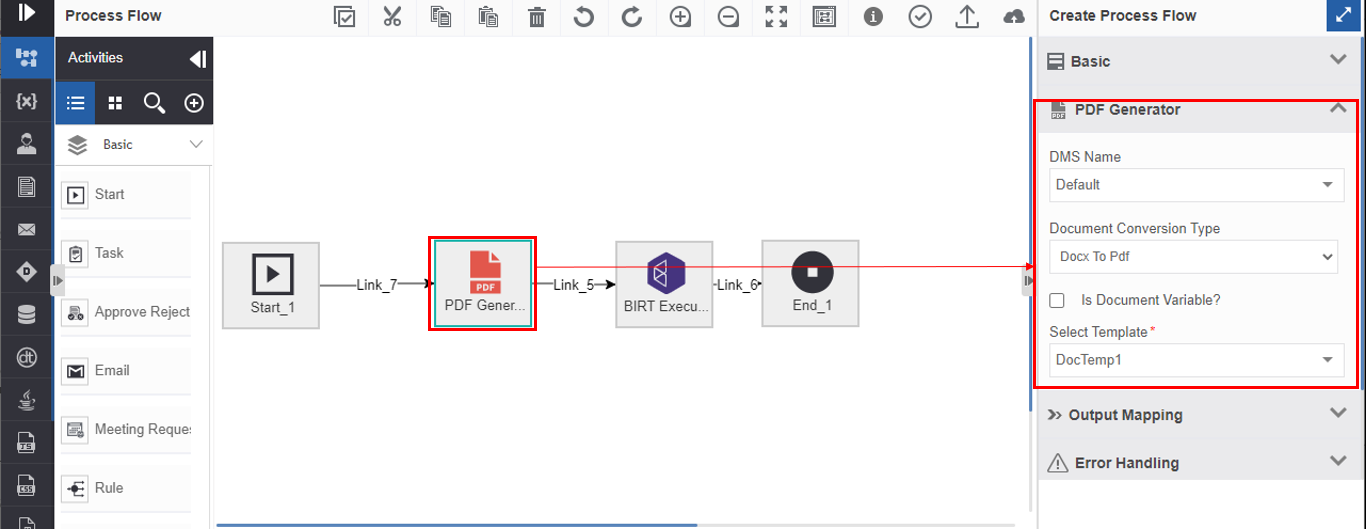
Click the PDF Generator activity and the Info Actions panel displays the configuration and properties.
-
Click the PDF Generator accordion.
-
Click Select Template drop-down for viewing the list of templates. For selecting the template, the Is Document Variable? checkbox should be deselected.
Note
If you have selected Document Conversion Type as docx to PDF, the Select Template will display only docx type of templates and if you have selected the Document Conversion Type as XLSX to XLSX, the Select Template will display only XLSX type templates.
-
Select a template for mapping the template for the PDF Generator activity.