Data Catalog Management
What is a Data Catalog?
The Data Catalog submodule in the Manage module allows you to manage the Business Data Entities or Data Entities defined and created for achieving specific goals in the business environment. Data Catalog section allows the user to define and manage master records for each data entity that is important to the business. A Data Entity becomes the core component that can be used across business processes in master data.
The Data Catalog section has many features for handling data entities. The master business entities created are utilized within the process flows that you create within the application.
What is a Data Entity?
A Data entity is a collection of master data details. A data entity contains multiple variables (this can include collection variables also) of different data types defined as per the business requirement. The data entity created is utilized as a data type during the creation of the variable. The data entity is utilized within the platform by mapping the data entity name to the relevant attributes in the process flow. Variables of type data entity can be created and utilized in the process flows.
For Example,
A Data entity can be an Account, Product, Customer, Employee, or any data element used within your business organization.
Consider an Employee onboarding process. You need to create the details of employee (ID, name, email, DOB, address, dept, etc.), store it in different tables (linked data need to be created in different tables). Here Employee is the main business entity. Data Catalog helps you in creating such an entity (e.g., employee) and linking them with the table (e.g., employee details).
Viewing Data Entity List
-
Click Burger Menu on the left of logo on the upper-left of the platform.
-
Click Management. The Management page appears with all the manage submodules.
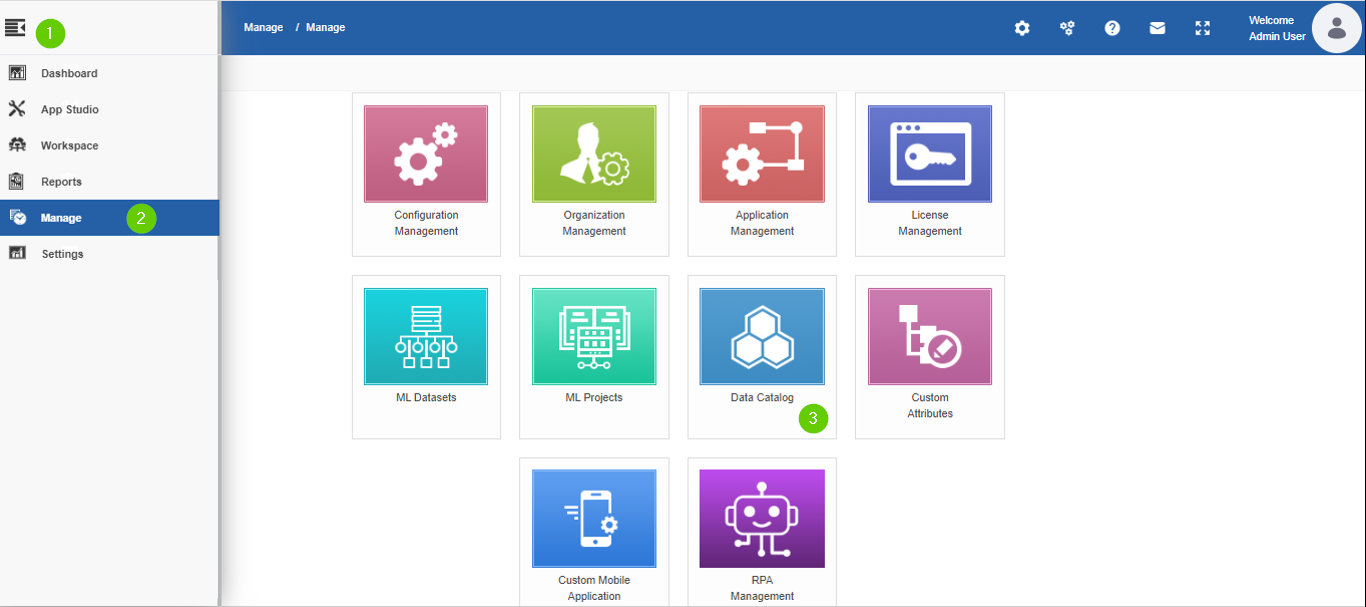
Figure 1: Navigating to Data Catalog section -
Click Data Catalog. The Data Entities page appears by default.
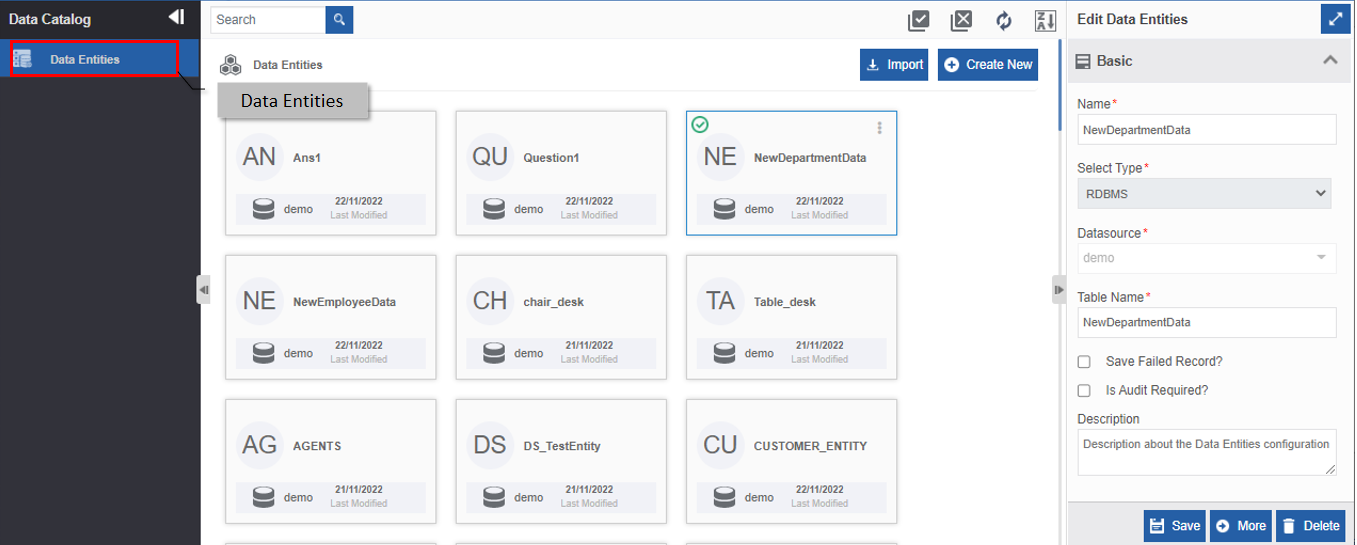
Figure 2: The Data Entities page
Understanding Data Entities Page Layout
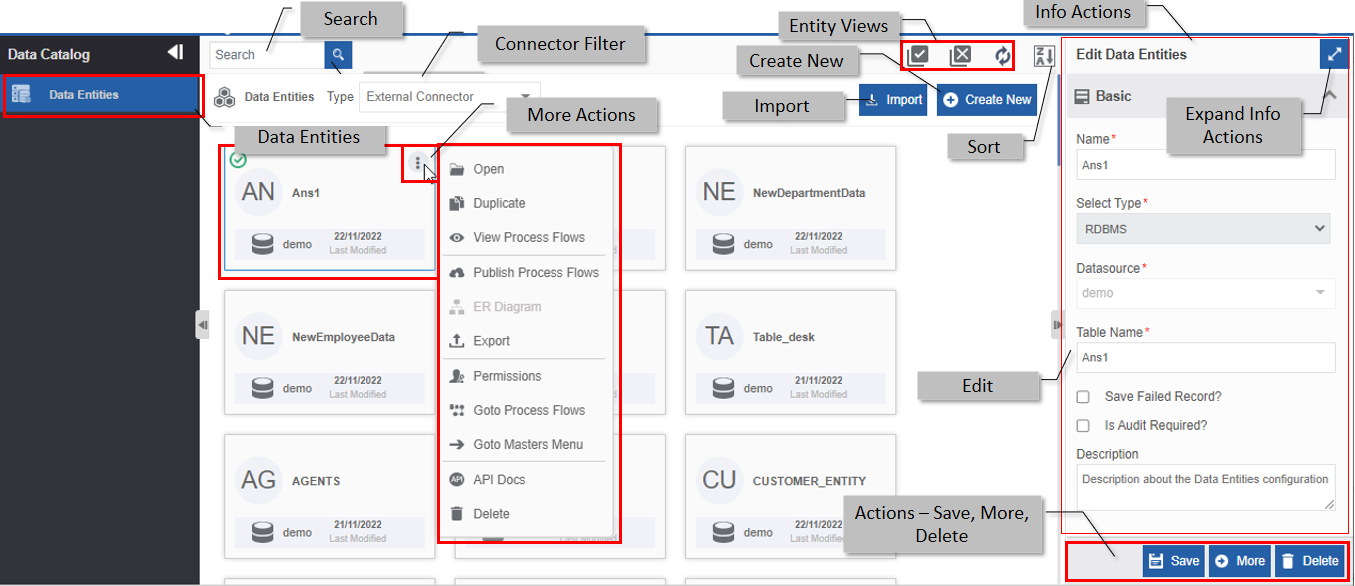
Figure 3: The Data Entities layout
| Feature | Description |
|---|---|
| Search | To search for an entity in the list. |
| Connector Filter |
To filter out the external connector-based data entities based on the filter item |
| Sort | To alphabetically sort the items (or cards) on the page. |
| Actions | - Save: Click Save to save the details after editing or modifying. - More: Click More to view the Configure Attributes page and details. - Delete: Click Delete to delete the data entity. |
| More Actions | - Hover over the card to view three dots. - Click the three dots on the card to view more actions. Actions are displayed as applicable for the data entity. - Edit: To edit the details. - Duplicate: To duplicate the data entity - View Process Flows: To view the process flow of the data entity. - Publish Process Flows: To publish the process flows created. - Export: To export the data entity (in .pkg file) from the platform to the local system. - Permissions: To navigate to the permission page. - Go to Process Flows: To navigate to the process flow page. - Go to Masters Menu: To navigate to the Masters menu. - API Docs: To view the API Docs. - Delete: To delete the data entity. |
| Import | To import the data entity in the .pkg file format from the local system to the platform or to import the data entity from the data source to the platform. |
| Create New | To create a new data entity. |
| Entity Views | - Show Basic Entities: Click the Show Basic Entities icon for displaying only the basic data entities. - Hide Basic Entities: Click the Hide Basic Entities icon for hiding the basic entities and displaying entities other than basic entities. - Show All Entities: Click the Show All Entities icon for displaying all the data entities. |
| Info Actions | Displays the properties of the selected item. Click (select) a data entity card. Attributes/properties and configurations of the data entity are displayed in the Property panel called Info Actions. |
| Expand/Collapse | To hide and view the Info Actions panel. Click expand arrow (open Info Actions) on the top-right of the Info Actions to open Info actions in a separate pop-up. |
Types of Data Entities
There are two types of data entities that can be created in the platform and utilized as per the business needs.
-
In Process (or basic) data entities
-
RDBMS-type data entities
In Process Data Entities
Data entities of type, In Process are created and utilized directly in the process flows. The “In Process” data entities are also known as basic entities. The “In Process” data entity is not linked to any database. You can access these data entities through process flow variables.
RDBMS Type Data Entities
RDBMS type data entities need a configuration of the database. You need to configure a data source and map it to the data entity for creating a data entity table (in that data source) during the creation of the data entity. A data source is a mandatory requirement for RDBMS-type data entities. The data source is created and managed in the Management > Configuration Management > Data Source section.
Data Entity Views based on Type
The icons on the top-right of the Data Entities page allow you to view data entities based on the type (In Process or RDBMS type) of the entity.
-
Click the Burger menu and navigate to Management >Data Catalog > Data Entities. The data entity list appears. The top-right of the data entity page displays display icons.
-
Hover over each icon for viewing the tool-tip.
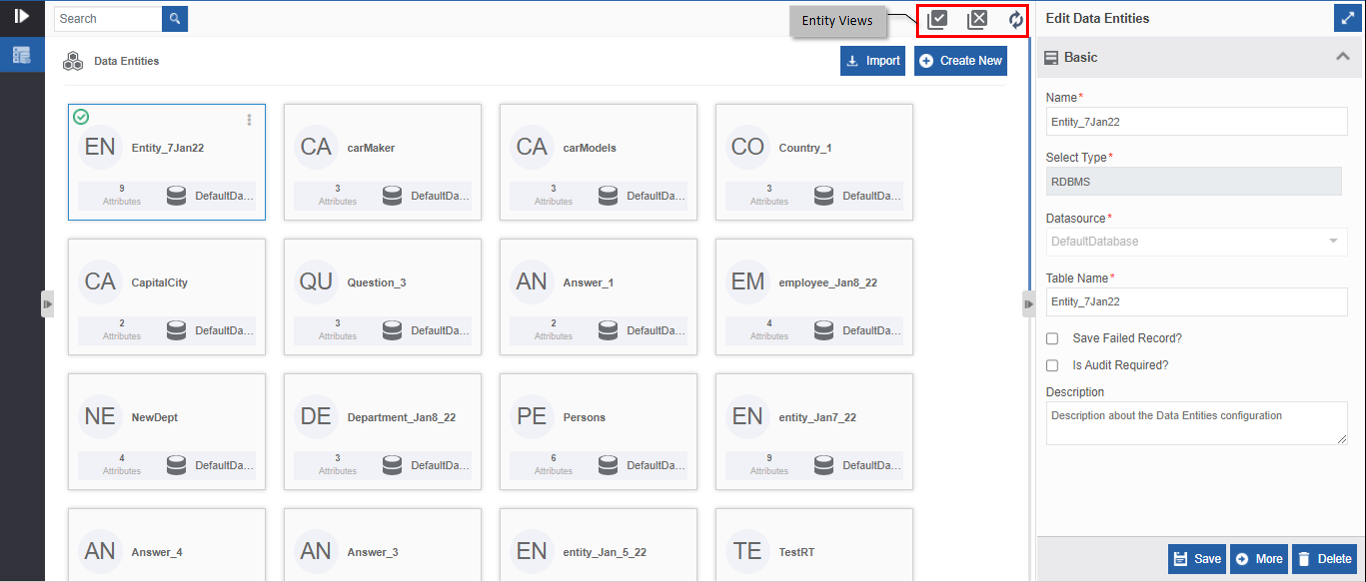
Figure 4: Entity Views-
Click
 (Show Basic Entities). Basic entities or In Process type data
entities are filtered and displayed.
(Show Basic Entities). Basic entities or In Process type data
entities are filtered and displayed. -
Click
 (Hide Basic Entities).
Basic entities are hidden and RDBMS-type data entities are filtered
and displayed.
(Hide Basic Entities).
Basic entities are hidden and RDBMS-type data entities are filtered
and displayed. -
Click
 (Show All Entities).
Removes the filter (if any) and displays all the entity types.
(Show All Entities).
Removes the filter (if any) and displays all the entity types.
-
Searching for a Data Entity
- Click the Burger menu and navigate to Management > Data Catalog > Data Entities. The data entity list appears on the Data Entities page
-
Type the name (or first few letters) of the data entity name in the search box on the upper-left of the page. The filtered results are displayed.
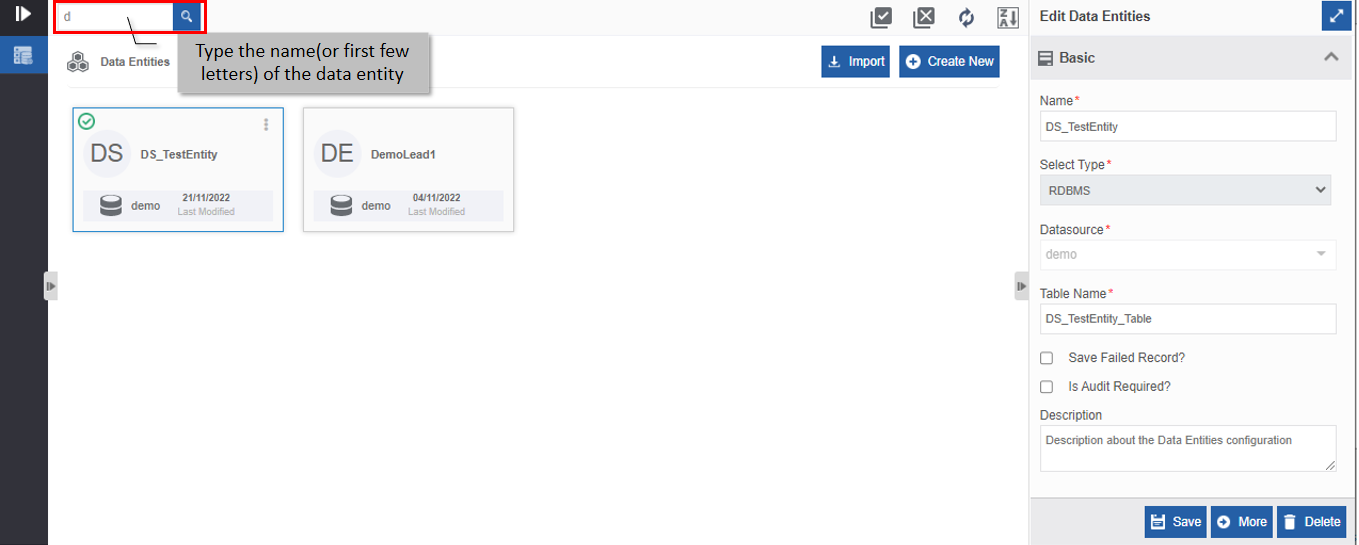
Figure 5: Searching for the data entity
Filtering Connector-Based Data Entities
Connector-based data entities are non-editable.
- Click the Burger menu and navigate to Management > Data Catalog > Data Entities. The data entity list appears on the Data Entities page
-
In the Type (External Connector) box enter the connector name (or first few letters) of the connector name. The filtered results are displayed.
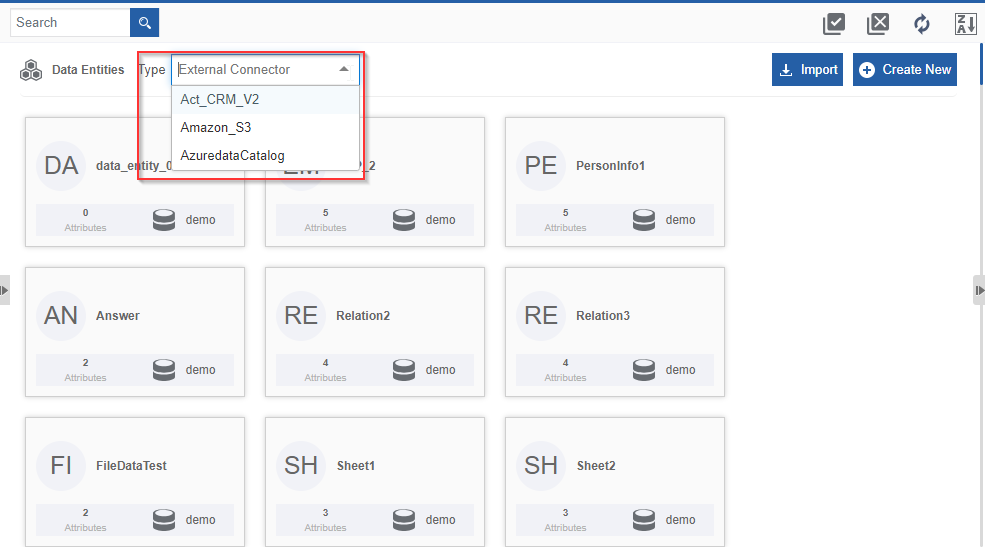
Figure 6: Filtering data entities based on the selected connector name
Creating a New Data Entity
The Data Entity Information section captures the basic details of the data entity. The data entity name provided is used across the system to identify the entity.
- Click the Burger menu and navigate to Management >Data Catalog > Data Entities. The data entity list appears on the Data Entities page.
-
Click +Create New on the upper-right of the page. Create New Data Entity pop-up appears with Step 1 for creating data entity and the buttons (Cancel, Previous, Next, Finish) for navigation steps in the creation of data entity.
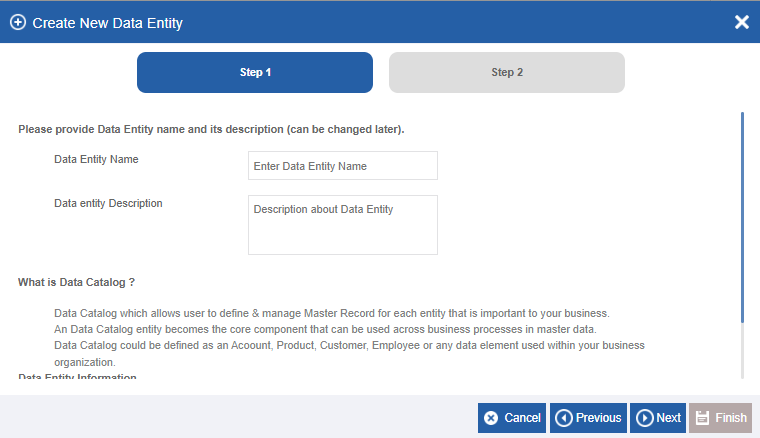
Figure 7: The Create Data Entity pop-up (Step 1)-
Cancel – To cancel the creation of a data entity.
-
Previous – To navigate to the previous step of data entity creation. This is applicable when you move to Step 2.
-
Next – To navigate to the next step (Step 2) of data entity creation.
-
Finish – To Finish the data entity creation with basic details.
-
-
Enter the Data Entity Name.
Character limit: 40 characters.
Data Type: Alphanumeric (special characters or white space not allowed).
-
Enter Description (a summary of data entity configuration details) in the description box. Data Type: Alphanumeric.
-
Click Next. Data Source configuration (Step 2) appears.
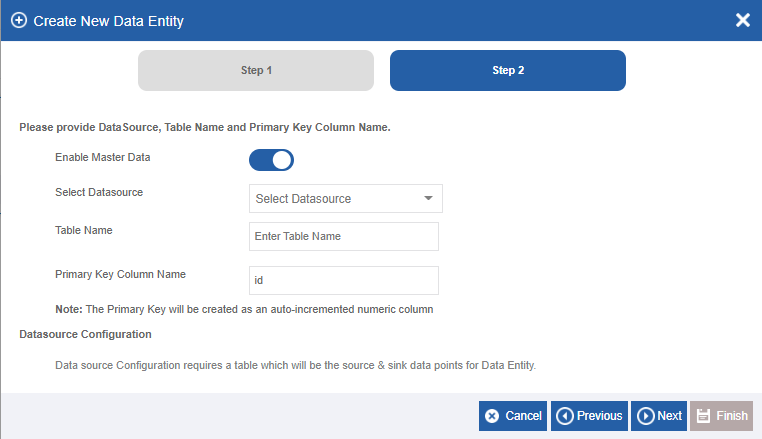
Figure 8: Create Data Entity pop-up (Step 2) -
Provide data source configuration details as indicated below.
Configuration Description Enable Master
DataDisable the switch if you want to create an “In Process” type of
data entity. The data source configurations below the Enable Master Data
are disabled (as it is not applicable) if you disable the Enable Master
Data switch.Enable the switch if you want to create an “RDBMS” type of data
entity.
The Enable Master Data switch is enabled by default. The database
configurations below the Enable Master Data are enabled only if
Enable Master Data switch is enabled.
Select Data
SourceSelect Data Source for the data entity.
Data Source is created and configured in Manage > Configuration Management >
Data Source.Refer to Data Source.
Table Name Enter the table name for the data entity.
This data entity table is created in the selected data source.Data Type: Alphanumeric (special characters or white space
not allowed).Primary Key
Column NamePrimary Key column is created with column name “id”.
The first record takes value for id = 0. As it is internally
auto-incremented default value is not displayed for the id.
The primary key “id” is auto-incremented during the runtime.The id can be made visible or hidden as per the need.
It is the developer’s choice about how to design the details
as per the requirement.
After providing configuration details, the Finish button becomes active (when you click outside the fields).
-
Click Finish to create the data entity with the basic details provided. The Data Entities page appears. The entity details appear in the Edit Data Entities panel.
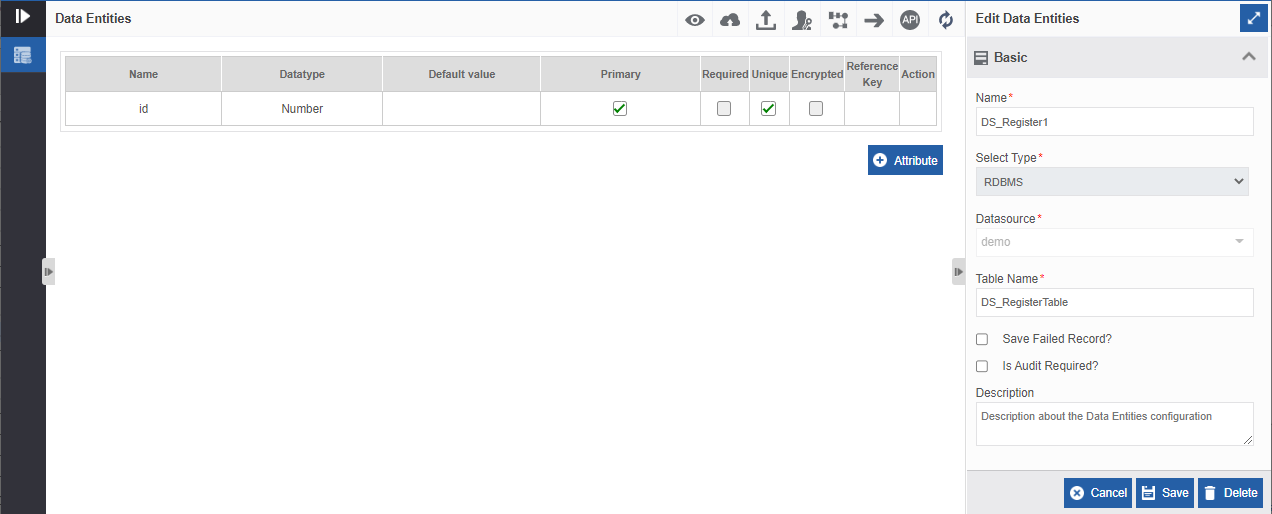
Figure 9: Created data entity and Edit Data Entity detailsYou can edit the details in the Edit Data Entities as explained in the below table.
Field Description Name Name of the entity as provided during the creation of the entity.
Name field cannot be edited.
Select Type The type of entity selected in Create Data Entity – Step 2 is displayed.
Type of entity cannot be edited.In Process – Indicates that Enable Master Data is
disabled during entity creation and hence data entity is not
linked to any database.RDBMS - Indicates that Enable Master Data is
enabled during entity creation and hence data source and
entity table are configured for the entity.
Save Failed
Record?Check the checkbox if you need to save the details of the failed
data entity record during runtime else uncheck.Check – Indicates that if CRUD operation is fails for a
record during the runtime, the details are captured in a table and saved
in the database.Uncheck – Indicates that the if the CRUD operation fails
during the runtime, details are not captured.
Is Audit
Required?Check the checkbox if you need to capture the log details of CRUD
operations.Check – Indicate that the log details of any CRUD
operation are captured automatically in a table in a predefined
manner.
Refer to Audit Table Details for details
regarding the audit table.Uncheck – Indicates that the log details of any CRUD
operation are not captured.
Description Enter or edit the description entered through the Create New
Data Entity pop-up.Refer to Adding New Attribute for adding attributes for the data entity created.
-
Click Save to save the modified details.
Audit Table Details
The Audit Table is automatically created by the system for capturing the details of the CRUD operations associated with the data entity. That is, when you do an action with the data entity, the log details are captured along with the data entered by the system in the selected data source.
-
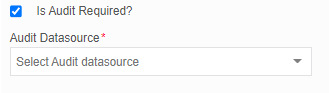
In the Edit Data Entities panel click “Is Audit Required?”. Audit Datasource* appears. It is mandatory to select a datasource for the Audit table.
-
Click the Audi Datasource drop-down and select a data source. You can select the same data.
The system-generated audit table includes all the columns in the data entity table and four other system generated columns for capturing the log information.
System generated name for the audit table: {Data Entity Name}_AUDIT
System generated columns in the audit table:
-
Audit_PK (bigint) – This is the autogenerated primary key column. Data type: bigint.
-
Audit_Action (varchar(255)) – This column captures the action that is done with the data entity (insert, update, select, delete). Data type: varchar.
-
Audit_User_Id (bigint) – This column captures the user id of the user who is doing action on the data enity. Data type: bigint.
-
Audit_On (datetime) – This column captures the date and time on which the action is performed by the user. Data type: datetime.
For example, the audit table screenshot for the data entity named, EmployeeDetails1 in the database is provided below.
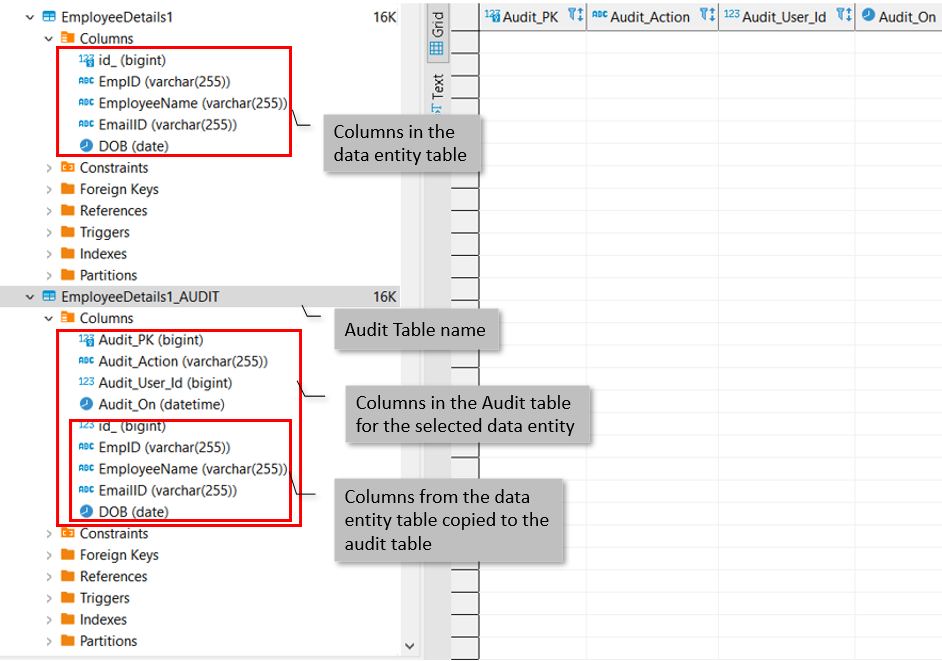
Figure 10: Database (DBeaver) view of data entity Audit table
You can access the audit table details directly from the database if you have the database connection and credentials or access permission and view the details. You can also access or get the details from the database by defining process flows in the platform.
Viewing and Editing Data Entities
You can view all the details of the data entity; however, only a few basic details can be edited.
Connector-based data entities are non-editable.
To reflect the changes made in the data entity in the Data Catalog process flows the data entity should be published.
The editable data entity details are explained below.
- Click the Burger menu and navigate to Management > Data Catalog > Data Entities. The data entity list appears on the Data Entities page.
-
Click the data entity that is to be edited. The Info Actions panel on the right side displays the Edit Data Entities with details. In the Edit Data Entities panel, you can edit Save Failed Record? (check or uncheck), Is Audit Required? (check or uncheck) and Description field.
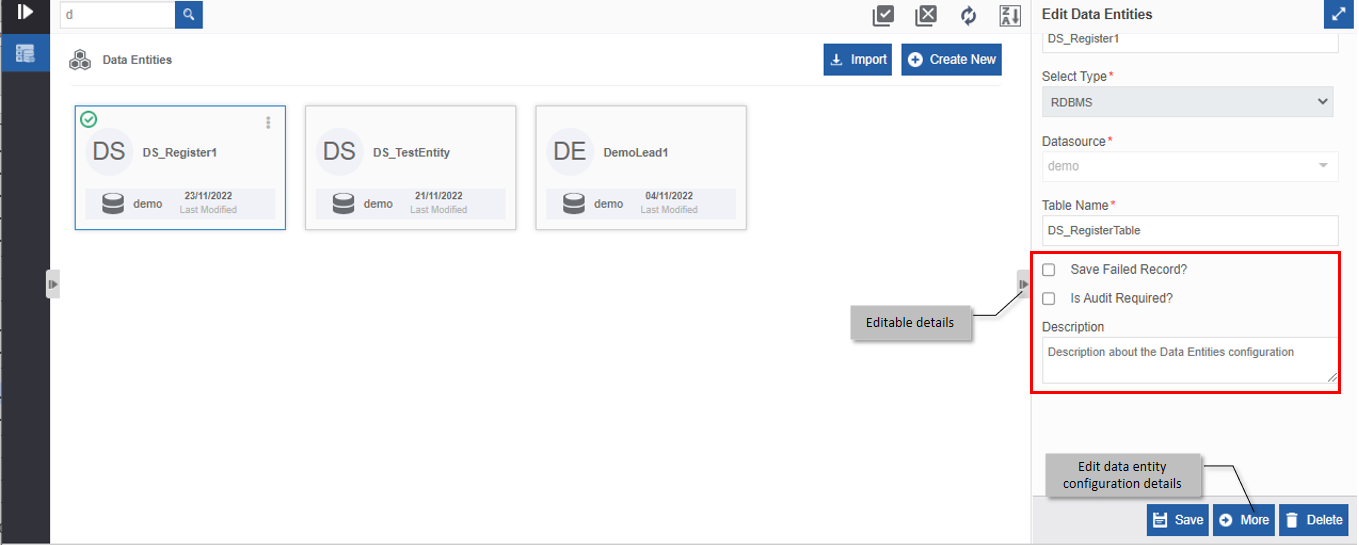
Figure 11: Editing data entities -
Click More (or double-click the data entity card). The entity table configuration details page for the selected data entity appears.
For editing attributes of the entity table, refer to Viewing and Editing the Attribute.
Managing the Data Entity Attributes
The attributes in a data entity are the column names of the data entity table in the database.
Adding New Attribute
After creating the data entity, you are automatically navigated to the Data Entities page. You can follow the below steps 1 and 2 for viewing and editing the Data entity.
Follow the below steps for adding a new attribute.
-
Click the Burger menu and navigate to Management > Data Catalog > Data Entities. The data entity list appears.
-
Click the data entity for which you need to add the attribute and click More (or double-click the data entity card). The Data Entities page with the attribute table for the selected data entity appears.
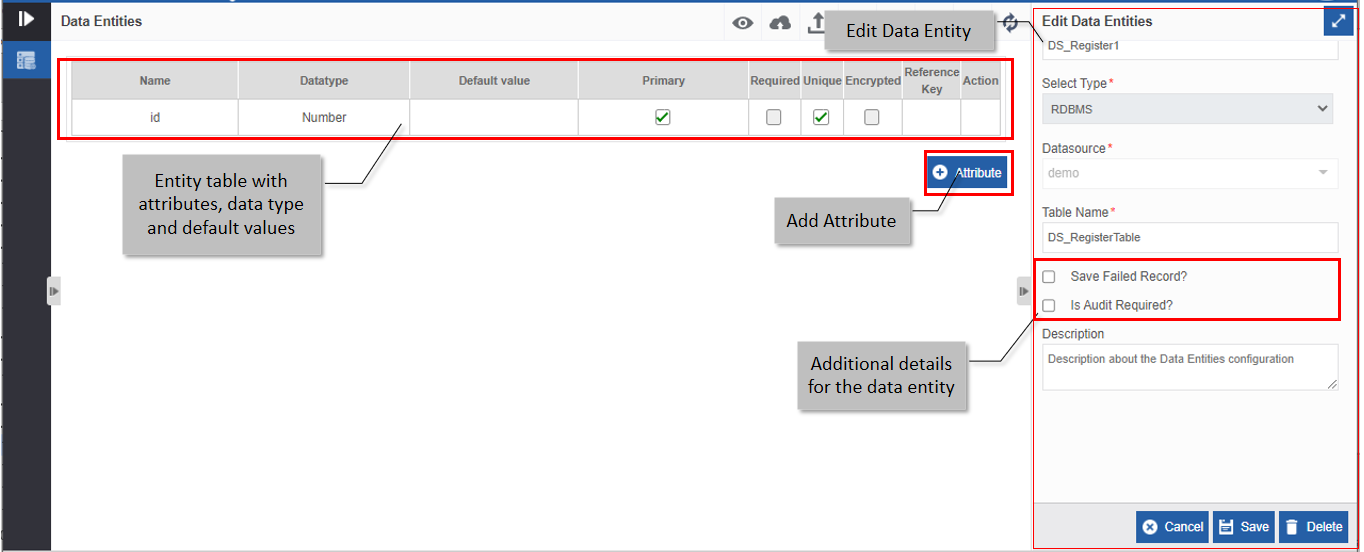
Figure 12: Data entity attribute configuration page -
Click +Attribute for adding attributes in the data entity table. Add Attribute pop-up appears.
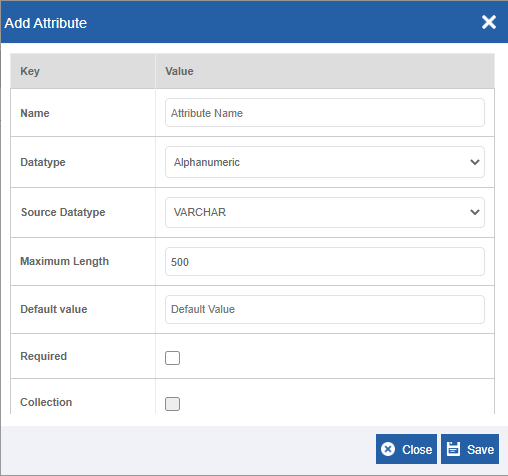
Figure 13: Add attribute pop-up -
Enter the details of the attribute as explained below.
Key Value Name Enter the name of the attribute.
Data type: Alphanumeric (special characters and white space not
allowed).Data type Select the data type for the attribute from the drop-down
list.Primary category: Primary data type section in
the drop-down lists the standard data types.Custom category: The custom data type section in
the drop-down lists the data entities.
When you select any Custom data type (data
entity),Reference Key and Relationship are displayed in the attribute Key.
Default Value is disabled.
Collection checkbox is checked.
Based on the data type selected, further relevant details
appear
Source Data
typeSource Data Type is displayed when you select the Data Type as “Alphanumeric”.
Select the source data type from the drop-down list.
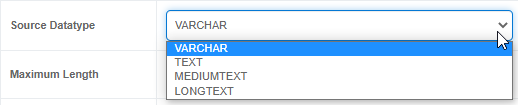
Source data type allows you to select a data type based on the size
of the source data.Default Value This is applicable only to the Primary data types and not
applicable to Custom data types.Enter a default value for
the attribute.Reference Key Reference Key is displayed only if you select a custom data type.
The Reference Key drop-down lists the attribute keys of the selected
data entity.Select an attribute as the Reference Key from the
drop-down list.Relationship The relationship is displayed only if you select a data entity as
a data type drop-down list (from the Custom section).Select the relationship of the entity to the selected data entity
from the drop-down list.Refer to Reference Key and Relationships
for more details.Required Check the checkbox if you want to make the attribute mandatory or
uncheck if it is optional.Check – Indicates that it is mandatory to have value for
this field. The entity details are not saved and if there is no value
entered for the attribute during runtime a validation error is
shown.Uncheck – Indicates that the attribute can be left blank
(optional field).
Collection This is in disabled view and automatically checked/unchecked as
how you select a custom datatype.Check – Indicates that the data entity is of collection type.
Uncheck – Indicates that the data entity is not a collection type.
Unique You can check the attribute as unique (no duplicate values
allowed) or uncheck if duplication is allowed for the field.Check – Indicates that the field is unique. Duplicate or repetition
of value is not allowed during the runtime.Uncheck – Indicates that the attribute is not unique and can
contain duplicate values during runtime.
Unique checkbox is checked automatically when
you define the Relationship as One to One. In this
case, you cannot edit Unique field checkbox as it is based on the
relationship defined. However, you are allowed to edit the
relationship detail.
Encrypted Check you want to store the value in an encrypted format.
Check - The value of the attribute is encrypted and
stored.Uncheck – Entered value is stored as such without
encryption.
When you do a normal lookup from the form, you cannot get the
decrypted data from the database, however, you can fetch the decrypted
data using the Filter API.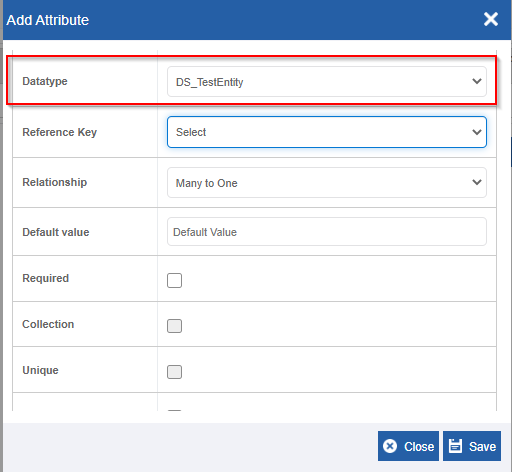
Figure 14: Add attribute details (custom data type selected) -
Click Save. An additional row appears for the attribute in the data entity table with the added attribute details. (Click Close if you want to cancel the action.)
-
Add the required attributes for the data entity in the same way (repeat from Steps 8 to 10). For each entity added, the Action column in the entity table displays the settings icon. (Settings icon is not displayed for the id column as it is automatically created by the system).
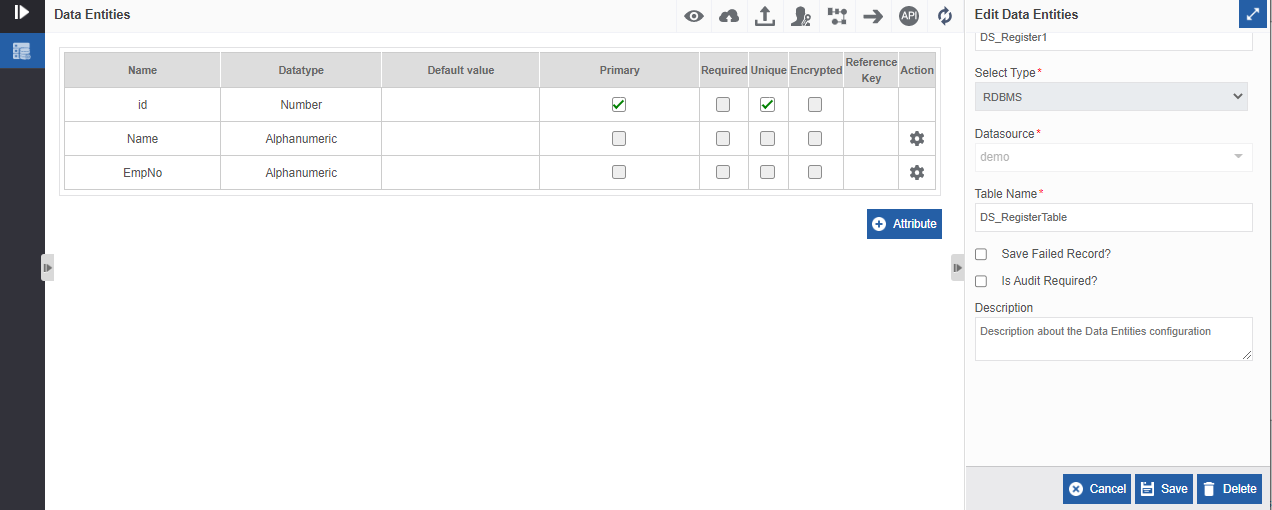
Figure 15: Attributes added to the entity table -
Click the settings icon in the Actions column corresponding to each attribute for editing that attribute.
Refer to Viewing and Editing Data Entities for more details.
Reference Key and Relationships
An attribute (referred to as parent table attribute) that has a reference linked to another data entity table (referred to as child table) is a relational attribute. The child table should be created as needed and should have a primary key. A relational attribute should have a child data entity as the data type and should have a relationship with the data entity table.
That is, when you define an attribute as a relational attribute, you should,
-
Select data entity as a data type for the parent attribute.
-
Select a Reference Key (column name from the child data entity table).
-
For complex data types, Reference Key is the primary key column of the reference table (child data entity table).
-
Select a Relationship with the data entity table. Relationship details are provided below.
-
The Collection checkbox is automatically selected/deselected based on the selected relationship.
-
The reference key selected need not be always the primary key of the child table.
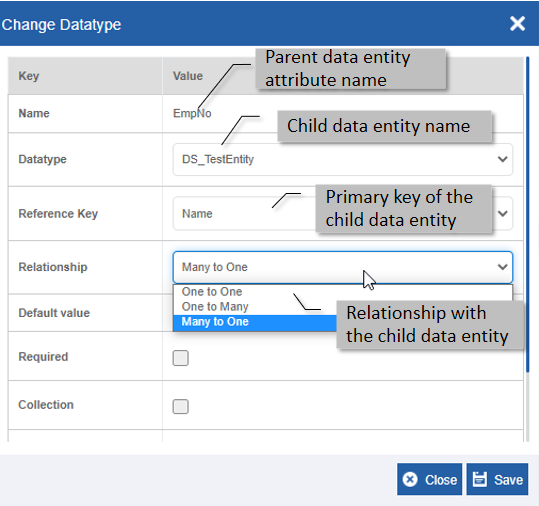
Figure 16: Reference key and relationships -
The {ParentAttributeName} in the {ParentDataEntity} should have datatype as {ChildDataEntityName} and the required {ChildDataEntityIdAttribute} from {ChildDataEntityName} is selected as reference key for the {ParentAttributeName}.
Relationship and Behaviours
The Patent table is the main data entity table in which the relationship with the child is defined. The Child data entity table is referred to as the reference table.
One-To-One
For the One-To-One relationship, a One-To-One relationship is defined from the Parent data entity to the Child data entity table. That is, one parent table attribute key can have only one values from the child table.
If you define the relationship as One-To-One then Collection =True and so the collection checkbox is checked automatically.
One-To-Many
For a One-To-Many relationship, a One-To-Many relationship is defined from the Parent data entity to the Child data entity table. That is, one parent table attribute key can have multiple values from the child table.
If you define the relationship as One-To-Many then Collection = True and so the collection checkbox is checked automatically.
Many-To-One
For the Many-To-One relationship, a Many-To-One relationship is defined from the Parent data entity to the Child data entity table. That is, multiple values of the parent table attribute key can have only one values from the child table.
If you define the relationship as One-To-Many then Collection =False and so the collection checkbox remains unchecked.
Viewing and Editing the Attribute
You can add a new attribute or edit the existing attribute details.
For editing the attribute follow the below steps.
-
Click the Burger menu and navigate to Management > Data Catalog > Data Entities. The data entity list appears.
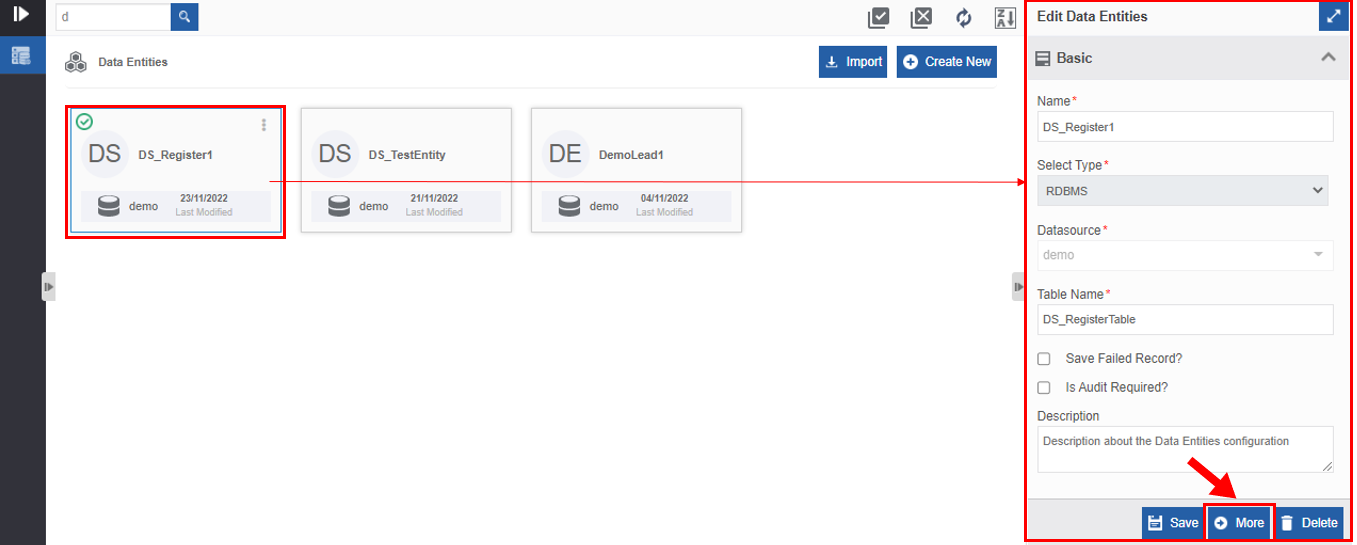
Figure 17: Navigating to data entity configuration details -
Click the data entity for which you need to edit the attribute and click More (or double-click the data entity card). The Data Entities page for the selected data entity appears.
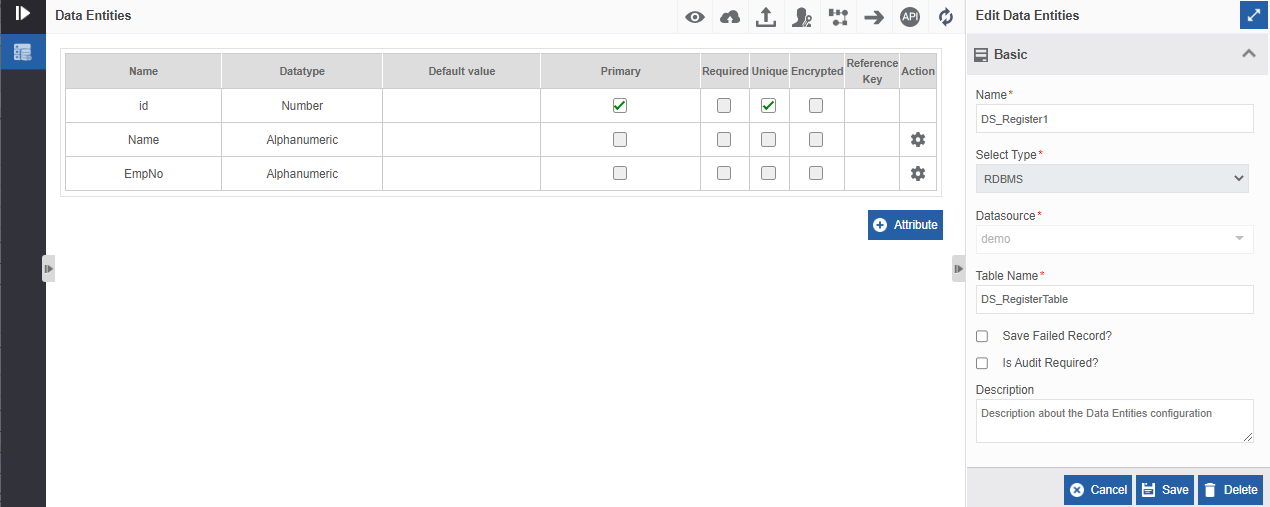
Figure 18: Data Entity Attribute configuration -
For adding a new attribute for the entity, refer to Adding New Attribute and follow the procedure from Step 3 onwards.
-
For editing the details of an attribute in the entity table, click the settings icon displayed in the Actions column of that attribute. The list of editable fields appears as enabled.
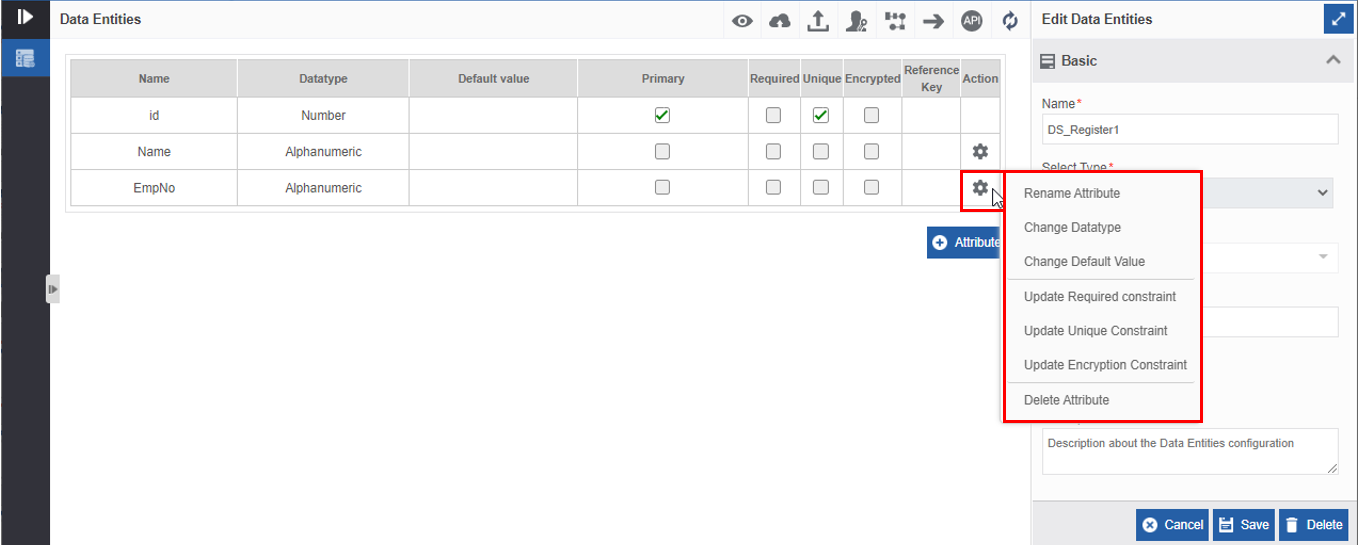
Figure 19: Editing the Attribute -
Click the field to be edited. The pop-up appears with the selected field enabled and all other fields disabled. Edit the details as explained.
Action Description Rename Attribute Click Rename Attribute if you need to change the name of the
attribute.Change Data type Click Change Data type if you need to change the data type of the
attribute.Change Default Value Click Change Default Value if you need to change the default value
of the attributeUpdate Required Constraint Click Update Required Constraint if you need to change the detail of
the Required constraint for the attribute.Update Unique Constraint Click Update Unique Constraint if you need to change the detail of
the unique constraint for the attribute.Update Encryption Constraint Click Update Encryption Constraint if you need to change the detail
of the encryption for the attribute.Delete Attribute Click Delete Attribute to delete the attribute.
Refer to Deleting the Attribute.
Deleting the Attribute
-
Click the Burger menu and navigate to Management > Data Catalog > Data Entities. The data entity list appears.
-
Click More (or double-click the data entity card). The Data Entities page for the selected data entity appears.
-
In the Data Entities page with the Attribute table, click the settings icon for the attribute to be deleted.
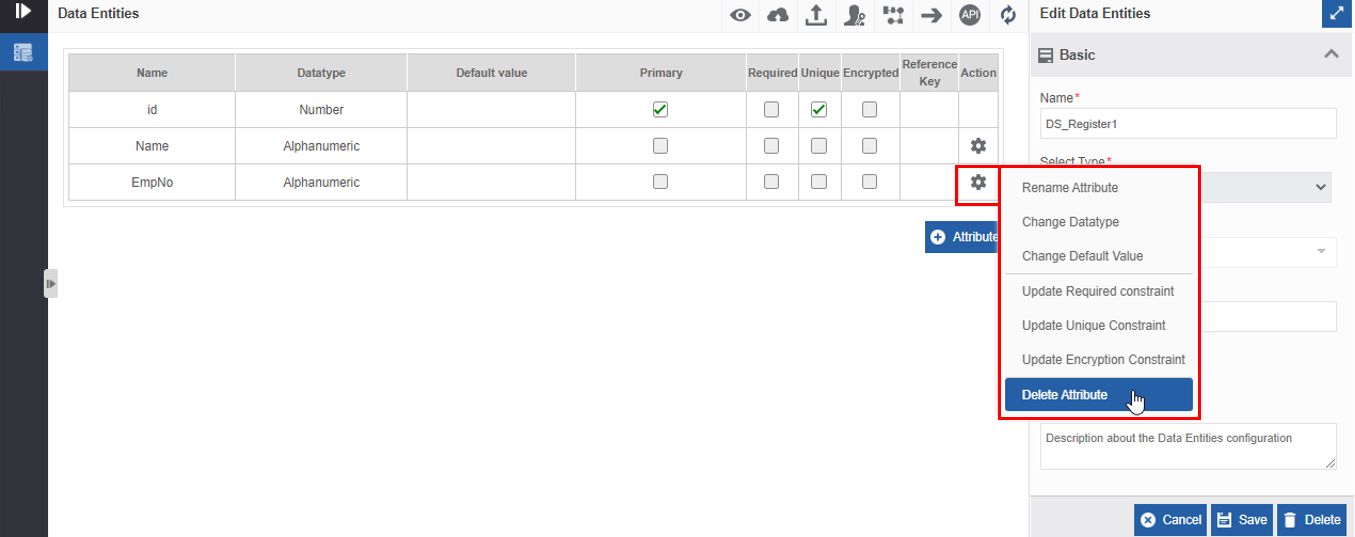
Figure 20: Deleting attribute -
Click Delete Attribute. A confirmation pop-up appears.
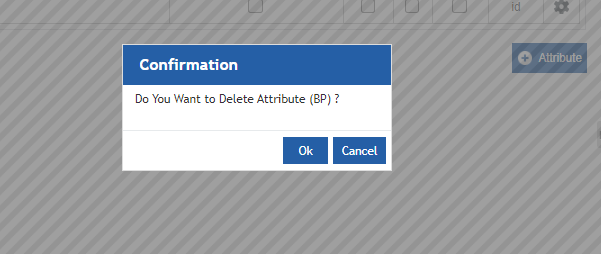
Figure 21: Delete Attribute confirmation -
Click Ok to delete the attribute or click Cancel to cancel the action.
Managing Data Entity Permissions
You can create and set permissions for the data entity. You can create multiple permissions for the same data entity.
It is mandatory to set permissions for a data entity before publishing the entity.
Multiple permissions are used when you need to give different levels of permissions for different users for the same entity. When you set user(s)/role(s) for any permission, the system understands that user or role as the participant for the task activity in the process flow, and hence, that user/role is given access to that task activity in the process flow.
The user(s)/role(s) who are given permission only can access or view the form UI in the runtime and access the Masters Menu.
Creating Data Entity Permissions
-
Click the Burger menu and navigate to Management > Data Catalog> Data Entities. The data entity list appears on the Data Entities page.
-
Click the data entity for which you want to configure the permissions.
-
Click More (or double-click the data entity card). The Data Entities page with the attribute table for the selected data entity appears.
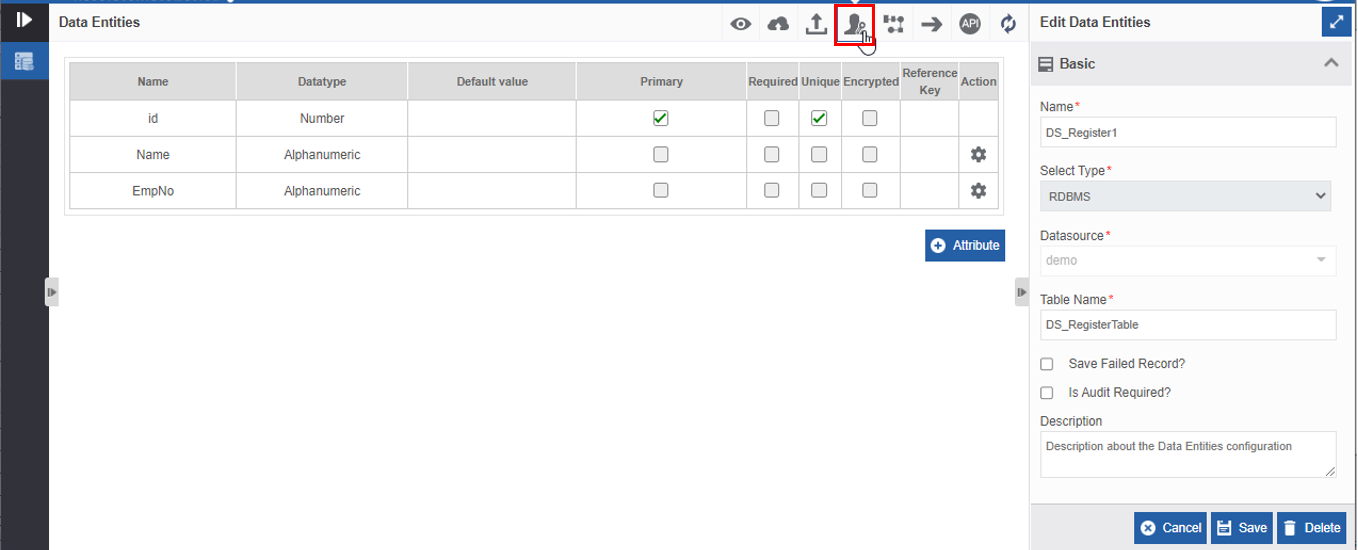
Figure 22: Data Entity Permission -
On the top-right of the page click the Edit Permissions icon. Data Entity Permission page appears.
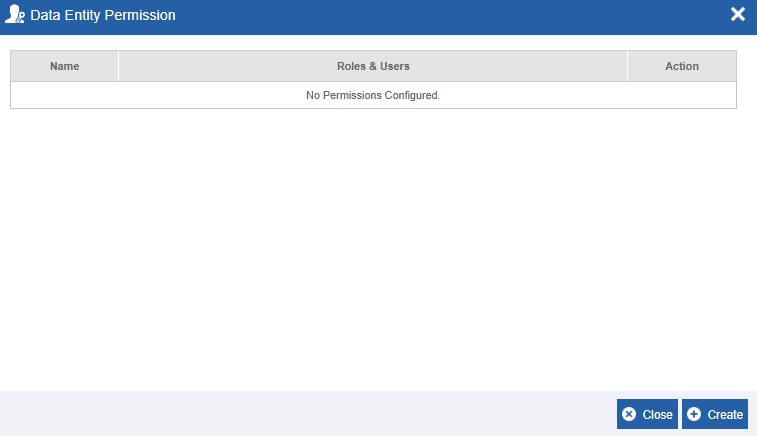
Figure 23: Data Entity Permission pop-up -
In the Data Entity Permission page, click Create. Permission Configuration appears.
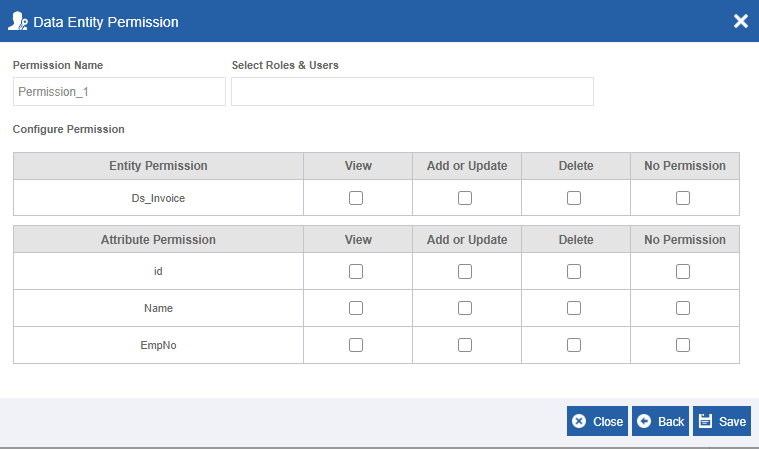
Figure 24: Creating data entity permission -
Enter the name for the permission below Permission Name.
-
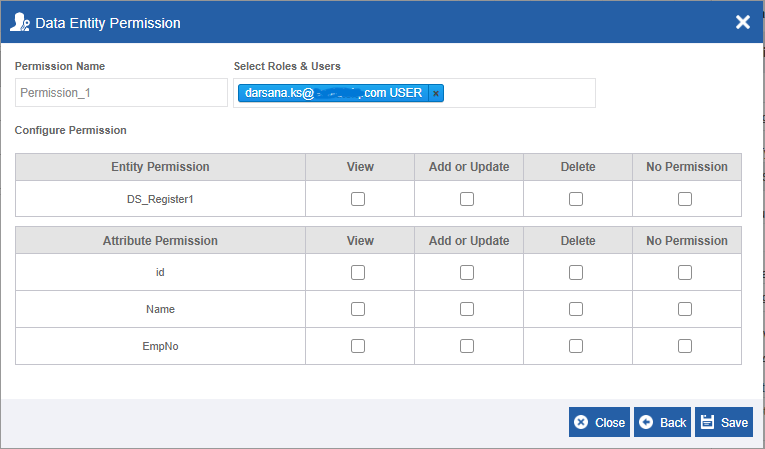
Click Select Roles & Users box and select the role(s) or user(s) as needed. You can select multiple roles or users. Type the name (or first few letters) of the user or the role so that the matching users/roles are displayed for selection.
- In the Select Roles & Users drop-down list, the Roles appear with an extension ROLE and the user appears with an extension USER.
-
Select the checkboxes below the Configuration Permission for setting the permission as needed. The permission details are explained below.
Permission Description View Allows to only view the details. Add or Update Allows to view, add or update the details.
Checking Add or Update Permission checks the View permission.Delete Allows to view, add or update and delete the details.
Checking Delete permission checks the View and Add or Update
permission as well.No Permission Does not have any permission. - There are two types of entity configurations. You can either set
permission for the whole entity or set permission in the attribute
level.
When you check any permission for a data entity, the same permission is checked for all the attributes of that data entity.
If you need to set different permissions for the attributes, you need to set (or check) the permissions in the attribute level.
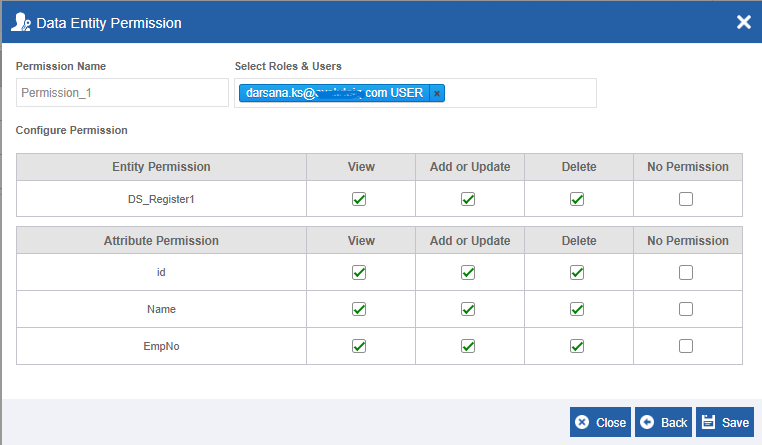
Figure 25: Data Entity Permission (Entity level)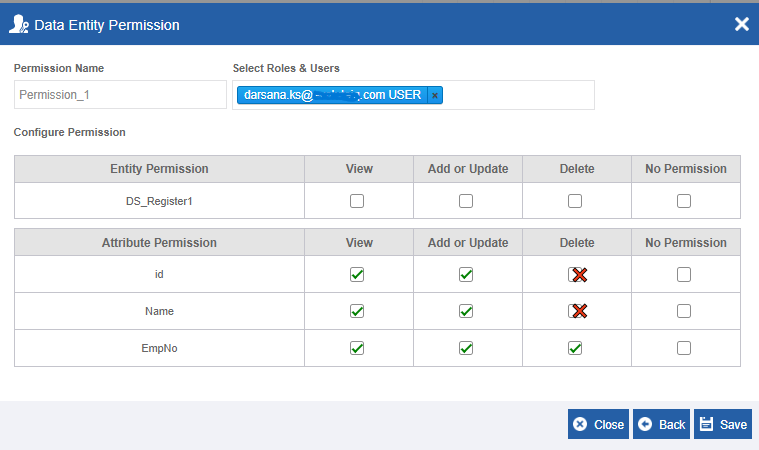
Figure 26: Data Entity permission setting (attribute level) - There are two types of entity configurations. You can either set
permission for the whole entity or set permission in the attribute
level.
-
Click Save. Success notification appears if the data entity is successfully saved with the configured permissions. The permission is listed in the Data Entity Permission pop-up with edit and delete icons below the Actions column.
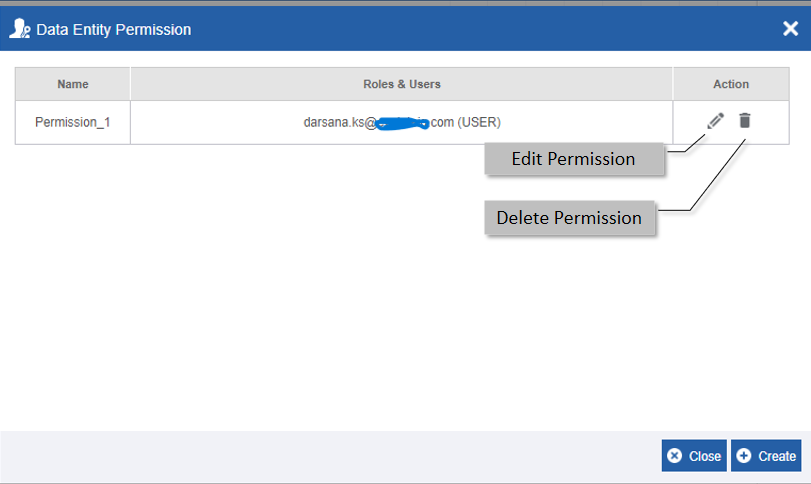
Figure 27: Data entity permission list-
For editing the data entity, click the edit icon and edit the entity permissions.
-
For deleting the data entity, click the delete icon for deleting the entity permission and click Ok in the confirmation box.
-
You can create multiple permissions for the same data entity.
Follow steps 5 to 9 for creating another permission for the same entity.
-
Alternatively, you can follow the below steps to create the data entity permissions:
-
Click the Burger menu, click Management and then navigate to Data Catalog > Data Entities. Data entities page appears.
-
Hover over the data entity card, More Actions (three dots) appear.
-
Click the three dots. More Actions appear.
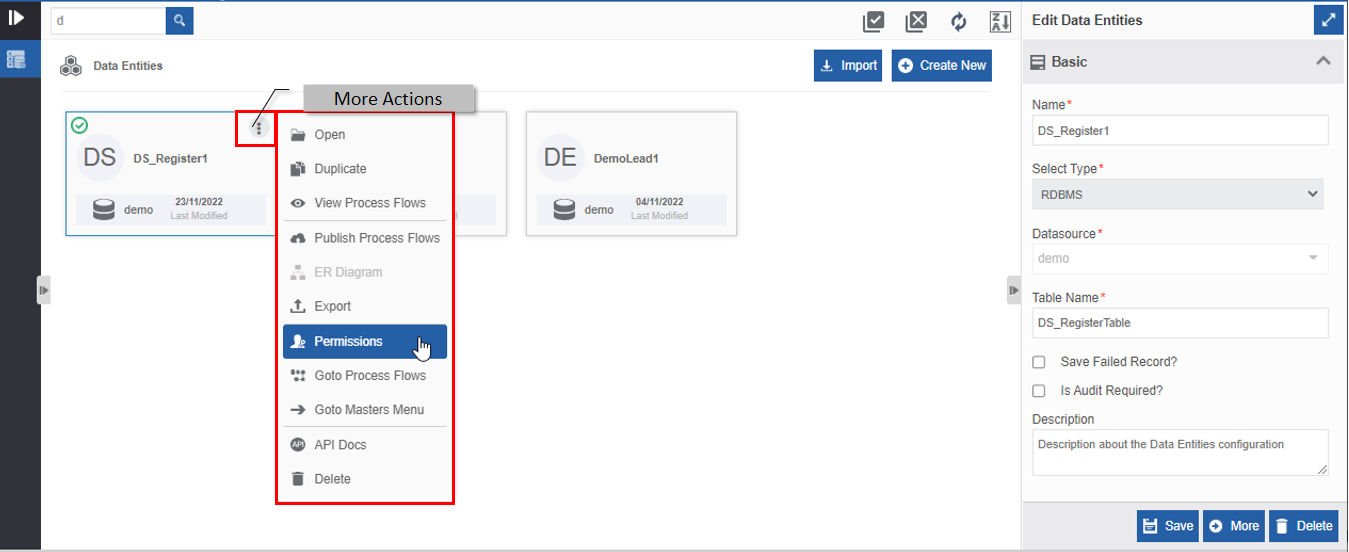
Figure 28: Permission feature in More Actions -
Click Permissions and follow step 5 onwards in the above procedure.
Viewing and Editing Data Entry Permissions
-
Click the Burger menu and navigate to Management > Data Catalog > Data Entities. The data entity list appears on the Data Entities page.
-
Click the data entity for which you want to configure the permissions.
-
Click More (or double-click the data entity card). The Data Entities page with attribute table for the selected data entity appears.
-
On the top-right of the page click the Edit Permissions icon. Data Entity Permission page appears.
OR
Hover over the data entity card, More Actions (three dots) appear. Click More Actions and then click Permission.
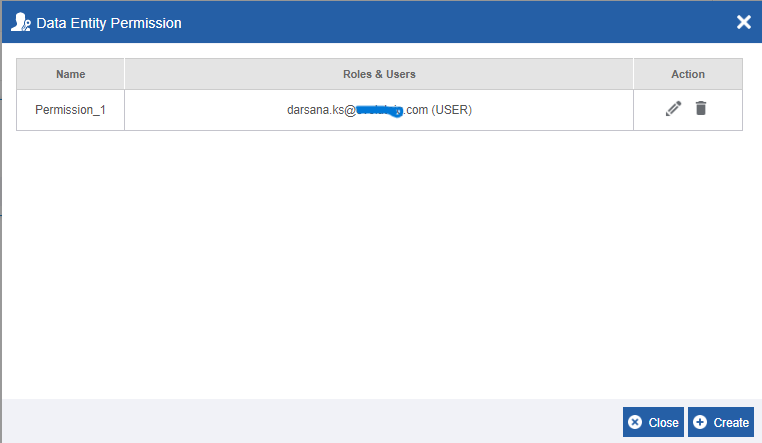
Figure 29: The permission listThe Data Entity Permission pop-up appears with the permission name and Edit and Delete icons in the Actions column.
-
Click the Edit icon and the permission details are displayed where you can edit the permission details.
-
Click Save to update the modified details.
Deleting the Data Entity Permissions
-
Click the Burger menu and navigate to Management > Data Catalog > Data Entities. The data entity list appears on the Data Entities page.
-
Click the data entity for which you want to configure the permissions.
-
Click More (or double-click the data entity card). The Data Entities page with the attribute table for the selected data entity appears.
-
On the top-right of the page click the Edit Permissions icon. Data Entity Permission page appears.
OR
Hover over the data entity card, More Actions (three dots) appear. Click More Actions and then click Permission.
Figure 30: Permission with Delete icon below actionsThe Data Entity Permission pop-up appears with the permission name and Roles & Users. The Actions column lists Edit and Delete icons.
-
Click the Delete icon. Confirmation pop-up for deleting the data entity permission.

Figure 31: Permission delete confirmation -
Click Ok to delete permission.
Duplicating Data Entity
You can duplicate a data entity using the duplicate feature. When you duplicate an entity, all the configurations of the entity are also copied to the new entity.
Permissions are not duplicated along with the data entity. You need to create new permissions for the duplicated data entity.
-
Click the Burger menu and navigate to Management > Data Catalog > Data Entities. The data entity list appears on the Data Entities page.
-
Hover over the data entity card, More Actions (three dots) appear.
-
Click More Actions.
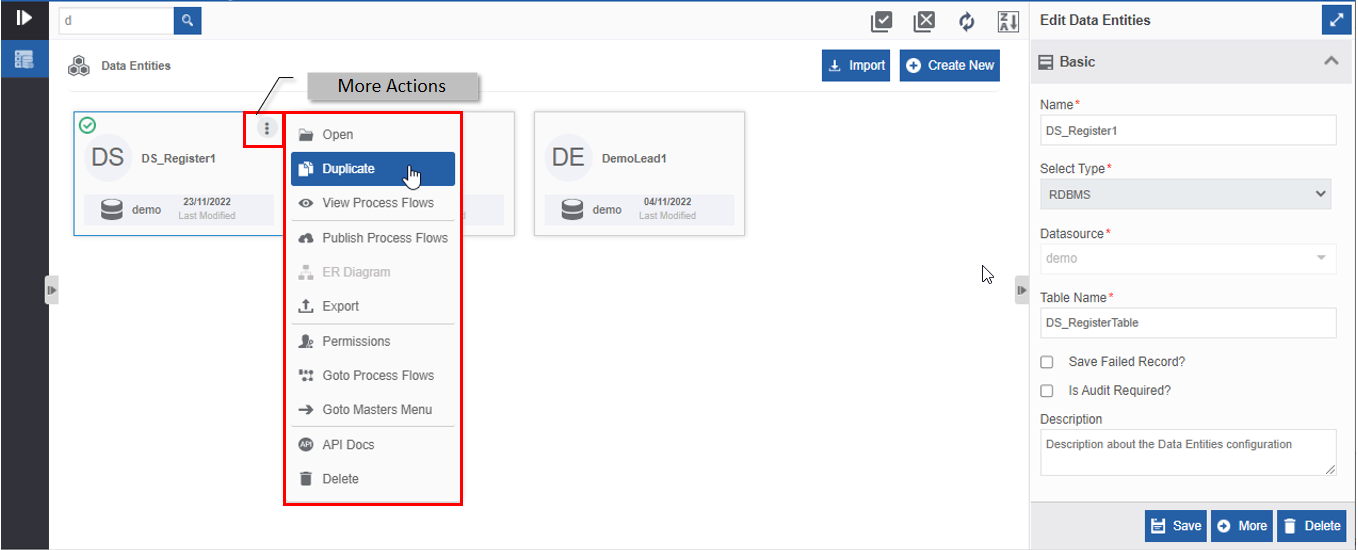
Figure 32: Duplicating data entity -
Click Duplicate. A Duplicate Confirmation pop-up appears.
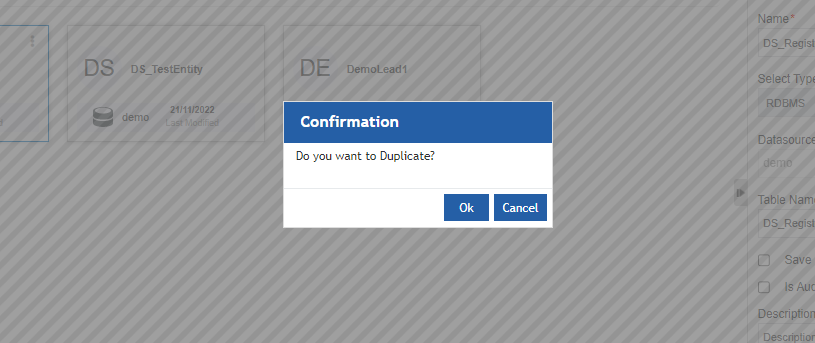
Figure 33: Data entity duplicate confirmation -
Click Ok to duplicate the data entity (or click Cancel to cancel the action). A Success message is displayed for the successful duplication of the data entity.
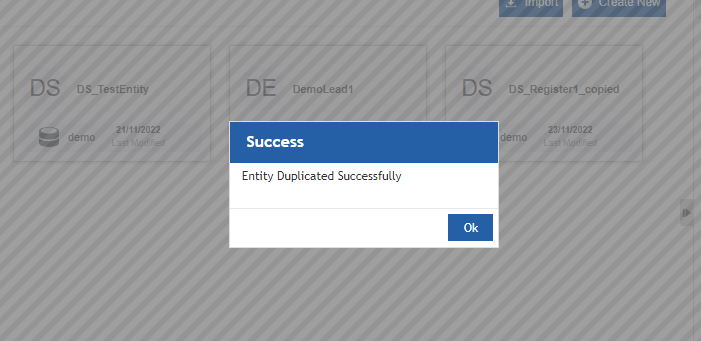
Figure 34: Data entity duplication success page -
Click Ok. Data entity is duplicated with the same entity name suffixed with “_copied”.
The data entity table name in the duplicated data entity also gets duplicated with the same table name with “_copied”
The type of data table and the data source is the same for the duplicated entity.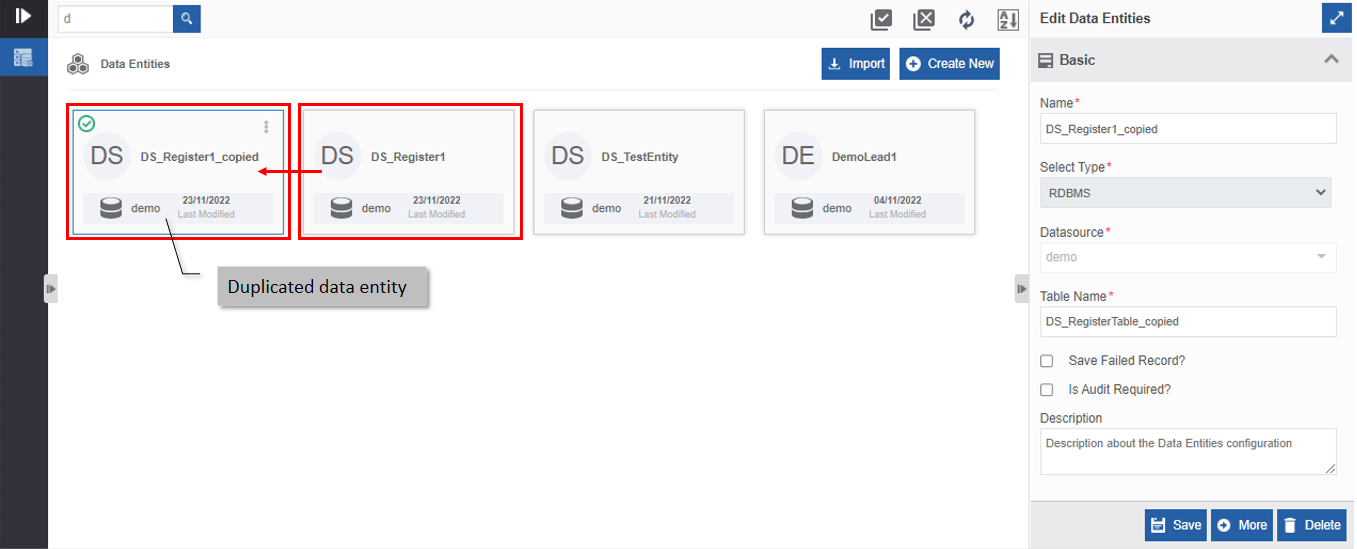
Figure 35: Duplicated data entity
Exporting Data Entity
You can export the Data Entity to the local system and import that back into the platform.
The data entity is exported as a package file (with .pkg extension).
-
Click the Burger menu and navigate to Management > Data Catalog > Data Entities. The data entity list appears on the Data Entities page.
-
Click the entity to be exported.
-
Click More (or double-click the data entity card). The Data Entities page with the attribute table for the selected data entity appears.
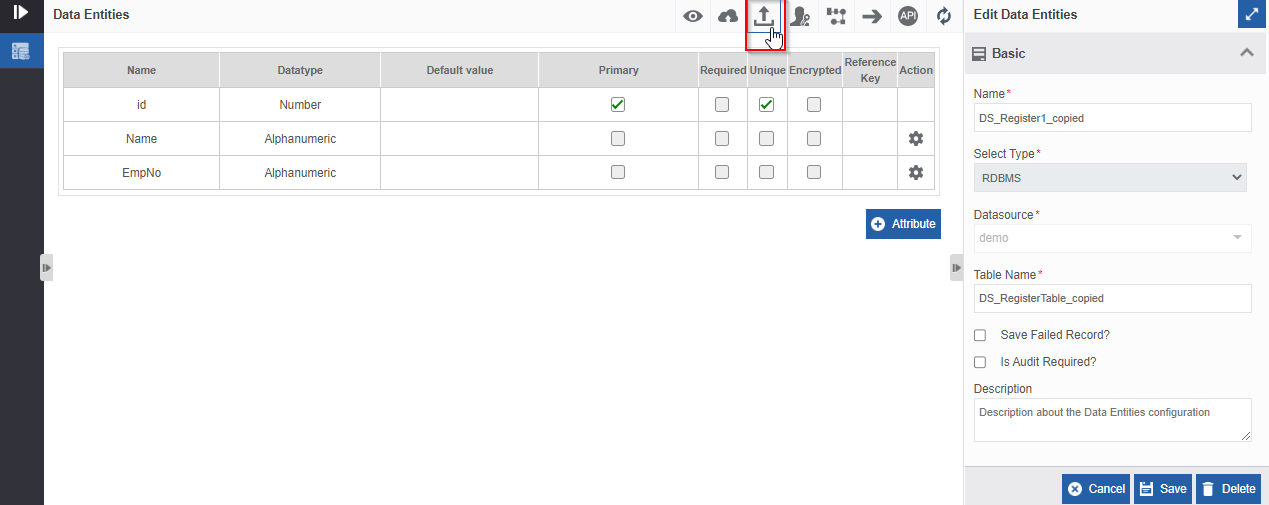
Figure 36: Exporting data entity -
In the top-right of the page, click the Export icon. The data entity exports (downloads) to the local system. The exported file format is .pkg (package file format).
Alternatively, you can follow the below steps to export the data entity:
-
Click the Burger menu, click Management and then navigate to Data Catalog > Data Entities. Data entities page appears.
-
Hover over the data entity card, More Actions (three dots) appear.
-
Click the three dots. More Actions appear.
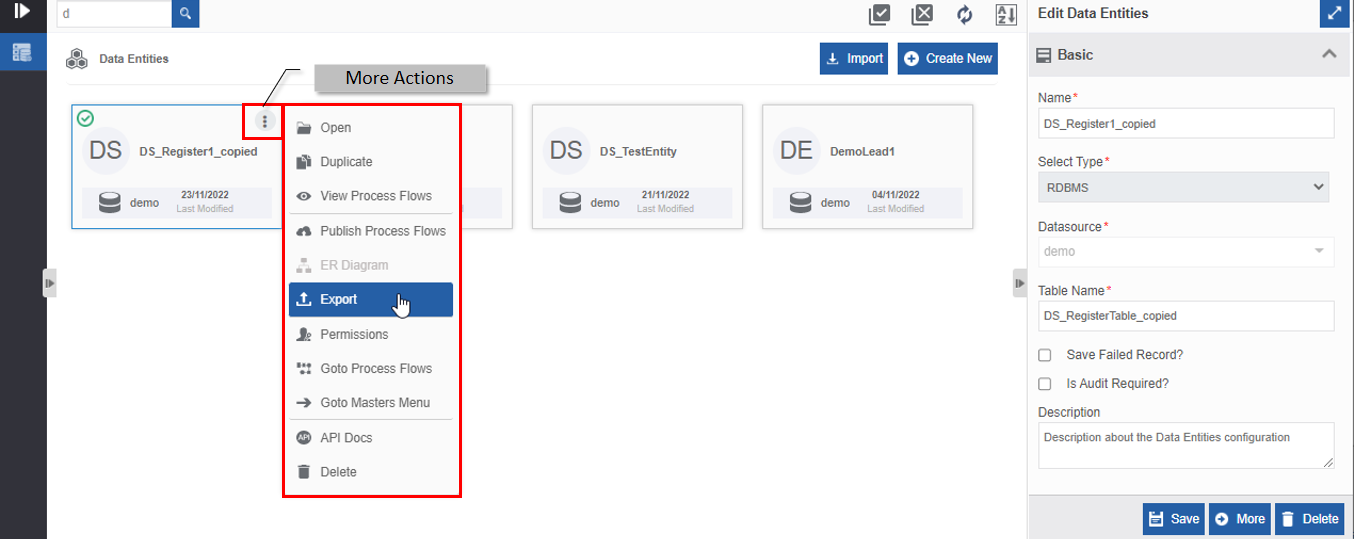
Figure 37: Export feature in More Actions -
Click Export. The file gets exported (downloaded) to the local system in the .pkg format.
Importing Data Entity
You can import the data entity from an exported .pkg file in the local system or a database.
Importing data entity from the exported package file: The already exported data entity with .pkg extension that is available in the local system gets imported to the platform.
Importing data entity from the data source and tables: A table from the configured data source is imported as a data entity. You are allowed to select multiple data entity tables for importing.
-
Click the Burger menu and navigate to Management > Data Catalog > Data Entities. The data entity list appears on the Data Entities page with Import and Create New buttons on the top-right.
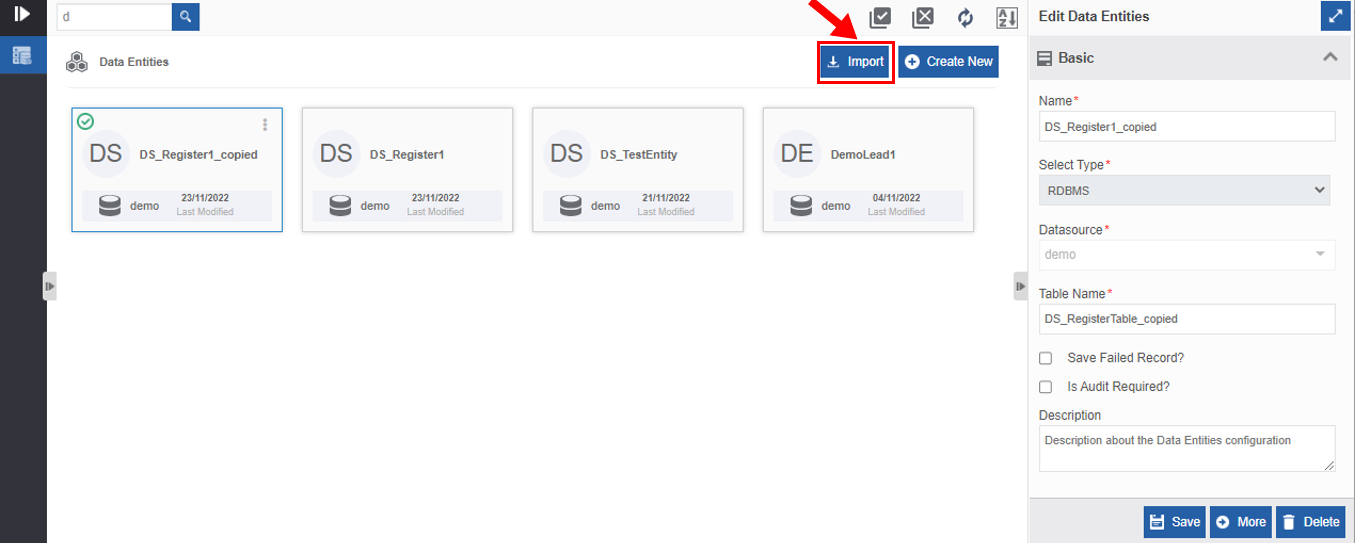
Figure 38: Importing the data entity -
Click Import. The Import Data Entity pop-up appears with options to select the source of the import file, Import From Package and Import From Database.
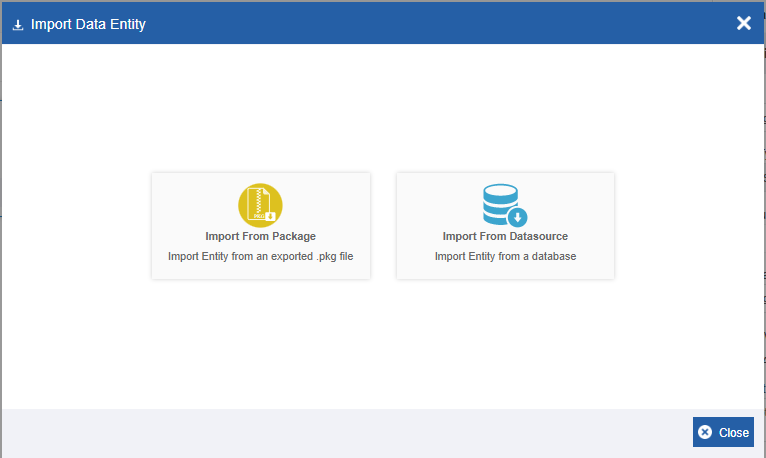
Figure 39: Import data entity options -
Click Import From Package if you want to import the file from any exported file from the local system. Import Data Entity pop-up for importing .pkg file appears. Go to Step 4.
Else click Import from Datasource if you want to import the data entity from the database. Import Data Entity pop-up for importing data source and tables appear. Go to Step 7.
-
In the Import Data Entity pop-up, click Choose File and select a package file (with extension .pkg).
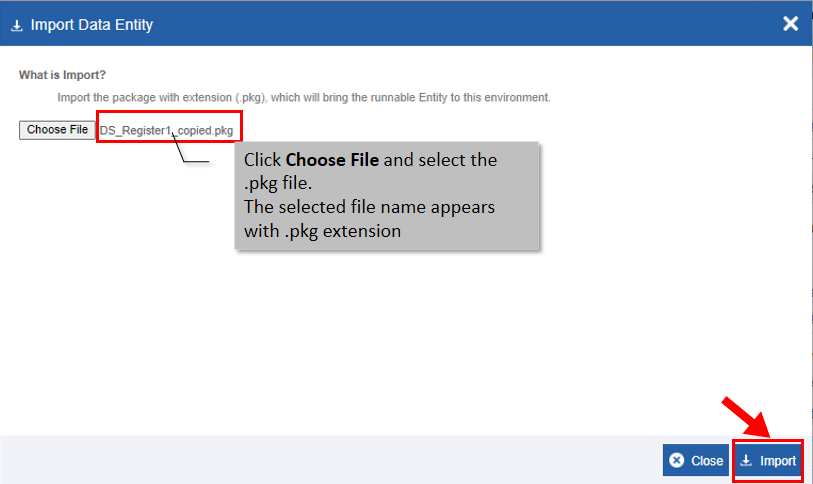
Figure 40: Selecting the import file from the local system -
Click Import.
-
A success message is displayed if the import is successful.
Or
If the package file name selected is matching with any of the already existing data entities, an error message is displayed.
- If you just change the downloaded (exported) file name and import the file, the same error message appears as the system is checking for the internal package name which remains the same even if you change the file name. However, the platform provides an option to change the package name (Choice 1 in the Import Data Entity pop-up) and hence you can change the package name and import the package file.
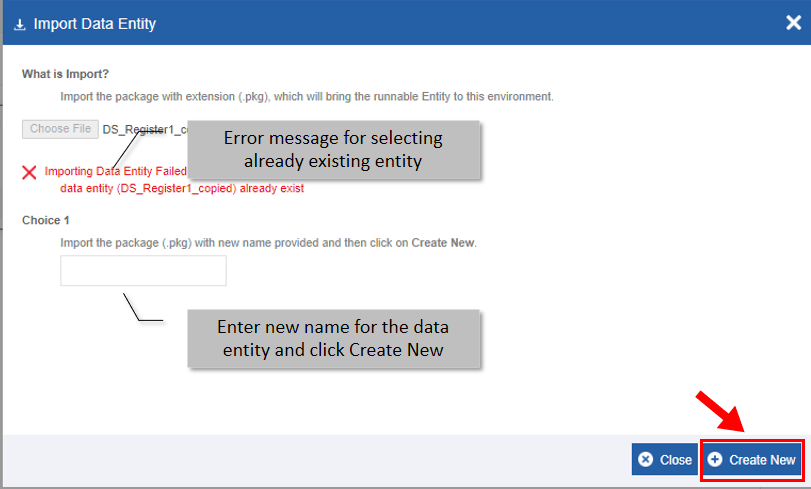
Figure 41: Error message for uploading the same entity- Choice 1: Enter a new name for the selected package file and click Create New for importing the selected package file.
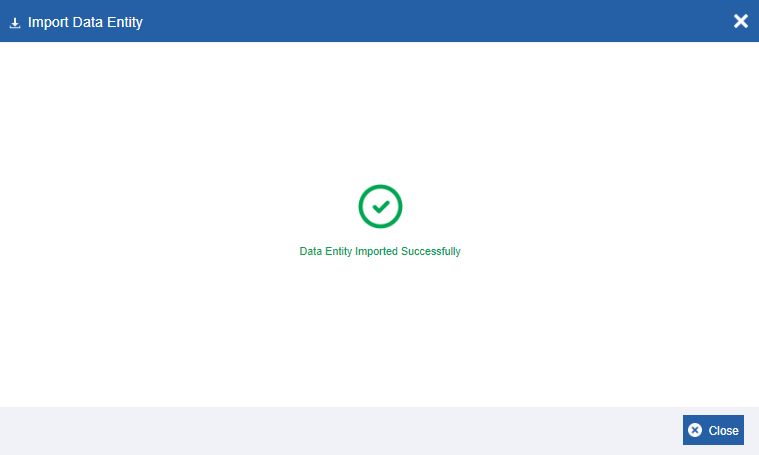
Figure 42: Import Success message -
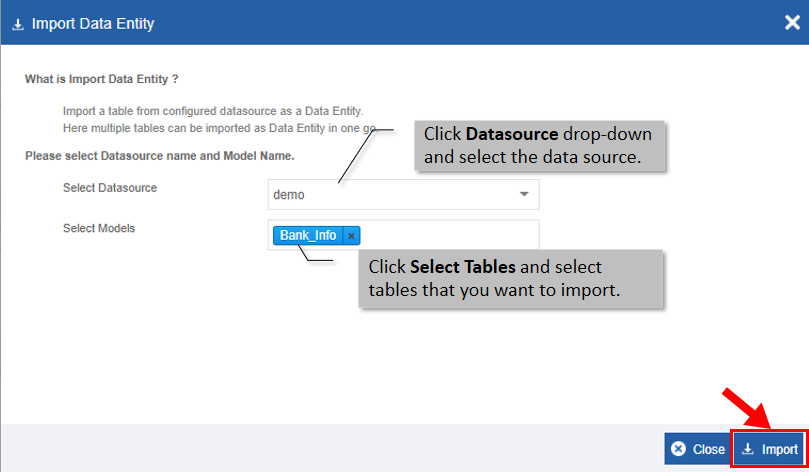
In Step 3 if you chose the else condition (i. e., selecting Import from Datasource), select the data source from the Select Datasource drop-down displayed in the Import Data Entity pop-up.
(In Step 3, if you click Import from Datasource in Import Data Entity pop-up, Import Data Entity pop-up appears with Data source and Table fields.)
-
Click Select Tables and select the tables required from the list of tables displayed. You can select multiple tables as per the requirement.
- There are two conditions for the selection of database tables:
*The tables selected should not be an already existing data entity in the platform.
*The selected table should have a primary key.
If you select a table that does not satisfy the above conditions, an error message is displayed.
- There are two conditions for the selection of database tables:
-
Click Import. The data entity gets imported into the platform. You can view the imported data entity in the Data Entities page.
Deleting Data Entity
You can delete an unpublished or unutilized data entity. When a data entity is deleted, its properties and configurations get deleted. However, the entity table will not get deleted from the database. If you have exported the data entity before deleting the data entity, you can import it back into the platform.
You can delete the data entity only if the data entity is created by your credentials. That is, you are not authorized to delete a data entity created by another user.
-
You cannot retrieve a deleted data entity unless you have exported it.
-
You need to remove the association or mapping of the data entity with any other entity or application/process in the platform (if associated) before deleting it for avoiding errors associated with the data entity.
For deleting an unpublished data entity follow the below procedure.
-
Click the Burger menu and navigate to Management > Data Catalog > Data Entities. The data entity list appears on the Data Entities page.
-
Click the data entity to be deleted. The actions appear on the bottom-right of the page.
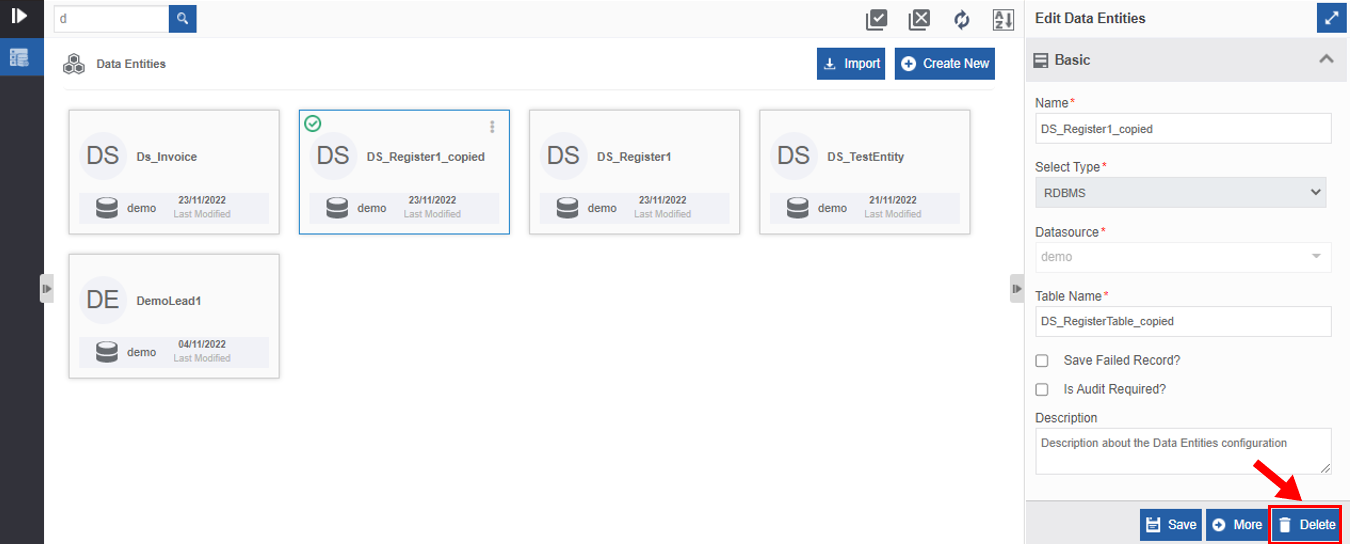
Figure 43: Deleting data entity -
Click Delete. A confirmation pop-up is displayed.
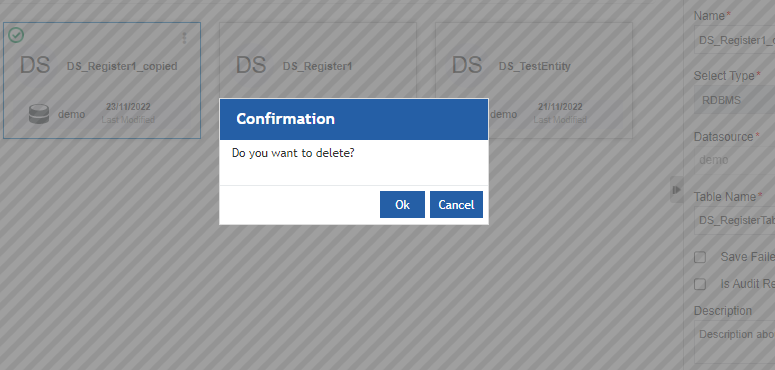
Figure 44: Data entity Delete confirmation -
Click OK for deleting the data entity.
Or
Click Cancel to cancel the action.
Alternatively, you can follow the below steps to create the data entity permissions:
- Click the Burger menu, click Management and then navigate to Data Catalog > Data Entities. Data entities page appears.
-
Hover over the data entity card, More Actions (three dots) appear.
-
Click the three dots. More Actions appear.
-
Click Delete.
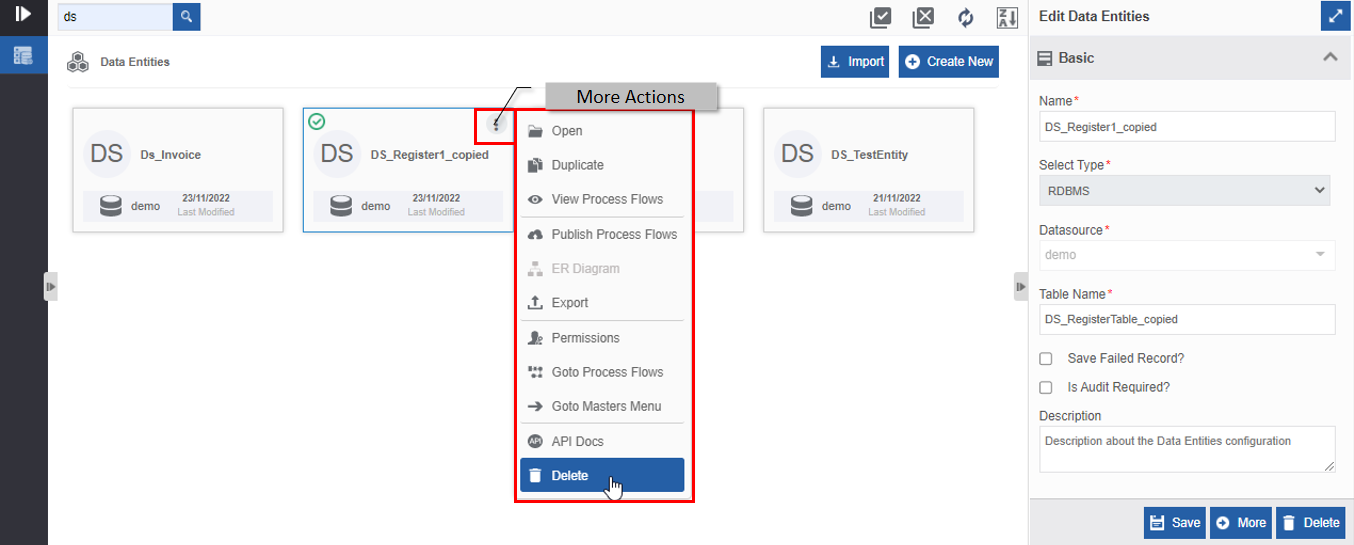
Figure 45: Delete data entity in More Actions -
Click Delete. Confirmation pop-up displays.
-
Click ok.
Deleting a Published Data Entity
You cannot delete a published data entity. Every time a data entity is published, Data Catalog process flows are created by deleting the previously existing process flows (List, Add and Update process flows in App Studio > Data Catalog Application).
If you try to delete a published data entity, an error message appears as shown below.
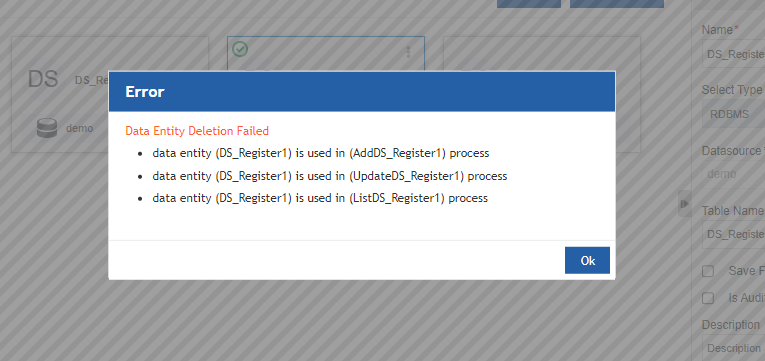
Figure 46: Error message for trying to delete a published data entity
Deleting Unpublished Data Entity Utilized in Process Flows
You cannot delete an unpublished data entity if it is utilized in a process flow as a data variable.
If you try to delete a data entity that is not published, however, utilized in the process flows, an error message appears as shown below.
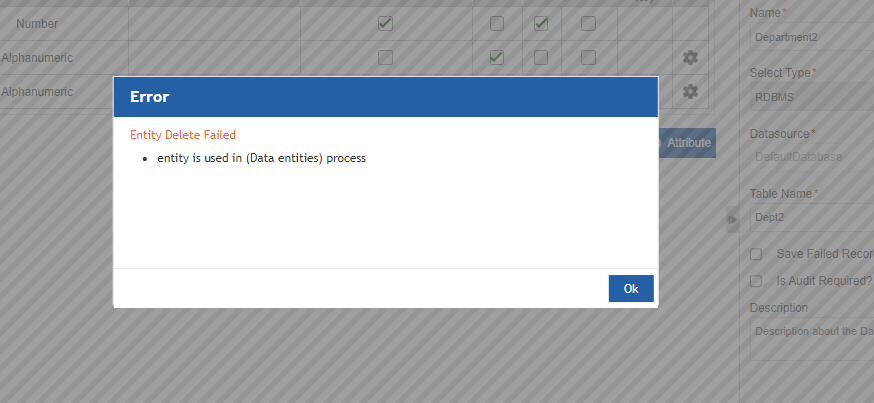
Figure 47: Error message displayed for trying to delete an unpublished data entity utilized in process flows
If you want to delete an unpublished data entity that is utilized in the process flows, you need to delete the data entity variable and remove the association of that variable from the process flow activity.
Opening API Documents
The API details for Adding, Updating, Deleting and Filtering Data Catalog records are available in the platform. You can navigate to the Data Catalog API documents using the Open API Document feature in the Data Catalog.
-
Click the Burger menu and navigate to Management > Data Catalog > Data Entities. The data entity list appears on the Data Entities page.
-
Click the data entity and click More (or double-click the data entity card). The entity table configuration details page for the selected data entity appears.
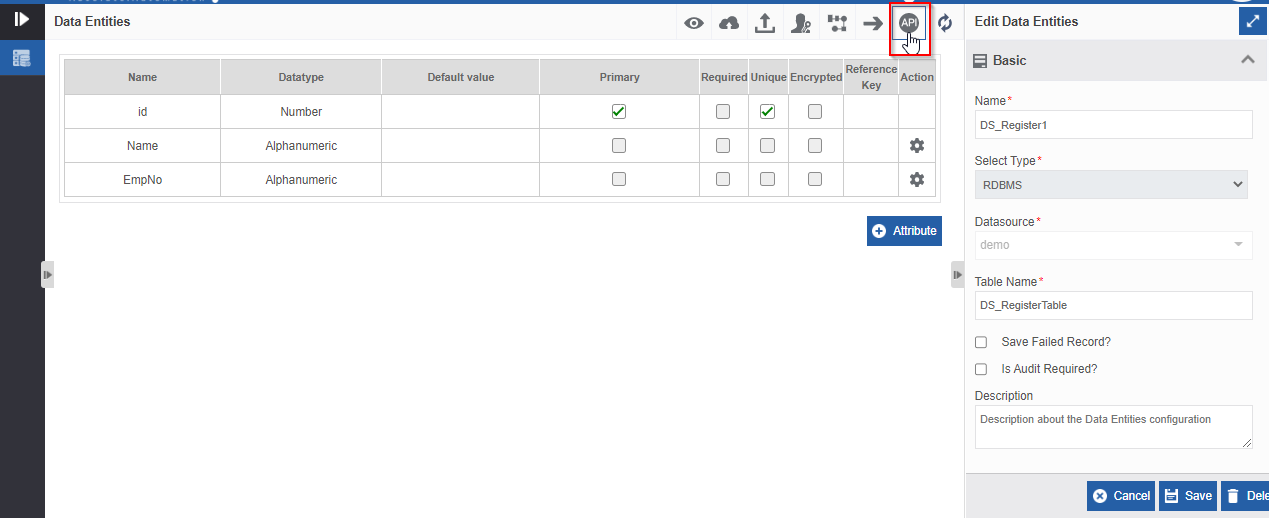
Figure 48: Opening API documentation page
In the top-right of the page, click the Open API Docs icon. You are redirected to the Data Catalog API Documentation page.
Alternatively, you can follow the below steps to create the data entity permissions:
-
Click the Burger menu and navigate to Management > Data Catalog > Data Entities. Data entities page appears.
-
Hover over the data entity card, More Actions (three dots) appear.
-
Click the three dots. More Actions appear.
-
Click Open API Docs.
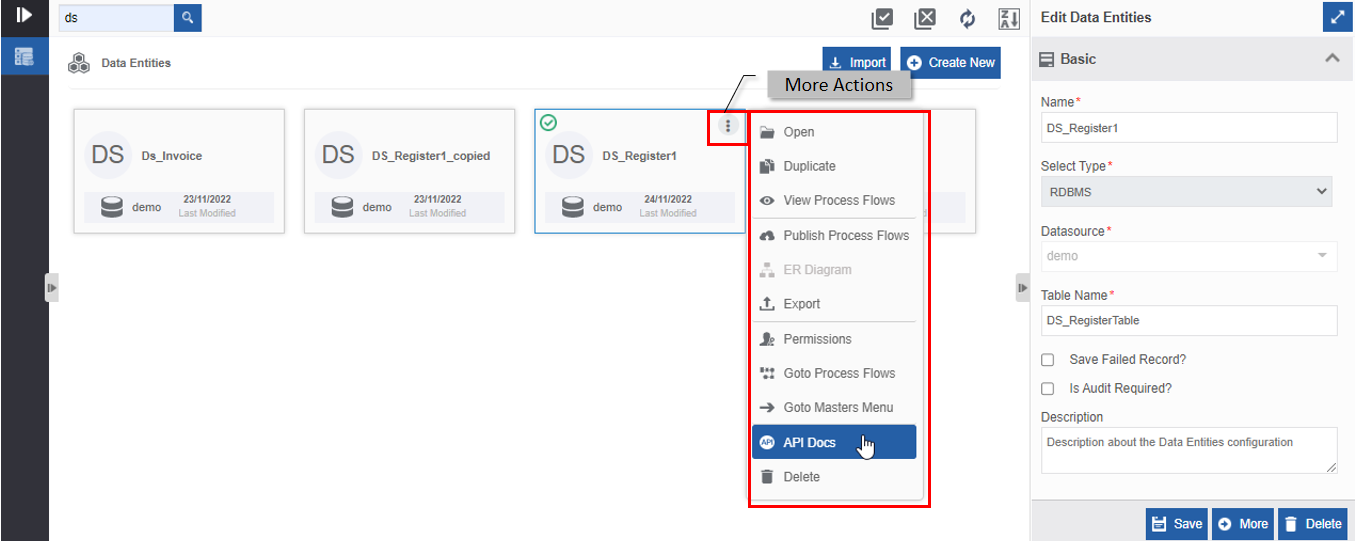
Figure 49: Navigating to the API documents page through More Actions
Data Catalog API Documentation Page
The API documentation page for Data Catalog has the API details for Adding, Updating, Deleting, and Filtering Data Catalog records. Add Records API is displayed by default when you navigate to the API documentation page.
The left side list displays the list of APIs available.
-
Click Add Records to view the API for adding records to the data entity.
-
Click Update Records to view the API for updating records in the data entity.
-
Click Delete Records to view the API for deleting records from the data entity.
-
Click Filter Records to view the API for filtering records from the data entity.
For example, Add Records API is shown below.
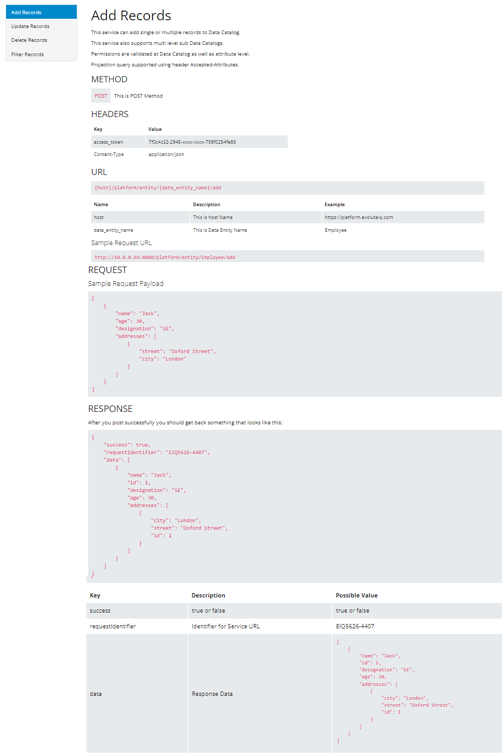
Figure 50: Example: Add Records API
Reloading Definition
The reload feature refreshes the view of the data entity attributes.
You can add columns or do any modification for the data entity table through the database manually; and using the reload feature, you can get those columns or modifications updated as attributes for the data entity in the platform.
You need to save the details for updating the modified details.
-
Click the Burger menu and navigate to Management > Data Catalog > Data Entities. The data entity list appears on the Data Entities page.
-
Click the data entity to be deleted and click More (or double-click the data entity card). The entity table configuration details page for the selected data entity appears.
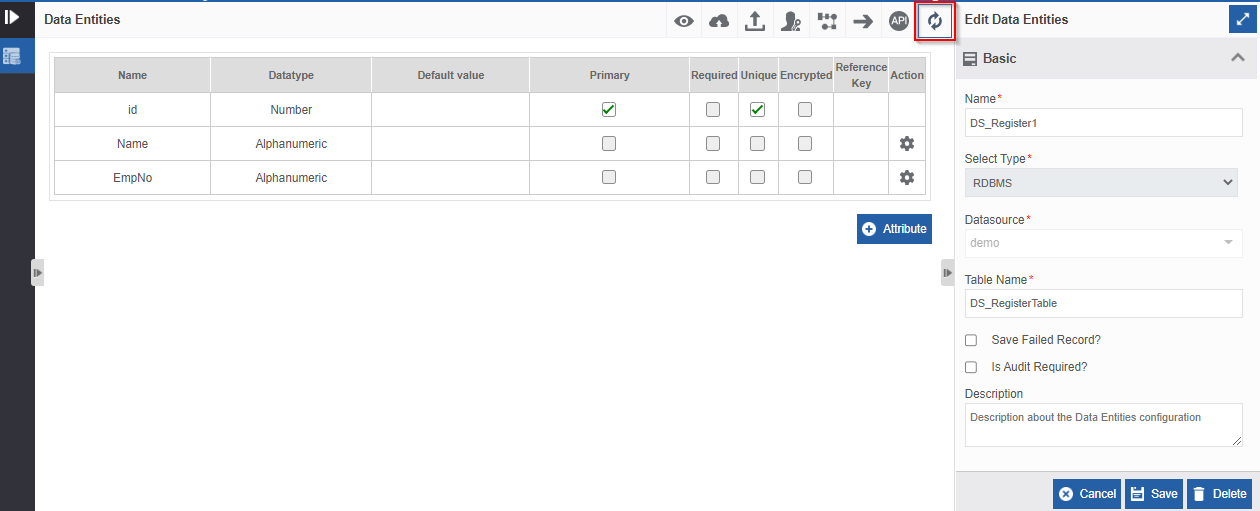
Figure 51: Reloading Definition -
In the top-right of the page, click Reload Definition icon. A Confirmation message appears indicating that you need to save the details and the reload is only the view reload.
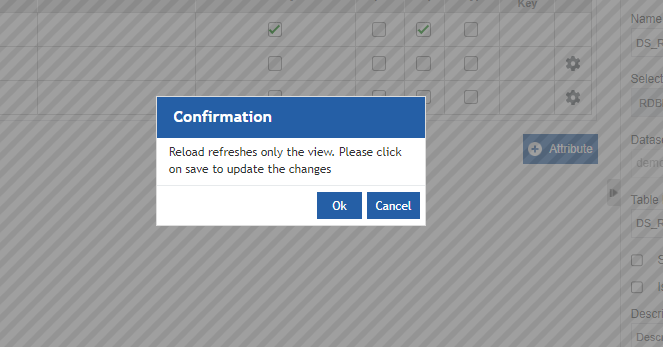
Figure 52: Reload confirmation with Save information -
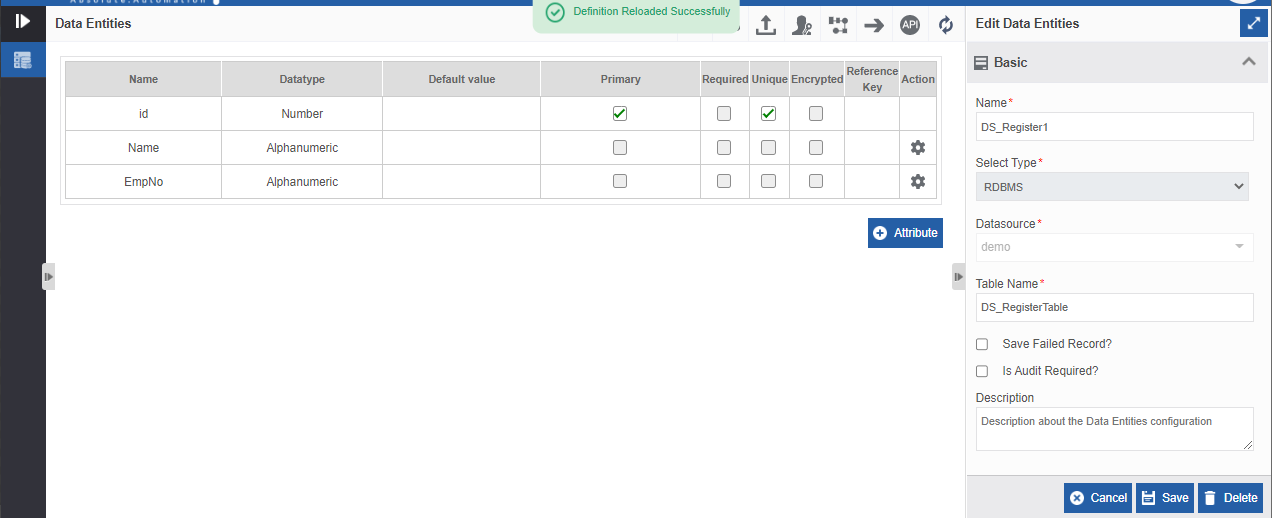
Click Ok. (Or click Cancel if you want to cancel the reload action). A Success message is displayed on successful reload.
The modified entity attributes are displayed on the Data Entities page. The modification is as per the manual changes made to the table in the database. However, Reload Definition feature only refreshes the data entity view on the page as per the entity table modification. For accepting the changes made in the database table to the data entity attribute you need to save the data entity.
-
Click Save to save the changes reflected (if any) in the view.
Publishing the Process Flows for Data Entity
You need to configure the entity permissions before publishing an entity. If you publish the data entity without publishing, an error message will be displayed instructing you to configure the permissions.
-
Click the Burger menu and navigate to Management > Data Catalog > Data Entities. The data entity list appears on the Data Entities page.
-
Click More (or double-click the data entity card). The entity table configuration details page for the selected data entity appears.
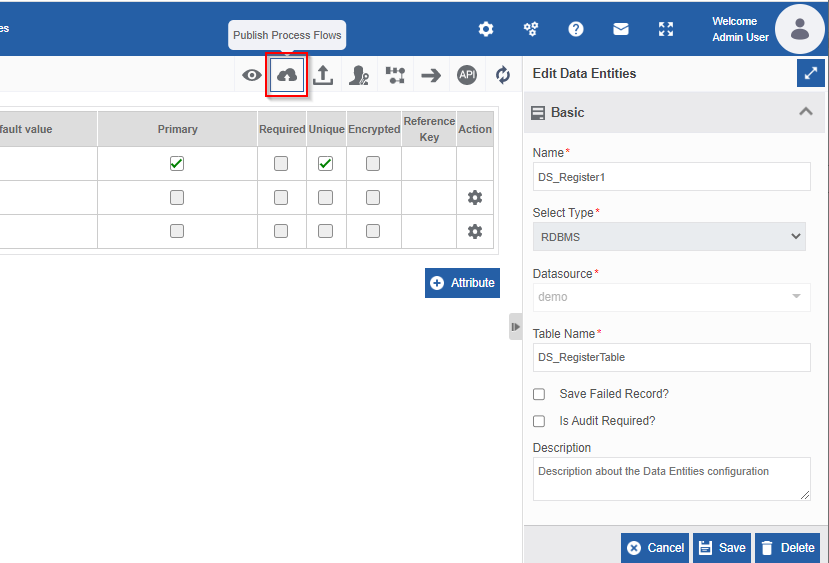
Figure 53: Publishing process flows -
In the top-right of the page, click Publish Process Flows icon. A Success message is displayed on the Publish Flows pop-up on the successful publishing of the flows.
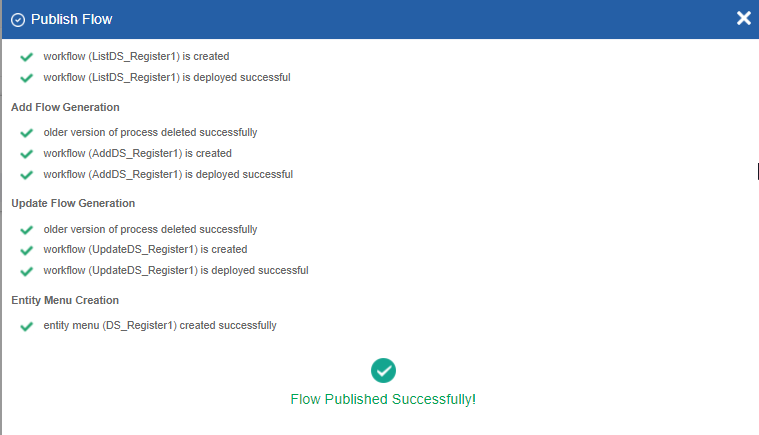
Figure 54: Success message for publishing process flows
Alternatively, you can follow the below steps to create the data entity permissions:
-
Click the Burger menu, click Management and then navigate to Data Catalog > Data Entities. Data entities page appears.
-
Hover over the data entity card, More Actions (three dots) appear.
-
Click the three dots. More Actions appear.
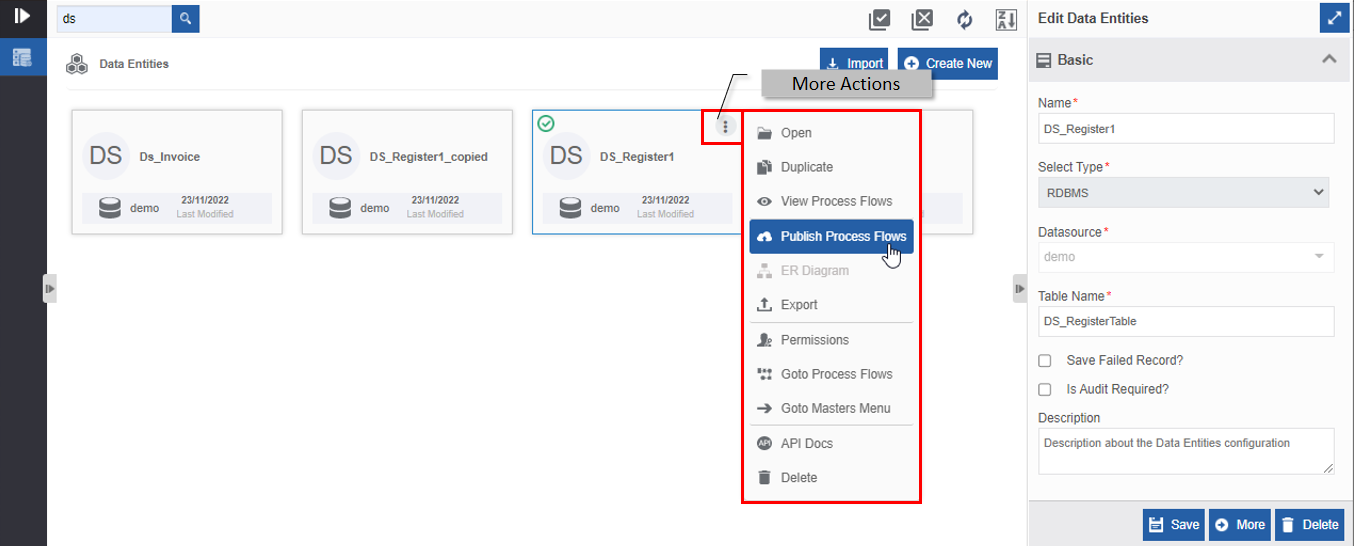
Figure 55: Publishing data entity (More actions) -
Click Publish Process Flows.
-
When you publish a data entity that is already published, the already existing process flows in the Data Catalog application are deleted and the data entity is published and new process flows are created.
-
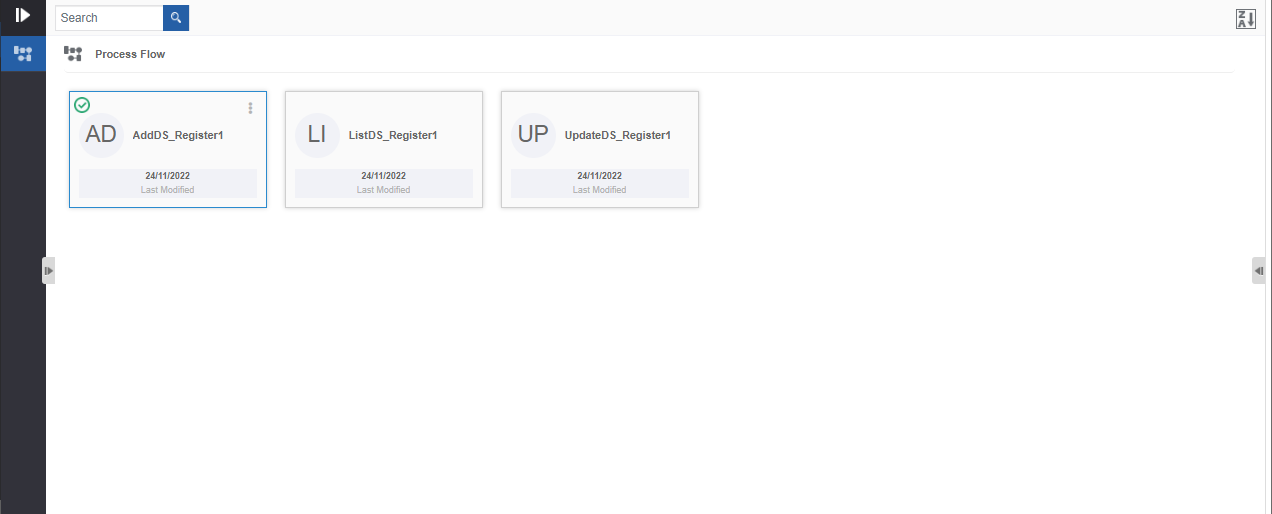
Generating Process Flows from Data Entity: Process flows are automatically generated when you publish the data entity.
When you publish the data entity, a Data Catalog application with the data entity name and three process flows namely, List Flow, Add Flow, and Update Flow are generated. The process flow name is taken as List suffixed with the entity name, Add suffixed with entity name, and Update suffixed with entity name.
-
Fixing the Data Entity Publishing Errors
The possible errors that can occur during the publishing of the data entity (On click of Publish Process Flows) and the fixing are explained below.
Error 1: Entity Permissions not configured
If you have not configured the entity permissions, the below error message is displayed.
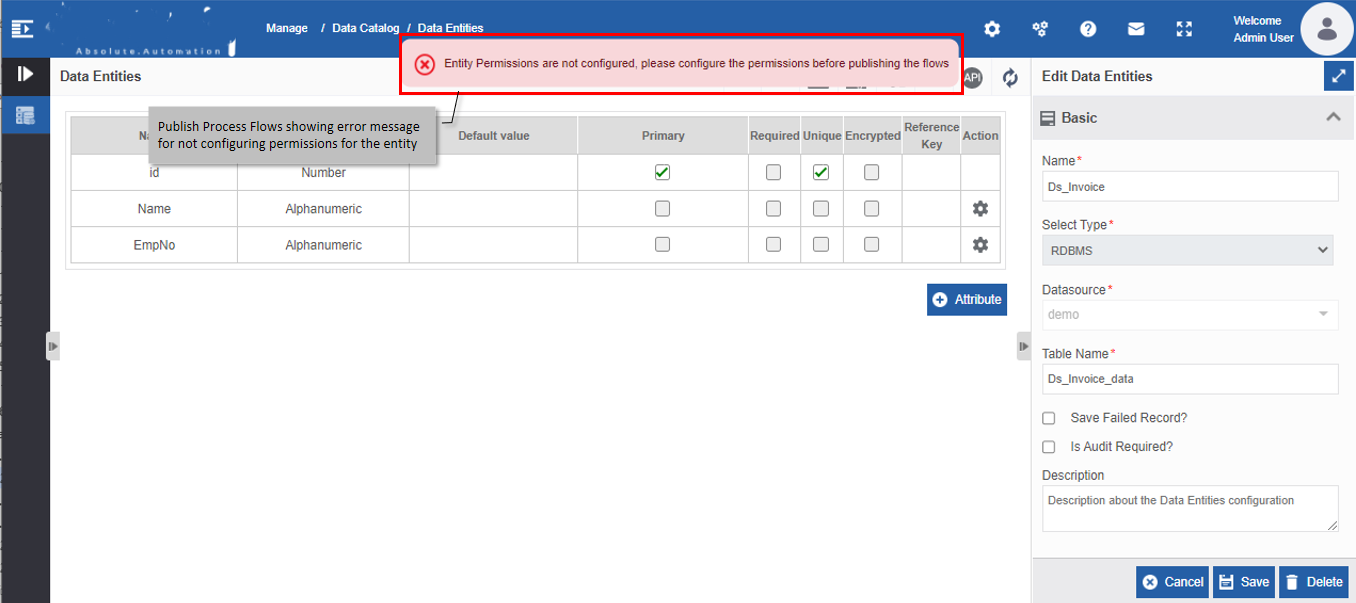
Figure 56: Error message for not configuring permission
Fix: Configure the permissions for the data entity and then click Publish Process Flows. Refer to Creating Data Entity Permissions.
Viewing or Redirecting to Data Catalog Process Flows
The process flows generated are available in the App Studio > Data Catalog Applications > Data Catalog application name. You can redirect to the specific data entity process flows as explained below.
-
Click the Burger menu and navigate to Management > Data Catalog > Data Entities. The data entity list appears on the Data Entities page.
-
Click the data entity and click More (or double-click the data entity card). The entity table configuration details page for the selected data entity appears.
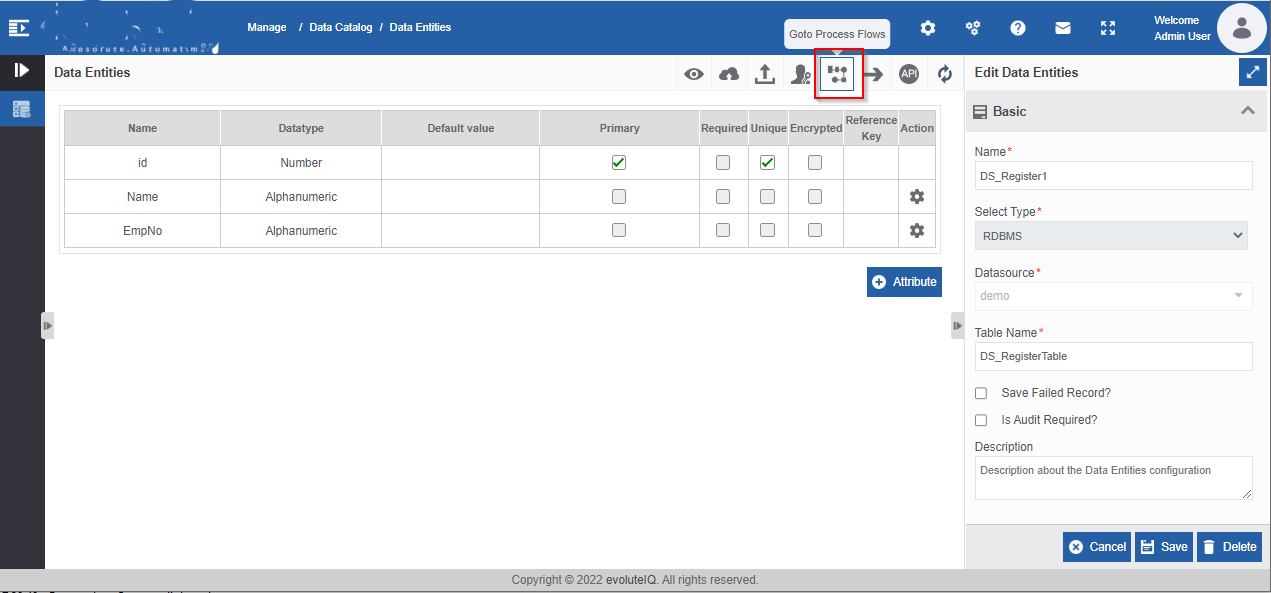
Figure 57: Go to Process Flows -
In the top-right of the page, click Go to Process Flows icon. You are navigated to App Studio > Data Catalog Applications > {Data entity Application name}.
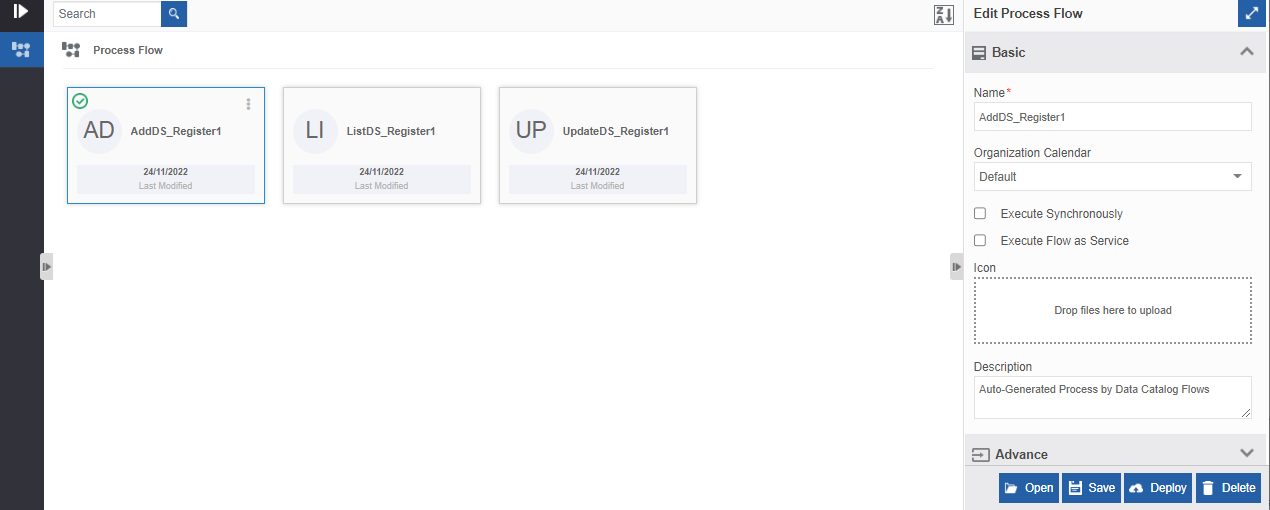
Figure 58: Data Catalog process flows within the Data Catalog Application
Alternatively, you can follow the below steps to create the data entity permissions:
-
Click the Burger menu, click Management and then navigate to Data Catalog > Data Entities. Data entities page appears.
-
Hover over the data entity card, More Actions (three dots) appear.
-
Click the three dots. More Actions appear.
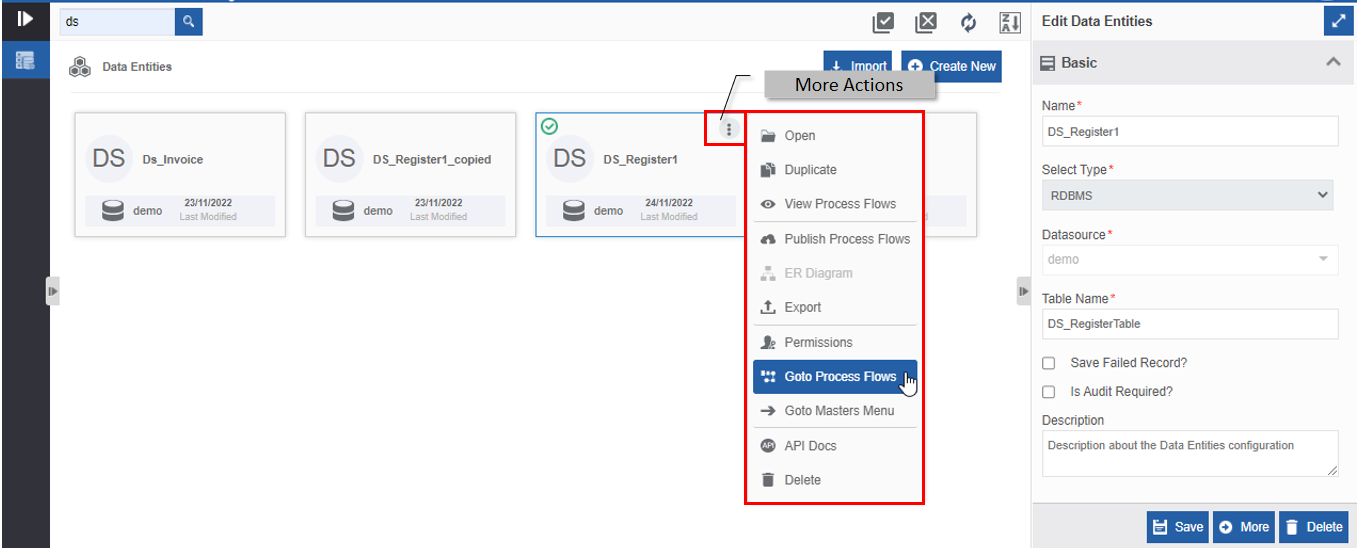
Figure 59: Go to Process Flows in More Actions -
Click Goto Process Flows. You are navigated to App Studio > Data Catalog Applications > {Data EntityApplicationName}.
Refer to Process Flows in Data Catalog Applications for more details about the Data Catalog process flows generated.
Viewing or Redirecting to Masters Menu
Masters Menu allows you to input data records in the data entity table. It is mandatory to publish the flows before navigating to Masters Menu. If you try to redirect to Masters Menu without publishing the data entity, an error is shown indicating that you have not published the data entity.
Only the permitted users can view the Master Menu Form. That is, if your user id or role is given as a user while creating the permissions for the data entity, you can view the Master Menu Form. Non-permitted users are not allowed to view the Master Menu details.
-
Click the Burger menu and navigate to Management > Data Catalog > Data Entities. The data entity list appears on the Data Entities page.
-
Click the data entity and click More (or double-click the data entity card). The entity table configuration details page for the selected data entity appears.
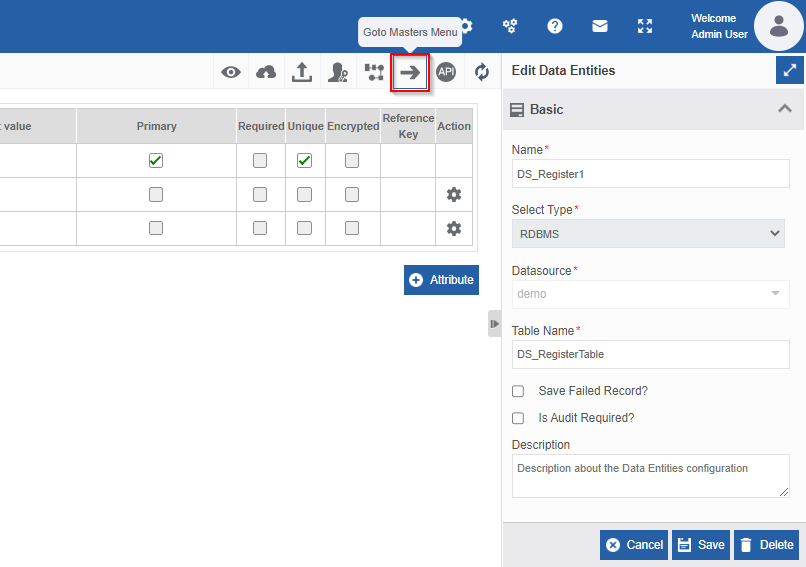
Figure 60: Go to Masters Menu -
In the top-right of the page, click Go to Masters Menu icon. You are navigated to runtime Initiator Form. The Form lists the records in the data entity table.
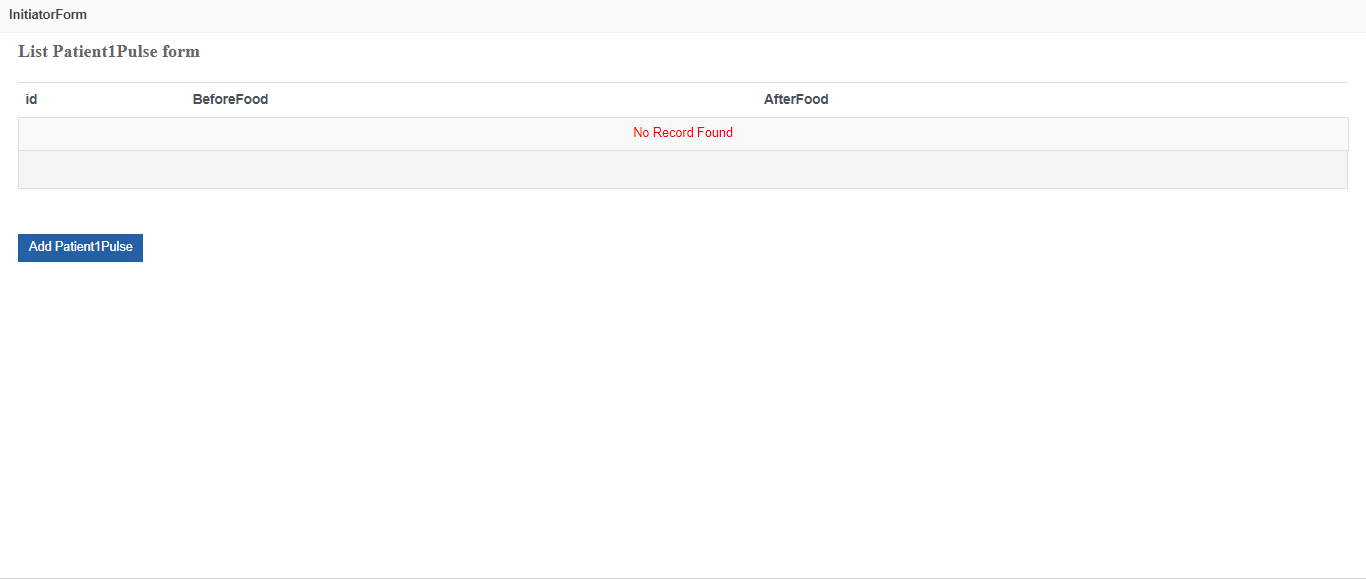
Figure 61: Initiator Form - List data entity records page
Alternatively, you can follow the below steps to create the data entity permissions:
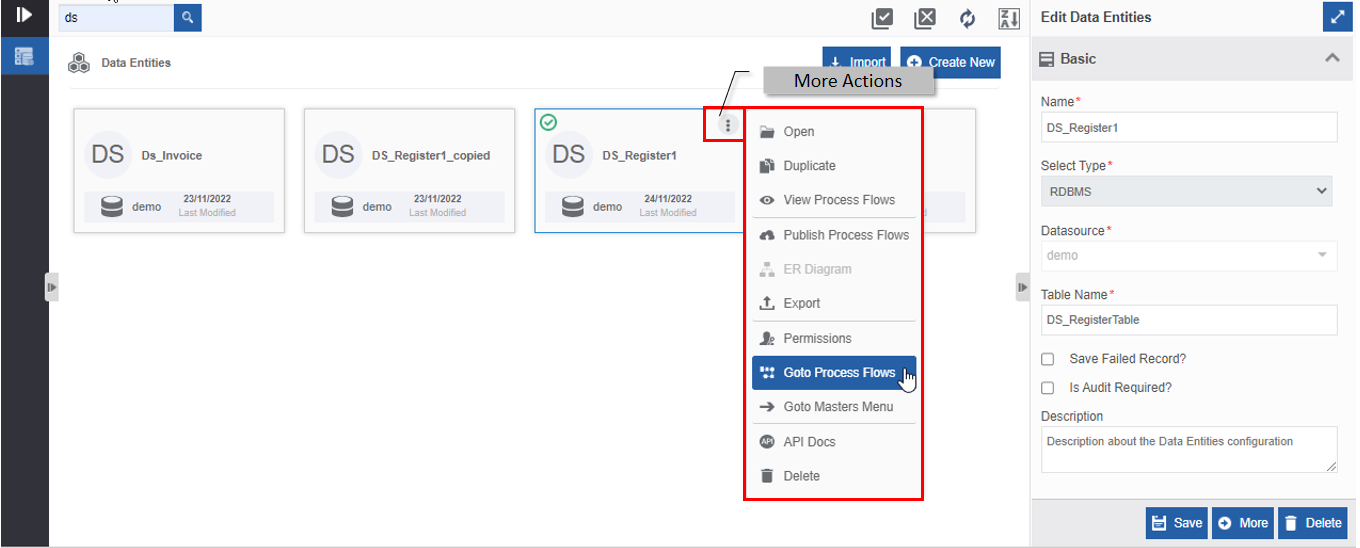
- Click the Burger menu, click Management and then navigate to Data Catalog > Data Entities. Data entities page appears.
-
Hover over the data entity card, More Actions (three dots) appear.
-
Click the three dots. More Actions appear.
-
Click Go to Masters Menu.
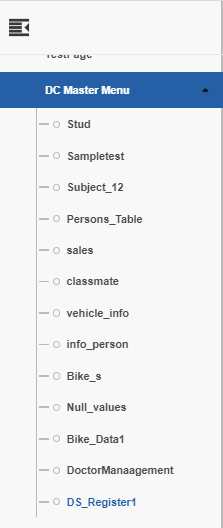
You can redirect to the Initiator Form (List Form) by navigating through Burger Menu > Click DC Master Menu drop-down > Click the Data Entity Name from the data entity list.
Adding Master Data Entity Records
You can add records in the data entity table through the runtime initiator form. The Go to Masters Menu icon redirects you to the Initiator Form.
-
Click the Burger menu and navigate to Management > Data Catalog> Data Entities > Click Data Entity Name > Click More > Click Go to Masters Menu (on the top-right of the Data entity page). The Initiator Form with the Data entity name appears.
-
Click Add{DataEntityName}. Add{DataEntityName} page appears.
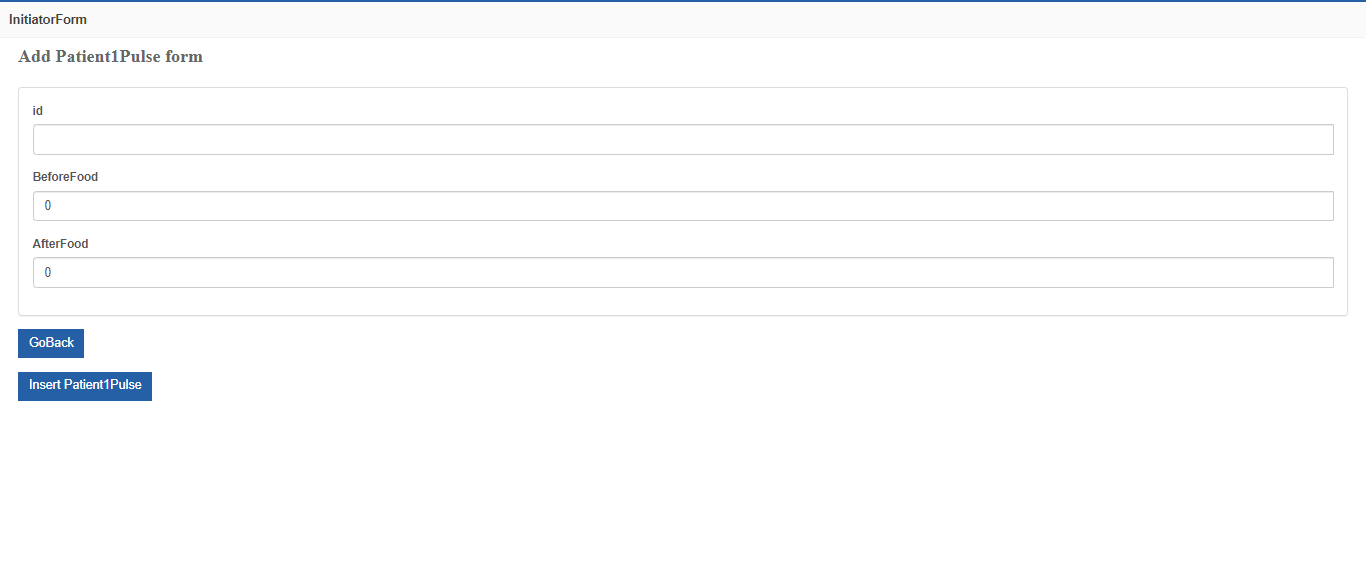
Figure 62: Initiator Form - Add data entity page -
Provide value for each attribute.
You need not provide any value for the “id” as id number is an autoincremented attribute.
-
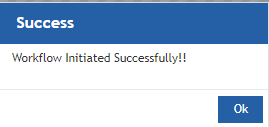
Click Insert{DataEntityName} for adding the values entered to the data entity table. (Click GoBack for navigating back to the Initiator Form > {Data Entity} page.) A Success message is displayed on the successful insertion of the values.
-
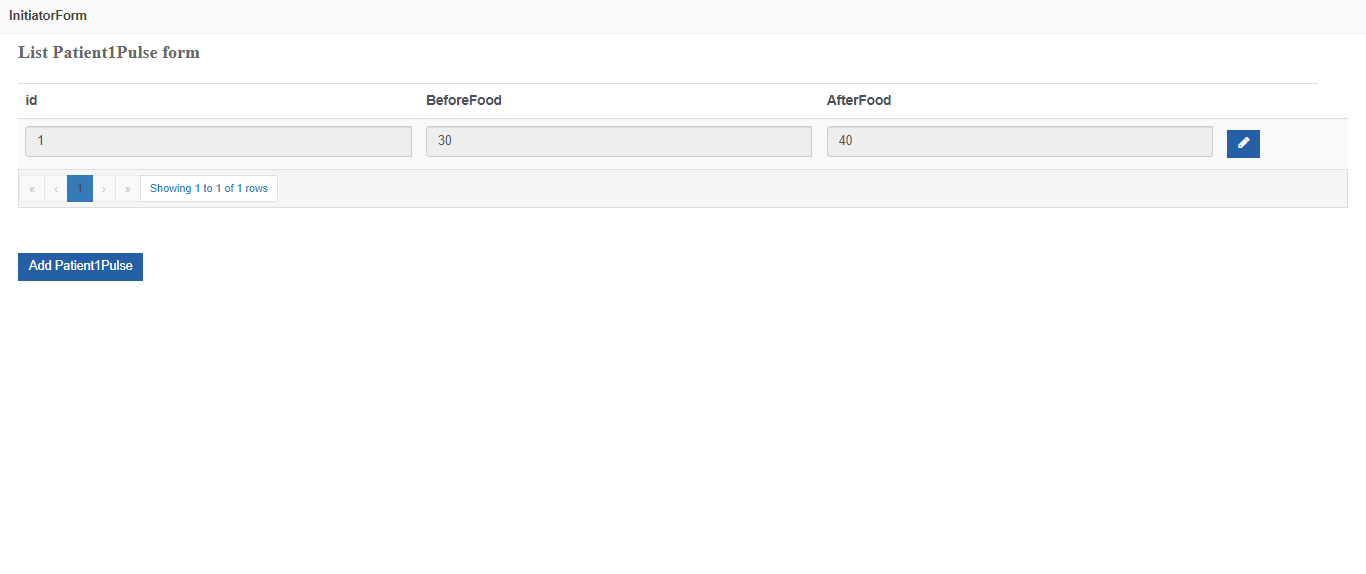
Click Ok. You are navigated to {DataEntityName} page. The added record is displayed on the List data entity page.
Editing Master Data Entity Records
You can edit or modify records in the data entity table through the runtime initiator form. The Go to Masters Menu icon redirects you to the Initiator Form.
-
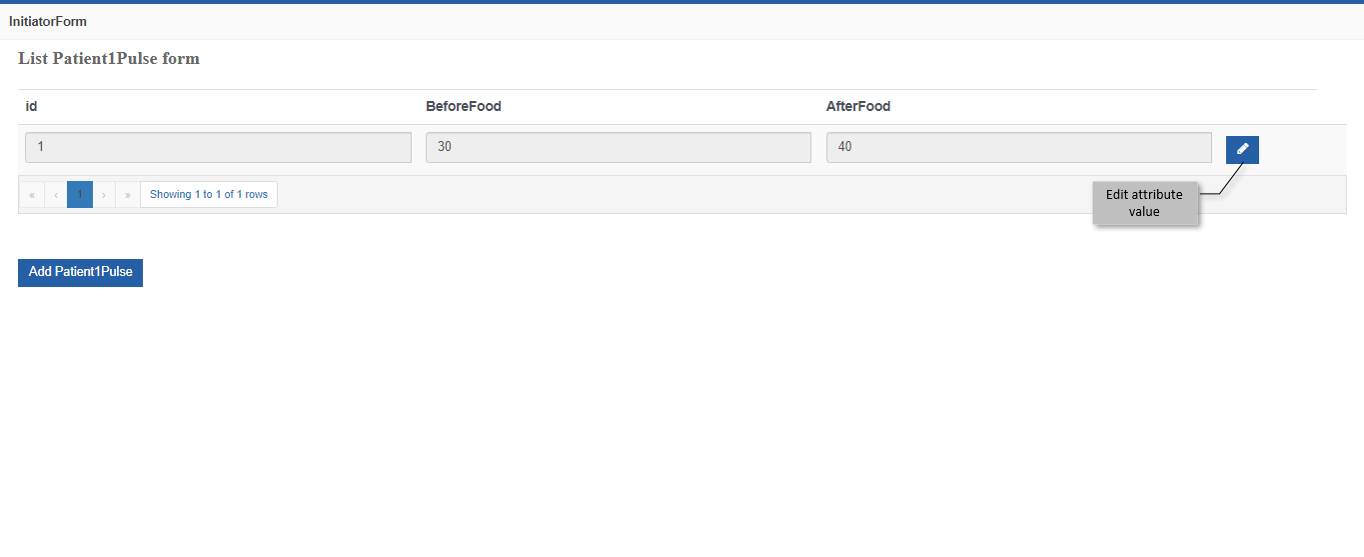
Click the Burger menu and navigate to Management > Data Catalog > Data Entities > Click Data Entity Name > Click More > Click Go to Masters Menu (on the top-right of the Data entity page). The Initiator Form > “{DataEntityName}” appears. The records on the list page appear with an edit icon on the right-hand side of each record.
-
Click Edit attribute value icon. The Update{DataEntityName} page appears.
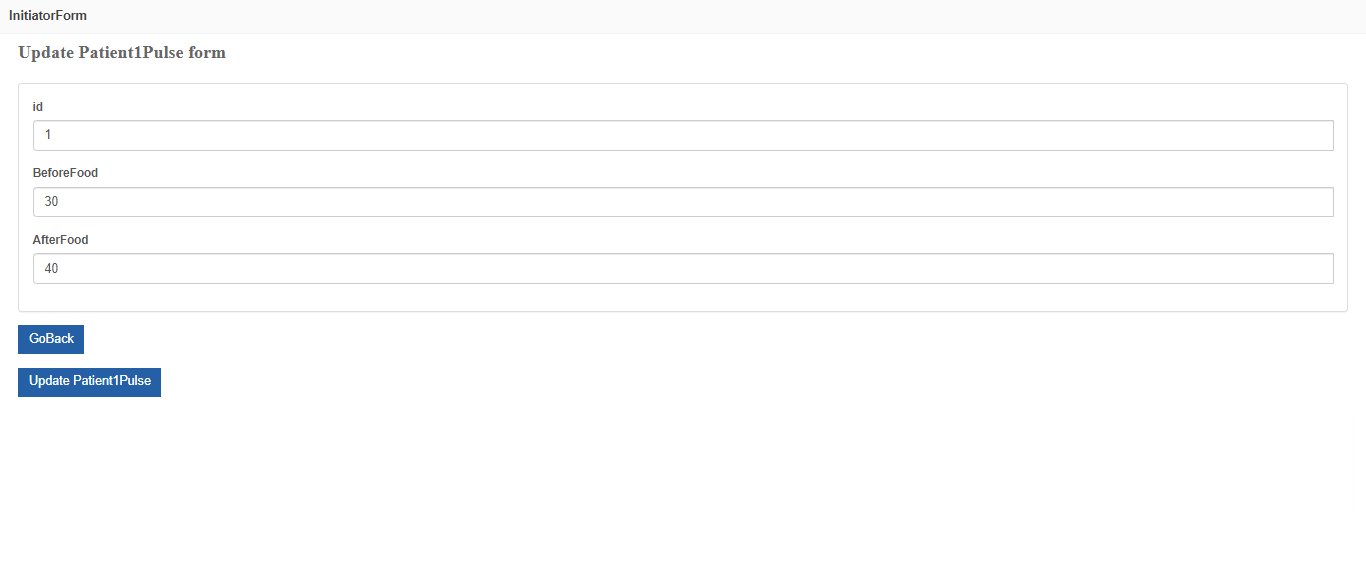
Figure 63: Initiator Form - Update data entity records page -
Modify the attribute values.
-
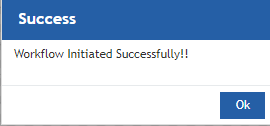
Click Update{DataEntityName} (Click GoBack for navigating back to the {DataEntityName} page.). A Success message appears on the successful update of values in the data entity table.
-
Click Ok. You are navigated to the {DataEntityName} page.
Utilizing Data Entities
The user can create the data entities as per the business needs and design the requirement. Data entities are utilized by associating them with process flows using the platform features. It is the choice of the application designer based on the requirement, design, and implementation of the utilities in the platform. You can access the details of the data entity table in the data source through external methods means also.
You can Insert, update or delete records to the data entity table through Form UI, Masters Menu, and DB Scripts.
Accessing Data Entity Through Process Flows
Variable is a business entity in the platform. The first step of accessing data through process flows is to create a data variable.
After creating the data variable, you can map the variable to the relevant process Flow activities.
Creating Data Entity Variable
You should create the data entity in Data Catalog with the necessary attributes before creating the data variable. The data entities created appear in the data type drop-down list in the variable properties so that you can define the data entity as a variable data type.
-
Create a Data Entity. Refer to Creating New Data Entity.
-
Navigate to Burger Menu > App Studio > Applications > Click {Application Name} > Click {Process Name} > Variable.
-
Click Create New on the variable list page.
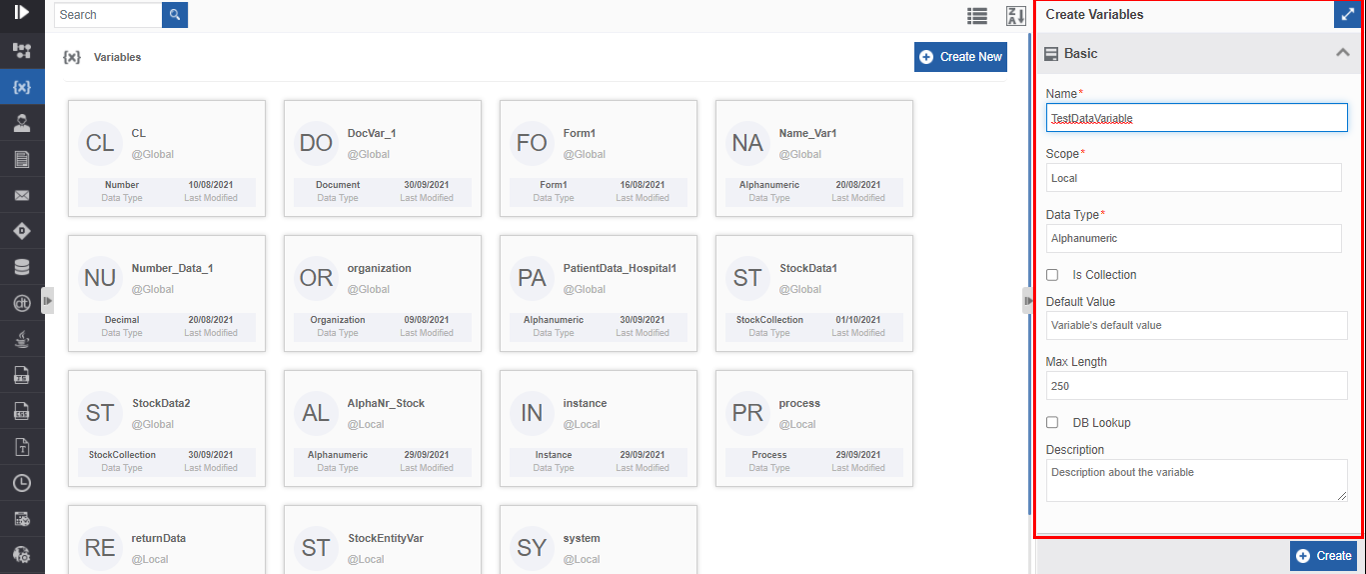
Figure 64: Create Variable details -
Enter the details as explained below.
5. Click Create*. A data variable of the selected data entity type is created.Field Description Name Enter name for the variable Scope The scope of an entity is always local as the entities are created
at the flow level.Data Type Click the drop-down and select (type the data entity name or
scroll the list to find the data entity name) the data entity
created.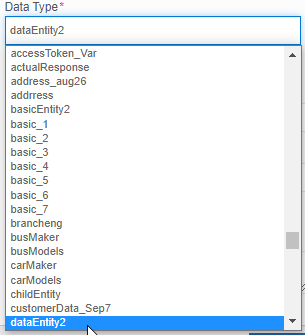
The attribute details of that data entity are displayed as shown
below.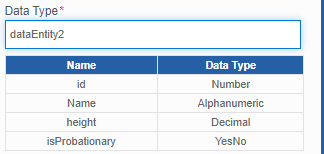
Is Collection Click the check box “Is Collection“ = True so that you can add
multiple records for that entity's attributes.Default Value Enter a default value for the variable Max Length Enter the maximum length for the variable. DB Lookup Click the check box (check) if you want the lookup for the variable.
If you select DB lookup, you need to provide the database query.Database Query The database query field is active when you select the DB
Lookup.Description Enter a description for the variable
Mapping Data Entity Variable to Process Flow Activities
You can utilize the data entity type variable in the process flow by mapping the data entities through the Insert Data Entity, Update Data Entity, or Delete Data Entity activities as per the requirement.
Follow the below steps for mapping data variables to the process flow activity.
-
Create a process flow with Data Entity activity (Insert, Update, or Delete Data Entity or a combination of any as per the requirement). Creating the process flows utilizing the entities is the application developer’s choice and design based on the requirement.
-
Click the Data Entity activity (say Insert Data Entity activity).
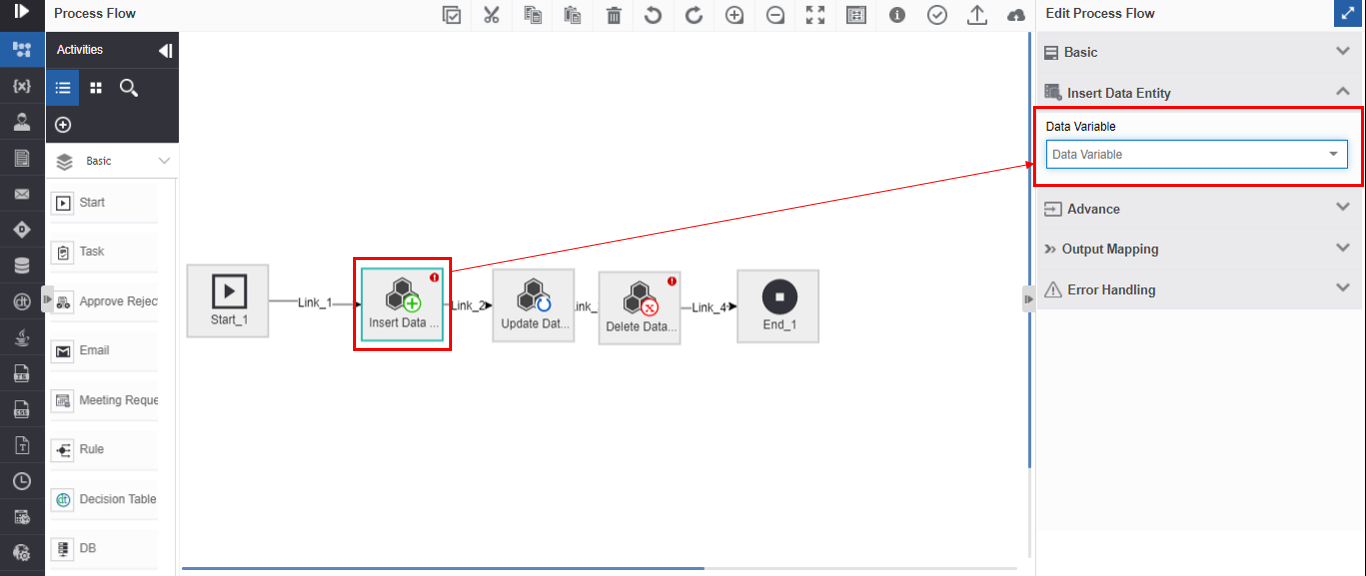
Figure 65: Mapping data variable to the Data Entity activity -
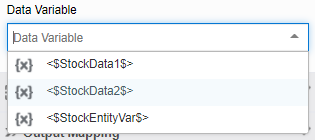
Click the Data Variable and select a data variable. You can type the name of the variable for filtering the variables. The data variable is displayed in \<\$variable name\$> format.
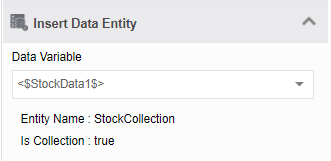
After selecting the data variable, its corresponding Entity Name and Is Collection details are displayed. The details displayed are the same when you map data variables to Insert Data Entity or Delete Data Entity.
If you map the data variable to Update Data Entity in step 2, the below details are displayed below Data Variable.
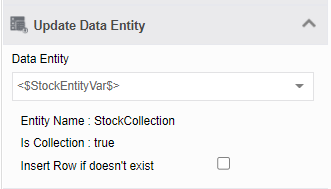
Insert Row if doesn’t exist – Click the check box to true if you want the system to insert a row if the record or data is not existing in the existing table.
Creating Data Entity Lookup Through Platform Form UI
To access the data entity through Form UI, you need to create a data entity variable first.
Accessing data entities through Form UI is one of the methods where you can give the Form UI for the end-user to manage the records in the data entity table. Through the Form UI, the end-user can insert, update or delete the records based on the process flow design and configuration.
Follow the below steps for sample creation of a Form for accessing data entity variable.
-
Navigate to Burger Menu > App Studio > Applications > Application name > Process Flow name > Variables.
-
Create a data variable. Refer to Creating Data Entity Variable.
-
Navigate to Burger Menu > App Studio > Applications > Application name > Process Flow name > Forms.
-
Click Create New.
-
Enter Name the Form (say Form name = PatientData).
-
Click More.
-
Design the Form as per the requirement.
-
Search for the data variable in the Components list displayed in the left of the Form builder. The variables are displayed below the Variable accordion in the Components list.
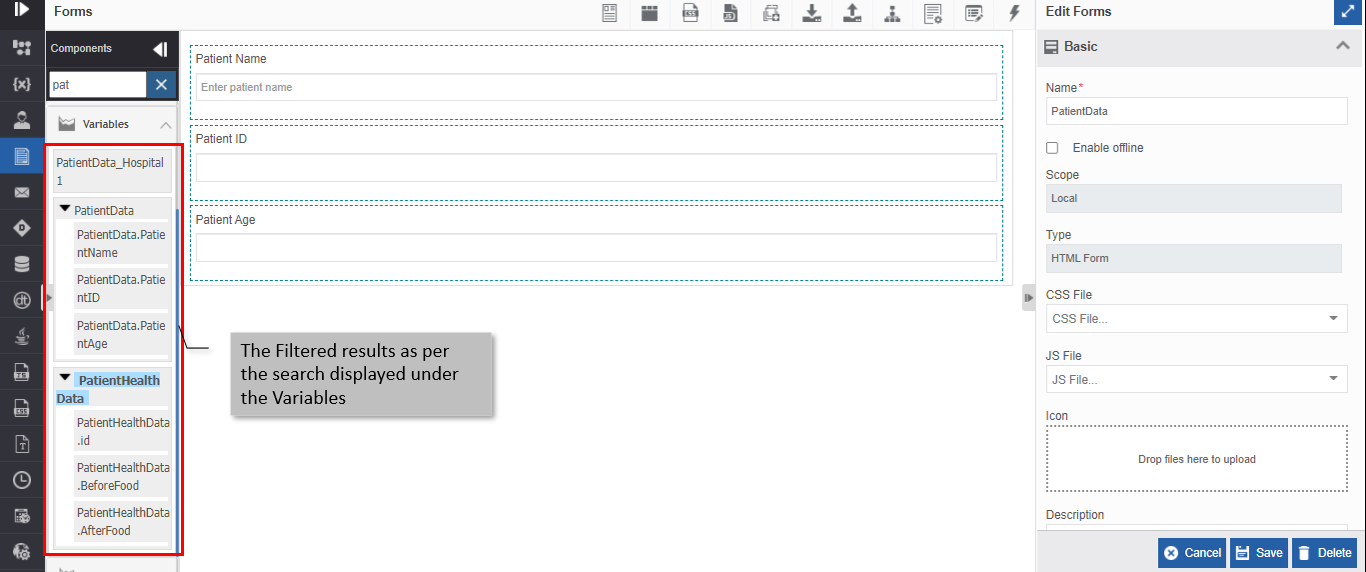
Figure 66: Data entity variable listed in the Components list -
Drag the variable into the Form designer area (say variable name = PatientHealthData). Map Variable to controls pop-up appears.
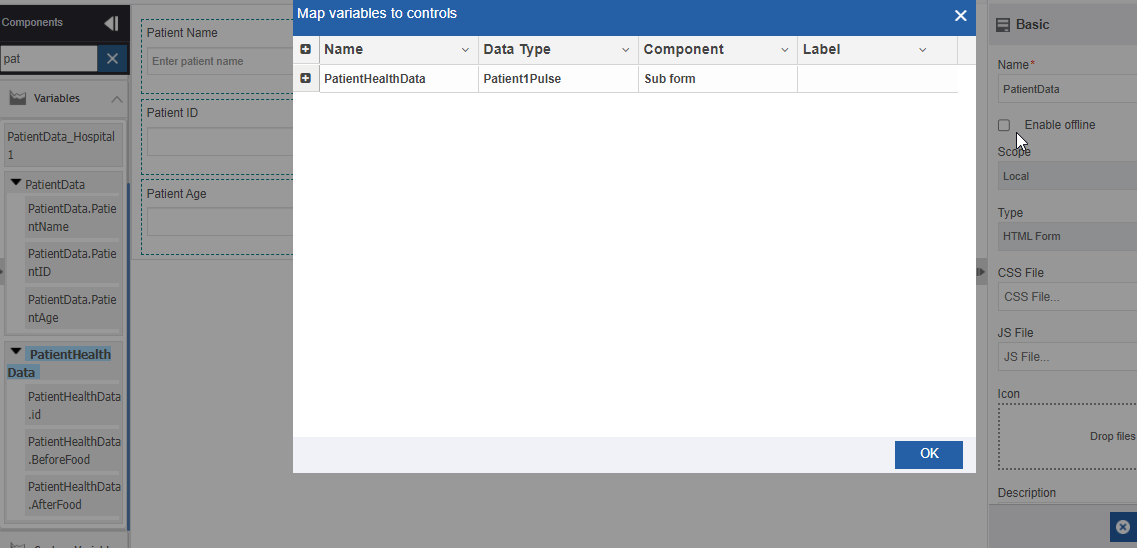
Figure 67: Map variables to controls-
The selected variable name appears below the Name column.
-
The data type of the variable appears below the Data Type column.
-
The Component or form control to which variable is mapped appears below the Component column. By default, the “Subform” component is mapped to the data variable.
-
The Label column appears blank initially.
-
-
Click the + symbol on the left of the data variable name to view the data entity attributes
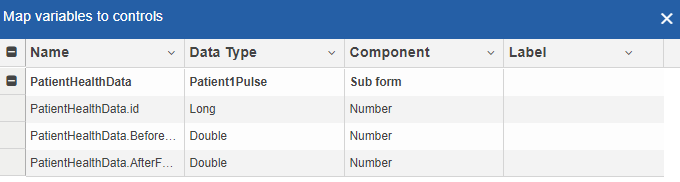
Figure 68: Data entity variable and the attributes-
The data type of each of the attributes appears below Data Type.
-
The type of component that each of the attributes is having in the Form appears below the Component.
-
-
Double click Sub form below the Component and click the drop-down for choosing an appropriate component (say Summary Form). The applicable components that can be mapped to the variable appear in the drop-down.
-
Controls or components for each attribute is created by the system based on the data types and you can choose any of the applicable components to form the list.
-
Sub form, Summary form, Grid, and Comments are displayed here because the data variable is a collection variable and only the displayed components can accept an array of data. Usually, when data entity variables are utilized in the form, Sub form and Summary form are mapped to the collection variable.
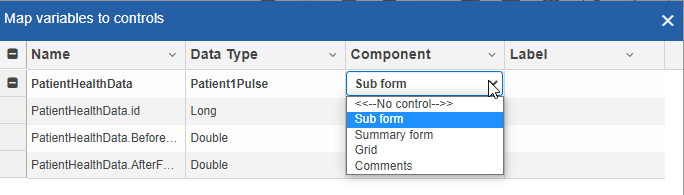
Figure 69: Changing the component control for the variable -
-
Double-click below the Label column for adding a label for the data variable or data attribute. You can provide labels for each component as needed.
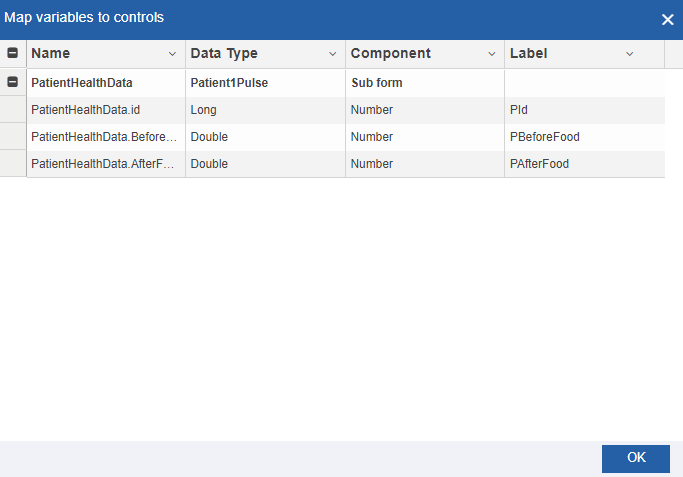
Figure 70: Adding Labels -
Click Ok. The Form Designer displays dragged variable details.
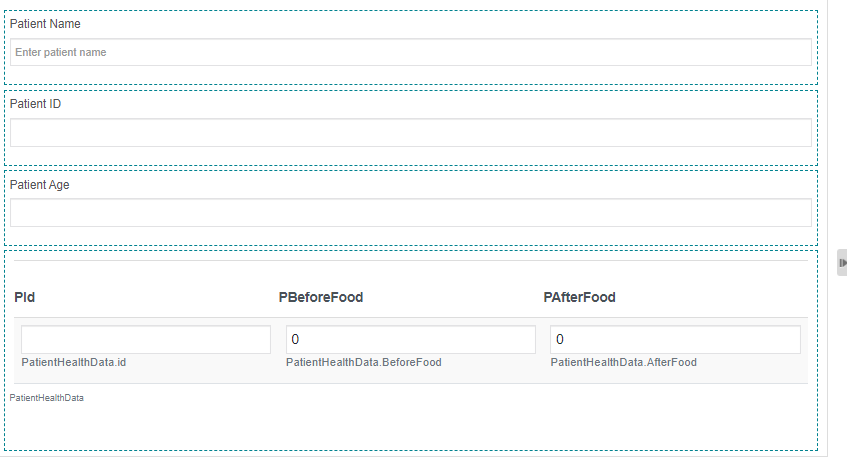
Figure 71: The Form designer displaying the configured data variable detailsFollow the below steps as a continuation of the above procedure for configuring a lookup control (to create a lookup of the data entity) in the Form.
- To create a lookup of the data entity table through the database script, you need to create the required database script in the business entity section.
-
Drag a Lookup control from the Component list. Lookup Component pop-up appears.
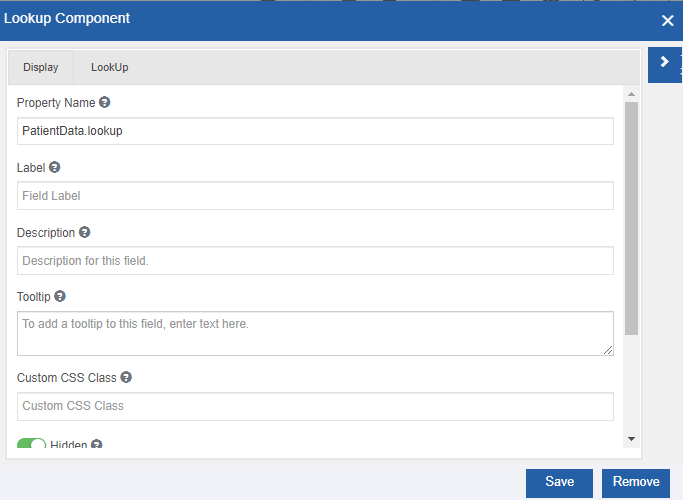
Figure 72: Lookup Component pop-up -
In the Lookup component pop-up, click LookUp tab.
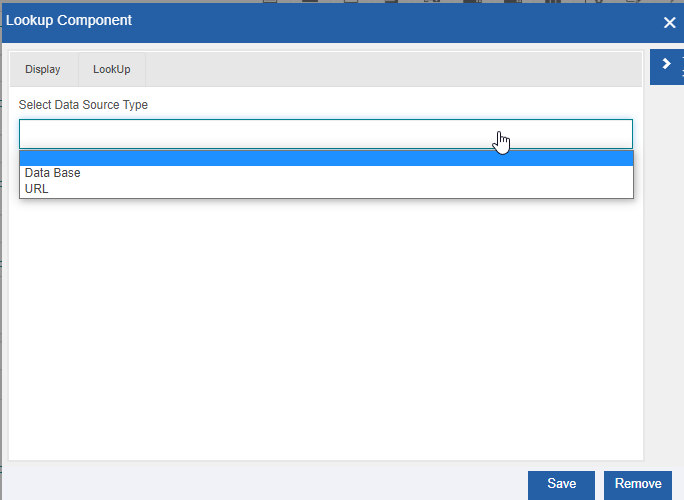
Figure 73: Selecting Data Base as the data source type -
In the Lookup tab, click Select Data Source Type and select a data source (Say Data Base). Details based on the data source = Database appears.
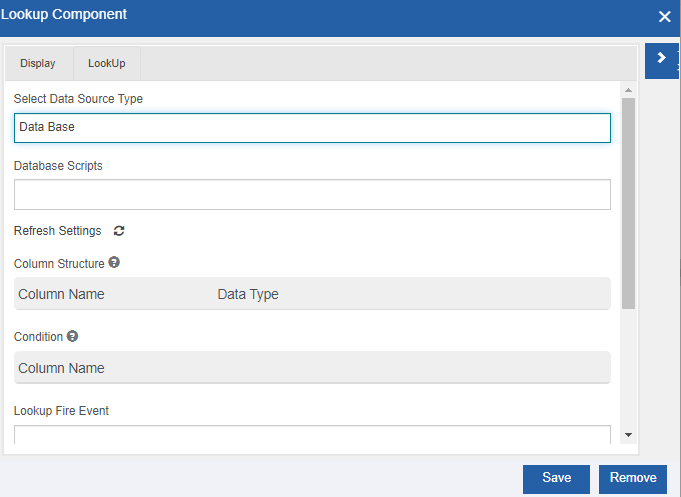
Figure 74: Configuration details for the Database in the lookup -
Provide the database lookup as explained below. Only required details are explained in the below table.
Field Description Select Data Source type DataBase (selected already) Database Scripts Click and select the database script created for the lookup. This is
mandatory when you select data source tyRefresh Settings Click the Refresh icon as needed. Column Structure Column structure is displayed based on the database script.
Column Name displays the attribute name and the data type displays
the data type of the attributeClick the next blank column and drag the corresponding variables
from the Resource Data (Click the arrow on the top-right side for
viewing the variables)Map all the attributes to the relevant variables in the
Form.
Look Up Fire Event Click and select the event as needed from the drop-down (say
select Form Load).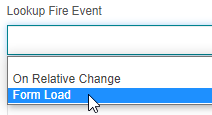
On Relative change: The lookup details appear on
the Form dynamically based on the relative change. If you select this
option, the further details relative to it are displayed in the
pop-up.Form Load: Lookup details appear when the form
is loaded.
Binding Control Drag the subform (or summary form as configured) control from the
resource data. -
Click Save on the Lookup Component pop-up for saving the configured details.
-
Click Save on the Form Designer page for saving the form configurations.
After configuring the primary details in the Form, you can map the Form in the Task activity of the process flow so that the end-users can access the details during the runtime.
However, for managing the data entity, you need to configure the relevant data entity activity in the process flows.
Example of Form in the runtime with lookup details:
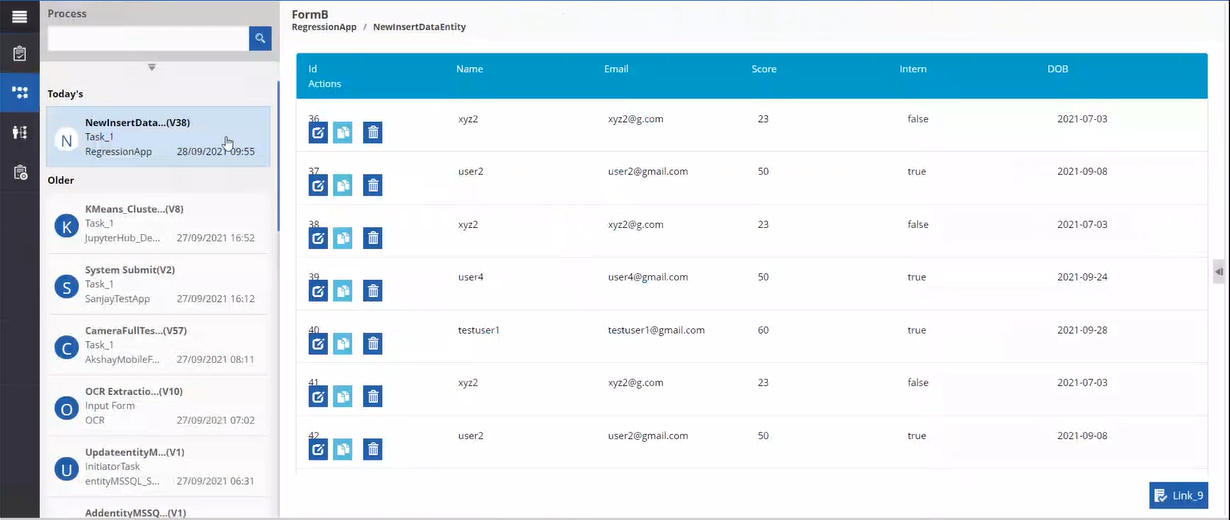
Figure 75: Runtime view of lookup in form
Accessing Data Entity Using Scripts
-
You can create DB scripts in the business entity section and utilize the DB script for getting lookup details of the entity through Form UI.
-
You can access the records of the data entity through API.
-
You can access the data entity table records from outside the platform using the SQL Scripts.
Through Database Scripts in the Business Entity
You can create the DB script and use it in the lookup control in the Forms. Using SQL Query, each column value is mapped to each attribute of the data entity variable.
You can create DB script files for select, insert, update, and delete data entities in the Business Entities > Database Scripts.
An example of Database script created in the business entity section is given below.
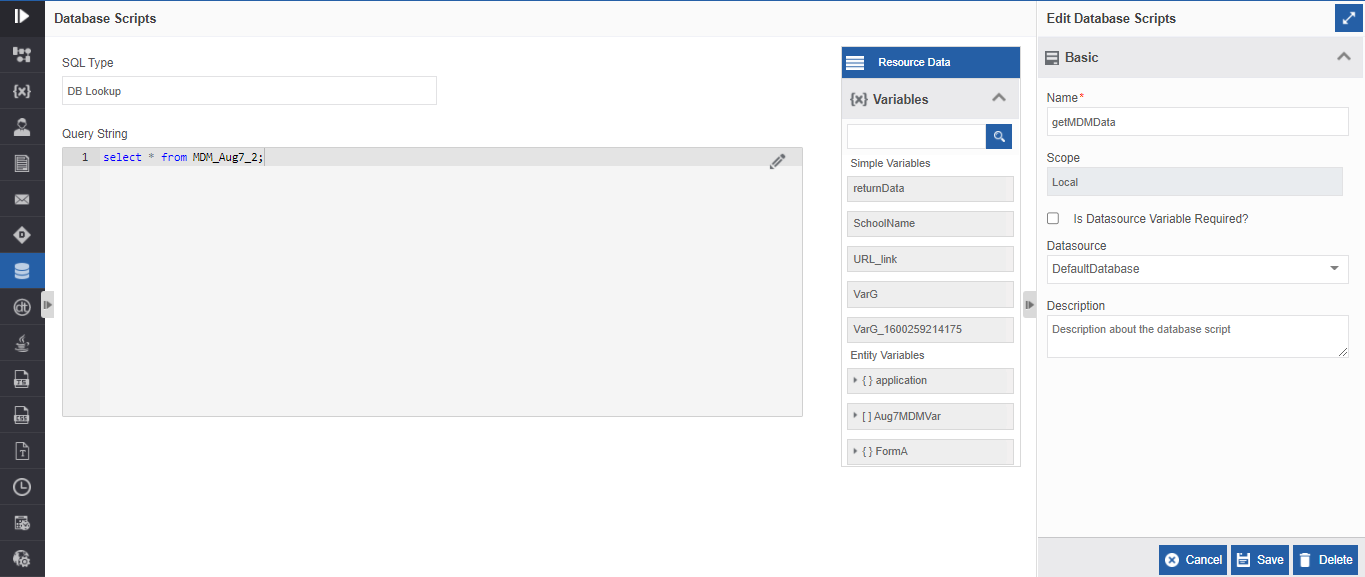
Figure 76: Sample database script for DB lookup
Through API
You can access a data entity through the exposed API.
When you try to access the platform functionalities outside the platform, you need to call the exposed API of the entity. Filter Entity API is used for accessing the data entity.
Runtime Data Entity Features
The records displayed in the runtime are based on the database script configured and mapped to the lookup control in the Form.
In the Runtime, the view depends on the Form control that you use to manipulate the data. Using the Subform control allows you to do inline editing in the form UI. Summary Control also provides you with edit features.
The grid format view for the Summary Form control is explained below The data entity is displayed in a grid format with edit, copy and remove icons and Add another button.
Figure 77: Runtime display of a Form through Summary control with data entity lookup details
Inserting Records to the Data Entity Table Through Form UI
Inserting records to the data entity table functionality is achieved by adding and configuring the Insert Data Entity activity in your process flow.
Follow the below steps for adding and inserting the record to the entity table through summary control in Form UI.
-
Create a data entity variable.
-
Design the flow as to how you need and map the data entity variable to the Insert Data Entity activity.
You should design the flow with a Task activity and design the components accordingly for accessing the run-time form.
-
Deploy the process flow.
-
Navigate to Burger Menu > Workflow > My Task. The tasks are displayed for you (if you have mapped you as a user or role)
-
Click the relevant Task name. Runtime form appears.
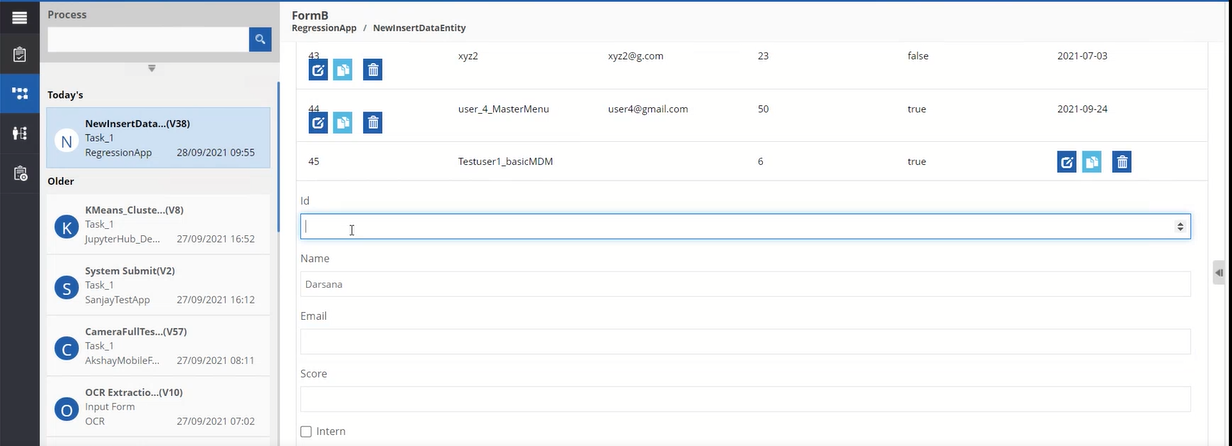
Figure 78: Sample Form and Inserting record fields in runtime Form -
Click Add Another, provide values for the fields, and click Save.
Add Another appears for the Summary Form control and methods for adding a record changes as per the design as the designing and configuration are the choice of the application developer.
You need not enter any value for the Id. Even if you enter a value for Id, it is ignored by the system as it is the primary key and auto-generated.
-
Submit the form or click the necessary button for inserting the record into the entity table as per your design. When a record is added to the entity table, the Id field is autogenerated.
All the records in the view get added to the entity table.
Updating Records to the Data Entity Table Through Form UI
Updating records to the data entity table through Form UI is achieved by adding and configuring Update Data Entity activity in your process flow. You should map the data entity variable to the activity and design the flow and the associated Form entity with the required fields as needed.
Follow the below steps for adding and inserting the record to the entity table through a summary control in Form UI.
-
Create a data entity variable
-
Design the flow as how you need and map the data entity variable to the Update Data Entity activity.
You should design the flow with a Task activity and design the components accordingly for accessing the run-time form.
-
Deploy the process flow.
-
Navigate to Burger Menu > Workflow > My Task. The tasks are displayed for you (if you have mapped you as a user or role)
-
Click the relevant Task name. Runtime form appears.
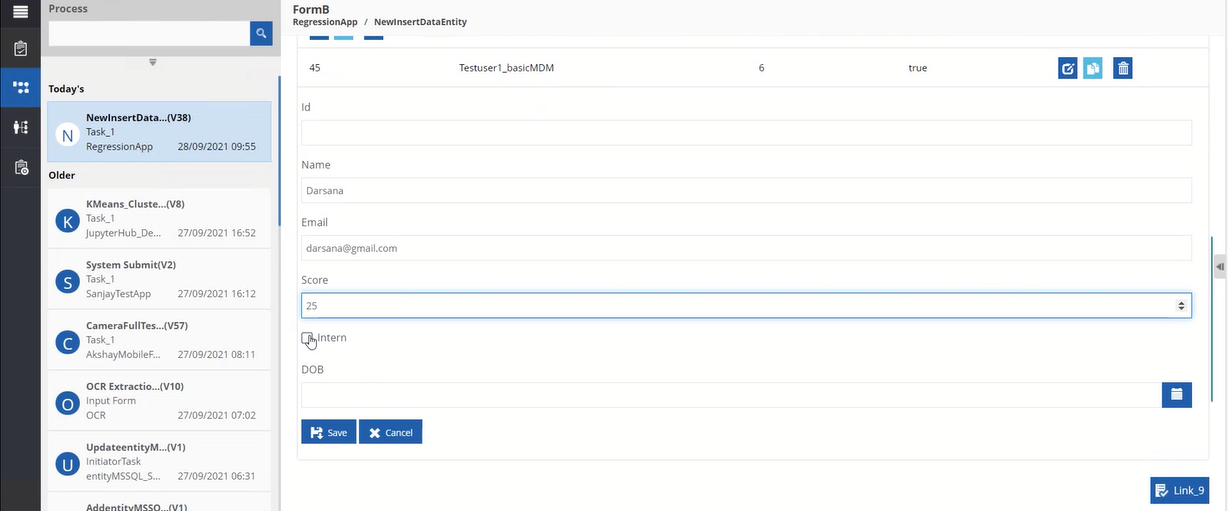
Figure 79: Sample Form and modification of record fields in runtime Form -
Click the Edit icon below the Actions, modify values for the fields, and click Save.
-
Submit the form or click the necessary button for updating the record into the entity table as per your design.
Deleting Records From the Data Entity Table Through Form UI
Deleting records from the data entity table is achieved by adding and configuring Delete Data Entity activity in your process flow. You should map the data entity variable to the activity and design the flow as to how you need it.
Follow the below steps for deleting the record entity table.
- Create a data entity variable
-
Design the flow as to how you need and map the data entity variable to the Update Data Entity activity.
You should design the flow with a Task activity and design the components accordingly for accessing the run-time form.
-
Deploy the process flow.
-
Navigate to Burger Menu > Workflow > My Tasks. The tasks are displayed for you (if you have mapped you as a user or role)
-
Click the relevant Task name. Runtime form appears.
-
Click the Remove icon below the Actions for removing the records that are not chosen for deletion.
If you configure a Delete data entity in your process flow and execute the delete action through that, all the records in view get deleted as those records in view are taken as reference for deletion. That is, you are sending those records in the view to the delete data entity for deletion.
If you need to delete the records from the database you need to configure the details accordingly in the flow. -
Submit the form or click the necessary button for updating the record into the entity table as per your design.
Reading Data Entity Records Through Data Flow
You can create a data model in the data flow for reading the data entity records as an input to the data flow.
You can create a data model of type as data entity. Data Entities of type RDBMS are listed for selection. Using the data entity as the input, you can design the data model and utilize it.
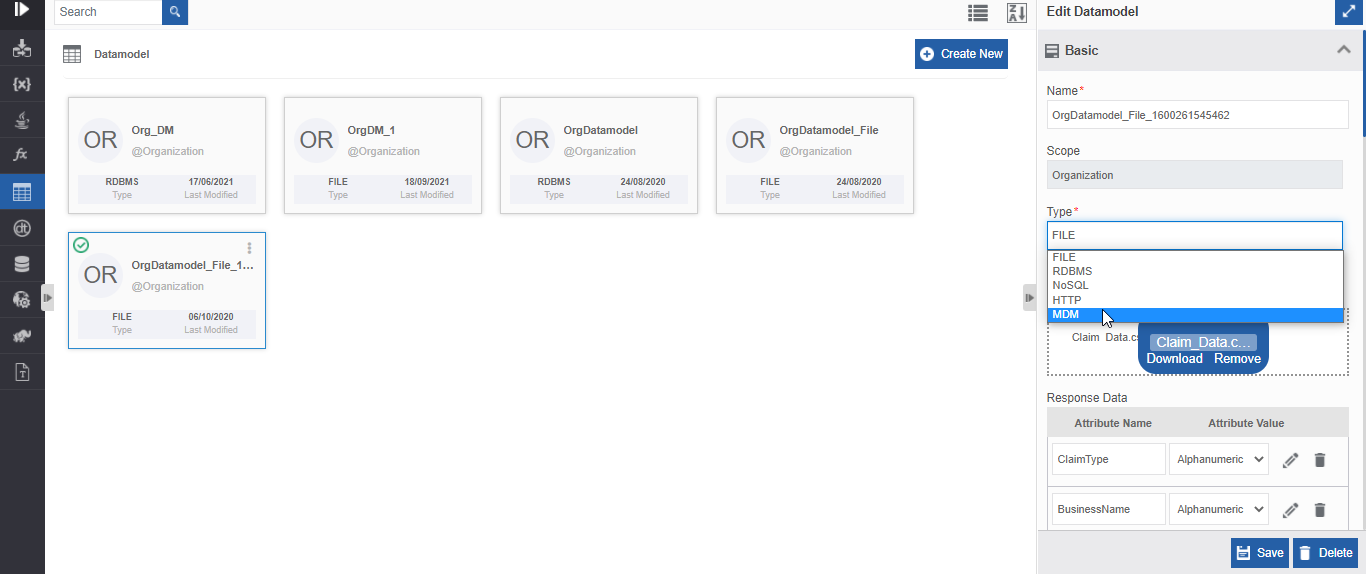
Figure 80: Example: Seleting data entity type data model