Timer
Timer is the business entity used to set time and recurrence pattern of time schedule. In the Platform, Timers are used to trigger an action in the process flow. The Timer entity is associated with the business entity, Meeting Request, and in the SLA configuration details that appear in the Info Actions for various activities.
Viewing Timer
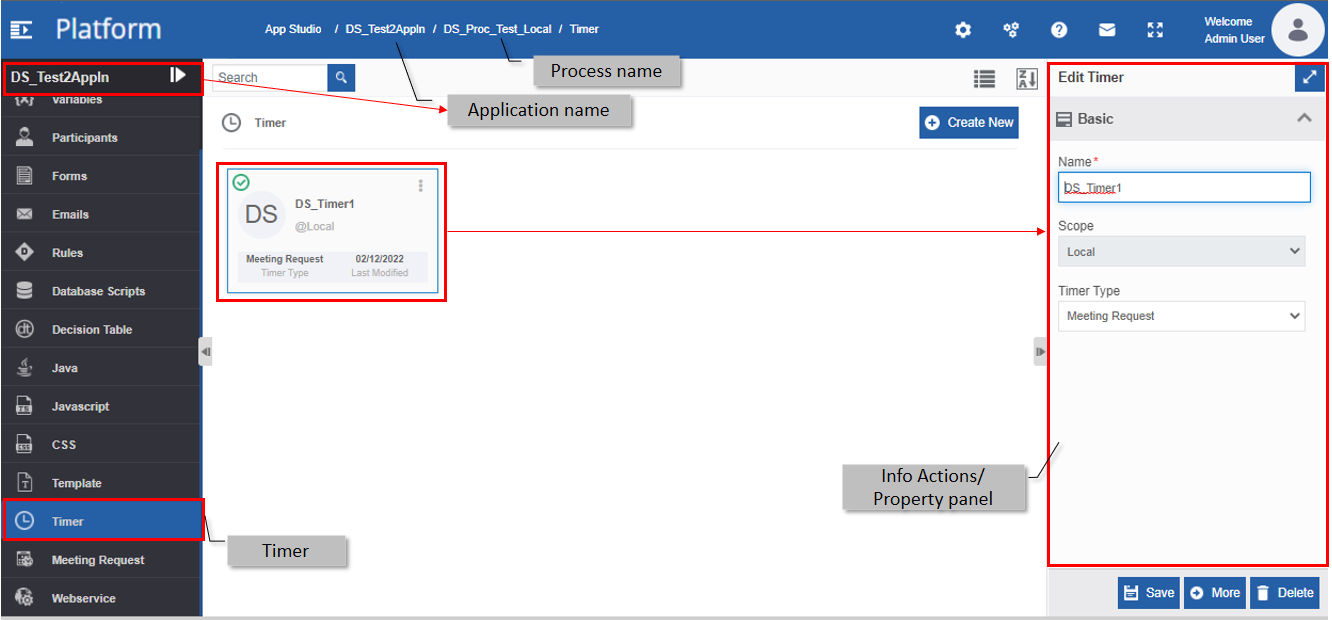
The Timer entity associated with each flow will appear within that flow.
- Navigate to App Studio > Applications - open application name > Process Flow - process flow name > Open.
-
Click Timer on the left side panel for viewing the Timers for the process flow module.
Creating New Timer
You can create a Timer to schedule time or time recurrence pattern as per the requirement.
- Navigate to App Studio > Applications - open application name > Process Flow - process flow name > Open.
-
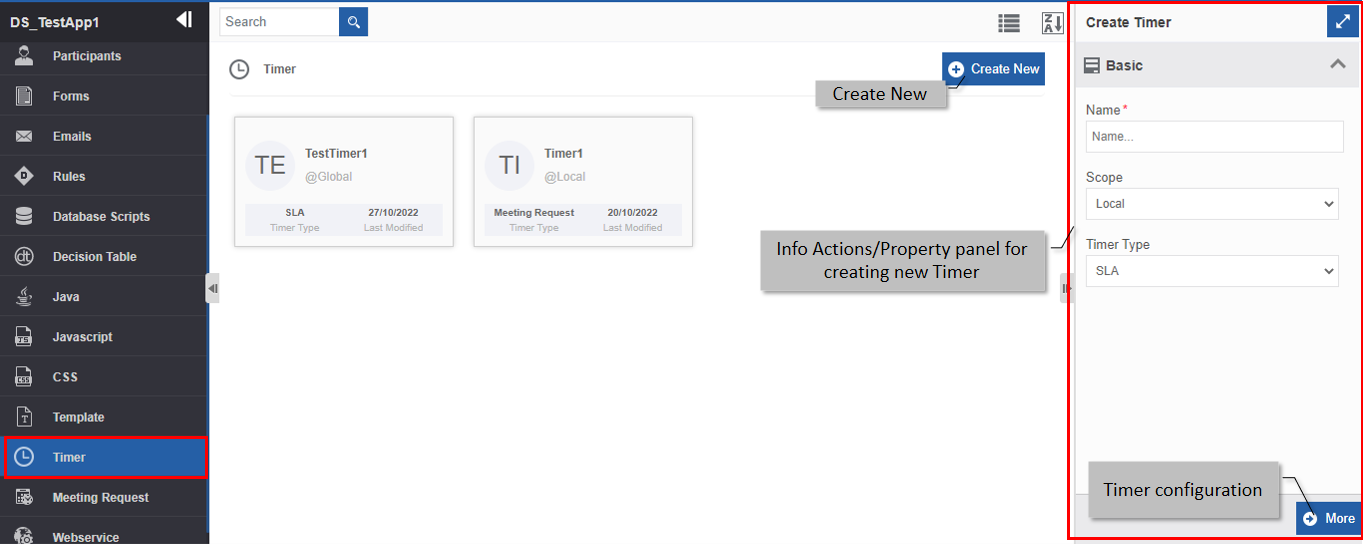
Click Timer. The list of Timers appears.
-
Click +Create New. The Info Actions panel appears as Create Timers.
-
Enter the Basic details in the Create Timer panel as explained below.
Field Description Name* Enter the name of the Timer.
Character limit: 50.
Data type: Alphanumeric and underscore. Whitespace is not allowed.Scope* The scope of an entity is always local as the entities are created at the flow level. Timer Type Select a timer type.
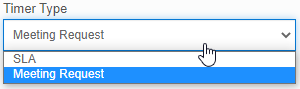
SLA : If you want to map the timer to an SLA configuration, select SLA .
Meeting Request : If you want to map the timer to a Meeting Request entity, select Meeting Request . -
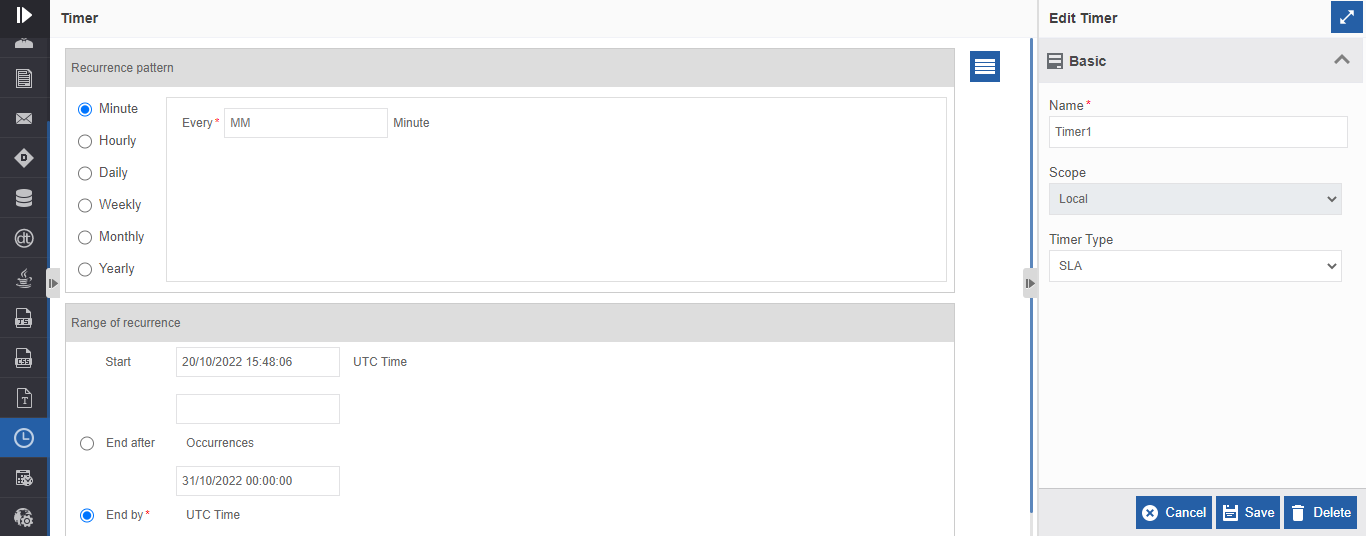
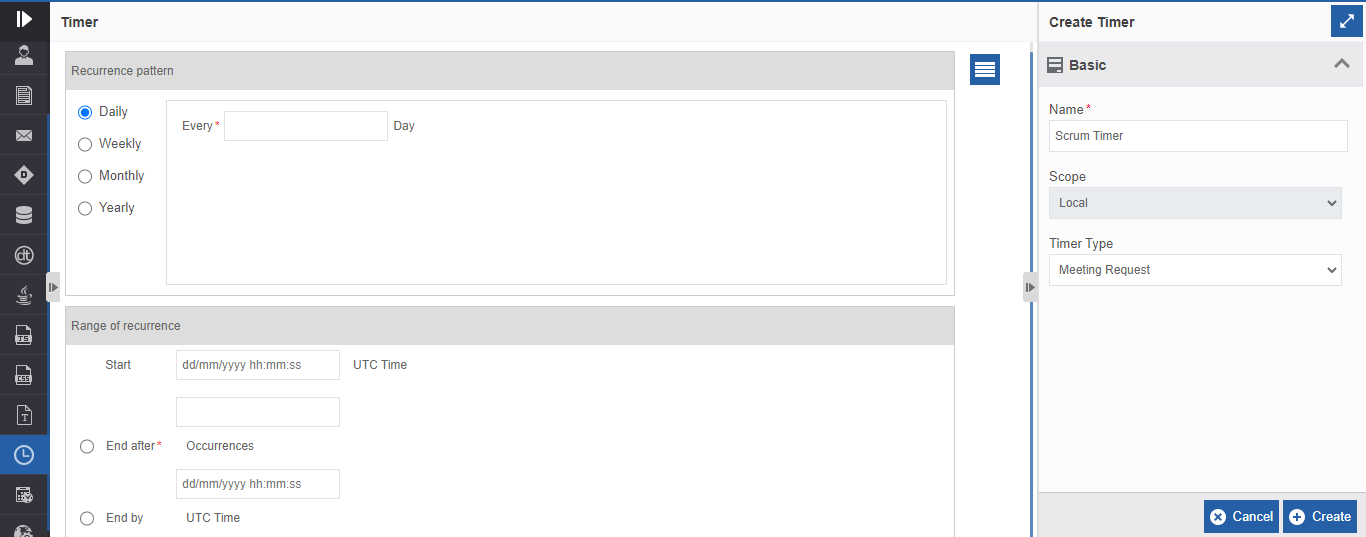
Click More. Timer Recurrence Pattern and Range of recurrence detail appear.
-
Select a Recurrence Pattern (click any option). You can set the regular intervals for the timer under the Recurrence pattern. For each pattern selected, different options are displayed for configuration.
-
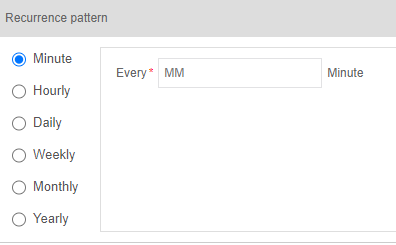
Minute: The minute option allows you to repeat the pattern for every specified number of minutes.
Info
Minute is applicable only for the SLA type of timer.
- Enter the number of minutes in the text box adjacent to “Every”.
-
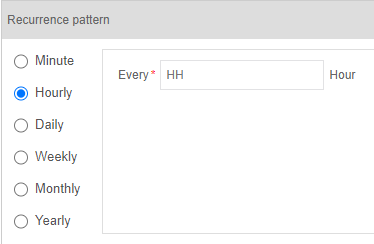
Hourly: Hourly option allows you to repeat the pattern for every specified number of hours.
Info
Hourly is applicable only for the SLA type of timer.
- Enter the number of minutes in the text box adjacent to “Every”. 24-hour format is to be followed.
-
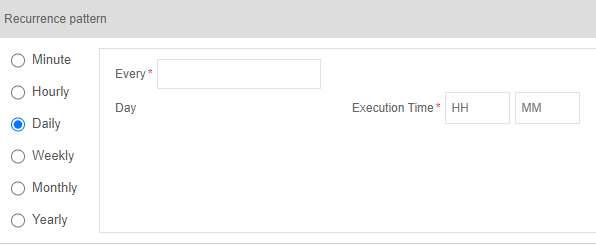
Daily: Daily option allows you to recur the pattern as per the specified number of days and times.
- Enter the number of days in the text box adjacent to “Every”. The pattern will recur as per the days mentioned.
- In the Execution Time, enter the hour and minute of execution in the“HH” box and “MM” box respectively.
-
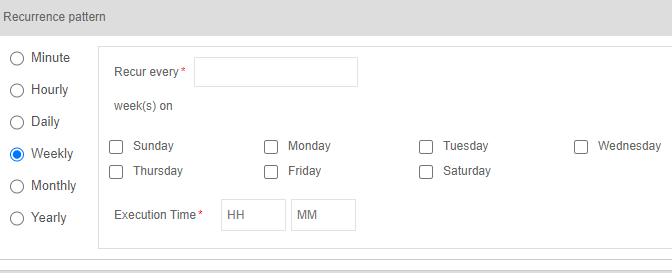
Weekly: Weekly option allows you to choose the number of weeks and weekdays for which the timer has to recur. The timer will recur every number of weeks specified, on the weekday mentioned.
- Enter the number of weeks by which the timer should repeat in the text box adjacent to “Recur every”.
- Below week(s) on, select the weekdays on which you need to repeat the timer.
- In the Execution Time, enter the hour and minute of execution in the“HH” box and “MM” box respectively.
-
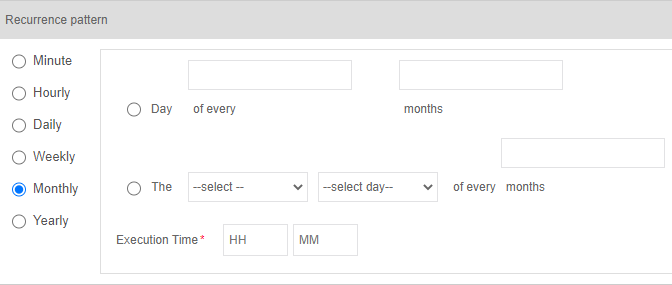
Monthly: Choose a Monthly option - Day based (Option 1) or Week based (Option 2).
-
Option 1 - Day based option allows you to repeat the timer on a specified date in the specified months.
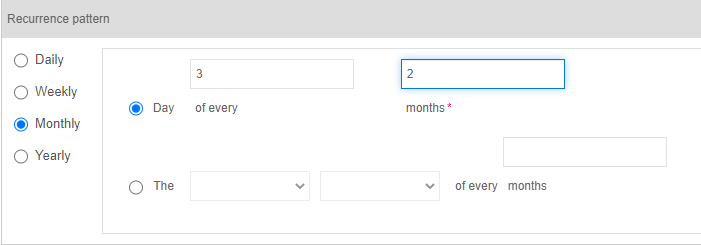
- Select the first radio button for the Monthly option.
- Enter the day on which you need to repeat the timer in the first text box.
- Enter the number of months by which the pattern has to repeat in the second text box.
-
Option 2 - Week based option allows you to repeat the timer on a specified week, specified day, and for specified alternate months.
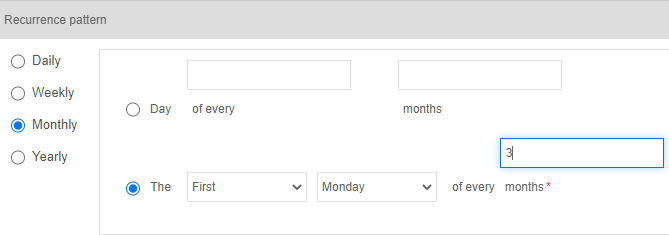
- Select the second radio button for the Monthly option.
- Select the week from the first drop-down.
- Select the weekday from the second drop-down.
- Enter the number of months by which the timer has to repeat in the text box.
-
-
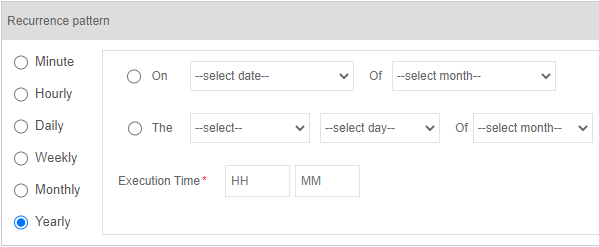
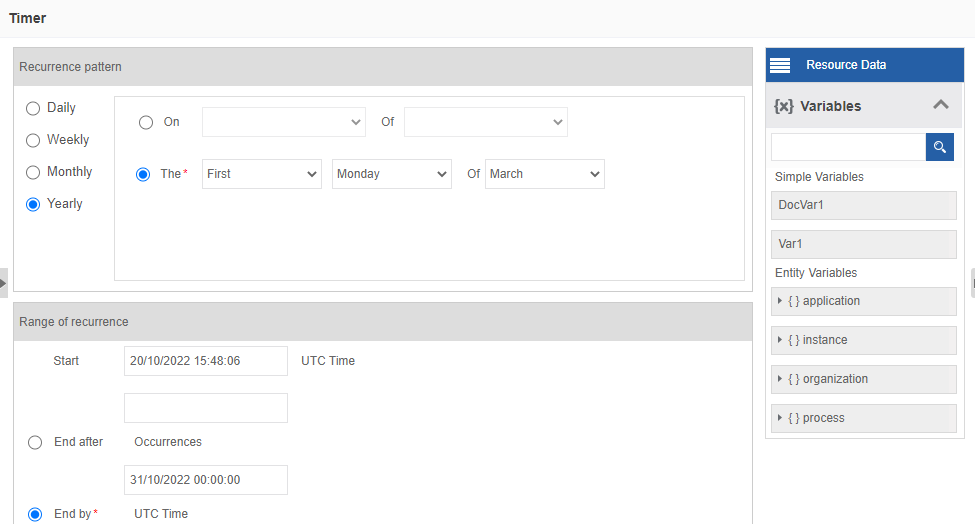
Yearly: Choose a Yearly option - You can choose the Date and Month based (Option 1) or Week based (Option 2).
-
Option 1 - Date and Month based option allows you to repeat the timer on a specified date in a specified month.
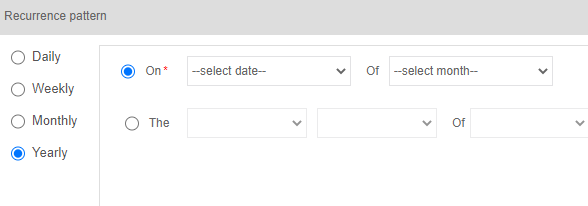
- Select the first radio button for the Yearly option.
- Select the date on which you need to repeat the timer in the first drop-down.
- Select the specified month on which the pattern has to repeat in the second drop-down.
-
Option 2 - Week based option allows you to select the specified week, specified day, and specified month.
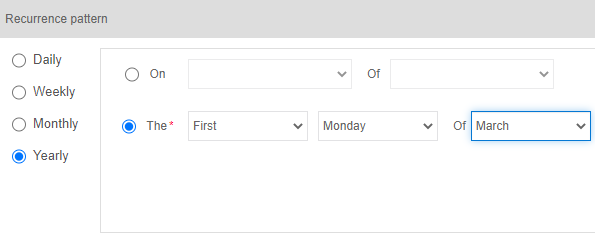
- Select the second radio button for the Yearly option.
- Select the week from the first drop-down.
- Select the weekday from the second drop-down.
- Select the specified month on which the pattern has to repeat in the third drop-down.
-
-
-
In the Range of Recurrence, provide a Start time and End time for the timer. UTC time is followed for the timer.
-
In the Start date-time picker, click and select the date and time and then click Done.
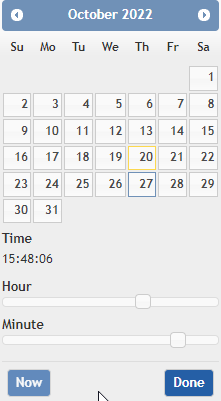
Start time gets selected in the format as shown below.

-
Select an option for the End time. The three options available for end range of recurrence is End after, End by, and Never End.
-
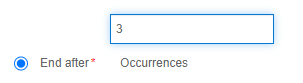
End after: Enter the number of times the timer needs to be executed. After the specified number of times the timer is executed, the timer stops execution.
-
End by: Click the date-time picker and select the date and time by which the timer has to end.
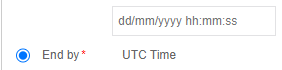
-
Never End: The timer executes indefinitely without an end. To make the timer never-ending, you just need to select the option Never end.

-
-
Click Create.
If the details provided are correct and valid, a Timer with the provided details is created else an error message is displayed with the relevant details. Correct the errors and create the timer.Tip
You can drag and drop the available variables under Resource Data > Variables. To set a date, click and drag a date variable; to set time, click and drag the timer variable; to set Integer, click and drag the integer variable etc.
Viewing and Editing Timer
Make sure to unlock the application before editing if you want to edit the details of the Timer object that is not created by you.
- Navigate to App Studio > Applications - open application name > Process Flow - process flow name > Open.
- Click Timer. The Timer list appears.
-
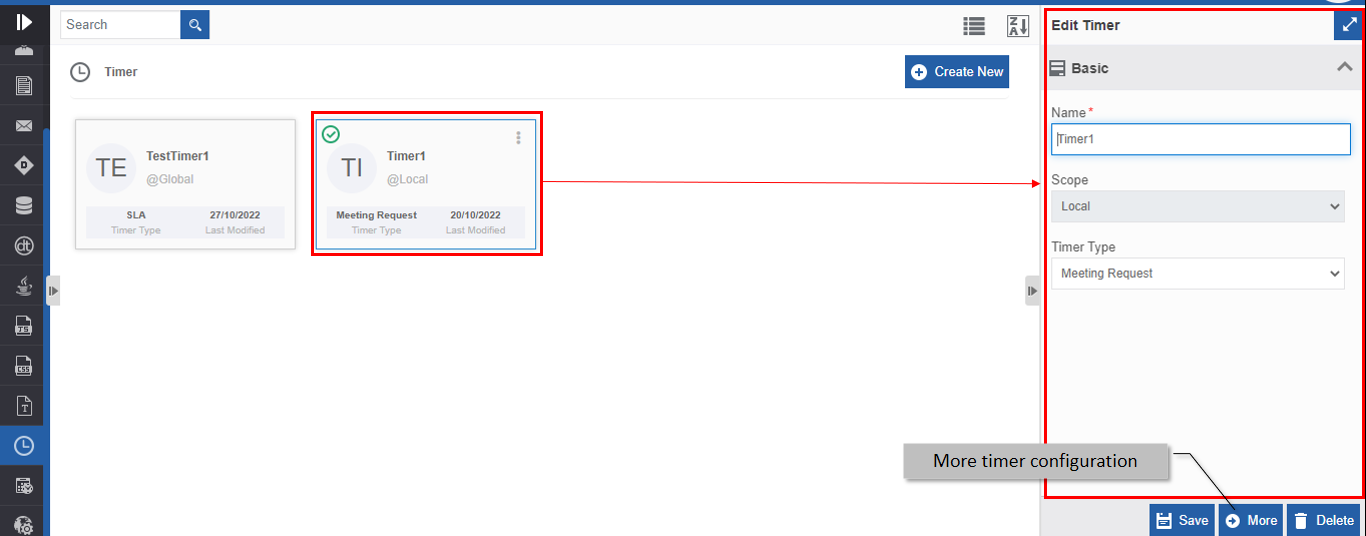
Click the Timer card for viewing the details of the selected Timer. The details of the Timer appear in the Info Actions panel (Edit Timer).
-
Click More for viewing Timer Recurrance Pattten and Range of recurrance.
-
Edit the Timer details as needed.
- Click Save.
Viewing Timer Associations
- Navigate to App Studio > Applications - open application name > Process Flow - process flow name > Open.
- Click Timer. The Timer list appears.
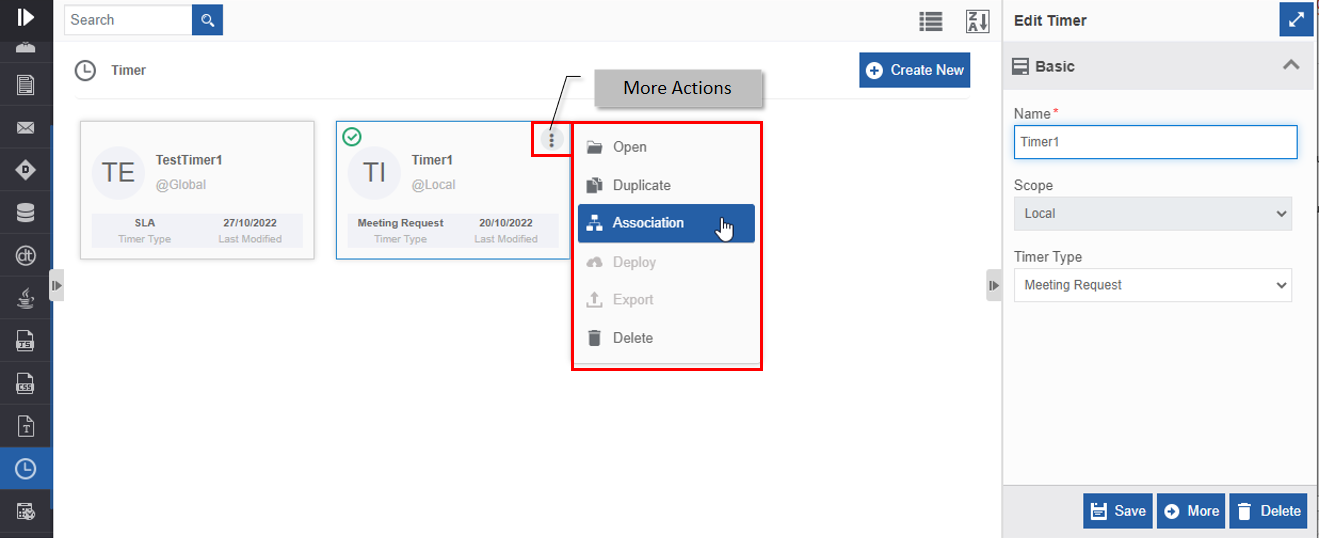
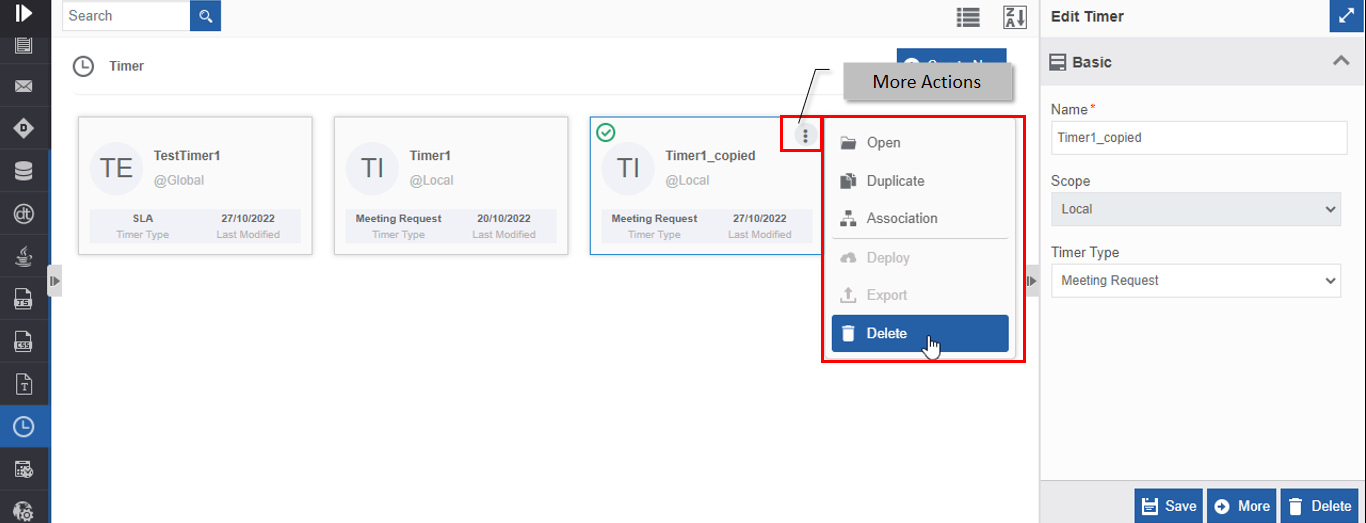
- Hover over any Timer card. Three dots appear on the upper right side of the card.
-
Click the three dots. More Actions appear.
-
Click Associations. The association of the Timer with the application, process flow, and activities is displayed in a pop-up.
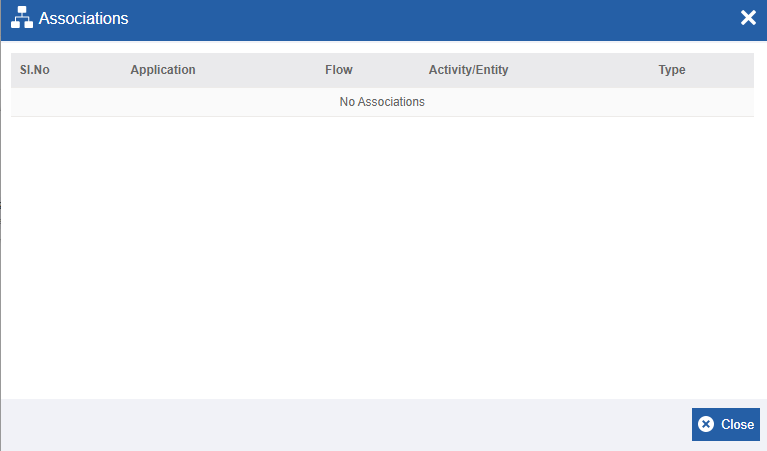
- Application - The application in which the Timer is utilized.
- Flow - The flow in which the Timer is utilized.
- Activity/Entity - The activity name in which the Timer is utilized.
- Type - The type of entity or activity.
Duplicating Timer
Make sure to unlock the application before duplicating an entity that is not created by you. When you duplicate a Timer, the associations are not duplicated.
- Navigate to App Studio > Applications - open application name > Process Flow - process flow name > Open.
- Click Timer. The Timer list appears.
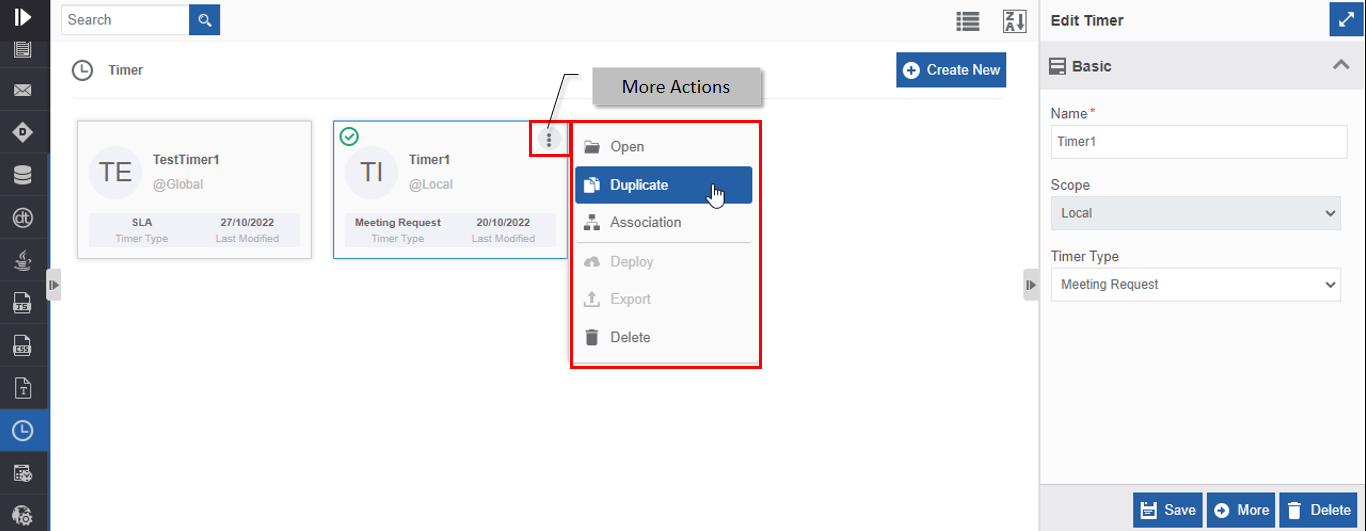
- Hover over the Timer card that you want to duplicate. Three dots appear on the upper right side of the card.
-
Click the three dots. More Actions appear.
-
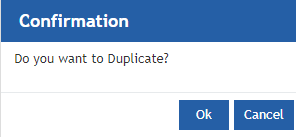
Click Duplicate. A confirmation pop-up appears.
-
Click Ok for duplicating the Timer (or you can click Cancel to cancel the duplicate action). A Success message appears on the successful duplication of the Timer.
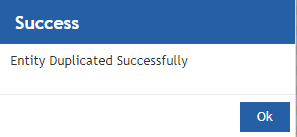
-
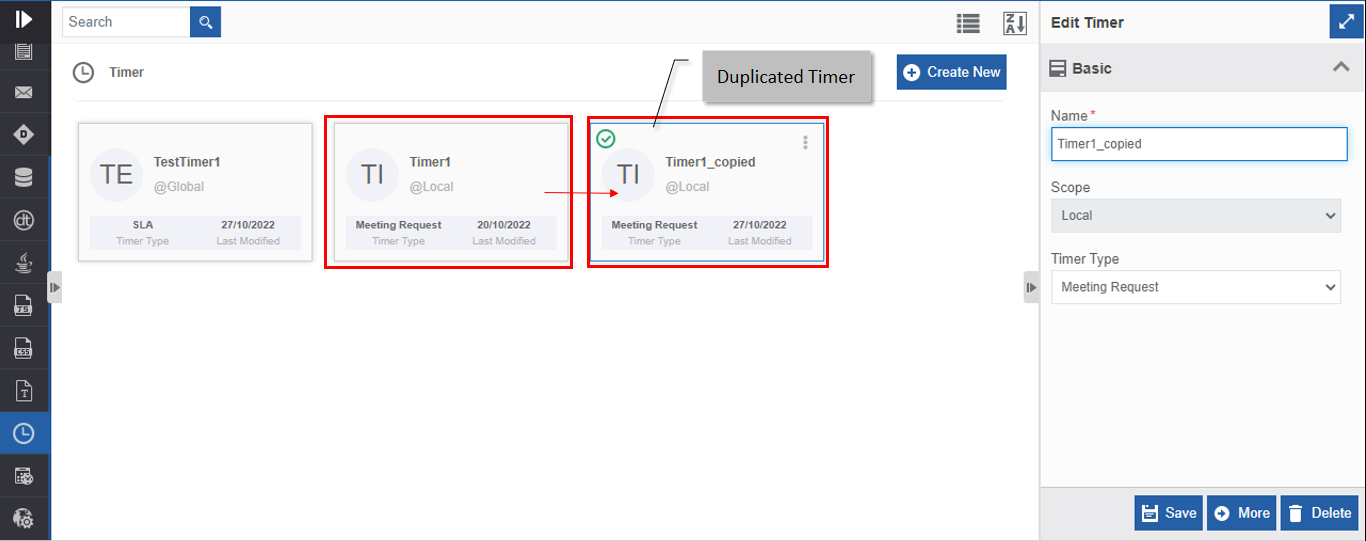
Click Ok. A duplicate copy of the Timer appears on the Timers page with the same name suffixed with “_copied”.
Deleting Timer
Make sure to unlock the application before deleting an entity that is not created by you. Also, you cannot delete the entity if it is associated with any activity or entity.
- Navigate to App Studio > Applications - open application name > Process Flow - process flow name > Open.
- Click Timer. The Timer list appears.
-
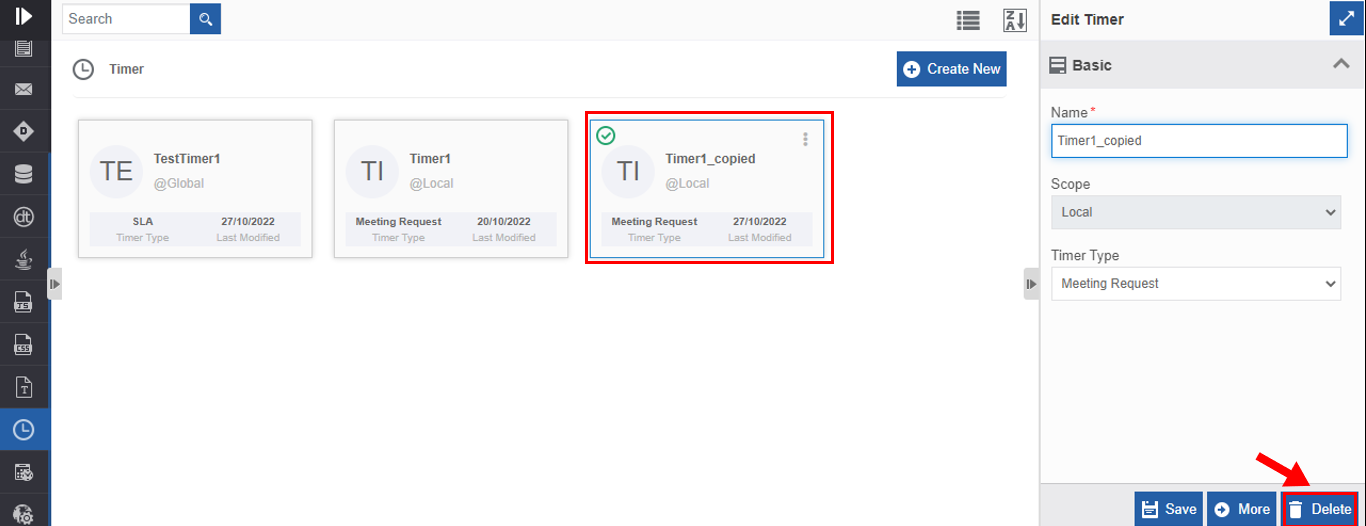
Click the Timer name card that is to be deleted. The lower-right of the page displays Delete.
-
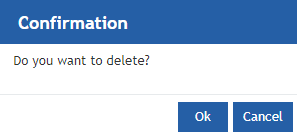
Click Delete. A Confirmation pop-up for delete appears.
-
Click Ok for deleting the Timer.
Or
Click Cancel to cancel the action.
Alternatively, you can follow the below steps to delete the Timer:
- Click the Burger menu and navigate to App Studio > Application > Process flow > Timer.
- Hover over the Timer card. Three dots appear on the upper right side of the card.
- Click the three dots. More Actions appear.
-
Click Delete and follow step 5 in the above procedure.
Utilizing Timer
Accessing Timer through Activity
You can map Timers to the activities that have SLA as a configuration element in the process flows.
-
Navigate to App Studio > Applications - open application name > Process Flow - process flow name > Open.
Info
Open or create a process flow that has an SLA configuration in the process flow.
-
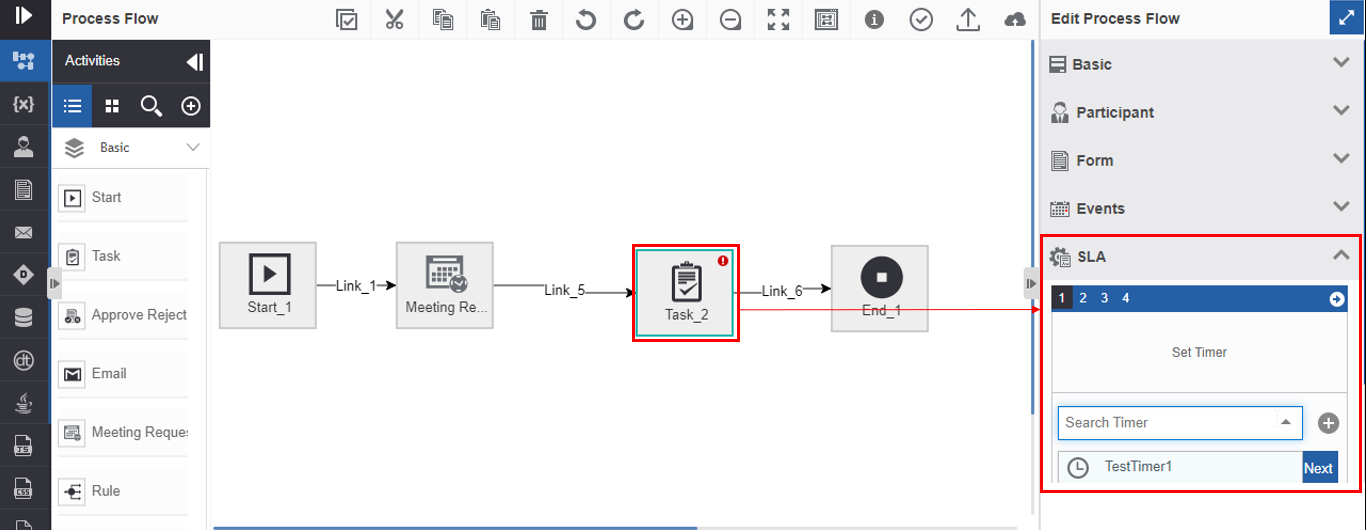
Click the activity and the Info Actions panel displays the SLA configuration and properties.
-
Click SLA accordion.
-
In the selected process flow, click the Set Timer drop-down for setting the timer for the SLA. Note that the timer list will display only those timers that are of type SLA.
- Select a timer. The timer is now mapped to the SLA and you can configure the remaining steps of the SLA.
Accessing Timer in the Entity Meeting Request
- Navigate to App Studio > Process flows > Meeting Request.
- Click Create New for creating a Meeting Request.
-
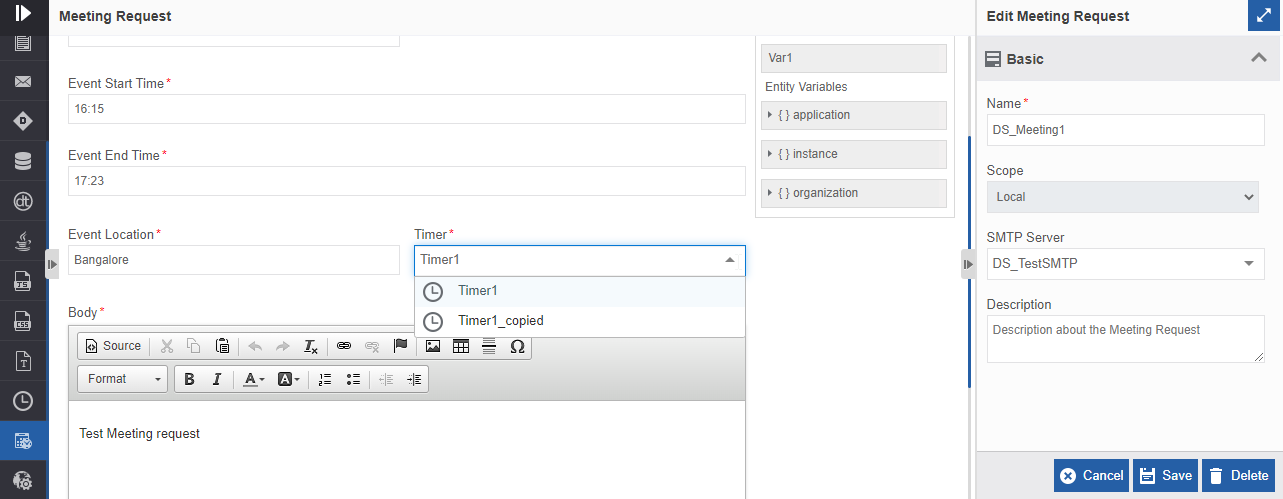
Click More for viewing the Meeting Request template.
-
In the Timer drop-down, select the timer that you created for the Meeting Request. It is to be noted that the Timers that are of the type, Meeting Request are only displayed in the drop-down list.
- Select the required timer.