View Style Configurations
Introduction to Styles
Styles are sets of CSS properties that you can apply to a control or component. The views allow you to configure the CSS aspects in a graphical user interface. When you drag a control to the designer, the style appears as per the CSS and JS files configured for the theme that you applied for the view.
If you want to change the default settings captured from the theme level, edit the configurations for that control in the Styles tab as per your requirement.
The style configuration details remain the same for all view types.
The styles explained in this documentation apply to web app views, process flow form views, and mobile app views.
Viewing Style Configurations of a Control
-
Click the Burger menu on the left of the logo and navigate to
App Studio > Create App > Web Apps > View.
Or
App Studio > Create App > Mobile Apps > View
Or
App Studio > Applications > Process Flows > Form -View
-
Create a View or open an existing View. The View designer appears
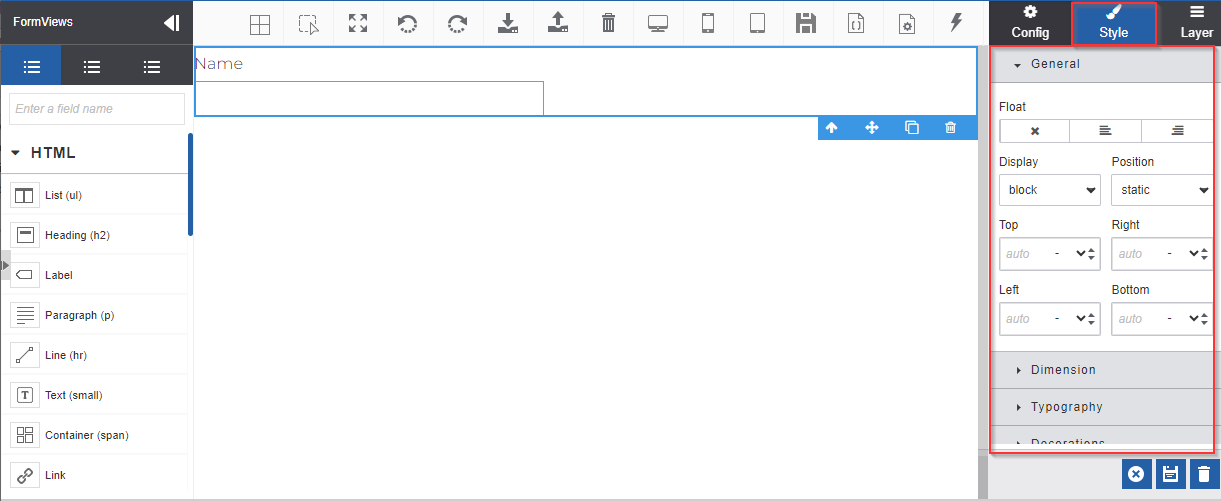
Figure 1: The view styles
-
Click a control on the Designer or drag the control to the designer. The right side panel displays the configurable properties of the control.
-
Click Style tab to view the style-related configurations.
Style Configurations
The Style section is the same for all the controls and components. You can apply different types of styles, sizes, and dimensions for a control. The style applied for the control is like the style applied for an element.
The Styles for the control are categorized in different sections within the Styles section.
- When you use spin buttons to choose a number value for the field, it scrolls through the whole numbers. If you need to enter any decimal value, type the value.
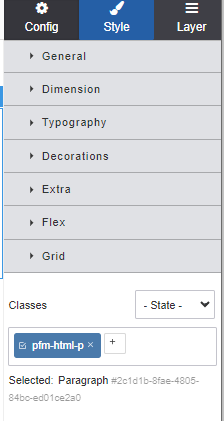
Figure 2: Styles sub sections
General Configurations
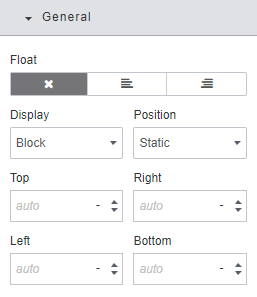
Figure 3: General Configurations
Float
Float allows you to float the control to the left or right of the layout. You can also fix the position of the control without floating.
 - Click to remove the
floating feature.
- Click to remove the
floating feature.
 - Click to float the control
to the left of the column.
- Click to float the control
to the left of the column.
 - Click to float the control
to the right of the column.
- Click to float the control
to the right of the column.
Display
Display properties specify how a control should be displayed and its behavior.
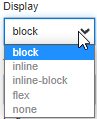
Block - The display property allows you to set the control to start on a new line and takes up the available screen width. Examples of elements that are at block level by default are \<div>, \<section>, \<p>.
Inline – Inline property allows you to display an element as an inline element (e.g., like \<span>). The controls are displayed within a span, say columns will be displayed one below the other. The height and width properties are not affected on display: inline; property. It allows only the left and right sides of margins.
Inline-block – Inline-block property allows you to display an element as an inline element and allows you to set a width and height on the control. Also, the top and bottom margins/paddings are considered in inline-block.
Flex – Flex sets how a flex item will grow or shrink to fit the space available in its flex container. When you select the Flex design properties in the Flex Category of the style, “flex” automatically gets selected as the display property.
None – Removes all the display settings for the control.
Position
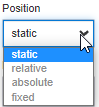
Static – Static positions keep the control static without getting affected by the top, right, bottom, or left properties. It is static based on the page.
Relative – Relative position keeps the control positioned relative to its normal position. Setting the top, right, bottom, and left properties of a relatively positioned control will cause it to be adjusted away from its normal position.
Absolute – Absolute position keeps the control positioned relative to the nearest positioned ancestor (instead of positioned relative to the viewport, like fixed). However; if an absolute positioned control has no positioned ancestors, it uses the page body, and moves along with page scrolling.
Fixed - Fixed position keeps the control positioned relative to the viewport, which means it always stays in the same place even if the page is scrolled. The top, right, bottom, and left properties are used to position the element. A fixed element does not leave a gap in the page where it would normally have been located.
Relative Positions
This margin is relative to the Position. If you choose the Position as “Static” this will not be applicable. That is, Static overrides these positions. Also, this feature is not applicable if the Display property is “none”
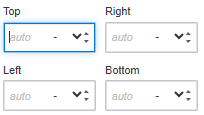
Top – Top relative position of the control.
Right – Right relative position of the control
Left – Left relative position of the control
Bottom – Bottom relative position of the control
Default value: “auto” (for all the relative position properties). If you do not provide any value for position it takes “auto” which is the default spacing.
Use the spin buttons on the right of the box to scroll through the required numbers.
Default unit: px (pixels).
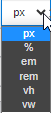
Click the open-down arrow to select the unit of measurement.
Dimension Configurations
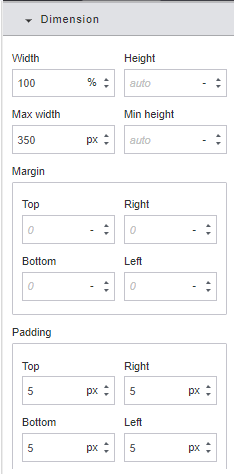
Figure 4: Dimension Configurations
Size
Size allows you to provide size for the control.
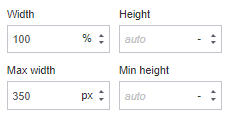
Width –Width of the control.
Height – Height of the control.
Max width – Maximum width of the control.
Min height – Minimum height of the control.
Default value: “auto” (all the size properties). If you do not provide any value for size it takes “auto” which is the default size.
Use the spin buttons on the right of the box to scroll through the required numbers.
Defaut unit: px (pixels).
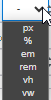
Click the open-down arrow to select the unit of measurement.
Margin
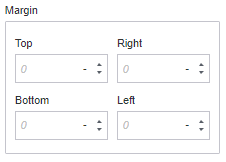
Top – Top margin of the control container.
Right – Right margin of the control container.
Left – Left margin of the control container.
Bottom – Bottom margin of the control container.
Default value: “0” (all the margin properties). If you do not provide any value for position it takes “0” which is the default margin.
Use the spin buttons on the right of the box to scroll through the required numbers.
Defaut unit: px (pixels).
Click the open-down arrow to select the unit of measurement.
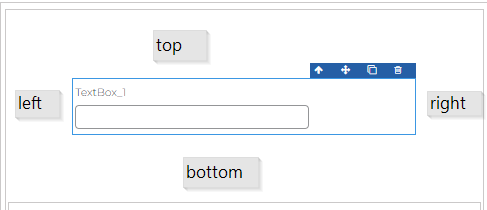
Padding
Padding allows you to set the padding space around all four sides of the control within the container.
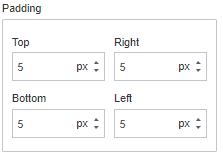
Top –Padding that is required on the top of the control.
Right – Padding that is required on the right side of the control.
Left – Padding that is required on the left side of the control.
Bottom – Padding that is required at the bottom of the control.
Default value: “0” (all the padding properties). If you do not provide any value for position it takes “0” which is the default padding space.
Use the spin buttons on the right of the box to scroll through the required numbers.
Defaut unit: px (pixels).
Click the open-down arrow to select the unit of measurement.
Typography Configurations
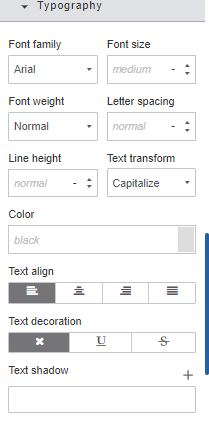
Figure 5: Typography Configurations
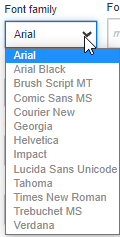
Font Family
Font family allows you to select a particular font from the available set of fonts.
Select the required font from the list of available fonts.
Font Size
Enter the required font size or select the size using the spin buttons and then select the unit.
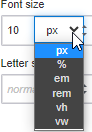
Defaut unit: px (pixels).
Click the open-down arrow to select the unit of measurement.
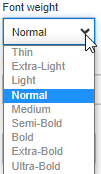
Font Weight
Select the required font weight from the list of available font weights. In font-weight, you can select the amount of boldness needed for the text.
Letter Spacing
Letter spacing allows you to provide extra spacing between the letters. Enter the required letter spacing or select the size using the spin buttons and then select the unit.
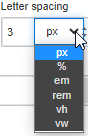
Defaut unit:px (pixels).
Click the open-down arrow to select the unit of measurement.
Line Height
Line height allows you to provide line height for a line of text. Enter the required line height or select the size using the spin buttons and then select the unit.
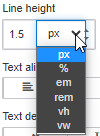
Defaut unit: px (pixels).
Click the open-down arrow to select the unit of measurement.
Text Transform
Text transform allows you to provide the cases for the text.

Select the required text transformation.
Color
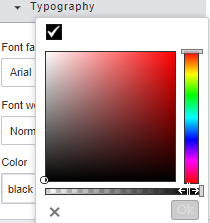
You can apply a color for the control using color. Click the color on the color field. The color palette opens. Select the required color.
-
Click “X” to close the palette.
-
Select the color and click “ok” to choose the selected color.
Text Align
Text alignment is managed in the Text align. Select the required text alignment
 - Click to left-align the
text.
- Click to left-align the
text.
 - Click to center-align the
text.
- Click to center-align the
text.
 - Click to right-align the
text.
- Click to right-align the
text.
 - Click to justify the text.
Text Decoration
In Text Decoration, you can underline or strike through the content of the control.
Select the required font from the list of available fonts
 - Click to underline the
text
- Click to underline the
text
 - Click to remove the
text-decoration
- Click to remove the
text-decoration
 - Click to strike through the
text
- Click to strike through the
text
Text Shadow
Text shadow allows you to give a shadow effect for the selected text.
-
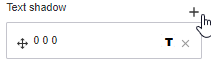
On the top-right of the shadow box, click “+” symbol. Shadow values (x, y, and blur values) appear.
-
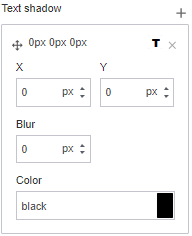
Click inside the box.
-
Enter the value for the X and Y axis values. Click the spin buttons to provide whole number values. If you want to enter decimal numbers, type the decimal number directly.
-
Click px to select the unit for the number.
-
Select the numeral value for the Blur effect.
- Defaut unit of X, Y and Blur: px (pixels).
Click the open-down arrow or the unit displayed to select the unit of measurement.
- Defaut unit of X, Y and Blur: px (pixels).
-
In the Color selection, click the color box on the right side and select a color for the shadow.
Decorations Configurations
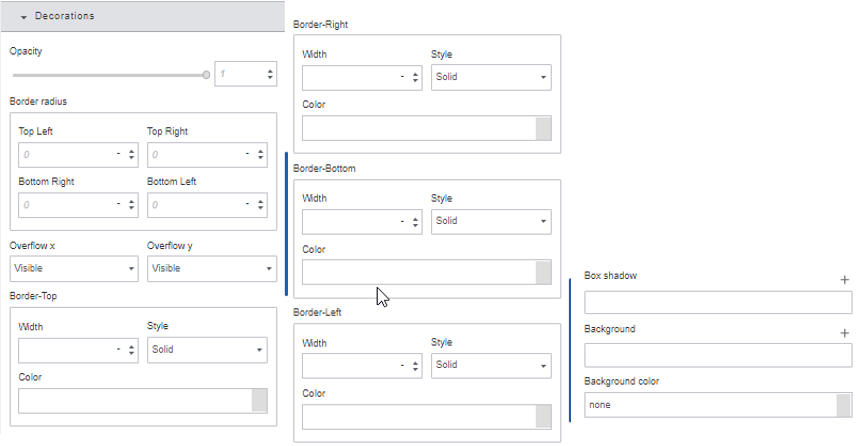
Figure 6: Decorations Configurations
Opacity
Opacity allows you to provide opacity for your text. The value of the opacity ranges from 0 to 1, both inclusive.
- Drag the Opacity scroll to provide the opacity value for the text.
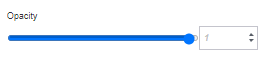
- Use scrolls or spin buttons or directly type the value in the box to provide a value for opacity.
Border Radius
Border radius allows you to provide a value for the border curving of the control boxes.
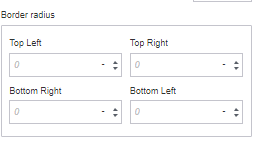
Top Left – Enter a value for the top left curve of the control.
Top Right – Enter a value for the top right curve of the control
Bottom Right – Enter a value for the bottom right curve of the control
Bottom Left – Enter a value for the bottom left curve of the control
Default Value: 0 (for all four sides, that makes all four corners with no curve; i.e., 90 degrees)
Use the spin buttons on the right of the box to scroll through the required numbers.
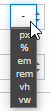
Defaut unit: px (pixels).
Click the hyphen to select the unit of measurement.
Overflow
The overflow property specifies what happens if content overflows an element's box.
Overflow allows you to manage the visibility of the control during overflow.
Select an overflow value for x offset and y offset.
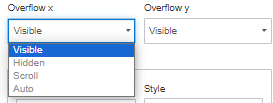
Visible - Overflow-visible is the default value of the overflow property — it doesn't hide or clip the overflowing content of an element; instead, it leaves it as is.
Hidden - The overflow is clipped, and the rest of the content will be invisible.
Scroll - The overflow is clipped, and a scrollbar is added to see the rest of the content
Auto - The overflow is clipped, and a scrollbar is added to see the rest of the content only when scrollbars are required.
Border
The border feature allows you to provide border values for the control. The Border Top, Border Right, Border Bottom, and Border Left allow you to define the border of each side. The border configuration details for each side are the same.
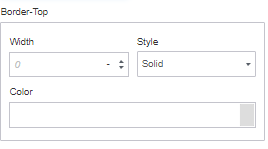
Width - Enter a number value for the width of the border. Scroll spins to select a number. Click the down arrow and select a unit of measurement.
Style – Select the type of border that you need.
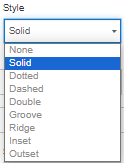
Color – Click the color box on the right side and select a color.
Box Shadow
This feature allows you to provide a shadow for the control box.
-
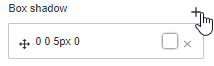
Click “+” on the top right of the Box shadow box. Shadow values (x, y, blur values) appear.
-
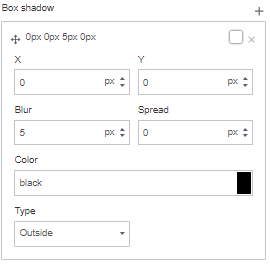
Click inside the box. Details appear.
-
Enter the “X” value and “Y” values.
-
Enter the Blur value.
- Defaut unit of X, Y and Blur: px (pixels).
Click the open-down arrow or the unit displayed to select the unit of measurement.
- Defaut unit of X, Y and Blur: px (pixels).
-
In the Color selection, click the color box on the right side and select a color for the shadow.
Background
Background allows you to give a background color or image for the control.
-
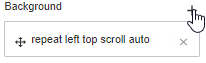
Click “+” on the top right of the Background box. A detailed summary appears.
-
Click inside the box. Background details appear.
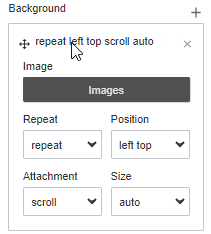
Image – Click Images to upload an image. The selected image becomes the background.
Repeat – It allows to repeat the background image if it is small. A background image can be repeated along the horizontal and vertical axes, or not repeated at all.
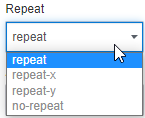
repeat – Repeats the image as per the image size horizontally and vertically.
repeat-x – Allows to repeat the image horizontally
repeat-y - Allows to repeat the image horizontally.
No-repeat – No repeat for the image.
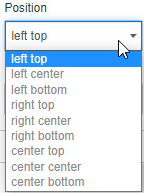
Position – Position of the background image within the container.
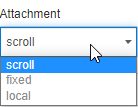
Attachment – The background-attachment property is used to specify that the background image is fixed or scroll with the rest of the page in the browser window. This property has three values scroll, fixed, and local.
Size – Allows you to set the size of the element's background image.
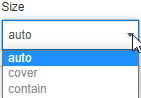
auto – the original size of the image is maintained.
cover – image is stretched to cover the container.
contain – image is constrained to fit the available space.
Background Color
The background color is to provide a solid background color for the selected control.

Click inside the Background color box and select the background color.
Extra Configurations
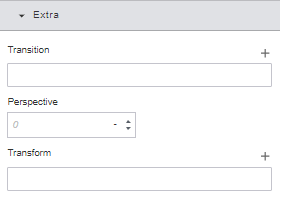
Figure 7: Extra Configurations
Transition
Transition allows you to change property values smoothly, over a given duration.
-
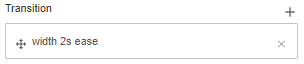
On the top-right of the Transition box, click “+” symbol. Transition values (property, duration, and timing values) appear.
-
Click inside the box.
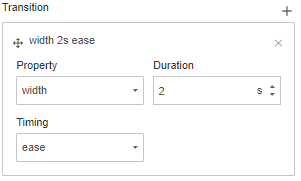
-
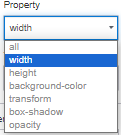
Select a value for the property. This is the property name for which the transition effect will apply. The transition effect will start when the specified property changes.
-
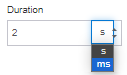
Enter a value for the Duration. The transition-duration property specifies how many seconds (s) or milliseconds (ms) a transition effect takes to complete.
-
Use the spin button to provide the duration time.
-
Click the unit to change the unit.
-
-
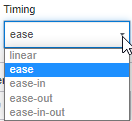
Select the Timing option. The transition-timing-function property specifies the speed curve of the transition effect. It allows a transition effect to change speed over its duration. Timing property allows you to select the required transition effect. The default transition-timing is ease.
-
Ease: The transition effect starts slowly, accelerates in the middle, and slows down at the end.
-
Ease-in: The transition effect starts slowly and speeds up at the end.
-
Ease-out: The transition effect starts quickly and ends slowly.
-
Ease-in-out: The transition effect starts and ends slowly.
-
Perspective
The perspective property is used to give a 3D-positioned element some perspective. The perspective property defines how far the object is away from the user. So, a lower value will result in a more intensive 3D effect than a higher value.
- Enter a number value for the perspective.
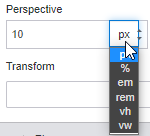
Default value: “0”.
Use the spin buttons on the right of the box to scroll through the required numbers.
Default unit: px (pixels). Click the unit to select another unit.
Transform
Transform property allows you to rotate, scale, skew, or translate an element. It modifies the coordinate space of the CSS visual formatting model.
-
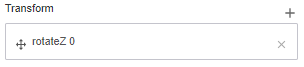
On the top-right of the Transform box, click “+” symbol. Transform values appear.
-
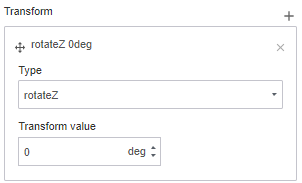
Click inside the box.
-
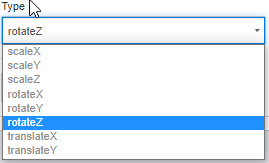
Select a value for the Type. This specifies the transformation type.
-
ScaleX: The scaleX transformation increases or decreases the width of an element along the X axis. If the scale transform value is "n" the width increases n times.
-
ScaleY: The scaleY transformation increases or decreases the height of an element along the Y axis. If the scale transform value is "n" the height increases n times.
-
ScaleZ: The scaleZ transformation defines a 3D scale transformation along the Z axis.
-
RotateX: The rotateX transformation is for the 3D rotation of the element at a given transform degree value along the X axis.
-
RotateY: The rotateY transformation is for the 3D rotation of the element at a given transform degree value along the Y axis.
-
RotateZ: The rotateZ transformation is for the 3D rotation of the element at a given transform degree value along the Z axis.
-
TranslateX: The translateX transformation translates or changes the current position of the element as per the given transform value along the X-axis.
-
TranslateY: The translateY transformation translates or changes the current position of the element as per the given transform value along the Y-axis.
-
-
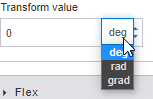
Enter transform value. The default value is “0”. Click and select the unit adjacent to the value. Use spin buttons to provide the transform value. The units displayed for the transform value depend on the transformation type that you select.
Flex Configurations
The flex layout allows responsive elements within a wrapper to be automatically arranged depending on viewport size. The flex property is much more responsive and mobile-friendly.
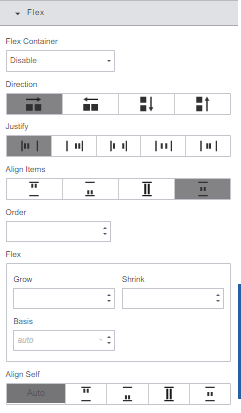
Figure 8: Flex Configurations
Flex Container
You can enable or disable a wrapper or container as a flex container.
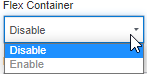
As soon as you enable the flex, the direct children of that container/wrapper become flex items.
Direction
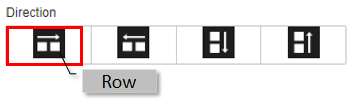
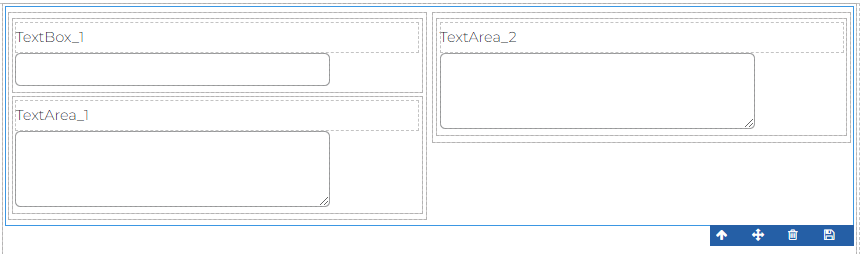
Row: Allows you to keep the original layout of the control in the row-wise order.
Example:
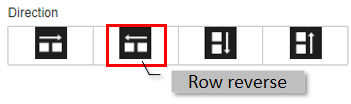
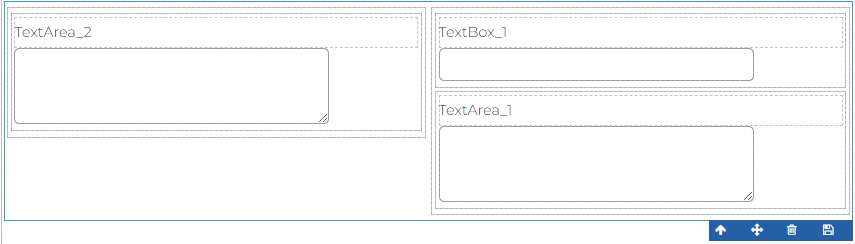
Row Reverse: Allows you to reverse the row order. That is, last row to first-row order.
Example:
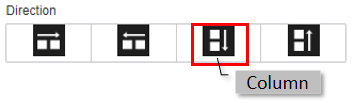
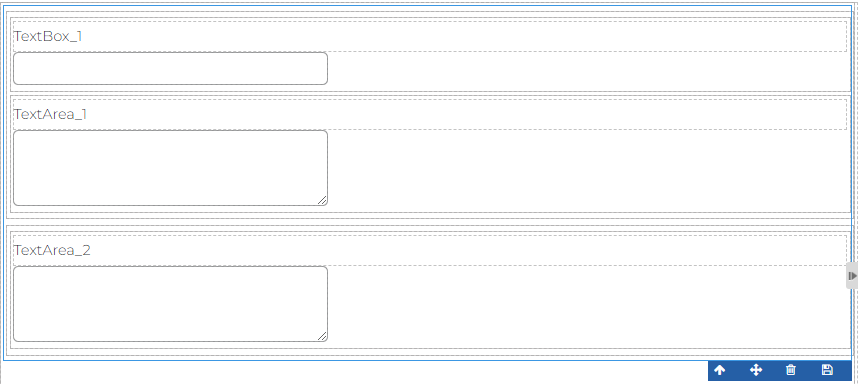
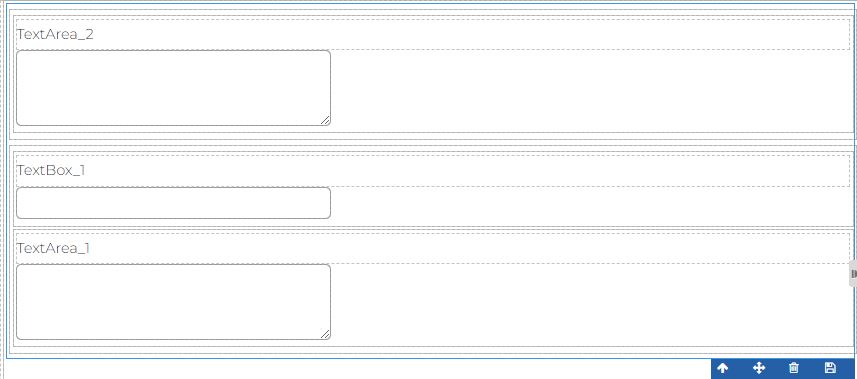
Column: Allows you to layout all the controls in a column.
Example:

Column Reverse: Allows you to lay out all the rows and columns in a column in the reverse order.
Example:
Justify
The flex items in different justify properties are shown below.
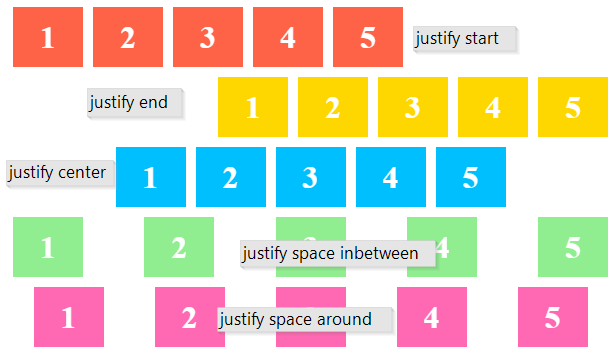
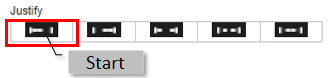
Start (default): Flex items are justified toward the start line.
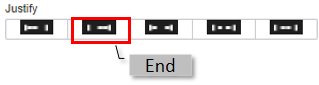
End: Flex items are justified toward to end line.
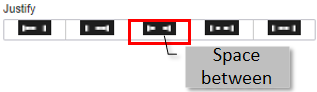
Space between: Flex items are evenly distributed in the line; the first item is on the start line, and the last item is on the end line.
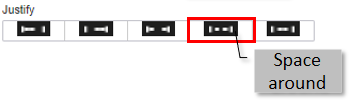
Space around: Flex items are evenly distributed in the line with equal space around them.
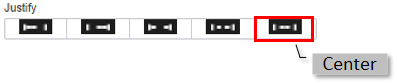
Center: Flex items are centered along the line.
Align Items
Align allows you to align the controls within a particular flex container or column in the selected align format. You need to select the flex container and then apply the align format required. When you apply align, all the controls in the flex container are aligned in the selected format. If any of the controls is not following the alignment, it means that the self-align property is active for that particular control.
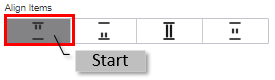
Start: Allows you to align all flex controls at the start or top of the column.
End: Allows you to align all flex controls at the end or bottom of the column.
Stretch: Allows you to align flex controls by stretching to the size of the column.
Center: Allows you to position the control in the center of the wrapper.
Flex Parent
Enter a value for the flex parent.
Flex Children
Enter the number of flex children.
Order
Flex items have a default order value of 0. Therefore, items with an integer value greater than 0 will be displayed after any items that have not been given an explicit order value.
Flex
The flex property is a combination of flex-grow, flex-shrink, and flex-basis.
The flex property sets the flexible length of flexible items.
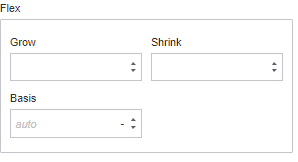
Grow: Flex-grow is a number specifying how much the item will grow relative to the rest of the flexible items inside a wrapper.
Shrink: Flex-shrink is a number specifying how much the item will shrink relative to the rest of the flexible items inside a wrapper.
Basis: Flex-basis is the initial length of the item. Legal values: "auto", "inherit", or a number followed by "%", "px", "em" or any other length unit. Inherit - Inherits this property from its parent element.
Align Self
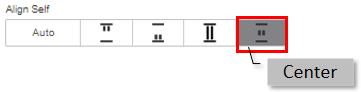
Align allows you to align a particular control within the flex or column in the selected align format. This alignment is useful when you need a particular alignment only for specific control(s) within the flex. You need to select a particular control within the flex and then apply the self-align property. When you select the control particularly the Align (items) property which is applicable for the whole flex container becomes obsolete.
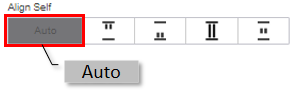
Auto: By default, the self-align property is “Auto” for all the controls within the flex so that it follows the flex alignment. Click Auto if you want the control to follow the generic alignment (Align Items) applicable to all the controls within the flex.
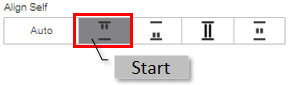
Start: Allows you to align particular control within the flex at the start or top of the column.
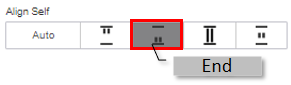
End: Allows you to align all particular controls within the flex at the end or bottom of the column.
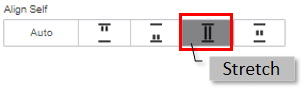
Stretch: Allows you to align particular control within the flex by stretching to the size of the column.
Center: Allows you to position the particular control within the flex at the center of the wrapper.
Grid Configurations
A grid is a collection of horizontal and vertical lines creating a pattern against which we can line up our design elements. They help us to create layouts in which our elements won't jump around or change width as we move from page to page, providing greater consistency on our websites.
The grid configurations apply to the container-level controls. That is those controls that have child controls within. The child controls are the
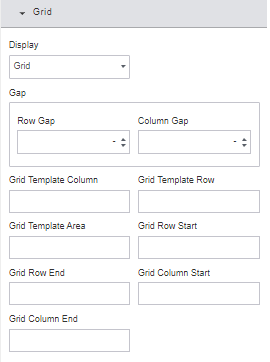
Figure 8: Grid Configurations
Display
A control or element becomes a grid container when its display property is set to grid or inline grid.
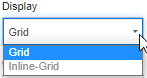
Grid: Grid property transforms all the direct children of the container into grid items that is a layout based on rows and columns. Use “Grid” to make a block-level grid container. If you have two grids, then each grid stands out like a separate block and they appear on a separate lines.
Inline-Grid: Allows line-based positioning of the grid. Use “Inline-grid” to make an inline-grid container. This does not take up the entire row space, however the layout will be the same. If you have two inline grids, then each inline grid will appear one after the other in the same row itself if you have enough space to hold the two grids based on the contents.
Gap
The gap specifies the gutter width in between the grids.
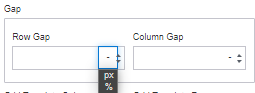
Row Gap: The gap value applies between the rows within that layout.
Column Gap: The gap value applies between the columns within that column row.
Click the hyphen in the box or click the unit displayed to select a new unit. Px and percentage are the units available.
Grid Template Column
The Grid Template Column property specifies the number of columns (and the width of each column) in a grid layout. Enter the value in pixels. The default is “auto”. This applies to all columns.
Grid Template Row
The Grid Template Row property specifies the number of the rows (and the height of each row) in a grid layout. Enter the value in pixels. The default is “auto”. This applies to all rows.
Grid Template Area
The Grid Template Area property specifies areas within the grid layout. Enter the value in pixels. The default is “auto”.
Grid Row Start
The grid row start property defines on which row line the item will start. Enter the row number. The specified item in the grid will start on the specified row and then the remaining will continue with the regular format.
Grid Row End
The grid row end property defines on which row line the item will end. Enter the row number.
Grid Column Start
The grid column start property defines on which column line the item will start. Enter the column number. The grid item will start on that column.
Grid Column End
The grid column end property defines on which column line the item will end. Enter the column number. The specified grid item will end in that column.
Class and State Configurations
This section is for uploading the class files and defining the States for Style configuration in the component level.
- Note that the default classes are always stateless irrespective of what State you select.
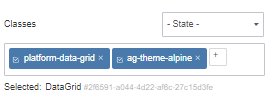
Figure 9: Class and State
Classes
When you drag a control to the designer, the class section displays all the default classes added to it in the control level template. You can either keep these classes and add new classes as per your requirement. It is up to you whether you want to delete the default class or not.
By default, the classes are stateless (that is, State is not selected). Whatever class you add additional to the default classes remain stateless until you select a state in state dropdown.
Click “+” in the classes box and add a class file.
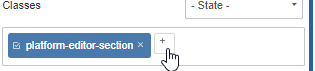
The list of class files appears. Type a class file name and the matching file name are listed.
If you are not getting the required Class files in the listing, make sure that you have all your required classes files in the Management > Resource Library section, so that it will appear in the Classes list. If it is not available, you must add the required files in the Resource Library.
For selection of each state, you can add multiple class files.
State
The State specifies at what condition (or event) the newly added class files and styles should get executed at runtime. This is applied to the whole control or component.
Select a State, add the classes applicable to that State and then apply different style aspects for the whole control as per your requirement.
Select another State, select classes for that state and apply styles as per your requirement.
At runtime, as when a particular State is executed, the selected class files and the Styles are applied to the control. By default, the classes and Styles that are specified for stateless is applied for the control.
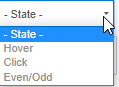
Hover: At run time, when you hover over the control, the classes and the styles configured for Hover are executed.
Click: At run time, when you click the control, the classes and the styles configured for Click are executed.
Even/Odd: To execute particular Class and Styles on the controls at even occurrence, select Even/Odd State. If you have multiple controls of same type (e.g., consider you have 4 Button controls) and you want to execute particular Class and Styles on the controls at a count of even occurrence (that is second, fourth occurrence), you can achieve this by selecting Even/Odd State. In this case, first occurrence of Button control is “1” and second occurrence is “2” and so on. Hence for the “2n-th” button the class files and styles are applied.