Configuring Events
Events and Event Steps
Event is an action that is to be executed in a process flow. Events are configured for an activity when the system needs to send an email notification or reassign the task before the start of an activity or just after completing an activity.
Imp
Reassigning tasks applies only to the activity Task and it can only be configured for 'Before Node Start' configuration in the task activity.
You can configure multiple Events for an activity.
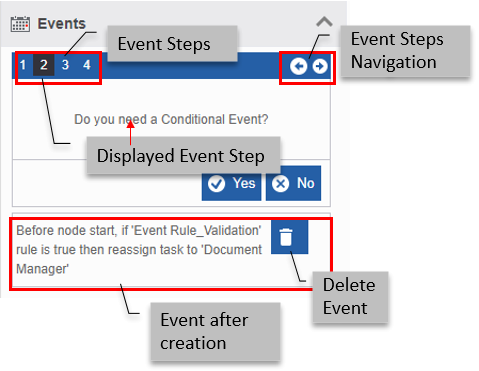
Event Steps
Event configuration is divided into four steps.
Event Step 1 – Select the type of Event.
Event Step 2 – Conditional Event (rule).
Event Step 3 – Select Action (Send Email/Reassign).
Event Step 4 – Finish.
The Event steps of Event configuration are visualized as follows:
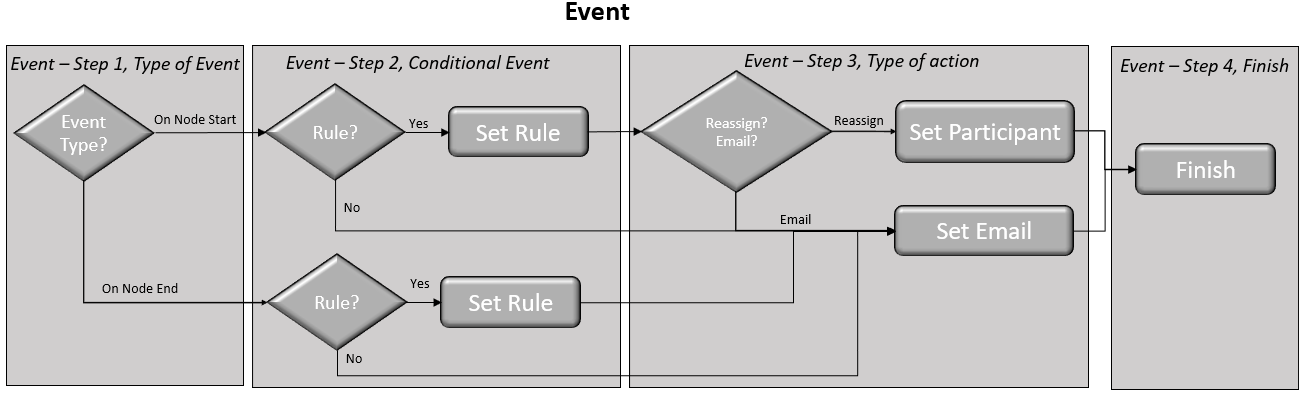
Event Configuration steps (except for Start and End activities)
Events for Start and End
The Event configuration for Start and End Activities has only three steps. The activities Start and End always follow the On Node End configuration. It has only three steps: Step 1: Set Rule, Step 2: Send Email, and Step 3: Finish.
While you are configuring the Event, the Event step that you are configuring is highlighted. You can navigate through the Event steps, back and forward (till where you have configured) using the backward and forward arrows on the upper right side of the Event Configuration widget.
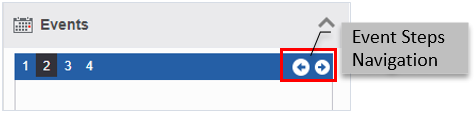
This feature allows you to make any modifications while configuring the Event.
Users can configure an Event if an action needs to be performed before the start of the activity or after the end of the activity. The action can be reassigning the task or sending an email.
Selecting Type of Event
To define an event, you need to select if the event should happen before entering the node or while exiting the node. Event configuration for all activities starts with selecting a type of event except for the start activity.
Note
The start activity event does not have “Selecting the type of event” as it always takes the event after exiting the node. Start activity Event starts with setting conditional event.
- Drag an activity to the canvas.
- Click the activity. The Edit process flow panel displays the details for configuration. Event configuration is displayed for the applicable activities.
-
Click the Event accordion for viewing the Event configuration.
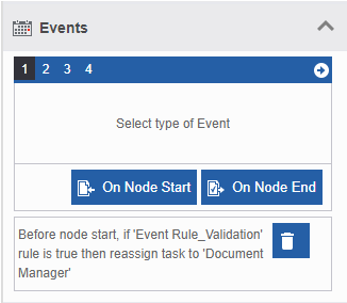
Event Step 1 – Select type of Event that appears.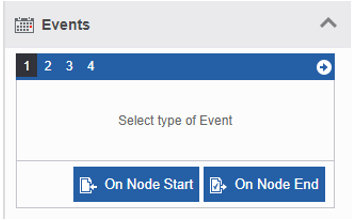
-
Click On Node Start if the event needs to happen before entering the node.
Or
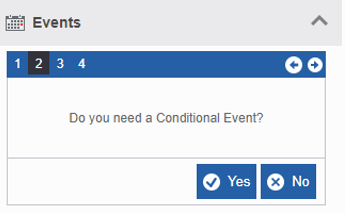
Click On Node End if the event needs to happen while exiting the node.Event Step 2 – Do you need a Conditional Event? appears.
-
If you need a Conditional Event (rule-based event), click Yes. Set Rule appears. Go to Mapping Rule for Event step 3 and set the rule.
Else click No. Select action to be performed appears. Go to Mapping Email Template for Send Email Event step 1 and map the email.
Mapping Rule to Event
Set Rule is used for setting a conditional event. Start activity event configuration starts from setting conditional event.
In the Event configuration, after selecting the type of event, Event Step 2 appears. For the Start and End activity, this is Event Step 1.
-
In Event Step 1 – Select type of event, and click On Node Start or On Node End as per requirement.
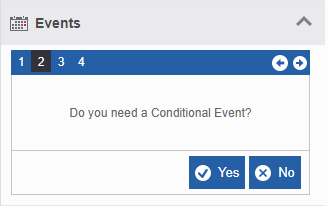
Event Step 2 – Do you need a Conditional Event? appear.
-
If you need a conditional Event (rule-based event), click Yes. Set Rule appears. Go to step 3.
Else click No. Event Step 3 - Select action to be performed is displayed with Send Email action. Go to Sending Email Template for Send Email Event step 1. -
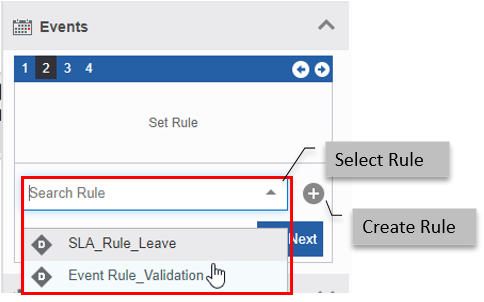
Click the Search Rule drop-down and select a rule.
Info
If the drop-down does not list any rules, it means no rules are created for that process. If rules are not defined/configured, click + (add symbol) next to the Search Rule dropdown for creating a new rule. You are navigated to the Business Entity – Rules creation page. After creating the rule, it is selected as the rule.
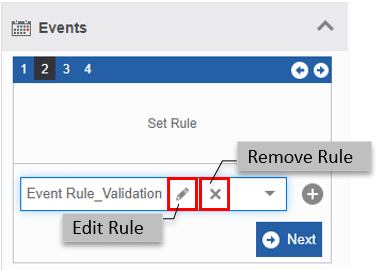
When you select a rule, edit (🖉) and remove (X) icons appear.
-
Click 🖉 to edit the rule.
-
Click X to remove the selected rule.
-
Click Next.
Event Step 3 - Select Action to be performed appears.
If you have selected the event type as On Node Start and selected a rule, select an action to be performed display Send email and Reassign actions.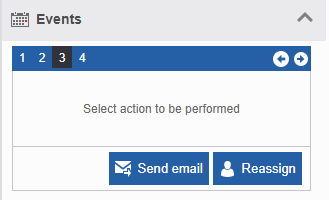
Event Step - Select action to be performed (On Node Start with rule)Else if you have selected Event type as On Node Start without a rule or selected event type as On Node End, select an action to be performed displays only Send email action.
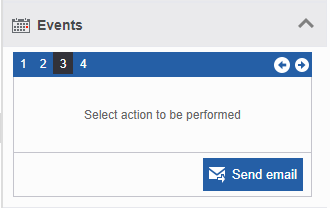
Event Step 3 - Select action to be performed (On Node Start without rule/On Node End) -
To send an Email, go to Mapping Email Template for Send Email in Event step 1.
To Reassign Task, go to Mapping Participant for Reassigning Activity in Event step 1.
Mapping Email Template to Event
Email template is mapped to the event for sending a notification email before node start or after node exit.
In the Event configuration, after Conditional event settings, Send email action appears Select action to be performed in Event Step 3.
-
In Event Step 3 -Select an action to be performed, and click Send email. Set Email appears.
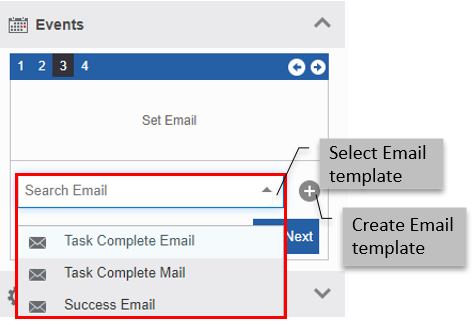
Event Step 3 – Set Email, selecting an email template -
Click Search email. drop-down and select an email template as required.
Note
If the drop-down does not list any emails, it means no emails are created for that process. If emails are not defined/configured, click + (add symbol) next to the Search for email drop-down for creating a new email. You are navigated to the Business Entity – Email creation page. After creating the email, it is selected as the email.
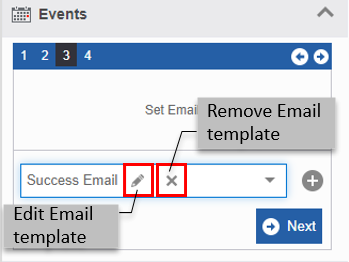
When you select an email, edit (🖉) and remove () icons appear.
- Click 🖉 to edit the email.
- Click X to remove the selected email.
-
Click Next.
Event Step 4 – Finish appears.
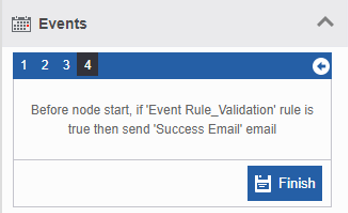
-
Click Finish. The Event is displayed under the Event configuration.
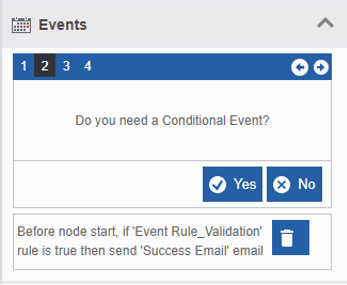
Mapping Participant to Event
Reassign is configured when you need to reassign the activity dynamically based on a rule before the start of the activity.
In the Event configuration, for the event type On Node Start, if you map a rule, Event Step 3 – Select action to be performed displays Send email and Reassign actions.
-
In step 3, click Reassign. Set participant appears.
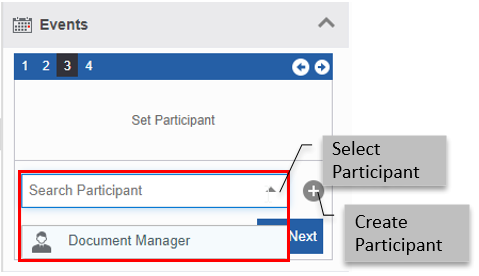
-
Click the Search Participant drop-down and select a participant.
Info
If the drop-down does not list any participants, it means no participants are created for that process. If participants are not defined/configured, click (add symbol) next to the Search participant drop-down for creating a new participant. You are navigated to the Business Entity - Participant creation page. After creating the participant, it is selected as the participant.
When you select a participant, edit (🖉) and remove () icons appear.
- Click 🖉 to edit the participant.
- Click X to remove the selected participant.
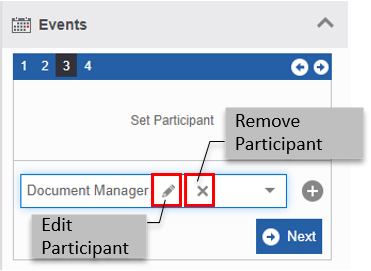
-
Click Next.
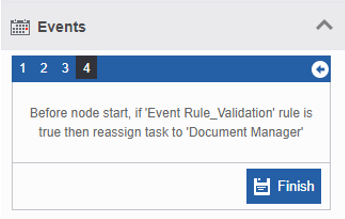
Event Step 4 – Finish appears.
-
Click Finish. The Event is displayed under the Event configuration.
Editing Events
You cannot edit or modify the event created. If you want to make any changes to the event created, you need to delete the event and add a new event with the required modifications.
Multiple events can be created for the same activity.
Deleting Events
When an event is added to the activity, the event details are displayed under the Events accordion.
-
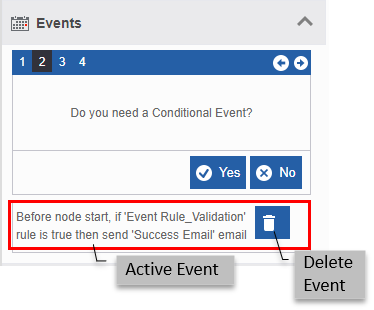
Click the Events accordion. The active events are listed.
-
Click the delete icon next to the Event that you need to delete. The event is deleted.