Rules
About Rules
The business entity rule is used to create rules using rule expressions. Rules are mapped in the process fllows through activities (as applicable) for achieving specific requirements.
You can manage or redirect the execution of flow based on the output of the rule.
Viewing Rules
The rules associated with each flow will appear within that process flow.
- Navigate to App Studio > Applications - open application name > Process Flow - process flow name > Open.
-
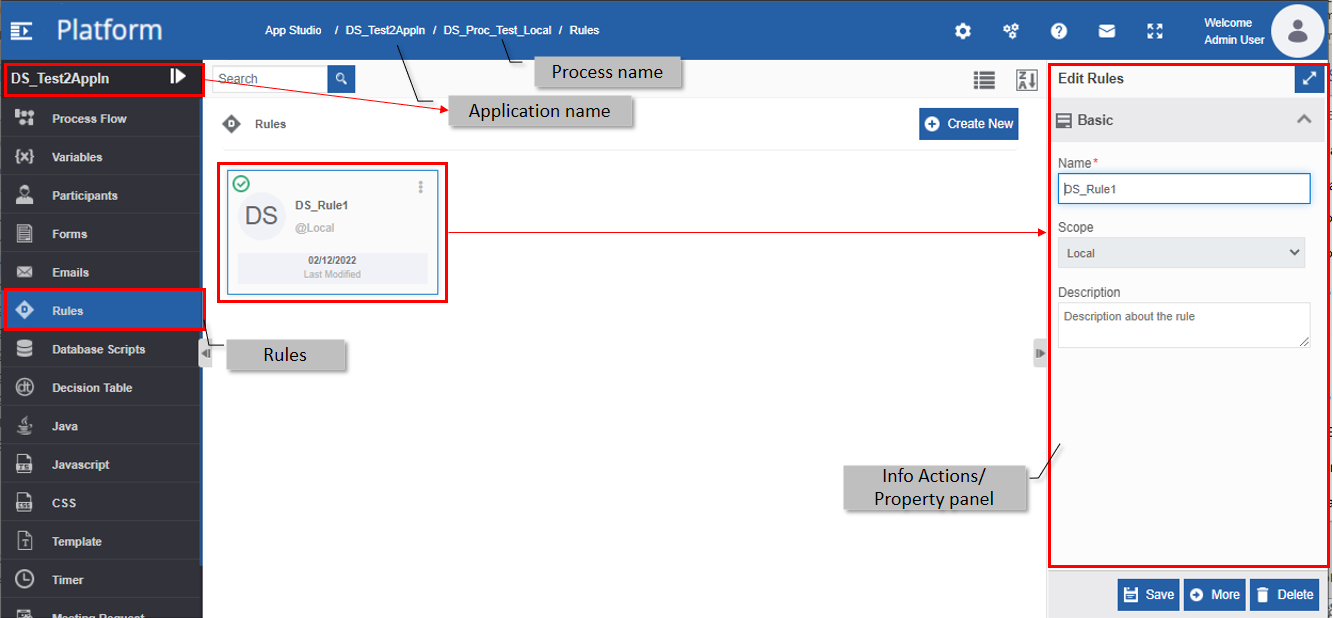
Click Rules. The Rule list appears.
Creating New Rule
You can create a rule by applying conditions and functions.
- Navigate to App Studio > Applications - open application name > Process Flow - process flow name > Open.
-
Click Rules . The Rule list appears.
-
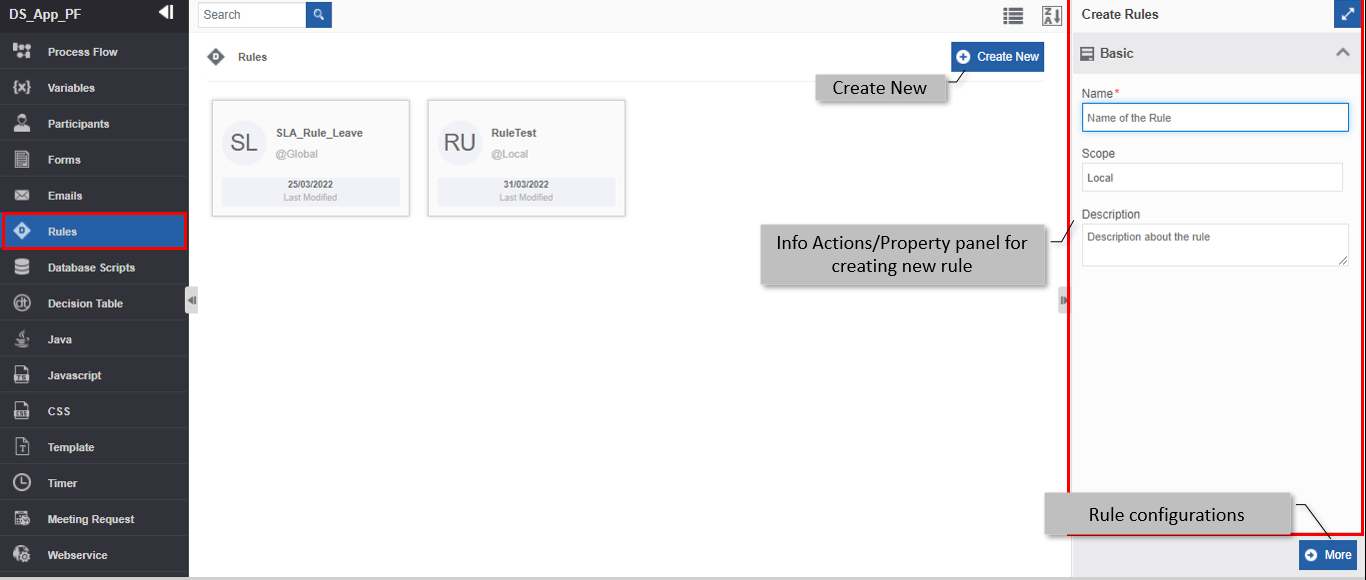
Click +Create New. The Info Actions panel appears as Create Rules.
-
Enter the Basic details in the Create Rules panel as explained below.
Field Description Name* Enter the name of the rule.
Character limit: 50.
Data type: Alphanumeric and underscore.Scope* The scope of an entity is always local as the entities are created at the flow level. Description Enter a description for the rule. -
Click More. Configuration details of the rule appear.
-
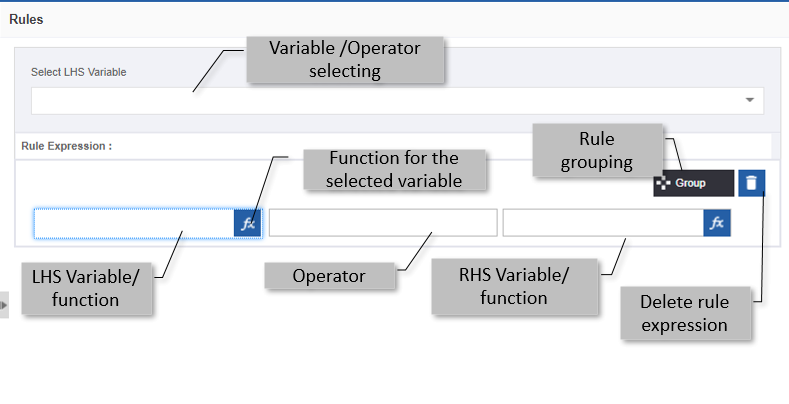
Type a variable name (or the first few letters of the variable) in the Select LHS Variable box and select the required variable from the list.
Or drag the required variable from the Resource Data and drop it in the LHS Variable below the Rule Expression.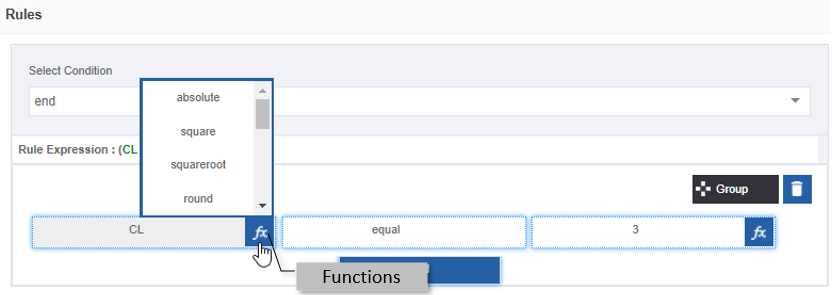
Note
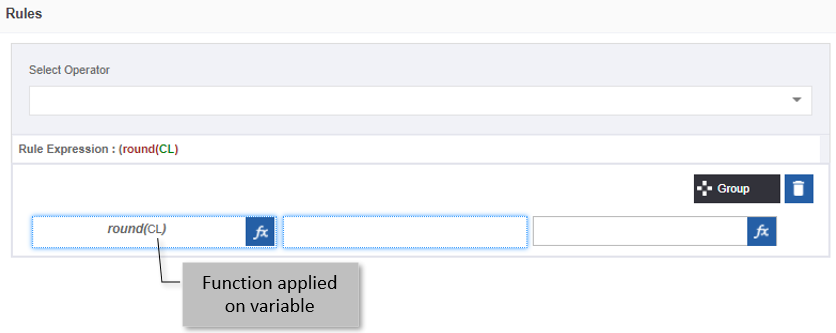
If you need to apply a function for the selected LHS Variable, click the fx (function) and select the required function.
Note
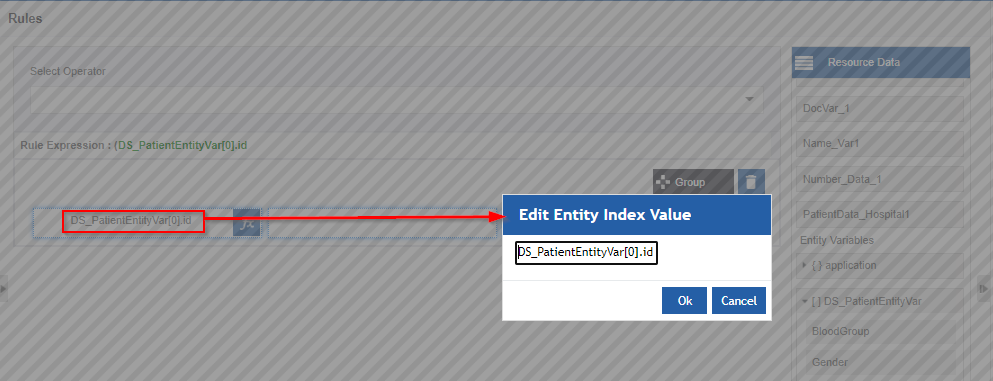
If you select a collection variable in the LHS, double-click the entry so that you can edit the index value of the selected collection variable.
-
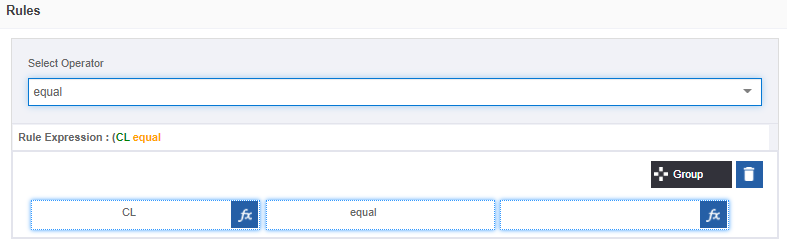
Click the Operator field and select an operator. The Operator field becomes active automatically for the operator selection when you provide input for the LHS variable. The Select Operator on the top of Rule Expression displays the list of all operator available operators.
-
Click the RHS Variable field. The RHS variable field becomes active automatically when you select the operator.
-
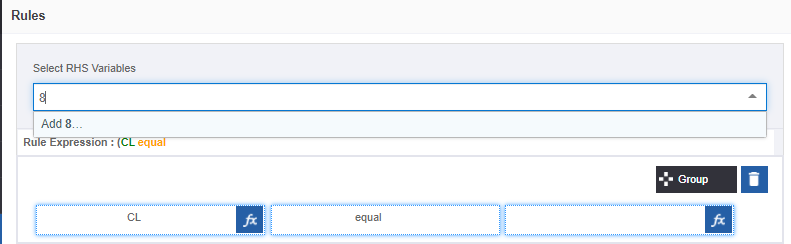
Enter a value in the Select RHS Variable box or drag the required variable from the Resource Data and drop it in the RHS Variable below the Rule Expression. The variable in the RHS field should match the data type of the LHS variable.
-
Select the Add
<variable input>. This is applicable when you give the type the input value for RHS. The rule is created and the rule expression appears.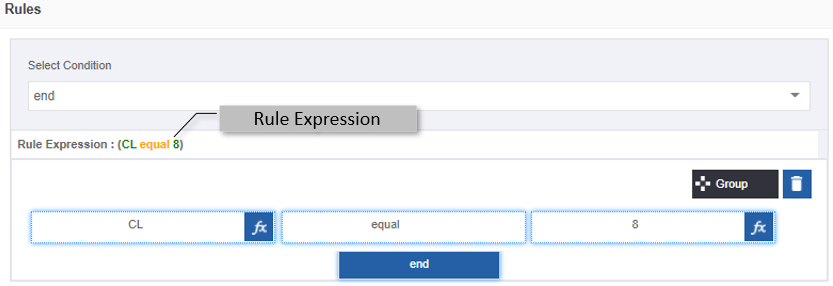
Note
You can add a variable from Resource data and apply a function for it in the RHS Variable also. Refer to steps 8 and 9 and follow the same for RHS Variable.
-
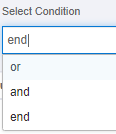
Click end. Select Condition will list the multiple rule conditions (end, and, or).
When you enter the value for the rule expression, the conditional operator is selected as “end” by default.
-
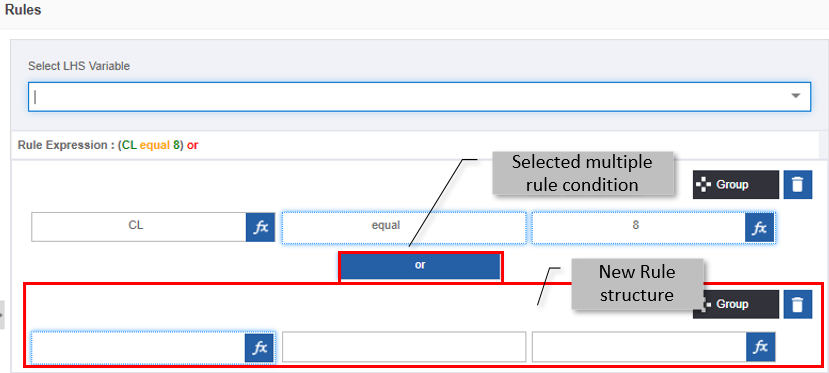
Select the condition from the drop-down. Another rule expression appears for adding the next rule. If you do not require any multiple rule expression or if you have done with the adding of multiple rules, select “End”.
-
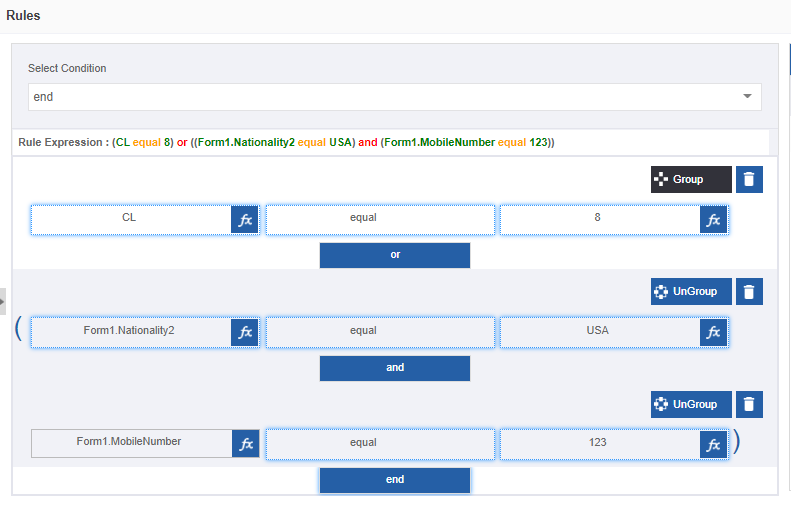
If you want to group the rules, you need to create a rule expression and click Group. You can add further rule expressions as part of this group. Ungroup button appears when you click group.
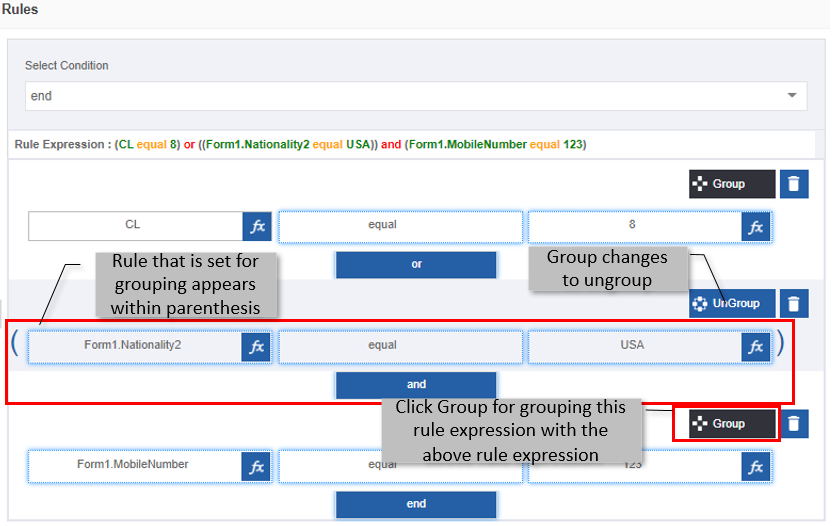
-
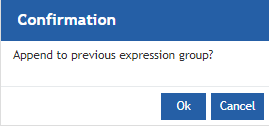
Create another rule expression below the grouped rule expression by selecting condition (“and” or “or”) and clicking Group for that rule expression.
-
Click Ok in the grouping confirmation pop-up (click Cancel for canceling the action).
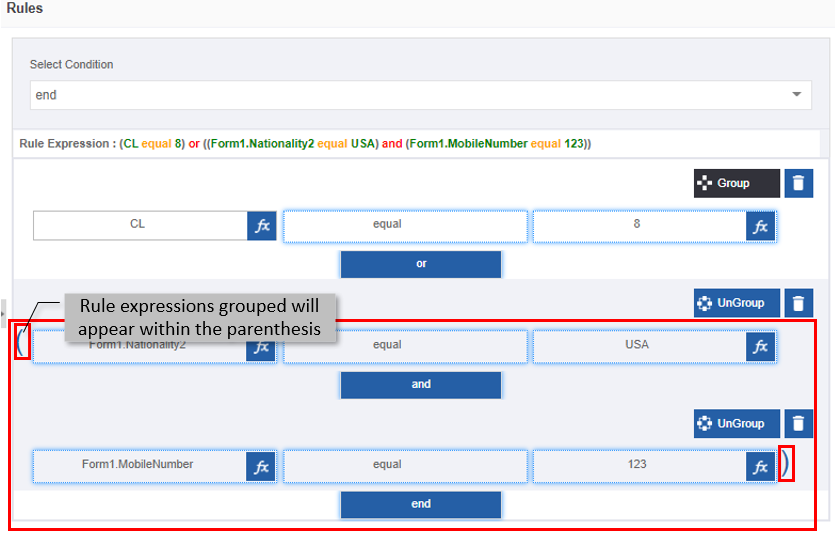
- For ungrouping the grouped rules, click Ungroup.
- For deleting a rule expression, click the Delete icon adjacent to that rule expression.
-
Click Create. A rule with the defined rule expression is created.
Viewing and Editing Rule
Make sure to unlock the application before editing if you want to edit the details of an entity that is not created by you.
- Navigate to App Studio > Applications - open application name > Process Flow - process flow name > Open.
- Click Rules . The Rule list appears.
-
Click the Rule card for viewing the details of the selected rule. The details of the rule appear in the Info Actions panel (Edit Rules).
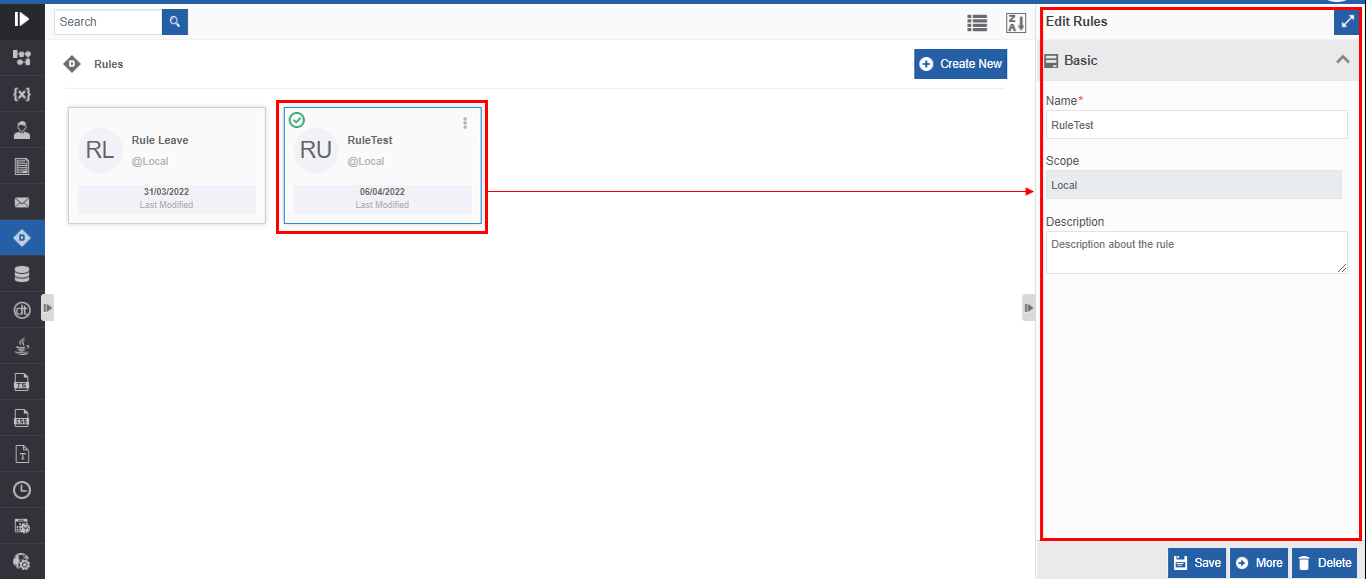
-
Click More for viewing rule expression details for the rule.
-
Edit the rule details as needed.
- Click Save.
Viewing Rule Associations
- Navigate to App Studio > Applications - open application name > Process Flow - process flow name > Open.
- Click Rules . The Rule list appears.
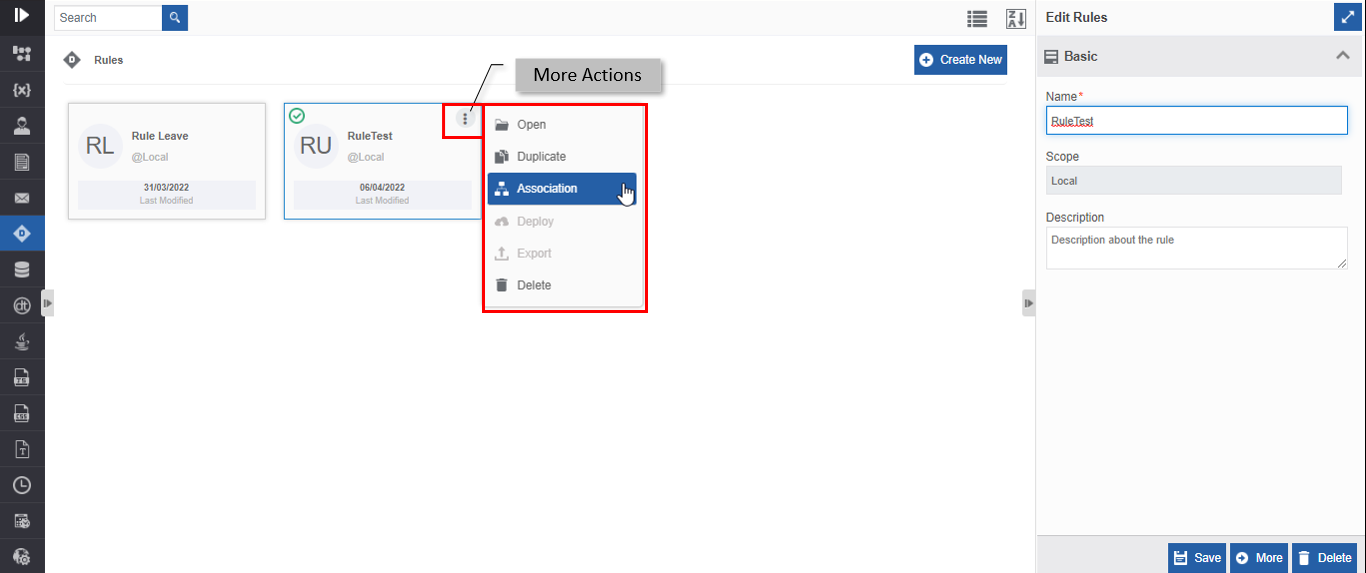
- Hover over any rule card. Three dots appear on the upper right side of the card.
-
Click the three dots. More Actions appear.
-
Click Associations. The association of the rule with the application, flow modules, and activities is displayed in a pop-up.
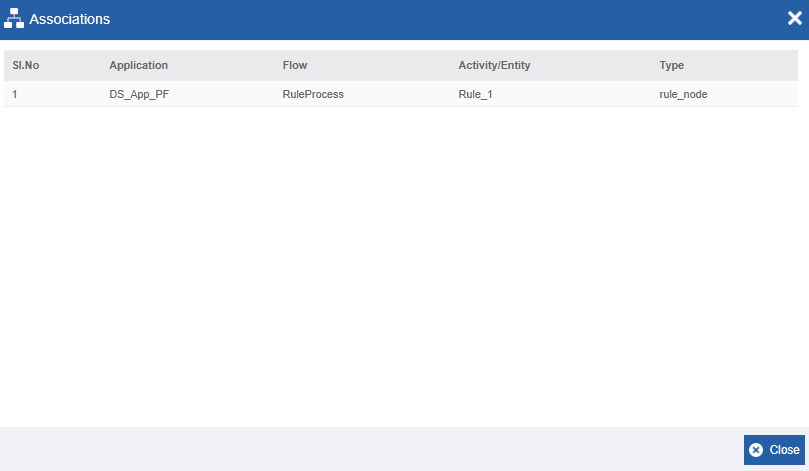
- Application – The application in which the rule is utilized.
- Flow - The flow in which the rule is utilized.
- Activity/Entity - The entity or activity name in which the rule is utilized.
- Type - The type of activity or entity.
Duplicating Rule
Make sure to unlock the application before duplicating an entity that is not created by you. When you duplicate a rule, the associations are not duplicated.
- Navigate to App Studio > Applications - open application name > Process Flow - process flow name > Open.
- Click Rules . The Rule list appears.
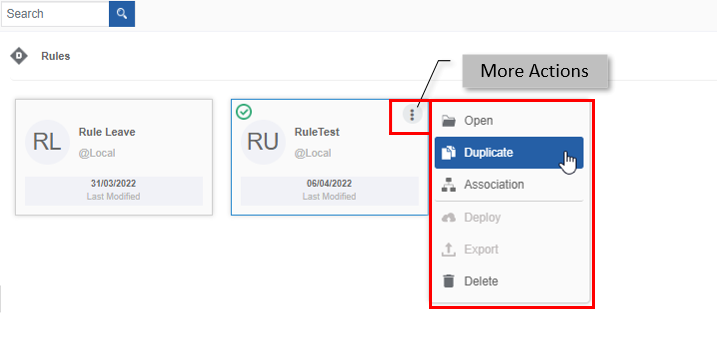
- Hover over any rule card. Three dots appear on the upper right side of the card.
-
Click the three dots. More Actions appear.
-
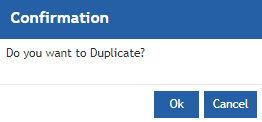
Click Duplicate. A confirmation pop-up appears.
-
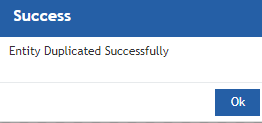
Click Ok for duplicating the rule (or you can click Cancel to cancel the duplicate action). A Success message appears on the successful duplication of the rule.
-
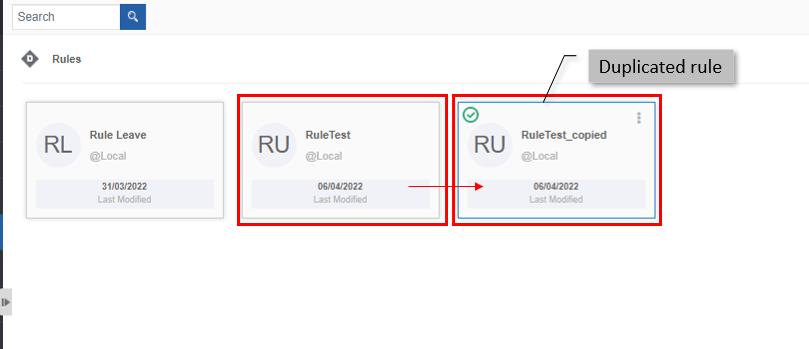
Click Ok. A duplicate copy of the rule appears on the Rules page with the same name suffixed with “_copied”.
Deleting Rule
Make sure to unlock the application before deleting an entity that is not created by you. Also, you cannot delete the entity if it is associated with any activity or entity.
- Navigate to App Studio > Applications - open application name > Process Flow - process flow name > Open.
- Click Rules. The Rule list appears.
-
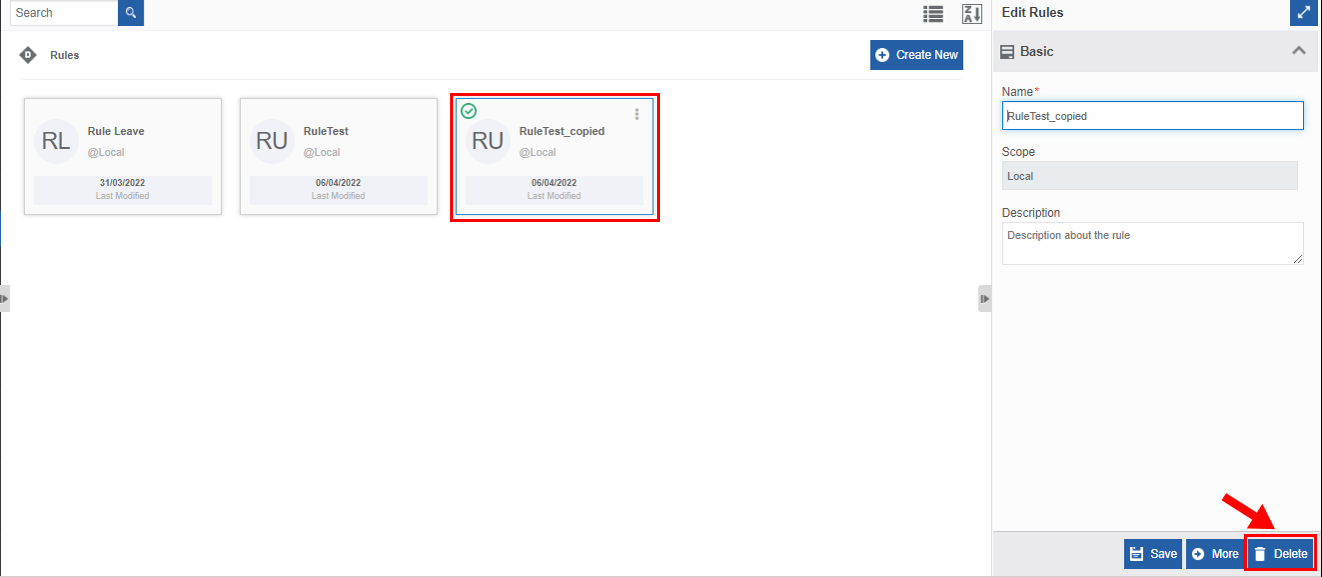
Click the rule name card that is to be deleted. The lower-right of the page displays Delete.
-
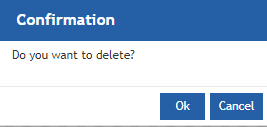
Click Delete. A Confirmation pop-up for delete appears.
-
Click Ok for deleting the rule. Or
Click Cancel to cancel the action.
Alternatively, you can follow the below steps to delete the rule:
- Navigate to App Studio > Application > Process Flow > Rules.
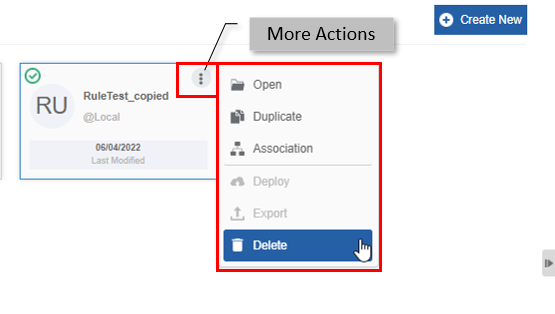
- Hover over the rule card. Three dots appear on the upper right side of the card.
- Click the three dots. More Actions appear.
-
Click Delete and follow step 5 in the above procedure.
Utilizing Rules in Process Flow
Mapping Rule through Rule Configuration
You can map entity rules to the activity Rule in the process flows for imposing specific conditions that are required for the progress of the workflow. In Info Actions, you can map the rules in the property, Rule.
- Navigate to App Studio > Applications - open application name.
- Open or create a process flow that has Rule activity.
- Click the activity and the Info Actions panel displays the configuration and properties.
-
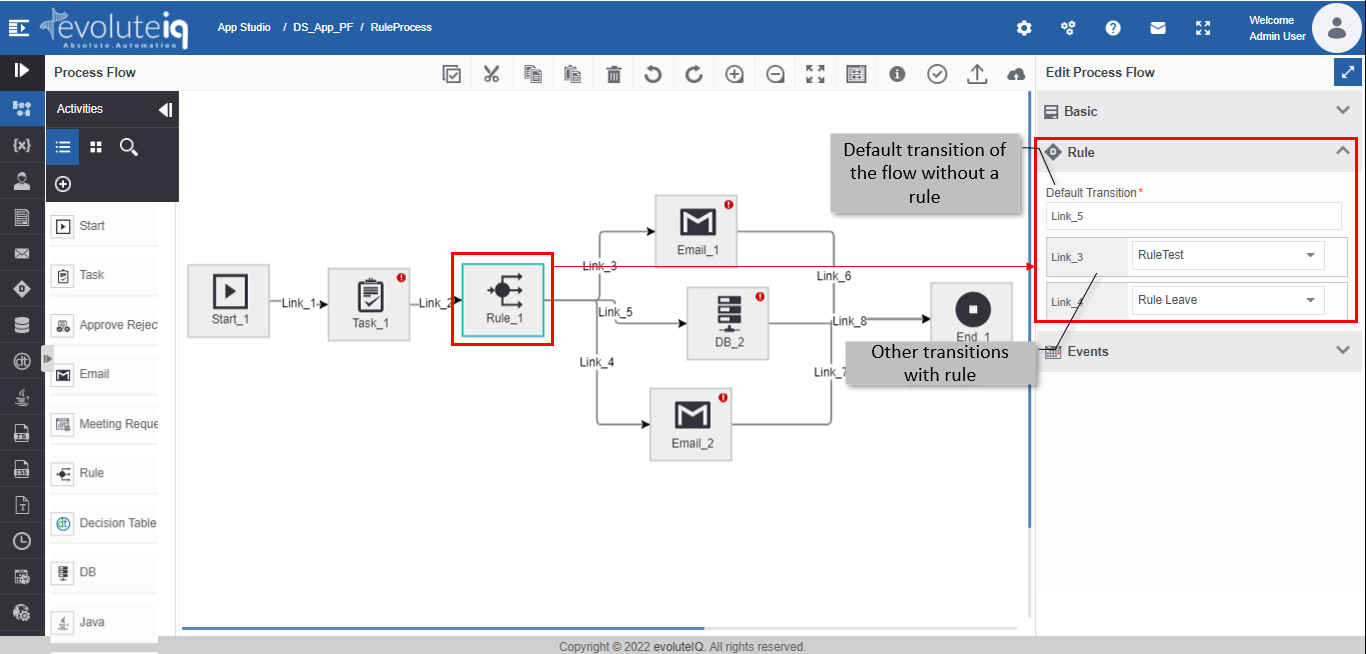
Click Rule accordion. Rule configuration details appear. The rule configuration displays all the link names that are designed in the flow.
-
In the Default Transition, select the link or path the workflow needs to follow by default. When you select a link as a default transition, the selected link is removed from the list of links or transitions displayed below.
- For each of the other links displayed below the default transition, map a relevant rule.
Note
At runtime, if a particular rule value is true, then the flow takes the path of the corresponding transition or link. If all the mapped rule fails, the workflow will progress through the link mentioned in the default transition.
Mapping Rule through Event Configuration
In Info Actions, you can map the rule in the Event. In the event configuration, select On Node Start and provide conditional rule = yes so that you can map a rule for the event.
- Navigate to App Studio > Applications - open application name.
- Open or create a process flow that has Rule activity.
- Drag an activity (E.g., Rule, Email, Task, Approve Reject activity, etc. for which Event configuration is applicable) into the work area.
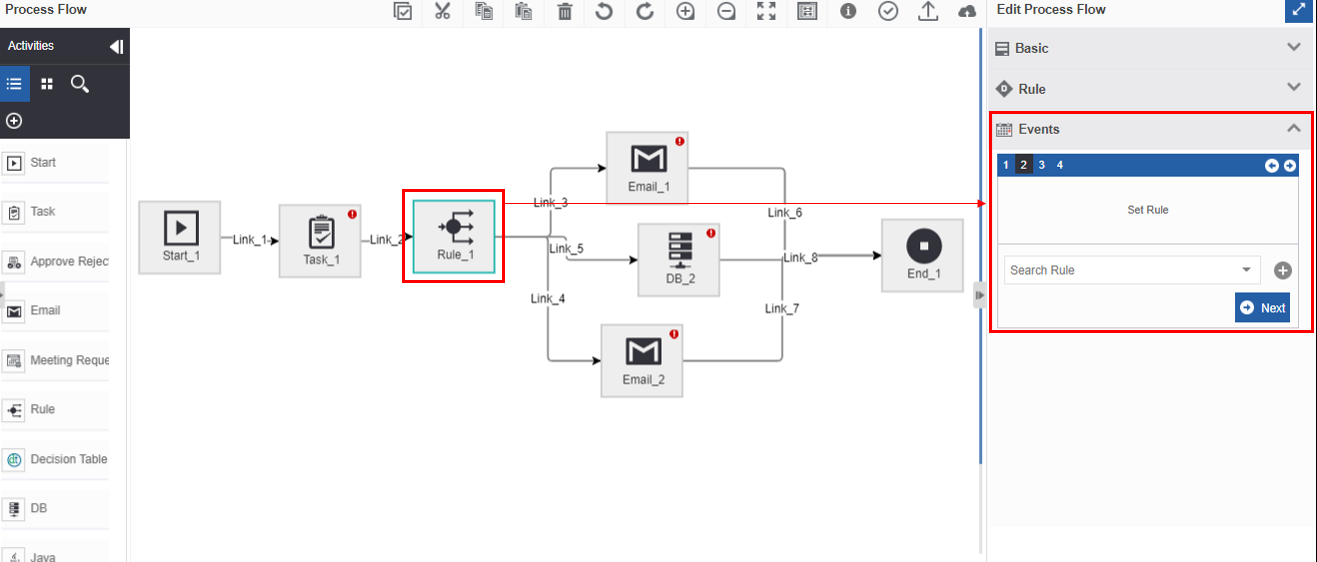
- In the Edit panel, click the Event accordion. Event mapping details appear.
-
Follow the configuration: On Node Start > Conditional Event = Yes. Event Step 2 > - Set Rule appears.
-
Select a rule from the drop-down for mapping the rule to the event.
Mapping Rule through SLA Configuration
In Info Actions, you can map the rule in the SLA configuration. In SLA configuration, set a timer and then provide conditional rule = yes so that you can map a rule for the SLA.
- Navigate to App Studio > Applications > Process Flow - open process flow.
- Drag an activity (e.g., Task or Approve Reject activity) into the work area.
- In the Edit panel, click the SLA accordion. SLA mapping details appear.
- Follow the configuration: Set Timer > Conditional SLA = Yes. SLA-Step 2 - Set Rule appears.
- Select a rule from the drop-down for mapping the rule to the SLA.
Mapping Rules for Conditional Entity
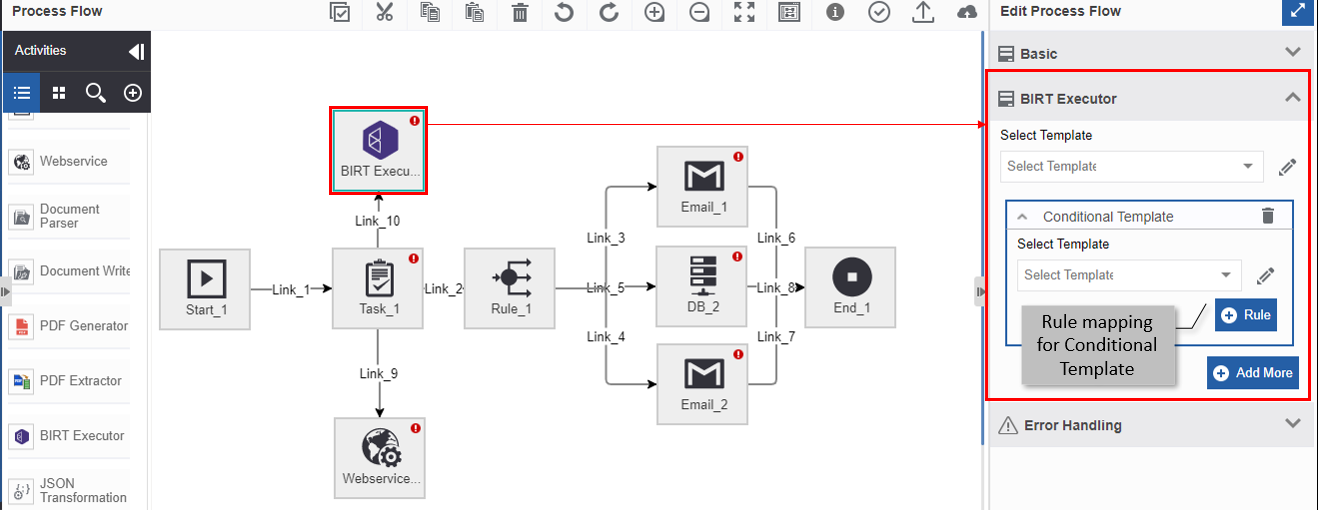
The Add New feature is applicable for activities DB, Form, Webservice, Email, and BIRT for conditional mappings. For these activities, in the activity-specific configuration, you can add multiple entities based on the rules and hence rules are mapped as conditions.
- Navigate to App Studio.> Applications > Process Flow - open process flow.
- Drag the activity Task /Approve Reject/DB/Webservice/Email/BIRT into the work area.
-
In the edit panel, click the activity-specific accordion and configure the default entity and the rule-based conditional entity.
- Click Task > Click Form accordion > Click Default Form and select a default form> Click Add New > Select a conditional form > Click +Rule and map conditional rule.
-
Click Approve Reject > Click Form accordion > Click Default Form and select a default form> Click Add New > Select a conditional form > Click +Rule and map conditional rule.
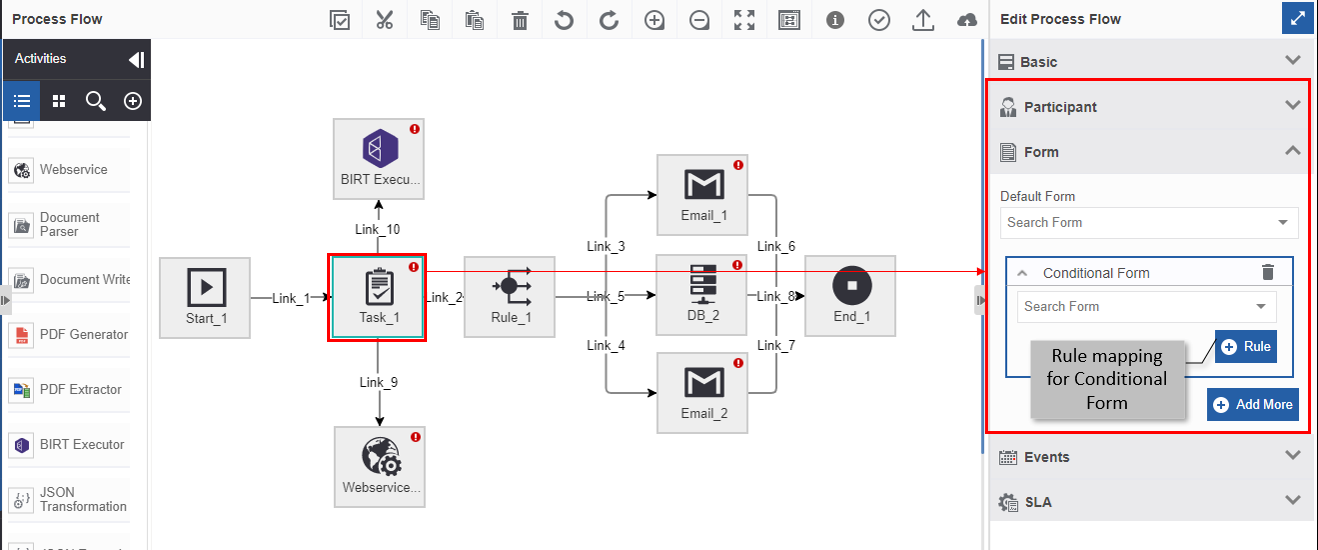
-
Click DB > Click Database accordion > Click Default Database Script and select a default Database script > Click Add New > Select a conditional database script > Click +Rule and map conditional rule.
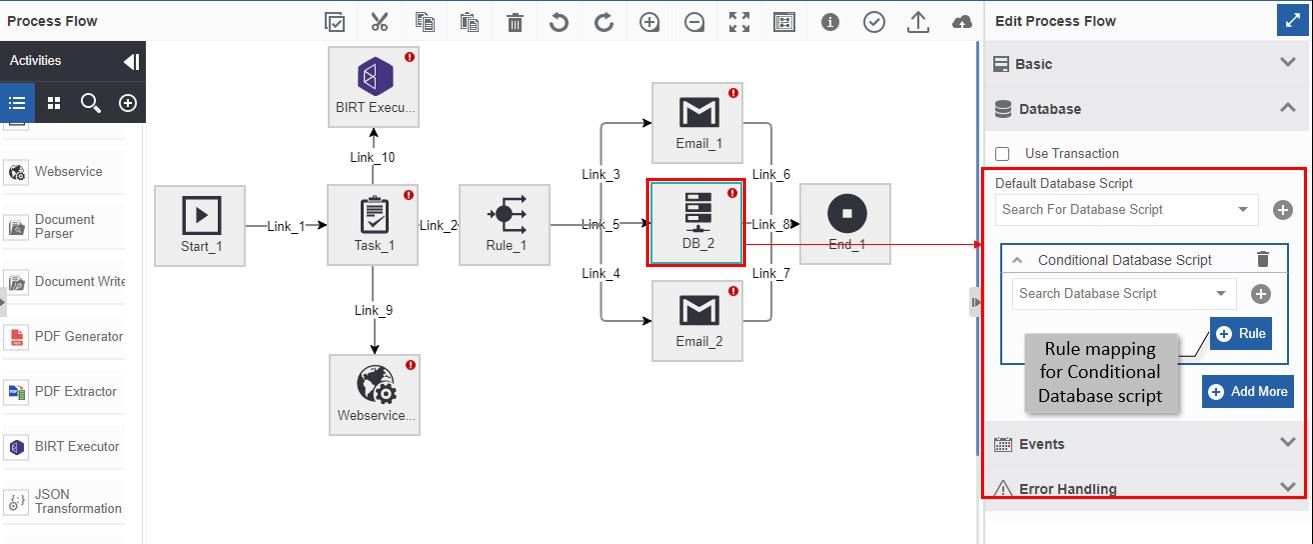
-
Click Webservice > Click Default Webservice and select a default webservice> Click Add New > Select a conditional webservice > Select Success Variable and Error Variable > Click +Rule and map conditional rule.
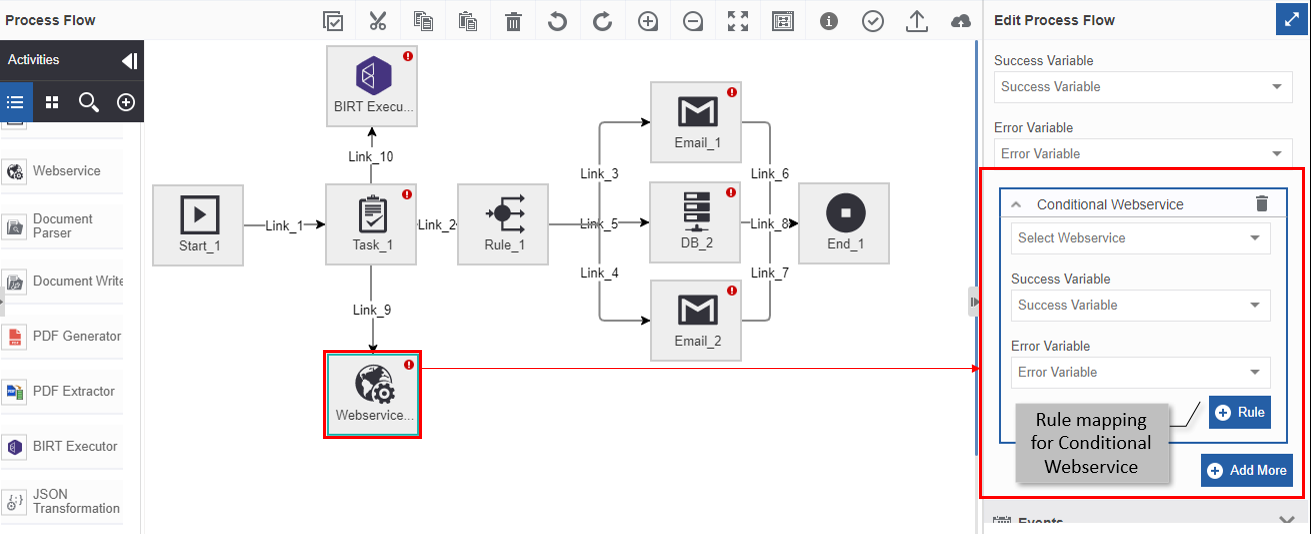
-
Click Email > Click Email accordion > Click Default Email and select a default Email template > Click Add New > Select a conditional email template > Click +Rule and map conditional rule.
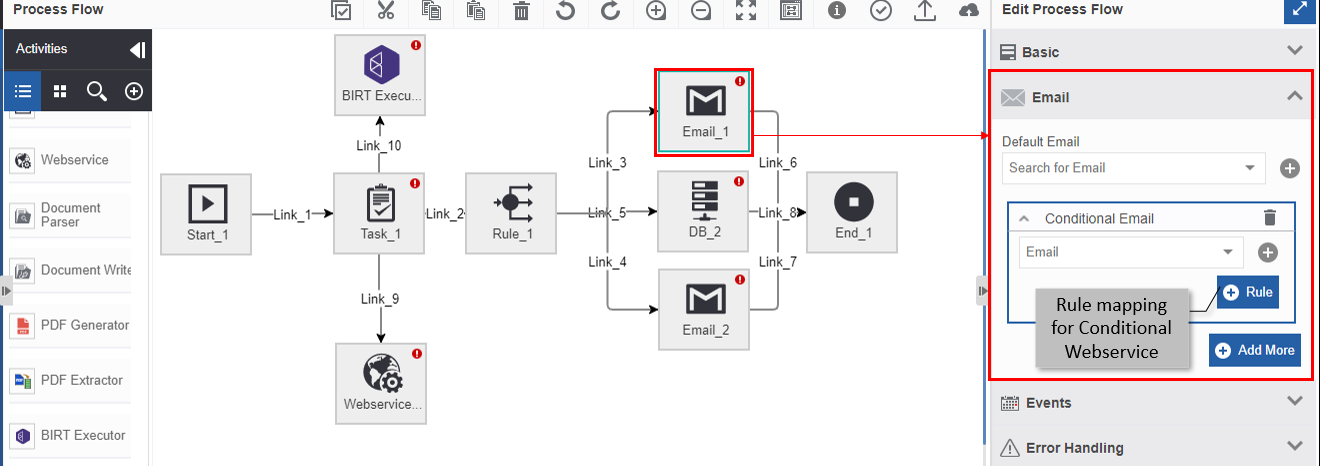
-
Click BIRT > Click BIRT Executor accordion > Click Select Template and select a default Template > Click Add New > Select a conditional template > Click +Rule and map conditional rule.