Manage Process Flows
Viewing Process Flow Details
-
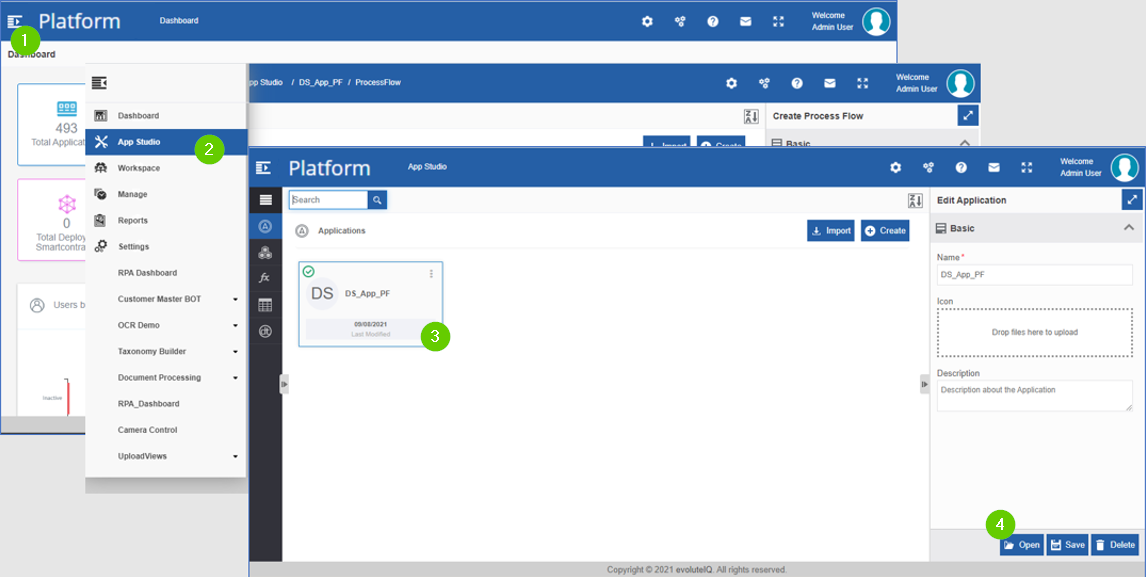
Navigate to App Studio > Applications. The list of applications appear.
-
Click an application card from the list.
-
Click Open on the lower-right of the screen or double-click the application name. The process flow page appears with the list of all process flows in that application.
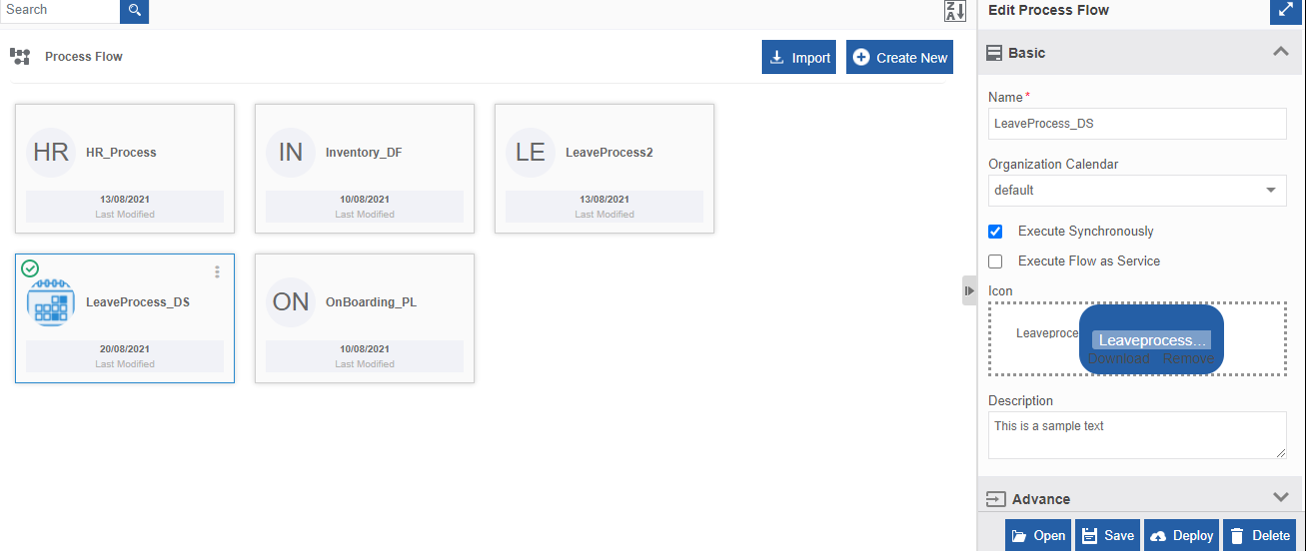
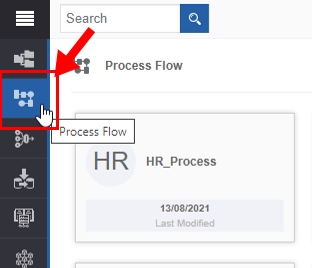
If it displays a different entity page (e.g., application map), click on the process flow entity icon in the Business entity list for displaying the process flows.
-
On the Process Flow page, click a process flow. The Info Actions area on the right side of the screen displays Edit Process Flow with Basic and advanced properties and configurations for the selected process.
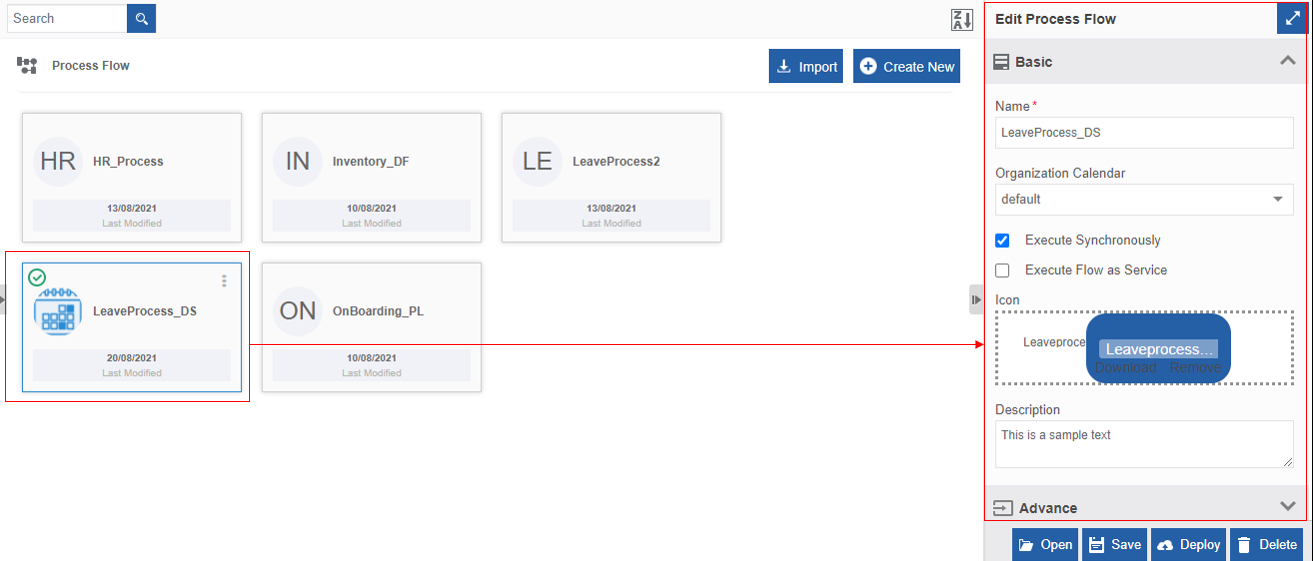
Understanding Process Flow Interface
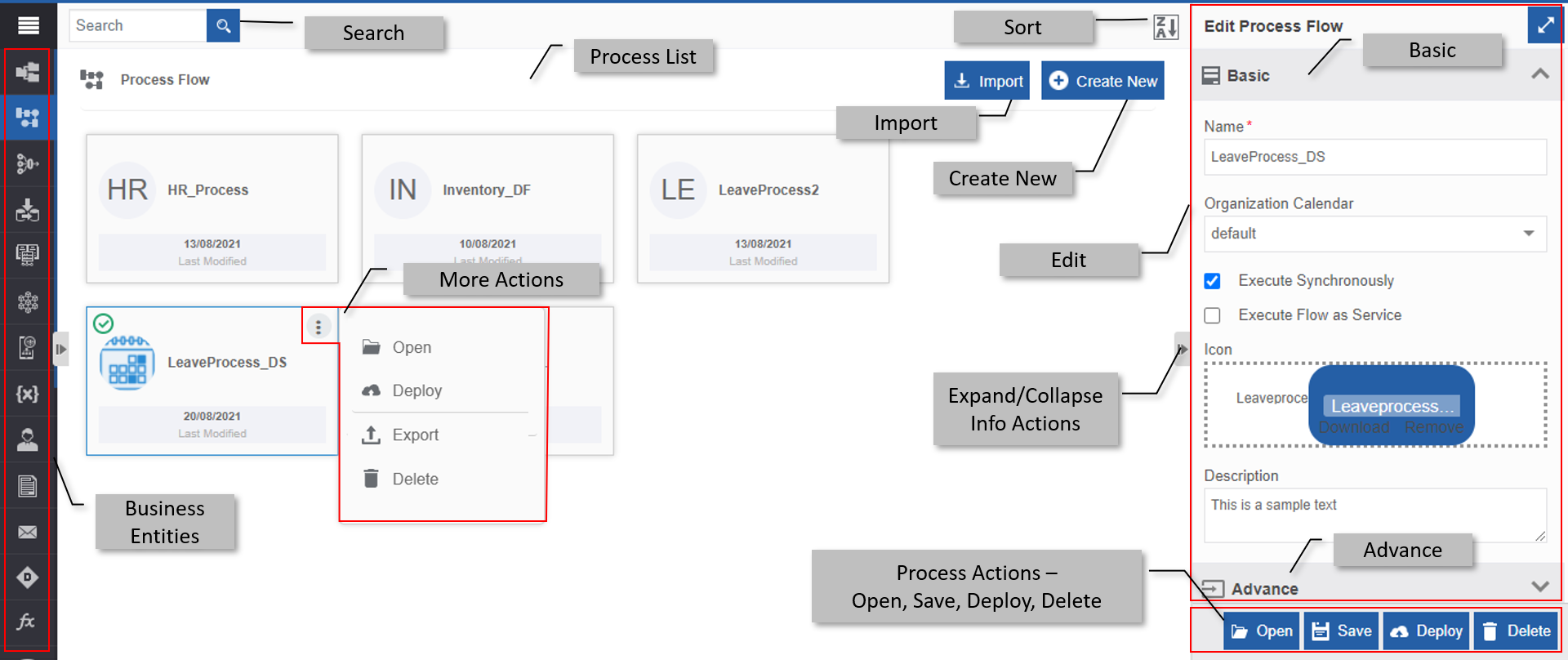
| Feature | Description |
|---|---|
| Search | To search for a process in the process list. |
| Process List | The list of all processes in the selected application. |
| Sort | To alphabetically sort the processes on the process page. |
| Process Actions | To perform process actions. - Open : Click Open to view the process flow details - Save : Click Save to save the details after editing or modifying the process flow configuration. - Deploy : Click Deploy to validate and deploy the process flow. - Delete : Click Delete to delete the process flow. |
| More Actions (three dots in the process card) | Click the three dots on the process card to view and execute the Open, Edit, Deploy, Export, and Delete actions. |
| Export (in More Actions) | To export the process (in .pkg file) from the Platform to the local system. |
| Import | To import the process (.pkg file) from the local system into the selected application of the Platform. |
| Create | To create a new process flow. |
| Info Actions | Attributes/properties and configurations of the process flow. |
| Business Entities | Business entities are entities that are utilized within the process flow. |
| Expand/Collapse | To hide and view the Info actions panel. |
Viewing and Editing Process Flow Design and Configurations
- Navigate to App Studio > Applications – Open application > Process Flow - open process flow.
The Process design canvas displays with the Edit Process Flow panel on the right side. -
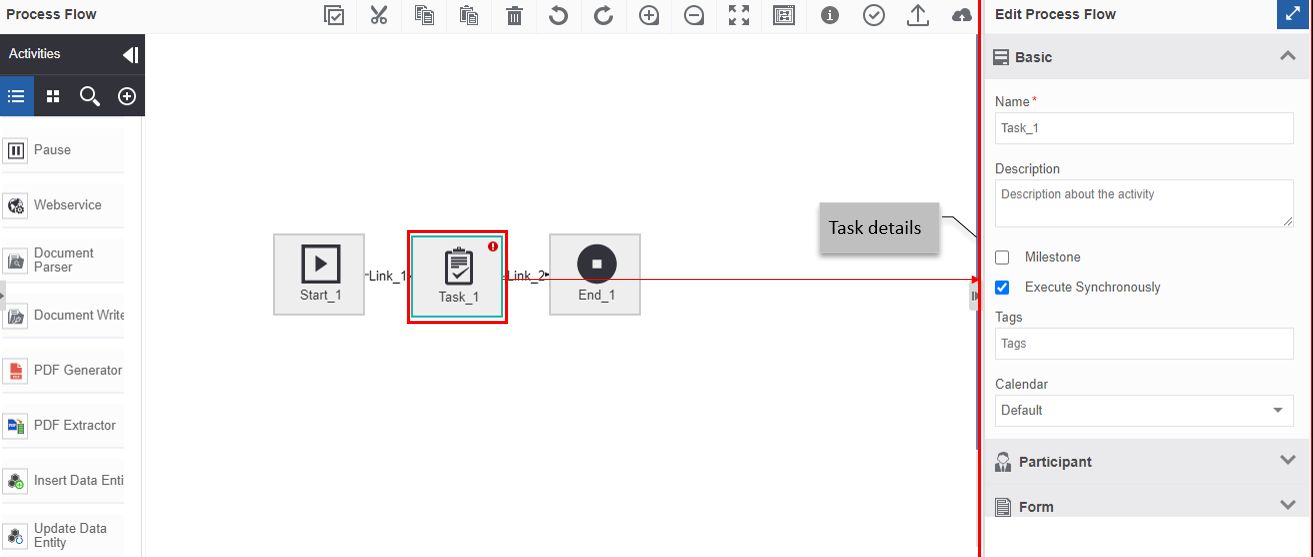
Click on any activity. The Edit Process Flow panel displays the selected activity details. Modify the activity details. All the details updated in the design canvas and the activity details are auto-saved.
-
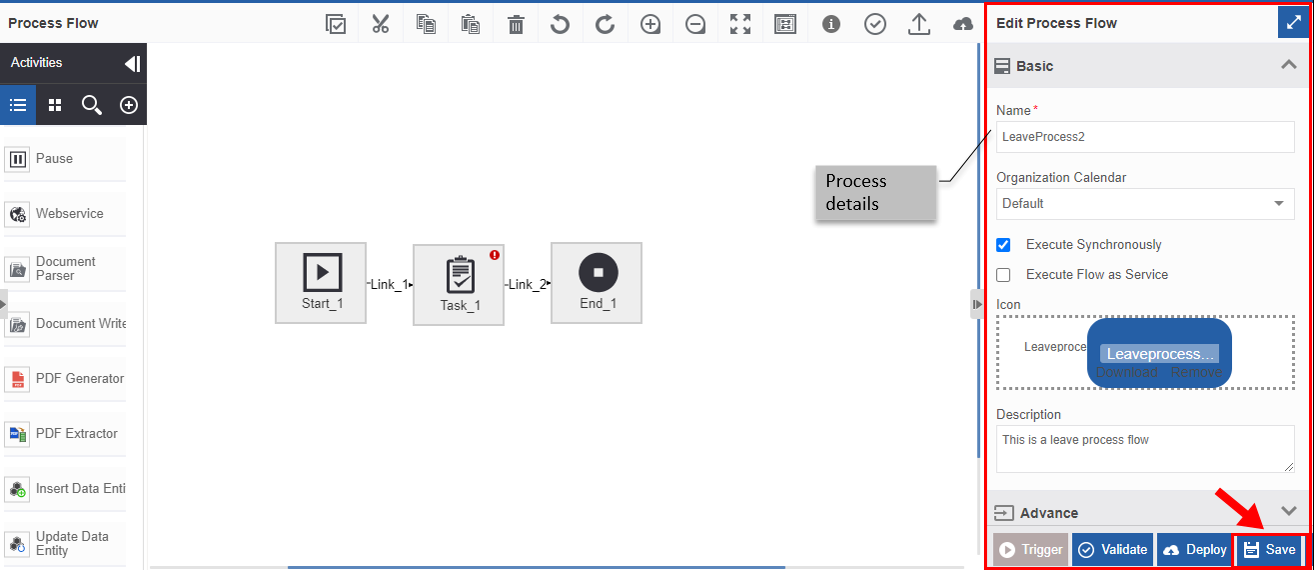
Click on the canvas. The Edit Process Flow Panel displays process flow details. Modify the process flow details as required.
-
Click Save on the lower-right of the page for saving the modified process details. When you select an activity, the Save button is not displayed. Hence, make sure you click the process canvas to view the save button and then update the process flow details and save the process. Save is applicable only for the process details.
Note
Editing/modifying the process details includes adding a new activity, deleting an existing activity, redefining the links, defining new links, adding/modifying activity configurations and mapping, etc.
Alternatively, you can double-click the process to open and edit the details.
or
You can follow the below steps also for editing and viewing the process flows:
- Navigate to App Studio > Applications - Application name.
- Click Open. Process flows of that application appear.
- Hover over the process flow card. Three dots appear on the upper right of the process card.
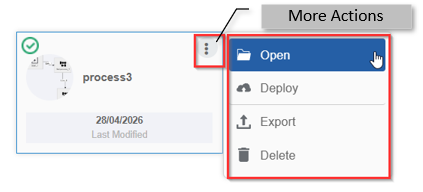
- Click the three dots. More Actions appear.
-
Click Open.
-
Go to Step 4 in the first procedure and continue all the remaining steps.
Validating Process Flow
When a process flow is created and configured, you should validate the process flow for any errors. The Process flow is validated every time before it is deployed. The process flow is automatically validated when it is deployed without validation.
The process validation is a success when all the mandatory details are configured and/or mapped and all the details provided in the process flow are correct and valid.
- Navigate to App Studio > Applications – Open application > Process Flow.
- Click the process name and click Open. The Process flow page is displayed with the process details.
- Click Validate at the bottom right of the page. (Make sure you click on the design canvas so that process action buttons including the validate button are displayed.)
-
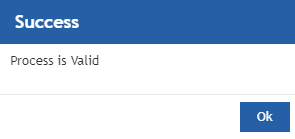
If the validation is a success, a success message is displayed. Go to step 5.
Else go to step 6.
-
Click OK in the Success message box and validation is completed.
-
If the validation is a failure, an error message is displayed.
When you click Validate, the Platform validates activities and transitions in the flow one by one. When a configuration error is found, it displays the error. After correcting those errors, it moves forward with the validation of the other activities or transitions.
A success message is displayed when all the validation errors are cleared.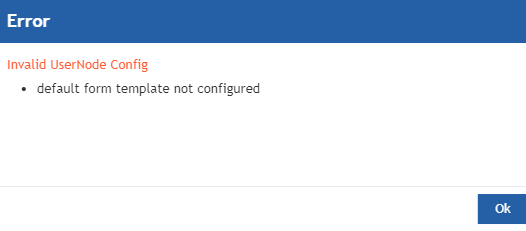
-
Click OK and correct the error as per the instruction in the Error message box. Go to Step 3 and repeat the validation.
Deploying Process Flow
When you deploy a process flow, a version of the process flow is created. The version number is automatically taken as V1, V2, V3, etc., and amended with the process name as {Process_name} (V1), {Process_name} (V2), {Process_name} (V3), etc., for each deployment. The latest version is the working version.
A process flow is deployed only after validation. If you deploy a process flow without validation, the system automatically validates the flows and if successful, deploys the process flow.
- Navigate to App Studio > Applications – Open application > Process Flow.
- Click Open. Process flows within that application appear.
- Click the process name and click Open.
- Click Deploy.
-
If the Validation is a success, the process is deployed for execution. Go to step 6.
Else if there is a validation error, rectify validation errors and deploy the process flow again (step 1).Refer to Validating Process Flows
-
Click OK. The process is successfully deployed.
Viewing in Workspace For viewing the deployed processes, navigate to Workspace > My Process.
In My Process list, the first task name that needs user initiation (internally referred as initiator task) appears with the process name, version number, and application name. Once the first task is completed, the next task is listed in My Tasks, and so on till the process flow instance is completed. Deployed process flow version can be initiated until the specified number of instances are reached. After completing the maximum number of instances specified, it cannot be initiated. When it crosses the maximum instances defined, an exception is raised by the system.
The version of that process flow is kept live until the user suspends or terminates the process flow version.
Imp
Users can suspend or terminate a specific version of the process flow from Management > Application Management > Process Flows.
If a process flow version is suspended, it is no longer displayed in the workspace until the user resumes the process.
If the process flow version is terminated, it is no longer available and cannot be retrieved.
Triggering Process Flow
A process flow instance can be triggered when an end user acts on it. However, you can trigger a process flow using the Trigger functionality. Process flows can also be triggered by a subprocess, by a process SLA or by a Rest API.
In Real-time, you need to deploy the process flow and then trigger it manually. The trigger is applicable only to the users who design the flow as a service. In a process flow, the trigger feature is used to verify if the designed flow executes as expected when initiated externally.
- Navigate to App Studio > Applications – Open application > Process Flow – Open process flow.
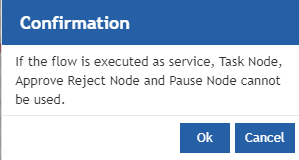
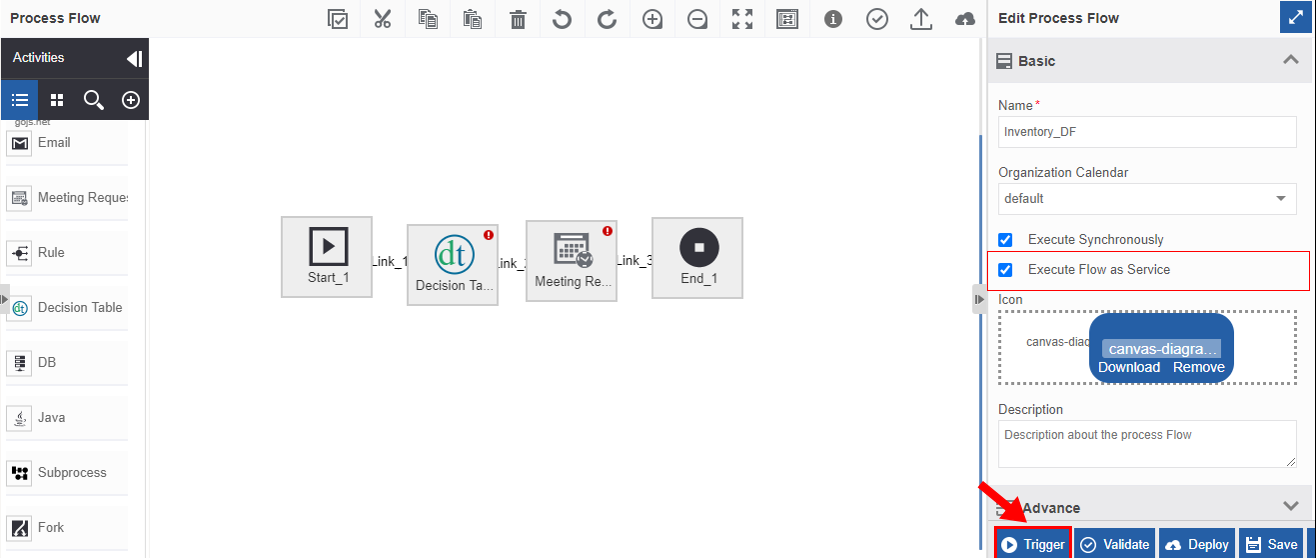
- In the Edit Process Flow panel check the box “Execute the flow as a service”. A confirmation pop-up appears to confirm that the process does not contain Task, Approve Reject, or Pause activities.
-
Click Ok. The trigger button is now active.
Execute Flow as Service will not get checked unless you remove the Task, Approve Reject or Pause activities from the process flow (if any).
-
After completing the process flow configurations, validate and deploy the flow.
-
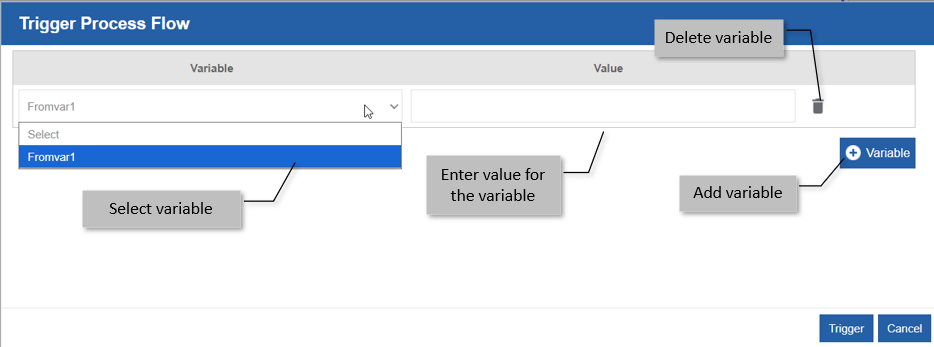
Click Trigger. Trigger process flow appears.
-
In the Trigger Process Flow pop-up, you need to configure the data for testing the flow execution. In this pop-up, you can configure the flow variables with an input value to verify the execution of the process flow.
- Select the variable and enter the value for the variable. When you trigger the process flow the variable takes this value during execution.
- To provide value for multiple variables, click +Variable. A new row is added with an option to select Variable and enter Values.
- To Delete the variable, click the delete icon next to the variable.
- If you do not want the variable to take any values, you need not select any variable.
-
Click Trigger. The flow gets executed and the response is displayed in the Returned Data.
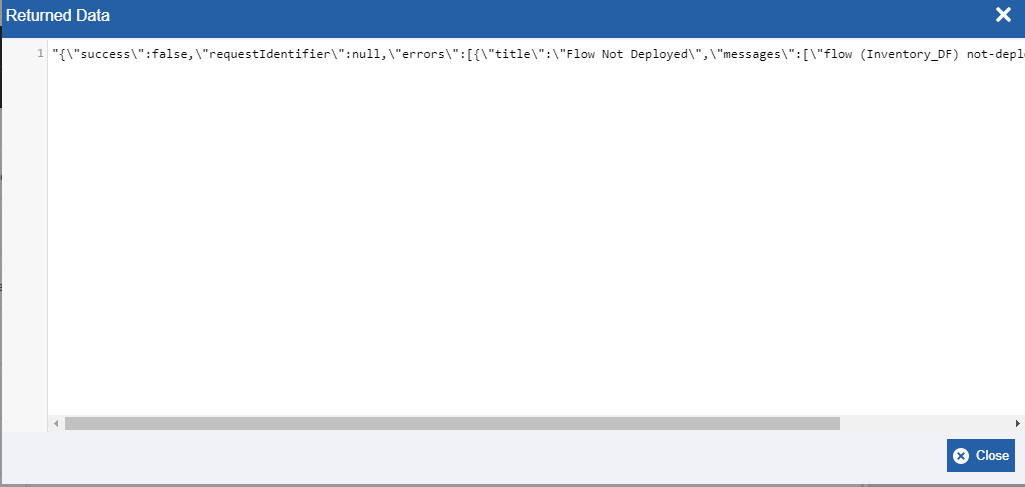
The Returned Data displays the details of the triggered workflow.
The text after the \”success\”: indicates the status and the text after \"errors\”: indicate the errors.
"{\"success\":false– indicates that the trigger is a failure."{\"success\":true– indicates that the trigger is a success."errors\:[{\title\:\Flow Not Deployed\– indicate that the error in the flow is “Flow Not Deployed”.
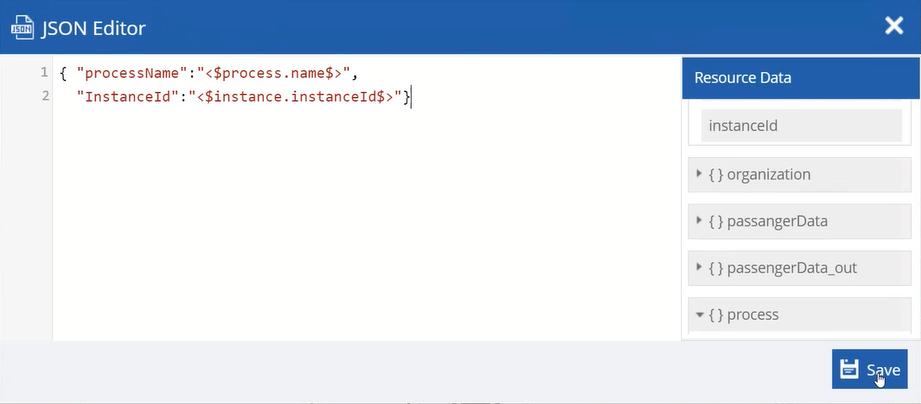
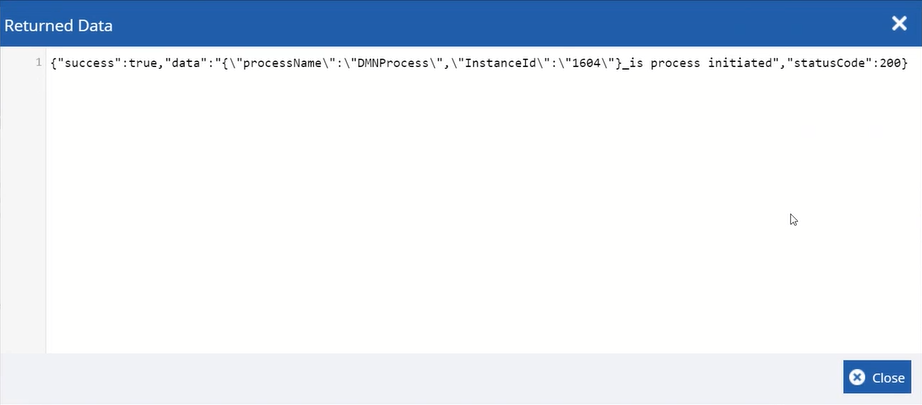
If you do not specify or configure return data, the Returned Data displays the complete details in JSON format. If you configure the return data as per the requirement (custom return data), it is displayed as per how you configure it.
Example of customized return data configuration in JSON format:
Exporting Process Flow
A process flow can be exported as a package file (with .pkg extension) to the local system. When you export a process flow all the entities of the process get exported along with the flow.
- Navigate to App Studio > Applications – Open application > Process Flow
-
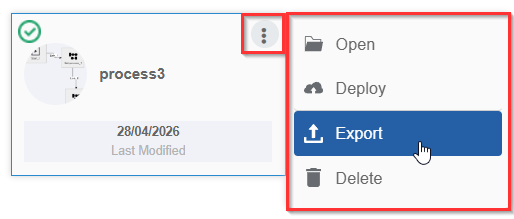
Hover over the process flow name card and More Actions (three dots) appear.
-
Click More Actions and then click Export.
Save As Window appears. Select a location to save the export file and click Save.
The process flow exports (downloads) to the local system. The exported file format is .pkg (package file format).
Importing Process Flow
A package file with the extension .pkg can be imported into an application. After importing the process flow, the flow is listed along with existing process flows.
- Navigate to App Studio > Applications – Open application > Process Flow.
-
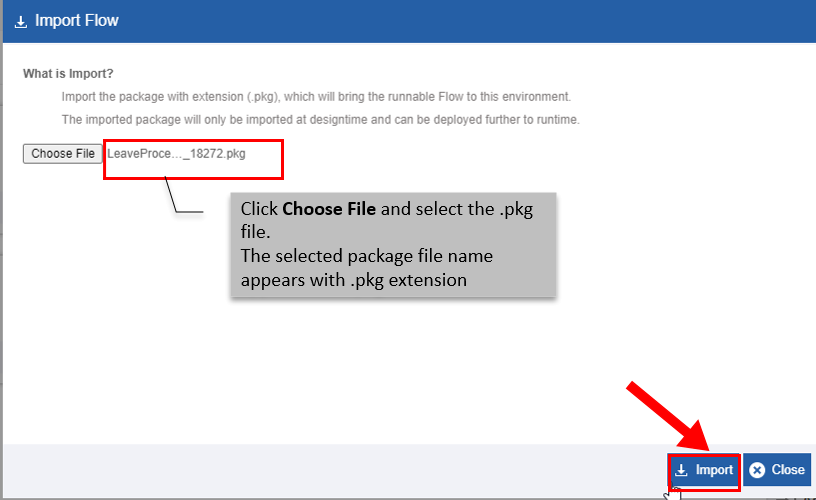
Click Import. The Import Flow pop-up displays.
-
Click Choose File and select a package file (with extension .pkg)
-
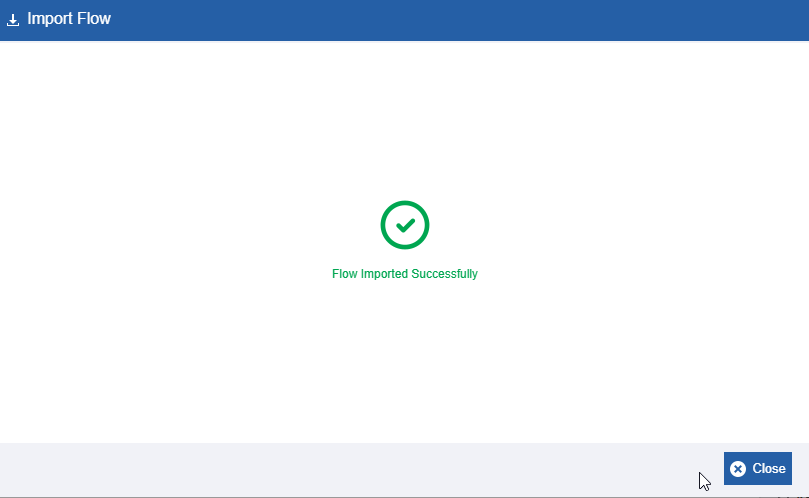
Click Import. A success message is displayed if the import is successful.
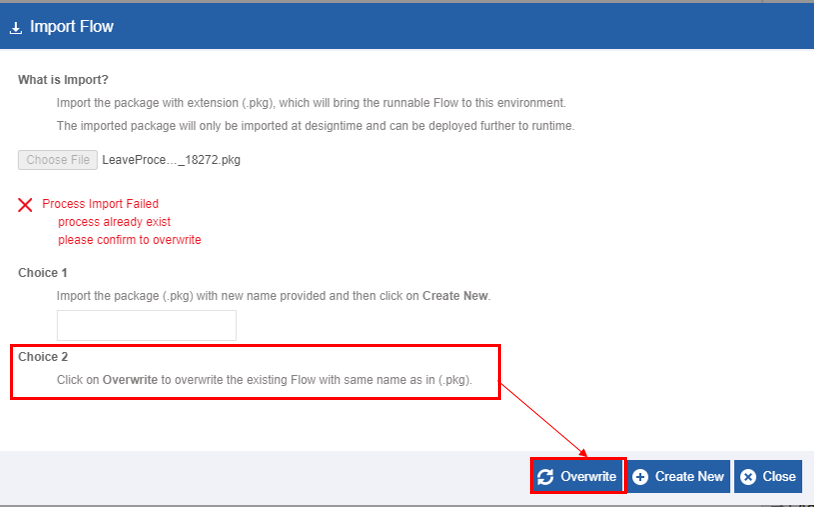
Or If the package file name selected is matching with any of the already existing processes in the application, an error message is displayed.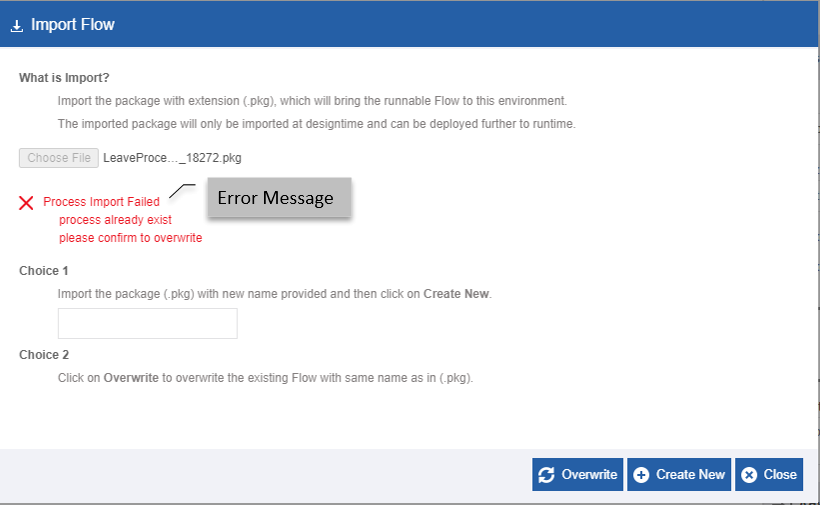
-
Follow the below steps if error message displays.
- Choice 1: Enter a new name for the selected package file and click Create New.
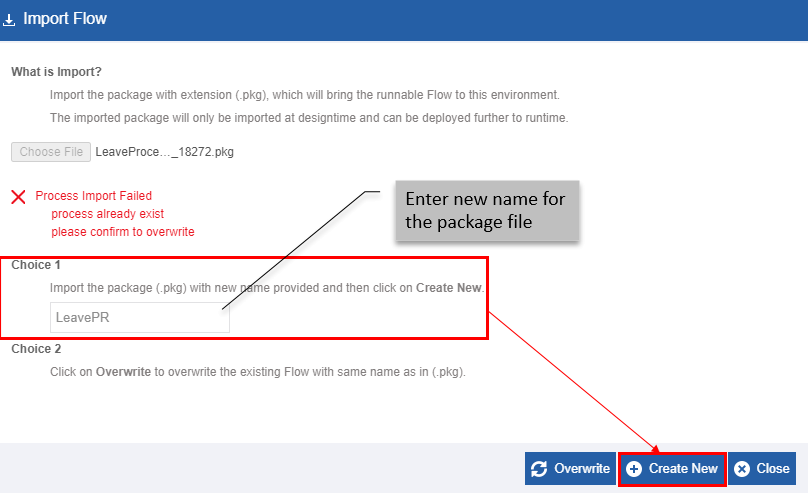
- Choice 2: Click Overwrite. The new package file overwrites the existing process.
- Choice 1: Enter a new name for the selected package file and click Create New.
The below success message appears after successful import.
Deleting Process Flow
You can delete a deployed or undeployed process flow. When a process flow is deleted, its design and configurations get deleted. You cannot get back a deleted process flow unless you have exported it. If you have exported the process flow before deleting it, you can import it back into an application in the Platform.
The deployed or undeployed process flow follows the same procedure for deletion as explained below:
- Navigate to App Studio > Applications – Open application > Process Flow.
-
Click the process flow name. The lower-right of the page displays the Delete button.
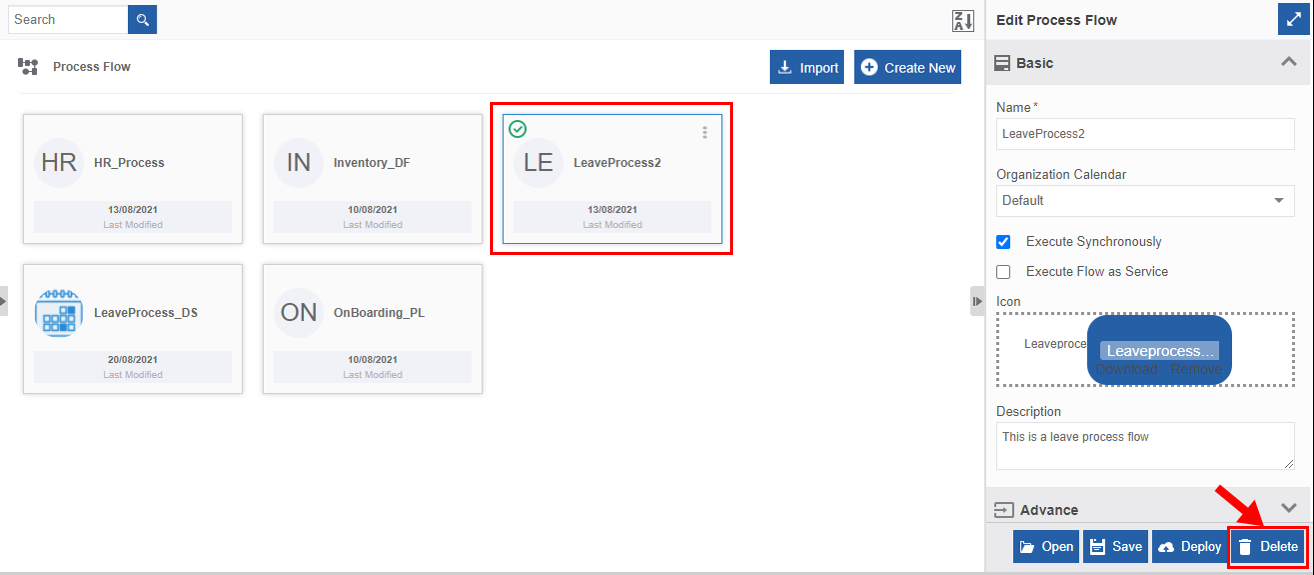
-
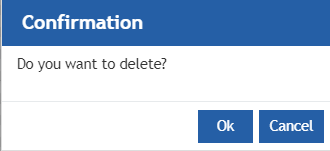
Click Delete. A confirmation pop-up is displayed.
-
Click OK for deleting the process flow.
Or
Click Cancel to cancel the action.
Alternatively, you can follow the below steps to delete the process flow:
- Navigate to App Studio > Applications - Application name.
- Click Open. Process flows of that application appear.
- Hover over the process. Three dots appear on the upper right of the process card.
-
Click the three dots. More Actions appear.
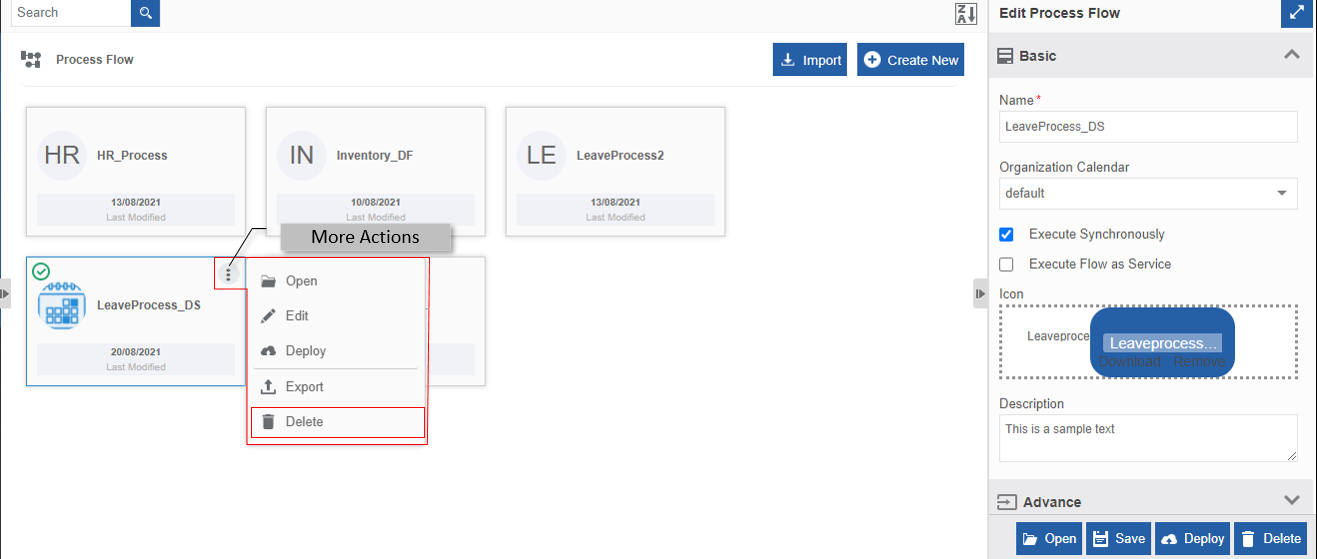
5. Click Delete. Confirmation pop-up displays.
6. Click ok.
Delete deployed process flows
Every time a process flow is deployed, a version of that process flow is created. If you delete a deployed process flow from the App Studio, it is deleted from the design perspective. That is, the workflow design is deleted and you will not be able to edit or redeploy the process flow for creating a new version.
However, the earlier deployed version of the same process flow will be available till the maximum instances for that process flow are initialized.
Delete undeployed process flows
When an undeployed process flow is deleted, it is completely removed from the Platform and you will not be able to retrieve it unless you have exported it before deleting it.
Searching for a Process Flow
- Navigate to App Studio > Applications – Open application > Process Flow.
-
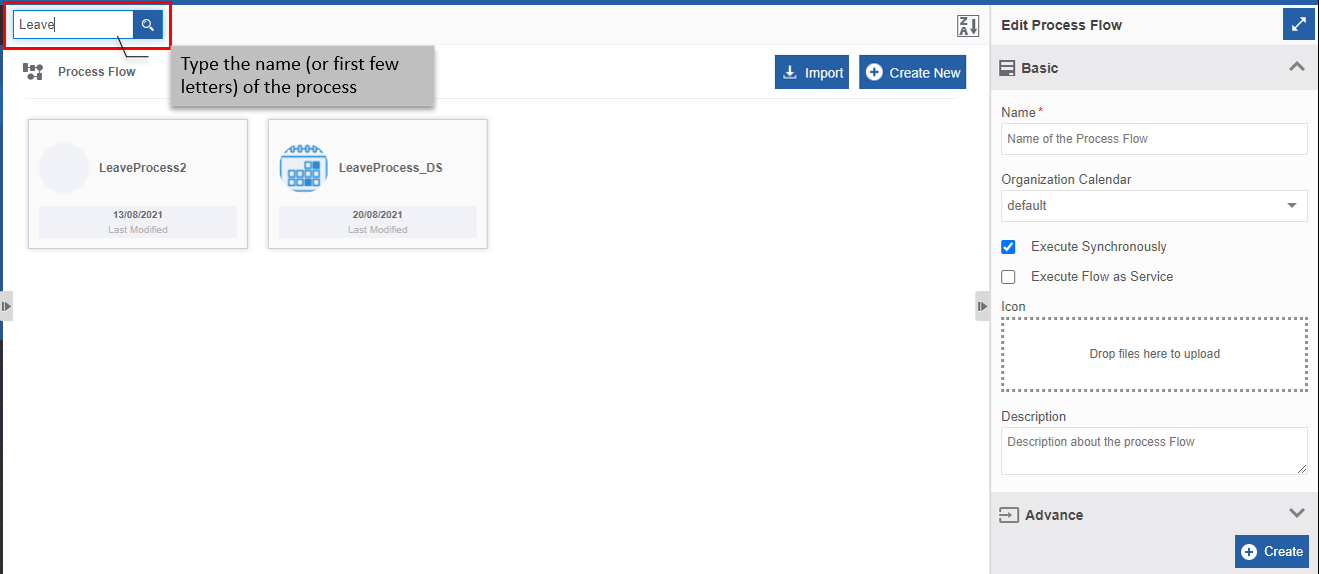
Type the name (or first few letters) of the process flow in the search box on the upper-left of the page. The filtered results are displayed.
Sorting Processes Flows
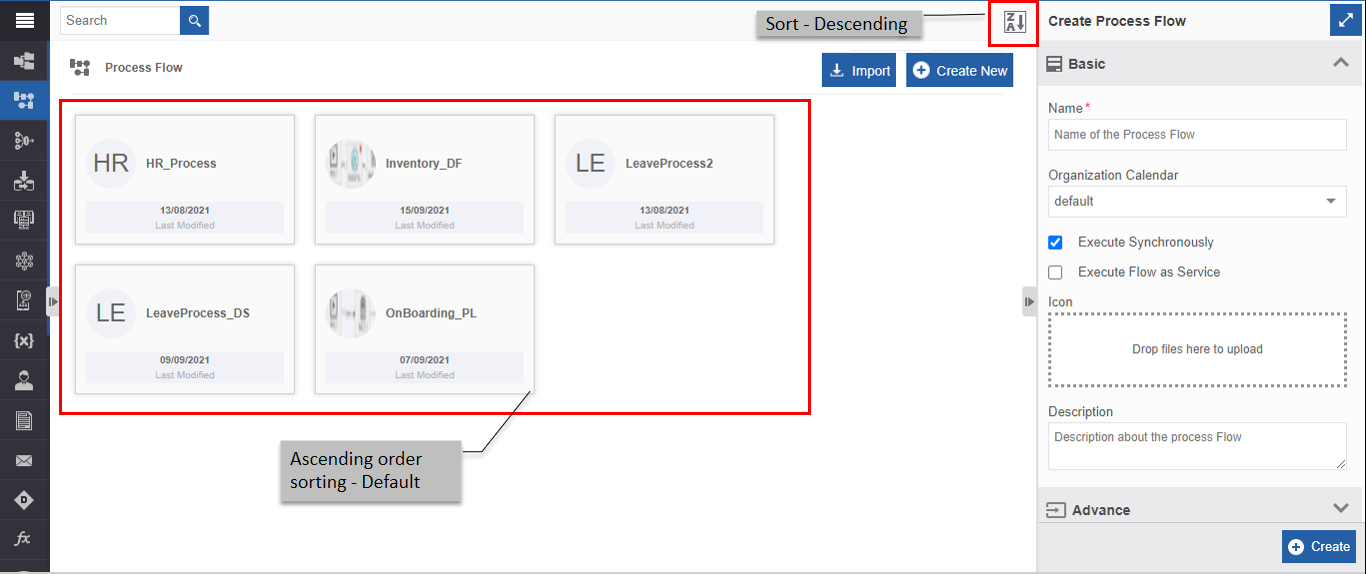
In the Process flow page, the process cards are displayed in alphabetically ascending order by default.
-
Navigate to App Studio > Applications – Open application > Process Flow. The process flows are displayed in ascending order by default and the sort icon is descending (Z🡪A).
-
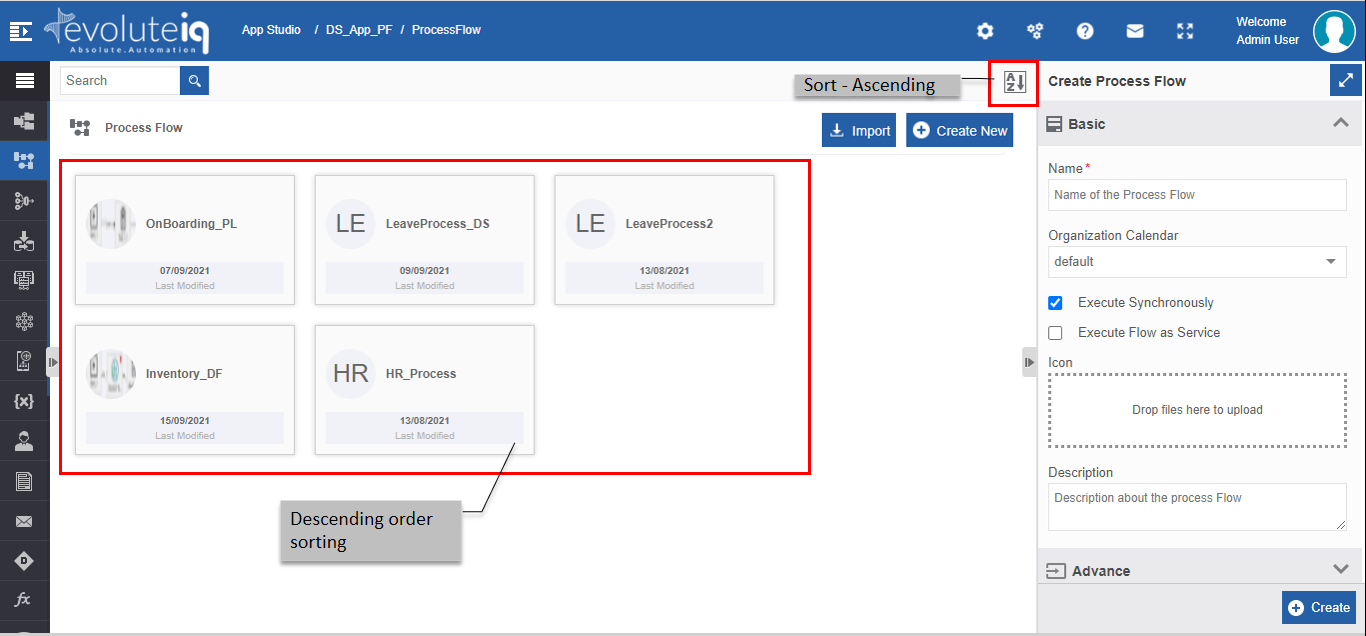
Click the Descending order sort icon (Z🡪A). The process flows get sorted in descending order (A🡪Z) of the flow names. The Sort icon is now changed to ascending order (A🡪Z).
-
Click the Ascending order sort icon (A🡪Z) for sorting in the ascending order (A🡪Z). The sort icon changes to descending order (Z🡪A).