Form2.0 – HTML Special Components
Introduction to HTML Special Components
Special components those HTML form components that are not that frequently used, however, it is used to achieve any specific requirement.
-
The generic aspects or common configuration elements/properties of the components are explained in the generic form document. In this document component-specific configuration details are only covered.
-
Refer to Managing Forms2.0 for more details on configurations are that applicable for multiple components (generic details).
Viewing and Understanding Special Components
The components (or controls) required for designing the form are listed in the Component panel.
The different types of form components are listed in different categories. The special components are used to achieve specific requirements.
-
Navigate to the required application and process flow.
-
Click an HTML Form (or create an HTML form). The Form designer opens. The component panel appears on the left side of the form designer.
-
Click the expand/collapse arrow for expanding or collapsing the Components view.
-
Click Special accordion to view the list of special components.
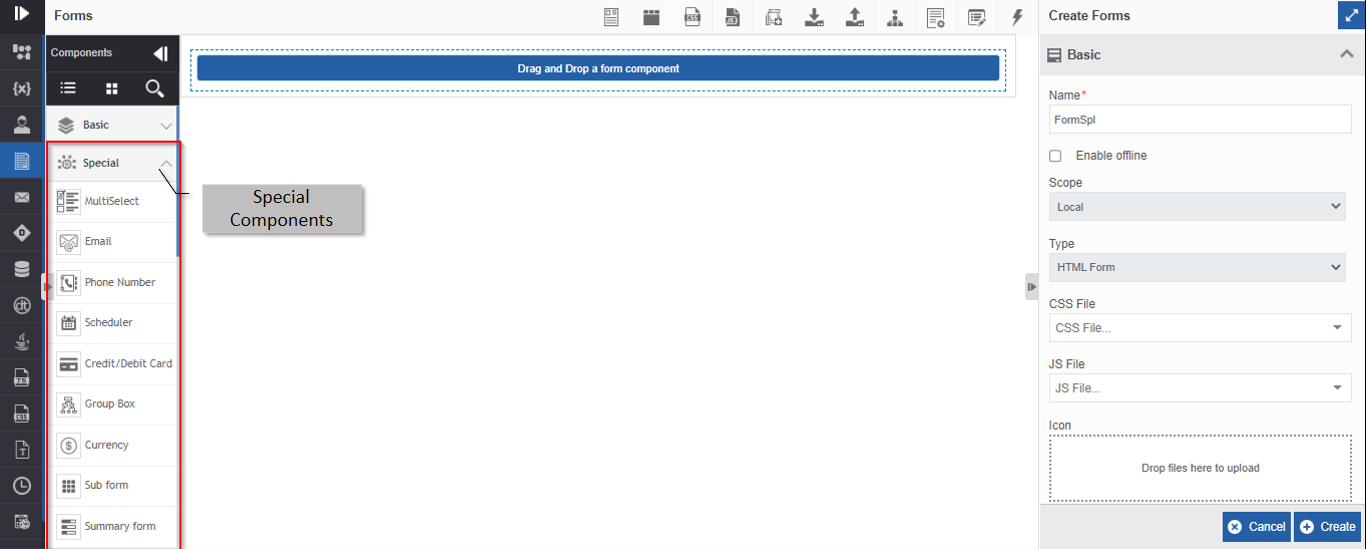
Figure 1: Special Components
A brief description of the basic components is tabulated below.
| Basic Components | Description |
|---|---|
| Audio Recorder | Display, run, or capture an audio file. |
| Camera | To capture the image. |
| Card | To display content in card format. |
| Chart | To display chart data. |
| Comments | To display, add or delete comment type content with the user details and date. |
| Counter | To display the counter in a specified increment. |
| Credit/Debit Card | To display and capture Credit/Debit card details |
| Currency | To display and capture currency details. |
| To capture the email address. | |
| File | To upload and display the uploaded file with details. |
| Geofence | To display and capture a specified area on the map. |
| Geolocation | To display and capture a specified location on the map. |
| Google Captcha | To display and capture the captcha. |
| Grid | To display the content in the grid format. |
| Group box | To group and display the button components. |
| Map | To display the map. |
| MultiSelect | To display and capture multi-select items with a checkbox for selection. |
| Phone Number | To display and capture phone numbers. |
| Rating | To display and capture the rating in stars (or any other icons). |
| Scheduler | To display the calendar for adding and scheduling events. |
| Signature | To display and capture the signature. |
| Subform | To display the content in a grid format with subform-specific features. |
| Summary Form | To display the content in a grid format with summary form-specific features. |
| Survey | To capture and display survey details. |
| Timer | To display the timer for capturing the time. |
| Video Recorder | Display, run or capture a video file. |
Audio Recorder
The Audio recorder is used for recording/playing audio in the UI during the runtime. It records audio from your microphone directly on your website or can upload local audio files while designing the form.
If you upload an audio file (MP3 file), you can play that file during the runtime.
If you do not upload any audio file and configure the component to record audio, you can record audio through UI during runtime.
Data type: Audio file.
-
You should enable SSL Certification for the Platform as the Audio Recorder component cannot be used without SSL Certification.
-
To add this component to the Form designer, you need to enable the microphone in your browser settings. Settings > Privacy and security > Site settings > click the application for which you need to enable the microphone (application should be recently opened or running to appear) else below the Permissions > Microphone - Provide permission as you need.
If you have not enabled the microphone, during the runtime, it prompts the user to enable the microphone.
Configuring Audio Recorder
-
Drag an Audio recorder component to the Form designer or click the settings icon of an already existing Audio recorder component. The Audio recorder Component Configuration pop-up appears.
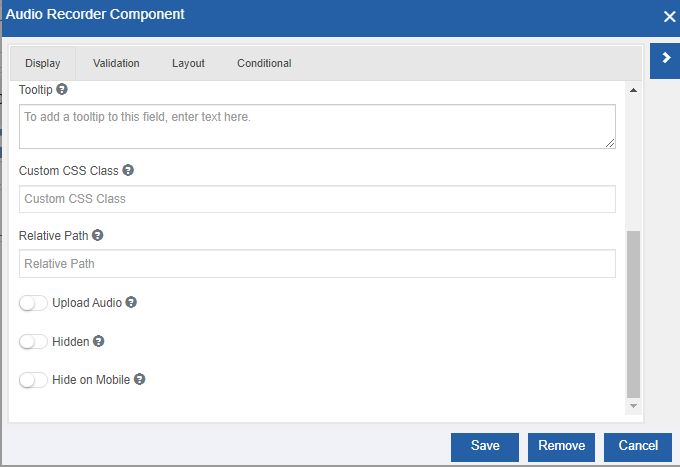
Figure 2: Audio recorder component configurationIf you have enabled the microphone, you can drop the activity to the form designer and the activity appears without any error.
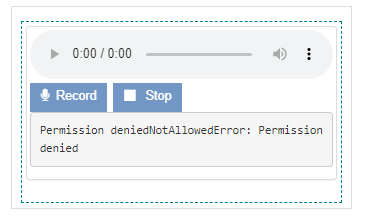
If you have not enabled the microphone, when you drop the component, a browser pop-up appears asking for permission. In the pop-up, click Allow to permit the microphone. If you click Deny, permission is denied and the activity appears with a permission denied message. In this case, the user is prompted to enable the microphone, during runtime for recording audio.
-
Provide the configuration details
Refer to Managing Forms2.0 for a detailed explanation of generic properties.
Audio recorder component-specific configurations are explained in the below table.
Properties Description Relative Path The relative path of the recorded audio file. You need to provide a path/directory for saving the audio file. The path is created on the server. Upload Audio Enable the Upload Audio switch and Choose File appears. 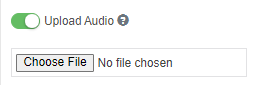
. Choose the audio file (MP3 file). -
Click Save.
Audio Recorder at Runtime
In the Audio Recorder configuration, if you upload an audio file (by enabling the Upload Audio option), you can play it in runtime. The below UI appears during runtime.

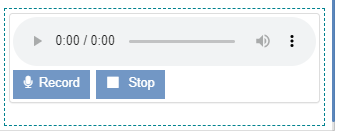
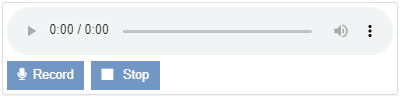
If you do not upload an audio file in configurations (disable the Upload Audio option), the component appears with Record and Stop buttons using which you can record an audio file. The below UI appears during runtime.
-
Click Record to start recording.
-
Click Stop to stop recording. The image is saved on the relative path mentioned in the component configuration.
-
Click the play arrow to play the audio.
-
Click the Speaker icon to adjust the volume.
-
The time displays the total time/remaining time to complete.
-
Click the three dots on the right side. Playback speed appears.
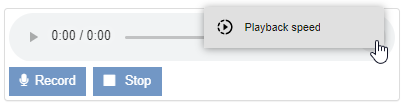
- Click Playback speed. The speed options appear.
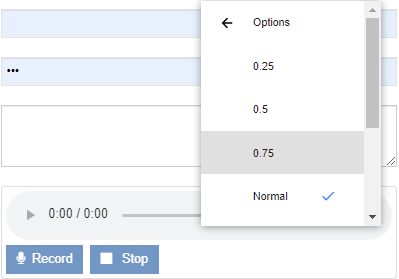
- Select the speed level as you need and click to close the speed list.
Camera
Camera component is used to capture an image during the runtime.
Data type: PNG, JPEG
Enable SSL Certification for the Platform as the Camera component cannot be used without SSL Certification.
Configuring Camera
-
Drag a Camera component to the Form designer or click the settings icon of an already existing Camera component. The Camera Component Configuration pop-up appears.
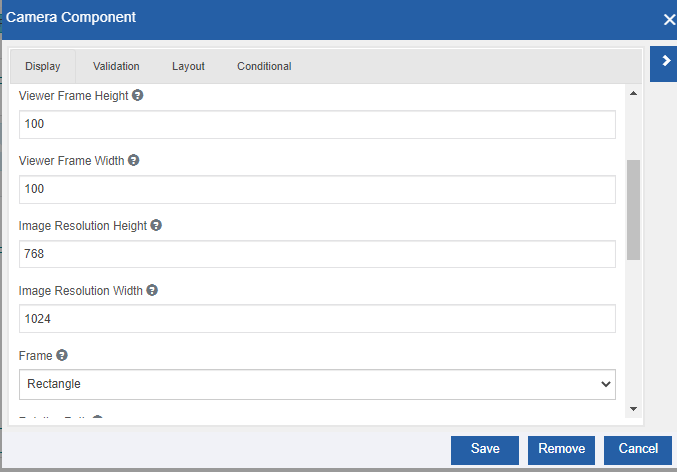
Figure 3: Camera component configuration -
Provide the configuration details.
Refer to Managing Forms2.0 for a detailed explanation of generic properties.
Camera component-specific configurations are explained in the below
table.
| Properties | Description |
|-----------------------|-----------------------|
| Display tab | |
| Viewer Frame Height | Height of the image frame (in pixels) that appears in the form. |
| Viewer Frame Width | Width of the image frame (in pixels) that appears in the form. |
| Image Resolution Height | Height of the image frame during runtime when you capture the image. |
| Image Resolution Width | Width of the image frame during runtime when you capture the image. |
| Frame | Select the image frame. 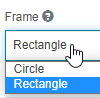
. Rectangle: the image is captured inside a rectangular frame. Circle: the image is captured inside a circular frame. |
| Relative Path | The relative path where the captured image is saved. You need to provide a path/directory for saving the image file. The path is created on the server. |
| Custom Capture icon | The icon that appears for the camera control needs to be specified. Base64 images are supported. |
| Image Type | Select the image format in which the captured image is to be saved. 
. PNG and JPEG are the two types of image formats supported. |
- Click Save.
Camera at Runtime
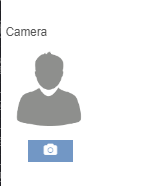
The runtime UI for the camera component is shown below.
-
Click the camera icon below the image. The camera of the system is enabled and ready for focus.
-
Adjust your focus by moving the device or image and then click OK. The image is captured and it appears on the screen. The image is saved on the relative path mentioned in the component configuration.
Card
Card component is used to group components in the card format. When you bind the card component to the lookup, it fetches and display all the records from the DB.
Configuring Card
-
Drag a Card component to the Form designer or click the settings icon of an already existing Card component. The Card Component Configuration pop-up appears.
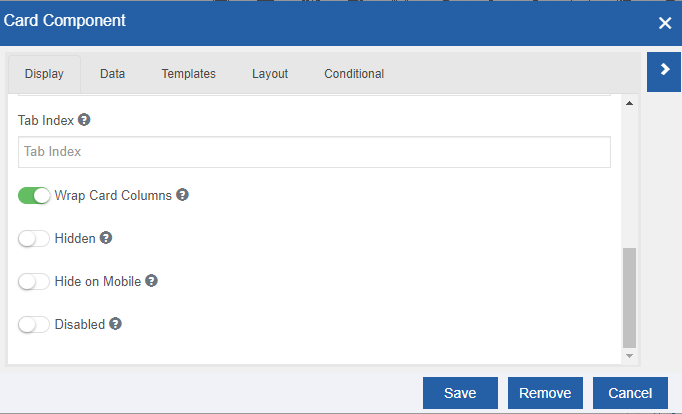
Figure 4: Card component configuration -
Provide the configuration details.
Refer to Managing Forms2.0 for a detailed explanation of generic properties.
Card component-specific configurations are explained in the below table.
Properties Description Display tab Wrap Card Columns Enable Wrap Card Columns so that multiple cards (as per the number of records) will be displayed one after another. It will try to fit the possible number of cards (based on the selected size of the card) in one row and then display the next cards in the next rows and so on. If you disable Wrap Card Columns all the cards will be displayed one below the other. Data Data Source Type Select the Data Source Type. Select Raw JSON to provide raw JSON data. Select Lookup to fetch data from DB [Work in progress!!]. You can use the Lookup component (in the components list) to fetch the data externally and bind it to the components within the card component. Data Source RAW JSON This appears if you select Raw JSON as the Data Source Type. Provide the raw JSON content in the box. Size Select the size of card that you prefer for display. 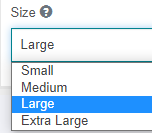
Templates Component Component section displays all the component labels that are added within the Card component. Value Enter value for each component. If you are providing Raw JSON, you should enter the keys from the Raw JSON data that you provided. During runtime, the values of these keys are displayed I the UI. -
Click Save.
Card at Runtime
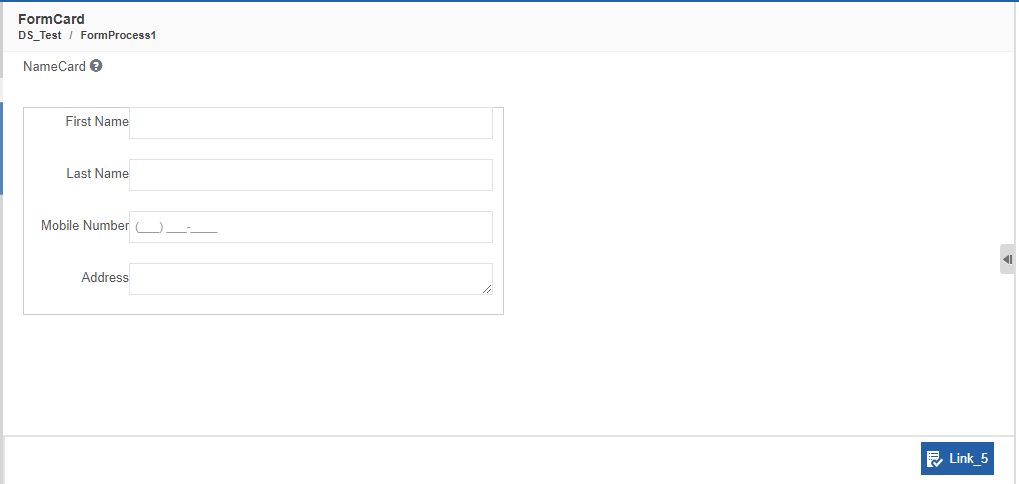
In the runtime, the Card component appears with the all the details like the components within and the data that is binded to it.
Chart
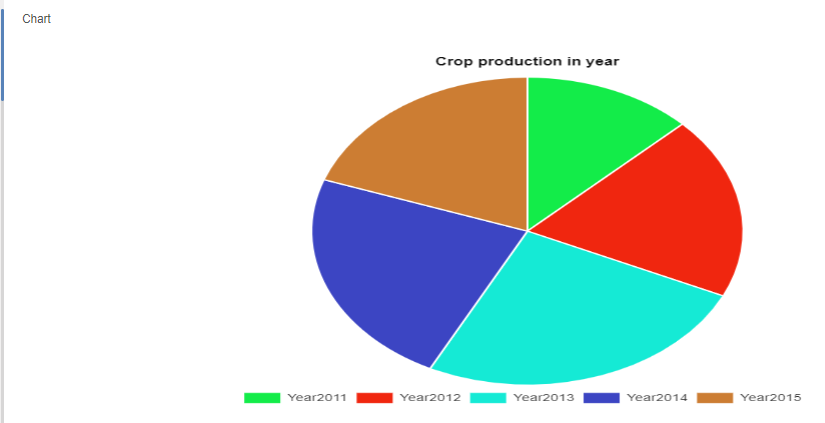
Chart component is used to display different types of charts. Based on the input data and selected chart type output is displayed.
Configuring Chart
-
Drag a Chart component to the Form designer or click the settings icon of an already existing Chart component. The Chart Component Configuration pop-up appears.
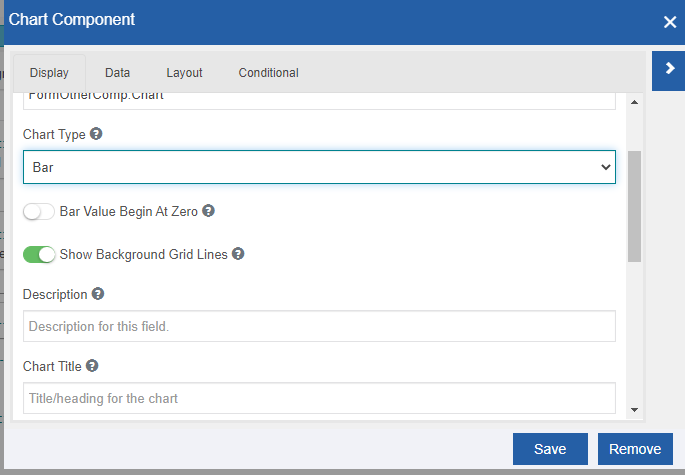
Figure 5: Chart component configuration -
Provide the configuration details.
Refer to Managing Forms2.0 for a detailed explanation of generic properties. Chart component-specific configurations are explained in the below table.
Properties Description Display tab Chart Type Select the chart type. 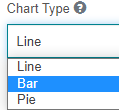
- Bar: If you select the bar chart, the below details appear.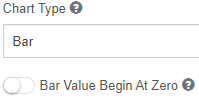
- Enable Bar Value Begin At Zero for starting the bar value at zero.
- Line: If you select line chart, the below details appear.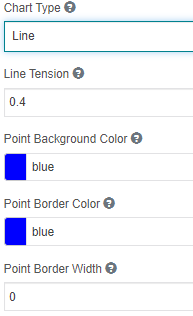
- Line Tension: Enter line tension. The line tension values range from 0 to 1. If you give “0” a straight line appears between two points. If you increase the line tension above 0, the connection between points will be curved as per the line tension entered.
- Point Background Color: Choose the custom color for the points.
- Point Border Color: Choose the custom color border color for points.
- Point Border Width: Enter the width of the line.
- Pie: Displays pie chart.Show Background Gridline If enabled, shows background grid lines. Chart Title Enter the chart title. Display Legend If enabled, displays the legend. Data tab Select Data Source Type Select the data source type. 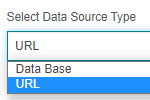
- URL: Select URL for providing data source through URL [Work In Progress!].
- Database: Select Database for providing the data source as DB table. You need to create a database script based on the DB table for mapping as the data source.Select Database Select the database script. You need to create a DB Lookup in the Database script for which data you need to create a chart. Refresh Settings Click the refresh icon to refresh the settings. Chart entities Chart entities display the details from the selected lookup. You need to check the columns that need to be added to the chart and select the color for the chart.
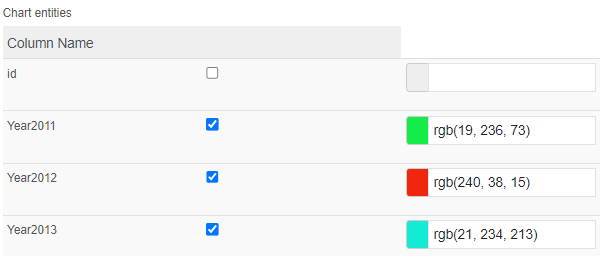
Condition If there is a “where” clause defined in the database script, that condition variable appears below the Column Name. Below Value, provide the property name of the component to which the variable need to be mapped. Lookup fire event Select the lookup fire event. -
Click Save.
Chart at Runtime
As per the selected chart type, the UI will be displayed with the details configured.
Comments
The Comments component is used for holding comments or descriptions.
Data type: String (alphabets, numerals, and symbols). The values entered by the user are stored as a string value.
Configuring Comments
-
Drag a Comments component to the Form designer or click the settings icon of an already existing Comments component. The Comments Component Configuration pop-up appears.
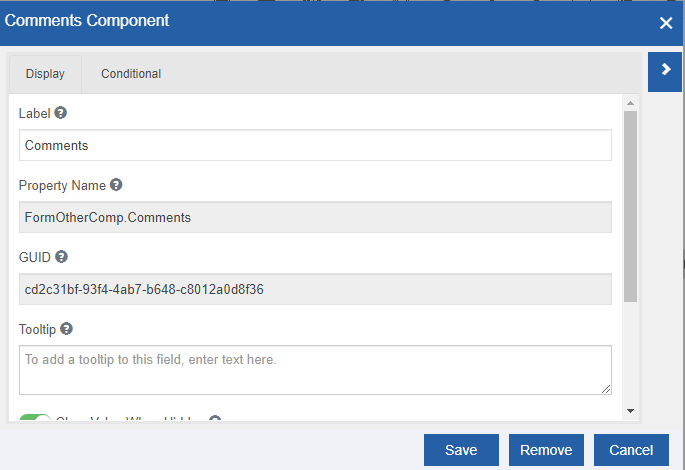
Figure 6: Comments component configuration -
Provide the configuration details.
Refer to Managing Forms2.0 for a detailed explanation of generic properties.
-
Click Save.
Comment at Runtime
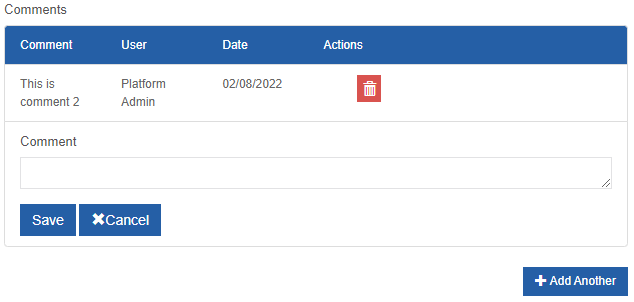
In the runtime, the comment component appears with the comment details like the comment, user who entered the comment, date, and actions as shown below.
-
Click Add Another to add a new comment to the comment grid.
-
Enter your comment in the comment box.
-
Click Save to add the comment or click cancel to Cancel the action.
-
Click the delete icon below the Actions column to remove the corresponding comment.
Counter
Counter component displays counter component in the runtime with specified steps of increment/decrement as configured.
In the runtime, the user can increment or decrement based on their requirement in the counter field. The counter control supports where to start and where to end and it also allows you to configure different counter values in design time.
Configuring Counter
-
Drag a Counter component to the Form designer or click the settings icon of an already existing Counter component. The Counter Component Configuration pop-up appears.
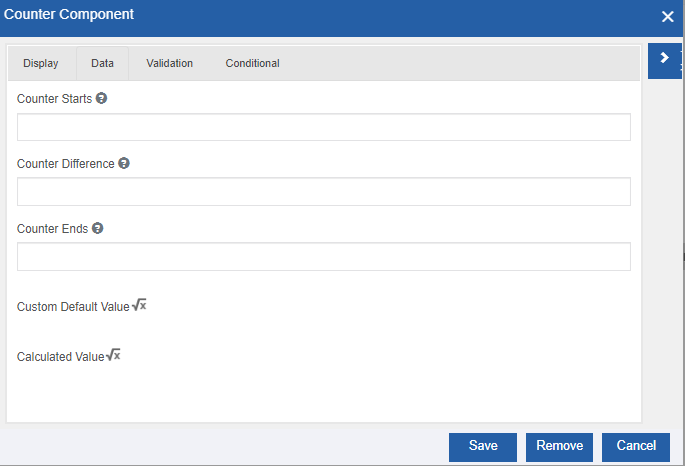
Figure 7: Counter component configuration -
Provide the configuration details.
Refer to Managing Forms2.0 for a detailed explanation of generic properties.
Counter component-specific configurations are explained in the below table.
Properties Description Data tab Counter Starts Enter the counter minimum value. Only positive values are supported. Counter Difference Enter the counter increment or difference value. Counter Ends Enter the counter-end value. -
Click Save.
Counter at Runtime
In the runtime, the counter appears with a “+” symbol for increment and “-“ for decrement counters as shown below.
-
Click “+” to increment the counter.
-
Click “-” to decrement the counter.
Credit/Debit Card
The Credit/Debit Card component is used to capture the card details of the user.
There are credit/debit card-based validation messages that can be configured in the Validation section.
Configuring Credit/Debit Card
-
Drag a Credit/Debit Card component to the Form designer or click the settings icon of an already existing Credit/Debit Card component. The Credit/Debit Card Component Configuration pop-up appears.
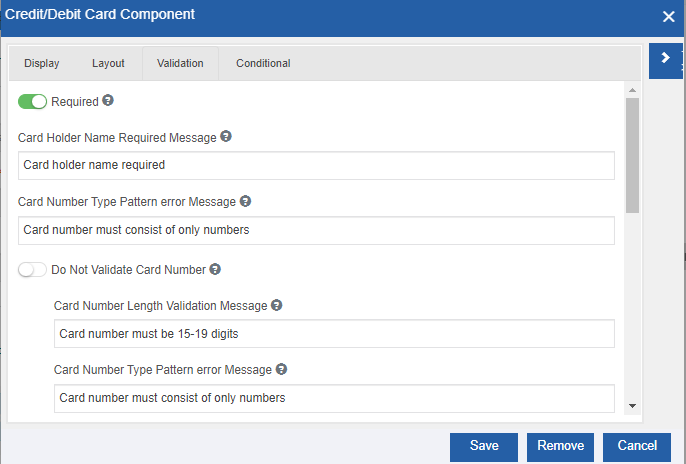
Figure 8: Credit/Debit Card component configuration -
Provide the configuration details.
Refer to Managing Forms2.0 for a detailed explanation of generic properties.
Credit/Debit Card component-specific configurations are explained in the below table.
| Properties | Description | | Validation tab | | | Card Holder Name Required Message | Message to be displayed when the Card Holder name is empty. | | Card Number Type Pattern error message | Message to be displayed when the entered card value does not match the pattern. | | Do Not Validate Card Number | - When disabled, it means that it should validate the card number and the below messages for the validation of the card number appear.
- Card Number Length Validation Message: Message to be displayed if the number of digits is not in the range as needed. [E.g., Card number should be 15-19 digits.]
- Card Number Type Pattern error Message: Message to be displayed when the entered card value does not match the pattern.
- Card Number Type Mismatch Error: Message to be displayed when the card number type does not match. [E.g., Card number must be a valid Amex, Visa, Discover, Rupay, Maestro, Master Card, etc.]
- When enabled, it means that it should not validate the card number and hence it only checks if the field contains some value and if the value is of number type. In this case, Card number validation message textboxes are not displayed. | | Card Secure Code Type Pattern error Message | Message to be displayed when the entered card secure code type does not match the pattern. | | Card Secure Code Length Validation Message | Message to be displayed when the entered card secure code length is not within the required range. | | Card Secure Code Required Error Message | Message to be displayed when the Card Secure Code field is empty. | | Card Month Expired Error Message | Message to be displayed when the entered card month is expired. | | Card Month Expired Required Error Message| Message to be displayed when the Card Month Expired field is empty. | | Card Year Expired error Message | Message to be displayed when the entered card year is expired. | | Card Year Expired Required error Message | Message to be displayed when the Card Year Expired field is empty. | -
Click Save.
Credit/Debit Card at Runtime
In runtime, the below UI appears for the user. An asterisk symbol appears for each required field.
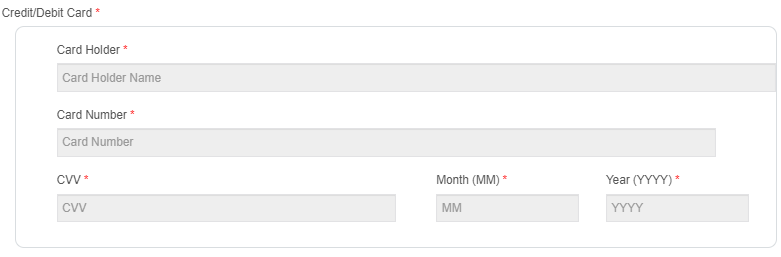
This is an inline editor-type component and you can input details to each of the fields in the component. The input details get validated and the relevant message appears as provided in the component configuration.
Currency
Currency is a special component that is used to capture currency details.
Data type: Decimal.
Configuring Currency
-
Drag a Currency component to the Form designer or click the settings icon of an already existing Currency component. The Currency Component Configuration pop-up appears.
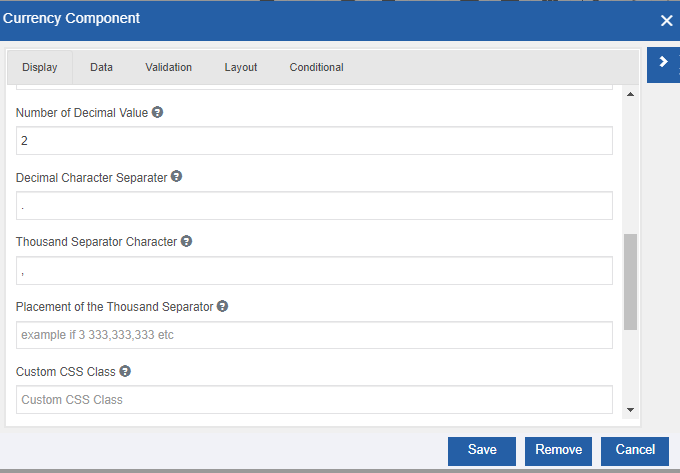
Figure 9: Currency component configuration -
Provide the configuration details.
Refer to Managing Forms2.0 for a detailed explanation of generic properties.
Currency component-specific configurations are explained in the below table.
Properties Description Display tab Number of Decimal Value Enter the number of decimal places needed. Decimal Character Separators Enter the decimal character. Thousand Separator Character Enter the thousand separator character. Placement of the Thousand Separator Enter the placement of the thousand separators. Validation Minimum Value Enter the minimum value allowed. Maximum Value Enter the maximum value allowed. -
Click Save.
Currency at Runtime
In the runtime, the currency component appears as a textbox in which you can enter the currency value.
Email
Email component is used when you want the user to enter an email address in the form. Email component has the same options as the Text Field component. The features of the email component are similar to that of the text field component. The Email component has custom validation settings that can ensure the value entered is a valid email address.
Configuring Email
-
Drag an Email component to the Form designer or click the settings icon of an already existing email component. The Email Component Configuration pop-up appears.
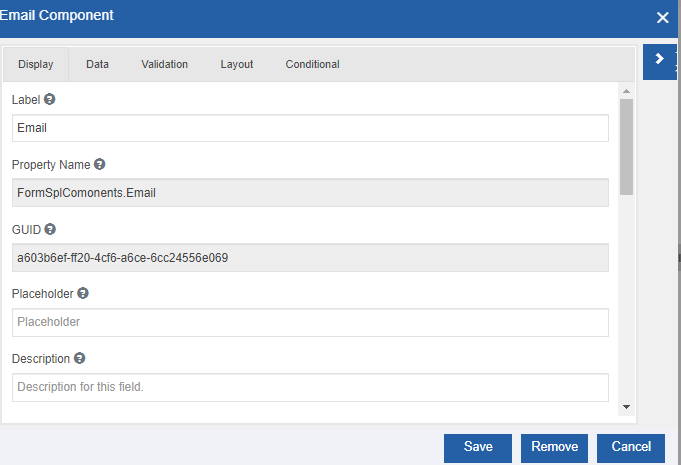
Figure 10: Email component configuration -
Provide the configuration details
Refer to Managing Forms2.0 for a detailed explanation of generic properties.
-
Click Save.
Email at Runtime
In the runtime, the Email component appears as a textbox in which you can enter the email address where the entered email address will be validated.
File
A file is a container for storing information. Files is an object that stores data/information. In the runtime, you can upload or drag and drop files.
Data type: Any file format.
Configuring File
-
Drag a File component to the Form designer or click the settings icon of an already existing File component. The File Component Configuration pop-up appears.
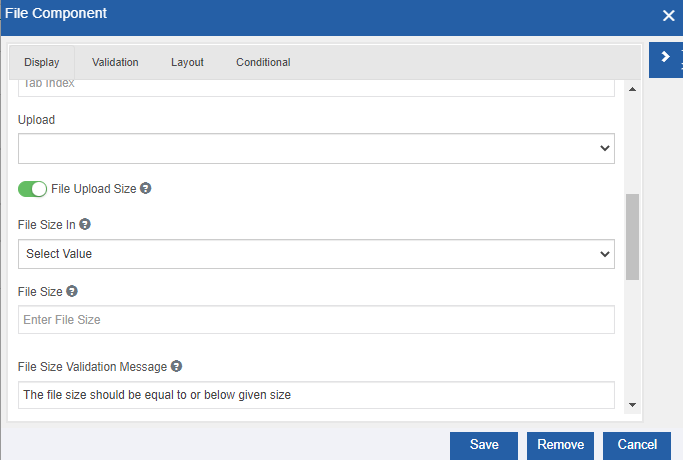
Figure 11: File component configuration -
Provide the configuration details.
Refer to Managing Forms2.0 for a detailed explanation of generic properties.
File component-specific configurations are explained in the below table.
Properties Description Display tab Upload Select the event by which the file needs to be uploaded. 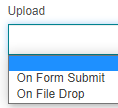
File Upload Size If enabled, you can specify the size of the file.
- File Size In: Select the unit of the file size.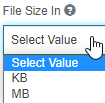
- File Size: Enter the file size.
- File Size Validation Message: Enter the validation message for the file size. If the file size is beyond the file size mentioned, this message appears.Column Configuration Enable the properties that you need in the UI. The enabled details appear in the file upload grid as columns. When you upload the file, the column details get updated.
- SNo: The serial number of the file uploaded.
- File Name: The file name of the file uploaded.
- File Size: The size of the file uploaded.
- Uploaded On: The date and time of the file upload.
- Uploaded By: The user who uploaded the file.Permission Configuration Enable the permissions as per the need.
- Upload Files: If enabled, allows you to upload the file.
- View all files: If enabled, it allows you to view all the files that are uploaded.
- Download all files: If enabled, it allows you to download all the files.3. Click Save.
File at Runtime
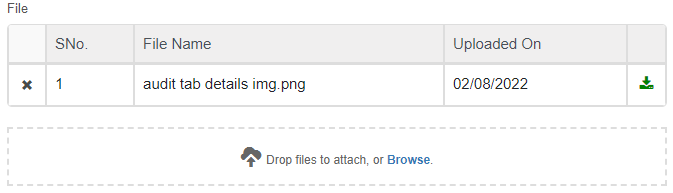
In the runtime, the file component appears as a grid with SNo, File Name, and Uploaded On columns.
In the runtime, the file component UI is as shown below.
-
In the File Component configuration, if you enable the Multiple Values, you can upload multiple files or else if you disable the same, you can upload only a single file.
-
Drop the files in the rectangular box (Drop files to attach) or click “Browse” to select the file. The selected file gets listed in the grid.
-
Click the “X” symbol on the left side of the row data to remove the uploaded file.
-
Click the download symbol on the right side of the row data to download the file.
-
In the File Component configuration,
if you have selected Upload = On Form Submit, you need to submit the file and then revisit the form for downloading the same.
Else if you have selected Upload = On File Drop, you can download the file before submitting the form.
Geofence
 <
<
Geofence is a Special control in forms used in the identification or estimation of the real-world geographic location of an object. It is used to get the Current locations of the device and uses those values to calculate the area.
Configuring Geofence
-
Drag a Geofence component to the Form designer or click the settings icon of an already existing Geofence component. The Geofence Component Configuration pop-up appears.
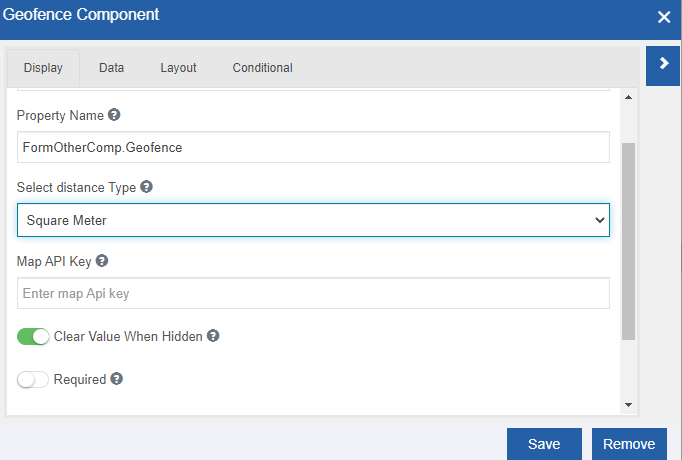
Figure 12: Geofence component configuration -
Provide the configuration details.
Refer to Managing Forms2.0 for a detailed explanation of generic properties.
Geofence component-specific configurations are explained in the below table.
Properties Description Display tab Select distance Type Select the distance unit. 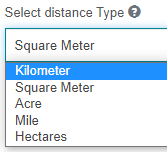
Map API Key Enter the Google map API key to calculate the area and display the map. Refer to Appendix – Google API Map Key for Google Map API key generation. -
Click Save.
Geofence at Runtime
At runtime, the below UI appears for the user.
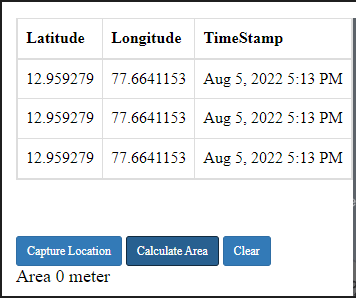
-
Click Capture Location for capturing the exact coordinates. You should click the Capture Location button at least from three different locations so that there are three coordinates. A minimum of three coordinates are required for calculating the area.
-
Click Calculate Area for calculating the area of the selected area in the map (after capturing at least three coordinates using Capture Location, the Calculate Area button is enabled.). Area will be calculated and displayed.
-
Click Clear for clearing the selected coordinates.
Geolocation
Geolocation is the identification or estimation of the real-world geographic location of an object. It is used to get the Current location of the devices.
Configuring Geolocation
-
Drag a Geolocation component to the Form designer or click the settings icon of an already existing Geolocation component. The Geolocation Component Configuration pop-up appears.
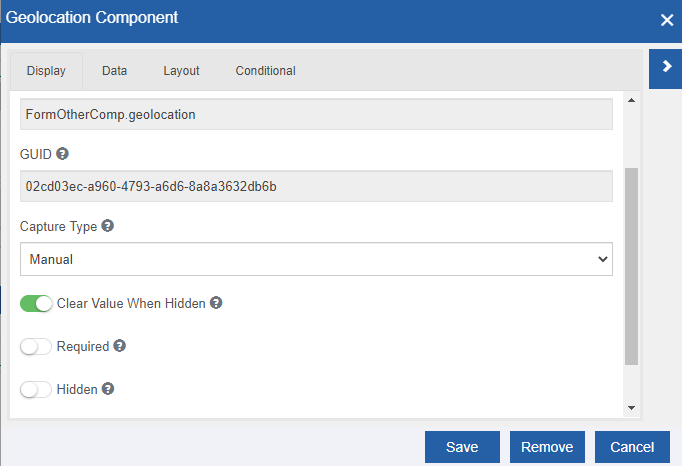
Figure 13: Geolocation component configurationRefer to Managing Forms2.0 for a detailed explanation of generic properties.
Geolocation component-specific configurations are explained in the below table.
Properties Description Display tab Capture Type Select the capture type. 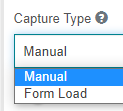
- Manual: When manual is selected, the UI appears with the “Capture Location” button. Click on Capture Location captures and displays the location coordinates.
- Form Load: When the Form load is selected, the geo-locations are captured and displayed on the form load.3. Click Save.
Geolocation at Runtime
The runtime features of the Geolocation component depend on the capture type selected.
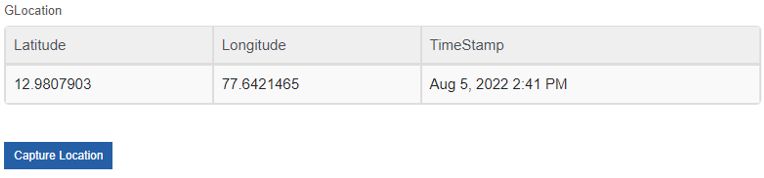
When manual is selected, the UI appears with the “Capture Location” button.
-
When Capture Type = Manual is selected in the Geolocation configuration, the Capture Location button appears in runtime UI. Click Capture Location to capture and display the latitude and longitude along with the Timestamp. When you move to a different location and click the “Capture Location” again, the new location details overwrite the already captured details.
-
When Capture Type = Form Load is selected in the Geolocation configuration, the Capture Location button is not displayed in runtime UI, however, the geo-locations (latitude, longitude and time stamp) are captured and appear on form load.
Google Captcha
The Google Captcha component is the human validation test used during the runtime. Captcha or Completely Automated Public Turing Test to tell Computers and Humans Apart is a technique to distinguish between humans and computers. Captcha is mainly used as a security check to ensure only human users can pass through. Generally, computers or bots are not capable of solving a captcha.
Configuring Google Captcha
-
Drag a Google Captcha component to the Form designer or click the settings icon of an already existing Google Captcha component. The Google Captcha Component Configuration pop-up appears.
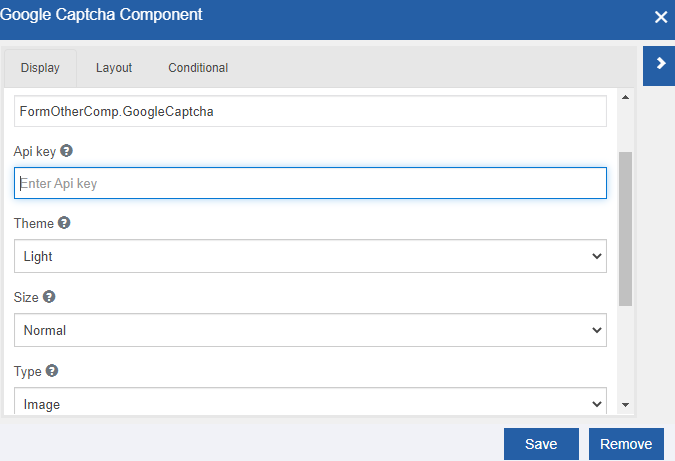
Figure 14: Google Captcha component configuration -
Provide the configuration details.
Refer to Managing Forms2.0 for a detailed explanation of generic properties.
Google Captcha component-specific configurations are explained in the below table.
Properties Description Display tab API Key Enter the API key. API Keys are unique to the domain. Refer to Appendix – Google reCAPTCHA API Key. Theme Select the theme. 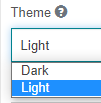
- Light: The captcha details are displayed in a light (grey) background.
- Dark: The captcha details are displayed in a dark (black) background.Size Select the size. 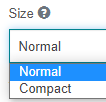
- Normal: Captcha details appear in a normal size.
- Compact: Captcha details appear in a compact or small size.Type Select the Type. 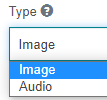
- Image: During runtime, image puzzle is displayed for the user to solve by default.
- Audio: During runtime, audio puzzle is displayed for the user to solve by default.Language Code Select the language. 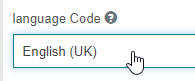
The captcha details are displayed in the selected language during runtime in the UI. -
Click Save.
Google Captcha at Runtime
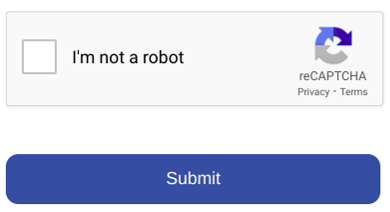
At runtime, the below UI appears for the user for the Google captcha component. The UI exhibits all the properties of Google reCAPTCHA.
 >
>
-
Select the checkbox on the left of “I’m not a robot”. This is to confirm that a human is interacting and it displays a human solvable puzzle.
-
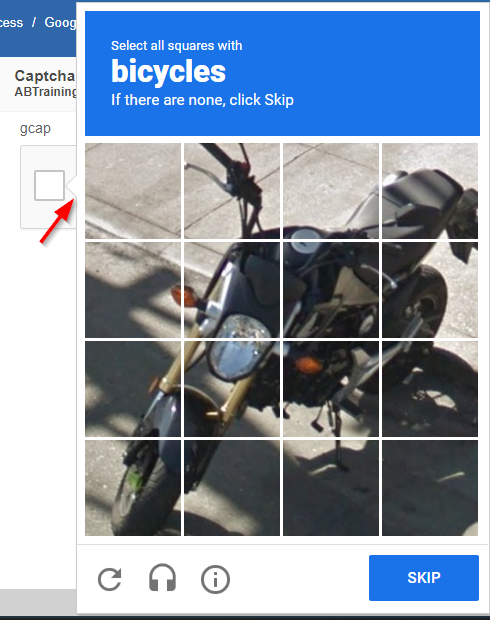
If it is an image puzzle, read the instruction and select the appropriate images. Click VERIFY.
-
If it is an audio puzzle, click PLAY, listen to the voice played and enter what you hear in the text box below. Click VERIFY.
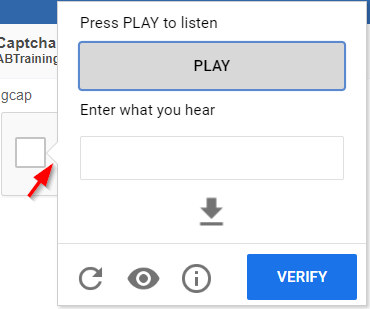
If you pass the validation, a green tick mark appears as an indication of successful validation.
Grid
The Grid is a special component used to display data in a grid format. You cannot edit the data displayed in the grid.
Data type: String (alphabets, numerals, and symbols). The values entered by the user are stored as a string value.
Configuring Grid
-
Drag a Grid component to the Form designer or click the settings icon of an already existing Grid component. The Grid Component Configuration pop-up appears.
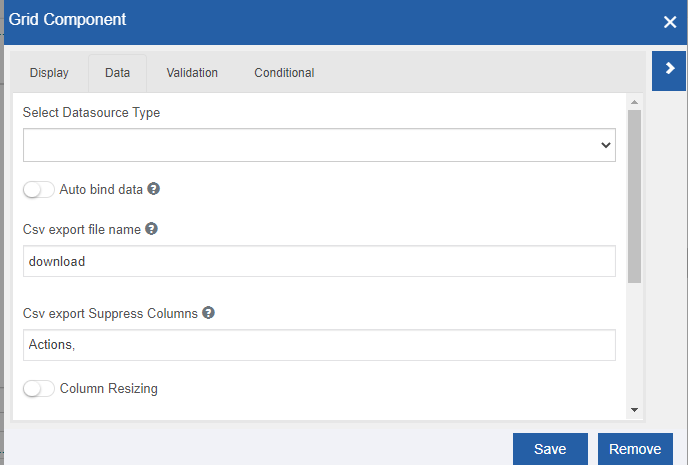
Figure 15: Grid component configuration -
Provide the configuration details.
Refer to Managing Forms2.0 for a detailed explanation of generic properties.
Grid component-specific configurations are explained in the below table.
Properties Description Display tab API Key Enter the API key. API Keys are unique to the domain. Refer to Appendix – Google reCAPTCHA API Key. Theme Select the theme.
- Light: The captcha details are displayed in a light (grey) background.
- Dark: The captcha details are displayed in a dark (black) background.Size Select the size.
- Normal: Captcha details appear in a normal size.
- Compact: Captcha details appear in a compact or small size.Type Select the Type.
- Image: During runtime, image puzzle is displayed for the user to solve by default.
- Audio: During runtime, audio puzzle is displayed for the user to solve by default.Language Code Select the language.
The captcha details are displayed in the selected language during runtime in the UI.
Configuring Advanced Data Source Details
The advanced data source details section allows you to provide details for each of the columns in the selected data source. The display section allows you to configure display aspects. Action section allows you to connect to another source of data. For example, if you want to give a list of items for selection (drop-down list) for a particular column, you can configure the same in the Advance Settings by providing a URL or connecting another data source, or providing the values directly.
-
In the Grid Configuration, click the Data tab and then select the Data Source Type = Database.
-
Select the Database script. The corresponding table details are displayed.
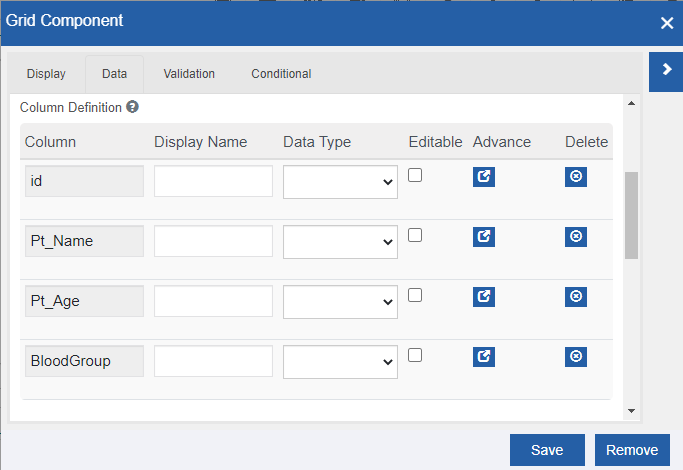
Figure 16: Data source details -
Below the Advance column, click the Advance Settings icon (
 ).
Advanced Settings pop-up appears with the Display and
Actions tab.
).
Advanced Settings pop-up appears with the Display and
Actions tab. -
Click the Display tab. The display tab is active by default. You can set true or false values for each of the Properties by checking or unchecking the check box below the Value column. These properties get applied to the selected columns.
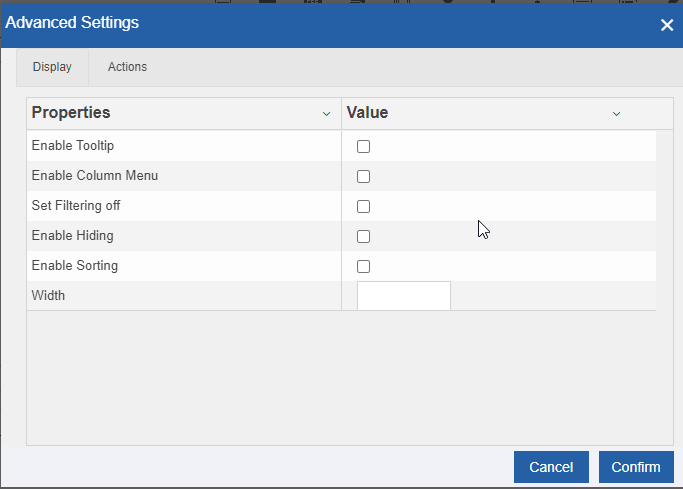
Figure 17: Display tab in Advanced Settings-
Enable Tooltip: Select (or check) this Value if you want to enable the tooltip for the grid.
-
Enable Column Menu: Select (or check) this Value if you want to enable the column menu for the grid.
-
Set Filtering Off: Select (or check) this Value if you want to disable filtering for the grid data.
-
Enable Hiding: Select (or check) this Value if you want to enable hiding for the grid data.
-
Enable Sorting: Select (or check) this Value if you want to enable sorting for the grid data.
-
Width: Enter the width in pixels.
-
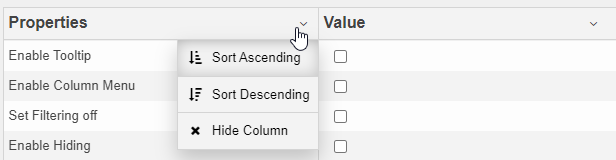
Click the arrow adjacent to Properties or Value to view column actions.
-
Click Sort Ascending for sorting the column in ascending order.
-
Click Sort Descending for sorting the column in descending order.
-
Click the Hide column to hide the column.
-
-
Click the Actions tab and select the Data Source Type. This section allows you to configure the list of items for a particular column.
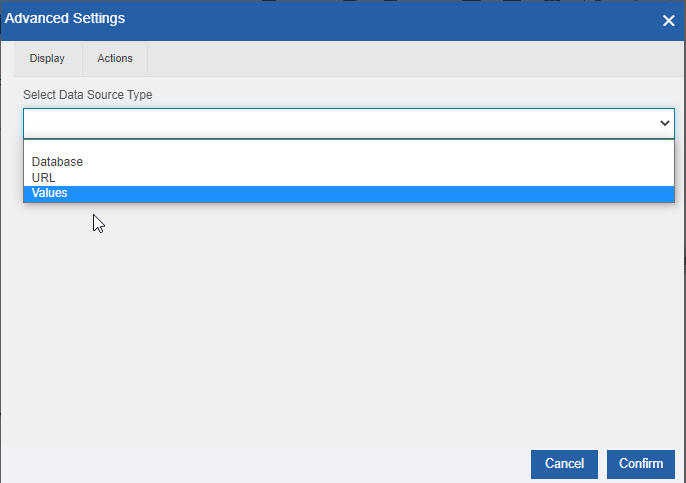
Figure 18: Actions tab in Advanced Settings- If you select Database, Data Source selection appears.
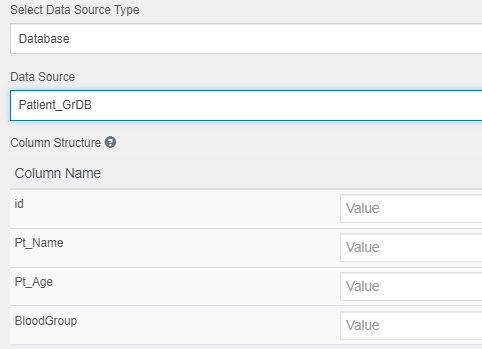
Figure 19: Data source configurations-
Below Data Source, select the required data source. Data Source lists the database scripts. The Column Structure of the selected database script appears. You can provide the value in the Value box.
-
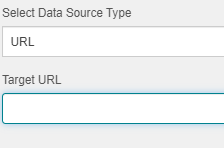
If you select URL, the Target URL textbox appears.
-
Enter the Target URL in the box.
-
If you select Values, Label-Value details appear. You need to enter the label and values that need to be used as the data source. The Label entered is shown in the select field and values are the corresponding values saved along with the submission.
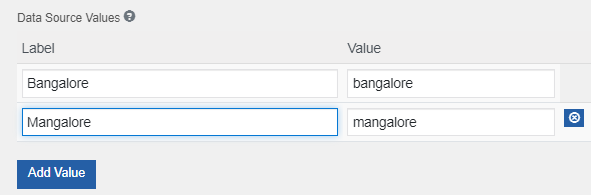 - Enter Label and Value.
-
Click Add Value to add new Label-Value pair.
-
Click the remove icon on the right side to remove that label value.
-
Click Confirm in the Advanced Settings pop-up.
-
Click Save in the Grid Component pop-up.
Grid at Runtime
At runtime, the below UI appears for the user for the grid component.
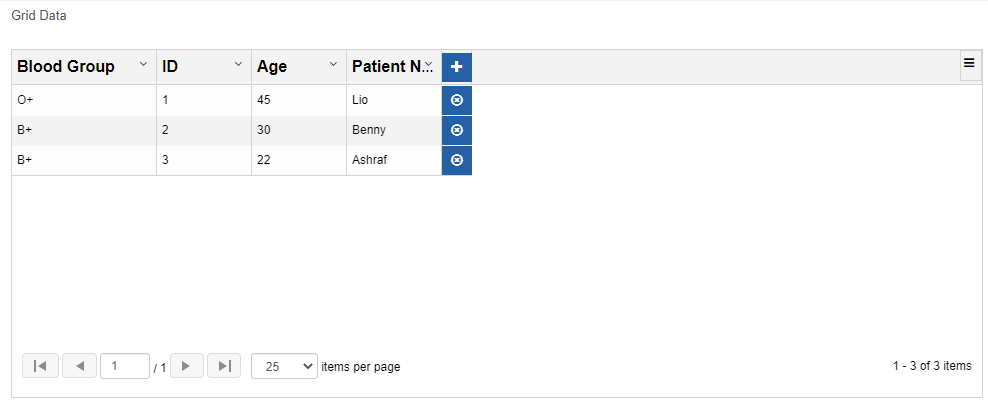
Figure 20: Runtime Grid component
-
As per how you have configured each field, it will be inline editable or non-editable.
-
Click the “+” symbol to add a record to the grid.
-
The remove icon to the right of each record allows you to remove the record from the view.
-
Click the pagination arrows to scroll through the pages or type the page number to view that page.
-
Select the required number of items from “Items per Page” so that many records are displayed in a page.
-
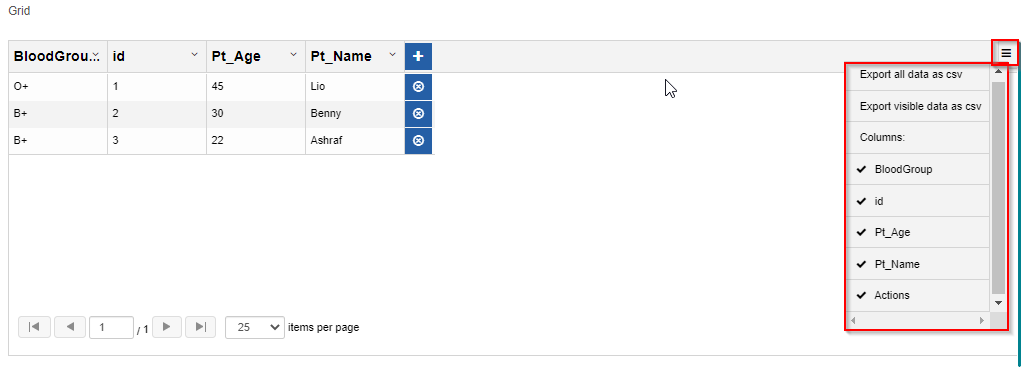
Click the hamburger icon on the right side of the grid.
-
Click Export all data as csv to export all the data on the grid as csv file.
-
Click Export visible data as csv to export only the visible data on the grid as csv file.
-
Click the Columns to remove or add the column view in the UI.
Group Box
Group Box component is a special component used to group button components. You can add multiple buttons inside the group box and group it.
Configuring Group Box
-
Drag a Group Box component to the Form designer or click the settings icon of an already existing Group Box component. The Group Box Component Configuration pop-up appears.
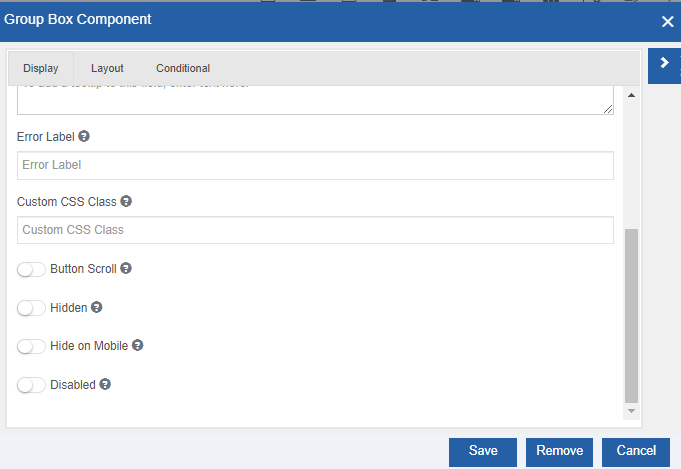
Figure 21: Group Box component configuration -
Provide the configuration details.
Refer to Managing Forms2.0 for a detailed explanation of generic properties.
Group Box component-specific configurations are explained in the below table.
Properties Description Display tab Button Scroll Enable Button Scroll for scrollable group buttons. Scroll arrows appear if there are more buttons. If enabled, related properties appear.
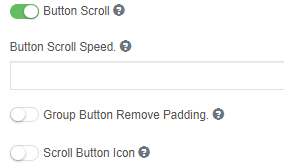
- Enter Button Scroll Speed in the box.
- Enable Group Button to remove Padding to remove the extra space around the buttons.
- Enable Scroll Button Icon to provide different icons for the scroll icon. The Left and Right icon button textboxes appear.
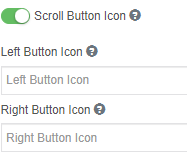
- Left Button Icon: Provide left button icon SVG path or URL.
- Right Button Icon: Provide the right button icon SVG path or URL.3. Click Save.
Group Box at Runtime
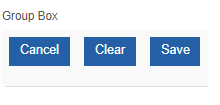
At runtime, the below UI appears for the user for the group box component. The buttons added within the group box appear as per how you have configured.
Map
The Map content is used to display the map in the UI. A map is a symbolic depiction emphasizing relationships between elements of some space, such as objects, regions, or themes. Many maps are static, fixed to paper or some other durable medium, while others are dynamic or interactive.
Configuring Map
-
Drag a Map component to the Form designer or click the settings icon of an already existing Map component. The Map Component Configuration pop-up appears.
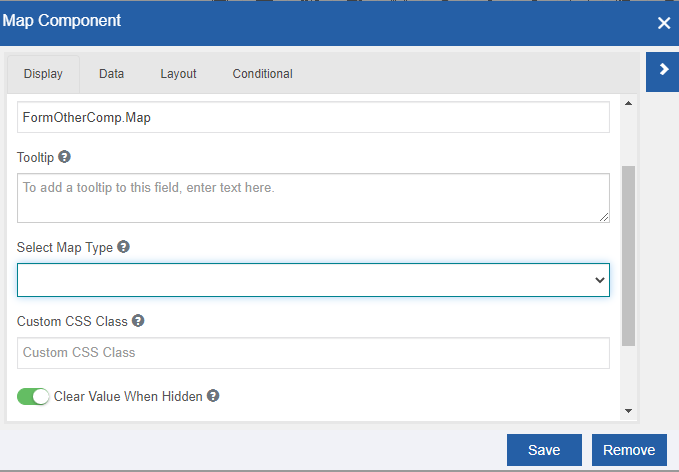
Figure 22: Map component configuration -
Provide the configuration details.
Refer to Managing Forms2.0 for a detailed explanation of generic properties.
Map component-specific configurations are explained in the below table.
Properties Description Display tab Select Map Type Select the map type from the list. 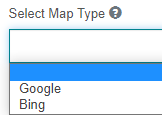
- When you select Google, you need to provide Google Map API Key. Google map is usually used to display map. Refer to Appendix – Google Map API Key for details regarding the generation of Google Map API key generation.
- When you select Bing, you need to provide Bing Map API Key.Data tab Select Map Option Select the Map position options. 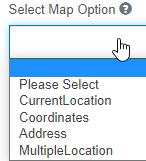
- Current location: The drop pin in the map will be dropped in the current location during the runtime.
- Coordinates: This allows you to provide latitude and longitude values. During runtime, the map appears with the drop-pin gets dropped at the specified coordinates.
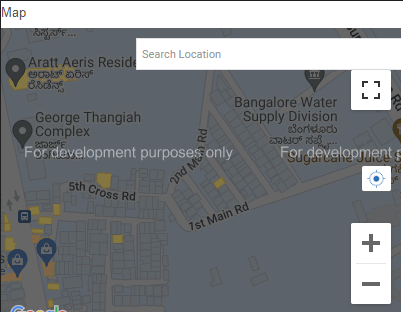
- Address: Specify the address of the location. During runtime, the map appears with the “Search Location” textbox. You can enter the address in the Search Location and the drop-pin gets dropped at the specified address.
- Multiple Location: Provide an Icon SVG path or URL in the Map Icon box. [Work In Progress!]Layout tab Map Zoom Level You can specify the zoom level so that the map will zoom in that range or up to that level during the runtime.
Drag the scroll and select the map zoom level. Minimum zoom level: 1 Maximum zoom level: 24
3. Click Save.
Map at Runtime
All the map features (as per the selected Map type) are applicable for the map displayed at the runtime.
MultiSelect
MultiSelect is a special control used to create a list of items from which the user can select multiple items during runtime.
Configuring MultiSelect
-
Drag a MultiSelect component to the Form designer or click the settings icon of an already existing MultiSelect component. The MultiSelect Component Configuration pop-up appears.
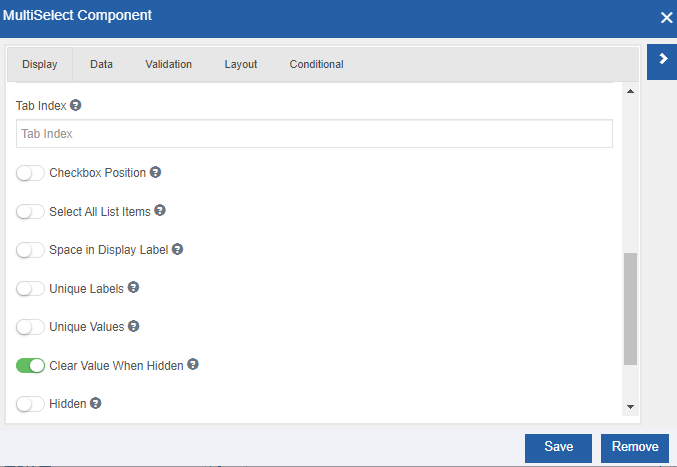
Figure 23: MultiSelect component configuration -
Provide the configuration details.
Refer to Managing Forms2.0 for a detailed explanation of generic properties.
MultiSelect component-specific configurations are explained in the below table.
Properties Description Display tab Checkbox Position Default position is the right side. Enable the switch so that the check boxes appear to the left side of the label. Select All List Items Enable Select All List Items so that by default all check box options are selected. Space in Display Label If enabled it retains space after comma for the selected items when you select multiple items from the multi-select drop-down. Unique Labels If enabled, duplicate labels are not displayed even if values are different. Unique Values If enabled, labels with duplicated values are not displayed. Only the first label with that value appears on the list. Data Data Source Type Select the data source type from the drop-down. 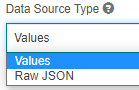
- Values: Enter the Labels / Values that are to be displayed in the select drop-down.
Refer to Configuring Values.
- Raw JSON: You can provide raw JSON data. Refer to Configuring Raw JSON.Add Please Select Enable this so that you can add a “Please Select” that appears in the display list. The text should be entered in the Custom Select All Name Text box below. 3. Click Save.
Configuring Values
-
In the Select Configuration > Validation Tab > Select Data Source Type = Values. The corresponding properties appear.
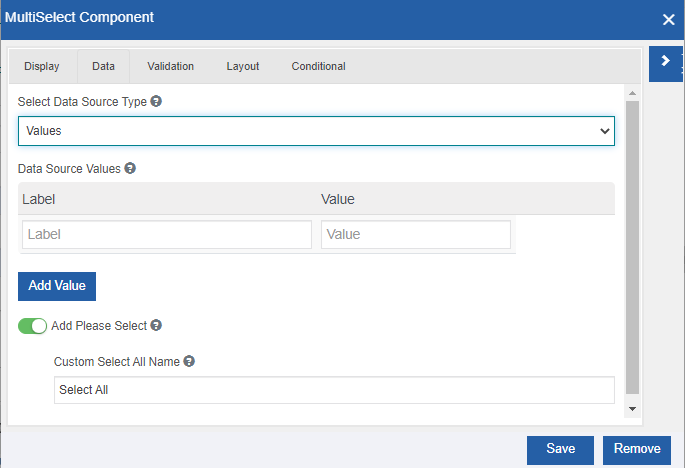
Figure 24: Entering Values for MultiSelect -
Enter Data Source Values as explained below.
-
Enter Label. The Labels entered are displayed in the multi-select drop-down.
-
Enter the Value. Values are auto-updated when you enter the label. Values are the corresponding values saved with the submission.
-
Click Add Value to add multiple labels.
-
Click the remove icon on the right side of each Label-value to remove the corresponding entry.
Configuring Raw JSON
-
In the Select Configuration > Validation Tab > Select Data Source Type = Raw JSON. The corresponding properties appear.
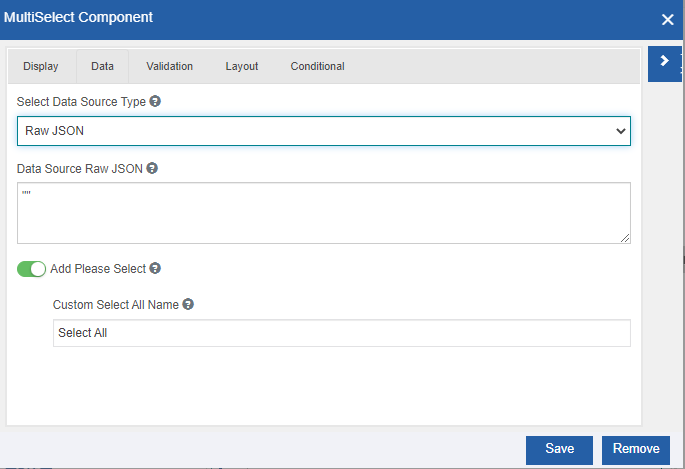
Figure 25: Defining Values using Raw JSON -
Below the Data Source Raw JSON, enter a Raw JSON array to use as a data source. The content should be an array of objects with Label-Value (Key-Value) pairs.
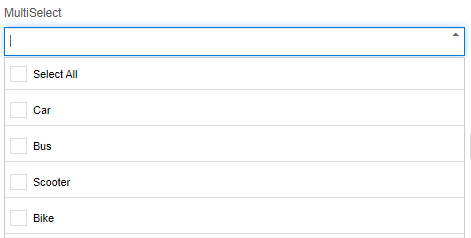
MultiSelect at Runtime
MultiSelect component displays the below UI during runtime (UI checkboxes are depended on the configuration).
Phone Number
Phone Number component has the same options as the Text Field form component. The features of email component are similar to that of the text field component. The phone number component can be used to enter the phone number in a form. By default input mask (predefined phone number template) is provided in the configurations as per the input required.
Configuring Phone Number
-
Drag a Phone Number component to the Form designer or click the settings icon of an already existing Phone Number component. The Phone Number Component Configuration pop-up appears.
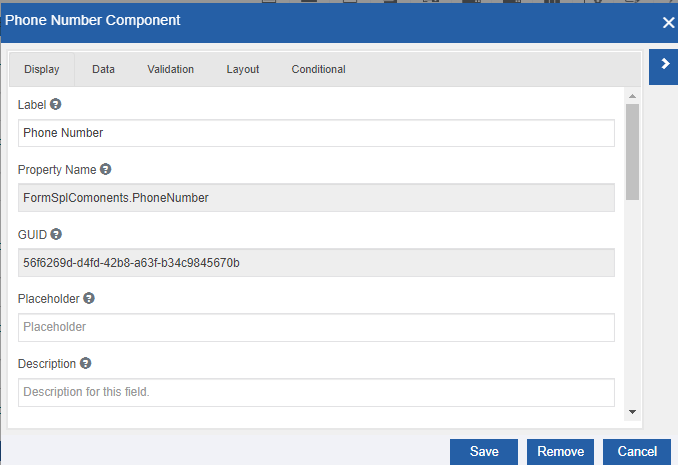
Figure 26: Phone Number component configuration -
Provide the configuration details.
Refer to Managing Forms2.0 for a detailed explanation of generic properties.
-
Click Save.
Phone Number at Runtime
In the runtime, the Phone Number component appears as a textbox in which you can enter the phone number as per configuration.
Rating
The rating component is used to capture the rating out of a specified value.
Configuring Rating
-
Drag a Rating component to the Form designer or click the settings icon of an already existing Rating component. The Rating Component Configuration pop-up appears.
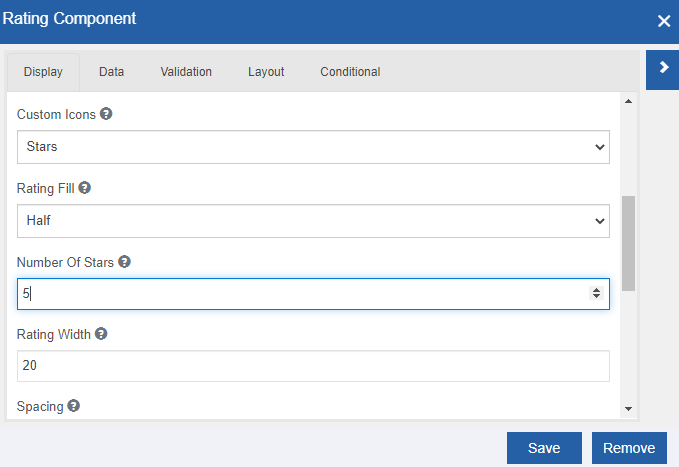
Figure 27: Rating component configuration -
Provide the configuration details.
Refer to Managing Forms2.0 for a detailed explanation of generic properties.
Rating component-specific configurations are explained in the below table.
Properties Description Display tab Custom Icons Select the icon that is to be displayed for rating. 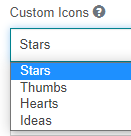
Rating Fill Select the Rating Fill. Rating will be displayed in steps as per the selection.
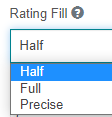
- Half: Half selection of icon is allowed.
- Full: Only full selection of the icon is allowed.
- Precise: You can select the icon fill as per your choice.Number of Stars Enter the number of icons to be displayed. Rating Width Enter the size of the icon. Spacing Enter the spacing between the icons. -
Click Save.
Rating at Runtime
The Rating UI appears with the number of specified icons selected for representing the rating.
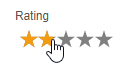
Hover over the icon to provide the required rating.
Scheduler
Scheduler is a special component used to display a calendar during runtime. You can view the calendar days and events in Year/Month/Week/Day view. The scheduler allows you to add events to the calendar.
The events added in the Scheduler component are just a UI representation and it does not have a link or connection with any external sources like DB or any GMail account calendar.
Configuring Scheduler
-
Drag a Scheduler component to the Form designer or click the settings icon of an already existing Scheduler component. The Scheduler Component Configuration pop-up appears.
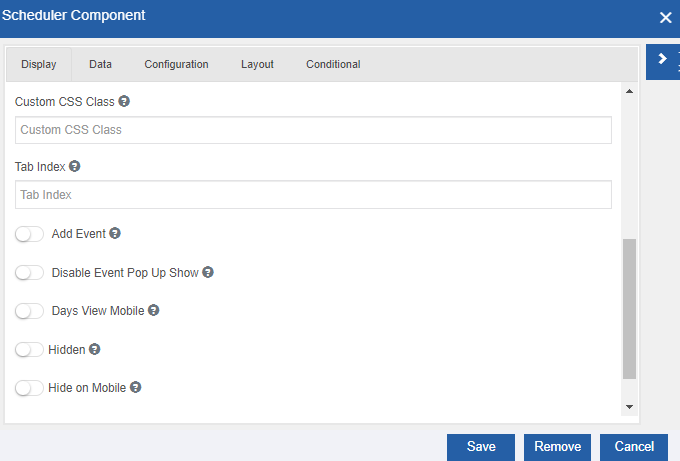
Figure 28: Scheduler component configuration -
Provide the configuration details.
Refer to Managing Forms2.0 for a detailed explanation of generic properties.
Scheduler component-specific configurations are explained in the below table.
Properties Description Display tab Add Event Enable the switch for scheduling events. This adds an “Add Event” button on the UI. Disable Event Pop-Up Show Enable the switch to disable the event pop-up show and set the calendar to month view. That is, there will be no buttons named Year, Month, Week, or Day for toggling the views. The month view appears as default. Days View Mobile Enable Days View Mobile to set weekdays view in Mobile. E.g., Monday will be Mon, etc. -
Click Save.
Scheduler at Runtime
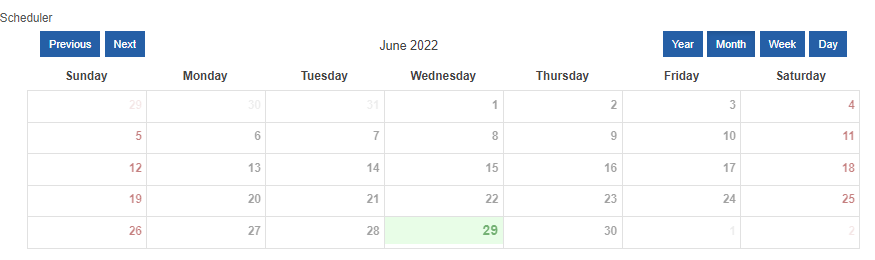
The runtime UI of the scheduler is given below. The current month appears with the current date as highlighted in the calendar.
-
Previous: Click Previous to navigate to the previous month's view.
-
Next: Click Next to navigate to next month's view.
Year, Month, Week, and Day buttons appear if you disable the event pop-up shown in the scheduler configuration.
-
Year: Click Year to view and select the year.
-
Month: Click Month to display the Month view.
-
Week: Click Week to display the Week view.
-
Day: Click Day to display the Day view with the daily hours.
-
Add Event button appears if you enable Add Event in the scheduler configuration.
-
Add Event: Click Add Event to add an event to your scheduler. Event pop-up appears. Add Event button appears only if you enable Add Event in the Scheduler configuration.
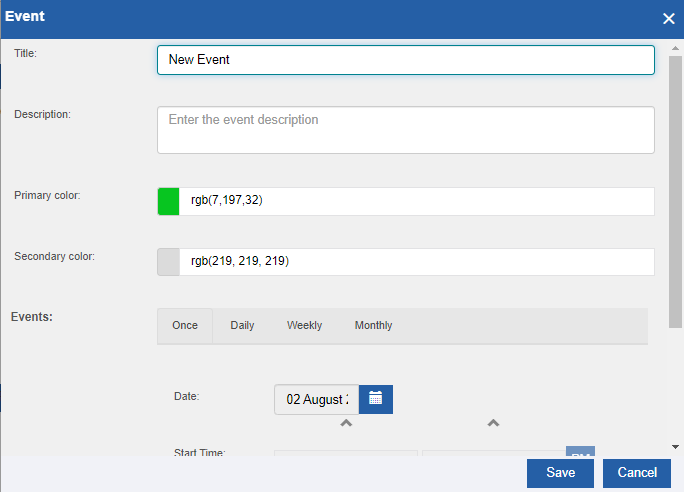
Figure 29: The Runtime Add Event UI -
Enter Title for the new event.
-
Enter Description for the event if any.
-
Select the Primary color for the event. The date of the event will take this color.
-
Select Secondry color for the event. The background of the date will take this color.
-
In the Events section select the frequency of the event (Once or Daily or Weekly or Monthly) and configure the frequency details as required for the selected frequency.
-
Click Ok. The event is added to the scheduler.
Signature
A Signature field is a special field that allows someone to sign the field with either their finger on a touch-enabled device or with the mouse pointer. This signature will be converted into an image and stored with the form submission.
Data type: String (Alphabets, numerals, and symbols). The values entered by the user are stored as a string value.
Configuring Signature
-
Drag a Signature component to the Form designer or click the settings icon of an already existing Signature component. The Signature Component Configuration pop-up appears.
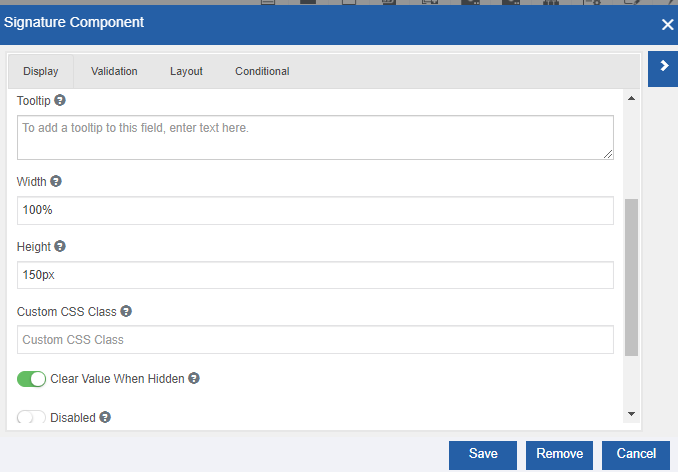
Figure 30: Signature component configurationRefer to Managing Forms2.0 for a detailed explanation of generic properties.
Signature component-specific configurations are explained in the below table.
Properties Description Display tab Width Enter the width for the signature area. Height Enter the height for the signature area. 3. Click Save.
Signature at Runtime
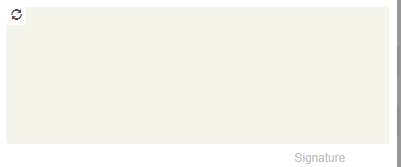
The signature area appears as per the specified width and height in the UI.
-
In the greyed-out signature area, you can draw your signature.
-
Click the refresh icon on the top-left of the signature area for clearing the signature.
Subform
The Sub form is a Special component used to display grid data. You can place a grid component within the subform or configure a data entity variable as subform. The details in the subform appear in a grid or tabular format. You can add other components to the subform component. The labels of these components will be the column heads of the subform.
Data type: Collection type.
Configuring Subform
-
Drag a Subform component to the Form designer or click the settings icon of an already existing Subform component. The Subform Component Configuration pop-up appears.
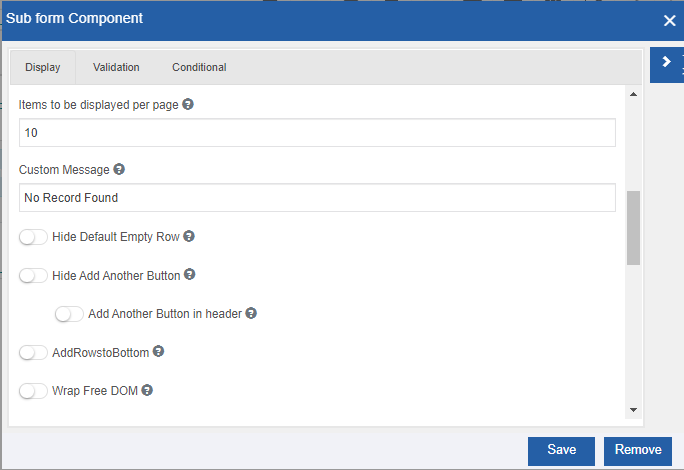
Figure 31: Subform component configuration -
Provide the configuration details.
Refer to Managing Forms2.0 for a detailed explanation of generic properties.
Subform component-specific configurations are explained in the below table.
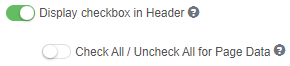
Properties Description Display tab Add Another Text Enter the label for the Add Another record button. As the subform accepts multiple values, Add Another button appears. There is no separate option to enable Multiple Values for other components where collection type is applicable. Items to be displayed per page Enter the number of items to be displayed per page. In runtime, the subform appears with page navigation features and hence you need to specify the number of items to be displayed per page. Custom Message Enter the message to be displayed when there are no records in the grid. Hide Default Empty Row If this is enabled the default empty row is hidden. Hide Add Another Button Enabling this hides the Add Another button. If you hide the Add Another button, you cannot add a record in the UI. If disabled, the Add Another button in the Header switch appears below Enable Add Another Button in the Header for adding the “Add Another” button in the header. AddRowstoBottom If enabled, new rows will be added to the bottom. Wrap Free DOM If enabled, it works only for Text Field, Number and Decimal components. Stripped If enabled, it will draw stripes on the table. Bordered If enabled, there will be borders for the table. Hover If enabled, it highlights the row on which you are hovering. Condensed If enabled, it condenses the size of the table. Encrypt If enabled, it encrypts the field on the server. This is two-way encryption which may not be suitable for passwords. Display Checkbox in Header If enabled header checkbox is displayed for checking/unchecking all component data. Checkbox appearance choice appears. Enable to Check All/Uncheck All for Page data.
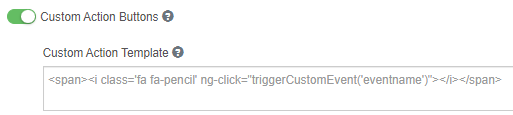
Custom Action Header Name The header for the “Actions” is replaced with the text you enter here. Default Action Buttons If enabled, custom action buttons will not be available. Custom Action Buttons If enabled, the custom action gets enabled. Provide the Custom Action Template in the specified box.
Renter as Labels If enabled, this will show values; not components. Enable Export If enabled, it enables the export of details. By default, export is disabled. In the Template tab, select the columns that need to be exported. Validation tab Enable Soft Row Delete If enabled, it allows the soft delete of the row from the UI. When you enable the switch the below details are prompted. For the soft row delete feature to work properly, it is desirable to provide the properties associated with the soft row delete as explained below. 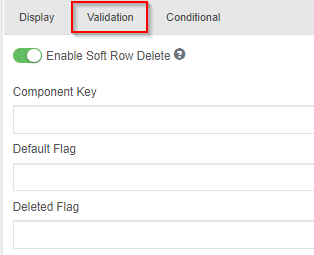
- Component Key: Enter the component Key. This is the key added to each row data for identification.
- Default Flag: Enter the default flag value for the component key.
- Deleted Flag: Enter the deleted flag value for the component key.3. Drag the required components into the subform as per your need. 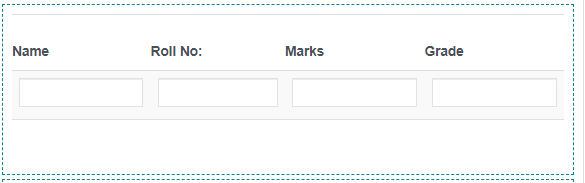
-
Configure each of the added components as per your requirement. Now the subform component is ready with the added component labels as the column headers of the subform.
-
Click Save.
-
Nested subform concept is not allowed.
Fetching DB Records through Subform at Runtime
You can fetch data records of a data entity table or a database table through a subform using a lookup component.
-
Create a Data Entity (let the name of the data entity be {Result}) in Manage > Data Catalog and give the required permissions and publish the data entity.
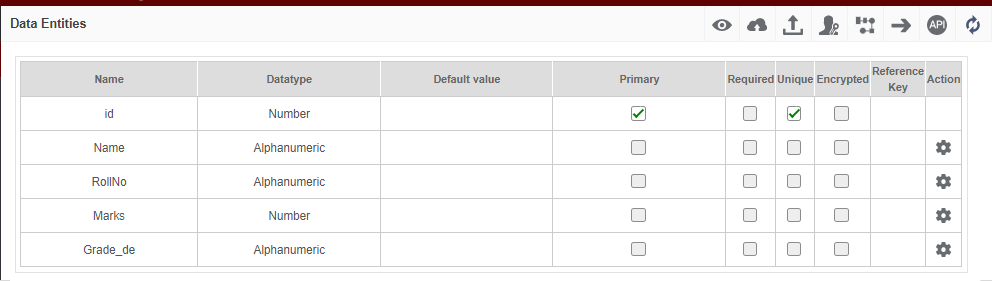
-
Create a DB Script (App Studio > {Processflow_name} > DB Script) for fetching data from the data table in which the details are residing.
-
In the form designer (App Studio > {Processflow_name} > Forms), drag a sub form component and configure the same.
-
Add the required components to the subform component. You should be knowing which fields should be displayed in the form and that many fields of appropriate data types need to be configured.
-
In the form designer, drag the lookup control and Configuration, click Lookup tab.
-
Select the Data source type. Select URL or Data Base
-
If you select Data Source Type as URL, Configure the Advanced Lookup details. Go to Step 11.
Else if you select Data source type as “Data Base” select DataScript. The columns of the data source table appear below the column. Go to Step 8.
-
In the value field of each column, enter the property name of the component added to the subform to which the corresponding data is to be fetched.
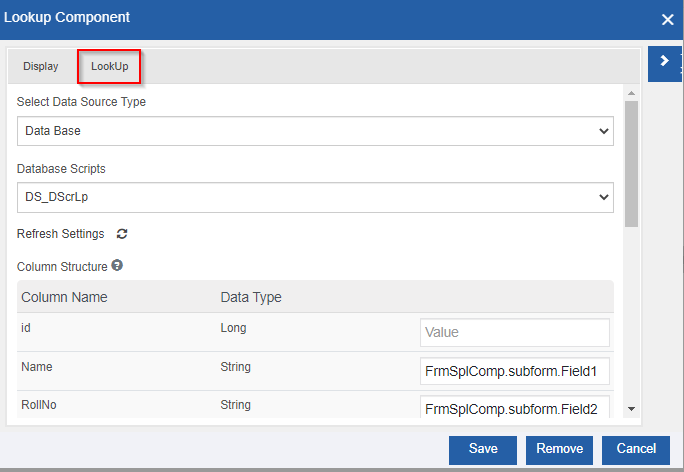
-
Select the Lookup Fire event from the drop-down (on Form load/On Relative change).
-
In the Bind to Control box provide the property name of the subform control to which data source details are to be fetched.
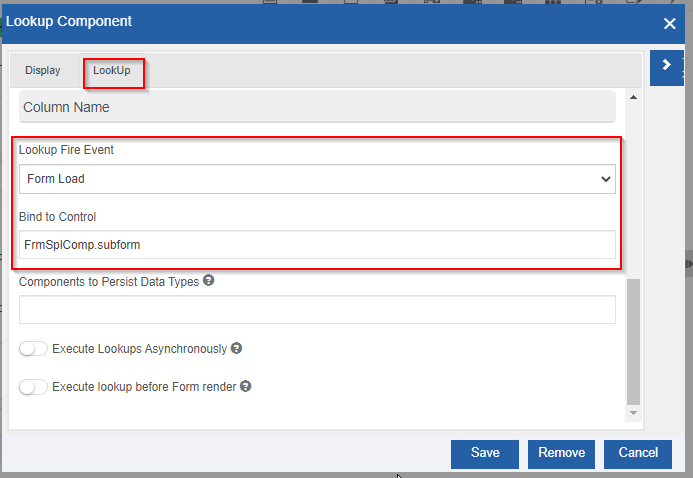
-
Click Save.
-
Navigate to App Studio and create a process flow including a task activity.
-
Map the form to the task activity and deploy the process.
-
Navigate to Workflow > My Process and initiate the process through the designed form. The form UI appears with the subform features and data displayed in the grid format.
SubForm at Runtime
The subform UI in runtime is shown below. The component labels appear as column heads.
<center><br>
Figure 32: Subform UI during runtime</center>
-
To add a record in the form view, click the Add Another button adjacent to that record.
-
To edit a record in the form view, click the field box and modify the details as per your need (in-line editing).
-
To remove a record from view, click the delete icon adjacent to that record.
-
To duplicate a record, click the duplicate icon adjacent to that record.
-
Click the pagination arrows below the table to scroll through the pages (if there are more than one-page details).
-
For updating the records to the database you need to use proper scripting and for fetching the records from the DB table you have to use the lookup component.
Summary Form
The Summary Form is a Special component used to display grid data. You can place a grid component within the Summary Form or configure a data entity variable (in the Data Catalog section) as a subform.
Data type: Collection type
Configuring Summary Form
-
Drag a Summary Form component to the Form designer or click the settings icon of an already existing Summary Form component. The Summary Form Component Configuration pop-up appears.
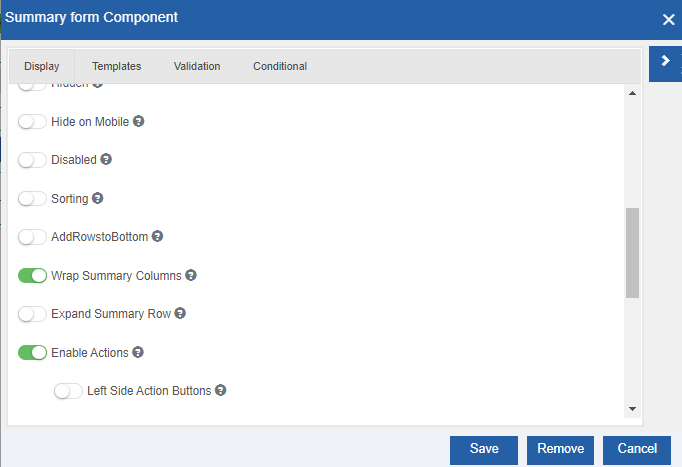
Figure 33: Summary Form component configuration -
Provide the configuration details.
Refer to Managing Forms2.0 for a detailed explanation of generic properties.
Summary Form component-specific configurations are explained in the below table.
Properties Description Display tab Items to be displayed per page Enter the number of items to be displayed per page. In runtime, the subform appears with page navigation features and hence you need to specify the number of items to be displayed per page. Sorting If enabled, arranges data in sequence order. Disabled If enabled, this disabled the form input AddRowstoBottom If enabled, new rows will be added to the bottom. Wrap Free DOM If enabled, summary columns will be displayed in a single line. Expand Summary Row If enabled, it displays the summary form expand options.
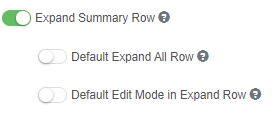
- Enable Default Expand All Row for expanding all rows by default.
- Enable Default Edit Mode in Expand Row so that after the expansion default edit mode will appear.Enable Actions If enabled, the “Actions” feature gets enabled. The action options appear below.
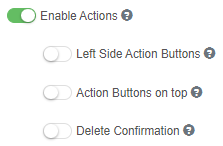
By default, the action buttons appear on the right side.
- Enable Left Side Action Buttons to display the action buttons on the left side.
- Enable Action Buttons on top to display the action buttons on the top.
- Enable Delete Confirmation for asking Confirmation Message before deleting when you click the delete icon.Custom Action Header Name The header for the “Actions” is replaced with the text you enter here. Custom Action Buttons If enabled, the custom action is enabled.
Provide the Custom Action Template in the specified box.Display Checkbox in Header If enabled header checkbox is displayed for checking/unchecking all component data. Checkbox appearance choice appears
Enable to Check All/Uncheck All for Page data.Custom Events Enables row custom events.
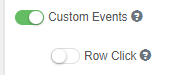
Enable Row Click and the row click event gets executed.Enable Scroll Top If enabled, it enables scroll to the top on click of pagination. Disable Tooltip If disabled, it will not retain the tooltip. Enable Export If enabled, it enables the export of details. By default, export is disabled.
In Template tab, select the columns that need to be exported.Validation tab Enable Soft Row Delete If enabled, it allows the soft delete of the row from the UI.
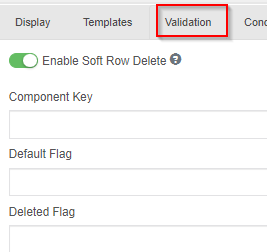
- Component Key: Enter the component Key. This is the key added to each row of data for identification.
- Default Flag: Enter the default flag value for the component key.
- Deleted Flag: Enter the deleted flag value for the component key.Track if row is edited If enabled, it enables tracking of the edited rows. 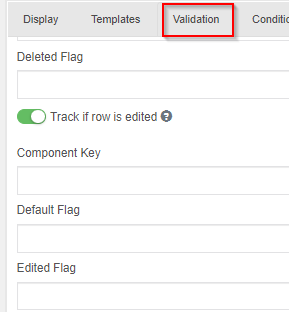
- Component Key: Enter the component Key. This is the key added to each row of data for identification.
- Default Flag: Enter the default flag value for the component key.
- Edited Flag: Enter the edited flag value for the component key.Template tab Component details The components added inside the summary form appear in the grid.
If you have added a variable and mapped that variable as a summary component, then the columns in the data source appears in the grid.
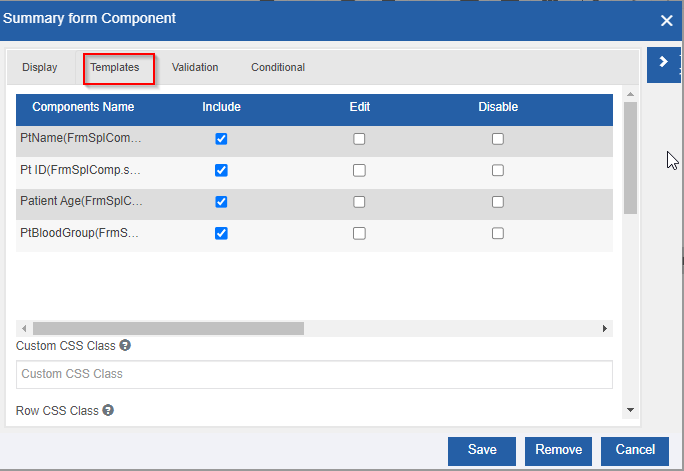
- Component Name: Lists the components added to the summary form.
- Include: Check to include the component in the UI.
- Edit: Check to allow editing of the component.
- Disable: Check to disable the component.
- Unique: Check to mark the component value as unique. That is no duplication is not allowed.
- Export: Check to allow the export feature.
- Sorting: Check to allow the sorting feature.
- Hide On Mobile: Check to hide the component on the mobile view.
- Width: Enter the width of the component.Custom CSS class Enter the custom CSS class to add to this component. Row CSS Class Enter the CSS class to add to the edit row wrapper class. Custom Message Enter the custom message that is to be displayed if there are no records. Even Row CSS Class Enter the CSS class for the even rows. Add Row If disabled, Add Another button will not appear. If enabled “Add Another” row feature is enabled. Enter the Alternate text for “Add Another” that appears on the button. Enable Initiate Process On Add to enable process on add. Click Config Properties for initiating the process by Name. Refer to Configure Initiate Process By Name. If disabled, initiate another process will not appear. Initiate Process on Edit Enable Initiate Process On Edit to enable Initiate Process By Name on editing. Click Config Properties to initiate the process by Name. Refer to Configure Initiate Process By Name. If disabled, initiate another process will not appear. Save Row Text Enter the Text line of the Save Row button. Remove Row Text Enter the text line of the remove row button. -
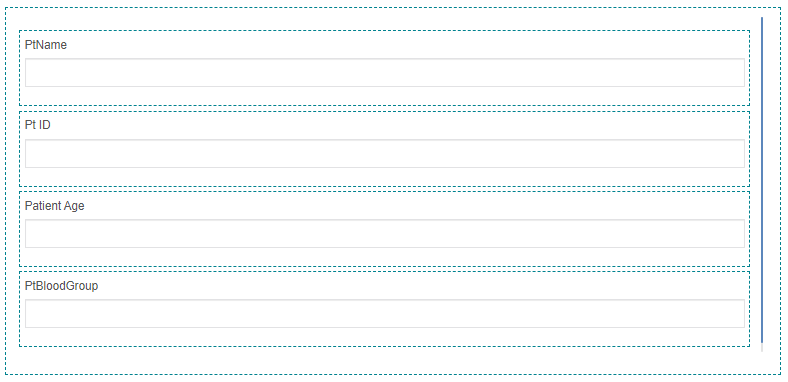
Drag the required components into the Summary Form as per your need.
-
Configure each of the added components as per your requirement. Now the Summary Form component is ready with the added component labels as the column headers of the subform.
-
Click Save.
Configuring Initiate Process by Name
The Initiate By Name feature allows you to initiate a process through the click of the Initiate By Name button.
-
In the Summary Form component configuration, click the Template tab.
-
Enable Add Row > Initiate Process On Add or enable Initiate Process On Edit. When you enable Initiate Process On Add or Initiate Process On Edit, Config Properties appear.
-
Click the Config Properties icon (
).
Initiate Process By Name pop-up appears.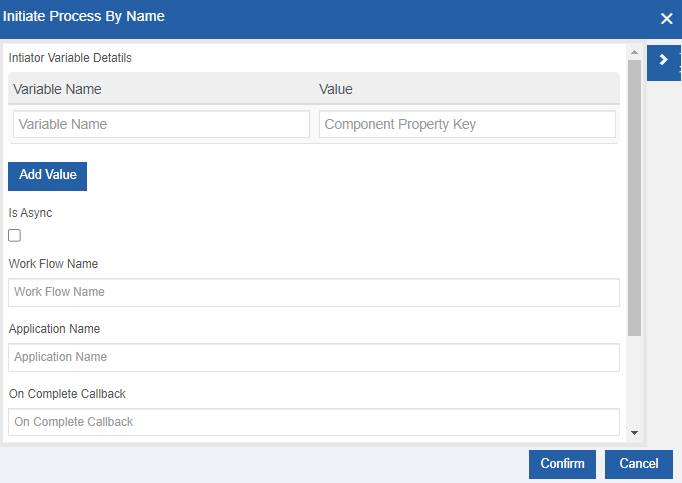
Figure 34: Initiate Process By Name -
Provide the details as explained in the below table.
Properties Description Variable Name Enter the variable name. Value Enter the component property key. Add Value Click Add Value to add more variable fields and corresponding details. Is Async Select the check box to make the flow asynchronous. Workflow Name Enter the flow name that is to be triggered. Application Name Enter the application name to which the flow belongs. On Complete Callback Enter the method name to be executed. Method name is to be specified in the JS. Transition to take The transition (link name in the process flow) to be followed or taken for execution. Complete Initiator Task This is a flag to complete the initiator task in the selected process. Selecting the checkbox sets the flag to “True” and deselecting the checkbox indicates the flag is set to “False.” 5. Click Confirm after providing the details.
Fetching DB Records through Summary Form at Runtime
You can fetch data records of a data entity table or a database table through a Summary Form using a lookup component.
-
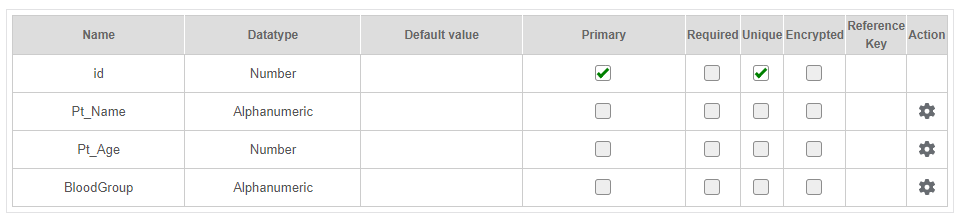
Create a Data Entity (let the name of the data entity be {Patient_Table}) in Manage > Data Catalog and give the required permissions and publish the data entity.
-
Create a DB Script (App Studio > {Processflow_name} > DB Script) for fetching data from the data table in which the details are residing.
-
In the form designer (App Studio > {Processflow_name} > Forms), drag a Summary Form component and configure the same.
-
Add the required components to the Summary Form component. You should be knowing which fields should be displayed in the form and that many fields of appropriate data types need to be configured.
-
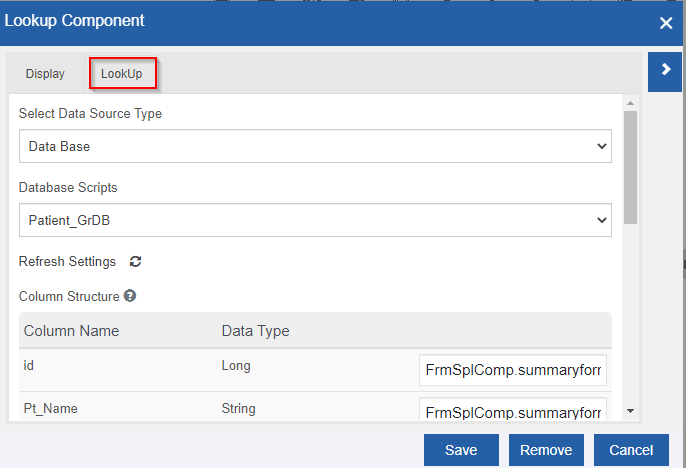
In the form designer, drag the lookup control, and in the Lookup Configurations, click the Lookup tab.
-
Select the Data source type. Select URL or Data Base.
-
If you select Data Source Type as URL, Advanced Lookup appears. Click the Advanced Lookup icon and configure the Advanced Lookup (by providing the API configuration details). Go to Step 11.
Else if you select Data source type = Data Base, database-related details appear. Go to Step 8.
-
Select DataScript. The columns of the data source table appear below the column.
-
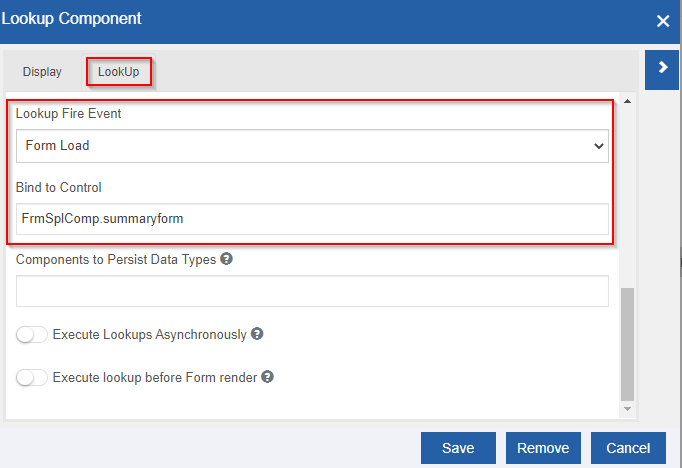
Select the Look Fire event from the drop-down (on Form load/On Relative change).
-
In the Bind to Control box provide the property name of the summary form component to which data source details are to be fetched.
-
Click Save.
-
Navigate to App Studio and create a process flow by including a task activity.
-
Map a form (with summary component and relevant details)to the task activity and deploy the process flow.
-
Navigate to Workflow > My Process and initiate the process. The form UI appears with the summary component features and data from the selected data source gets displayed in the grid format.
Summary Form at Runtime
The Summary form UI in runtime is shown below. The component labels (of those components that are added in the summary form) appear as column heads.
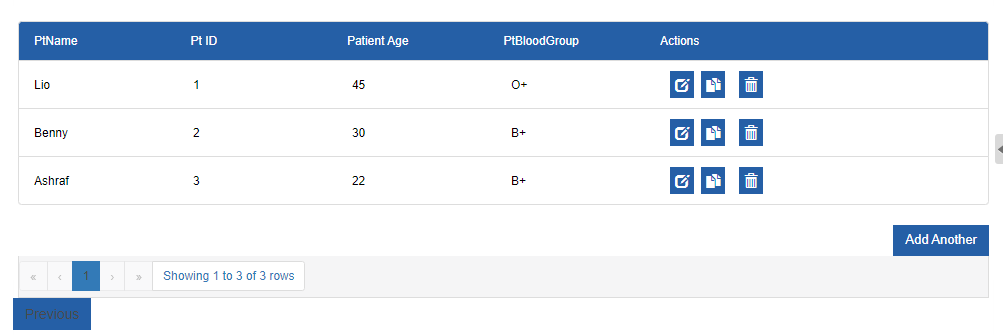
Figure 35: Summary Form UI during runtime
-
To add a record, click the Add Another button adjacent to that record.
-
To edit a record, click the edit icon in the Actions column corresponding to that record.
-
To remove a record from view, click the delete icon in the Actions column corresponding to that record.
-
To duplicate a record, click the duplicate icon in the Actions column corresponding to that record.
-
The pagination arrows below the table allow scrolling through the pages (if there are more than one-page details).
-
For updating the records to the database you need to use proper scripting and for fetching the records from the DB table you have to use the lookup component.
Survey
The Survey is a special control used to display and capture the survey.
Data type: String (alphabets, numerals, and symbols). The values entered by the user are stored as a string value.
Configuring Survey
-
Drag a Survey component to the Form designer or click the settings icon of an already existing Survey component. The Survey Component Configuration pop-up appears.
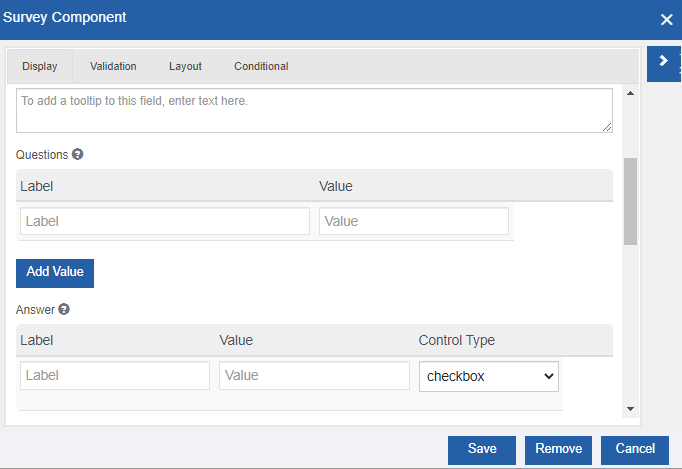
Figure 36: Survey component configuration -
Provide the configuration details.
Refer to Managing Forms2.0 for a detailed explanation of generic properties.
Survey component-specific configurations are explained in the below table.
Properties Description Display tab Question Enter the questions you would like to ask in this survey.
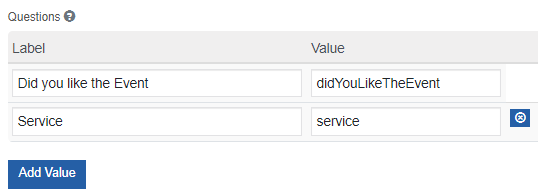
Below the Label Enter the question and enter the value below value.
To add more questions, click Add Value.Answer Enter the answer that can be selected per question.
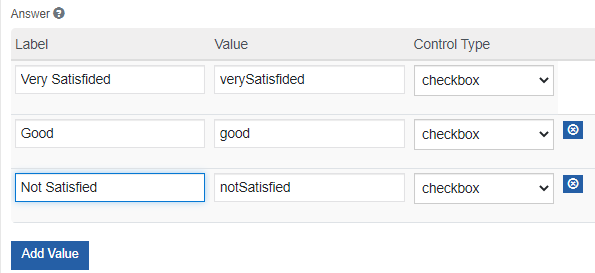
Inline Layout If enabled, it displays the buttons horizontally. -
Click Save.
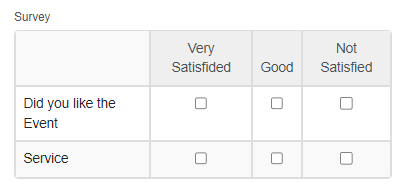
Survey at Runtime
The survey UI appears in the runtime as per configuration. An example is shown below.
Timer
The Timer component is used to display the timer.
Configuring Timer
-
Drag a Timer component to the Form designer or click the settings icon of an already existing Timer component. The Timer Component Configuration pop-up appears.
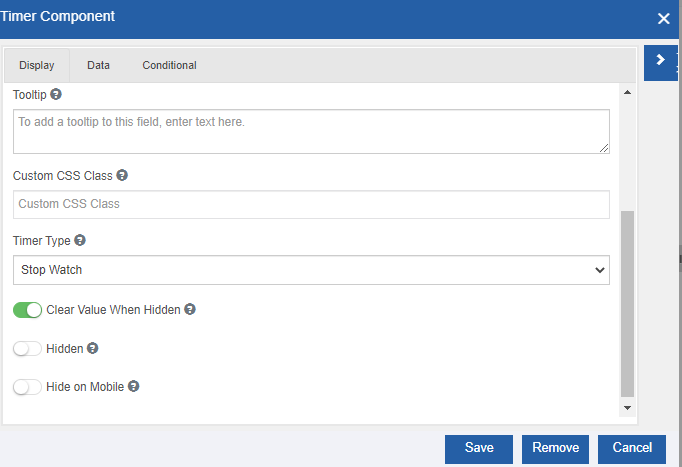
Figure 37: Timer component configuration -
Provide the configuration details.
Refer to Managing Forms2.0 for a detailed explanation of generic properties.
Timer component-specific configurations are explained in the below table.
Properties Description Display tab Timer Type Select the timer type.
- Stop Watch: Displays the stopwatch type timer.
- Countdown Timer: Displays the countdown timer. The below details are to be provided.
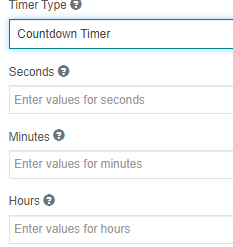
- Seconds: Enter values for seconds.
- Minutes: Enter values for minutes.
- Hours: Enter values for hours.3. Click Save.
Timer at Runtime
The runtime UI of the time is shown below.
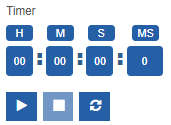
- Click the play button (
 ) to start the timer. The timer starts counting the time. When you start to play, the stop button becomes active.
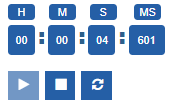
-
Click the stop button (
 )
to stop the timer. The timer stops.
)
to stop the timer. The timer stops. -
Click the refresh button (
 ) to clear the timer
values.
) to clear the timer
values.
Video Recorder
The Video recorder is used for recording/playing video in the UI during the runtime.
If you upload a video file, you can play that file during the runtime.
If you do not upload any video file and set the configuration as a video recorder, you can record video through UI during runtime.
Data type: Video file (MP4 file).
- You should enable SSL Certification for the Platform as the Video Recorder component cannot be used without SSL Certification.
- To add this component to the Form designer, you need to enable the microphone in your browser settings. Settings > Privacy and security > Site settings > click the application for which you need to enable microphone (application should be recently opened or running to appear) else below the Permissions > Microphone - Provide permission as you need.
Configuring Video Recorder
-
Drag a Video recorder component to the Form designer or click the settings icon of an already existing Video recorder component. The Video recorder Component Configuration pop-up appears.
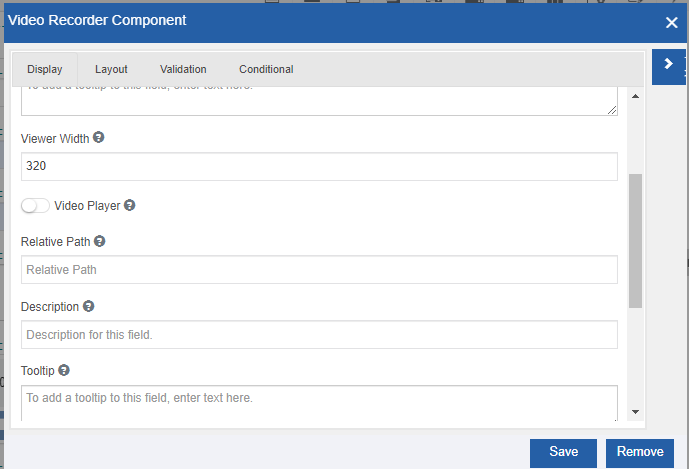
Figure 38: Video recorder component configurationIf you have enabled the microphone, you can drop the activity to the form designer and the activity appears without any error.
If you have not enabled the microphone or camera, when you drop the component, a browser pop-up appears asking for permission. Click Allow to give permission. If you click Deny, permission is denied and the activity appears with a permission denied message.
-
Provide the configuration details.
Refer to Managing Forms2.0 for a detailed explanation of generic properties.
Video recorder component-specific configurations are explained in the below table.
Properties Description Display tab Video Width Enter the width live camera viewer. ----------------- ---- Video Player - Disable to switch to recorder from player.
- Enable to make it as a video player. The Upload Video option appears.
- Enable Upload Video for uploading the default video. Choose File option and the relevant options appear.
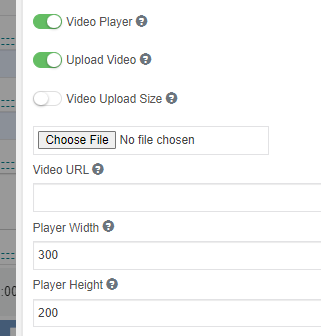
- Click Choose File and select the video file (youtube video file) or provide the youtube URL in Video URL that is to be played in runtime.
- Enter Player Width (width of the video player in pixels) and Player Height (height of the video player in pixels) in the respective fields.
- Enable Video Upload Size to provide size details of the video.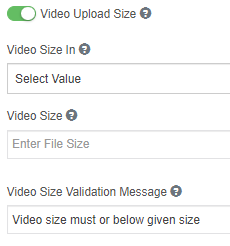
- Click Video size In box and select the unit.
- In Video Size box, enter the size of the video file.
- In Video Size Validation Message box, enter the validation message for the size of the video like “size should be less than 10MB”.Relative Path The relative path of the video file. The uploaded video is saved in this path. 3. Click Save.
Video Recorder at Runtime
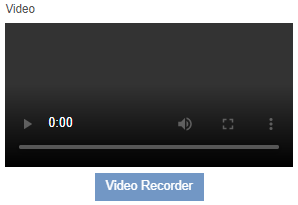
If the Video player configuration is enabled in the Video Recorder configuration, the below UI is displayed during the runtime.
If you have uploaded a video for viewing or if you have already recorded a video the below UI appears in runtime.

-
Click the play arrow for playing the video. The Stop option appears on the screen.
-
Click the Speaker icon for adjusting the volume.
-
Click the full-screen icon (square icon) for viewing the video on full screen.
-
The time displays the remaining time for the video to complete.
If you have configured the component for recording, the below UI appears in runtime.
-
Click Video Recorder for recording the video.
-
Click Stop for stopping the recording. The video is saved on the relative path mentioned in the component configuration as an MP4 file.
Appendix
Google reCAPTCHA API Key
This section is intended for developer reference for generating the Google reCAPTCHA API Key. Google reCAPTCHA API key can be generated in the page, https://www.google.com/recaptcha/admin/create.
Google reCAPTCHA API Keys are unique to the domain. To generate the Google reCAPTCHA API key, first, you need to register for Google reCAPTCHA and then generate the key. The procedure for generating the Google Captcha API Key is explained in the below sections.
Registering and Generating Google reCAPTCHA
You need to register in Google reCAPTCHA to generate the API key.
-
Navigate to https://www.google.com/recaptcha/admin/create. Email Sign-In pop-up appears.
-
Sign in with your Google account. Google reCAPTCHA page appears.
-
Below the Label section, enter the label for the reCAPTCHA.
-
Below the reCAPTCHA Type section, select the reCAPTCHA v2. Platform supports reCAPTCHA v2. When you select reCAPTCHA v2, sub options appear.
-
Below reCAPTCHA, select “I am not a robot” Checkbox. This adds “I am not a robot” checkbox in the UI and validates requests with the “I am not a robot” Checkbox.
-
Below the Domains section, click “+” Add a domain and enter the domain name.
Google reCAPTCHA is unique to the domain and it will be applicable to the domain registered.
-
Click Save. The reCAPTCHA gets registered with an option to copy the site key.
-
Click COPY SITE KEY for copying the key. This API key can be used in the Platform while configuring the Google Captcha component.
You can use the Google reCAPTCHA API key in the Platform > App Studio > Forms > Google Captcha component Configuration.
Google Map API Key
This section is intended for developer reference for generating the Google Map API Key. Google Map API key can be generated from the Google Cloud page, https://console.cloud.google.com/.
To generate the Google Map API key, first, you need to create an account in the Google cloud API & Services, enable the account and then generate the key. The procedure for generating the Google Map Key is explained in the below sections.
Enabling Google Cloud Account
You need to create and enable the Google Cloud account to generate the Map API key.
- Navigate to https://console.cloud.google.com/. Email Sign-In pop-up appears.
-
Sign in with your Google account. Google Cloud page appears.
-
In the Google Cloud title bar, click the drop-down right side of the Google Cloud logo title. Select a Project pop-up appears.
-
Click NEW PROJECT on the top-right of the pop-up.
-
Enter a project name and click Create. A new project is created in Google Cloud for your account.
-
In the APIs and Services List on the left side, click Enabled APIs and Service. Enable APIs and Services Page appears.
-
Click “+ENABLE APIs AND SERVICES” on the top of the screen. Google Cloud API Library page appears.
-
Click Maps JavaScript API and in the next screen click Enable. Now the Google Maps API is enabled.
Generating Google API Key
After enabling the Maps JavaScript API in Google Cloud, you can generate the API key. Refer Enabling Goolge Cloud Account.
-
Navigate to your Google Cloud Project page with your account.
-
In the APIs and Services List on the left side, click Credentials. The credentials page appears.
-
Click “+CREATE CREDENTIALS” on the top of the screen. A drop list appears.
-
Select API Key. API Key created pop-up appears.
-
From below the “Your API Key”, copy the generated Google Map API Key (You can also click the copy icon on the right of the API key to copy the key).
In the Google Cloud > Credentials in your account, the API keys that you generated will be listed below the “API Keys” section.
- You can use the Google Map API key generated as per your requirement in Platform > App Studio > Forms > Google Map / Geofence component Configuration.