Webservice
Webservice is used to achieve web communication. Web service is an application component for communication using open protocols that integrate and encodes the activities in the web applications.
The WebService entity is used to call API services (external APIs or internal APIs within the Platform – e.g., Data Catalog APIs). You need to configure a Webservice entity and then map it to the webservice activity in the process flow for achieving a specific webservice requirement.
Understanding REST and SOAP
Simple Object Access Protocol (SOAP) and Representational State Transfer (REST) are the most used options for accessing web services.
- SOAP Web Services - SOAP is a messaging protocol that allows programs that run on disparate operating systems (such as Windows and Linux) to communicate using HTTP and XML. SOAP is an XML-based protocol for accessing Web Services over HTTP.
In simple words, SOAP is a technique to send an XML request over the Internet using the HTTP protocol (hitting a URL), and in return get an XML response. - REST Web Services - REST is an architectural style for networked hypermedia applications and is primarily used to build Web services that are lightweight, maintainable, and scalable. A service based on REST is called a RESTful service. Contrasting SOAP, which aims at actions, REST deals majorly with the resources.
It establishes the resources through the use of URL as well as depends on the nature of the transport protocol (like GET, PUT, POST, DELETE, etc.) used to perform the resources. The allocation of resources in REST depends on the URL. It is more like a convention-based application.
Viewing Webservices
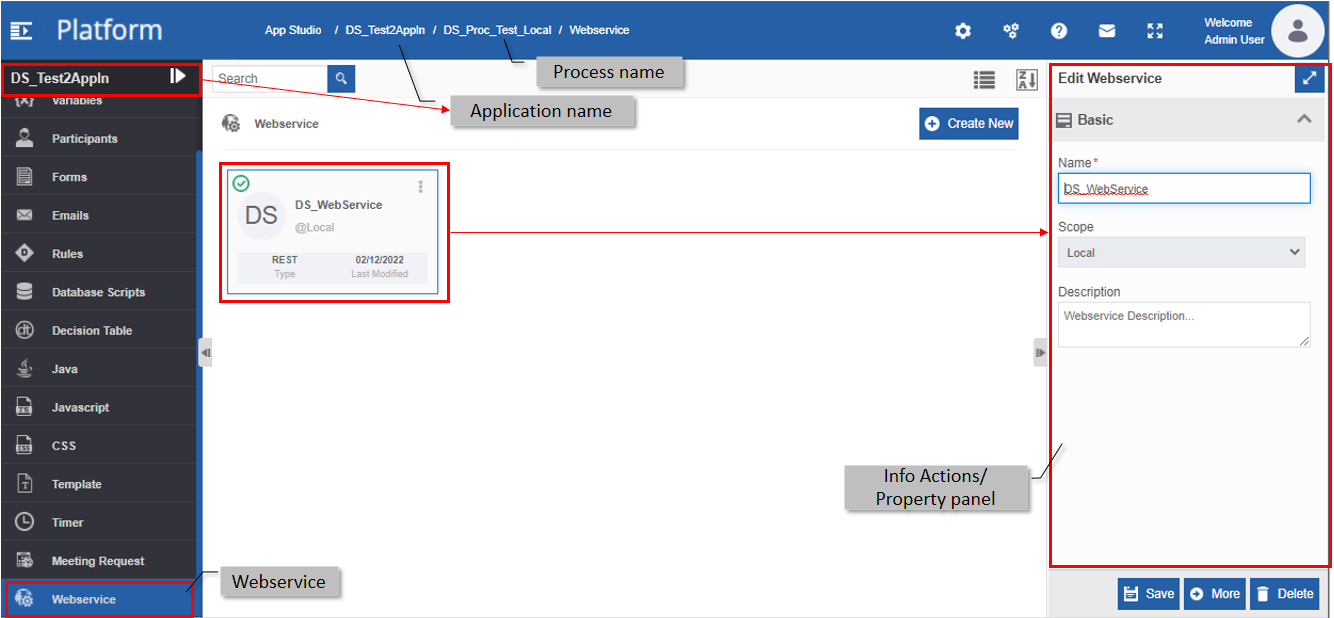
Local entities are those entities associated with any of the flow module. The Webservice entities associated with each flow will appear within that flow.
- Navigate to App Studio > Applications - open application name > Process Flow/Data Flow - flow name > Open.
-
Click Webservice on the left side panel to view the webservices for the flow module.
Creating New Webservice
- Navigate to App Studio > Applications - open application name > Process Flow - process flow name > Open.
-
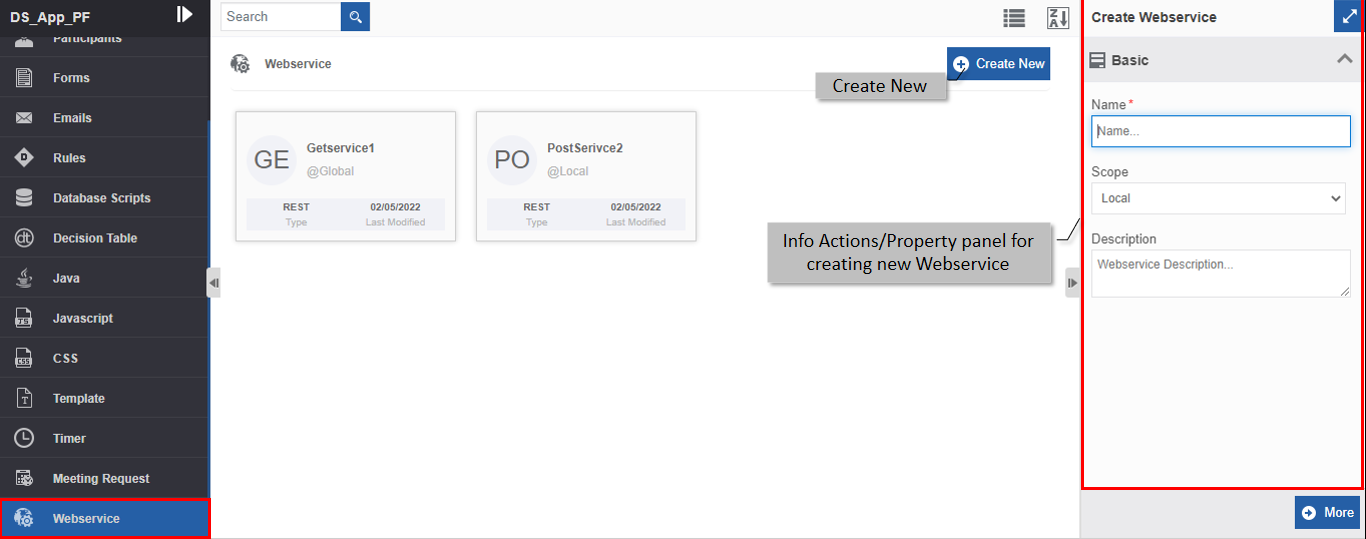
Click Webservice. The webservice list appears.
-
Click +Create New. The Info Actions panel appears as Create Webservice.
-
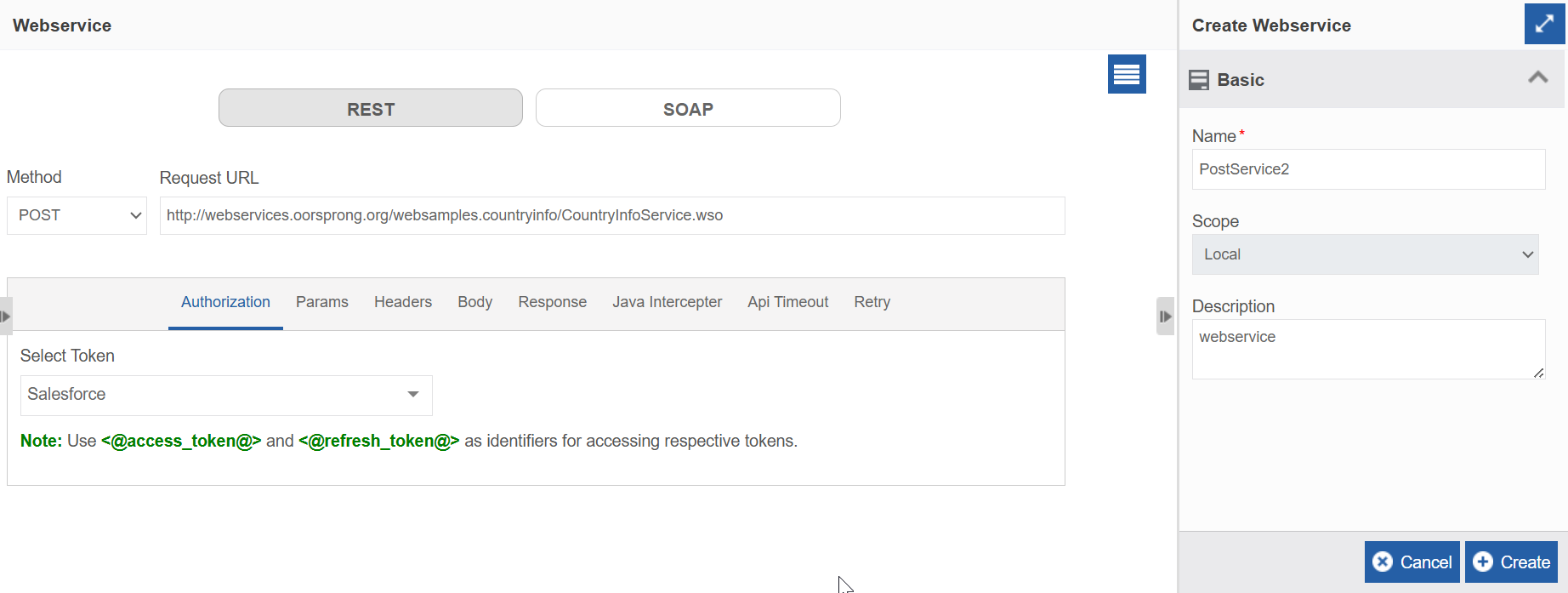
Enter the Basic details in the Create Webservice panel as explained below.
Field Description Name* Enter the name of the webservice.
Character limit: 50.
Data type: Alphanumeric and underscore. Whitespace is not allowed.Scope* The scope of an entity is always local as the entities are created at the flow level. Description Enter a description for the webservice. -
Click More. Webservice configuration page appears.
-
For configuring REST webservice, click REST.
Refer to Configuring REST.
Or
For configuring SOAP webservice, click SOAP.
Refer to Configuring SOAP. -
Click the Authorization tab.

-
Click Select Token and select a token from the drop-down. Authorization is used to map the access token of the service that is called here.
Identifiers
Use
<@access_token@>and<@refresh_token@>as identifiers for accessing respective tokens.
These variables are entered in the Headers tab > Authorization field.Tip
Authorization carries credentials containing the authentication information of the client for the resource being requested. You can configure and generate the access token in Management > Configuration Management section.
Token-based authentication
Token-based authentication is a protocol that generates encrypted security tokens. Authorization occurs after successful authentication. APIs use authorization to ensure that client requests access the data securely.
-
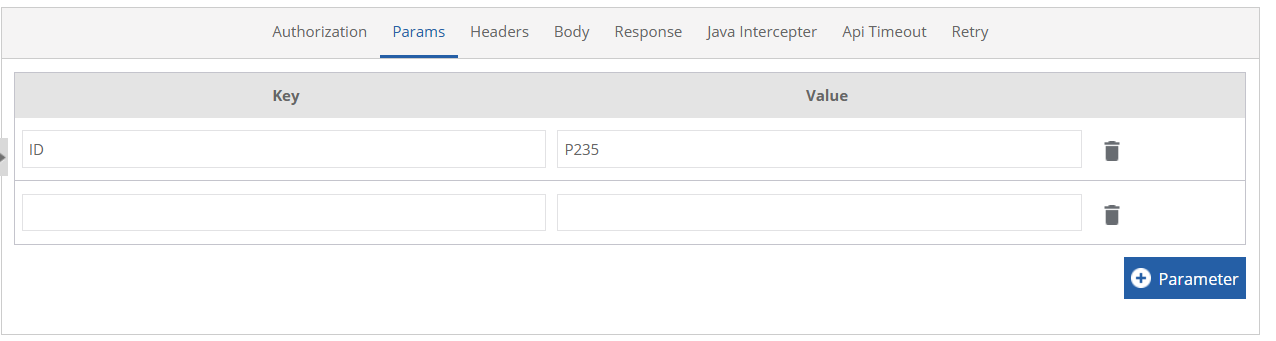
Click Params (parameters) tab. The Params tab is applicable only for the REST API.
-
Enter Key and Value for the query parameter.
Tip
API Query parameters are defined as key-value pairs that appear after the question mark in the URL. They are the extensions of the URL that are utilized to help and determine specific content or action based on the data being delivered.
- Click +Parameter to add multiple parameters.
- Click the delete icon adjacent to the Key-Value row to delete a particular Key-Value.
-
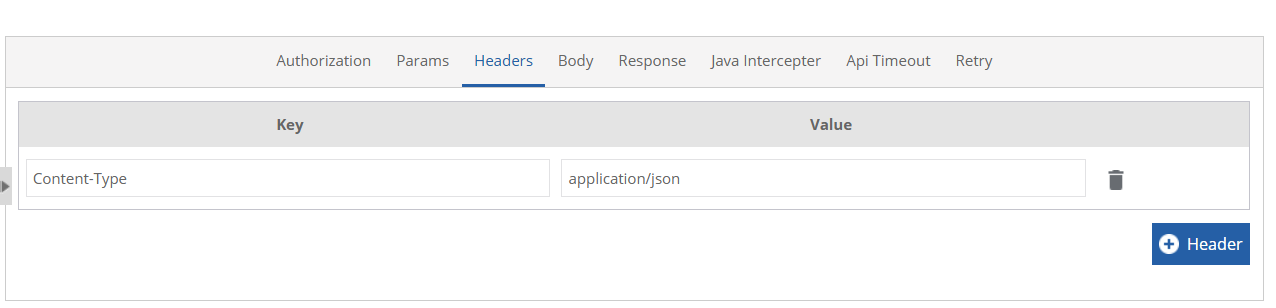
Click the Headers tab.
-
Enter Key and Value of the header.
Tip
Headers are defined as key-value pairs and they contain the meta-data associated with the API request and response. Headers are mostly classified as request headers and response headers.
Identifiers for access token authorization are provided here as variables.
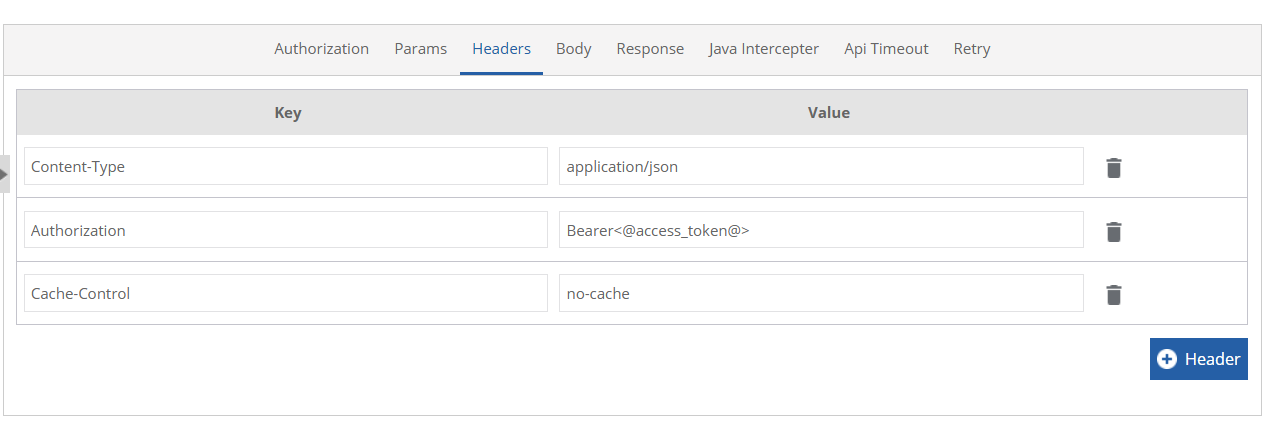
- Click +Header for adding multiple headers.
- Click the delete icon adjacent to the Key-Value row for deleting a particular Key-Value.
-
Click Body tab. A request body is data sent by the client to your API.
-
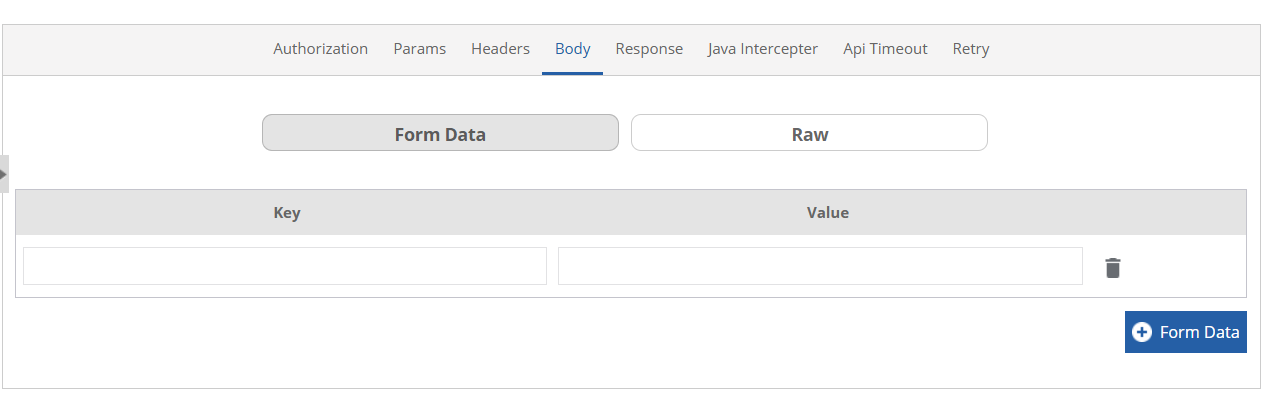
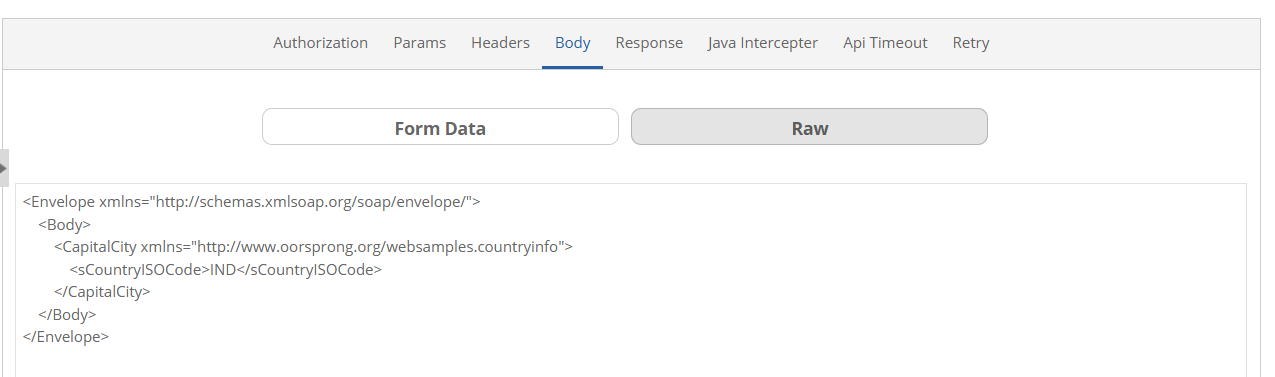
Click Form Data or Raw as per your need.
-
For Form Data, enter Key and Value.
-
Click +Form Data for adding multiple Form data.
- Click the delete icon adjacent to the Key-Value row for deleting a particular Key-Value.
- For Raw, enter the body.
-
-
Click Response tab. A response body is data that your API sends to the client.

-
Click JSON or XML or TEXT as per your requirement. The API gives the response in the format that you have selected.
-
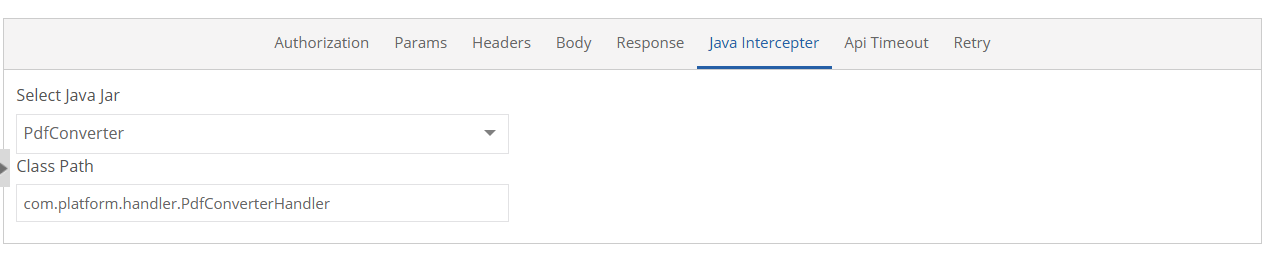
Click Java Interceptor tab. Java interceptor is used for the computation of any logic on the response of the service.
Tip
The computation logic needs to be written in the Java Jar file. This Jar file is mapped to the Java entity which is in turn accessed through the Java Interceptor section.
-
Select a Java Jar file from the Select Java Jar drop-down.
- Enter the Class Path below the Class Path.
-
Click Api Timeout tab.

-
Enter the API time out in seconds. The API execution will stop after the specified time. Note that you should be aware of the time that the configured API takes for execution. If you provide a time that is less than the actual execution time, it will throw error.
-
Click Retry tab and enter the required fields as explained in the below table.
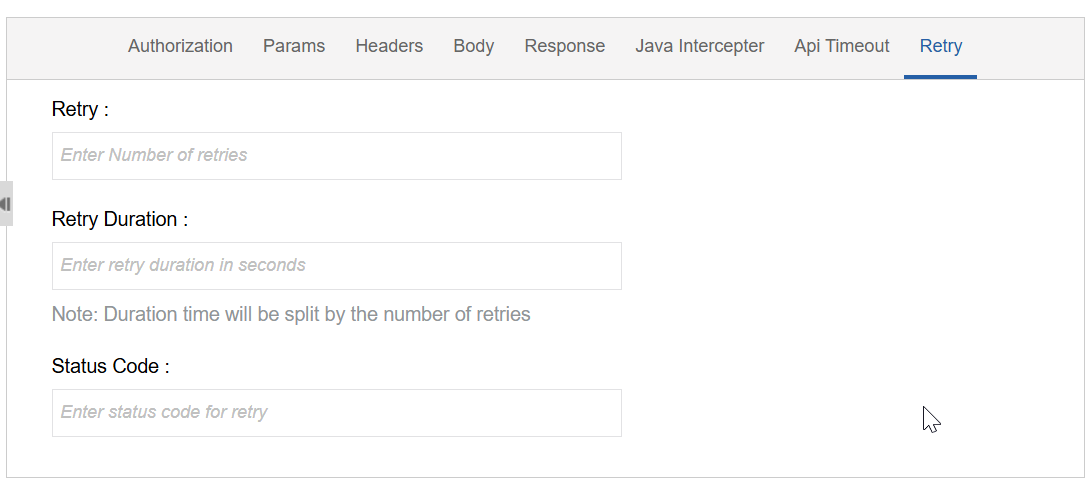
Field Description Retry Enter the number of times the system should automatically retry sending request (retry attempt) if the API call fails. Retry Duration Enter retry duration time in seconds allocated for all retry attempts combined.
The system divides this time equally across the number of retries specified.
Example: If Retry Duration = 30 seconds and Retry = 3, each retry attempt is 10 seconds.Status Code Enter the specific HTTP status code(s) that must trigger a retry.
Example: 408 Request timeout – tempory timeout. -
Click Create. A Webservice with the provided details is created.
Configuring REST
- Navigate to Webservice entity and click Create New for creating a new webservice.
- Provide the Basic details and click More. Webservice configuration page appears.
-
Click REST. REST Configuration details appear.
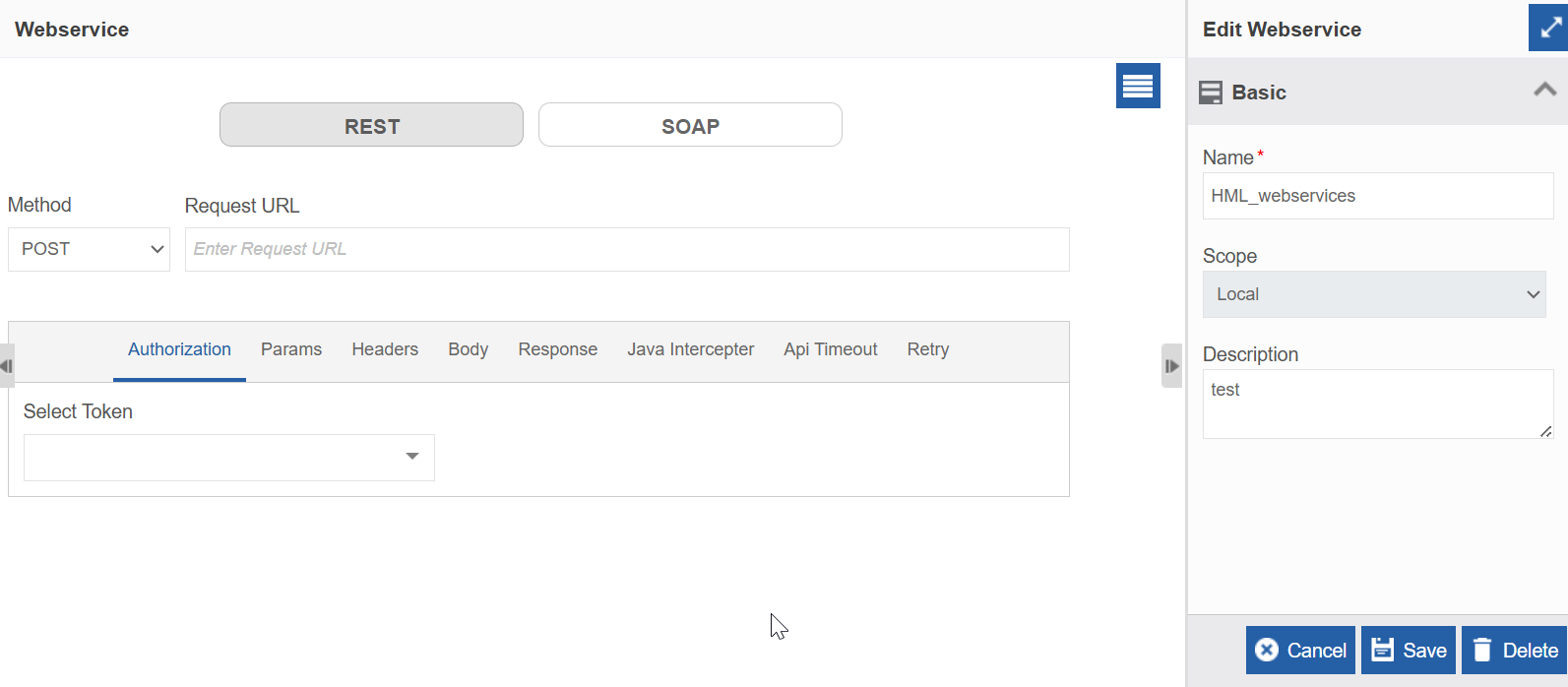
-
Click Method drop-down and select the method as per your requirement. The methods are explained in the below table.
Method Description POST This method creates (posts) a resource on the server. It is for creating a new resource. GET This method retrieves (gets) a resource from the server. It offers read-only access to the resources. PUT This method changes the state of a resource or updates it in the server. It is for updating an existing resource or creating a fresh one. DELETE This method removes or deletes a resource from the server. PATCH This method is used to request a set of modifications in the request entity to be applied for the resource recognized by the Request-Uniform Resource Identifier (URI). This method plays a vital role in improving interoperability and preventing errors by making partial changes in the resource. HEAD This method is identical to GET except that the server must not return a message-body in the response. The meta information contained in the HTTP headers in response to a Head request should be identical to the information sent in response to a GET request. OPTIONS This method represents a request for information about the communication options available on the request/response chain identified by the Request-URI. -
Below the Request URL enter the URL for accessing a resource on the server.
Tip
To make the request, the client uses components of a URL, which includes the information needed to access the resource. Request URL example for REST: https://mydomain/user/123?format=json
Configuring SOAP
- Navigate to Webservice entity and click Create New for creating a new webservice.
- Provide the Basic details and click More. Webservice configuration page appears.
-
Click SOAP. SOAP Configuration details appear.
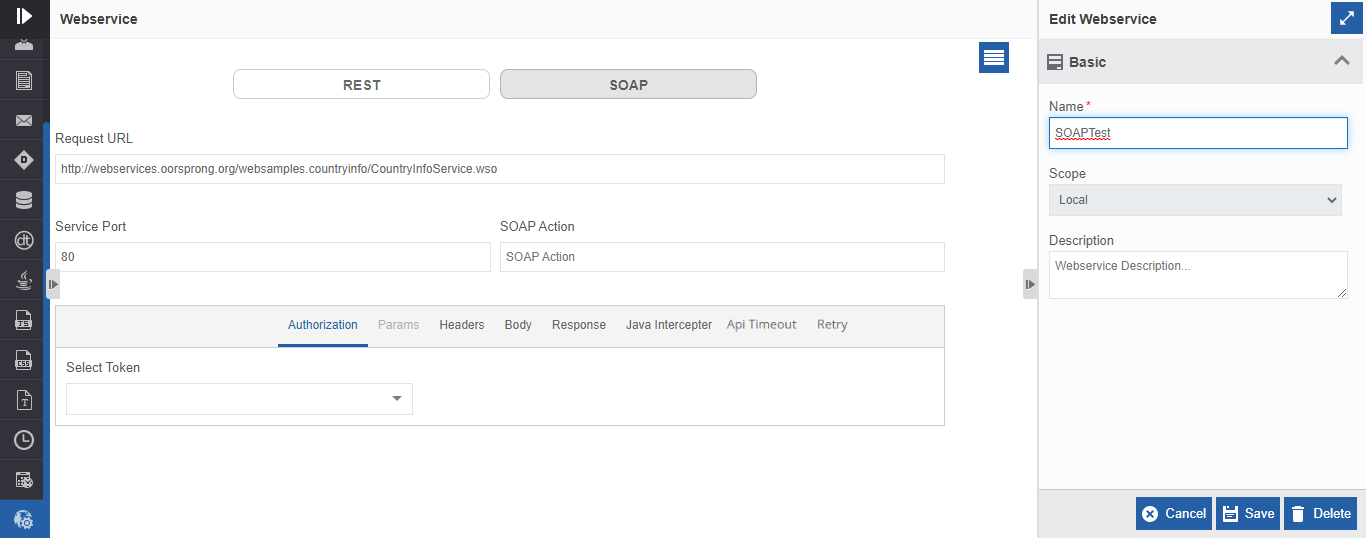
-
Below the Request URL enter the SOAP endpoint URL.
Example
Example of SOAP Request URL: http://webservices.oorsprong.org/websamples.countryinfo/CountryInfoService.wso
-
Enter the SOAP Service Port number. Port is used for exchanging information between a web server and a web client.
Note
Port 80 (HTTP) and 443 (HTTPS) are the two standard ports used by web servers to communicate with web clients.
-
Enter the SOAP Action. SOAP Action specifies which process or program is needed to be called when a request is sent by the service requester with the relative path of the process/program. SOAP action is the URL of the operation, which you are going to perform.
Viewing and Editing Webservices
Make sure to unlock the application before editing if you want to edit the details of an entity that is not created by you.
- Navigate to App Studio > Applications - open application name > Process Flow/Data Flow - flow name > Open.
- Click Webservice. The webservice list appears.
-
Click the Webservice card for viewing the details of the selected webservice. The details of the webservice appear in the Info Actions panel (Edit Webservice).
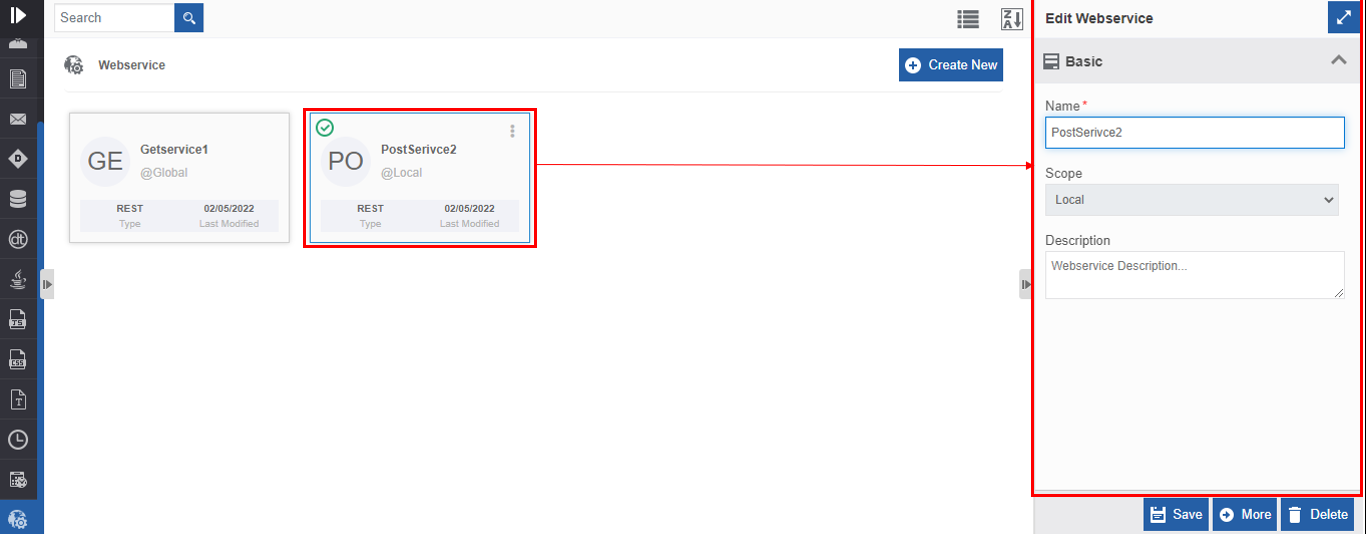
-
Click More for viewing the webservice configuration details.
-
Edit the webservice details as needed.
- Click Save.
Viewing Webservice Associations
- Navigate to App Studio > Applications - open application name > Process Flow/Data Flow - flow name > Open.
- Click Webservice. The webservice list appears.
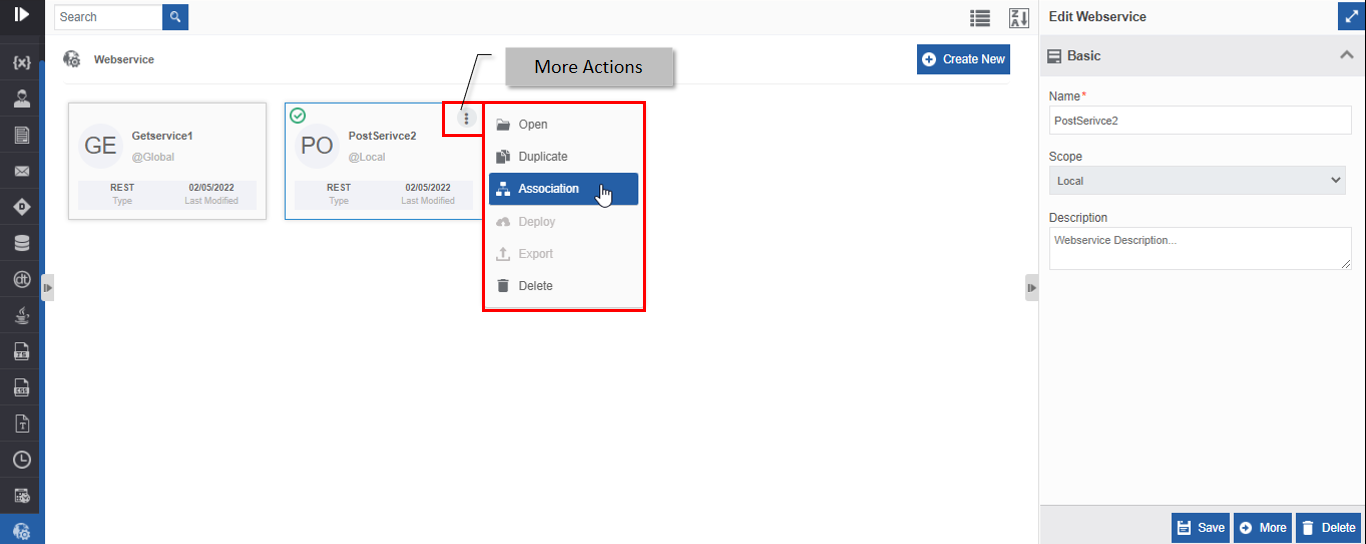
- Hover over any webservice card. Three dots appear on the upper right side of the card.
-
Click the three dots. More Actions appear.
-
Click Associations. The association of the webservice with the application, flow modules and activities are displayed in a pop-up.
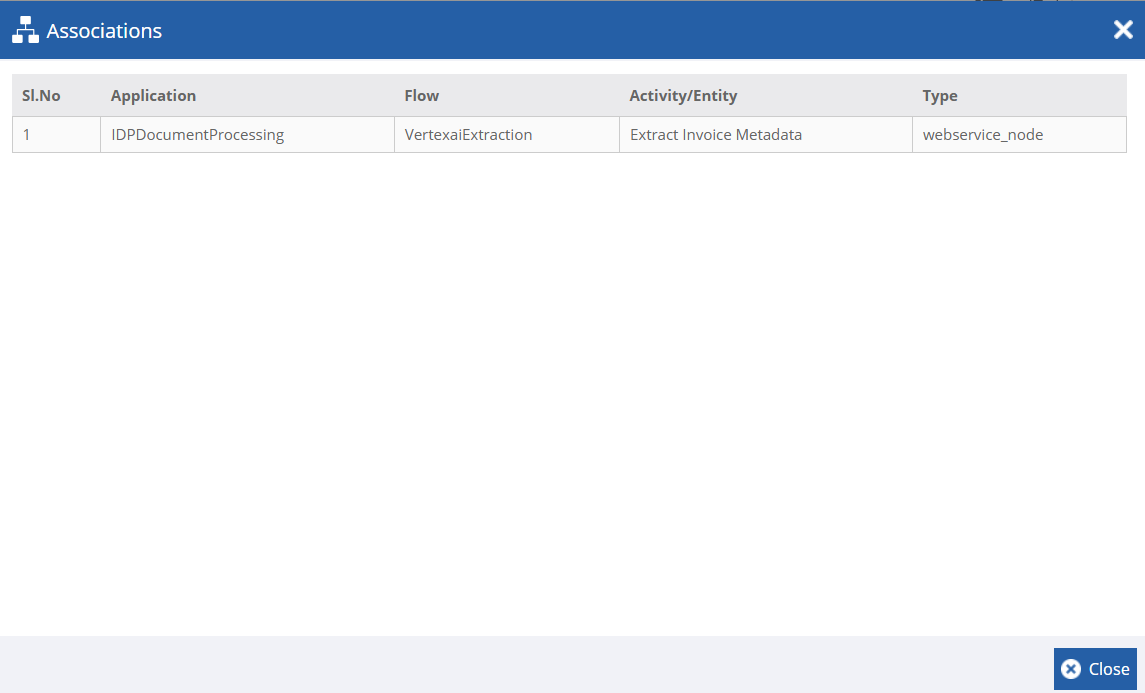
- Application – The application in which the webservice is utilized.
- Flow - The flow in which the webservice is utilized.
- Activity / Entity - The entity or activity name.
- Type - The type of entity or activity in which the webservice is utilized.
Duplicating Webservice
Make sure to unlock the application before duplicating an entity that is not created by you. When you duplicate a webservice, the associations are not duplicated.
- Navigate to App Studio > Applications - open application name > Process Flow/Data Flow - flow name > Open.
- Click Webservice.
- Click a Webservice. The webservice list appears.
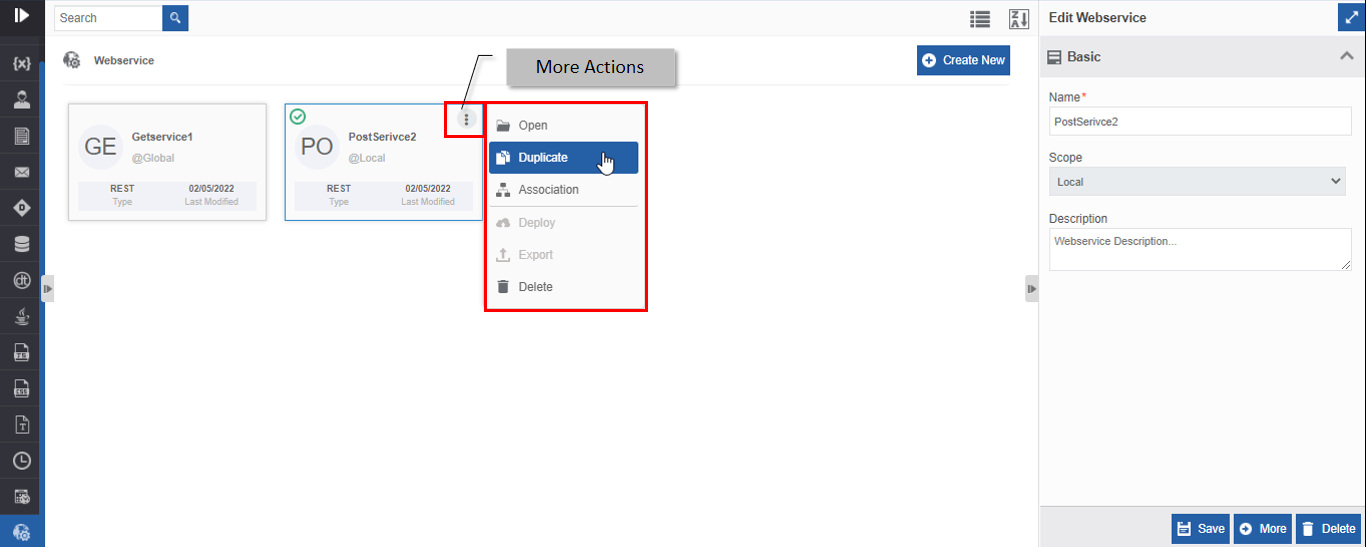
- Hover over any webservice card. Three dots appear on the upper right side of the card.
-
Click the three dots. More Actions appear.
-
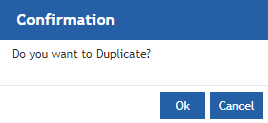
Click Duplicate. A confirmation pop-up appears.
-
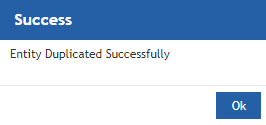
Click Ok for duplicating the webservice (or you can click Cancel to cancel the duplicate action). A Success message appears on the successful duplication of the webservice.
-
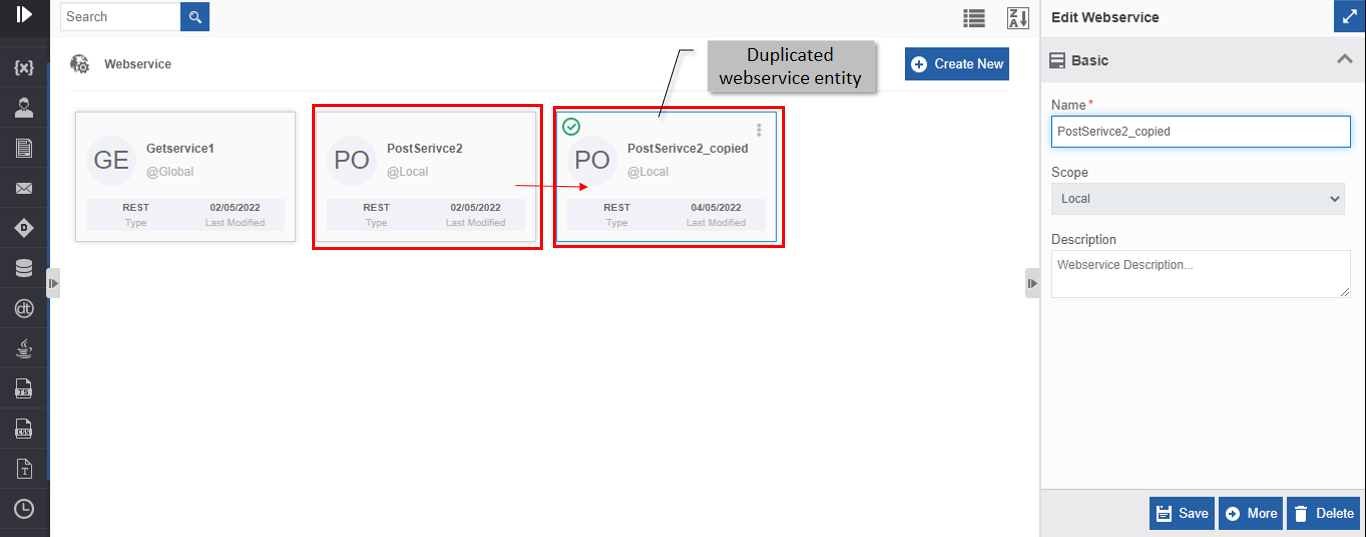
Click Ok. A duplicate copy of the webservice appears on the Webservice page with the same name suffixed with “_copied”.
Deleting Webservice
Make sure to unlock the application before deleting an entity that is not created by you. Also, you cannot delete the entity if it is associated with any activity.
- Navigate to App Studio > Applications - open application name > Process Flow/Data Flow - flow name > Open.
- Click Webservice. The webservice list appears.
-
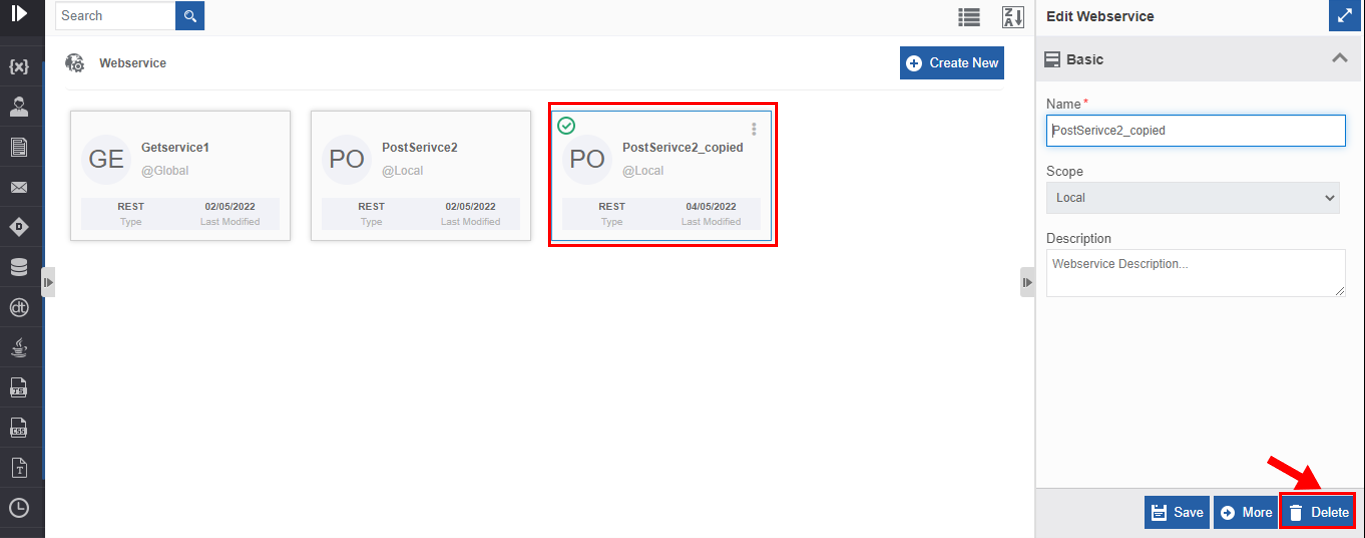
Click the webservice name card that is to be deleted. The lower-right of the page displays Delete.
-
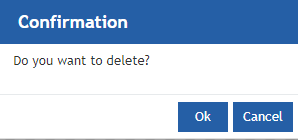
Click Delete. A Confirmation pop-up for delete appears.
-
Click Ok for deleting the webservice.
Or
Click Cancel to cancel the action.
Alternatively, you can follow the below steps to delete the webservice:
- Click the Burger menu and navigate to App Studio > Application > {Flow module} > Webservice.
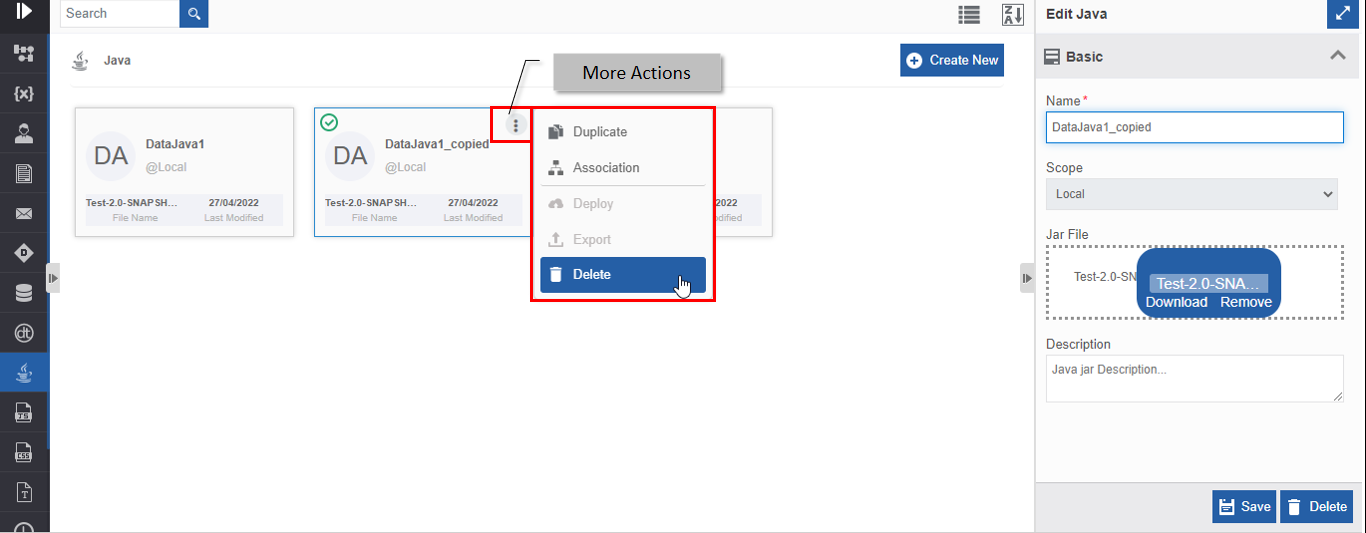
- Hover over the webservice card. Three dots appear on the upper right side of the card.
- Click the three dots. More Actions appear.
-
Click Delete and follow step 5 in the above procedure.
Utilizing Webservices
Accessing Webservices through Activity
You can map webservice to the activity, Webservice in the Process flow.
-
Navigate to App Studio > Applications - open application name > Process Flow/Data Flow - flow name > Open.
Info
Open or create a process flow with Webservice activity in the flow.
-
Click the webservice activity and the Info Actions panel displays the configuration and properties.
-
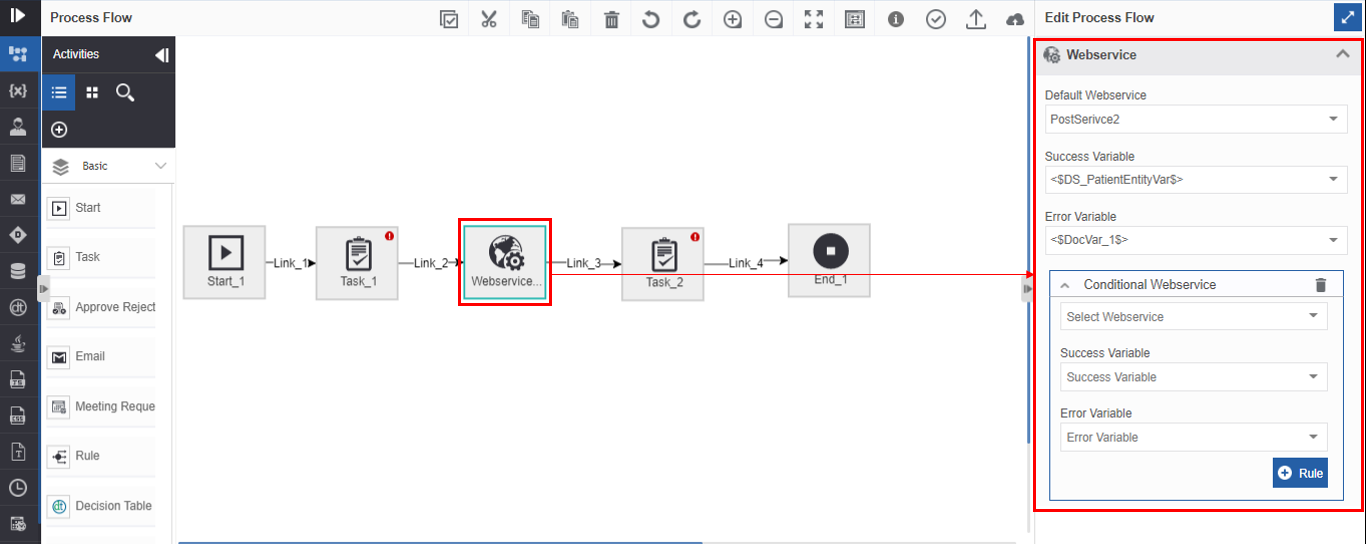
In the Edit panel, click the Webservice accordion. Webservice mapping details appear.
-
Click Default Webservice drop-down and select a webservice entity as the default webservice.
- Click Success Variable drop-down and select a variable. This variable stores output of the webservice if the webservice is executed successfully.
- Click Error Variable drop-down and select a variable. This variable stores the error data if the webservice execution fails.