SAML Configuration
Introduction to SAML
Security Assertion Markup Language (SAML) is used for authentication and management of multiple applications (service providers) through single sign on (SSO). The platform allows you to configure SAML details and facilitate SSO login to multiple applications seamlessly.
When you are configuring an organization in the platform you can configure SSO in the Management > Configuration Management > SAML section.
Prerequisites
To handle SAML integration, Apache Mod Auth Mellon plugin is need to be installed in the server. Refer to the SAML integration documentation for more details.
Creating New SAML Configuration
SAML configurations are defined in the Management module.
- Click the Burger menu and navigate to Management > Configuration Management.
-
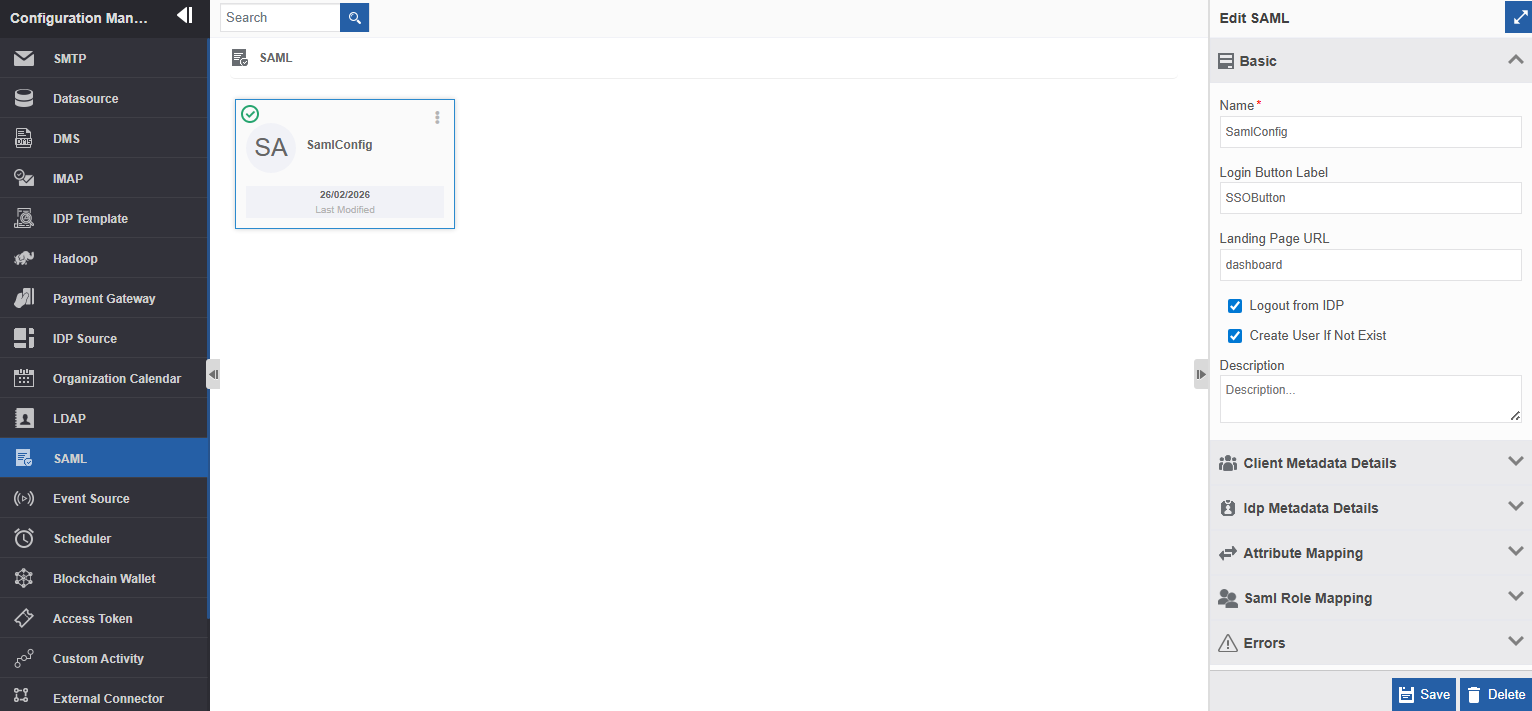
Click SAML in the configuration entity panel.
-
Click Create New. Once you create a SAML configuration, the create button does not appear further as you are allowed to create only single SAML configuration for an organization.
-
Click Basic and enter the configuration details.
Field Description Name* Enter the name of the SAML configuration.
Character limit: 50.
Data type: Alphanumeric and underscore.Login Button Label Enter a label for the login button.
The UI login button displays this label for SSO login. If you don’t give any label, “SAML Login” appears on the button. At runtime, when you click the SAML (SSO) login button, it prompts for the SSO credentials. Once the entered credentials are successfully validated, you will be navigated to the platform Landing page URL provided.Landing Page URL Enter the platform page name (dashboard, management, etc.,) of the platform landing page. When you click the SSO login button, you will get redirected to this page. If this field is left blank, the landing page is the platform home page based on the logged in users role and access permissions. Logout from IDP Select/Check Logout from IDP if you want to log off from the IDP while logging off from the platform. In this case, at runtime, if you wish to login through SSO, you must provide the credentials again. If not selected, you will stay logged in SSO, but logged off from platform. That is, you can login to the platform again with a single click on SSO button (without entering the credentials again). Create User If Not Exist This feature allows you to decide the creation of a non existing SSO user in the platform. Assume that a new user tries to login to Platform via SSO, the SSO user credentials are not available in the platform (not in Platform Management > User section), and the user is available in the IdP.
Select Create User If Not Exist : This allows you to create a SSO user in the platform with the IdP credentials entered while trying to login. In this case, user is created in the Platform Management > User section and the user is allowed to login.
Deselect Create User If Not Exist : The user who tries to login with IdP credentials is allowed to login, however, the user is not created in Platform Management > User section. -
Click IdP Metadata Details and enter the configurations.
Field Description IdP Metadata file Drag your IdP metadata file (.xml file) to the dotted rectangle area.
Or click the dotted rectangle and browse to select the IdP metadata file. Download and Remove options appear after uploading the file.
Click Download to download the file mapped.
Click Remove to remove the existing file mapping. -
Click Attribute Mapping and enter the configurations. The default mappings automatically appear on your configurations and these are necessary for the SSO feature.
If you want to enter any additional attribute mapping, Attribute mapping section allows you add it.Field Description Environment Attribute Mapping The environment-response attribute mapping is used to map the IdP response to Mellon environment variables. As per the default configuration, the name, given name, and surname in the environment configurations gets the details from the corresponding IdP attributes. You can edit the names of the environment attributes as per your design needs. However, note that the same names should be used in the User attribute names.
Click Attribute .
The environment attribute and response attribute fields appear.
Enter the name for the Environment Attribute and corresponding URL in the Response Attribute .
Click Attribute to add multiple attributes.
The delete icon adjacent to each entry allows you to delete a mapping.User Attribute Mapping The value in the environment variable (resolved from the corresponding IdP attribute) are passed to the response header attributes. The user-response header attribute mapping is used to map the environment variables (user attributes: name, given name, and surname ) to the response headers that are understood by the platform. Other default mapping: role, group
Click Attribute .
The request header attribute and user attribute fields appear.
- Enter the name for the Request Header Attribute and corresponding value in the User Attribute .
Click Attribute to add multiple attributes.
The delete icon adjacent to each entry allows you to delete a mapping. -
Click Generate Client Meta Files. The system generates certificate (.cert file), metadata (.xml file), and Key (.key file) files.
-
Click Client Metadata Details. This section displays metadata file details only after clicking the Generate Client Meta Files and generate the files that are required.
Field Description Domain URL* The domain URL is auto-generate with login page as default login page. Exclude URLs from SAML authentication Enter the pages that should not be accessed. For example: login,logout Enter multiple pages with coma separation and no space. Client Certificate File Click the file name to download and view the .cert file. Client Metadata File Click the file name to download and view the .xml file. Download this file and upload in IdP application > Clients > Import clients. You must connect to IdP to access the SSO. Client Key File Click the file name to download and view the .key file. -
Click SAML Role Mapping and enter the configurations.
Field Description Role Mapping Click Attribute. The Platform Role and IdP Role fields appear. Enter the name for the Platform Role and corresponding role in the IdP Role.
Click Attribute to add multiple role mappings. The delete icon adjacent to each entry allows you to delete a mapping.Default Role Enter default role name. If you do not provide any role mapping, the user will assume the default role. Also, when the system creates a new user in the platform when you check Create if User Not Exist , the default role is assumed for the user. -
Click Errors to view the errors (if any) after the publishing of the SAML configuration.
- Click Publish to publish the configuration details. If there are any errors, it gets listed in the Errors section. If you have errors, you cannot login via SSO. Rectify the errors and publish the configuration again until there are no errors.
- Click Create on the bottom right of the page and the SAML configuration gets created with the details entered.
Viewing and Editing SAML Configuration
- Click the Burger menu and navigate to Management > Configuration Management > SAML.
-
Click the SAML card to view the details. The details of the SAML configuration appear in the Info Actions panel (Edit SAML).
-
Edit the SAML configuration details as needed.
- Click Save.
Deleting SAML Configuration
- Click the Burger menu and navigate to Manage > Configuration Management > SAML.
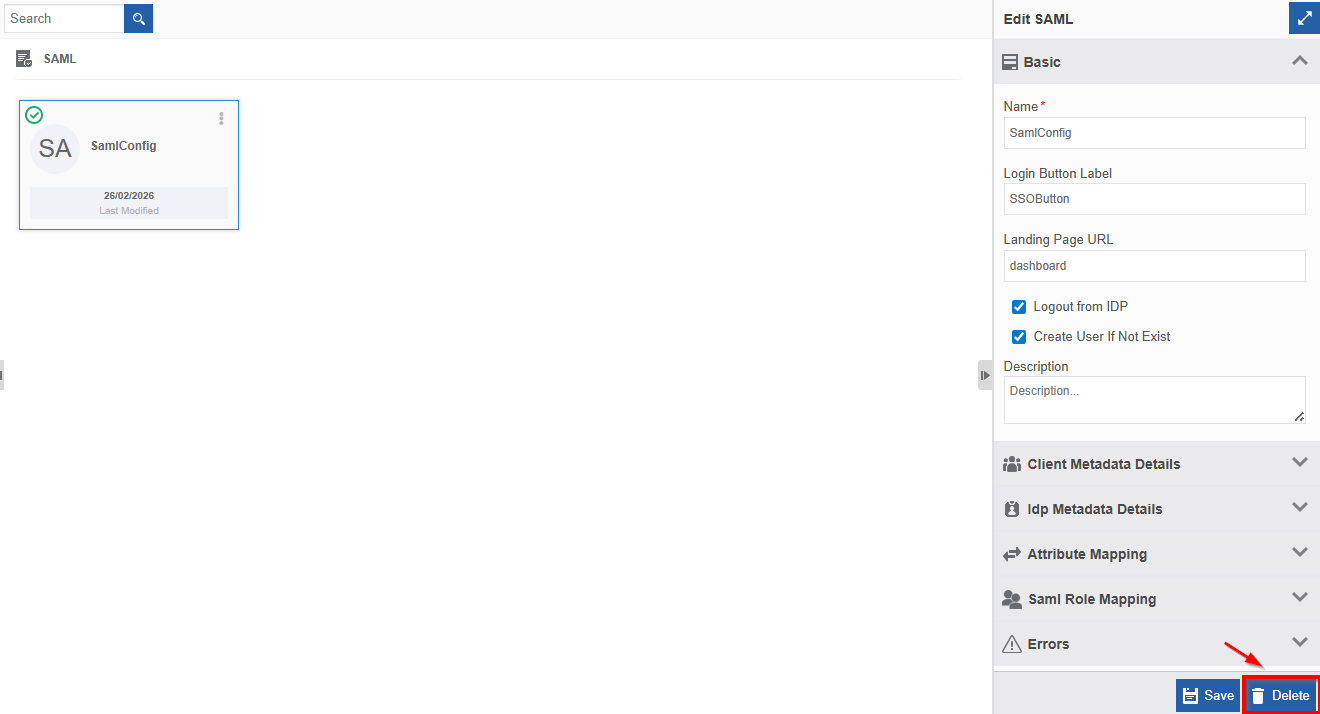
- Click SAML card. Only one SAML configuration will be displayed.
-
Click Delete button.
-
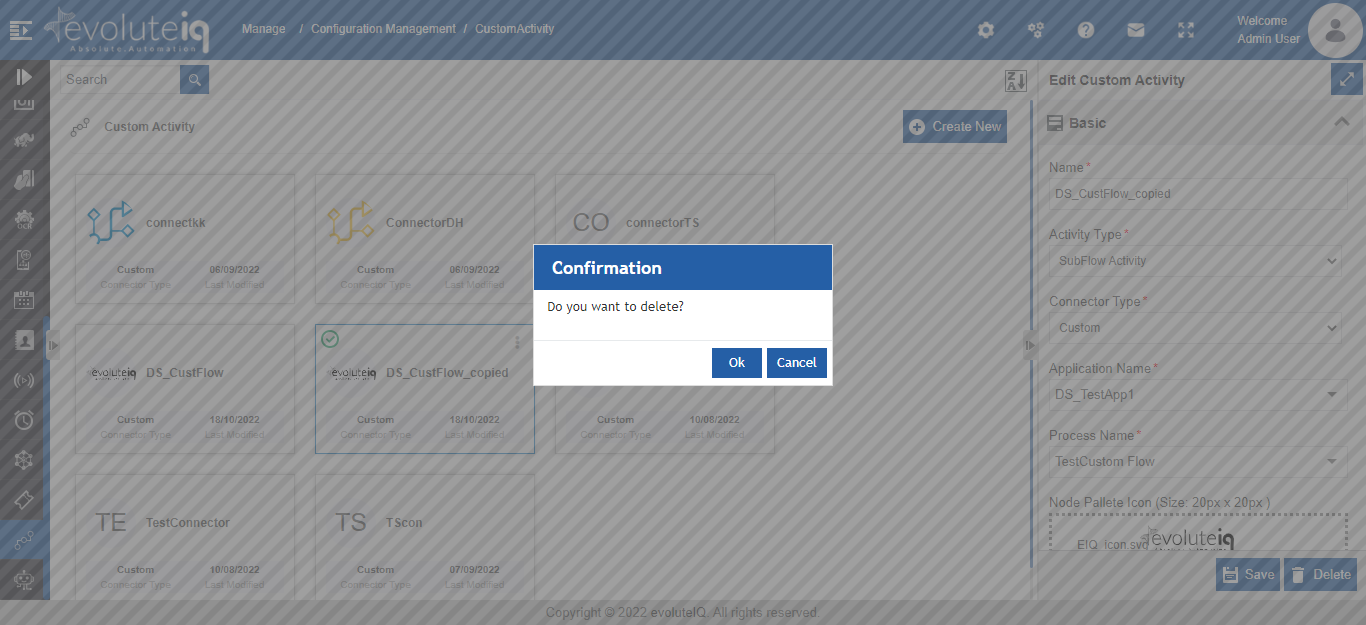
Click Delete. A Confirmation pop-up for delete appears.
-
Click Ok for deleting the SAML.
Or
Click Cancel to cancel the action.
Alternatively, you can follow the below steps to delete the SAML:
- Click the Burger menu and navigate to Management > Configuration Management > SAML.
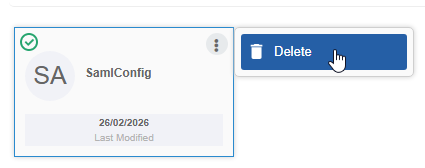
- Hover over the SAML card. Three dots appear on the upper right side of the card.
- Click the three dots. More Actions appear.
-
Click Delete and follow step 5 in the above procedure.