Custom Activities
Introduction to Custom Activity
Custom activities are activities that can be designed as per your requirements. The activities created can be utilized in the process flows for an organization.
There are two types of custom activities:
a. Custom activity of type custom activity,
b. Custom activity of type subflow.
A custom activity of type custom activity is designed by uploading JSON files, Javascript, and JAR files that contain the configuration details required for that custom activity.
A custom activity of type subflow allows you to design a process flow as an activity.
Creating and Configuring Custom Activity
Follow the below steps for creating a new Custom Activity configuration.
- Click the Burger menu and navigate to Management > Configuration Management.
-
Click Custom Activity in the configuration entity panel.
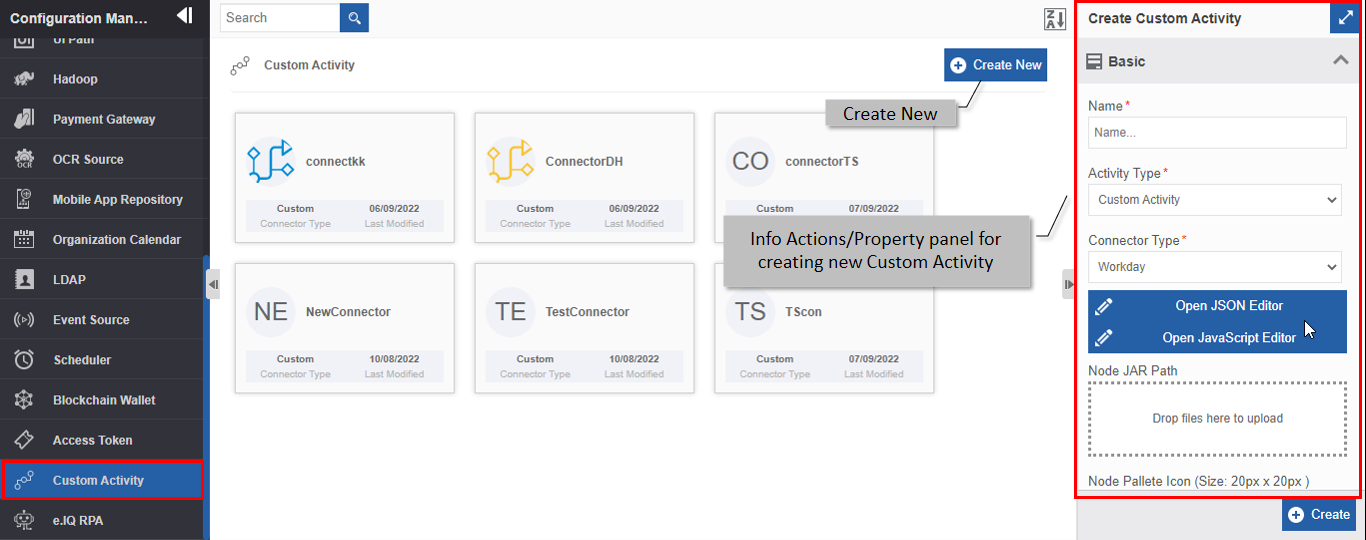
Figure 1: Creating new Custom Activity -
Click +Create New.
-
Enter the configuration details in the Create Custom Activity panel as explained below.
Field Description Name* Enter the name of the custom activity.
Character limit: 50.
Data type: Alphanumeric and underscore.Activity Type* Select the activity type.
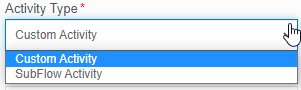
Custom Activity: Creates a custom activity as per your
configuration details.
Sub Flow Activity: Creates a process flow that can be used as
an activity.
Refer to Creating Subflow for Custom Activity.Connector Type* Select the required connector type.
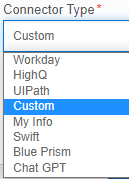
Refer to Custom Activity Connector Types for more details on connectors.Open JSON Editor Click to open the JSON editor. Enter or paste the JSON code.
The information regarding the content and structure of the activity is coded
in the JSON file as per your requirement.
The node name that is given in the JSON editor will appear on the
Custom Activity list as the custom activity name.
Refer to JSON Code Details for more information.Open JavaScript
EditorClick to open the JavaScript editor. Enter or paste the JavaScript code.
The details of the logic and validations on the input content are coded
in the JavaScript file as per your requirement.
Refer to JavaScript Code Details for more information.Node JAR Path Upload the JAR file.
The processing that you want to perform at the time of execution of the
custom activity is coded in the JAR file.
Refer to Node JAR Path Details for more information.Node Pallete
Icon*Upload node palette icon. This is used for listing purposes.
This icon appears on the Process flow Activity panel.
Only SVG file format is supported. SVG is used to define
vector-based graphics for the Web.
The maximum size of the image that can be uploaded is 20px X 20 px.Node Icon* Upload node icon. This image appears on the activity in the designer
area when the corresponding activity is dragged to the
process flow designer area.
Only SVG file format is supported. SVG is used to define
vector-based graphics for the Web.
The maximum size of the image that can be uploaded is 40px X 40px.Node Accordion
IconUpload node accordion icon. This icon appears on the Info Actions panel
for the activity configuration category accordion.
Only SVG format is supported. SVG is used to define
vector-based graphics for the Web.
The maximum size of the image that can be uploaded is 20px X 20 px.Description Write a brief description of the custom activity.
Character limit: 1000 characters
Data type: Alphanumeric and symbols. -
Click Create on the bottom right of the page and the custom activity gets created with the details entered.
Creating Subflow for Custom Activity
To create a process flow as a custom activity, follow the below steps.
-
Navigate to App Studio > Process Flow module.
-
Create and configure the process flow details and entities as per your needs.
-
Deploy the process flow.
-
Navigate to Management > Configuration Management > Custom Activity.
-
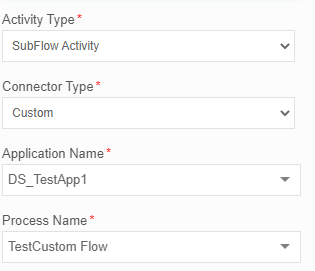
Click Create New and create a Custom Activity by selecting Activity Type as Sub Flow Activity. Application Name drop-down is displayed. The application name is displayed only if one of the process flow within that application is deployed.
-
Select the application name. The Process flow list is displayed. Only the deployed process flows are listed in the drop-down.
-
Select the process flow that you want to define as the custom activity.
-
For other configurations, go to step 3 details and configure accordingly, and finally click Create for creating the subflow type custom activity.
Custom Activity Connector Types
Connectors are used to achieve specific requirements in your activity. Some connectors are part of the Platform, however, you can include external connectors for utilizing the features of the same.
The connector types supported in the custom activities are explained below.
Blue Prism: Selecting Blue Prism allows you to create a custom activity that interacts with the Blue Prism application via APIs. When you create a Blue Prism custom activity, it will be listed in the Blue Prism category of the Activities.
Chat GPT: Selecting Chat GPT allows you to create a custom activity that interacts with the Chat GPT application via APIs. When you create a Chat GPT custom activity, it will be listed in the Chat GPT category of the Activities.
Custom: Select the option “Custom” if you are defining a custom activity or if you are creating a subflow custom activity within the Platform.
HighQ: Selecting HighQ allows you to create a custom activity that interacts with the HighQ application via APIs. When you create a HighQ custom activity, it will be listed in the HighQ category of the Activities.
My Info: Selecting My Info allows you to create a custom activity that interacts with the My Info application via APIs. When you create a My Info custom activity, it will be listed in the My Info category of the Activities.
Swift: Selecting Swift allows you to create a custom activity that interacts with the Swift application via APIs. When you create a Swift custom activity, it will be listed in the Swift category of the Activities.
UIPath: Selecting UIPath allows you to create a custom activity that interacts with the UIPath application via APIs. When you create a UIPath custom activity, it will be listed in the UIPath category of the Activities.
Workday: Selecting Workday allows you to create a custom activity that interacts with the Workday application via APIs. When you create a Workday custom activity, it will be listed in the Workday category of the Activities.
Viewing and Editing Custom Activity
- Click the Burger menu and navigate to Management > Configuration Management > Custom Activity.
-
Click the Custom Activity card to view the details of the selected Custom Activity. The details of the Custom Activity appear in the Info Actions panel (Edit Custom Activity).
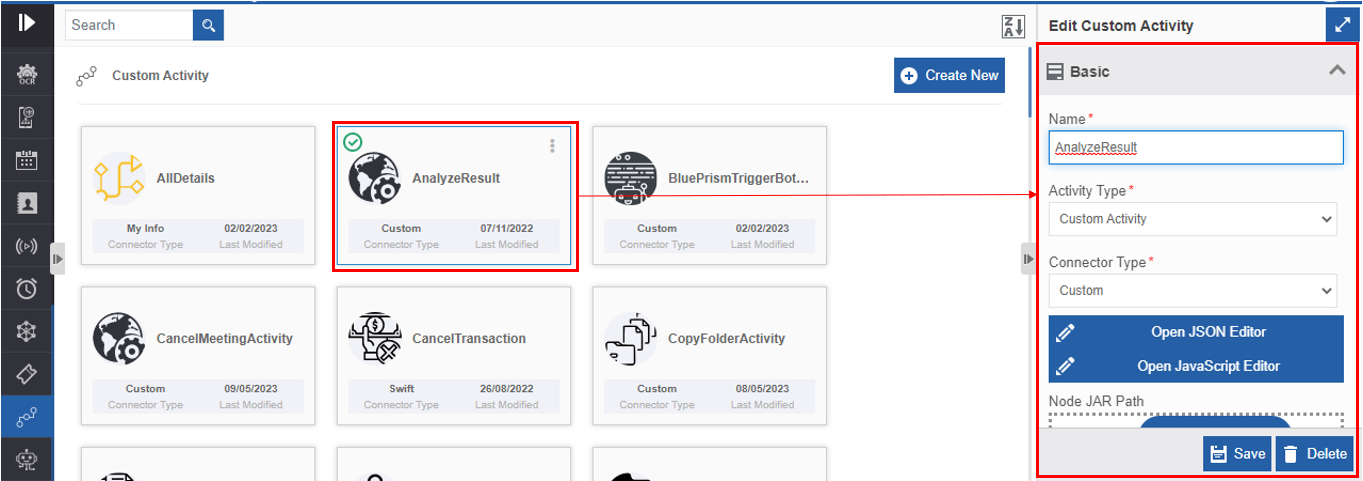
Figure 2: Editing Custom Activity details -
Edit the Custom Activity details as needed.
-
Click Save.
Exporting a Custom Activity
You can export a custom activity as a package to your local system.
- Click the Burger menu and navigate to Management > Configuration Management > Custom Activity.
-
Hover over a custom activity name card and click the three dots (More Actions).
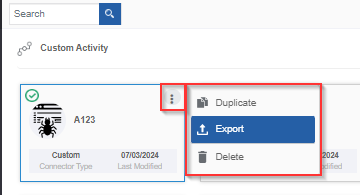
Figure 3: Exporting custom activity -
Click Export. The selected custom activity gets exported to your local system in the .pkg format.
Importing Web App
You can import a custom activity package into the Custom Activity section for utilization.
-
Click the Burger menu and navigate to Management > Configuration Management > Custom Activity. The list of all custom activities in the platform appears.
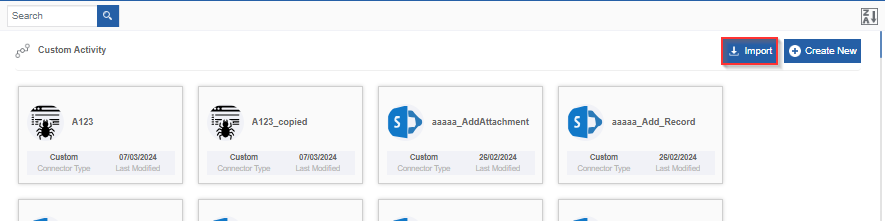
Figure 4: Importing custom activity -
On the upper right click Import.
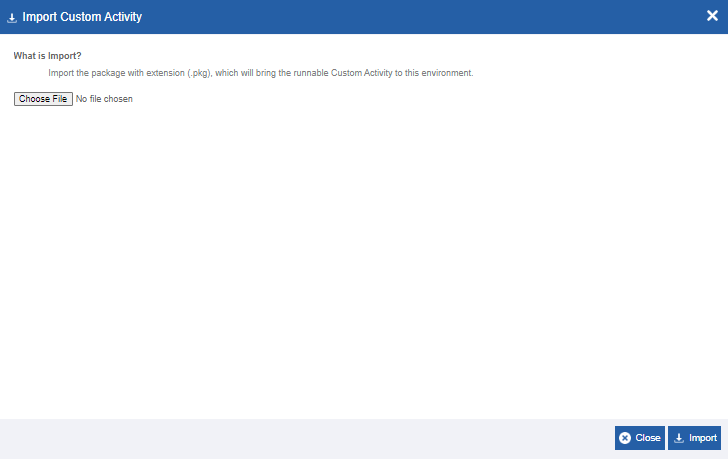
Figure 5: Importing Custom Activity - file selection -
Click Choose File and select the file (in .pkg format) that you want to import. If the import package name matches with any of the existing custom activity, an import failed message appears with an option to rename the package name or to overwrite the existing custom activity in the platform.
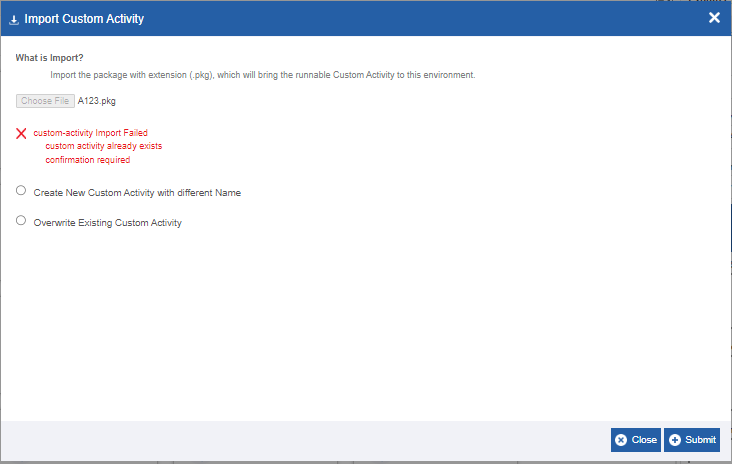
Figure 6: Import custom activity import failed message with options -
Create new Custom Activity with different name: Click this option if you want to import the same package with a different name.
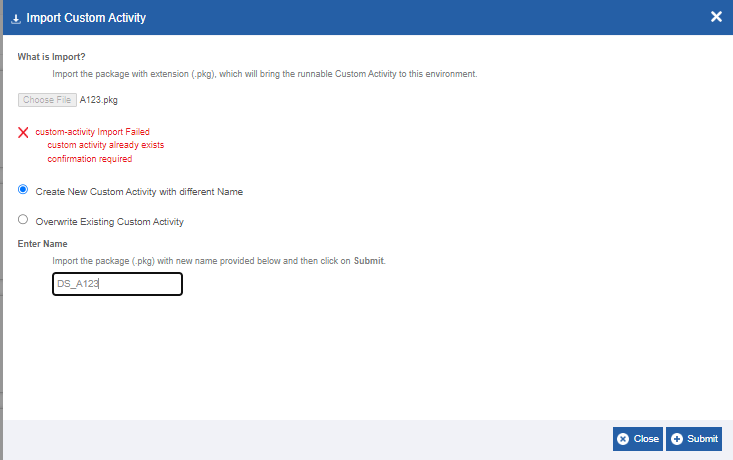
Enter the new name in the Enter Name field.
-
Overwrite Existing Custom Activity: Click this option to overwrite the existing custom activity with the import file with the same name as in the package.
-
Click Import. A Success message appears on successful import of the package.
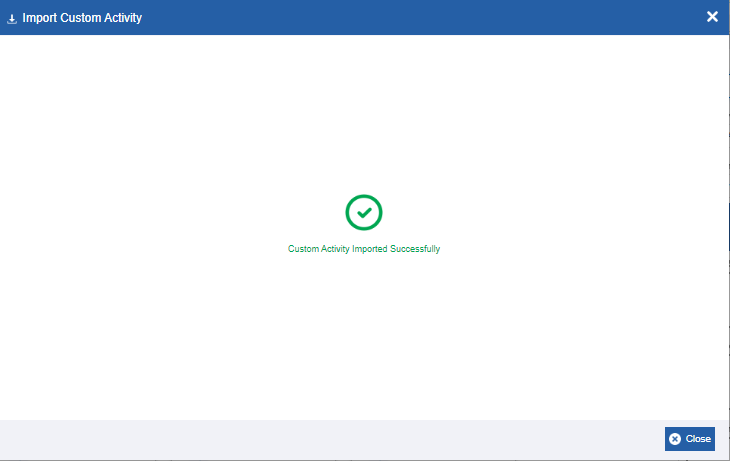
Figure 7: Import success message -
Click Close. The package is imported to the platform.
Duplicating Custom Activity
Follow the below steps for duplicating an existing custom activity.
- Click the Burger menu and navigate to Management > Configuration Management.
-
Click Custom Activity. The list of all custom activities is displayed.
-
Hover over any custom activity card. Three dots appear on the upper right side of the card.
-
Click the three dots. More Actions appear.
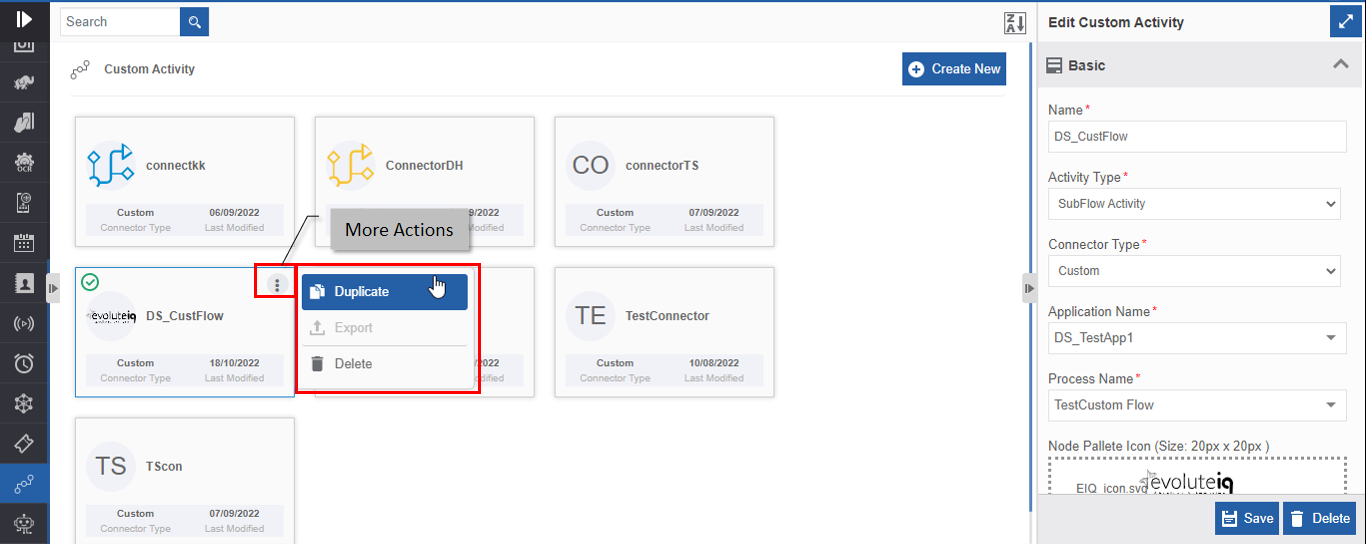
Figure 8: Duplicating the custom activity -
Click Duplicate. A confirmation pop-up appears.
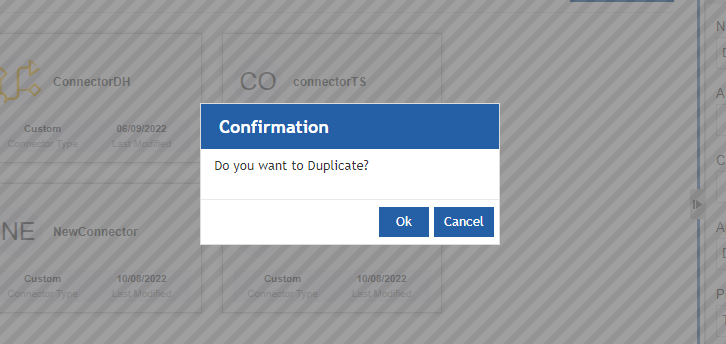
Figure 9: Duplicate confirmation -
Click Ok for duplicating the custom activity (or you can click Cancel to cancel the duplicate action). A Success message appears on the successful duplication of the custom activity.
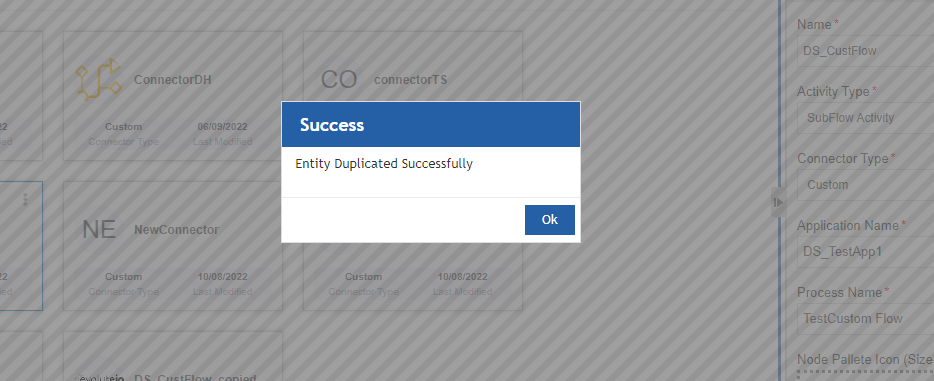
Figure 10: Duplicate success message -
Click Ok. A duplicate copy of the custom activity appears on the custom activity page with the same custom activity name suffixed with “_copied”.
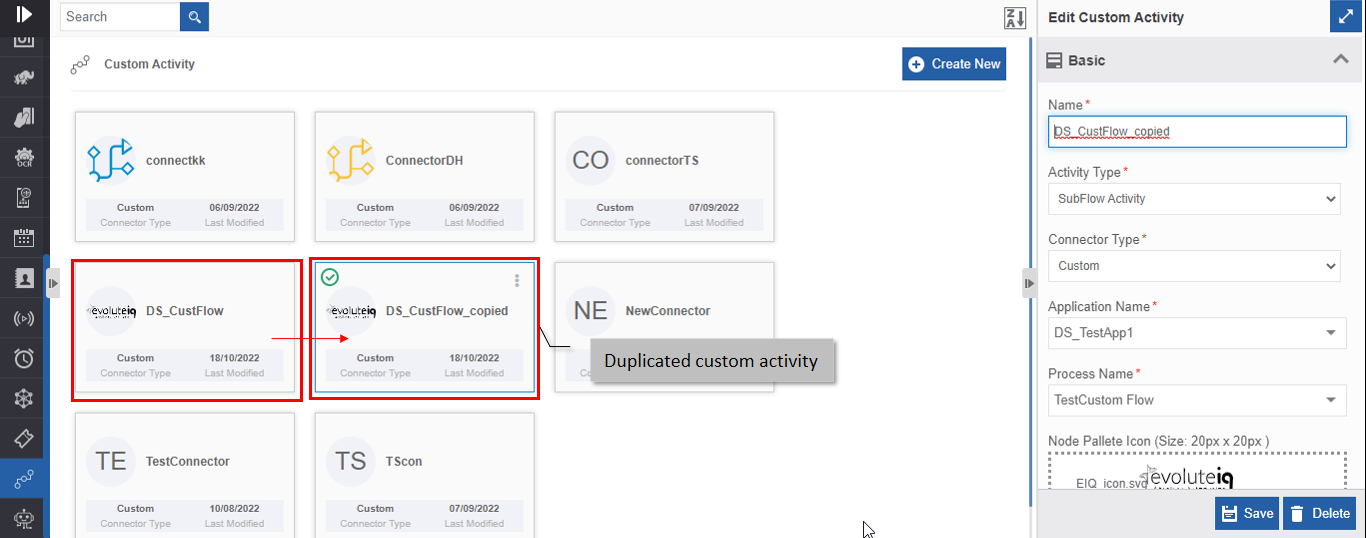
Figure 11: Duplicated custom activity
Deleting Custom Activity
- Click the Burger menu and navigate to Management > Configuration Management.
-
Click Custom Activity. The list of all custom activities is displayed.
-
Click the custom activity name card that is to be deleted. The lower-right of the page displays the Delete button.
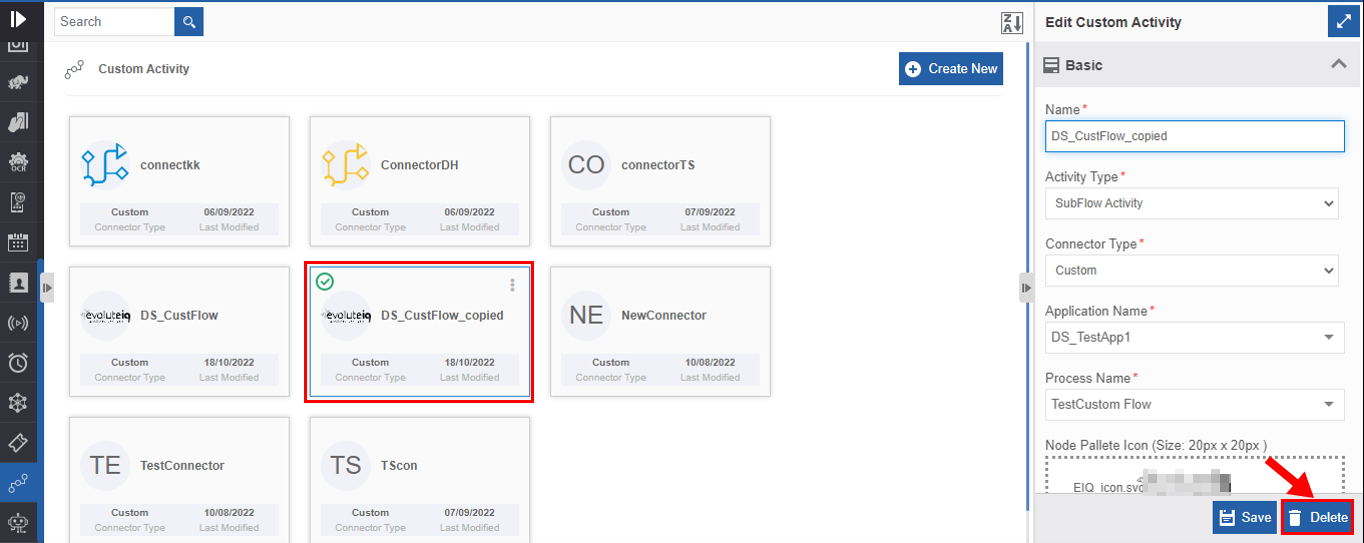
Figure 12: Deleting custom activity -
Click Delete. A Confirmation pop-up for delete appears.
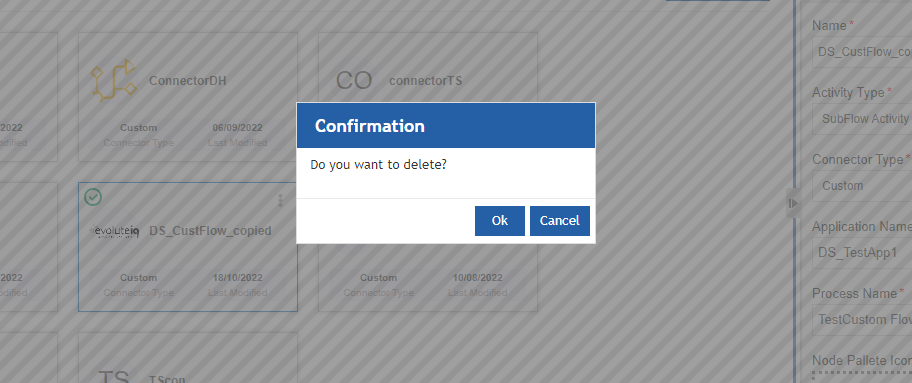
Figure 13: Custom Activity Delete confirmation -
Click Ok for deleting the custom activity.
Or
Click Cancel to cancel the action.
Alternatively, you can follow the below steps to delete the custom activity:
- Click the Burger menu and navigate to Management > Configuration Management > Custom Activity
-
Hover over the custom activity card. Three dots appear on the upper right side of the card.
-
Click the three dots. More Actions appear.
-
Click Delete and follow step 5 in the above procedure.
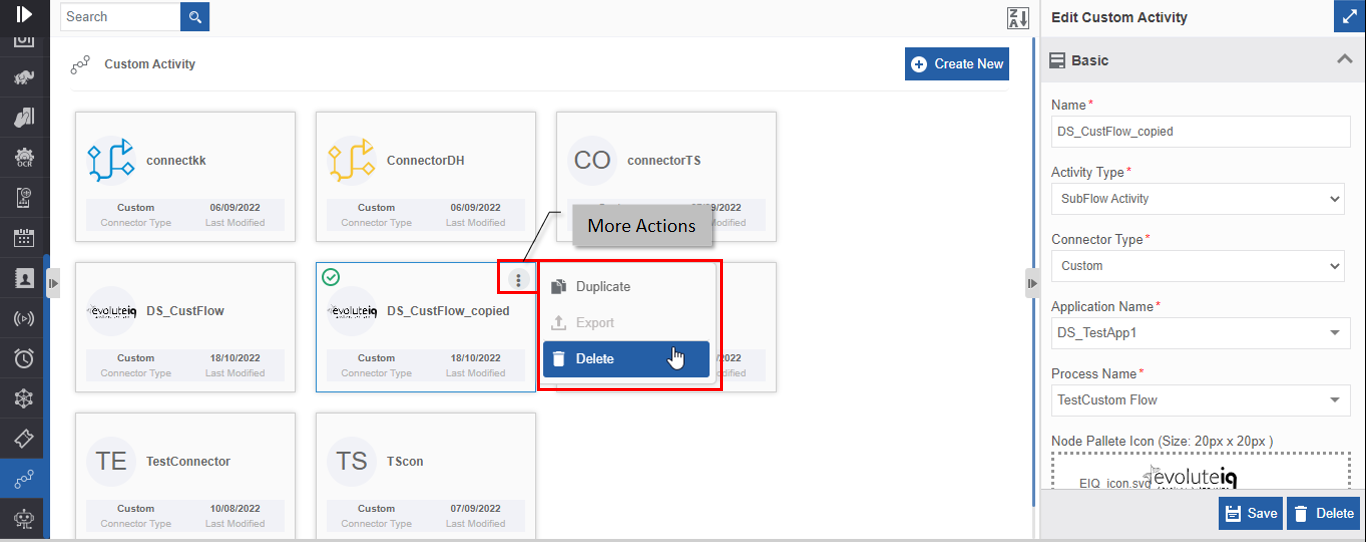
Figure 14: Delete action in More Actions
Custom Activities in Process Flows
Adding and Viewing Custom Activities
The custom activities created in the Management > Configuration Management > Custom Activities can be accessed through the process flow Activities panel.
- Navigate through App Studio > Process Flows.
-
In the Process Design > Activities panel click “+” for viewing the advanced connectors.
-
Click Custom. All the custom-defined activities get added to the Activities panel under the Custom accordion.
The custom activities that are of type “Custom” are displayed below the Custom category. Other custom activities are listed below the selected custom category type.
Custom activities that are in different categories will be listed under that category along with the default activities (if any) in that category.
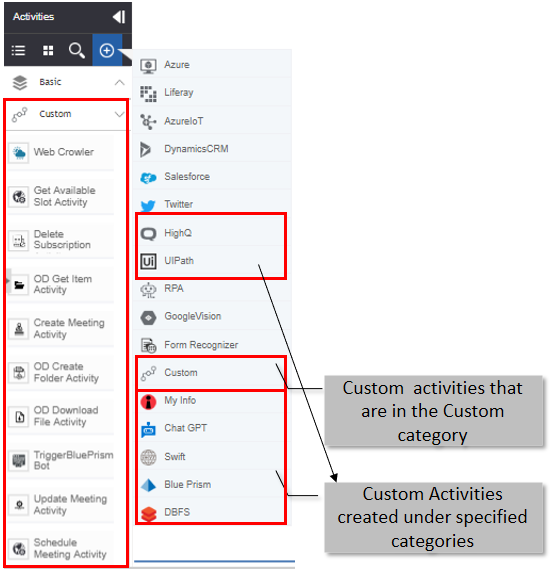
Custom Activity in Process Flow
To use the custom activity, you need to add the custom activity category to the activities list and then drag the activity to the process designer.
Based on the type of custom activity added (Sub Flow Activity Type or Custom Activity Type) to the process flow, the configuration details are different.
The sections included in Info Actions for the custom activity of type Subflow are Basic, Trigger Subflow, and Error Handling. Refer to Configuring Subflow Activity.
The sections included in Info Actions for the Custom activity of type custom activity are Basic and the configurations are coded as in the JSON file. Refer to Configuring Custom Activity.
Configuring Subflow Activity
- Add the Custom Activity category to the Activity list. Refer to Adding and Viewing Custom Activities.
-
Design the process flow by dragging the subflow custom activity as needed.
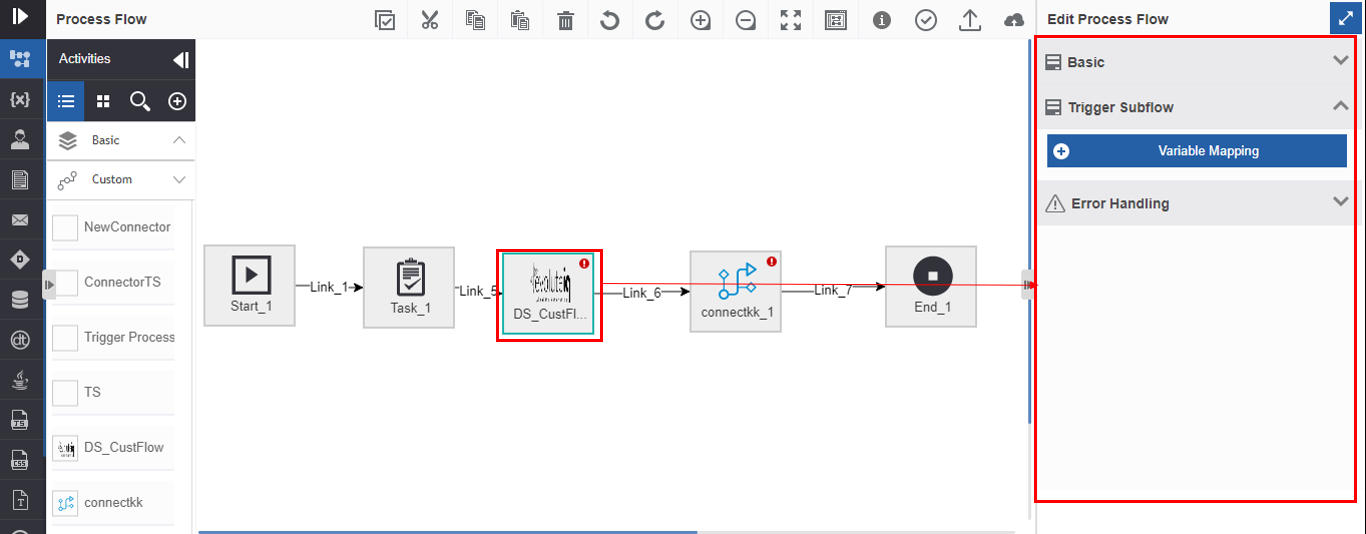
Figure 15: Custom subflow activity in process flow and the configurations -
Click the activity. Configuration details are displayed on the Info Actions panel.
-
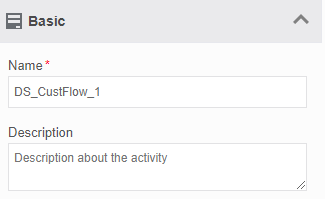
Click Basic accordion.
-
Provide Name and Description for the activity.
-
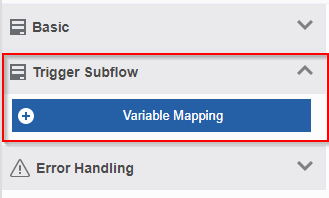
Click Trigger Subflow accordion.
-
Click + Variable Mapping. Variable mapping pop-up appears.
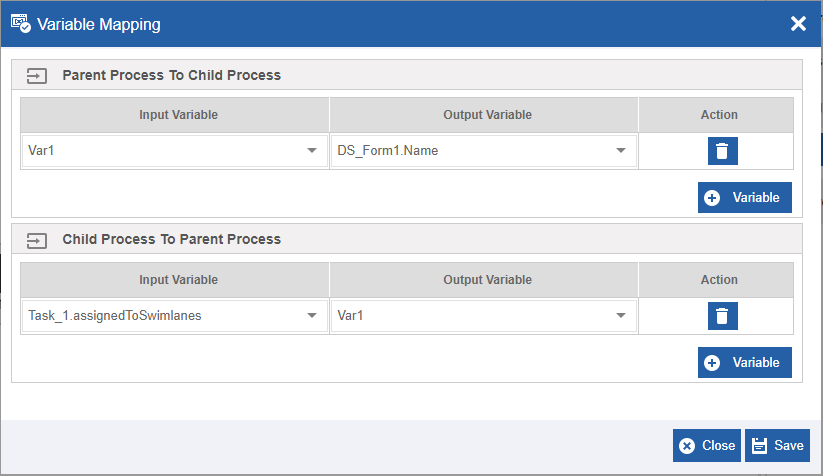
Figure 16: Variable Mapping -
In the Parent Process To Child Process, click Variable and select Input Variable (parent process variable) and Output Variable (child process variable). This is done to pass the data from the parent process to the child process, that is, custom subflow activity.
-
In the Child Process To Parent Process, click Variable and select Input Variable (child process) and Output Variable (parent process). This is done to pass the data from the child process, that is custom subflow activity to the parent process.
-
Click +Variable, to add more variables in each section.
-
Click the delete icon to remove an input or output variable mapping.
-
Click Save.
-
Click Error Handling accordion.
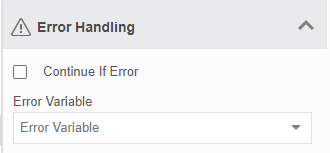
Figure 17: Error Handling -
Check the Continue If Error check box if you want to continue the workflow even if the error occurs.
Else uncheck the checkbox to break or stop the workflow execution when an error occurs. - Select a variable from the Error Variable drop-down. The variable should be of data type, alphanumeric. Error variable stores the first line of the error.
- Click Create/Save to save the changes.
Configuring Custom Activity
Custom activity configurations depend on the JSON file, JavaScript file, and the JAR file that you uploaded while creating the custom activity in the Management > Configuration Management > Custom Activity.
- Add the Custom Activity category to the Activity list. Refer to Adding and Viewing Custom Activities.
-
Design the process flow by dragging the custom activity as needed. The custom activities appear below the Custom category in the Activities pane. The name of the custom activity is the node name that you have coded in the JSON file.
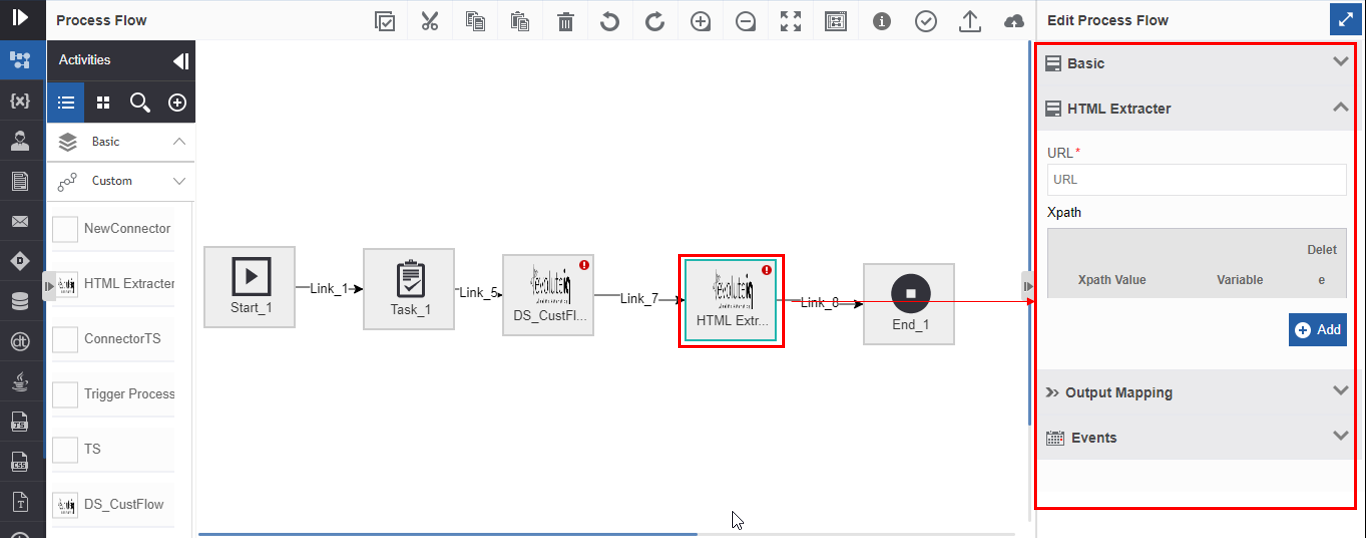
Figure 18: Custom activity in process flow and the configuration detail in the Info Actions -
Click the activity. Configuration details are displayed on the Info Actions panel.
-
Click Basic accordion.
-
Provide Name and Description for the activity.
-
Click {custom_configuration} accordion (that appears on the Info Actions) and configure the details as needed. The custom configuration accordion and details appear based on JSON file details that you provided in the Manage module.
Connector-Based Custom Activities
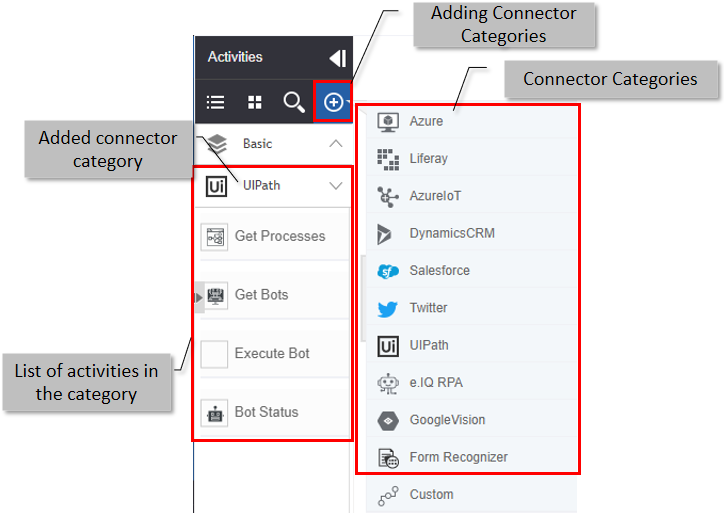
The connector-based custom activities are displayed on the specific Connector category in the Activities panel. The connector-based activities (default) and the custom activities can be accessed only by adding those activities to the Activities panel.
In the Process Flow Activities Panel > Click “+” > click the connector name. All the activities supported for that connector including the custom activities are displayed below the connector category.
JSON Code Details
JSON Code Content
Prepare Node JSON as mentioned below.
Update the following properties in the JSON Content in the JSON Editor and save.
-
“nn”: Provide name of the activity.
-
“nd": Provide name of the activity.
-
"txt": Provide name of the activity.
-
“type”: “custom_node”.
-
“grp": Provide name of the activity.
-
“CKey”: “node/custom”.
-
“node_handler”: Provide the Node Handler class name with full package as mentioned below.
Example: "com.demo1.custom.HtmlExtracterHandler"
“propertyClass”: Provide the Node Property class name with full package as mentioned below.
Example: "com. demo1.custom.HtmlExtracterMapping"
“node_validator_class”: Provide the Node Property class name with full package as mentioned below.
Example: "com. demo1.custom.HtmlExtracterValidator"
By default, we will have 3 sections in a node configuration: Input Configuration, Output/Error Configuration, Event Configuration (Deprecated)
Input Configuration
Let's create a Section first by providing the name of the Section.
“name": Name of the Section, it should be same as a node name.
“tab”: Name of the Section without spaces, it will be the accordion name.
“widget”: We will define a widget under the widget list.
Each widget will have the following configuration.
“type”: "property-form-custom"
"triggerFunction": "init"
“data”: data will have single/multiple objects based on our requirement.
Basically, these are input fields for a Node.
We will define one custom input element under the input section.
    {

    // Since it is custom widget, will consider element as div.

    "elementType": "div",

    "properties": {

    // Some description about this element

    "description": "HTML Extracter Headers",

    // id of the element, which is used for the DOM, value management.

    "id": "url",

    // same as id to manage data/DOM.

    "name": "url",

    // this also same as the id.

    "objectType": "url",

    // Name of the custom control widget, which will be used in the
    JavaScript file to handle the events and DOM changes.

    "controlWidget": "CustomKeyValuePairWidget",

    // this is the accordion name

    "priority": "HTMLExtracter"

    }

    }
Custom Control widget is defined in JavaScript file to handle the DOM changes, events and data management.
Now we will create a Selectize component for listing the configured data sources.
    {

    // select element is to convert the custom selectizer

    "elementType": "select",

    // property configuration for the selectize element

    "properties": {

    // id of the element, which is used for the DOM, value management.

    "id": "configurationName",

    // same as id to manage data/DOM.

    "name": "configurationName",

    //label of the element

    "label": "Datasource",

    //there is predefined list in our porduct to handle the different types
    of

    "objectType": "dbScriptDatasourceList",

    //type of the component, these are predefined in the platform

    "type": "nbt-object-property-form-autocomplete",

    //title of the element

    "title": "Datasource Credentials",

    //placeholder of the elements

    "placeholder": "Enter Datasurce",

    //element to be created in the accordion

    "priority": "HTMLExtracter"

    },

    "event": {

    //event type

    "action": "change",

    // default call back method

    "callBack": "save"

    }

    },
Now we will create a normal texbox with droppable variable.
    {

    //input text element

    "elementType": "input",

    "properties": {

    //label of the element

    "label": "Image Path",

    //description of the elemenet

    "description": "Image Path",

    //id of the element

    "id": "imagePath",

    //class of the element,and provide variabledroppable class to handle the
    variables, and we can add JQuery validation classes to validate the
    value.

    "class": "input validate\[required, custom\[imagePath\]\]
    variabledroppable",

    //name of the element

    "name": "imagePath",

    //placeholder of the element

    "placeholder": "Image Path",

    //type of the input element

    "type": "text",

    //titile of the element

    "title": "Image Path",

    //default value of the element

    "defaultValue": "",

    //element to be created in the accordion

    "priority": "HTMLExtracter",

    //variable droppable set to true, so that user will be allowed to drop
    variables

    "variableDroppable":true

    },

    "event": {

    //event type

    "action": "change",

    // default call back method

    "callBack": "save"

    }

    }
Output/Error Configuration
Use below JSON to create the output and error elements to handle the extracted data or failure cases. This will be commonly used for any custom activity.
    {

          "name": "Output Mapping",

          "tab": "outputMapping",

          "widget": \[

            {

              "type": "property-form-custom",

              "data": \[

                {

                  "elementType": "input",

                  "properties":

                  {

                    "label": "Store the Response in Variable",

                    "description": "Output Variable",

                    "id": "outputParam",

                    "name": "outputParam",

                    "objectType": "rest-webservice-output-mapping",

                    "class": "input validate\[required\]",

                    "fieldIdentifier": "variable",

                    "type": "nbt-object-property-form",

                    "placeholder": "Output Variable",

                    "title": "Output Variable",

                    "priority": "outputMapping"

                  },

                  "event":

                  {

                    "action": "change",

                    "callBack": "save"

                  }

                },

                {

                  "elementType": "input",

                  "properties":

                  {

                    "label": "Error Information",

                    "description": "Error Information",

                    "id": "errorInfo",

                    "name": "errorInfo",

                    "objectType": "rest-webservice-output-mapping",

                    "class": "input validate\[required\]",

                    "fieldIdentifier": "variable",

                    "type": "nbt-object-property-form",

                    "placeholder": "Error information Variable",

                    "title": "Output Variable",

                    "priority": "outputMapping"

                  },

                  "event":

                  {

                    "action": "change",

                    "callBack": "save"

                  }

                }\]

            }\]

        },
Event Configuration (Deprecated-check before using the code)
We can use the below JSON to create event configuration.
    {

          "name": "Events",

          "tab": "property-events",

          "widget": \[

            {

              "type": "property-form",

              "data": \[

                {

                  "elementType": "select",

                  "properties":

                  {

                    "id": "events",

                    "name": "events",

                    "placeholder": "Search Events",

                    "type": "component",

                    "componentType": "process-start",

                    "componentName": "EventBuilder",

                    "title": "Process Events",

                    "priority": "property-events"

                  },

                  "event":

                  {

                    "action": "change",

                    "callBack": "save"

                  }

                }\]

            }\]

        }
JSON Code Example
    {

    "nn": "HTML Extracter",

    "nd": "HTML Extracter",

    "loc": "",

    "tp": "svg",

    "it": "true",

    "ot": "true",

    "mit": "true",

    "mot": "true",

    "txt": "HTML Extracter",

    "sts": "",

    "fp": "images/process-designer-node-icons/nodes/svg/UnitConverter.svg",

    "canvas":
    "images/process-designer-node-icons/nodes/canvas/UnitConverter.svg",

    "type": "webservice_node",

    "grp": "Basic",

    "group": "System",

    "ht": "false",

    "nodegroup": "BASE",

    "otc": "1",

    "CKey": "node/webservice",

    "notValid": true,

    "grp_icon_type": "png",

    "grp_icon_path":
    "images/process-designer-node-icons/groups/svg/UnitConverter.png "tooltip")<br>,

    "node_handler": "com.demo1.custom.HtmlExtracterHandler",

    "node_enter_handler": "",

    "node_leave_handler": "",

    "propertyClass": "com.demo1.custom.HtmlExtracterMapping",

    "node_validator_class": "com.demo1.custom.HtmlExtracterValidator",

    "default_section": "1",

    "widget-namespace": "NBT.node.widget.Default",

    "section": \[

    {

    "name": "HTML Extracter",

    "tab": "HTMLExtracter",

    "widget": \[

    {

    "type": "property-form-custom",

    "triggerFunction": "init",

    "data": \[

    {

    "elementType": "input",

    "properties": {

    "label": "URL",

    "id": "url",

    "class": "input validate\[required\]",

    "name": "url",

    "placeholder": "URL",

    "maxlength": "100",

    "type": "text",

    "title": "URL",

    "priority": "HTMLExtracter"

    }, "event":

    {

    "action": "change",

    "callBack": "save"

    }

    },

    {

    "elementType": "div",

    "properties": {

    "description": "Webservice Headers",

    "id": "xpathVar",

    "name": "xpathVar",

    "objectType": "xpathVar",

    "controlWidget": "CustomKeyValuePairWidget",

    "priority": "HTMLExtracter"

    }

    }

    \]

    }

    \]

    },

    {

    "name": "Output Mapping",

    "tab": "outputMapping",

    "widget": \[

    {

    "type": "property-form-custom",

    "data": \[

    {

    "elementType": "input",

    "properties": {

    "label": "Store the Response in Variable",

    "description": "Output Variable",

    "id": "outputParam",

    "name": "outputParam",

    "objectType": "rest-webservice-output-mapping",

    "class": "input validate\[required\]",

    "fieldIdentifier": "variable",

    "type": "nbt-object-property-form",

    "placeholder": "Output Variable",

    "title": "Output Variable",

    "priority": "outputMapping"

    },

    "event": {

    "action": "change",

    "callBack": "save"

    }

    },

    {

    "elementType": "input",

    "properties": {

    "label": "Error Information",

    "description": "Error Information",

    "id": "errorInfo",

    "name": "errorInfo",

    "objectType": "rest-webservice-output-mapping",

    "class": "input validate\[required\]",

    "fieldIdentifier": "variable",

    "type": "nbt-object-property-form",

    "placeholder": "Error information Variable",

    "title": "Output Variable",

    "priority": "outputMapping"

    },

    "event": {

    "action": "change",

    "callBack": "save"

    }

    }

    \]

    }

    \]

    },

    {

    "name": "Events",

    "tab": "property-events",

    "widget": \[

    {

    "type": "property-form",

    "data": \[

    {

    "elementType": "select",

    "properties": {

    "id": "events",

    "name": "events",

    "placeholder": "Search Events",

    "type": "component",

    "componentType": "process-start",

    "componentName": "EventBuilder",

    "title": "Process Events",

    "priority": "property-events"

    },

    "event": {

    "action": "change",

    "callBack": "save"

    }

    }

    \]

    }

    \]

    }

    \]

    }
JavaScript Code Details
Control Widget JavaScript File
Define the Control widget as mentioned below, this is the default definition of the Control widget.
    \$.widget("nbt.CustomKeyValuePairWidget", \$.nbt.ControlWidget, {

      options: {

    //Define the options required to be reused in the widget

        processVariables: \[\]

    },

      \_create: function() {

    //Initialize and set the values

    },

    render: function() {

    //define html templates, which will be used to create an element in the
    DOM.

    },

    \_init: function() {

    //This method will trigger once everything is initialised and
    available.

    }

    });
Javascript Code Example
    \$.widget("nbt.CustomKeyValuePairWidget", \$.nbt.ControlWidget, {

    options: {

    processVariables: \[\]

    },

    \_create: function() {

    this.objectType = this.options.value.properties.objectType;

    this.\_readOnly = (this.options.value.properties.readonly == "readonly")
    ? true : false;

    this.\_uniqueId = this.options.nodeWidget.\_uniqueId;

    this.constants = {

    \_labels: {

    "table": "Table",

    "variables": {

    "key": "Name",

    "value": "Value",

    "headers": "Variables",

    "addButtonLabel" : "Variable"

    },

    "customAttributes": {

    "key": "Key",

    "value": "Value",

    "headers": "Custom Attributes",

    "addButtonLabel" : "Attribute"

    },

    "headers": {

    "key": "Key",

    "value": "Value",

    "headers": "Headers",

    "addButtonLabel" : "Header"

    },

    "xpathVar": {

    "key": "Xpath Value",

    "value": "Variable",

    "headers": "Xpath",

    "addButtonLabel" : "Add"

    },

    "parameters": {

    "key": "Key",

    "value": "Value",

    "headers": "Parameters",

    "addButtonLabel" : "Parameter"

    },

    "formFields": {

    "key": "Key",

    "value": "Value",

    "headers": "Form Fields",

    "addButtonLabel" : "Field"

    },

    "formFields": {

    "key": "Key",

    "value": "Value",

    "headers": "Form Fields",

    "addButtonLabel" : "Field"

    },

    "customQuery": {

    "key": "Attribute Name",

    "value": "Attribute Type",

    "headers": "Output Attributes",

    "addButtonLabel" : "Attribute"

    },

    "columns": {

    "key": "Name",

    "value": "Type",

    "headers": "Columns",

    "addButtonLabel" : "Column"

    },

    "inputParameters": {

    "key": "Key",

    "value": "Value",

    "headers": "Input Parameters",

    "addButtonLabel" : "Parameter"

    },

    "deletelabel": "Delete",

    "name": "Name",

    "dataType": "DataType",

    "primaryKey":"PKey"

    },

    \_tooltips:{

    "primaryKey":"Primary Key"

    }

    };

    if(this.objectType == "customQuery"){

    this.\_getDataTypeOptions();

    }

    if(this.objectType == "columns"){

    this.\_getTableColumTypeOptions();

    }

    this.render();

    },

    /\*\*

    \* Loads all the templates

    \*/

    render: function() {

    this.tpl_wrapper = \_.template('\<div class="webservice-headers-rest
    form-row" style="display: inline-block;padding: 0px;width: 100%
    !important;"\>\</div\>');

    this.tpl_div = \_.template('\<div\>\</div\>');

    this.tpl_inline_container = \_.template('\<div style="width:
    48%;display: inline-block;"\>\</div\>');

    this.tpl_attribute_label = \_.template('\<label
    style="\<%=style%\>"\>\<%=text%\>\</label\>');

    this.tpl_header_label = \_.template('\<label style="padding:3px 0px 0px
    0px;" class="\<%=cssClass%\>"\>\<%=text%\>\</label\>');

    this.tpl_merger_attribute_wrapper = \_.template('\<div id =
    "mapper-container" class="node-table-container
    custom-table-component"\>\</div\>');

    this.tpl_attribute_textbox = \_.template('\<input
    class="variabledroppable" type="text" id="\<%= id %\>" name="\<%=
    name%\>" style = "width: 98% !important;"\>')

    this.tpl_delete_button = \_.template('\<div style="margin-bottom:0px;"
    class="btn toolbar-item"\>\<div class="delete-grey-icon"
    \>\</div\>\</div\>');

    this.tpl_inline_heading_container = \_.template('\<div style="display:
    inline-block;box-sizing:border-box;padding:3px;"\>\</div\>');

    this.tpl_addButon = \_.template('\<div class="button btn theme-color
    btn-default add-icon" style="float:right" id="member-add-row"\>\<div
    class="button-text"\>\<%= buttonLabel %\>\</div\>\</div\>');

    this.tpl_attribute_selectBox = \_.template('\<select id="\<%=id%\>"
    name="\<%=name%\>" value="\<%=value%\>" class = "select" style = "width:
    98% !important;margin-top: 8px;"\>\</select\>');

    this.tpl_select = \_.template('\<select
    style="width:98%!important;height:33px;" id="\<%= id %\>" name="\<%=
    name%\>"\>\</select\>');

    this.tpl_attribute_checkBox = \_.template('\<input type="checkbox"
    id="\<%= id %\>" name="\<%= name%\>" style = "width: 98%"\>');

    },

    \_getDataTypeOptions : function(){

    this.dataTypeOptions = \[

    {

    "key":"--Select--",

    "value":""

    },

    {

    "key":"Alphanumeric",

    "value":"String"

    },

    {

    "key":"Date",

    "value":"Timestamp"

    },

    {

    "key":"Decimal",

    "value":"Double"

    },

    {

    "key":"Number",

    "value":"Long"

    },

    {

    "key":"YesNo",

    "value":"Boolean"

    }

    \]

    },

    \_getTableColumTypeOptions : function(){

    this.dataTypeOptions = \[

    {

    "key":"Select",

    "value":""

    },

    {

    "key":"Boolean",

    "value":"boolean"

    },

    {

    "key":"Datetime",

    "value":"datetime"

    },

    {

    "key":"Decimal",

    "value":"decimal"

    },

    {

    "key":"Integer",

    "value":"integer"

    },

    {

    "key":"String",

    "value":"string"

    }

    \]

    },

    \_init: function() {

    var wrapper = \$(this.tpl_wrapper());

    var headersLabel = \$(this.tpl_attribute_label({

    text: this.constants.\_labels\[this.objectType\].headers,

    style: 'color: black;'

    }));

    wrapper.append(headersLabel);

    // Create attribute list wrapper

    \$(this.element).append(wrapper);

    this.\_layout();

    this.\_setValue();

    },

    /\*\*

    \* Creates Layout and appends to the root element

    \*

    \*/

    \_layout: function() {

    var headerAttributesWrapper = \$(this.tpl_merger_attribute_wrapper());

    var header = this.\_createHeaderRow();

    if(this.objectType == "columns"){

    header = this.\_createColumnsHeaderRow();

    }

    headerAttributesWrapper.append(header);

    if(this.objectType == "customQuery"){

    var entityRow = this.\_createCustomQueryEntityRow(false);

    headerAttributesWrapper.append(entityRow);

    }

    if(this.objectType == "columns"){

    var entityRow = this.\_createColumnsEntityRow(true);

    headerAttributesWrapper.append(entityRow);

    }

    var addRowContainer = this.createAddButton();

    if(this.objectType == "customQuery" && this.\_readOnly \|\|
    this.\_uniqueId == "mobileflowcanvas" && this.\_readOnly){

    \$(this.element).append(headerAttributesWrapper);

    } else {

    \$(this.element).append(headerAttributesWrapper).append(addRowContainer);

    }

    },

    /\*\*

    \* Creates add more rows button

    \*

    \*/

    createAddButton: function() {

    var addContainer = \$(this.tpl_div());

    addContainer.addClass("node-addmore-container");

    var addButton = \$(this.tpl_addButon({

    "buttonLabel" :
    (this.constants.\_labels\[this.objectType\].addButtonLabel)?this.constants.\_labels\[this.objectType\].addButtonLabel:"Add"

    }));

    var clearFix = \$(this.tpl_div());

    clearFix.addClass('clearfixCustom');

    addContainer.append(addButton).append(clearFix);

    addButton.on("click", this.addItemHandler.bind(this));

    return addContainer;

    },

    /\*\*

    \* Creates and Adds new row to the table

    \*

    \* @param {object}

    \* event - event object

    \*/

    addItemHandler: function(e) {

    var headerMapperContainer = \$("#" + this.\_uniqueId + "-container-" +
    this.objectType + " \#mapper-container");

    //this.options.processVariables = \[\];

    if (this.options && this.options.processVariables &&
    this.options.processVariables.length == 0){

    this.\_getProcessVariables();

    }

    var row;

    if(this.objectType == "customQuery"){

    row = this.\_createCustomQueryEntityRow(true);

    } else if(this.objectType == "columns"){

    row = this.\_createColumnsEntityRow(true);

    } else {

    row = this.\_createEntityRow();

    }

    headerMapperContainer.append(row);

    },

    /\*\*

    \* Save the variable and its data types

    \*

    \* @param {object}

    \* event - event object

    \*/

    \_saveVariableVal: function(event) {

    if (event && event.target) {

    var datatype =
    \$(event.target).closest('.entity-mapper-row').find('input\[id\*="assigned-datatype"\]');

    datatype.val(\$(event.target).find(":selected").attr('type'));

    }

    this.save();

    },

    /\*\*

    \* Get deployed process's variables

    \*

    \*/

    \_getProcessVariables: function() {

    if (this.objectType == "variables") {

    var workflowId = \$("#workflow-processid").attr("value");

    workflowId = (workflowId) ? parseInt(workflowId) : 0;

    var appId = \$("#workflow-appid").attr("value");

    appId = (appId) ? parseInt(appId) : 0;

    var \_proxy = new NBT.proxy.proxy();

    var data = {

    applicationId: appId,

    processId: workflowId

    };

    if (appId && workflowId) {

    \_proxy.doRemoteServiceCall(NBT.view.Props.serviceURL.variable +
    '/findByNameAndScope', 'POST', data, 'JSON', function(response) {

    if (response.data) {

    var filterSystemVariables = \$.grep(response.data, function(variable) {

    return variable.systemVariable == false;

    });

    processVariables =
    NBT.util.GenericUtil.variableFilterData(filterSystemVariables, false,
    true, true, true, false, true);

    this.options.processVariables = processVariables;

    }

    }.bind(this), "", true);

    }

    }

    },

    /\*\*

    \* Creates the header row for table and append to the container element

    \*

    \*/

    \_createHeaderRow: function() {

    var headingRow = \$(this.tpl_div());

    headingRow.addClass("header-row");

    headingRow.css("margin-bottom", "5px");

    var keydiv = \$(this.tpl_inline_heading_container());

    var keyConstant = this.constants.\_labels\[this.objectType\].key;

    var valueConstant = this.constants.\_labels\[this.objectType\].value;

    var keyLabel = \$(this.tpl_header_label({

    "text":keyConstant,

    "cssClass": ""

    }));

    keydiv.append(keyLabel);

    if (this.objectType == "variables") {

    keydiv.css("width", "29%");

    var datatypediv = \$(this.tpl_inline_heading_container());

    var datatypeLabel = \$(this.tpl_header_label({

    "text":"Datatype",

    "cssClass": ""

    }));

    datatypediv.append(datatypeLabel);

    datatypediv.css("width", "29%");

    } else {

    keydiv.css("width", "43%");

    }

    var valuediv = \$(this.tpl_inline_heading_container());

    var valueLabel = \$(this.tpl_header_label({

    "text":valueConstant,

    "cssClass": ""

    }));

    valuediv.append(valueLabel);

    if (this.objectType == "variables") {

    valuediv.css("width", "29%");

    } else {

    valuediv.css("width", "43%");

    }

    var actiondiv = \$(this.tpl_inline_heading_container());

    var actionLabel = \$(this.tpl_header_label({

    "text":this.constants.\_labels.deletelabel,

    "cssClass": ""

    }));

    actiondiv.append(actionLabel);

    actiondiv.css("width", "12%");

    if (this.objectType == "variables") {

    if(this.\_readOnly){

    keydiv.css("width","33%");

    valuediv.css("width","33%");

    datatypediv.css("width","33%");

    headingRow.append(keydiv).append(datatypediv).append(valuediv);

    } else {

    headingRow.append(keydiv).append(datatypediv).append(valuediv).append(actiondiv);

    }

    } else if(this.objectType == "customQuery" && this.\_readOnly \|\|
    this.\_uniqueId == "mobileflowcanvas" && this.\_readOnly ){

    keydiv.css("width","50%");

    valuediv.css("width","50%");

    headingRow.append(keydiv).append(valuediv);

    } else {

    headingRow.append(keydiv).append(valuediv).append(actiondiv);

    }

    return headingRow;

    },

    \_createColumnsHeaderRow : function(){

    var headingRow = \$(this.tpl_div());

    headingRow.addClass("header-row");

    headingRow.css("margin-bottom", "5px");

    var keyConstant = this.constants.\_labels\[this.objectType\].key;

    var valueConstant = this.constants.\_labels\[this.objectType\].value;

    var primaryKeydiv = \$(this.tpl_inline_heading_container());

    var primaryKeyLabel = \$(this.tpl_header_label({

    "text":this.constants.\_labels.primaryKey,

    "cssClass": ""

    }));

    primaryKeydiv.append(primaryKeyLabel);

    primaryKeydiv.css("width","12%");

    var keydiv = \$(this.tpl_inline_heading_container());

    var keyLabel = \$(this.tpl_header_label({

    "text":keyConstant,

    "cssClass": ""

    }));

    keydiv.append(keyLabel);

    keydiv.css("width", "38%");

    var valuediv = \$(this.tpl_inline_heading_container());

    var valueLabel = \$(this.tpl_header_label({

    "text":valueConstant,

    "cssClass": ""

    }));

    valuediv.css("width", "38%");

    valuediv.append(valueLabel);

    var actiondiv = \$(this.tpl_inline_heading_container());

    var actionLabel = \$(this.tpl_header_label({

    "text":this.constants.\_labels.deletelabel,

    "cssClass": ""

    }));

    actiondiv.append(actionLabel);

    actiondiv.css("width", "12%");

    if(this.\_readOnly){

    keydiv.css("width", "43%");

    keydiv.css("width", "43%");

    headingRow.append(primaryKeydiv).append(keydiv).append(valuediv);

    } else {

    headingRow.append(primaryKeydiv).append(keydiv).append(valuediv).append(actiondiv);

    }

    return headingRow;

    },

    /\*\*

    \* Creates a new row for the entity and append to the table

    \*

    \* @param {object}

    \* entity - Variable object

    \*/

    \_createEntityRow: function(entity) {

    var rowUniqueId = new Date().getTime();

    var objName = this.objectType;

    var key = (entity && entity.key) ? entity.key : ((entity && entity.name)
    ? entity.name : "");

    var dataType = (entity && entity.dataType) ? entity.dataType : "";

    var value = (entity && entity.value) ? entity.value : "";

    var entityRow = \$(this.tpl_div());

    entityRow.addClass("entity-mapper-row node-table-row");

    var keydiv = \$(this.tpl_inline_container());

    if (this.objectType == "variables") {

    var keyInput = \$(this.tpl_attribute_selectBox({

    "id": "assigned-key-" + key,

    "name": objName+"\["+rowUniqueId+"\].name",

    "value": key

    }));

    keyInput.append(new Option('--Select--', ' '));

    if (this.options.processVariables.length \> 0) {

    for (var j = 0; j \< this.options.processVariables.length; j++) {

    var variableName = this.options.processVariables\[j\].name;

    var datatype = this.options.processVariables\[j\].dataType;

    keyInput.append('\<option value = "' + variableName + '" type = "' +
    datatype + '"\>' + variableName + '\</option\>');

    }

    }

    \$(keyInput).val(key);

    keyInput.on("change", this.\_saveVariableVal.bind(this));

    } else {

    var rowIdentifier = objName+"\["+rowUniqueId+"\].key";

    if (this.objectType == "inputParameters") {

    rowIdentifier = objName+"\["+rowUniqueId+"\].name";

    }

    var keyInput = \$(this.tpl_attribute_textbox({

    "id": "assigned-key-" + key,

    "name": rowIdentifier ,

    "value": key

    }));

    keyInput.val(key);

    keyInput.on("blur", this.save.bind(this));

    NBT.ui.ProcessData.makeDroppableTextArea(keyInput);

    }

    keydiv.append(keyInput);

    if (this.objectType == "variables") {

    keydiv.css("width", "29%");

    var dataTypediv = \$(this.tpl_inline_container());

    var dataTypeInput = \$(this.tpl_attribute_textbox({

    "id": "assigned-datatype-" + key,

    "name": objName+"\["+rowUniqueId+"\].dataType",

    "value": dataType

    }));

    \$(dataTypeInput).val(dataType);

    //dataTypeInput.on("blur",this.save.bind(this));

    dataTypeInput.attr('readonly', 'readonly');

    NBT.ui.ProcessData.makeDroppableTextArea(dataTypeInput);

    dataTypediv.append(dataTypeInput);

    dataTypediv.css("width", "29%");

    } else {

    keydiv.css("width", "43%");

    }

    var valuediv = \$(this.tpl_inline_container());

    var valueInput = \$(this.tpl_attribute_textbox({

    "id": "assigned-value-" + key,

    "name": objName+"\["+rowUniqueId+"\].value",

    "value": value

    }));

    valueInput.val(value);

    valueInput.on("blur", this.save.bind(this));

    NBT.ui.ProcessData.makeDroppableTextArea(valueInput);

    valuediv.append(valueInput);

    if (this.objectType == "variables") {

    valuediv.css("width", "29%");

    } else {

    valuediv.css("width", "43%");

    }

    if (this.\_uniqueId == "mobileflowcanvas" && this.\_readOnly) {

    keyInput.attr("readonly", "readonly");

    valueInput.attr("readonly", "readonly");

    if (this.objectType == "variables") {

    keyInput.css("pointer-events","none");

    keydiv.css("width", "33%");

    valuediv.css("width", "33%");

    dataTypediv.css('width',"33%");

    entityRow.append(keydiv).append(dataTypediv).append(valuediv);

    } else {

    keydiv.css("width", "50%");

    valuediv.css("width", "50%");

    entityRow.append(keydiv).append(valuediv);

    }

    } else {

    var deletediv = \$(this.tpl_inline_container());

    var deleteButton = \$(this.tpl_delete_button({

    "id": 'delete-row'

    }));

    deletediv.append(deleteButton);

    deletediv.css("width", "12%");

    deleteButton.on('click', this.\_deleteRow.bind(this));

    if (this.objectType == "variables") {

    entityRow.append(keydiv).append(dataTypediv).append(valuediv).append(deletediv);

    } else {

    entityRow.append(keydiv).append(valuediv).append(deletediv);

    }

    }

    return entityRow;

    },

    /\*\*

    \* Creates a new row for the entity and append to the table

    \*

    \* @param {object}

    \* entity - Variable object

    \*/

    \_createCustomQueryEntityRow : function(isDeleteButton, entity){

    var rowUniqueId = new Date().getTime();

    var name = (entity && entity.name)?entity.name :"";

    var type = (entity && entity.type)?entity.type :"";

    var entityRow = \$(this.tpl_div());

    entityRow.addClass("entity-mapper-row node-table-row");

    var attributeNamediv = \$(this.tpl_inline_container());

    var attributeNameInput = \$(this.tpl_attribute_textbox({

    "id":"outputAttributes\["+rowUniqueId+"\].name",

    "name":"outputAttributes\["+rowUniqueId+"\].name",

    "value":name

    }));

    \$(attributeNameInput).val(name);

    attributeNameInput.attr("title",name);

    attributeNameInput.on("change",this.save.bind(this));

    attributeNamediv.append(attributeNameInput);

    attributeNamediv.css("width","43%");

    var attributeTypeDiv = \$(this.tpl_inline_container());

    var attributeTypeSelect = \$(this.tpl_select({

    "id": "outputAttributes\["+rowUniqueId+"\].type",

    "name": "outputAttributes\["+rowUniqueId+"\].type",

    }));

    \$.each(this.dataTypeOptions,function(index,options){

    attributeTypeSelect.append('\<option
    value="'+options.value+'"\>'+options.key+'\</option\>');

    }.bind(this));

    attributeTypeSelect.val(type);

    attributeTypeSelect.on("change",this.save.bind(this));

    attributeTypeDiv.append(attributeTypeSelect);

    attributeTypeDiv.css("width","43%");

    if(isDeleteButton && !this.\_readOnly){

    var deletediv = \$(this.tpl_inline_container());

    var deleteButton = \$(this.tpl_delete_button({

    "id": 'delete-row'

    }));

    deletediv.append(deleteButton);

    deletediv.css("width","12%");

    deleteButton.on('click',this.\_deleteRow.bind(this));

    entityRow.append(attributeNamediv).append(attributeTypeDiv).append(deletediv);

    } else {

    entityRow.append(attributeNamediv).append(attributeTypeDiv);

    }

    if(this.\_readOnly){

    attributeNameInput.attr("readonly","readonly");

    attributeTypeSelect.attr("readonly","readonly");

    attributeTypeSelect.css("pointer-events","none");

    attributeNamediv.css("width","50%");

    attributeTypeDiv.css("width","50%");

    }

    return entityRow;

    },

    /\*\*

    \* Creates a new row for the entity and append to the table

    \*

    \* @param {object}

    \* entity - Variable object

    \*/

    \_createColumnsEntityRow : function(isDeleteButton, entity){

    var rowUniqueId = new Date().getTime();

    var isPrimary = (entity && entity.isPrimary) ? true : false;

    var name = (entity && entity.name)?entity.name :"";

    //The Key changed from type to dataType

    //To avoid breaking of previously dropped nodes checking for both type
    and dataType

    var type = (entity && entity.dataType) ? entity.dataType : ( entity &&
    entity.type )?entity.type : "";

    var entityRow = \$(this.tpl_div());

    entityRow.addClass("entity-mapper-row node-table-row");

    var primaryKeyDiv = \$(this.tpl_inline_container());

    var primaryKeyCheckbox = \$(this.tpl_attribute_checkBox({

    "id":"attribute-primarykey-checkbox",

    "name": "table\["+rowUniqueId+"\].isPrimary"

    }));

    primaryKeyCheckbox.on("change",this.save.bind(this));

    primaryKeyDiv.append(primaryKeyCheckbox);

    if(isPrimary){

    primaryKeyCheckbox.attr("checked",true);

    }

    primaryKeyDiv.css("width","12%");

    primaryKeyDiv.attr('title',this.constants.\_tooltips.primaryKey);

    var attributeNamediv = \$(this.tpl_inline_container());

    var attributeNameInput = \$(this.tpl_attribute_textbox({

    "id":"table\["+rowUniqueId+"\].name",

    "name":"table\["+rowUniqueId+"\].name",

    "value":name

    }));

    \$(attributeNameInput).val(name);

    attributeNameInput.attr("title",name);

    attributeNameInput.on("change",this.save.bind(this));

    attributeNamediv.append(attributeNameInput);

    attributeNamediv.css("width","38%");

    var attributeTypeDiv = \$(this.tpl_inline_container());

    var attributeTypeSelect = \$(this.tpl_select({

    "id": "table\["+rowUniqueId+"\].dataType",

    "name": "table\["+rowUniqueId+"\].dataType",

    }));

    \$.each(this.dataTypeOptions,function(index,options){

    attributeTypeSelect.append('\<option
    value="'+options.value+'"\>'+options.key+'\</option\>');

    }.bind(this));

    attributeTypeSelect.val(type);

    attributeTypeSelect.on("change",this.save.bind(this));

    attributeTypeDiv.append(attributeTypeSelect);

    attributeTypeDiv.css("width","38%");

    if(isDeleteButton && !this.\_readOnly){

    var deletediv = \$(this.tpl_inline_container());

    var deleteButton = \$(this.tpl_delete_button({

    "id": 'delete-row'

    }));

    deletediv.append(deleteButton);

    deletediv.css("width","12%");

    deleteButton.on('click',this.\_deleteRow.bind(this));

    entityRow.append(primaryKeyDiv).append(attributeNamediv).append(attributeTypeDiv).append(deletediv);

    } else {

    entityRow.append(primaryKeyDiv).append(attributeNamediv).append(attributeTypeDiv);

    }

    if(this.\_readOnly){

    attributeNameInput.attr("readonly","readonly");

    attributeTypeSelect.attr("readonly","readonly");

    primaryKeyCheckbox.css("pointer-events","none");

    attributeTypeSelect.css("pointer-events","none");

    attributeNamediv.css("width","43%");

    attributeTypeDiv.css("width","43%");

    }

    return entityRow;

    },

    /\*\*

    \* Deletes the selected row from table

    \*

    \* @param {object}

    \* event - event object

    \*/

    \_deleteRow: function(event) {

    if (event && event.target) {

    var row = \$(event.target).closest('.entity-mapper-row');

    row.remove();

    this.save();

    }

    },

    /\*\*

    \* Set values back to the form

    \*

    \*/

    \_setValue: function() {

    var data = this.getData();

    if (this.objectType == "headers") {

    if (data && data.type && data.type == "REST" && data.headers) {

    if (data.headers && data.headers.length \> 0) {

    this.\_persistValues(data.headers, \$("#" + this.\_uniqueId +
    "-container-headers \#mapper-container"));

    }

    }

    if(this.options.value.properties.priority == "upload-tableData"){

    if (data.headers && data.headers.length \> 0) {

    this.\_persistValues(data.headers, \$("#" + this.\_uniqueId +
    "-container-headers \#mapper-container"));

    }

    }

    } else if (this.objectType == "parameters") {

    /\*if(data && data.methodName && data.methodName=="GET" &&
    data.parameters){\*/

    if ((data && data.methodName && data.parameters && data.methodName ==
    "GET" && this.\_uniqueId == "canvas") \|\| (data && data.methodName &&
    data.parameters && this.\_uniqueId == "mobileflowcanvas")) {

    if (data.parameters && data.parameters.length \> 0) {

    this.\_persistValues(data.parameters, \$("#" + this.\_uniqueId +
    "-container-parameters \#mapper-container"));

    }

    }

    } else if (this.objectType == "formFields") {

    /\*if(data && data.methodName && data.methodName=="GET" &&
    data.parameters){\*/

    if ((data && data.methodName && data.formFields && data.methodName ==
    "POST" && this.\_uniqueId == "canvas")) {

    if (data.formFields && data.formFields.length \> 0) {

    this.\_persistValues(data.formFields, \$("#" + this.\_uniqueId +
    "-container-formFields \#mapper-container"));

    }

    }

    } else if (this.objectType == "customAttributes") {

    if (data && data.customAttributes && data.customAttributes.length \> 0)
    {

    this.\_persistValues(data.customAttributes, \$("#" + this.\_uniqueId +
    "-container-customAttributes \#mapper-container"));

    }

    } else if (this.objectType == "variables") {

    this.options.processVariables = \[\];

    this.\_getProcessVariables();

    if (data && data.variables) {

    if (data.variables.length \> 0) {

    this.\_persistValues(data.variables, \$("#" + this.\_uniqueId +
    "-container-variables \#mapper-container"));

    }

    }

    } else if(this.objectType == "customQuery"){

    if(data && data.outputAttributes && data.outputAttributes.length \> 0){

    this.persistCustomQueryValue(data.outputAttributes, \$("#" +
    this.\_uniqueId + "-container-customQuery \#mapper-container"));

    }

    } else if(this.objectType == "columns"){

    //Already Dropped nodes should not break so keeping the old code

    if(data && data.columns && data.columns.length \> 0){

    this.persistColumnValue(data.columns, \$("#" + this.\_uniqueId +
    "-container-columns \#mapper-container"));

    }

    //new changes

    if(data && data.table && data.table.length \> 0){

    this.persistColumnValue(data.table, \$("#" + this.\_uniqueId +
    "-container-columns \#mapper-container"));

    }

    } else if (this.objectType == "inputParameters") {

    if (data.inputParameters && data.inputParameters.length \> 0) {

    this.\_persistValues(data.inputParameters, \$("#" + this.\_uniqueId +
    "-container-inputParameters \#mapper-container"));

    }

    }else if (this.objectType == "xpathVar") {

    if (data.xpathVar && data.xpathVar.length \> 0) {

    this.\_persistValues(data.xpathVar,\$("#" + this.\_uniqueId +
    "-container-xpathVar \#mapper-container"));

    }

    }

    },

    /\*\*

    \* Persist the Values and creates tabular format while persisting the
    node data

    \*

    \* @param {array}

    \* data - Array of selected Variables

    \*/

    \_persistValues: function(data, containerElement) {

    \$.each(data, function(index, entity) {

    var entityDiv = this.\_createEntityRow(entity);

    containerElement.append(entityDiv);

    }.bind(this))

    },

    /\*\*

    \* Persist the Values and creates tabular format while persisting the
    node data

    \*

    \* @param {array}

    \* data - Array of selected Variables

    \*/

    persistCustomQueryValue : function(attributes, containerElement){

    containerElement.find(".entity-mapper-row").remove();

    \$.each(attributes,function(index,entity){

    var entityDiv;

    if(index == 0){

    entityDiv = this.\_createCustomQueryEntityRow(false,entity);

    }else{

    entityDiv = this.\_createCustomQueryEntityRow(true,entity);

    }

    containerElement.append(entityDiv);

    }.bind(this))

    },

    persistColumnValue : function(attributes, containerElement){

    containerElement.find(".entity-mapper-row").remove();

    \$.each(attributes,function(index,entity){

    var entityDiv = this.\_createColumnsEntityRow(true,entity);

    containerElement.append(entityDiv);

    }.bind(this))

    }

    });
Node JAR Path Details
The JAR file is mapped in the Node JAR configuration of the Custom Activity.
Node JAR Path
For a custom activity, we will be having a customized java jar, which will have the following classes.
CustomActivityMapping.java
This is the POJO class, we can define all the input and output attributes in the POJO class, which will be mapped to the defined Custom Activity Node. Please find this mapping class in the html-extracter-node project.
CustomActivityValidator.java
This is the validator class, we can define all the mandatory attributes and what type of values and basic validation can be done here in this class.
CustomActivityHandler.java
Whole business logic will be implemented in this class, this class will extend the RuntimeWorkflowNodeHandler.java interface, which is from the Platform end. And we will have to override and provide the implementation for the below methods. Please find this handler class in the html-extracter-node project.
public void init(InstanceContext instanceContext);
It will set the instanceContext, so that we can have the context of the current instance of the workflow. This context is used to read the variable values at the current moment, and set the variables to the same context, so that it can carry the variable values to the next node in the flow.
public HandlerReturn executeNode(NodeContext nodeContext);
In this method we will write the business logic, we will read the input data from the Mapping object.
Example:
CustomActivityMapping mapping = (CustomActivityMapping)nodeContext.getBaseProperty();
From mapping object, we can read the values and perform any action in this method. Once we are done with our logic, then we can set back the data to the instance.
Below variableParser object can be used to read the variable and parse the variable information.
VariableParser variableParser = newVariableParser(instanceContext.getWorkflowInstance());
parseVariableName method will be use to get the variable name from the mapped object.
String outputParam = variableParser.parseVariableName(mapping.getOutputParam());
We can set the value to the instance context as below.
instanceContext.setVariableValue(outputParam, “Executed”);
We can use below method to get the variable value at this moment in the instance level.
String variableValue = instanceContext.getDeductedValue(mapping.getImagePath());
Once we get the variable value, we can do implement our logic here.
Once we are done with the business logic, then we can set back the variable values to the instance context, and same way we have to set the Output, and Error data also to the instance context.
Once we are completed with the setting values to the variables, we can call the below code to continue the flow and we have to return the same object as below. Which means the current node handler is completed and control will reach the next node in the workflow.
return new HandlerReturnImpl(null, false);
We will have Platform predefined service to get the connection related configuration services, like DataSource's, DMS, SMTP, and other connection configuration services will be available to connect and perform some action. Along with these we can have other services like Data Entity Services, MDM Services, And Other factory methods will be available.
Based on our requirement we can use the preferred services.
For example, if we want to persist some data through MDMService, we can follow below steps.
//Getting the data entity service.

DataEntityService dataEntityService = MdmServiceRegistry.getDataEntityService();

//Getting the data entity by passing the organizationId, and data entity
name, name can get from the mapping class.

DataEntity dataEntity = dataEntityService.findExternal(instanceContext.getOrganizationId(), " HTMLPageMeta ");

// Setting the datasource name to the data entity, so that MDM service
can understand which database to be considered for the action.

dataEntity.setDataSourceName(htmlMapping.getConfigurationName());

//Get MDM Service by organizationId, type of datasource, and name of the
datasource.

MdmService mdmService = MdmFactory.getMdmService(instanceContext.getOrganizationId(),

dataEntity.getDataSourceType(), dataEntity.getDataSourceName());

//this method will insert the data into the respective table.

mdmService.insertData(instanceContext.getInitiatedBy(), dataEntity.getName(),
JacksonJsonUtil.getInlineJson(htmlPageMetaList));