GCP Administrator Dashboard
Administrator Types - Overview
There are two types of administrators to who can handle the eiq360 instance: Tenant admkinistrator and Instance administrator.
You are a Tenant Administrator if you have subscribed using your email ID.
- Role: Tenant Administrator is a power user who subscribed for the instance. When a you create a subscription, by default you (your email) become the tenant administrator. You will also become an Instance Admin if you add the same email to create the Instance Administrator. That is, tenant administrator has the permission to create instance administrators.
- Role: Instant Administrator is a user who manages and controls an entire platform instance (organization), including its configuration, users, access permissions, and overall system settings.
When you register, subscribe and create an account for eiq360 instance, you are a tenant administrator.
After completing the background provisioning process, you will receive an email notification with the platform access details in your registered email id.
The details included are: Instance URL, Role, Username, and Password. These details apply for the tenant administrator.
Tenant Administrator has FULL permission to the platform including creation of instance administrators.
Tenant admin can create multiple instance administrators under the subscription.
Note
After the subscription, the URL hyperlink is accesible on the Tenant Administrator Dashboard (GCP environment); however you must open your notification email to get the default password for accessing the platform.
When a Tenant administrator creates an instance administrator, the instance administrator receives an email notification (in the email which has been provided during subscription) with the access details to the platform.
Instance administrator permission has the permission to setup the workspace and access the entire platform.
Accessing Tenant Administrator Dashboard
Make sure to create a project and configure it as per your requirements in Google Cloud Console.
Once the background setup is complete, you will receive a "Setup Complete" notification on the Google Console portal.
After provisioning, you can access the platform via notification or Google Market place.
- After subscription and registration, navigate to GCP Marketplace > Product details > click Manage on Provider to access the URL.
This opens the VM that you have subscribed and you will see the eiq360 Login page. Landing page appears with "Login" button on the top-right.
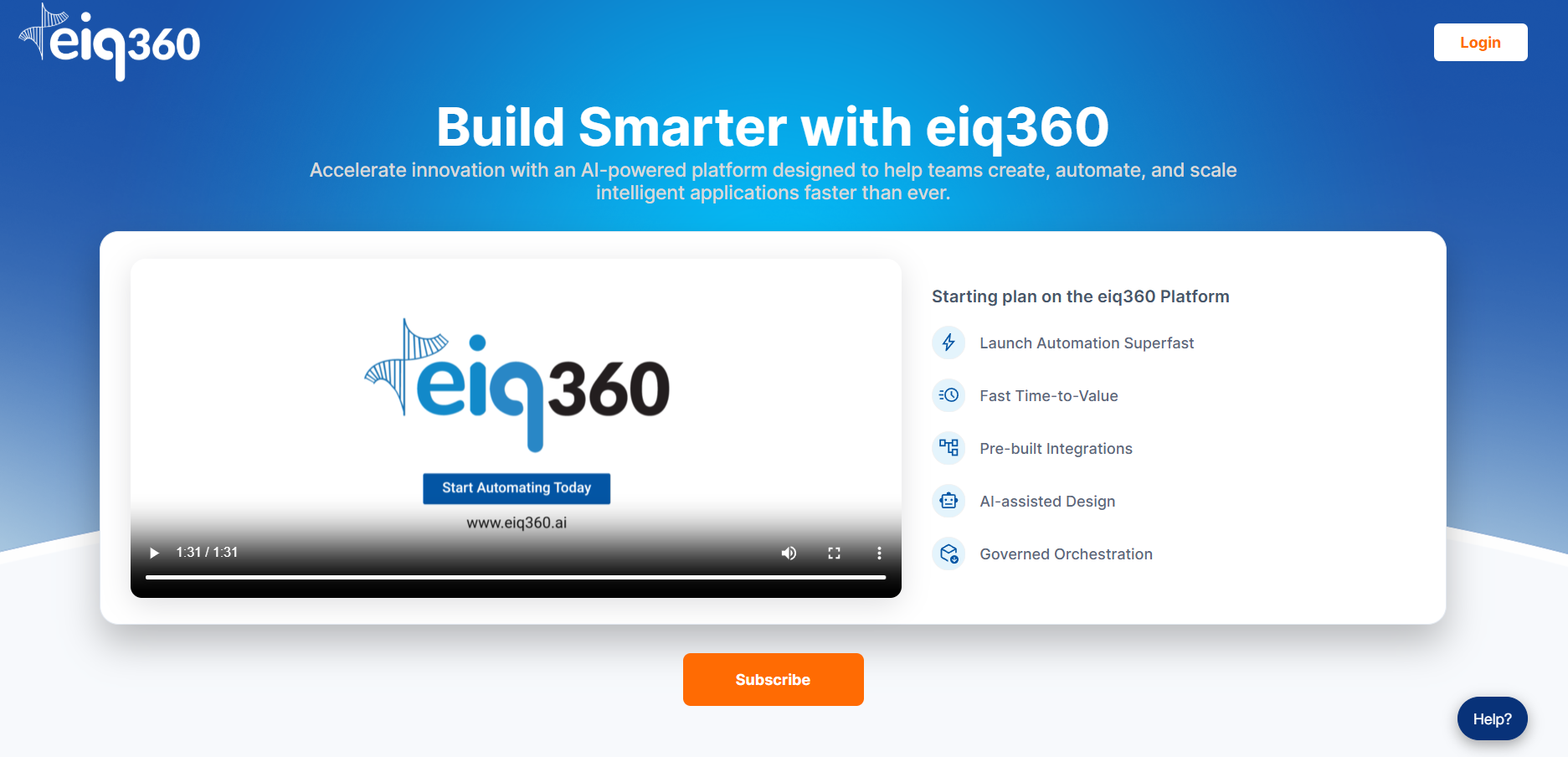
- Click Login. Welcome screen appears.
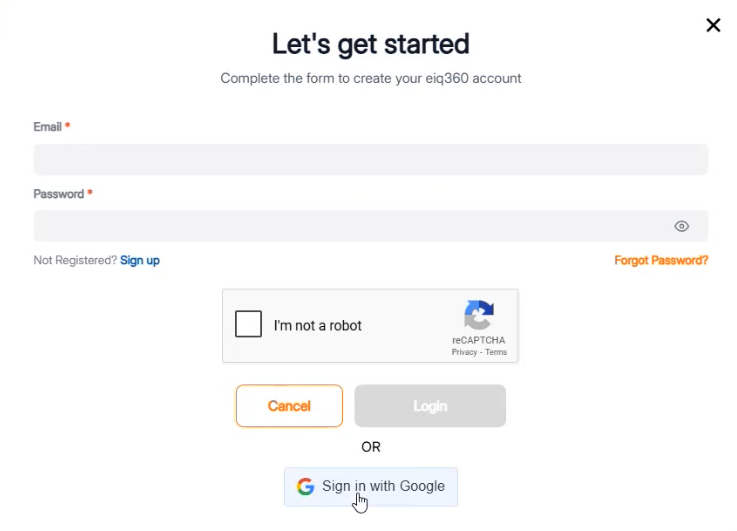
-
Enter your registered email id and password, check I am not robot, and then click Login.
Or
Click Sign in with Google.Enter the email id used to purchase the subscription
Crucial: You must sign in using the same Google Account/Identity used to purchase the subscription on the Marketplace.
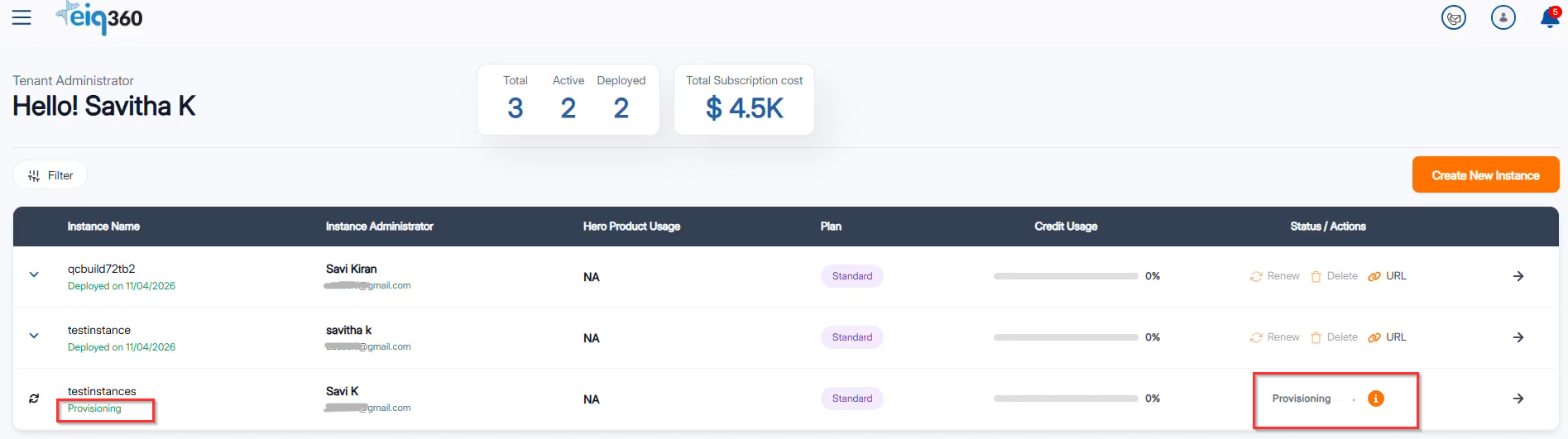
Wait for Provisioning
The Status/Action will display "Provisioning" if the subscription is in provisioning stage. The Status/Action will display "URL" with hyperlink only after the completion of the provisioning process.
Email notification
Once the provisioning process is completed, you will receive an notification email (to the email id using which you subscribed) with subject as "Your eiq360 Instance is Ready". Instance details, URL to access the eiq360 platform, username, and password will be shared in the email.
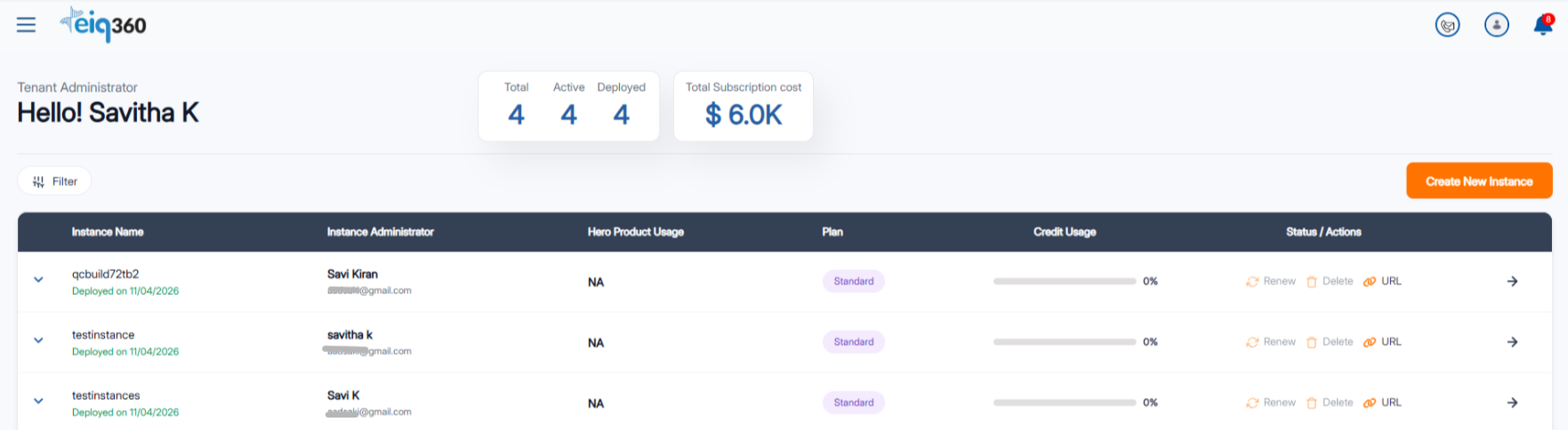
Tenant Administrator Dashboard - Summary
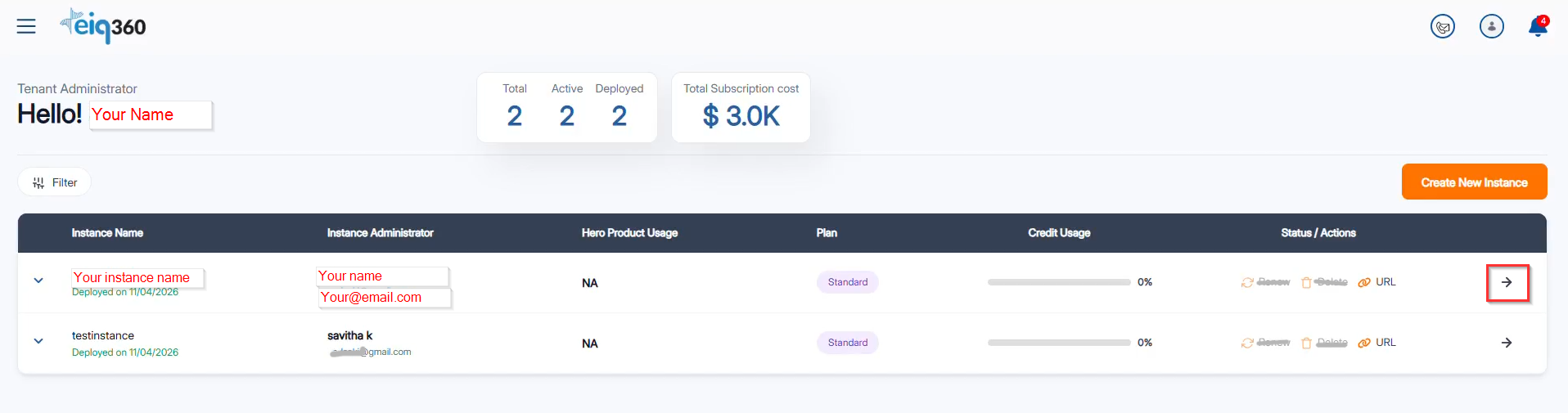
- The number of Total, Active, and Deployed instances are displayed on top.
- Total subscription cost: Your subscription amount for the instance.
- Instance Name: Name of your current instance.
- Instance Administrator: Full name or user name that your provided for your instance.
- Hero product Usage: NA.
- Plan: Your current plan.
- Credit Usage: Credit usage details for your subscription.
- Status: Current subscription status.
- URL: Click to navigate to the eiq360.ai platform.
- Actions: Click the arrow to view the payment history.
- Create New Instance: Click to create a new instance with a new subscription.
- Tenant admin can access and click "i" (info) icon to view the provisioning status of the instance that is under process.
Viewing the Invoice Details
- Navigate to the https://eiq360.ai using your tenant admin credentials.
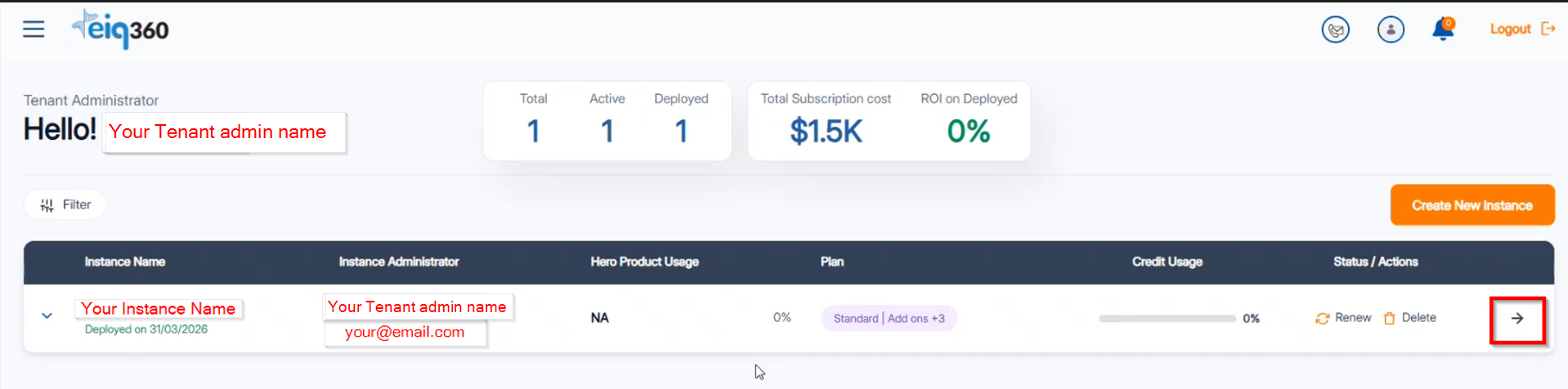
-
On the Dashboard page, below the Status/Actions, click the arrow. The Payment history appears.
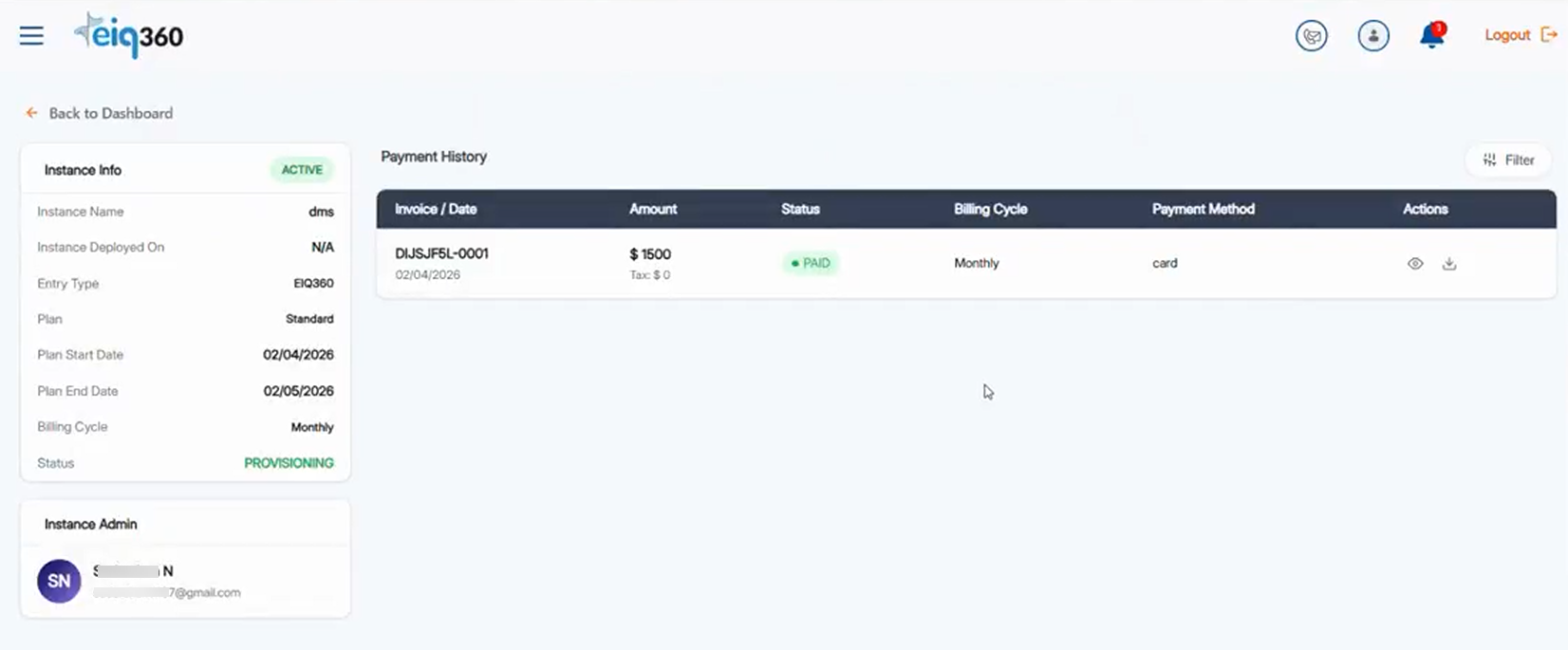
-
On the Actions,
- click View icon.
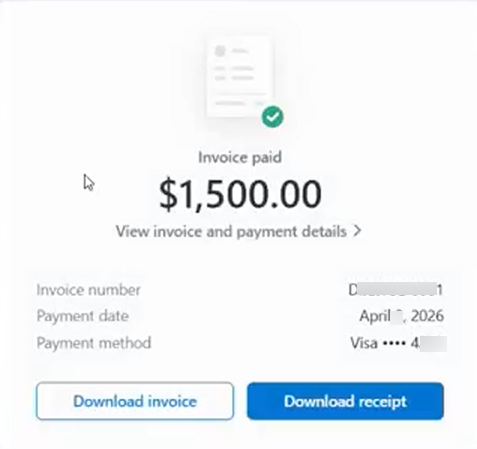
- Download Invoice: Click to download your invoice details.
- Download Receipt: Click to download your receipt.
- click View icon.
-
- click download icon to download receipt.