Web Apps and Views
Web Apps
A web application (or Web App) is an application software that runs on a web server unlike computer based software programs that are run locally on an operating system on the device.
The Web App section in the platform allows you to create and design web applications for the Web devices that run on web servers. Web view pages are created and designed within the Web Apps. Web App views (view pages in the web app) are independent and can be associated with the process flows for achieving your business requirements.
The Organization admin level users can access the web app section and create app views.
Viewing and Editing the Web App Details
-
Click the Burger Menu on the left of the Platform logo on the upper-left of the platform and navigate to App Studio > Create App. Web App and Mobile App icons appears.
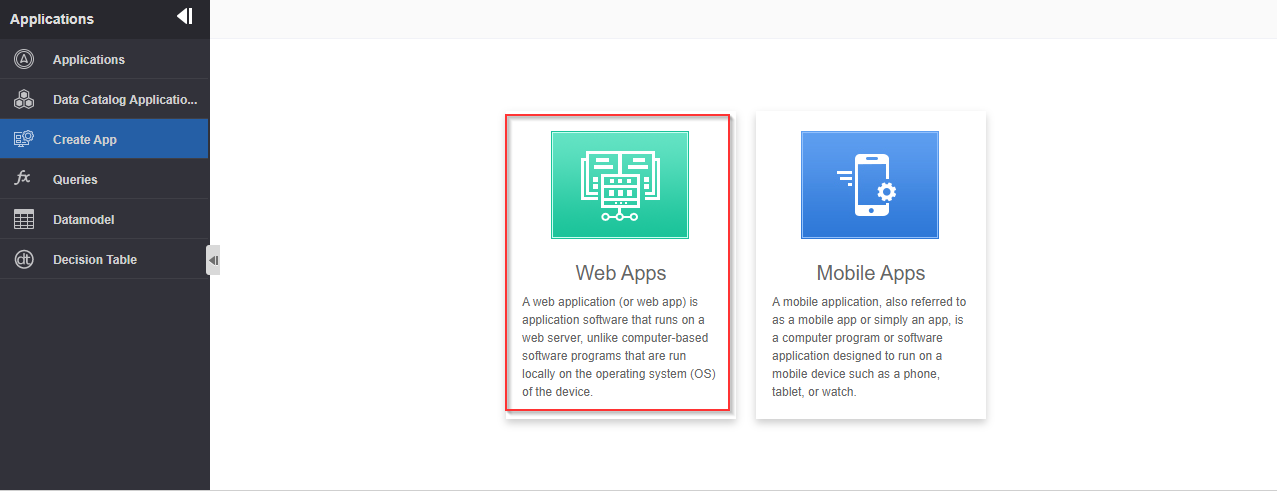
Figure 1: Create App options -
Click Web App. The Web app list page appears.
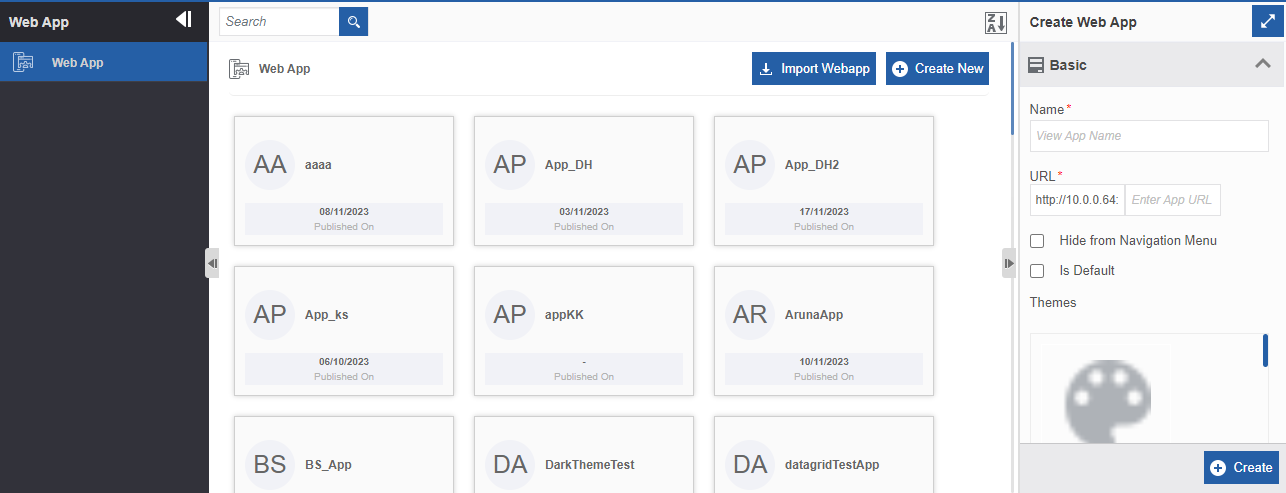
Figure 2: Web App list page
-
On the Web App list page, click a Web app name. The right side panel (Property panel or the Info Actions panel) displays the configuration details of that app. Edit the required details.
Click a Web app name and click Open to view the list of all Views (or Pages) within that Web app. Click a view page to view the properties and double click the view to view the view designer page.
Edit the details as needed.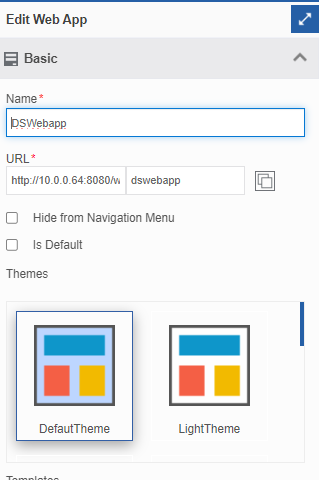
Figure 3: Editing Web App details -
Click Save to save the modified details.
Creating and Configuring a Web App
-
Click the Burger Menu on the left of the Platform logo on the upper-left of the platform and navigate through App Studio > Create App > Web App. Web App list page appears.
Figure 4: Web app list page -
On the Web App list page, click Create New on the upper-right of the Web View page. Create Web View panel appears on the right side.
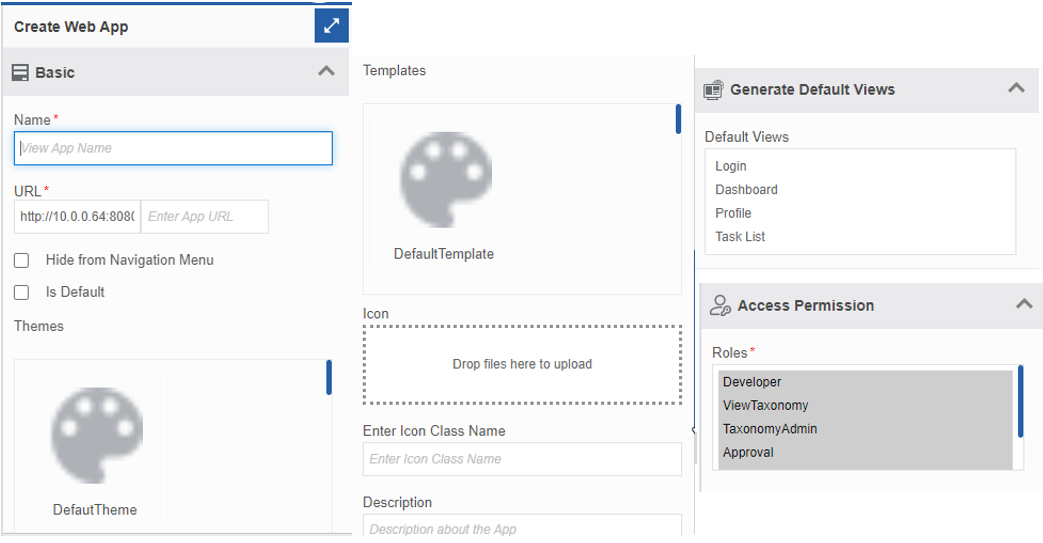
Figure 5: Create Web app configuration -
Configure the details as explained below.
Field Description Name Enter the name for page. URL Enter the URL text. URL is partially auto-generated.
Write the app name so that it amends to the URL
as extension.Hide from Navigation Menu Select the check box if you want to hide this page from the main
menu list.Is Default Select Is Default if you want to set this page as the default page
on loading.Theme Select the Theme that you want to apply for the app. Template Select the Template for your app. Icon Click and select the icon that you want to give for the app.
Drag and drop the icon to the dotted area.Enter Icon Class Name Enter the icon class name (if you need to specify the class name for
the icon)Description Provide description about your app. Generate Default Views Click Generate Default Views accordion and then select a default
view from the list of Default Views.The page will take the predefined view of the selection for the
page.Access Permission Click Access Permission accordion and select the required
Role.Click SHIFT and select continuous multiple roles.
Click CTRL and select the required roles.
-
Click Create to create the Web app.
Exporting a Web App
You can export a web app as a package to your local system.
-
Click the Burger Menu on the left of the Platform logo and navigate to App Studio > Create App > Web Apps. The list of all Web Apps in the platform appears.
-
Hover over a Web App name card and click the three dots (More Actions).
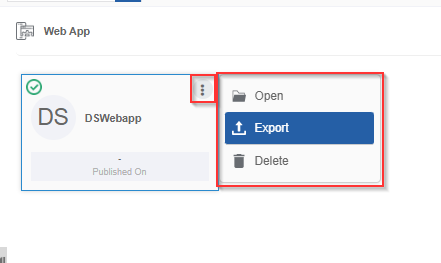
Figure 6: Exporting Web App -
Click Export. Details of the Web App appears.
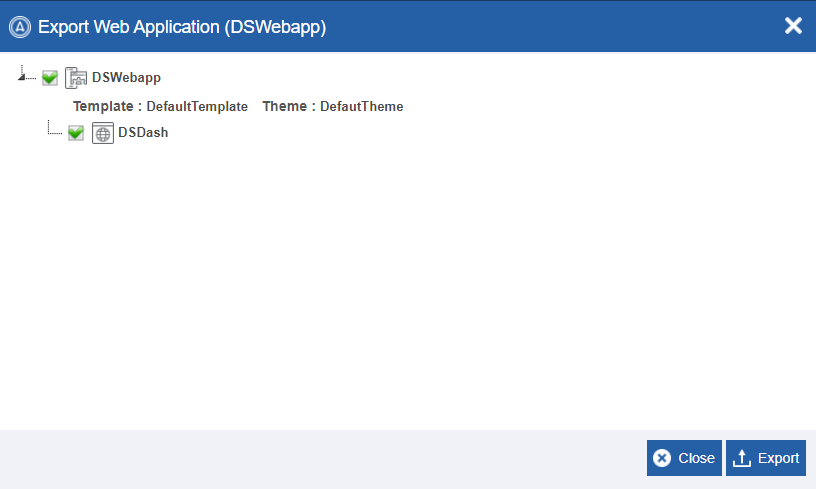
Figure 7: Export Web Application details -
- Select only the required views that need to be exported. Select the web app name to select all the views in the web app. By default, all the views will be selected.
- Click Export. The selected Web app gets exported to your local system in the .pkg format.
Importing Web Apps
You can import a web app package into the Web Apps section for utilization.
-
Click the Burger Menu on the left of the Platform logo and navigate to App Studio > Create App > Web Apps. The list of all Web Apps in the platform appears.
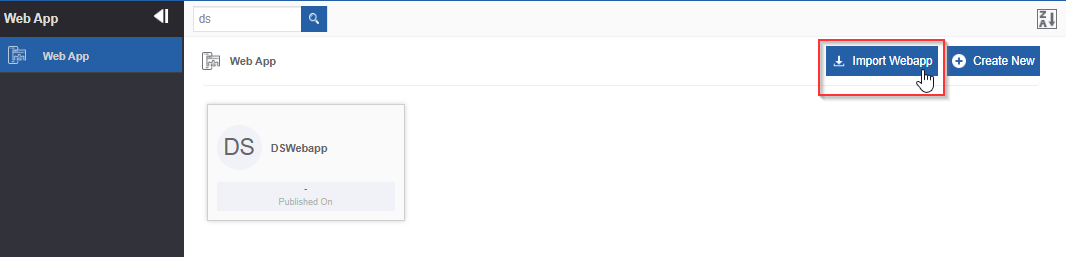
Figure 8: Import web app -
On the upper right click Import Webapp.
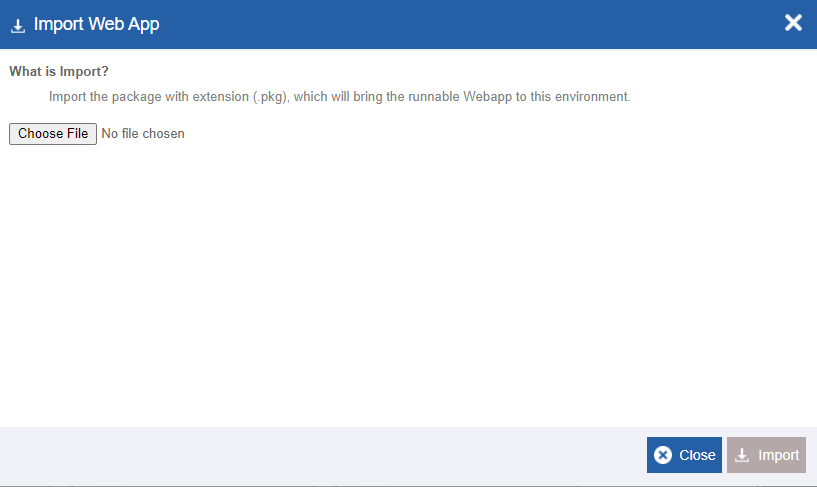
Figure 9: Importing Web app - file selection -
Click Choose File and select the file (in .pkg format) that you want to import. The selected Web app details appear.
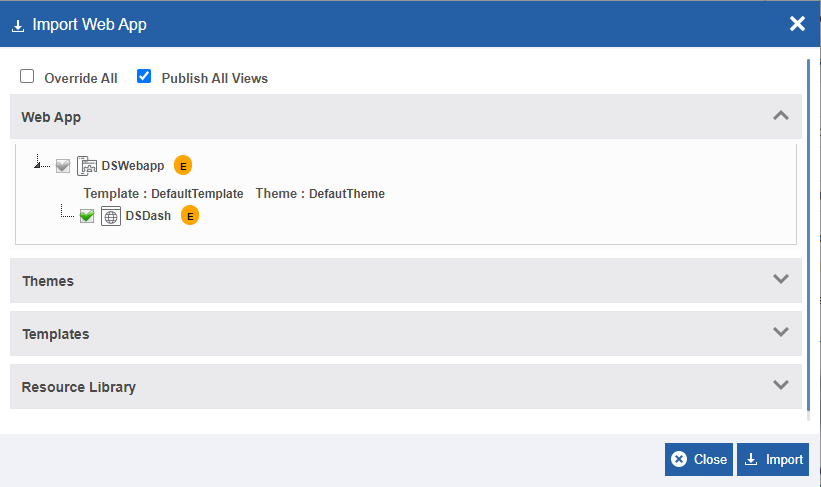
Figure 10: Import web app options-
Override All: Select Override All to override all the published views.
-
Publish All Views: Select this to publish all the view within the web app (even if it is not published in the exported version). If you clear “Publish All Views”, all the views within the web app will be unpublished views after the import.
-
-
Click Themes / Templates / Resource Library sections to view the details of what all files are associated with this web app. It means that when you import a web app all the associated files also get imported to the platform.
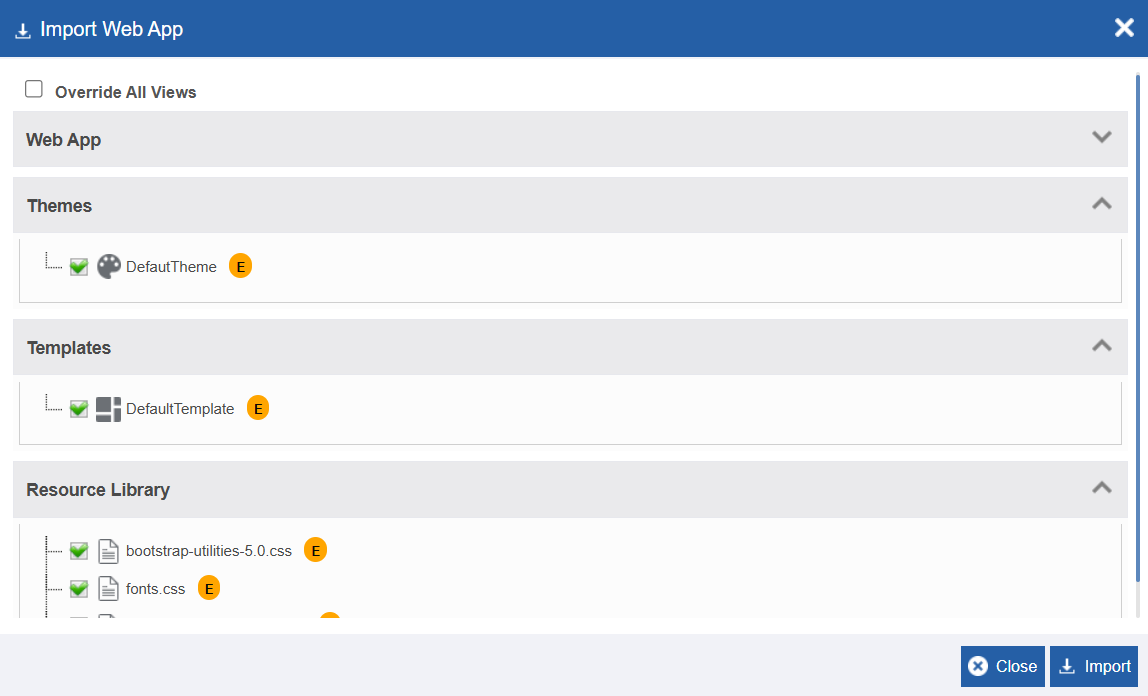
You can choose to select or deselect the required or not required files. -
Click Import. A Success message appears on successful import of the file.
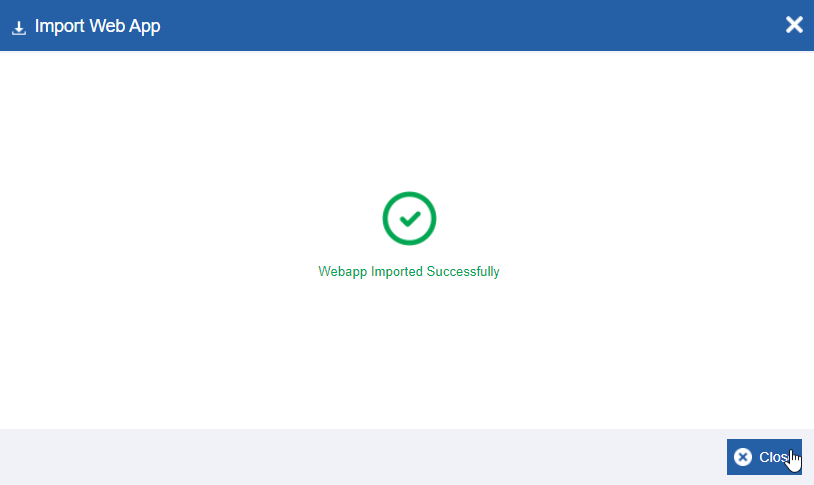
Figure 11: Import Web App success message -
Click Close. The file is imported to the platform.
Publishing a Web App
When you publish the Web app, all the views within that web app are published.
When you publish the web app, all the already published views will get published with the recent modification and the unpublished views get published. That is, all the views within the web app will get published again irrespective of it is published before or not.
- Click the Burger Menu on the left of the Platform logo on the upper-left of the platform and navigate through App Studio > Create App > Web App. Web App list page appears.
-
Click and select a Web app.
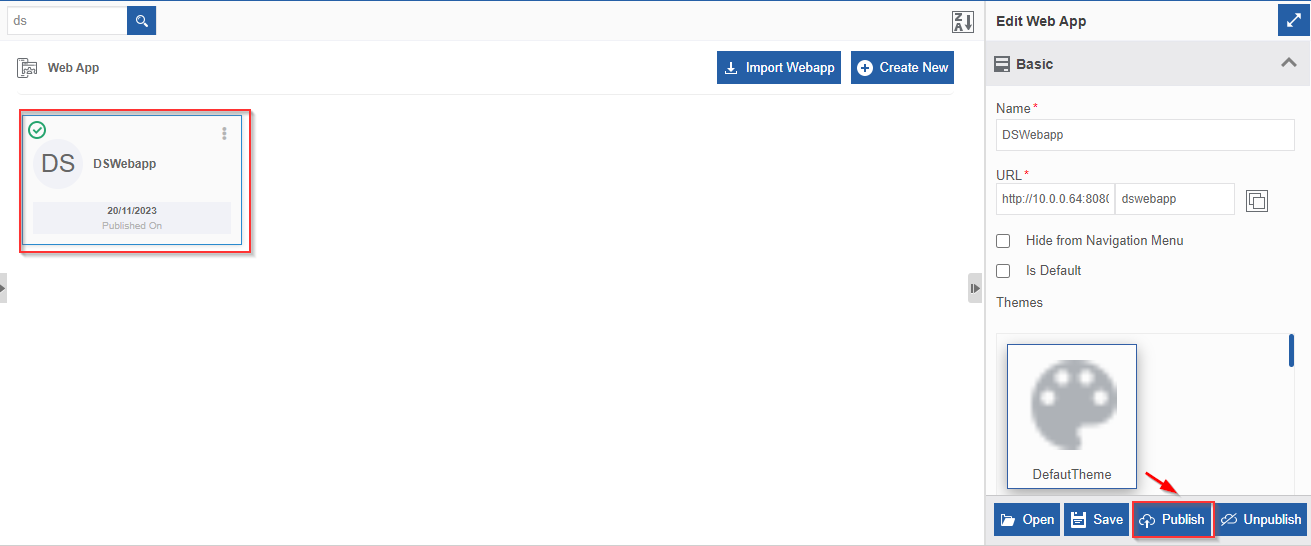
Figure 12: Publishing a web app -
Click Publish. Confirmation pop-up appears.
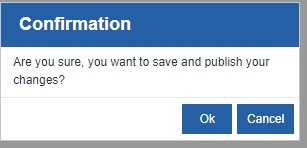
Figure 13: Confirmation for publishing the changes in the web app -
Click Ok. On successful publish of the web app, a success message appears.
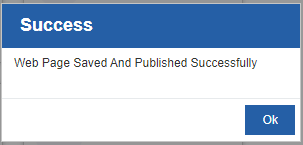
Figure 14: Success publish message -
Click Ok.
Unpublishing a Web App
When you unpublish a web app, all the views within that web app will get unpublished.
If you have multiple view with in a web app (both published and unpublished views) all the views within the web app will get unpublished.
- Click the Burger Menu on the left of the Platform logo on the upper-left of the platform and navigate through App Studio > Create App > Web App. Web App list page appears.
-
Click and select a Web app. For an already published web app, Unpublish button appears.
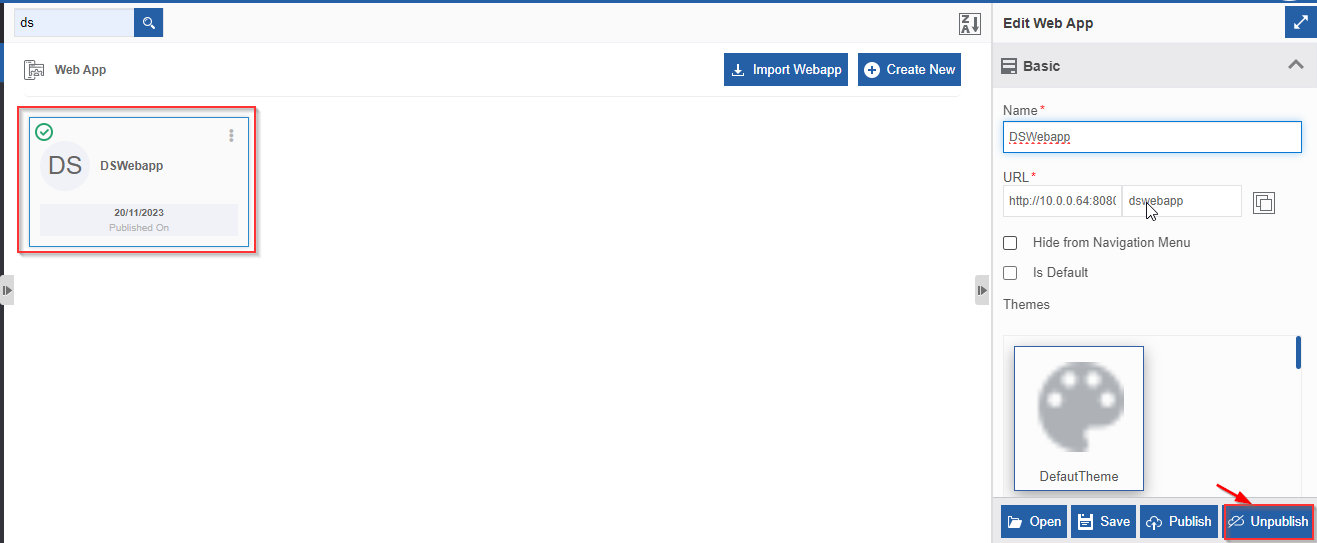
Figure 15: Unpublishing a web app -
Click Unpublish. Success message appears on successful unpublish of the web app.
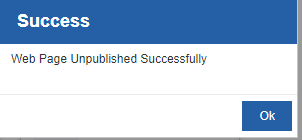
Figure 16: Unpublish success message -
Click Ok.
Deleting a Web App
When you delete a web app, all the views created within that web app gets deleted.
-
Click the Burger Menu on the left of the Platform logo on the upper-left of the platform and navigate through App Studio > Create App > Web App. Web App list page appears.
-
Click a Web app name that you want to delete.
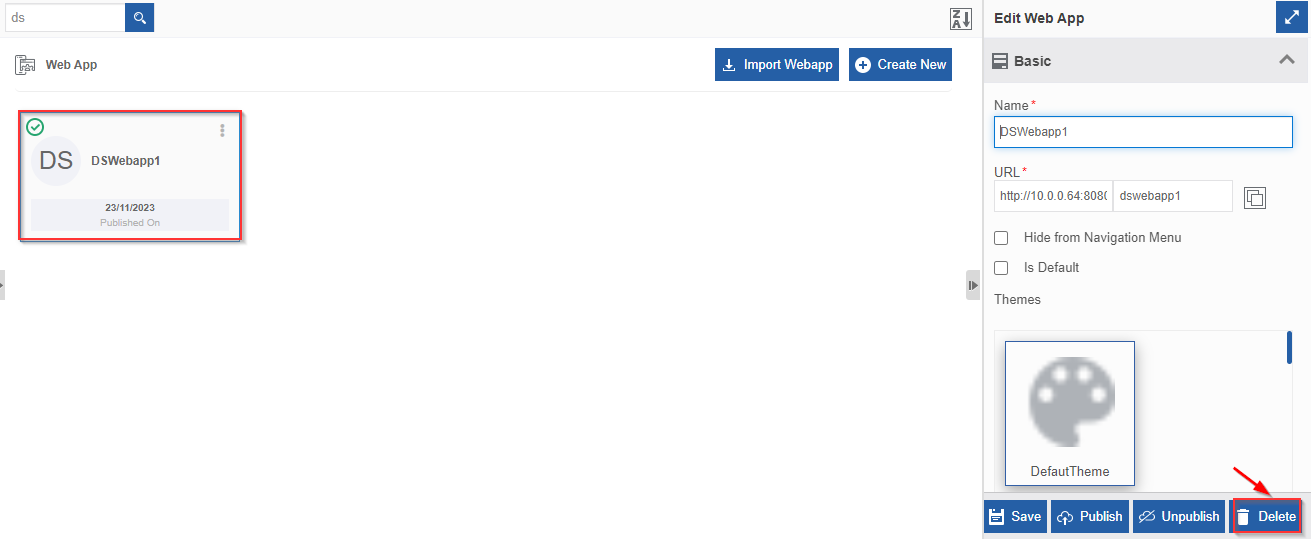
Figure 17: Deleting a Web App -
Click Delete. Delete Confirmation pop-up appears.
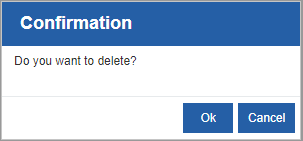
Figure 18: Web App delete confirmation -
Click Ok.
Alternatively, hover over the web app name card > click three dots (More Actions) > click Delete.
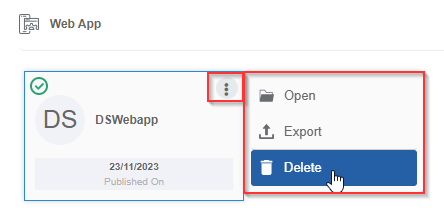
Figure 19: Deleting web all through More Actions
Web App Views
There are two view design sections in the platform: Web App View Designer and Form View Designer.
Web App Views are designed in App Studio > Create App > Web App - Views section.
Process Flow Form Views are designed in the App Studio > Process Flow > Form - Views
You can design Views using the components or controls available on the view designer. Options and categories of different features are available on the View designer for managing the Views.
For viewing the View designer in Web Apps, you need to create a web app and then create a view.
Web App Views can be published independently, however, the process flow form views are always associated with a process flow.
Viewing the Web App Views List
-
Click the Burger Menu on the left of the Platform logo on the upper-left of the platform and navigate through App Studio > Create App > Web App. Web App list page appears.
-
Click and select a Web app and click Open (or double-click the Web App name). All the views within that web app appears.
Click a particular page to view the child pages.
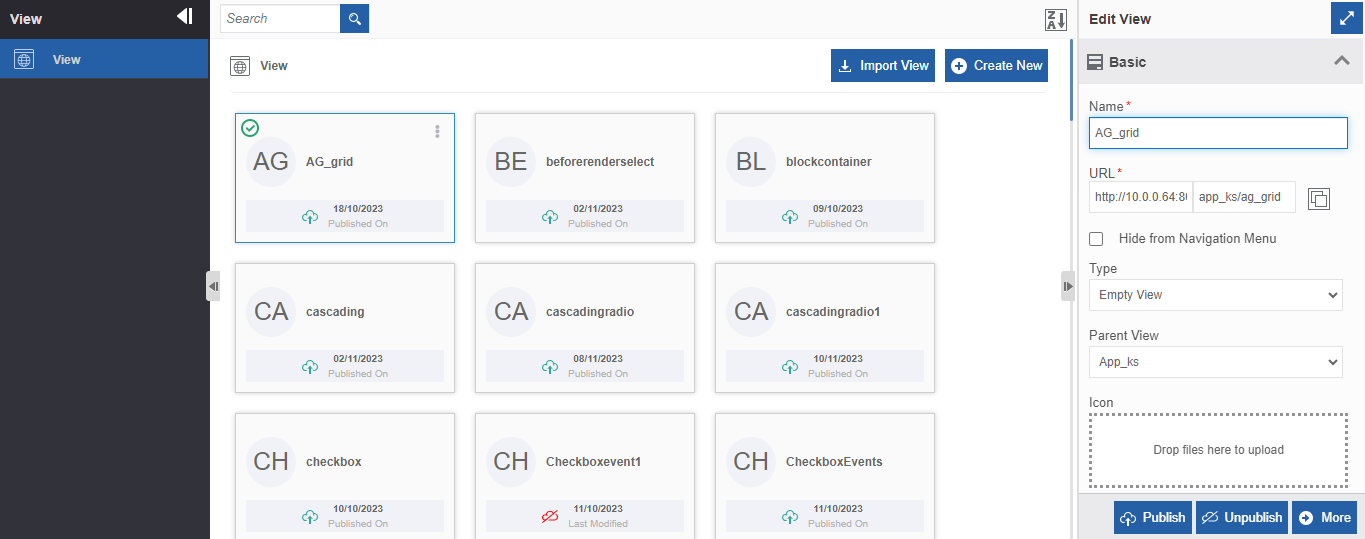
Figure 20: Web app view list page -
Click a View to view the view details in the property panel.
Viewing the Web App View Page Designer
- Click the Burger Menu on the left of the Platform logo on the upper-left of the platform and navigate through App Studio > Create App > Web App. Web App list page appears.
-
Click a Web App name – Open > View name - Open. The View designer opens where you can design your view.
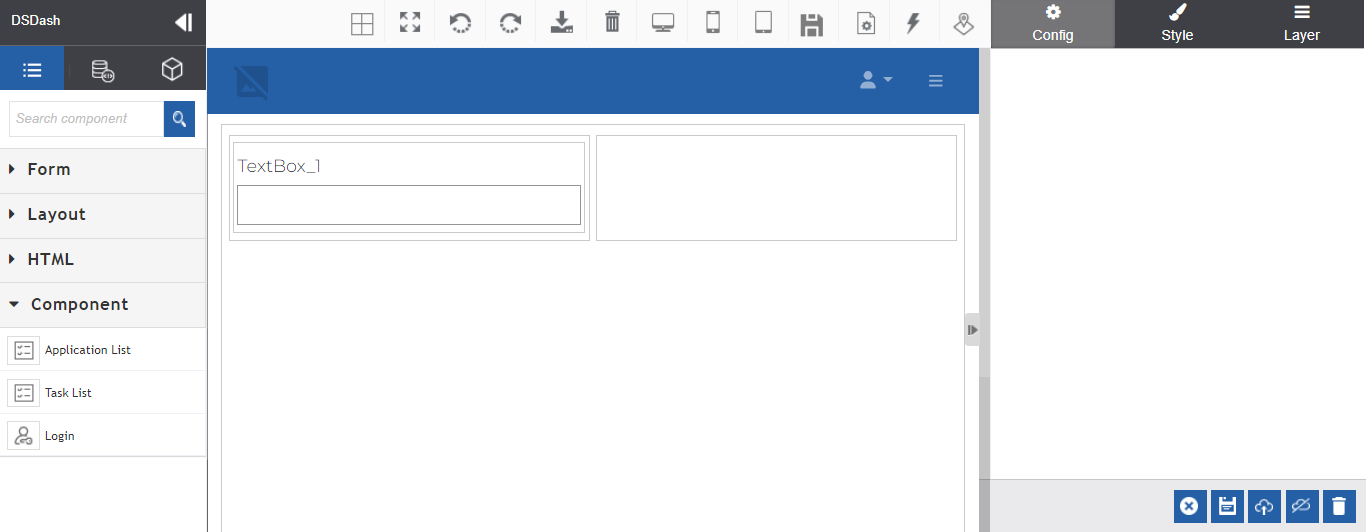
Figure 21: View designer page
The look and feel of the view in the designer area in the middle of the screen is completely depends on the theme and template that you have selected.
Creating and Configuring a Web App View
-
Click the Burger Menu on the left of the Platform logo on the upper-left of the platform and navigate through App Studio > Create App > Web App. Web App list page appears.
-
Click and select a Web app for which you want to create the view.
-
Click Create New on the upper-right of the Web App page. Create Web App panel appears on the right side.
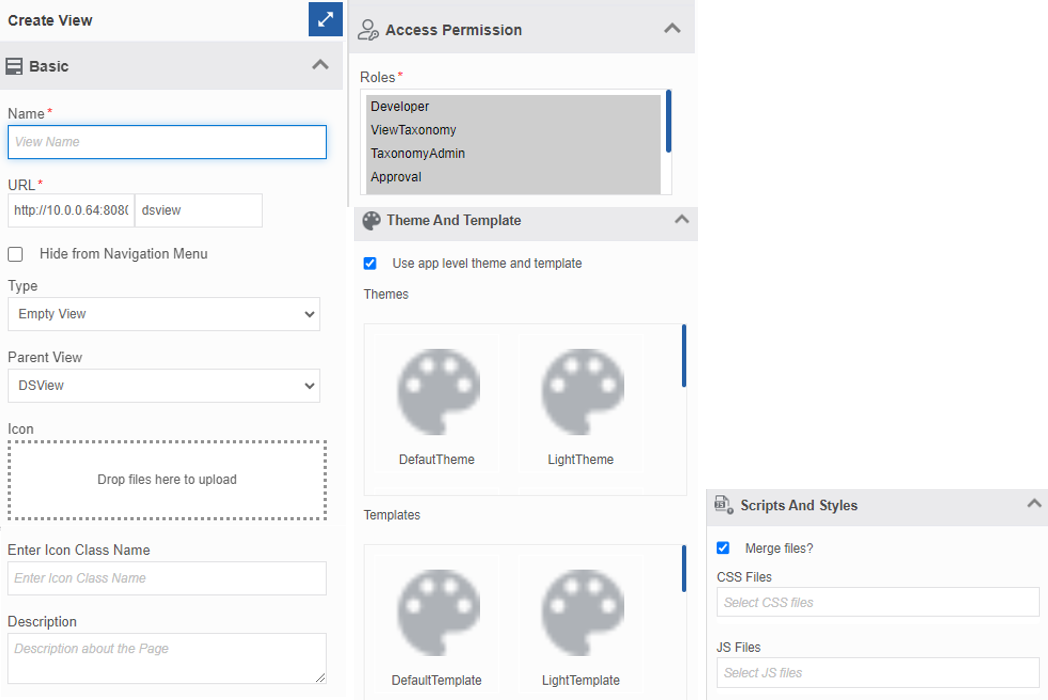
Figure 22: Create web app view configuration -
Enter the details as explained below.
Field Description Name Enter the name for the page. URL Enter the URL text. URL is partially auto-generated (with the Web App).
Write the page name so that it will be amended to
the URL as an extension.Hide from
Navigation menuSelect the checkbox if you want to hide this page from the main menu list. Type Select the Type of the view.
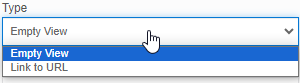
Empty View: Design your view in an empty page.
Link to URL: Link to a specified URL.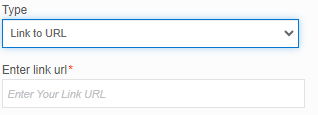
Parent View From the Parent View, select a parent view. If you select a web app name
as the parent view, the page will be a parent page.Icon Click and select the icon for the page. Drag and drop the icon
to the dotted area.Enter Icon
Class NameEnter the icon class name if you need to specify the class name for
the icon.Description Provide a description of your app. Access Permission Click the Access Permission accordion and select the required Role.
Use SHIFT and CTRL for multiple selections.Theme And
TemplateSelect Use app level theme and template if you want to apply the
same theme and template as in the app level.
- Choose another available theme or template from the list.Scripts and
StylesClick Scripts and Styles accordion for selecting styles. Merge Files? Click Merge files if you want to merge the selected files. CSS Files Select the CSS files to be associated with the view. JS Files Select the required Javascript files to be associated with the view. Themes and Templates are defined in the Management section of the Platform. If you want to design the themes and templates navigate to Mangement > Themes and Templates for creating the same.
-
Click More to navigate to design canvas where you can design the view page. The selected theme and template will be loaded in the designer.
-
Design the page as per your need.
The view designer UI and the components in the View designer is similar of that of the Form View page with some addition of some components from that of the Form Views. Refer to Designing Views document and views component specific documents for more details
-
Click Create to create the view. The look and feel of your view completely depends on the template and theme what you have applied.
Exporting Web App View
-
Click the Burger Menu on the left of the Platform logo and navigate to App Studio > Create App > Web Apps. The list of all Web Apps in the platform appears.
-
Hover over a View name click the three dots (more actions).
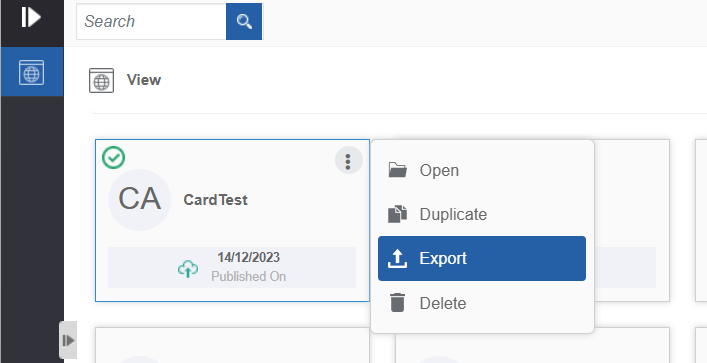
Figure 23: Export in view -
Click Export. Export details appears for the view.

Figure 24: Export details for the selected view -
Click Export. The view gets exported to your local system.
Importing Web App View
- Click the Burger Menu on the left of the Platform logo on the upper-left of the platform and navigate through App Studio > Create App > Web App. Web App list page appears.
-
Click a Web App name and navigate to View list page.
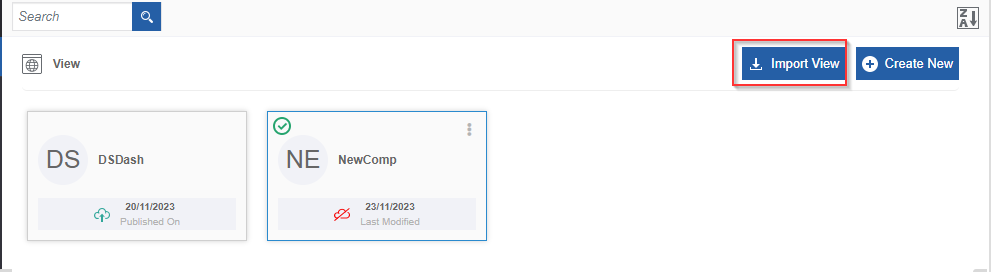
Figure 25: Import View option in the view list page -
Click Import View. Import view page appears.
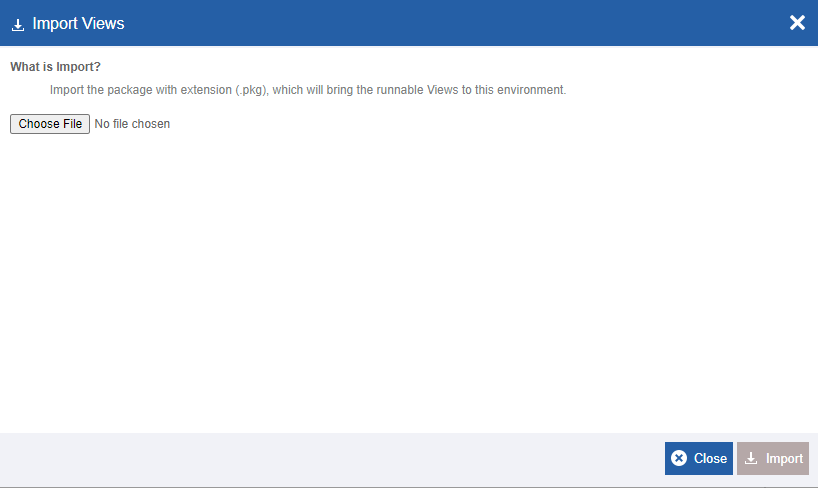
Figure 26: Import view pop-up -
Click Choose File and select the package file that you need to import. The import file should be of package type (.pkg file). Import details appear.
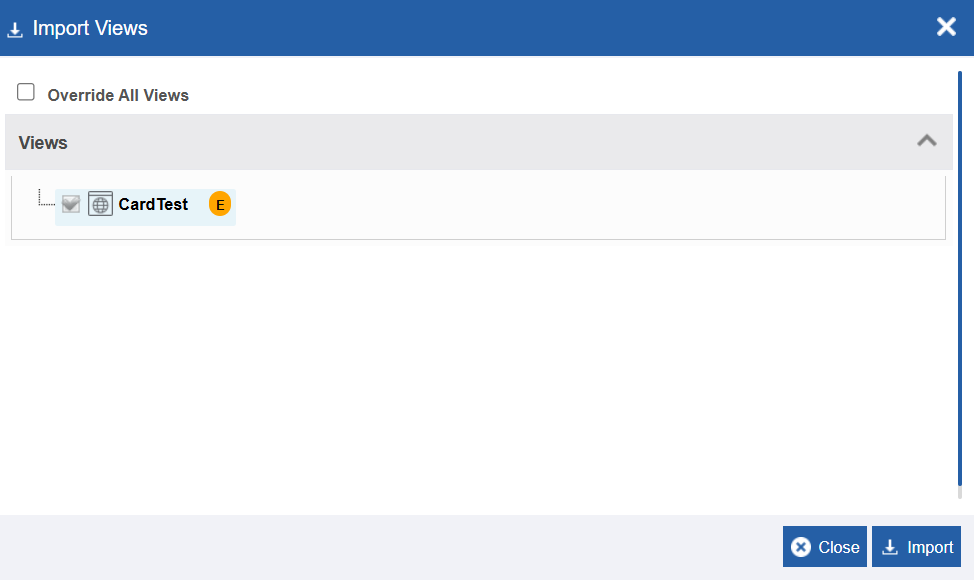
Figure 27: Import Views details- Override All: Select Override All to override all the published views and keep it unpublished.
-
Click each accordion section to view the details of what all files are associated with this web app. It means that when you import a web app all the associated files also get imported to the platform.
-
Click Import. A Success message appears on successful import of the file.
-
Click Close. The file get imported within in the selected web app.
Publishing the Web App View
When you publish the view, the view page will be accessible in the browser using the URL of that view page.
- Click the Burger Menu on the left of the Platform logo on the upper-left of the platform and navigate through App Studio > Create App > Web App. Web App list page appears.
-
Click and select a Web app and then select a view.
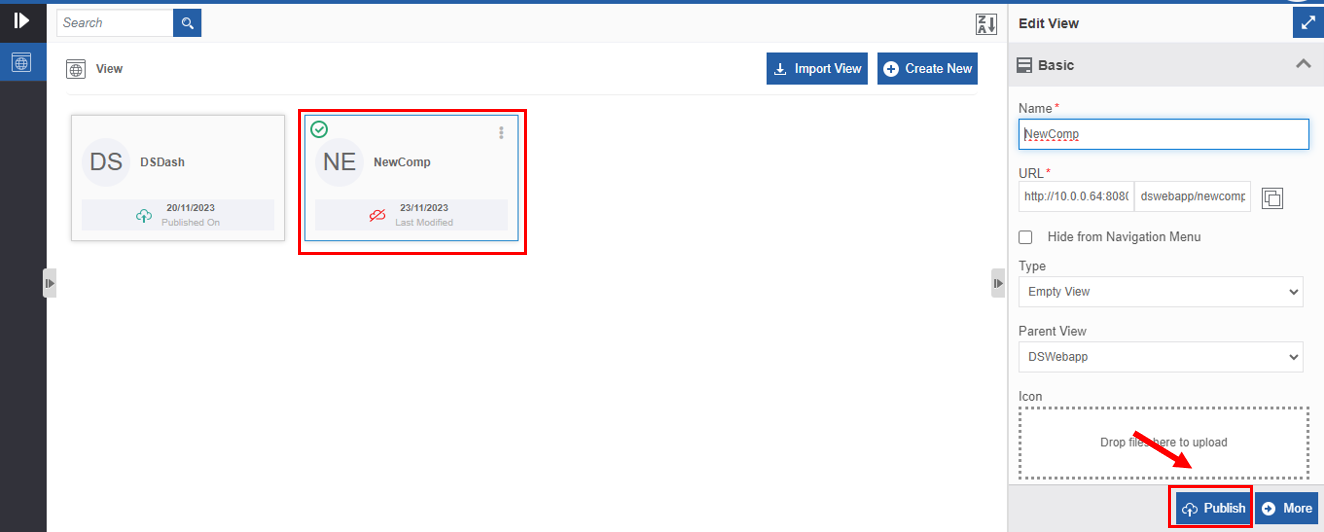
Figure 28: Publishing view -
Click Publish. Publish confirmation appears.
You can also navigate into the view designer (by clicking More in the view list screen) and then click the publish icon.
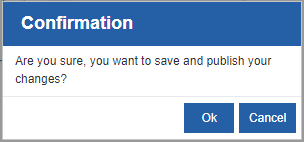
Figure 29: Publish confirmation -
Click Ok. A success message appears on successful publish of the view.
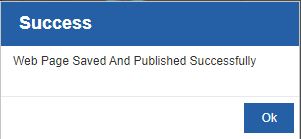
Figure 30: Publish success message -
Click Ok.
Unpublishing the Web App View
-
Click the Burger Menu on the left of the Platform logo on the upper-left of the platform and navigate through App Studio > Create App > Web App. Web App list page appears.
-
Click and select a web app and then select the view name that you want to unpublish. For an already published view, Unpublish button appears.
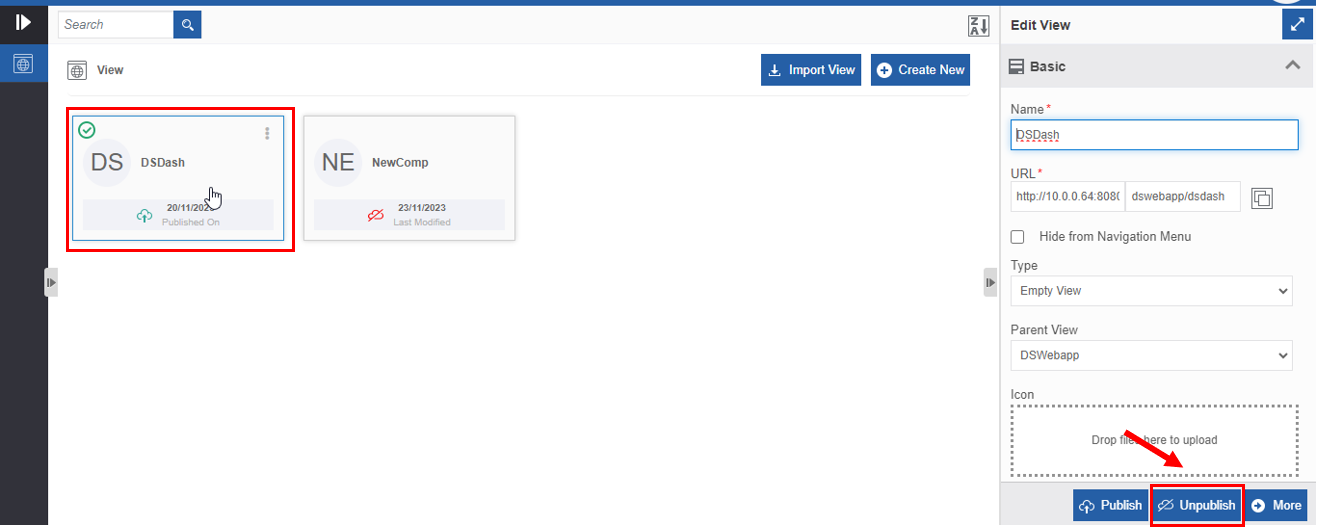
Figure 31: Unpublishing a view -
Click Unpublish. Success message appears on successful unpublish of the view
You can also navigate to the view designer (by clicking More in the view list screen) and then click the unpublish icon.
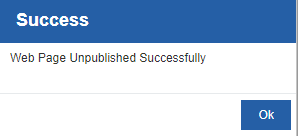
Figure 32: Unpublish view success message -
Click Ok.
Duplicating a Web App View
-
Click the Burger Menu on the left of the Platform logo and navigate to App Studio > Create App > Web Apps. The list of all Web Apps in the platform appears.
-
Click a web app and click Open.
-
Hover over a View name card click the three dots (more actions).
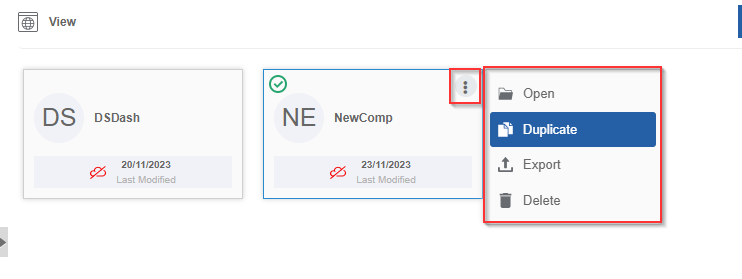
Figure 33: Duplicating view -
Click Duplicate. A confirmation pop-up appears.
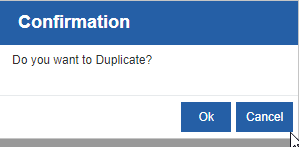
Figure 34: Duplicate confirmation -
Click Ok for duplicating the view (or click Cancel to cancel the duplicate action). A Success message appears on the successful duplication of the view.
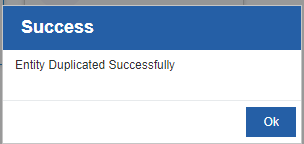
Figure 35: Duplicate success message -
Click Ok. A duplicate copy of the view appears on the view list page with the same name suffixed with “_copied”.
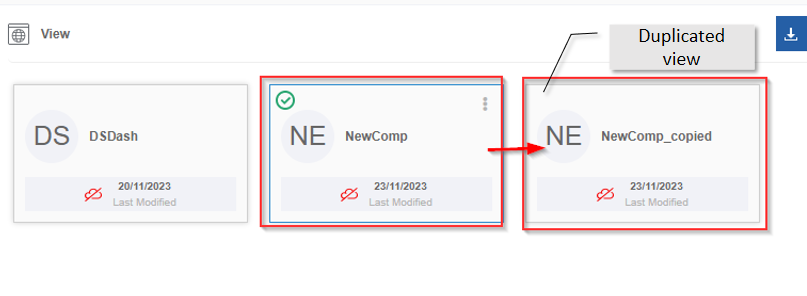
Figure 36: Duplicated view
Deleing a Web App View
- Click the Burger Menu on the left of the Platform logo on the upper-left of the platform and navigate through App Studio > Create App > Web App > View. Web App list page appears.
-
Click and select a View and then click More.
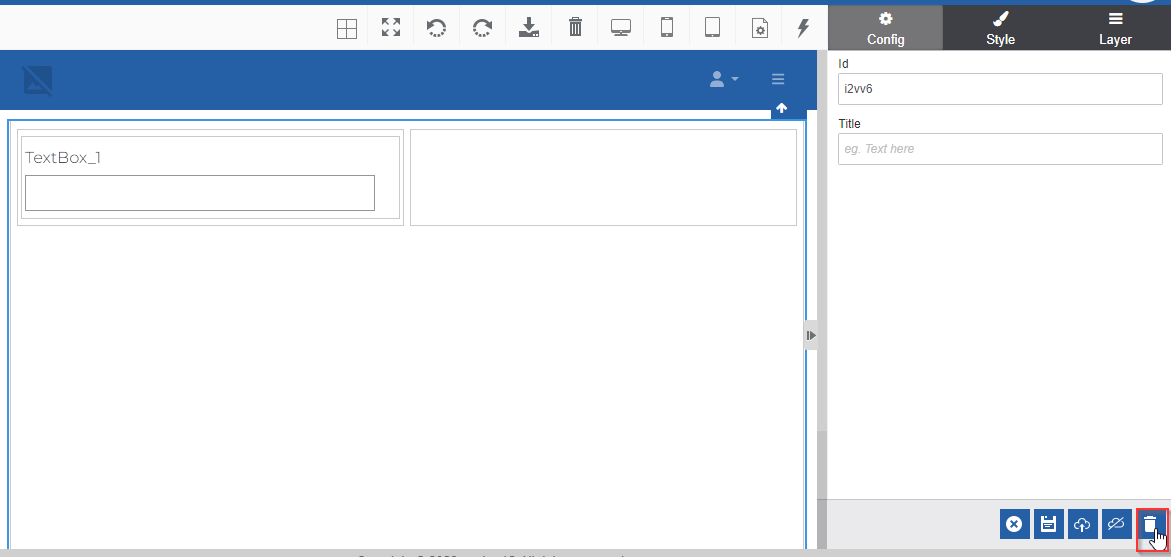
Figure 37: Deleting a view -
Click Delete icon. Delete confirmation pop-up appears.
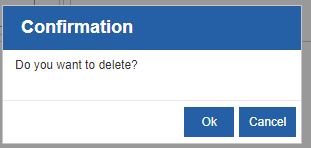
Figure 38: Delete confirmation -
Click Ok to delete the view.
Alternatively, hover over the view card > click three dots (more actions) > click Delete for deleting the view.
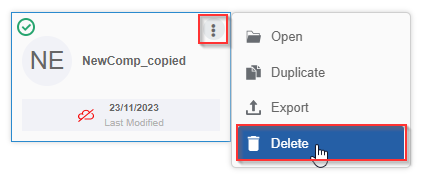
Figure 39: Deleting view through more actions
Accessing Web App View Page at Runtime
You can access the view page in your browser by providing the URL of the published view.
- Click the Burger Menu on the left of the Platform logo and navigate to App Studio > Create App > Web Apps > View.
-
Create a view and Publish the view. For the published views, the view card will display a green cloud icon.
-
Click a View name card and click Open. Edit View details appear on the property panel. The URL field appears with a copy icon if the view is published.
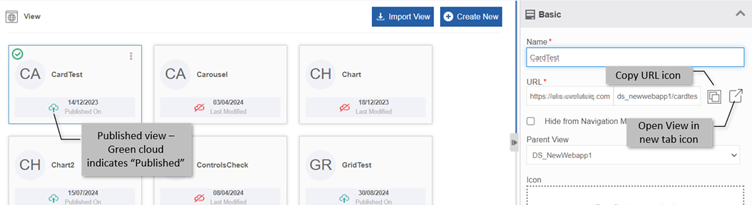
Figure 40: Published View -
Click Copy icon beside the URL.
Open your browser and paste the URL that you have copied. Runtime view page appears as per your design and template -
Click the Box and arrow (Open view in new tab) icon to navigate to the view page in a new tab.
Web App View Special Components
The Components or controls that are used to design the view are listed in the control listing panel on the left side of the web app View designer.
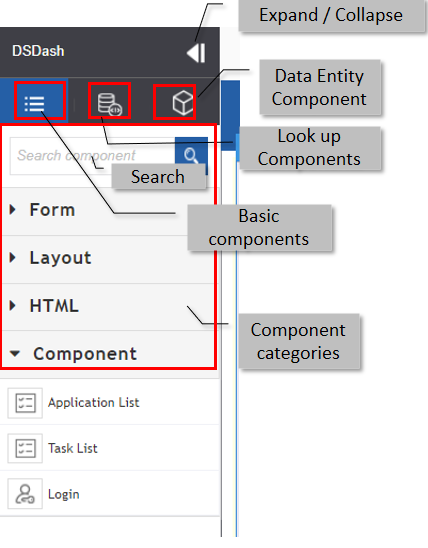
Figure 41: Web Apps View designer components
The view components other than Component category --> Application List and Task List are applicable to the Process Flow Form Views also.
Special Component Category Controls
The Component Category controls are specific to the Web App Views and it applies only to the web page design views (that is, it is not applicable to the Form views).
Application List, Task List, and Login are the special controls available in the Web App views using which you can design a web view page with details of the platform specific details.
Each of this component has a predesigned set of components that are ready for use.
Refer to Style Configuration for style configuration details for any component.
Application List Component Configuration
Application List (the application table view) is the main component in the Application List wrapper. The wrapper contains other components or controls in a predesigned format within the Application List container, which you can edit as per your needs.
-
Click the Burger Menu on the left of the Platform logo and navigate to App Studio > Create App > Web Apps > View - More. The View designer appears.
-
Drag an Application List component to the View designer. The properties panel on the right-side displays the configurations.
-
Click the Config tab (Config tab is active by default)).
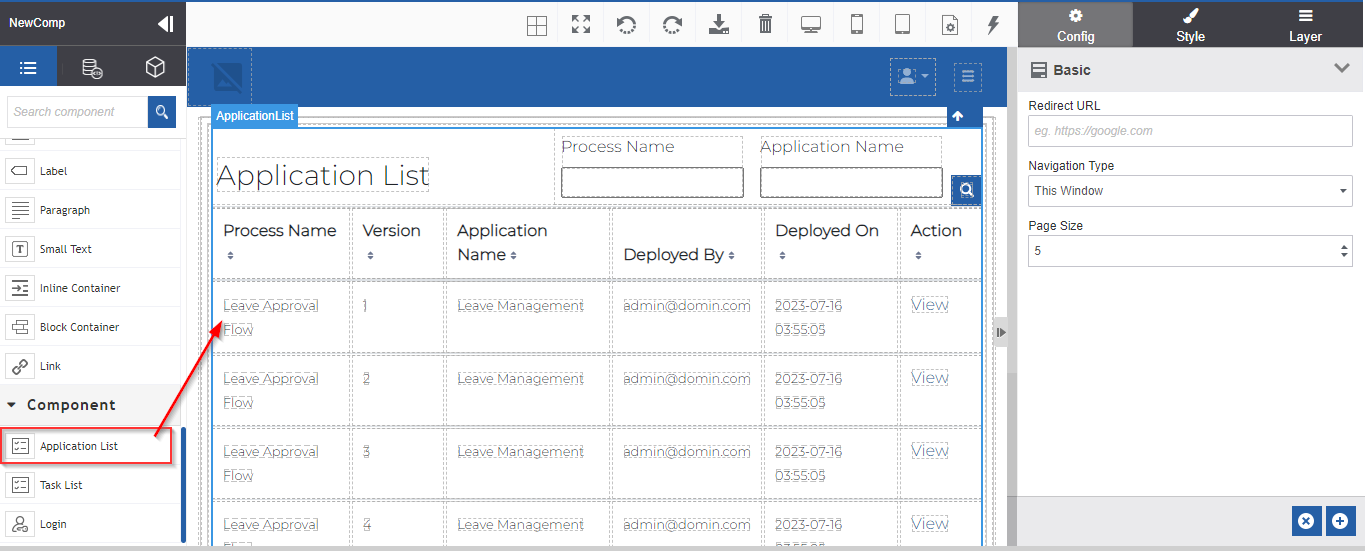
Figure 42: Application List component -
Enter details in the Config tab.
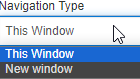
Field Description Redirect URL Enter the redirect URL. Navigation Type - This Window: URL opens in the same window.
- New Window: The URL opens in a new window.
Page Size - Enter the page size.
- Page size is the number of records that should appear on
one page. -
Click each component in the Application List wrapper component for configuring the same.
-
Click Style and configure the required styles.
Task List Component Configuration
Task List (the task table view) is the main component in the Task List wrapper. The wrapper contains other components or controls in a predesigned format within the Task List container, which you can edit as per your needs.
-
Click the Burger Menu on the left of the Platform logo and navigate to App Studio > Create App > Web Apps > View - More. The View designer appears.
-
Drag a Task List component to the View designer. The properties panel on the right-side displays the configurations.
-
Click the Config tab (Config tab is active by default)).
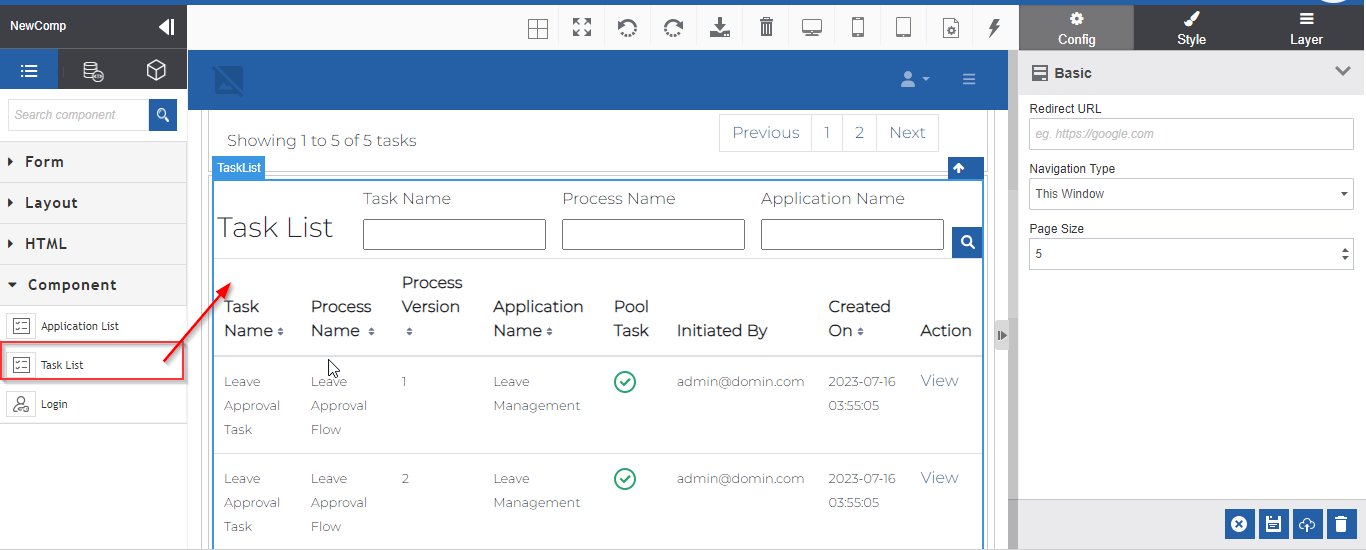
Figure 43: Task List component -
Enter details in the Config tab.
Field Description Redirect URL Enter the redirect URL. Navigation Type - This Window: URL opens in the same window.
- New Window: The URL opens in a new window.
Page Size - Enter the page size.
- Page size is the number of records that should appear on
one page. -
Click each component in the Task List wrapper component for configuring the same.
-
Click Style and configure the required styles.
Login Component Configuration
Login component (the login screen view) contains other components or controls in a predesigned format within the Login container, which you can edit as per your needs.
-
Click the Burger Menu on the left of the Platform logo and navigate to App Studio > Create App > Web Apps > View - More. The View designer appears.
-
Drag a Task List component to the View designer. The properties panel on the right-side displays the configurations.
-
Click the Config tab (Config tab is active by default)).
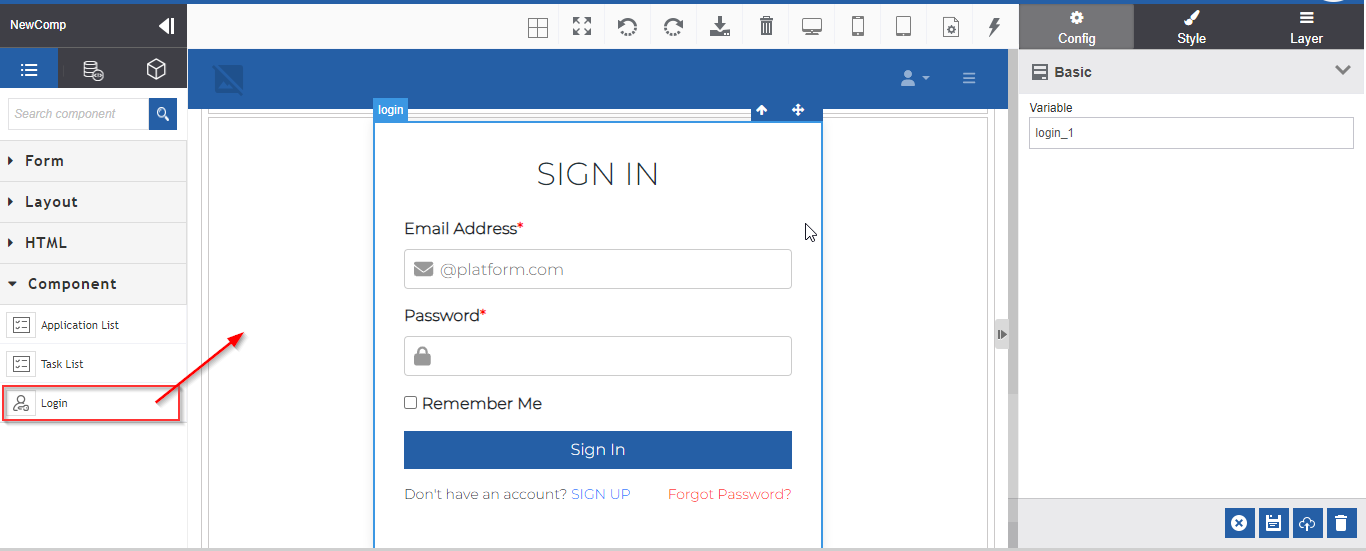
Figure 44: Login component -
Click each component element within the login container and configure the details in the Config tab.
-
Click Style and configure the required styles.