What are Applications?
An application is a collection of workflows and associated entities that is used to achieve a business requirement. An organization can have multiple applications based on business needs. An application consists of single or multiple processes, event flows, data flows, etc. It also has all the entities associated with the workflows.
Application is a single deployable unit.
Creating New Application
- Navigate to App Studio > Applications on the left panel (Applications is active by default and hence applications page is displayed by default).
The application page displays all the applications in your organization. If no applications are created for the organization, a blank application page is displayed. -
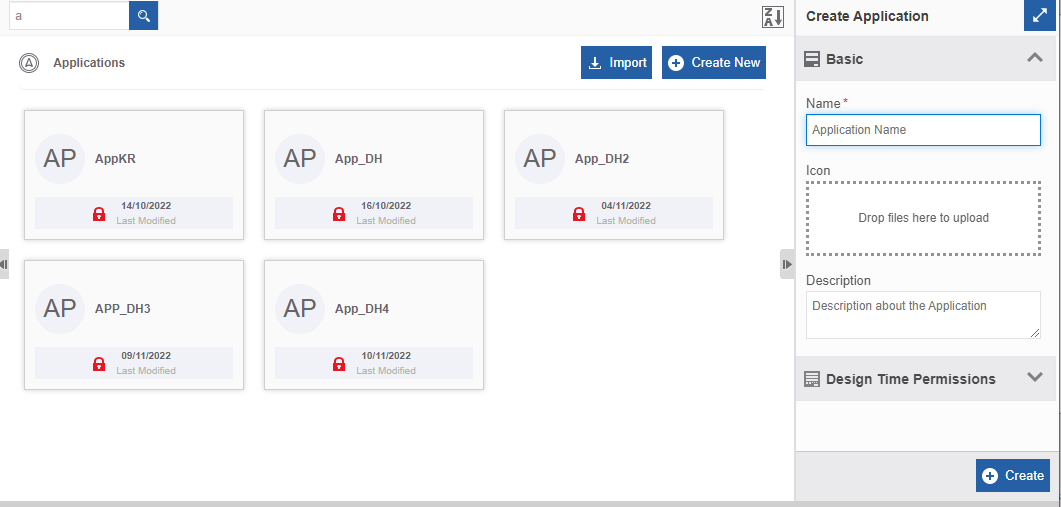
On the Applications page, click +Create New on the upper-right side. Create Application panel displays details for creating a new application.
-
Enter the details in the Create Application panel as explained below:
Field Description Basic Name* Type the name of the Application.
Data type: Alphanumeric (including space)
Character limit: 5 to 50 charactersIcon - Click inside the dotted area below the icon . The Explorer window opens. Select the required icon file from any folder. 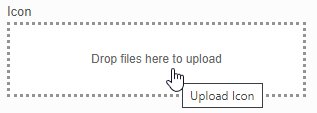
Or
- Drag an icon - from any location/folder - into the marked area.
- Image file formats supported are PNG, JPEG, and JPG.
After uploading the icon, Download and Remove are displayed along with the icon file name (file name of the uploaded image).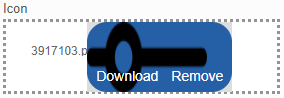
- Click Download to download the icon.
- Click Remove to remove the icon.
To update a new icon, remove the icon and repeat the steps mentioned above.Description Describe the application.
Data type: Alphanumeric, symbols, and special characters
Character limit: 1000 characters (space included).Design Time Permissions Select Roles Click and select a role. The users mapped to that role will be listed in the Select Users list below. 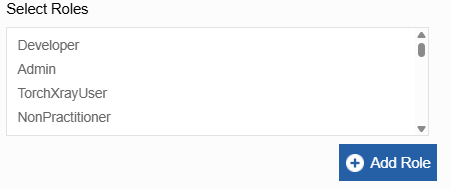
Click Add Role . The selected role is now added to the application and displayed below.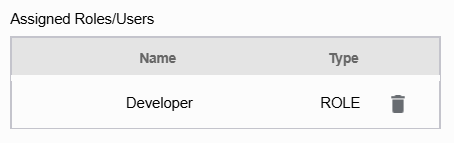
Select Users Select a user. 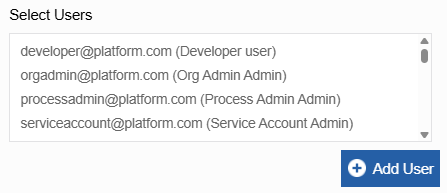
Click Add User to add the user. The selected user is now added to the application and displayed below.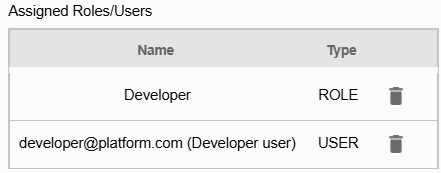
-
Click Create after entering the details. Application is created and you will be navigated to the Applications > Application Map page.
Understanding Application Components
After creating an application, open the application to view the details within an application.
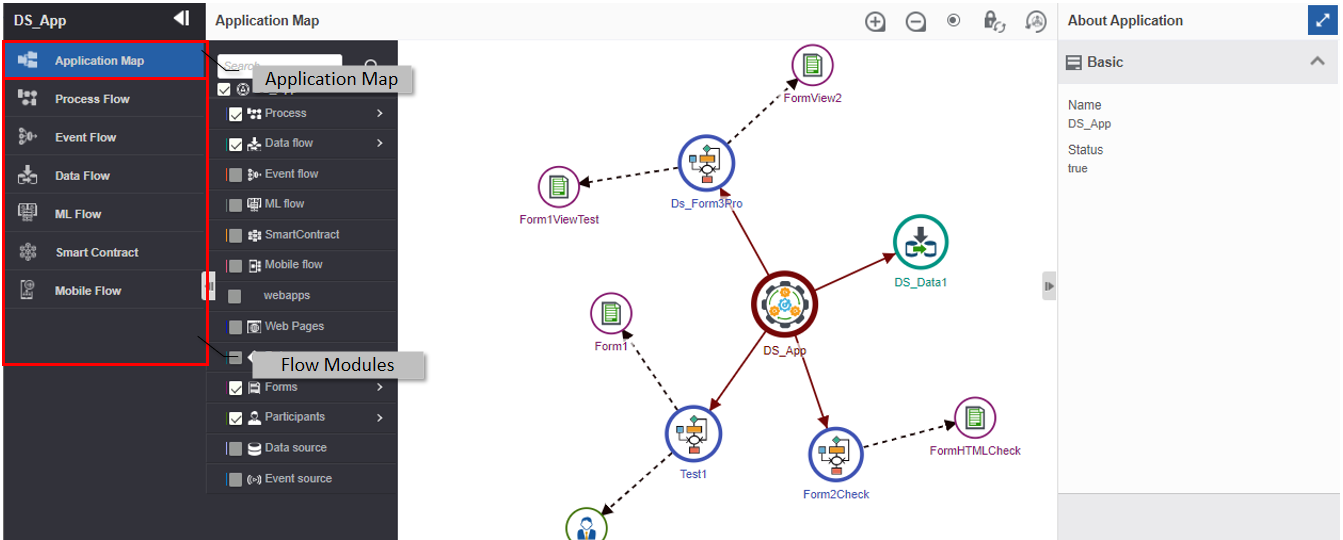
The application components are the feature-based attributes utilized in the application. The components are:
- Application Map
- Flow Modules
The left side panel on the Application page displays these components.
Viewing and Editing Application Details
- Navigate to App Studio > Applications.
-
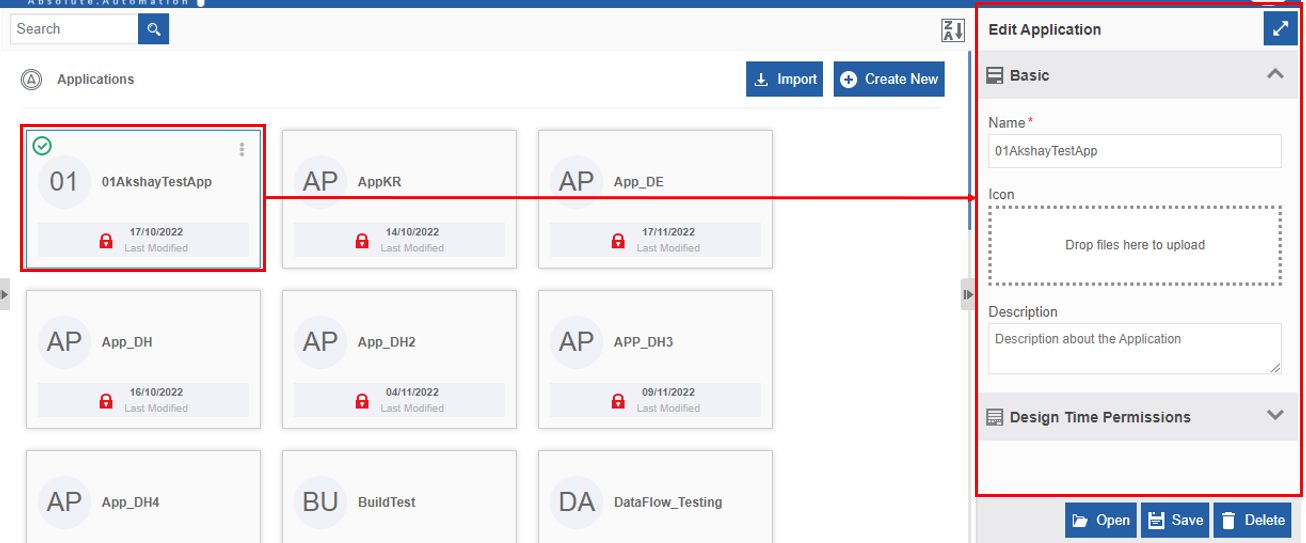
Click an application card from the list. The properties panel displays application details (Edit Application ) on the right side.
-
Modify the application details as required (make sure to unlock the application if it is locked) and click Save to save the details.
- Click Open on the lower-right of the screen or double-click the application name.
Alternatively, you can double-click the applications to open and view the details.
or
You can follow the below steps also for editing the application.
- Navigate to App Studio > Applications.
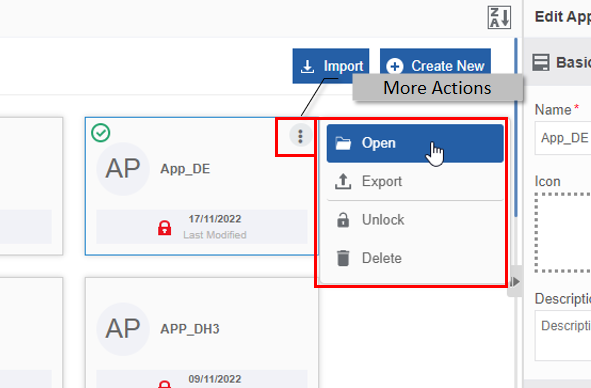
- Hover over the application card. Three dots appear on the upper right of the process card.
- Click the three dots. More Actions appear.
- Click Open and follow step 4 in the above procedure.
Locking/Unlocking Application
The locking or unlocking application feature is used to lock or unlock an application for a particular user and it applies to all the entities and artifacts within that application.
All users can view all the details of your application even it is locked.
If you need to edit or modify the details of an application that is not created by you, then you need to unlock the application.
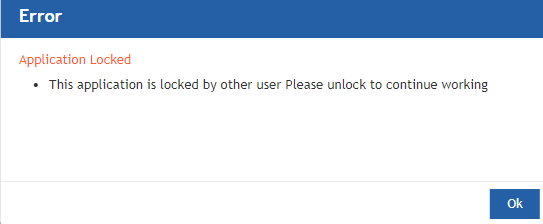
The locked application shows a lock symbol on the application card. When you open a locked application, a lock symbol appears on the title bar. If you try to edit or modify any locked application, it displays an error message as shown below.
Locking
When you create a new application, the application along with all the flow modules and entities within that application are locked for other users automatically. It remains unlocked for the user who created it until another user unlocks it.
Unlocking
- Navigate to App Studio > Applications.
-
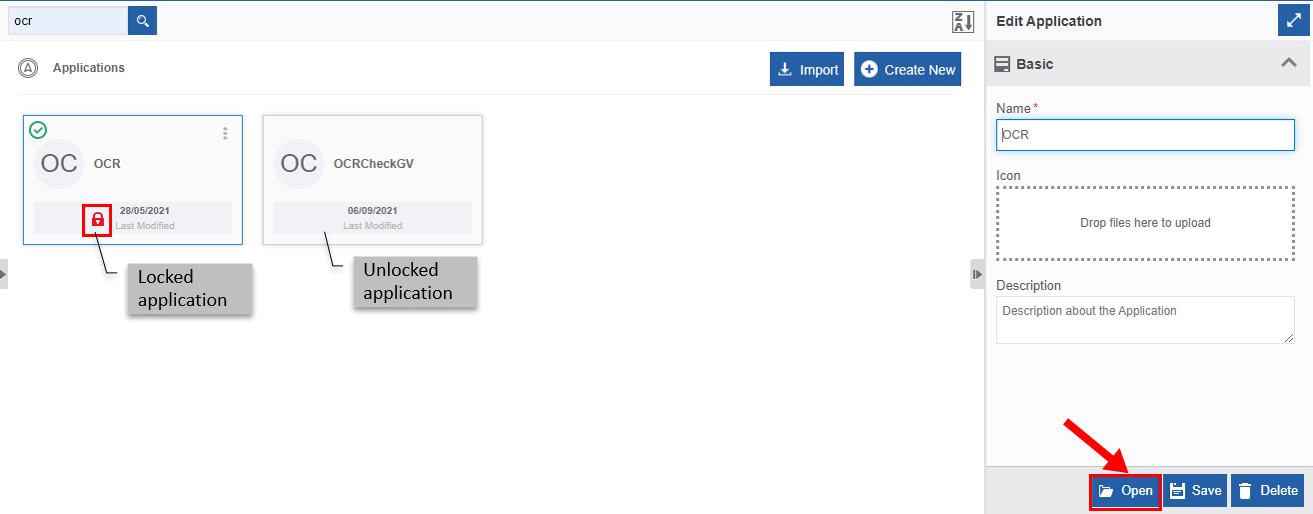
Click an application that is locked. The locked application will display a red lock symbol.
-
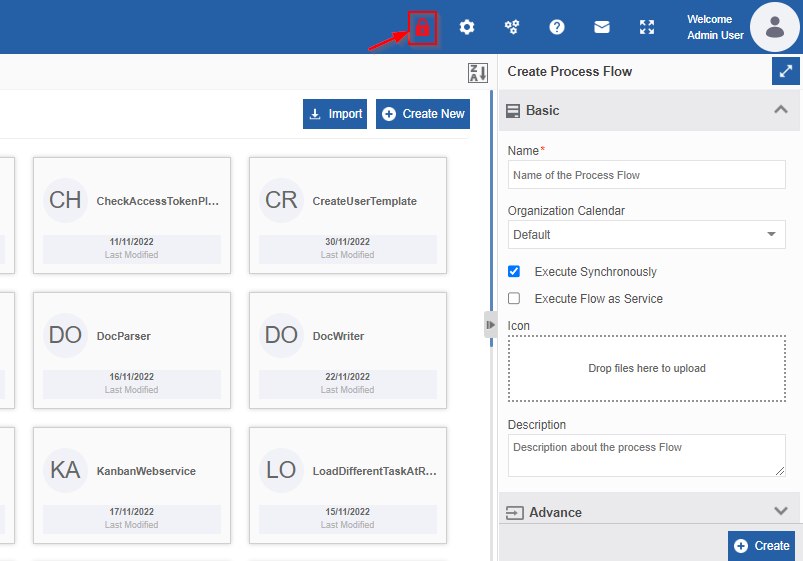
Click Open. The application opens and displays the details within. The lock symbol is now displayed on the title bar.
-
Click the Lock symbol on the title bar. The application gets unlocked and the lock symbol disappears.
Note
When you unlock an application created by a different user, the application is unlocked for yourself and it gets locked for all other users including the user who created it.
Exporting an Application
You can export the entire application or export the application with selected flows. The application will be exported in the .pkg file format.
- Navigate to App Studio > Applications.
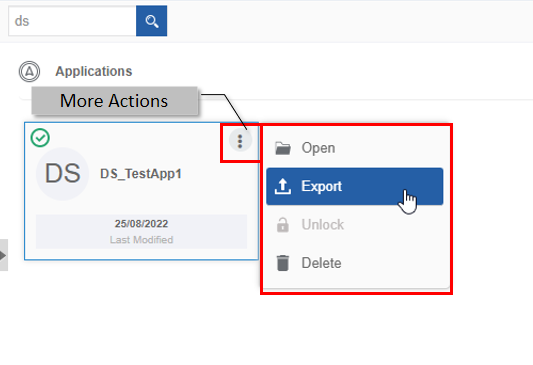
- Hover over the application card. Three dots appear on the upper right of the application card.
-
Click the three dots. More Actions appear.
-
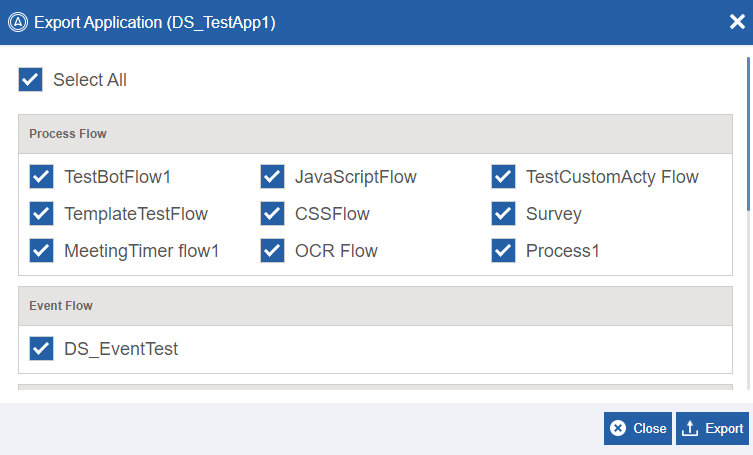
Click Export. Export{application_name} pop-up appears.
-
Click Select All to select all the items in that application.
- Click specific flow(s) from any of the flow modules listed in the Export Application pop-up to export only those particular items.
- Click Export to export the selected items or click Close to discard the action. The items will get exported in .pkg format.
Importing an Application
You can import the application file that is in .pkg format into the App Studio module.
-
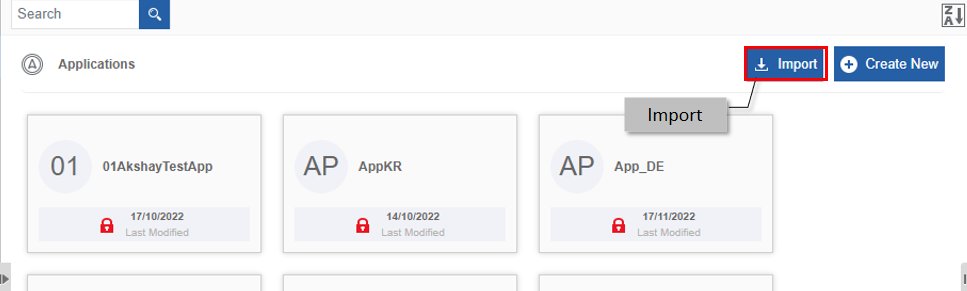
Navigate to App Studio > Applications.
-
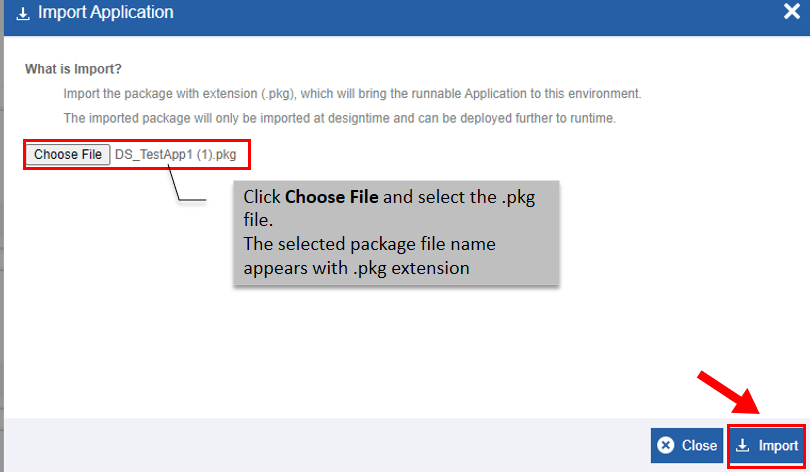
Click Import on the top right of the page. Import Application pop-up appears.
-
Click Choose File and select a package file (with extension .pkg)
-
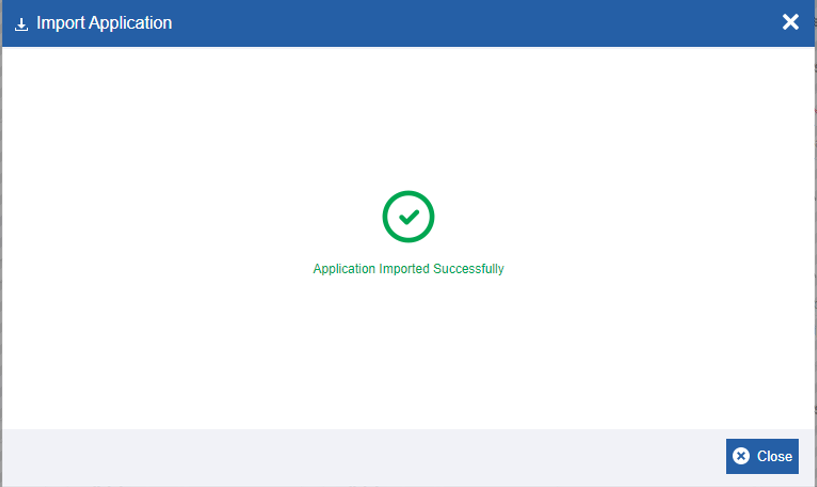
Click Import. A success message is displayed if the import is successful.
-
Click Close. The file gets imported to the App Studio module.
Correcting the Import Errors
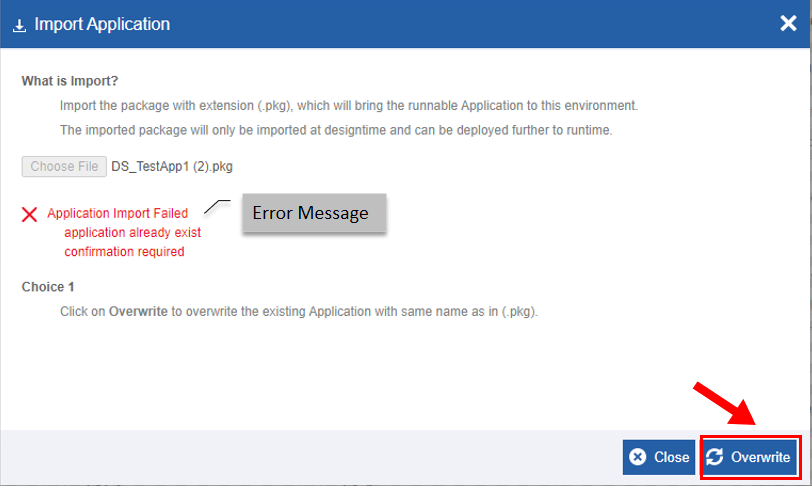
If the package file name selected for import is matching with any of the already existing file names in the App Studio, an error message is displayed. You need to correct the error by renaming the file and importing the file again.
Follow the below steps to rename the file name and correct the import.
- Navigate to App Studio > Applications.
- Click Import displayed on the top-right. The Import Application pop-up displays.
- Click Choose File and select a package file (with extension .pkg)
-
Click Import. If the application name is duplicate, error messages show up.
-
Click Overwrite. The new package file overwrites the existing application.
-
Click Close on the success message displayed.
Deleting Application
When you delete an application, all its components and configurations get deleted. You cannot get back a deleted application unless you have exported it. If you export the application before deleting it, you can import it back into the platform.
- If you delete an application in which any of the flows is deployed, then you cannot create another application with the same name as there is a reference for the deployed flow in the backend.
If you have not deployed any flows in an application and you are deleting the application, you can create another application with the same name.
To delete an application, follow the below steps.
- Navigate to App Studio > Applications.
-
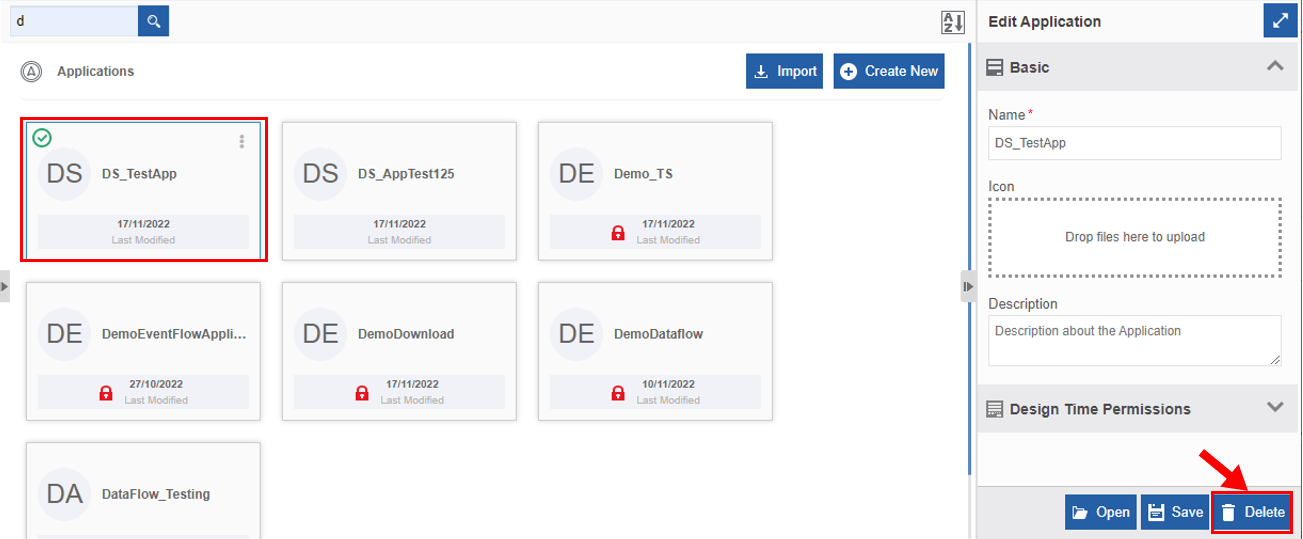
Click the application name. The lower-right of the page displays the Delete button.
-
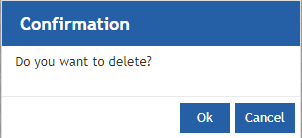
Click Delete. A confirmation pop-up is displayed.
-
Click OK for deleting the application.
Or
Click Cancel to cancel the action.
Alternatively, you can follow the below steps to delete the application.
- Navigate to App Studio > Applications.
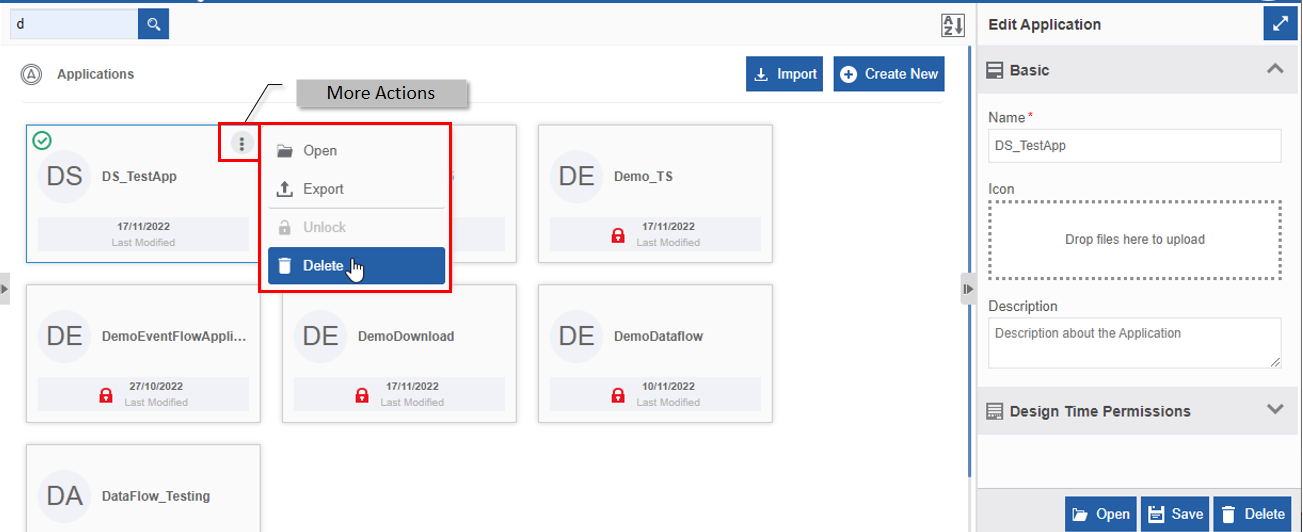
- Hover over the application card. Three dots appear on the upper right of the application card.
-
Click the three dots. More Actions appear.
-
Click Delete. Confirmation pop-up displays.
- Click ok.
Managing Run-time Applications
The application management module allows you to handle the deployed processes within the application.
The applications and flows can be suspended or terminated. Also, the tasks can be reassigned. These functions are handled in the Manage > Application Management Module.