RPA Agents
About RPA Agent in Manage
The RPA Agents section in the RPA Management lists all agents that are installed across different machines. These agents mimic human tasks and execute automated processes in the background without human intervention.
This section helps platform administrators to:
-
View all configured Agents and their current connection status.
-
Track connection history via Session History.
-
Deactivate/Reactivate agents as needed for maintenance or troubleshooting.
RPA Agents lists only the Agent components.
Viewing RPA Agents and Details
The Agents section in the RPA Management lists all the agents.
- Navigate to Main Menu > Manage > RPA Management > Monitoring > RPA Agents tab. The grid displays the agent information.
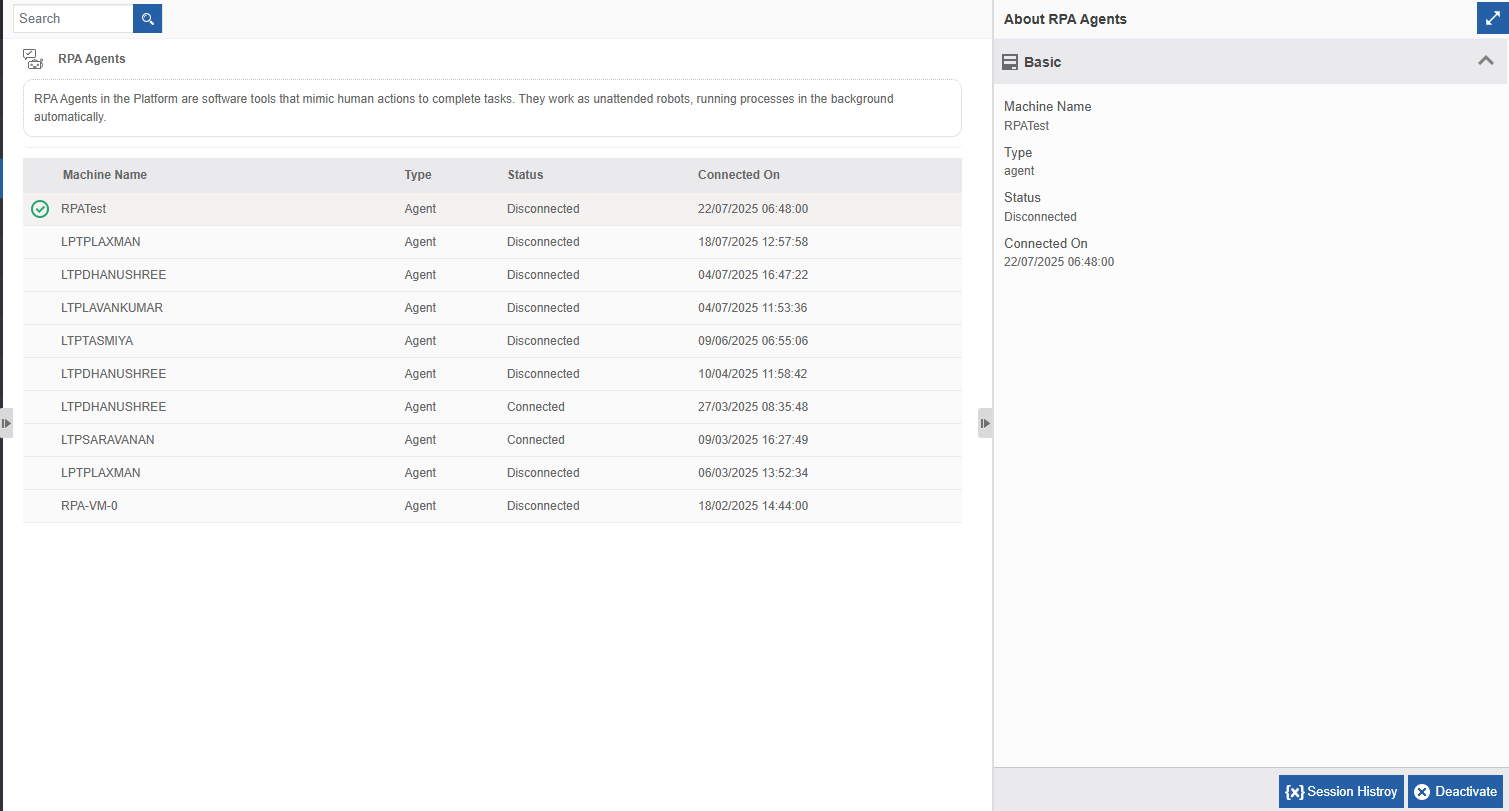
RPA Agents and details
-
Click an item in the agents list and the details also appears on the About RPA Agents on the right-side panel.
-
Machine Name: Name of the client machine in which the automation runs.
-
Type: Type of the client in which automation runs. In this case it is Agent.
-
Status: Current status of the connection.
-
Connected: Machine is connected to the RPA application (Studio, Agent, or Assistant).
-
Disconnected: Machine is disconnected from the RPA application (Studio, Agent, or Assistant).
-
Busy: Machine is busy in executing the automation workflow in Agent.
-
Available: Machine is available for execution of workflow in Agent.
-
Connected On: The date and time on which the machine was associated with the client application.
Searching for Agents
The search feature makes it easier to fetch specific workflows quickly.
-
Navigate to Main Menu > Manage > RPA Management > Monitoring > RPA Agents tab.
-
Click the “Search” textbox at the top-left and enter the bot machine name. As you type the name, the filtered result dynamically appears on the grid.
Viewing Agent Session History
- Navigate to Main Menu > Manage > RPA Management > Monitoring > RPA Agents tab.
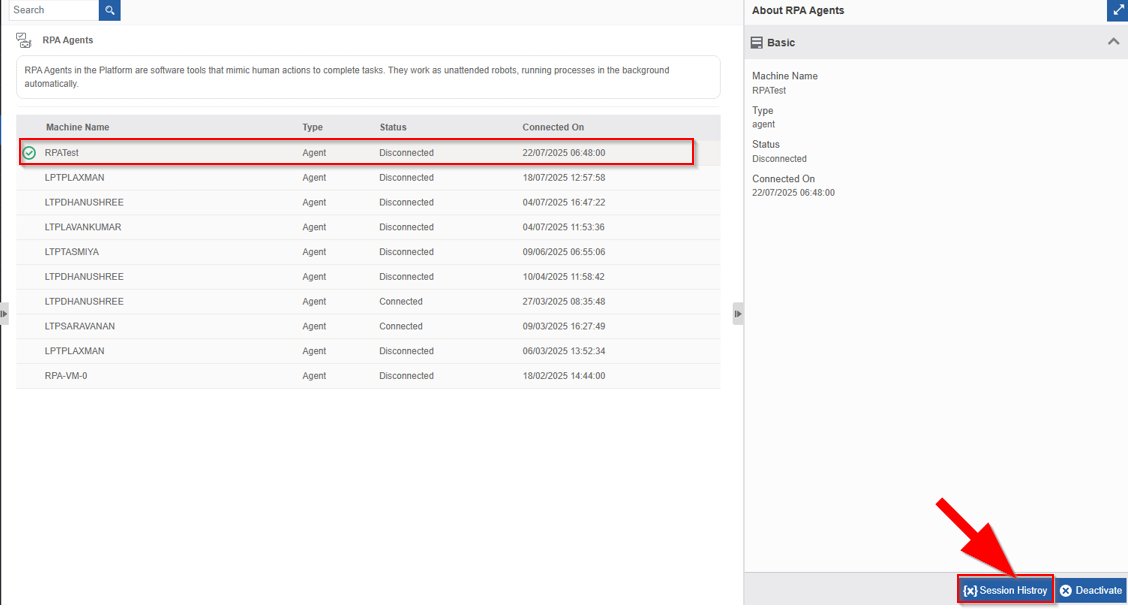
- Click {x} Session History.
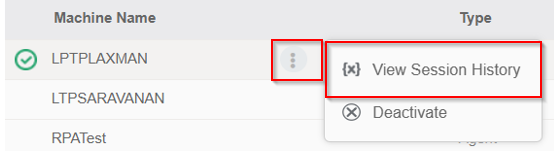
Alternatively, hover over a machine name and click the three dots > Session History.
Session History details appear.
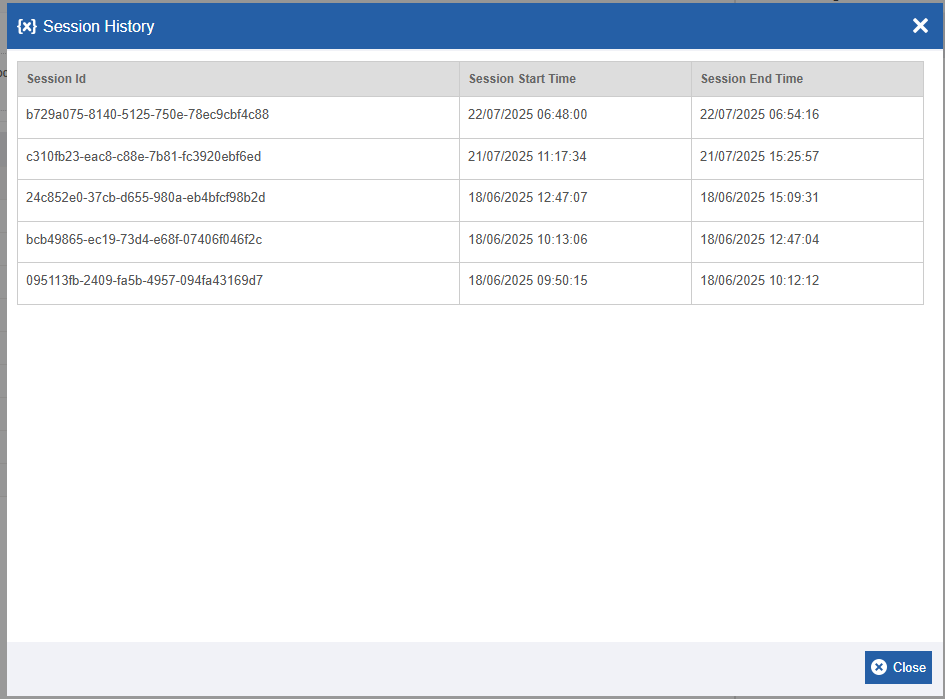
Session History
-
Session Id: Reference Id of the session.
-
Session Start Time: Starting date and time of the session. That is, the date and time on which the session connection is established.
-
Session End Time: The date and time on which the session got disconnected or ended. If the session is connected, the end time will not be displayed as the session has not ended yet.
-
Click Close to close the session pop-up.
Deactivating Agent Connection
Deactivation temporarily deactivates an agent’s connection from the machine stopping the execution of the workflow. Agent’s machine status becomes “Disconnected”.
- Navigate to Main Menu > Manage > RPA Management > Monitoring > RPA Agents tab.
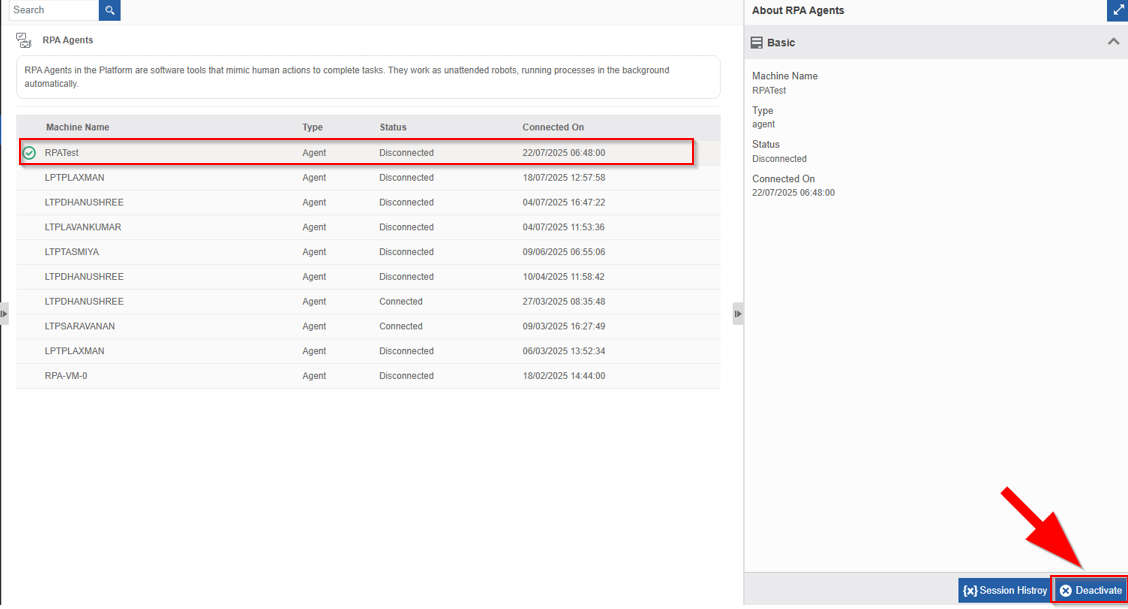
Deactivating an Agent
-
Click Deactivate.
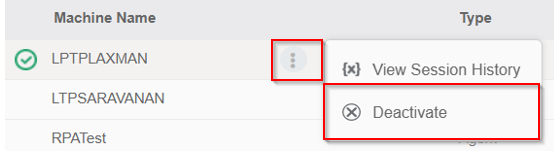
Alternatively, hover over a machine name and click the three dots > Deactivate,
Confirmation message appears.
Click Ok to deactivate or Cancel to discard the action. Success message appears on successful deactivation. -
Click Ok.
The selected agent’s connection with the machine becomes deactivated.
Activating Agent Connection
Reactivation re-establishes the Agent’s connection with the machine. Agent’s machine status becomes “Connected”.
-
Navigate to Main Menu > Manage > RPA Management > Monitoring > RPA Agents tab.
-
Click and select an agent name from the table. When you select a deactivated machine, “Activate” button appears on the bottom right
-
Click Activate.
Alternatively, hover over a machine name and click the three dots > Activate.
Confirmation message appears.
Click Ok to activate or Cancel to discard the action. Success message appears on successful activation. -
Click Ok.
The selected agent’s connection with the machine becomes active.