Authentication Settings
Directory Integration for SSO
The Authentication Settings section in the RPA Management allows you to configure Single Sign-On (SSO) using Azure Active Directory (Azure AD) or Gmail AD via the SAML 2.0 protocol.
After performing this configuration and successful connection, you can log in to the RPA Application using SSO login.
This feature simplifies the login process for enterprise users by enabling them to authenticate into RPA Studio using their existing work accounts.
For security purposes:
-
This configuration is not listed in any general setting or audit screen.
-
Users cannot edit or delete the configuration once it is saved.
-
Only organization-level admins have access to this configuration panel.
Once configured, users can:
-
Use their Azure or Gmail AD credentials to log in to the RPA Studio.
-
Avoid managing separate passwords for the RPA platform.
-
Access secure and centralized identity management via their organization's IT policies.
Azure AD Integration Configuration
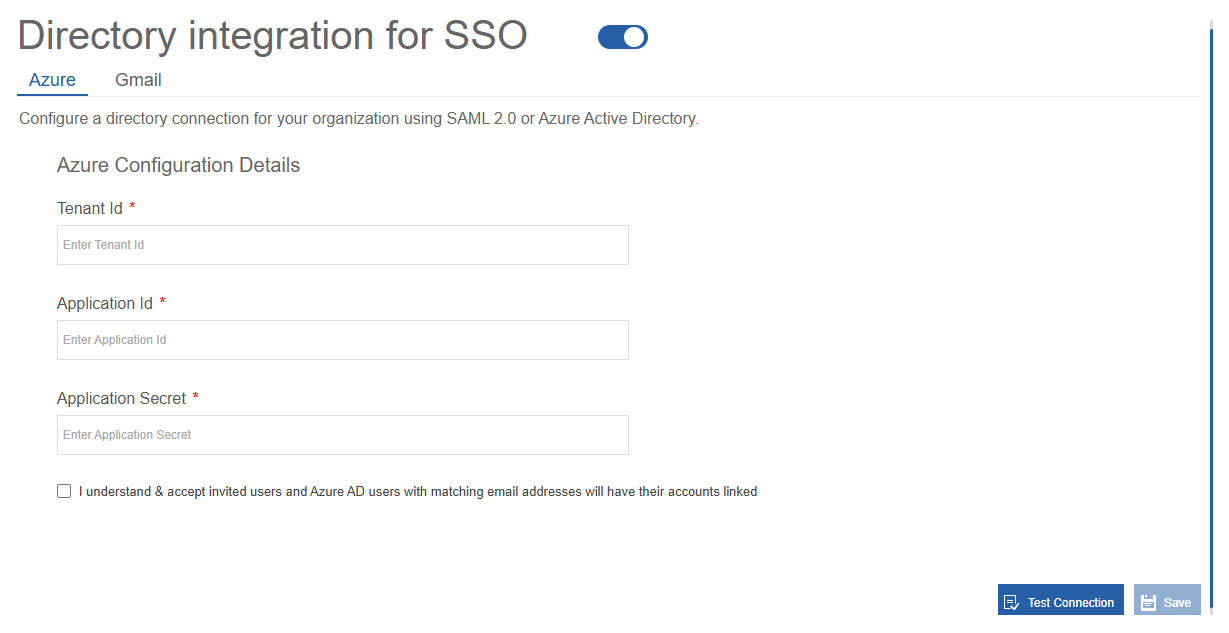
- Navigate to Main Menu > Manage > RPA Management > Authentication Settings > Azure tab.
-
Click and enable the Directory Integration for SSO (enabled by default).
-
Provide the Azure configuration details.
| Configuration | Description |
|---|---|
| Tenant Id | Your organization's Azure Active Directory Tenant ID. |
| Application Id | The registered application's Client ID (usually the org admin email). |
| Application Secret | Secret key generated from your registered Azure application. |
-
Click the checkbox with declaration: “I understand & accept invited users and Azure AD users with matching email addresses will have their accounts linked”.
-
Click Test Connection to verify your configuration.
-
Click Save to finalize the SSO setup.
Now log in to the RPA applications log in screen, click “Sign in with Azure SSO” and log in using Azure credentials.
Gmail AD Integration Configuration
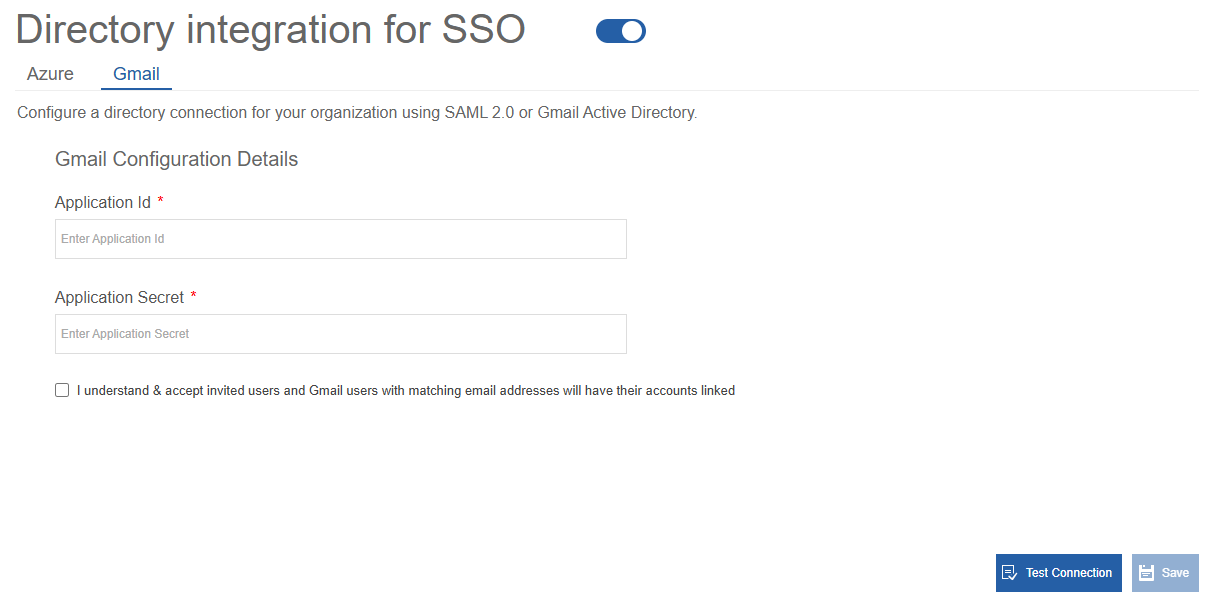
- Navigate to Main Menu > Manage > RPA Management > Authentication Settings > Gmail tab.
-
Click and enable the Directory Integration for SSO.
-
Provide the Gmail configuration details.
| Configuration | Description |
|---|---|
| Application Id | The registered application's Client ID (usually the org admin email). |
| Application Secret | Secret key generated from your registered Gmail account. |
-
Click the checkbox with declaration: “I understand & accept invited users and Gmail users with matching email addresses will have their accounts linked”.
-
Click Test Connection to verify your configuration.
-
Click Save to finalize the SSO setup.
Now log in to the RPA applications log in screen, click “Sign in with Gmail SSO” and log in using Gmail credentials.