RPA Automation
RPA Automation Features
The RPA Automation section allows you to manage and track the bots and its execution activities. You can also schedule and trigger the bots. The execution logs of the bots are available in the Logs tab.
The subsections in the RPA Automation section are:
-
Bot Flows
-
Jobs
-
Trigger
-
Logs
Bot Flows
The Bot Flows list displays published workflows fetched for the logged-in organization and user.
The data is filtered and sorted to show the most recently published workflows first and supports name-based filtering for faster search.
The Bot Flows section in the Platform allows users to view, manage, and trigger published RPA bot workflows.
-
Bots are automated workflows that run in the RPA Bot Agent.
-
A Bot Flow represents a published version of a workflow, associated with an RPA project.
-
Bot Flows help users track and execute automation tasks quickly.
-
Each bot flow is linked to a project and includes details like its version, status, and creator. When you run or execute a workflow, the workflow is referred to as bot or bot flow and the execution process is referred as bot execution.
The Assistant interface uses the term “Automation” for “Workflow”.
The Manage >…> Bot flow interface uses the term “Bot flows” for Workflow”.
Viewing Bot Flows and Details
RPA Automation section allows you to view the details of the bot flow, however, you cannot edit the bot flow details.
-
Navigate to Main Menu > Manage > RPA Management > RPA Automation.
-
Click Bot Flows (active by default when you click RPA Automation)
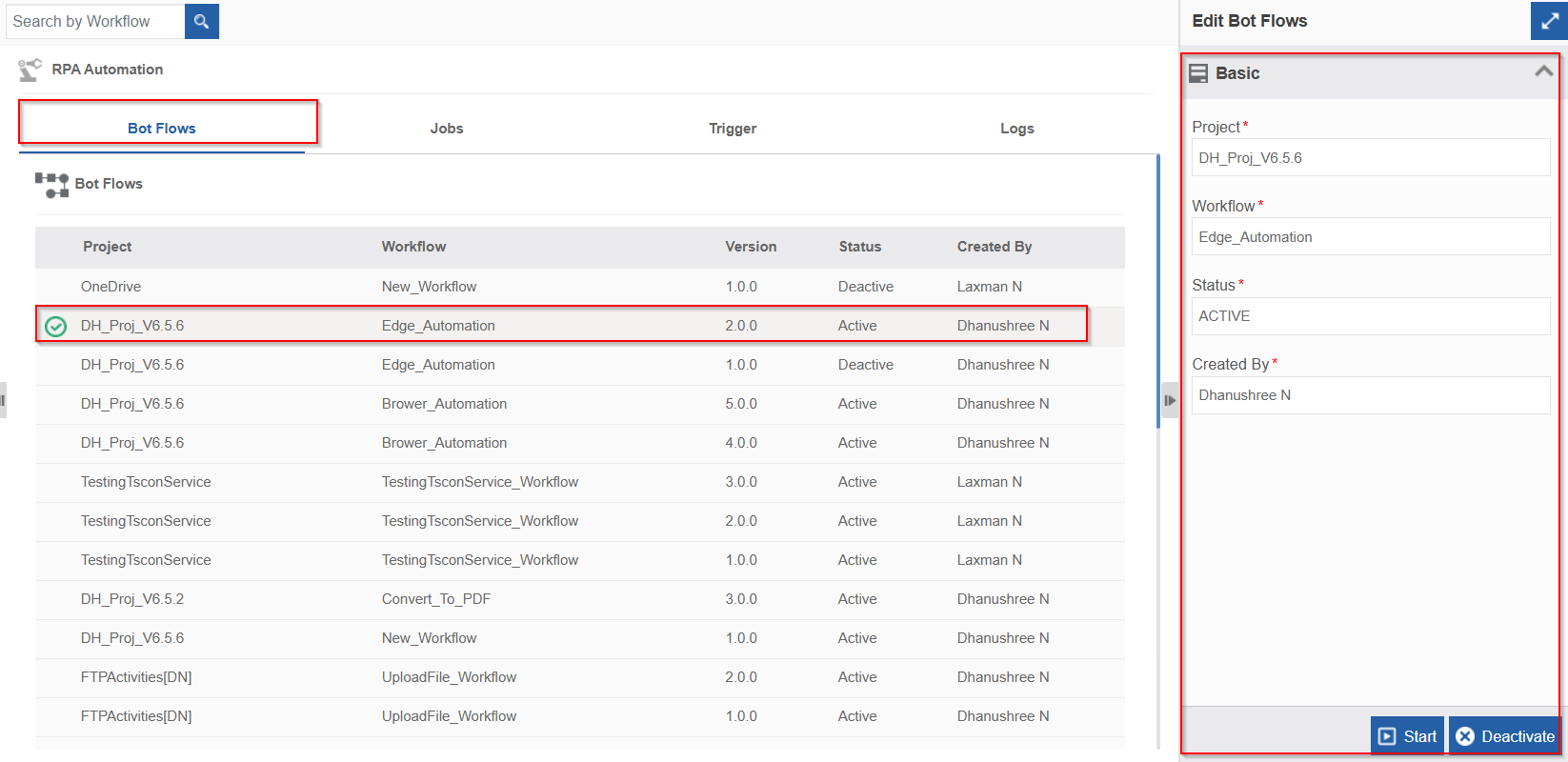
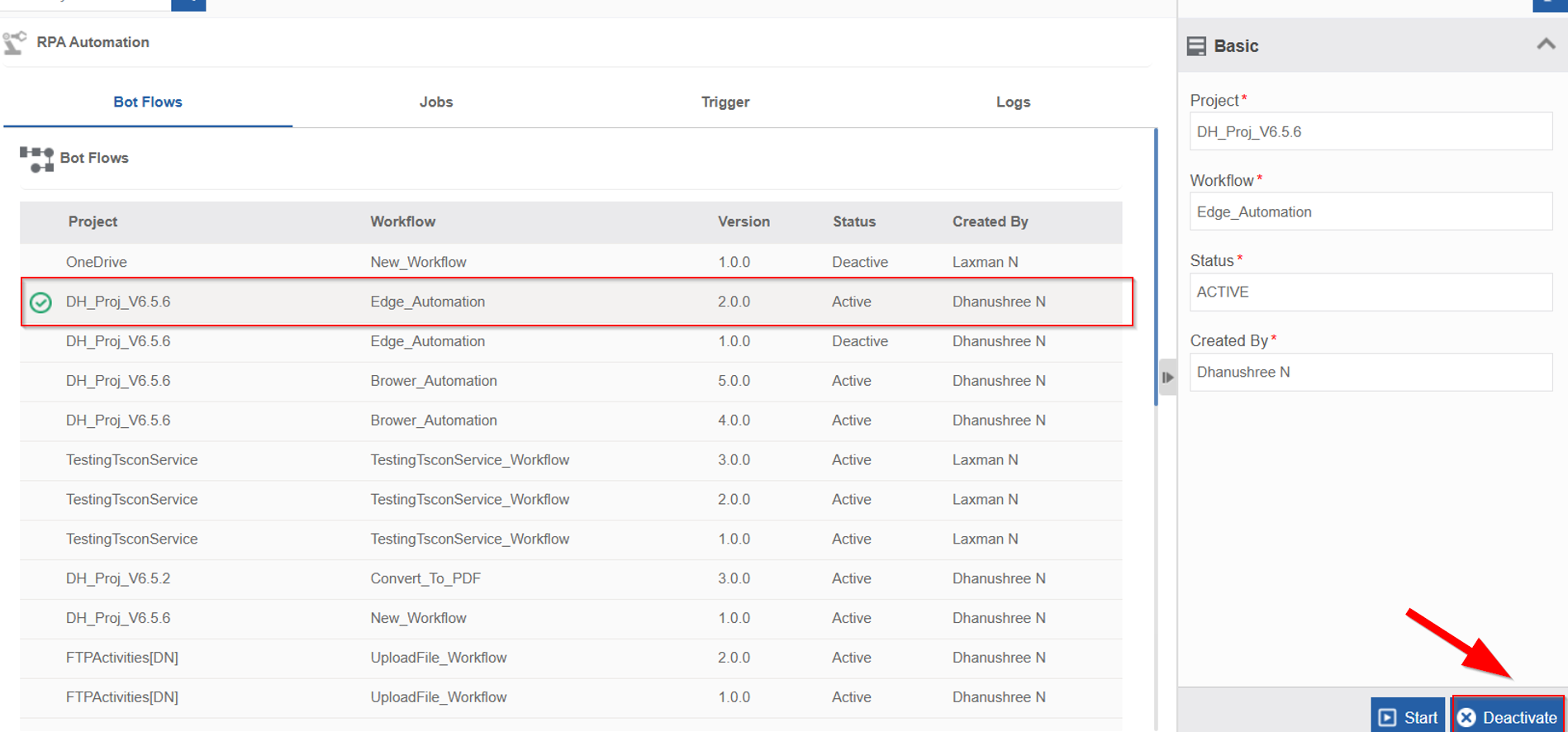
Bot Flow tab displays a list of published workflows in the grid format with the following details.
-
Project: The name of the project to which the bot workflow belongs to.
-
Workflow: The name of the published bot workflow.
-
Version: The published version number of the bot workflow.
-
Status: Indicates whether the bot is currently Active (triggerable) or Inactive (cannot be triggered).
-
Active: Indicates the workflow is active and executable.
-
Inactive: Indicates the workflow is deactivated and non-executable. These workflows can be executed after reactivation.
-
Created By: Displays the username of the user who published the bot workflow, helping to track ownership and publishing activity.
-
Click the project name associated with the workflow for which you need to view details. The right-side property panel also displays the details.
Starting a Bot Flow
The Start feature allows you to execute a bot workflow from the platform. Internally it triggers a process flow that triggers the bot. If there are input parameters for the bot workflow, you need to provide the parameters before starting the flow.
-
Navigate to Main Menu > Manage > RPA Management > RPA Automation > Bot Flows tab.
-
Click and select a Bot flow from the table.
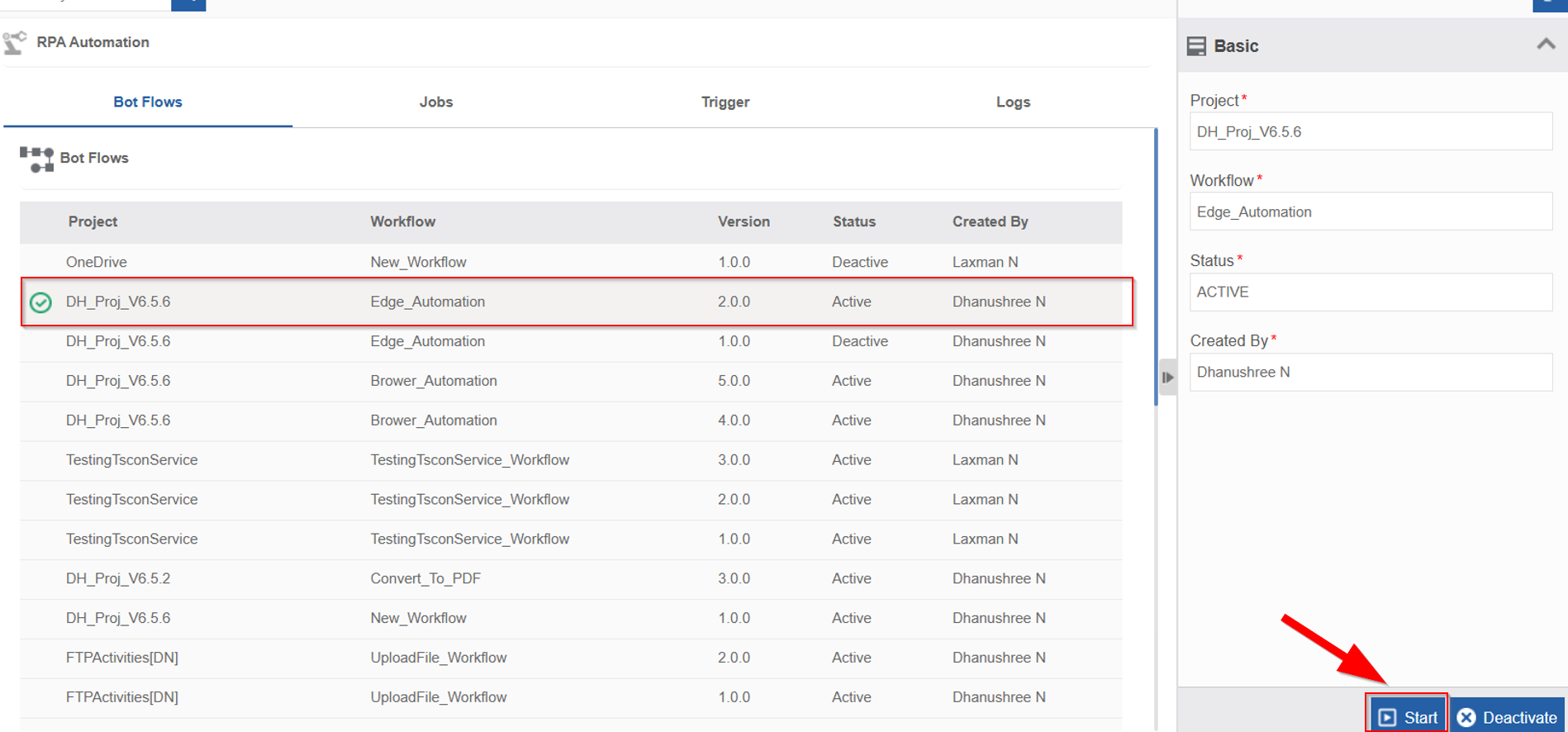
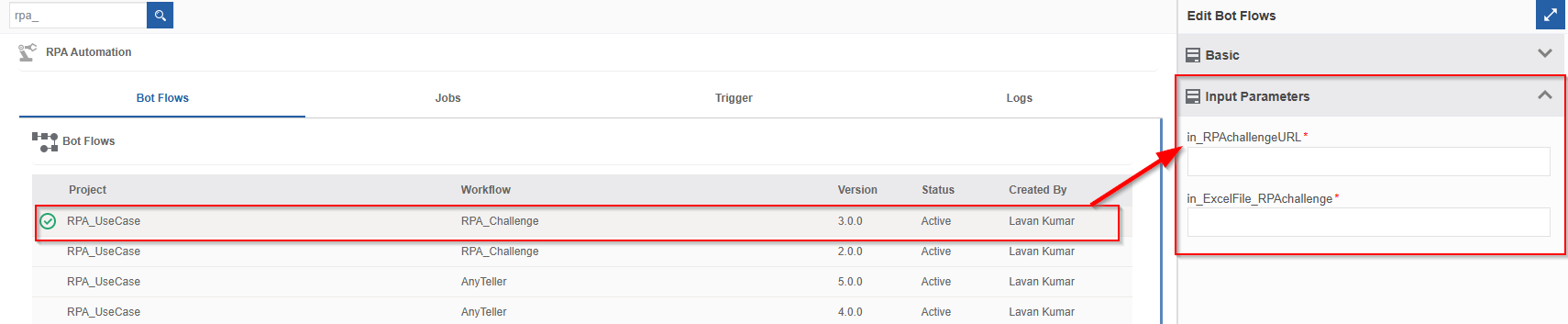
- Enter Input Parameters if any.
If the bot has input parameters, the right-side property panel will display a section named “Input Parameters” which lists all the parameters required for the execution of the workflow.
- Click Start at the bottom right.
Alternatively, hover over the project name in the grid > click three dots > Start.
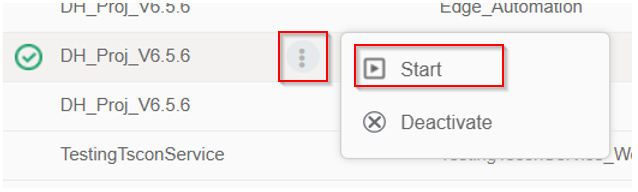
The bot flow starts its execution in the RPA Bot Agent according to the published configuration.
Bot Execution Validations
When a bot workflow execution starts, the system performs runtime checks and displays appropriate error or validation messages if needed.
Common validations errors are:
Missing Input parameters: Provide the input parameters in the property panel on the right side and start the bot flow again.
Agent availability: When you trigger the bot after providing the necessary input parameters, the system checks for the Agent availability for the execution of the bot.
If the Agent is available, the bot execution starts immediately.
If the Agent is not available, the bot execution will be in WAITING state until an Agent is available. The “Jobs” section displays the state of the bot workflow execution.
Deactivating a Bot Flow
When you deactivate a bot workflow, the “Start” button is disabled indicating that the bot is deactivated.
-
Navigate to Main Menu > Manage > RPA Management > RPA Automation > Bot Flows tab.
-
Click and select a Bot flow from the table.
-
Click Deactivate at the bottom right.
Alternatively, hover over the project name in the grid > click three dots > Deactivate.
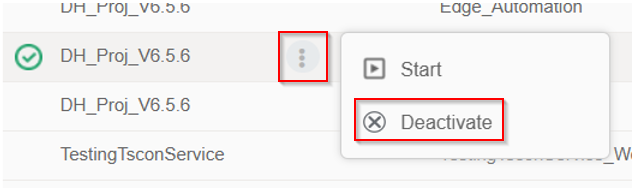
Confirmation message appears. -
Click Ok to deactivate or Cancel to discard the action. Success message appears on successful deactivation.
-
Click Ok.
The selected Botflow becomes deactivated.
Activating a Bot Flow
If you want to run a bot that is deactivated, you need to activate it.
-
Navigate to Main Menu > Manage > RPA Management > RPA Automation > Bot Flows tab.
-
Click and select a Bot flow from the table. When you select a deactivated bot flow, “Activate” button appears on the bottom right.
-
Click Activate at the bottom right.
Alternatively, hover over the project name in the grid > click three dots > Activate.
Confirmation message appears. -
Click Ok to activate or Cancel to discard the action. Success message appears on successful activation.
-
Click Ok.
The selected Botflow becomes active.
Jobs
The Jobs section in the RPA Management displays the execution instances of the published bot workflows triggered from the Bot Flows section. Jobs section helps you to monitor the lifecycle of bot executions, check their status, and review agent assignments.
Every time you trigger a bot workflow from Bot Flows, a new Job instance is created and listed in the Jobs section.
For example, if a bot workflow is triggered three times, three separate job entries will appear in the Jobs tab.
Viewing Jobs and Details
-
Navigate to Main Menu > Manage > RPA Management > RPA Automation > Botflow tab.
-
Click the botflow name for which you want to view the jobs.
-
Click the Jobs tab. The jobs grid displays all job instances triggered for the selected workflow.
-
Click the bot flow name for which you need to view details. The right-side property panel also displays the details.
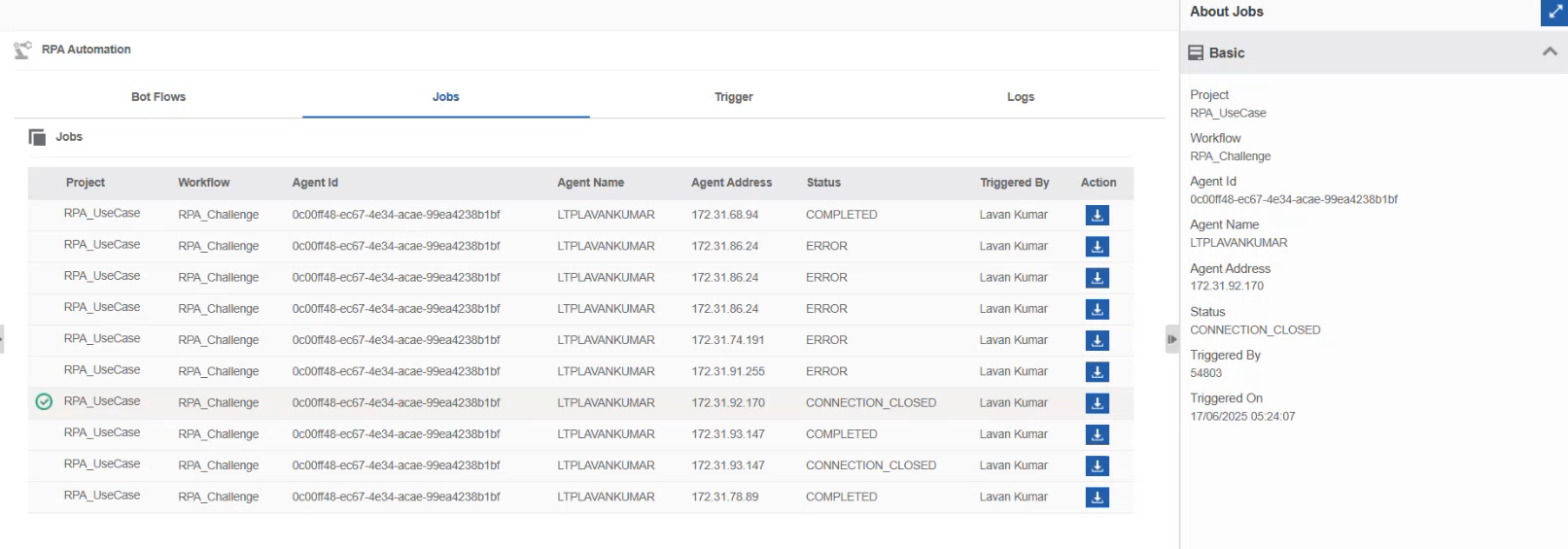
Jobs tab displays a list of triggered workflow instances in the grid format with the following details.
-
Project: The name of the project to which the bot workflow belongs to.
-
Workflow: The name of the triggered bot workflow.
-
Agent ID: The unique ID of the Agent (machine ID) that picked and executed the job (instance). This field will be empty until job gets assigned to an agent.
-
Agent Name: The hostname or identifier name of the agent machine. This field will be empty until job gets assigned to an agent.
-
Agent Address: The IP address of the agent machine. This field will be empty until job gets assigned to an agent.
-
Status: The current execution status.
-
WAIT: Waiting for the agent to come up; agent currently not available.
-
EXECUTING: The instance is picked up by an agent and it is in the execution state.
-
COMPLETED: The agent has successfully completed the execution of the bot workflow.
-
ERROR: The agent has failed to complete the execution of the bot flow due to some error.
-
CONNECTION_CLOSED: The connection is lost between agent and platform during the execution by some external technical issues like network disconnection or power failure.
-
TERMINATED: The job execution was manually or automatically terminated before completion.
-
Triggered By: Displays the username of the user who triggered the bot workflow.
-
Triggered On: The date and time on which the job was triggered.
-
Action: Download - Click download icon to download the communication.log for the job.
Communication.log File
The communicaton.log file contains the detailed interaction between the server and the bot agent for each execution instance. Logs help the users to investigate execution issues or review the actions performed during the job run.
- To download the communication.log for the job, click Jobs > Action > Click download icon.
In case of an ERROR or FAILED status, the logs are especially useful for diagnosing what went wrong during execution.
Logs display detailed error messages, failed action points, and agent responses for the specific instance.
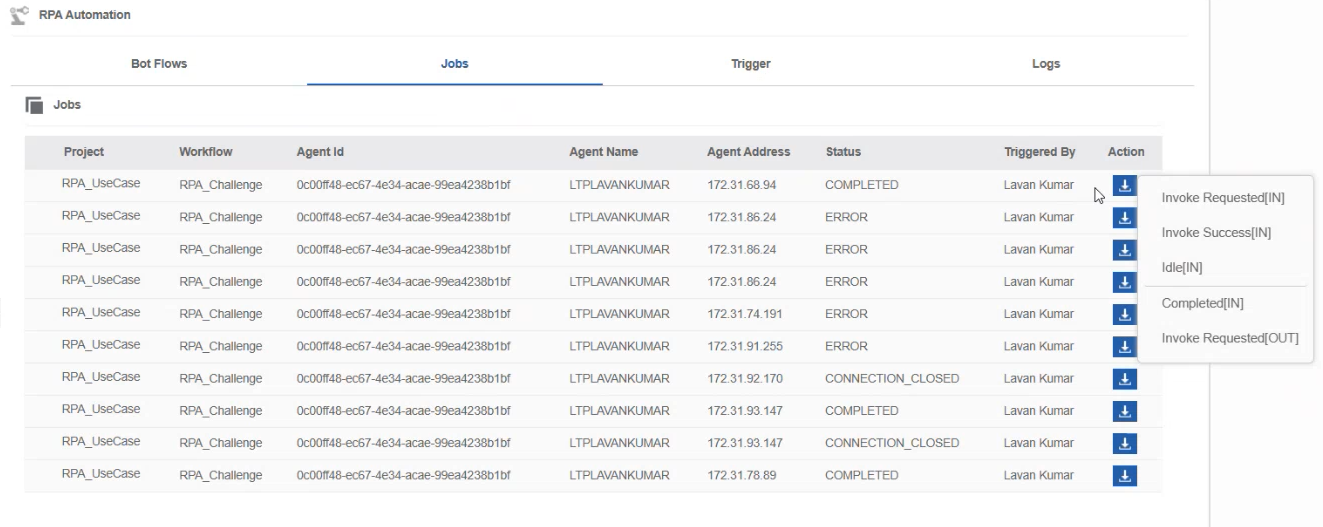
Click Action > download icon of the job instance for which you need to view the details. A .log file of clicked action gets downloaded to your local system. The log file displays the details of the job.
[IN] – [IN] adjacent to the action indicates that the request is going from the RPA Platform to the RPA Bot Application (agent or assistant).
[OUT] - [OUT] adjacent to the action indicates that the request is going from the RPA Bot application (agent or assistant) to the RPA Platform.
Logs:
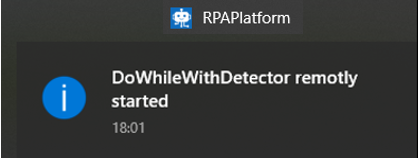
- Invoke Success[IN] – The success message is invoked after starting the workflow. At this point, a notification of the success message appears in the browser notification.
-
Invoke Requested[IN] – An invoke request is sent to the workflow.
-
Idle[IN] – The workflow is idle and waiting/listening for an event or action for the progress of the flow.
-
Completed[IN] – The workflow is completed. Click Complete to download the log file with details.
-
Invoke Requested[OUT] – An Invoke request is sent to the RPA platform.
-
Aborted[IN] – The workflow is aborted (forcefully or accidentally stopped).
-
ERROR[IN] – An error can occur if the workflow fails due to some reason. Click Error to download the log file for viewing the errors.
Trigger
The trigger feature is used to trigger a particular bot workflow at a specified date and time.
The workflow is triggered using the schedular configuration in Manage > Configuration Management > Scheduler.
The workflow gets triggered automatically at the specified date and time.
Viewing Triggered Workflows and Details
- Navigate to Main Menu > Manage > RPA Management > RPA Automation > Trigger tab. The trigger details grid displays all job instances triggered for each of the workflow.
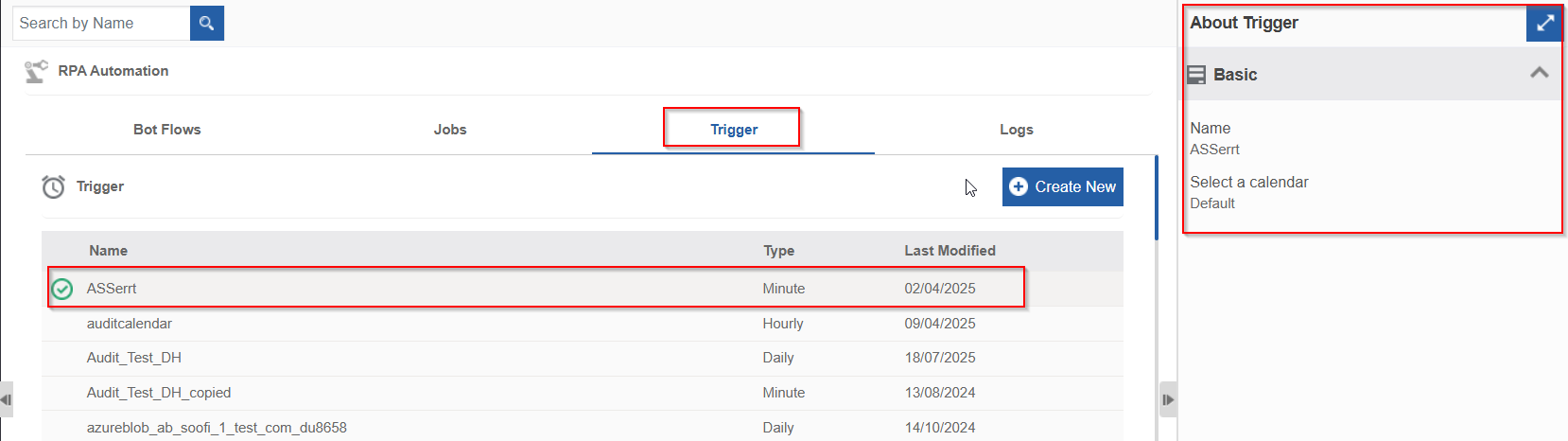
- Click a workflow name and the details appear on the right-side panel also.
Trigger Details:
-
Name: Scheduler name that is created in the Manage > Configuration Management > Scheduler.
-
Type: Type of schedule pattern used. Schedule can be daily, hourly, minute, etc.
-
Last Modified: Last modified date of the scheduler configuration.
Creating a New Trigger
-
Navigate to Main Menu > Manage > RPA Management > RPA Automation > Trigger tab.
-
Click Create New. System redirects you to Manage > Configuration Management > Scheduler.
-
Create and save a new schedule for the workflow. The configured scheduler name appears in Trigger tab.
Alternatively, navigate to the Manage > Configuration Management > Scheduler and create a new scheduler configuration.
Logs
The Logs section in the RPA Management displays a detailed execution log for each of the bot workflow execution. The logs are generated from the RPA application during bot execution.
Logs help you to understand the step-by-step action performed by the bot and troubleshoot failures.
Each log entry represents one execution attempt of a workflow on an agent.
Viewing Execution Logs and Details
- Navigate to Main Menu > Manage > RPA Management > RPA Automation > Logs tab. The Logs grid displays all the workflow executions and attempts on an agent.
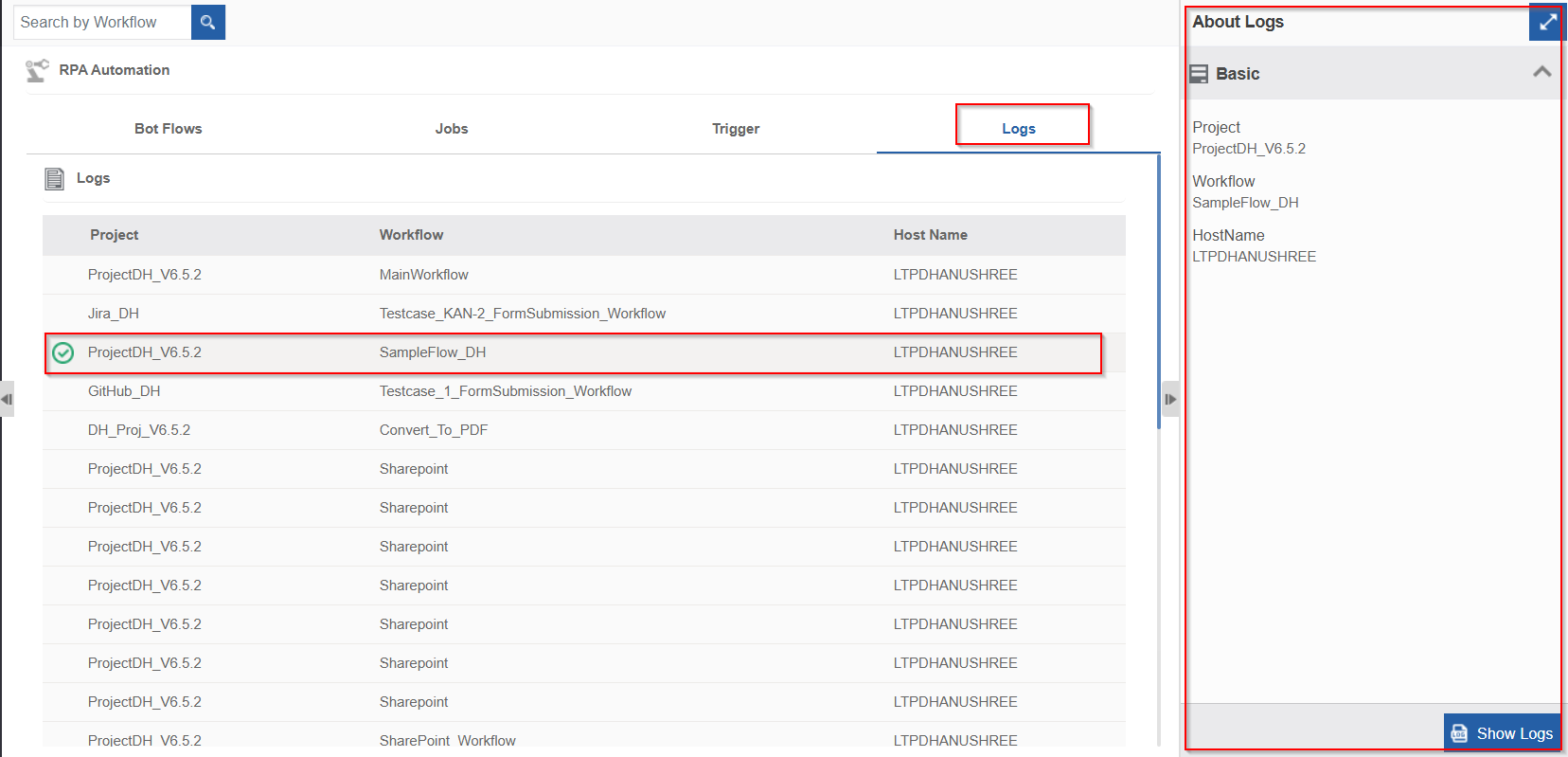
- Click a project name and the corresponding details appear on the right-side panel also.
Log Details:
-
Project: Project name of the workflow.
-
Workflow: Name of the workflow.
-
Host Name: Name of the machine that executed the workflow.
Viewing Log Details
-
Navigate to Main Menu > Manage > RPA Management > RPA Automation > Logs tab.
-
Click and select a log entry from the table.
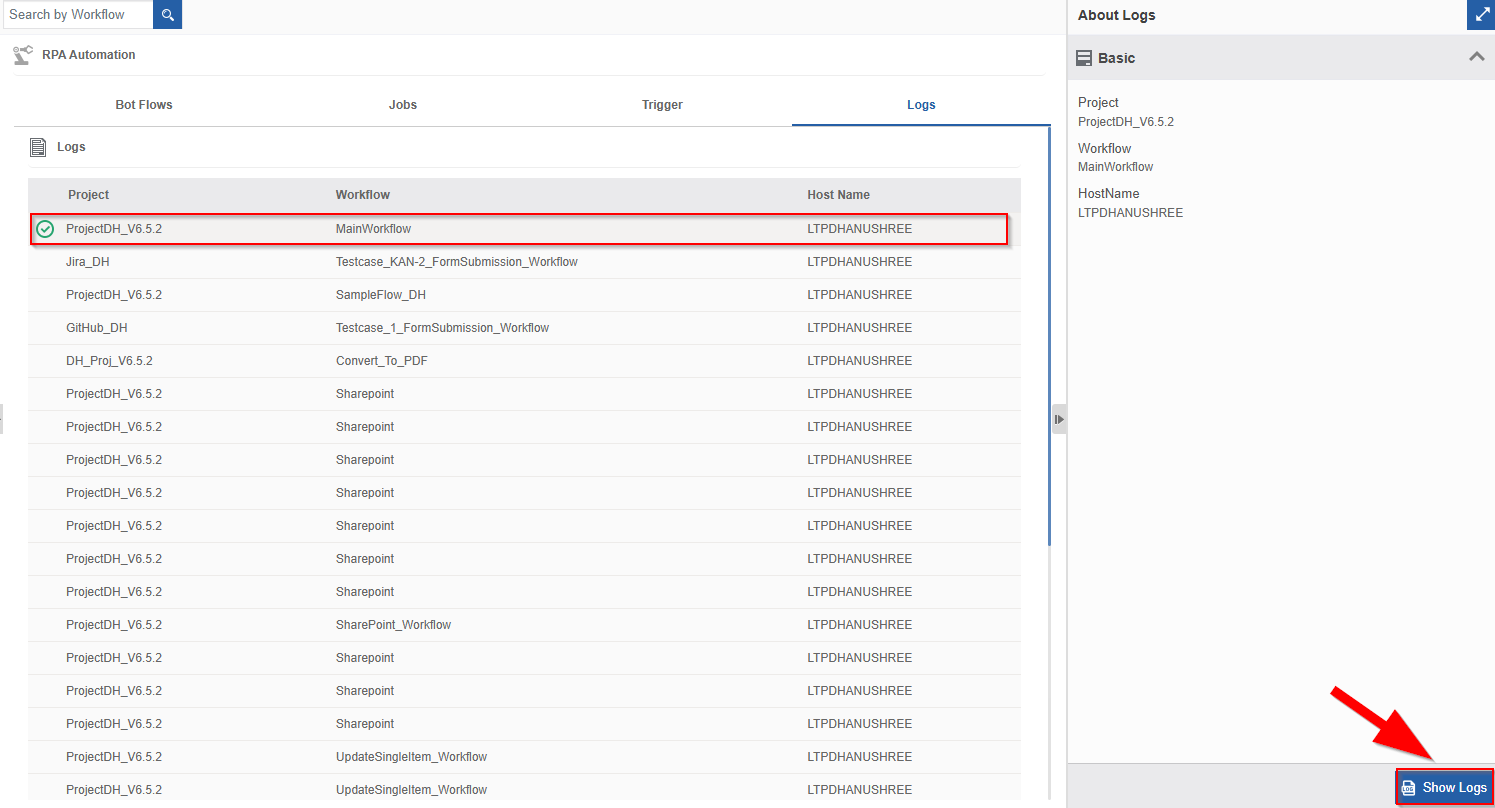
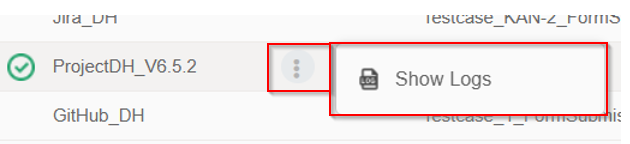
- Click Show Logs at the bottom right.
Alternatively, hover over the project name in the grid > click three dots > Show Logs.
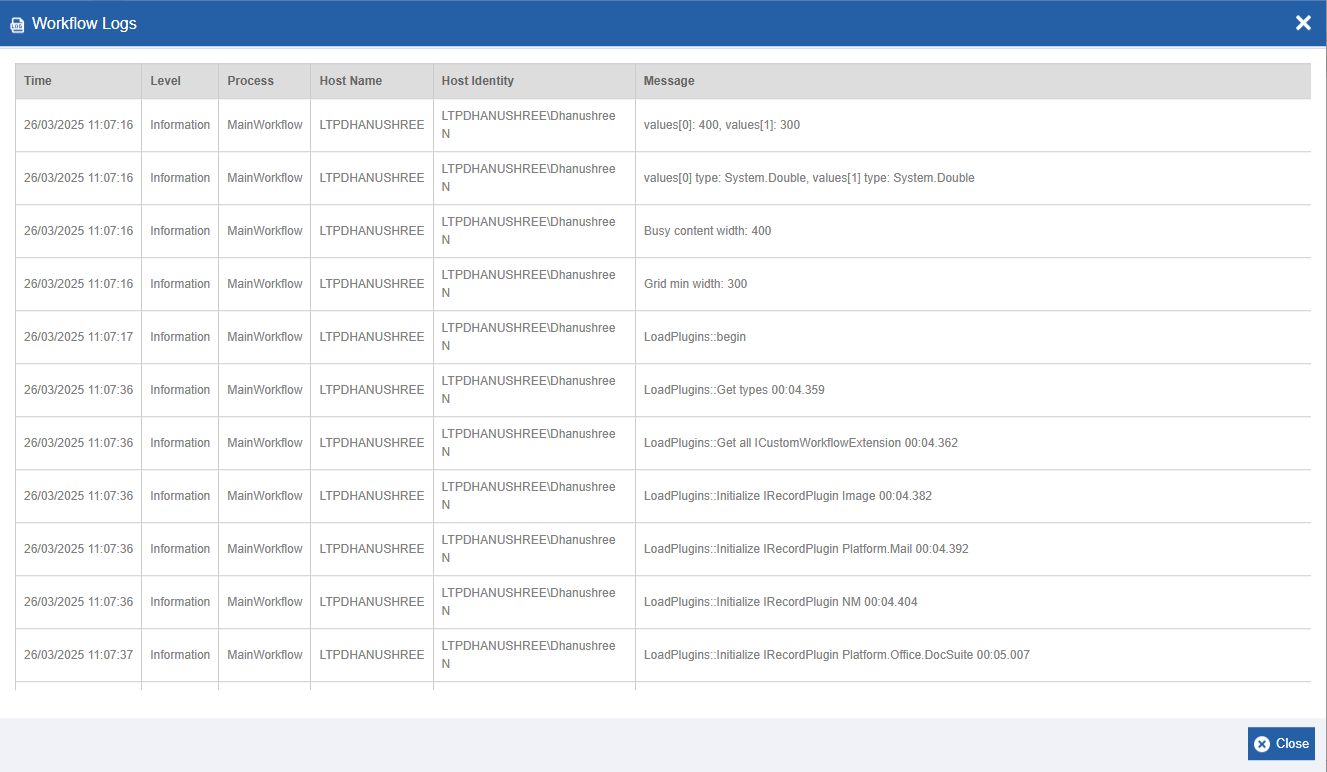
Log Details:
-
Time: Timestamp of the log entry.
-
Level: Log level (e.g., Information, Error).
-
Process: The workflow that generated the log.
-
Host Name: Name of the machine (agent) running the bot.
-
Host Identity: The machine identity under which the agent is running and the user details.
-
Message: The message describing the current execution action or error occurred during execution.
-
Click Close to close the log details.
Error Log Visualization
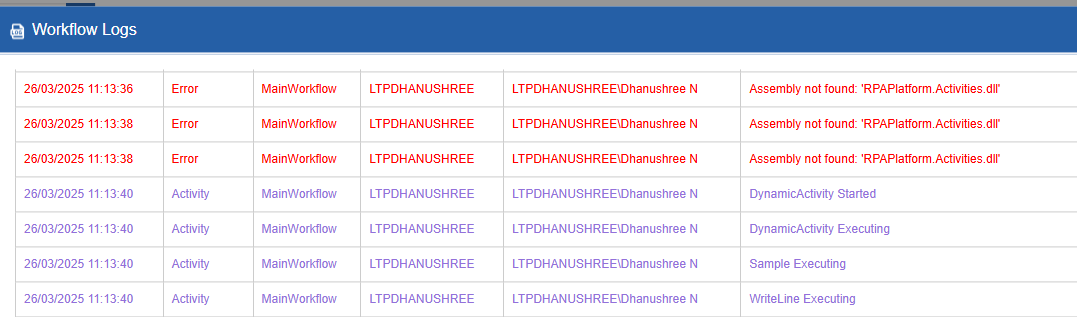
On the Workflow Logs (Show Logs), the log details are given specific colors based on the nature of the log detail.
-
Black: Completed flows or currently not executing flows.
-
Red: Workflows with error in execution.
-
Purple: Workflows currently under execution.
These logs show exact failure points, such as missing assemblies, connection issues, or plugin initialization failures.
Typical Usecases
-
Track workflow execution steps to ensure all actions completed as expected.
-
Quickly identify error scenarios and understand why a workflow failed.
-
Troubleshoot environment-specific issues by checking the Host Name and Host Identity.