Design Canvas
The design canvas allows to design or draw your flow (click and drag feature) using nodes known as activities and then configure its components. The design canvas components differ for different types of flows.
You must create an application and any flow (process flow, data flow, etc.) within that application for viewing the design canvas of that particular flow.
Viewing Process Flow Design Canvas
Design Canvas is the area for designing and modifying flows.
- Navigate to App Studio > Applications > Process Flow – open process flow.
If you open an existing process flow for which a process is defined, the canvas displays the process flow diagram with the configuration details in the Info Actions Panel.
If you create a new process flow, a blank design canvas opens up.
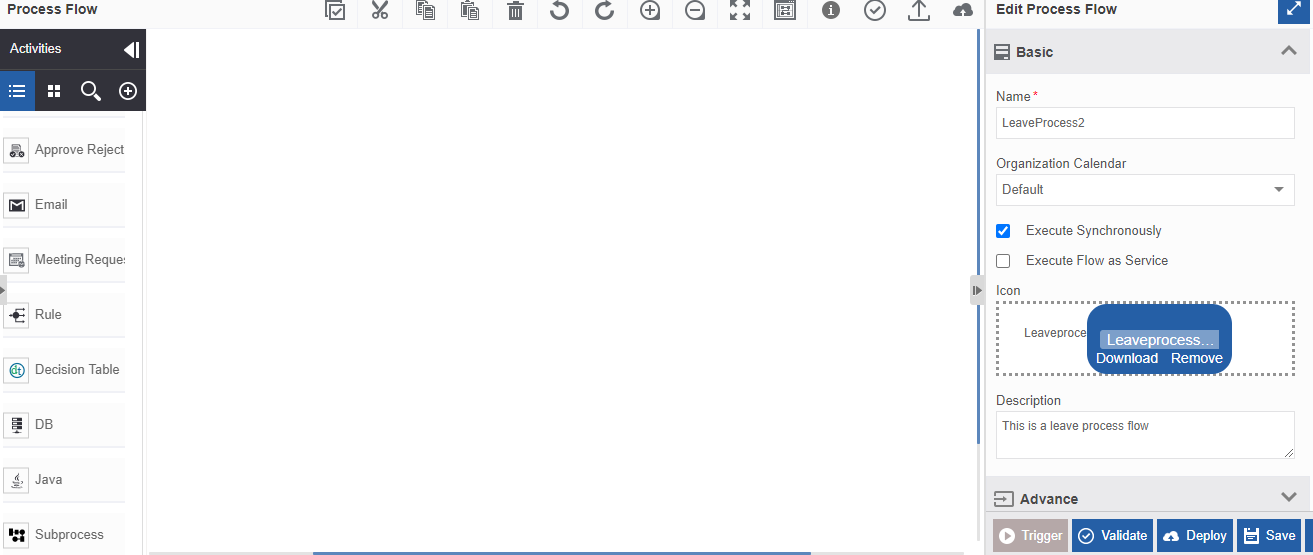
Understanding the Design Canvas
The design canvas user interface (UI) provides all the elements to create a flow. Defining and configuring the activities/links are done in the design canvas.
The left side of the canvas displays the activity list and the right side of the page displays the properties in the Info Action panel. The design canvas has a toolbar to manage the design on the canvas.
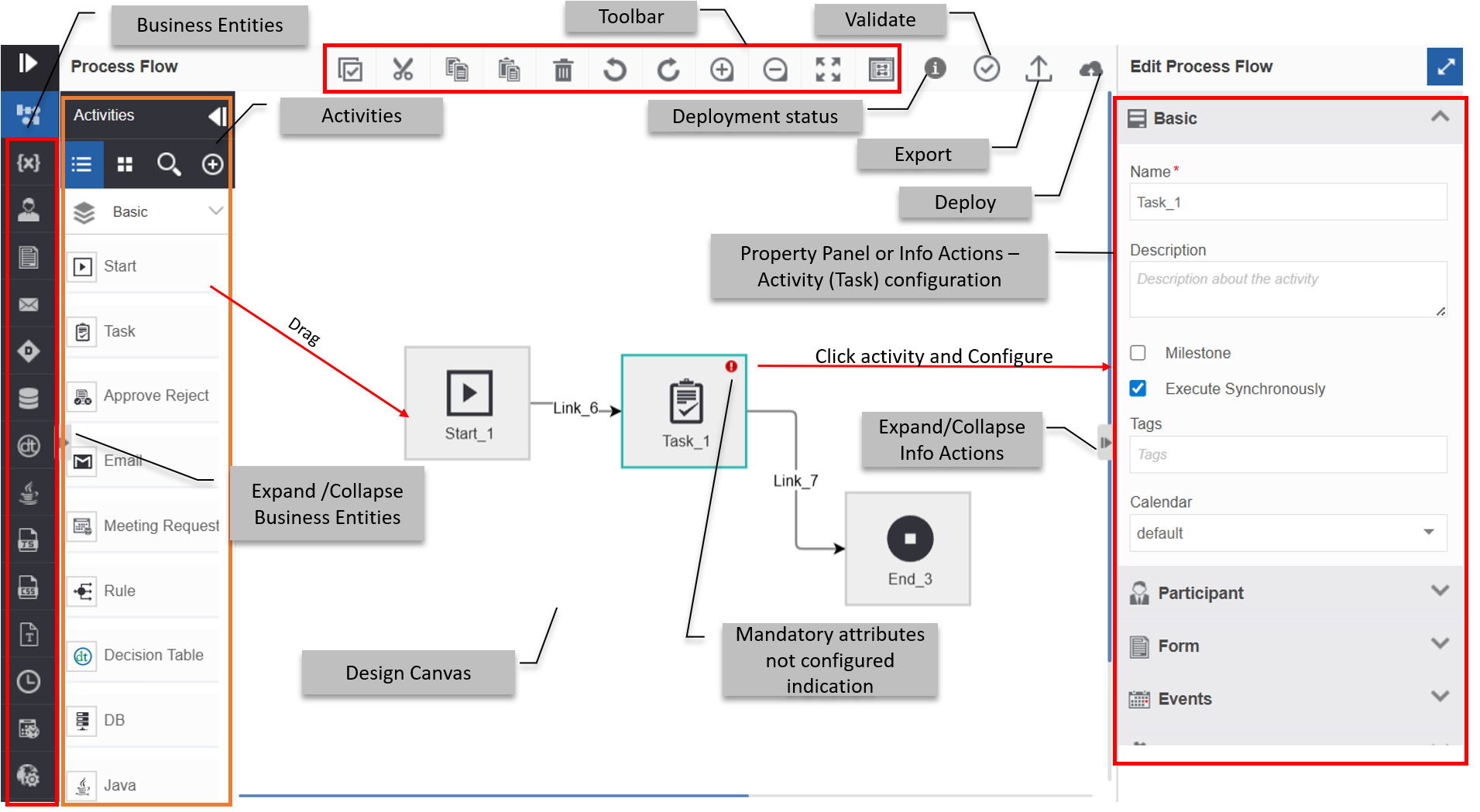
| UI Elements | Description |
|---|---|
| Design Canvas | To design the flow using the activities and links with drag and drop actions. |
| Process Activities | The list of all process activities. For each type of flow, it will display the activities specific to that flow type. |
| Business Entities | The business entities are configured onto the activities as applicable. |
| Info Actions | The activities are defined and configured in the info actions panel. - Click an activity note to display its properties in the Info Actions panel. |
| Toolbar | Tools that are used while working with the activities and links. Refer to Design Canvas Toolbar for more details. |
| Deployment Status | Displays the deployment status information |
| Validate | To validate the flow for any errors. |
| Export | To export the flow from the Platform to the local system. |
| Deploy | To deploy the flows. |
| Expand/Collapse | To hide and view the Info actions panel. |
| Red Warning | A red warning mark in the activity indicates that a mandatory configuration is not yet mapped for that activity. - Click the warning mark to display the error details. |
Designing/Drawing the Flow
Create a process flow (it can be event flow or any other flow, process flow is just considered as an example) within an application. After creating the process flow, you are navigated to the process design canvas where you can design your process using the activities and tools in the process design canvas.
Adding Activities in Canvas
- Click and drag the required activities from the Activities list to the design canvas.
- All the flows must start with a Start activity to indicate the start of the flow and end with an End activity in the last to indicate the end of the flow.
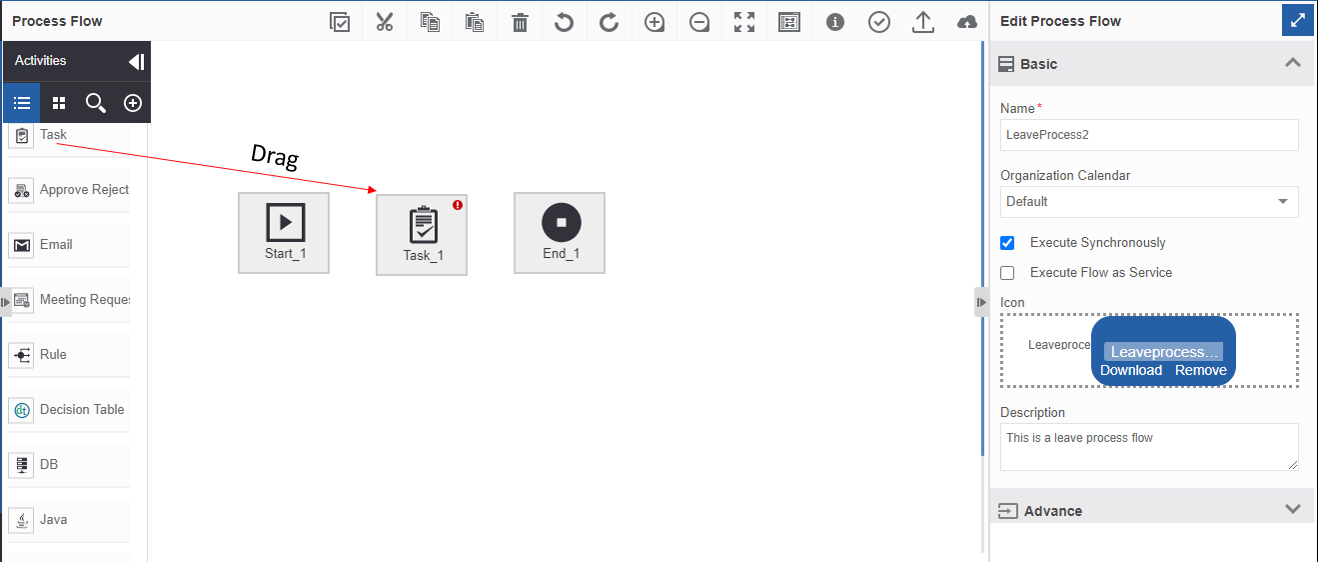
Selecting the Activities/Links
- Click an activity in the canvas to select that activity.
- Press CTRL + Click or SHIFT + Click to select multiple activities/links.
- Click the canvas and then slowly drag the mouse. A pink rectangle selection appears. Drag the rectangular section over the workflow. The shapes that are inside the pink rectangle selection get selected.
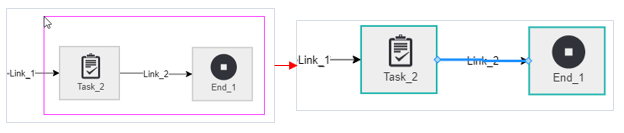
Moving the Activities
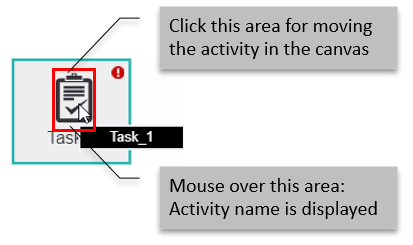
- Select an activity and drag the icon of the activity to move an activity around the canvas. If links are added to the activity, links move along with the corresponding activities.
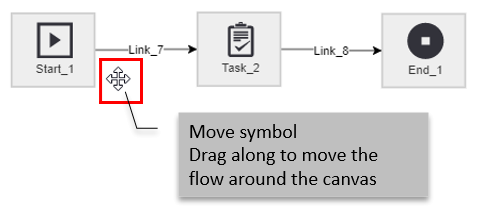
- Click and drag on the canvas. The pointer changes to the move symbol. Without releasing the mouse, you can move the complete workflow around the canvas.
Copying and Pasting the Activities
- Click the activity. You can select multiple shapes (activities).
- Click the copy symbol on the toolbar. You can also press CTRL+C.
- Click the paste symbol on the toolbar. You can also press CTRL+V.
When you cut two or more activities the links associated with those activities are also cut, including the incoming link of the first activity and the outgoing link of the last activity. However, while pasting back the activities, the activities and links in between the activities are pasted. That is, the incoming link of the first activity and the outgoing link of the last activity are not pasted so that you can paste the cut portion in any other place without conflict with the links.
Deleting the Activities
When you delete an activity, all the associated configurations and mappings become obsolete for that activity.
- Click the activity. You can select multiple shapes (activities and/or links).
- Click the delete icon on the toolbar or press DEL on the keyboard.
Drawing/Editing Transition Links
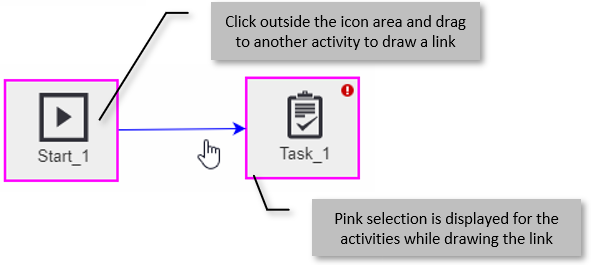
- Click and drag from one activity to another activity. (Make sure that you click the space around the icon in the activity box.)
- Click the activity. Edit Process Flow on the right side displays the attributes of that activity.
- Click the link between the activities. The Edit Process Flow Panel displays the link details.
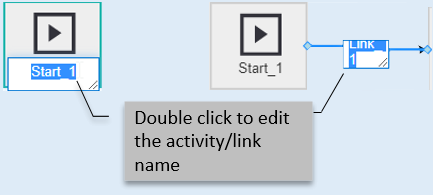
- To edit the activity/link name, double-click the activity/link name and edit it in the design canvas itself.
Configuring the Activities and Links
Configurations differ for each activity; however, all the activities follow similar configuration steps. The generic aspects of the activities are explained in the below subsections.
- Click and drag an activity into the process design canvas.
-
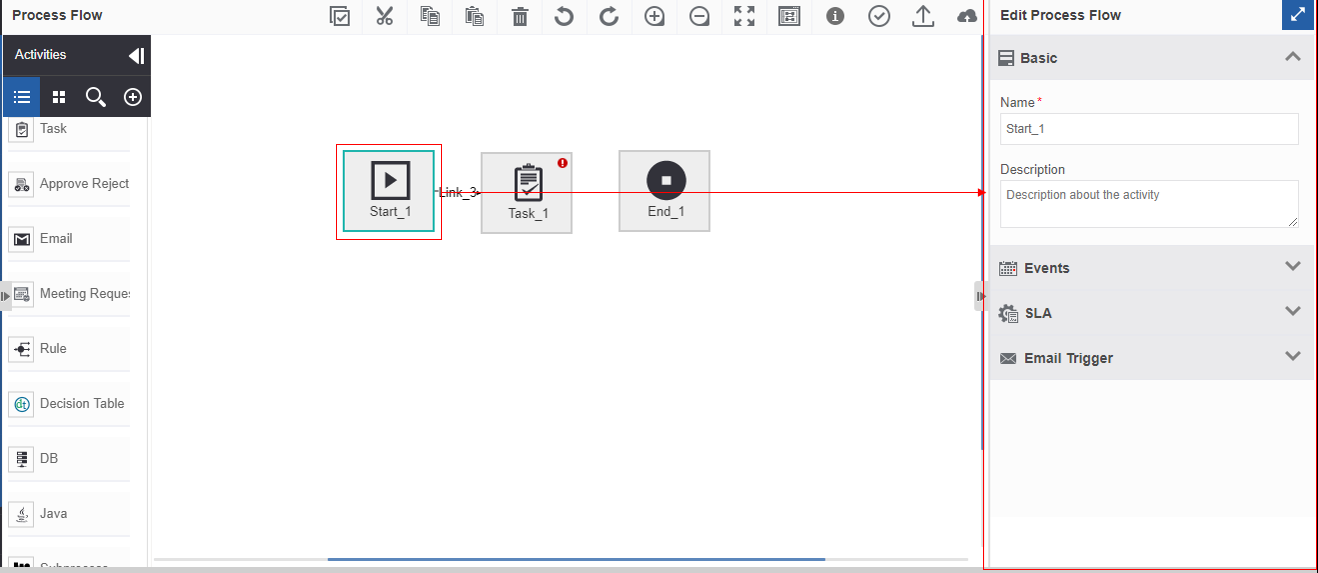
Click the activity. The corresponding attributes are displayed in the Edit Process Flow panel.
-
Configure the activity by entering details on the Edit process Flow panel. (Enter the name of the activity and other basic details in the relevant fields.)
- Click the accordion to view the details in each of the sections.
-
Map the required entities by selecting the entities from the relevant drop-down list.
Note
Some of the activity configurations need a mapping of a business entity. Specific business entities are mapped to specific activities. Some entities apply to multiple activities. You must create the required entities for the activities before configuring the activity.
Configuring links
- Click and drag an activity into the process design canvas.
-
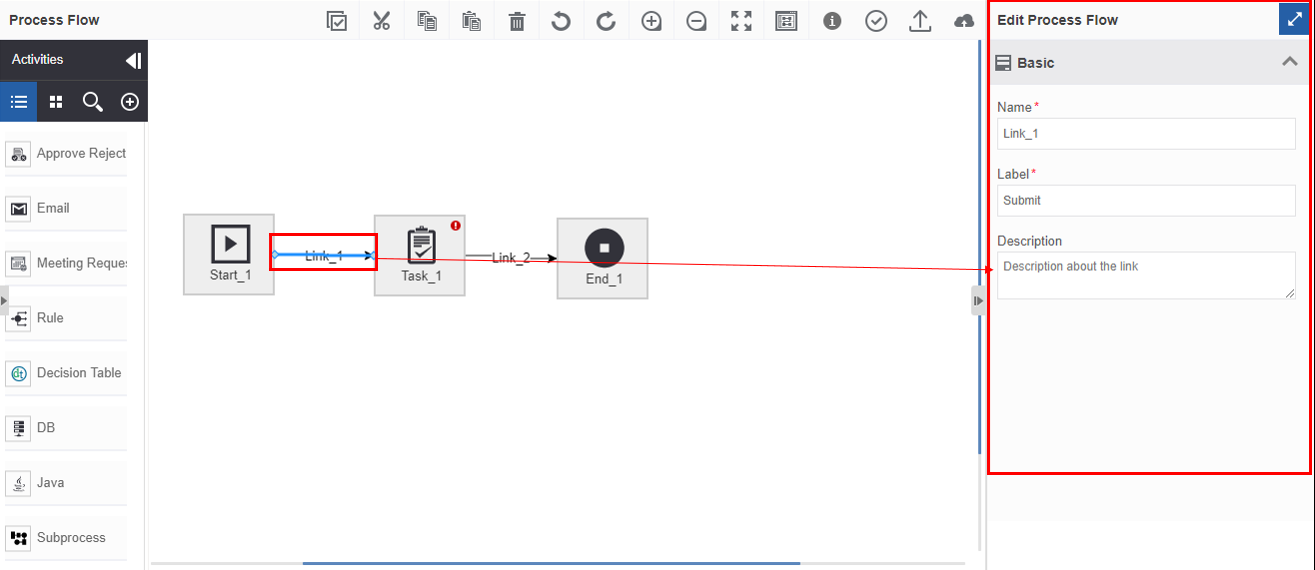
Click and drag from one activity to another activity. Make sure you click the space around the activity icon within the activity and drag it to another icon. A blue color arrow appears in the direction you dragged. This is called the link.
-
Click the link. The attributes are displayed in the Edit Process Flow panel.
-
To configure the link, enter the details (Name, Label, and Description) in the Edit process flow panel.