Platform Page Administration
Introduction to Page Settings
In the platform, you can add, manage, and configure the organization pages. In the platform, each platform instance becomes an organization.
The Administration options are available only for the organization administrator. The Administration and Control panel features appear on the title bar.
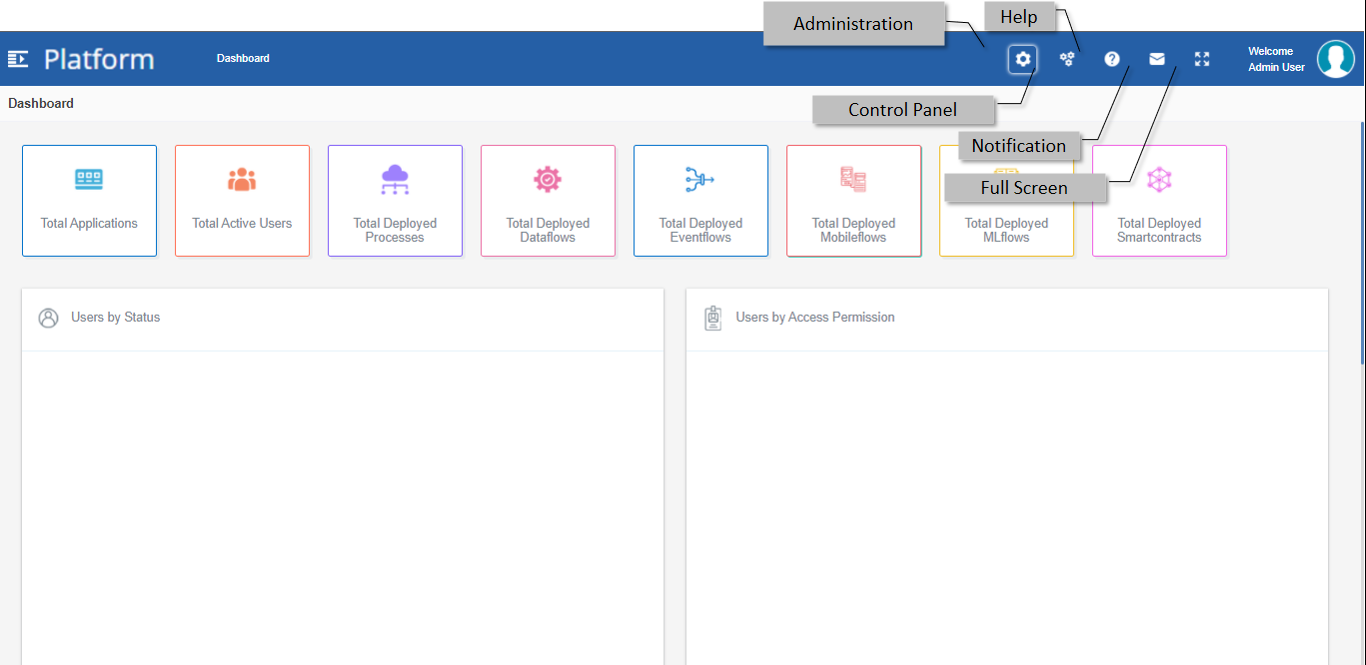
Figure 1: Title bar features
| Feature | Description |
|---|---|
| Administration | Click the Administration icon and the page configuration features are displayed as icons. |
| Control Panel | Click the Control Panel icon and the active widget setting features are displayed. |
| Help | Help files for the platform. |
| Notification | Notifications are generated as part of the platform features and functionalities. |
| Full Screen | Hides the platform title bar for full view. Hover on the top of the screen and a “Menu” button appears. Click Menu for viewing the title bar. |
Administration Features
The Administration icon on the title bar of the platform has a list of features displayed as icons for configuring the pages. The Administration feature allows the user to design the pages with widgets and other components.
- On the Platform title bar, click the Administration icon for viewing the list of page configuration icons.
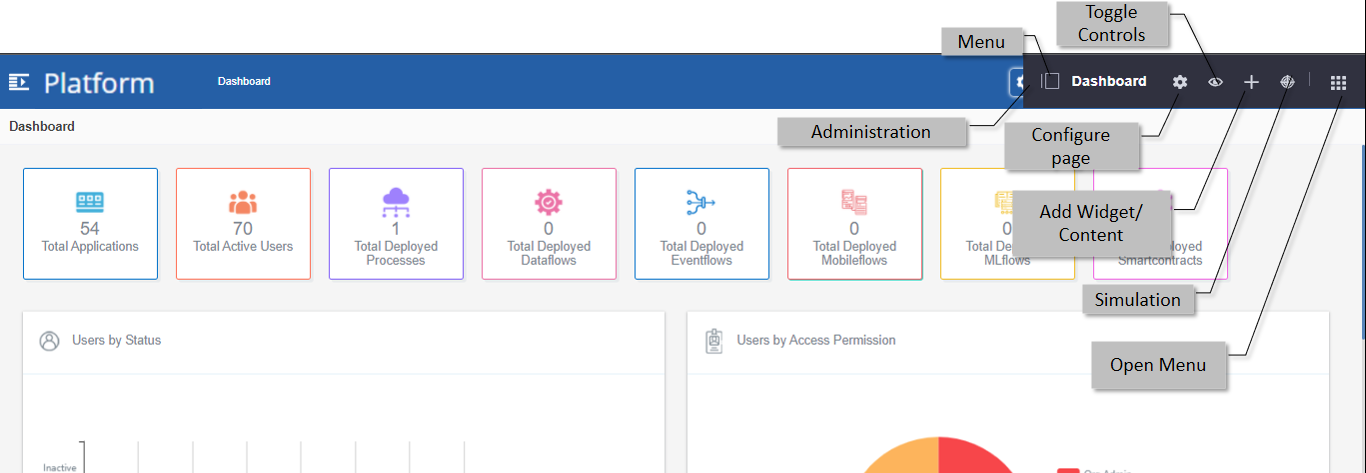
Figure 2: Administration features
| Feature | Description |
|---|---|
| Menu | Click the Menu icon. Page configuration details are displayed on the
left side of the platform. |
| Configure Page | Configure the details for the current/active page. You can also
navigate to Refer to Configuring Individual Pages for configuration details. |
| Toggle Controls | Enables and disables the page configuration (control panel). If enabled, you can access the widget control panel features (three If disabled, you will not be able to view the three-dot menu for the
widget |
| + (Add Widget/Control) | Click Add page icon for adding widgets and controls to the page. |
| Simulation | Click the Simulation icon for viewing the platform on different
types of screens. |
| Open Menu | Click Open Menu for displaying the Platform instance
configuration Refer to the Platform Instance Configuration user manual for more details. |
Public Page Configurations
Public Pages
All the pages for an Organization are created as public pages in the Platform. The public pages of the platform are listed under the Home > Page Tree > Public Pages..
You can configure the same configuration details for all the pages in the organization through the Public page configuration features.
Public Page Details
-
On the Platform title bar, click the Administration icon and then click the Menu icon. The details are displayed on the left side.
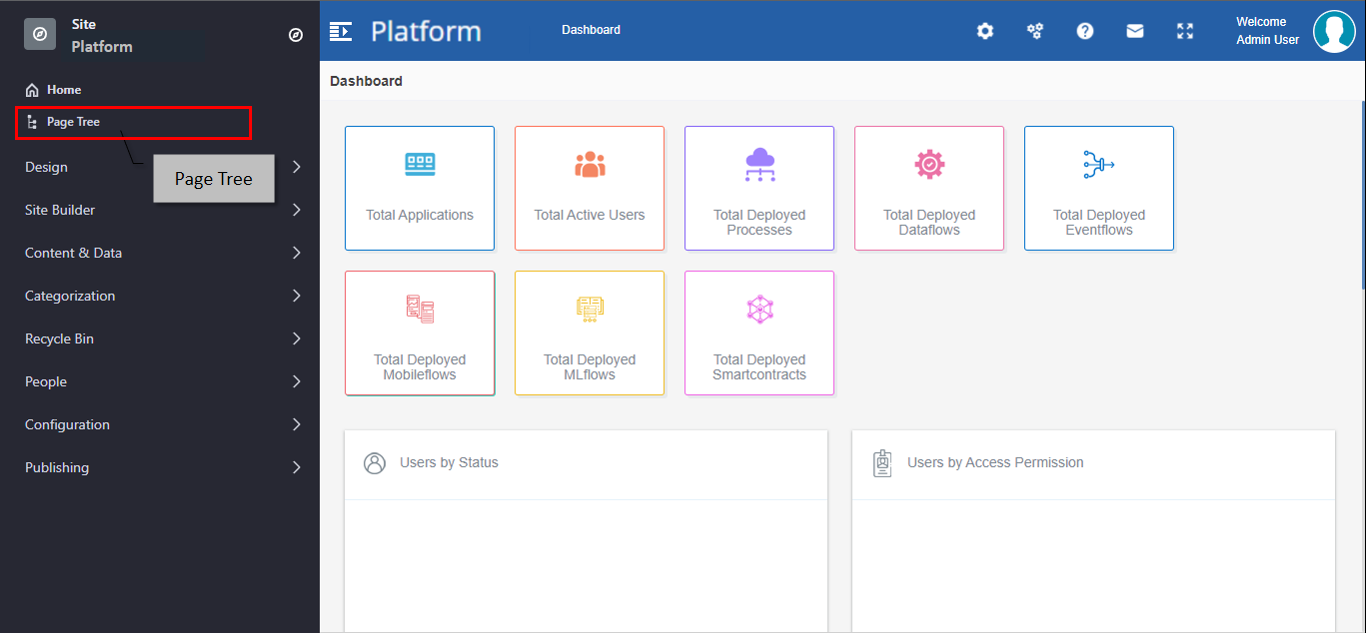
Figure 3: Main menu with Page Tree -
Below the Home menu, click Page Tree. All the Public pages available on the platform are listed.
-
Click the required page for navigating to that page.
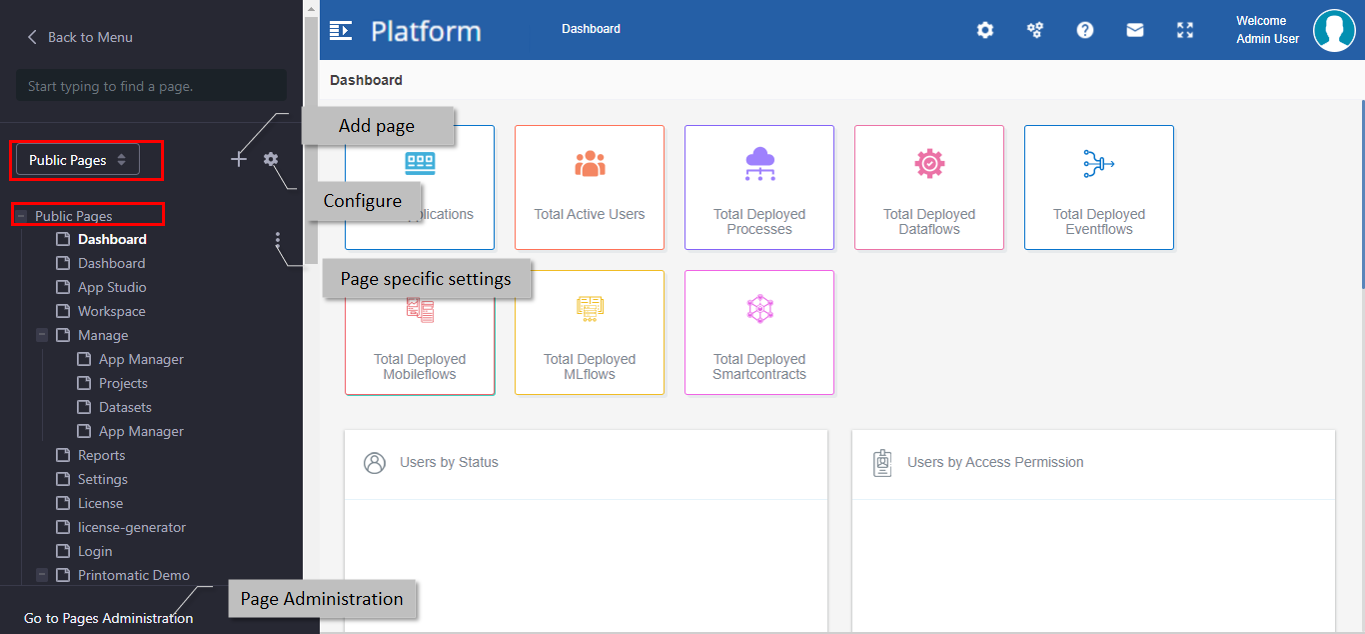
Figure 4: Page Tree sub-menu and details
| Feature | Description |
|---|---|
| Public Pages | Displays all the public pages in the platform instance. |
| Add Page (+) | Allows the user to add pages in the current platform instance. |
| Configure (Gear icon) | Configure the page details. |
| Page-specific settings | Allows the user to set or configure the page. |
| Go To Page Administration | Navigate to the administration page. |
Creating a Public Page (Main Menu Page)
The Add page feature allows the user to create a new page for the organization.
-
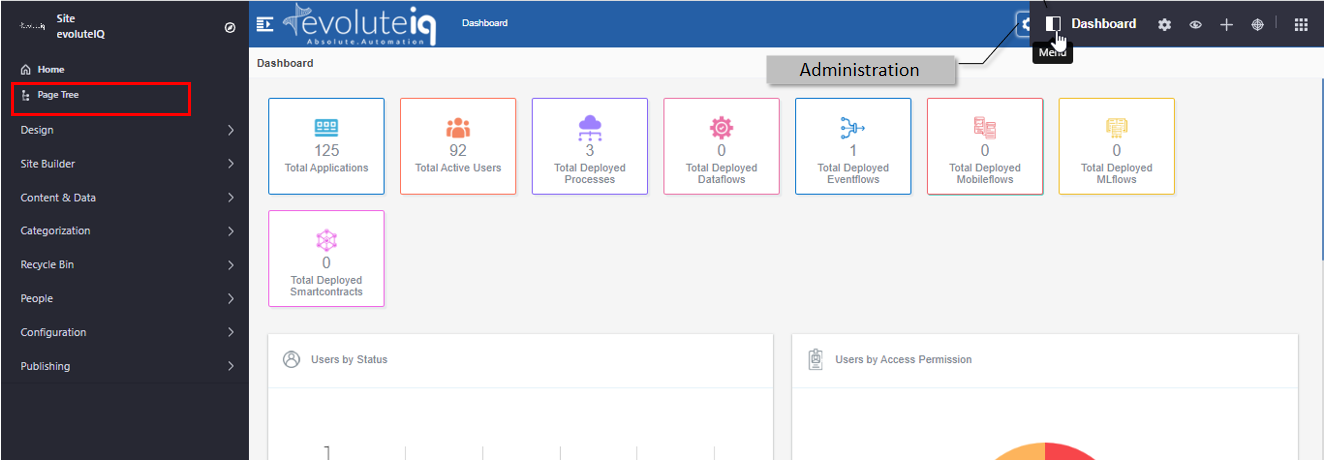
On the Platform title bar, click the Administration icon and then click the Menu icon. The details are displayed on the left side.
-
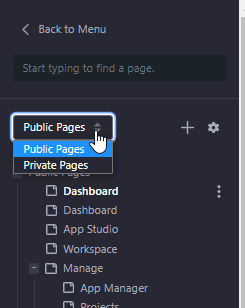
Click Page Tree (maybe this can be active by default if was accessed before). Public Pages appear by default (Public Pages will be selected in the drop-down list).
-
You can click \< Back to Menu on the top of the panel to go back to the previous view.
-
To find a page, type the page name in the “Start typing to find a page” box.
-
-
Click “+” on the right side of Public Pages.
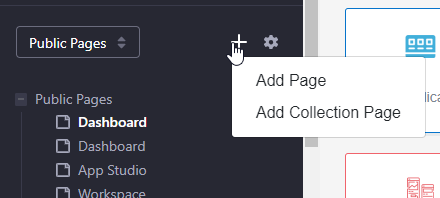
Figure 5: Adding Public page -
Click Add Page (or click Add Collection page for adding a collection page). The Basic Templates page appears for selecting the template for the new page.
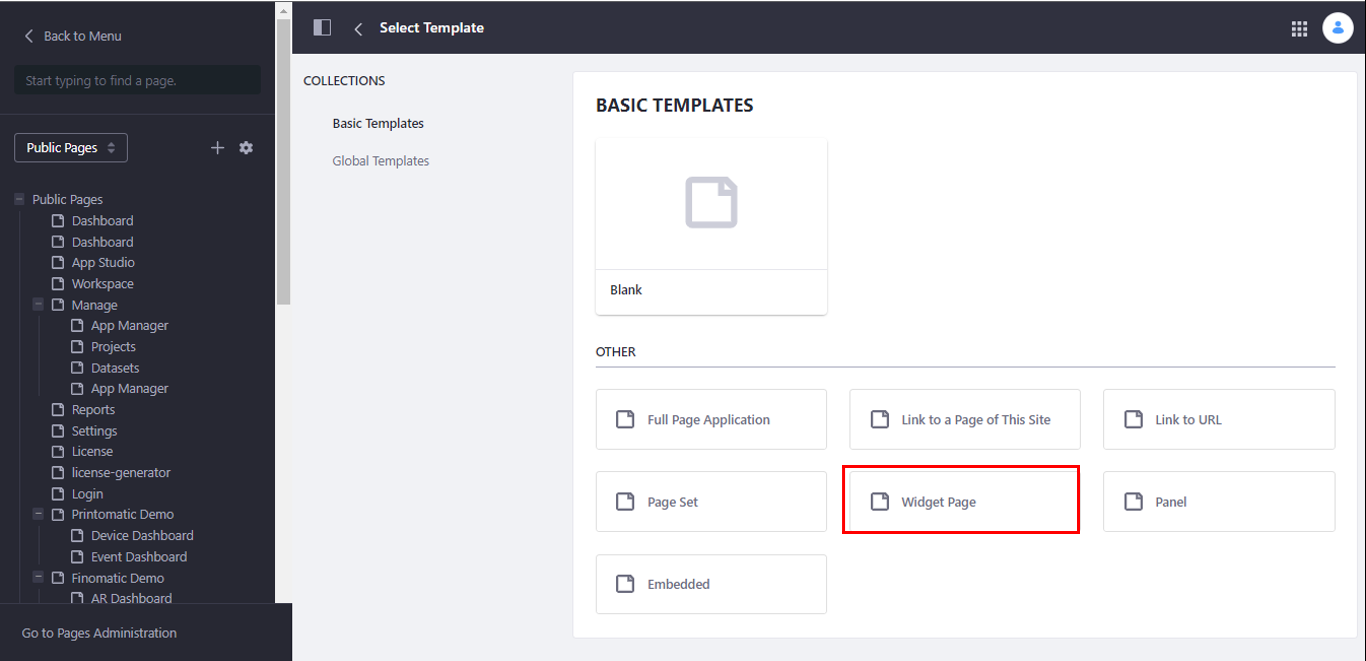
Figure 6: Selecting a template for the page -
In the Basic Templates page, click Widget Page for adding the page (recommended to select Widget Page for adding public pages conveniently). Add Page Pop-up appears.
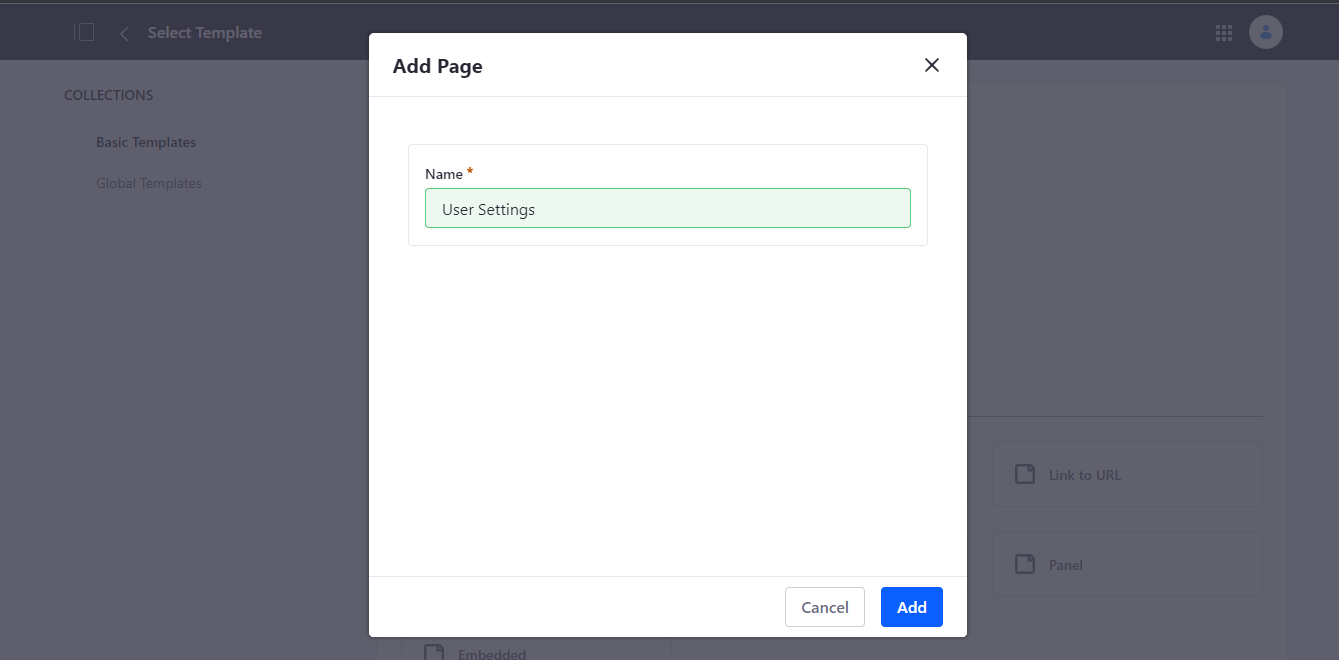
Figure 7: Add page details
-
In the Name box, enter the name of the page.
-
Click Add. A success message appears successful creation of the page. The new page is created within the Main Menu.
For viewing the page created,
- Navigate to Page Tree. The new page created appears as the last item in the sub-menu list.
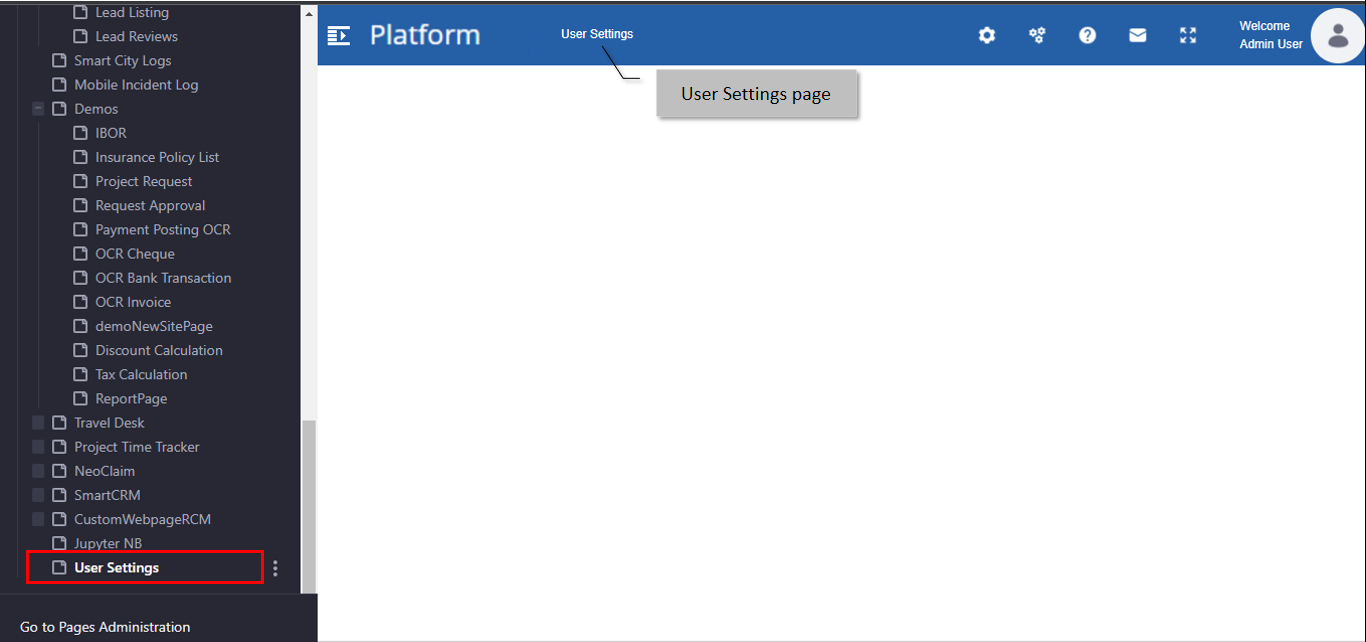
Figure 8: The new page created-
You can rearrange the sequence of page appearance by dragging and moving the page in the required position.
-
If you drop the selected page above a page, it is considered the child page of the existing page.
-
Click the Burger menu in the platform for viewing the new page created.
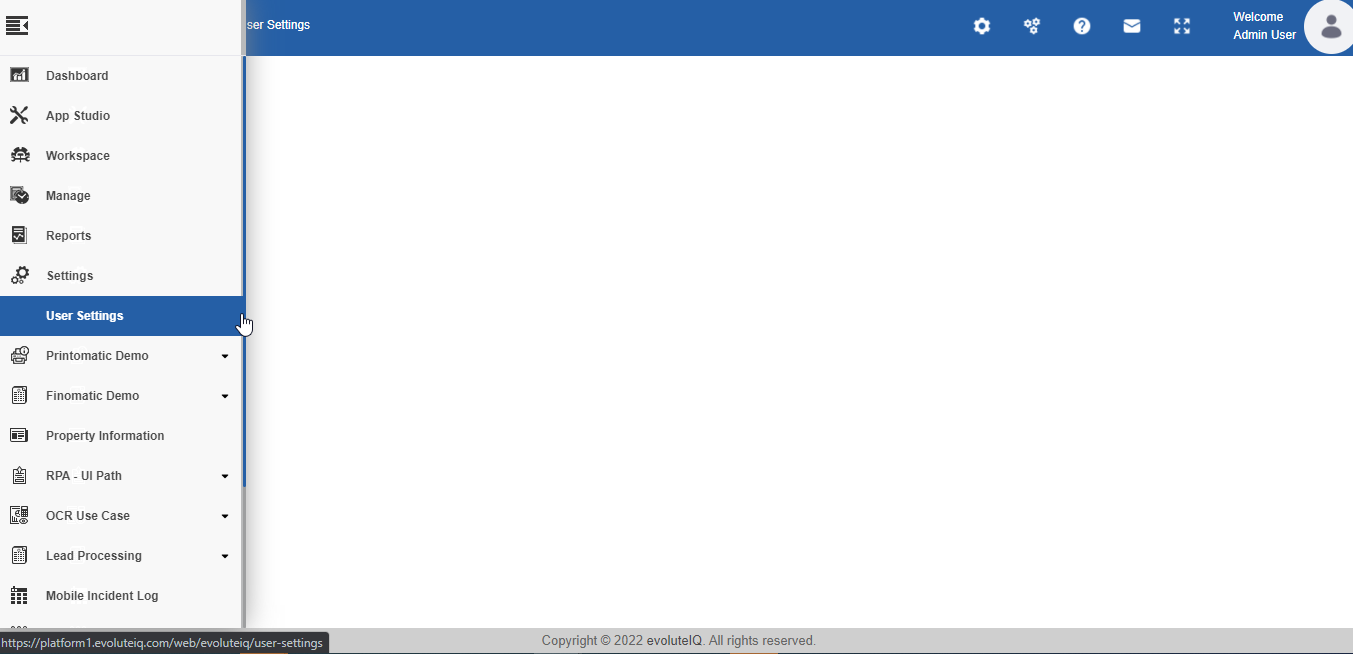
Figure 9: Newly added page in the Burger menu list
Configuring Public Pages
The Configure page feature in public pages allows the user to configure a page for the organization. The configurations apply to all the pages in the platform.
- On the Platform title bar, click the Administration icon in the title bar and then click the Menu icon. The details are displayed on the left side panel.
-
Click Page Tree. Page details appears
-
Beside the Public Pages, click the configure icon. Configuration details appear on the right side.
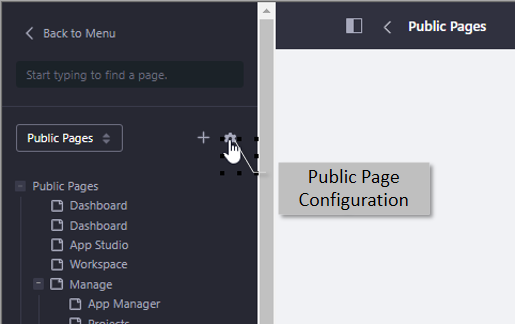
Figure 10: Public Page Configuration -
Click Look and Feel tab (active by default) for configuring the look and feel of public pages. Refer to Configuring Theme / Look and Feel For Public Pages.
-
Click Advanced tab (active by default) for configuring the Advanced features of public pages. Refer to Configuring Advanced Features For Public Pages.
-
Click Save to save the modified details.
Configuring Theme / Look and Feel for Public Pages
-
Navigate through the Platform Administration icon > Menu > Page Tree > Public Pages > Configure > Look and Feel tab.
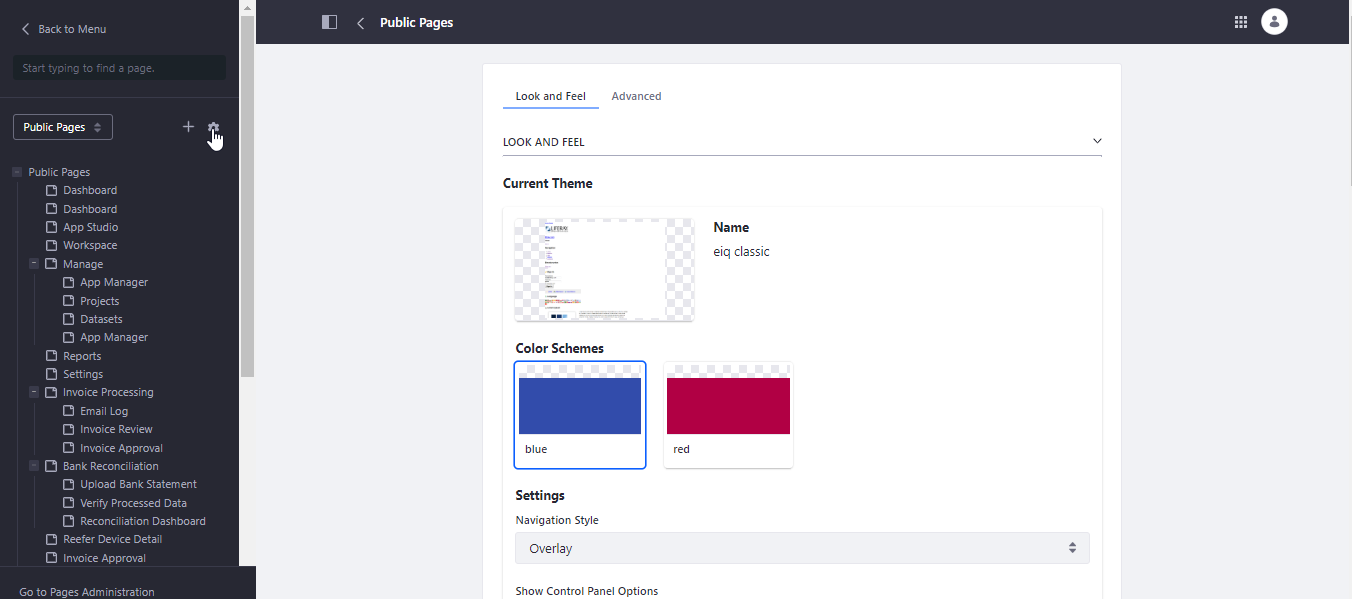
Figure 11: Look and Feel Configuration -
Provide the configuration details as explained below.
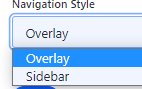
Theme Settings Description Current Theme The currently selected theme for the public page. Color Scheme Select a color for your theme. For More color, apply the preferred
colour in the “Theme Color” in the configuration.Settings Navigation Style Select the navigation style.
Show Control Panel Options Enable the switch to show the control panel options. Page-scroller Select the switch if you need a scrollbar for your page else
deselect the switch.Page Type Select the required page type from the page-type list. View Header Select the switch if you need to view the header for your page else
deselect the switch.Show Expire message Center Select the switch if you need to notify session expiry message for
your page else deselect the switch.Is redirection disabled Select the switch if you need to disable the redirection of the
page and behave like a single-page application. Else deselect
the switch and the redirection is enabled.Process-name Enter the process name. Application name Enter the application name. Page Title Enter the page title. Breadcrumb name Enter the breadcrumb name. Cache process Select the switch if you need to cache process for your page else
deselect the switch.Hide Header Show Breadcrumb Enable the switch to hide the header and show the breadcrumb. Apply Custom Theme Color Enable the switch if you need to apply custom theme color, that
is any other color other than the colors available in the
Color Scheme.Theme Color After enabling the “Apply Custom them Color”,
click Theme Color and select a color from the color palette.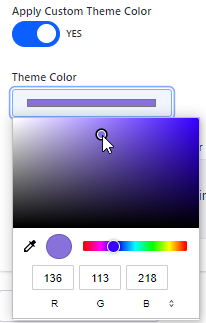
Insert Custom CSS Enter the custom CSS. Custom CSS is loaded after the theme. Change Current Theme Click Change Current Theme. Available themes appear.
Select a new theme if you need to change the current theme.
Configuring Advanced Features For Public Pages
-
Navigate through the Platform Administration icon > Menu > Page Tree > Public Pages > Configure > Advanced tab.
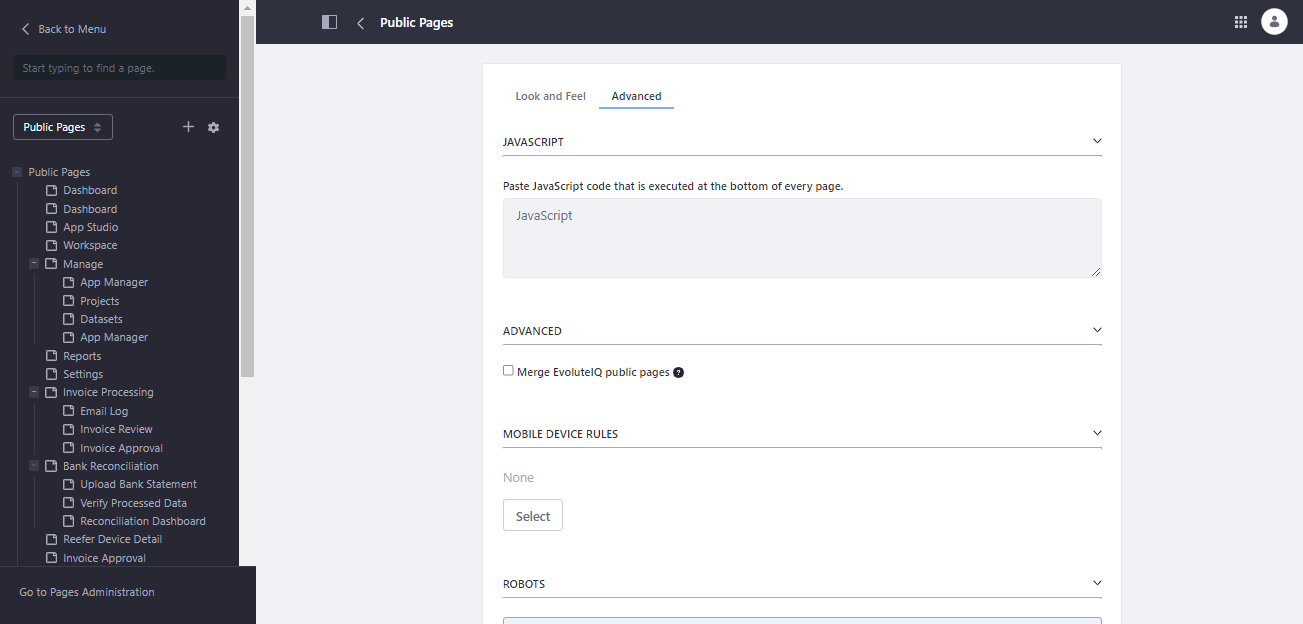
Figure 12: Advanced Features Configuration -
Provide the configuration details as explained below.
Settings Description JAVASCRIPT Click JAVASCRIPT accordion.
Click the textbox and paste the JavaScript code that is
executed at the bottom of the page.ADVANCED Click ADVANCED accordion.
Select and check the “Merge Public Pages” if you want to merge the pages
in the current organization.You can configure the top-level pages of this public site to merge with the
top-level public page of the public organization site. Users can navigate
between the two sites more seamlessly.MOBILE DEVICE RULES Click MOBILE DEVICE RULES accordion.
Click Select. The applicable device families are listed.
Select the required configuration as applicable.
ROBOTS Set the virtual host before you set the robots.txt. SITEMAP Click SITEMAP accordion.
The sitemap protocol notifies search engines of the structure (sitemap)
of the website. See http://www.sitemaps.org (Opens New Window) for
more information.
Public Page Administration
All pages created in the platform for the organization are categorized under public pages. Child pages are configured within the main public page. You can configure or update any page in the organization through the Page Administration section. You should save the details for updating the details.
-
On the Platform title bar, click the Administration icon and then click the Menu icon. The details are displayed on the left side.
-
Click Page Tree and click Go to Page Administration on the bottom of the left-side panel. The administration page appears with all the pages that are added for the logged-in organization.
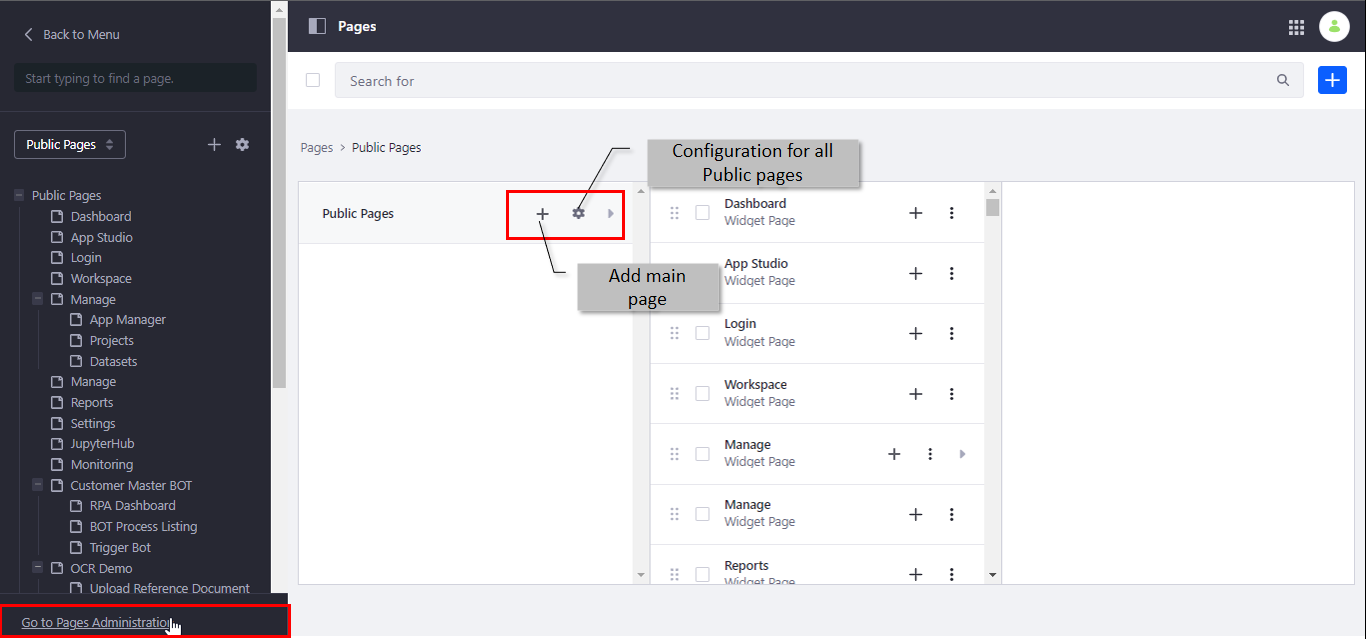
Figure 13: Administration page – Public Page administration -
Click “+” adjacent to the Public Pages for adding a new page under Public Pages.
-
Click the Settings icon adjacent to public pages for configuring all pages in the platform with the same configuration.
Individual Page Configurations
Individual Page Features
You can manage individual pages in the organization with different configuration details. The individual page configuration applies to only the selected page.
-
On the Platform title bar, click the Administration icon and then click the Menu icon. The details are displayed on the left side.
-
Click Page Tree. The Page Tree lists the main menu items.
-
Click and select the page from below the Public Page. Three dots appear adjacent to each main menu page.
-
Click the three dots to view the options. The page-specific settings are displayed. The options allow you to configure the details for the selected page.
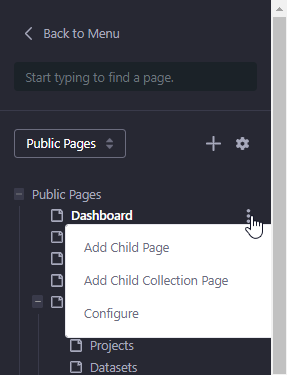
Adding Child Page
You can add a child page for the main menu page. The Add page feature in the page allows you to create a child page for the main page.
- On the title bar, click the Administration icon and then click the Menu icon. The details are displayed on the left side.
-
Click Page Tree and click a page below Public Pages for which you need to add a child page.
-
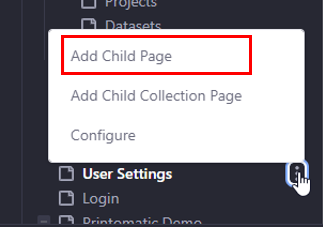
Click the three dots adjacent to the selected page.
 <
< -
Click Add Child Page (or click Add Child Collection page for adding a collection page). The Basic Templates page appears for selecting the template for the new page.
Figure 14: Selecting a template for the page -
Alternatively, you can navigate through Administration > Page Tree > Go to Administration > click + on the required page.
Go to step 5 in the procedure and follow the remaining steps. -
Click Widget Page (recommended) for adding the page. Add Page pop-up appears.
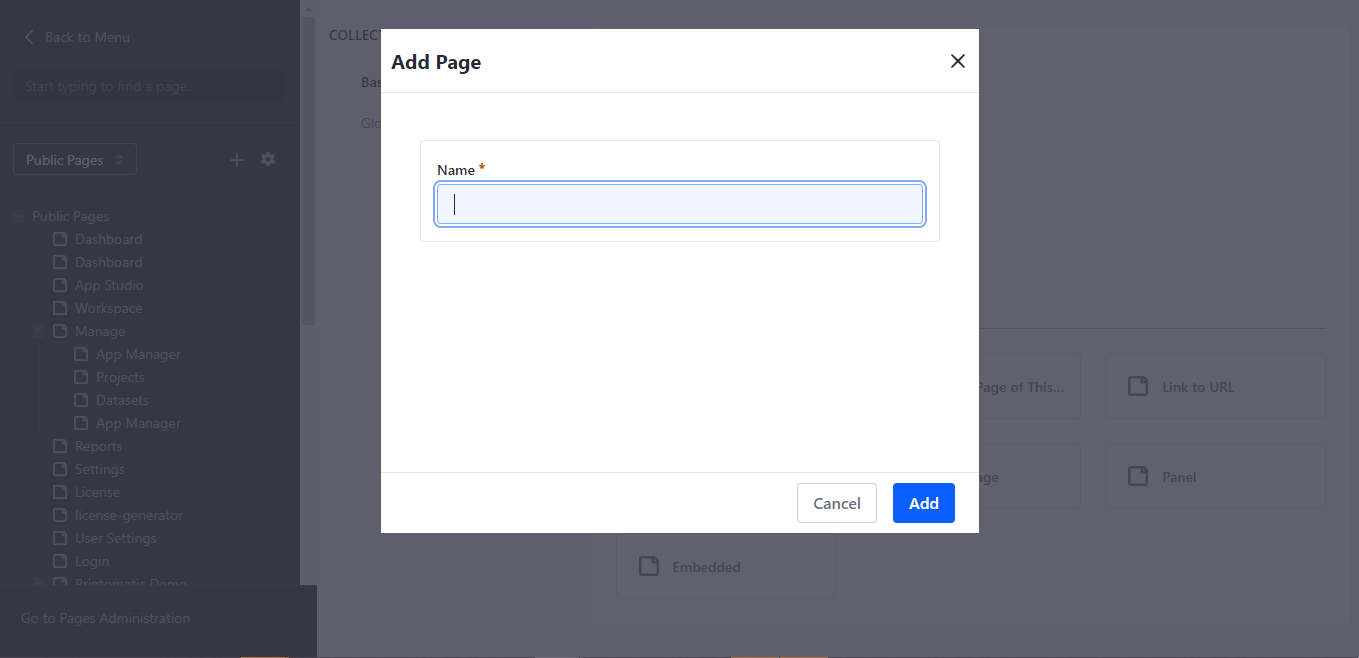
Figure 15: Add page -
Enter the Name of the page.
-
Click Add. A success message appears successful creation of the page.
For viewing the page created,
-
Navigate to Page Tree and click the “+” button on the left side of the main menu page.
-
In the platform, navigate to the Burger menu and then click the main menu page. The child page is listed under the main menu page.
-
Configuring Individual Pages
The configure page consists of different sub-menus for configuring the page details as needed. You can directly navigate to the configuration of individual pages through the title bar feature (Configure page) in the platform or navigate through the Administration features.
- On the Platform title bar, click the Administration icon in the title bar and then click the Menu icon. The details are displayed on the left side.
-
Click Page Tree.
-
Below the Public Pages, click the page you need to configure.
-
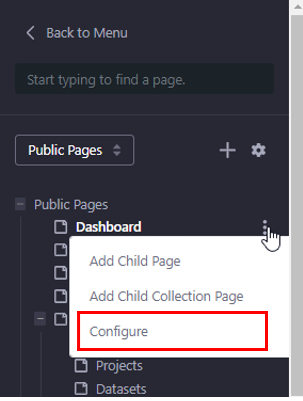
Click the three dots adjacent (right side) to the page name. Submenu items appear.
-
Click Configure.
- Alternatively, you can navigate to the required page through the platform burger menu, click Administration, and then click the Configure Page icon. The configuration page for the selected page appears.
Or
Navigate through Administration > Page Tree > Go to Administration > click three dots on the required page > click Configure.
Go to step 6 below and follow the remaining steps. -
Click the General sub-menu on the left panel of the page (selected by default).
-
Click the General tab. The General tab appears by default.
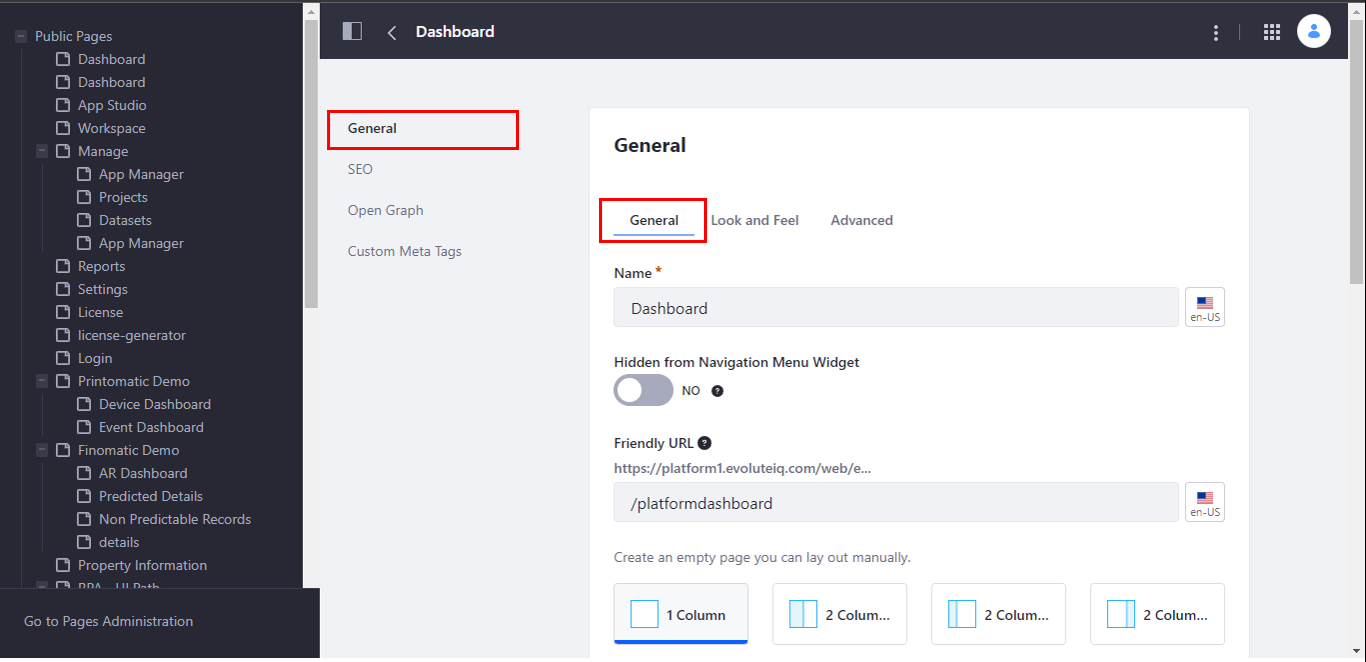
Figure 16: General details in the General page configuration -
Enter the details in General as explained below.
,Field Description Name Title of the page. A page title that appears on the
title tab.Friendly URL The base URL of the platform is displayed.
Enter the URL extension for the particular page.
Hidden from Navigation Menu Widget Select or deselect the switch to Hide and show the page
in the Menu list of the platformLayout Select the layout for the empty page. There are many
column layouts from which you can select the required
layout.Topic Enter the topic for the page. Click Select for selecting the
topic.Tag Enter tags for the page. Click Select for selecting the tags. -
Click the Look and Feel tab.
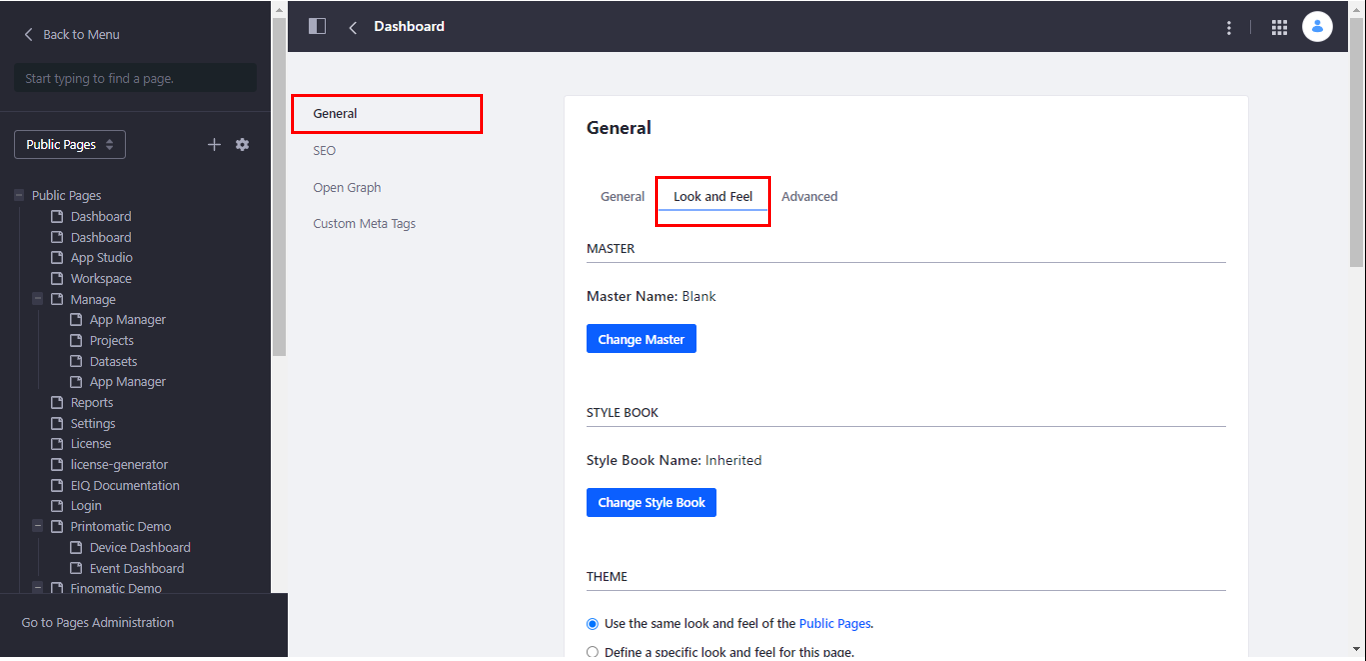
Figure 17: Look and Feel details for the General page configuration -
Enter the Look and Feel tab details as explained below.
Field Description Master Click Change Master for setting a master page to
the current pageStyle Book Click Change Style Book for setting a style for the current page. Theme Click “Use the same look and feel of the Public pages” for setting
the same look and feel for all pages in the public pages.
To set the theme for public pages refer to
Configuring Theme / Look and Feek For Public Page.
Click “Define a specific look and feel for this page” for setting
separate look and feel settings for the current page.If you select the option “Define a specific look and feel for this page”. Color Scheme and Settings appear. Provide the below details in the Color Scheme and Settings section.
Theme Settings Description Current Theme The currently selected theme for the page. Color Scheme Select a color for your theme. For more colors, apply the
preferred color in the “Theme Color” in the configuration.Settings Navigation Style Select the navigation style.
Show Control Panel Options Enable the switch to show the control panel options. Page-scroller Select the switch if you need a scrollbar for your page,
else deselect the switch.Page Type Select the required page type from the page-type list. View Header Select the switch if you need to view the header for your page,
else deselect the switch.Show Expire message Center Select the switch if you need to notify session expiry message
for your page, else deselect the switch.Is redirection disabled Select the switch if you need to disable the redirection of the
page and behave like a single-page application.Process-name Enter the process name. Application name Enter the application name. Page Title Enter the page title. Breadcrumb name Enter the breadcrumb name. Cache process Select the switch if you need to cache process for your page,
else deselect the switch.Hide Header Show Breadcrumb Enable the switch to hide the header and show the breadcrumb. Apply Custom Theme Color Enable the switch if you need to apply a custom theme color,
i.e., any other color than the colors available in the Color Scheme.Theme Color After enabling “Apply Custom Theme Color”, click Theme Color and
select a color from the color palette.
Insert Custom CSS Enter the custom CSS. Custom CSS is loaded after the theme. Change Current Theme Click Change Current Theme. Available themes appear.
Select a new theme if you need to change the current theme. -
Click the Advanced tab.
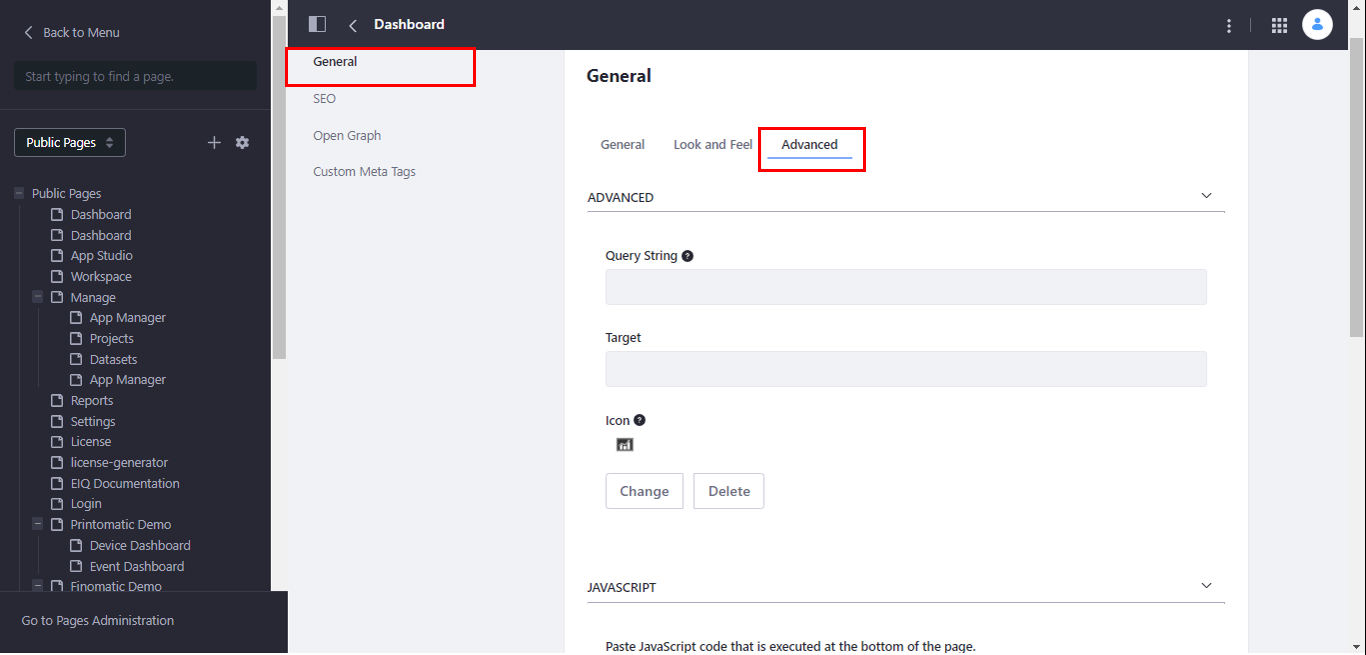
Figure 18: Advanced details for the General page configuration -
Enter the Advanced tab details as explained below.
Settings Description Advanced Query String Optionally use this query string when none other exists.
This behaves as default parameters for the page.Target Enter the Target. Icon Click the icon below and select an icon.
Click Change for changing the icon selected. This icon appears on the navigation menu.
Click Delete for removing the icon.
Javascript Javascript Click the textbox and paste the JavaScript code that is executed at
the bottom of the page.Mobile Device Rules Enable the switch if you want to use the same mobile device rules of the
public pages. Mobile device rules get inherited from the
public pagesDisable the switch to disable and click Select if you want to
set a new rule for the page.Customization Settings Users with permission to customize this page can customize those sections
marked as customizable.
Enable the switch for providing the permission else disable the switch.
When you enable the switch, you need to provide customizable permission
for each column on the page by enabling/disabling the switch for each column
as displayed. -
Click Save for updating the modified General details.
-
Click the SEO sub-menu on the left panel of the page.
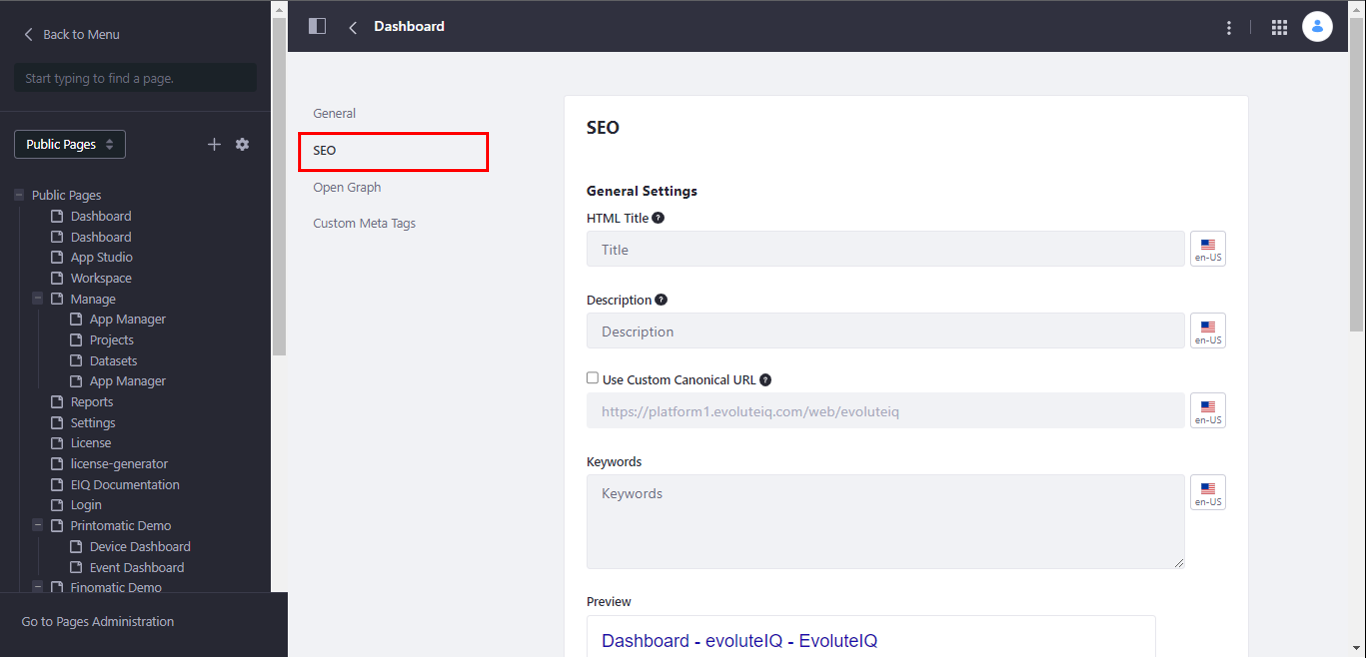
Figure 19: SEO details configuration -
Enter the SEO details as explained below.
Field Description HTML Title Enter the title for the meta tag. This text will be applied to the
title meta tag inside the head section of the page.
Character length = 60
Description Enter a description for the meta tag. This text will be applied to the
description meta tag inside the head section of the page.
Character length = 155
Use Custom URL Check the check box and use a customized canonical URL for this page instead
of following the System Settings configuration.Keywords Enter keywords. Preview A preview of the title is displayed. Site map Select Yes for including the sitemap or select No for excluding the sitemap. Page Priority Set a page priority from 0.0 to 1.0. Change Frequency Select a frequency as per your need. -
Click Save for updating the SEO details.
-
Click the Open Graph sub-menu on the left panel of the page.
- The settings in Open Graph are used when publishing content in platforms supporting Open Graph (such as Facebook, or LinkedIn). By default, it is filled with the same content as the meta tags. You can use a custom title or description for providing different content with Open Graph.
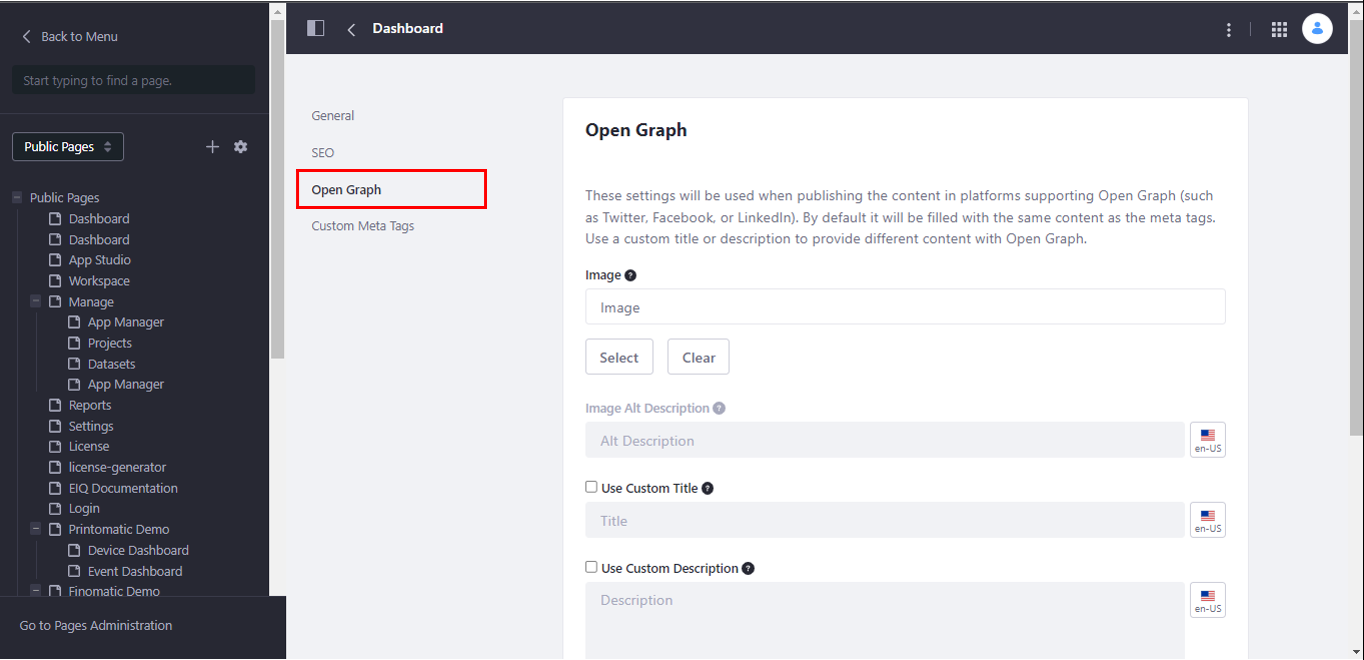
Figure 20: Open Graph details configuration -
Enter the Open Graph details as explained below.
Field Description Image Click Select and select an image. This image is displayed on
social networks when posting the page URL.Alt Image Description Enter a description that is to be displayed in case the image
is not displayed.Use Custom Title Click the check box and enter the custom title.
Use a custom title for Open Graph instead of the one provided
in the HTML title field.Use Custom Description Click the check box and enter a custom description. Preview A preview of the title is displayed. -
Click Save for updating the Open Graph details.
-
Click the Custom Meta Tags sub-menu on the left panel of the page.
- Custom meta tags are included at the head of the page.
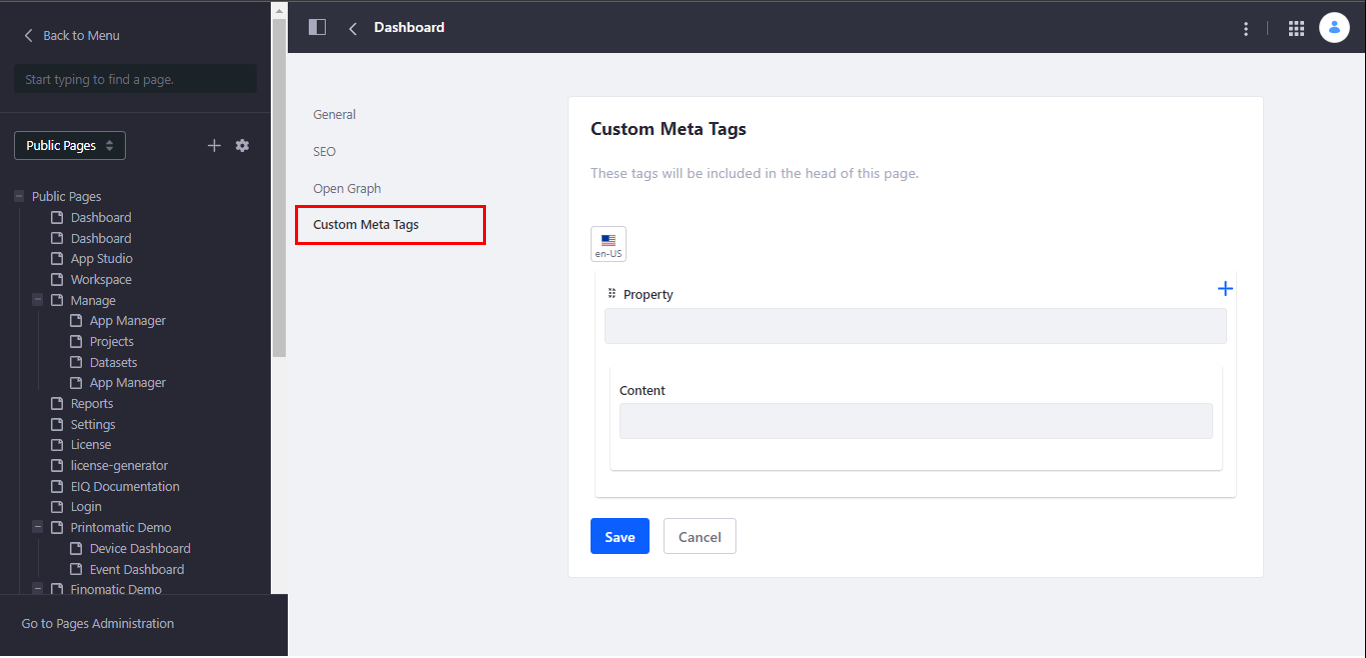
Figure 21: Configuring Custom meta tags -
Enter the Custom Meta Tags details as explained below.
Field Description Property Enter the property. Content Enter the content. -
Click the “+” on the right side for adding multiple properties and content.
-
Click Save for updating the Custom Meta Tag details.
Individual Page Administration
- On the Platform title bar, click the Administration icon and then click the Menu icon. The details are displayed on the left side.
-
Click Page Tree and click Go to Page Administration on the bottom of the left-side panel. The administration page appears with all the pages that are added for the logged in organization.
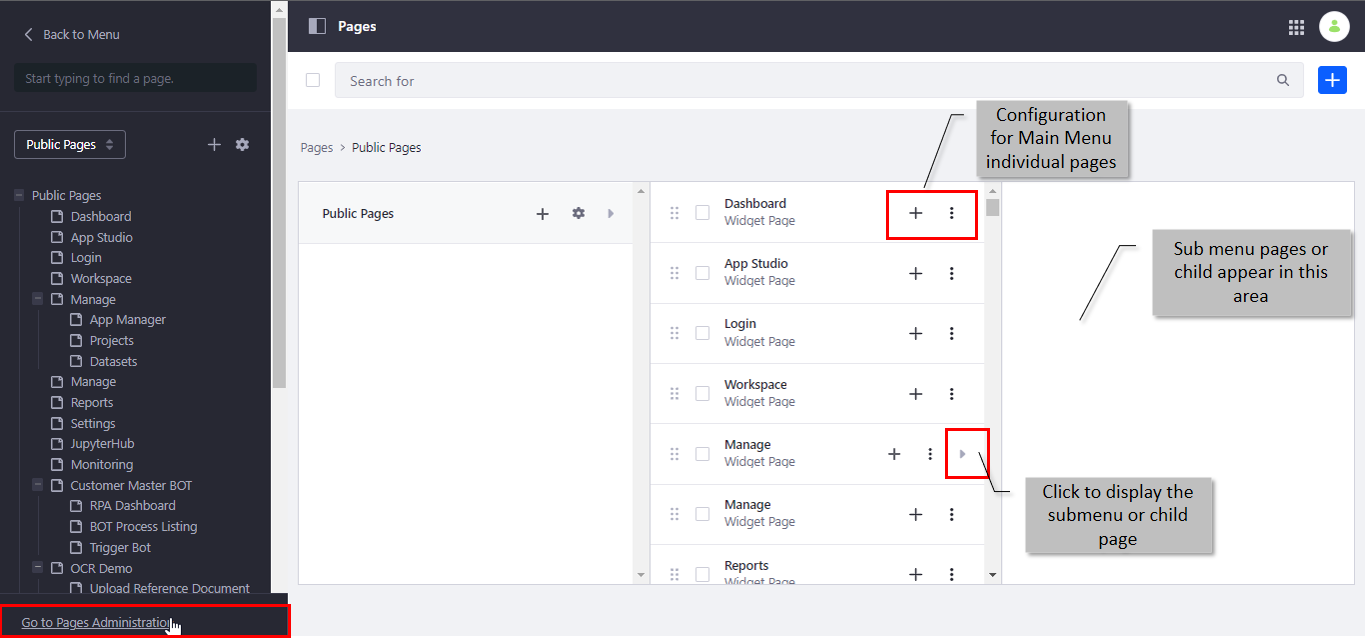
Figure 22: Administration page – Individual page details-
Click “+” adjacent to the page for adding a new page under the selected page.
-
Click the right-side arrow adjacent to the page for viewing the child pages.
-
Click the three dots (Manage Page configuration) on the right side of the page name. The configuration options for the page appear.
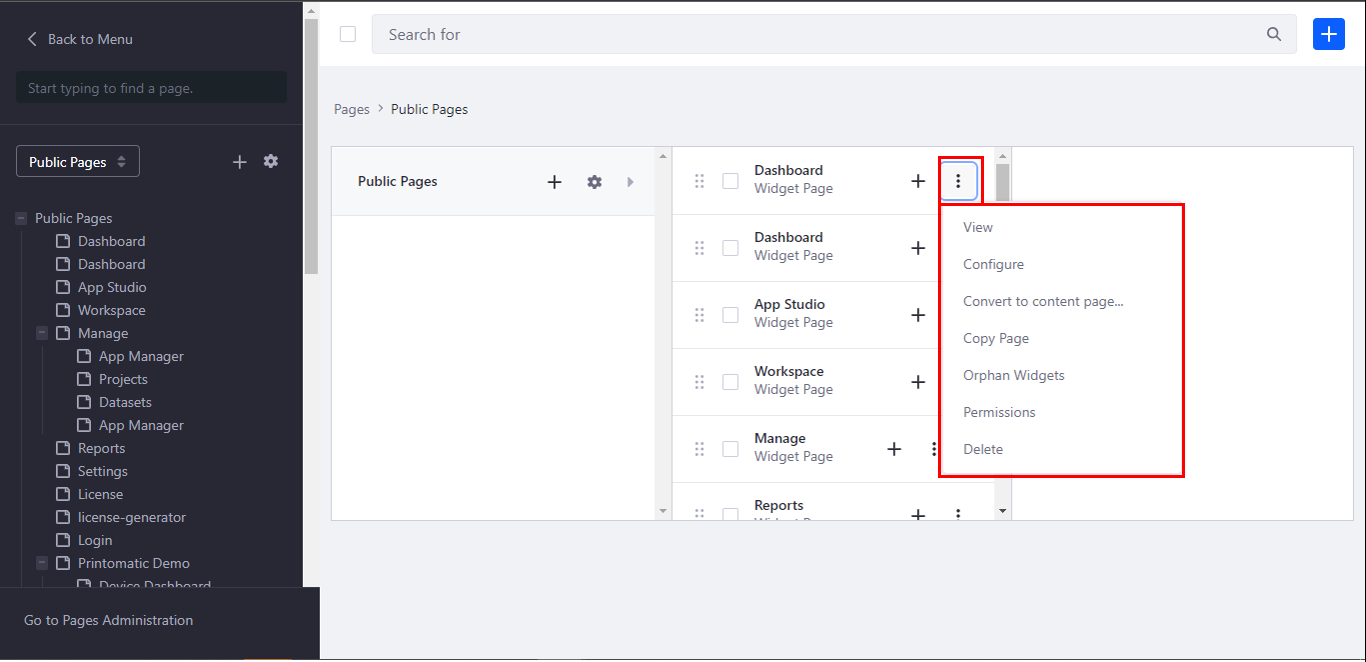
Figure 23: The individual page optionsOptions Description View Click View for viewing the selected page in the platform. Configure Click Configure for navigating to the configuration settings of the
selected page. You can edit the configuration details.Convert to Content page Click Convert to Content page for converting the pages and widgets to
content. The content page becomes non-editable.Copy page Click Copy Page for copying the page along with the widgets. Orphan Widgets Click Orphan Widgets and the preferences of selected widgets will
be reset to default settings and preferences of widgets
that no longer exist will be deleted.Permissions Click Permissions for setting permissions for the page.
Refer to Setting Permissions for a Page (step 7 onwards) for more details.Delete Click Delete for deleting the page. -
Setting Permissions for a Page
Some higher-level permissions can be configured in the permissions section. You can grant roles permission to add the portlet to a page, configure the portlet, or view the portlet.
- On the Platform title bar, click the Administration icon in the title bar and then click the Menu icon. The details are displayed on the left side.
-
Click Page Tree.
-
Below the Public Pages, Hover over the page for which you need to configure the permissions. Three dots appear on the right of the page name.
-
Click the three dots adjacent (right side) to the page name. Submenu items appear.
-
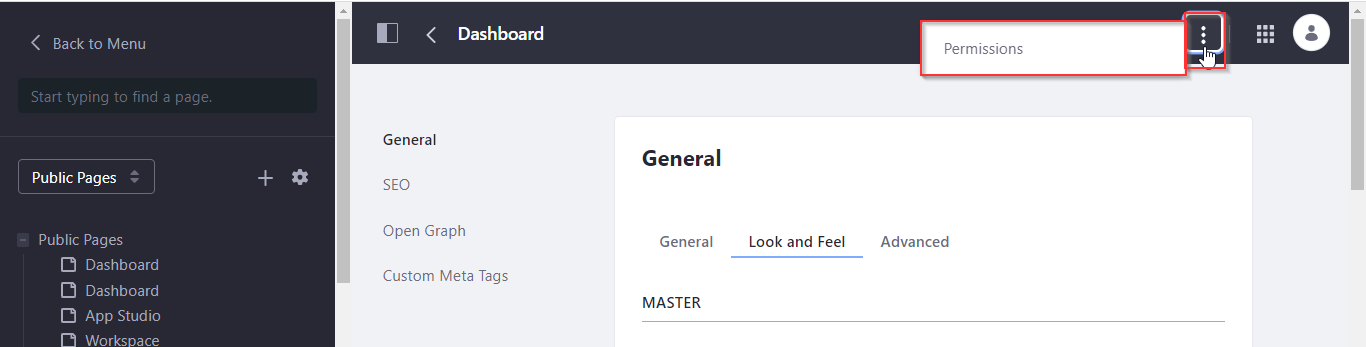
Click Configure. Page configurations appear.
-
On the top right side of the title bar click the three dots and “Permissions” appear.
-
Click Permissions. Permissions pop-up appears. All the roles that are defined in the platform are listed in the permissions pop-up along with the checklist of different-level permissions.
- You can access the Permissions page by navigating through
Administration > Menu > Page Tree > Public Pages > Go to
Administration > click three dots adjacent to the page name >
Permissions.
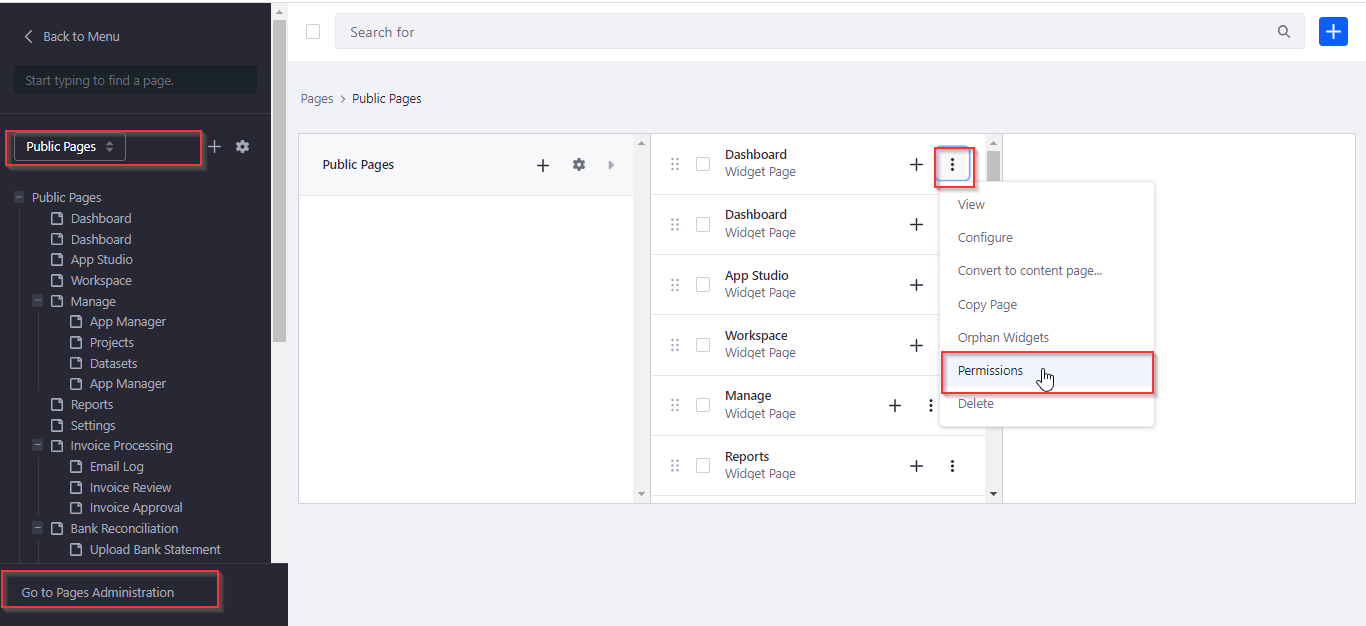
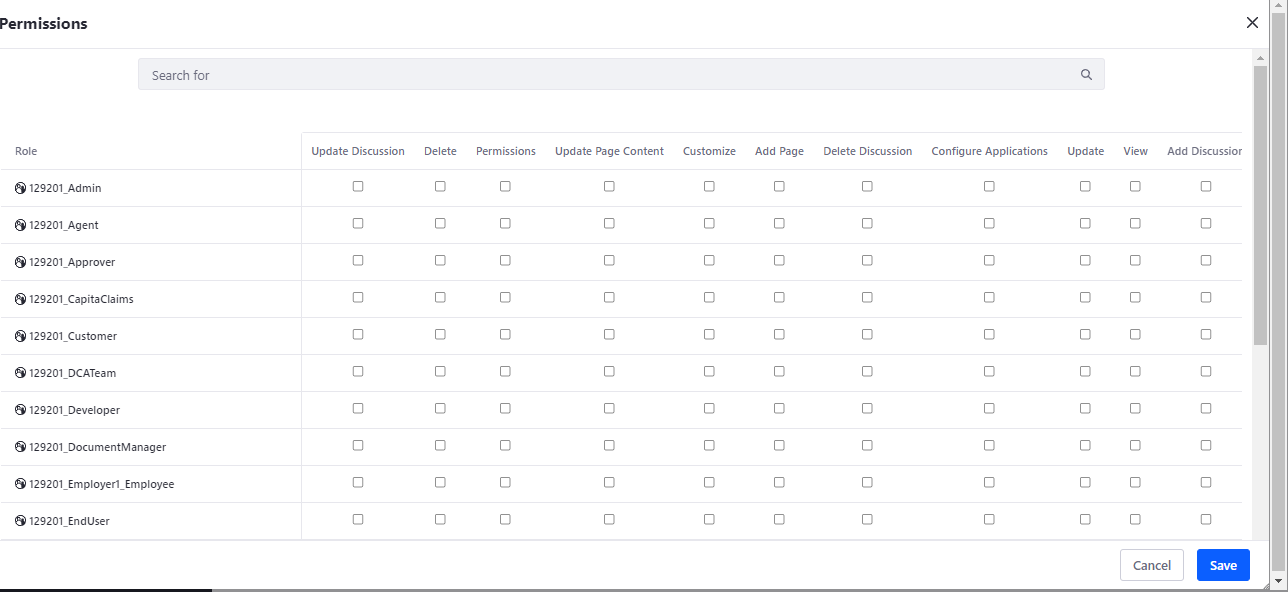
Figure 24: Page permissions pop-up - You can access the Permissions page by navigating through
Administration > Menu > Page Tree > Public Pages > Go to
Administration > click three dots adjacent to the page name >
Permissions.
-
Click the Search field and provide the role name for which you need to define or modify the permission.
-
Click the search icon. The filtered result appears.
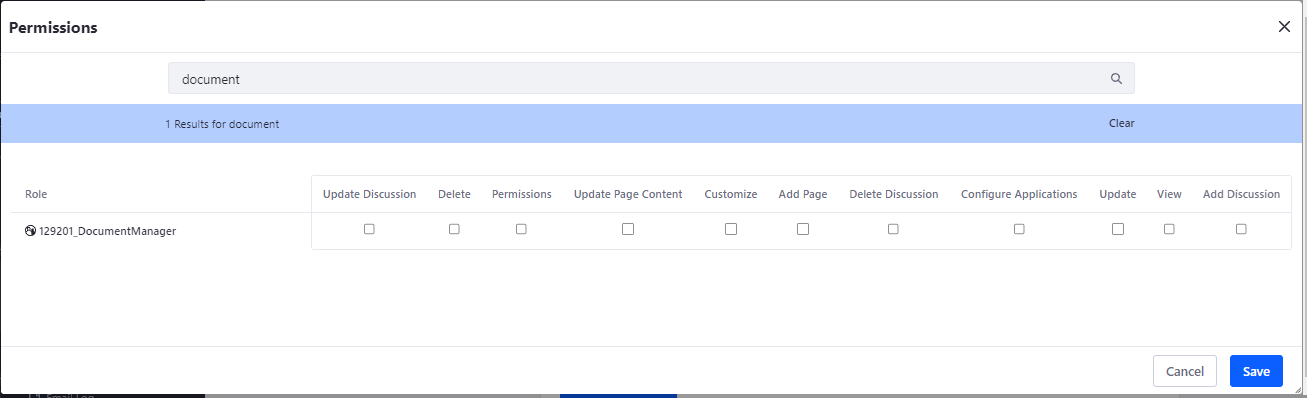
Figure 25: Setting Permissions for the page -
Select the permissions by selecting the required checkboxes. The roles will have only those permissions that are been checked.
- Note: Currently, the platform scope is restricted to only the “View” action in the list of permissions.
-
Click Save. The permissions that you updated will get saved and applied to the platform.
Editing the Page
- On the Platform title bar, click the Administration icon in the title bar and then click the Menu icon. The details are displayed on the left side.
-
Click Page Tree.
-
Below the Public Pages, click the page you need to configure.
-
Click the three dots adjacent (right side) to the page name. Submenu items appear.
-
Click Configure and edit the details as required.
-
Click Save.
Deleting the Page
- On the Platform title bar, click the Administration icon in the title bar and then click the Menu icon. The details are displayed on the left side.
-
Click Page Tree. Public pages appear.
-
Below the left side panel, click Go to Administration. The pages in the organization appear.
-
Click three dots beside the page that you want to remove.
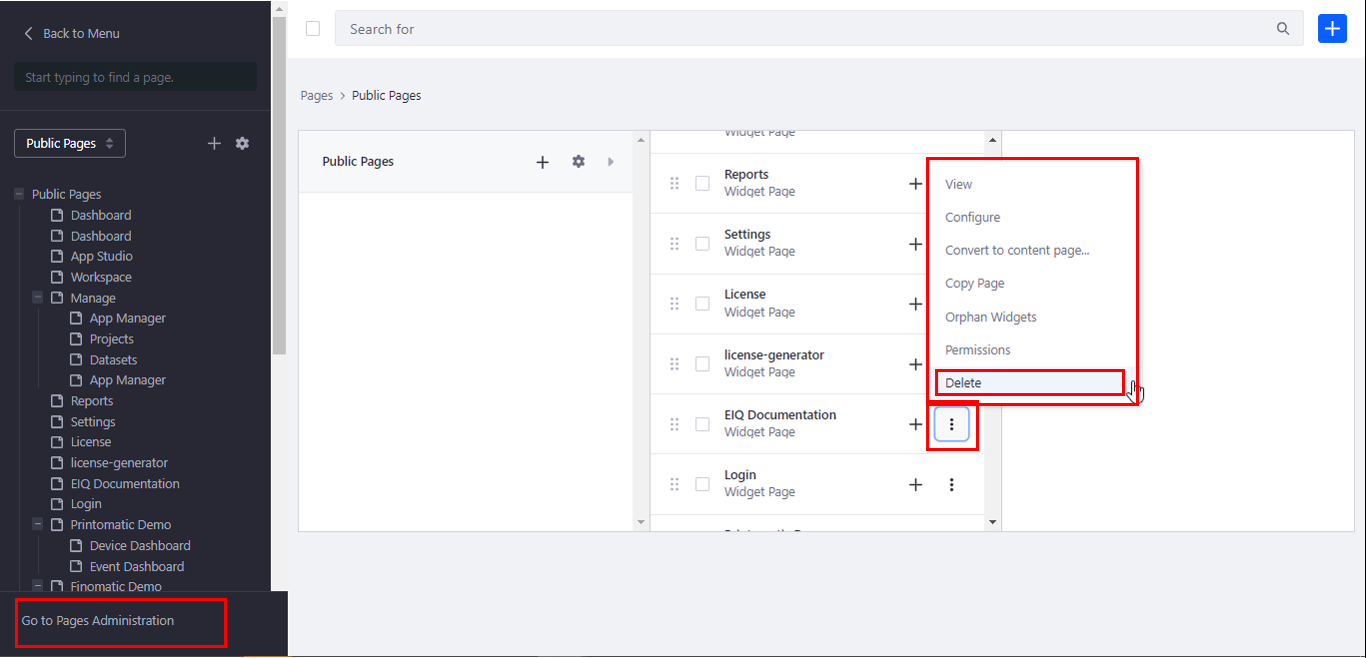
Figure 26: Deleting a page -
Click Delete. The page gets deleted.
Managing Widgets and Contents
Introduction to Widgets and Contents
Widgets and contents are the components that are placed within the page that is created on the platform. Widgets are portlets that can behave independently or they can be working in sync with other portlets as per the configuration and coding.
You can place multiple widgets and content on a page. That is, if you have created a multiple-column layout for a page, you can place different widgets or contents in each of the columns. If you have created a page with a single-column layout, you can place or drop only one widget or content into that page.
In the platform, if you have any specific or custom requirement, you can code the requirement for creating a widget or content. These widgets and contents can be dragged to the page.
Viewing Widgets and Contents
You can view or add widgets and content to the pages on the platform. There is a list of all existing widgets displayed for the user which can be dragged to the page and utilized.
-
On the Platform title bar, click the Administration icon and then click. Add icon (+). The widgets and contents are listed.
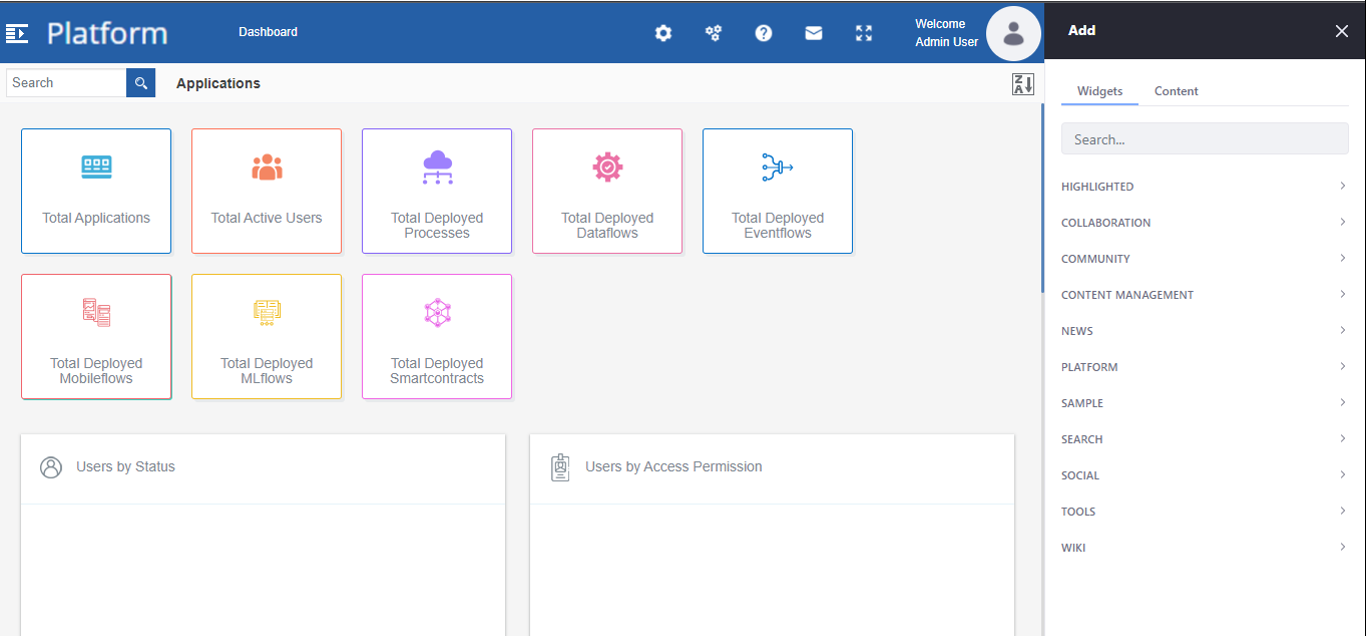
Figure 27: Add widget and content section -
Click the Widget tab for viewing widgets.
-
Click a category for viewing the widgets available in that category.
-
Click the main menu, PLATFORM for viewing the platform-related widgets.
-
Click the Content tab for viewing content.
Understanding PLATFORM Widgets
Widget section has a subsection, PLATFORM where all the platform-associated widgets are listed.
- On the Platform title bar, click the Administration icon and then click. Add icon (+). The widgets and contents are listed.
-
Click the Widget tab for viewing widgets.
-
Click PLATFORM accordion for viewing the platform-related pages.
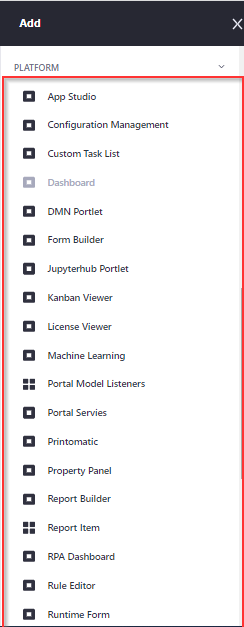
The widget that is already placed on the active page will be in disabled view. The PLATFORM widgets that are utilized are explained below.
Widget Name Description App Studio App Studio Widget is added by default to the main menu of
the platform.
Recommended not to add this widget to any other pages.
Configuration Management Configuration Management Widget is added by default to the
main menu> of the platform.Recommended not to add this widget to any other pages.
Custom Task List Custom Tasks displays all the custom tasks assigned to the logged-in
user. Organization admin can view all the custom tasks.
Custom Task List is a widget that works as per the Custom Task
configuration. (Manage > Application Management – Custom Task).Dashboard Dashboard Widget is added by default to the main menu of
the platform.
Recommended not to add this widget to any other pages.
Jupiter Hub Portlet Jupyter Notebook is integrated into the Platform for creating
Machine Learning (ML) models. The ML models configured using
Jupyter Notebook are utilized in the
process flows, data flows, and
event flows.Secondary Navigation Secondary Navigation Widget is added by default in the platform
as and where applicable.Recommended not to add this widget to any other pages.
Settings Settings Widget is added by default to the main menu of the
platform.Recommended not to add this widget to any other pages.
Workspace Navigation Workspace Navigation Widget is added by default to the platform.
Recommended not to add this widget to any other pages.
Workspace Properties Workspace Properties Widget is added by default to the platform.
Recommended not to add this widget to any other pages.
Workspace Workarea Workspace Work area Widget is added by default to the main menu
of the platform.Recommended not to add this widget to any other pages.
- Note: You can add your custom widget to the widget list and then utilize it as per your requirement.
Understanding Contents
- On the Platform title bar, click the Administration icon and then click. Add icon (+). The widgets and contents are listed.
-
Click the Widget tab for viewing widgets.
-
Click the Content tab for viewing content.
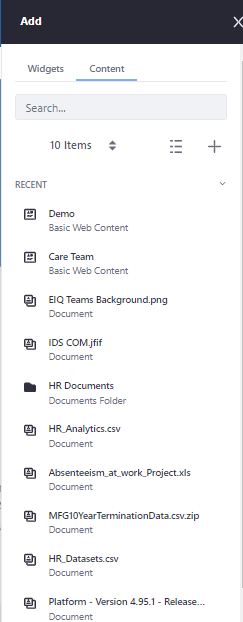
Figure 28: The Contents section
Adding Widgets or Custom Portlets to the Page
The Add feature in the Administration feature allows you to add various types of widgets (custom portlets), contents and feeds to your platform. After adding a page, you can add a widget or custom portlet to that page.
-
Click the burger menu on the left of the Platform logo and navigate to the page to which you need to add the widget.
-
On the Platform title bar, click the Administration icon and then click the Add (+) icon. The details are displayed on the right-side panel.
-
Navigate and find the widget that you need to add to the page (or you can use the search option for searching the required widget).
-
Click the “+” symbol adjacent to the page for adding that widget to the selected page.
Or
Drag the widget into the page or column where you need to set the widget.
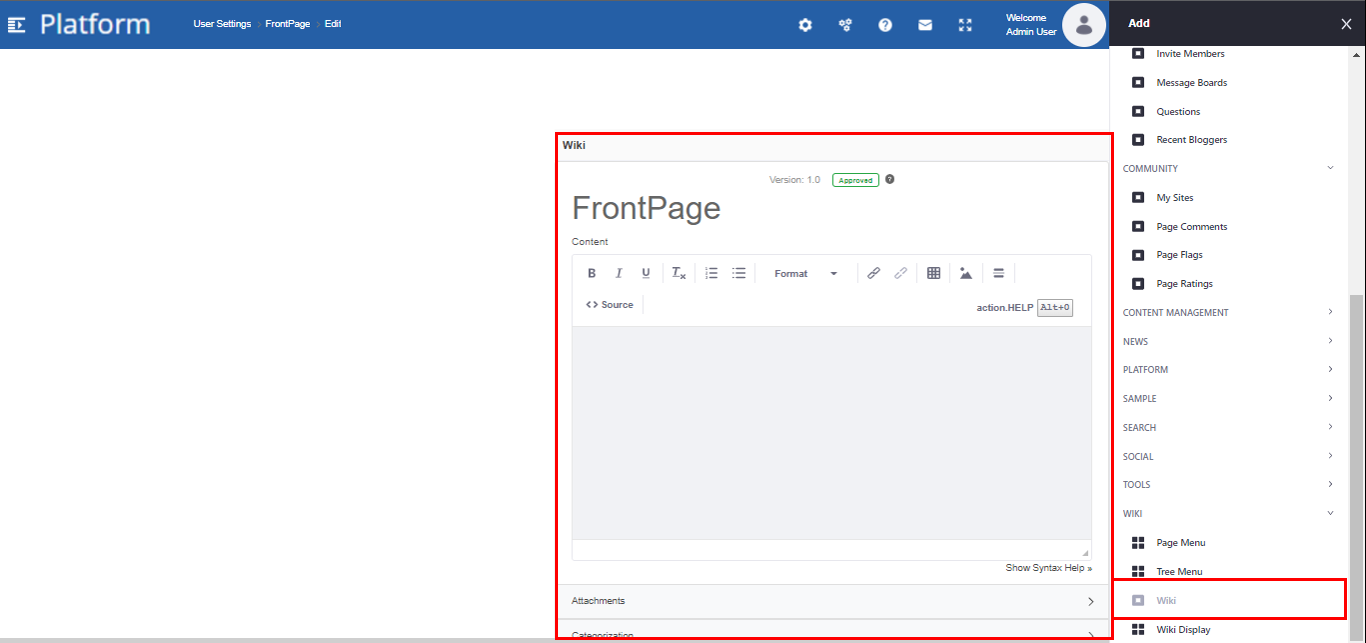
Figure 29: Widget added to the page- You cannot add the same widget multiple times on a page. Hence, when you add a widget to the page, the “+” symbol is removed from the right side of the widget name and the widget name gets disabled. Once you remove the widget from the page, the widget name is enabled, and “+” appears on the right side of the widget name.
Managing Widgets
After adding the widget or the custom portlet to the page, you can manage the configuration details of the widget. The control panel settings allow you to configure the widgets on the active page in the platform. Configuration details are subdivided in the Options menu.
Viewing Widget Configuration Options
- On the Platform title bar, click the control panel icon.
-
Hover down the page. The active widget name with three dots appears. If the page has more than one widget added to it, you need to hover over the particular widget for configuring the widget.
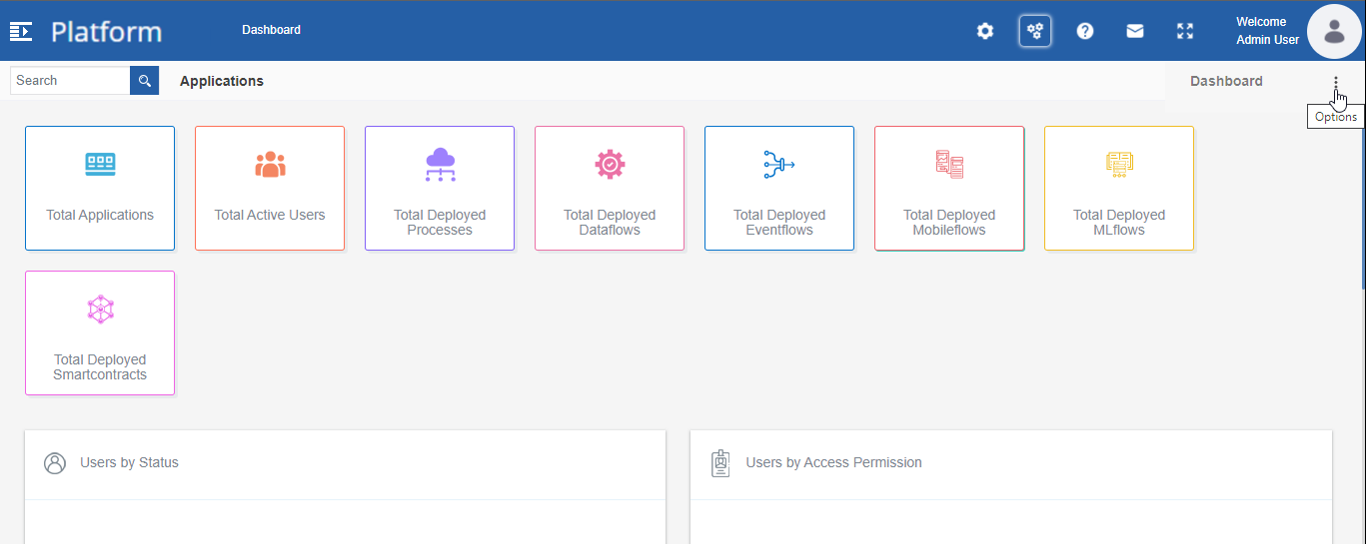
Figure 30: Options (three dots) for the active page -
Click the three dots. The options for widget configuration appear.
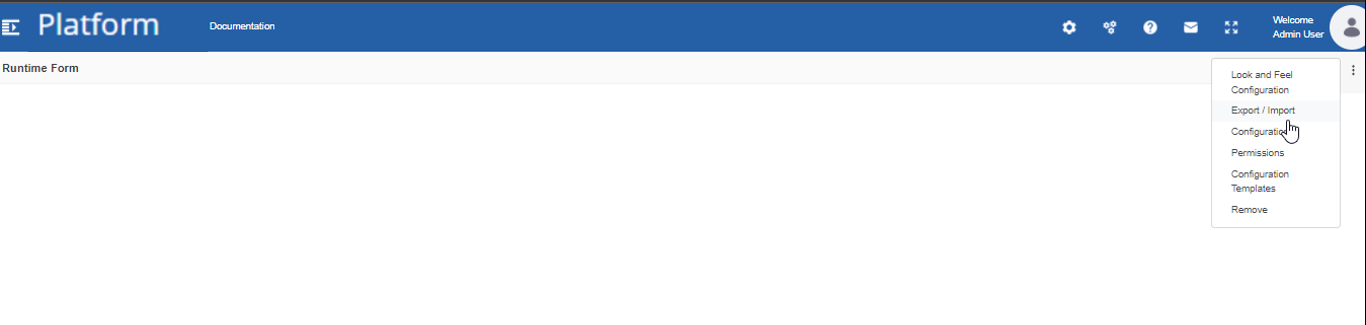
Figure 31: Control panel featuresFeature Description Look and Feel Configuration Click Look and Feel for configuring the look and feel of the widget. Export/Import Click Export/Import for exporting/importing the widget. Configuration Click Configuration for configuring the widget settings details. Permissions Click Permissions for configuring the permissions for the widget. Configuration Templates Click Configuration Templates for configuring the templates
for the widget.Remove Click Remove for removing the widget.
Widget Configuration Setup
Configuration Setup details in the Configuration details apply only to specific widgets and the setup details are different for different widgets.
The setup details for the widgets are explained in documents in which those widget pages as applicable.
Editing Widget Details
You can edit the configuration details of the widgets by navigating to the configuration options.
- On the Platform title bar, click the control panel icon.
-
Hover down the page. The active widget name with three dots appears.
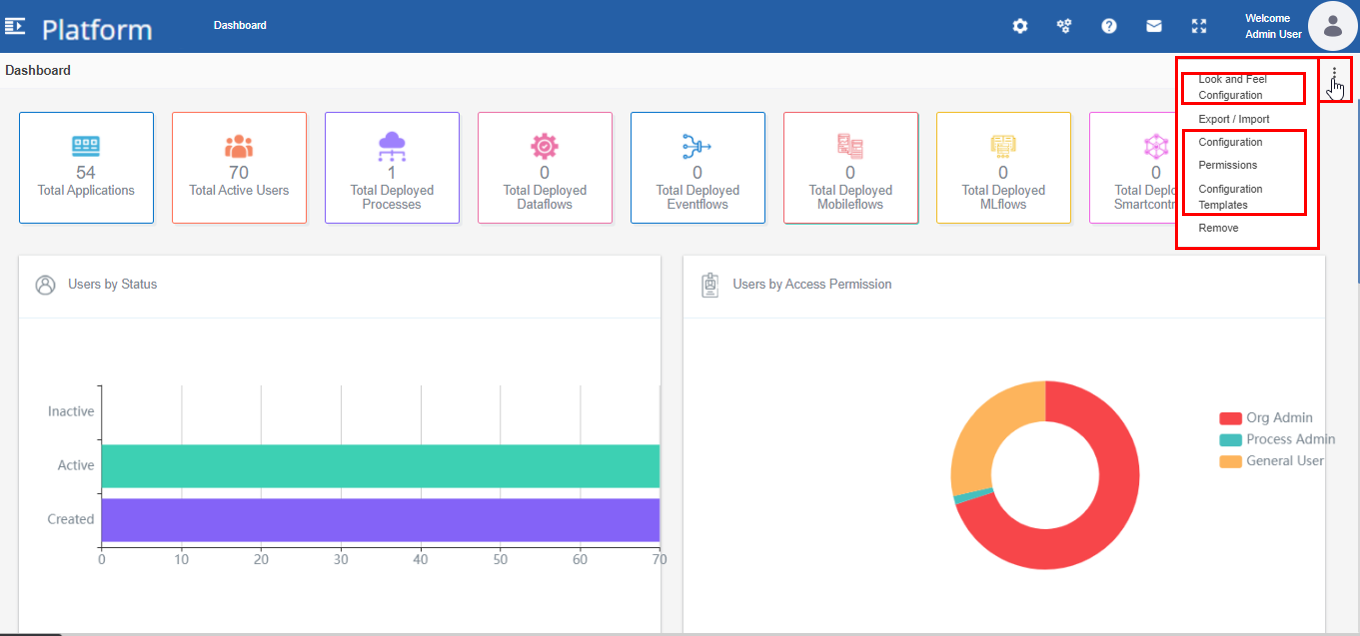
Figure 32: Editing the widget -
Click three dots and click Configuration. The details appear as applicable for the selected widget.
-
Edit the configuration details as needed. You can edit the details of Look and Feel Configuration, Configuration, Permissions, and Configuration Templates.
-
Click Save after editing each section.
Removing Widgets
- On the Platform title bar, click the control panel icon.
-
Hover down the page. The active widget name with three dots appears.
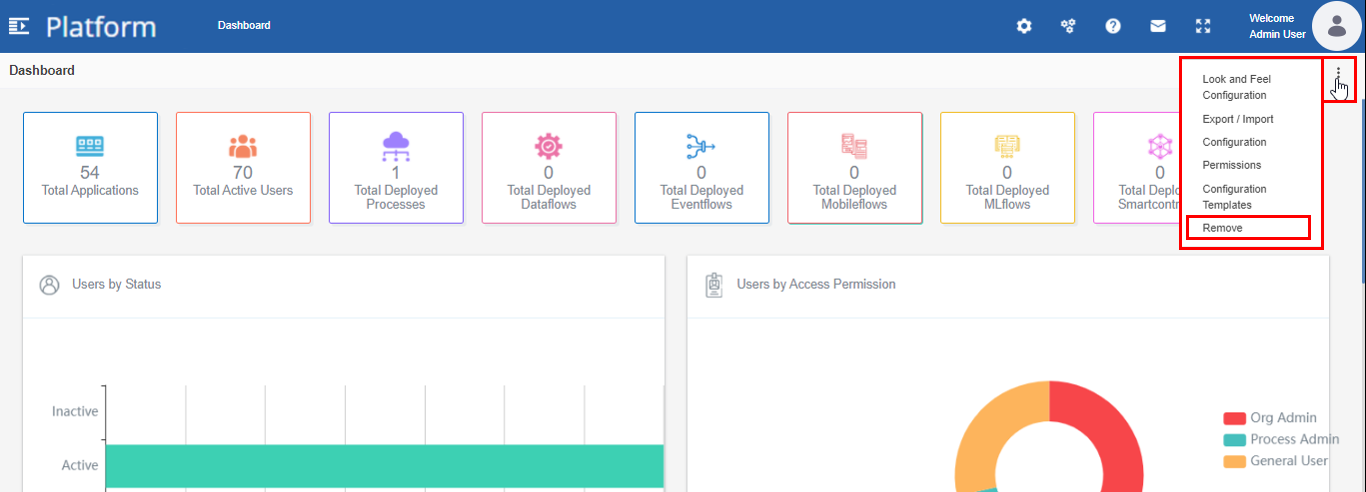
Figure 33: Removing the widget -
Click three dots and click Remove. The selected widget is removed from the page.