User Onboarding via eiq360.ai
Welcome to the eiq360 platform. This guide will walk you through accessing our cloud-hosted environment on Google Cloud Platform (GCP) and setting up your Lite account.
The platform is a fully managed SaaS solution. No local installation is required.
User Onboarding Workflow
The following diagram illustrates the path from registration to your first active session on the Lite Tier.
graph TD
    A[Access URL] --> B{Account Exists?}
    B -- No --> C[Subscribe / Sign Up]
    C --> D[Email Verification]
    D --> E[GCP Identity Provisioning]
    E --> F[Login]
    B -- Yes --> F
    F --> G[Workspace Setup]
G --> H[Access Lite Dashboard]Prerequisites
User Requirements
- An actvie Email adress.
- An active credit card. The subcription amount is deducted from this credit card account.
Software Requirements
- Supported Browsers: Google Chrome (recommended), Mozilla Firefox, or Microsoft Edge.
- Network Requirements: Ensure your firewall allows outbound traffic to
*.googlecloud.com.
Current plan: Lite
Currently, all new accounts are provisioned with the Lite/Standard by default.
Trial Period
- When you subscribe for eiq360 platform for the first time, you will avail a 90-day trial period.
- Trial period apply for monthly and yearly subscription.
The trial lets you try out this solution without paying for solution provider fees up to USD 4,500.00, or for a maximum of 90 days, whichever comes earlier. During the trial, you will be billed for solution provider fees and then credited at the same time for those solution provider fees up to USD 4,500.00.
Additionally, you will still be billed for any applicable infrastructure usage charges during the trial.
When your trial use exceeds USD 4,500.00 in solution provider fees or 90 days, whichever comes earlier, you will be charged solution provider fees unless you stop or terminate the subscription.
Registering for a New eiq360.ai Subscription
The user who is registering and subscribing is a Tenant administrator user.
Following is the first time setup procedure to subscribe your Lite account:
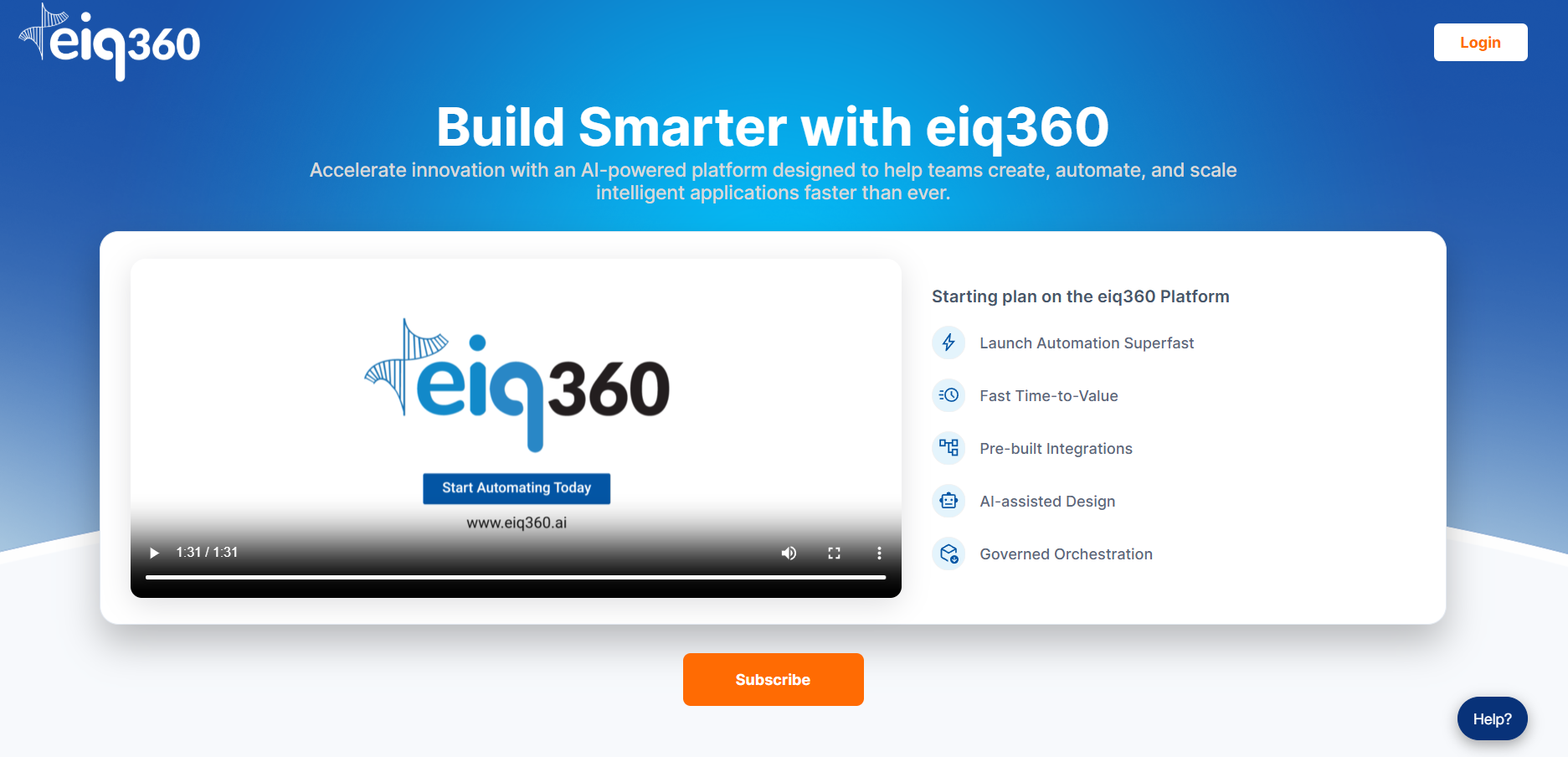
- Navigate to the https://eiq360.ai.
-
Click Subscribe > Sign up.
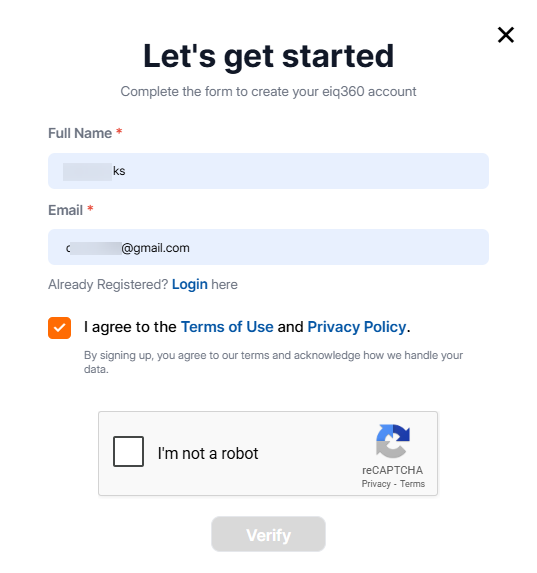
Field Description Full Name* Enter your full name. Email* Enter your email address.
Verification email will be sent to this email address. -
Check "I agree to the Terms of Use and Privacy Policy". Kindly make sure to read the Terms of Use and Privacy Policy.
- Check I'm not a robot. The Verify button becomes after the system confirms that your are not a robot.
-
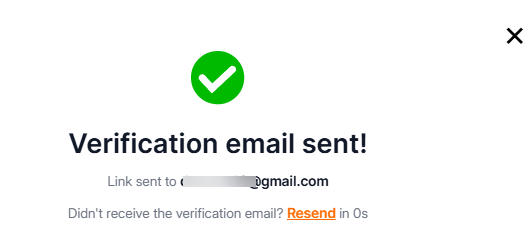
Click Verify. Now a verification email link is sent to your email and the corresponding notification appears.
-
Navigate to your email inbox, and open the email with subject "Verify your email address - eiq360".
If you did not receive the verify email, click Resend link on the Verification message box. -
In the email body, click Verify Email link to activate your GCP-hosted instance.
The Let's Get Started screen appear with the Full Name and Email. The green tick adjacent to the Email field indicates that your email id is verified.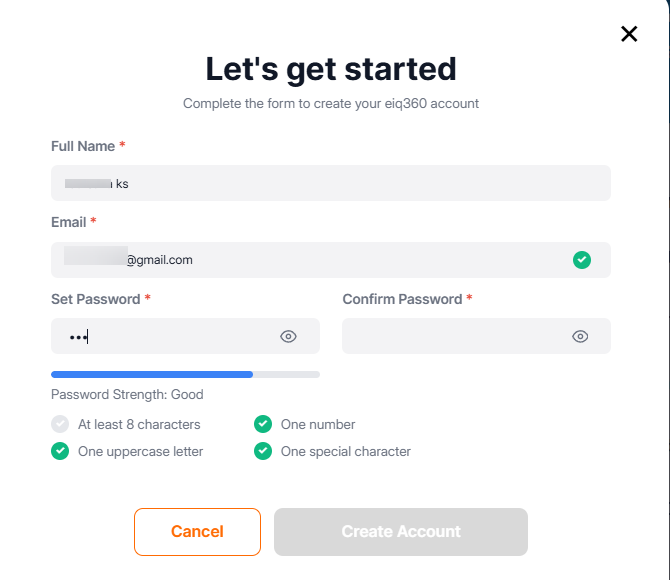
Field Description Set Password* Enter a strong password for your account. Refer to Password Requirements Confirm Password* Re-enter your password. Once the password is confirmed, organization details appear.
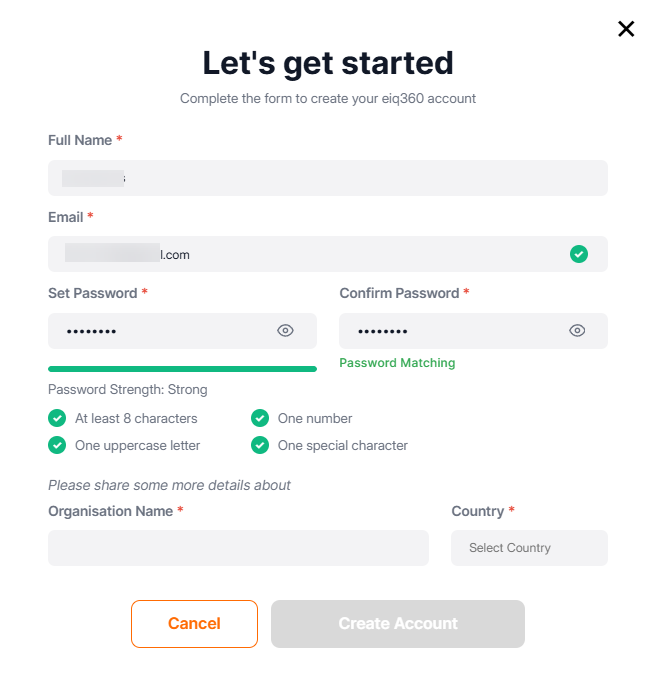
Field Description Organization Name* Enter the legal name of your company or department. Country* Select your location. This should be your organization's primary region of operation. Once you provide the Organization name and country, the Create Account button becomes active.
You can click Cancel anytime till this stage to cancel the account creation process.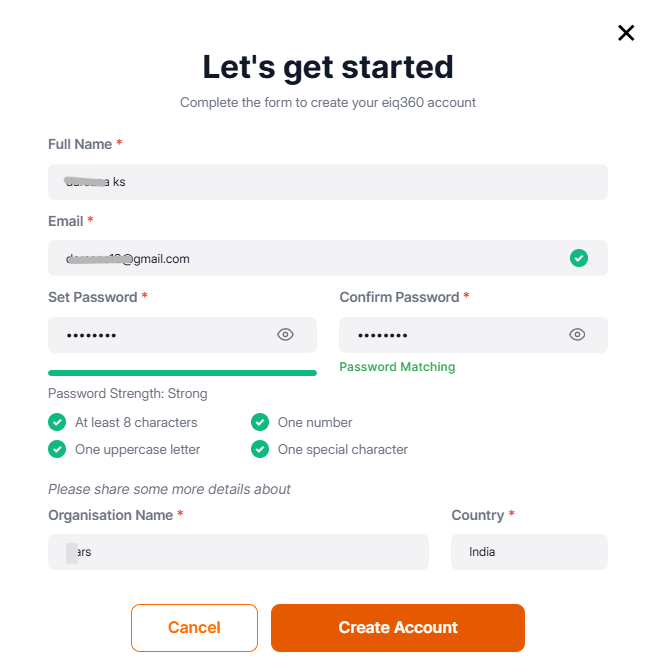
-
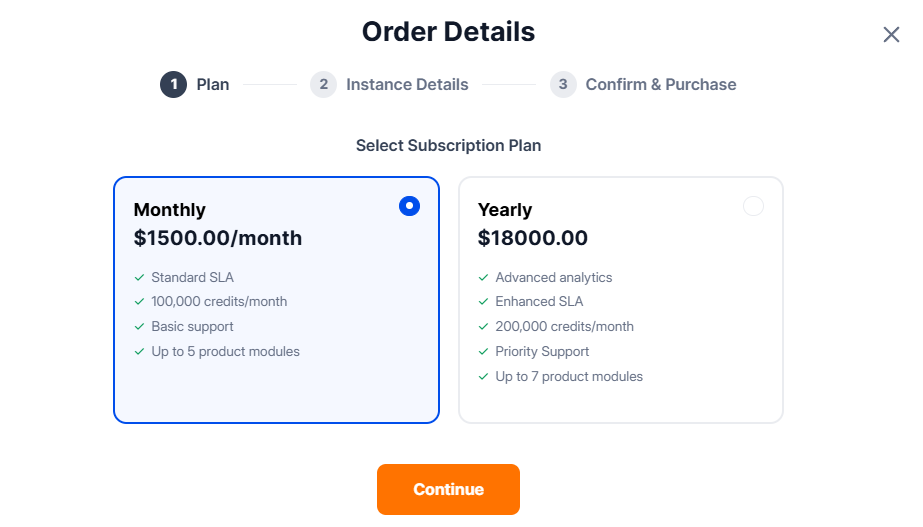
Click Create Account. Now your account is created and your Order Details appear.
-
Click and select a subscription period. The available subscription periods are: Monthly and Yearly.
Plan Info
Currently the eiq360 supports Subscription = Standard (eiq360 Lite version) with different subscription periods.
- Features:
RPA, Process Automation, AI Workbench, Business Rules, Intelligent Document Processing, Multichannel Apps, Data Fabric, Connectors. - Pricing: 1,500.00 USD/Month
- Billing:
- Billed via your GCP Billing Account.
- Your subscription will be renewed automatically at the end of subscription cycle.
- Best For: Short-term projects or POCs (Proof of Concepts).
- Cancelation:
- Cancel your subscription at the end of any 30-day cycle.
- Cancel your subscription by disabling auto-renewal.
- Others:
- Standard SLA.
- Basic support.
- 100.00 credits/month
- Upto 5 product modules.
- Features:
RPA, Process Automation, AI Workbench, Business Rules, Intelligent Document Processing, Multichannel Apps, Data Fabric, Connectors. - Pricing: 18,000.00 USD/Year.
- Billing: Billed monthly via your GCP Billing Account.
- Best For: Production environments requiring stable long-term access.
- Benefit: Discounted compared to monthly rates.
- Cancelation:
- Cancel your subscription by disabling auto-renewal.
- Others:
- Advanced Analytics
- Enhanced SLA.
- Priority support.
- 200.00 credits/month
- Upto 7 product modules.
- Features:
-
Click Continue. The Instance Details appear.
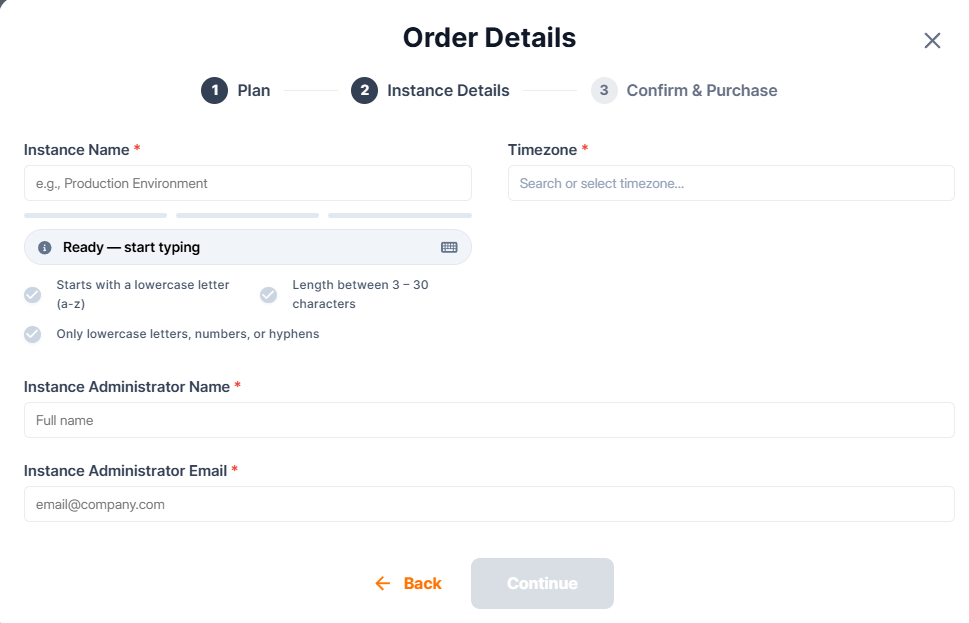
Field Description Instance Name* Enter a name for your instance.
Characters: Minimum 8 to maximum 50 characters.
Starting letter: lower case alphabets (a-z).
Allowed characters: lowercase letters, numbers.
Not allowed: hypens.Timezone* Search and select your time zone. Instance Administrator Name* Enter the First name and Last name (separated by single space) of the admin user who manages the instance. Instance Administrator Email* Enter the email of the admin user for the current instance. -
Click Continue. The Order Summary appears.
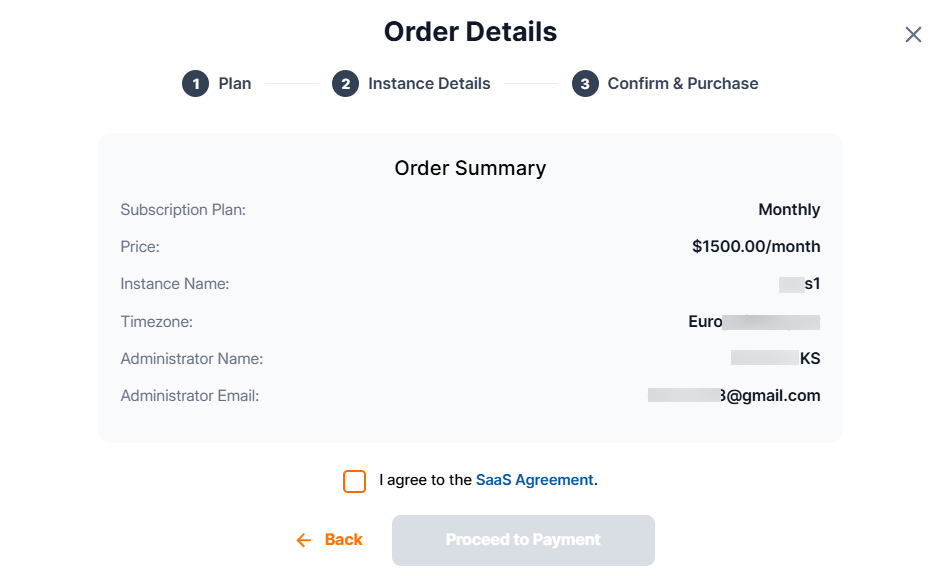
You can click Back anytime till this stage to navigate back plan or instance details. - Check I agree the SaaS Agreement. Make sure to read the SaaS Agreement before selecting this.
-
Click Proceed to Payment. The payment gateway opens for you to make the payment.
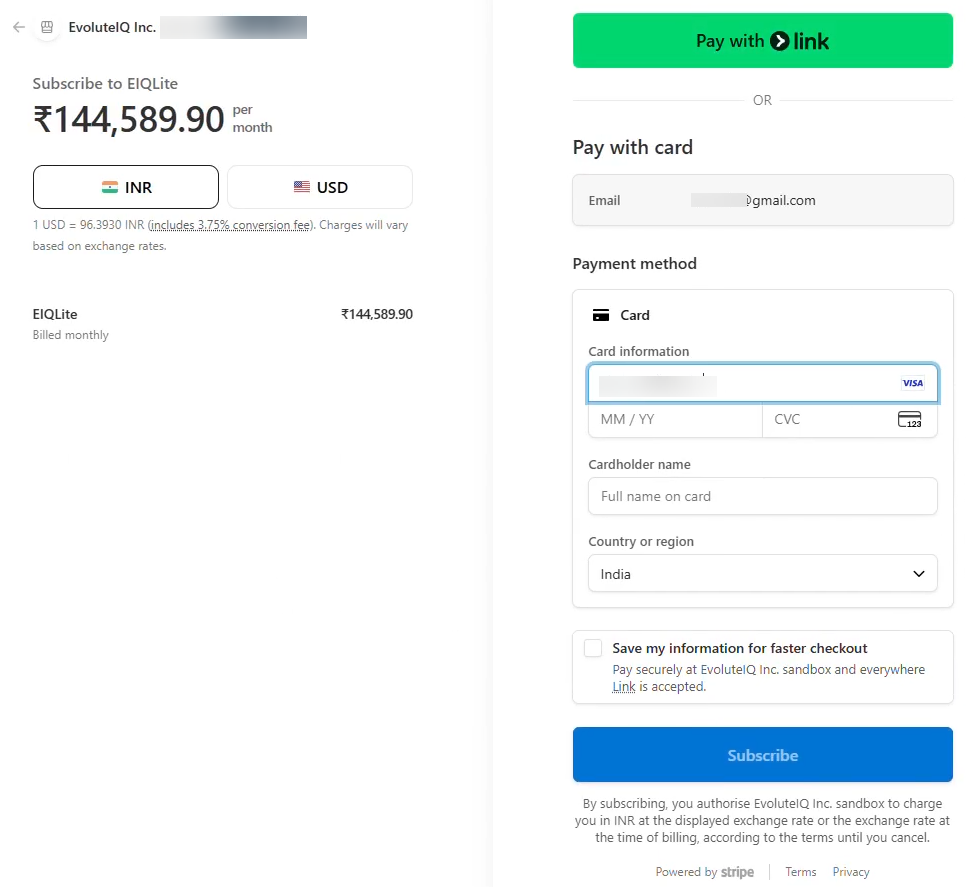
-
Verify the details, enter your card details and finally click Subscribe to complete the transaction.
The payment is processed from your credit card. Once the transaction is successfully completed, you will get a payment success message.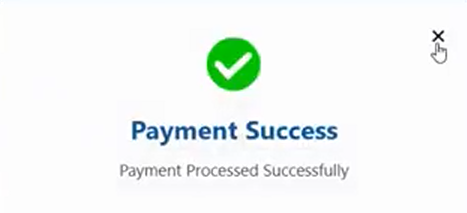
Now you will receive a notification email with th subscription details. Now you are a Tenant administrator for the subscribed instance. -
Click close and your will be redirected to the eiq360 dashboard page.
Wait for Provisioning
Now the subscription is in provisioning stage (creation of VM and other details for your instance). Wait for 1-5 minutes to view the change in Status.
Once the provisioning is completed, you (as a tenant admin) will receive a notification email. Now you can access your account and start your journey with eiq360.ai.
Accessing eiq360.ai
Note
For first time users: The account will become active after the completion of provisioning process.
To access your instance,
-
Open your notification email from eiq360 and navigate to the instance URL provided. The system navigates you to the eiq360.ai Login page for your instance.
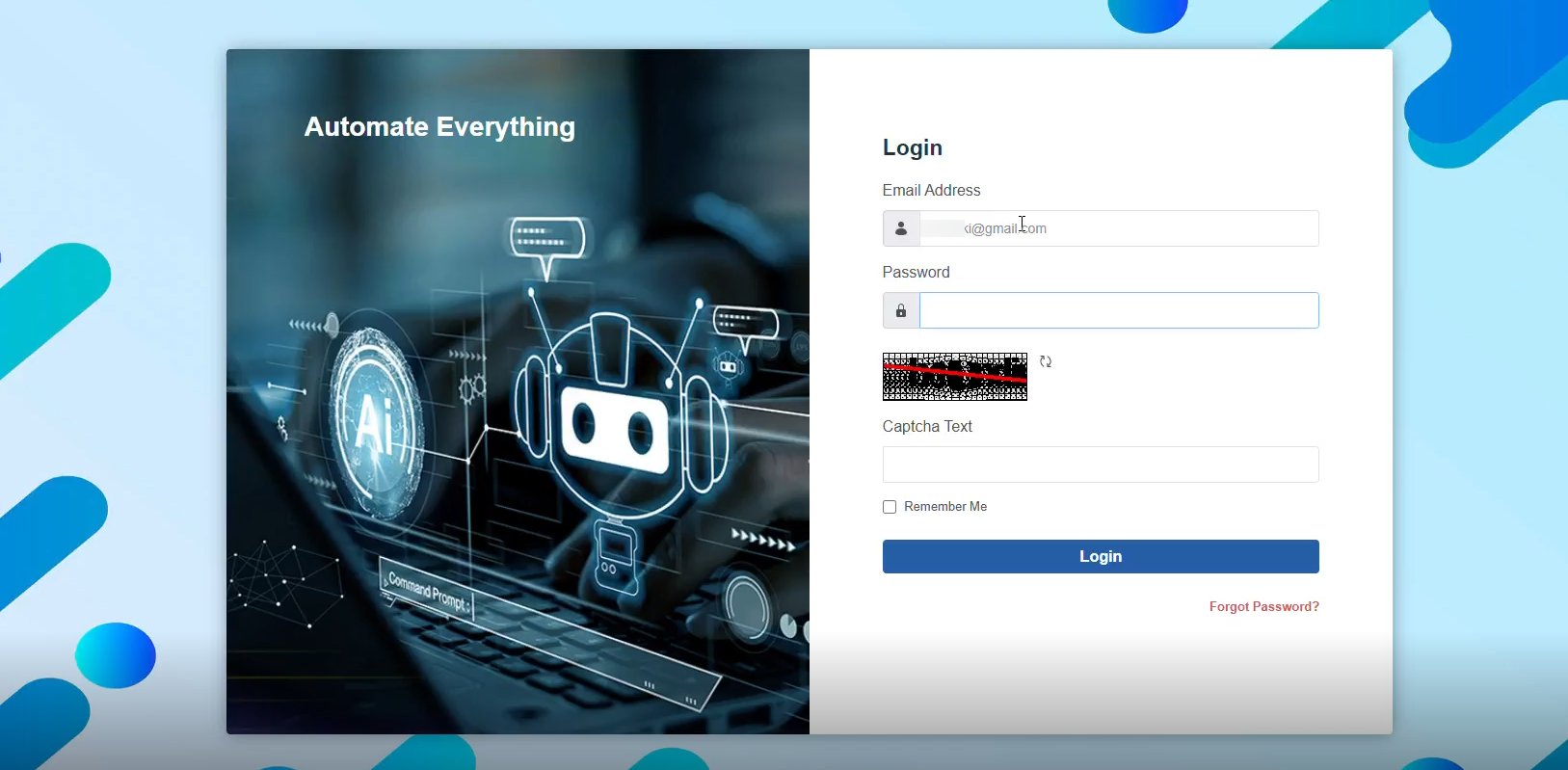
-
Enter the following Login details.
Field Description Email Address* Enter your email id. This should be the same email id in which you received the notification. Password* Enter your password. This is the default password provided in the notification email. Check your credentials
The instance credentials may be different from that of your subscription account.
-
Enter the captcha in the Captcha Text.
-
Click Login. During the first-time login, Change Password screen appears. It is mandatory to change password when the screen propts for Change Password.
Change Password
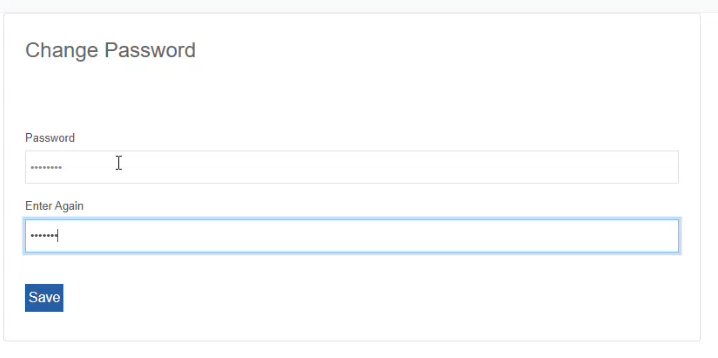
Field Description Password Enter a new password.
Refer to Password Requirements.Enter Again Enter the password again. - Click Save. The new password is saved. Now you can login with the registered email address and new password.
On successful login after changing the password, platform onboarding for workspace setup details appear.
Refer to Workspace Setup.
Logging Out from eiq360.ai
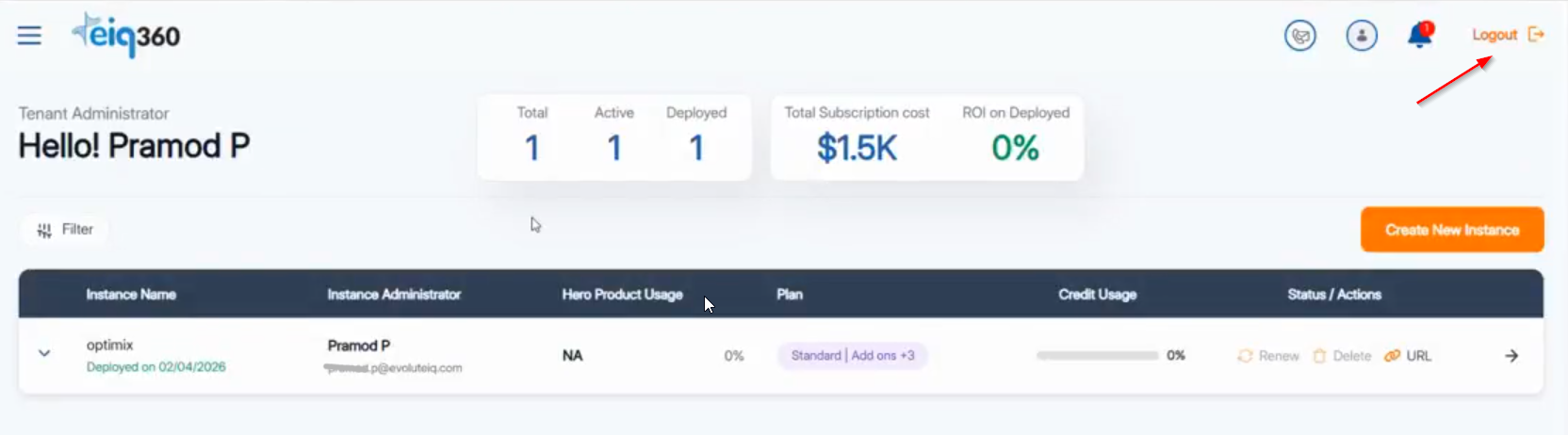
On the eiq360 dashboard page, on the top-right, click Logout.
Troubleshooting
| Issue | Likely Cause | Solution |
|---|---|---|
| Entitlement not found | Sync delay between Google and our portal. | Wait 0-1 hour and refresh the Provider Portal page. |
| Access Denied | Using a different Google account. | Ensure you are logged into Google account with the same email Id used for the Marketplace subscription purchase. |
| Billing not visible | Permission issues in GCP. | Ensure you have the Billing Account Administrator role in your GCP Console. |
| Unable to reach the login screen | System issues | Clear your browser cache. Check if your company VPN is blocking GCP endpoints. |
Raising Support Tickets
The dashboard Help option allows you to raise a support ticket to the eiq360.ai support team.
- On the dashboard page of eiq360.ai, on the top-right, click Help icon.

- In the Support Request page, provide the support request details.
| Field | Description |
|---|---|
| Full Name* | Enter your full name. |
| Email Id* | Enter your email id. |
| Organization Name | Enter your organization name. |
| Issue Category | Select an issue category from the list. |
| Issue Title* | Enter a title for your issue and support request |
| Detailed Description* | Describe your issue in detail. |
| Attachments (optional) | Drop your files in the area or click Browse and select your files related to the issue for attaching. |
- Click Submit. Success message appears.

The issue is now submitted to the support team.
Cancellation Policy
Cancellation and change policy
- Your subscription fee is billed every month.
- Your subscription will be renewed automatically at the end of the subscription cycle.
- You can cancel your subscription by disabling auto-renewal.
- You may cancel the trial at any time by cancelling your plan prior to the end of the trial.
We're currently using USD to calculate costs, which can be changed in the billing setup. Final prices in your bill will be set in accordance with your billing setup, and might be subject to exchange rates.