RPA Credentials
Introduction to RPA Credentials
The RPA Credential section contains the details of all the users who are authenticated users of the Platform RPA. You can create a user with credentials in this section and these user details are used to login to the RPA Studio and RPA Agent.
The Credential section in the RPA Management allows you to securely store user credentials (username and password) for use in bot automations. Stored credentials in the platform can be securely retrieved during automation execution—eliminating the need to hardcode sensitive data like passwords in scripts or workflows.
This central credential storage is especially helpful in:
-
Avoiding repeated password entry in workflows.
-
Ensuring credentials are securely managed and encrypted.
-
Updating passwords in one place without editing each bot.
Viewing and Editing RPA Credential Details
- Navigate to Main Menu > Manage > RPA Management > RPA Credentials. The list of Credentials in the grid format appears. All the Credentials that are created for the organization are listed in the Credentials list.
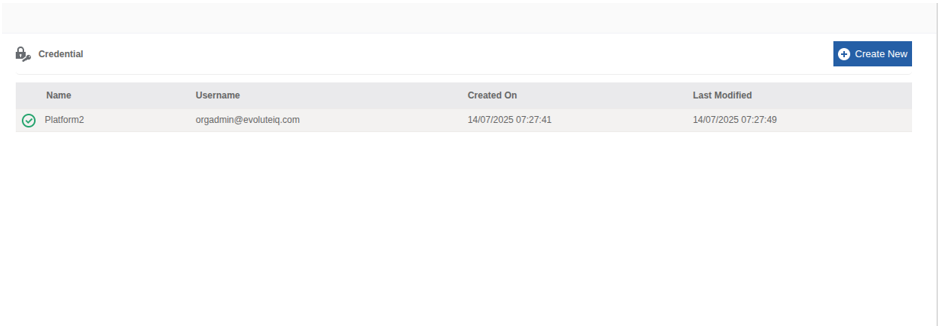
RPA Credentials list
-
Click a credential name. The details of that credential appear on the property panel on the right side.
-
Name: Name of the user.
-
User Name: The username of the user. This will be the email id of the user.
-
Created On: Date and time on which the user details were created.
-
Last Modified: Date and time on which the user details are modified lastly. Updates are tracked in the Last Modified column of the credential list.
-
Edit the details of the credential. You cannot copy the password as it is restricted.
-
Click Save.
Creating a New Credential
You can create a new credential detail through the Management section in the platform.
- Navigate to Main Menu > Manage > RPA Management > RPA Credentials.
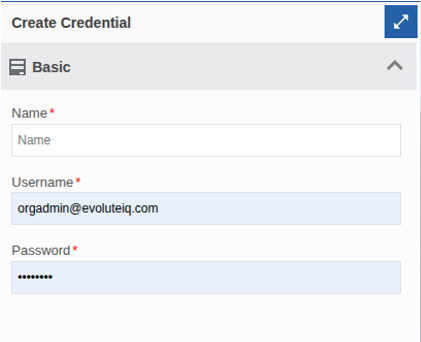
Creating a new RPA Credential
- Click Create New. Property panel displays Create Credentials.
| Field | Description |
|---|---|
| Name* | Enter name of the credential. The credential name cannot be changed once created. |
| Username* | Enter the username of the user. This should be the email id of the user. This email id should exist in the organization. |
| Password* | Enter the password for the user. |
- Click Create. The credential is saved and it appears on the credential list.
Deleting a Credential
-
Navigate to Main Menu > Manage > RPA Management > RPA Credentials.
-
Click the credential that you want to delete. The bottom-right of the page displays Delete.
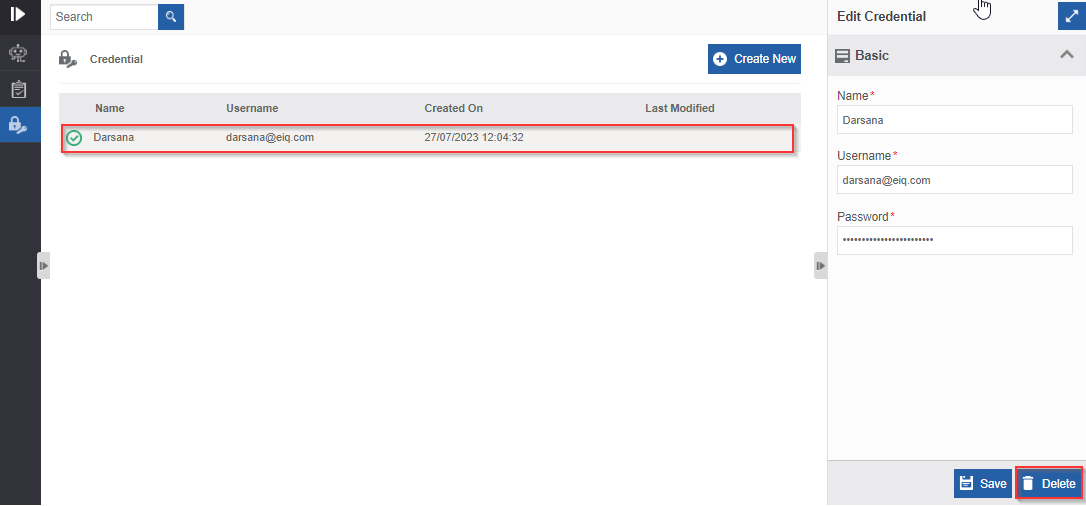
Deleting the credential
-
Click a Delete. Delete Confirmation pop-up appears.
-
Click Ok to delete (or click Cancel to discard the action). The credential gets deleted.