Multi-Factor Authentication in Platform
Introduction to Multi-Factor Authentication
Multi-Factor Authentication (MFA) is the process of authenticating the user in more than one method.
In the Platform, when you log in to your organization, a 2-factor authentication is required to complete the process of login.
Step 1: Validation of the username and password. If the credentials entered are valid and correct a One Time Password (OTP) is generated and sent to your email ID.
Step 2: Verification of the OTP. The second step of verification is done by verifying the OTP.
2-Step Verification configurations are done in the Manage > Organization Management for a particular organization and also through the backend server.
Logging into the Organization with MFA and Captcha
-
In your browser, enter the organization-friendly URL of your Organization and hit ENTER. SIGN IN page appears.
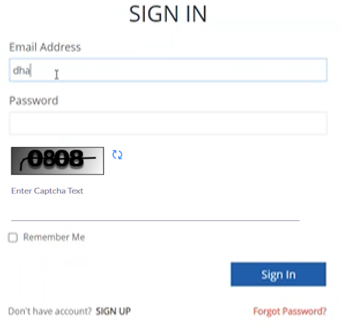
Figure 1: Sign In screen<.center>
-
Enter Email Address and Password.
-
In the Enter Captcha Text, enter captcha as shown in the image.
- Login screen with Captcha is customizable for an organization. You can enable or disable this feature in the Manage > Organization Management.
-
Click Refresh icon on the right of the captcha image to refresh the captcha.
If the captcha entered is wrong, you will be prompted to renter a new captcha.
-
Click Sign In.
If the login process is a success, an OTP is sent to your registered email ID. Email is your registered email ID with the Organization to which you are trying to log in.
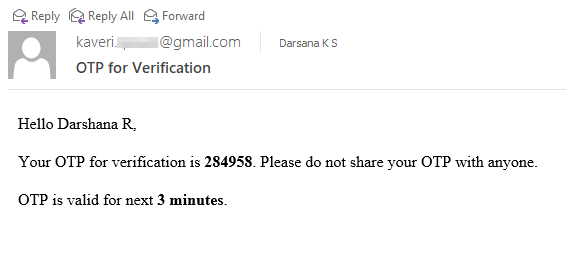
Figure 2: OTP for Verification email
This OTP is valid for 3 attempts of logging into the platform. By default, the OTP is valid for 3 minutes. These properties are configurable in the Server configurations. Validity of OTP for 3 min and validity of OTP for 3 attempts - whichever happens first. the other becomes invalid. That is, if 3 minutes is over, the OTP becomes invalid even if it is not used for three attempts and vice versa.
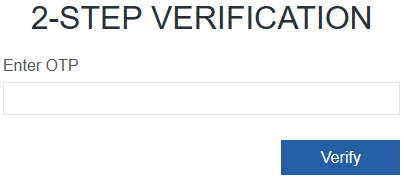
Figure 3: Entering OTP
-
In the Enter OTP, enter the 6-digit OTP that you received in your email.
-
Click Verify.
If you have entered the OTP correctly, you will be navigated to the platform home page.
If you have entered the wrong OTP, the error message appears as “ERROR: Invalid OTP”. You are allowed to enter the same OTP 2 more times.
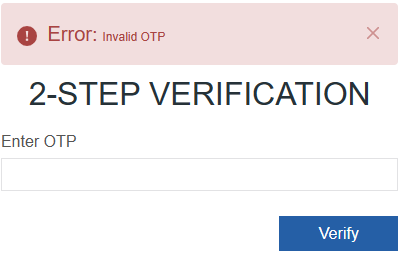
Figure 4: Error in OTP
If you are not able to log in to the platform after the 3 attempts, the OTP becomes invalid and you are redirected to the login page with the screen displaying a message as “Verification Limit Exceeded”.
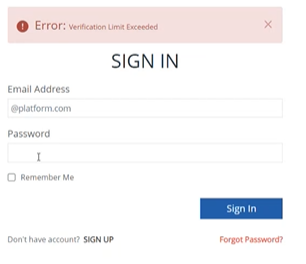
Figure 5: Error message for more than 3 attempts
Now you need to generate a new OTP for further verification. To generate a new OTP, enter your username and password on the Sign In page. This newly generated OTP also follows the same principles.
2-Step Authentication and Captcha Configuration in Platform
Multi-Factor Authorization is applicable at the Organization level.
- In the Platform, click the burger menu > Manage > Organization Management.
- Click the organization name for which you need to apply the 2-step verification. Edit Organization appears on the right side.
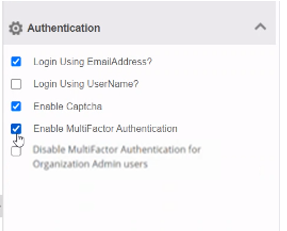
Figure 6: Authentication configurations for the selected organization
-
In the Edit Organization panel on the right side, click the Authentication accordion. Authentication details appear.
-
Login Using Email Address: Select this if you want the users to log in using their email IDs Else uncheck the Login Using Email Address checkbox.
-
Login Using Username: Select this if you want the users to log in using their user name Else uncheck the Login Using Username checkbox.
-
Enable Captcha: Select Enable Captcha if you need to enable your login screen with captcha verification, else deselect the same. If you enable captcha, login screen appears with a captcha that can be refreshed and if deselected you can login to the organization without captcha verification.
-
Enable MultiFactor Authentication: Select MultiFactor Authentication to enable the 2-step verification process using the OTP. The OTP is always sent to the user's email ID. When you enable this all the users in the organization will be prompted for OTP as a 2-step verification.
-
Disable MultiFactor Authentication for Organization Admin users: Select Disable MultiFactor Authentication for Organization Admin users if you want the Organization admin users to be exempted from the OTP verification process. In this case, the Organization admin can directly login using the credentials to the selected organization.
-
2-Step Authentication Server Configurations
When you do solution designs or projects using the platform portal, you can do a few configurations in the Server settings.
- Establish an SSH connection to the server in which the platform is running.
- Navigate to the path where the App Server is running and then navigate to: …/platform/app-server/portal/properties
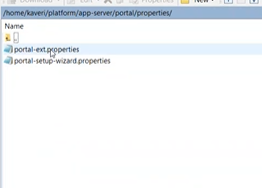
Figure 7: Path of the properties files
- Right-click the file, portal ext properties.
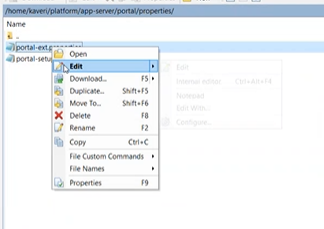
Figure 8: Portal ext properties file >Edit
-
Click Edit. The editor opens with the details.
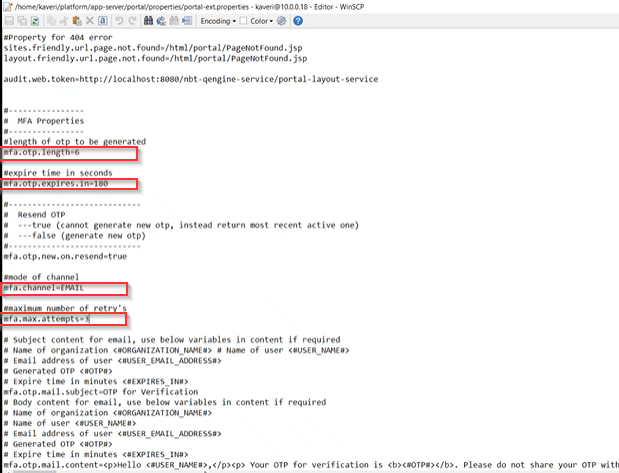
Figure 9: Portal ext properties fileMFA Properties
OTP length: You can provide the length of the OTP.
mfa.otp.length = 6
Expiry time in seconds: You can mention the OTP expiry time in seconds.
mfa.otp.expires.in=180
Mode of channel: Currently Email mode of OTP sending is only provided.
mfa.channel=EMAIL
Maximum number of retry: The maximum number of times you can retry using the current OTP.
mfa.max.attempts=3
You can also change the email body template in the properties file if needed.
-
After updating the details in the properties file, you need to restart the server to update the details in the platform.