Data Catalog Applications
Data Catalog Applications are the applications that are automatically created when you create a data entity and publish it.
You can create Data entities through the Management > Data Catalog module.
When you publish a data entity, an Data Catalog application with the name “{DataEntityName}DataCatalogFlows” is created in the App Studio > Data Catalog Applications module.
This Data Catalog application has three process flows within with the following names.
- Add{DataEntityName}
- List{DataEntityName}
- Update{DataEntityName}
Viewing and Editing Data Catalog Application Details
- Navigate to App Studio > Data Catalog Applications for viewing the Data Catalog applications.
-
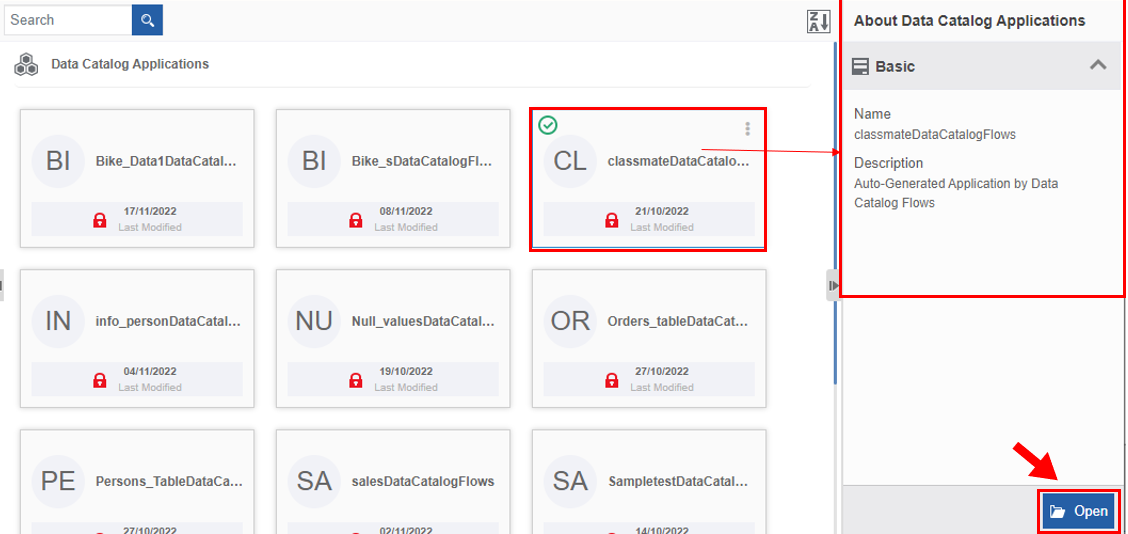
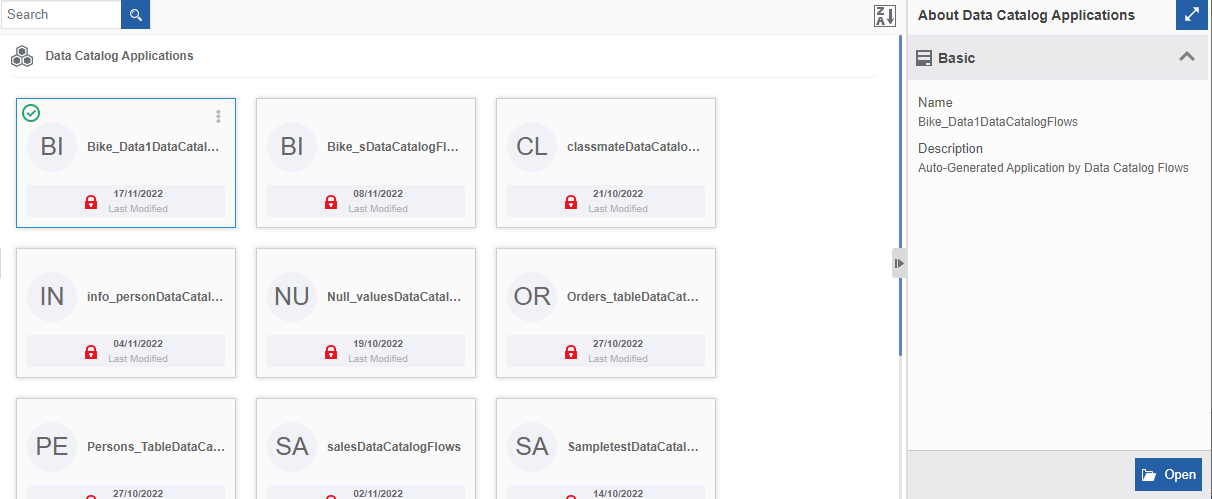
Click the Data Catalog application card to view the basic details of the Data Catalog application in the Info Action panel on the right side.
-
Click Open to view or edit the process flows within the Data Catalog application.
-
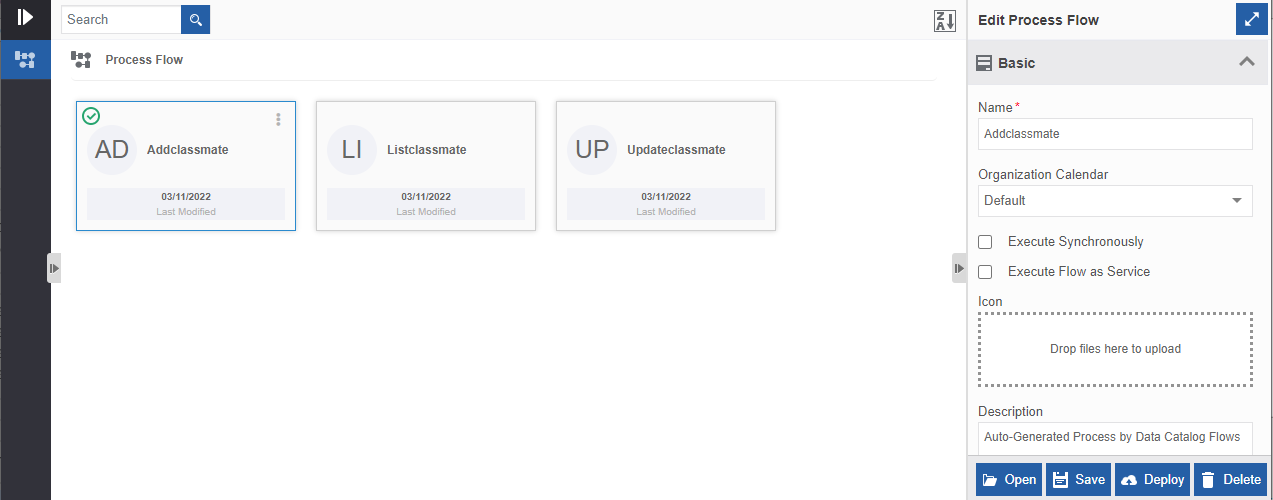
Click Save to save the modified details. Before editing and saving details, make sure to unlock the application if it is locked.
Tip
The features and functions of the Data Catalog Flows are the same as any of the processes flows. An organization administrator can view, modify or delete these Data catalog flows in the same way as process flows.
Alternatively, the user can double-click the card or follow the below steps to open the Data Catalog application.
- Hover over the Data Catalog application card. Three dots appear on the top-right of the card.
- Click the three dots. More Actions appear.
- Click Open.
Locking/Unlocking Data Catalog Applications
The Locking or Unlocking feature for Data Catalog applications is the same as for applications. That is, you can lock or unlock a Data Catalog application and the lock/unlock applies to all the processes and entities within that application.
You need to unlock the Data Catalog application (created by different users) for editing or modifying details or for creating and editing any entities for that Data Catalog application.
When you create and publish a Data entity, a Data Catalog application is created with all the processes and entities within that Data Catalog application. The Data Catalog application thus created is locked automatically for other users. However, other users can view all the details of the application. If any other user wants to edit or modify the Data Catalog application, they need to unlock the Data Catalog application.
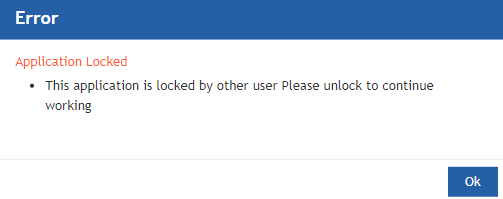
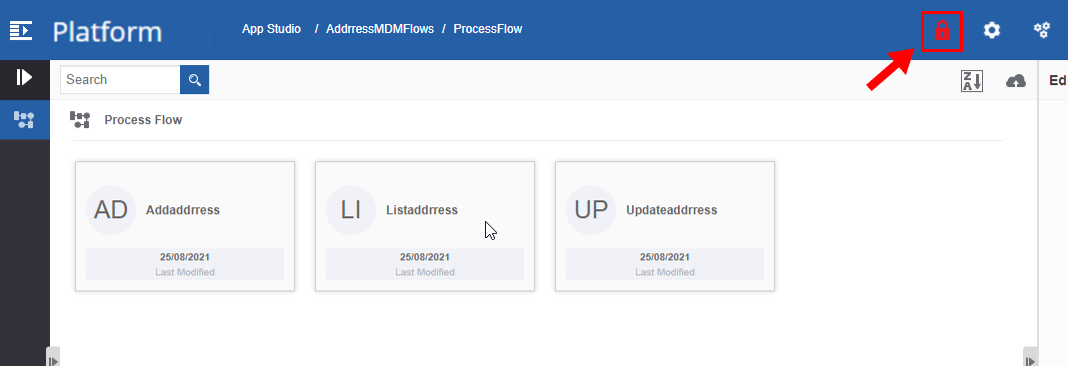
The locked Data Catalog application shows a lock symbol on the application card. When you open a locked Data Catalog application, the locked symbol appears on the title bar. If you try to edit or modify any locked Data Catalog application, it will show an error message as shown below.
For unlocking a Data Catalog application, follow the below steps.
- Navigate to App Studio > Data Catalog Applications.
-
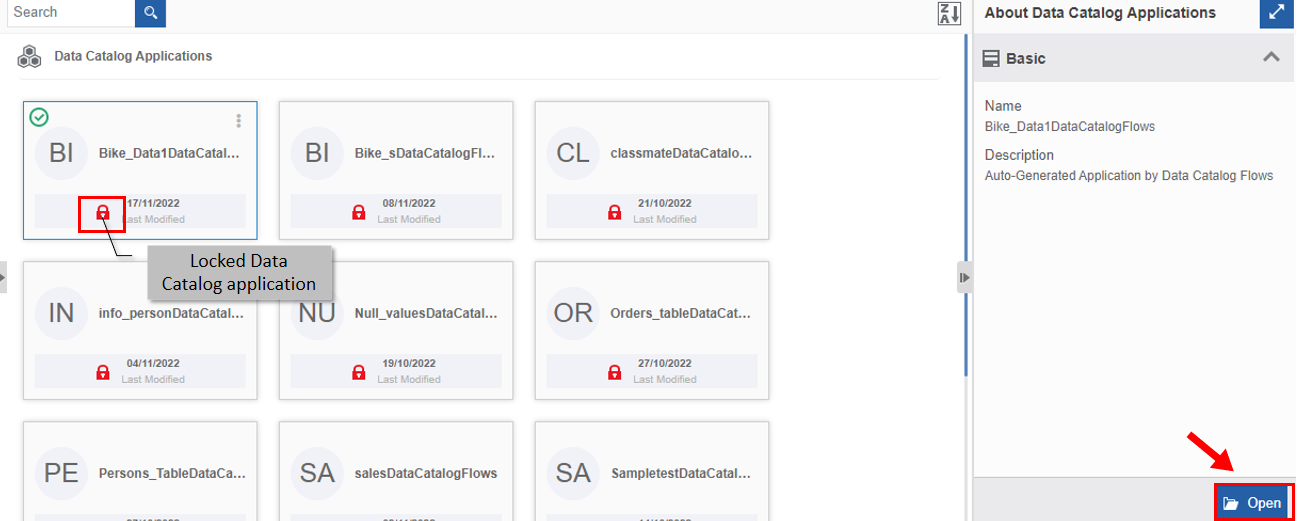
Click a Data Catalog application that is locked. The locked Data Catalog application will display a red lock symbol.
-
Click Open. The lock symbol is displayed on the title bar.
-
Click the Lock symbol on the title bar. The Data Catalog application gets unlocked and the lock symbol disappears.
Note
When you unlock a Data Catalog application created by a different user, the Data Catalog application is unlocked for yourself and it gets locked for all other users including the user who created it.
Deleting Data Catalog Applications
You cannot delete a Data Catalog application or processes listed in the Data Catalog application. However, you can delete the Data Catalog data entity created in the Manage > Data Catalog section.
Process Flows in Data Catalog Applications
When you create a Data Catalog data entity and publish it through the Management > Data Catalog module, an Data Catalog application is created with the name “{DataEntityName}DataCatalogFlows” in the App Studio > Data Catalog Applications module.
Three process flows for Add, List, and Update are created automatically within the Data Catalog Application. The names of the different processes created are indicated below.
- Add Process flow – Add{DataEntityName}
- List Process flow – List{DataEntityName}
- Update Process flow – Update{DataEntityName}
{DataEntityName} is the name of the Data Catalog data entity created in the Management > Data Catalog section.
Note
The Data Catalog process flows have the same functionalities as any other standard user created process flows. The features like Editing, Trigging, Validating, and Deploying the process flows are all applicable for data catalog-based process flows.
Imp
Deleting Process flow is not applicable to Data Catalog Processes. However, you can delete the Data Catalog data entity.
Viewing Data Catalog Process Flows
-
Navigate to App Studio > Data Catalog Applications.
-
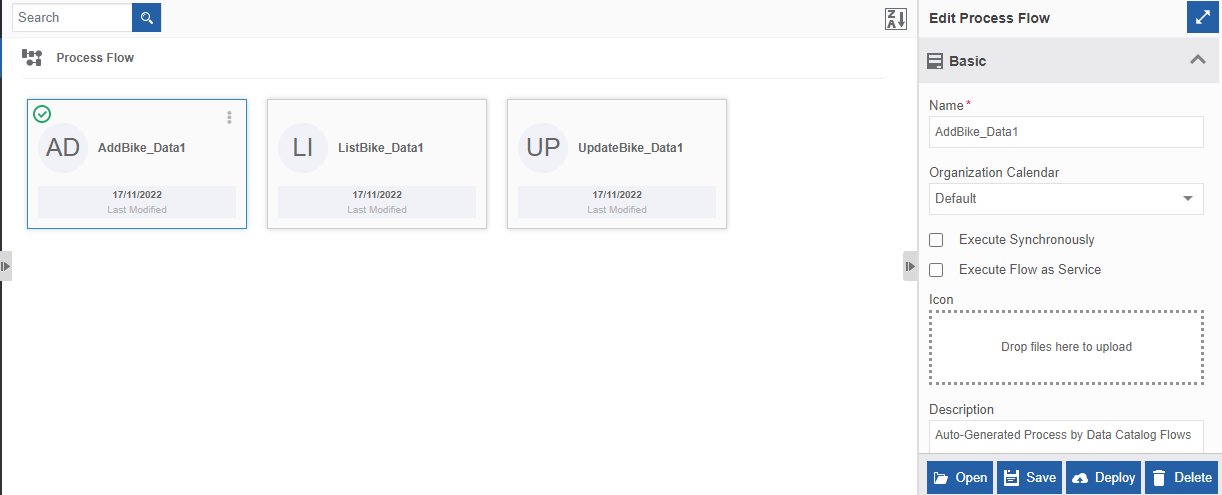
Click the Data Catalog Application card and click Open. The three flows in that Data Catalog application (Add, List, and Update) are displayed.
-
Click a process flow. The Process design canvas displays with the Edit Process Flow panel on the right side.
-
Click Open to view (or edit) the flow details.
Alternatively, the user can follow the below steps to open the Data Catalog Process flows.
- Open the Data Catalog application. Three process flows appear.
- Hover over the Data Catalog process card. Three dots appear on the top-right of the card.
- Click the three dots. More Actions appear.
- Click Open.
Add Process Flow
The add process flow name is suffixed with Add in the data entity name, that is, Add{DataEntityName}. By default, the add process flow is created by the system.

List Process Flow
The list process flow name is suffixed with List in the data entity name, that is, List{DataEntityName}. By default, the list process flow is created by the system.

Update Process Flow
The update process flow name is suffixed with Update in the data entity name, that is, Update{DataEntityName}. By default, the update process flow is created by the system.
