View Designer and Generic Configurations - In progress
Process Flow Views
Process flow form views are created when you want to create a website page that is part of a process flow and you need a sequential flow of events. Views come under the category Forms in the Process flow.
You can design Views using the components and controls available on theview designer. Components are groups of different types of controls that are placed together with specific features.
Process Flow Views are designed in the App Studio > Applications > Process Flows > Form (Form of type Views). These form views are accessed as part of user tasks or activities (Task/Accept Reject) in the process flow. It is mandatory to have a submit button for the form views (either system submit or custom submit). The views created appear on the main menu of the platform as a page.
Creating Process Flow Form Views
-
Click the Burger menu on the left of the logo and navigate to App Studio.
-
Click Applications and double-click the application name to open that application.
-
Click Process Flow and then double-click a flow name to open the flow. Forms apply only to the process flow.
-
Click Form. The form list appears.
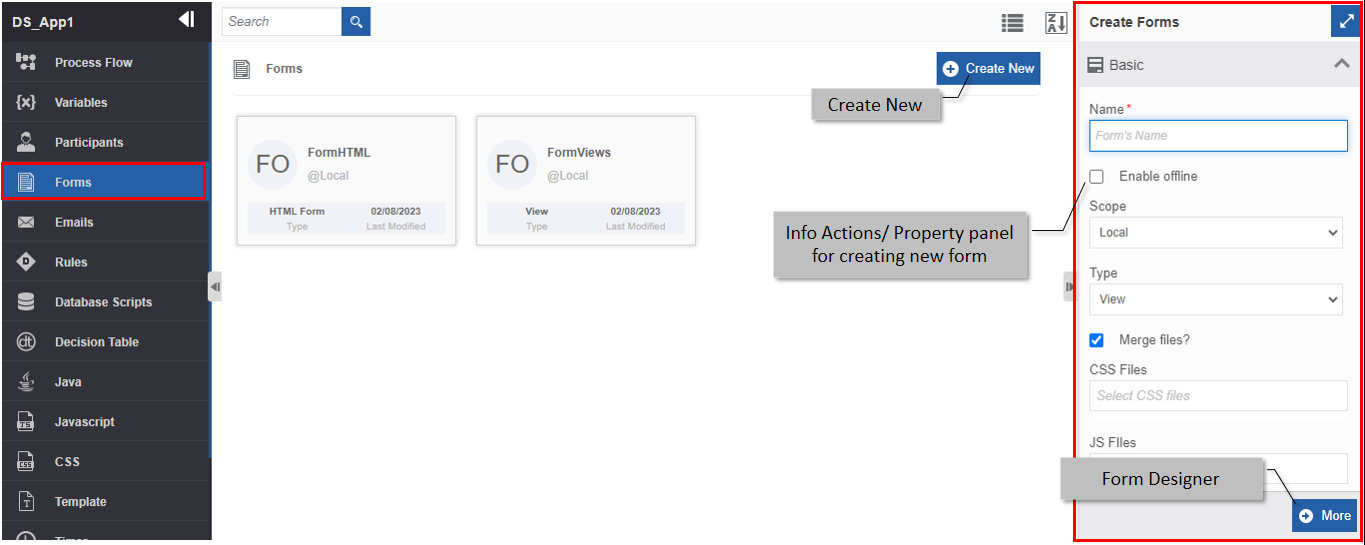
Figure 1: Creating a new form view -
Click Create New.
-
Enter the Basic details in the Create Form panel as explained in the following table.
Field Description Name* Enter the name of the form.
Character limit: 50.
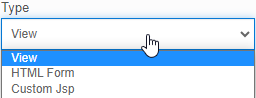
Data type: Alphanumeric and symbols. Whitespace is not allowed.Enable Offline Select the checkbox for. Scope The scope of an entity is always local as the entities are created at the flow level. Type Select the type of the form. For creating Form of type View, select View.
Merge Files Select Merge Files if you want to merge the selected files.
All the CSS files will be merged into a single and all the JS files will be merged into a single file.
This reduces the effort of loading files one after the other, and hence single file loading increases performance.CSS File Select the required CSS file. JS File Select the required JS file. Scope Identifier* Enter the scope identifier name.
Generally, a Form name is considered as the scope identifier with which you can identify a particular form.
This is used when you have to call this form as an instance form during the runtime in another form.Icon - Click inside the dotted area below the icon. The Explorer window opens.
- Select the required icon file from any folder.
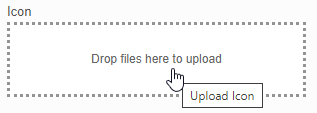
Or
Drag an icon from any location/folder into the marked area.
- Image file formats supported are PNG, JPEG, and JPG.
After uploading:
- Download: Click download icon to download the icon.
- Remove: Click the remove icon to remove the icon.
To update a new icon, remove the icon and repeat the steps above.Description Enter a description for the form. -
Click More. The Form configuration details are displayed.
If you have selected the form type as View, a View Form designer appears. The view is the web view form design.
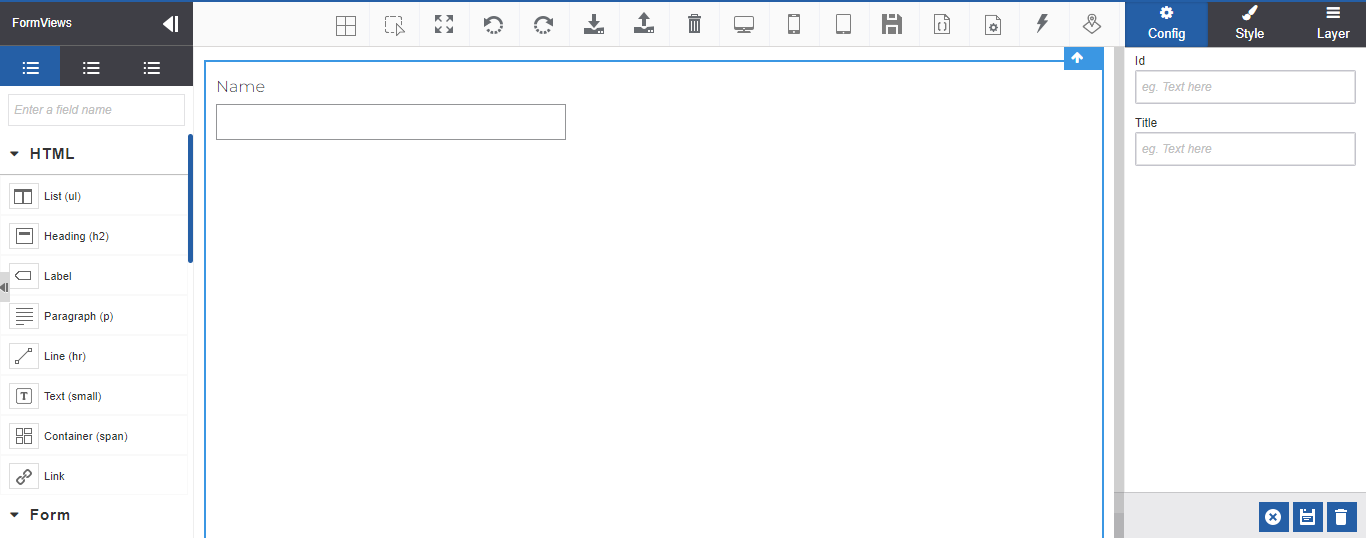
Figure 2: View designer- Design the View using the controls as needed.
Refer to Generic View Control Configurations and control-specific documents for details on designing Form Views using the controls.
- Design the View using the controls as needed.
-
Click Create. The form with the details provided is created.
Understanding Form View Designer
When you create a Form of type View, the view designer loads with the default theme and template.
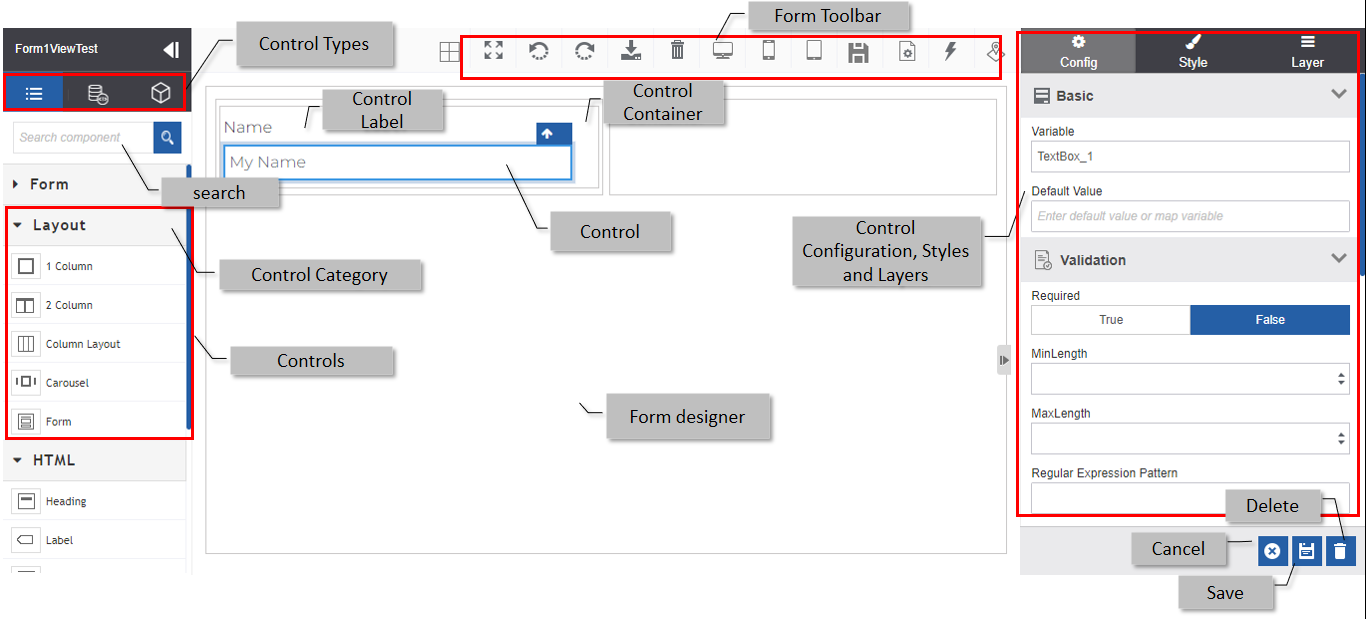
Figure 3: View layout and controls
| Design Elements | Description |
|---|---|
| View Tool Bar | Displays the tools for managing the views. |
| Controls | Displays the controls used for designing the form view. The controls are listed in different categories. |
| Control Categories | Controls are listed in different categories viz, HTML, Forms, Layout. |
| Control Types | Displays different control types viz, Basic controls, Lookup components, and Data Entity type components. |
| Control | The control that is dragged to the designer. |
| Control container | The container to which the control is placed in the view. |
| Control Label | The label of the control. The label of the control is also considered as a control group with the parent control. |
| Control actions | Drag a control to the view designer and hover over the control to view the control actions specific to that control. |
| Expand/Collapse icon on the control panel | To expand control to list view and collapse controls to icon view in a single column. |
| Control Configuration, Style and Layers | The different types of properties of the controls. Configuration: The configuration of the selected control. Styles: Styles for the control. Layers: The different layers of arrangement of control in the view appear here. You can view a control or remove a control from the view as you choose. |
| Cancel icon | To discard the changes without saving them. |
| Create (+) icon | “+” icon appears when you create the form view and it allows you to create the form view. |
| Save icon | Save icon appears when you edit a form view. Click the Save icon to save the changes made. |
| Delete icon | To delete the file. |
Understanding Form View Control List Panel
The controls required for designing the form view appear in the Control panel.
- Navigate through App Studio > Applications > Process Flow and select the required process flow.
-
Click a Form name card of type view. The Form View designer opens. The control panel appears on the left side of the form view designer.
- Click the expand/collapse arrow to expand or collapse the control view.
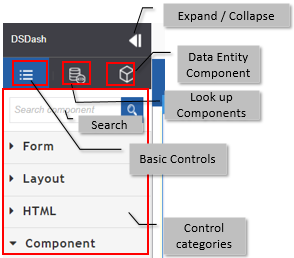
Figure 4: Form Control panel and featuresInterface Elements Description Expand / Collapse To expand and collapse the view of the panel. Search Enter the control name or search letter and the filtered results are displayed. Click and expand the accordion in each category to view the filtered results in each category. Control Categories Lists the controls or controls that are used to design the form view categorized in various subsections.
Click the accordion in each section to list the controls in that category.
Basic Controls General controls are general controls that are used in the form views.
Form controls are generic form controls that are used in the forms.
Layout controls are used to create layout for the form.
HTML controls are used to create a website view.
Lookup controls Lookup controls are lookup and query-type database scripts that are used to fetch data from the database. Data Entity controls Data Entity controls are used to get the data entity attributes from the Data Catalog. -
Click the control subsection accordion to view the list of controls available in each category.
Searching for a Control
- In the Control list panel, click the control category accordion and type the control name in the search field. The filtered controls appear.
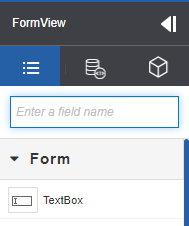
Figure 5: Searching for a control
Form View Design Principles
The control list panel on the left side of the View designer contains all the controls needed to design the views.
When you create a Form of type view, by default, the form view designer appears with a form control. You need to lay out all your other controls (including the column layout controls) within this form control. From control acts as the container for all other controls. You can place multiple Form controls within a Page.
- Drag a Form Control category controls only to a Form Layout Control.
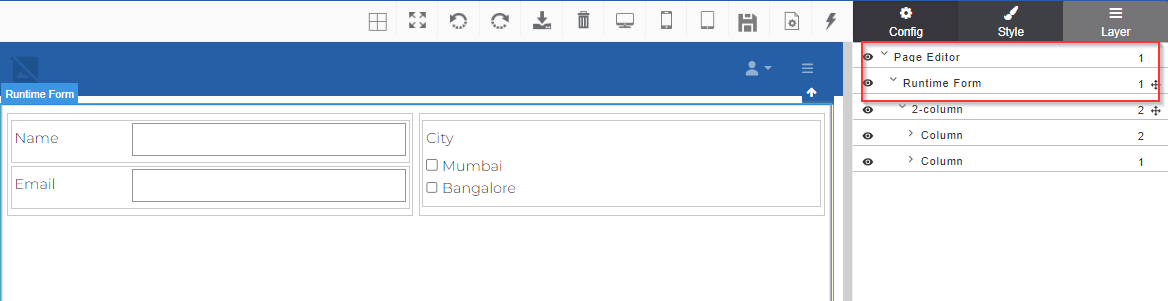
Figure 6: Default layers added to the form view
Within a Runtime-Form control, you can place the other layout controls (Layout Category) as per your layout requirement.
Now, in brief, the order of placement of the controls are Page Editor (default), then Runtime-Form (default), then Column Layouts, and then other controls.
- You cannot delete a Page Editor or a Runtime Form control from the view designer. All the controls are layered on top of the Runtime Form control.
Adding Controls to Form View Designer
You can add controls to the view designer as per your design requirements.
- Navigate to App Studio > Applications > Process Flows > Form entity and select a form of type view.
- Click More to view the Form View Designer.
-
From the Layout Control Category drag Form to the form view designer.
Usually, a Form control is the first control dragged to the design area so that other controls can be laid on top of it. The Form control is like a container for all the other controls within that. By default, when you create a View, a Runtime-Form control is placed in the designer. On the Form control, the Column Layout control is placed to design the layout of the form.
You cannot add layout controls after adding other controls for holding those. -
Click the Form category accordion. All the Form-related controls appear.
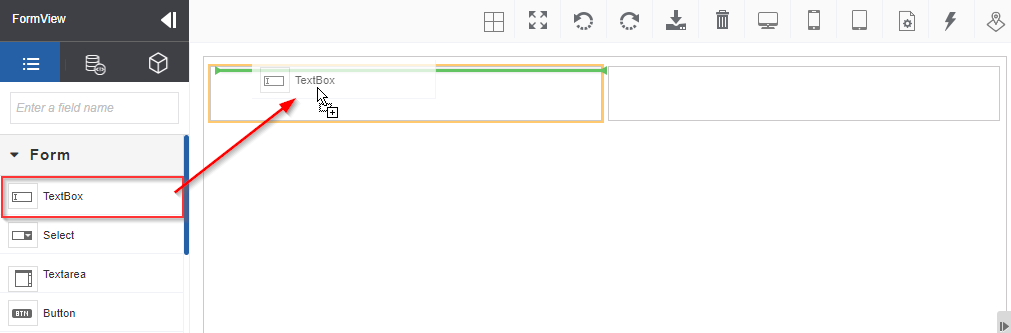
Figure 7: Dragging control to the designer area -
Drag a control to the view designer. The properties panel on the right side displays the properties and configurations of that control.
-
Configure the control as per the requirement.
-
Click the save icon on the bottom right. The controls are saved with the provided configurations.
Property Configuration Panel
The Property configuration panel appears on the right side of the view designer. The Properties panel is fixed on the right side in the designer mode.
The property panel consists of Config, Style, and Layer sections.
- Click a control and its properties appear on the Property panel.
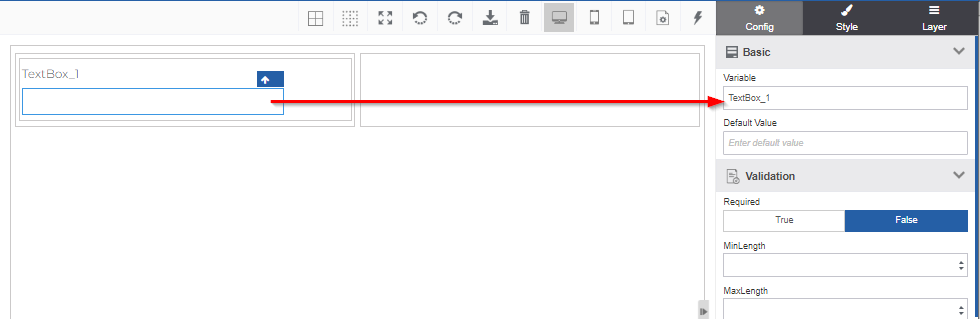
In the preview mode (Toolbar > Resize icon), when you click a control, the Properties panel appear as a floating panel. Click the close icon to close the properties panel.
The designer allows you to configure the properties in the preview mode also.
Understanding Control Structure
Control Wrapper
When you drag a control to the designer, generally it comes as a wrapper or container containing, the control, control label, and the control container. The wrapper controls differ based on the behavior of the control. The wrapper elements can be viewed in the Layers section.
The container is the actual wrapper of all the pieces of controls. Within the control wrapper, based on the control, there will be a control label, the control items or divisions (Div), or the control field.
Usually, control is a group of three items: the control itself, the control label, and the control container that holds the control and its label. In some cases there can be other elements also within a control wrapper.
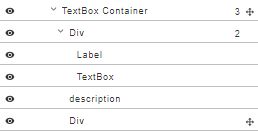
Figure 8: Textbox Container wrapper elements
If a control has different options or items within that, say for example, a checkbox or radio has a list of items, each of those items can be considered as different divisions and configured separately by clicking on that.
- Some of the controls do not have any container based on its behavior.
- You can configure the control, control label and the control container separately by clicking each item separately.
-
Click the Control container. Up arrow, move, copy, and remove icons appear on the top-right.
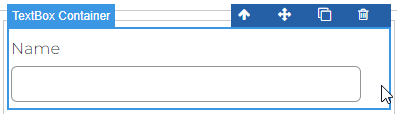
-
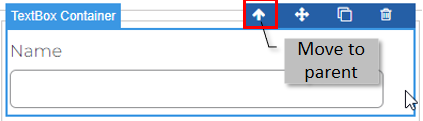
Click the up arrow. The control focus moves to its parent control.
-
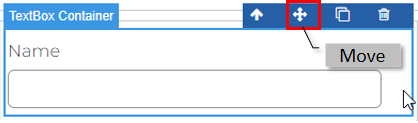
Click the Move icon and drag it to the desired location in the designer. You can move the control from one Form to another Form within the same page.
-
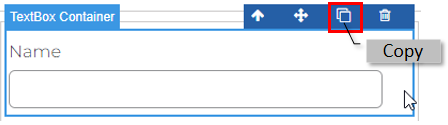
Click Copy to create a copy of the control within the same form view.
-
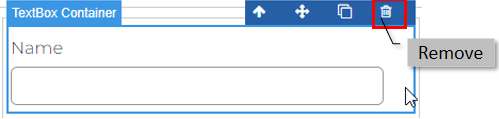
Click the delete icon to remove the label section from the control container.
You can apply Configurations and Styles to each control within the control wrapper. Configurations are separate for each control element based on the behavior of the control. Styles are sets of cascading style sheet (CSS) features that apply to each of the controls.
The Main Control
The main control in the control wrapper has the specific configurations of that control. The main control within the control wrapper is different for different controls. For Checkbox and Radio controls, the main control is the Control container. So based on the property of the control, the configurations are defined.
- Drag a control to the designer, it comes along with a wrapper.
-
Click the dashed border icon in the toolbar to view the borders (displayed as dashed line boxes) of each sub element in the control wrapper.
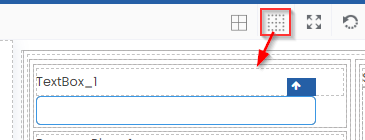
Figure 9: Dashed Border tool and dashed border lines in designer -
Click the border icon in the toolbar to view the control. Border control just highlights the control as a whole with a line border.
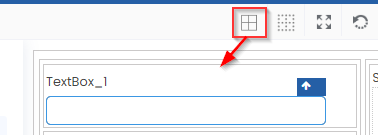
-
Click the control. The up arrow appears on top of the on the top-right of the control.
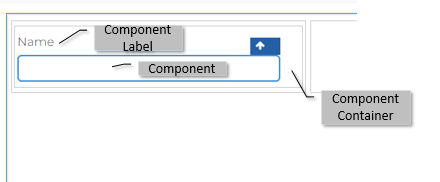
- Click the up arrow. The control focus moves to its parent control.
Label Control
-
Click the label of the control. Up arrow and remove icons appear on the top-right of the label.
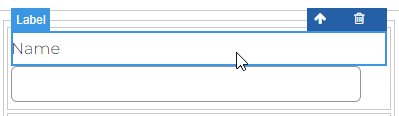
-
Click the up arrow. The control focus moves to its parent control.
-
Click the remove icon to remove the label section from the control container.
-
Double-click the text content in the label container (e.g., double-click “Name”) and type the required label.
Moving a Control
You can move the control around the form view designer. Each control in the view along with its label is within a control. You can move the control just by clicking and dragging the control container or using the move icon of the container.
-
Navigate to App Studio > Applications > Process Flows > Form entity and select a form of type view.
-
Click More to view the Form View Designer.
-
Click the control in the form view designer to view the control actions.
-
Click the Move to Parent arrow icon to move the control focus to the parent container.
-
Click the Move icon and drag it to the specified location in the form view designer.
Copying a Control
Click to copy the control.
-
Navigate to App Studio > Applications > Process Flows > Form entity and select a form of type view.
-
Click More to view the Form View Designer.
-
Click the control in the form view designer to view the control actions.
-
Click the Copy icon for a control in the form view designer. The duplicated control appears just below the original control. You can click the control and then CTRL+C and CTRL+V to duplicate the control.
- All the properties in the configuration of the control are copied to the copied control except the Property Name field (the name of the control variable name) which the system automatically sets.
Removing a Control
You can either use the remove icon on the control or the control container to remove the control or the complete container or just press the DEL key after selecting the control.
- Navigate to App Studio > Process Flows > Form entity and select a form of type view.
-
Click More to view the Form View Designer.
-
Click the control in the form view designer to view the control actions.
-
Click the Remove icon. The control gets removed from the form view designer. Removing the control will remove all of its child controls (if any).
Creating and Resolving Local Variables
Example 1: Variable in Form Control
Some of the Form controls accept local variables (Image Grid, List view) that can be resolved in the runtime.
To provide a variable in the designer, the control should have a text or label appearing in the designer where you can type your text. If the control accepts a data entity (multiple values), you can map a data entity to the control. So if you map a data entity with 10 records and map to a control, 10 controls are displayed in the runtime with 10 different values fetched from the data entity table.
-
You can map a data entity attribute to the variable that you define in the text.
-
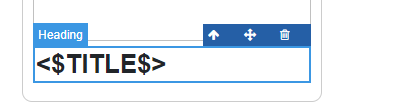
Directly type any variable name in the format <$variablename$> . This is how you create a local variable.
-
Click Configure Events (Configure Event of the wrapper control within which this local variable is defined) > Select Event > Select Action Type as Fetch Data Entity.
-
Click the Configure icon.
-
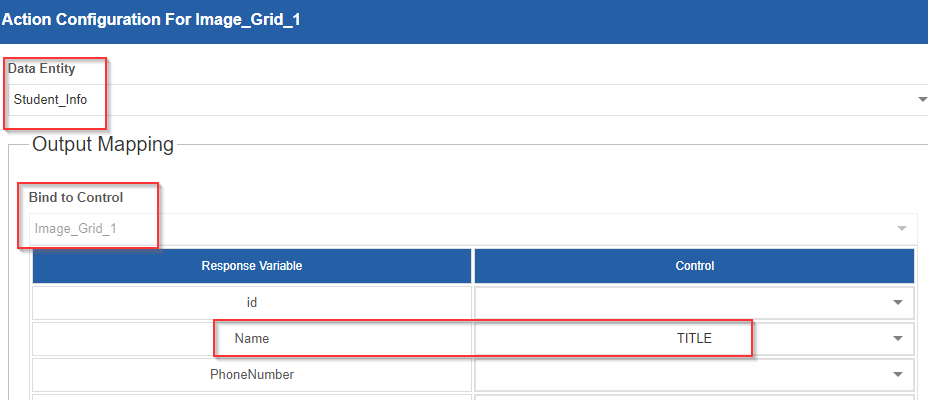
In the Configuration section, select the Data Entity. The Output Mapping details appear based on the data entity selected. The Bind to Control field specifies the control to which you are configuring the details.
-
In the Output Mapping select the variable name and the corresponding attribute (the response variable).
This is how you define a local variable and map it to a control. The configuration is the same for all type of controls that accepts the local variable definition. Some of the controls may not accept multiple values, hence it will take the first value from the data entity attribute.
Example 2: Variable in Card Control
You can type a variable name within any HTML control and a few other controls directly in the required format and then configure this variable to capture details during the run time.
Variable format: <$variablename$>.
For example,
- Drag a Card Control.
-
In the Heading element, enter a variable name say, City name in the required format. That is enter <$CityName$>.
In the same way, you can add multiple variables. (In the paragraph element enter, a variable named details.)
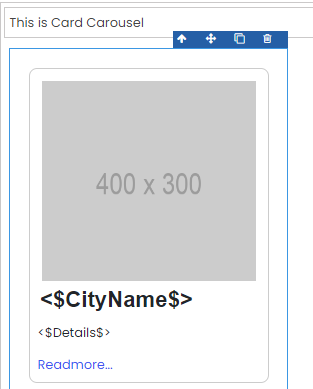
Figure 10: Variables, <$CityName$> and <$Details$> in the card control -
You can resolve the variable by mapping this variable from the data coming from a process variable or a data entity variable (this variable appears in the control drop-down).
-
Click Configure Events and select the Event as BEFORE RENDER and Action Type as Fetch Data Entity.
-
Select the Data entity name and the details appear. You should create a data entity in the Manage > Data Catalog module with the required attributes or columns. This data entity should have some records so that it can be viewed in the runtime.
Generic Control Config Properties
- Navigate to App Studio > Applications > Process Flows > Form entity and select a form of type view.
-
Drag a control to the view designer.
-
Click the control. Configuration details appear on the right side.
-
Click Config tab.
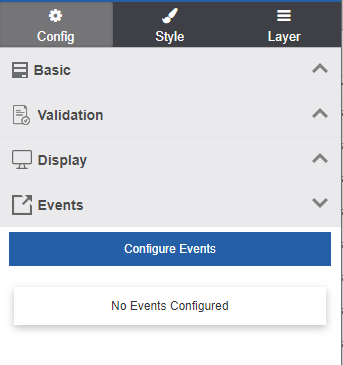
Figure 11: Configuration detail of the selected control -
Enter the configuration details. You cannot edit the configuration fields that are disabled. Configuration details for each control will be different based on the behavior of the control. Also, the variable name of the control is not editable once you save it.
The controls have a few sets of similar configurations and a few configurations specific to the control.
-
Click Save icon to save the configuration details (or click Cancel icon to cancel the action).
Config – Basic
Basic properties differ based on the control behavior.
-
Click the control and click the Basic accordion in the Config tab.
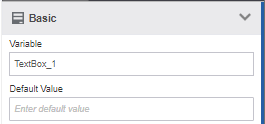
Variable name and Default Value are common for Form controls.
-
Variable: Variable is the name of the control. The name of the control is taken as the variable.
-
Default Value: Default value for the control (if needed)
However, Id and Tile are common for most of the control containers in the HTML controls category.
-
Id: The id of the selected control container. Enter an id for the container that can be used for reference.
-
Title: Enter the title for the container. This appears as the tooltip.
Config - Display
Properties in the display configuration section are almost the same for all the controls.
-
Click the control and click the Display accordion in the Config tab.
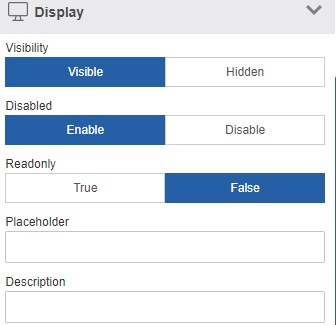
Figure 12: Display Properties
| Field | Description |
|---|---|
| Visibility | Select Visible to make your control visible to the user. Select Hidden to make your control hidden from the user. |
| Disabled | Select Enable to make the control enabled so that the user can act on it. Select Disable to make the control disabled so that the user cannot act on it. |
| Read Only | Select True to make the control read-only, that is you cannot edit the details. Select False to make the control editable. |
| Placeholder | Enter placeholder content. |
| Description | Enter the descriptions if any. |
Config - Events
Events associated with the control in the runtime are configured in the Configure Events section. This section has multiple calls to action based on the behavior of the control.
At the runtime when a user acts on the control (i.e., an event is executed), as per the event configuration call to action happens. You can configure multiple events for a control.
-
In the Config tab, click the Events accordion. The configured events are displayed here. If no events are configured, “No events configured” appears.
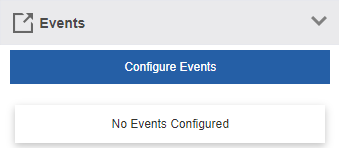
Figure 13: Event Configuration Button – Configure Events -
Click Configure Events. Event Configuration pop-up for the selected control appears.
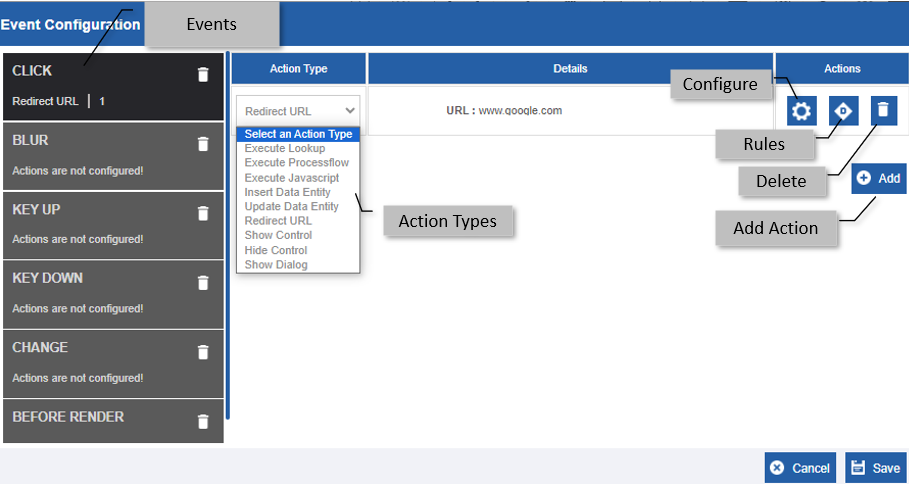
Figure 15: Events, Action Types and Configurations. (E.g., screen for Text area control) -
Select an Event from the list of Events. This indicates when the action type defined should happen. The Events are control-specific and it lists the events applicable only to the selected control.
Refer to Events and Details. -
In the Action Type list, select an action type. The action type specifies what exactly is to be executed when the event selected in step 3 is encountered.
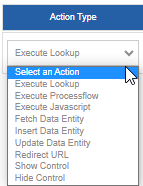
-
In the Actions column, click the Configure Actions icon. Based on the Action Type selected the pop-up appears. This details the parameters or mappings that are needed for the execution of the selected action type.
Refer to Configuring Event Action Types for more details. -
After configuring the action type, in the Actions column, click the rules icon. You can configure rules only after updating details in the Configure Action pop-up. The rules pop-up appears. Here you can write rules based on which you can trigger the action type. Refer to Adding Rules for the Action Types for more details.
-
For deleting a particular action type that you configured, in the Actions column, click the delete icon.
-
For configuring multiple events and action types, click the Add button. You can configure action types and rules for the same control.
-
Click Save to save the details that you configured. The Actions section on the properties panel displays your saved configuration.
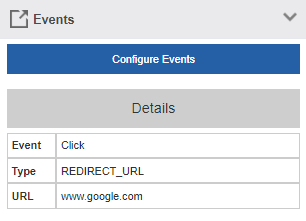
Events and Details
Events are actions that are executed or applied to the control during the runtime.
Each control configuration will display a list of events applicable only to that control.
You can define multiple events for a control.
You can define multiple action types for an event.
On the execution of an event, what should happen is indicated in the action types and it is defined in the configuration and rules.
The following are the event types available for the controls. Not all events apply to all controls. Events are control-specific
-
CLICK: Indicates what should happen on click of the control during runtime.
-
BLUR: Indicates what should happen on blur of the control during the runtime.
-
KEY UP: Indicates what should happen on key up of the control during the runtime.
-
KEY DOWN: Indicates on key down of the control during the runtime.
-
CHANGE: Indicates what should happen on change of the control during the runtime.
-
BEFORE RENDER: Indicates what should happen before render of the control during the runtime.
-
CHECKED: Indicates what should happen on check or selection of the control during the runtime. This applies only to the checkbox and radio buttons.
-
UNCHECKED: Indicates what should happen on uncheck or deselection of the control during the runtime. This applies only to the checkbox and radio buttons.
Configuring Event Action Types
For the selected event you should define an action type and configure the details for the action type. For an Event, you can add multiple action types.
For a selected Action Type, the configure action pop-up displays action type-specific parameters or mapping.
-
Click the control.
-
In the Events section, click Configure Events. An event configuration pop-up appears.
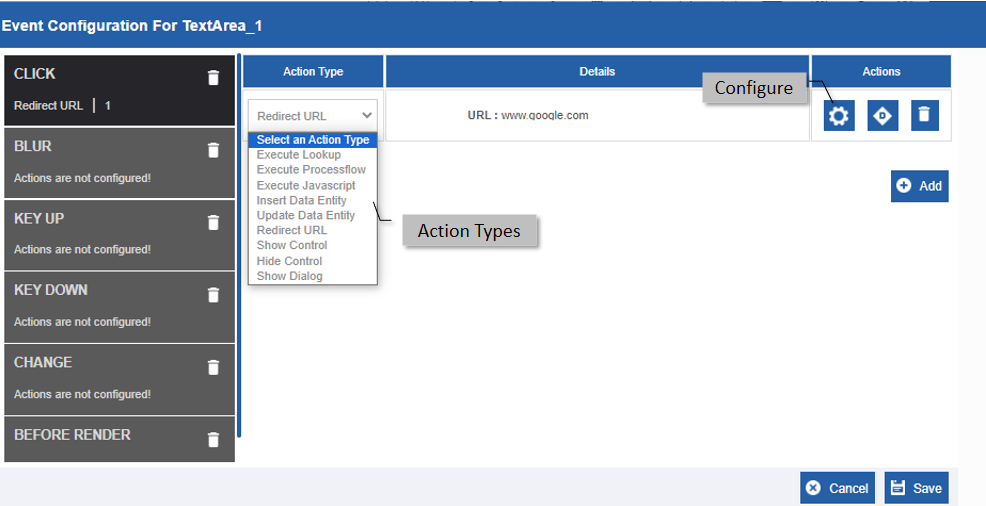
Figure 17: Action TypesThe Action Types listed in the Action Type list are strictly based on the control selected.
-
Once you select an action type and click the configure icon, the configuration for that action type appears on the pop-up.
The list of common action types and the configurations are detailed in the following subsections.
Execute Lookup
Action Type: Execute Lookup.
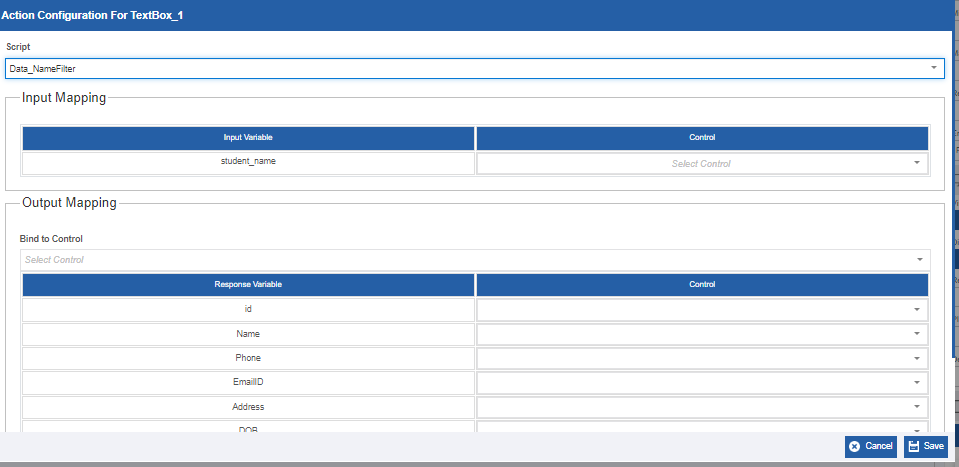
Figure 18: Execute lookup configuration
For configuring a lookup in form view, select the database script.
-
Select the database script. Input Mapping and Output Mapping details appear as applicable.
There is no Input Mapping for execute lookup. -
In the Output Mapping, corresponding to the required response variable select the control name. At runtime, the selected response variable value is stored in the selected control.
-
Click Save to save the configured details.
Execute Process Flow
Execute process flow action type is used when you need to interact with a process flow while you are accessing the view in the runtime.
You can input details to the process flow and get the details from the process flow for further use in the view. That is, you can use the Input mapping feature to input values to the process flow variables and the output mapping feature to capture the process flow output variables and utilize that in the views.
Action Type: Execute Process flow.
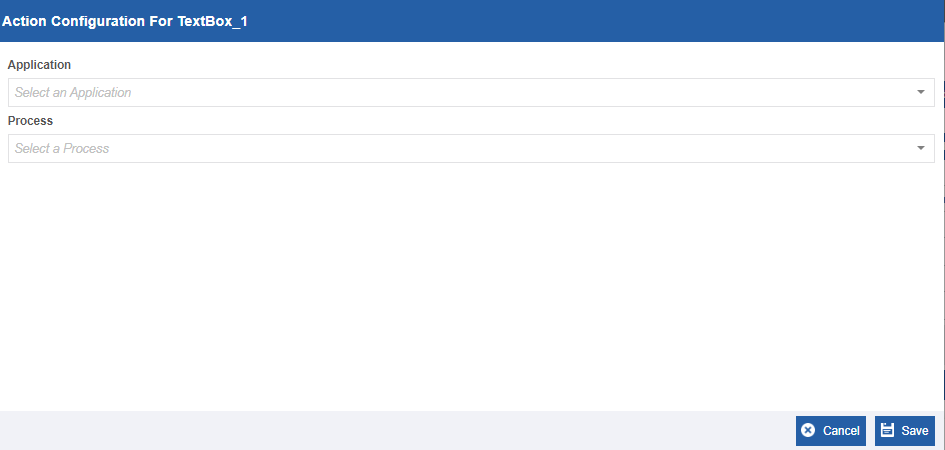
Figure 19: Execute process flow configuration
- Select the required application name. The list of deployed processes in the application gets listed in the process list.
-
Select the required process name. Input Mapping and Output Mapping details appear.
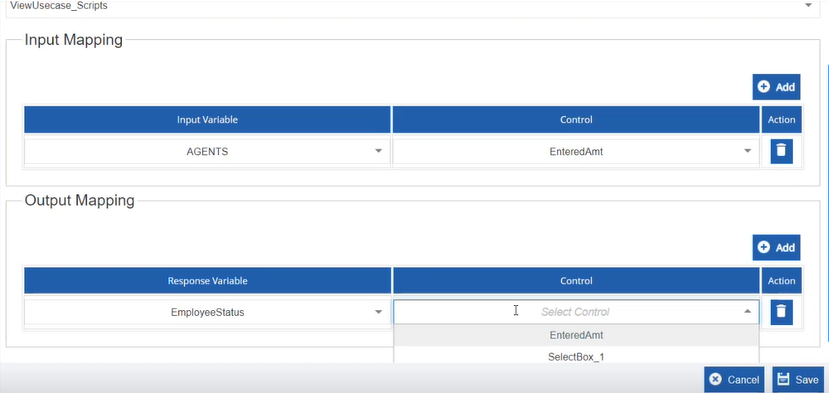
Figure 20: Input and Output mapping for the process flow
-
In the Input Mapping section, select the input variable and then select a control name. At runtime, the selected input variable value is stored in the selected control.
-
In the Output Mapping, select the response variable and then select the control name. At runtime, the selected response variable value is stored in the selected control.
-
Click Save to save the configured details.
Execute Javascript
Execute Javascript is used when you want to use any specific logic or calculation or any other activity that is not part of the usual platform feature.
Action Type: Execute Javascript.
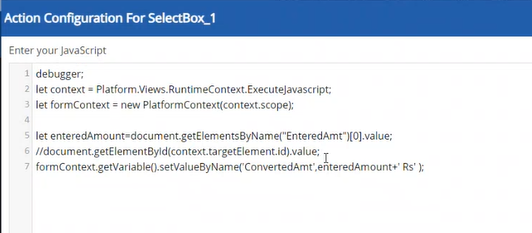
Figure 21: Javascript editor with the necessary methods
- For configuring javascript, enter the javascript in the editor and click Save.
Exposed Platform util methods
Let context = Platform.Views.RuntimeContext.Executejavascript;
PlatformContext() – This method allows you to fetch the variable data/control element ids in the view.
Access these methods using the javascript.
Fetch Data Entity
The Fetch Data Entity action type is usually associated with the Before Renderer Event.
Action Type: Fetch Data Entity.
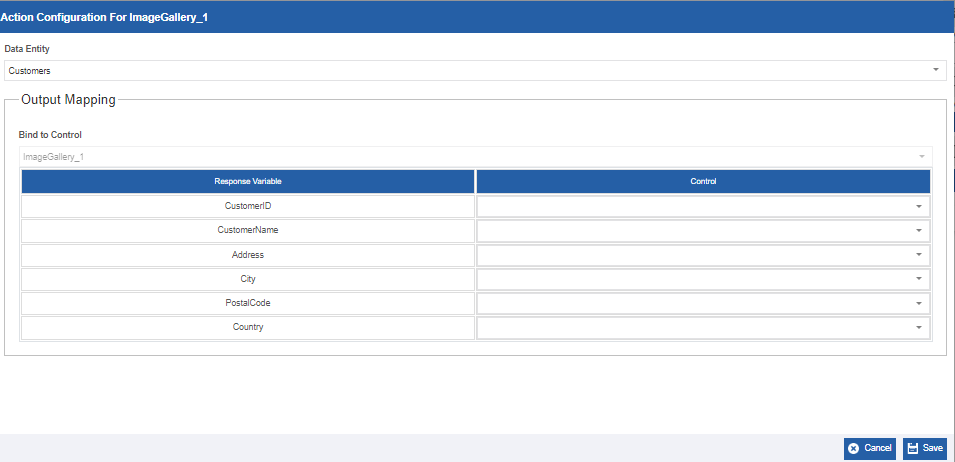
Figure 22: Fetch Data Entity configuration
- Select the required data entity name. The data entity-related configuration details appear. The Response Variables listed are the attributes or columns of the selected data entity.
-
In the Output Mapping, select the control name corresponding to the required response variable. At runtime, the selected response variable value is stored in the selected control.
-
Click Save to save the configured details.
Insert Data Entity
Action Type: Insert Data Entity.
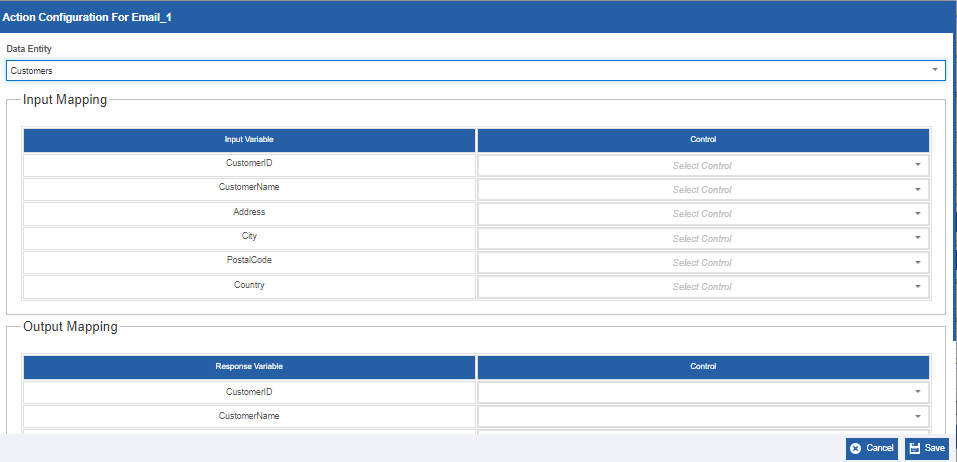
Figure 23: Insert Data Entity Configuration
-
Select the required data entity name. The data entity-related configuration details appear. Input Variable indicates the attributes or the columns of the data entity.
-
In the Input Mapping section, select a control variable name. At runtime, the selected input variable takes the input value and it is inserted to the data entity table for the corresponding attribute or column.
-
In the Output Mapping, select the response variable and then select the control name. At runtime, the selected response variable value is stored in the selected control.
-
Click Save to save the configured details.
Update Data Entity
Action Type: Update Data Entity.
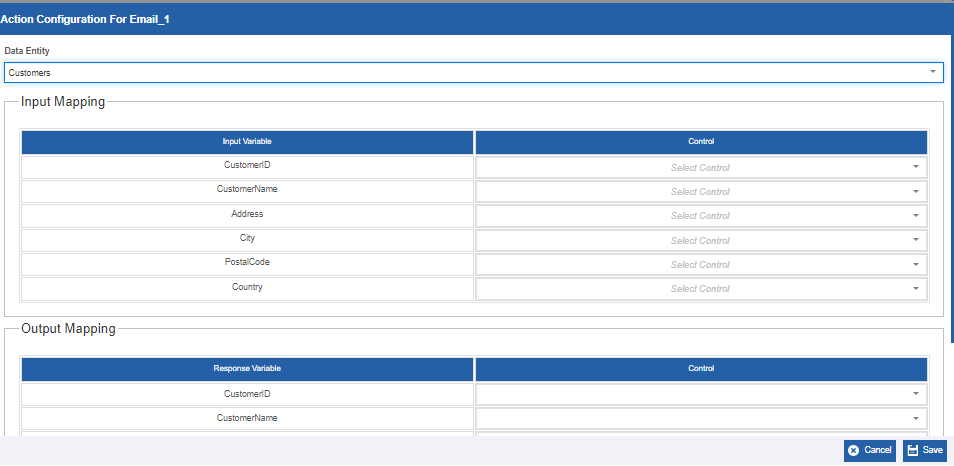
Figure 24: Update Data Entity configuration
-
Select the required data entity name. The data entity-related configuration details appear. Input Variable indicates the attributes or the column of the selected data entity.
-
In the Input Mapping section, select a control variable name. At runtime, the selected input variable takes the input value and it is updated in the data entity table for the corresponding attribute or column.
-
In the Output Mapping, select the response variable and then select the control name. At runtime, the selected response variable value is stored in the selected control.
-
Click Save to save the configured details.
Redirect URL
Action Type: Redirect URL.
On execution of the event, you will be redirected to the URL provided in the Redirect URL field.
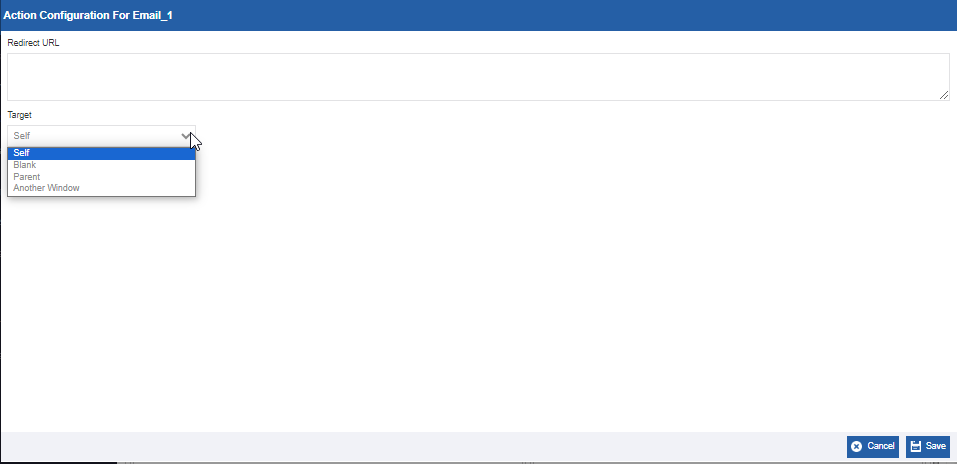
Figure 25: Redirect URL configuration
-
In the Redirect URL, enter the full URL.
-
Click Type and select the required type of redirection.
-
Self: The URL opens in the same window and tab.
-
Blank: The URL opens in a new blank tab.
-
Parent: The URL opens in the Parent frame. Use this when you are working within a framed environment and want the URL to replace the content of the parent frame.
-
Another Window: The URL opens in another window and tab.
-
-
Click Save.
Show Control
Action Type: Show Control.
Show Control can be used for showing the dialog modal for any event.
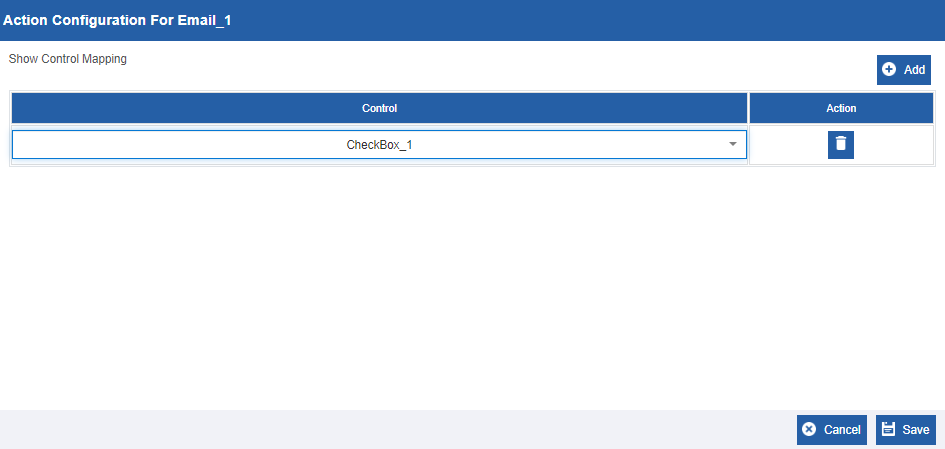
Figure 26: Show Control mapping
-
Select the control name. The selected control will be shown in the UI when the event is encountered.
-
Click Add to select multiple controls that are to be shown or displayed.
-
In the Action column, click the delete icon to delete a control mapping.
-
Click Save to save the configurations.
Hide Control
Action Type: Hide Control.
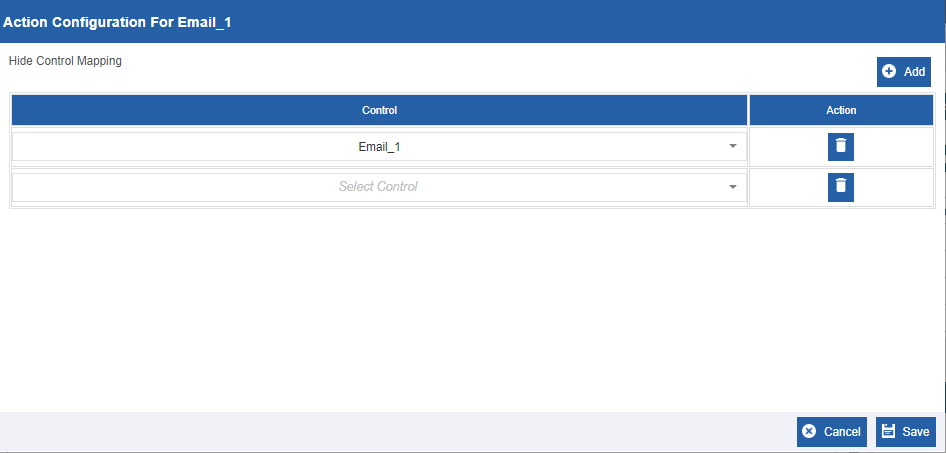
Figure 27: Hide Control Mapping
-
Select the control name. The selected control will be hidden in the UI when the event is encountered.
-
Click Add to select multiple controls that are to be hidden.
-
In the Action column, click the delete icon to delete a control mapping.
-
Click Save to save the configurations.
Show Dialog
Action Type: Show Dialog
Show Dialog action is used to show a dialog box popup on the execution of the selected event.
In the view designer, drag a Dialog Modal control and configure the details as needed. Now the requirement is that this dialog modal must be displayed on execution of an event.
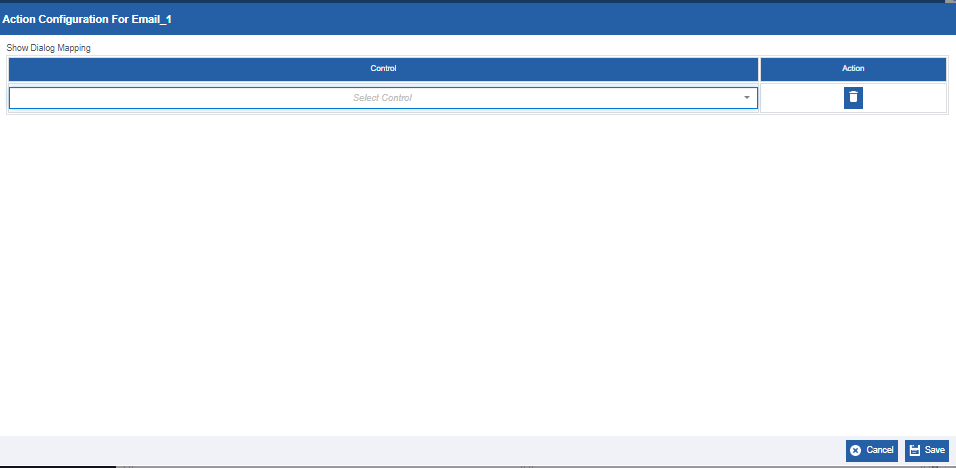
Figure 28: Show Dialog Mapping
-
Select the control name. The selected dialog model control will appear in the UI when the event is encountered.
-
In the Action column, click the delete icon to delete a control mapping.
-
Click Save to save the configurations.
Adding Rules for the Action Type
After configuring the action type, you can define a rule for the action type. For a particular action type, if you have defined two rules, it will execute the first rule in the order. If it is satisfied, it executes the action, else it will execute the second rule. If the first rule is satisfied, the remaining rules are ignored.
-
Click the control.
-
Click Configure Events on the right-side panel.
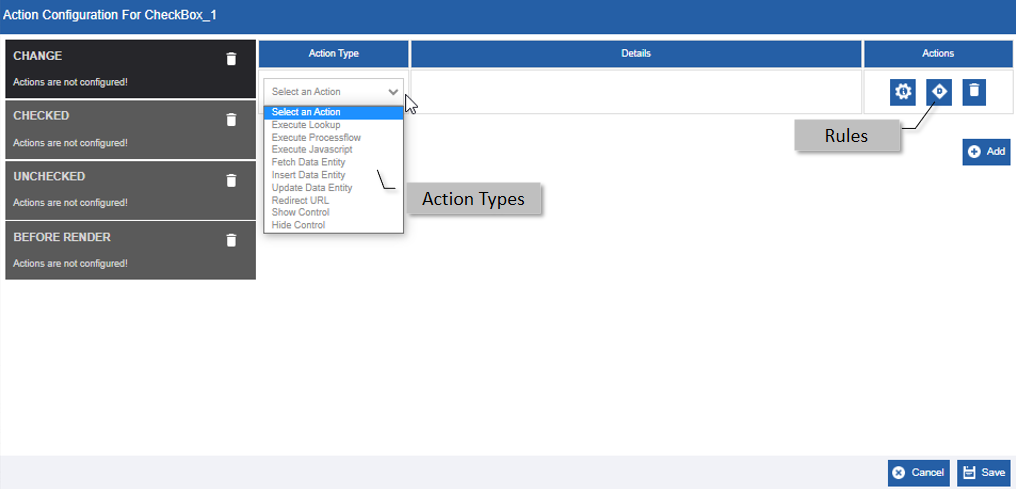
Figure 29: Configure Rules -
In the Action column, click the Configure Action icon configure the details, and save. Rules can be defined only after providing the configuration details.
-
Click the Rules icon and the rule builder pop-up appears.
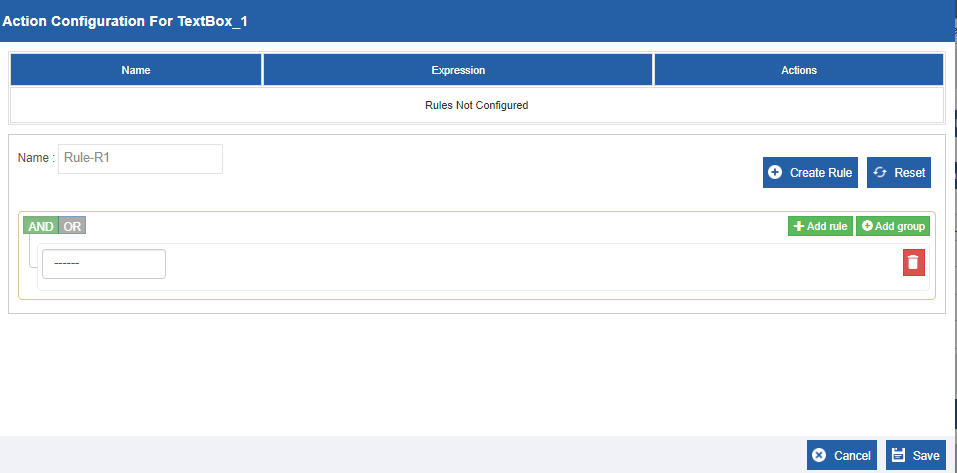
Figure 30: Rules Configuration -
In the Name box, enter the name for the rule.
-
Click the text box below AND/OR.
-
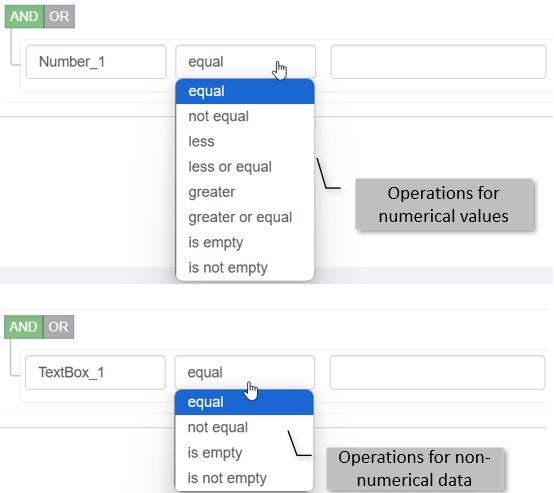
Select the control or variable to which the rule is to be applied. Operator box and Condition boxes appear. The operator values are dynamically populated based on the datatype of the control selected in the first box. The operator values differ for numerical values and non-numerical data.
-
Select the operator and enter the condition.
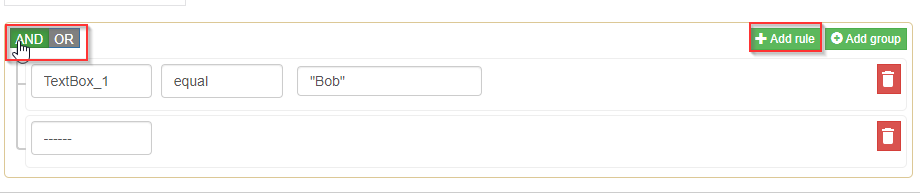
Figure 31: Adding rules -
Click Add rule to add multiple conditions. This becomes one group of condition.
-
Click the text box below AND/OR.
Choose the AND or OR for the group. If you choose AND condition, the AND condition gets applied to all the conditions in that group.
-
To add another condition (say, with OR condition) applied between the rules, select Add group.
Add multiple rules using the Add rule and then apply the required operator and conditions.
Add multiple groups using Add group and then apply the conditions.
-
Click the delete icon to delete a particular condition or group.
-
Click the Reset icon to clear and reset the rules
-
Click Create Rule. The rule is created and appears under the grid above the rule builder. Each rule that you save gets added to this grid. Unless you click Create Rule, the rule will not get created.
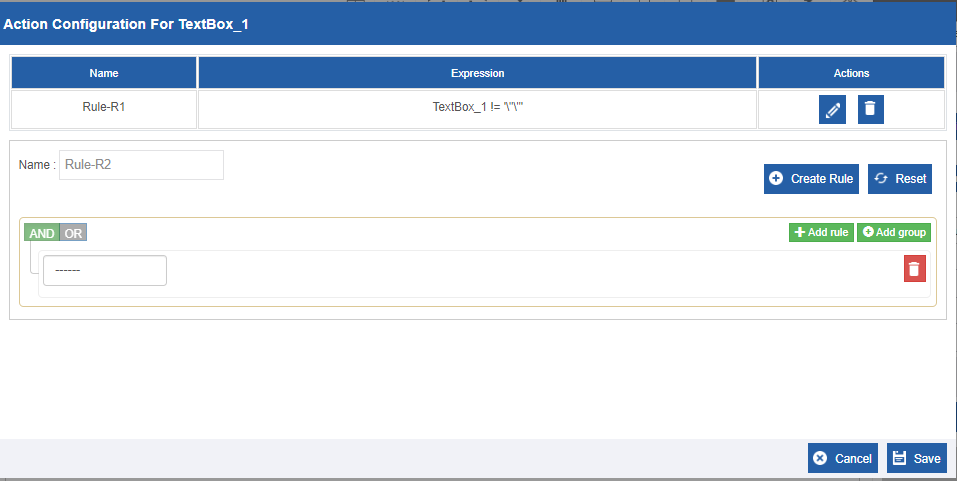
Figure 32: Displaying the Rule created -
In the Actions column, click the edit icon to edit an existing rule.
-
In the Actions column, click the delete icon to delete an existing rule.
-
Click Save.
Config – Validation
Some of the properties in the Validation configuration section are the same for all the controls. However, based on the behavior there can be control-specific validations. Some of the controls like button control do not have any validation property itself
- Click the control and click the Validation accordion in the Config tab.
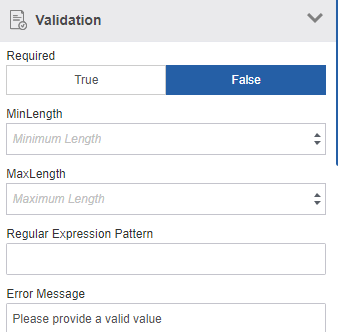
Figure 33: Validation Properties (e.g., Text Area control)
| Field | Description |
|---|---|
| Required | Click true if you need to specify the control value as a required action during the run time. Click false if the input is optional during the runtime. |
| Min Length | Select the lower value of the length. In the runtime, the user should provide the minimum specified length of characters in this field. |
| Max Length | Select the upper value of the length. In the runtime, the user should not provide the length of characters above the maximum specified in this field. |
| Regular Expression Pattern | Enter regular expression pattern if any. |
| Error Message | Enter an error message. This error message appears if the user does not input data for a required field. |
Generic Style Properties
The style configurations mainly include the look and feel properties. The style aspects are the same for all the controls.
The Style configurations are also categorized into different subsections.
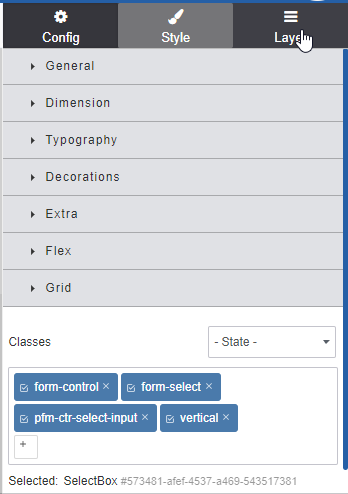
Refer to Style Configuration manual for more details.
Viewing Layers
The Layers section (tab) in the property panel allows you to view all the controls (in a hierarchical model) that are placed on the page. You can enable or disable the view of each control.
Layers display all the wrapper layers of the control. It represents how the control is laid out in the view, like its parent-to-child hierarchy from the Page editor to the selected controls.
-
Click a control in the form view designer and then click Layer tab on the properties panel.
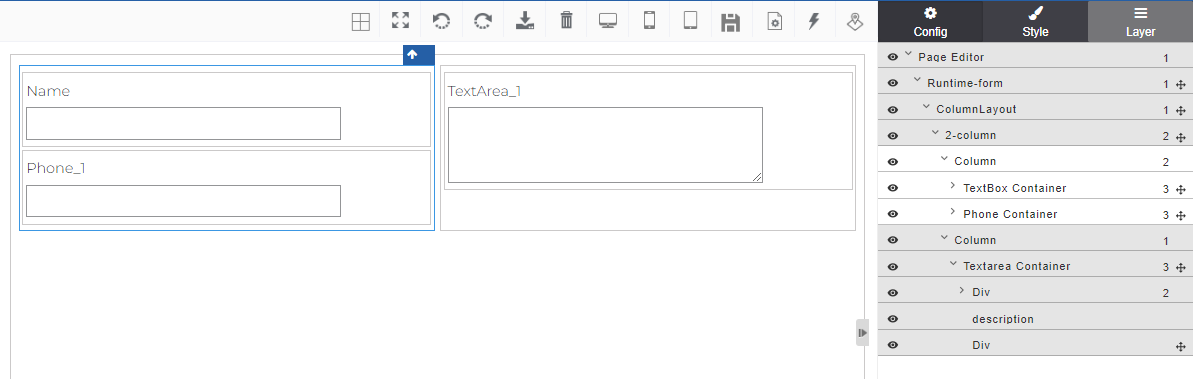
Figure 34: Viewing Layers of the page -
In the Layer tab, click and expand each layer name to view the layers within that layer.
-
In the Layer tab, click the eye icon of a control to show/hide the view of that control in the designer. If you hide a control, the control will be hidden during the run time also
-
Click the accordion of a control to view the list of all controls nested within that control wrapper. The accordion arrow indicates that there are controls within that control. The number indicates how many controls are nested within the control.
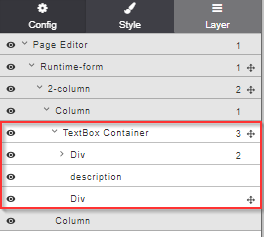
-
Click the move icon on the right side of the control and drag it to another layout control to move the control. The movement is indicated in the designer as well.
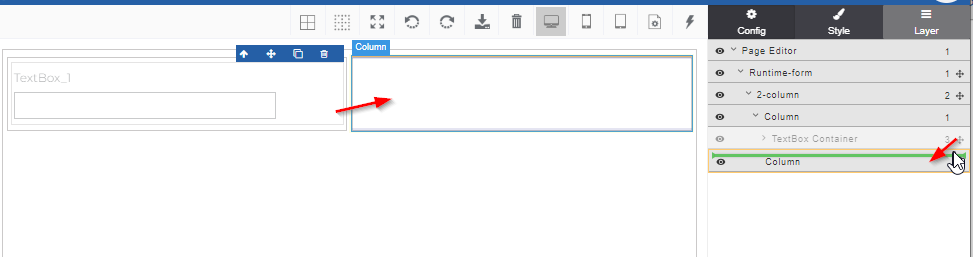
Control Wrapper Elements and Configurations
When you drag the control to the form view designer, the control appears as a wrapper of the control label, control field, control container, and Div if any.
You can configure the Configuration and Style of each of the elements in the control wrapper separately.
The control-specific configurations appear on the Config tab in the properties panel.
The Configuration of the main control is specific based on the behavior of the control.
Configuring Control Container Properties
For some controls, control-specific features are configured for the control field. For example, Text field, Text Area control. In this case, the Control container will have only the container configurations.
Consider Label control container (just an example, click any control container except the check box or Radio button).
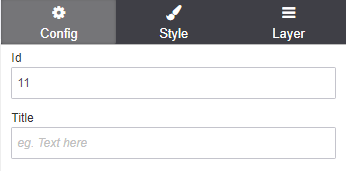
In the form view designer, click the label control container. The container name is visible on the designer and the properties are on the right side. Container properties configuration is optional. Id and Title are the common properties for the controls in the HTML controls category.
-
Id: The id of the selected control container. Enter an id for the container that can be used for reference.
-
Title: Enter the title for the container. This appears as the tooltip.
For some controls, the control-specific features are configured for the control container. For example, Checkbox, Radio button.
The container is the wrapper that holds the control and its related elements. The outer area of the button is the button container.
For controls that hold other controls, you can set the alignment of items within the control.
-
Click the container to configure the control Container. In the designer toolbar click the border icon so that you can view the border or all the wrapper items separately.
-
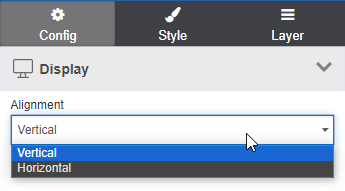
In the Display section of the Config, click the Alignment.
-
Select Vertical or horizontal alignment as per your need. Vertical is the default.
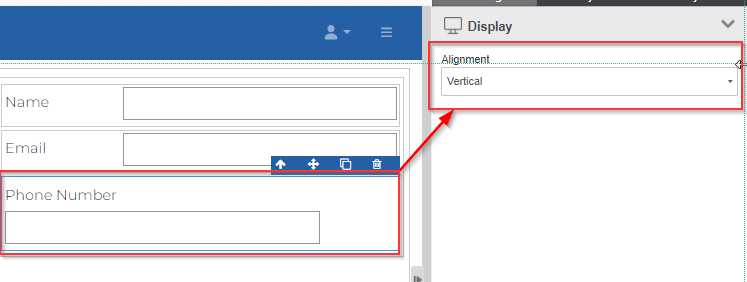
Vertical: When there are multiple controls within a control container, the controls are vertically aligned (for example the label and the control itself).
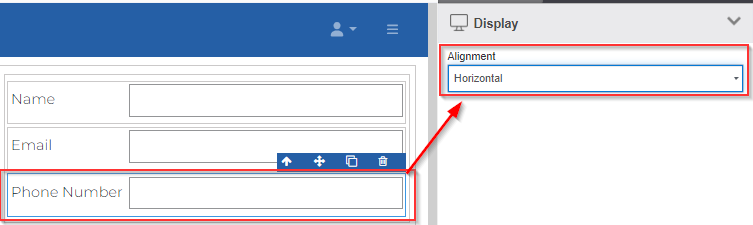
Horizontal: When there are multiple controls within a control container, the controls are horizontally aligned (for example the label and the control itself).
Configuring Control Label Properties
-
To change the label name of the control, double-click the control label name and type the new label.

-
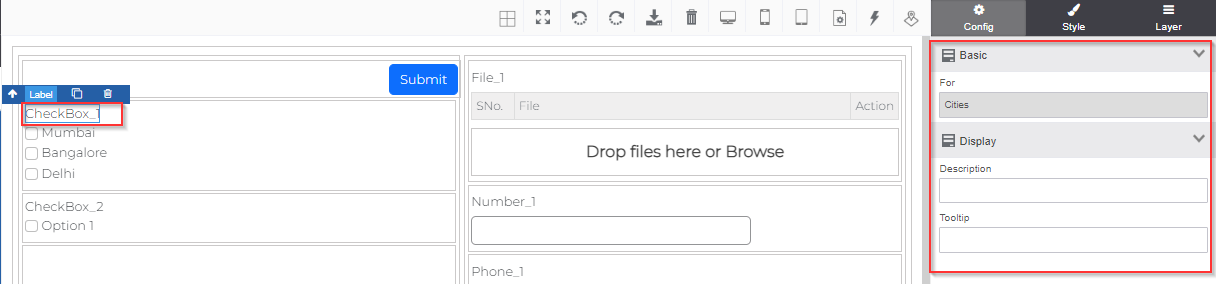
Click the label of the control and the Config tab on the right side displays the label properties.
-
For: For is a disabled field and it displays the name of the container variable name.
-
Description: Enter description if any.
-
Tooltip: Enter the tooltip for the label.
-
Configuring Control Option Properties
The controls like checkbox and Radio buttons have option controls within the container. That is, there is a list of items within that control, and each option is an item of that control to which you can apply configurations.
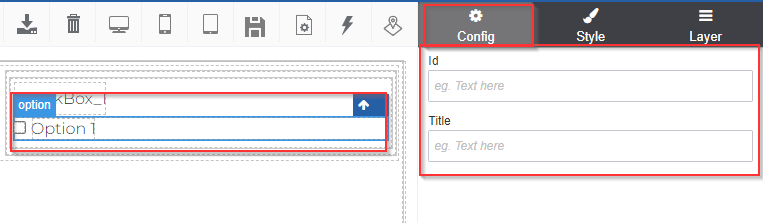
Id and Title (Tooltip) are the properties that apply to the option element.
-
Click the control option. The element will show “Option”. The property panel on the right side displays the properties of the Option element.
-
Click the “Option1” text in the designer to edit the text.
-
In the Basic section of the Config, enter the Id and Title for the selected control item. You can provide details for each item in the same way.
-
Id: Id of the element.
-
Title: The provided title will appear as a tooltip.
-
View Designer Tool Bar Features
The View toolbar displays the icon that is used for managing and working with Views. The following table gives a summary of the view toolbar.
| Feature | Description |
|---|---|
 Border |
Allows you to view the main border of a control. |
 Dashed border |
Allows you to toggle between the display that has dashed borders and without borders. |
 Resize and Preview |
Allows you to resize to full screen. This allows you to view the preview in full-screen mode and also allows you to configure the controls in preview mode. Press ESC to exit the full screen. |
 Undo |
Allows you to undo the current action. |
 Redo |
Allows you to redo the current action. |
 Import |
Imports form from the local to the form view designer. The file format should be JSON. Refer to Importing Views. |
 Clear Canvas |
Allows you to clear the canvas by removing all the controls in the designer. |
 Desktop |
To view Desktop view. |
 Mobile |
To view Mobile view. Refer to Building Responsive UI. |
 Tablet |
To view Tablet view. Refer to Building Responsive UI. |
 Form Settings |
Form Settings allows you to configure the whole form view. Refer to Configuring Form Settings. |
 Events |
Allows you to add events to the form view. Refer to Configuring Form Events. |
Preview Mode
-
Navigate to App Studio > Applications > Process Flows > Forms for creating Form View.
-
Create a view or open an existing view. View designer appears.
-
In the toolbar, click Resize icon. The preview mode appears with the configuration properties panel in the floating modal.
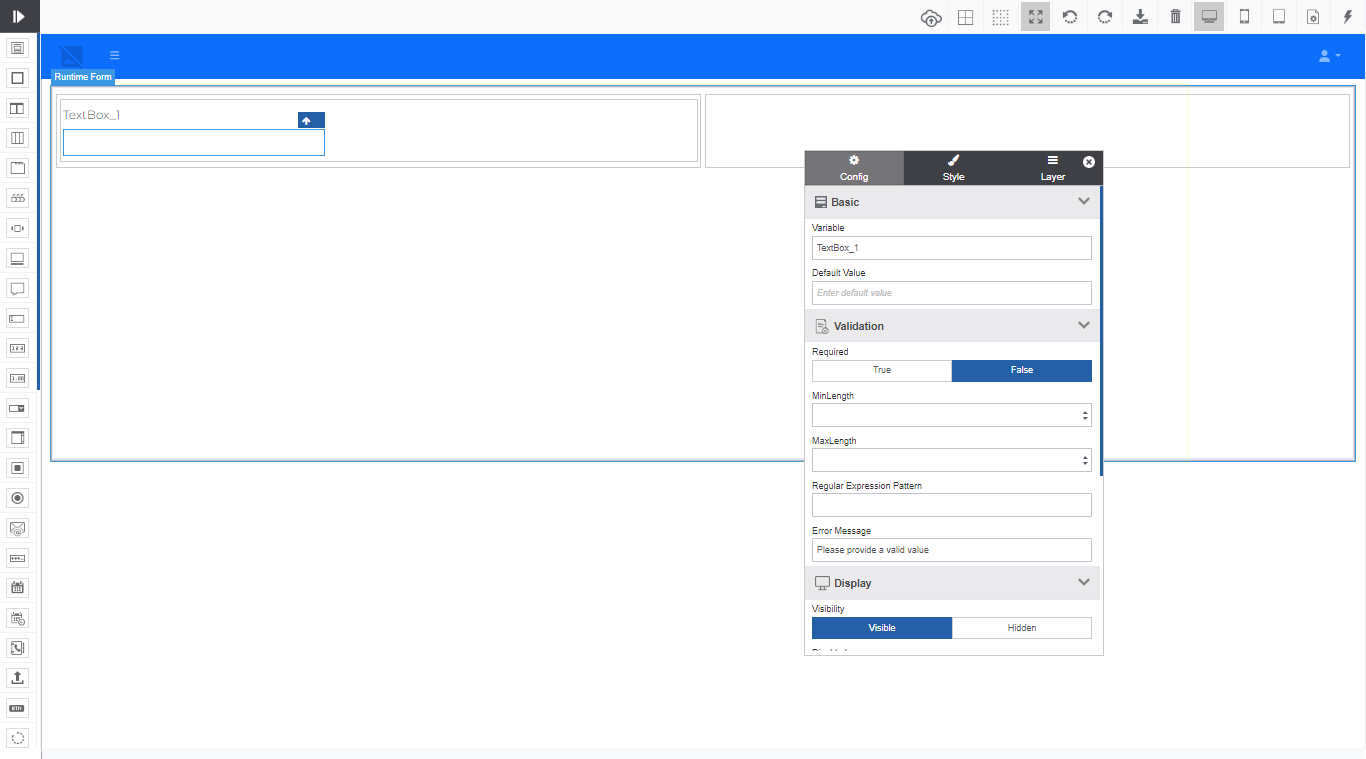
Figure 35: Preview mode with floating Properties panel -
Click the control and you can configure the properties in the preview mode configuration panel.
-
Click the close icon in the properties panel to close the properties panel.
-
Click the Resize icon again or press ESC on the keyboard to exit the preview mode.
Exporting Views
You can export the required views in the .pkg format to your local system.
-
Navigate to App Studio > Process Flows > Forms for creating Form View.
-
Hover over the Form View card. More actions appear.
-
Click Export. The export details appear.
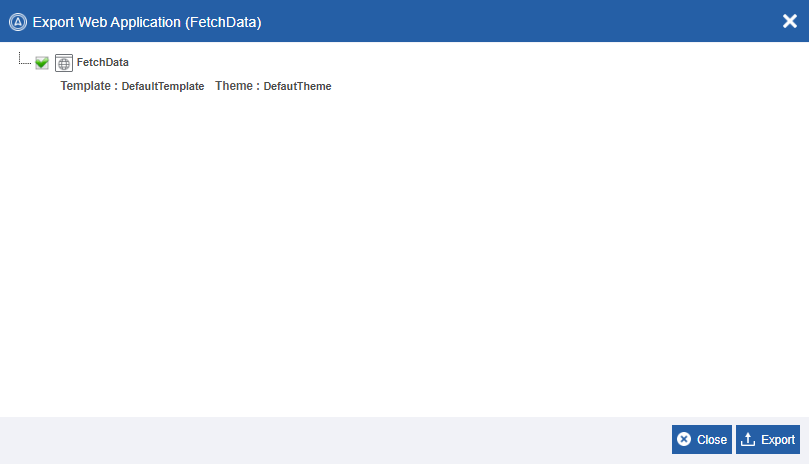
Figure 36: Exporting view -
Click Export. The selected view gets exported to the local system in the .pkg format.
Importing Views to Designer
You can import customized views in HTML format from the local system to the form designer. You can also import a complete web page or any other view created in the platform to the form and then make the needed edits on top of it.
- Navigate to App Studio > Process Flows > Forms to create Form View.
-
In the View designer toolbar, click the import icon.
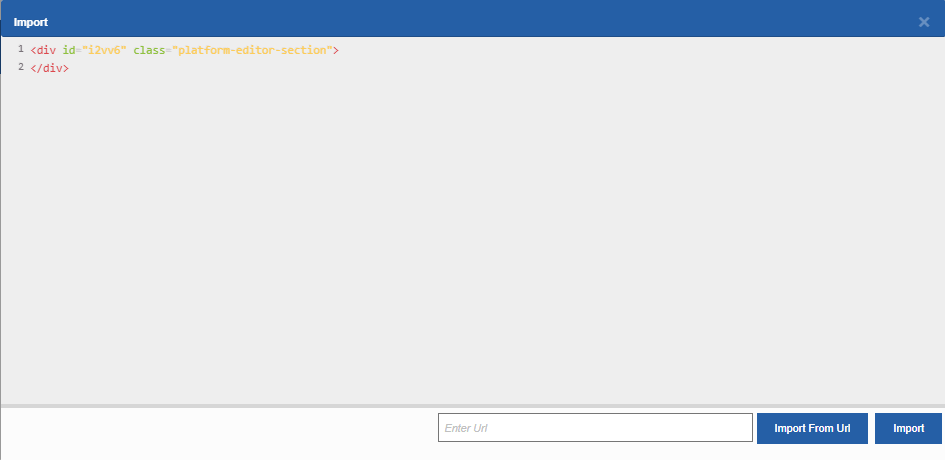
Figure 37: Importing views from the designer -
Copy the required HTML code and paste in the import window and click Import.
Or
In the Enter URL textbox, enter the web page URL or the view URL (copied from the platform or any external URL) and click Import From URL. The web page details get imported to the import page.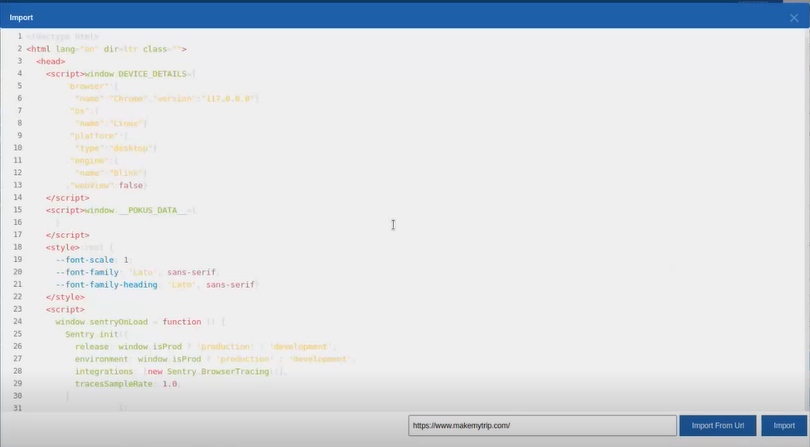
-
Click Import. When you import a URL, it will override the existing theme and template and load the whole content of the entered URL.
A Success message appears on successful import of the file.
Now your designer appears with the details of the imported URL. Edit the details as per your need and click Save and Publish to save the imported file.
Building Responsive UI
You can build responsive view layouts and design the details in the view on different devices using the responsive features available in the form view designer toolbar.
The view toolbar provides three layouts viz, Desktop, Mobile, and Tablet views.
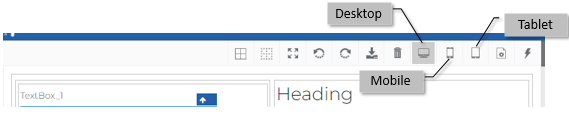
Figure 38: Responsive views in the view designer
- In the View toolbar, click a view (mobile or Tablet) to view the responsive layout on that device (Desktop view is the default layout view).
The responsive view for mobile and tablet can be custom-designed. That is, you can design your own look and feel in the responsive layout in the selected responsive view.
Custom Mobile responsive design is explained below.
-
Design a Desktop Layout in the designer.
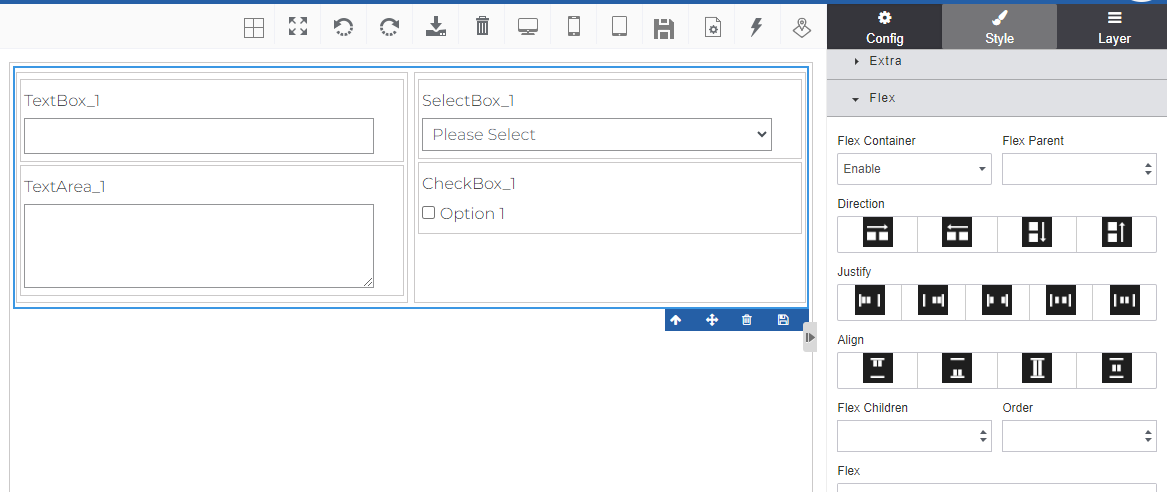
Figure 39: Desktop design view -
In the toolbar, click Mobile view. The layout gets adjusted to the mobile view.
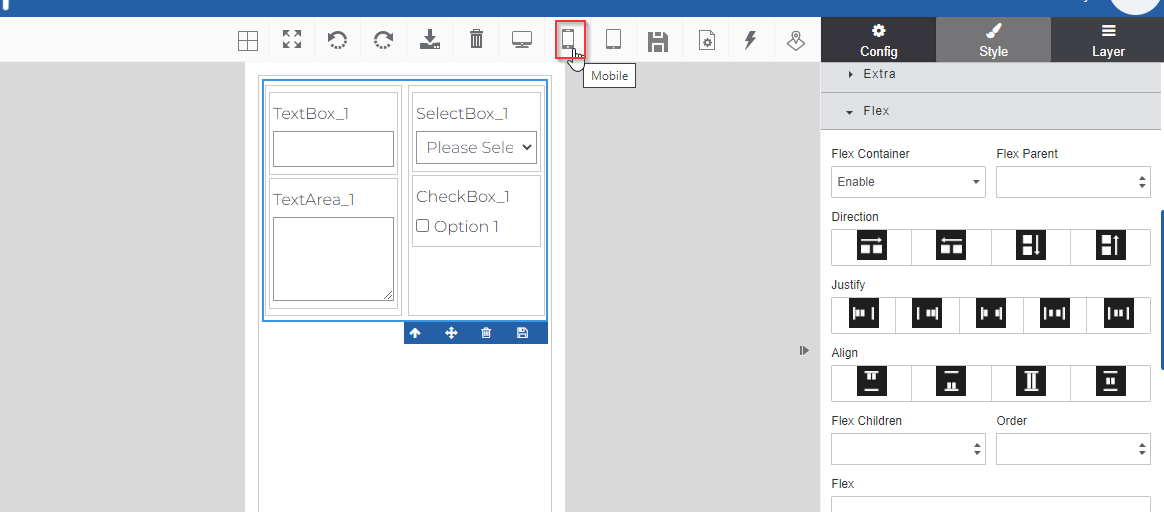
Figure 40: Default mobile responsive view -
In the Styles, click Flex and select a direction. Your layout will be modified accordingly.
-
In the designer, drag a control as per your design needs of the mobile view.
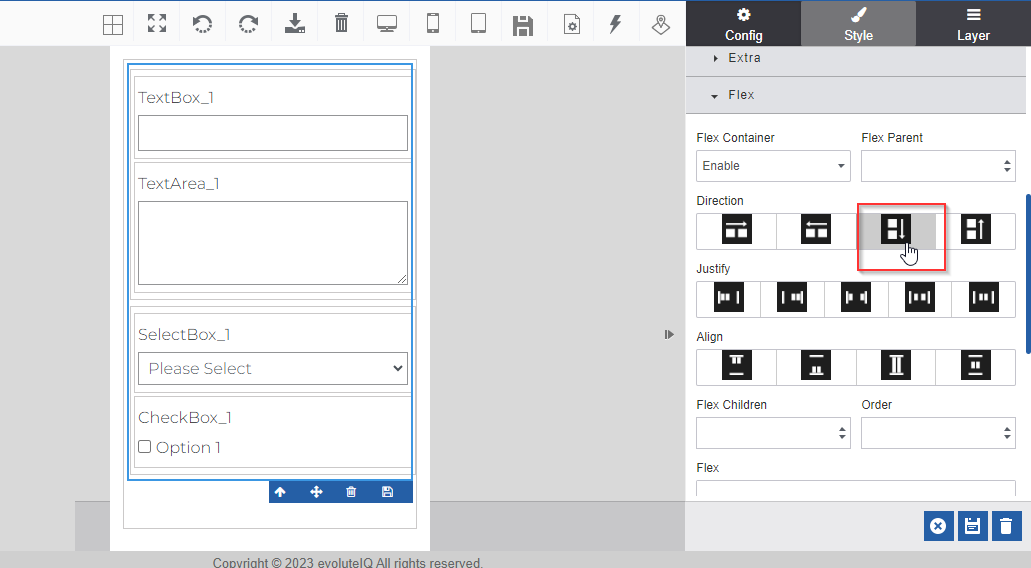
Figure 41: Modified responsive design viewYou can apply all the style features for a specific responsive view.
-
In the toolbar, click Tablet view. The layout gets adjusted to the tablet view.
-
In the Styles, click Flex and select a direction. Your layout will be modified accordingly.
-
In the designer, drag a control as per your design needs of the tablet view.
You can apply all the style features for a specific responsive view.
Refer to Style Configuration user manual for more details on flex options.
Configuring Form Settings
The features that apply to the whole view are configured in the Form Settings feature that is available in the toolbar.
-
Navigate to App Studio > Applications > Process Flows > Forms for creating Form View.
-
Select a form view and click More to view the Form View designer.
-
On the View Toolbar, click the Form Settings icon,
 to view the form
settings for the page.
to view the form
settings for the page. -
In the Form Settings pop-up, click the Settings tab. Setting details appear by default for form view.
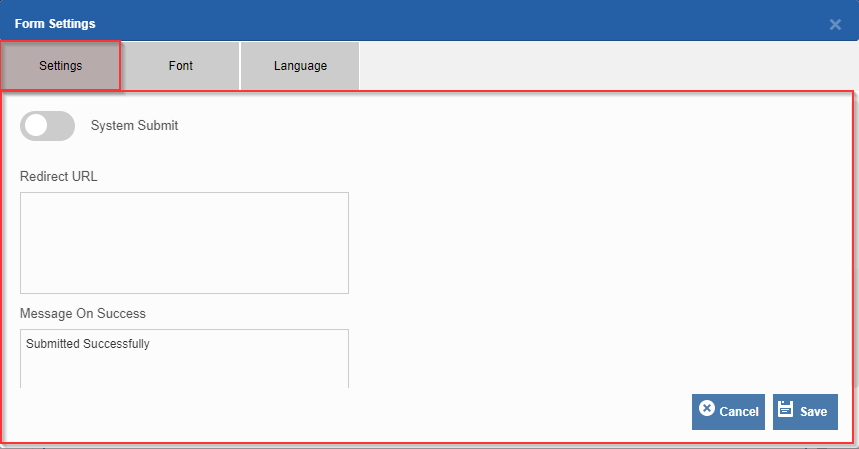
Figure 42: Form Settings – Settings tab -
Provide details in the Settings tab as explained below.
Field Description System Submit Enable System Submit to display the Submit button on the runtime form. A process flow form should have a submit button.
If you have not created any button for submit in the form and if you have enabled System Submit, a Submit appears on the form.
You can add the Submit button manually from the control list after disabling the System Submit.
Redirect URL Enter the navigation URL to which the system should redirect if you cancel the form. Message On Success Enter the message that should appear on the successful submission of the form. Message On Failure Enter the message that should appear if an error occurred during form submission. -
In the Form Settings pop-up, click the Language tab.
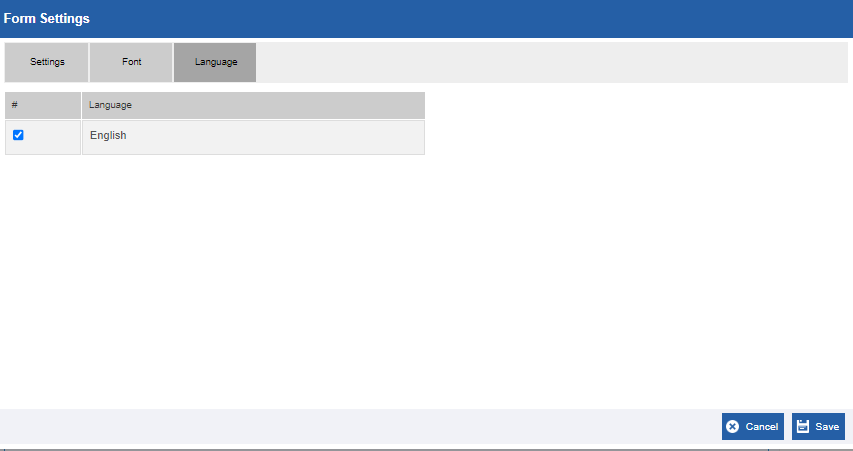
Figure 43: Form Settings - Language tab -
Select the desired language.
-
Click Save. The settings details for the form view get saved as per the details provided.
Configuring Form Events
You can add and configure the events based on actions performed in the form during runtime.
When an event is triggered, the action type mapped to the corresponding event is triggered.
BEFORE LOAD and AFTER LOAD events applicable to the whole view.
- Navigate to App Studio > Applications > Process Flows > Forms.
-
Select (or create) a Form of type view and click ⮊More to view the View designer.
-
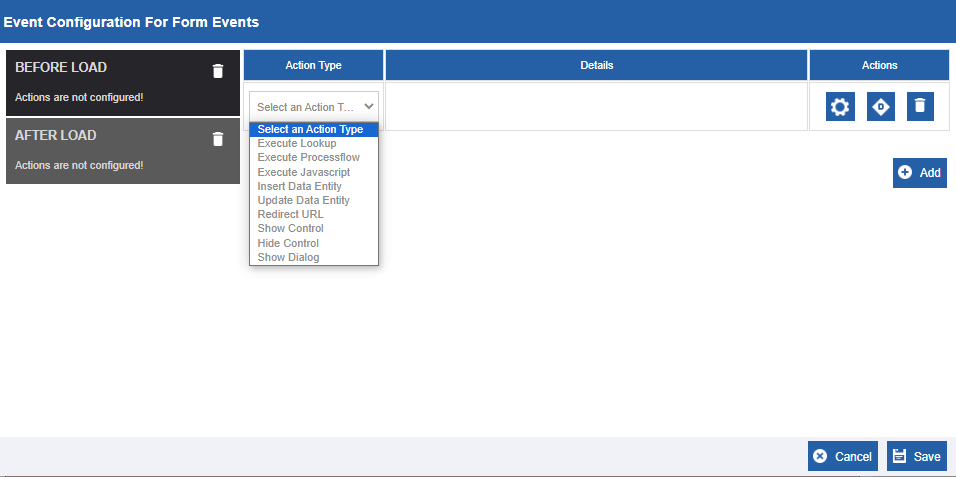
On the View Toolbar, click the Events icon (
). The Events pop-up
appears.
-
Click an Event. BEFORE LOAD and AFTER LOAD are the events applicable to the view.
BEFORE LOAD
The event configuration action will execute before the form load.
Before Load has the action types, Execute Lookup and Execute Process Flow.
The Rules feature does not apply to this event.
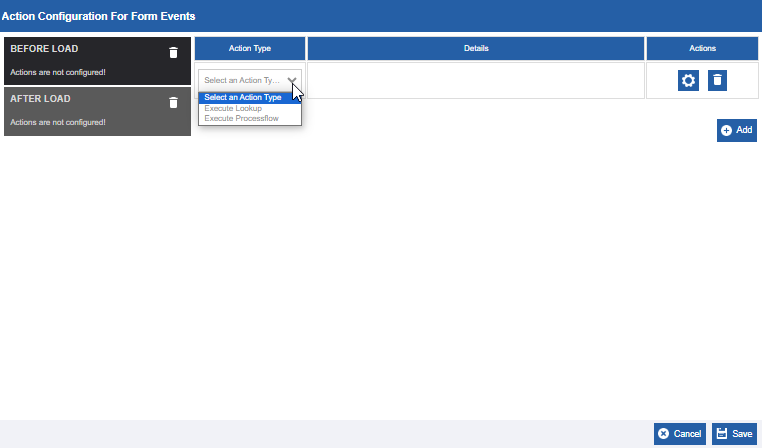
Figure 45: Before Load and action types
AFTER LOAD
The event configuration action will execute after the form load.
After Load has all possible action types.
The Rules feature is applicable for this event.
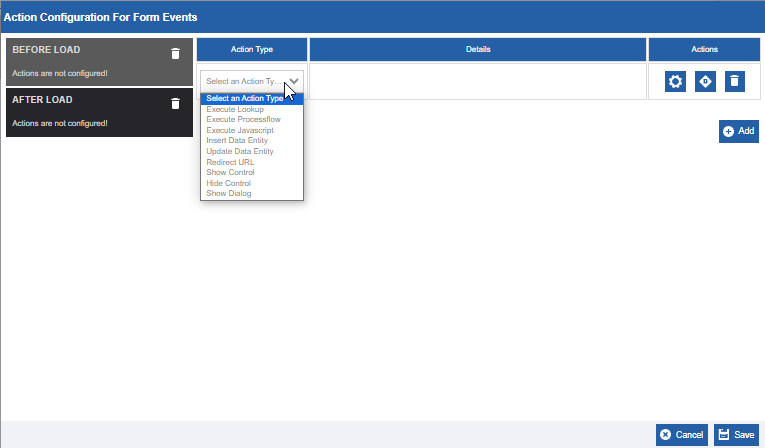
Figure 46: After Load and action types
-
Select the Action Type required and click the configure icon for configuring the action type. Refer to Configuring Action Types for more details.
-
Click the Configure Rule icon to configure rule (applicable only for After Load event). Refer to Adding Rules for the Action Type.
-
Click Save to save the configured details.