Configuring Service Level Agreement (SLA)
SLA and SLA Steps
Service Level Agreements (SLAs) are configured for activities when an escalation needs to be triggered in case a task or a process flow is not completed within a specified time limit.
SLA Configurations are used for reassigning a UI activity (e.g., Task or Approve Reject activity) to a different participant or send an email notification or forcefully completing the active task (autocomplete), or initiating another process that is part of the same application. SLA configuration on an activity is triggered if the activity is not performed within the specified time. Multiple SLAs can be configured for an activity. SLAs are applicable only for the Start, Task, and Approve/Reject activities.
Note
In the case of Process Level SLA, the timer starts when a process is initiated.
In the case of Task level SLA, the timer starts when the task configured with SLA is created or initialized.
In the Task level SLA if the configured start date/time of the timer is elapsed, the system will take the task-created date/time as the start time for the SLA timer.
SLA Steps
SLA configuration is divided into four steps.
SLA Step 1 – Setting Timer: Setting the time or frequency for the SLA.
SLA Step 2 – Conditional SLA: Setting a rule for the SLA (if required).
SLA Step 3 – Select the type of Action: Select the further action for the activity if not completed.
SLA Step 4 – Finish: Creating the defined SLA.
The SLA steps in SLA configuration for Task, Approve/Reject and Start activities are visualized as follows:
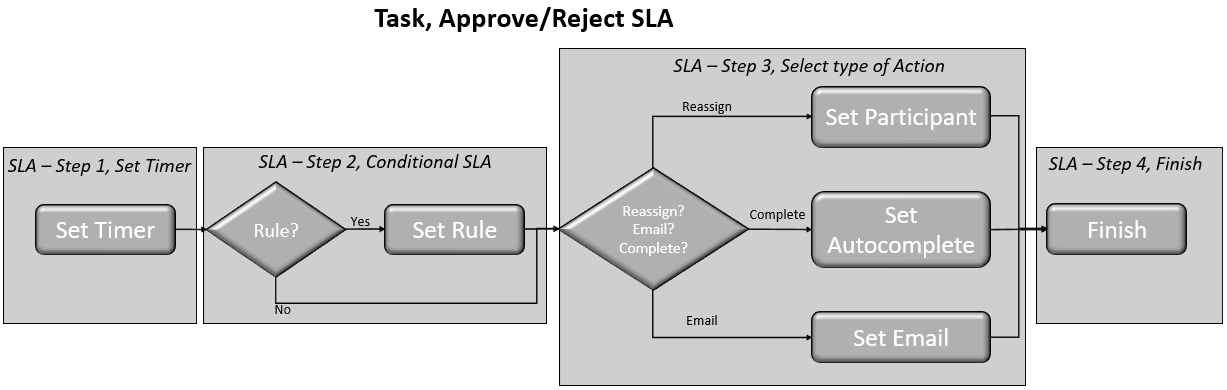
Task, Approve Reject SLA configuration steps
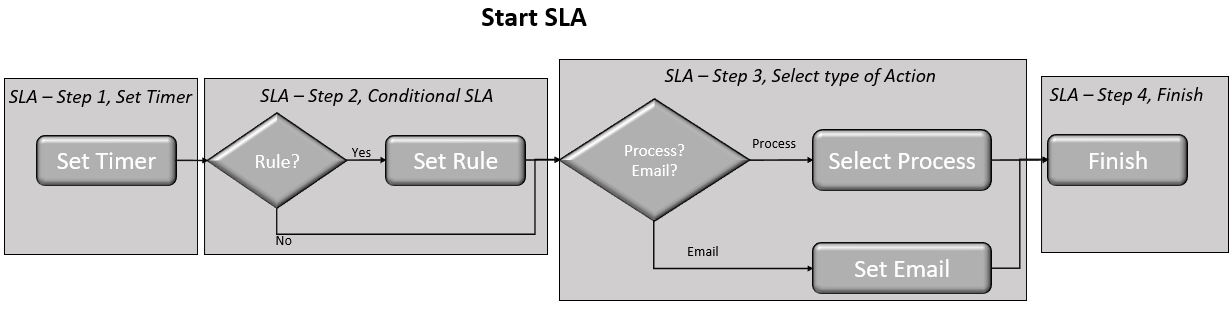
The Start SLA configuration steps
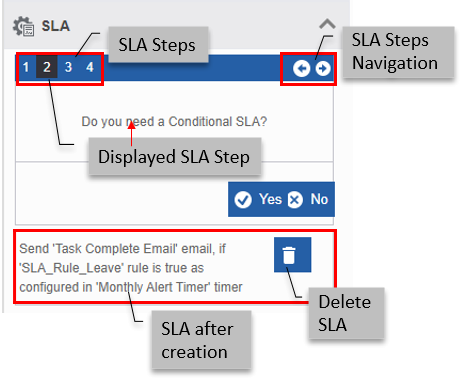
While you are configuring the SLA, the SLA step that you are configuring is highlighted.
You can navigate through the SLA steps, back and forward (till where you have configured) using the back and forward arrows on the upper right side of the SLA configuration widget.
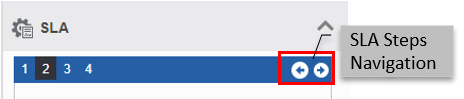
This feature allows you to make any modifications while configuring the SLA.
Mapping Timer and Rule to SLA
The timer is a mandatory configuration for an SLA. The rule is optional and can be configured based on the functional requirement.
The timer is configured to set a time limit or frequency for SLA to start or repeat.
- Drag an activity (Start or Task or Approve/Reject) to the canvas.
- Click the activity. The Edit process flow panel displays the details for configuration.
- Click the SLA accordion for viewing the SLA configuration.
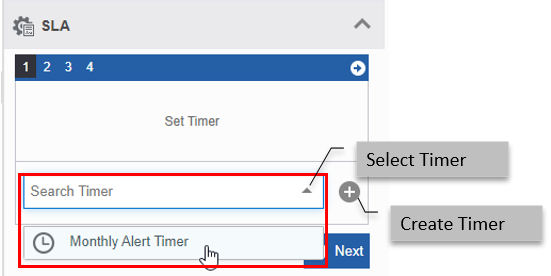
SLA Step 1 – Set Timer appears.
-
Click the Search Timer drop-down and select a timer.
Info
If the drop-down does not list any timers, it means no timers are created for that process. If the timer is not defined/configured, click (add symbol) next to the Search Timer drop-down for creating a new timer. You are navigated to the Business Entity - Timer creation page. After creating the timer, it is selected as the timer.
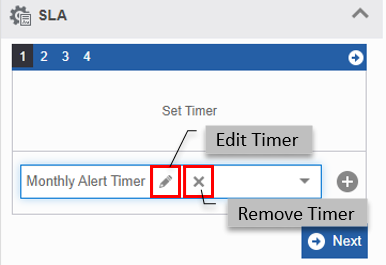
When you select a timer, edit (🖉) and remove (X) icons appear.
- Click 🖉 to edit the timer.
- Click X to remove the selected timer.
-
Click Next.
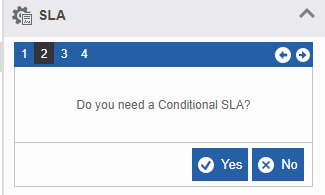
SLA Step 2 – Conditional SLA appears.
-
If you need a conditional SLA (rule-based SLA), click Yes. Set Rule appears. Go to Step 7.
Else click No and go to Step 8. -
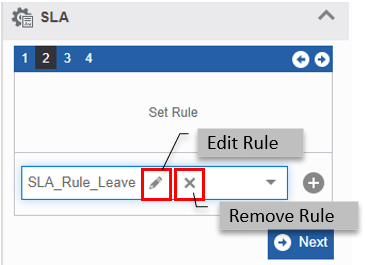
Click Search for Rule drop-down and select a rule.
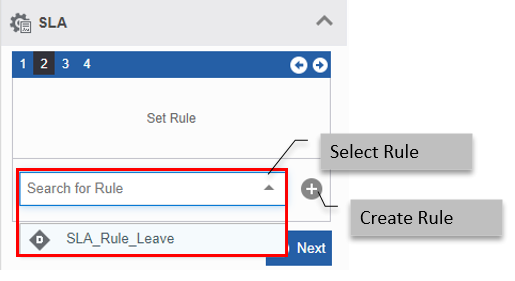
!!!! info If the drop-down does not list any rules, it means no rules are created for that process. If the rule is not defined/configured, click (add symbol) next to the Search for Rule drop-down for creating a new rule. You are navigated to the Business Entity - Rules creation page. After creating the rule, it is selected as the rule.
When you select a rule, edit (🖉) and remove (X) icons appear.
- Click 🖉 to edit the rule.
- Click X to remove the selected rule.
-
Click Next.
SLA Step 3 – Select type of action appear.
For Task and Accept/ Reject activity, SLA Step 3 allows you to choose from three options – Reassign, Email, or Complete.
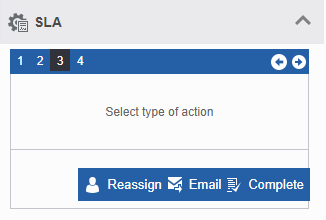
SLA Step 3 - Select type of action for Task, Accept/Reject activityFor the Start Activity, SLA Step 3 allows you to choose from two options – Process or Email.
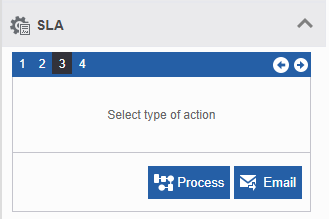
SLA Step 3 - Select the type of action for Start activity -
To Reassign the task, refer to Mapping Participant for Reassigning in SLA, step 1.
To send an Email, refer to Mapping Email Template for Send Email in SLA, step 1.
To autocomplete the task, refer to Setting Autocomplete in SLA, step 1.
To define Process SLA for Start activity, refer to Mapping Process for Start SLA, step 1.
Mapping Participant to SLA
Reassign is configured when you want the SLA to reassign the task to another participant if it is not completed within the time specified in the Timer.
In SLA configuration, after mapping of Timer and Rule (optional), SLA Step 3 appears.
For the Task and Approve/Reject activity, SLA Step 3 displays three options: Reassign, Email, and Complete.
-
In SLA Step 3 – Select the type of Action and click Reassign. Set Participant appears.
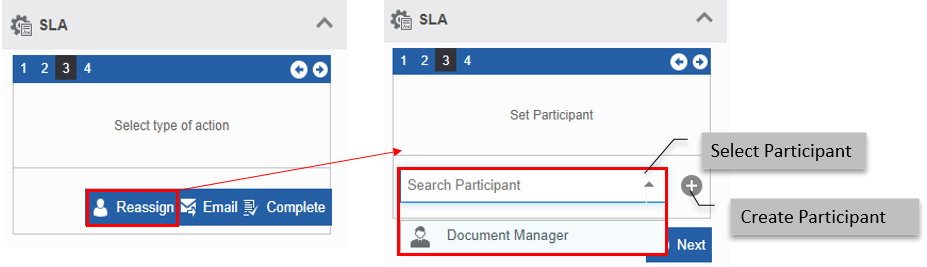
SLA Step 3 - Reassigning participant -
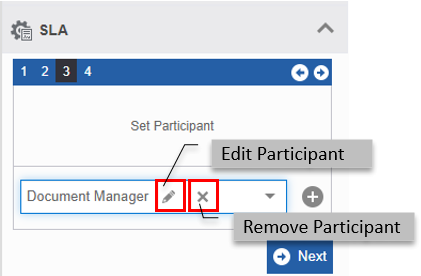
Click the Search Participant drop-down and select a participant.
Info
If the drop-down does not list any participants, it means no participants are created for that process. If participants are not defined/configured, click (add symbol) next to the Search participant drop-down for creating a new participant. You are navigated to the Business Entity - Participant creation page. After creating the participant, it is selected as the participant.
When you select a participant, edit (🖉) and remove (X) icons appear.
- Click 🖉 to edit the participant.
- Click to remove the selected participant.
-
Click Next
SLA Step 4 – Finish appears.
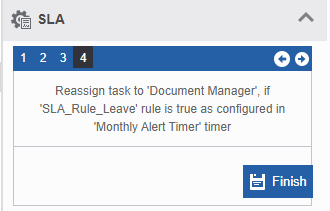
SLA Step 4 - Finish Reassign configuration -
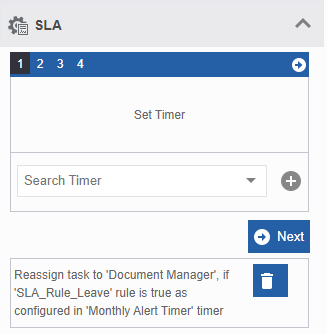
Click Finish. The SLA created is displayed under the SLA configuration.
Mapping Email Template to SLA
Email template is mapped to the SLA for sending a notification email if the activity is not completed in case of Task /approve-Reject activity or if the process is not completed in case of Start activity within the time limit specified in the Timer. Sending Email in SLA is applicable for the activities, Task, Approve/Reject and Start.
In SLA configuration, after mapping of Timer and Rule (optional), SLA Step 3 appears.
For the Task and Approve/Reject activity, SLA Step 3 displays three options: Reassign, Email, and Complete.
For the Start activity, SLA Step 3 displays two options: Process and Email.
-
In SLA Step 3 – Select the type of Action and click Email. Set Email appears.
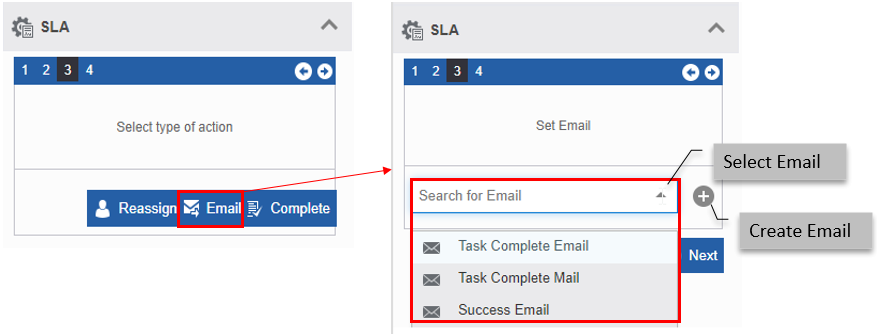
SLA Step 3 - Selecting Email -
Click Search for Email drop-down and select an email template as required.
Info
If the drop-down does not list any email name, it means no emails are created for that process. If emails are not defined/configured, click (add symbol) next to the Search for Email drop-down for creating a new email template. You are navigated to the Business Entity - Email creation page. After creating an email template, it is selected as the email.
When you select an email template, edit (🖉) and remove (X) icons appear.
- Click 🖉 to edit the email template.
- Click X to remove the selected email template.
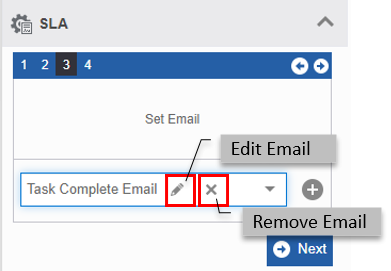
-
Click Next.
SLA Step 4 – Finish appears.
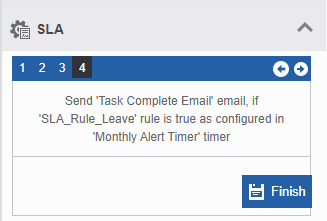
SLA Step 4 – Finish email configuration -
Click Finish. The SLA created is displayed under the SLA configuration.
Setting Autocomplete in SLA
The Complete option in SLA Step 3 is configured when you want the SLA to forcefully complete the task if it is not completed within the time specified in the Timer.
In SLA configuration, after mapping of Timer and Rule (optional), SLA Step 3 appears.
For the Task and Approve/Reject activity, SLA Step 3 displays three options: Reassign, Email, and Complete.
-
In SLA Step 3 – Select the type of Action and click Complete. Set Autocomplete appears.
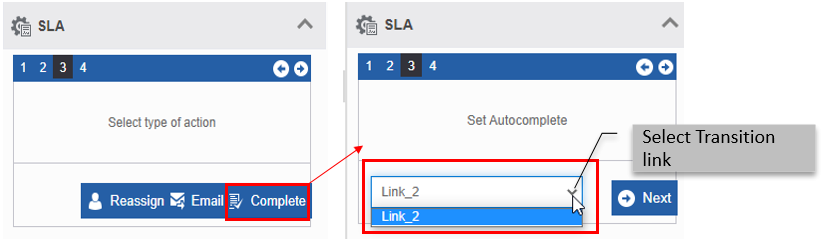
SLA Step 3 - Setting autocomplete transition link -
Click the transition link from the drop-down.
-
Click Next.
SLA Step 4 – Finish appears.
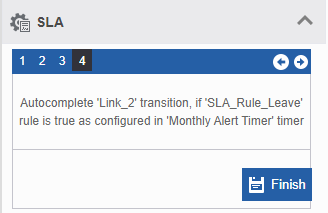
SLA Step 4 - Finish autocomplete -
Click Finish. The SLA created is displayed under the SLA configuration.
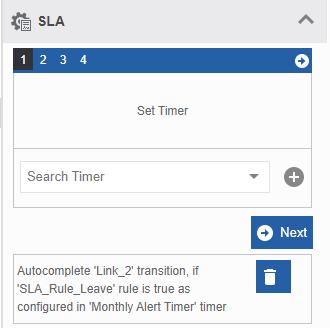
Mapping Process to Start SLA
Process SLA applies to the Start activity. Process SLA is configured to trigger another process if the current process is not triggered or not completed within the specified time limit set in the timer.
In SLA configuration, after mapping of Timer and Rule (optional), SLA Step 3 appears.
For the Start activity, SLA Step 3 displays two options: Process and Email.
-
In SLA Step 3 – Select type of Action, click Process. Select Process appears.
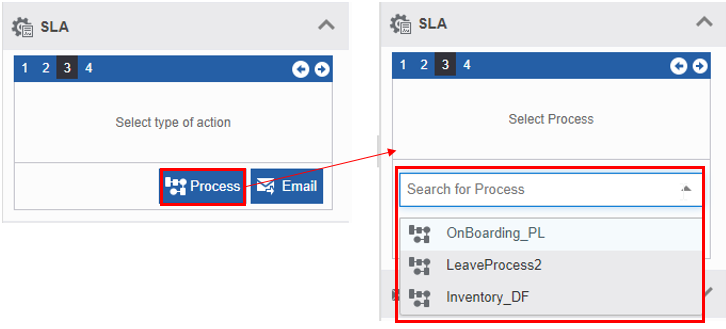
SLA Step 3 - Selecting process -
Click Search for Process drop-down and select process name.
Info
If the drop-down does not list any process name, it means no other processes are created for the application. You need to create the required process within the current application to list it under the Search for process drop-down.
-
Click Next.
SLA Step 4 – Finish appears.
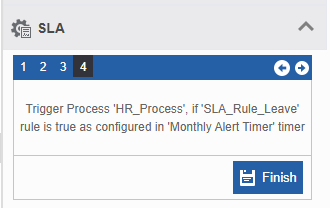
Start SLA Step 4 - Process configuration -
Click Finish. The SLA created is displayed under the SLA configuration.
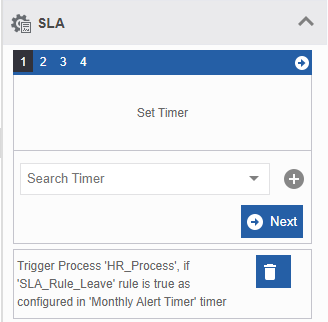
Editing SLA
You cannot edit or modify the SLA created. If you want to make any changes to the SLA created, you need to delete the SLA and add a new SLA with the required modifications.
Multiple SLAs can be created for the same activity.
Deleting SLA
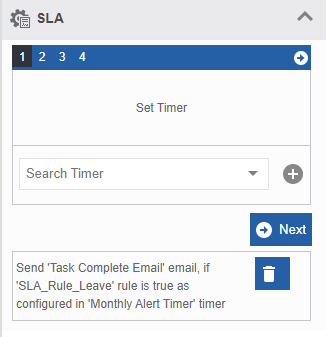
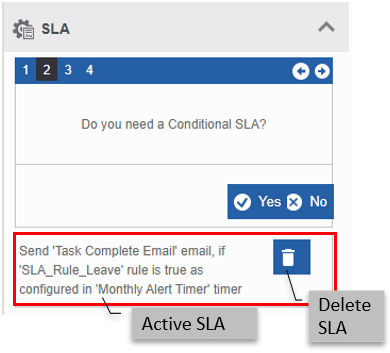
When an SLA is added to the activity, the SLA details are displayed under the SLA accordion.
-
Click the SLA accordion. The active SLAs are listed.
-
Click the delete icon next to the SLA that you need to delete. The SLA is deleted.