Access Control
Introduction to RPA Access Control
The Access Control section in the RPA Management enables administrators to manage permissions related to workflows. It includes:
-
User Based Workflow Allocation: Assigns workflow publishing rights to users.
-
Machine Based Workflow Allocation: Grants workflow execution rights to specific machines.
User Based Workflow Allocation
This section allows you to assign workflows with specific permissions to platform users. The access is restricted to Read and Invoke permissions only, ensuring secure and limited interaction with the workflows.
This section helps you to:
-
View and manage all workflow-user allocations.
-
Create or edit workflow publishing rights.
-
Revoke access when needed.
When you allocate a workflow to a specific user, the project and the allocated workflow will appear in the RPA Bot Studio for that user. Access permission will be based on the configuration done while allocation of the workflow.
Viewing User Based Workflow Allocations
- Navigate to Main Menu > Manage > RPA Management > Access Control > User Based Workflow Allocation tab. The grid displays the user-based workflow allocation information.
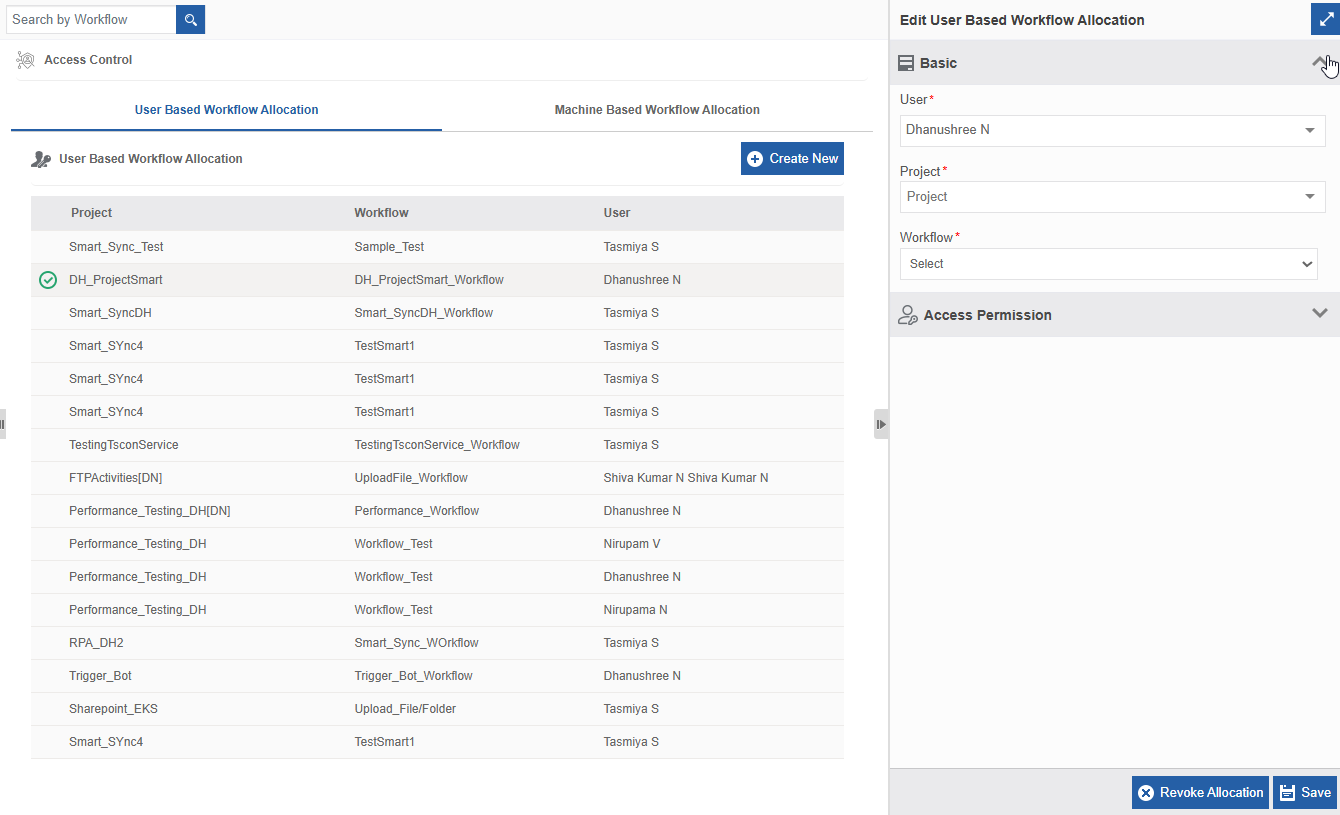
User Based Workflow allocation and details
-
Project: Name of the project.
-
Workflow: Name of the workflow within the project.
-
User: User allocated to the workflow.
-
Click an item in the list. View additional configuration details on the Edit panel on the right-side.
Creating New User Based Workflow Allocation
Workflow created by one user can be allocated to another user with specified permissions.
-
Navigate to Main Menu > Manage > RPA Management > Access Control > User Based Workflow Allocation tab.
-
Click Create New.
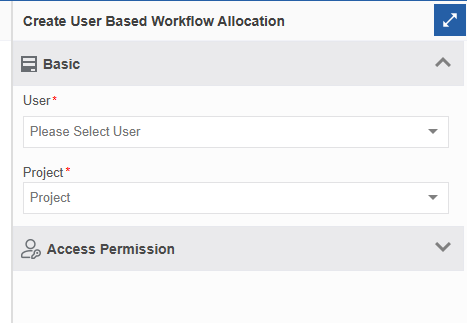
Creating a new User Based Workflow allocation
- Enter the allocation details.
| Configuration | Description |
|---|---|
| User* | Select the user to whom you want to allocate a workflow. |
| Project* | Select the project name. Workflow names within that project appears. |
| Workflow | Select the workflow name that you want to allocate to the selected user. |
| Access Permission | Select the workflow permissions for the allocated user. The assigned permissions (Read and Invoke) are non-editable and fixed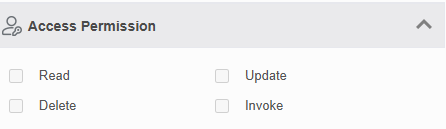 Read : The user gets permission to view the workflow. Update : The user gets the permission to edit and update the workflow. Delete : The user gets the permission to read, update, and delete the workflow. Invoke : The user gets the permission to invoke the allocated workflow. |
- Click Create.
The new allocation appears at the top of the list.
Editing and Saving User Based Workflow Allocation
-
Navigate to Main Menu > Manage > RPA Management > Access Control > User Based Workflow Allocation tab.
-
Click the Workflow name.
-
Edit the necessary details in the Edit panel on the right side.
-
Click Save.
Revoking User Based Workflow Allocation
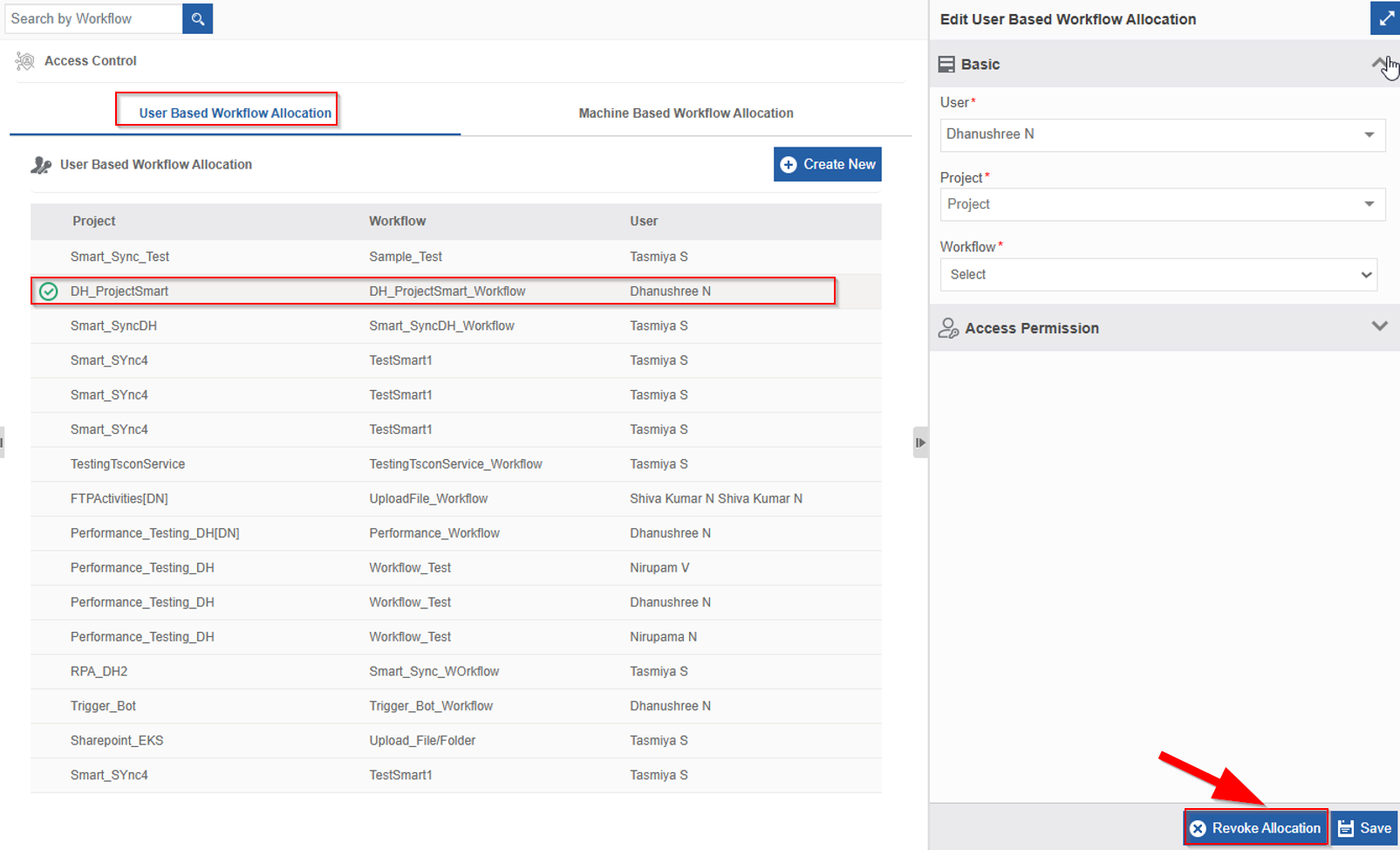
Revoke feature allows you to revoke workflow allocation from a user. Once revoked, the entry is removed from the allocation list. You can revoke user allocations that are created from the platform.
-
Navigate to Main Menu > Manage > RPA Management > Access Control > User Based Workflow Allocation tab.
-
Click the Workflow name.
-
Click Revoke Allocation.
Alternatively, hover over a project name and click the three dots > Revoke Allocation.
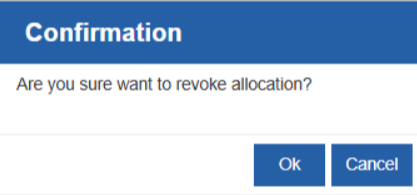
-
Click OK to confirm the revoking.
The user will not have access to the workflow as the allocation is revoked.
Machine Based Workflow Allocation
This section allows you to assign a Project to specific machines.
When you give a project access to a particular machine, any user who logs in to RPA application in that machine will get the access (as per the permissions configured) of that project. The user or the Agent will automatically receive permission to access all published workflows under that project.
The access is restricted to Read and Invoke permissions only, ensuring secure and limited interaction with the workflows.
This section helps you to:
-
Grant project-level access to specific machines.
-
Allow agents to run workflows on machines without requiring user-specific permissions.
-
Revoke or update machine-level project allocations.
Viewing Machine Based Workflow Allocations
- Navigate to Main Menu > Manage > RPA Management > Access Control > Machine Based Workflow Allocation tab. The grid displays the machine-based workflow allocation information.
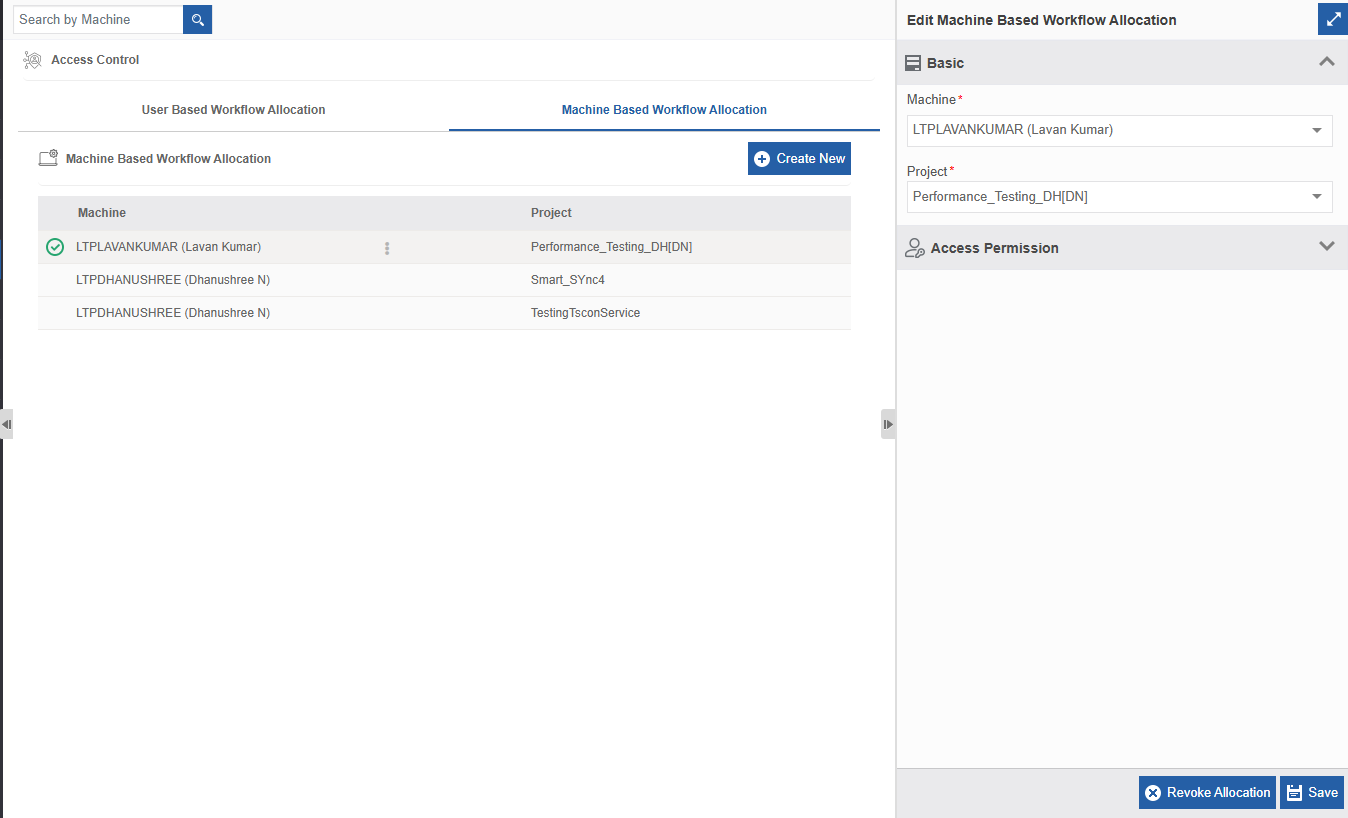
Machine Based Workflow allocation and details
-
Machine: The machine to which project is allocated.
-
Project: Name of the project allocated to the machine.
-
Click an item in the list. View additional configuration details on the Edit panel on the right-side.
Creating New Machine Based Workflow Allocation
-
Navigate to Main Menu > Manage > RPA Management > Access Control > Machine Based Workflow Allocation tab.
-
Click Create New.
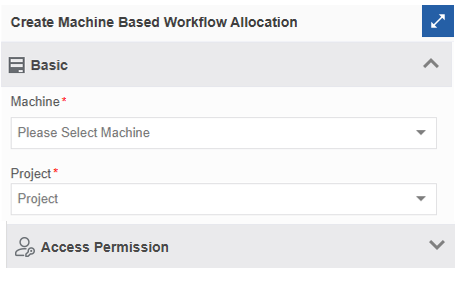
Creating a new Machine Based Workflow allocation
- Enter the allocation details.
| Configuration | Description |
|---|---|
| Machine* | Select a machine to which you want to allocate a project. |
| Project* | Select the project name that you want to allocate to the selected machine. |
| Access Permission | 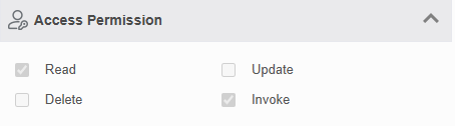 Read : The machine gets permission to view the project workflow. Invoke : The machine gets the permission to invoke the allocated project workflows. By default, the access is restricted to Read and Invoke permissions only. No additional or custom permissions are assignable. |
- Click Create.
Editing and Saving Machine Based Workflow Allocation
-
Navigate to Main Menu > Manage > RPA Management > Access Control > Machine Based Workflow Allocation tab.
-
Click the machine name.
-
Edit the necessary details in the Edit panel on the right side.
-
Click Save.
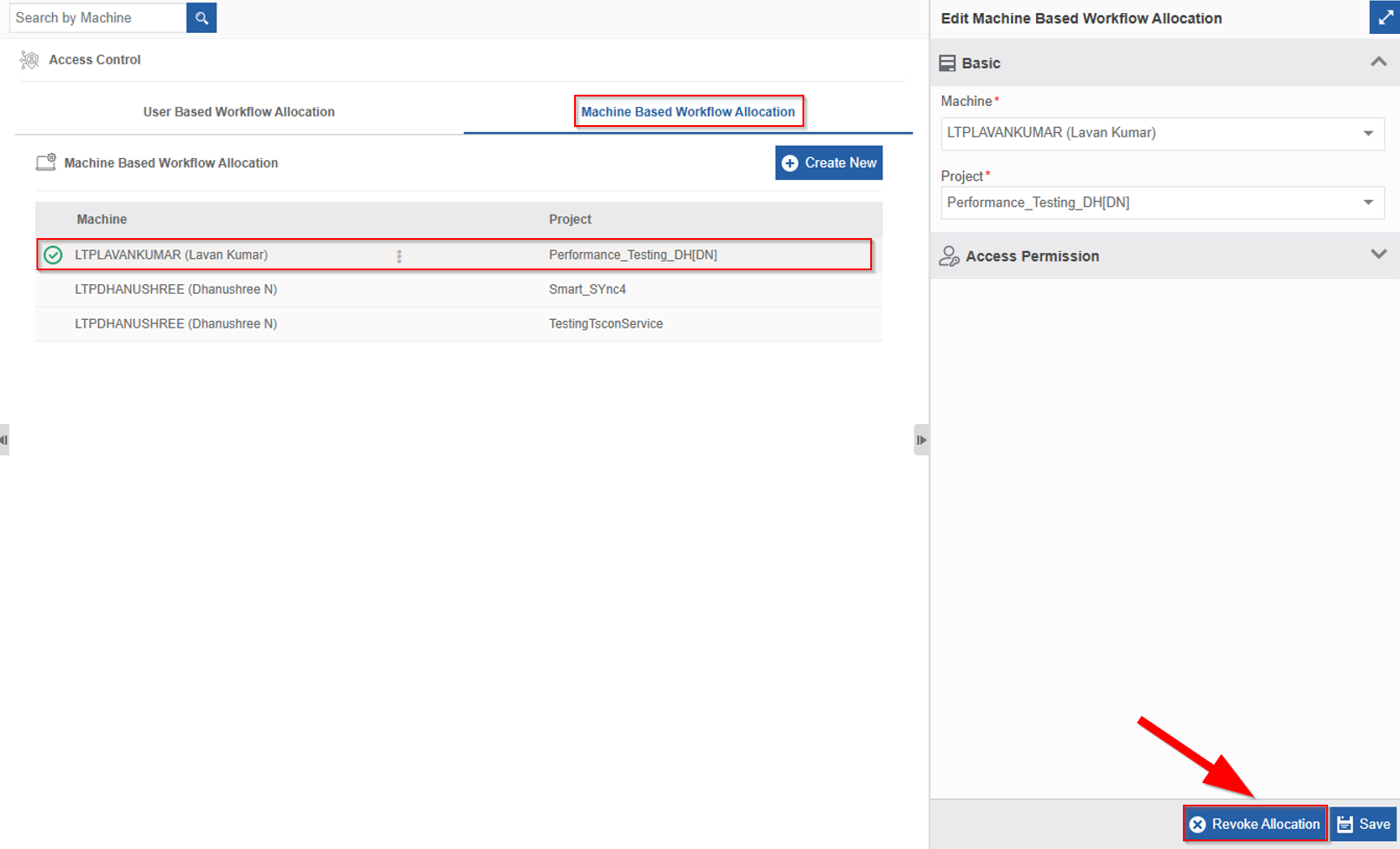
Revoking Machine Based Workflow Allocation
Revoke feature allows you to revoke project allocation to a machine. After revocation, the machine will no longer have access to the assigned project's published workflows.
-
Navigate to Main Menu > Manage > RPA Management > Access Control > Machine Based Workflow Allocation tab.
-
Click the machine name.
-
Click Revoke Allocation.
Alternatively, hover over a machine name and click the three dots > Revoke Allocation,

-
Click OK to confirm the revoking.
The machine will not have access to the project as the allocation is revoked.