RPA Plugins
Viewing Run Plugins
-
Open RPA Bot Studio.
-
On the ribbon > Settings tab, click Run Plugins. The Run plugins open in a separate tab in the workspace area.
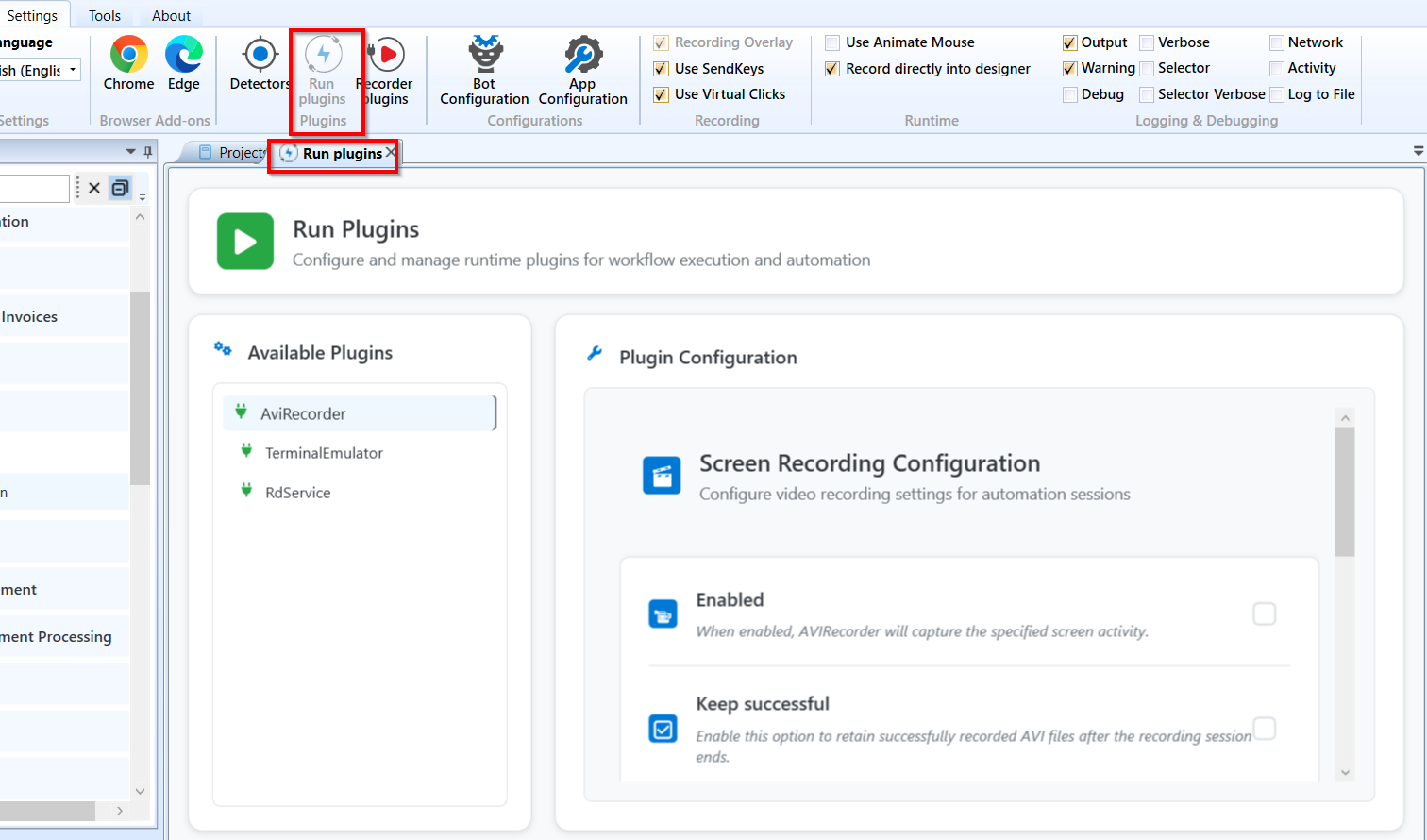
The Run Plugin details
-
When you click and open Run Plugins, the Run Plugin icon in the Settings tab is disabled and when you close the Run Plugin (close the Run plugin tab), it becomes active.
-
Click and select the required plugin and the relevant details are displayed on the right side of the tab.
Configuring Run Plugins
AviRecorder
The AVI Recorder plugin is used to record (screen recording) the execution of a workflow as it is hard to closely watch the execution of what is happening. This plugin is extremely useful when debugging a workflow that is occasionally failing.
You can configure video recording setting for automation sessions using this plugin configuration
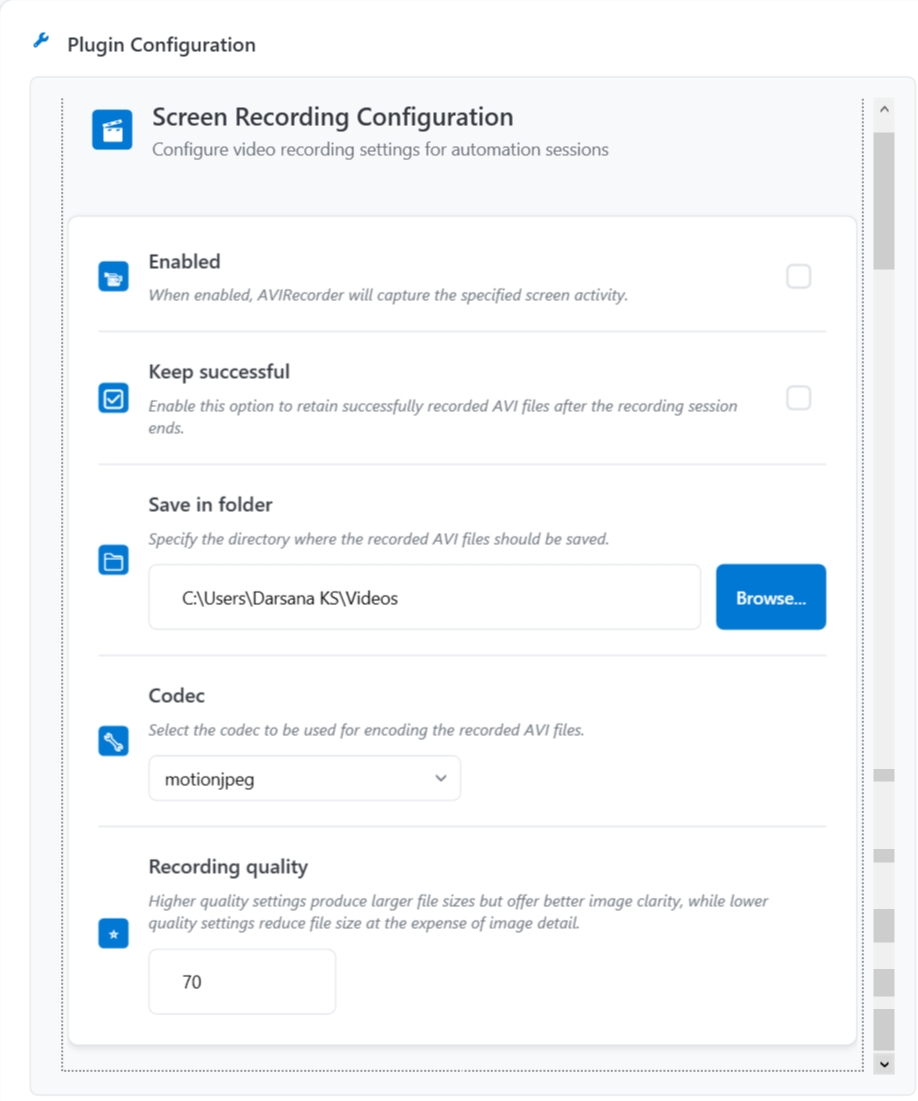
Run Plugins - AviRecorder
Properties of AviRecorder
| Properties | Description |
|---|---|
| Enabled | Select to make the Avi recorder enabled so that it captures the specified screen activity. |
| Keep Successful | If checked, it records all successful executions. By default, it will only keep recordings of workflow executions that failed because of - process itself failed or forced by another activity. |
| Save in folder | Click browse to select the path where the recorded files are to be saved or directly enter the path. |
| Codec | Select the required Codec to be used for encoding the recorded AVI files. This is used to adjust hard drive space.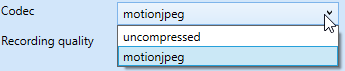 |
| Recording Quality | Specify the recording quality in numbers. Higher quality settings produce larges file sizes but offer better image clarity. Lower quality settings reduce file size at the cost of image detail. |
Terminal Emulator
Terminal Emulator plugin is to manage the terminal sessions that are running. You can configure the mainframe terminal automation settings and behavior in this plugin.
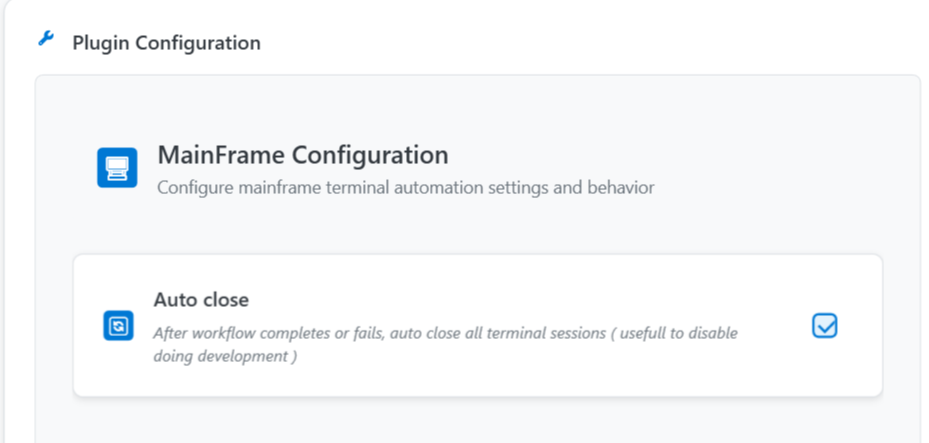
Run Plugins - Terminal Emulator
- Click Auto Close if you need to auto close all the terminal sessions when the workflow completes or fails.
Rd Service
The RD Service or Remote Desktop Service is used to allow a robot to interact with the user interface (UI) of a machine even when the Remote Desktop (RDP) session is disconnected or minimized.
If you close an RDP window, Windows "locks" the UI, and the robot can no longer see buttons or click elements. The RD Service acts as a "Stay Alive" agent. It creates a virtual session that keeps the desktop "active" in the background so the bot doesn't go blind.
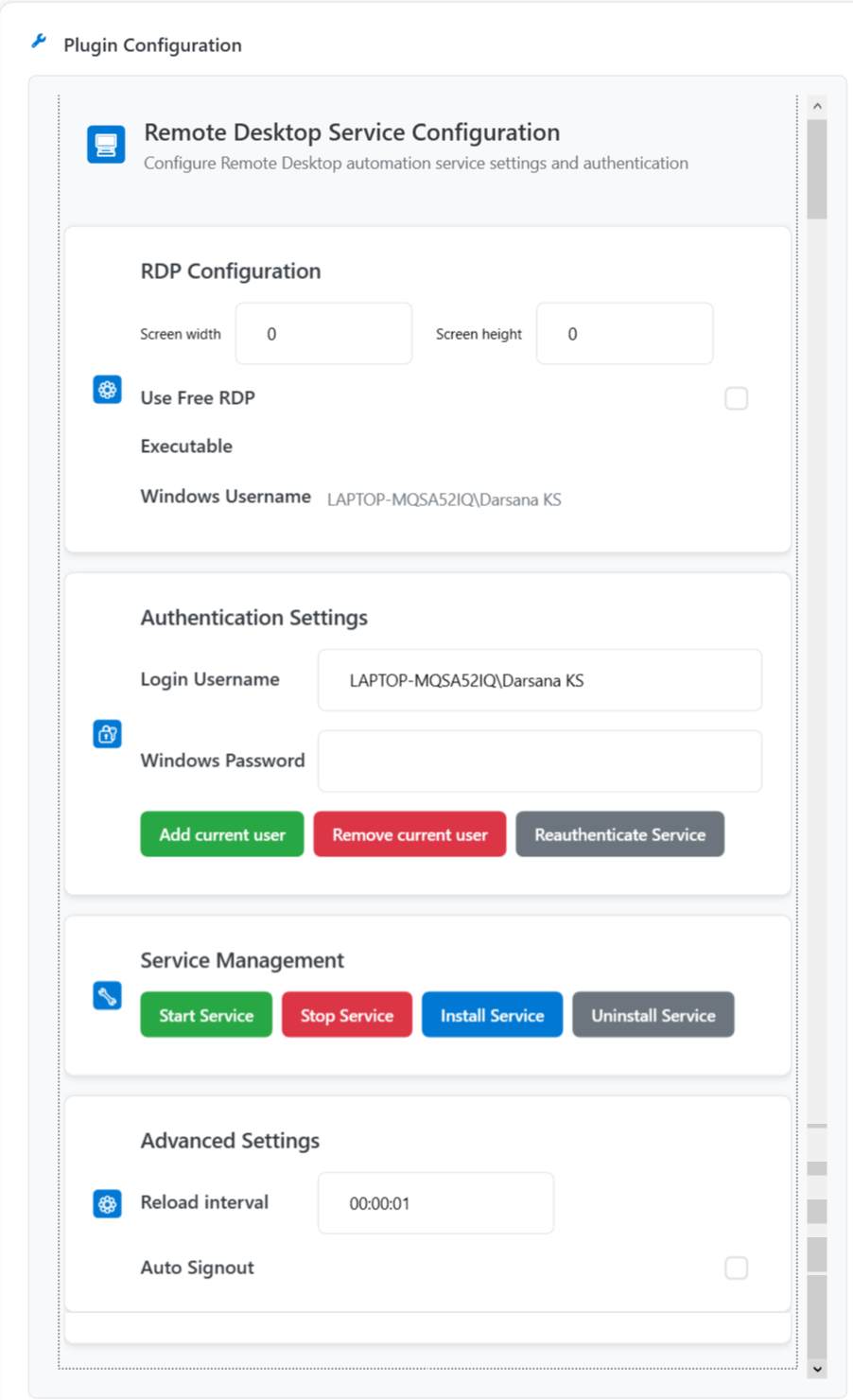
Run Plugins – RD Service
Properties of RD Service
| Properties | Description |
|---|---|
| RDP Configuration | Defines the technical parameters of the virtual connection. Screen Width: Enter the value for width. Height : Enter the value for height. Setting width and height to 0 , indicates the system to use default settings. For reliable UI automation, it's best to set these to a standard resolution like 1920 x 1080 . Use Free RDP : Select the checkbox to allow the use of the "FreeRDP" open-source client instead of the native Windows RDP client. |
| Authentication Settings | Login Username : The default user’s name is automatically updated here. You can edit the details and enter another username if required. Windows Password : Enter the password corresponding to the user. Add Current User : Click to add the currently entered user details. Remove Current User : Click to remove the currently appearing user details. The fields get cleared. Reauthenticate Service : Click to verify the credentials entered. |
| Service Management | These are background operational controls for service management. Start Service : Click to start the service and make it currently active and capable of "listening" for incoming RDP requests. Stop Service : Click to stop the service and make it inactive and incapable of "listening" for incoming RDP requests. Install Service : Click to set up the RD Service on the Windows operating system. Uninstall Service : Click to remove the RD Service on the Windows operating system. |
| Advanced Settings | Reload Interval : Controls how frequently the service refreshes or checks its status. Enter time in the format hh ss . ss .Auto Signout : If checked, the Windows account will be signed out immediately after the robot finishes its execution, ensuring the machine doesn't stay logged in and idle. |
Viewing Recorder Plugins
-
Open RPA Bot Studio.
-
On the ribbon > Settings tab, click Recorder Plugins. The Recorder plugins open in a separate tab in the workspace area.
There are six recorder plugins available: Image, Java, NM, SAP, Script and Windows.
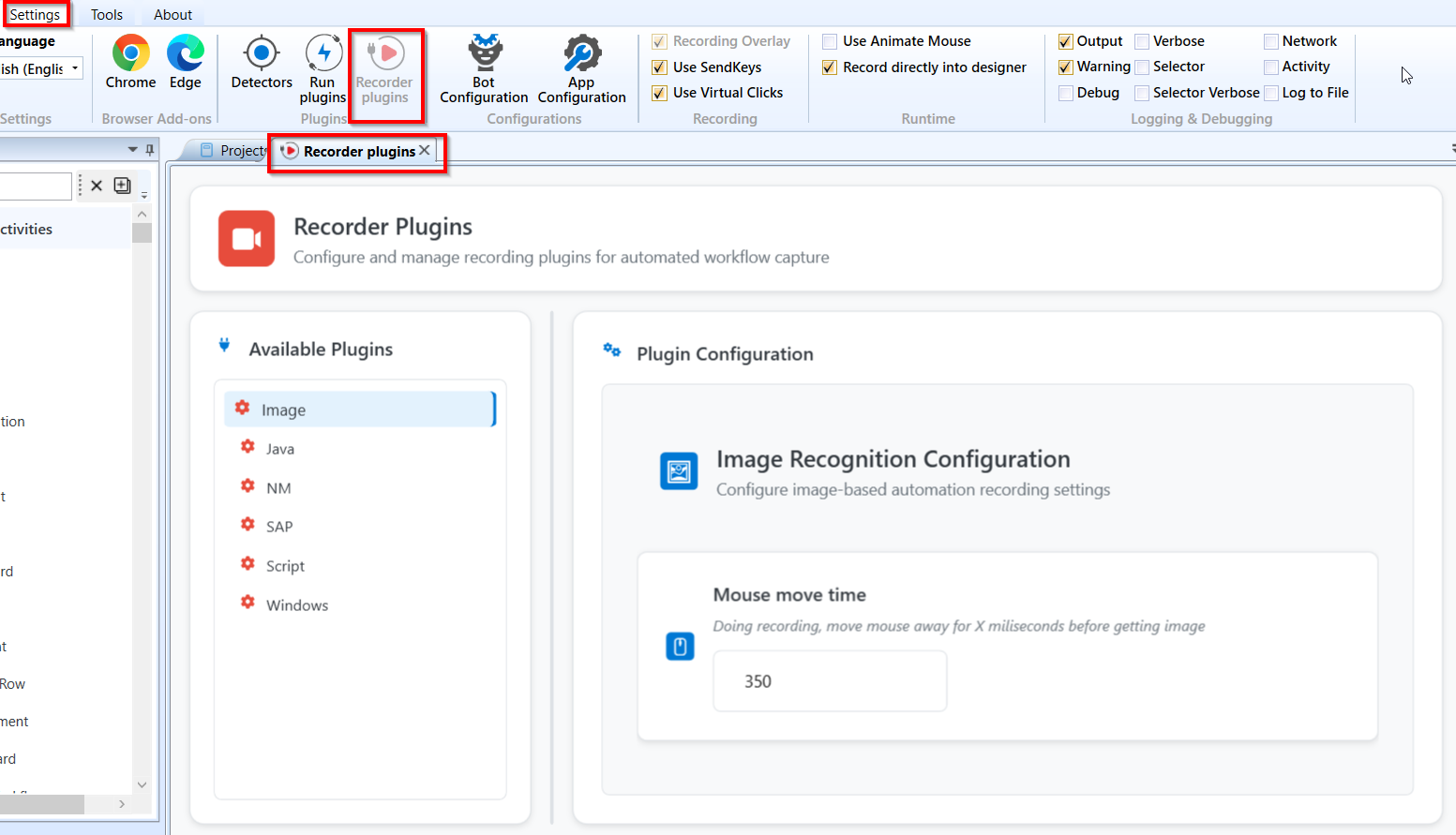
Recorder plugins
Configuring Recorder Plugins
Image
The Image plugin allows you to configure the image-based automation recording settings.
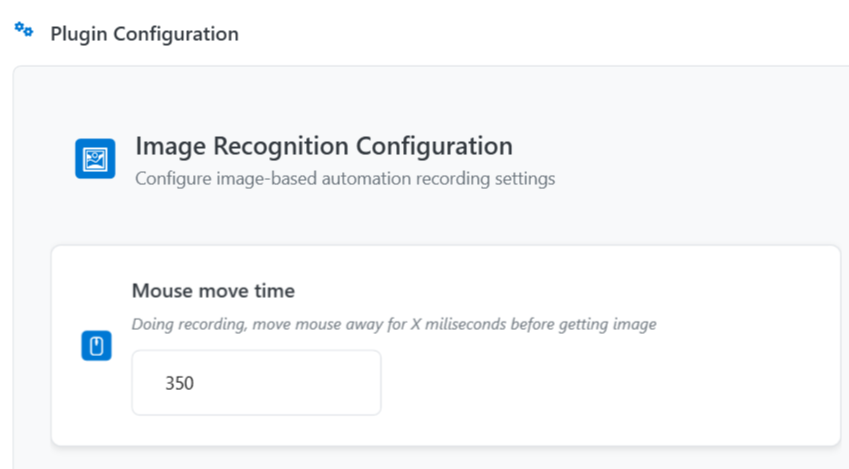
Recorder Plugins - Image
Properties of Image.
| Properties | Description |
|---|---|
| Mouse move time | Specify mouse move time in milliseconds. While recording, move the mouse away at specified milliseconds before getting image. |
Java
The Java plugin allows you to configure Java application automation bridge settings.
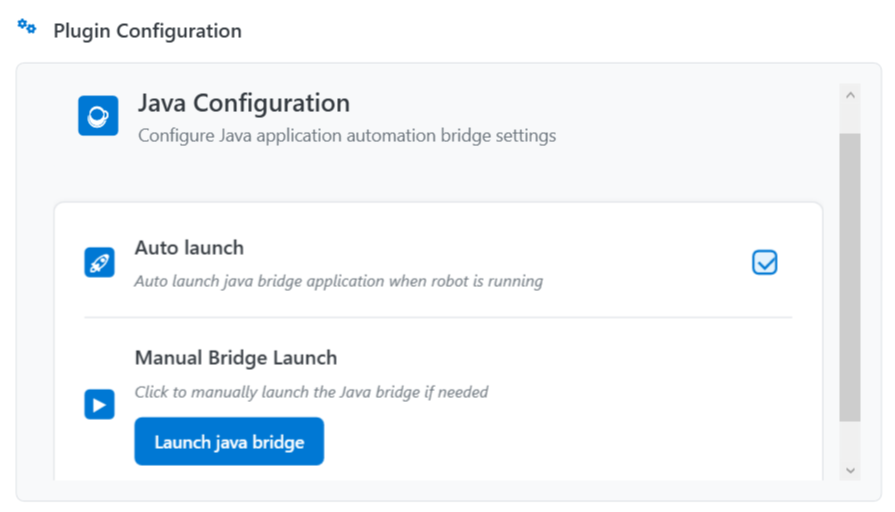
Recorder Plugins - Java
Properties of Java.
| Properties | Description |
|---|---|
| Auto launch | If selected, it auto launches java bridge application when the workflow is running. |
| Manual Bridge launch | Click to Launch java bridge to launch it manually if needed. |
NM
The NM plugin allows you to configure browser extension and native messaging automation settings.
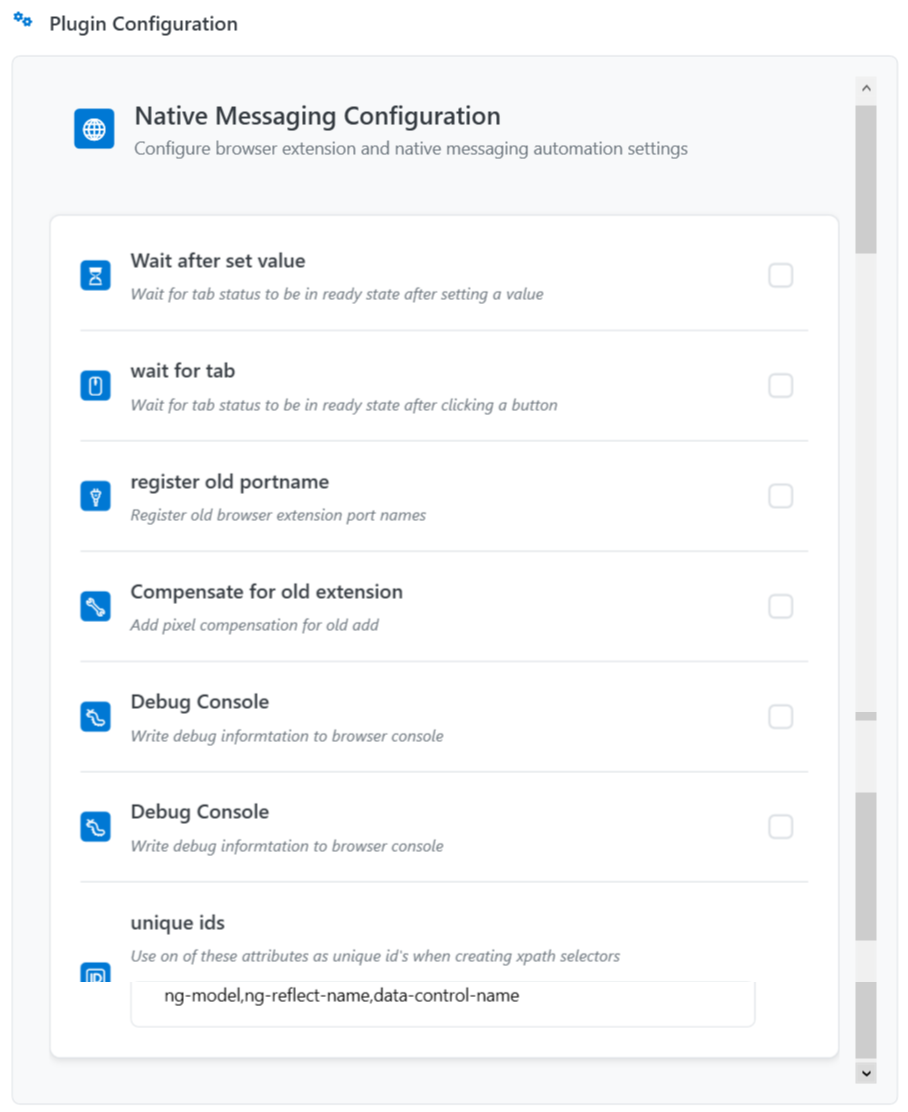
Recorder Plugins - NM
Properties of NM.
| Properties | Description |
|---|---|
| Wait after set value | If selected, it waits for the tab status to be in a ready state after setting a value. |
| Wait for tab | If selected, it waits for the tab status to be in a ready state after clicking a button. |
| Register old portname | If selected, it registers old browser extension port names. |
| Compensate for old add | If selected, it adds pixel compensation for old add. |
| Debug console | If selected, it writes debug information to the browser console. |
| Unique ids | Use one of these attributes as unique IDs while creating XPath selectors. ng-model,ng-reflect-name,data-control-name |
SAP
The SAP plugin allows you to configure the SAP automation bridge settings and recording options.
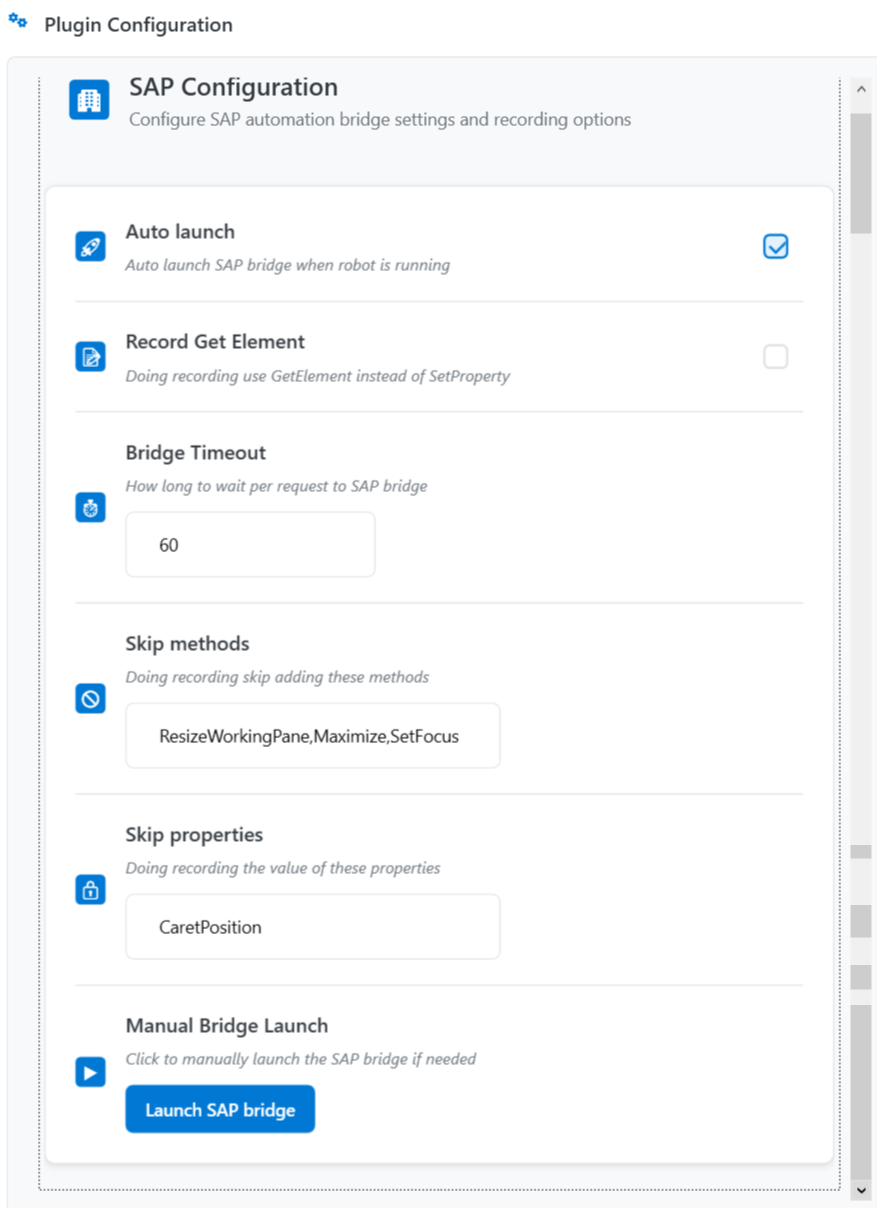
Recorder Plugins - SAP
Properties of SAP.
| Properties | Description |
|---|---|
| Auto launch | If selected, auto launches the SAP bridge when the workflow is playing. |
| Record Get Element | If selected, while recording it uses GetElement instead of SetProperty. |
| Bridge Timeout | Enter bridge time-out time in milliseconds. Indicates how long to wait per request to SAP bridge. It waits for the specified time and then launches the SAP bridge. |
| Skip methods | Enter methods that are to be skipped. Methods can be separated using a comma. For example: ResizeWorkingPane,Maximize,SetFocus While recording, it skips these methods. |
| Skip properties | Enter properties that are to be skipped. Properties can be separated using a comma. While recording, it skips the value of these properties. |
| Manual bridge Launch | Click Launch SAP bridge to launch the SAP bridge manually. |
Script
The Script plugin allows you to configure the scripting environment and the IntelliSense settings.
- You must restart RPA Bot studio, if you are editing and updating any of the script configurations. Otherwise, the configurations will not get applied.
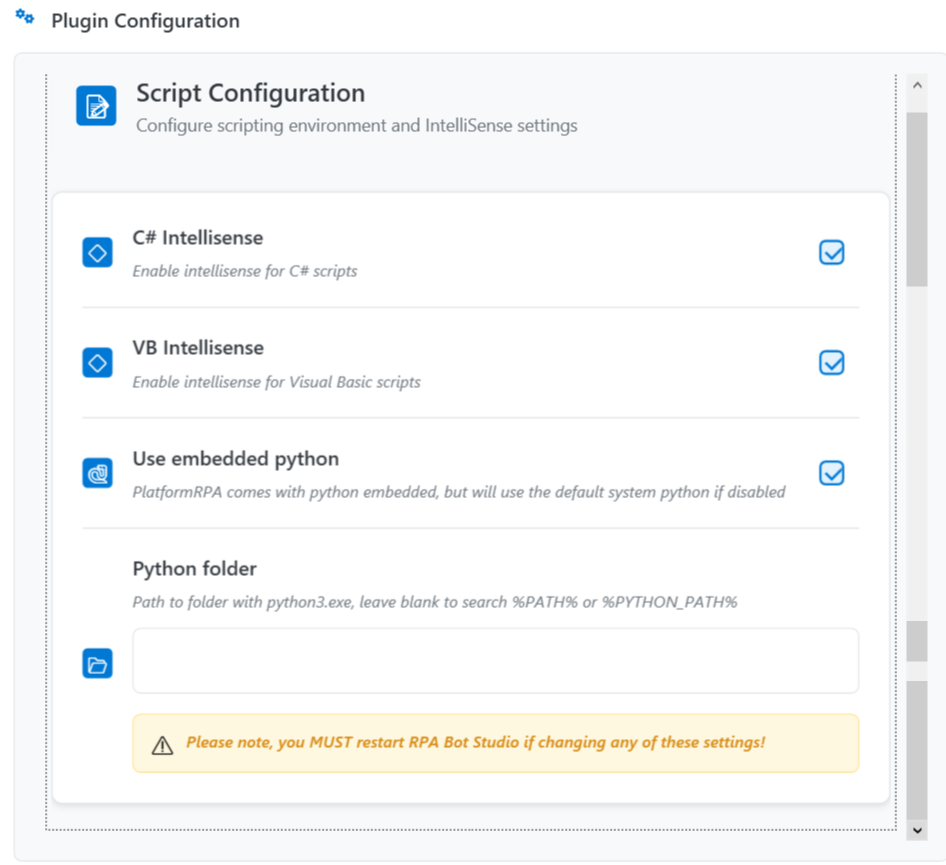
Recorder Plugins - Script
Properties of Script.
| Properties | Description |
|---|---|
| C# Intellisense | If selected, it enables IntelliSense for C# scripts. |
| VB Intellisense | If selected, it enables IntelliSense for Visual Basic scripts. |
| Use Embedded Python | Enable this option to use the embedded Python. RPA Bot Studio comes with Python embedded, but it will use the default system Python if this option is disabled. |
| Python folder | Path to a folder with python3.exe, leave blank to search %PATH% or %PYTHON_PATH%. |
Windows
The Windows plugin allows you to configure Windows application automation settings and performance options.
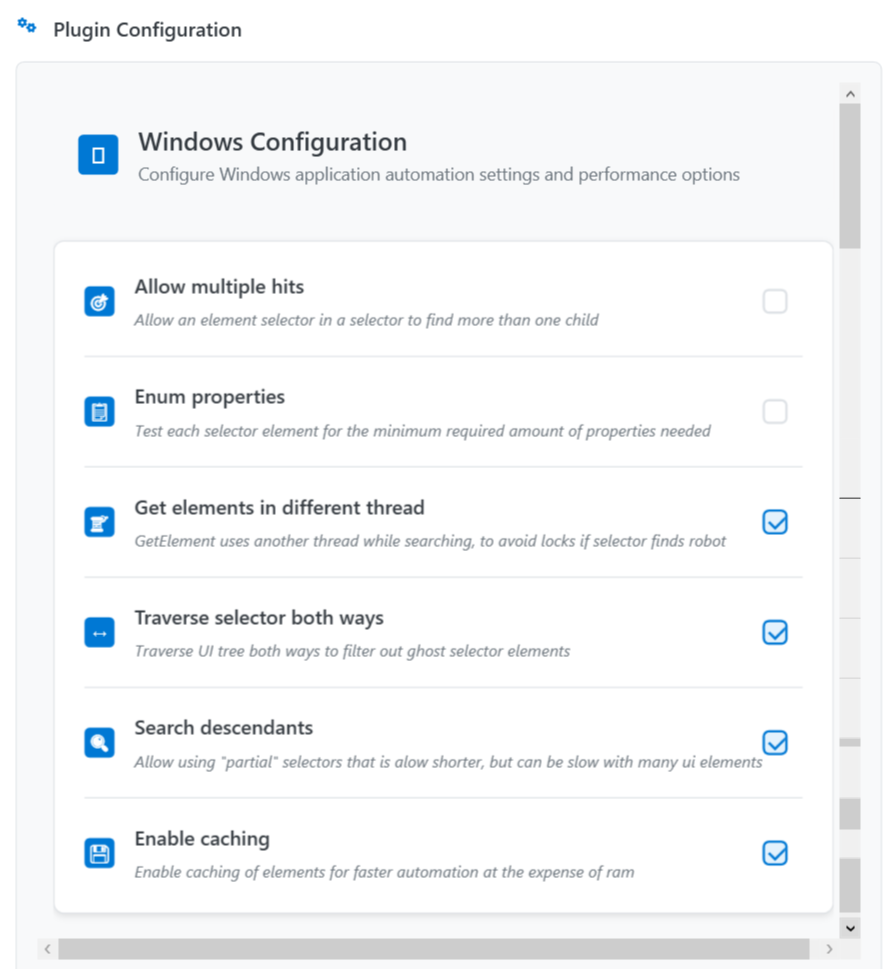
Recorder Plugins - Windows
Properties of Windows.
| Properties | Description |
|---|---|
| Allow multiple hits | If selected, it allows an element selector in a selector to find more than one child. |
| Enum properties | If selected, it tests each selector element for the minimum required number of properties needed. |
| Get Element in different thread | If selected, the GetElement uses another thread while searching to avoid locks if the selector finds a robot. |
| Traverse selector bot | If selected, it traverses UI tree both ways to filter out ghost selector elements. |
| Search descendants | If selected, it allows using “partial” selectors that are shorter, but can be slow with many UI elements. |
| Enable caching | If selected, it enables the catching of elements for faster automation at the expense of ram. |