RPA Recorder and Selectors
Recorder and Selectors
Recording is a recommended method to create Workflows inside RPA Bot Studio. Instead of endlessly dragging activities into the Designer, it is preferable that the user records the steps by using the Recorder.
Click the Recorder button to start recording and do the task or task steps which will be recorded and automated. While recording if you find interesting to fill in any details, let’s say, an input field with some specific variable content, you may use a dummy text and, after closing the Recorder, you can change these dummy texts to variables by using the Assign activity.
Selectors go hand in hand with the Recorder. The Recorder builds a Selector for the user, provided what is clicked. Selector is a set of criteria and, with this, RPA Bot Studio is expected to find an element, unambiguously.
Note that you can create Selectors from scratch, although it is NOT recommended (it is not only harder but also prone to errors and typos).
RPA Bot Studio allows for certain configurations related to the Recorder to be customized, such as to highlight elements while the recording is happening or to change how the Recorder add activities to the Designer. Refer to the Settings parameters, specially recording_add_to_designer and record_overlay.
Difference Between Technologies (NM, SAP, Windows, …)
At first, when clicking any element during a recording, the Recorder will assume that the element clicked belongs to a Windows UI element. Then, it will process some logic and check if there are any better technologies that would fit into whatever action the user is attempting to record. If it finds one, the Recorder will automatically replace the technology from “Windows” to the most appropriate technology and will suggest an activity that better handles the automation, be it clicking on a WebElement, filling an input field in SAP, or writing data to an Excel sheet. If the logic to find a different technology fails, i.e., does not find anything more useful, the Recorder will build a Selector for a Windows UI Element.
In simpler words, when using the Recorder and clicking an Excel cell, the Recorder will first assume that the element is a Windows UI element, but then it will realize that it is an Excel element and then will automatically replace the activity from Windows.GetElement to Micorsoft Office.Activities.WriteCell, since that would be better fitting for the task.
There are many technologies already implemented, such as SAP, Java, Image, and NM (NativeMessaging: Chrome).
Working with Selector
In RPA, a bot needs to interact with software applications (like a browser, Excel, or SAP) exactly as a human would. To do this, the bot must first know the exact location and properties of the target element (e.g., a "Login" button, a specific text field, or a table cell).
Selector UI is used to identify and locate specific elements within a desktop application or, more commonly, a web browser, for activities like clicking, typing, or extracting data.
Selector UI is associated with some of the activities when you need to perform an action that requires element identification in the RPA workflow; for example, for the Get Element activity.
In Platform RPA, for any activity associated with a selector, the activity will have a “Open Selector” button.
Click Open Selector to provide the details specifically to the activity. Selector UI is same for any activity.
Selector window pops up and is used to refine and confirm entities on the Selector that uniquely identifies that element.
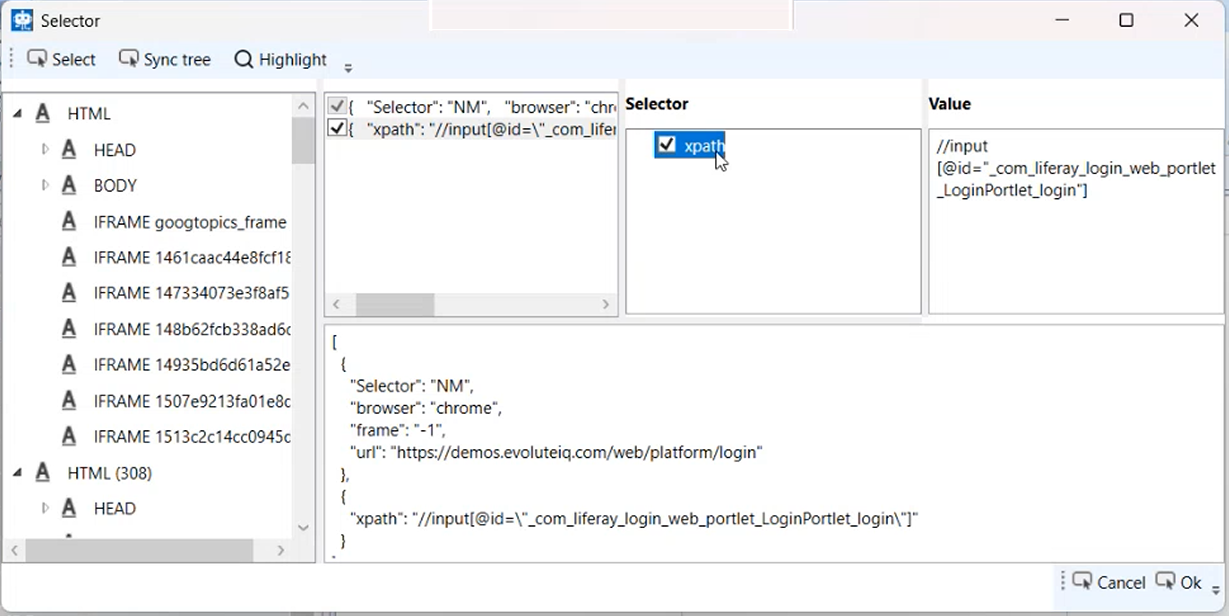
Selector Window UI
The Selector window has the following sections displayed as panels.
-
The Element Tree (Left Panel)
-
The Selector View (Top-Right Panel)
-
The Attribute Editor (Bottom-Right Panel)
-
Top Navigation Bar
Element Tree
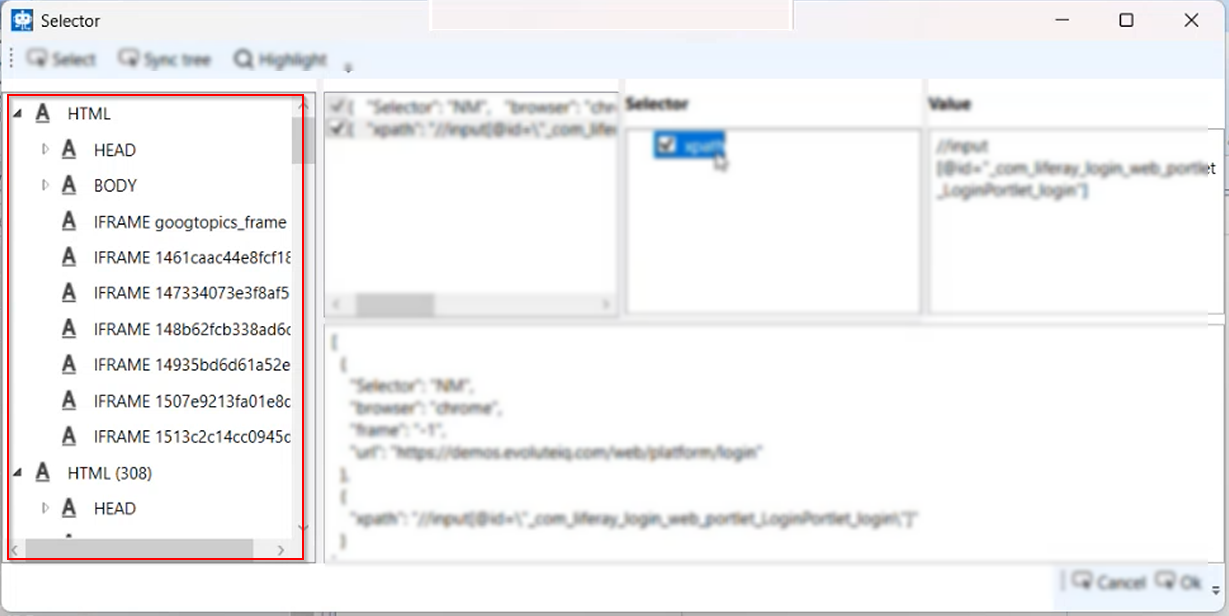
The Element tree displays the entire hierarchical structure of the application or web page, similar to the HTML Document Object Model (DOM) tree. Each element represents a component (like a DIV, SPAN, a tag, or SCRIPT).
It shows the ancestry of your selected element. The RPA tool uses this path to trace exactly how to reach the element from the top of the application window.
The Selector View
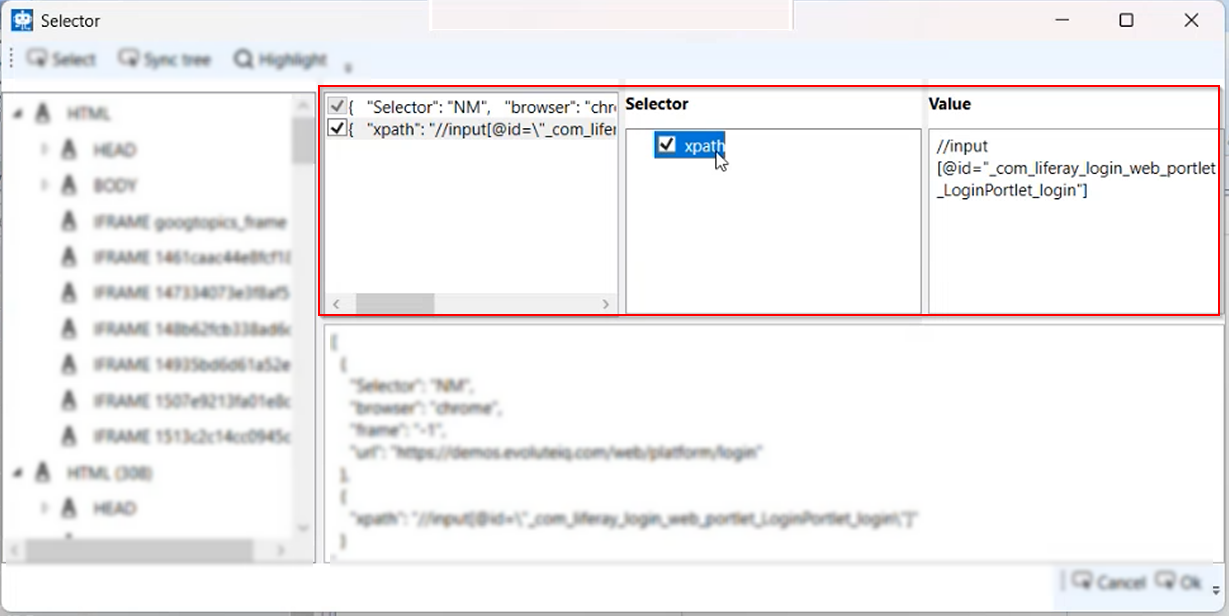
This box displays the generated Selector String. A selector is a piece of XML-like code that contains a sequence of tags and attributes that must be matched to find the target element.
This is the final instruction the bot will use. It's the unique address of the element. You can manually edit this string here to make it more reliable (e.g., removing dynamic attributes).
Each part of this is explained below.
Selector List (First panel)
This panel lists all the possible selector types or combinations that the RPA tool has been able to generate for the selected element.
Select the checkbox to activate that specific selector for validation.
If multiple selectors are checked, the tool attempts to validate them against each other, ensuring they all point to the same element. In many RPA tools, only one selector is used, or a combination of them must pass.
Selector Type (Second panel)
This panel acts as a bridge, showing the type of the currently selected identifier from the Selector panel. It displays the identifier.
XPath is one of the most common and powerful methods for navigating the structure of an HTML or XML document.
Selector supports CSS selector as well. During automation if bot fails to identity the Xpath fails, it can go with the CSS selector for validated.
Value (Third panel)
This panel contains the full, detailed query string for the selector type chosen in the Selector type panel. This is the exact "address" the bot will use.
Attribute Editor
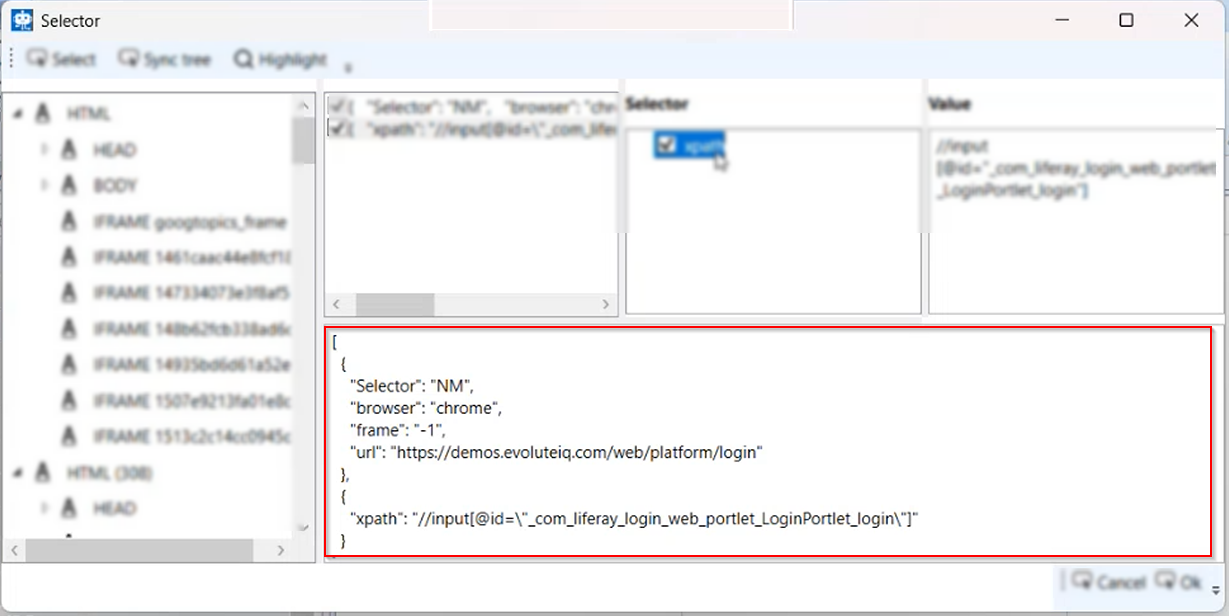
Attribute editor on the bottom displays the specific attributes of the currently selected element (and its parent tags) that the selector is using.
A checkmark next to an attribute means it is included in the selector.
You must ensure you only select static (unchanging) attributes.
Navigation Bar
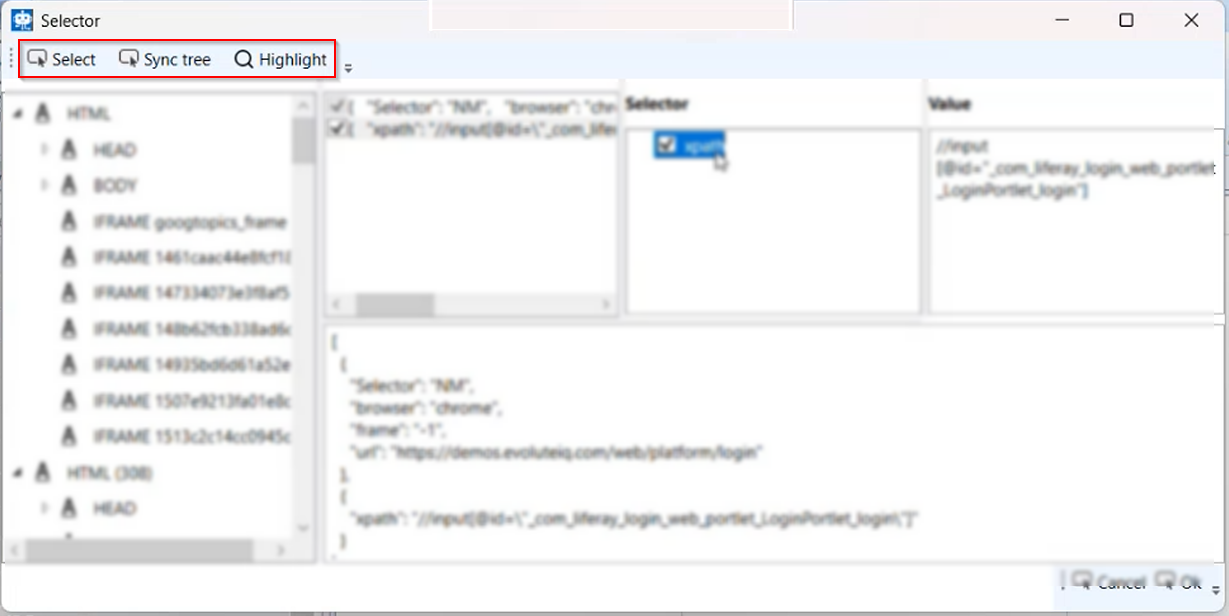
Select: Allows you to re-indicate or choose a different element on the screen.
Sync Tree: Refreshes the Element Tree view to match the currently selected element's structure.
Highlight: Crucial feature. When you click "Highlight," the RPA tool tries to locate the element using the current selector string and puts a red/green box around it on the live screen.
-
Green Box: Means the selector is unique and valid.
-
Red Box: Means the selector is invalid or identifies zero elements.
-
Multiple Boxes: Means the selector is too generic and identifies multiple elements (which is usually a failure state).
Returning Multiple Elements
Sometimes it is needed to retrieve multiple elements instead of a single one and that can be achieved by adjusting the Selector. For example, after searching on Google, many results are presented and the user wants to manipulate all of them, not only the first one.
Here is an example of how it can be done.
-
Create a workflow and drag a Browser Automation.OpenURL activity into the main sequence.
-
Click Get current. The currently opened URL in the Chrome browser is captured as the URL.
For example,
UrL = "https://www.amazon.in/s?k="+searchItem+"&rh=n%3A1389401031&ref=nb_sb_noss"
“searchItem” in the URL is the variable that is used for searching a particular item in this example. You can create flow so as to pass this variable value during runtime.
- Click the record button in the ribbon > General tab and select the element in the screen that you want to focus and press ESC. The captured element appears in the Get element activity in the workflow designer.
Notice how the Recorder assumed that you only wanted that specific entry and how the Selector was built considering that.
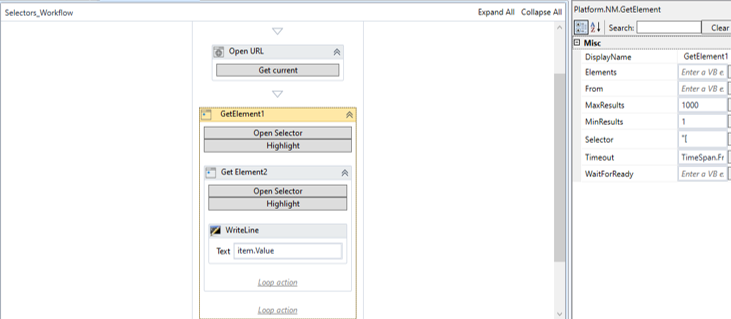
Open URL and Get element (using recorder) activity
- Configure the Browser Automation.GetElement activity (as needed).
To make it return not only one but multiple elements, first change the MaxResults property to a number higher than 1 (there is not an upper limit). In this example Max Results = 1000.
-
In the GetElement activity, click Open Selector. Selector pop-up opens.
-
Manipulate the XPath in such a way to cater to your requirement. In this example the div number is removed.
Now, the Selector criteria must be changed so it returns an array of elements and not a single one. When working with WebElements, that can be done by changing the XPath parameter so that it returns broader results.
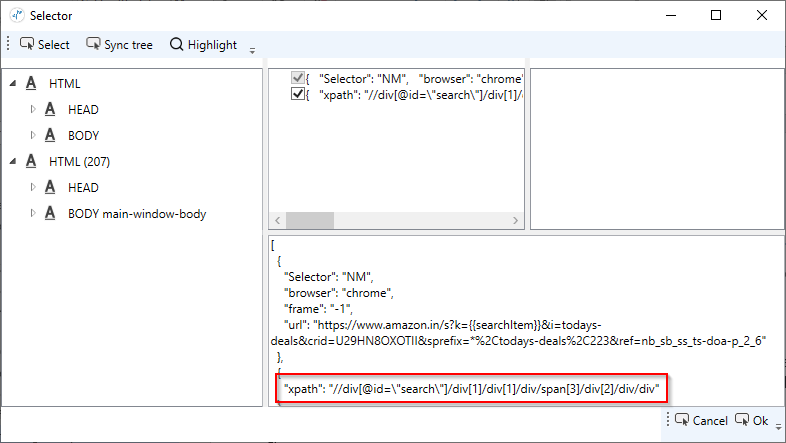
Open Selector
- Drag a Get Element activity within the existing GetElement (as a child activity). Configure this Get Element.
To make the Activity loop each element of this broader array of elements, we are including another GetElement Activity inside the sequence that was created by the Recorder.
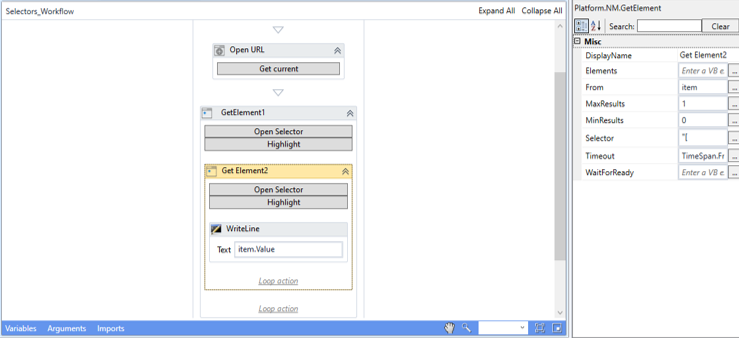
Get element activity and looping activities
- Click Open Selector in the child Get Element activity. The selector displays all the elements including the parent GetElement elements. The purpose of this activity is to capture a particular element using selector within the main get element that is captured using the recorder.
By opening the Selector on the newly created GetElement, on the left you will find an Element Tree which allows you to further select what should be manipulated. Use the Highlight button to debug and check if you are selecting the right element.
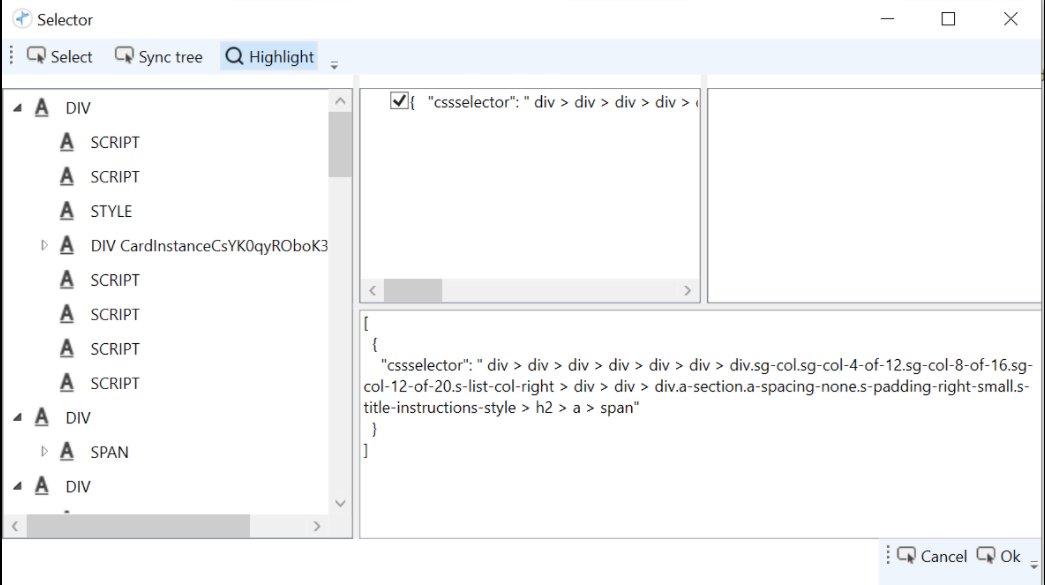
-
In the Selector of the child get element, manipulate the element details in such a way to fetch the required text. In this example, any search item that is to be searched.
-
Drag a Write Line activity into the above Get Element activity and insert text as item.value.
If further automation is required for each specific entry, add those activities inside the inner GetElement.
- Use the GetElement Activity related to the technology that the Recorder is working with. If using Windows elements, it should be Windows.GetElement. Same applies to other technologies: Browser Automation.GetElement, OCR.GetElement, Java.GetElement, etc.
Manually Adjusting Selectors
There are many ways users can adjust a Selector to fit their needs. In this section, the user will learn how to pass variables to a Selector, how to loop through elements by using Wildcards and nest them within a Selector, and a few other tricks!
Passing Variables to a Selector
Passing variables to a Selector is rather easy! The users can make use of the Mustache syntax to append a value to an existing parameter or simply use a custom parameter inside the Selector.
Users can make use of the Recorder to capture an element inside a Google Search page and pass a variable to append to an existing Selector parameter and further on they can simply use the variable for the whole parameter.
-
Open the Chrome browser and enter any search input they would like to search for on Google (say, https://www.google.com/) main page.
-
Open RPA Bot Studio and create a new workflow.
-
Click inside the Sequence and click the Recorder button inside RPA Bot Studio's ribbon. Now click inside the element on the page.
-
In Chrome, a new RPABotStudio.NM.GetElement Activity will appear.
-
Click the Open Selector button and the Selector Designer appear.
-
Replace a part of the XPath parameter, remove - the div/span/span[2] part of the XPath parameter, and add a Mustache expression containing the name of the variable to which the value that was removed is assigned. You can name that variable as selectorValue so the Mustache expression would become {{ selectorValue }}.
-
Click the Ok button to close the Selector Designer.
-
Assign this variable to a value - the value is the value that was removed from the XPath parameter but it could be anything! The possibilities are endless for manipulation. You can even use CSS Selectors! Refer to Using CSS Selectors.
-
Drag an Assign Activity to the main sequence, just above the GetElement activity. Name it as selectorValue and assign to it the value which was stripped before - ie., "div/span/span[2]". Press Ctrl+K to create the variable.
-
Delete the Click Element activity from inside the Sequence in the GetElement activity and drag an Assign activity inside it so we can test whether the value was captured.
-
Name the variable selectorText - it is a completely arbitrary value, users can name it anything they would want to.
-
Assign to this variable the value item.Text.
-
Drag a Show Notification activity to the main sequence and insert selectorText in its Message input field.
-
If you run the workflow now a notification will show, containing the message that was acquired.
Using CSS Selectors
Along with using XPath Selectors, users can also make use of CSS Selectors. In this section, users will learn how to use CSS Selectors to select all of the items pertaining to the class of span elements selected in the previous section by simply passing the CSS Selector belonging to them inside the CSS selector parameter.
-
First, we need to locate the CSS class belonging to the class of span elements. The users can do this by pressing either F12 or CTRL+SHIFT+I. The Console window will then appear. Click on the Elements tab.
-
Press CTRL+SHIFT +C and select the span element.
-
Copy the name of the CSS class for the first div from which the element that was selected before inherits. In our case, this one is the .IsZvec class. Save the name of this class somewhere, it will be needed further on.
-
Open RPA Bot Studio, click on the Recorder button, and then click on the element inside the page.
-
Remove the Click Element Activity from the Sequence inside the new GetElement Activity.
-
Click the Open Selector button and the Selector Designer will appear.
-
Remove the XPath parameter and add a new CSS selector parameter with value ".IsZvec". Finally, click the OK button to save changes.
-
Change the MaxResults parameter to a number they find fit. In our case, since Google's Search Engine only shows 10 results per page the author has opted to set MaxResults as 10.
-
Change the MinResults to 0 as well in case RPA Bot Studio does not find any elements containing the CSS selector set previously.
-
Finally, it is recommended that users set the Timeout parameter to 00:00:00 or TimeSpan.FromSeconds(0).
-
For every Activity put in the Sequence inside the NM/IE.GetElement Activity, it will be looped over for every element containing the .IsZvec class.
-
The above can be tested by dragging a WriteLine Activity to the end of this Sequence and assigning to its Text input the item.Text value.
-
When the Workflow is run now it will show the text for every element containing the class which was set up before.
Using Wild Cards
In this section, users will learn how to capture multiple elements (using wild card characters) inside a given HTML DOM Element Object, in a similar way to how Using CSS Selectors works but using XPath Selectors.
-
Open RPA Bot Studio, click on the Recorder button, and then click on the element inside the page.
-
Remove the click Element Activity from the Sequence inside the new GetElement Activity.
-
Click the Open Selector button and the Selector Designer will appear.
-
Now users will only cut out a part of the XPath parameter. They shall replace the div[3]/div/div[2]/div/span substring from the XPath parameter for div[*]/div/div[2]/div/span. This allows RPA Bot Studio to capture all the 10 search elements.
-
Click the Ok button to close the Selector Designer.
-
Now users can test it worked by dragging a WriteLine Activity to the Sequence inside the IE/NM.GetElement Activity generated by the Recorder and assigning to its Text input field the item.Text value.
-
After running the Workflow, users will notice that it has successfully captured the 10 span elements found.