Design Canvas Toolbar
The design Canvas toolbar is displayed on the top of the design canvas. The tools in this toolbar are used for designing the flow. Hover over the tools to display the tooltips.
Process Flow Toolbar
The generic toolbar functions that apply to all types of flows are explained below.
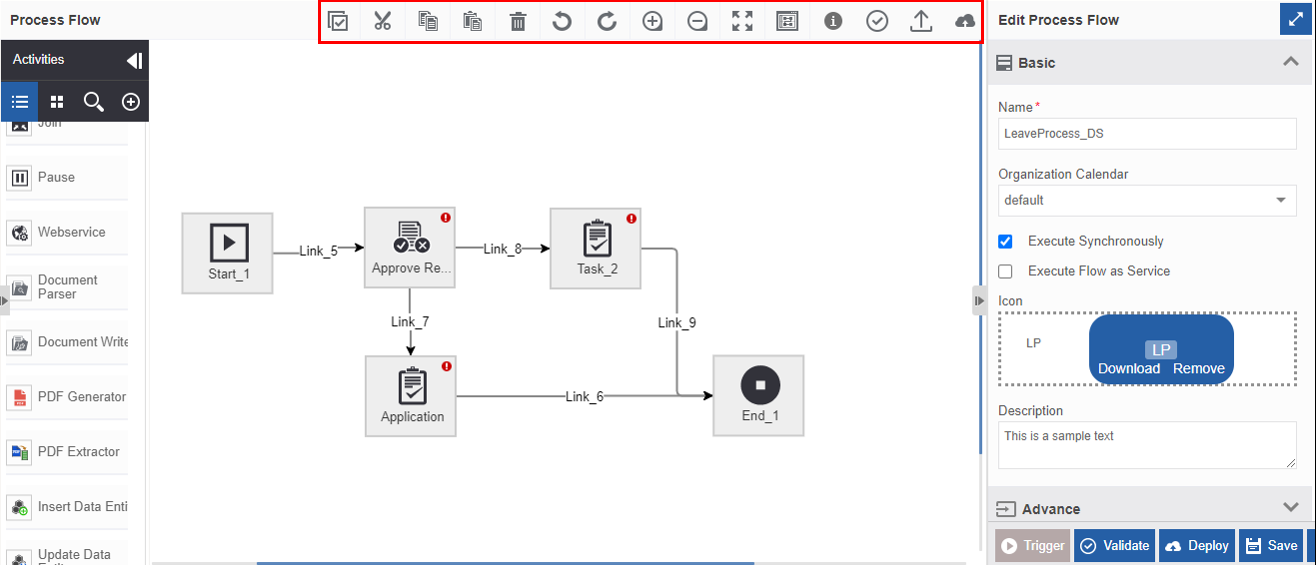
| Icon | Name | Description |
|---|---|---|
 |
Select All | Click to select all the activities and links in the canvas. Click anywhere in the canvas to remove the selection. |
 |
Cut | Select an activity/link and click the Cut icon to cut the shape to the clipboard. When you cut activity, the incoming and outgoing links also get cut. |
 |
Copy | Select an activity/link and click the Copy icon to copy the shape to the clipboard. Refer to Copying and Pasting the Activities section for more details. |
 |
Paste | To paste the copied or cut elements. |
 |
Delete | To delete the activity/link. |
 |
Undo | To undo/restore the previous action or go back to the just previous stage by erasing the current action |
 |
Redo | To redo/go forward to the action done before. It is the reverse of undoing. |
 |
Zoom In | To zoom in to the size of the process workflow in the canvas. |
 |
Zoom Out | To zoom out to the size of the process workflow in the canvas. |
 |
Zoom to Fit | To switch between the actual sizes of the workflow (enlarged/maximized) and smaller size workflow (minimized or fit to canvas size). The zoom to Fit feature allows you to view the full process workflow on the design canvas. This feature is used when the process flow is very large |
 |
Swimlane/Free view | Refer to Design Views. |
 |
Deployment Status | Displays the last deployed information (Last deployed date/time and user name).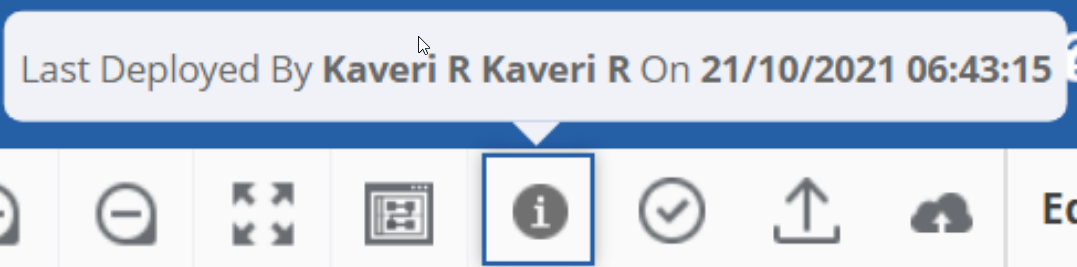 |
 |
Validate | Validates the process flow for any error in configurations. |
 |
Export | To export the process flow to the local system (.pkg format) |
 |
Deploy | To deploy the process flow. |
Process Flow Design Views
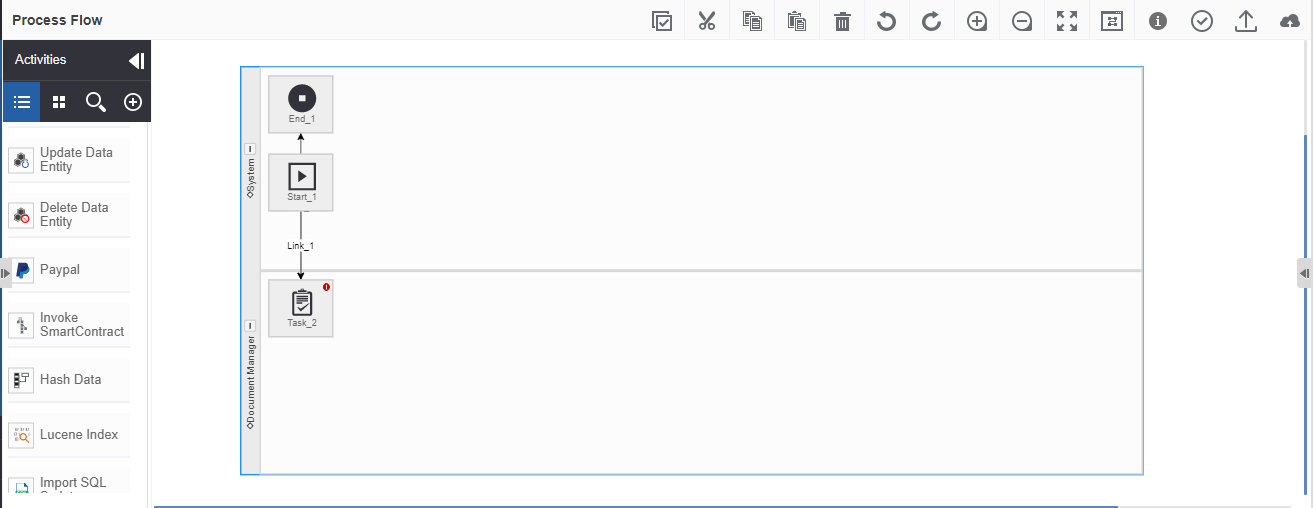
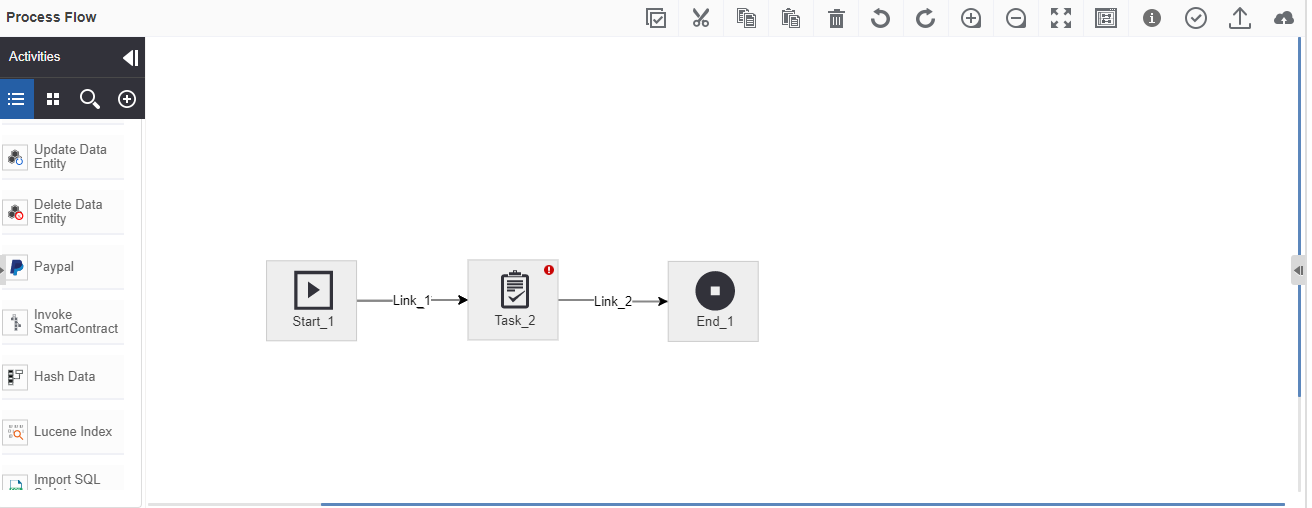
There are two design views available in the process design canvas: Swimlane and Free view. When you click the Swimlane view icon, the icon changes to the free view icon and vice versa. You can switch between the Swimlane view and the free view.
To access design canvas, navigate to App Studio > Applications – Open application > Process Flow – Open process flow
Swimlane view
Swimlane view allows you to view the complete workflow based on the tasks assigned to various participants in the system. You can view tasks assigned to a participant in a single lane. You can also view one lane at a time by minimizing other lanes.
- Click the Swimlane icon () to view the swim lane view.
Free view
The free view is the default view in the process canvas.
- Click the free-view icon (
 ) to view the actual view.
Exporting Flow from Design Canvas
You can export the flow from the design canvas using the export icon in the design canvas toolbar. This is applicable to process flows, event flows and data flows.
- Open the design canvas of the flow (process flow/event flow/data flow).
-
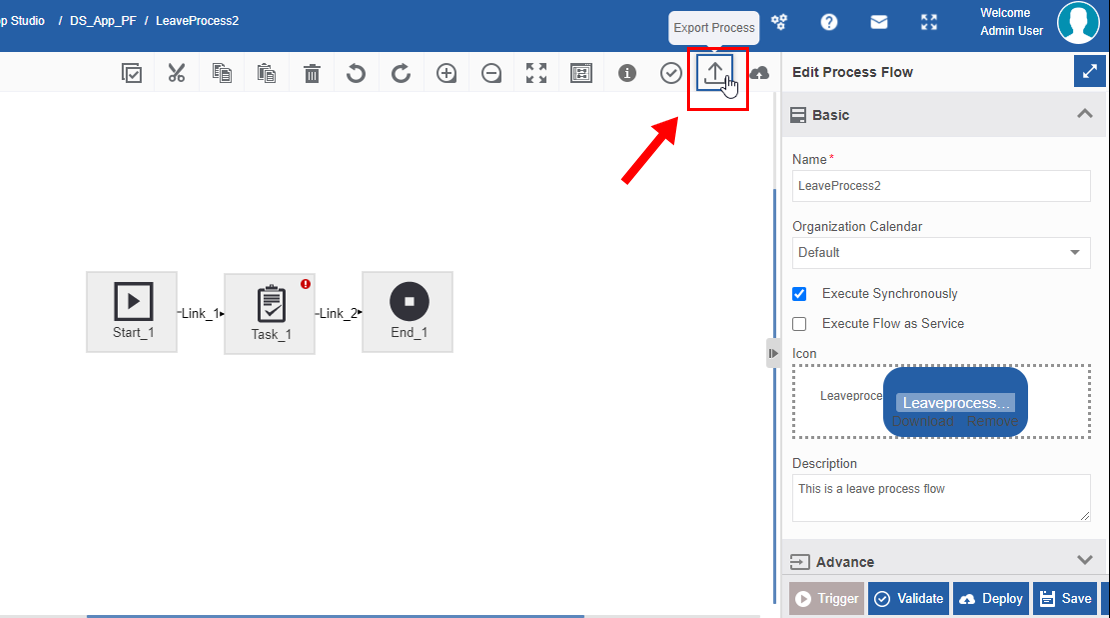
On the toolbar, click the export icon (shown below).
-
Select the path where you want to save the file. The process gets exported (downloaded) to the local system as a package file (.pkg file).
Validating Flow from Design Canvas
You can validate the flow from the design canvas using the validate icon in the design toolbar.
You can configure each activity in the flow and validate for any errors.
- Open the design canvas of the flow (process flow/event flow/data flow).
-
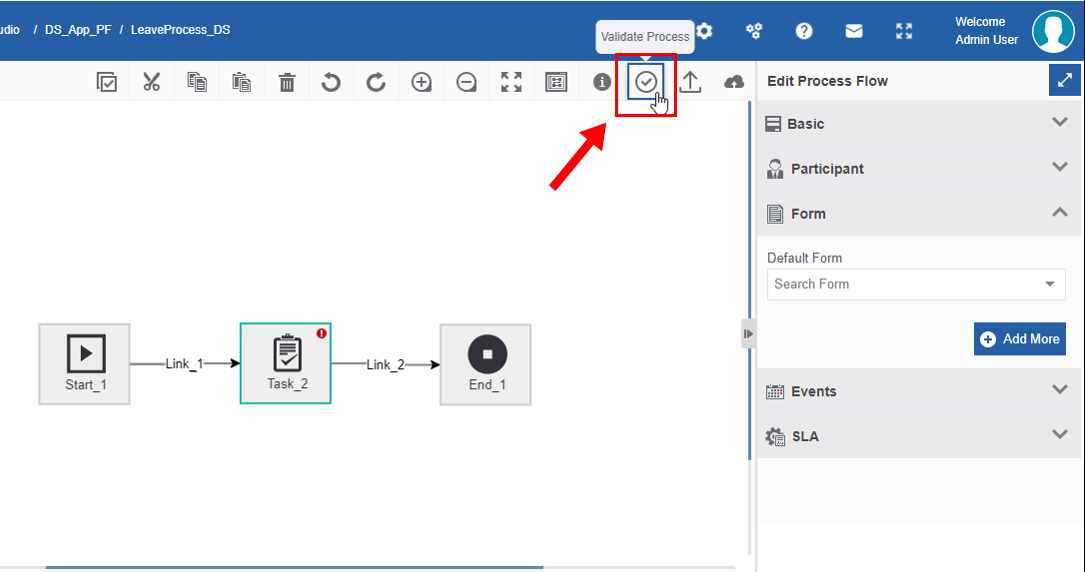
On the design toolbar, click the Validate icon.
-
If the validation is a success, a success message is displayed else an error message is displayed. Go to step 4.
Else go to step 5. -
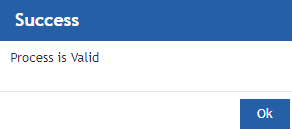
Click ok on the success message box and the validation is complete.
-
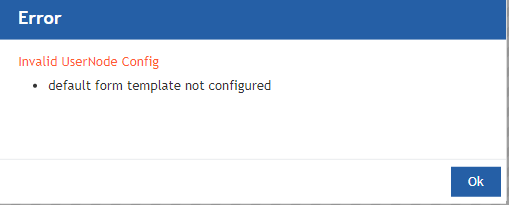
If the validation is a failure, click OK in the Error message box and rectify the error displayed. Go to step 1 and repeat the steps for validation.
Deploying Flow from Design Canvas
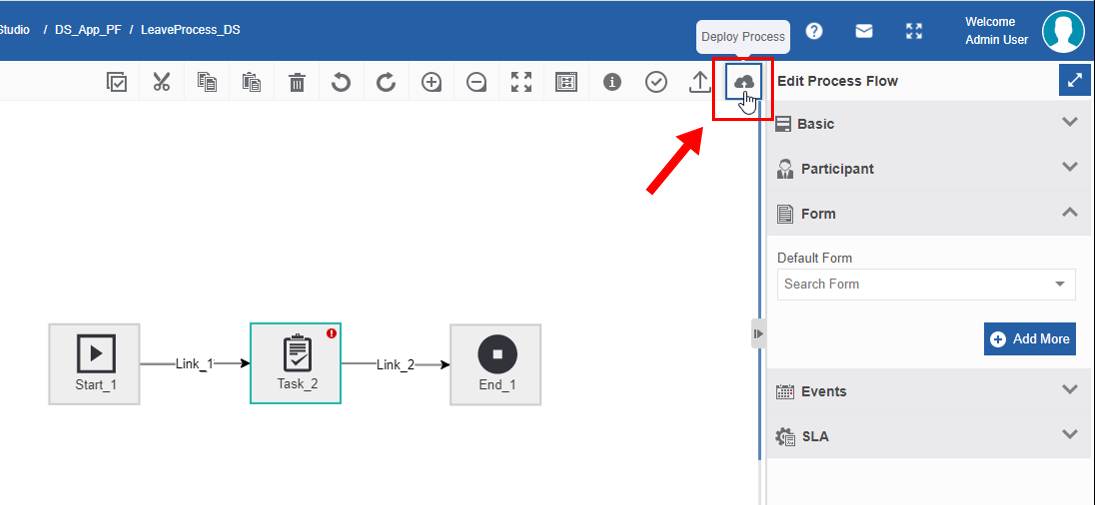
You can deploy the flow from the design canvas using the deploy icon in the design toolbar.
- Open the design canvas of the flow (process flow/event flow/data flow).
-
On the design toolbar, click the Deploy icon.
-
If the Validation is a success, the process is deployed and available for initiation. Go to step 4.
Else if there is a validation error, rectify validation errors and deploy the process flow again (go to Step 1). -
Click OK. The process is successfully deployed.