App Studio
App Studio module is the main module of the Platform where you can create new applications for your organization. Different types of business workflows are created within the application. The App Studio includes Applications, Data Catalog Applications, Web Apps, and organization-level entities.
Prerequisites
- Users must have valid credentials to login to the Platform with an access to the App Studio module. Users with organization-level permission can access the App Studio.
- Users must be aware of the basic concepts of various business applications managing the organization.
App Studio Components
The App Studio components are submodules within the App Studio module that functions in sync with each other.
Understanding App Studio Layout
The components or the submodules within the App Studio module have a generic UI and layout.
- Left side menu displays the Studio components.
- Center area displays the selected component list items. The components are listed in a card view.
- Right-side property panel displays the details of the selected item. When you click and select an item or card, the details are displayed in the property panel (or Info Actions panel) on the right side.
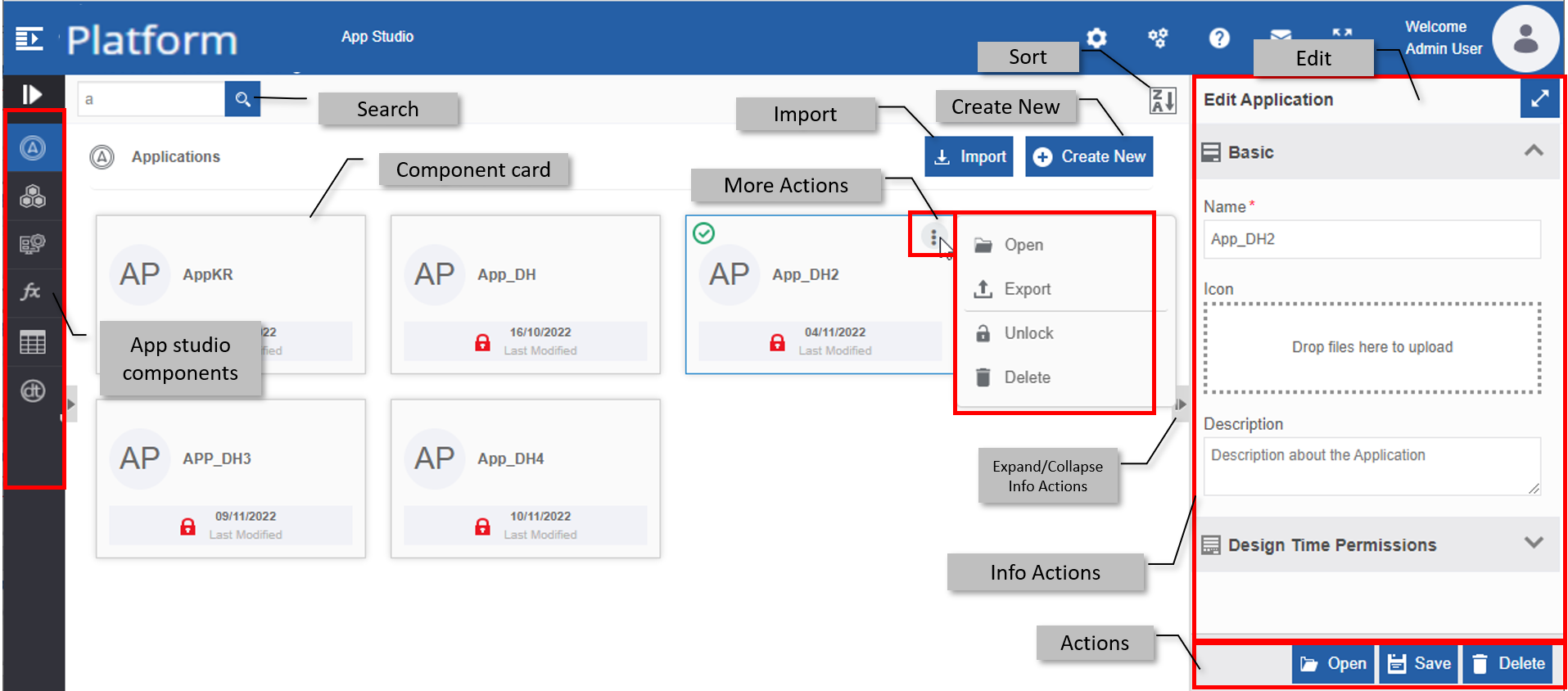
| Feature | Description |
|---|---|
| Search | Allows you to search for a component item in the list. |
| Component card | The list of all components (Applications, Data Catalog applications, etc.) is displayed in card view. |
| Sort | Allows you to alphabetically sort the items (or cards) on the page. |
| Actions | Allows you to perform specific actions. - Open : Click Open to view the entity details. - Save : Click Save to save the details after editing or modifying. - Delete : Click Delete to delete the selected item. |
| More Actions (three dots in the component card) | - Hover over the card to view three dots. - Click the three dots on the card to view and execute the Open, Edit, Export, and Delete actions. Actions are displayed as applicable for each component. |
| Export (in More Actions) | To export the component (in .pkg file) from the Platform to the local system. |
| Import | To import the component (in the .pkg file format) from the local system. |
| Create New | Allows you to create a new component (applications or entity). |
| Edit | Allows you to edit the existing details of each component. |
| Info Actions | Click (select) a card. Attributes/properties and configurations of the component are displayed in the Info Actions, also referred to as Property panel. |
| App Studio Components | Components in the App Studio that are utilized within the Platform. |
| Expand/Collapse | Allows you to hide and view the Info Actions panel. - Click expand arrow on the top-right of the Info Actions to open Info actions in a separate pop-up. |
Sorting Components in App Studio
In the App Studio component page, the cards are displayed in alphabetically ascending order by default.
The sorting feature for the application section is provided below as an example and it applies to all the modules and sections where the sort feature is available.
-
Navigate to App Studio > Applications (Application page appears by default, when you access App Studio). The list of applications in the organization is displayed in ascending order by default and the sort icon is descending (Z🡪A).
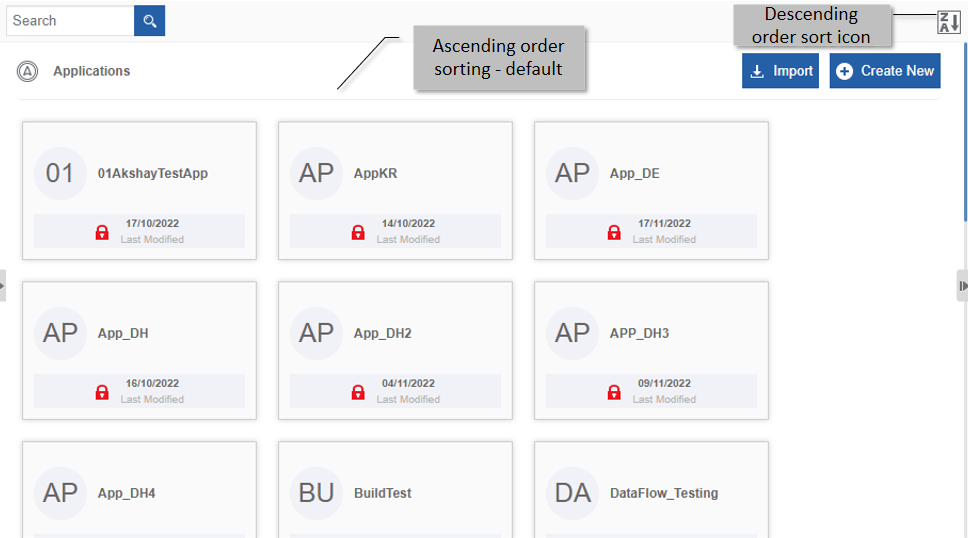
Ascending order display with descending order sort icon -
Click the Descending order sort icon (Z🡪A). The cards get sorted in descending order (A🡪Z) of the flow names. The Sort icon is now changed to ascending order (A🡪Z).
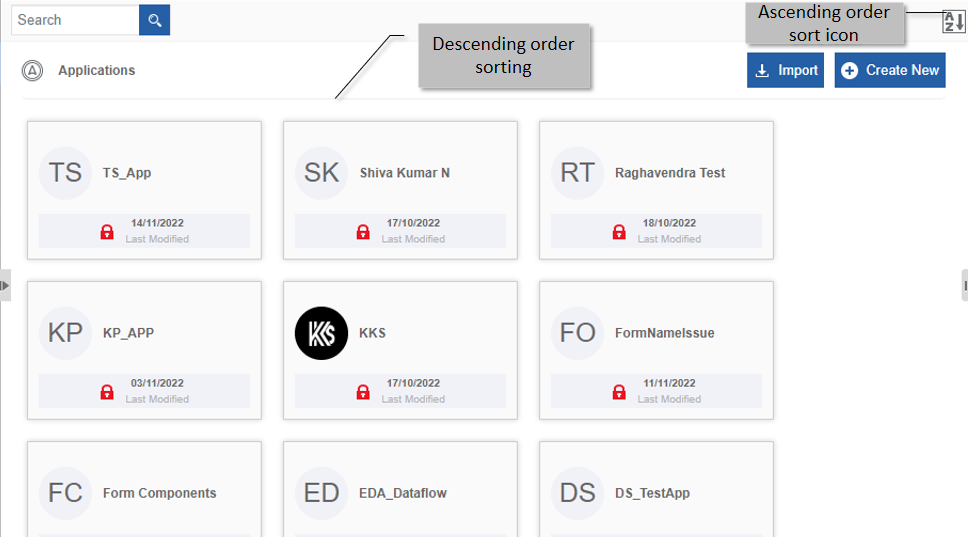
Descending order display with ascending order sort icon -
Click the Ascending order sort icon (A🡪Z) for sorting in the ascending order (A🡪Z). The sort icon changes to descending order (Z🡪A).
Searching for a Component in App Studio
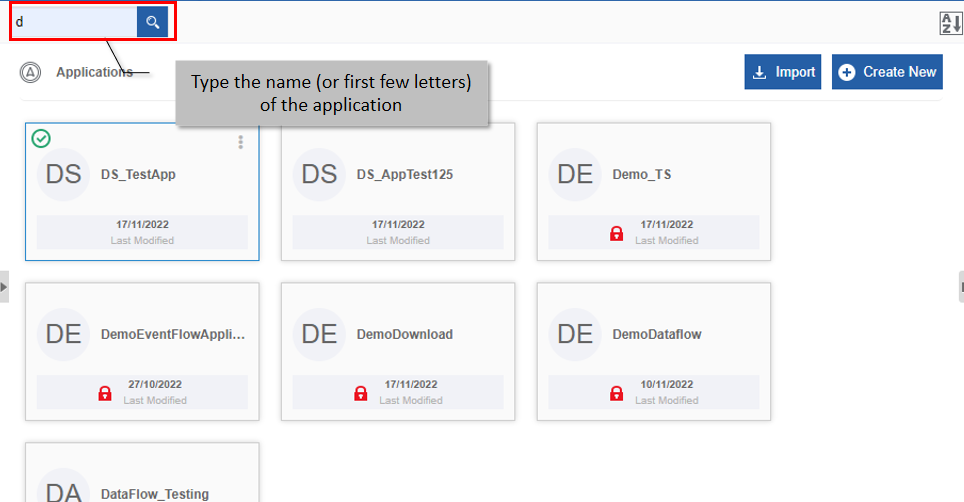
The search functionality to search for an entity or component is explained below by considering the Application component as an example and it applies to all modules and sections.
- Navigate to App Studio > Applications (or any other in the submenu).
- Type the name (or first few letters) of the search item in the search box on the upper-left of the page. The filtered results are displayed.