Module Deployment Utility
About Module Deployment Utility
Module Deployment Utility is used to verify the .JAR and .WAR files. You can deploy the portlet (widgets) which are in .JAR file format or themes which are in .WAR file format in the platform itself.
Usually, when you deploy files in the server, if there is any error in the file uploaded - like the syntax error or properties error, it will throw validation errors. Using Module Deployment Utility page, you can verify the .JAR and .WAR file and deploy it so that you can utilize it in the platform.
Uploading, Validating and Deploying Files
-
In the Platform main menu, click Module Deployment Utility.
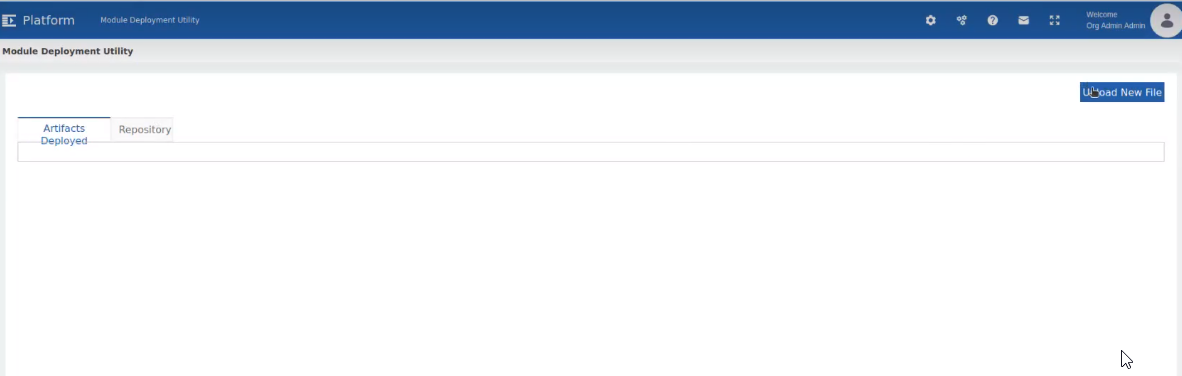
Figure 1: Module Deployment Utility page -
Click Upload New File button on the top-left of the page. Open Files pop-up appears. Only .JAR and .WAR files can be selected.
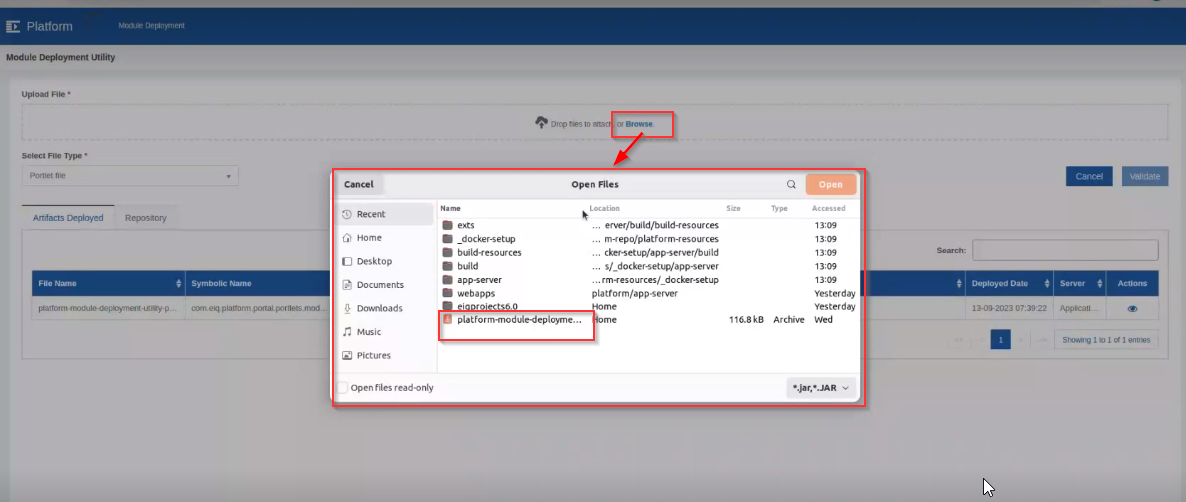
Figure 2: Uploading files -
Select the required file that is to be uploaded and click Open.
-
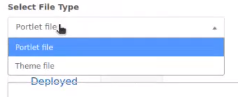
Click Select File Type. Select the required file type. Portlet file is selected by default.
-
Portlet file: Select Portlet file if you need to upload a portlet file or .JAR file.
-
Theme File: Select Theme file if you need to upload a theme file or .WAR file.
-
-
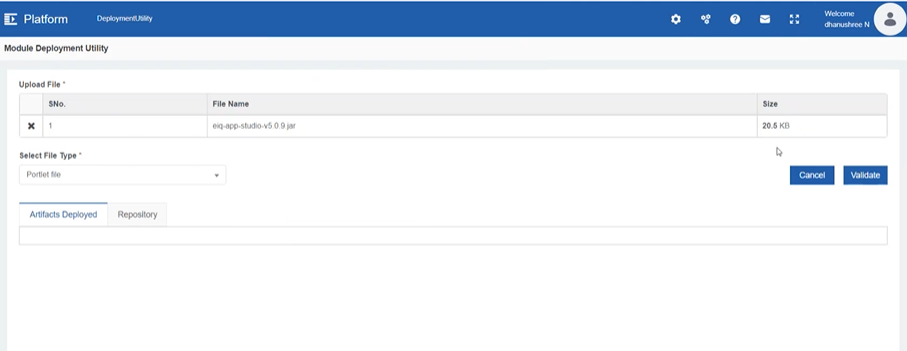
In the Upload file section, click Browse and select the .JAR file for portlet and .WAR file for theme file.
-
Click Validate to validate the uploaded file.
For portlets, only those files that follow the portlet structure is accepted and for themes, only those files that follow the theme structure is accepted; else it will throw error.
Once the validation is success, pop-up appears with a Deploy action.
-
Click Deploy. After successful deployment, the details of the uploaded file appears on the grid.
-
Click Artifacts Deployed tab (selected by default).
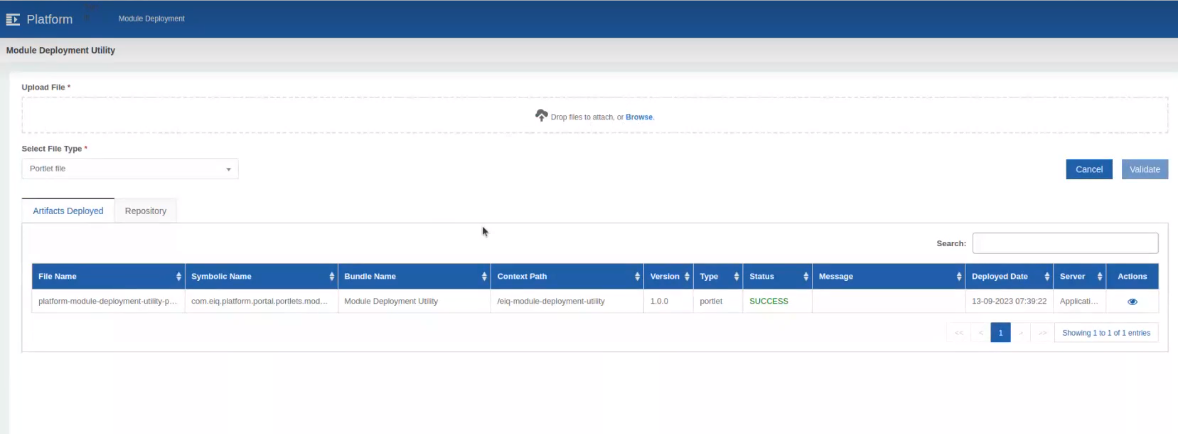
Figure 3: Deployment details in the Artifacts Deployed tab -
In the Actions, click the eye icon. History details appear.
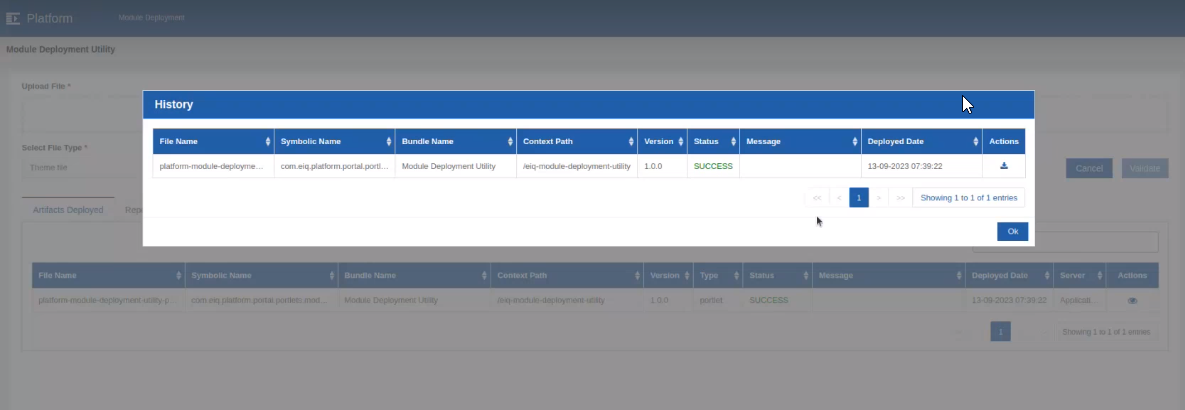
-
In the Actions, click the download icon to download the file.
-
Click OK.
-
Click the Repository tab.
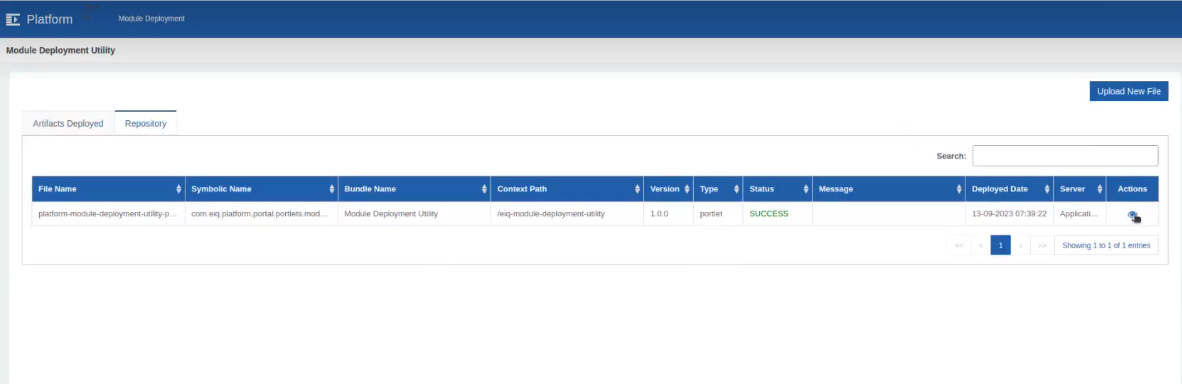
Figure 4: Repository tab with details -
In the Actions, click eye icon to view details.
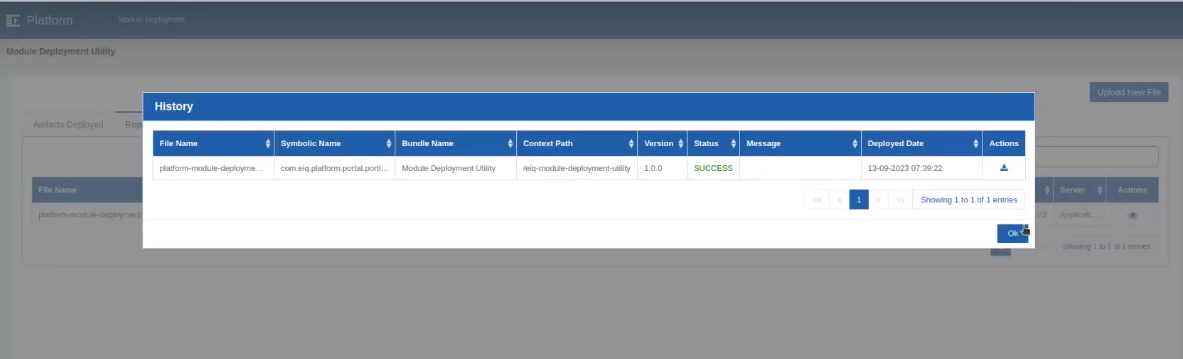
-
In the Actions, click download icon to download the file.
-
Click OK.