AI Workbench
About Platform GenAI
Generative Artificial Intelligence (GenAI) features are built on top of the Platform’s AI Workbench module to create powerful GenAI-based solutions in a structured and safe environment.
The user must have a good understanding of the terminology related to LLMs and Gen AI to leverage the capabilities of the Gen AI-based module.
You can create Gen AI Agents and Bots that respond to you as per your predefined behavior details and configurations.
AI Workbench
The AI Workbench is an integrated feature in the Platform that enables you to apply Gen AI features within your workflow.
AI Workbench allows you to create agents in the system that are capable of autonomously performing tasks on behalf of a user.
AI Agents
AI Agents are GenAI-based agents created for a specific purpose, which can be used to understand your goals and provide action plans or act as per your needs. Over time, agents can learn and adapt to the exact requirements.
The core idea of agents is to use an LLM to choose a sequence of actions to take. Agents use the LLM as a reasoning engine to determine which actions to take and in which order.
Using AI Workbench in the Platform, you can create agents for a specific activity type. The behavior of the Agent is dependent on the activity type selected. There are predefined activity/task types available in the AI Workbench for creating Agents.
Autonomous agents can work independently, and multiple AI agents can work together effectively.
In the Platform AI workbench, the agents that are created appear on the Agents tab.
Agentic Mesh is an ecosystem that enables autonomous AI agents to find each other, collaborate, interact, and transact safely.
Activities for Agents
Activities are predefined tasks built as components ready to be used in any process/data/event flows to enable Agentic Process Automation.
Activities are associated with AI models for achieving a specific purpose. Each activity category in the AI Workbench has a purpose.
The predefined activity type appears on the Activities tab page.
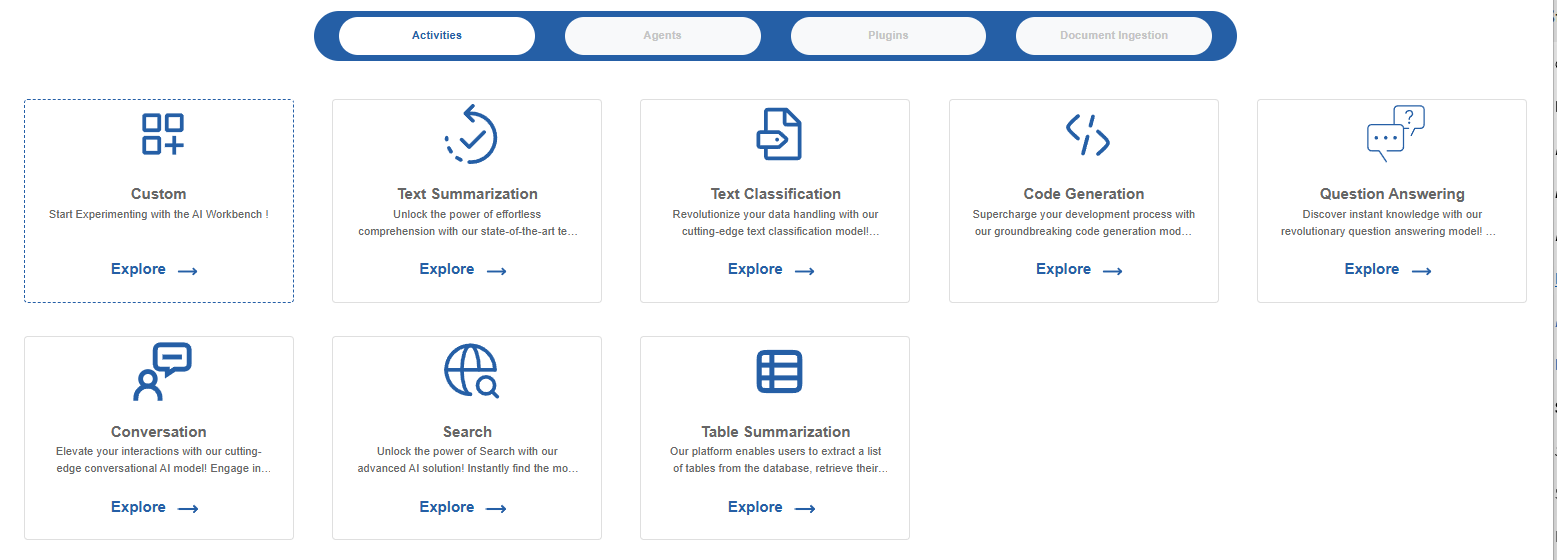
- Select an activity type and create an agent to perform specific tasks based on the activity and configurations provided for that agent.
The pre-set prompt in a particular activity type focuses on generating a response based on the basic logic of the prompt and the additional configurations provided. Except for Custom Activity, prompt is predefined and you can always modify them as per your needs.
Plugins for Agents👑
This content is applicable for Enterprise plan
Activities
In the AI Workbench module, Activities are listed in the Activities tab, and these activities are used to create agents of the selected activity type.
Each activity in the AI Workbench defined for AI models has a specific purpose. For any activity type, the model’s API (input and output) in the background indicates what task it needs to perform. Based on the activity category, the model processes the input data.
Creating Agents Using Activities
Create or build an Agent from the available activity types or a custom activity.
To create an agent with a predefined prompt:
- Navigate to AI Workbench > Activities > {ActivityType_Name} - Explore
If you select an activity for creating an agent, the prompt templates are predefined. - Select a template and provide other configuration details to complete the agent creation.
To create a custom type agent:
- Navigate to AI Workbench > Activities > Custom - Explore
- If you select “Custom” to create an agent, define the prompt along with the configuration details.
When you create an agent, the system automatically creates an agent ID in the background for that agent. The agent ID appears on the agent card displayed on the Agents page.
Custom
The custom category (other than the cagtegories available or predefined activities) allows you to create an agent based on your specific or custom goals. This empowers the developers to build tailored solutions that meet specific business needs.
If you want a custom task feature for your agent, create your agent with “Custom” and define the goals in the configurations.
To create and configure a custom activity type agent:
- Navigate to the AI Workbench > Activities tab > click Custom > Explore. The AI Workbench-Custom page appears. Start experimenting by creating the AI agent as per your requirements.
- Define your custom prompt. The custom activity allows you to define your own system prompt.
- In the LLM settings, provide configurations as per your needs. Refer to Configuring Agent.
To Test, Save, and Publish the agent, at the bottom-right of the AI workbench,
- Click Test to test the agent. Refer to Testing Agent.
- Click Save to save the agent. Refer to Creating and Saving the Agent.
- Click Publish to publish the agent. Refer to Publishing the Agent.
Code Generation
The code generation activity allows you to create initial code snippets based on your functional requirements. With this prompt, obtain the starting code for your requirement in various programming languages. Utilize this to accelerate the beginning of your software development tasks by reducing manual coding efforts.
To create and configure a code generation agent:
- Navigate to the AI Workbench > Activities tab > click Code Generation > Explore. The AI Workbench-Code generation page appears. You can start experimenting by creating the AI agent as per your requirements.
- Select a system prompt template. Each template defines a different
system prompt for code generation. Choose the most matching template
for your requirement.
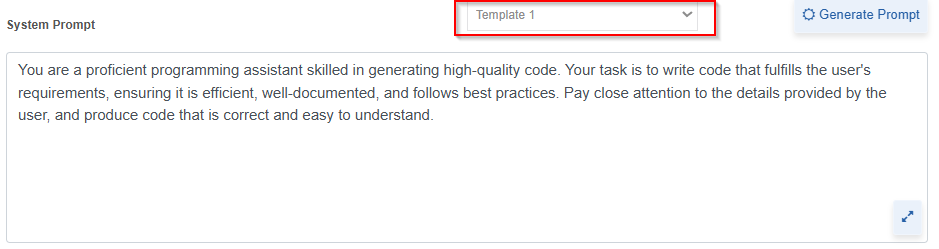
- After selecting a template, modify or enhance the prompt with your goals.
- In the LLM settings, provide configurations as per your needs.
Refer to Configuring Agent.
To Test, Save, and Publish the agent, at the bottom-right of the AI workbench,
- Click Test to test the agent. Refer to Testing Agent.
- Click Save to save the agent. Refer to Creating and Saving the Agent.
- Click Publish to publish the agent. Refer to Publishing the Agent.
Conversation
The conversation prompt template allows you to engage in multi-turn conversations with the platform. This feature facilitates more natural and interactive user experiences.
To create and configure a conversation agent:
- Navigate to the AI Workbench > Activities tab > Conversation > Explore. The AI Workbench-Conversation page appears. Start experimenting by creating the AI agent as per your requirements.
- Select a system prompt template. Each template defines a different
system prompt for conversation. Choose the most matching template
for your requirement.
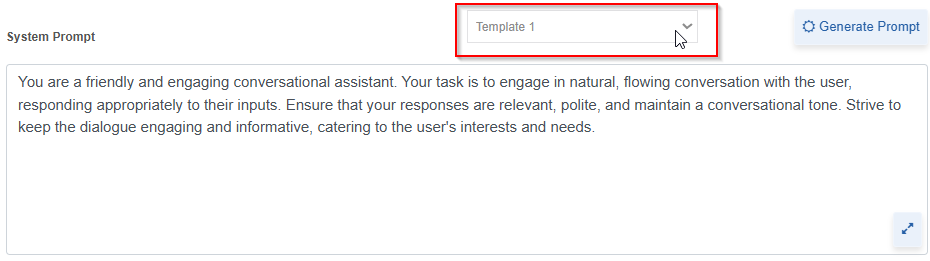
- After selecting a template, modify or enhance the prompt with your goals.
- In the LLM settings, provide configurations as per your needs.
Refer to Configuring Agent.
To Test, Save, and Publish the agent, at the bottom-right of the AI workbench,
- Click Test to test the agent. Refer to Testing Agent.
- Click Save to save the agent. Refer to Creating and Saving the Agent.
- Click Publish to publish the agent. Refer to Publishing the Agent.
Question Answering
The question answering prompt template allows you to generate answers to your queries based on the provided context or knowledge base. With this prompt, extract specific information and insights from your data. Use this prompt to build agents that can intelligently respond to your inquiries or analyze documents.
To create and configure a Question Answering agent:
- Navigate to the AI Workbench > Activities tab > Question Answering > Explore. The AI Workbench Question Answering page appears. Start experimenting by creating the AI agent as per your requirements.
- Select a system prompt template. Each template defines a different
system prompt for question answering. Choose the most matching
template for your requirement.
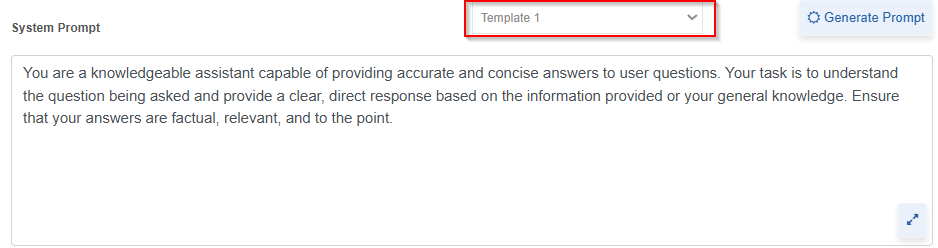
- After selecting a template, modify or enhance the prompt with your goals.
- In the LLM settings, provide configurations as per your needs.
Refer to Configuring Agent.
To Test, Save, and Publish the agent, at the bottom-right of the AI workbench,
- Click Test to test the agent. Refer to Testing Agent.
- Click Save to save the agent. Refer to Saving the Agent.
- Click Publish to publish the agent. Refer to Publishing the Agent.
Search👑
This content is applicable for Enterprise plan
Table Summarization
The table summarization prompt template allows you to generate concise summaries of tabular data, highlighting key insights. With this prompt, you can quickly understand the essential information contained within complex tables. Apply this to efficiently analyze and report on data presented in tabular form.
To create and configure a Table Summarization agent:
- Navigate to the AI Workbench > Activities tab.> click Table summarization > Explore. The AI Workbench-Table Summarization page appears.
-
Step 1: Database Connection.
Existing Connection configurations:
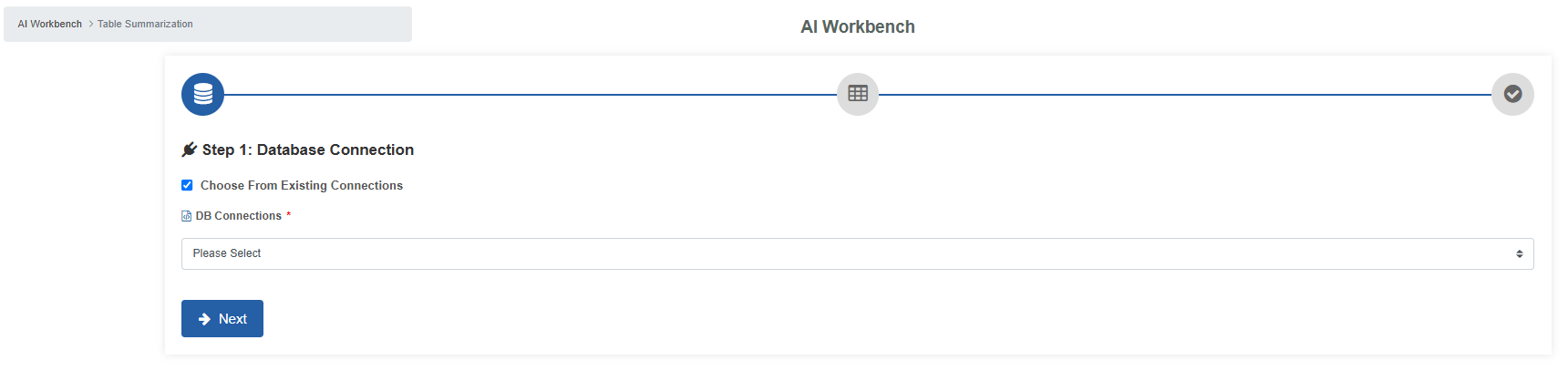
- Select Choose from existing connections. DB connection field appears.
- Select a database connection from the list of available connections
New Connection Configurations:
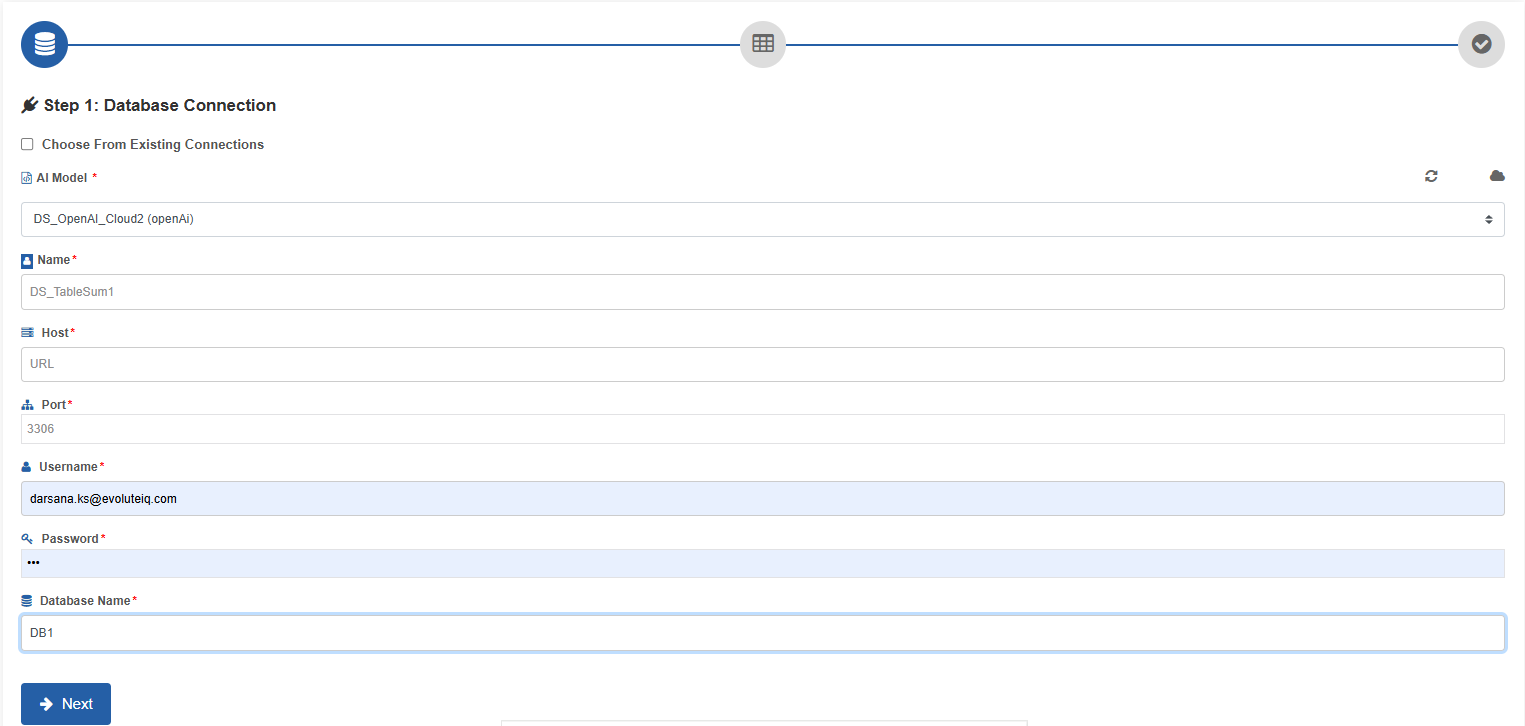
-
Deselect Choose from existing connections. Configuration details appear for external DB connection.
Configuration Description AI Model* Select the AI model.
Click the cloud icon to navigate to the Cloud Information section and add any new cloud models. Refer to Gen AI Studio.
Click the Refresh icon to display the newly added cloud models.Name* Enter name for your external database configuration. Host* Enter the host name or the location (IP address) of the server.
If the database is on the same machine as the application, you shall use localhost as the hostname.Port* Enter the port number to which the server should point to.
Example:3306.Username* Enter your username to authenticate with the database connection.
You must have the necessary permissions to access the specified database.Password* Enter the password associated with the provided username. Database name* Enter the database name that you want to access. -
Click Next.
-
Step 2: Table Descriptions.
The selected database connection details appear.
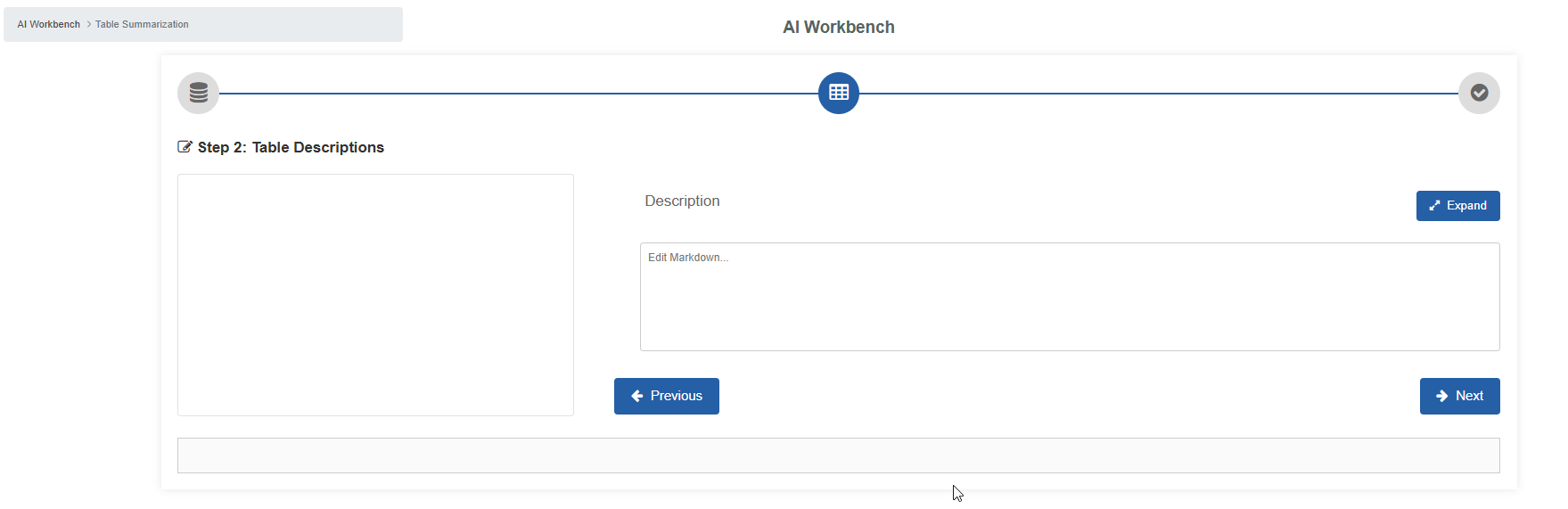
Configuration Description Table Descriptions The table description of the selected database table appears on the left side. Description Add description for your table. Expand Click expand to view the description section separately. -
Click Next.
-
Step 3: Ingest Data.
This section displays the path of the file selected.
To copy the path of the file displayed, click the copy icon adjacent to the path.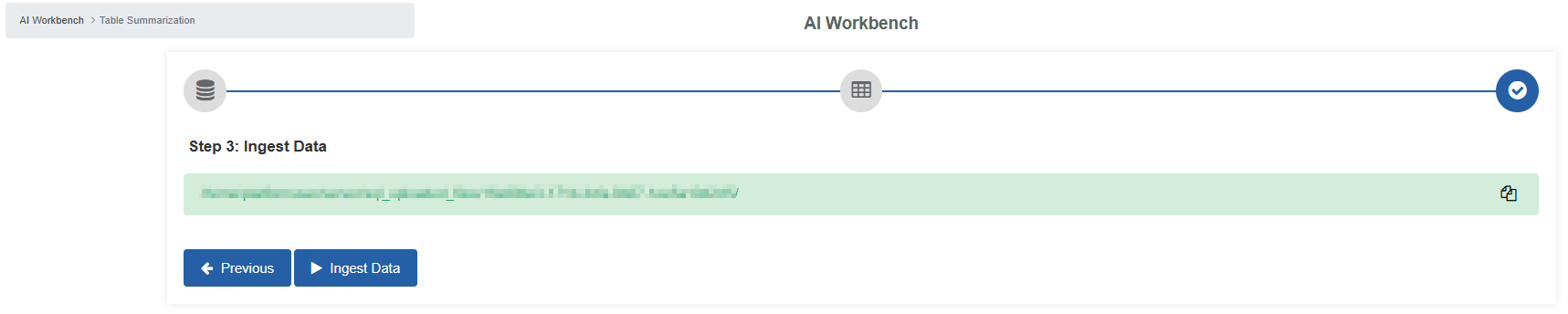
-
Click Ingest Data. The data ingestion details appear. This configuration is similar to document ingestion details. However, instead of regular text content, the table data is taken for ingestion.
Refer to Local File System👑 and relevant vector store configuration as per your selection.
Text Classification
The text classification prompt template allows you to automatically categorize text data into predefined categories or classes. With this prompt, you can efficiently organize and manage textual data.
Use this to build agents that can sort documents, route customer feedback, or analyze sentiment.
To create and configure a text classification agent:
- Navigate to the AI Workbench > Activities tab.> click Text Classification > Explore. The AI Workbench-Text Classification page appears. You can start experimenting by creating the AI agent as per your requirements.
- Select a system prompt template. Each template defines a different system prompt for text classification. Choose the most matching template for your requirement.
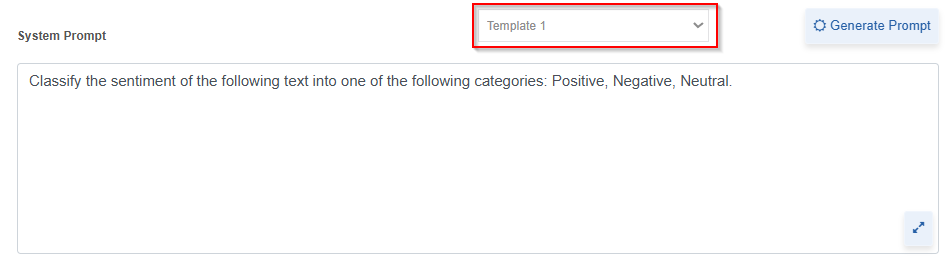
- After selecting a template, modify or enhance the prompt as per your goals.
- In the LLM settings, provide configurations as per your needs. Refer to Configuring Agent.
To Test, Save, and Publish the agent, at the bottom-right of the AI workbench:
- Click Test to test the agent. Refer to Testing Agent.
- Click Save to save the agent. Refer to Creating and Saving the Agent.
- Click Publish to publish the agent. Refer to Publishing the Agent.
Text Summarization
The text summarization prompt template allows you to generate brief and informative summaries of longer text passages. With this prompt, you can quickly grasp the main points of articles, documents, and other textual content. Incorporate this to create agents that can condense information for quick consumption and analysis.
To create and configure a text summarization agent:
- Navigate to the AI Workbench > Activities tab.> click Text Summarization > Explore. The AI Workbench-Text Summarization page appears. You can start experimenting by creating the AI agent as per your requirements.
- Select a system prompt template. Each template defines a different system prompt for text summarization. Choose the most matching template for your requirement.
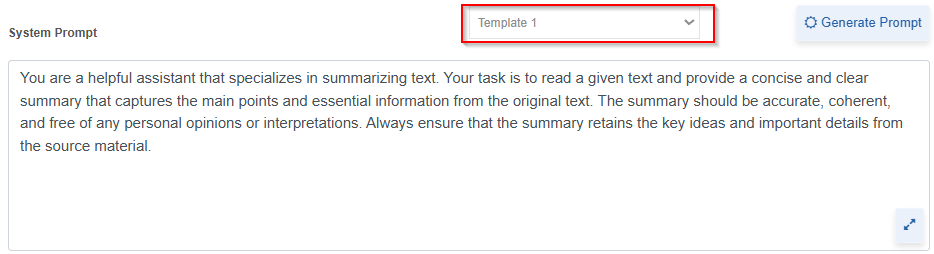
- After selecting a template, modify or enhance the prompt as per your goals.
- In the LLM settings, provide configurations as per your needs. Refer to Agent Configurations.
To Test, Save, and Publish the agent, at the bottom-right of the AI workbench:
- Click Test to test the agent. Refer to Testing Agent.
- Click Save to save the agent. Refer to Creating and Saving the Agent.
- Click Publish to publish the agent. Refer to Publishing the Agent.
Viewing and Editing Agents
The Agents page displays all the agents created by the logged in user the AI Workbench.
-
Navigate to the AI Workbench module > click Agents tab. The list of all agents created for different types of activities is listed on this page.
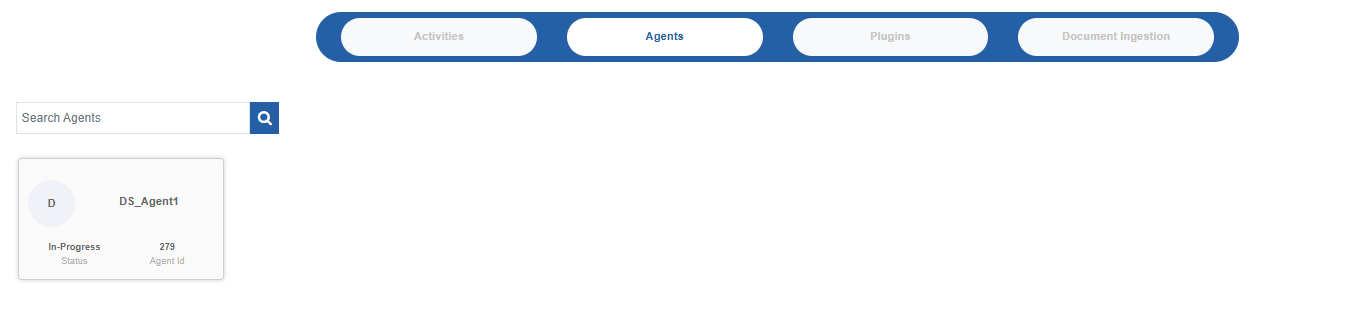
The Agent card displays the agent icon and the following details: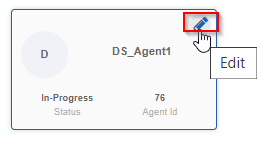
- Agent Name: Name of the agent. You cannot edit the name of the agent once it is created.
- Status: The status of the agent.
- In Progress: Indicates the agent creation is in progress. That is, the agent is just saved (created or updated), not published, and hence not available for utilization.
- Active: The agent is created and is active for use. That is, the agent is published and available for utilization.
- Agent Id: The unique Id generated internally for an agent after creation of the agent. Use this Id to refer an agent in the process flow.
-
Hover over your agent card, and the edit icon appears on the top-right of the card.
- Click the edit icon to view the existing agent configuration details.
- Go to each configuration category and modify the details as needed. The agent configuration details are enabled only for the editable fields.
- Click Save. The details are saved. If the agent is already published, Publish button is not displayed. However, the details saved will apply to the published agents also.
Configuring Agent
To create an AI Agent, you must provide Agent configuration that includes LLM settings, Document Ingestion👑, Prompt (when you select Custom activity), Variables, and Guardrails👑.
At runtime, your AI agent will behave as per the prompts and the configuration details.
To Create New Agent Configurations:
- For creating and configuring a new agent, go to AI Workbench > Activities > Custom -Explore.
-
For an existing agent, go to AI Workbench > Agents > click the edit icon for the agent you want to edit.
The AI Workbench page appears with the Agent configuration details.
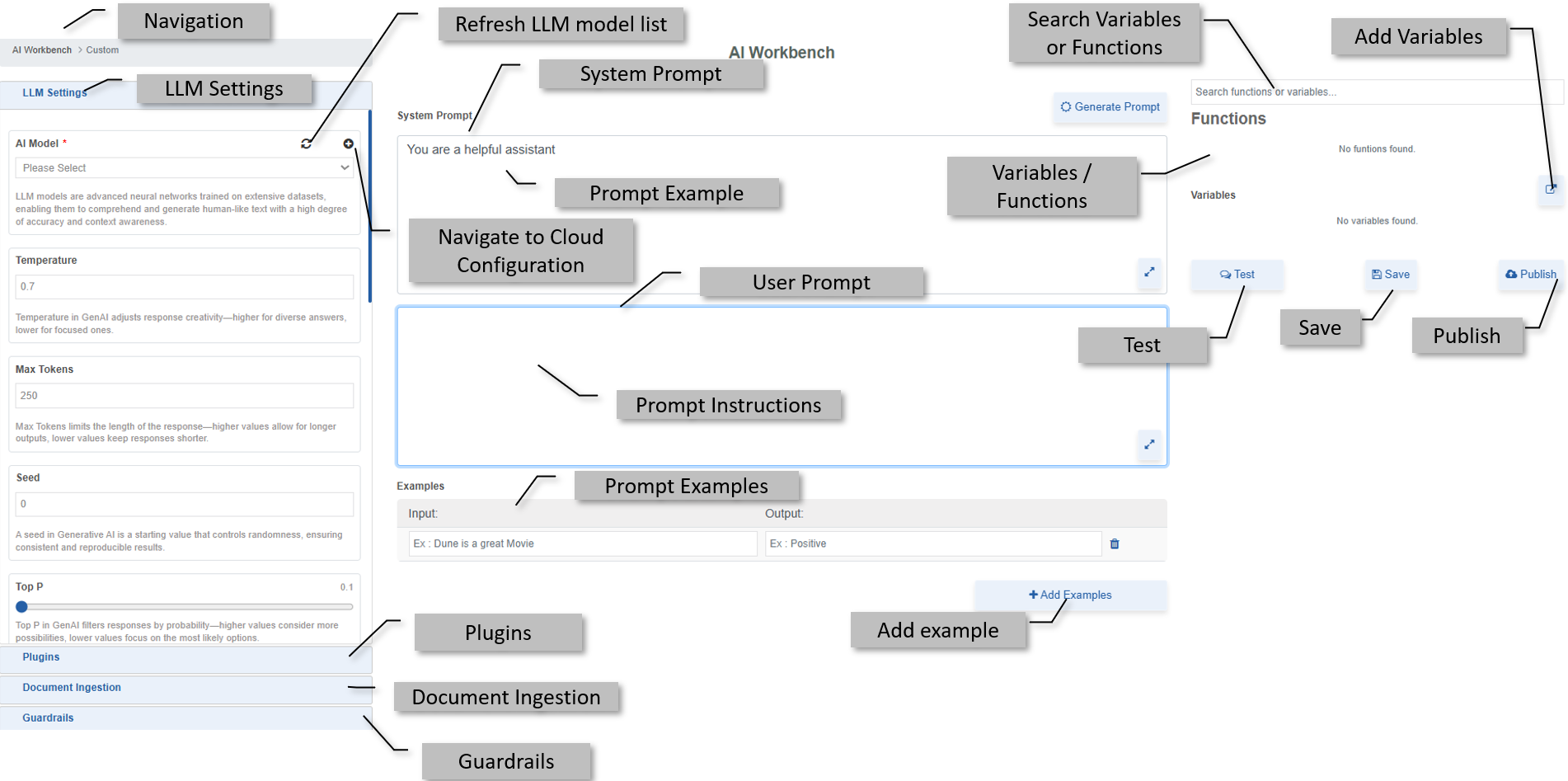
-
Click navigation bread crump to navigate back to Activities page
LLM Settings
LLM models are advanced neural networks trained on extensive datasets, enabling them to comprehend and generate human-like text with a high degree of accuracy and context awareness.
- If you want to use a cloud model as the LLM, you must create or obtain the API key from the cloud provider account of that model. Details of getting different API keys from cloud providers are mentioned within the relevant sections.
AI Model
-
Select the required AI model from the list. The list box displays the available LLMs.
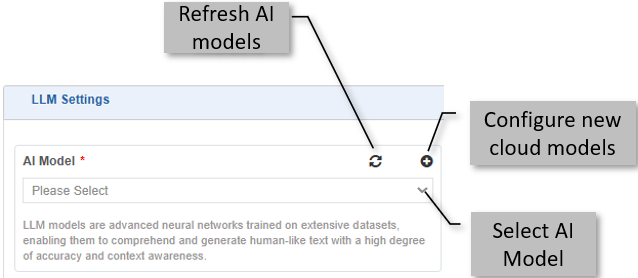
2. If you want to select the Cloud AI models, click the “+” icon on the top-right of the select box. It navigates you to Cloud configuration section.
Refer to Gen AI Studio documentation. -
After configuring a cloud model, click Refresh icon. The newly configured models appear on the AI Model list. Select the model from the list to create an agent.
To edit a cloud AI model, you need to navigate to Management > Gen AI Studio > Cloud Configuration and edit the required model.
Temperature
Temperature indicates how creative or subjective the outputs should be.
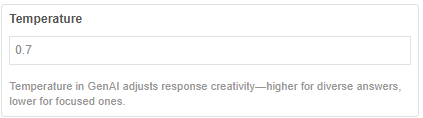
Enter a decimal value for the temperature. The temperature value ranges from [0-1].
The higher the temperature value, the higher the creativity in outputs. The lower the temperature, the outputs are more deterministic or stable. For tasks like fact-based questions and answers, you can enter low temperatures to encourage more factual and concise responses. For creative tasks, you can enter higher temperature values.
If you give the temperature, say 0.1, it will be more stable and give output as a straight answer to your query or question without adding any additional or decorative information relevant to it. Also, multiple searches for the same query will result in almost similar output.
If you give a temperature, say 0.6, for each search of the same query, you can expect more creativity or variation in answers.
Max Tokens
Tokens are the fundamental units of text that the AI model processes.
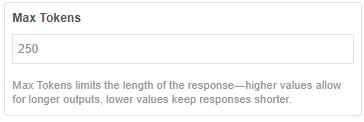
Enter a number as the maximum limit of output tokens to be allowed for a request. This limit applies to both your input (prompt) and the AI's output (response) combined.
For example: The upper limit for the maximum token is currently 32768 for OpenAI. The upper limit varies depending on the LLM model that you select, and the token limit can also vary.
Seed
A seed in Generative AI is a starting value that controls randomness, ensuring consistent and reproducible results. Seeds allow you to explore the creative space of the Gen AI model in a more controlled way.
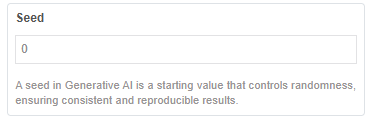
Enter a positive integer as the value for Seed. Seeds are always whole
numbers (integers).
By keeping the same prompt and changing the seed, you can get different variations of the same idea. If you use the same prompt and seed, you will (generally) get the same result every time.
Using a seed value of -1 might tell the system to ignore any specific seed and generate a completely random starting point each time. Other negative numbers are generally not valid or recommended for use as seed values. Also, you wouldn't typically use decimal or fractional values for a seed.
Top p
Top P in GenAI filters responses by probability—higher values consider more possibilities; lower values focus on the most likely options. The higher the value for top p, the more likely the tokens are selected from a probability distribution. The top 90th percentile is a good probability.
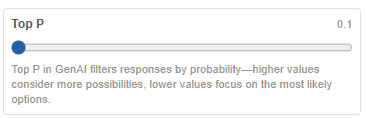
Scroll the slider to the right and the top-P value appears on the top-right. Top p value is in decimal. Top P value ranges from [0-1].
If you use Top P, it means that only the tokens comprising the top_p probability mass are considered for responses. A low top_p value selects the most confident responses, and a high top_p value will enable the model to look at more possible words, including less likely ones, leading to more diverse outputs.
Stop sequences
Stop Sequences define specific text patterns that, when encountered, signal the model to stop generating further output.
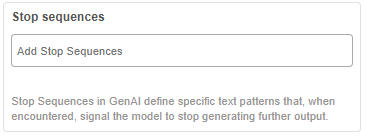
Enter a stop sequence number or word. A stop sequence string (word) stops the LLM model from generating tokens.
Stop sequence configuration is a way to control the length and structure of the model's response.
For example: Enter "11" as the stop sequence, and the model will generate lists that are restricted to 10 items.
Frequency Penalty
Frequency Penalty reduces repetition in GenAI responses—higher values discourage repeated phrases, ensuring more varied output.
The frequency penalty imposes a penalty on the next token proportional to how many times that token has already appeared in the response message and prompt. That is, the penalty imposed is based on the number of times the word appeared before. The higher the frequency penalty, the less likely a word will appear again. This reduces the repetition of words in the model's response.
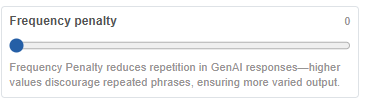
Scroll the slider to the right, and the frequency penalty value appears on the top right. The frequency penalty value is in decimal.
The range for frequency penalty is between 0.0 and 2.0
0.0 (Default/No Penalty): No penalty is applied. The model will generate tokens based on their natural probabilities, which can lead to higher repetition.
0.1-1.0 (Mild to Moderate Penalty): Recommended range for general use. It encourages diversity without forcing the model to pick rare or unnatural words.
1.1-2.0 (Strong Penalty): Applies a strong penalty. Can lead to very diverse but sometimes less coherent or grammatically awkward outputs if pushed too high, as the model struggles to use common, necessary words.
Presence Penalty
Presence Penalty in GenAI encourages introducing new topics—higher values make the model more likely to bring up different words or ideas.
The presence penalty imposes a penalty on repeated tokens, but the penalty is the same for all repeated tokens. A token that appears twice and a token that appears 10 times are penalized the same. This setting prevents the model from repeating words too often in the response. If you want the model to generate more diverse or creative responses, use a higher presence penalty.
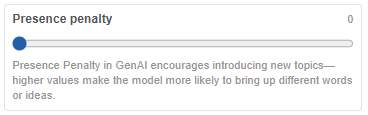
Scroll the slider to the right, and the presence penalty value appears on the top right. The presence penalty value is in decimal.
The range for the presence penalty is between 0.0 and 2.0.
0.0 (Default/No Penalty): No penalty is applied. The model will generate tokens based on their natural probabilities.
0.1-1.0 (Mild to Moderate Penalty): Recommended range for general use. It encourages new concepts without making the output incoherent.
1.1-2.0 (Strong Penalty): Applies a strong penalty. Can lead to very abstract, disjointed, or difficult-to-follow outputs as the model is heavily incentivized to avoid anything already mentioned.
Masking
Mask any confidential matter that can appear in the output using the Masking feature in the LLM configuration. In this way, you can hide any particular information. Masking in GenAI hides specific parts of the input, guiding the model to focus on or predict only certain sections of the text.
Select a Masking type. The two different types of masking configurations available are Regex (Regular Expression) and NER (Named Entity Recognition).
Regex Masking:
Regular Expression (Regex) masking allows you to provide a regex pattern, and that pattern in the output is identified for masking using the mask characters as provided.
- Click Regex. Regex masking details appear.
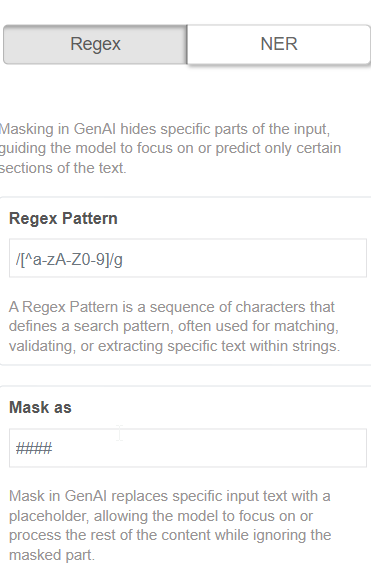
Regex Pattern*: Enter the regex pattern that should be masked.
A Regex Pattern is a sequence of characters that defines a search pattern, often used for matching, validating, or extracting specific text within strings.
For example: /[^a-zA-Z0-9]/g
The above pattern masks all characters that are not letters (a-z, A-Z) or numbers (0-9), applying this filter globally to find all such occurrences. The system uses the character provided in the “Mask as” field to mask the characters.
Mask as*: Mask in GenAI replaces specific input text with a placeholder, allowing the model to focus on or process the rest of the content while ignoring the masked part
Enter a character or symbol using which the matching text should be masked. The mask characters replace the matched input text (as per the regex pattern).
NER Masking:
Named Entity Recognition (NER) is a Natural Language Processing (NLP) method that extracts information from text. NER involves detecting and categorizing important information in text known as named entities.
- Click NER. NER masking details appear.
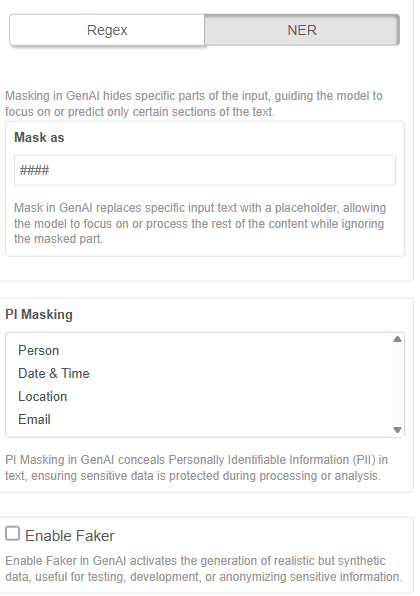
Mask as: Mask in GenAI replaces specific input text with a placeholder, allowing the model to focus on or process the rest of the content while ignoring the masked part.
Enter the character or symbol using which the matching text should be masked. The mask characters replace the matched input text (as matched with the PI masking entered).
PI Masking: PI Masking in GenAI conceals Personally Identifiable Information (PII) in text, ensuring sensitive data is protected during processing or analysis.
In the PI masking list select the type of output text that need to be masked. To select multiple items, CTRL+click the required items.
-
Person: The person names are masked with the mask character provided.
-
Date & Time: The date and time are masked with the mask character provided.
-
Location: The location names are masked with the mask character provided.
-
Email: The email ids are masked with the mask character provided.
Enable Faker: Enable Faker in GenAI activates the generation of realistic but synthetic data, useful for testing, development, or anonymizing sensitive information.
Select Enable Faker if you want to fake the text with some other text of choice. In this case, you need not give a mask as text as it self decides what fake text to be given instead of masking. It will replace the identified text, say organization name, as some random organization name.
If you do not want to enable faker, deselect Enable Faker and just enter the character or symbol using which the matching output text should be masked.
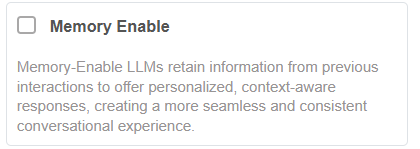
Memory Enable
Memory-enabled LLMs retain information from previous interactions to offer personalized, context-aware responses, creating a more seamless and consistent conversational experience.
Cache Configuration👑
This content is applicable for Enterprise plan
Adding Plugins👑
This content is applicable for Enterprise plan
Adding Document Ingestion👑
This content is applicable for Enterprise plan
Enabling Guardrails
Guardrails allow you to provide a watch on information security. Guardrails are rules or constraints that guide the LLM's behavior. These specific instructions can limit or direct the LLM’s responses. It validates and mitigates specific types of risks as per the guardrail configurations.
When guardrails are configured separately, they apply to all the instances of the LLM. It can block certain topics, enforce maximum response lengths, or mandate ethical behavior across all interactions.
Create multiple guardrails for the agent with different security levels or breach information.
Sensitive information is effectively handled by the chatbot as defined in the selected guardrail.
- Navigate to Agents tab > click edit icon.
-
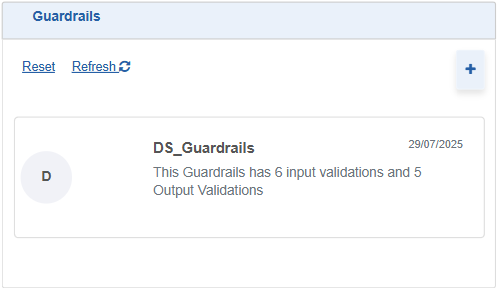
Click the Guardrails section to view the list of guardrails. If no guardrails are configured, blank list appears. You must create a guardrail to enable it.
-
Click a guardrail name to enable that guardrail.
-
When you select a Guardrail from the Guardrails list, a tick mark appears on the bottom right of the selection indicating that it is selected. To deselect this, you must click Reset. You can select multiple guardrails.
-
To create and add new guardrails to the list, click “+”. It navigates you to Management > Gen AI Studio > Guardrails.
Refer to Gen AI Studio documentation.- Reset: Click Reset to reset the selection of any guardrail. That is, no guardrail is selected.
- Refresh: Click Refresh to refresh the list. When you create add a new guardrail, you must refresh the Guardrail list so that it appears on the list.
-
Prompts
There are different sections in the AI workbench that define the different aspects of the prompts.
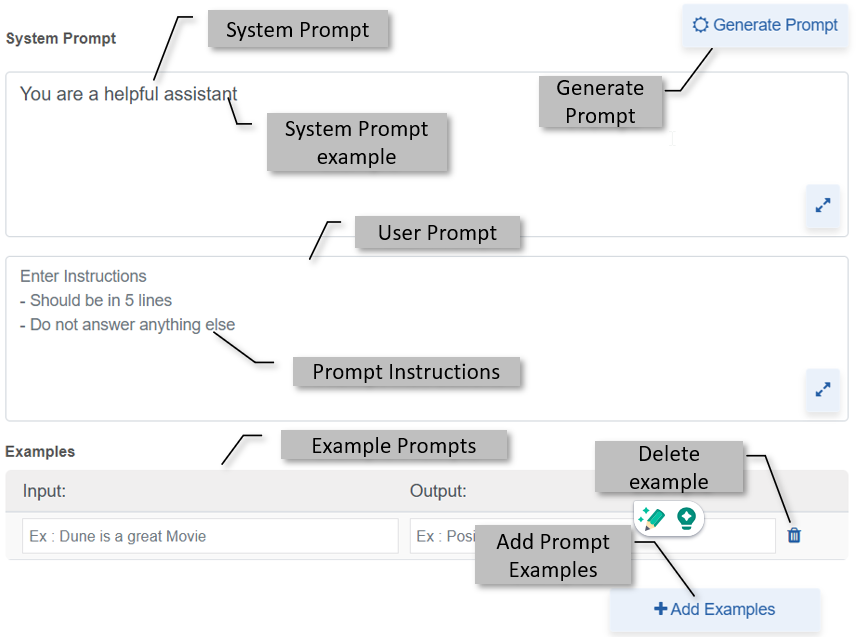
System Prompt
This is where you write the prompt for your agent. Except for custom activity, the system prompt is predefined according to the category it is.
For a specified activity category, predefined system prompt templates are available for selection. Select a template and edit it as per your requirement.
For the custom activity, the system prompt is generic: “You are my helpful assistant’. Edit the details to design your own prompt.
In the System prompt text area, enter the prompt for your agent. Add your prompt along with the existing prompt or enter a new prompt. Give standard instructions in the prompt. The prompt that you provide will be amended to each message entered at runtime.
- Make sure to give the prompt in a good and understandable structure.
It is your prompt that makes the agents take decision on what tools to
use, which functions to use, etc for answering your requests.
If you are using multiple complex tools, explicitly mention when to use which tools.
Also, refer to Adding Variables and Functions in Prompt.
User Prompt
Provide instructions for your agent in this user prompt text box. The agent will adhere to these instructions at runtime.
Example for Instruction:
Should be in 5 lines.
Do not answer anything else.
Adding Functions and Variables in Prompts
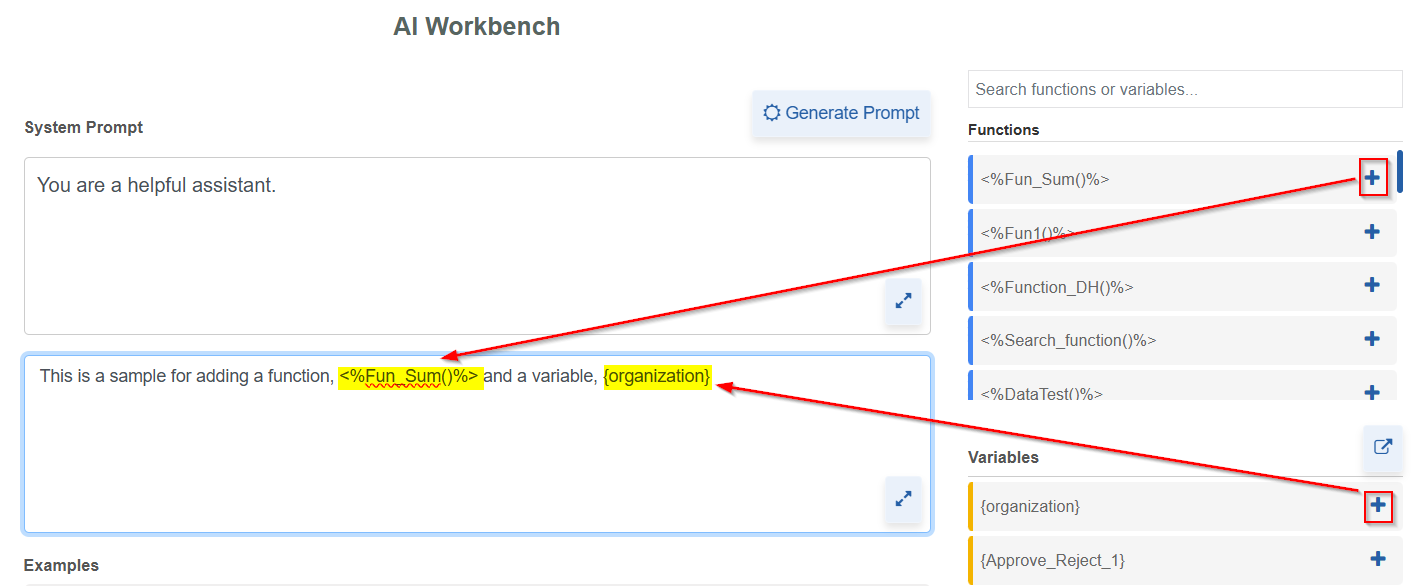
System Prompt and User Prompt boxes accept functions and variables.
Functions and Variables must be created and added in the Functions and Variables section.
- Click the system or user prompt input box.
- Enter the prompt text as needed and place the cursor where you want to add the function or variable.
- Click “+” adjacent to the function name that you prefer to add to
the prompt
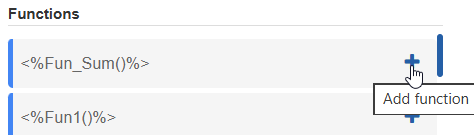
The function gets added to the prompt. Function format:<%Fun_name()%>
To create a new function of your choice, refer to Functions. -
Click “+” adjacent to the variable name that you prefer to add to the prompt
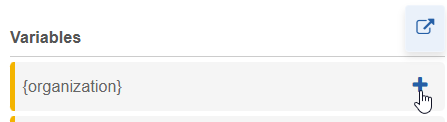
The variable gets added to the prompt. Variable format:{variableName}.To create a new variable, refer to Variables.
- To search for specific Functions or Variables:
Enter a function or variable name in the search box on the right-side and hit enter.

The filtered result appears.
To clear search, clear the search box and hit enter. - When you select this agent for chatting in the inference, these variables appear on the Agent chatbot window > (click Configuration icon) Variables and Functions Configuration.
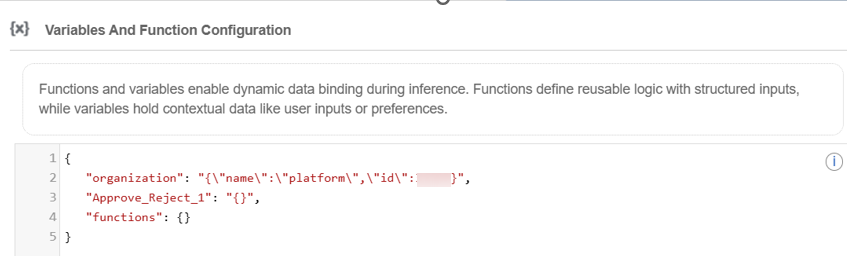
This allows you to temporarily change the values for the variables at runtime.
Adding Examples for prompt
This section is for giving examples for your prompt for a better understanding of the requirement.
The input section is to give an example text and output section is to give the output scenario that it should understand from the given example.
- Enter Input text and the Output text in the textboxes.
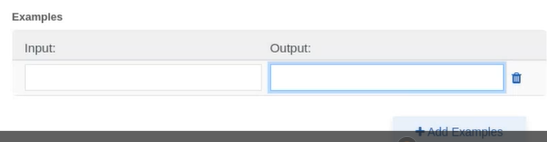
For example:
Input: The picture is really great.
Output: Positive.
The above example tells the system that the sentence given in the input box is positive.
- Click Add Example to add Input and Output. You can give multiple example inputs and outputs to the system.
- Click the delete icon adjacent to the Input/Output to delete that entry.
Generating Prompt
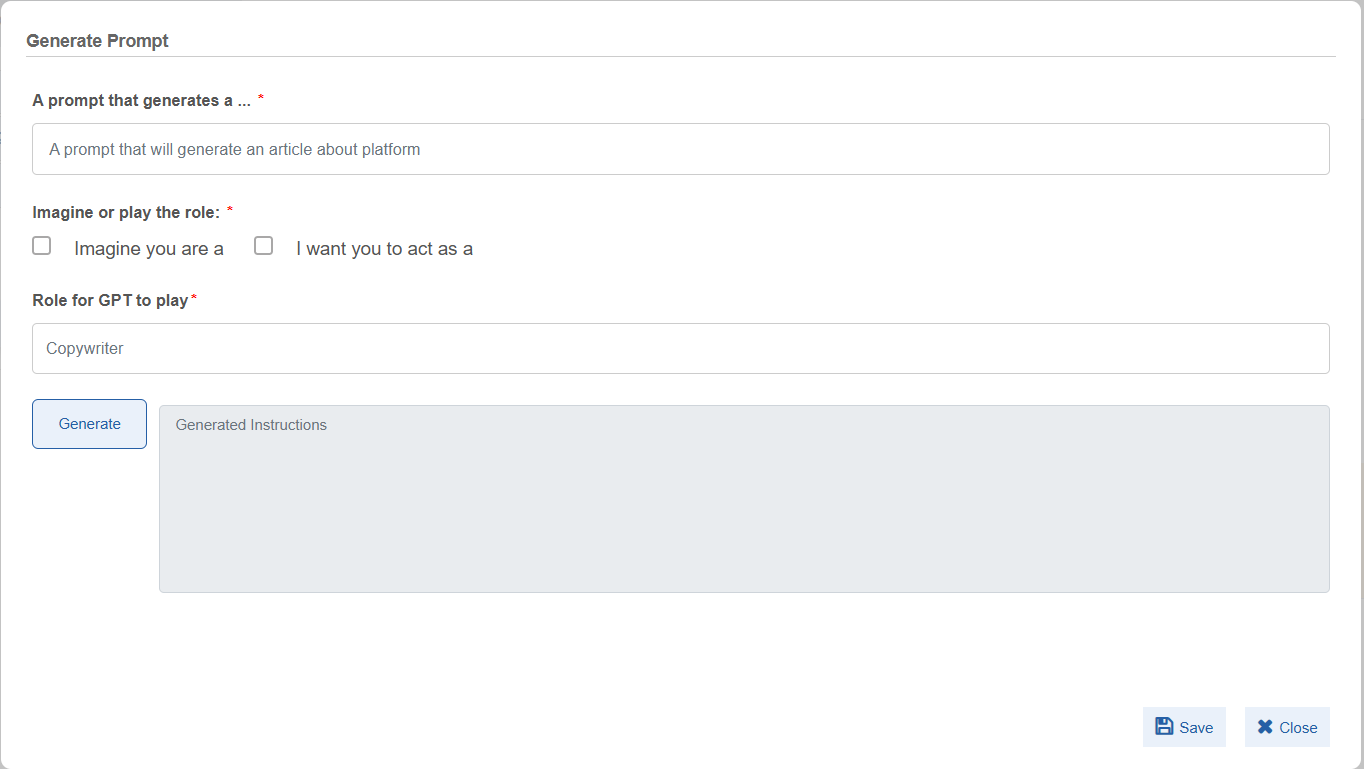
Generate a prompt by providing the necessary details in the prompt-generating template so that the system understands your requirement clearly.
-
Click Generate Prompt. The pop-up appears with the prompt-generating template.
-
Provide prompt details in the template as instructed below.
Field Description A prompt that generates a … Enter your requirement prompt. Specify how you want this agent to behave. Imagine or play the role Select Imagine you are a, if you want the agent to imagine itself as something and respond accordingly.
Select I want you to act as a, if you want the agent to act as someone and respond to you.Role for GPT to play Enter what role the transformer or the agent needs to enact as. -
Click Generate to generate the prompt as per the information provided for generating the prompt.
Testing Agent
The AI workbench interface allows you to test the agent that you have created. The workbench allows you to test the agent without saving it. You need not save the agent until you are satisfied with the performance.
-
To test an existing agent, navigate to AI Workbench > Agents > click the edit icon on the agent card of your choice. Agent details open. While creating a new agent, you can test the agent on the Agent creation page to test the agent before saving it.
-
Click Test. GenIQ Bot test chat window appears.

-
Type your question or message in the chat box and hit enter or click the send arrow. The bot displays the responses for your message.
Optional Test Scenarios:
- Select a Document Ingestion from the list. If you select a document ingestion, the agent will respond based on the uploaded document for relevant queries.
- Select a guardrail from the list. If you select a guardrail, your input messages and the output of the LLM are always filtered through the selected guardrails enabled for your agent.
- Change the AI model name in the LLM Settings while chatting, and your agent will respond as per the selected LLM model. Each time you select a model name your agent will respond based on selection in the same test chat window.
- Select or change document ingestion, guardrails, prompts, etc. to view how the bot responds to you based on your selection in the same test chat window.
Copying CURL for Testing
You can copy an Agent CURL and test it API testing tools. The agent creation page allows you to copy the CURL for testing purposes.
- Navigate to AI Workbench > Agents > click the edit icon on the agent card of your choice. Agent details open. Or click AI Workbench > Activities > {Activty Type} to create a new agent.
- Create or edit you agent as per your need.
- Click CopyCURL.
- Use the copied CURL in API testing tool like postman to test it by providing the required parameter defined in the curl.
Creating and Saving the Agent
To create the agent, firstly, you must select an activity (Activities tab) and then define its configurations. If you are satisfied with the performance and output of your agent after the testing, save the agent.
- Navigate to AI Workbench > Activities > select an activity or select custom > provide the configurations > test the agent.
-
Click Save button on the bottom right.
-
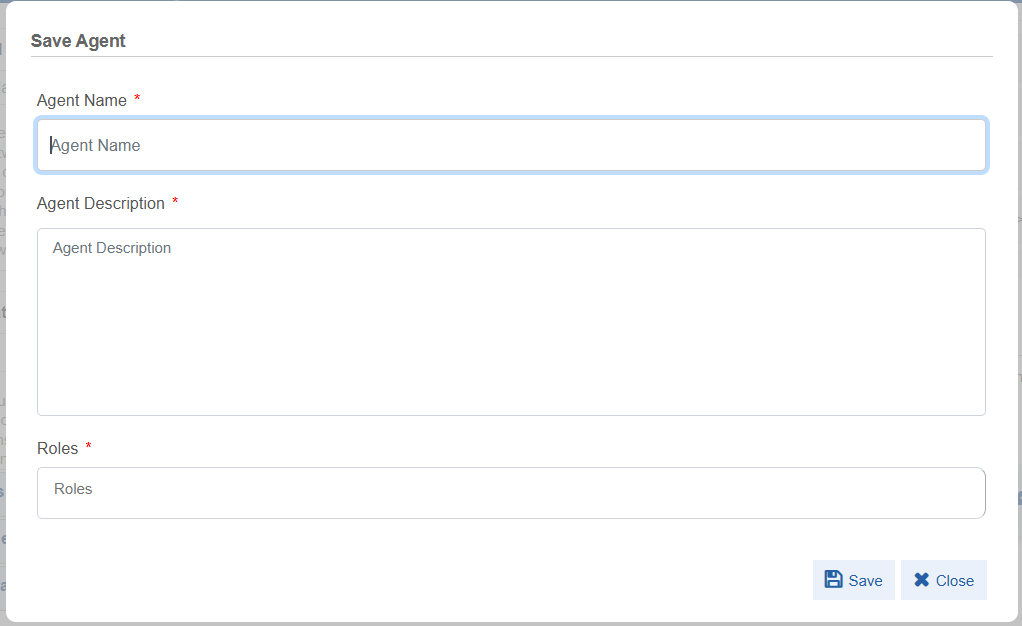
Enter the details in the Save Agent popup.
Configurations Description Agent Name* Enter a name for your agent. Agent Description* Enter the description for your agent. Roles* Select the role(s). Users with the selected roles get access to this agent. 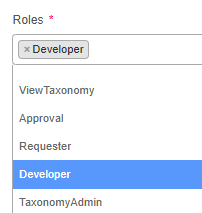
Selected roles are listed in the box.
Click the close icon to remove the role from the list. -
Click Save. The created or updated confirmation message appears on successful saving of the agent.


The agent is saved and will be available in the Agents tab (with status as “In Progress”).
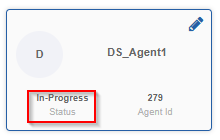
You must publish this agent to access it in the Inference > GenIQ Bot chat window.
Publishing the Agent
Save your agent to publish it. The publish feature allows you to publish the agent so that you can utilize your agent in the platform.
When you publish an agent, it appears on the AI Workbench > Agents tab with status as Active. “Active” indicates the agent is available for use.
The published agents is accessible for chatting on Inference page > GenIQ chat window to all those roles selected while saving the agent.
Configuring Publish Details
Make sure to save the agent before publishing.
-
After saving the agent, click Publish.
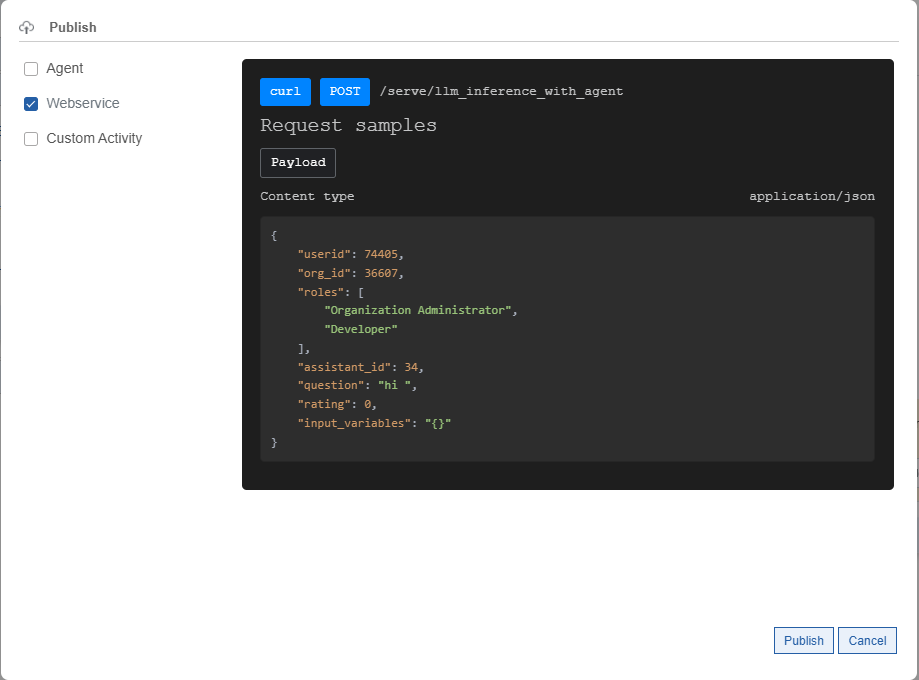
Configurations:
Configuration Description Agent Select Agent to publish the agent.
This allows you to publish your agent for utilization.Webservice Webservice is selected by default. You cannot deselect this.
By default, the agent is published as a webservice.
The sample response payload appears on the UI along with the endpoint and method.
Click the Curl button to copy the curl associated with the selected agent. Use this curl to chat with the agent using any API testing tool (e.g., Postman).
Refer to Publish as Webservice Features.Custom Activity Select Custom Activity to publish the agent as a custom activity.
If you publish the agent as a custom activity, the agent will appear as an activity in the platform process flow designer.
Refer to Publish as Custom Activity Agent Features. -
Click Publish.
On successful publishing, the "Published Successfully" message appears.
When the agent is successfully published, the agent card in the Agents tab displays status as active.
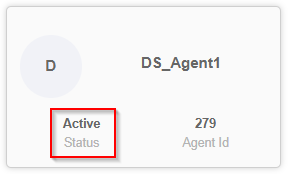
Now your agent is ready for utilization.
Publish as Webservice Features
When you publish an agent, by default, it is always published as webservice. This allows you to access the agent curl to test the agent API in any API Testing tool.
- In the AI Workbench, save the agent and click Publish.
-
Select “Webservice” if you want to publish the agent as a webservice.
When the agent is published the agent as a webservice, the agent is exported as service.
The following is a sample of curl copied.
curl

--location
'http://{server}/document_inference/api/v1/serve/llm_inference_with_agent'

--header 'X-Api-Key: bef49b63-f73f-4c2a-b2f0-797bbcbfbe29'
--header 'Content-Type: application/json'
--header 'Access-Token: 816df8e9-6b3c-4e57-9ffd-a752018464bf'
--data '{
           "agent_name": AgentTest003,
           "question": "Generate XAML for copy file?",
           "rating": 0,
           "userid": 55340,
           "org_id": 36607,
           "roles":

           \[
            "Devoloper"
           \],

           "input_variables": "{}",
           "documents": "\[\]",
           "images": "\[\]"
         }'
This is the service getting published. This is just a sample payload. You must change the details as per your user id and organization.
- Execute this webservice in any of the API tools to chat with the agent.
- Agent as webservice in Process flows: Copy the Curl and create a web service for your process flow in the platform.
Publish as Custom Activity Features
When you publish the agent as custom activity, a custom activity is created in the Management > Custom Activity section and a custom activity node appear in the platform process flow advanced activities list.
Add the agent based custom activity to your process flow for utilization.
Editing the Agent
To edit an agent:
- Navigate to Agents tab > hover over agent card and click edit (pencil) icon. Agent details appear.
- Edit the agent details and click Save. Note that the agent name cannot be edited.
You need not republish an already published agent after editing. When you edit and save an agent, the details are reflected for the published agents.
Deleting an Agent
Info
The AI Workbench currently doesn’t support the deletion of any Agent created in the UI level.
Variables
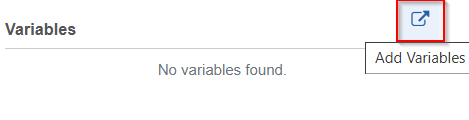
Variables can be added to your prompt, and these variables are substituted with values at runtime. The Variables section is on the top right of the AI workbench screen.
Variables types can be; platform process flow variables or custom created variables. Process flow variables accept values from the process flow when the process flow is executed. Values for the custom variables are passed through configuration section in the Bot chat settings at runtime.
Configuring Variables
The variables section allows you to create a runtime time custom variable or add a process flow variable to the variable list.
You can add either custom variables or process variables to an agent, not both. For an agent you can add process flow variables from a single process only.
Creating Custom Variable
The custom variables allow you to test the agent in the workbench interface by substituting the provided values for the variables.
To create a custom variable:
-
In the Variables section on the top-right, click Add Variable icon.
-
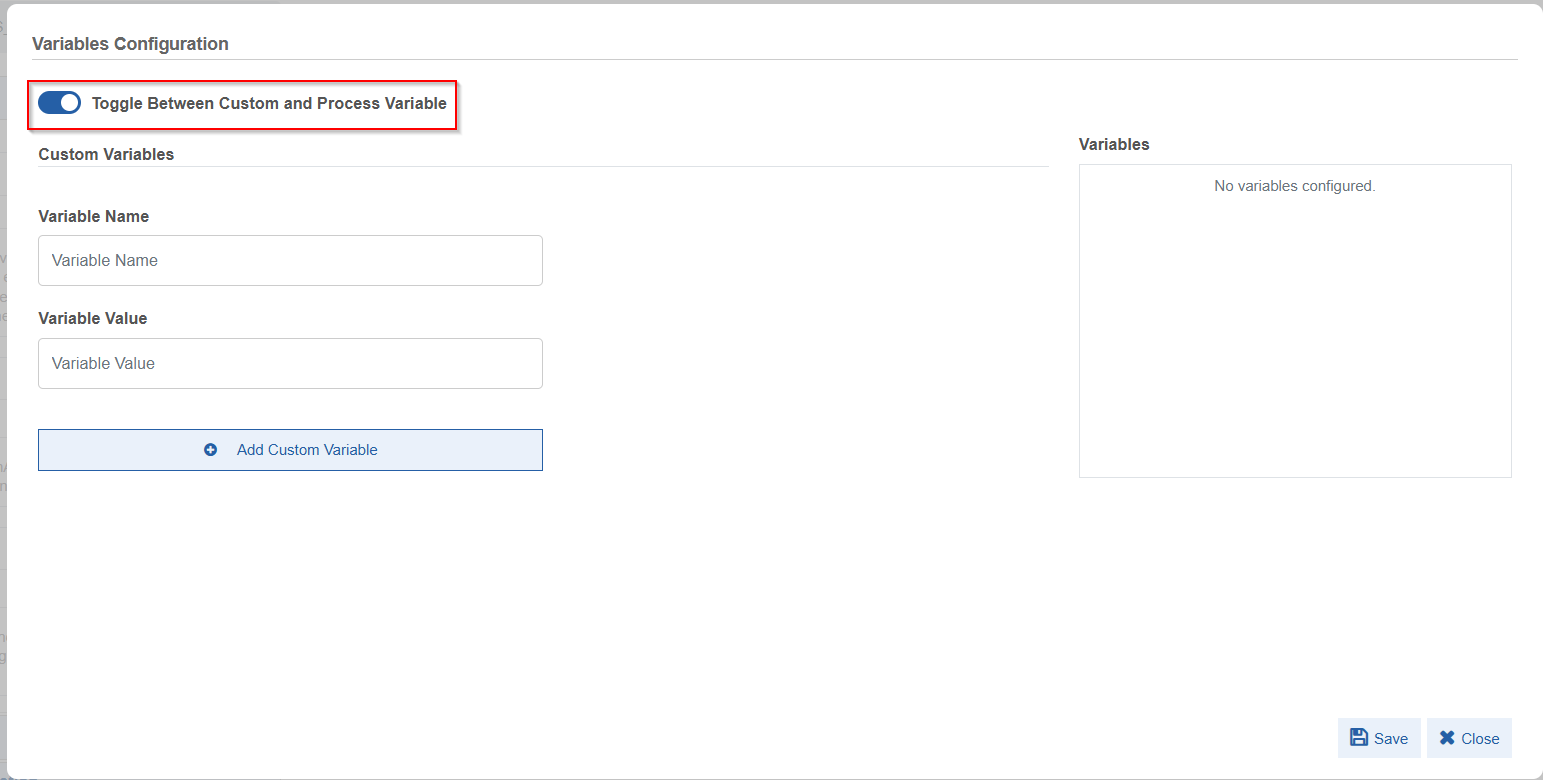
In the Variables Configuration pop-up, enable Toggle between Custom and Process Variable. When you enable this, Custom Variable configuration is enabled.
-
Provide the details for the custom variables.
- Variable Name: Enter your variable name.
- Variable Value: Enter a default value for your variable.
-
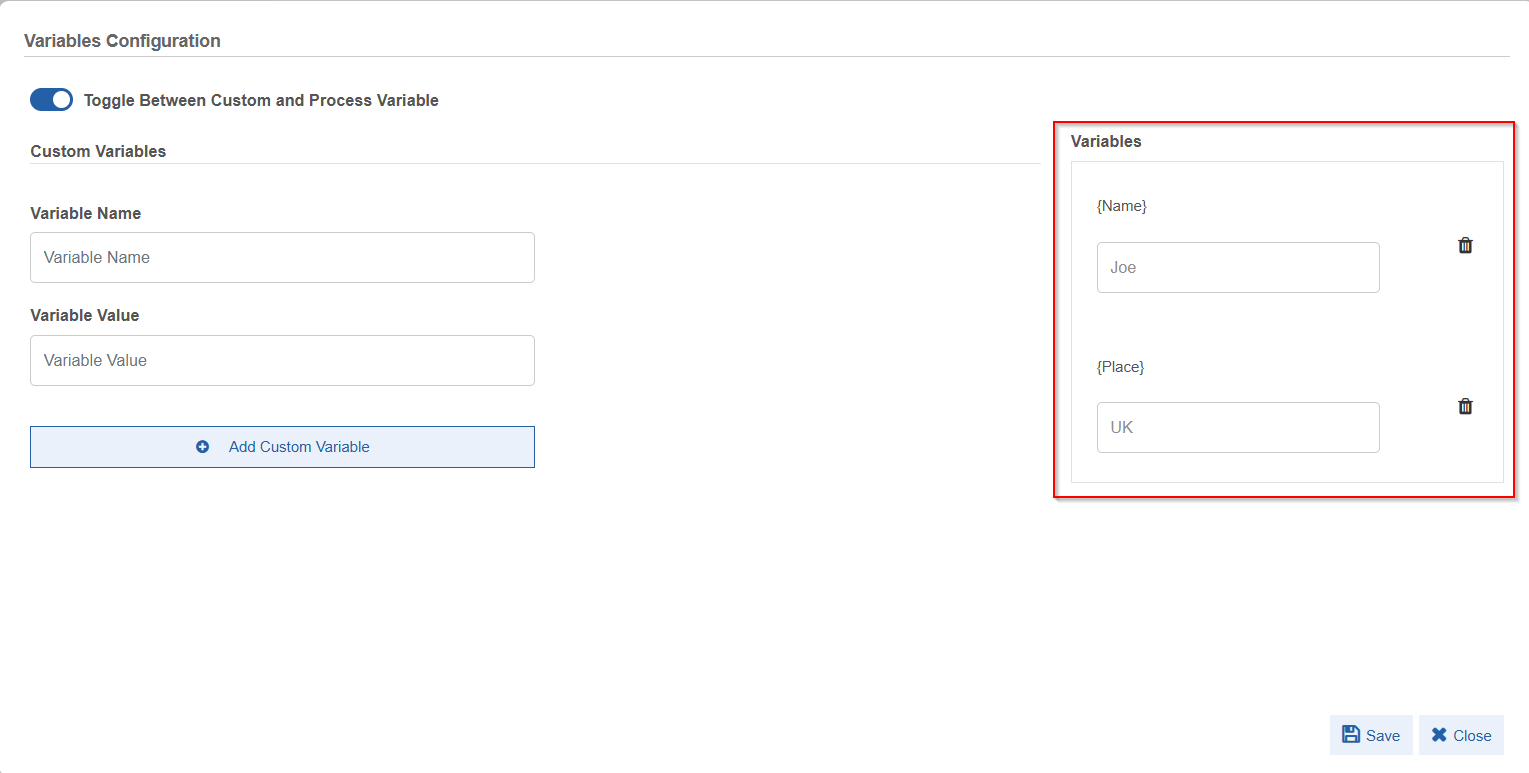
Click +Add Custom Variable. The configured custom variable (along with its value) gets listed on the right-side Variables box.
-
Click the delete icon adjacent to the variable name if you want to delete the variable created.
- Click Save in the pop-up to save the variables.
Or Click Close to discard the changes.
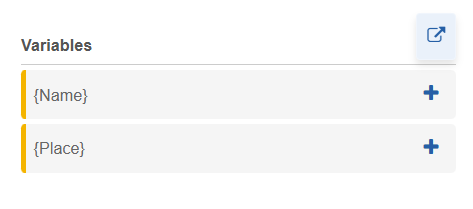
On the agent configuration page, the variables appear on the variable section.
Adding Process Variables
The variable list is associated with the platform process flows when you enable the process flow variables.
To add a process variable:
-
In the Variables section on the top-right, click add variable icon.
-
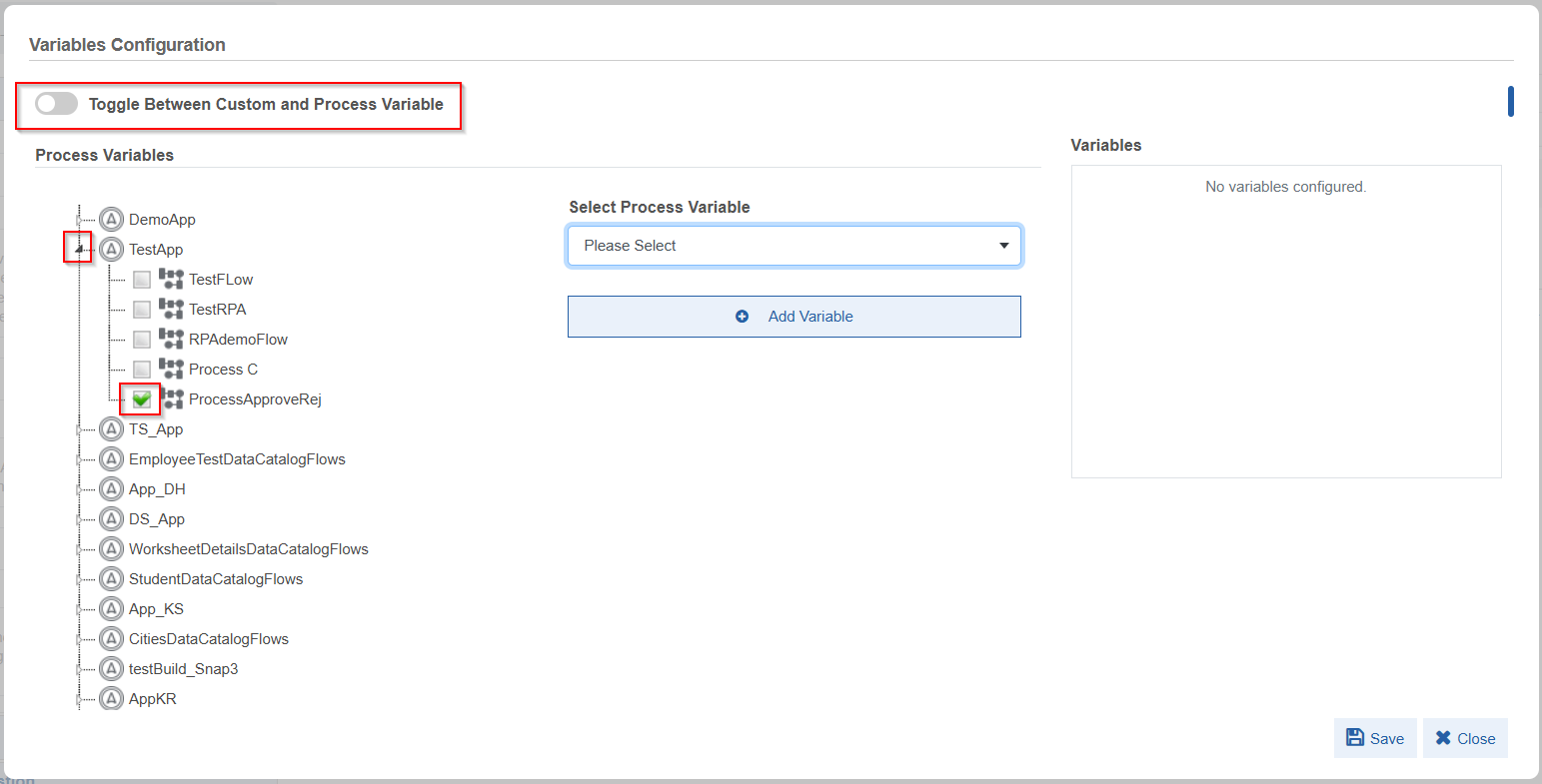
In the Variables Configuration pop-up, disable Toggle between Custom and Process Variable. When you disable this, Process Variable configuration details appear.
-
Click the arrow on the left of application name to expand the application and view the process flows.
- Select the process flow name from which you want to add the variables.
-
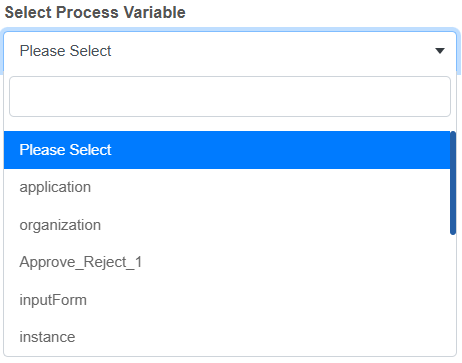
Click Select Process Variable on the center. The list of all variables in the selected process flow appears.
-
Select the required variable and click +Add Variable. The selected process flow variable gets listed on the Variables box.
Note
Note that you can add process variable from only a single process to the variable configuration of an agent.
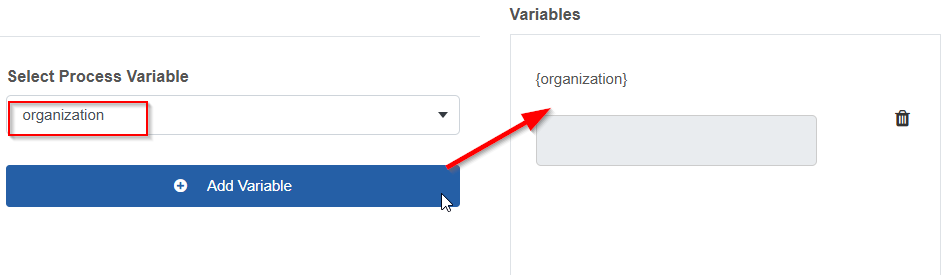
Click the delete icon adjacent to the variable name if you want to delete the variable added.
-
Click Select Process Variable and add multiple variables as per your need.
-
Click Save in the pop-up to save the variables added.
Click Close to discard the changes.On the agent configuration page, the variables appear on the variable section.
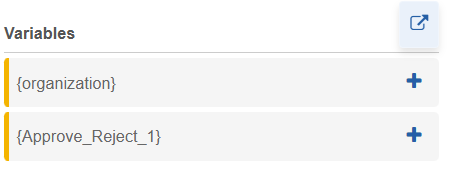
Editing Variables
You can edit the variable configuration details. You can create new variables, edit the value of an existing variable, or delete variables.
-
On the Variables section click the add variable icon.
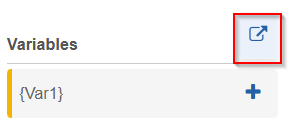
Variables Configuration pop-up appears. Variables section on the right-side displays the already configured variables.
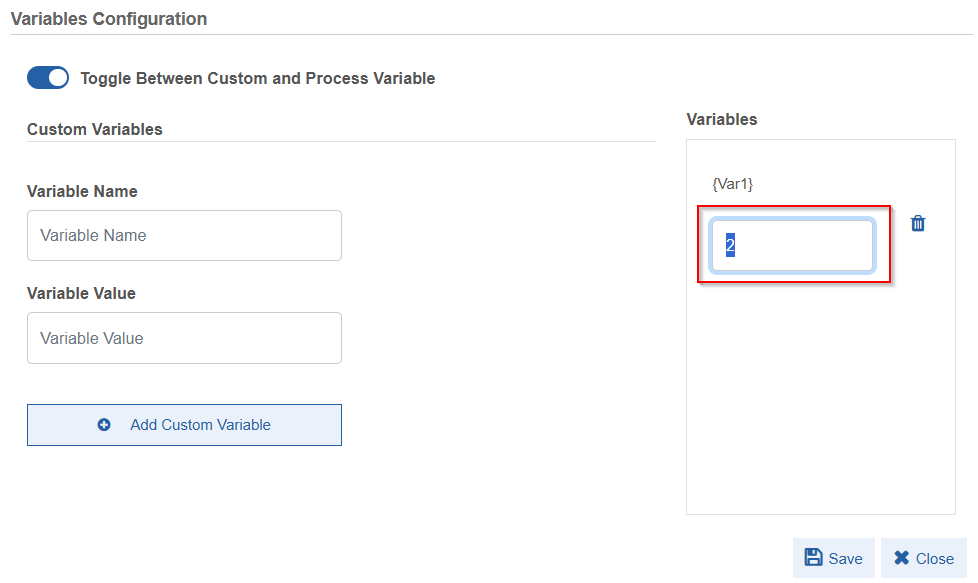
For Custom Variables:
- To edit an existing custom variable value, click the value box on the right side and type the new value.
- To add a new custom variable, provide Variable Name, Variable Value and then click Add Custom Variable.
- To delete a custom variable, click delete icon adjacent to it.
For Process Variables:
- To add new process variables, select new process variable names from the same process and then click Add variable. If you add variables from another process, the existing process variables get removed form configuration.
- To delete a process variable, click delete icon adjacent to it.
-
Click Save after editing the details. The variable gets updated with the new value and details in the Variable list.
Deleting Variables
-
On the Variables section click the add variable icon.
-
In the Variables Configuration pop-up, click the delete icon for the variable that you want to delete.
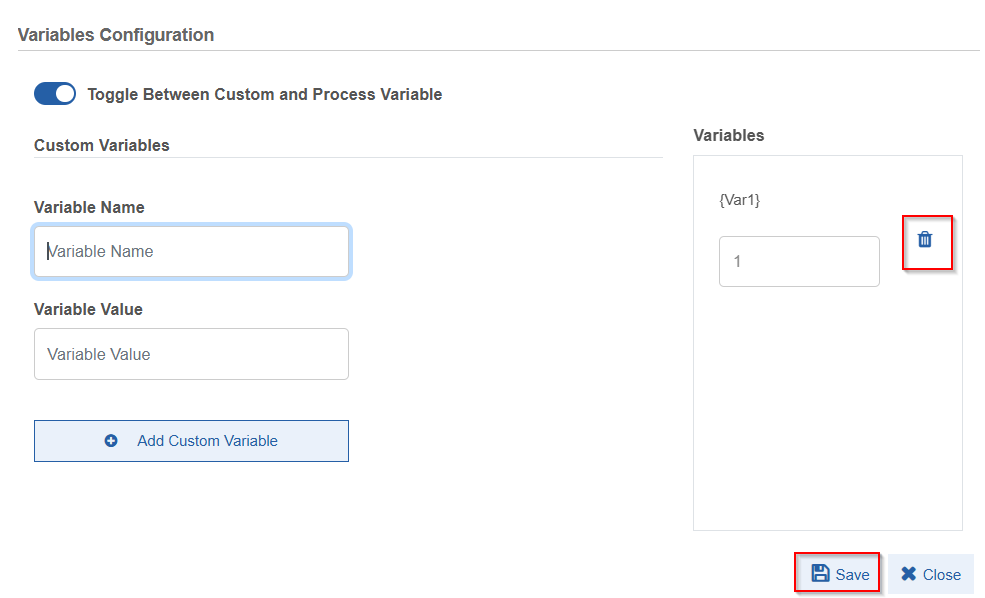
-
Click Save. The variable gets deleted from the Variable list.
Document Ingestion👑
This content is applicable for Enterprise plan
Plugins👑
This content is applicable for Enterprise plan
Tools👑
This content is applicable for Enterprise plan
Functions👑
This content is applicable for Enterprise plan
Output Parser👑
This content is applicable for Enterprise plan